Overview
Push Marketing can be used to send a mass email, app notification, and/or SMS (if enabled) announcement to a group of your customers all at once. You can optionally segment specific groups to drive engagement, such as all pet owners, pet owners who visited in the last 3 months, pets who came for a specific appointment type, pets who have a birthday this month, and more. Many businesses utilize Push Marketing to send monthly newsletters or provide certain discounts to specific customer groups.
Push Marketing can be viewed in the following areas:
- Left-hand Navigation > Push Marketing
- Left-hand Navigation > Message Hub (sent messages)
TABLE OF CONTENTS
- Overview
- Enabling Push Marketing (First Time Setup Only)
- Selecting Recipients for a Campaign
- Designing a Campaign
- How to Activate & Send a Campaign
- More Information
Enabling Push Marketing (First Time Setup Only)
If you have never sent a Push Marketing Campaign before, you will need to toggle on your customers to be opted in to receive email campaigns. This only needs to be done once! If you have already enabled these settings, please go to the next section.
1. Navigate to Settings > Business Setup > Pet Owner Notification Preferences.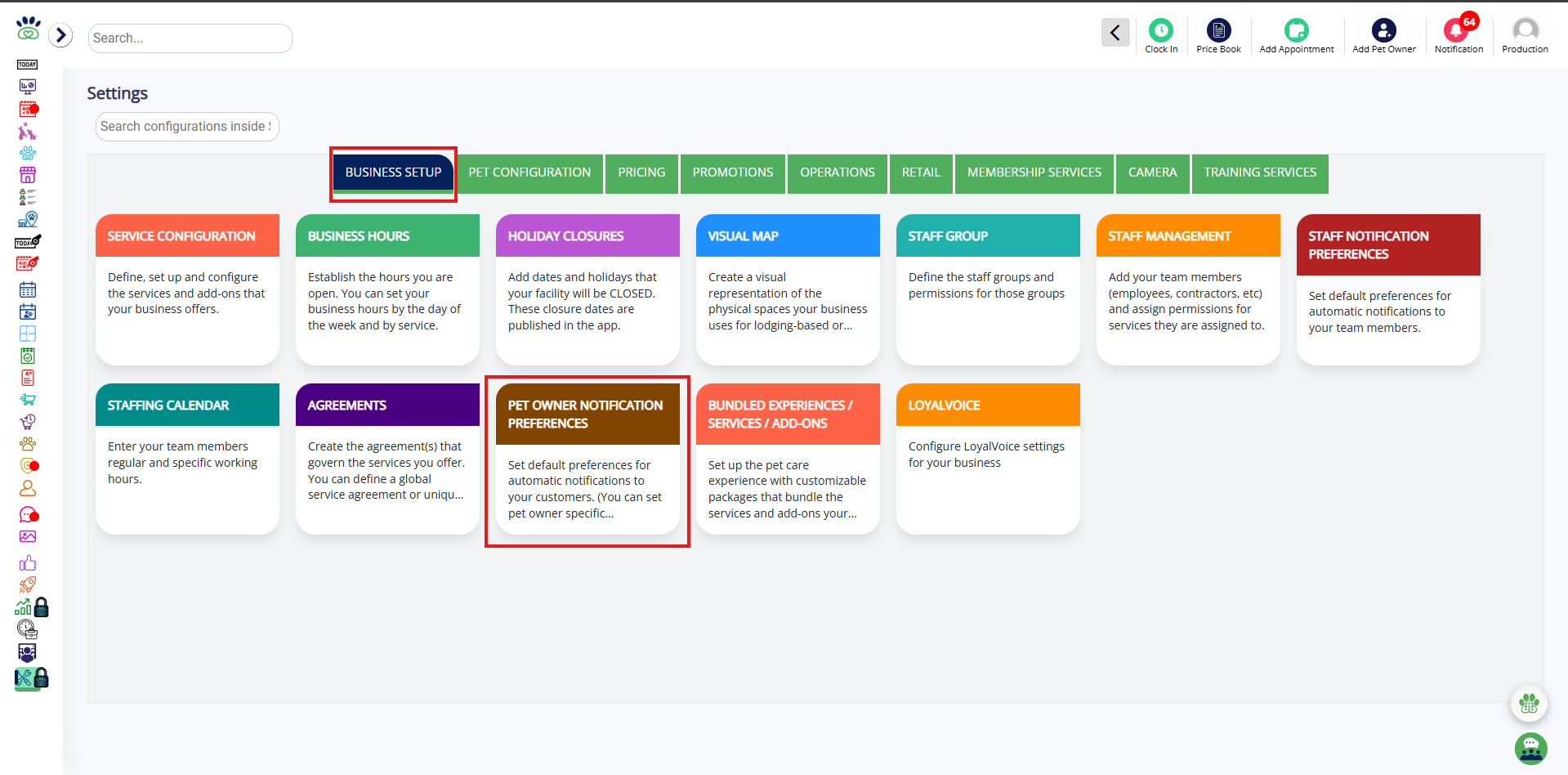
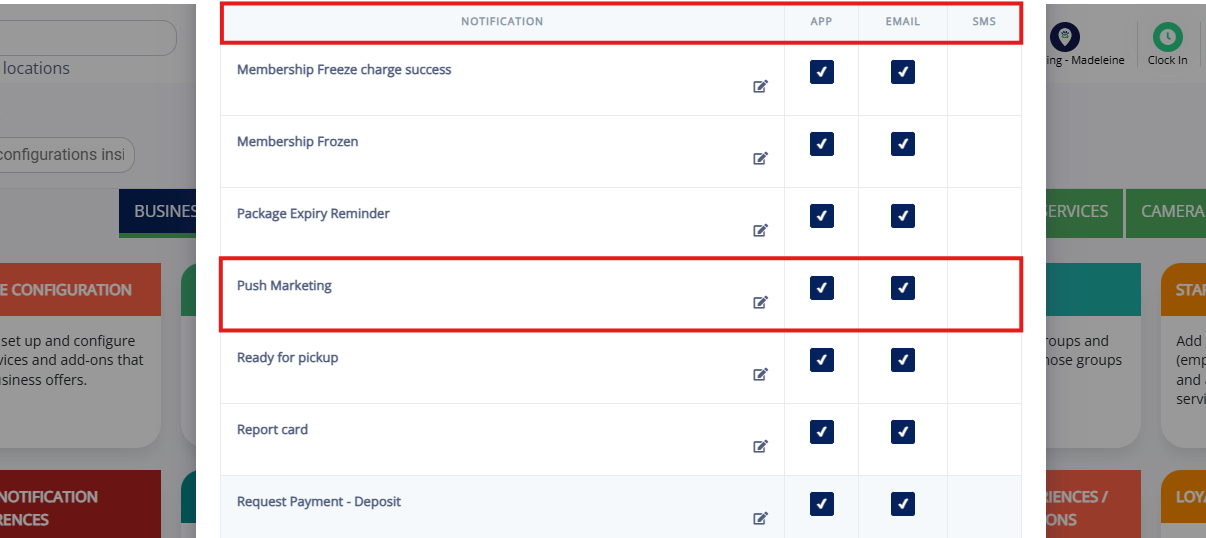
2. Make sure there is a checkmark for App, Email, and/or SMS (SMS requires the add-on feature; it will appear greyed out if not enabled).
⚠️ Important: You can select one or multiple preferences. Keep in mind that customers can receive multiple notifications if all are selected.
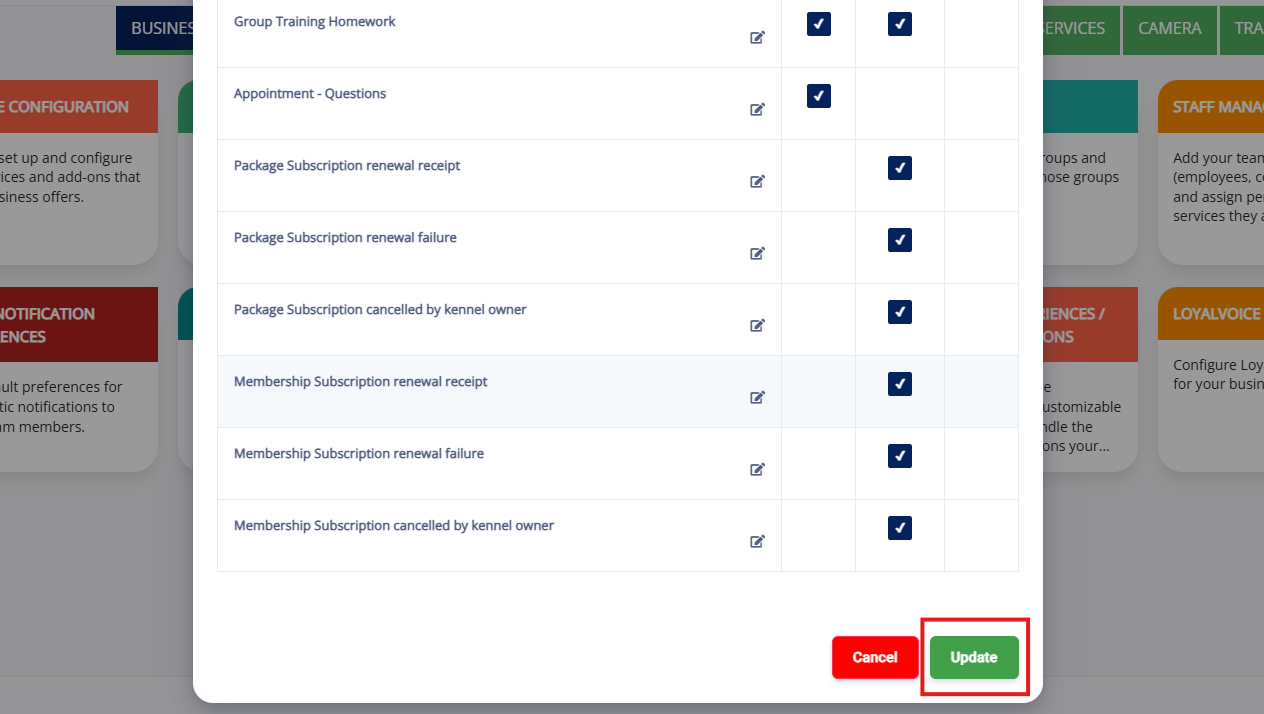
3. Click Update to save your changes.
Selecting Recipients for a Campaign
1. Navigate to Left-hand Navigation > Push Marketing.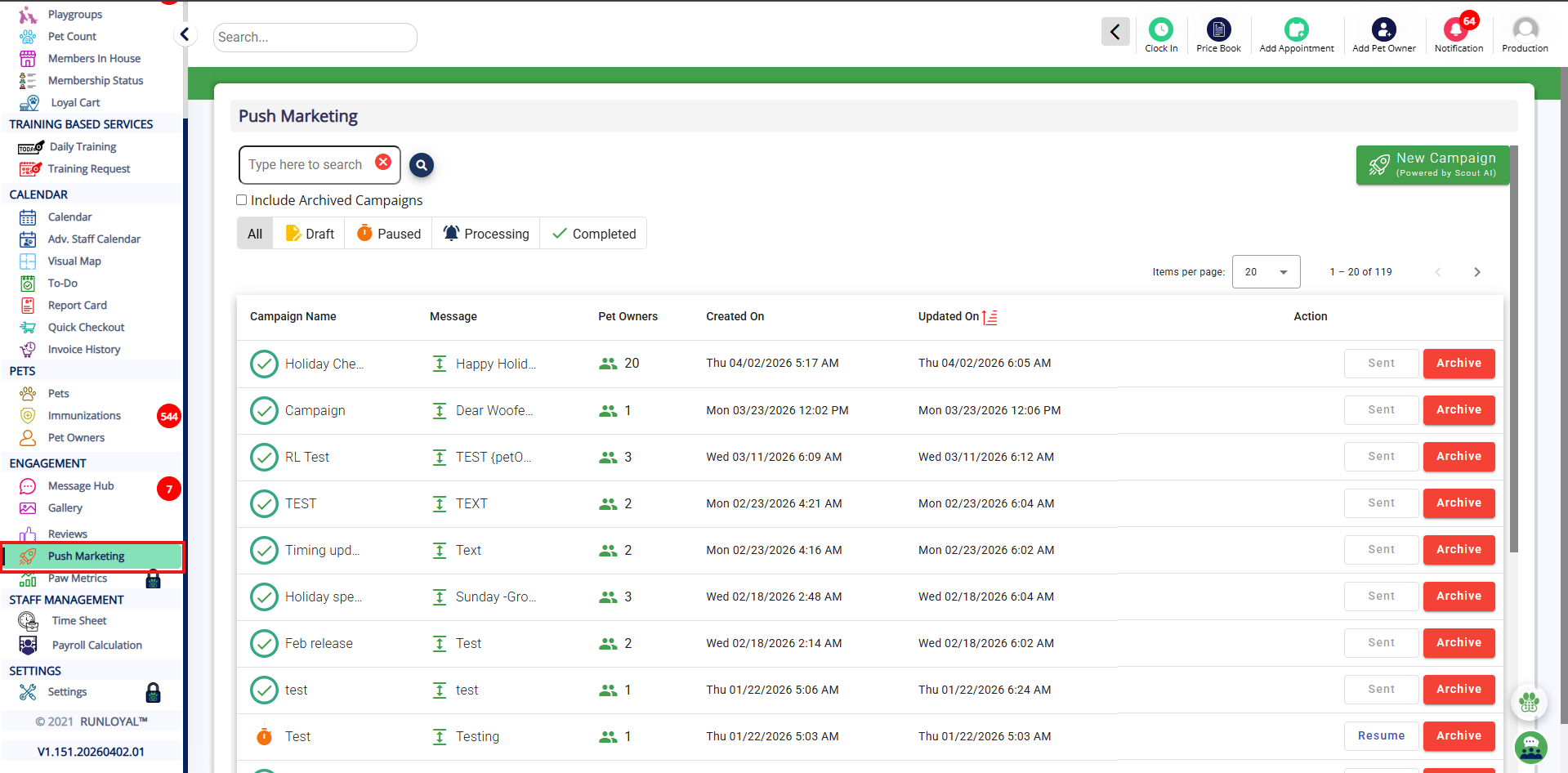
2. To create a new campaign, click New Campaign.
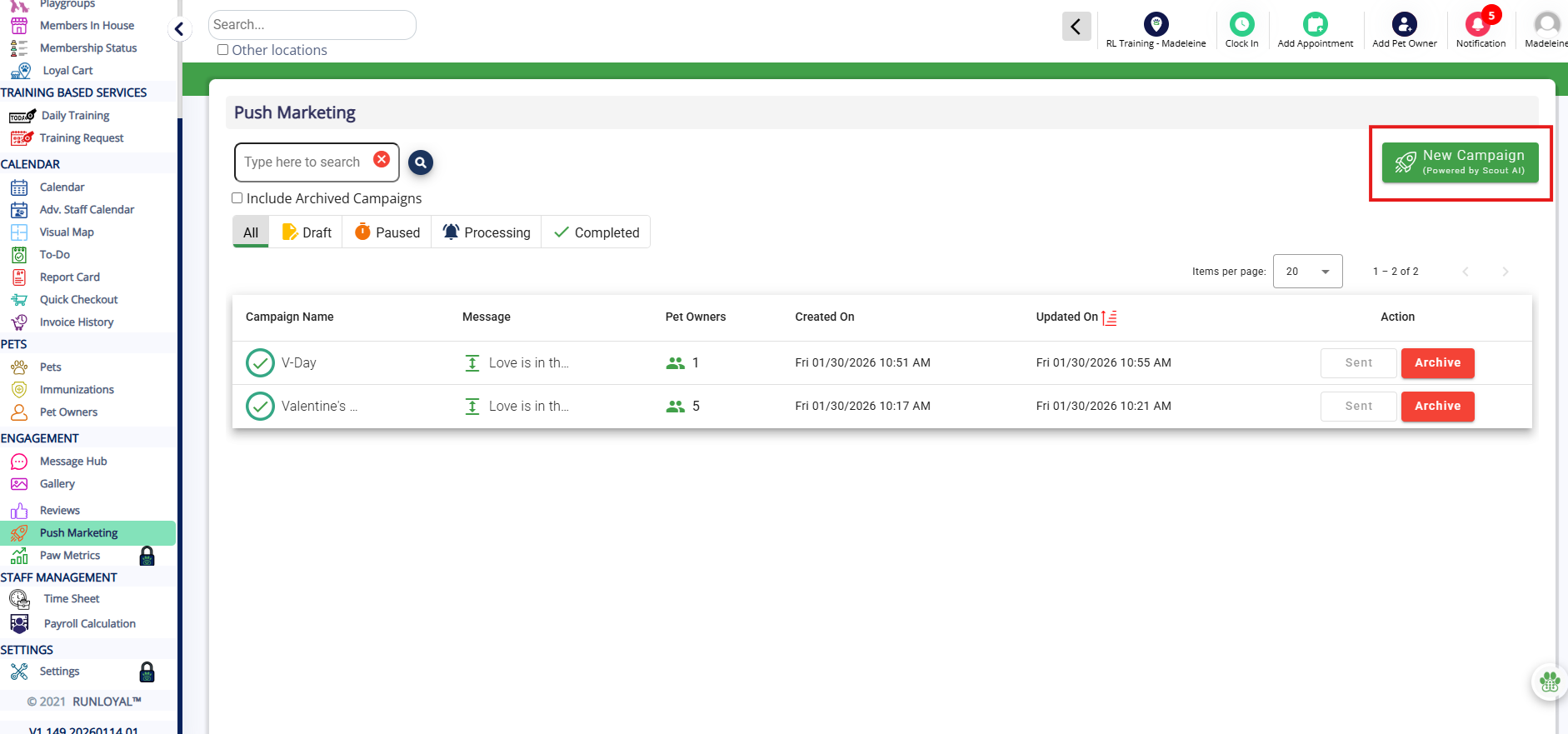
3. Select Pet-Level Filters, such as pet type, vaccination status, and or birthday by clicking Add Filter. If you do not have any pet-level filters, just click Next.
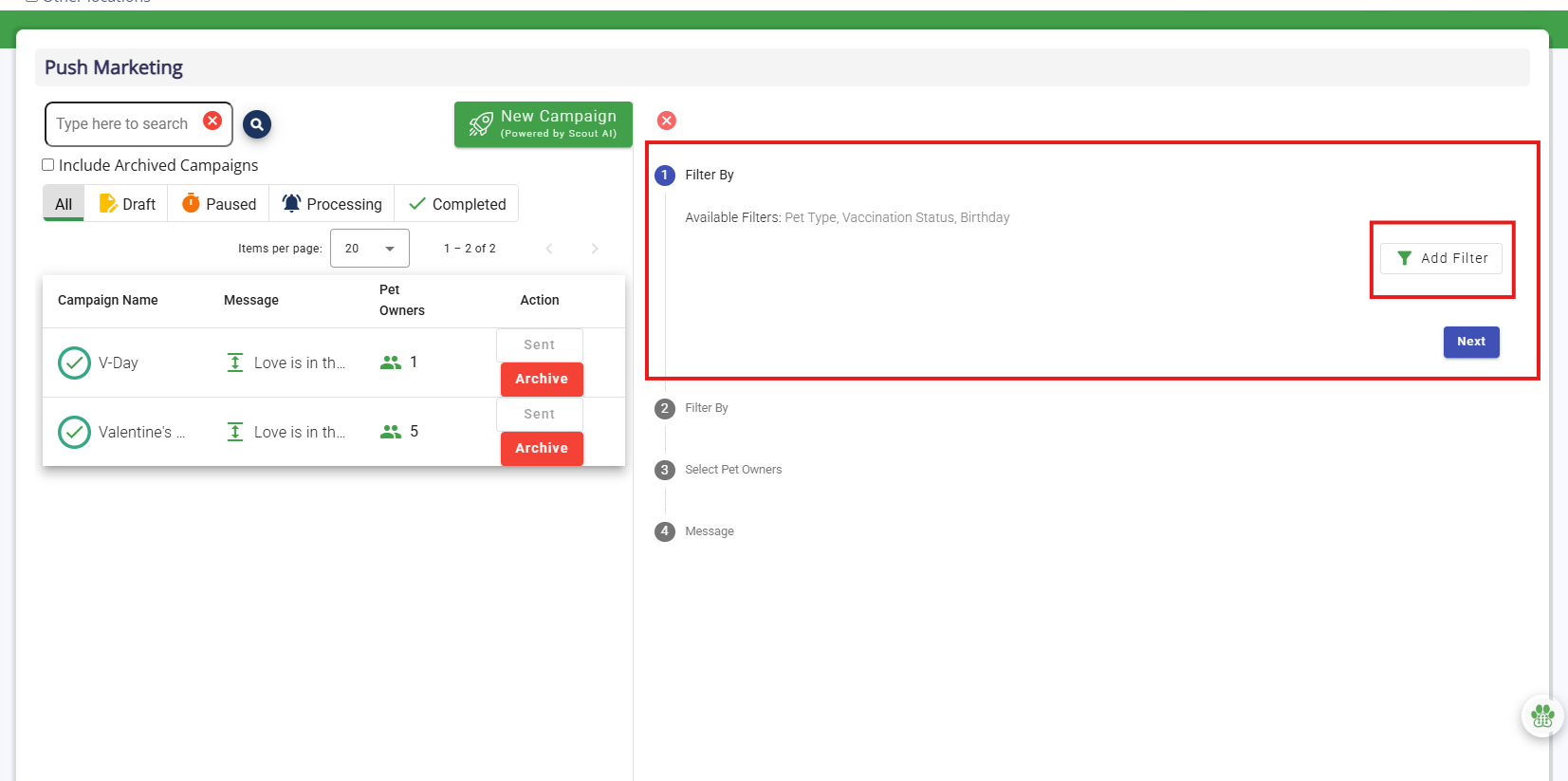
4. Once you have selected a Pet-Level Filter, you can add additional pet-level filters by clicking Add Filter again.
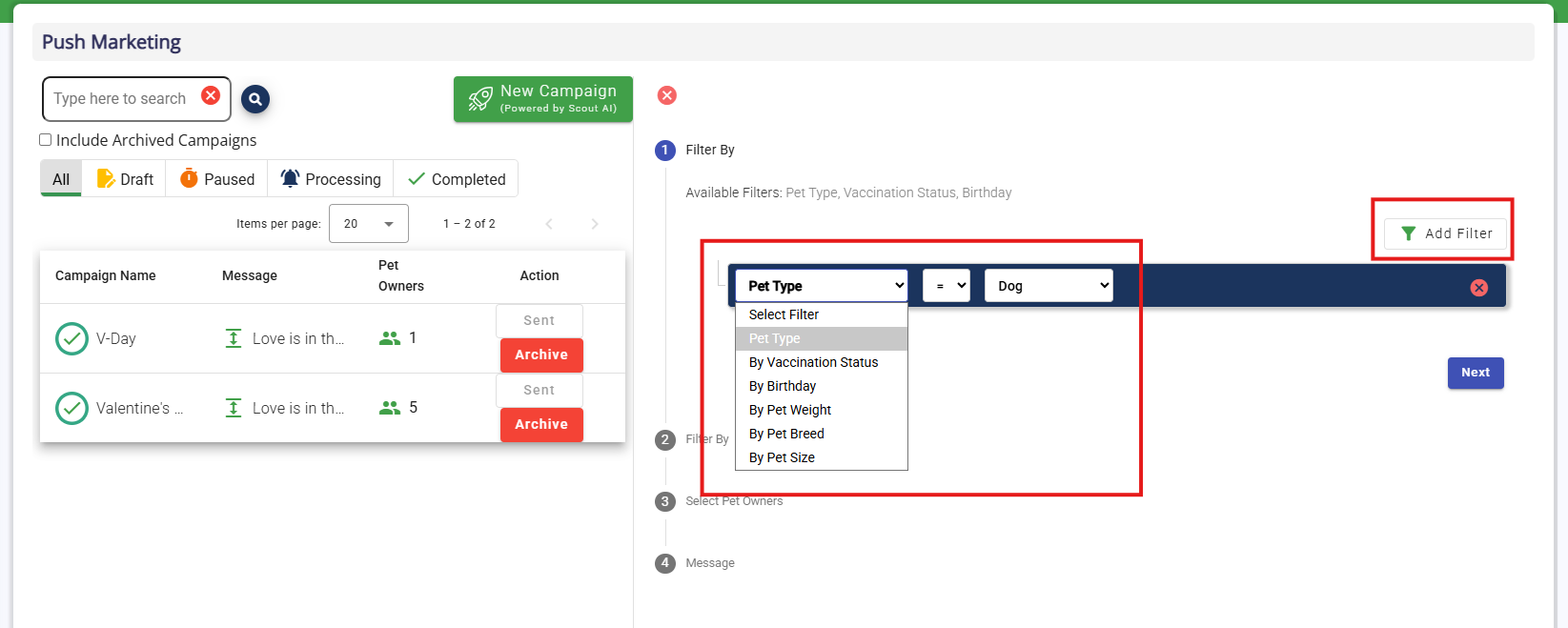
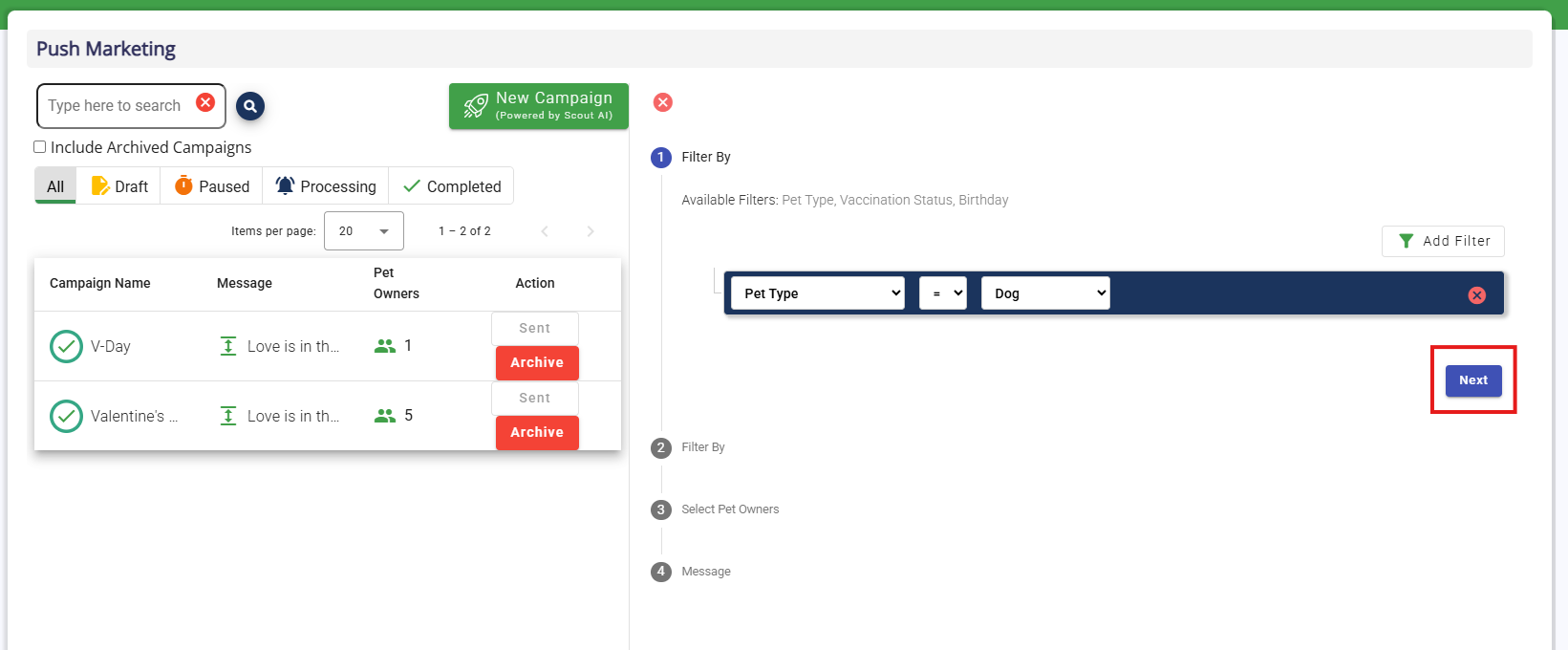
5. Once you have selected all the appropriate Pet-Level Filters, click Next. If you do not have any pet-level filters, you can skip this section and simply click Next.
6. Select Appointment-Level Filters, such as service category, package type, appointment count, and/or appointment date range, by clicking Add Filter. If you do not have any appointment-level filters, just click Next.
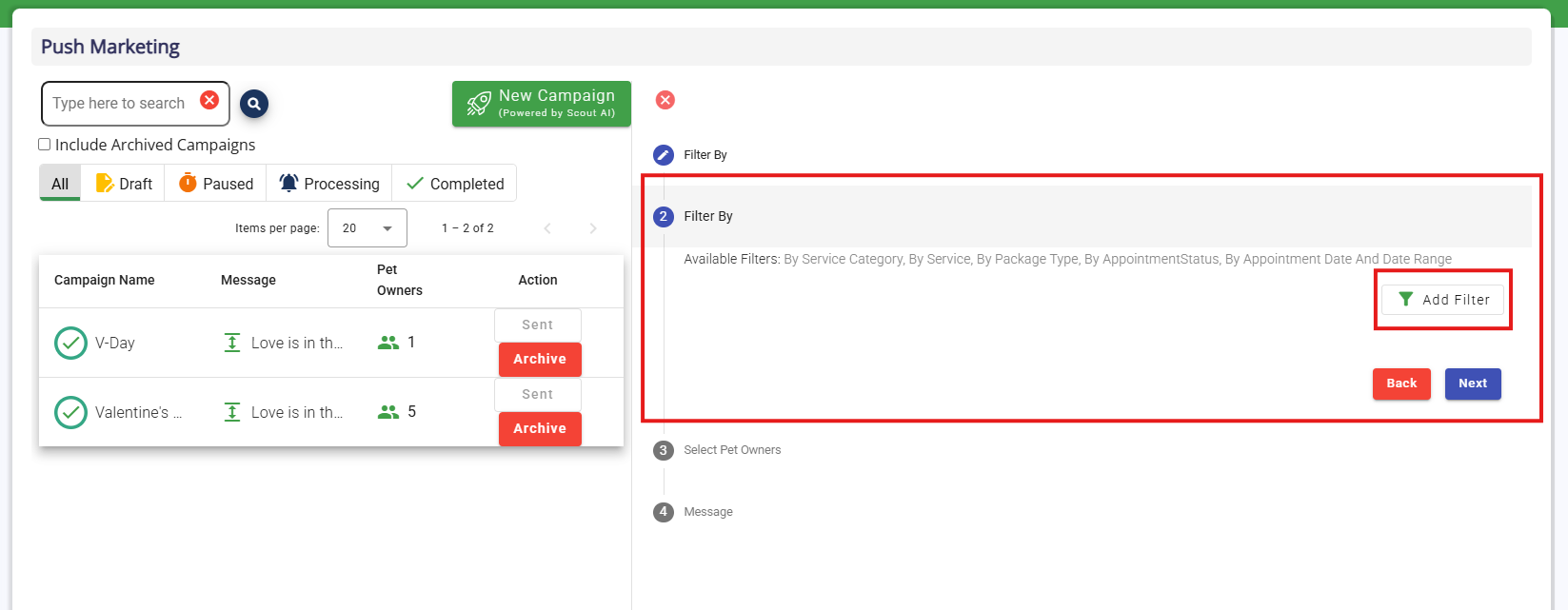
7. Select your appointment-level filter.
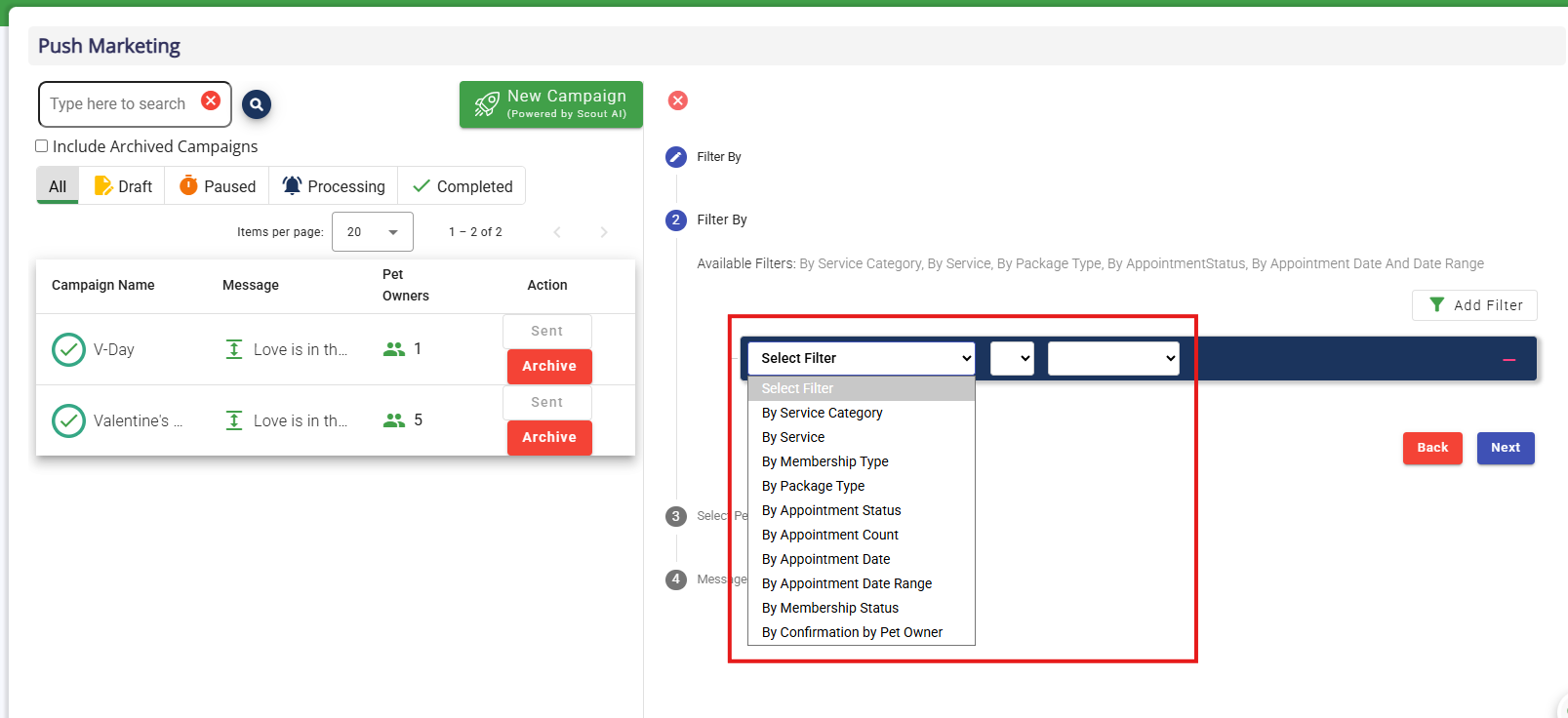
8. Once you have selected an Appointment-Level Filter, you can add additional appointment-level filters by clicking Add Filter again. For example, to filter by pet owners with Daycare appointments in the last three months, you would add filters for Service Category is Daycare and By Appointment Date Range is date(s).
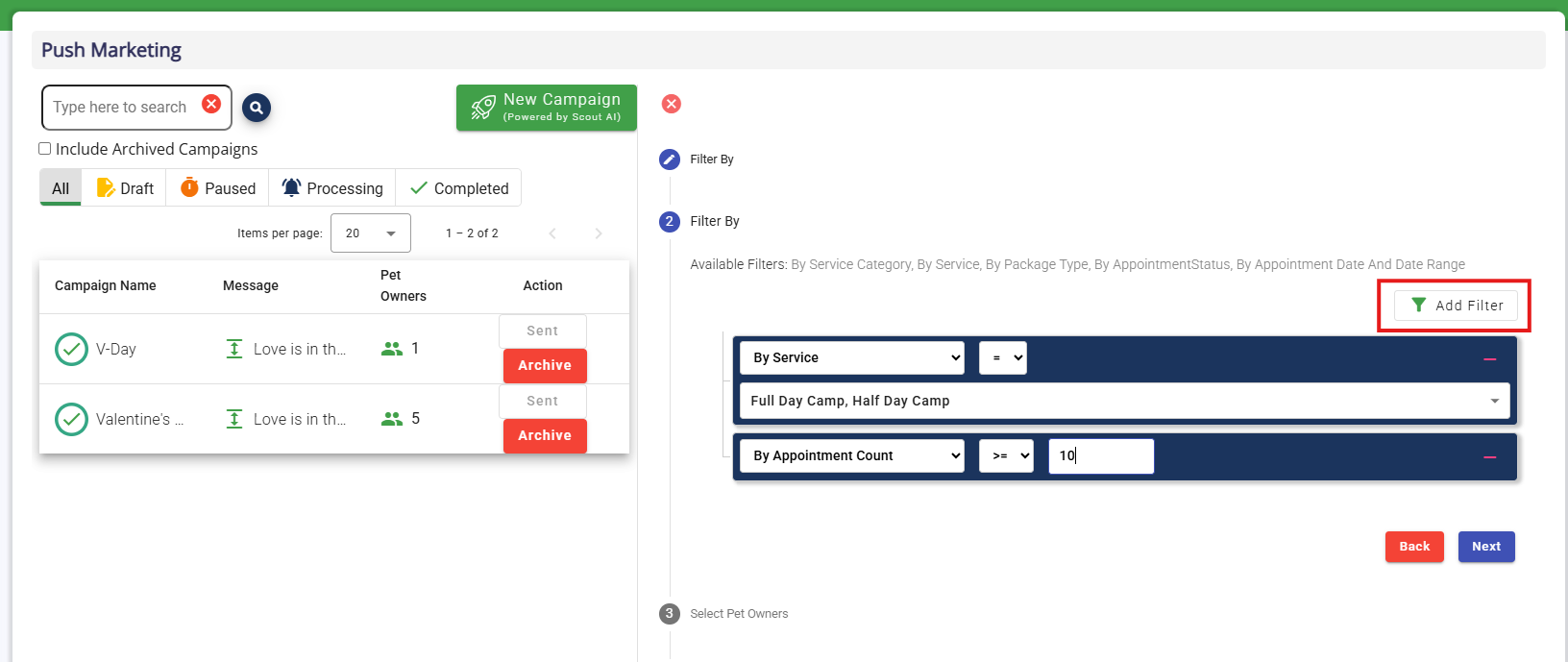
9. When you have selected all your appointment-level filter, click Next.
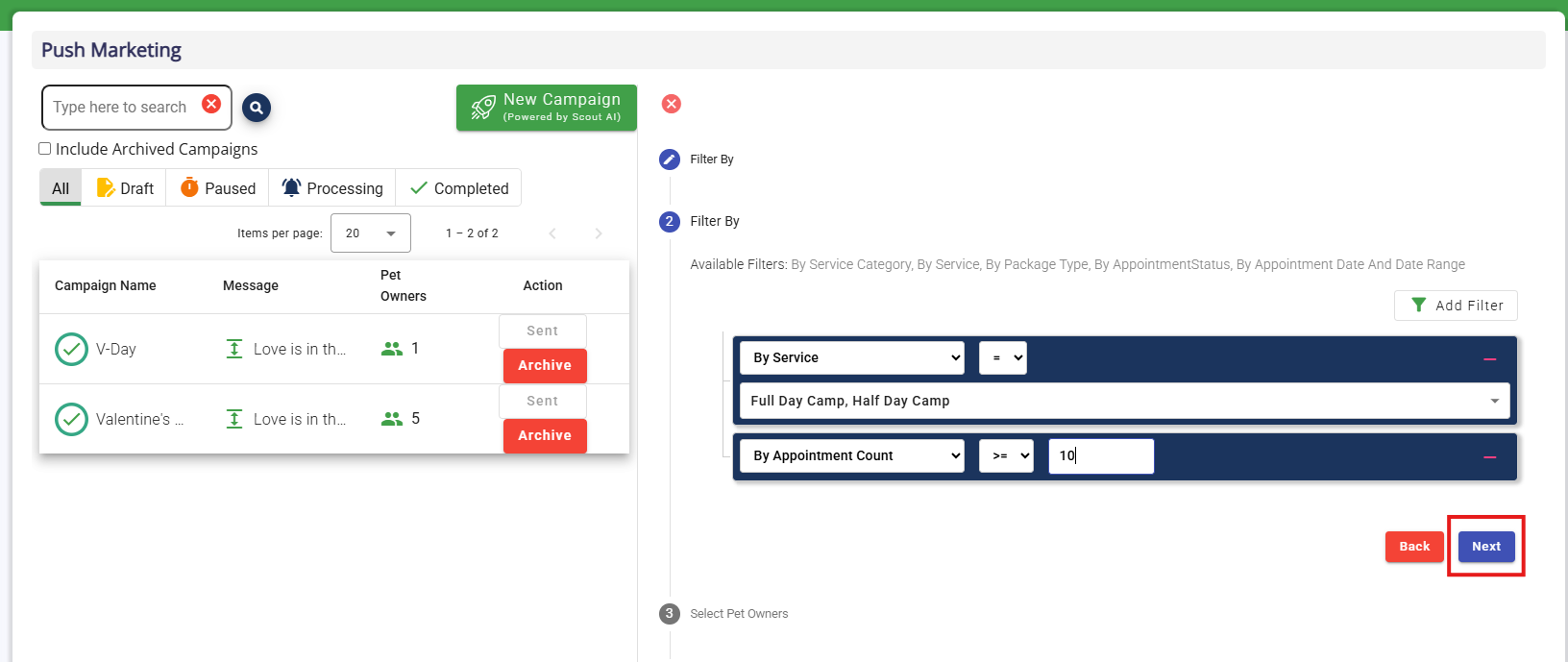
10. This will display all pet owners who will be added to the campaign. Click the top checkbox to select all owners, or you can individually select/deselect owners from the list.
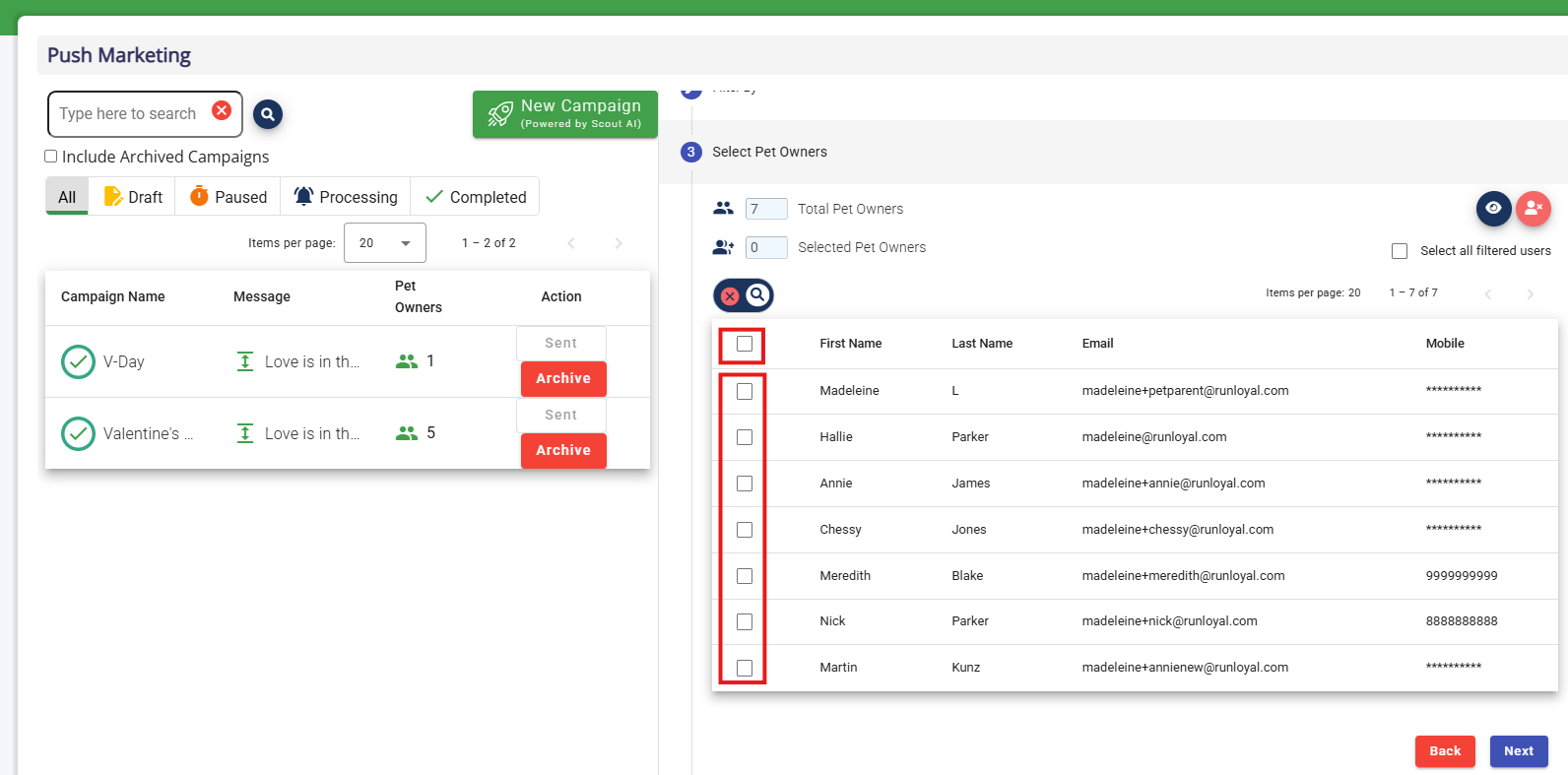
11. Once recipients are selected, click Next.
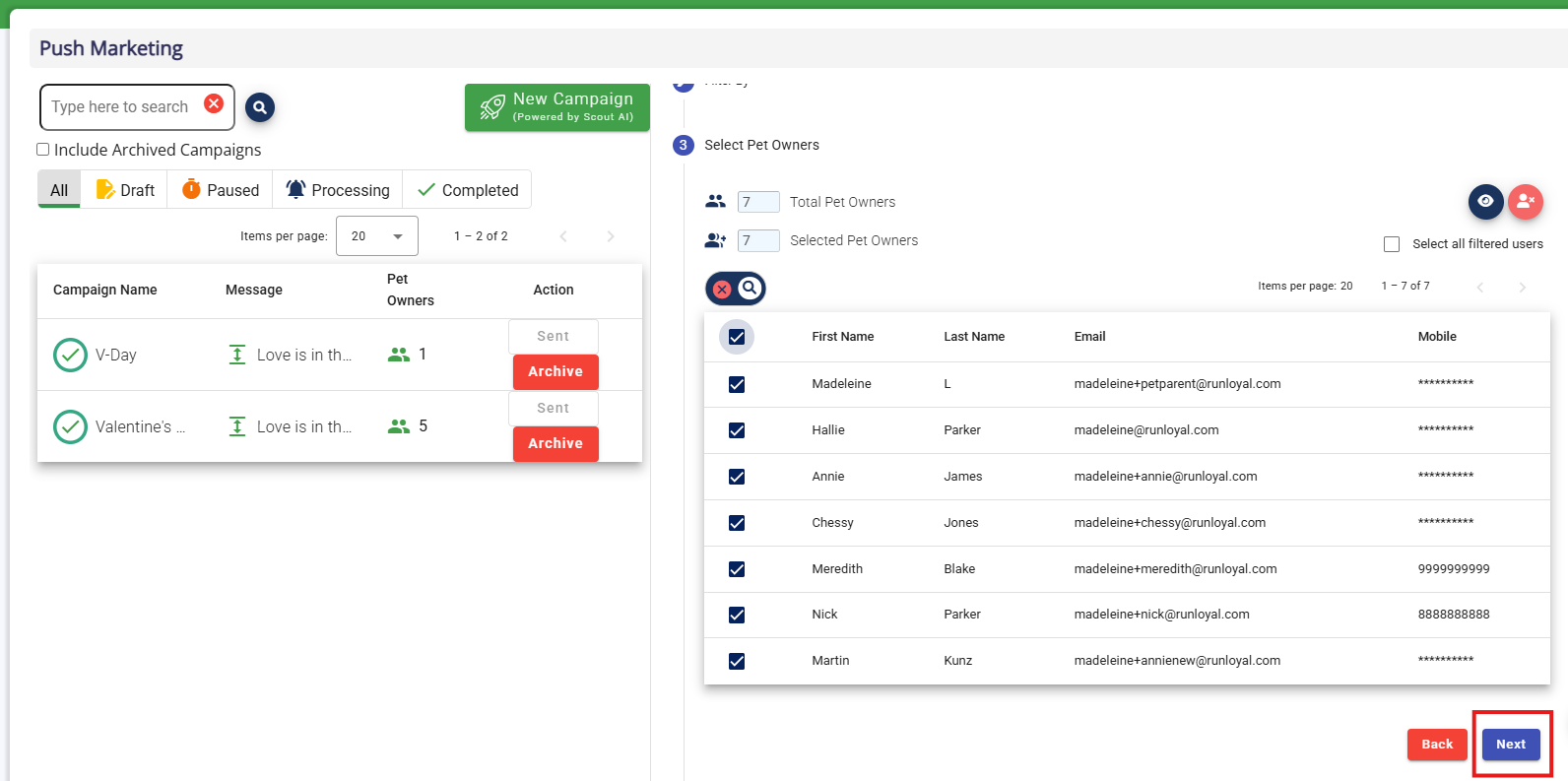
Designing a Campaign
1. After selecting recipients as described above, enter your campaign name. This will be the subject that displays to customers in email and in-app, as well as what shows in your business portal to track this campaign. 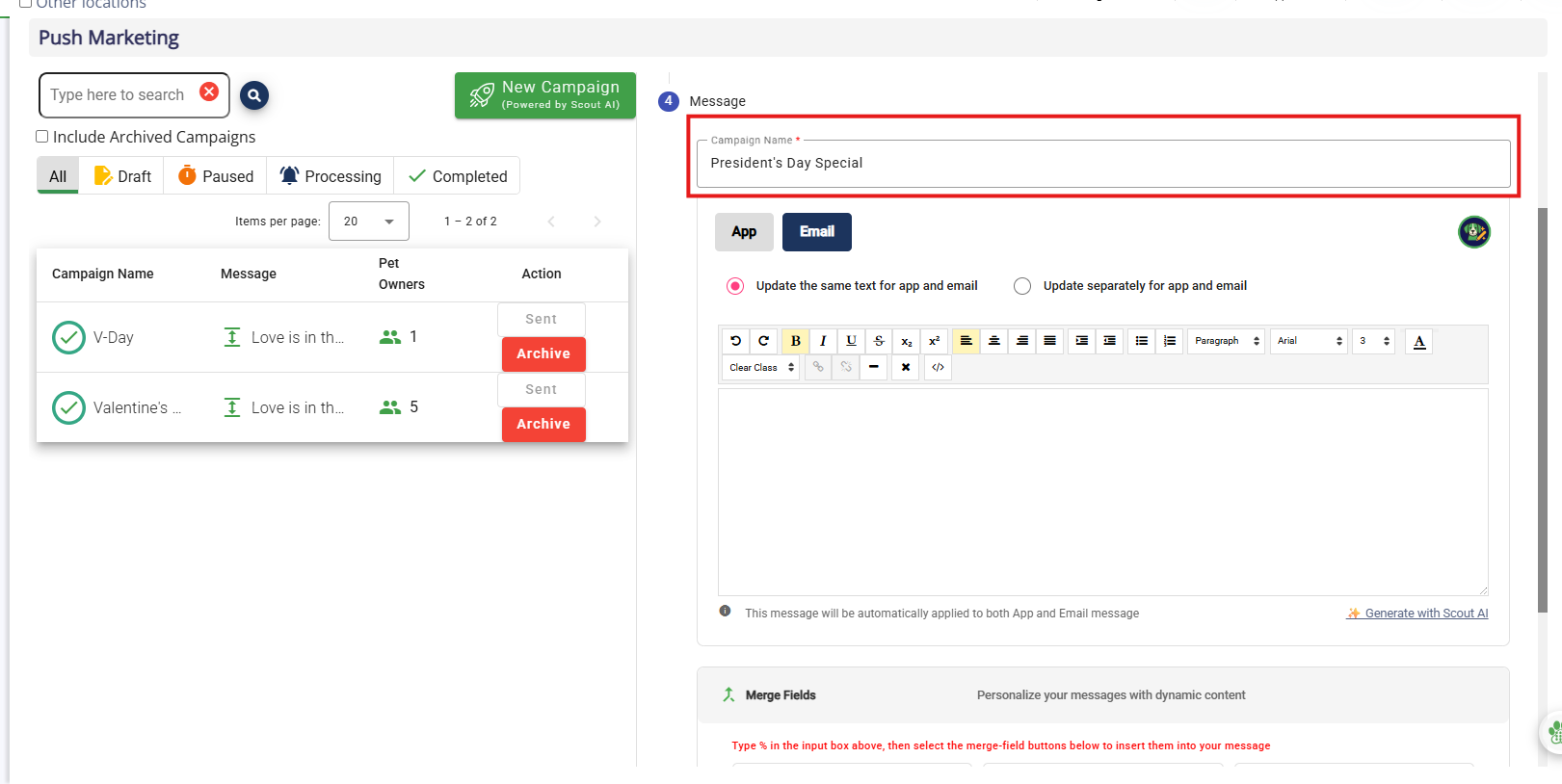
2. Set if this campaign should send for in-app, email, and/or SMS (text messaging). You can send the same message for all methods, or send custom messages by notification type. For example, you may wish to send a short sentence for an SMS campaign, but a three paragraph email.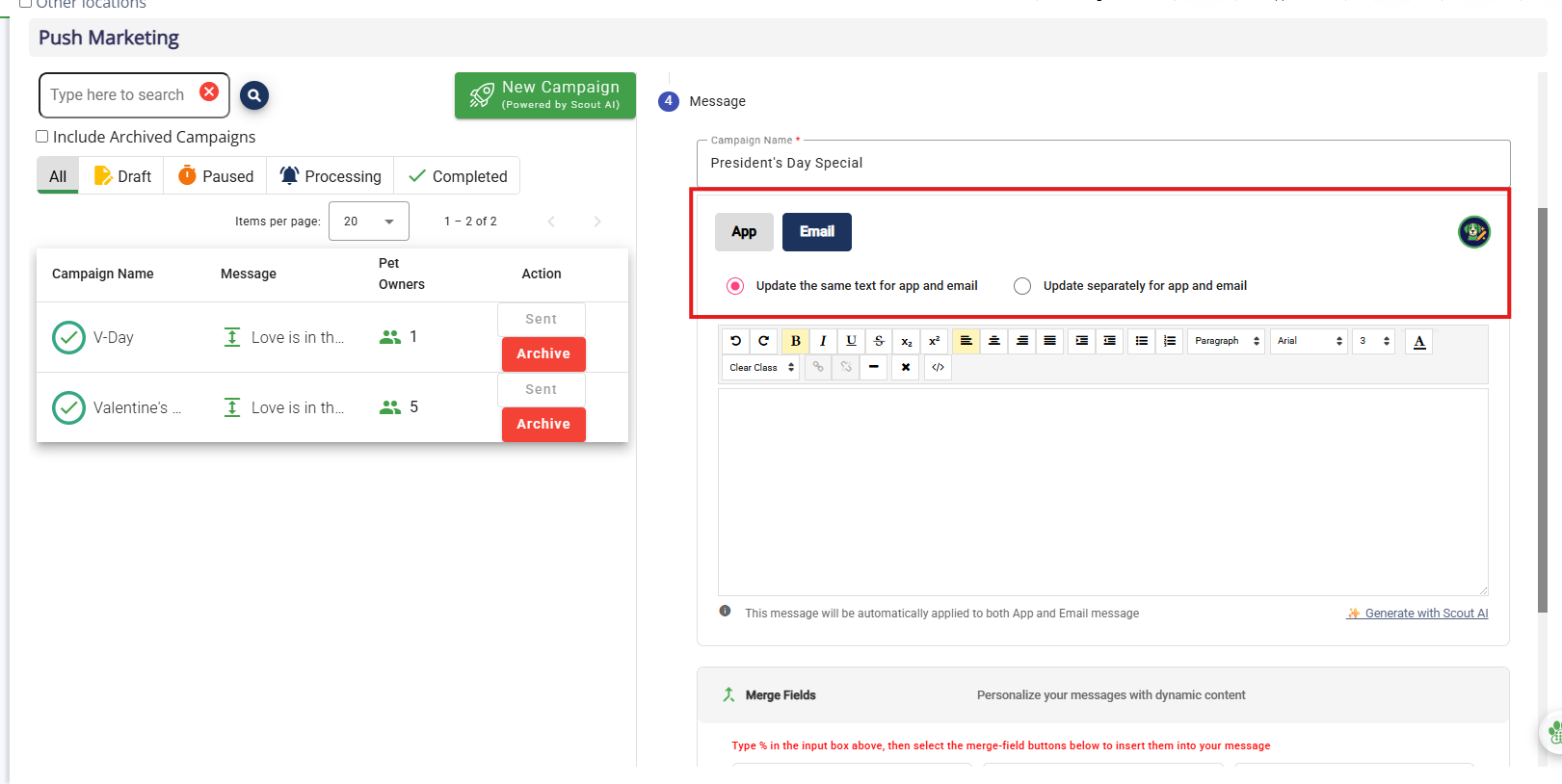
3. Type out your message, optionally adding formatting and as much textual information as you would like! RunLoyal will automatically format the message into an email template before sending. You can utilize the merge field {businessAddress}, {businessName}, and {petOwnerName} to automatically insert those variables into the email.
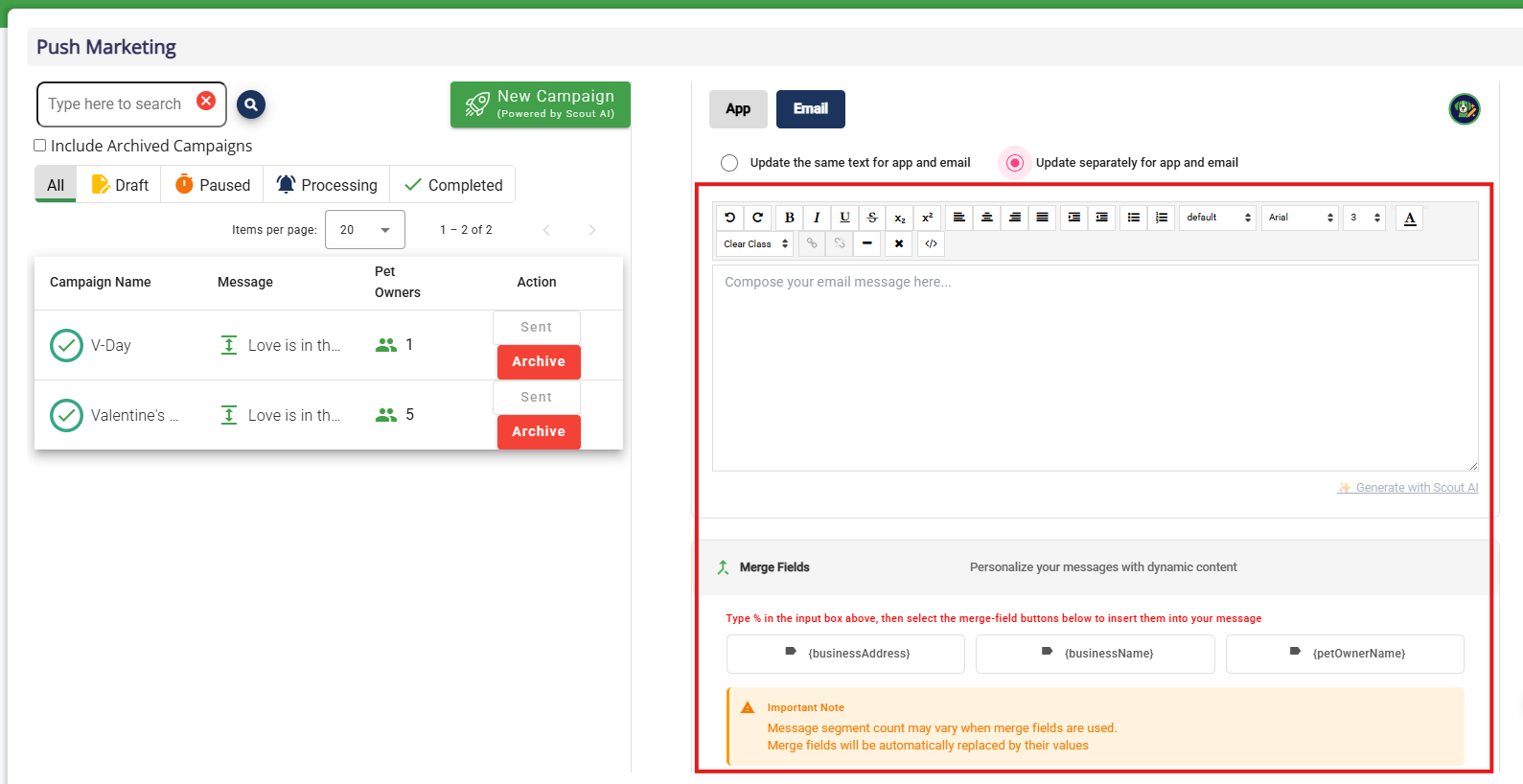
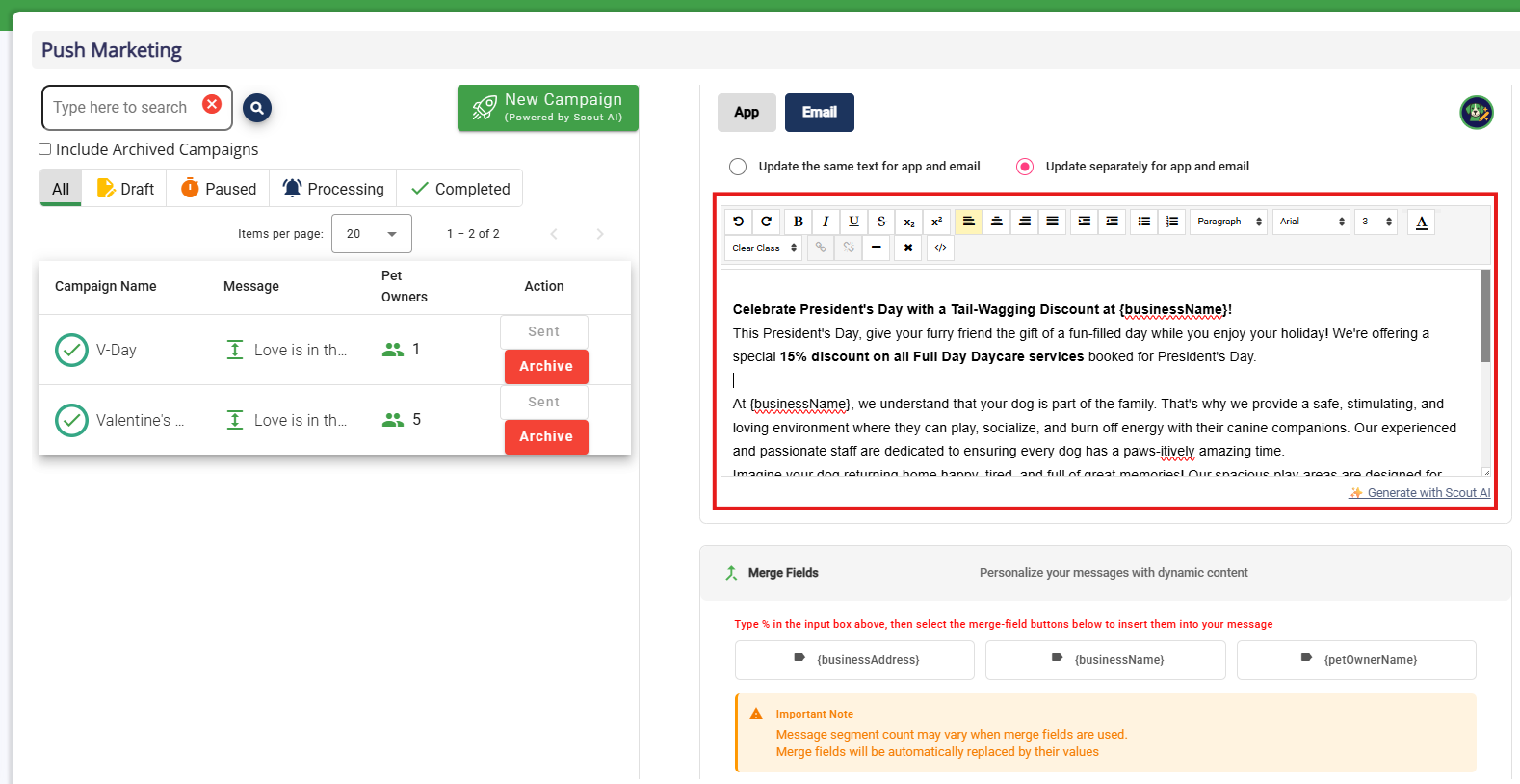
4. Optionally type a short prompt and then click Generate with Scout AI to have your message generated via AI. Your prompt can be as short as one sentence, and Scout AI will expand into a full length email.
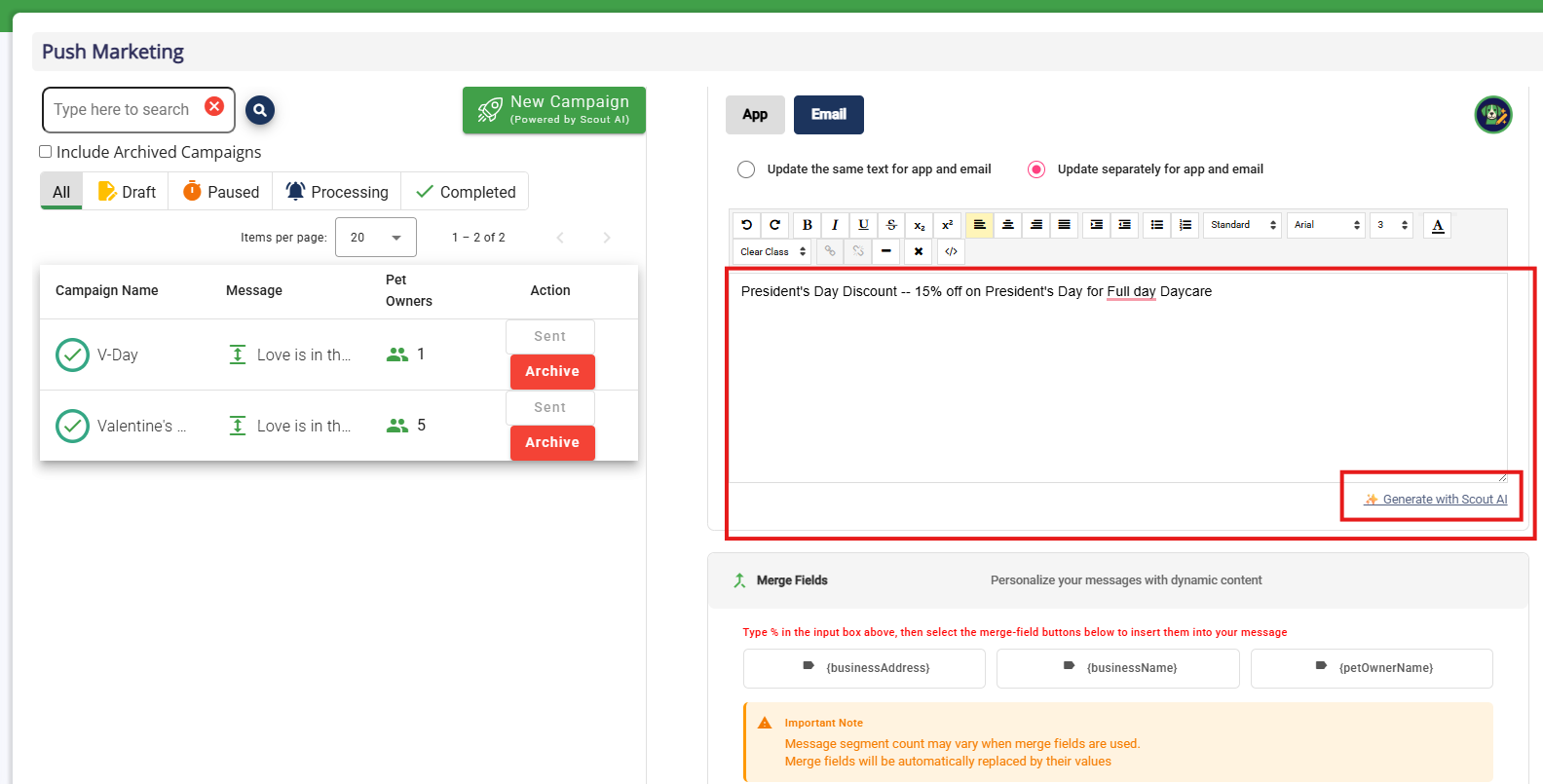
5. Confirm your message is correct and ready to send.
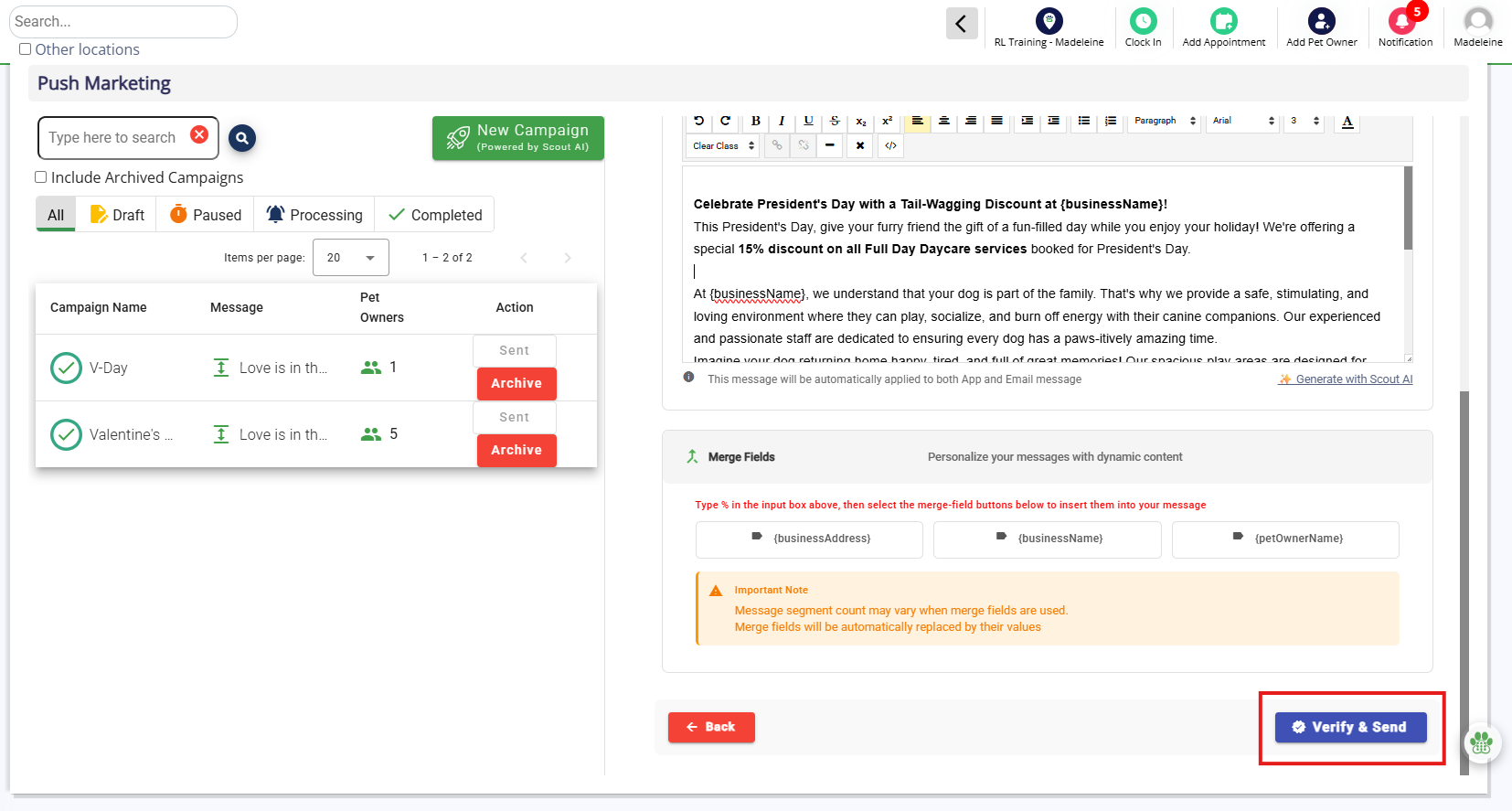
6. When all recipient, subject, and messaging information is input correctly, click Verify & Send.
⚠️ Important: Clicking Verify & Send finalizes the campaign. No edits can be made after verifying.
How to Activate & Send a Campaign
1. After clicking Verify & Send as described in the previous step, check the boxes to verify the conditions. Then click Create Campaign.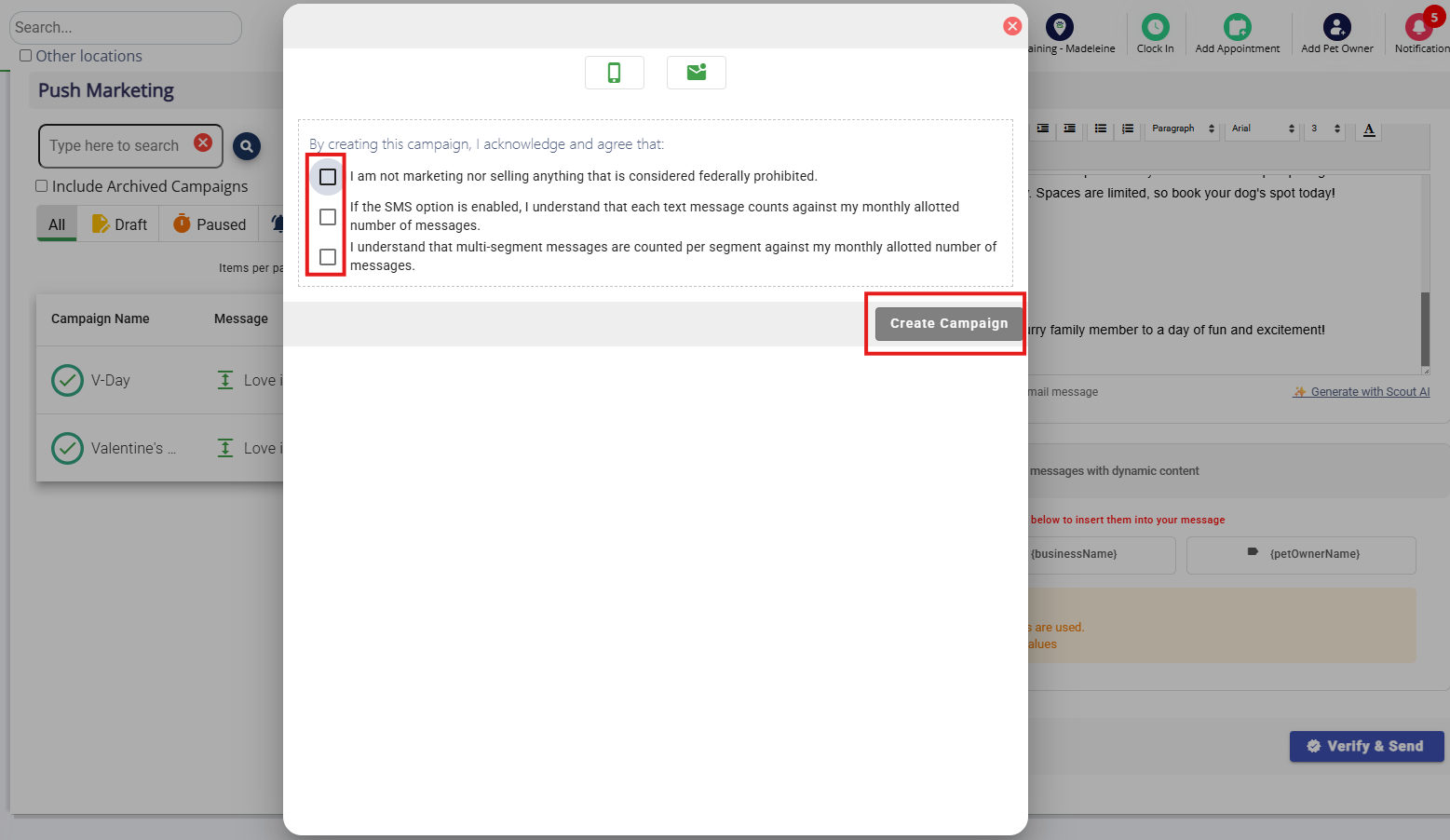
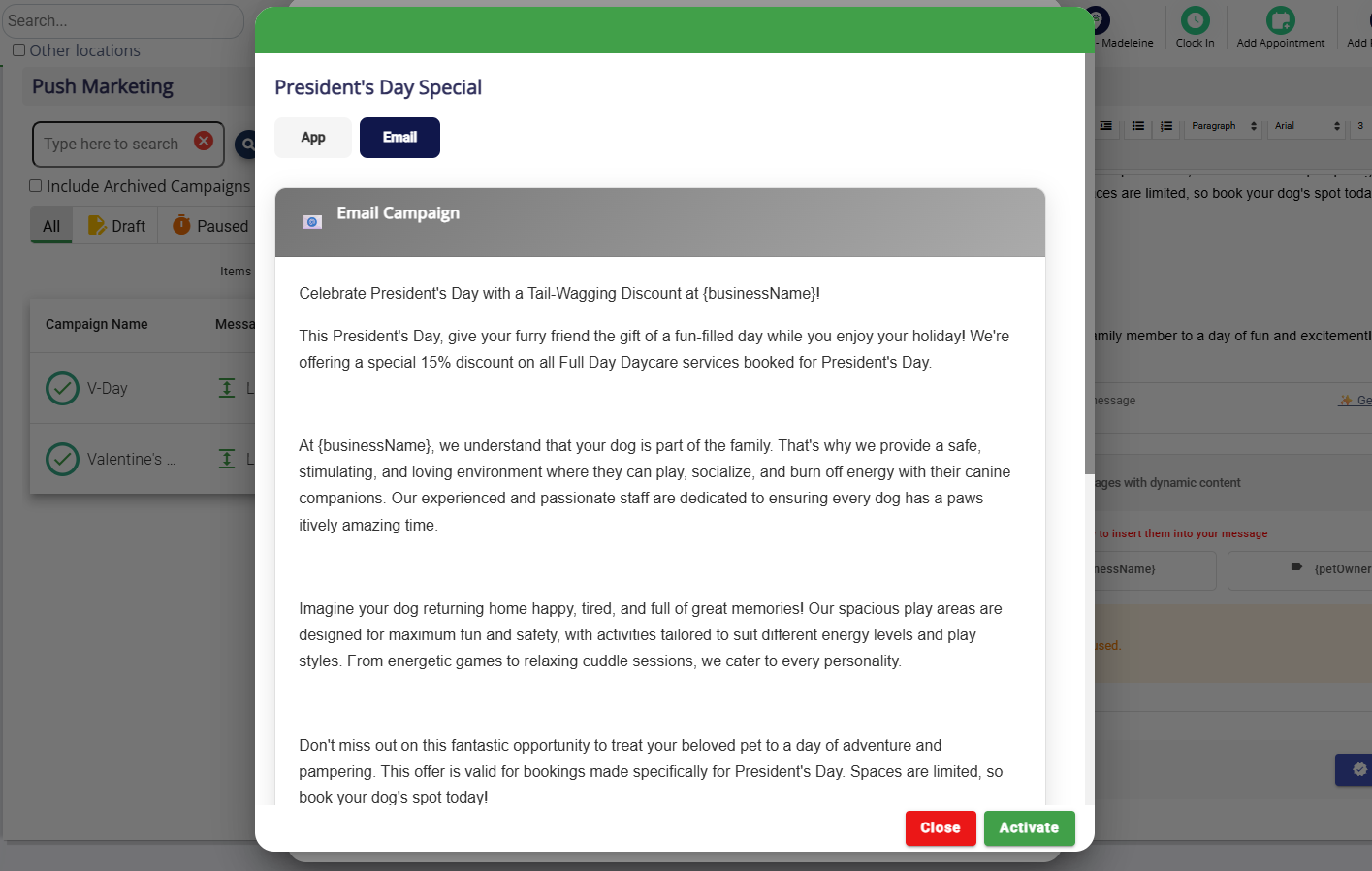
2. Prior to sending the campaign, review the campaign in full for each notification method.
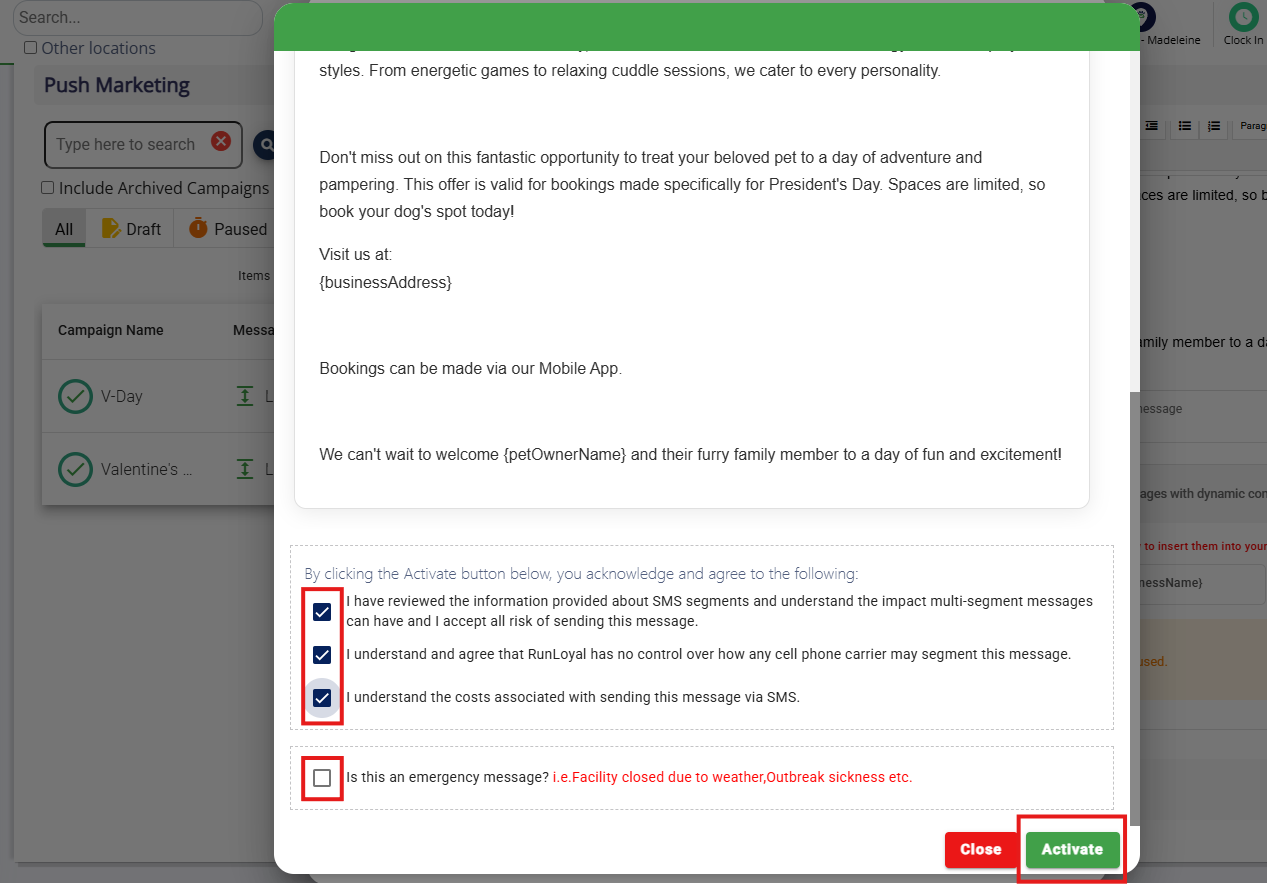
3. Check the boxes confirming the conditions, as well as note if this message if an emergency message regarding illness or closure, then click Activate.
⚠️ Important: Campaigns are added to a messaging queue and sent every 30 minutes.
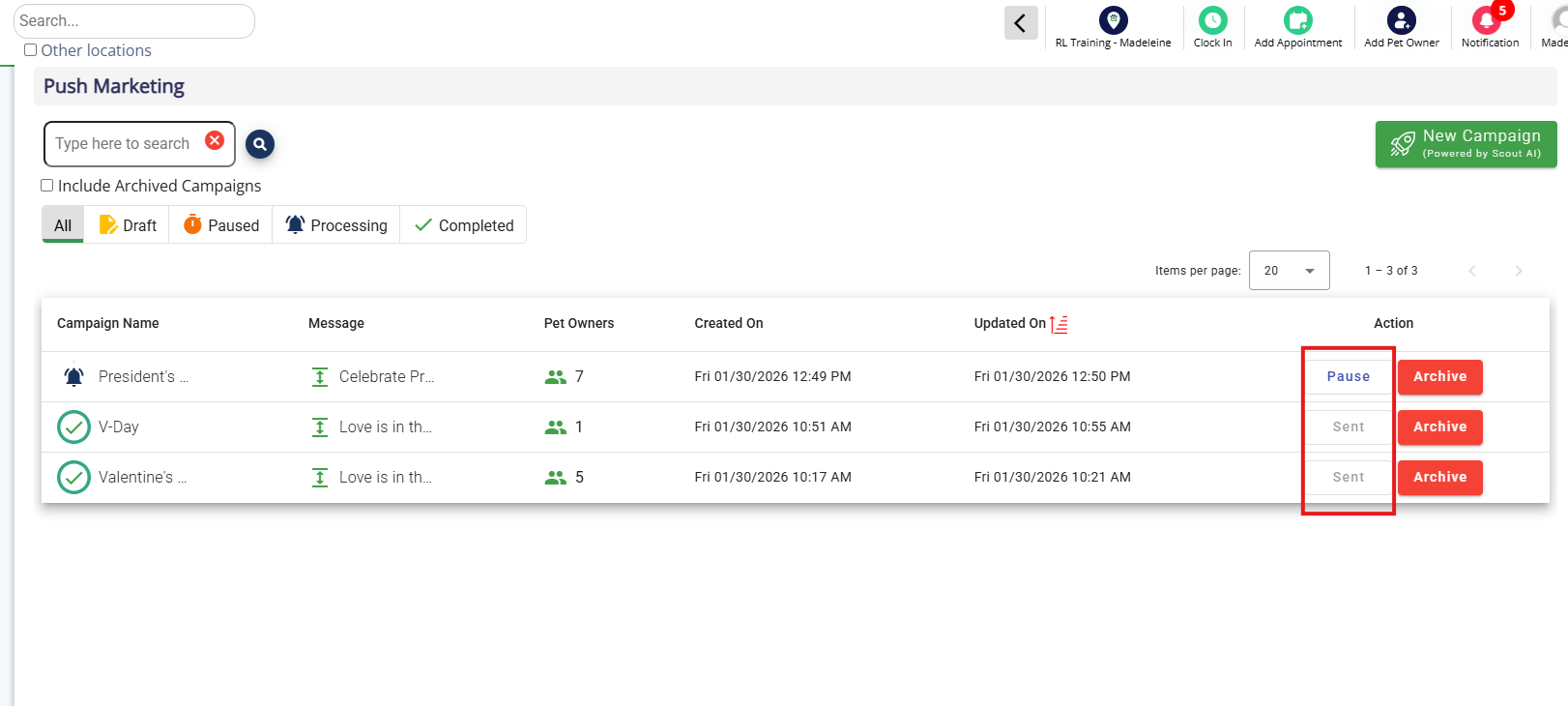
4. The campaign will now showing in processing status which indicates it is currently sending. Once it is sent, it will show Completed and Sent.
More Information
For more information on Pet Owner Notifications, please refer to this article: Notification Email, In-App, & SMS Templates
For more information on the MailChimp integration, please refer to this article: Mailchimp Integration for Marketing Campaigns
Was this article helpful?
That’s Great!
Thank you for your feedback
Sorry! We couldn't be helpful
Thank you for your feedback
Feedback sent
We appreciate your effort and will try to fix the article