Overview
LoyalVoice allows your existing 2-way SMS number to receive incoming phone calls or make outbound phone calls from your business portal. You can choose how those calls are handled. You can forwarded to one or more phone numbers, routed based on business hours, or sent directly to voicemail. All voicemails are available in the Message Hub for easy access and tracking.
Please note: this is an add-on feature. Contact puppylove@runloyal.com to get this enabled.
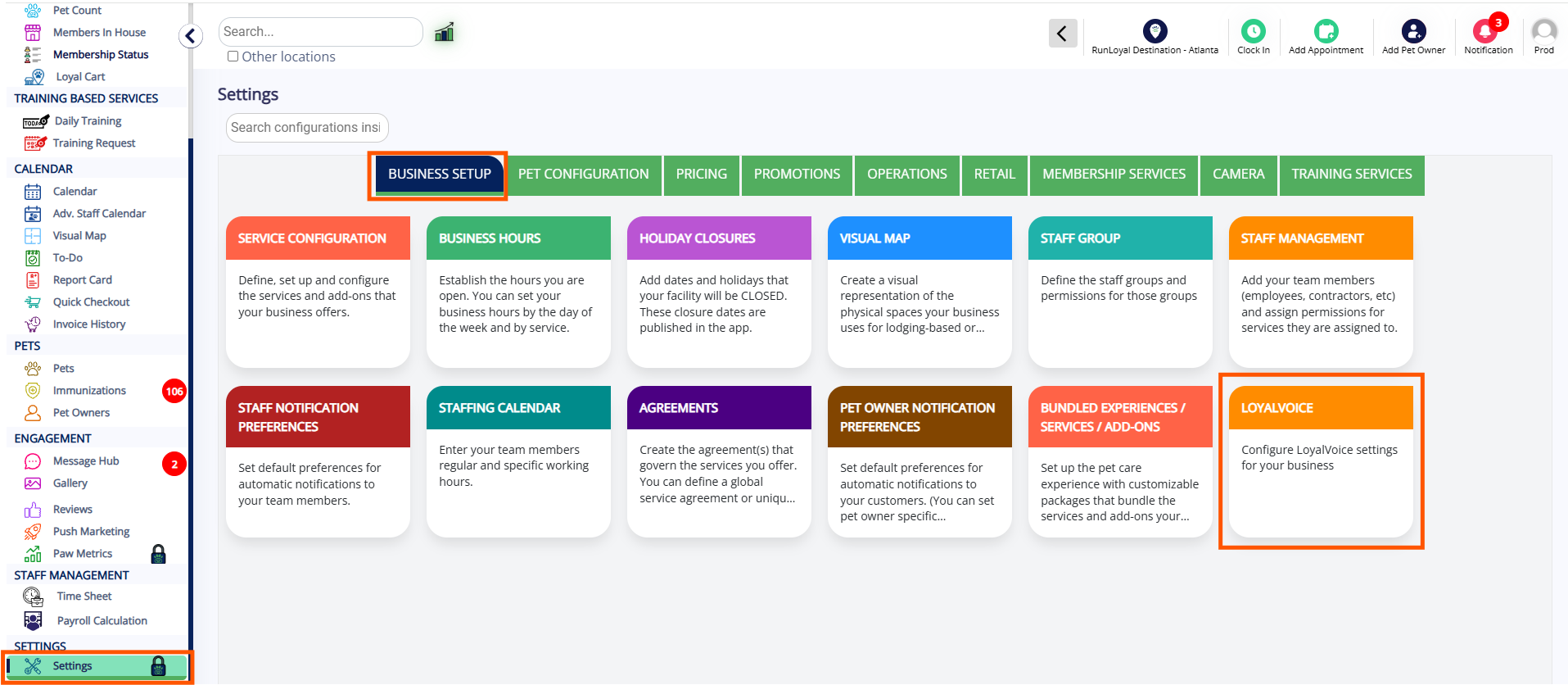
1.Navigate to Settings > Business Setup > LoyalVoice as shown below.
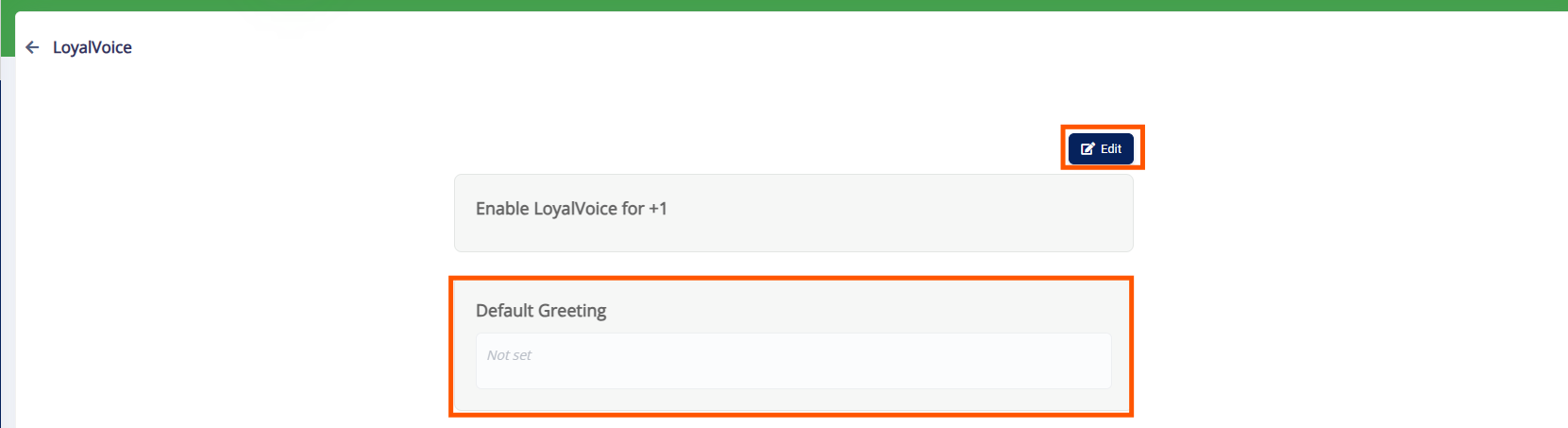
2. Click Edit and set your default message.
Forward Always
1. Select Forward Always
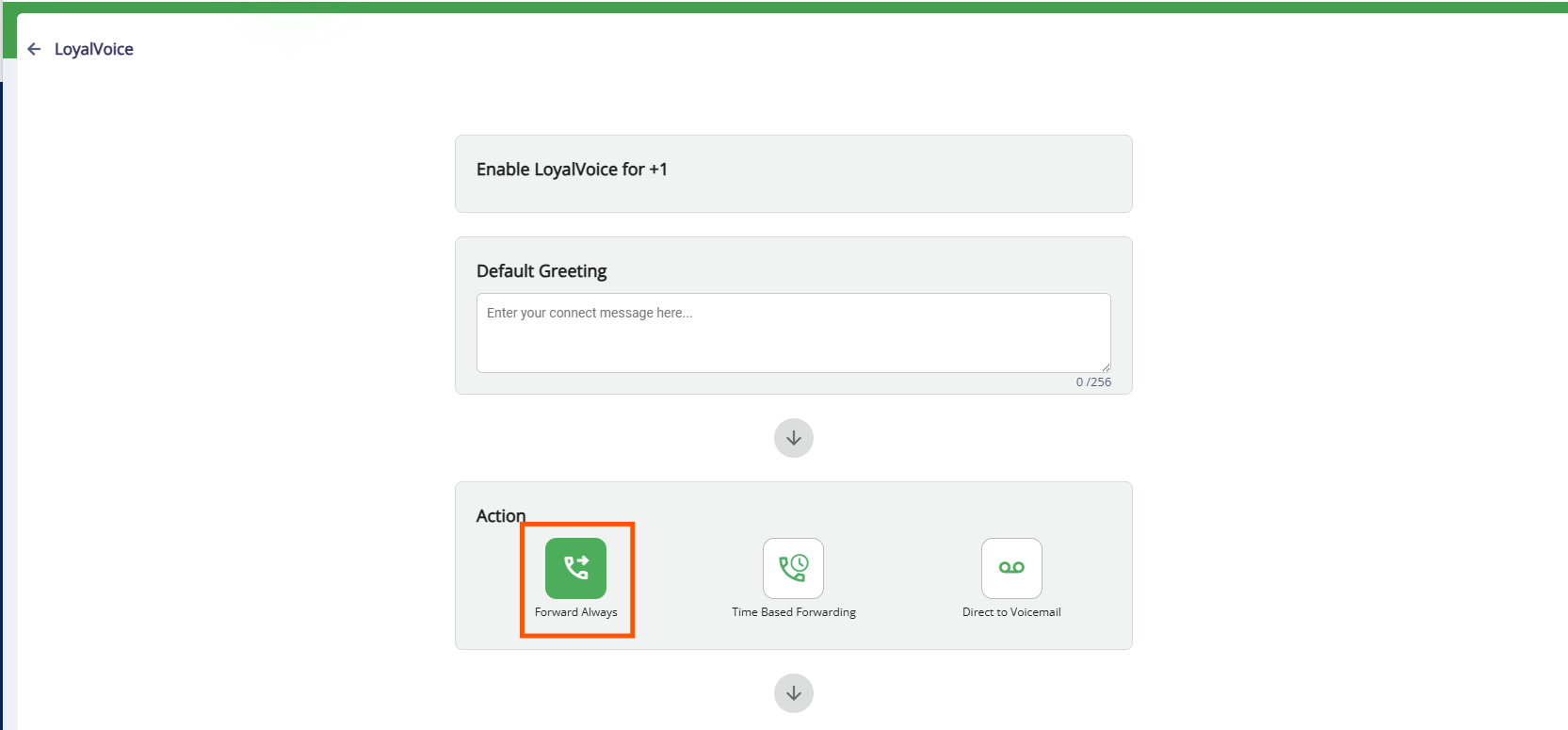
2. Select a Greeting. You can choose the default greeting as set previously or customize a new one

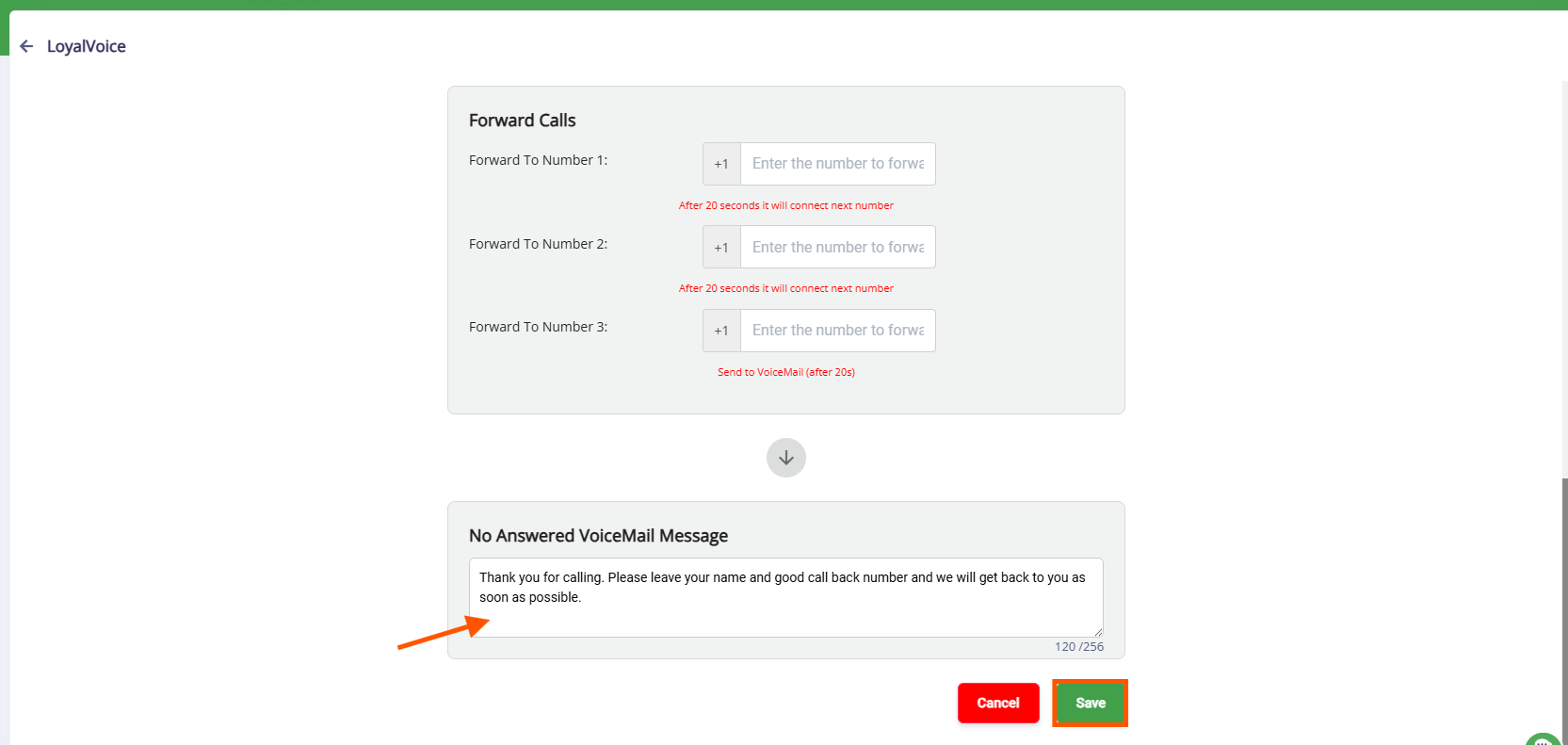
3. Add up to three forwarding phone numbers. Arrange them based on the orders you want them called
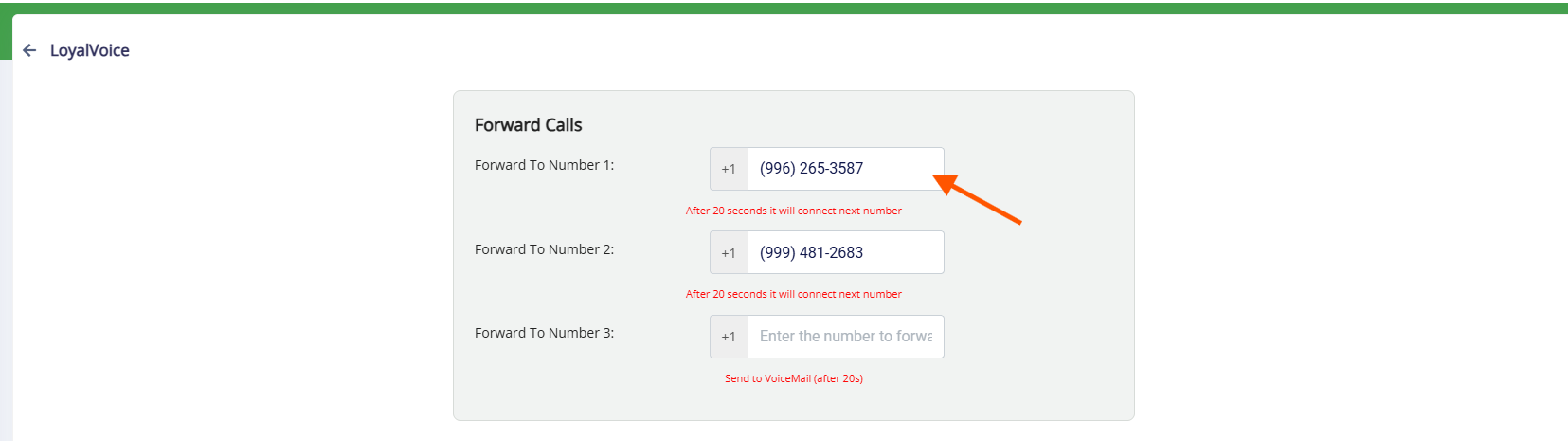
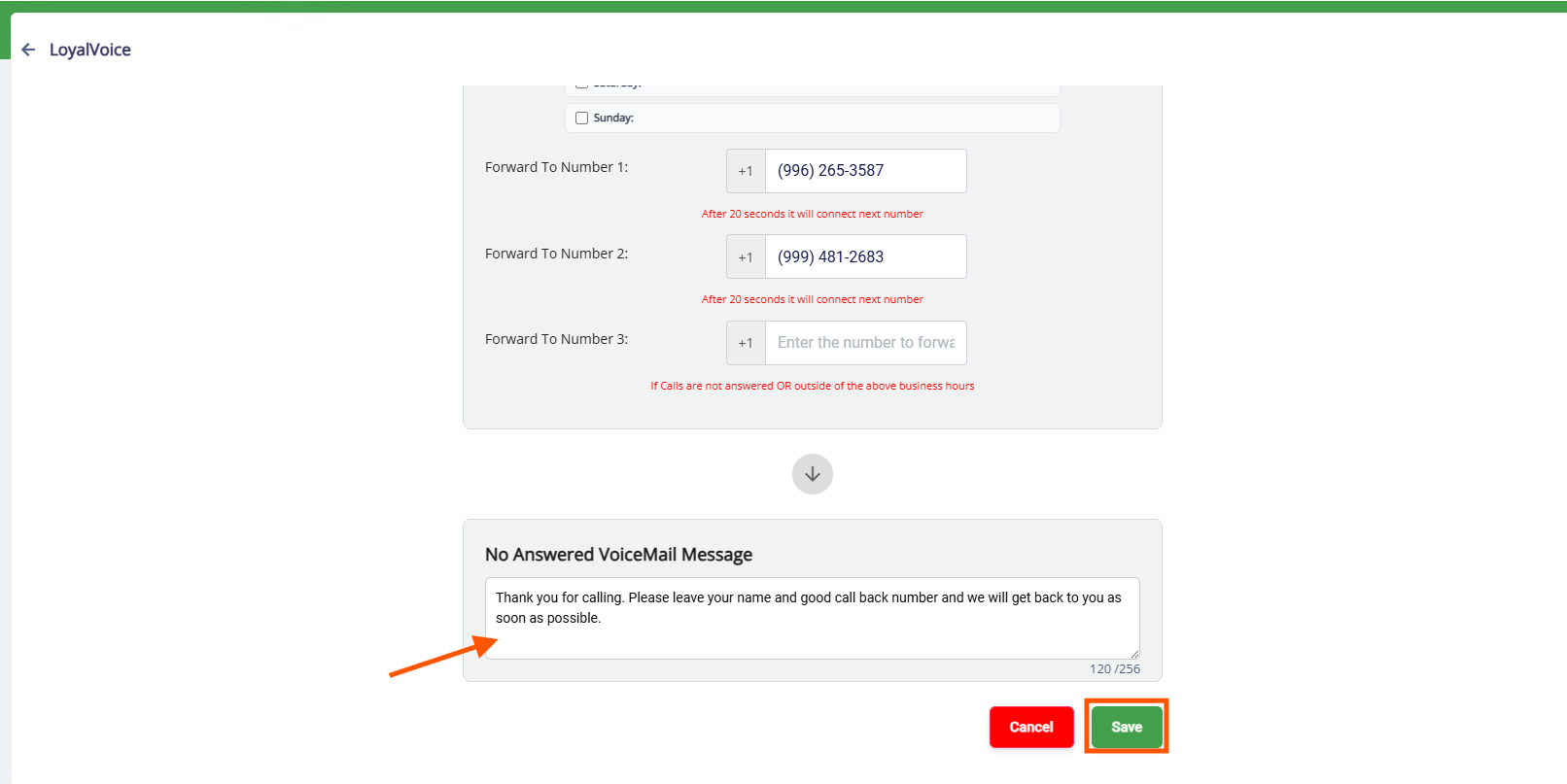
4. You can set a voicemail message to play if no one answers. Click Save to save your changes to save your changes
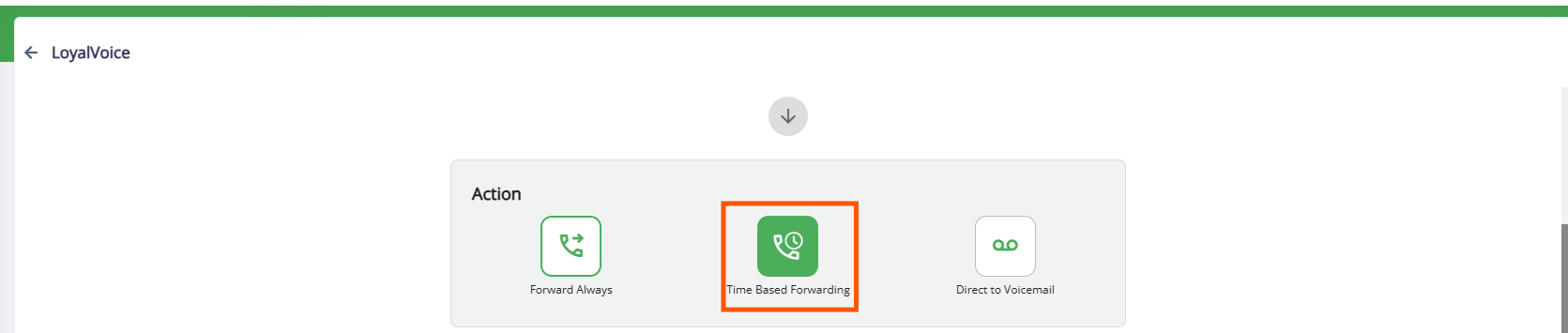
Time Based Forwarding
1. Select Time Based Forwarding
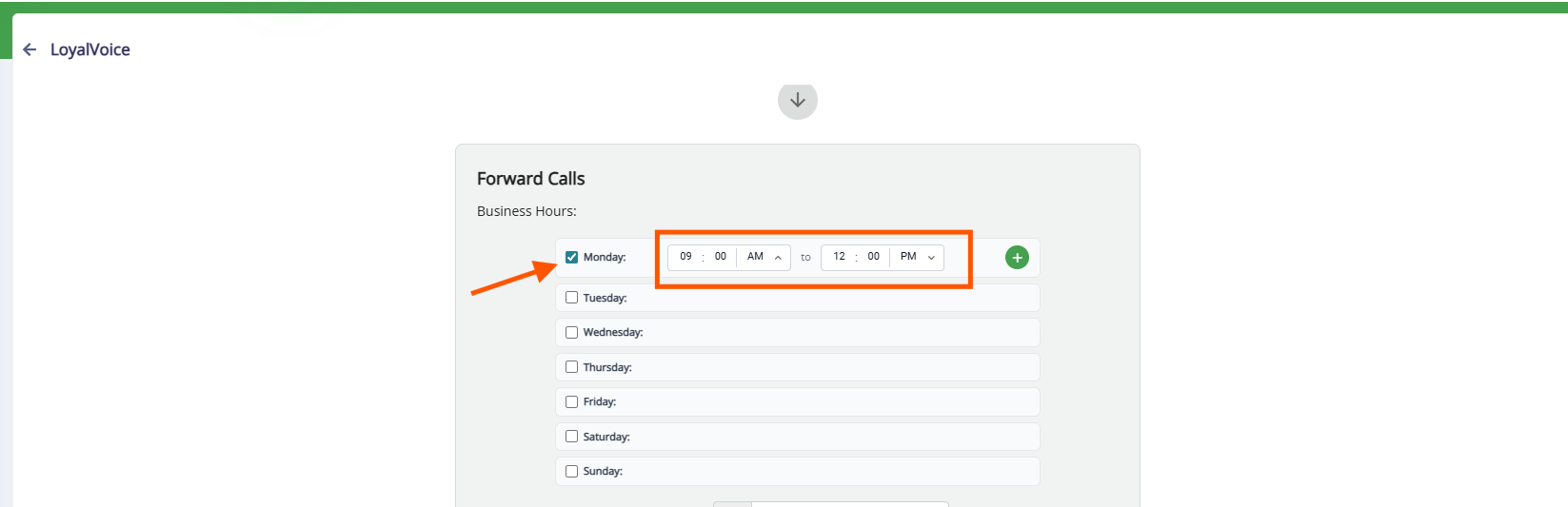
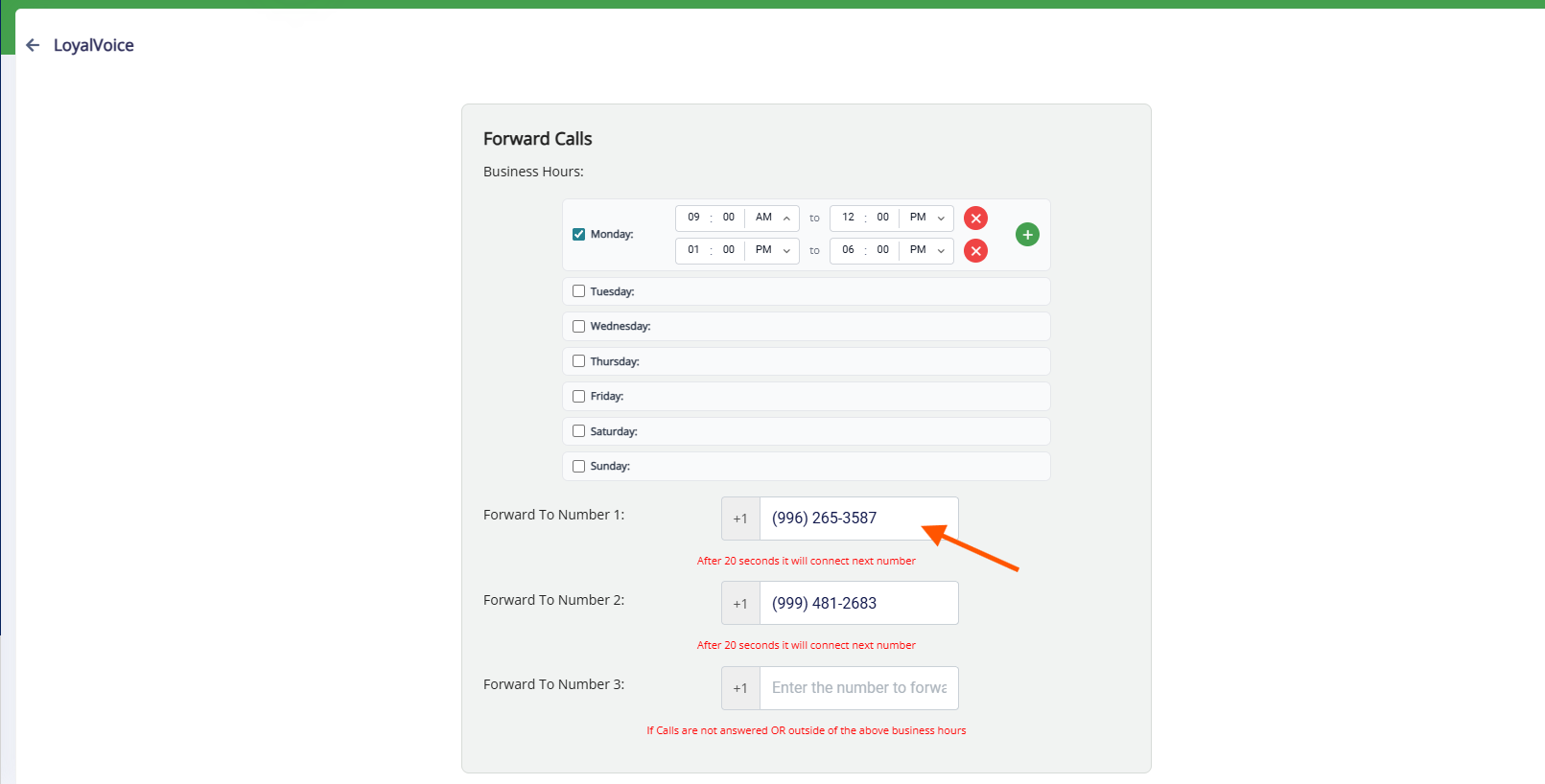
2. Click on each business day to set start and end times
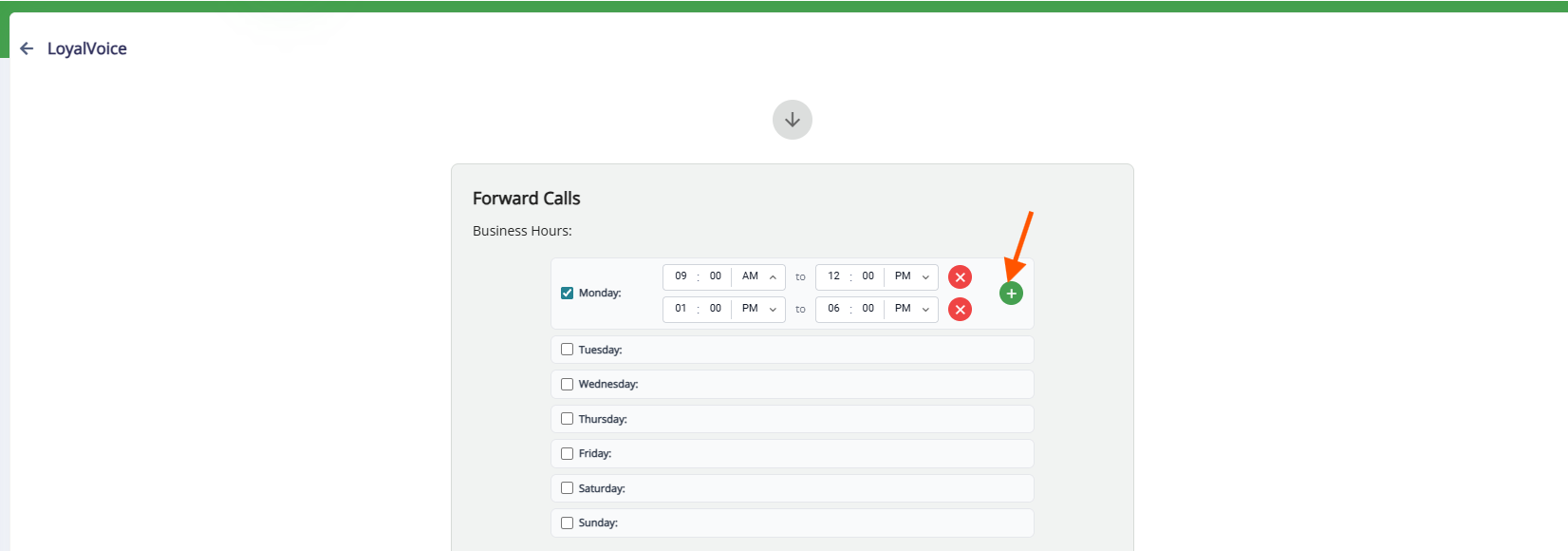
3. Click on "+" to add additional time range in the business day
4. Assign the phone number(s) to forward calls during those hours
4. You can set a voicemail message to play if no one answers. Click Save to save your changes to save your changes
Directly to Voicemail
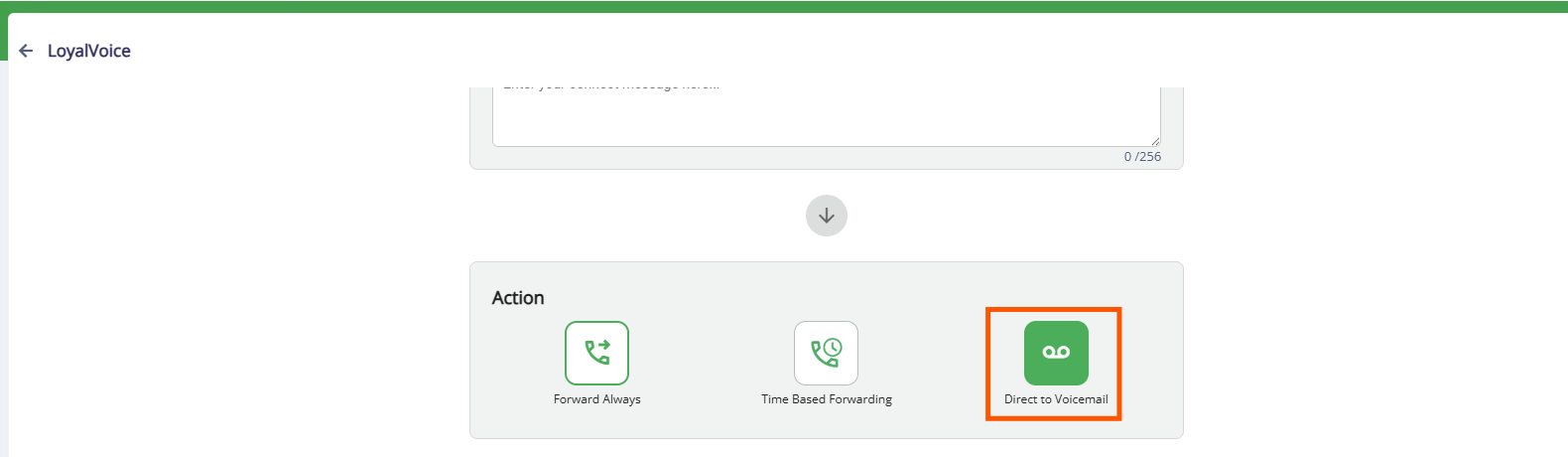
1. Select Direct to Voicemail
2. Enter your voicemail message. Click Save once completed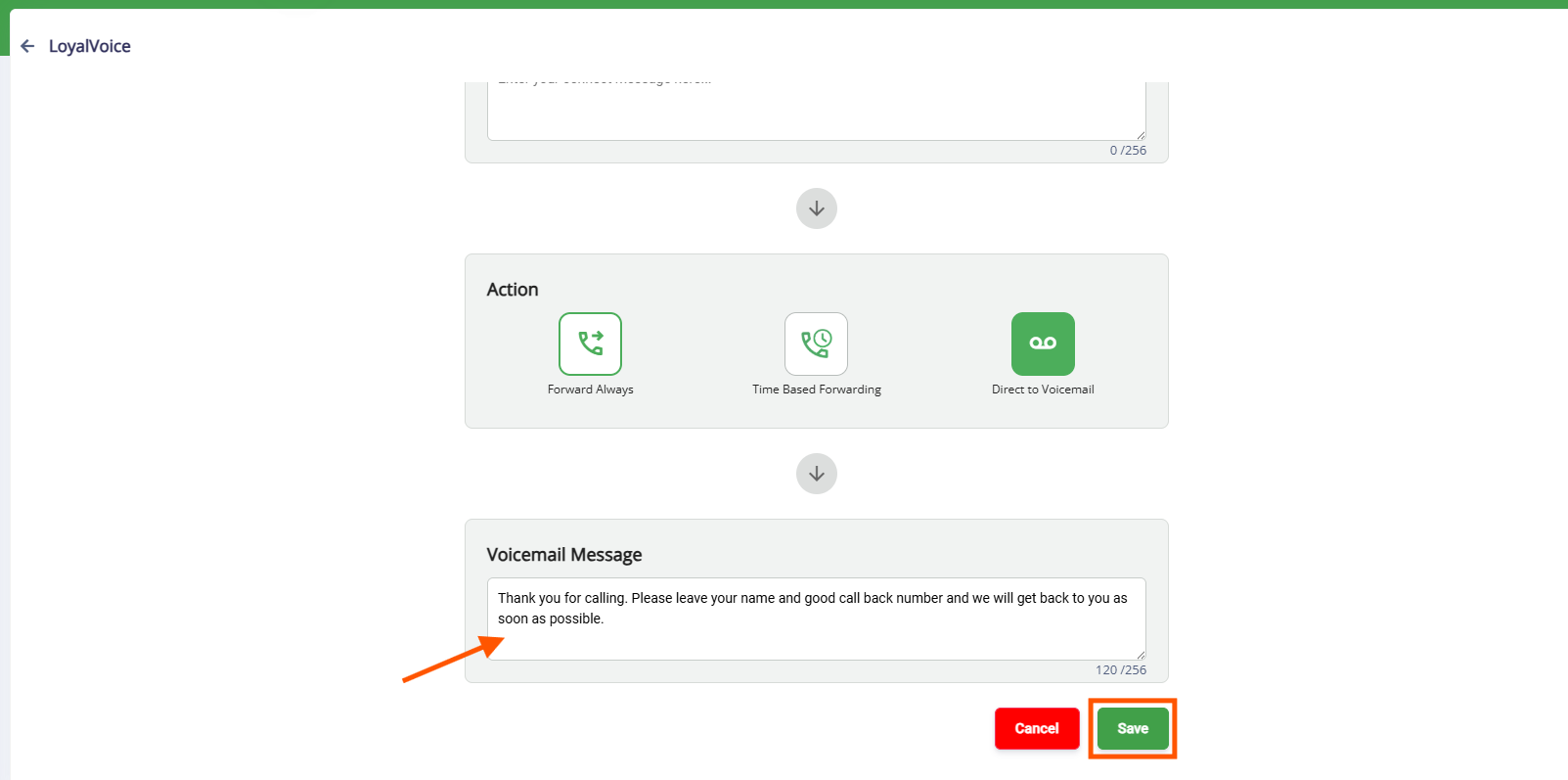
View LoyalVoice messages
1. Click on Notifications, select the filter icon, and check the LoyalVoice option
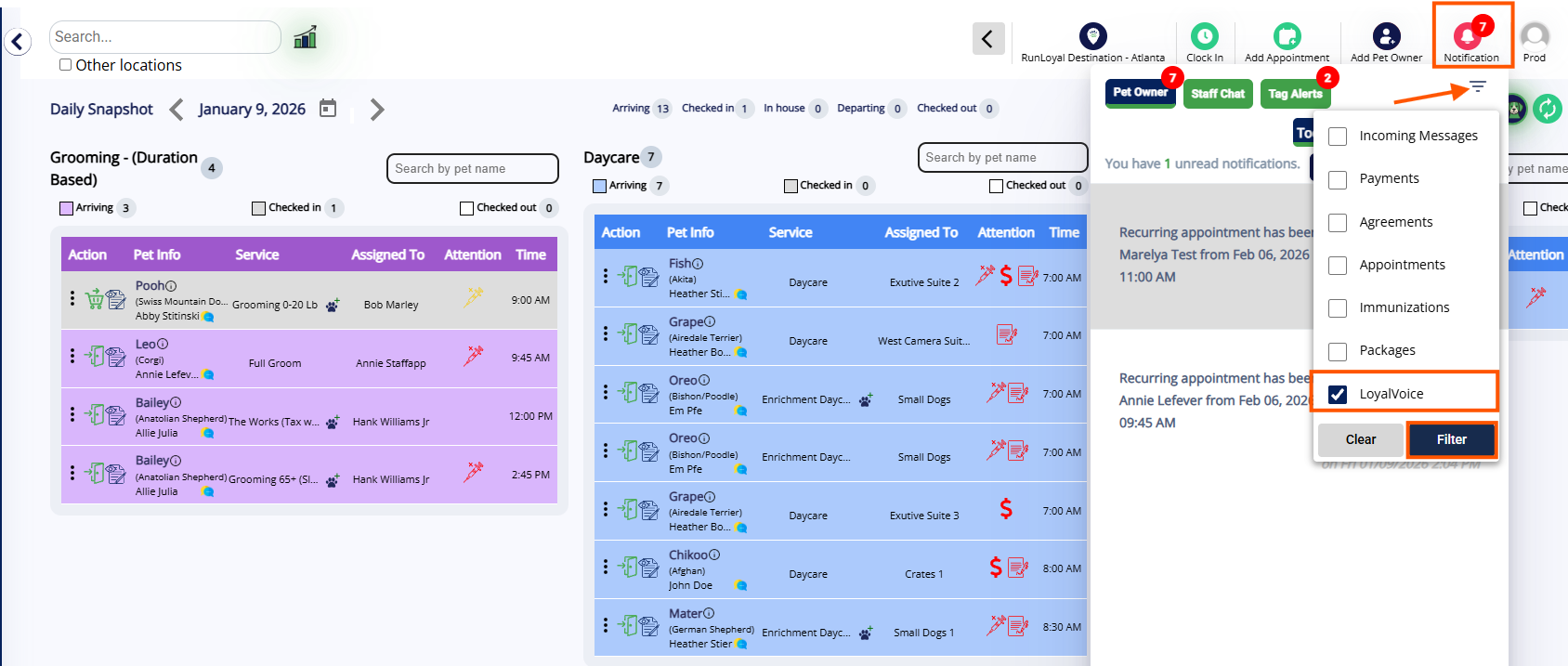
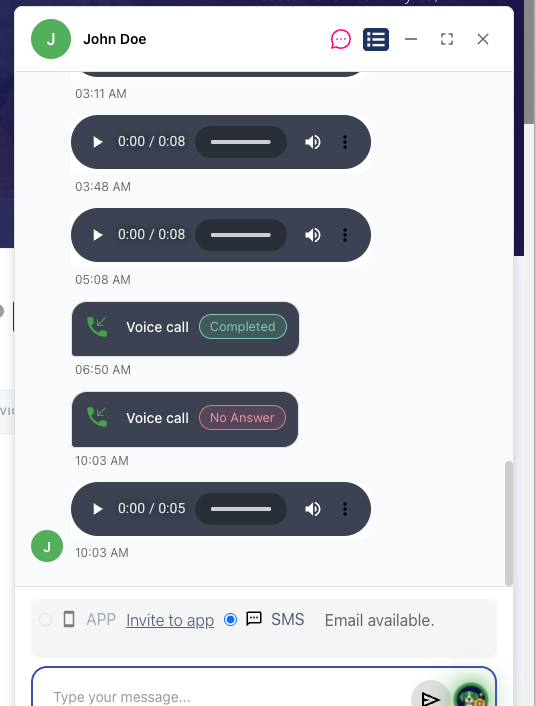
2. Once you select the notification, the Message hub will open and display the associated voice messages as shown below.
Was this article helpful?
That’s Great!
Thank you for your feedback
Sorry! We couldn't be helpful
Thank you for your feedback
Feedback sent
We appreciate your effort and will try to fix the article