Overview
Pawmetrics is the reporting section of the RunLoyal platform. It allows users to access, navigate, filter, and manage various reports related to pet owners, packages, and other operational details. You can find more information and a guide on how to use Pawmetrics here: https://www.loom.com/share/1384c370b4e144a3850c5792ad8bb459?sid=d92574fb-0bf5-4307-b8d1-3ec1d257c762.
TABLE OF CONTENTS
Pawmetrics can be viewed in the following area:
Home page → Paw Metrics
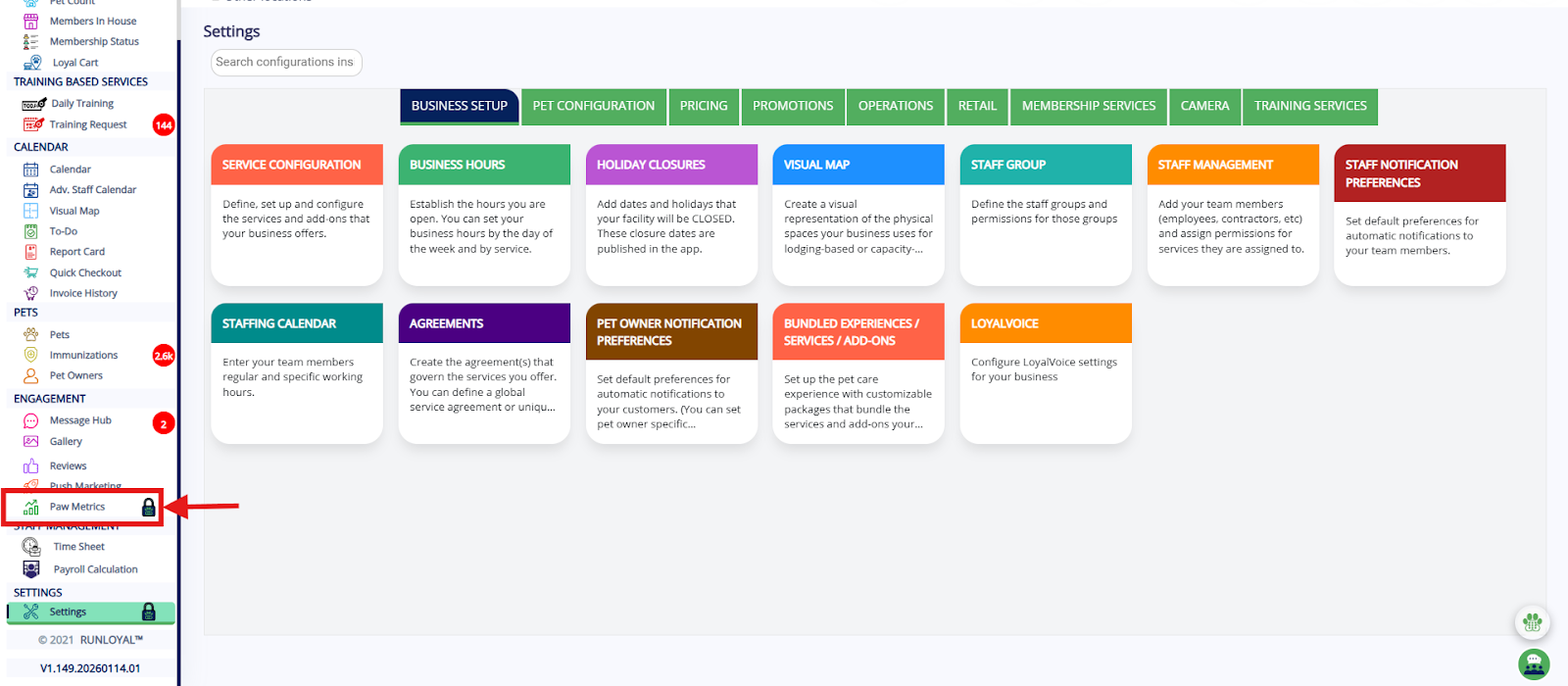
Reports Dashboard Layout
The Pawmetrics(Reports) page includes:
Search Bar - Search reports by name or description
Category Tabs - View reports grouped by function
Favorites Toggle - Quickly switch between favorite reports and all reports
Report Tiles - Each report appears as a card with a short description
Request New Report - Option to submit a custom report request

Search Bar:

The Search Bar at the top of the Pawmetrics (Reports) page helps you quickly find reports by name or description without browsing through each category.
The system searches both:
Report name
Report descriptions
Category Tabs:

Reports in Pawmetrics are grouped into categories to help you quickly find the right type of report. Each tab represents a business area. Click a category tab to view its related reports.
Common categories include:
Daily
Financial
System / Usage
Pet Data
Pet Owners
Operational
Compliance
Employee
Accrual Accounting
Multi-location
RunLoyal Analytics (Beta)
Management
Favorites Toggle:

Favorites lets you quickly access reports you use frequently without searching each time. Click the star icon on a report card to add it to Favorites and view it later under the Favorites tab.
Report Tiles:
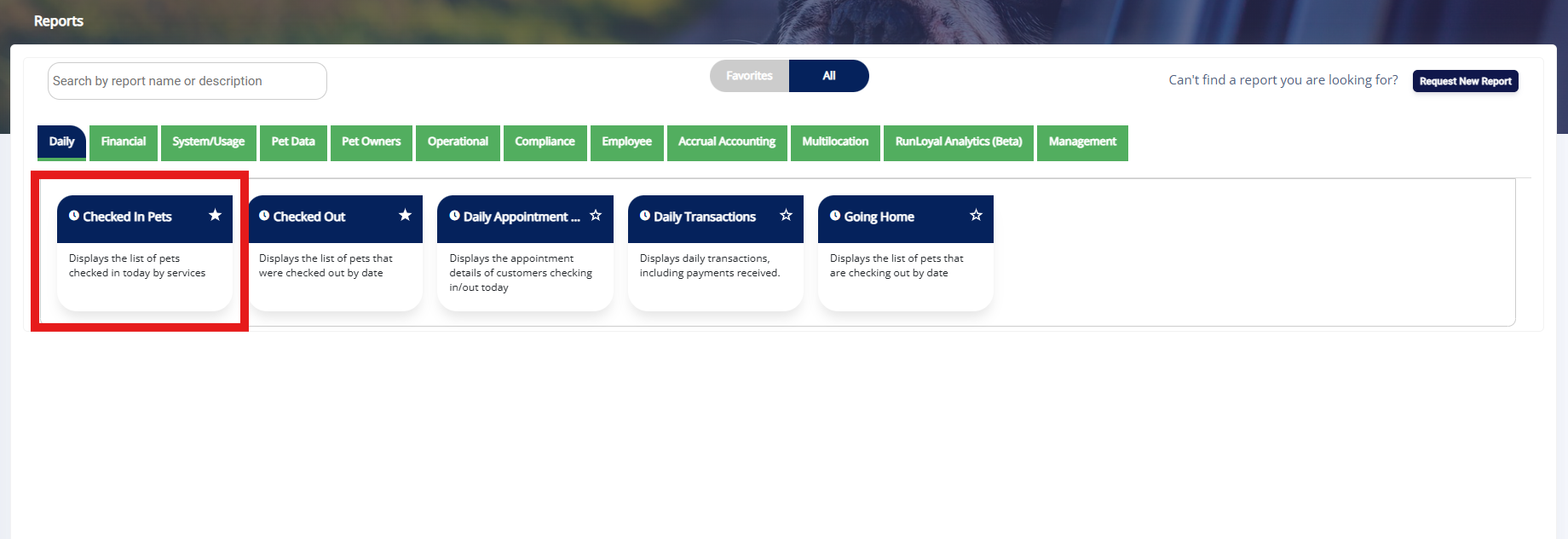
Report Tile displays each report as a card showing the report name and brief description. Click the tile to open and run the report, and use the star icon on the tile to add it to Favorites.
Request New Report:
You can request a new report based on your requirements by clicking the “Request New Report” option shown below.

After you click Request New Report, you will see a form where you can enter the required details, such as the report name, purpose of the report, and the columns you would like to include. Please fill in these fields and submit the request.

These are the most frequently used Paw Metrics reports for financial and operational insights:
Daily Transaction Report
Invoice Register
Monthly Sales Report
Tip Report
Revenue by Service
Cash Report
Revenue by Service Category
Settlement Report – Fiserv
Closed Invoices
Revenue by Add-On Services
Monthly Sales Report – Accrual
Total Revenue
Open Invoices
Going Home
Sales Report
How to Run a Report
To run a report, navigate to the report you want to generate. For example, the Checked-in Pets Report.
Open the required report.

Enter all necessary filters based on your needs.
After selecting the filters, click the Run Report button.

The report results will be displayed on the screen.
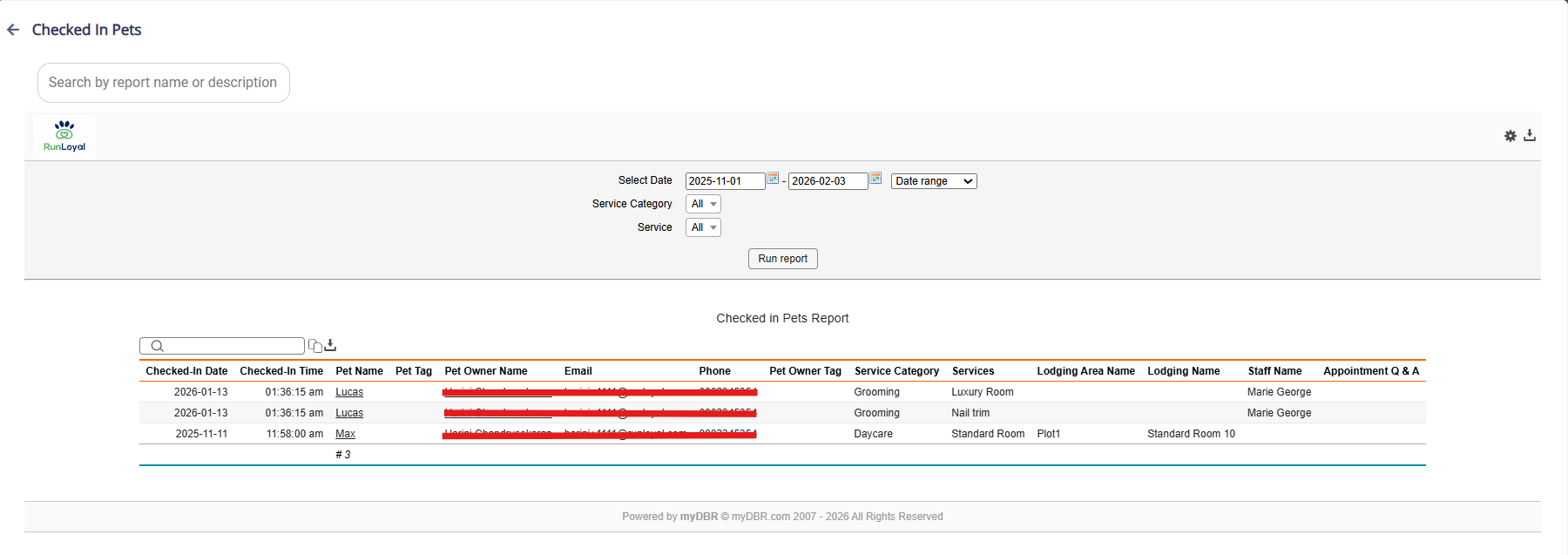
Please Note: If you select a date range greater than 3 months, a red message will appear stating:
“After clicking the Run Report button, it will take some time. Please wait.”

Once the report is generated, you can download it in available formats such as:
Excel (.xlsx)
PDF (.pdf)
CSV (.csv)
Was this article helpful?
That’s Great!
Thank you for your feedback
Sorry! We couldn't be helpful
Thank you for your feedback
Feedback sent
We appreciate your effort and will try to fix the article