Overview
The Client Portal Integration allows you to seamlessly add your RunLoyal booking system to your website, enabling customers to book services, view schedules, and manage appointments without leaving your site. The integration supports multiple implementation methods including floating buttons, custom triggers, and embedded iframes to match your website's design and user experience requirements.
Client Portal Integration can be viewed in the following areas:
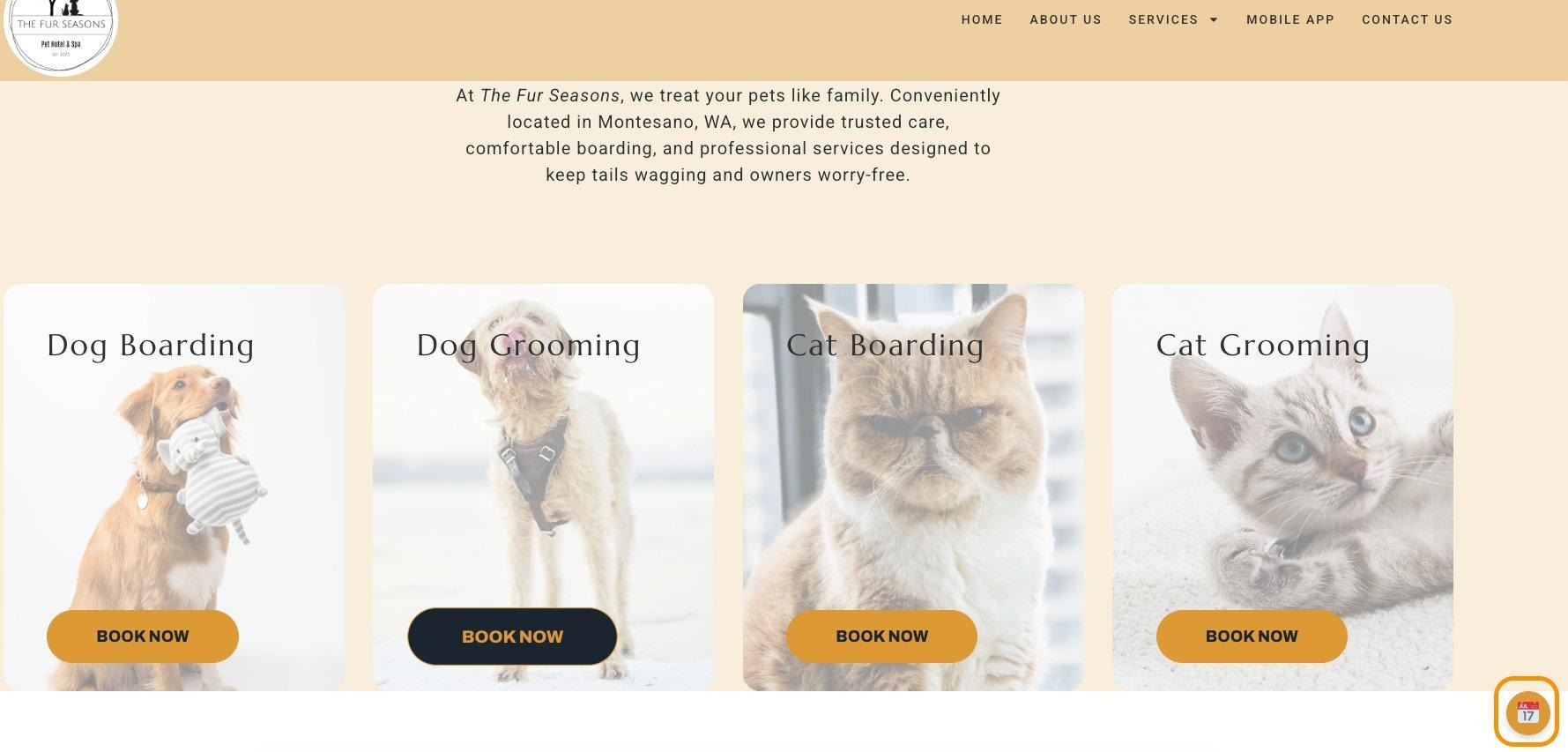
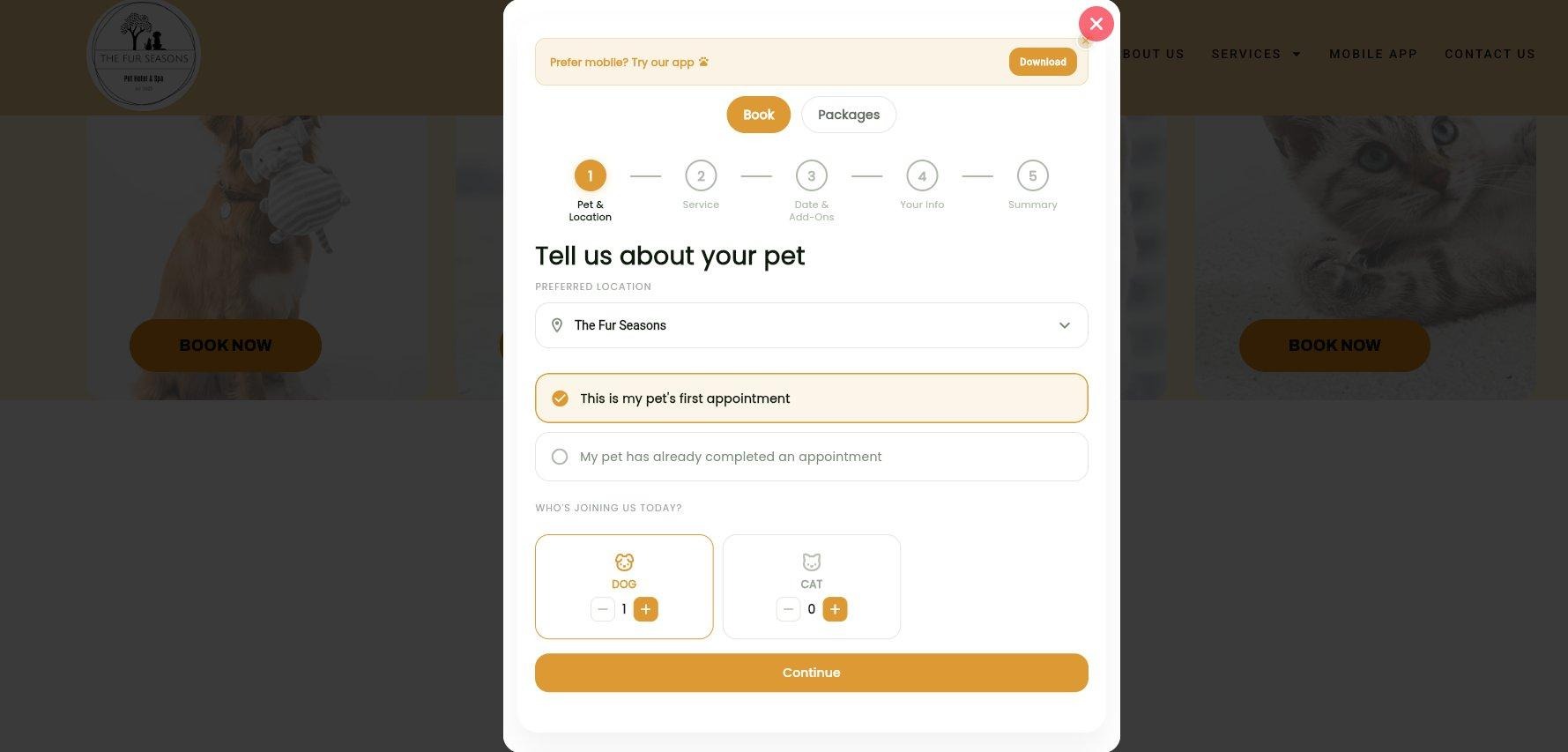
- Your website as a floating booking button
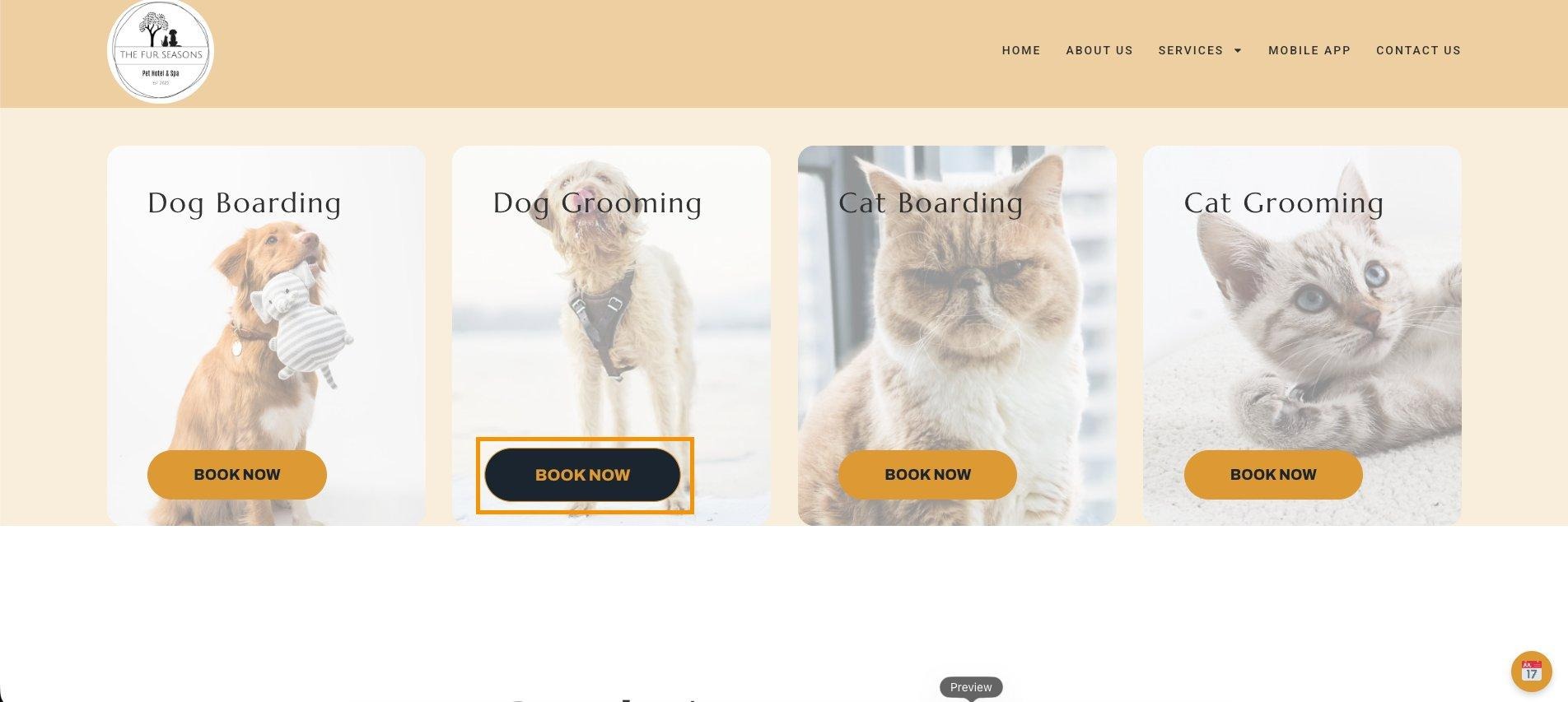
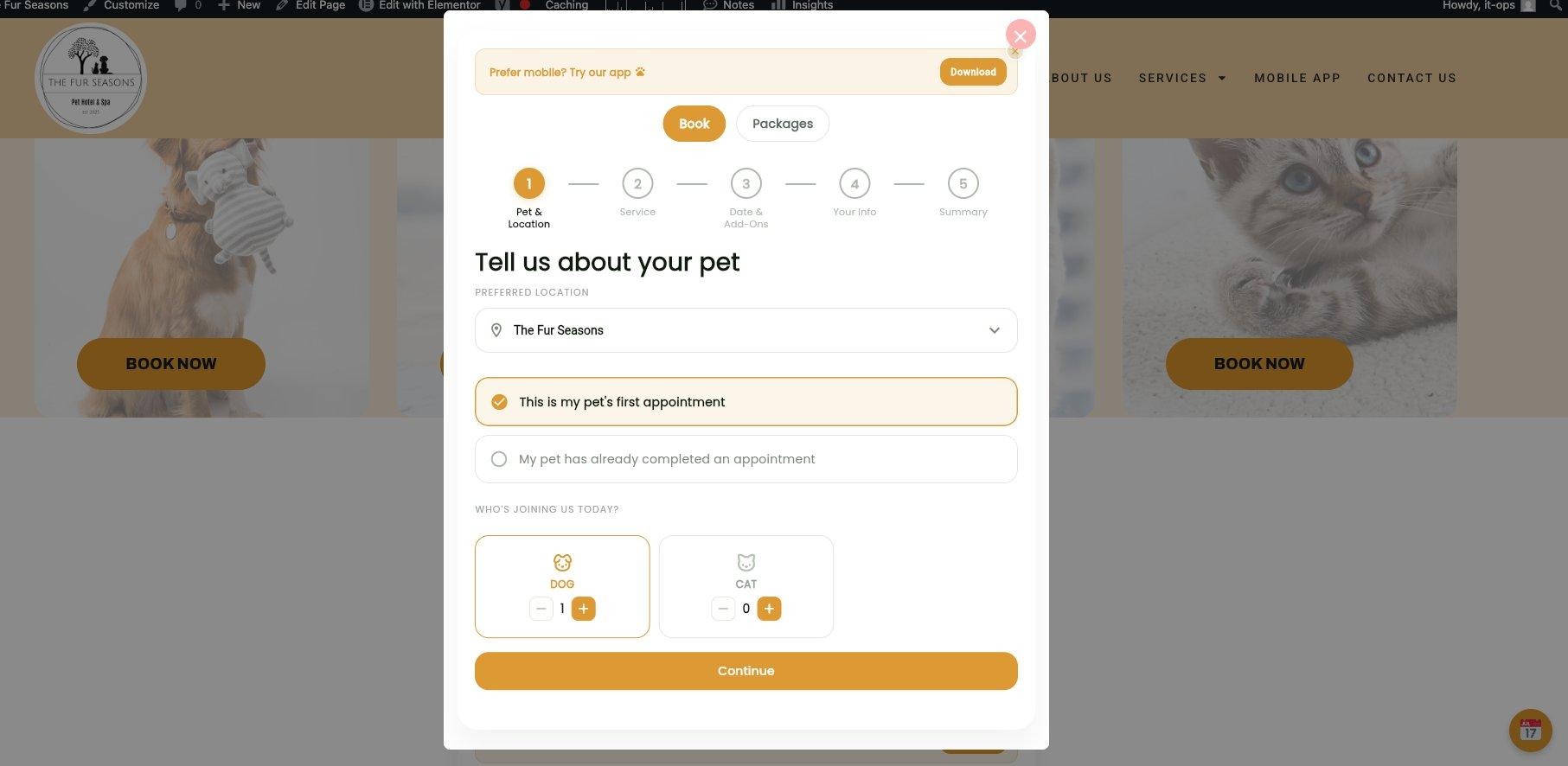
- Your website as a custom button with popup modal
- Your website as an embedded iframe booking page.
TABLE OF CONTENTS
How to Find Your Tenant Name
- Log in to your RunLoyal account and navigate to any page within your portal.
- Look at the URL in your browser's address bar.
- Identify the subdomain portion of the URL that appears before
.runloyal.com. - Copy this subdomain, which is your tenant name. For example, if your URL is
https://thefurseasons.runloyal.com, your tenant name isthefurseasons. - Save this tenant name, as you will need to replace
YOUR_TENANT_NAMEwith this value in all integration code examples throughout this guide.
Your tenant name is case-sensitive and must be entered exactly as it appears in your RunLoyal URL. Do not include https:// or .runloyal.com when copying your tenant name.
How to Add a Floating Booking Button
The floating booking button appears as a fixed element on your website that opens your booking page in a popup when clicked. This is the simplest integration method and works on any website.
HTML Website Implementation
- Open your website's HTML file in a text editor or access your website's code through your hosting provider's file manager.
- Scroll to the bottom of the HTML file and locate the closing
</body>tag. - Paste the following script immediately before the closing
</body>tag, replacingYOUR_TENANT_NAMEwith your actual tenant name:<script src="https://www.runloyal.com/new-runloyal-embed.js?customer=YOUR_TENANT_NAME"></script> - Save the HTML file and upload it to your web server if necessary.
- Clear your browser cache and visit your website to verify the floating booking button appears in the bottom corner of the page.
Customize Button Color
- To change the button color, add the
colorparameter to the script URL. - Use a HEX color code, but replace the
#symbol with%23for proper URL encoding. - Example script with custom purple color:<script src="https://www.runloyal.com/new-runloyal-embed.js?customer=YOUR_TENANT_NAME&color=%239679D2"></script>
- Replace
%239679D2with your preferred color code (remember to use%23instead of#). - Save the file and refresh your website to see the new button color.
Choose a button color that complements your website's brand colors and ensures good contrast for visibility. Test the button on both light and dark backgrounds if your site has varying page designs.
How to Add a Custom Button with Popup Modal
This method allows you to use your own existing button design to trigger the RunLoyal booking popup, providing complete control over the button's appearance and placement.
HTML Website Implementation
- Add the RunLoyal script to your HTML file before the closing
</body>tag:<script src="https://www.runloyal.com/new-runloyal-embed-button.js?customer=YOUR_TENANT_NAME"></script> - Replace
YOUR_TENANT_NAMEwith your actual tenant name. - Locate the button element in your HTML that you want to use for opening the booking popup.
- Add the
onclickattribute to your button with the valueRunloyal.open():<button onclick="Runloyal.open()">Book Now</button> - If you are using an anchor link instead of a button, use this format:<a href="#" onclick="Runloyal.open(); return false;">Book Now</a>
- Save your HTML file and test the button to confirm it opens the booking popup.
WordPress Elementor Implementation
- First, add the RunLoyal script to your WordPress site footer using the WPCode plugin or Insert Headers and Footers plugin.
- In the Footer Scripts section, paste the script and replace
YOUR_TENANT_NAME:<script src="https://www.runloyal.com/new-runloyal-embed-button.js?customer=YOUR_TENANT_NAME"></script> - Save the footer script settings.
- Open the page in Elementor where you want to add the booking button.
- Select your existing button widget or add a new Button widget to the page.
- In the button widget settings, click on the Advanced tab.
- Scroll to the Attributes section and click to expand it.
- Add a new custom attribute with the following values:
- Attribute Name:
onclick - Attribute Value:
Runloyal.open()
- Attribute Name:
- Update the page and test the button to ensure it opens the booking popup.
You can add the onclick="Runloyal.open()" attribute to multiple buttons throughout your website. The script only needs to be added once to your site, and all buttons with the onclick attribute will trigger the booking popup.
How to Embed the Booking Page as an Iframe
The embedded iframe displays your complete RunLoyal booking interface directly within your website page, allowing customers to book without any popups or external redirects.
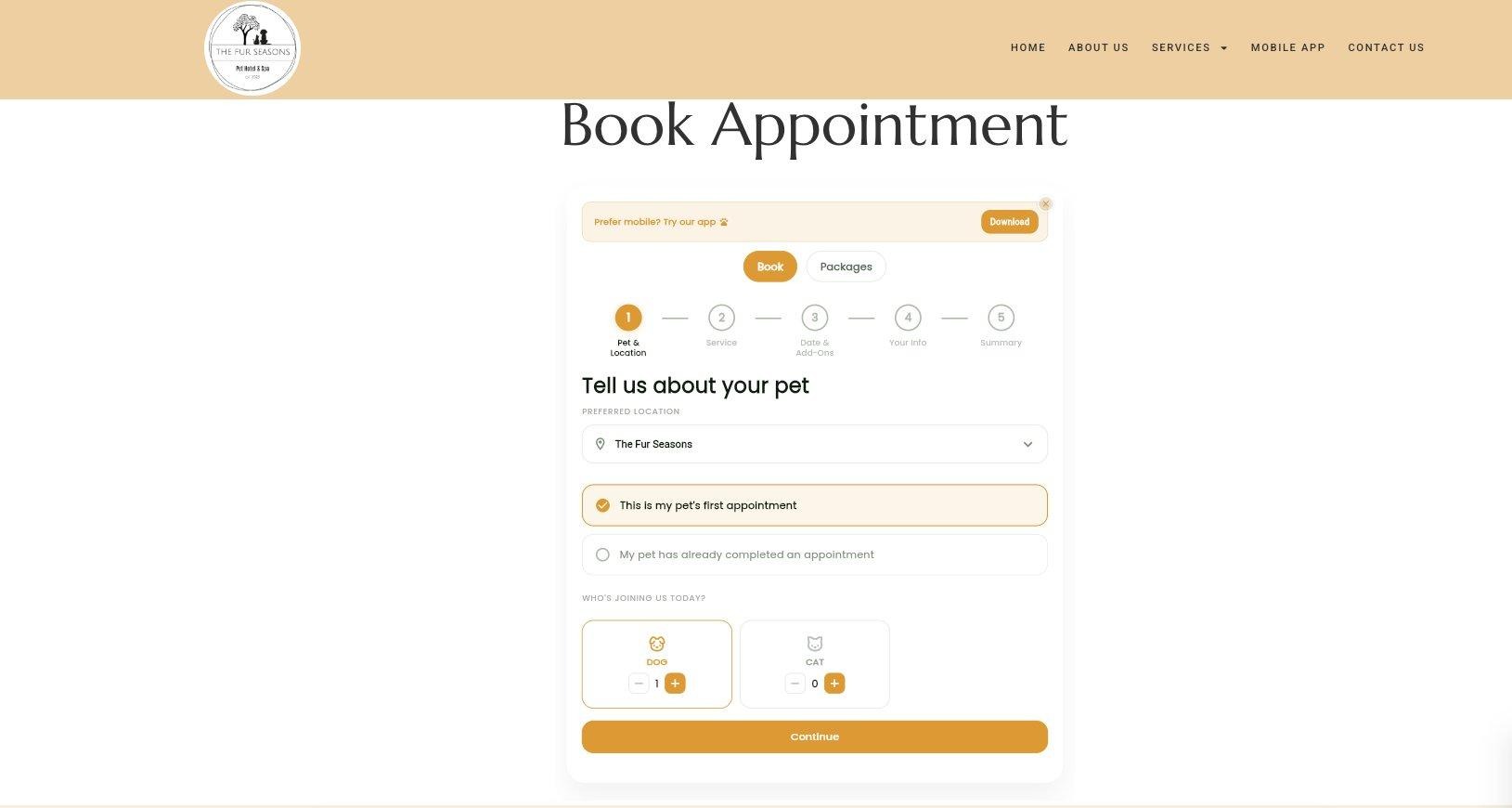
HTML Website Implementation
- Navigate to the page on your website where you want to embed the booking system.
- Decide where on the page you want the booking interface to appear.
- Insert the following iframe code at that location in your HTML:<iframe src="https://YOUR_TENANT_NAME.runloyal.com/booking" width="100%" height="850" frameborder="0" style="border: none;"> </iframe>
- Replace
YOUR_TENANT_NAMEwith your actual tenant name in thesrcattribute. - Adjust the
heightvalue based on your booking flow complexity (recommended range: 800 to 1000 pixels). - If you want to constrain the iframe width, change
width="100%"to a specific pixel value such aswidth="800". - Save your HTML file and refresh the page to view the embedded booking system.
WordPress Gutenberg Block Editor Implementation
- Open the page or post where you want to embed the booking system in the WordPress editor.
- Click the plus icon to add a new block.
- Search for and select the Custom HTML block.
- Paste the iframe code into the Custom HTML block, making sure to replace
YOUR_TENANT_NAME. - Preview the page to ensure the booking system displays correctly.
- Adjust the height value if the iframe content appears cut off or has excessive white space.
- Publish or update the page when satisfied with the appearance.
WordPress Elementor Implementation
- Edit the page in Elementor where you want to add the booking system.
- Drag and drop an HTML widget to the desired location on your page.
- Paste the iframe code into the HTML widget content area.
- Replace
YOUR_TENANT_NAMEwith your actual tenant name. - Adjust the iframe height as needed to fit your page layout.
- Preview the page in Elementor to verify the booking system displays properly.
- Update the page to publish your changes.
When using the iframe method, ensure your page has sufficient vertical space to accommodate the booking interface. Setting the height too small will require users to scroll within the iframe, which may negatively impact the user experience.
How to Set Up Integration in WordPress
WordPress users have several options for adding the RunLoyal integration scripts to their website, depending on their preferred workflow and available plugins.
Method 1: Using Insert Headers and Footers Plugin
- From your WordPress admin dashboard, navigate to Plugins › Add New.
- Search for "Insert Headers and Footers" in the plugin search box.
- Click Install Now on the Insert Headers and Footers plugin by WPBeginner.
- After installation completes, click Activate.
- Navigate to Settings › Insert Headers and Footers from the WordPress admin menu.
- Scroll to the Scripts in Footer section.
- Paste your RunLoyal script code (either the floating button or custom button script) into the footer text area.
- Replace
YOUR_TENANT_NAMEwith your actual tenant name. - Click Save to apply the changes.
- Visit your website to verify the script is loading correctly.
Method 2: Using WPCode Plugin
- Install and activate the WPCode plugin from Plugins › Add New.
- Navigate to Code Snippets › Add Snippet from the WordPress admin menu.
- Choose "Add Your Custom Code" and select JavaScript Snippet as the code type.
- Give your snippet a descriptive title such as "RunLoyal Booking Integration".
- Paste your RunLoyal script code into the code editor, replacing
YOUR_TENANT_NAME. - In the Insertion section, select Site Wide Footer from the location dropdown.
- Toggle the snippet status to Active.
- Click Save Snippet to apply the changes.
- Clear your website cache if you are using a caching plugin.
- Visit your site to confirm the integration is working.
Method 3: Direct Theme File Editing
- Navigate to Appearance › Theme File Editor in your WordPress admin dashboard.
- If prompted with a warning about editing theme files, review and acknowledge the notice.
- In the right sidebar, locate and click on footer.php to open the footer template file.
- Scroll to the bottom of the file and locate the closing
</body>tag. - Paste your RunLoyal script code immediately before the
</body>tag. - Replace
YOUR_TENANT_NAMEwith your actual tenant name. - Click Update File to save your changes.
- Clear your site cache and visit your website to test the integration.
Direct theme file editing (Method 3) should be used with caution. Changes made to theme files will be overwritten when you update your theme. For this reason, using a plugin-based approach (Method 1 or Method 2) is strongly recommended for most users.
After adding the integration script, always clear your WordPress caching plugin cache and your browser cache to ensure the changes take effect immediately. Common caching plugins include WP Rocket, W3 Total Cache, and WP Super Cache.
More Information
For more information on the Client Portal Personalization and booking URL configurations, please refer to this article: Client Portal Personalization — Online Booking, Memberships, Packages & Profile Management
Was this article helpful?
That’s Great!
Thank you for your feedback
Sorry! We couldn't be helpful
Thank you for your feedback
Feedback sent
We appreciate your effort and will try to fix the article