Overview
The Memberships feature is a paid add-on for your RunLoyal subscription. It is optimized for dog parks, dog bars, or other areas where members should be able to easily check themselves in without business staff present. This feature allows you to set up a unique membership area, separate from regular daycare playgroups, that can hold a certain capacity of animals.
Memberships can be set up to allow the pet owner to have either a certain number of check-ins during a defined period or unlimited access. You can also set up special pricing to give members set discounts, such as a percentage or flat amount off certain services or add-ons.
To set up and use Memberships, you must first subscribe to this add-on under right-hand navigation > Profile Menu > My Subscription > Membership-Based Services. Then set up Memberships following this article: Setting Up Memberships.
Memberships can be viewed in the following areas:
- Left-hand navigation > Members In House
- Settings > Membership Services
- Pet Owner profile > Memberships section
TABLE OF CONTENTS
How To Sell Memberships
1. To sell an existing membership to a pet owner, navigate to Left-hand navigation > Quick Checkout.
If you do not have any existing memberships, first set up the memberships feature following the steps in this article: Setting Up Memberships.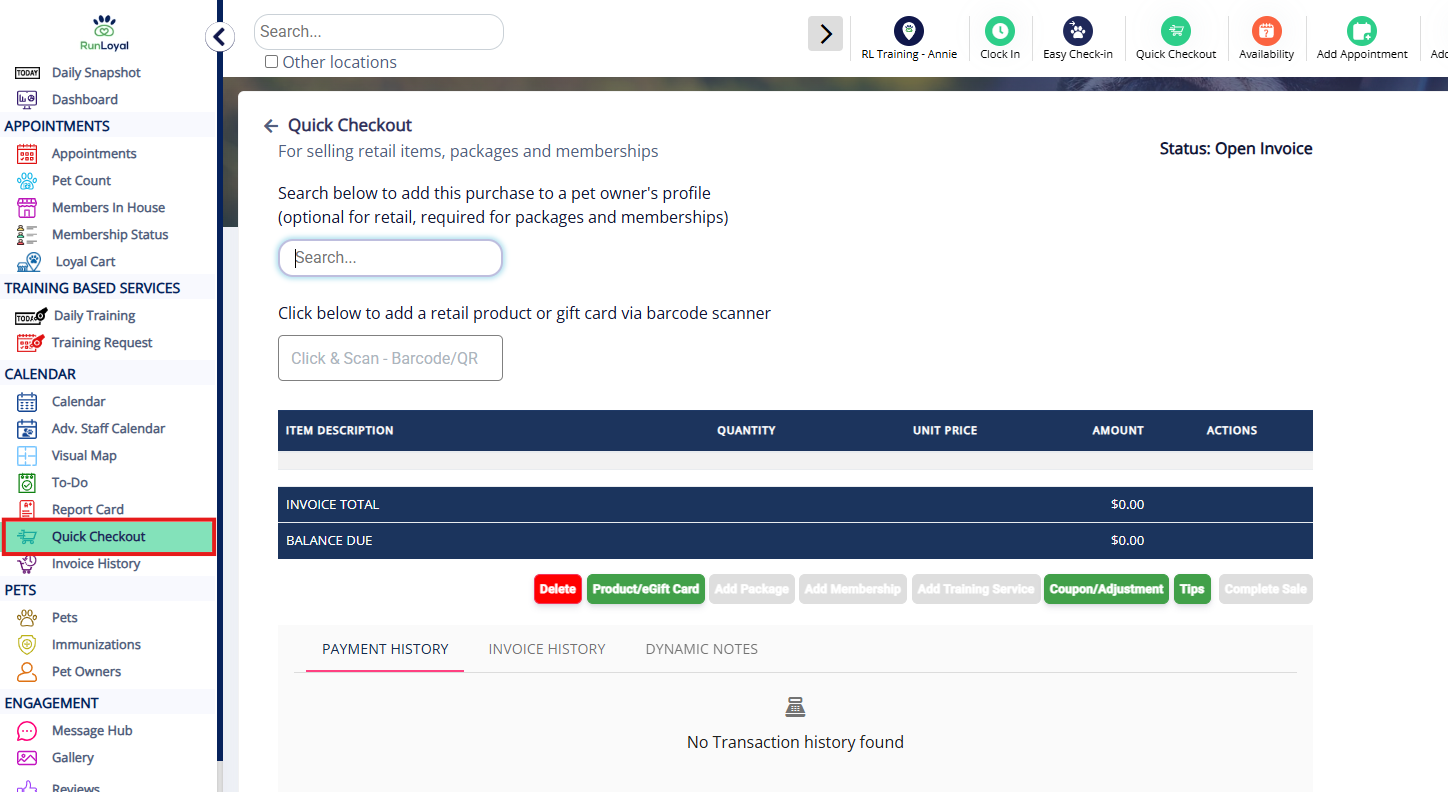
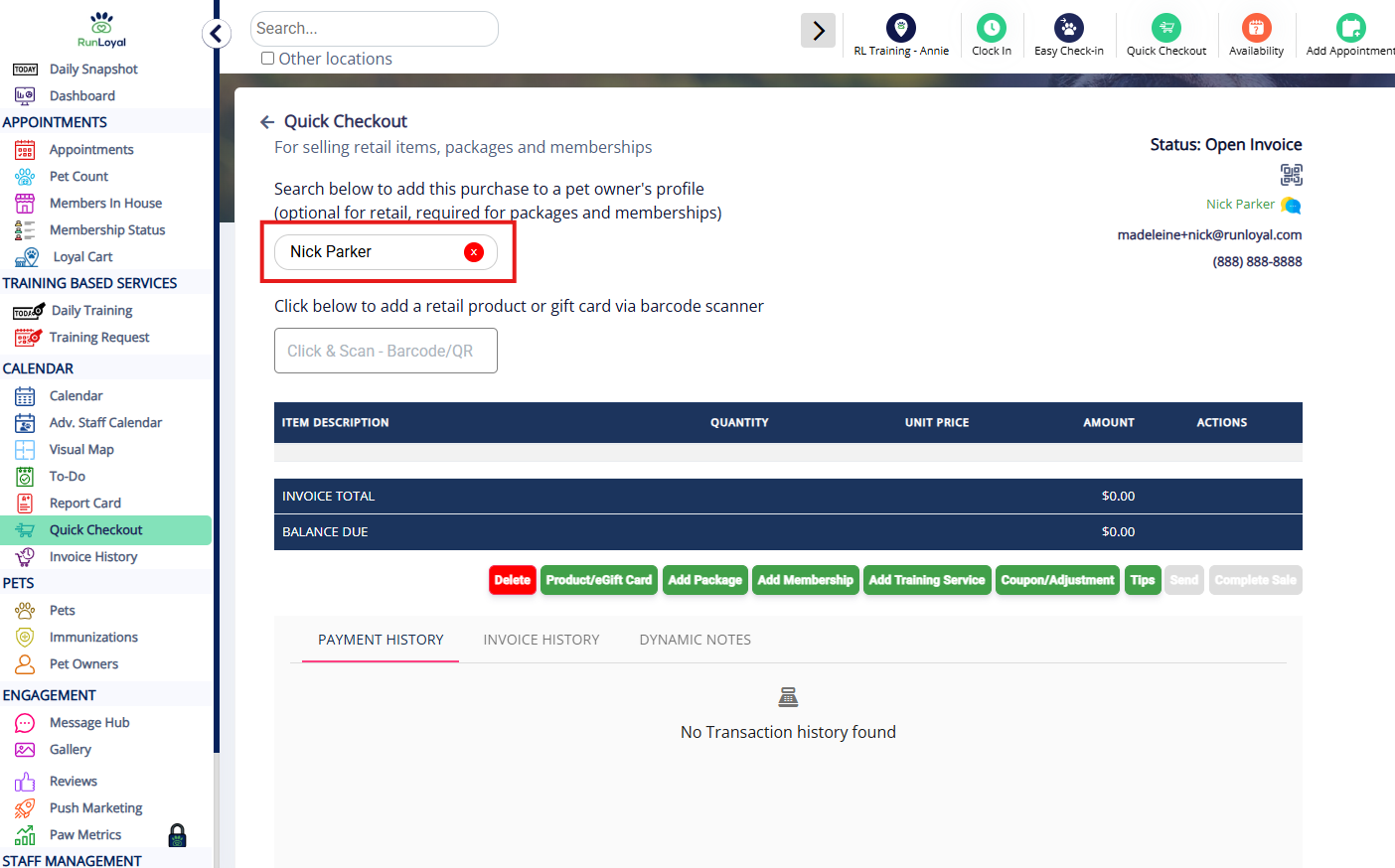
2. Select the customer for whom you would like to enroll in a membership.
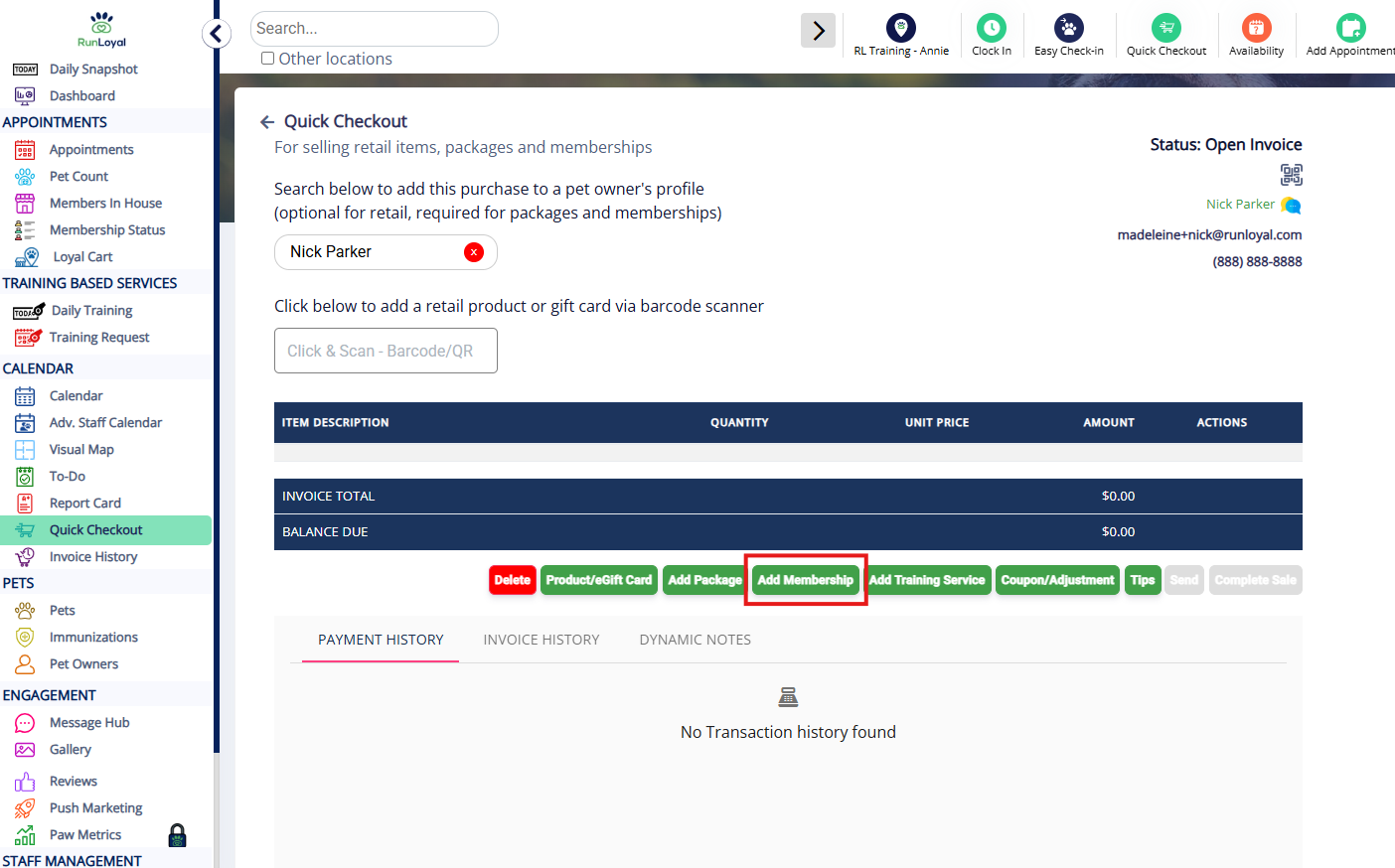
3. Click Add Membership.
4. Select the membership in question.
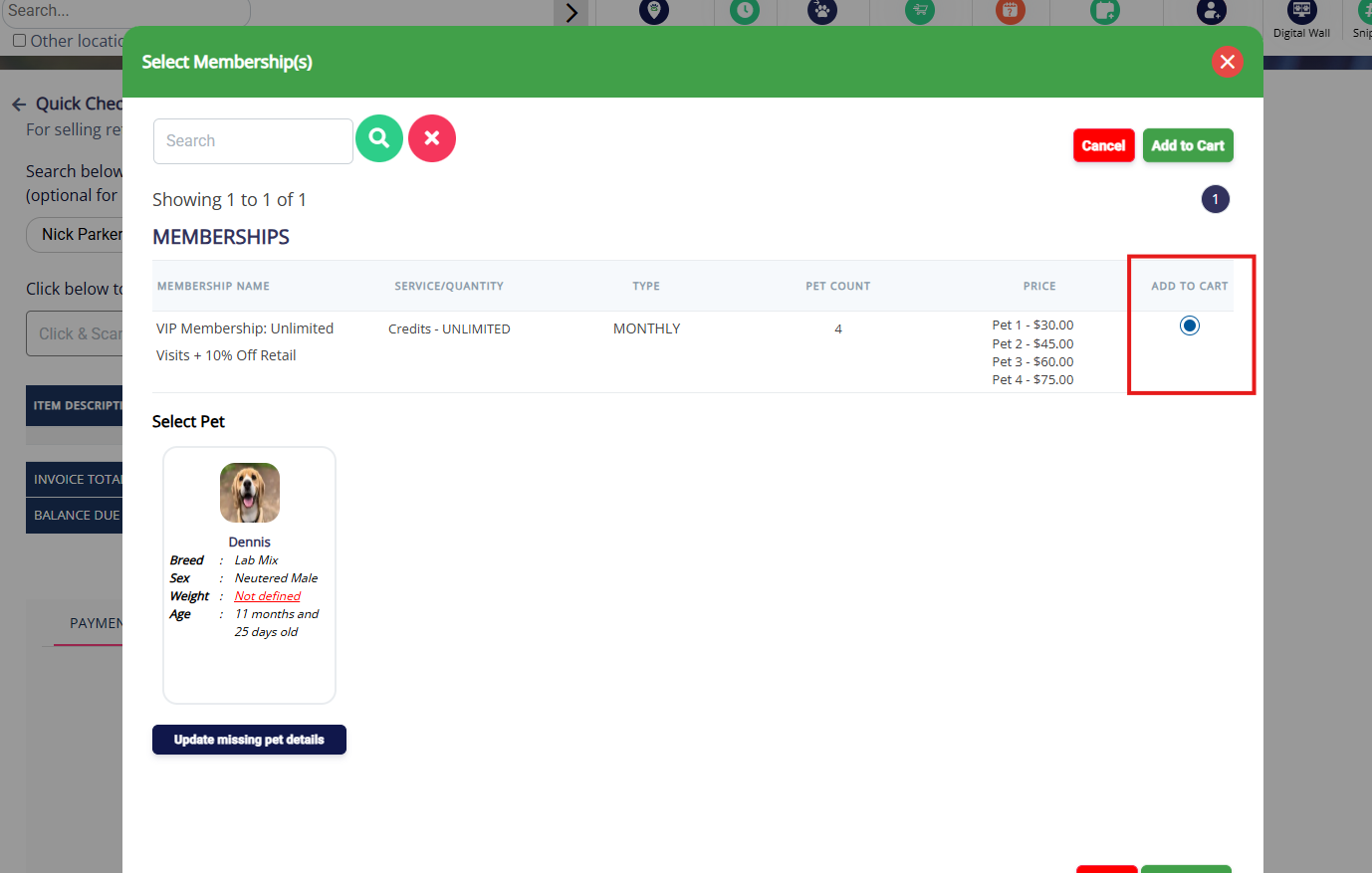
5. Choose the pet(s) to which this membership should apply.
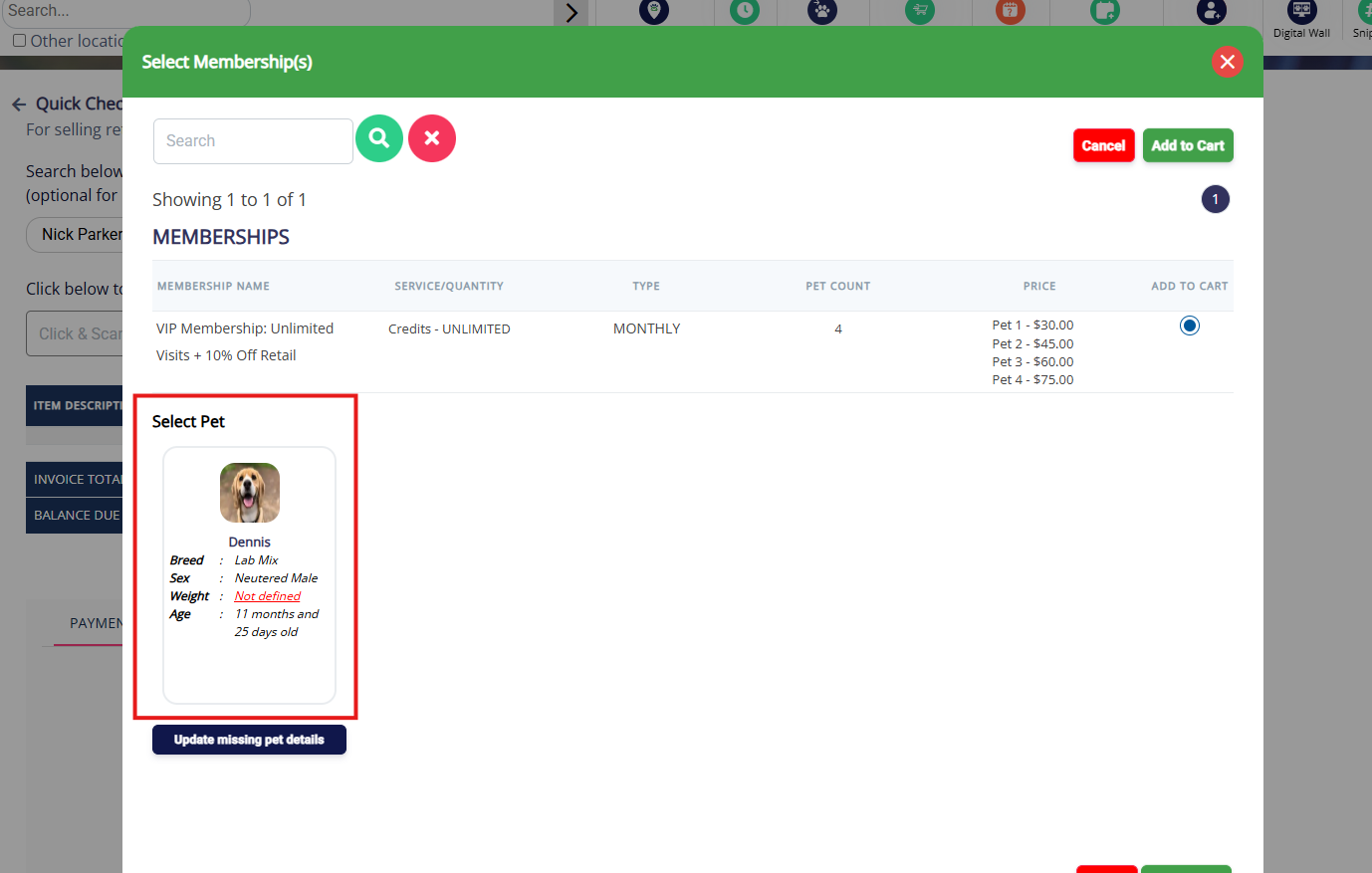
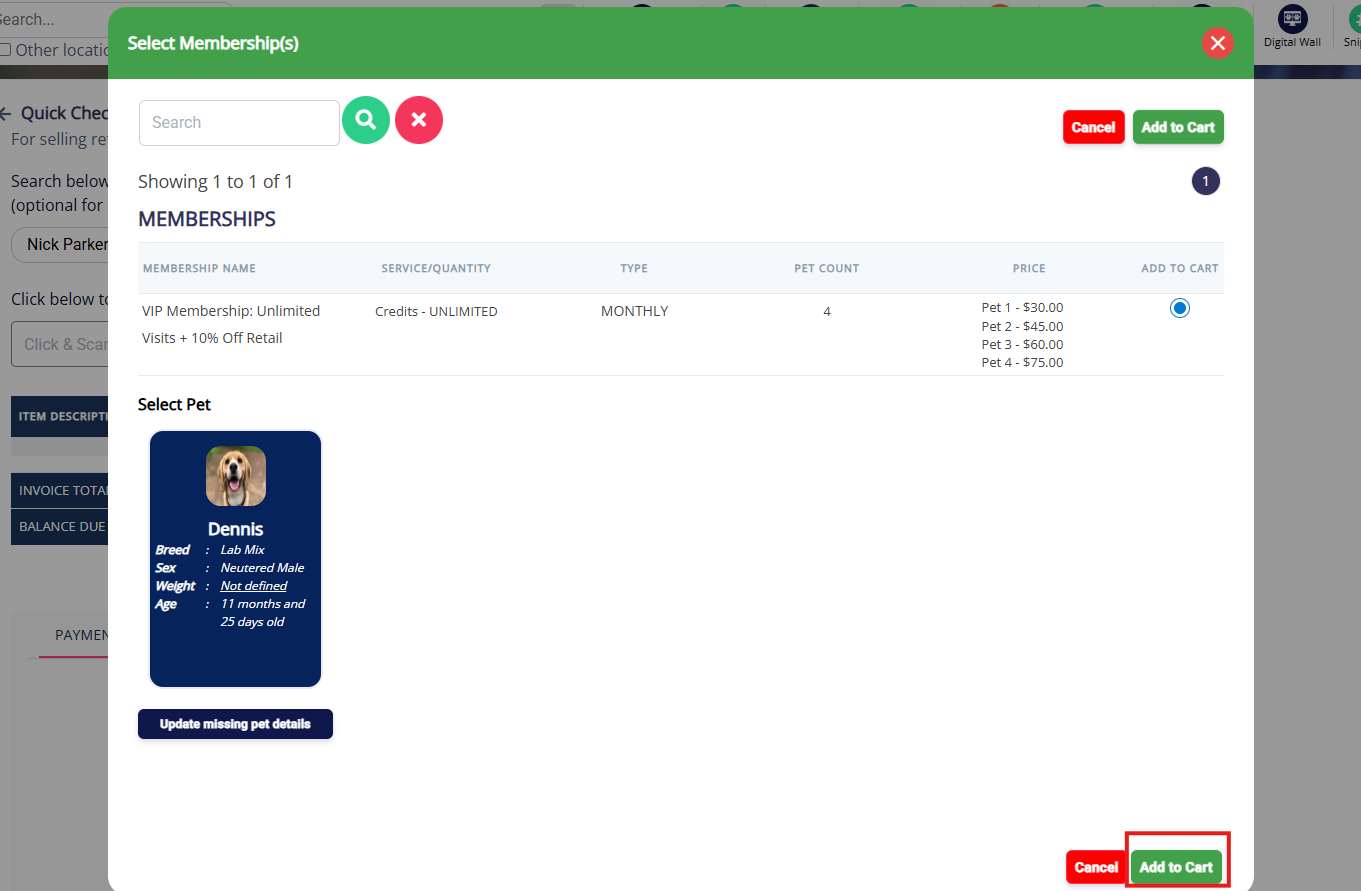
6. Click Add to Cart.
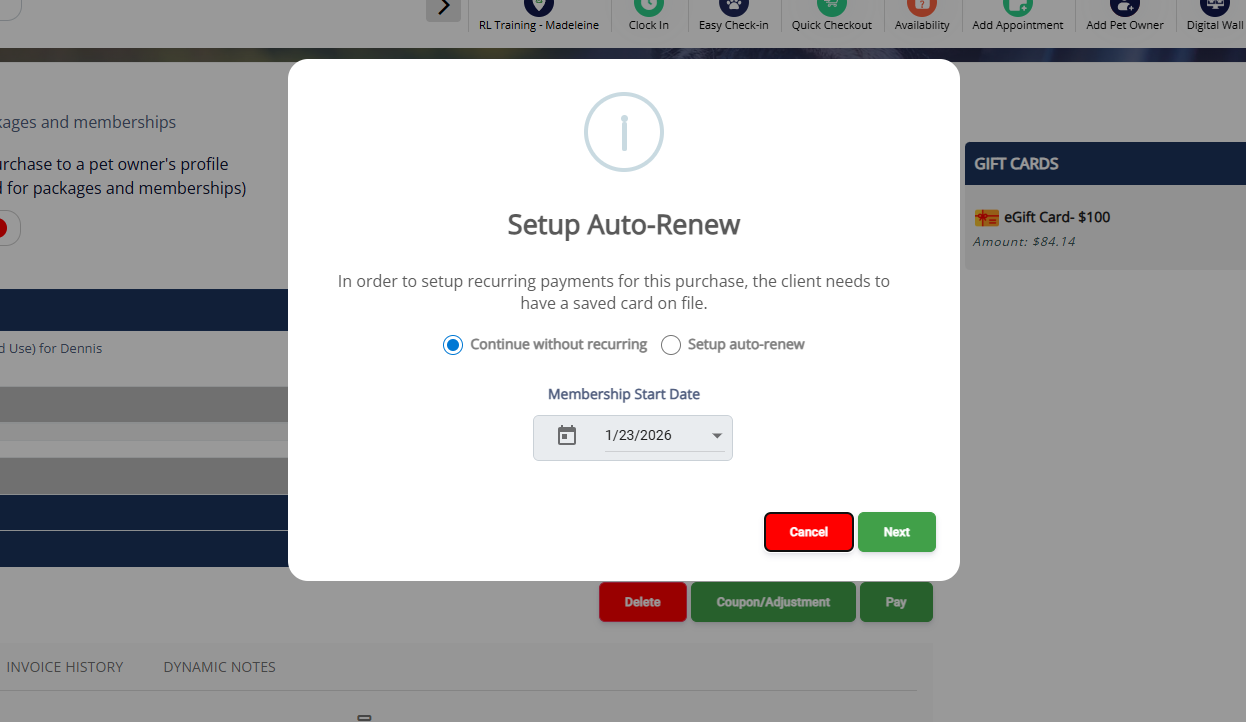
7. If the membership is set up as recurring, the pet owner must have a card saved on file. If they do not yet have a card on file but want to have the recurring option, click Setup auto-renew. If you wish to continue with a one-time, non-recurring sale, click Continue without recurring. Then click Next.
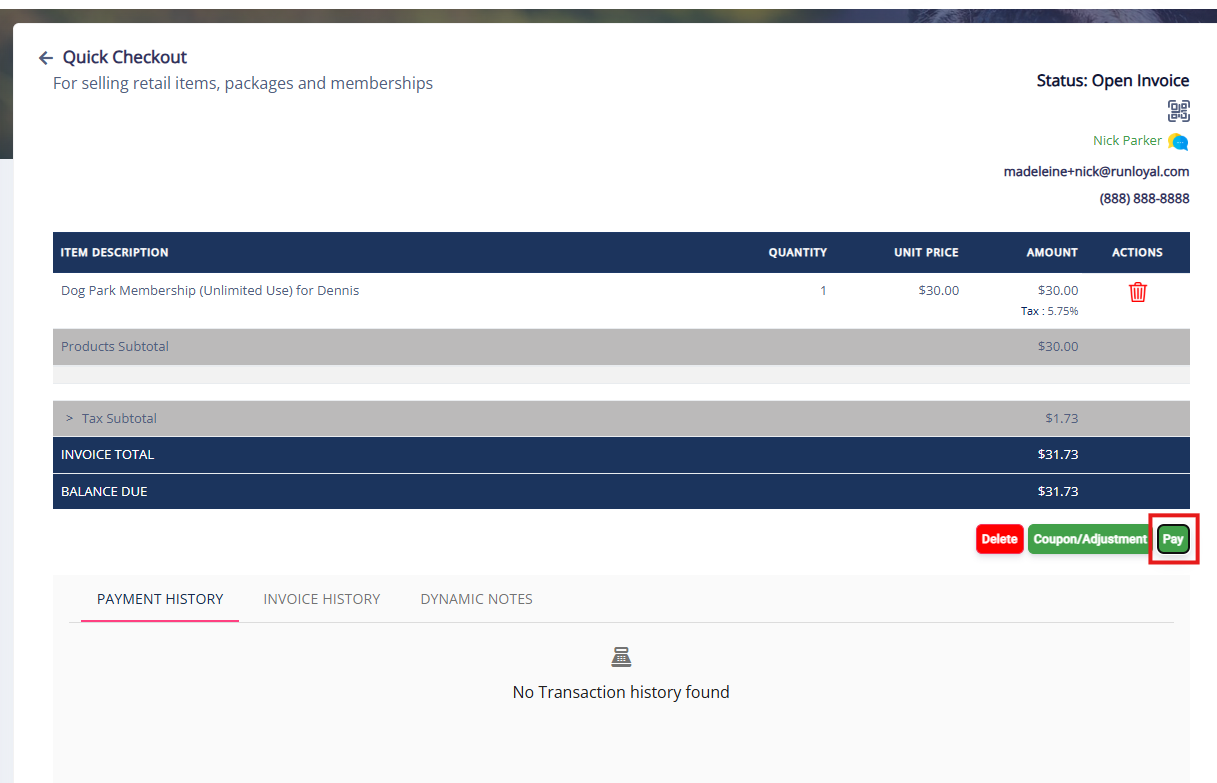
8. Click Pay on the invoice. If it's a recurring membership, you will only have the option to pay with the card on file. If it's a non-recurring membership, you will have all normal payment methods.
How to Handle Failed Memberships
When a membership renewal payment fails due to a card issue, our system automatically notifies the customer and staff users regarding the failure, and after a set period of time, initiates reattempts. This ensures that temporary issues such as insufficient funds or card network delays do not disrupt the pet owner's membership. The reattempt schedule is:
- 1st Reattempt: 8 hours after the initial failure
- 2nd Reattempt: 24 hours after the previous attempt
- 3rd Reattempt: 48 hours after the previous attempt
If all reattempts fail, the membership remains unrenewed until action is taken.
1. Navigate to Left-hand navigation > Memberships Status. 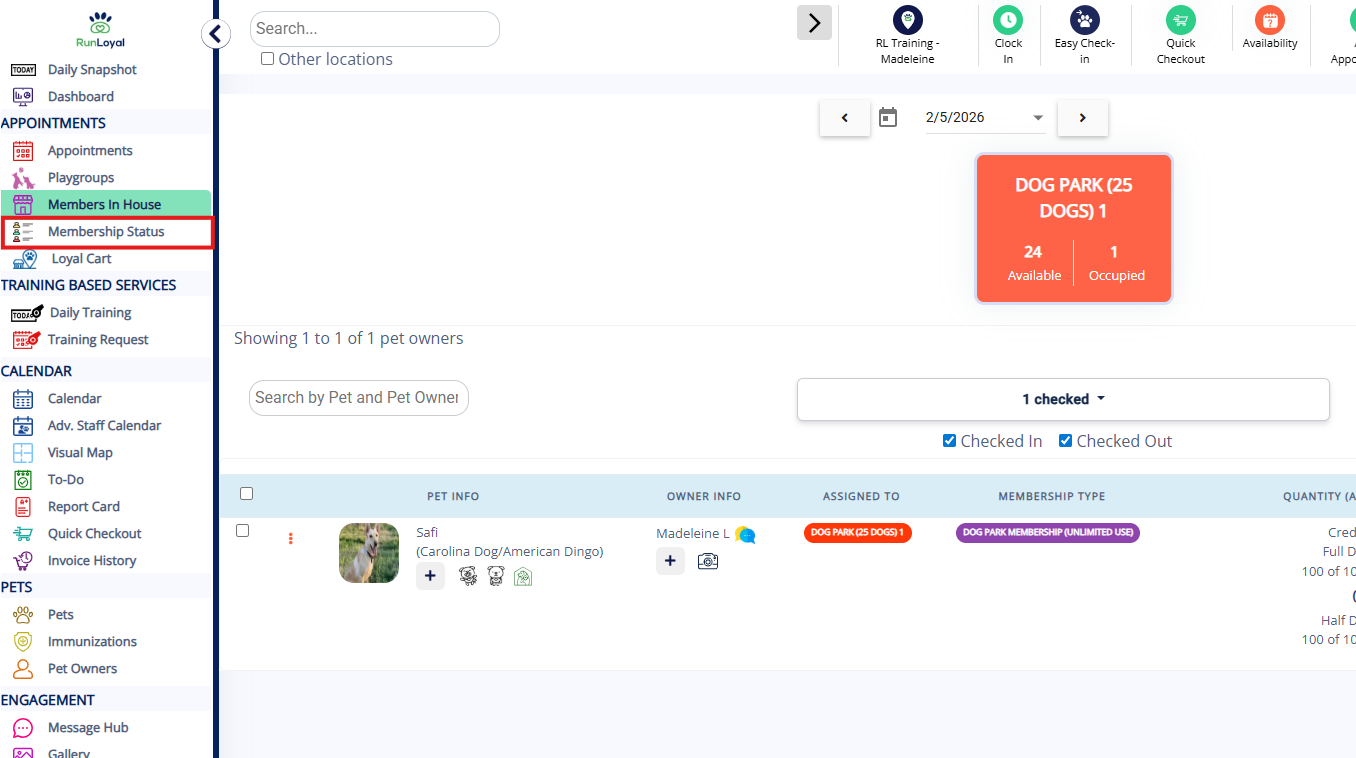
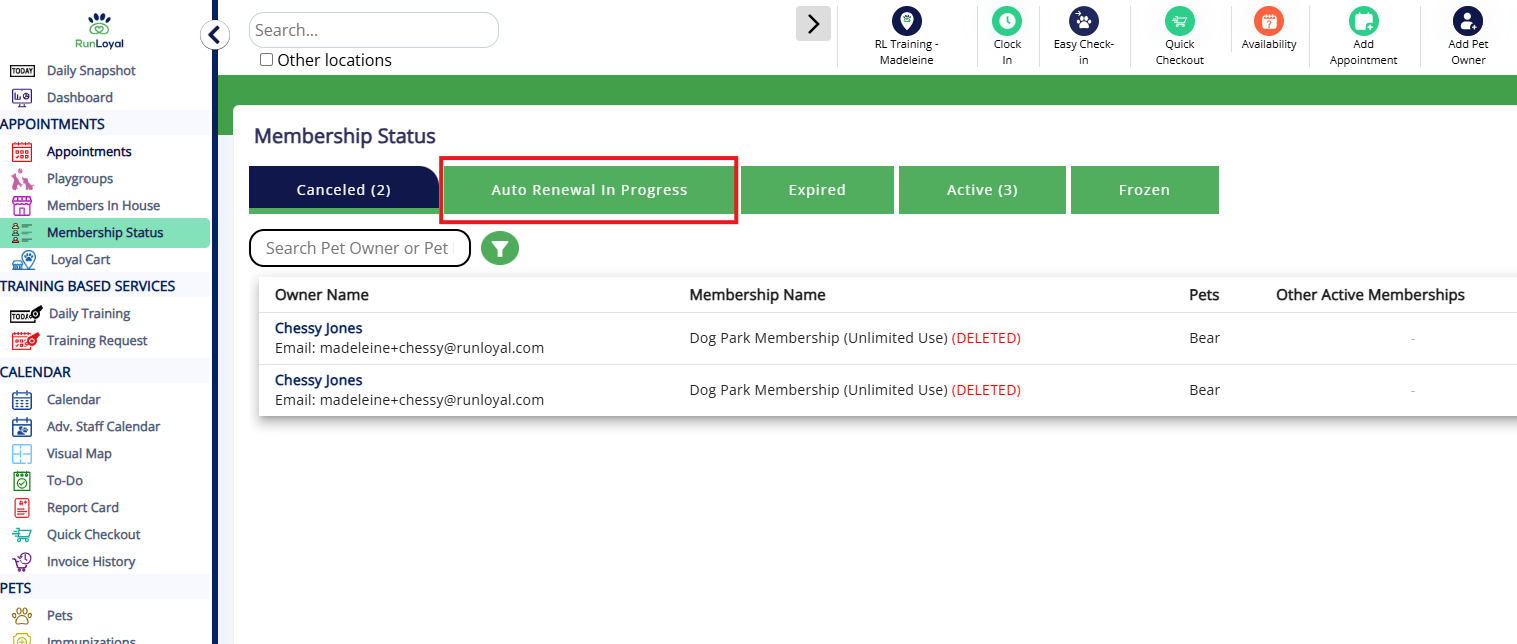
2. Click Auto-Renewal in Progress. This page will list pet owners whose memberships are currently reattempting or scheduled to re-attempt.
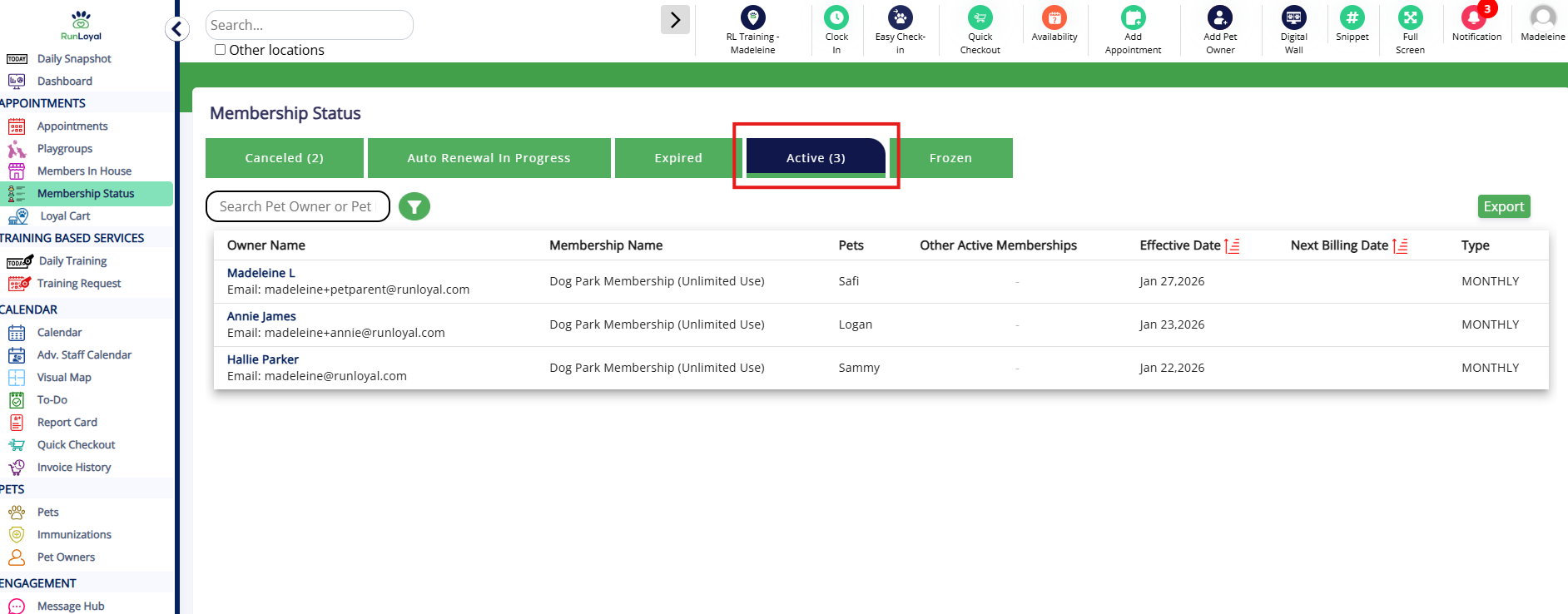
3. If the pet owner has updated their card details, you can manually reattempt by clicking the pet owner name and selecting Renew Now. This will attempt to process the payment immediately. Once the membership renews successfully, it will move back into Active.
More Information
For more information on setting up memberships, please refer to this article: Setting Up Memberships.
For more information on refunding and/or removing a membership, please refer to this article: Refund & Remove a Membership.
Was this article helpful?
That’s Great!
Thank you for your feedback
Sorry! We couldn't be helpful
Thank you for your feedback
Feedback sent
We appreciate your effort and will try to fix the article