Overview
The Memberships feature is a paid add-on for your RunLoyal subscription. It is optimized for dog parks, dog bars, or other areas where members should be able to easily check themselves in without business staff present. This feature allows you to set up a unique membership area, separate from regular daycare playgroups, that can hold a certain capacity of animals. You can require members check in and out if you wish to monitor capacity in the membership area. If members are not required to check out, then all pets will be automatically checked out of the membership area at the end of the day.
Memberships can be set up to allow the pet owner to have either a certain number of check-ins during a defined period or unlimited access. You can also set up special pricing to give members set discounts, such as a percentage or flat amount off certain services or add-ons. These discounts can easily be applied to invoices if the pet owner has an active membership without additional staff management.
To set up and use Memberships, you must first subscribe to this add-on under right-hand navigation > Profile Menu > My Subscription > Membership-Based Services.
Memberships can be viewed in the following areas:
- Left-hand navigation > Members In House
- Settings > Membership Services
- Pet Owner profile > Memberships section
TABLE OF CONTENTS
- Overview
- How To Create a New Membership
- Set Up Membership Hours
- Build Your Membership Area
- Membership Pricing & Pricing Rules (Automatic Member Discounts)
- Add a Membership Agreement (Optional)
- More Information
How To Create a New Membership
1. To create a new membership, navigate to Settings > Membership Services > Membership Configuration.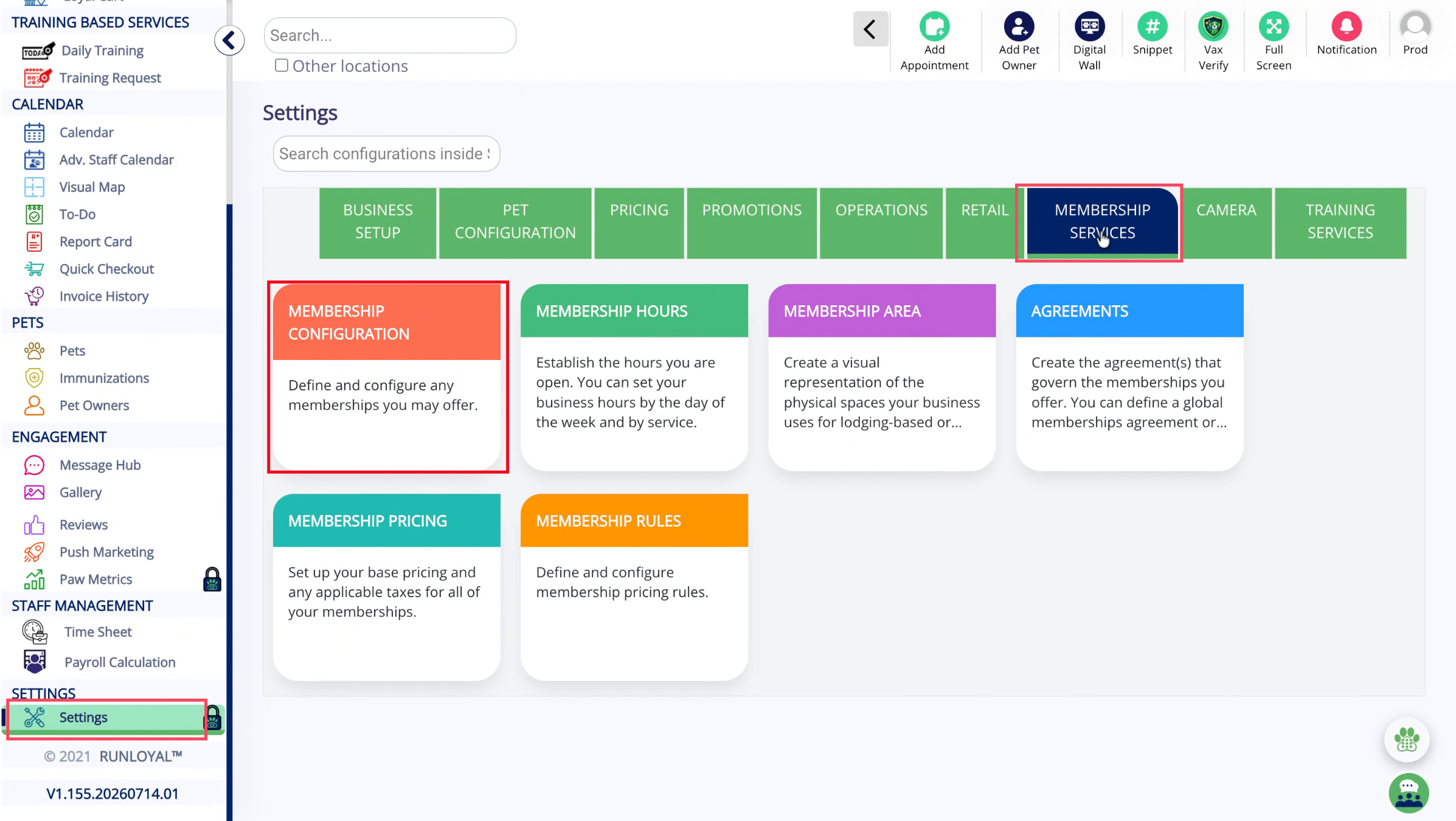
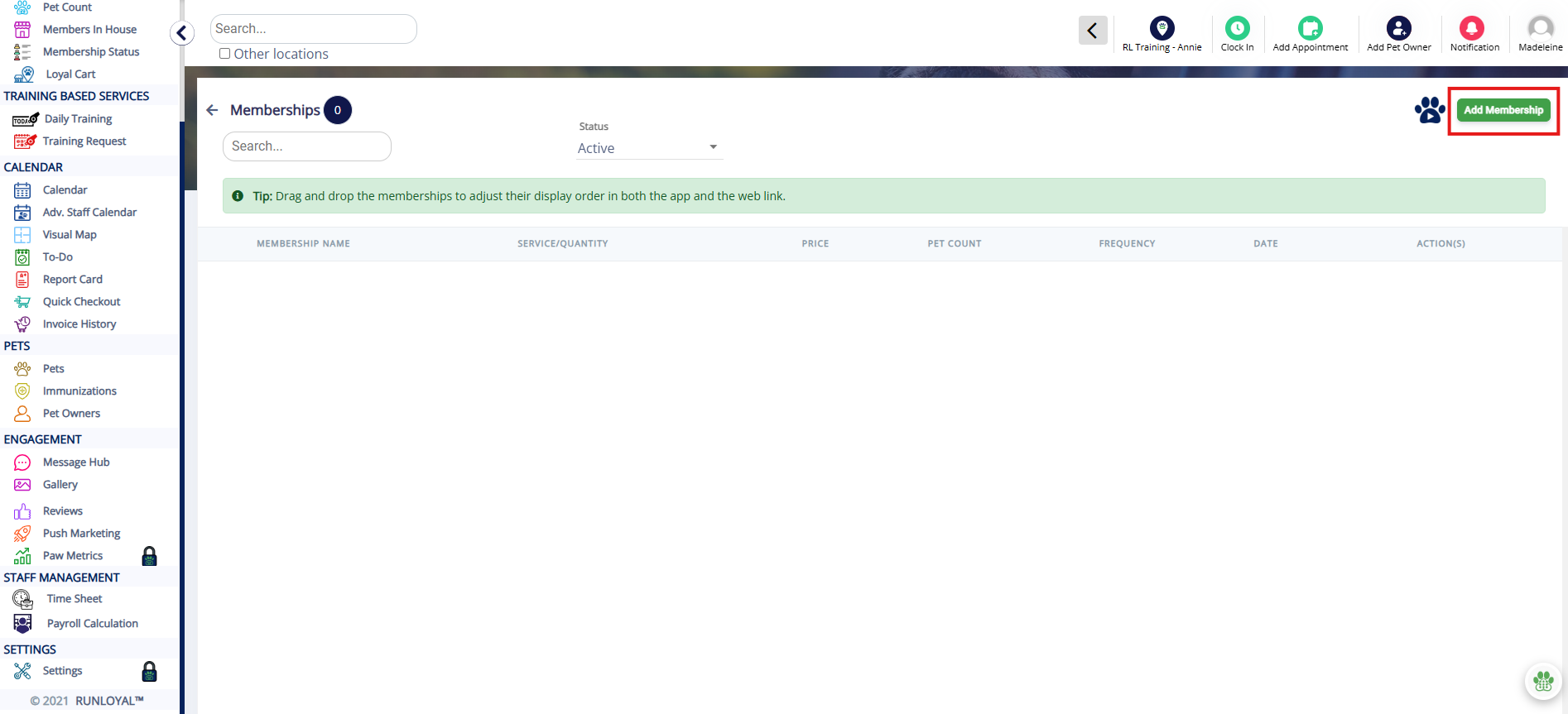
2. Click Add Membership.
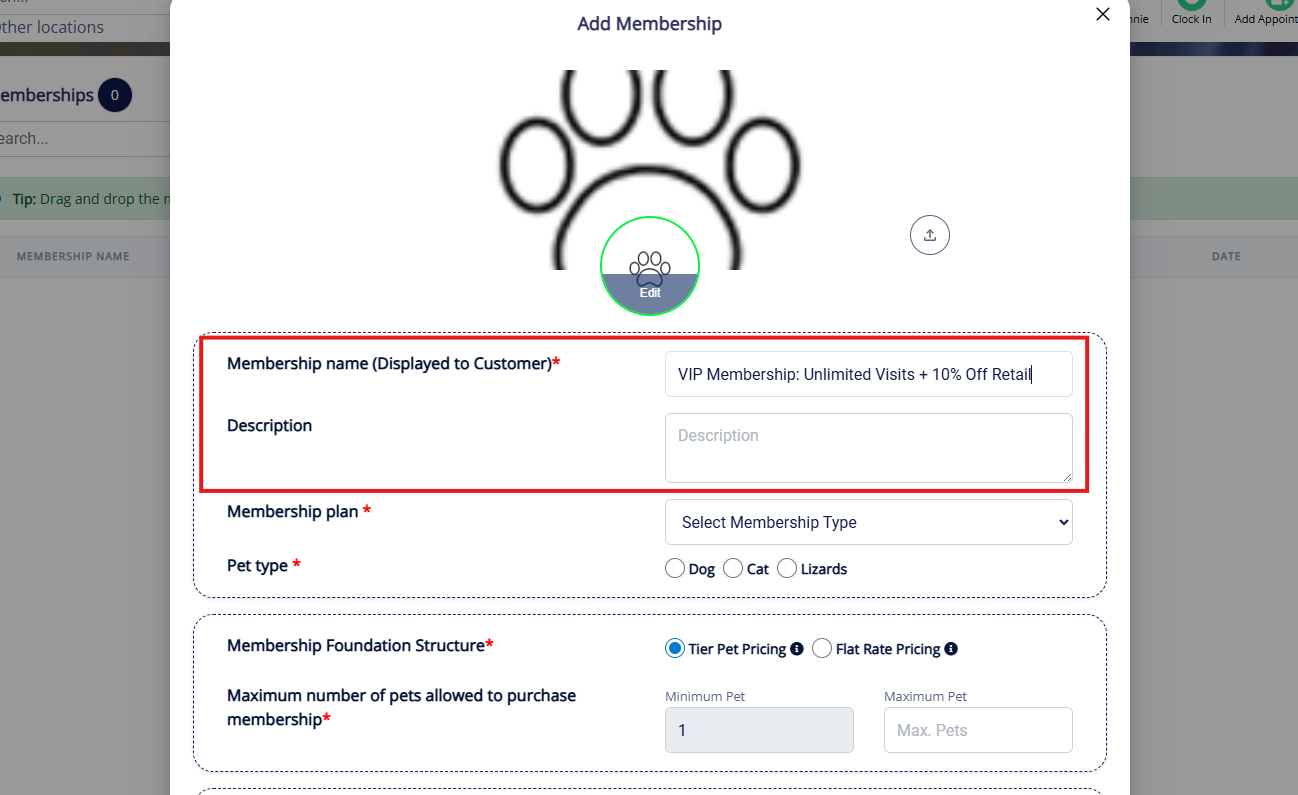
3. Enter your Membership Name and optionally add a description.
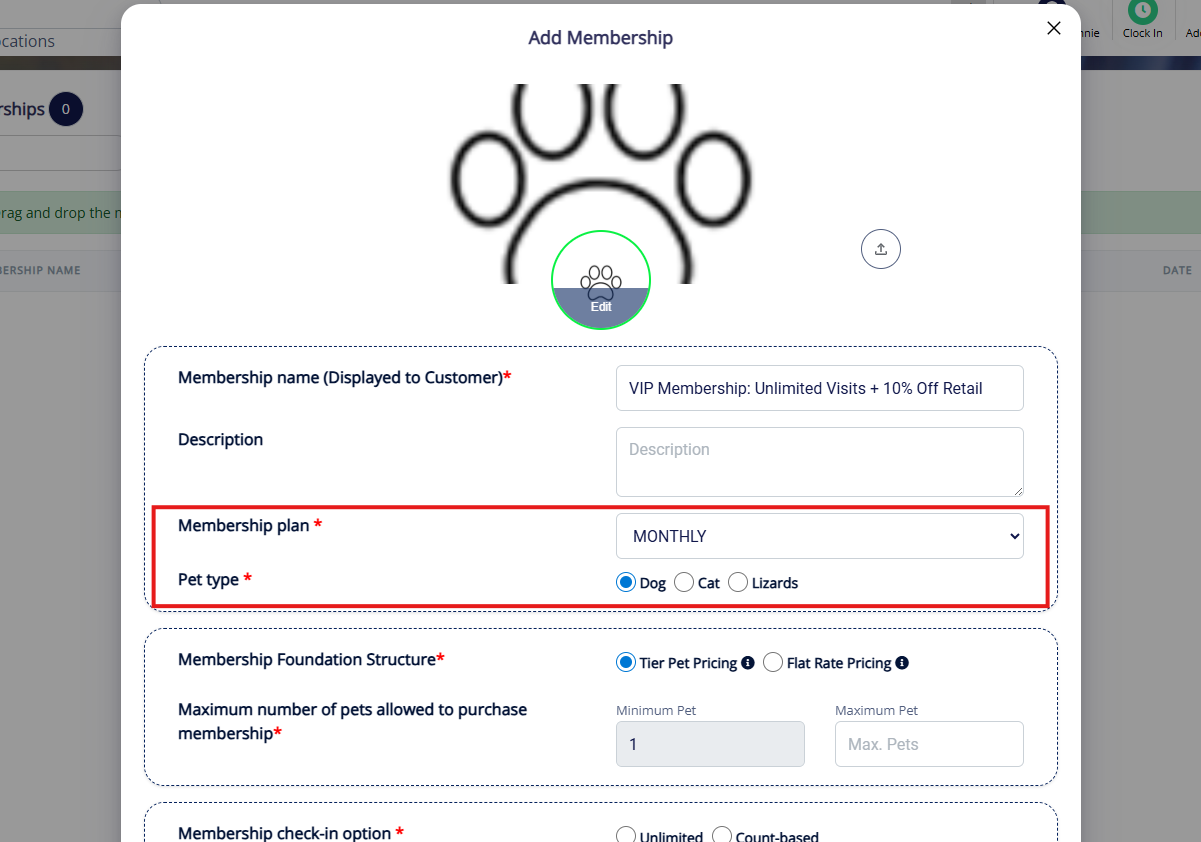
4. Select the Membership Plan, which controls the benefit period. The options are: daily, weekly, monthly, quarterly (every 4 months), semi-annually (every 6 months), annually, lifetime, or custom. If selecting the custom option, you will need to enter the membership timeframe (2-365 days). Also select the Pet Type.
5. Set if your membership should be Tier Pet Pricing or Flat Rate Pricing. The first option, Tier Pet Pricing, means that there is a price for membership for one pet, a higher price for two pets, etc. This allows you to create one membership that has different prices based on the number of animals without having to create additional memberships. If selecting this option, choose the maximum number of pets the membership can apply to under the same pet owner (such as 4 pets maximum).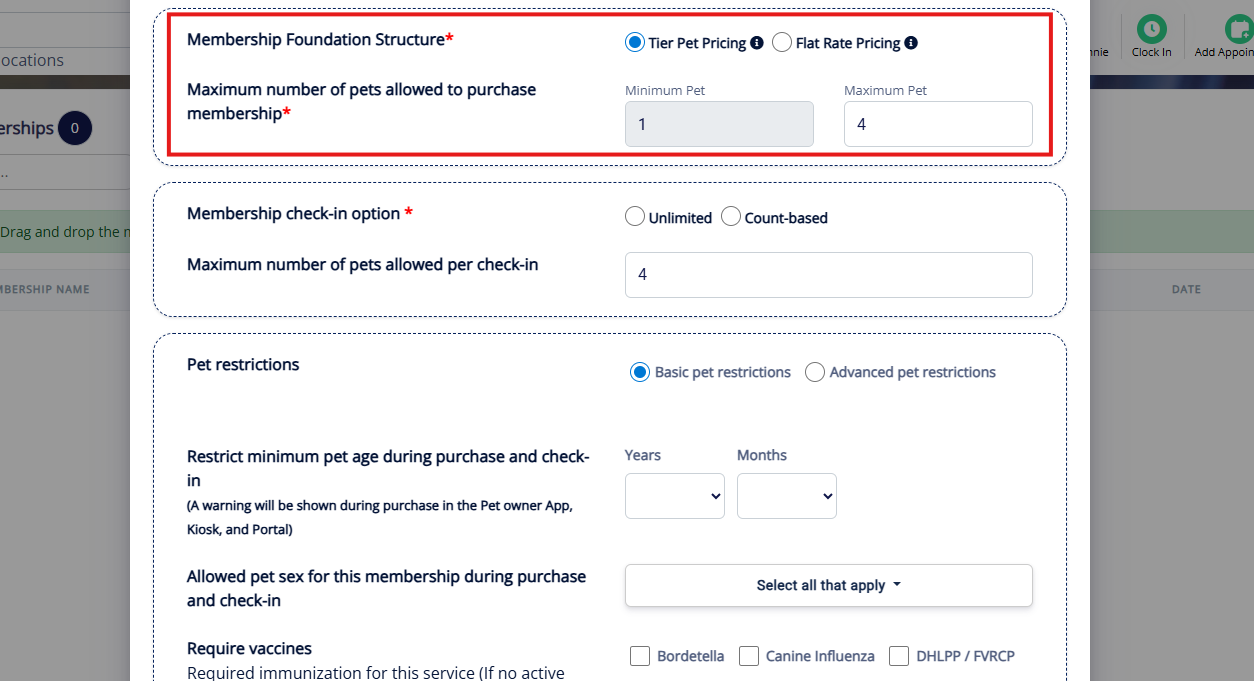
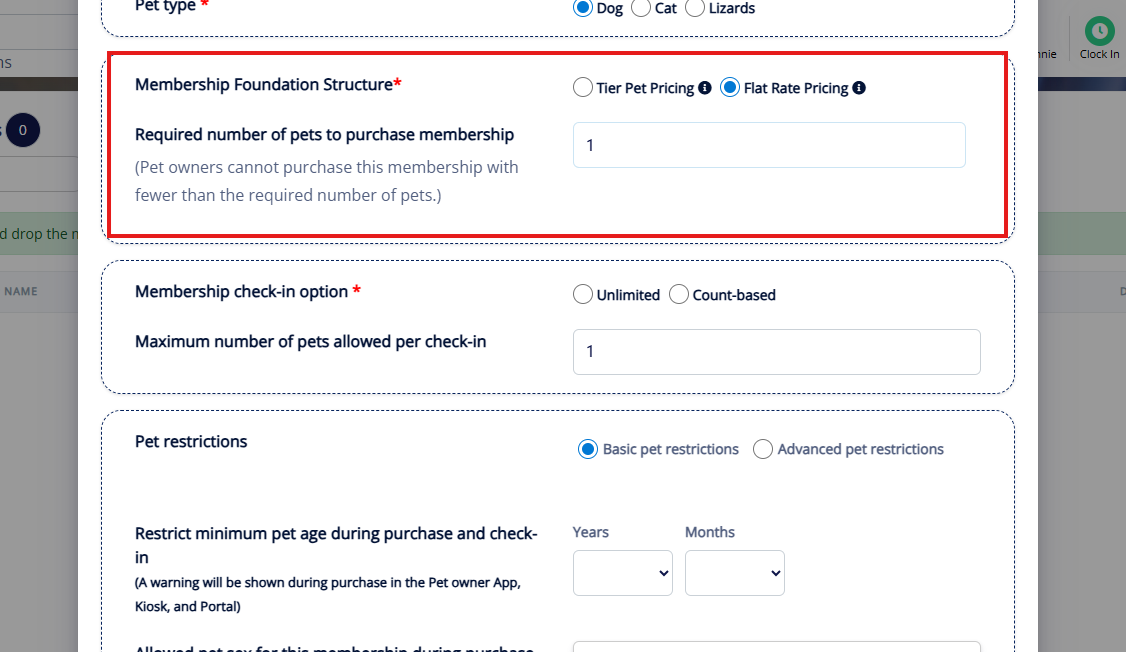
6. The second option, Flat Rate Pricing, means that there is one price, no matter how many animals the pet owner has on their account. If selecting this option, set the minimum number of animals required on the pet owner's account to purchase the membership (such as 1 pet minimum).
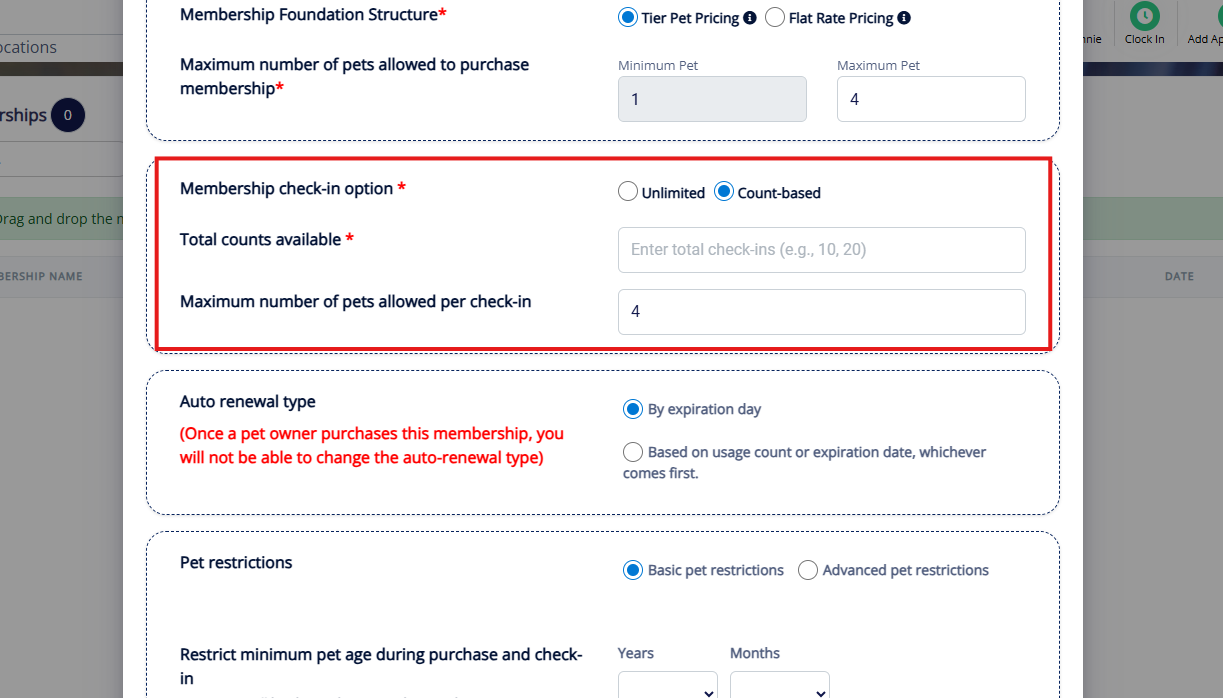
7. Set if the membership should have Unlimited check-ins to the membership area, or a set Count-based number of check-ins to the membership area. For example, if members should only be able to check-in 15 times in a month, you would select Count-based and enter 15 under Total counts available. Also set the Maximum number of pets allowed per check-in if you wish to limit how many animals can come with one pet owner in a single visit.
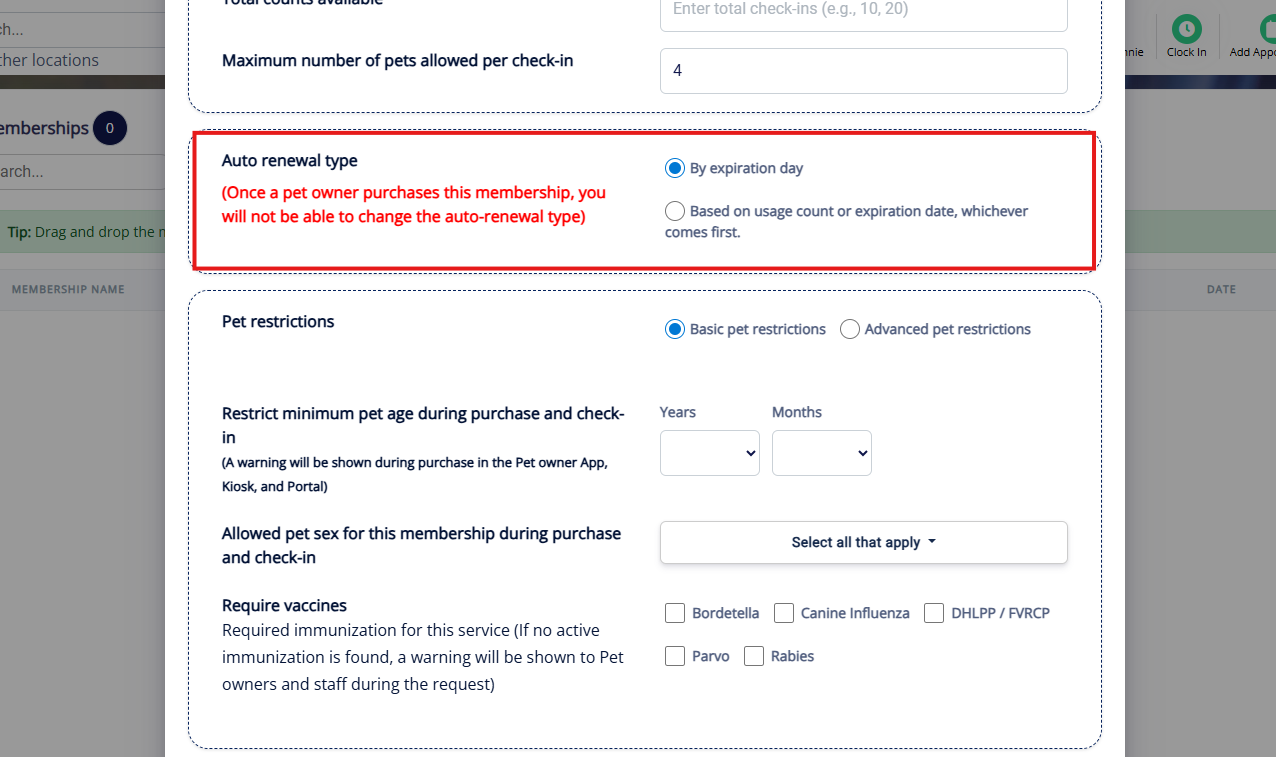
8. Under Auto renewal type, select if the membership should renew By Expiration Day or Based on usage count or expiration date, whichever comes first. The first option, By expiration day, means the package will renew only when it expires (such as after one month, regardless if the credits were used up a week prior to the expiration date). The second option, Based on usage count or expiration date, means the package will renew either if all credits or used up OR it expires (whichever comes first).
9. Under Pet Restrictions, you can optionally set additional restrictions for the pets enrolling in the membership such as age, gender, spay/neuter status, size, and immunization status. Under Basic Pet Restrictions, you can set age, gender, spay/neuter status, and immunizations.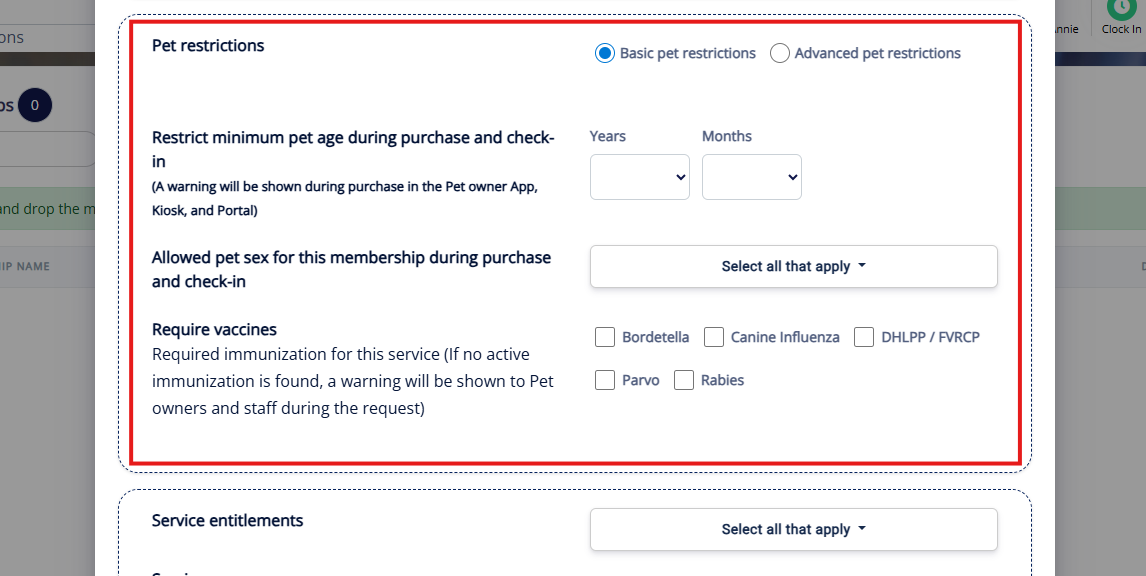
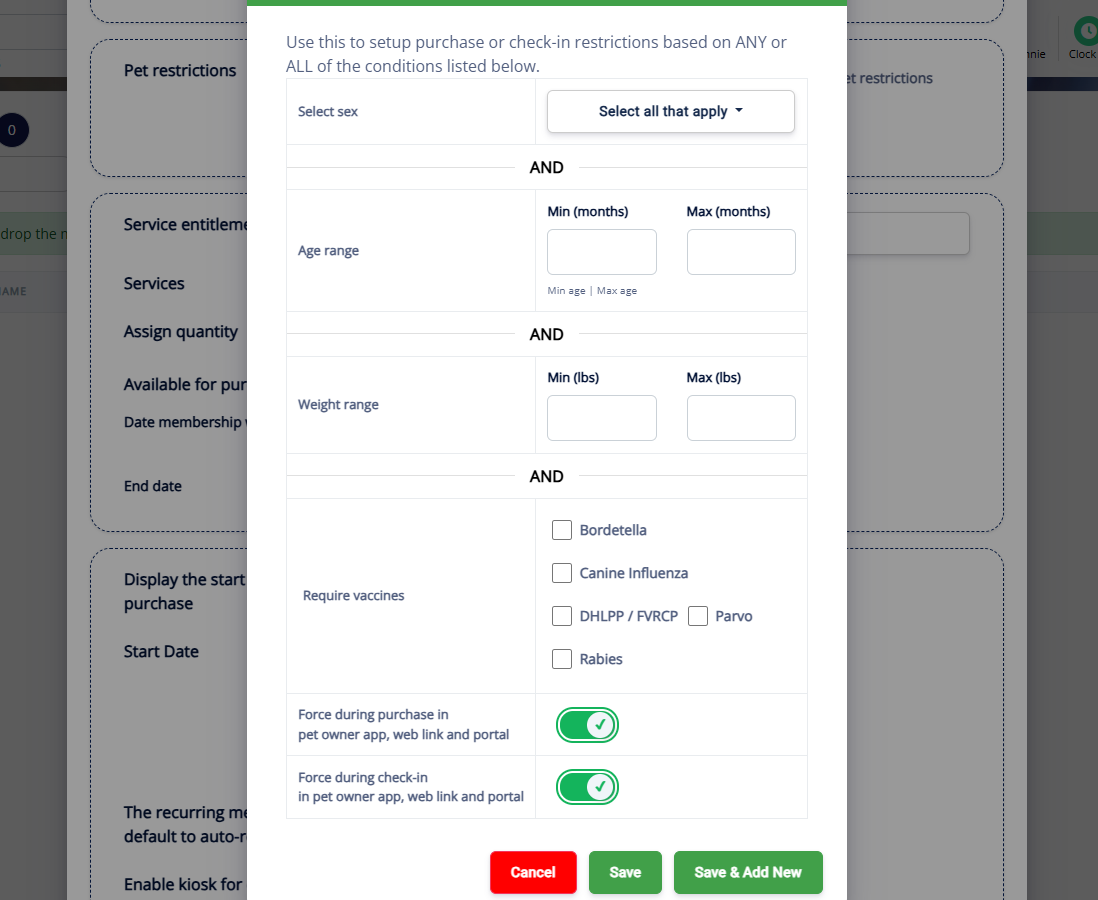
10. If you select Advanced Pet Restrictions, you can add more conditions including an age range, weight range, and all conditions also available under basic. You can also add multiple types of restrictions, such as spayed/neutered animals of any age OR unaltered animals but only under 6 months.
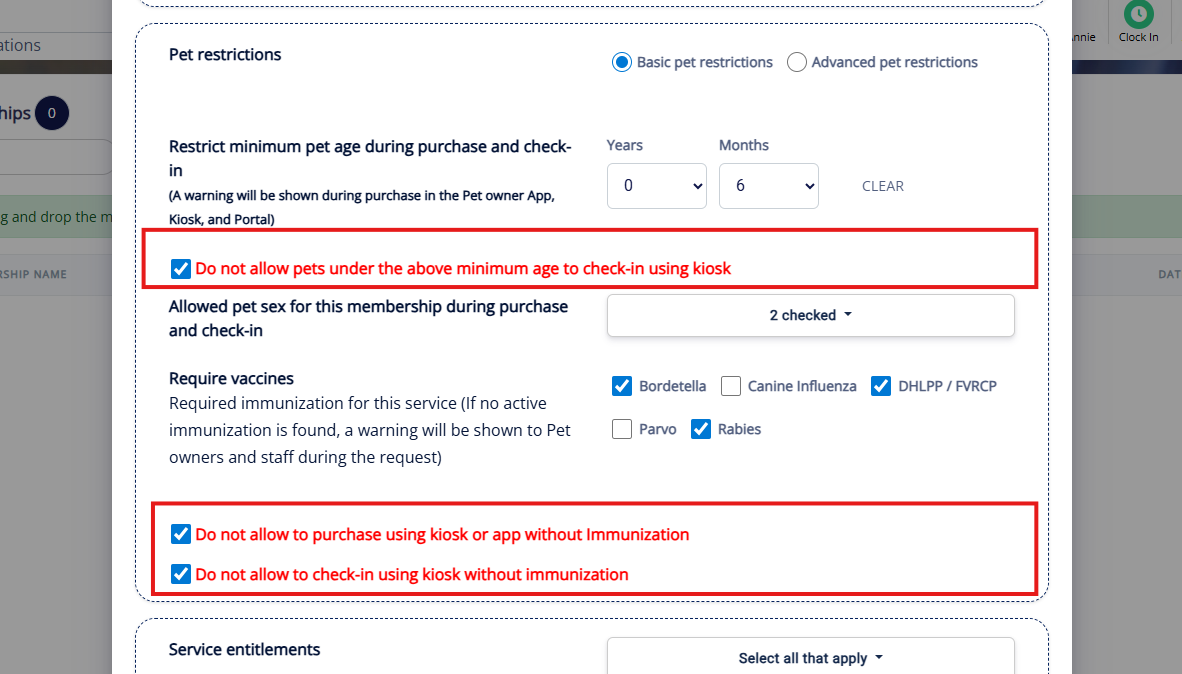
11. If these conditions are a requirement to purchase the membership and/or check-in, check the boxes to require these restrictions.
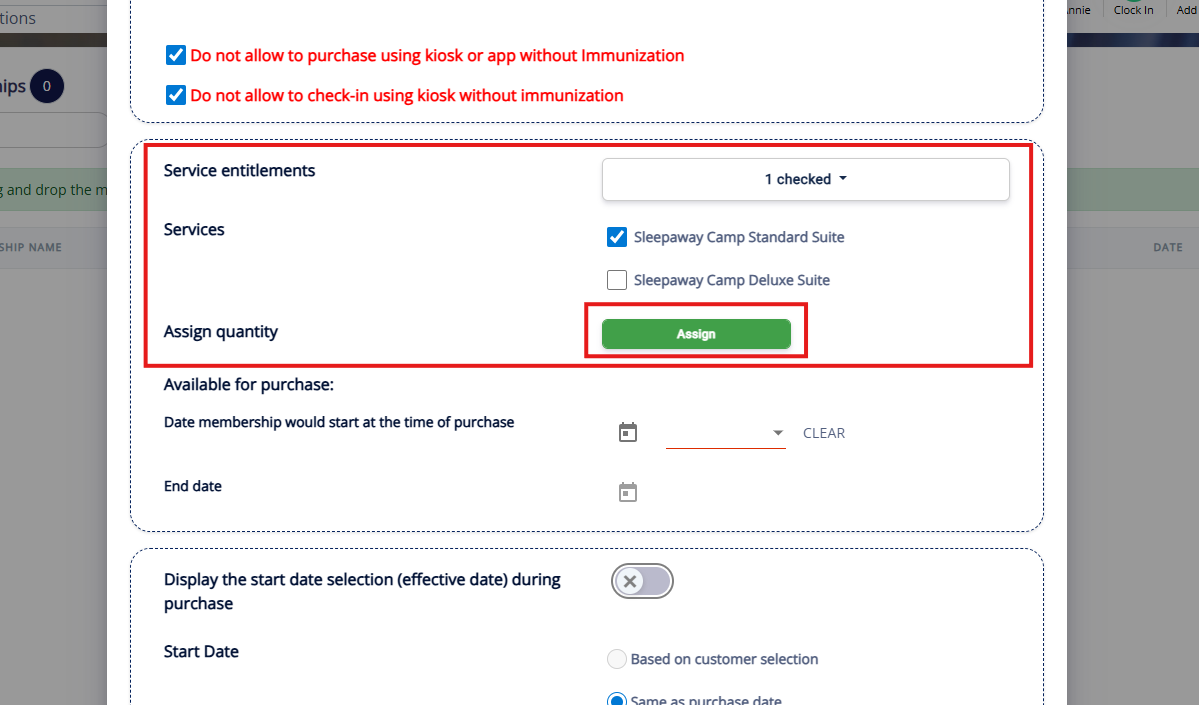
12. Under Service Entitlements, you can optionally give the pet owner additional credits for other types of services outside of the Membership area. For example, maybe this membership give unlimited access to the Membership area, but additionally include 1 Boarding Credit. If you wish to give optional credits, check the box to select the service categories and then check the services for which you would like to add additional credits. Then click Assign.
13. If you are giving set credits for each service type, select the service and enter the number of credits. You can add additional credits for other services by clicking Add Service.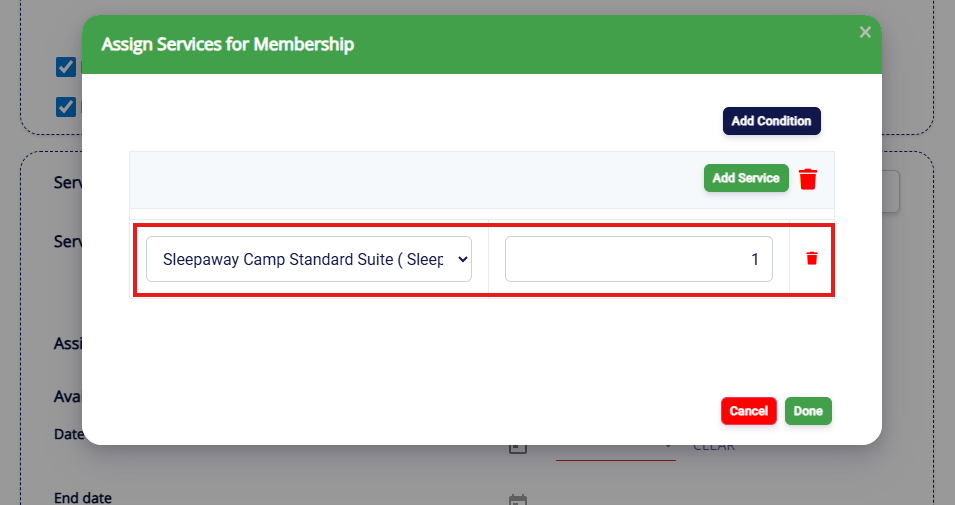
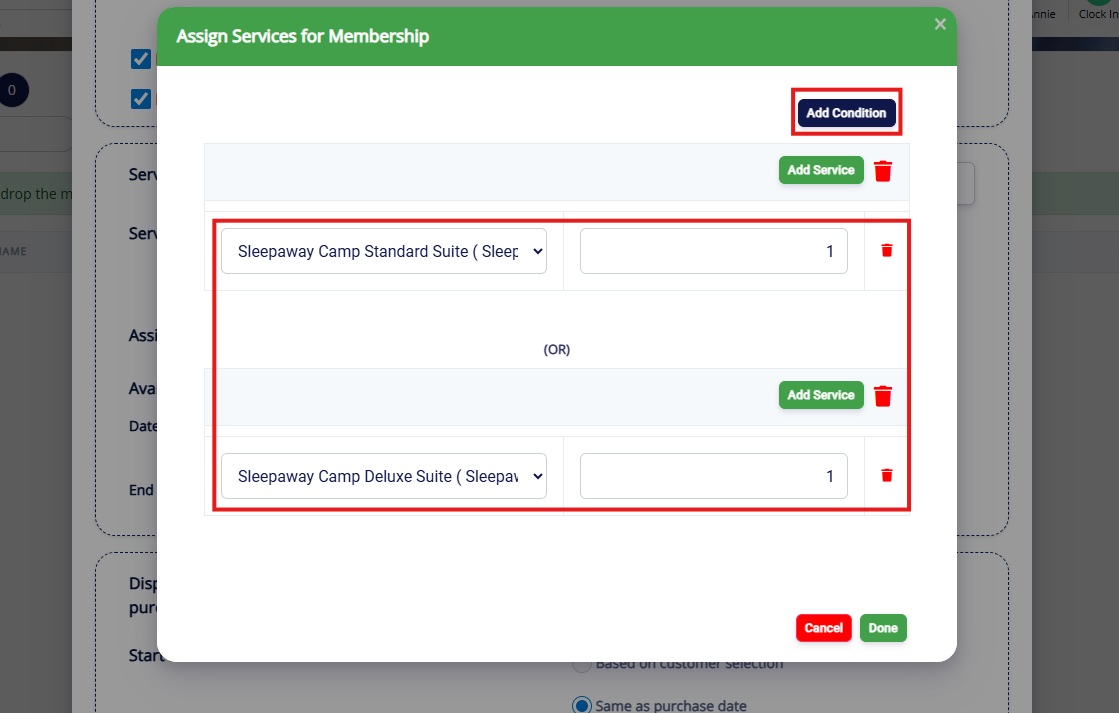
14. You can also give conditional credits. To do this, select Add Condition. Conditional credits mean they get one credit of either one service type OR another service type. The pet owner can use either option, but they only can use one.
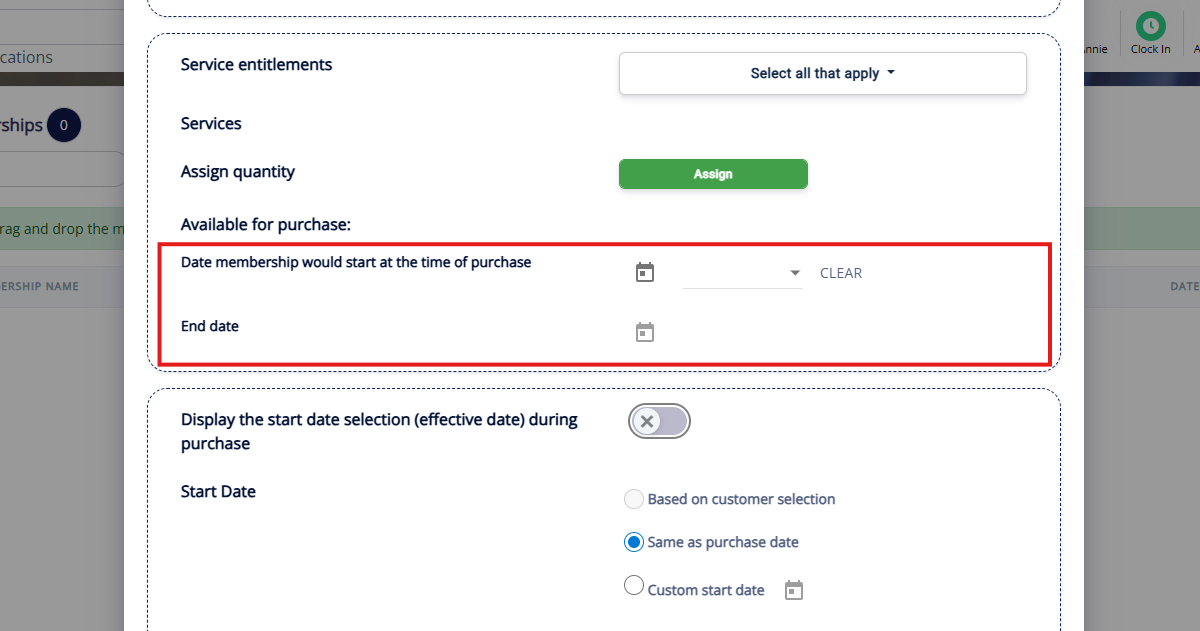
15. Optionally set a Start Date and End Date where the membership should take effect.
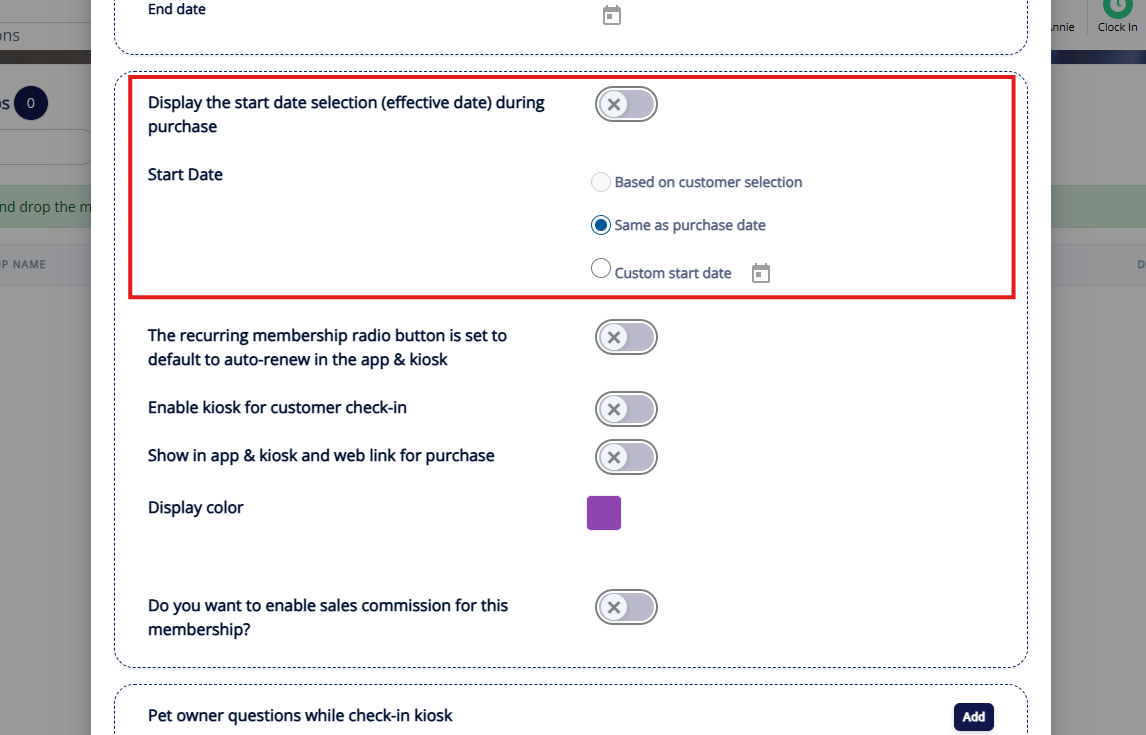
16. Toggle off Display the start date selection (effective date) during purchase if you do not wish for the customer to see the start date. If this is disabled, you can select if the membership start date should be the Same as purchase date or a Custom Start Date. If you do toggle this setting on, you can also let the customer select if they want to choose either option.
17. If you would like the membership to be automatically set as the default to auto-renew when purchasing, enable The recurring membership radio button is set to default to auto-renew in the app and kiosk.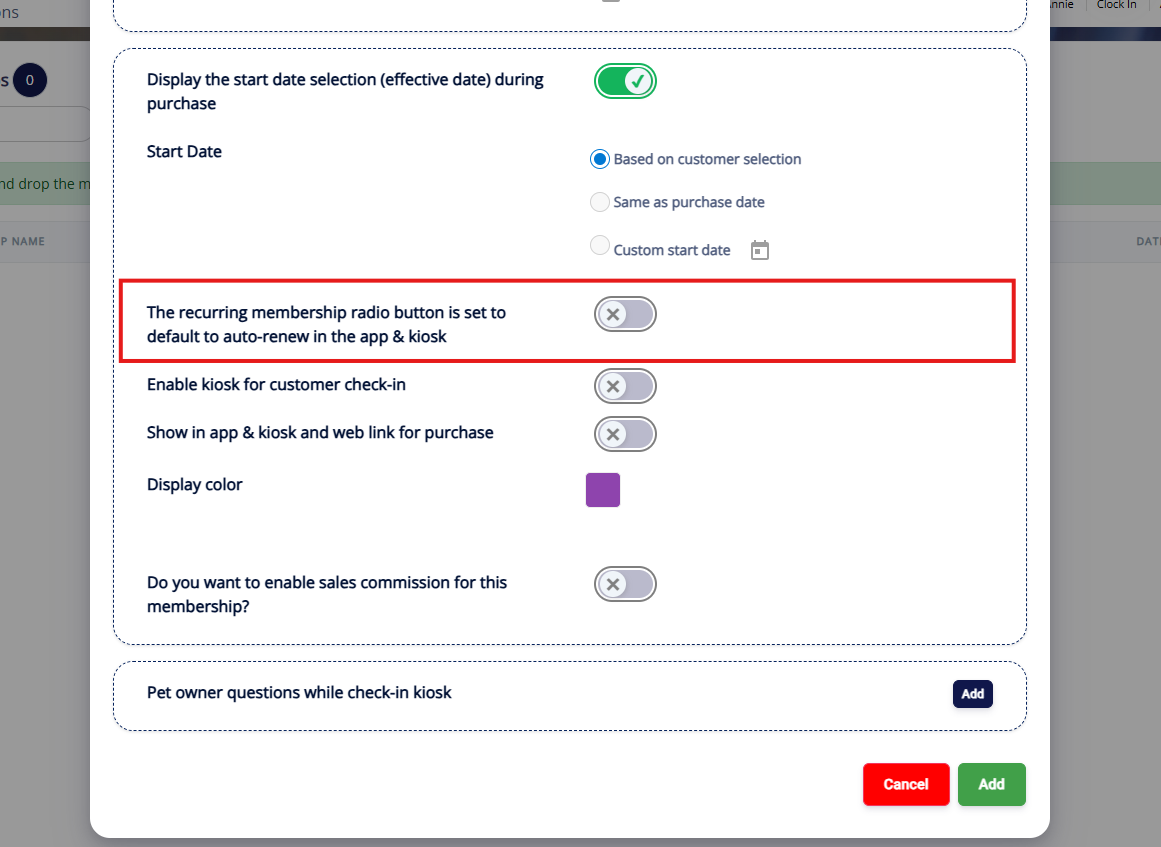
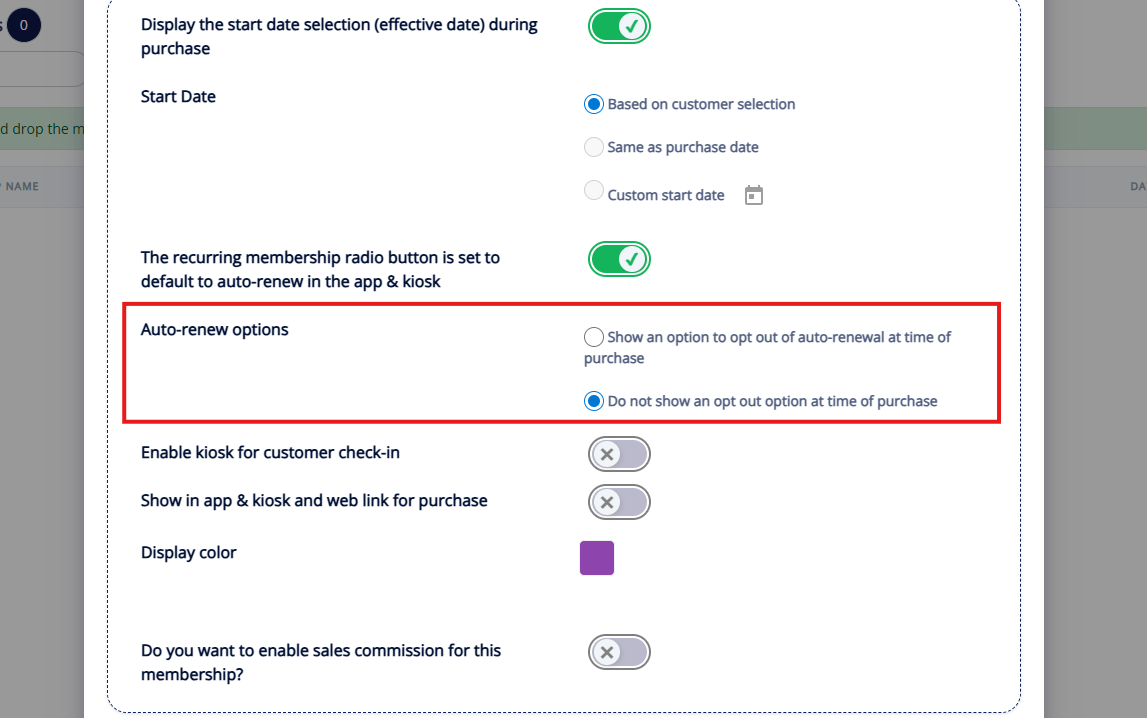
18. If you toggle on that setting, you can also let the customer decide to opt out of auto renew of do not show an opt out option.
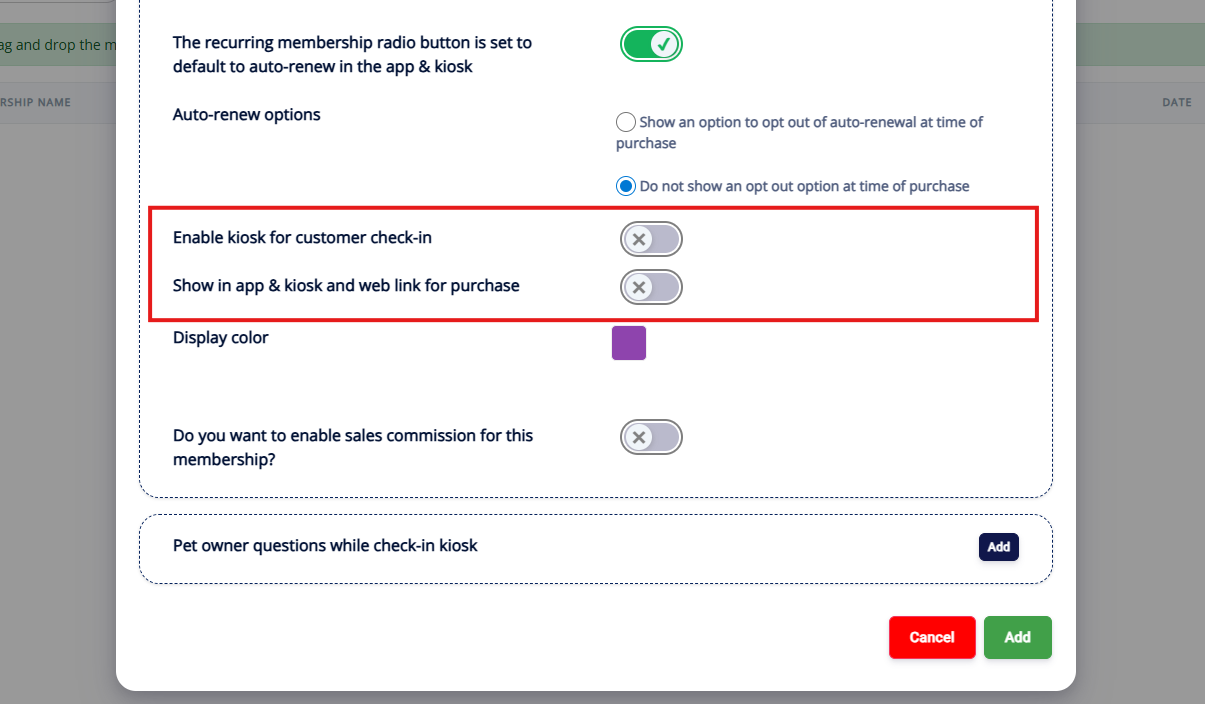
19. If the customer should be able to check-in for their membership using the Kiosk, toggle on Enable kiosk for customer check-in. If you would like this membership to be available to purchase on the mobile app, kiosk, and weblink, toggle on Show in app, kiosk, and web link for purchase.
20. Set the display color and set if you wish to enable sales commission for staff who sell membership to pet owners.
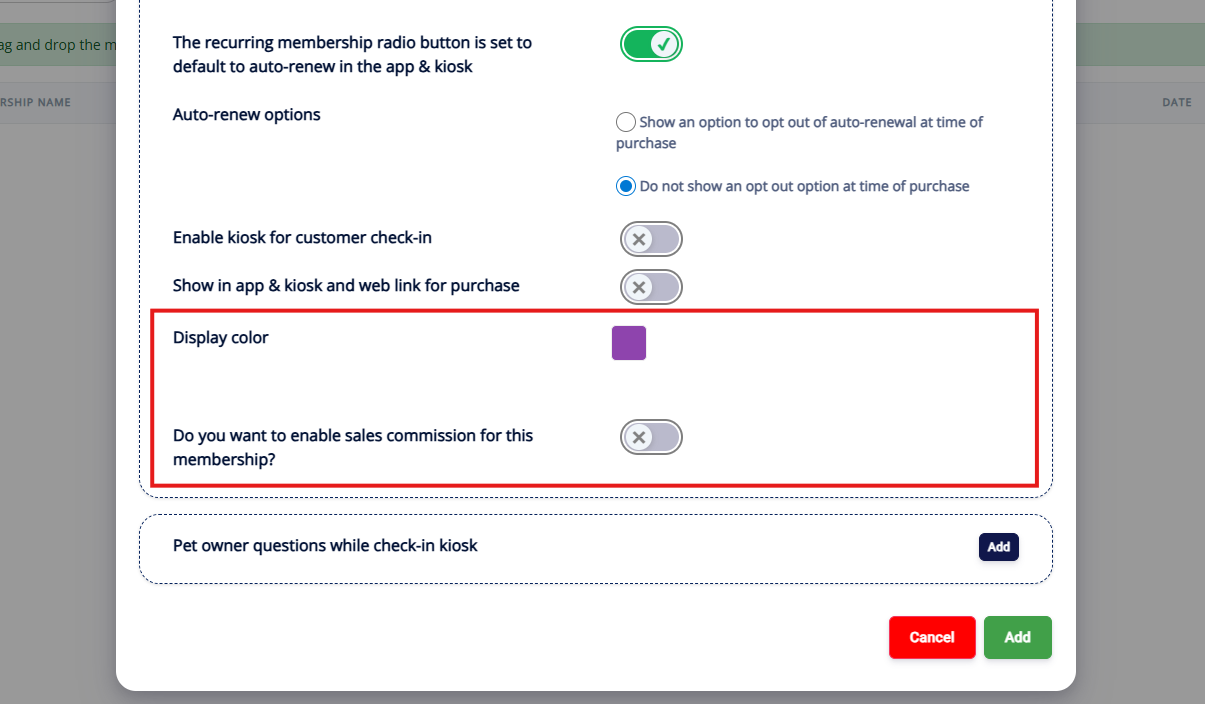
21. Optionally add any Pet owner questions that should populate at kiosk check-in. Then click Add to save your new membership.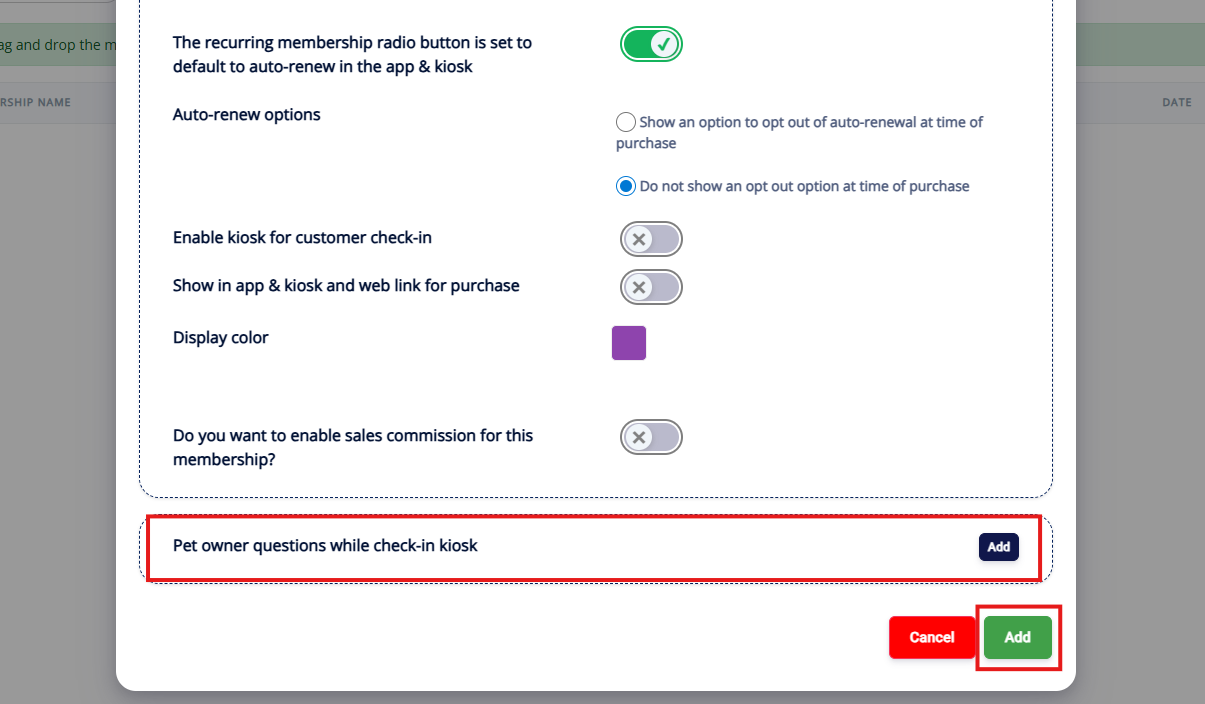
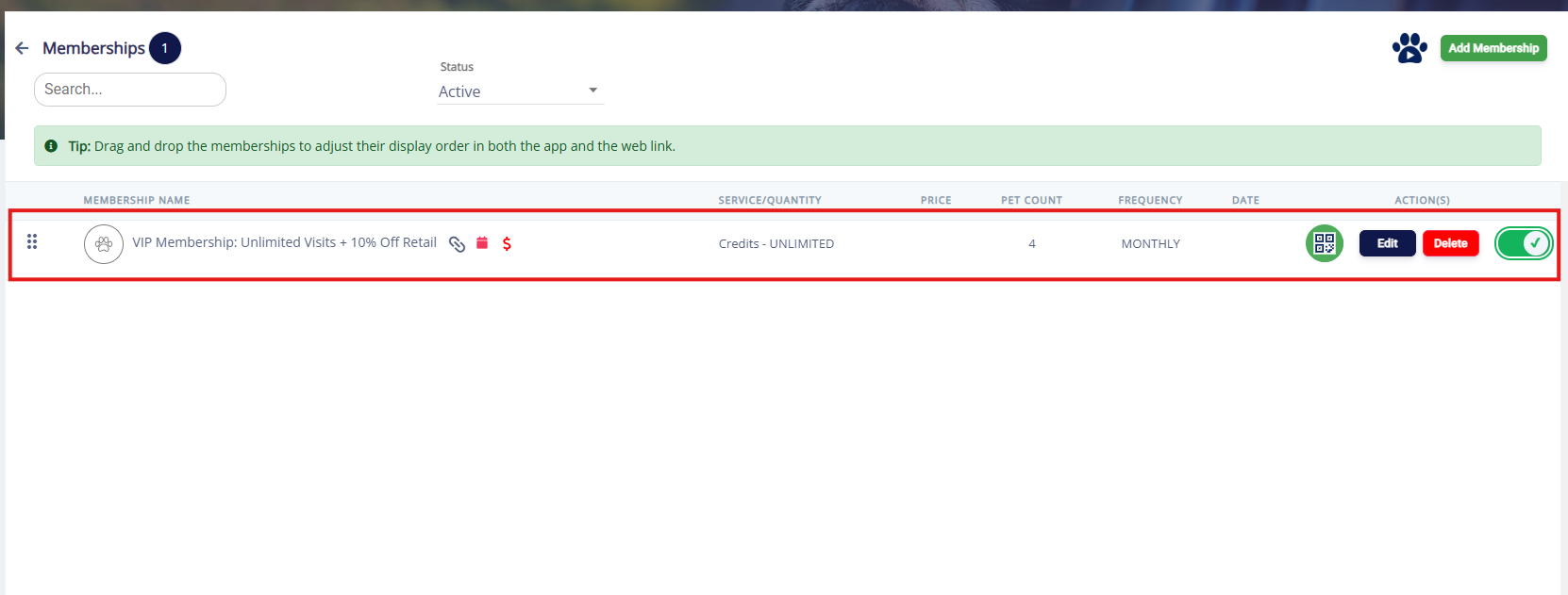
22. Verify the membership displays as expected and is enabled.
Set Up Membership Hours
1. Navigate to Settings > Membership Services > Membership Hours.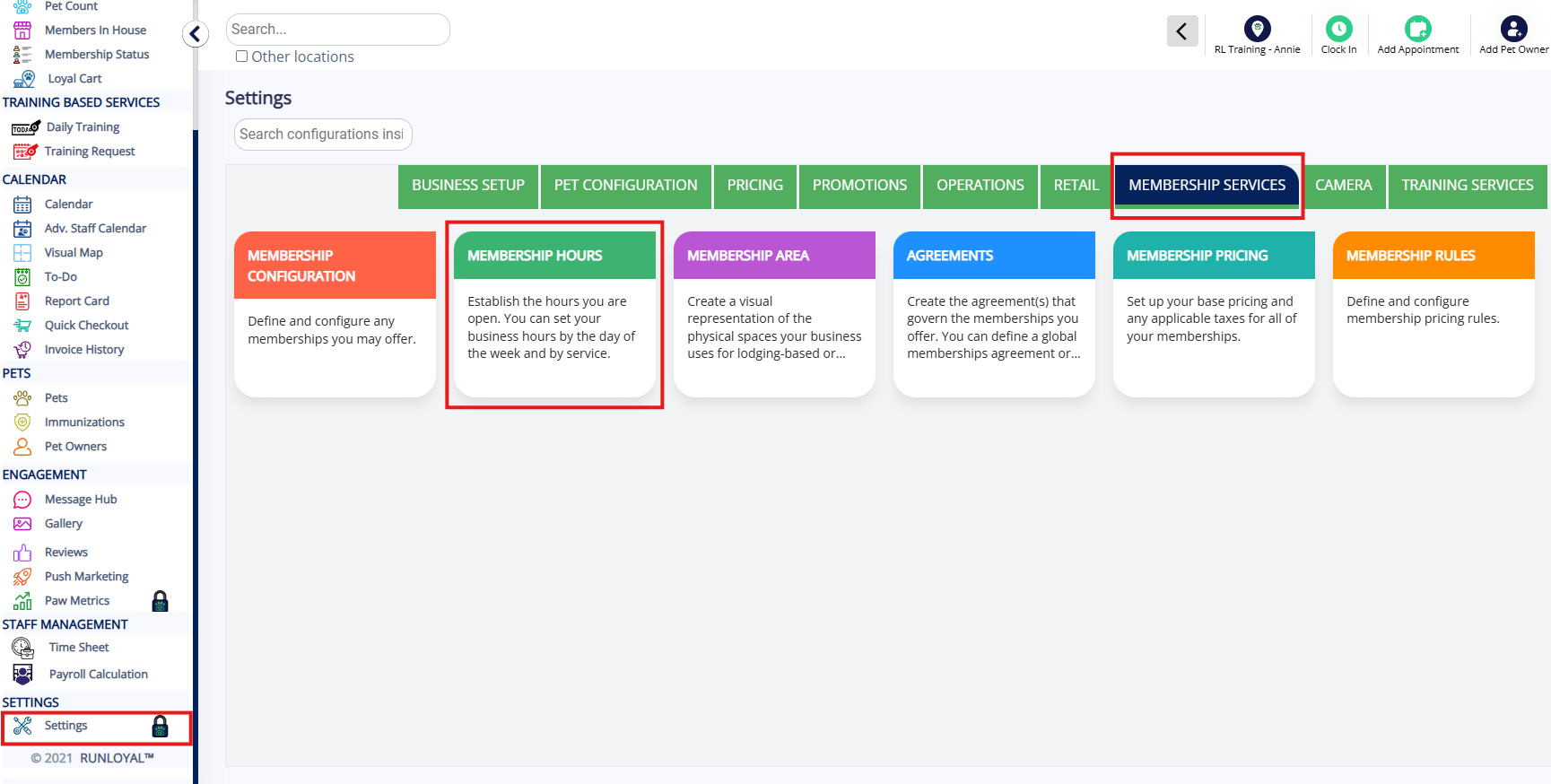
2. Select the Membership to open its specific calendar.
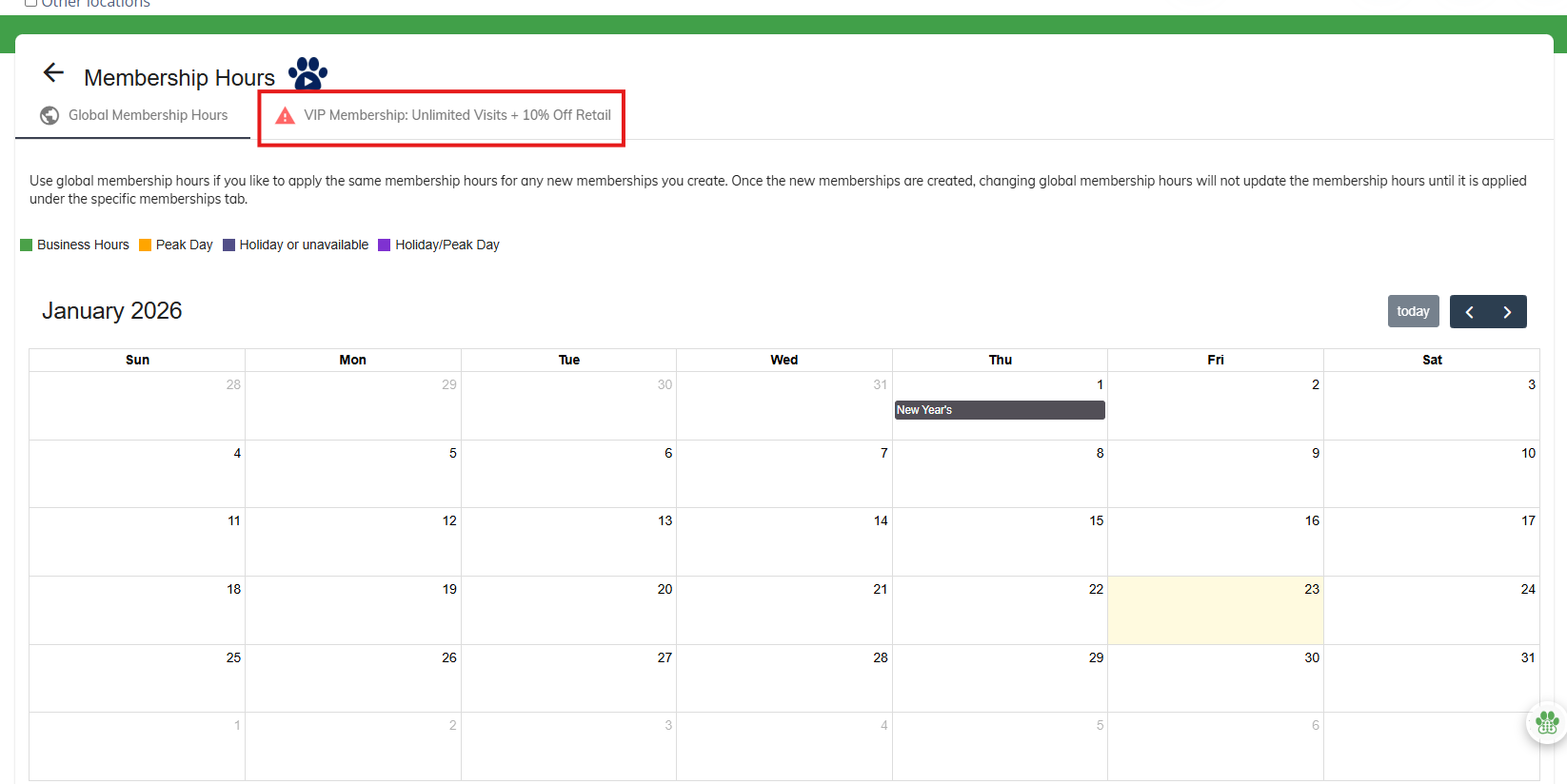
3. If the membership area should have the same hours as your business, simply click Apply global business hours and the hours will automatically add based on your business' default hours.
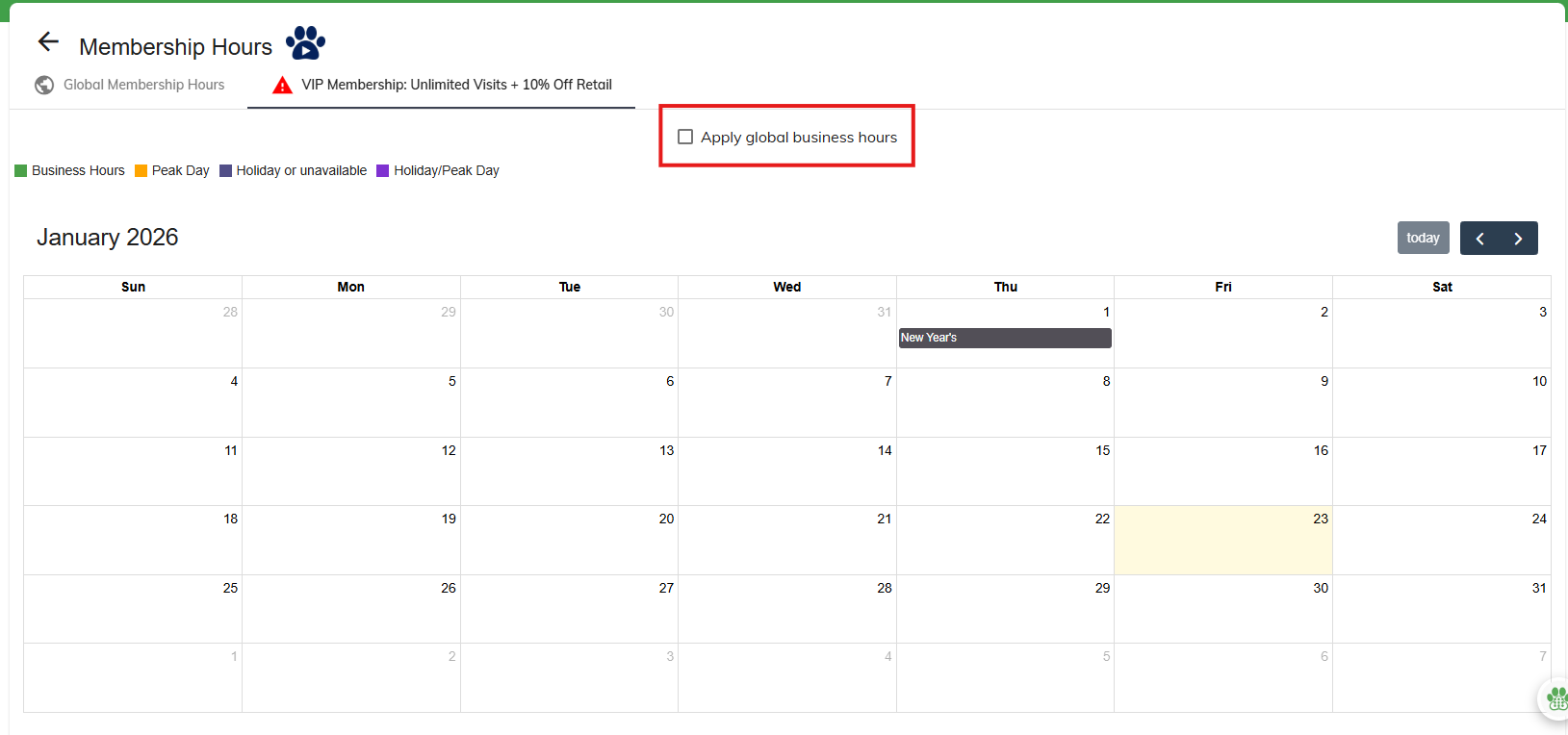
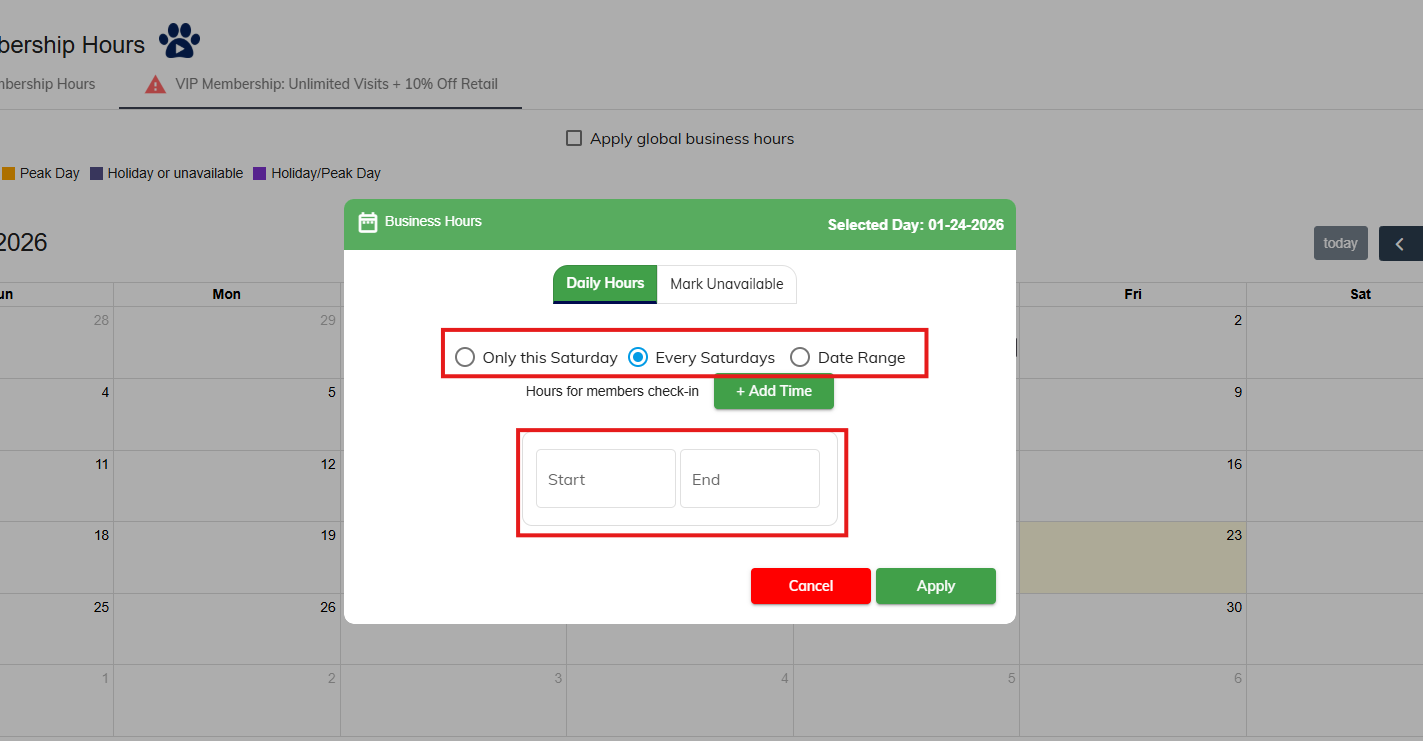
4. If the membership area's hours should differ from your business hours, click into any date in the future and add hours. You can optionally set the hours for a specific date, a recurring day of the week, or a certain date range. Click Apply to save your changes.
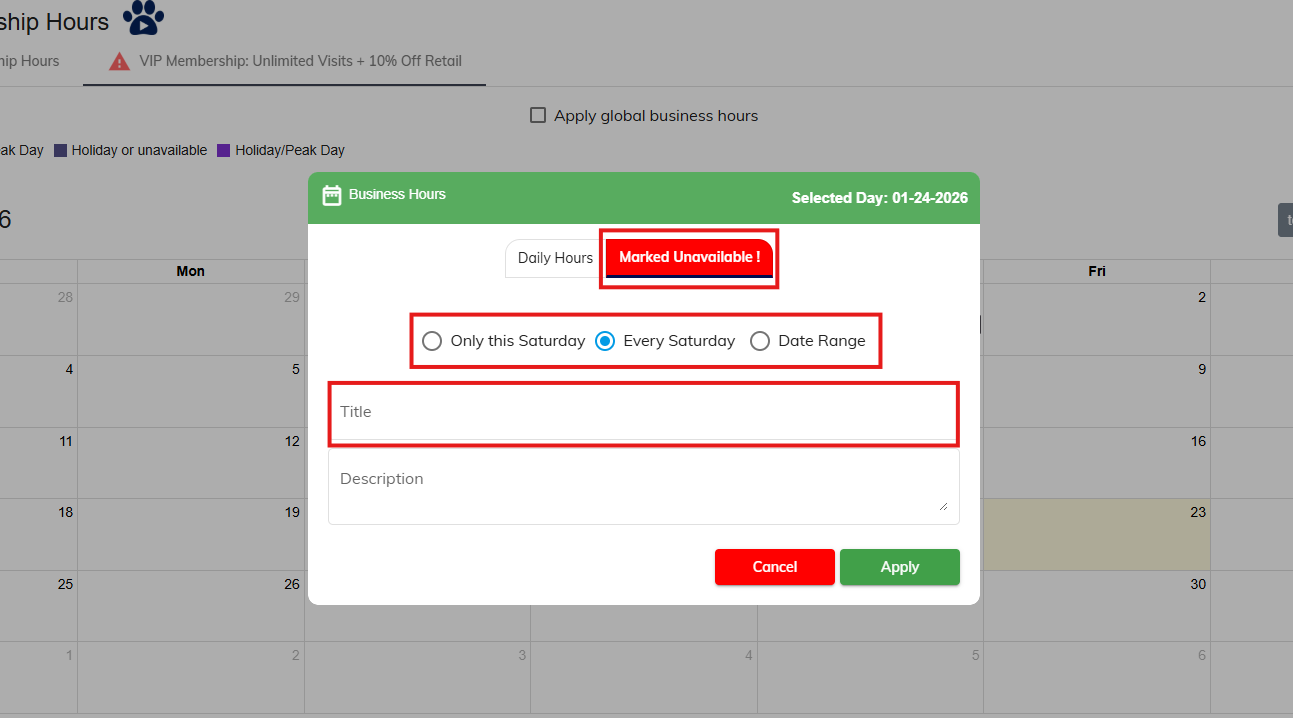
5. If the membership area should have specific dates or days where it is unavailable, select Mark Unavailable. Then set if this should apply to a specific date, a recurring day of the week, or a certain date range. Enter a title (required) and description (optional).
Build Your Membership Area
1. Navigate to Settings > Membership Services > Membership Area.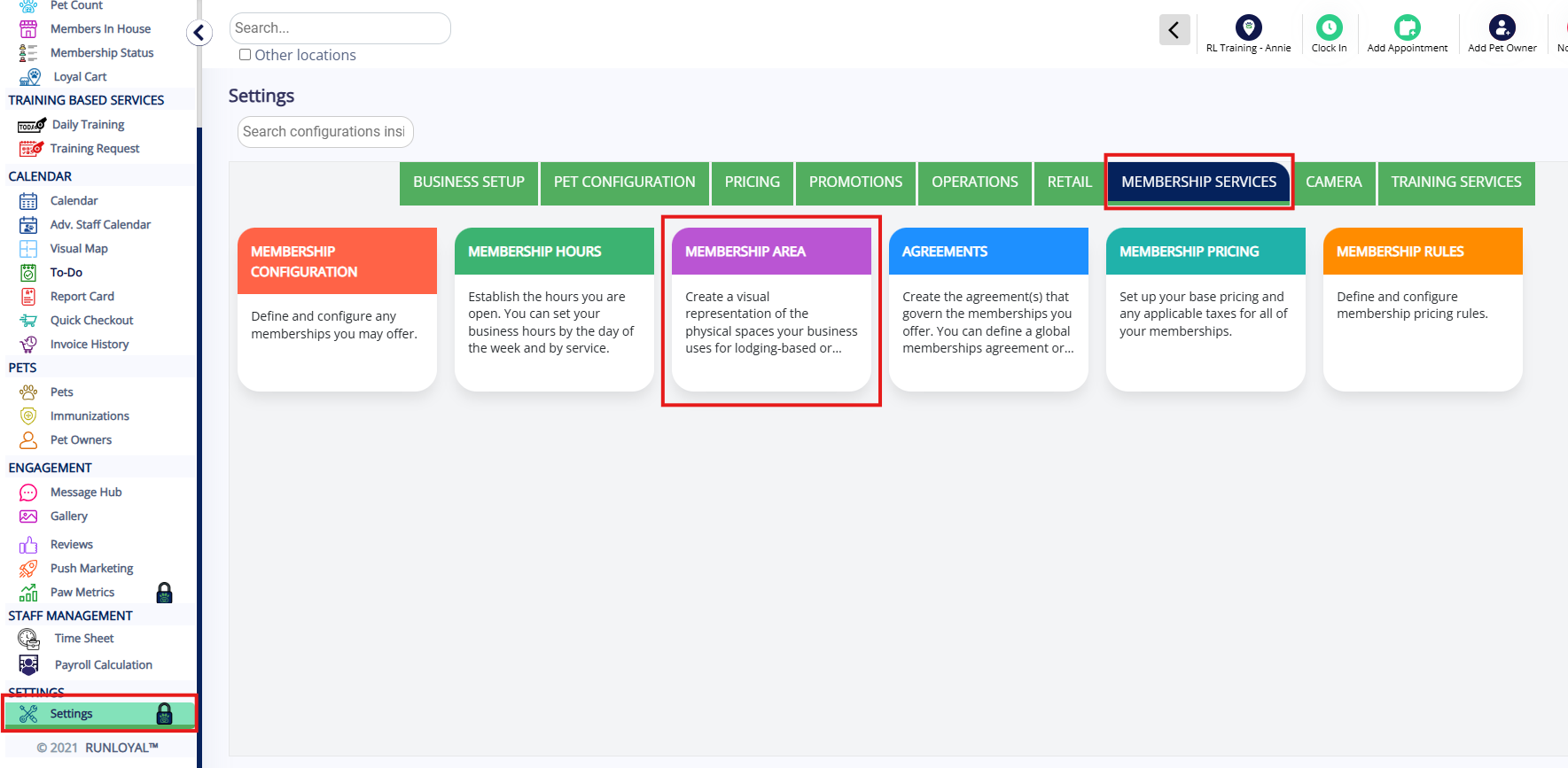
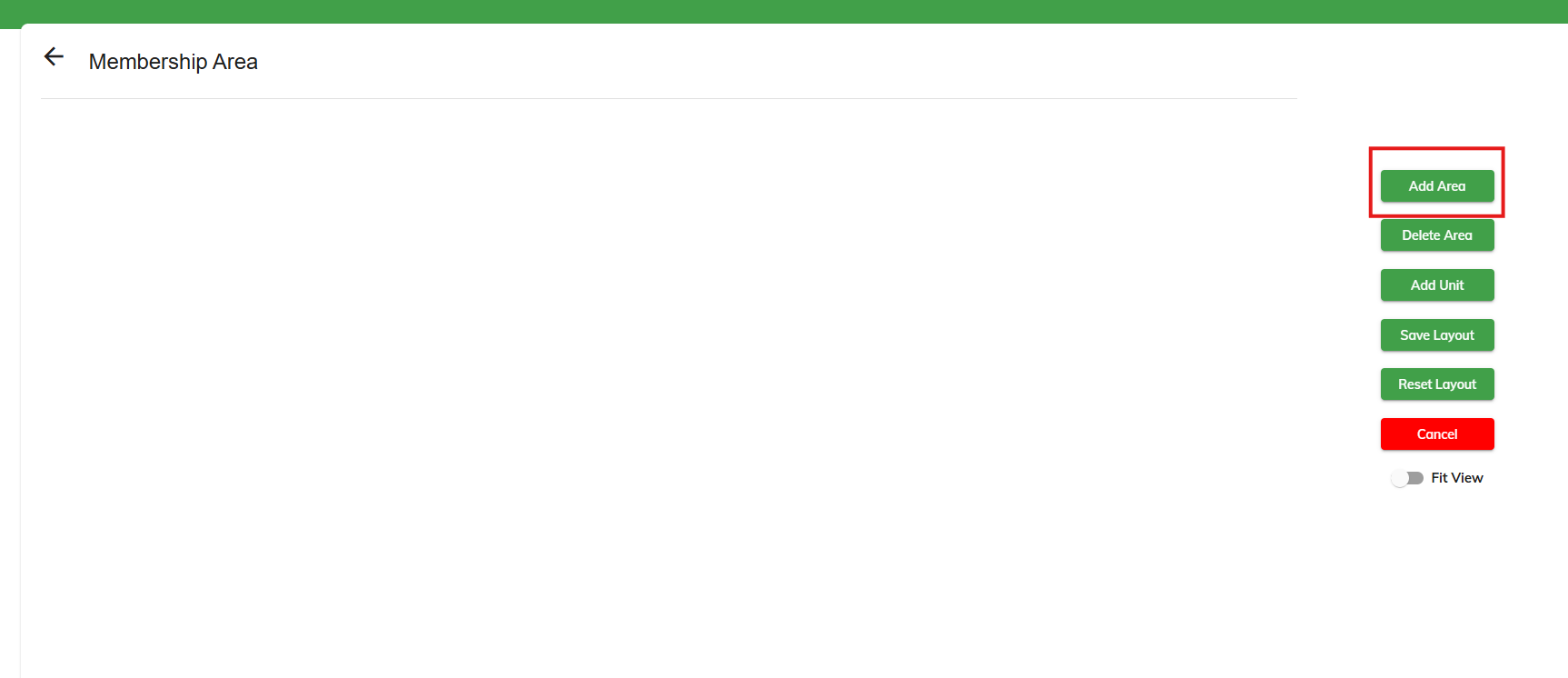
2. To add a new area, click Add Area.
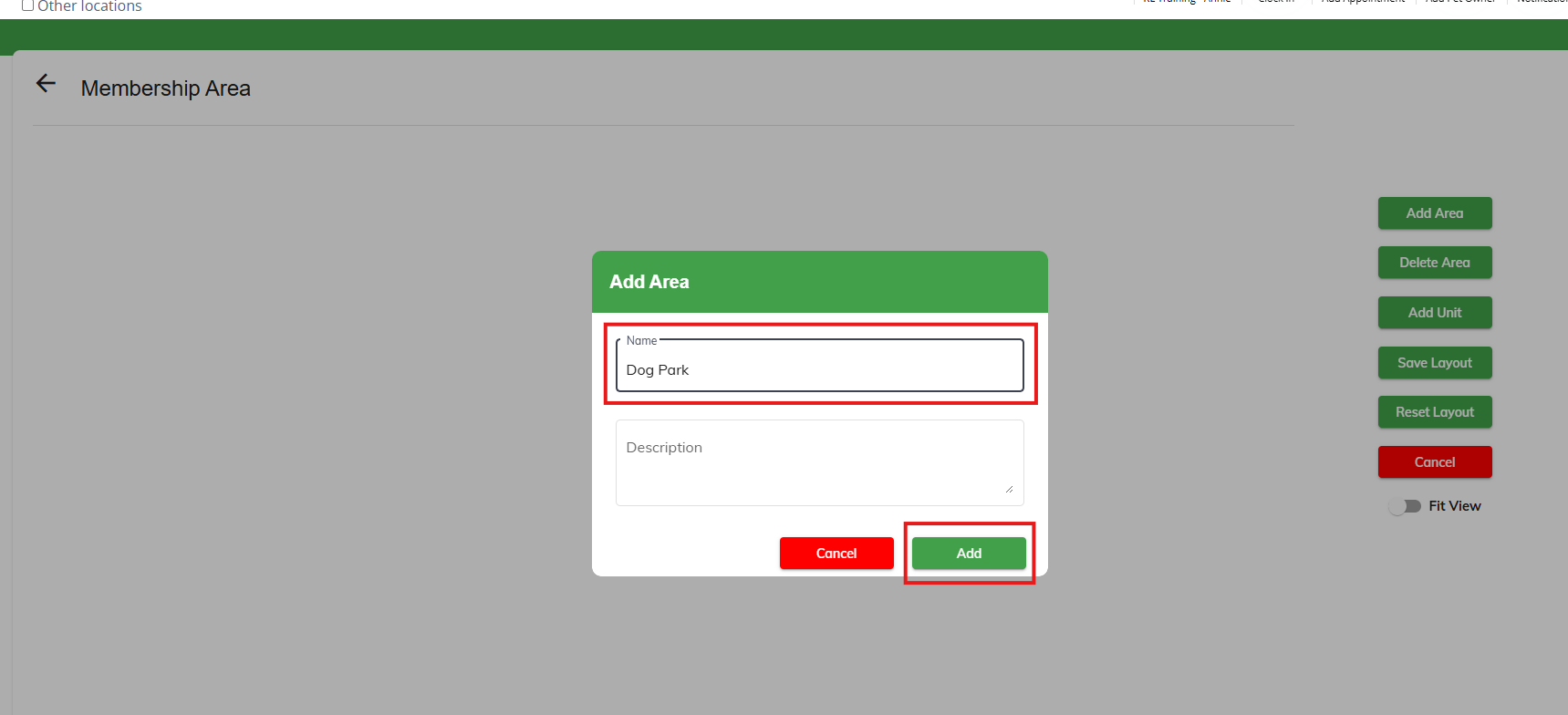
3. Enter the name of the area, such as Dog Park, then click Add.
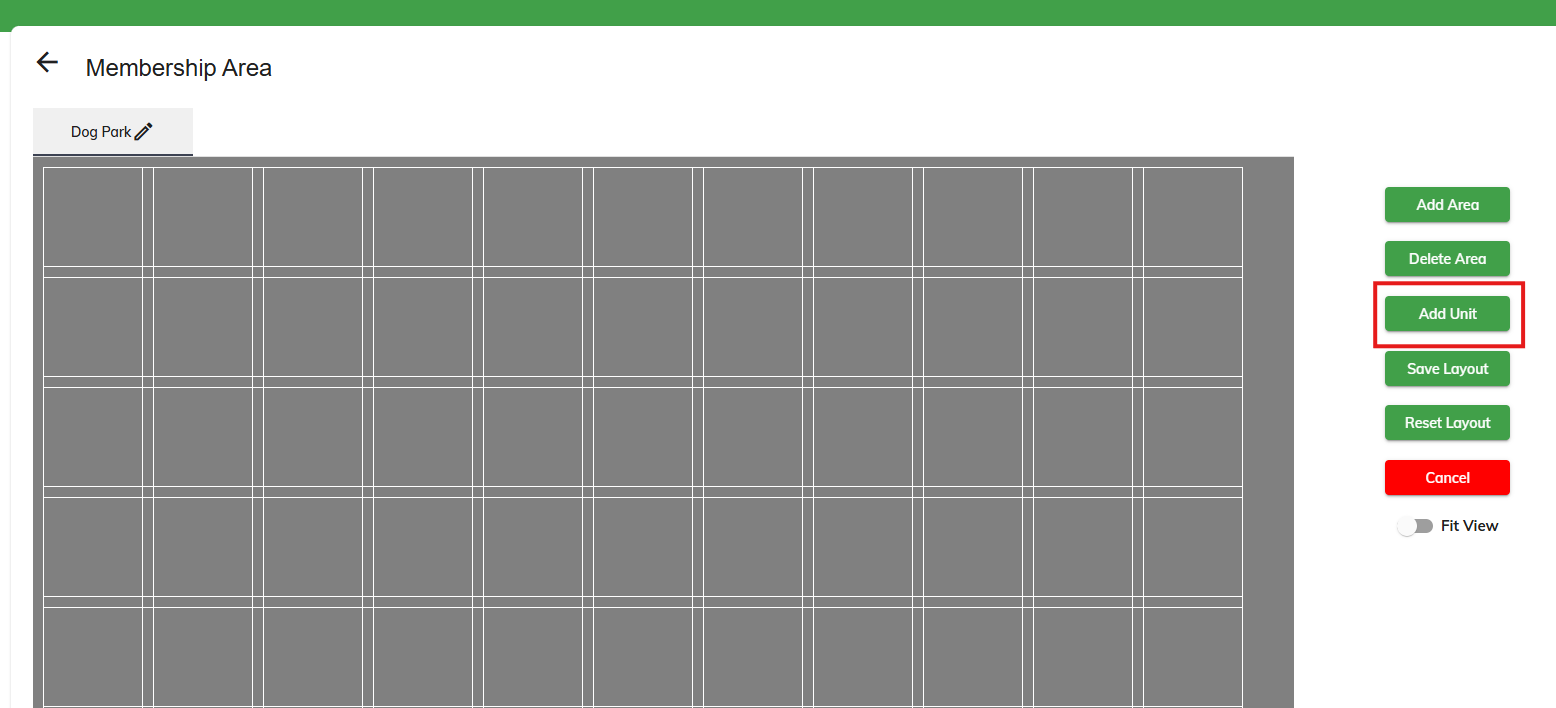
4. Verify the area now displays as expected. To add a unit (such as Big Dog Yard), click Add Unit.
6. Enter the Name, select the Memberships Category that should have access to this unit, and optionally enter a description.
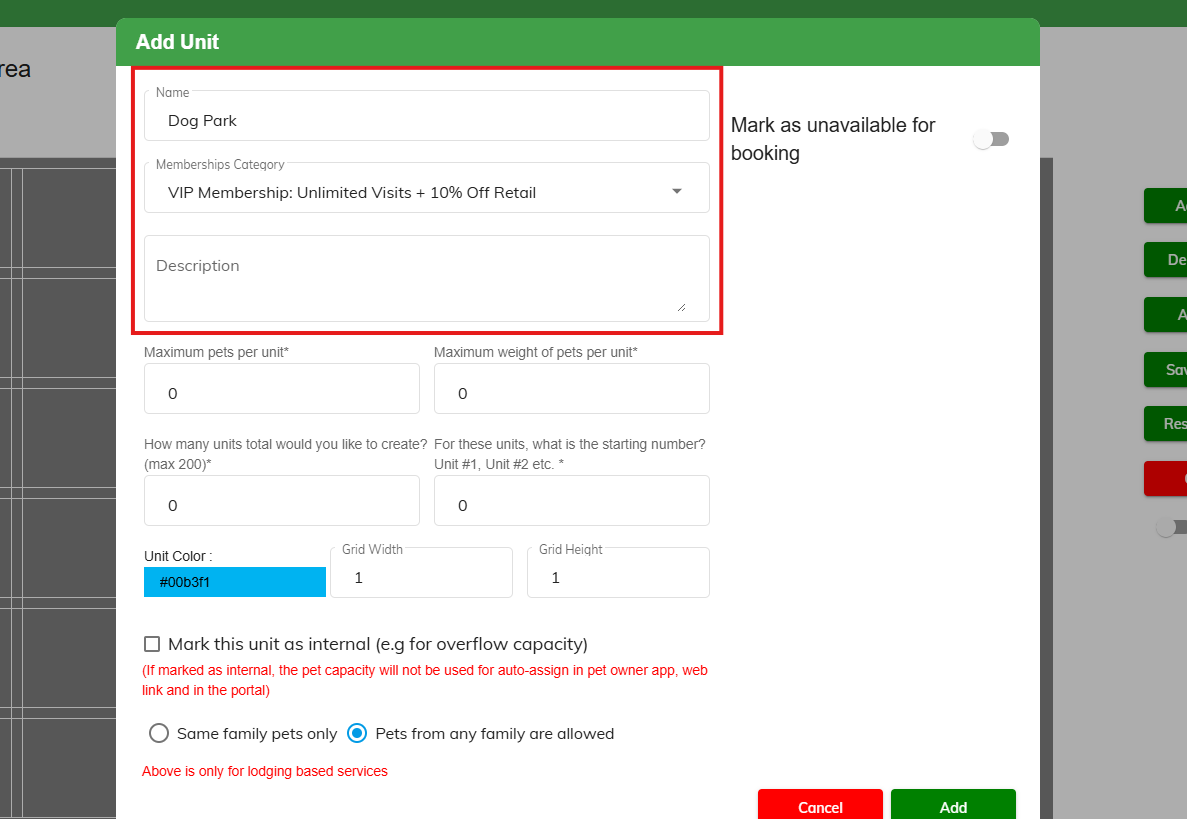
6. Set the Maximum pets per unit to set capacity for how many animals should be allowed to enter this membership area. If you are not concerned about Maximum weight, enter any large number such as 9999. Enter how many areas you would like to create.
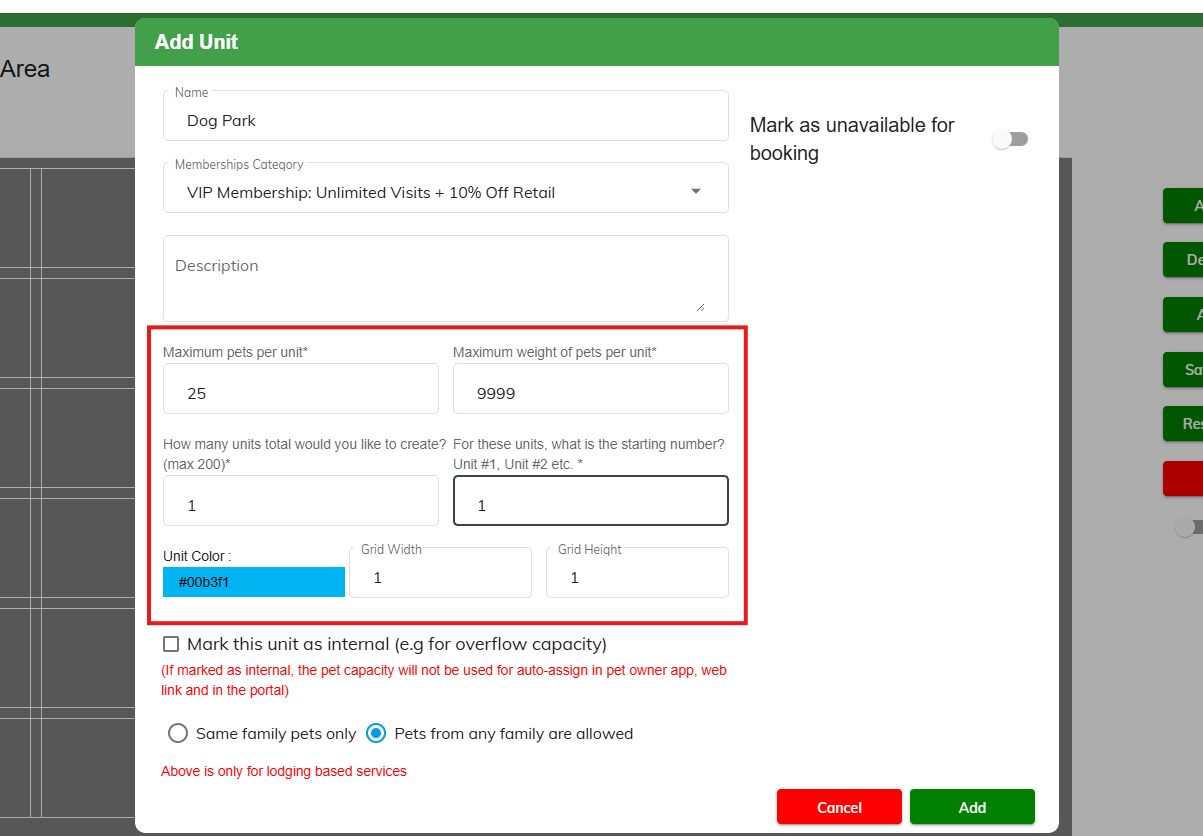
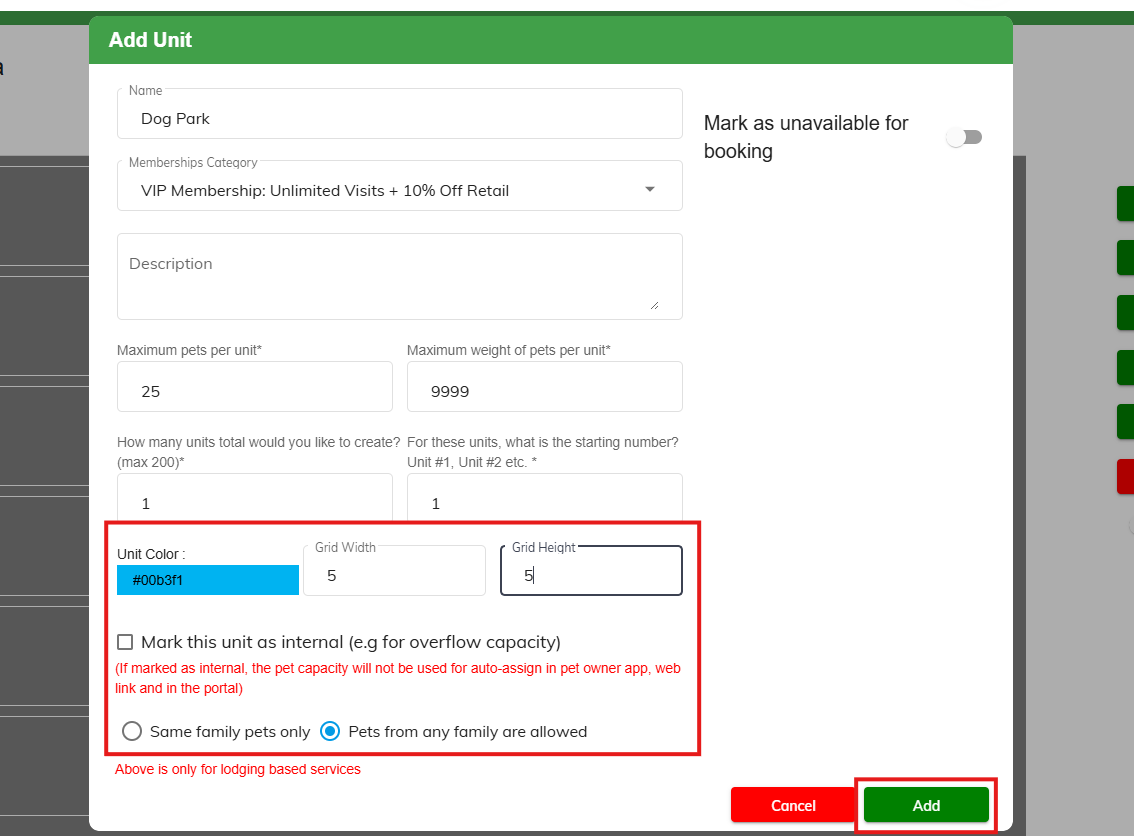
7. Select the unit color and the grid width/height. Then click Add.
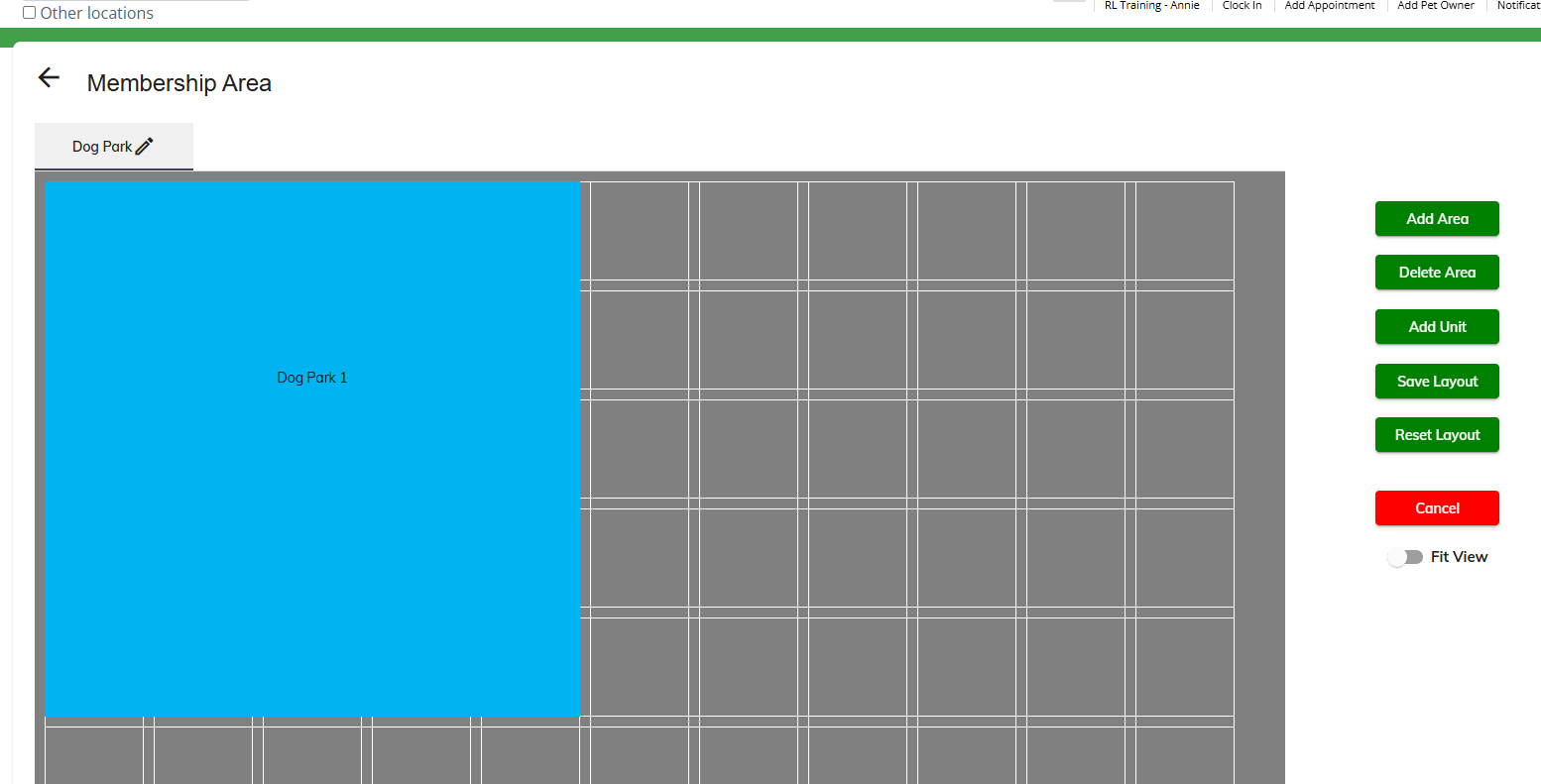
8. Verify the area and unit look correct, and optionally add more areas or units if needed.
Membership Pricing & Pricing Rules (Automatic Member Discounts)
1. Navigate to Settings > Membership Services > Membership Pricing.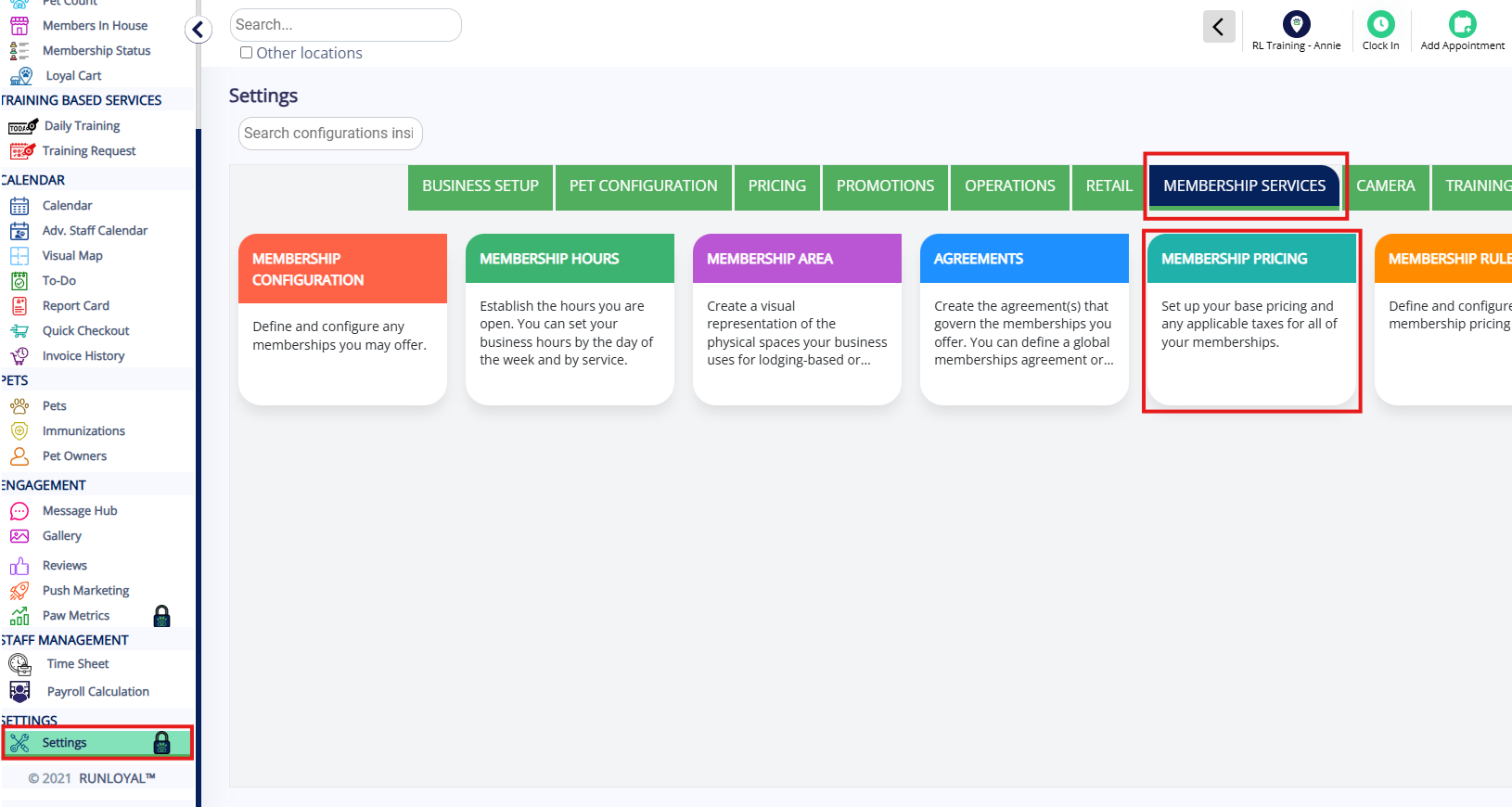
2. {{Second step, such as: If you are creating a brand new category such as Boarding, click Add next to Service Category.}}
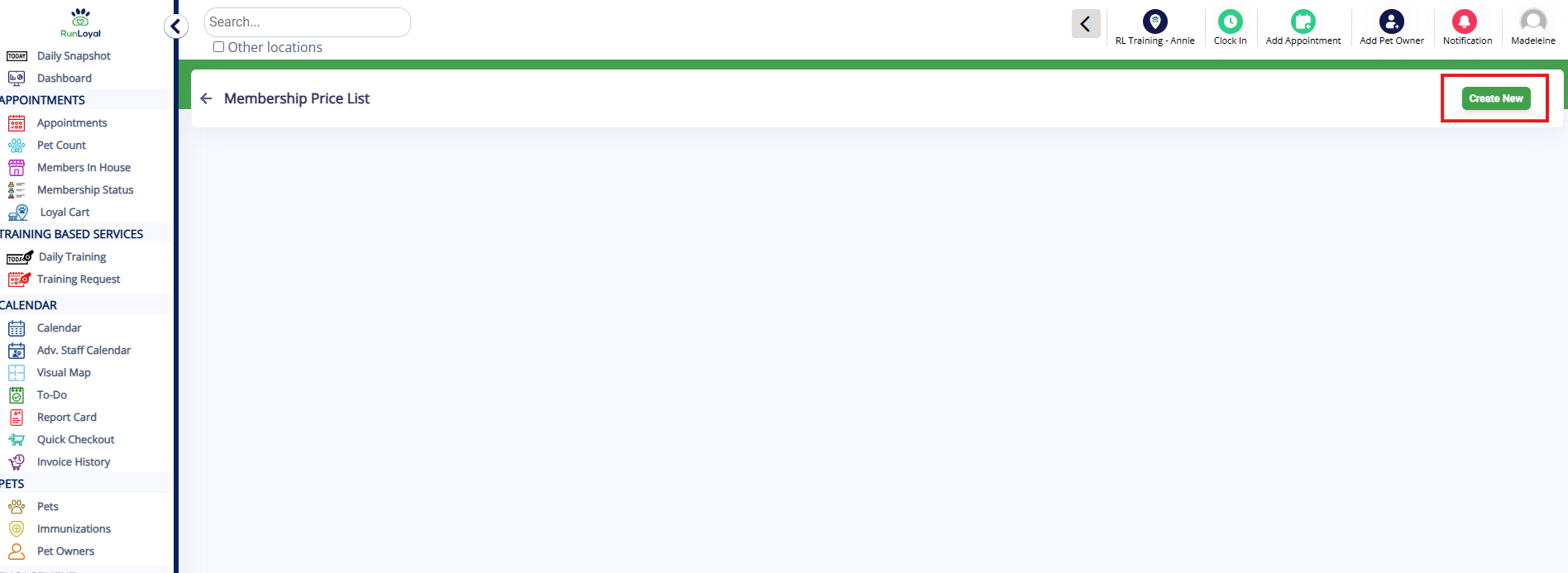
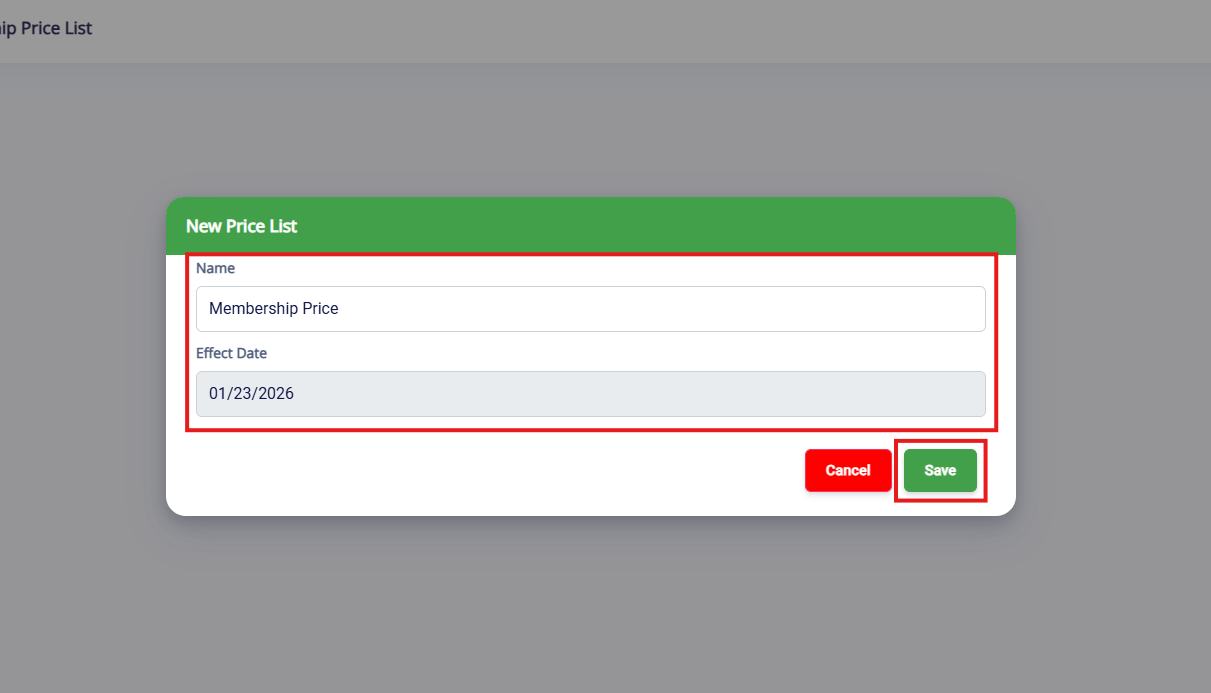
3. Name the new Membership Price List, set the effective date (such as today) and click Save,
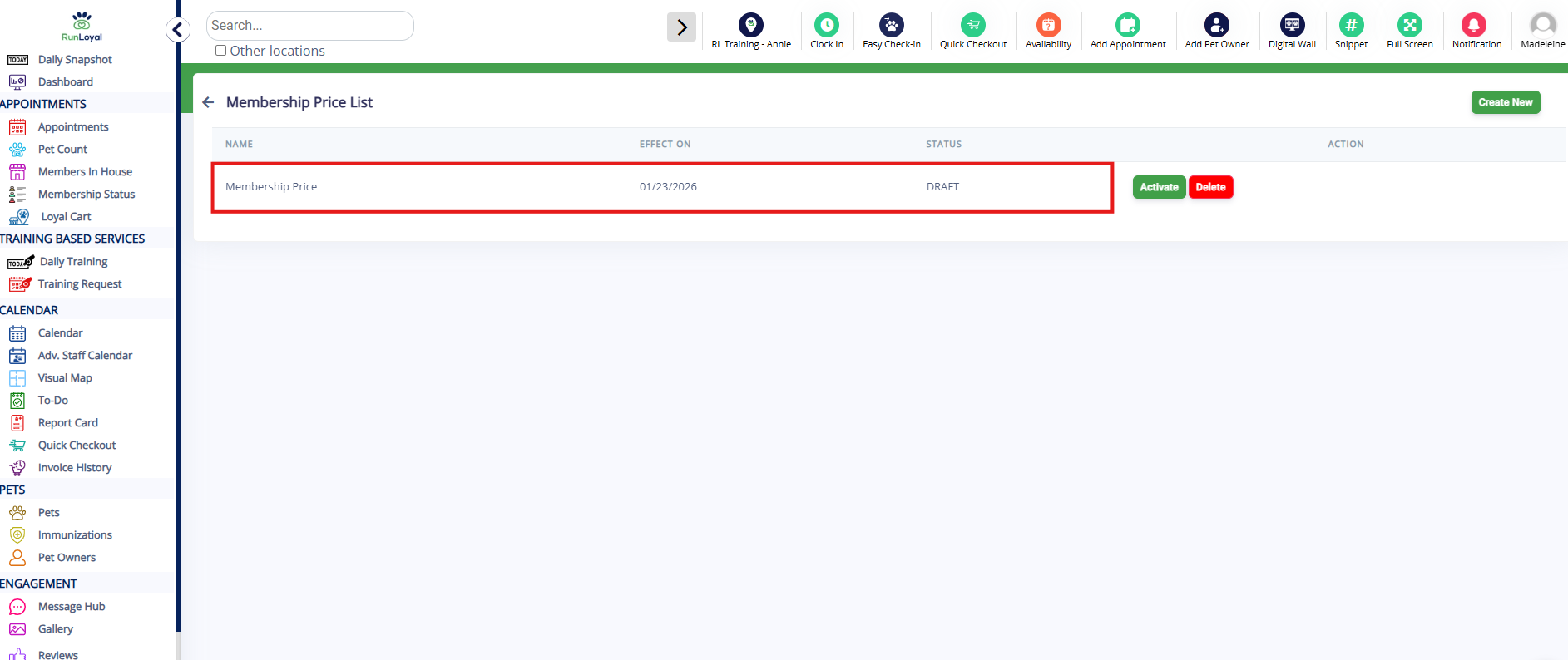
4. Click the Membership Price List to add your pricing.
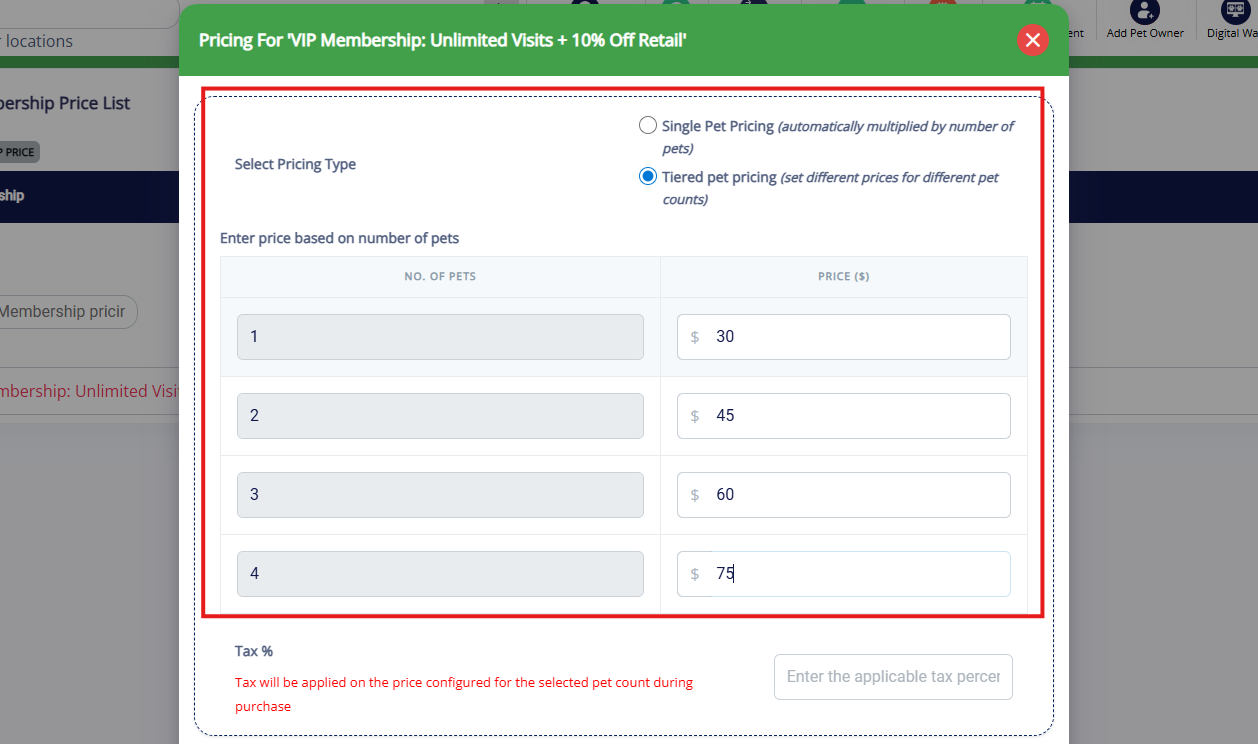
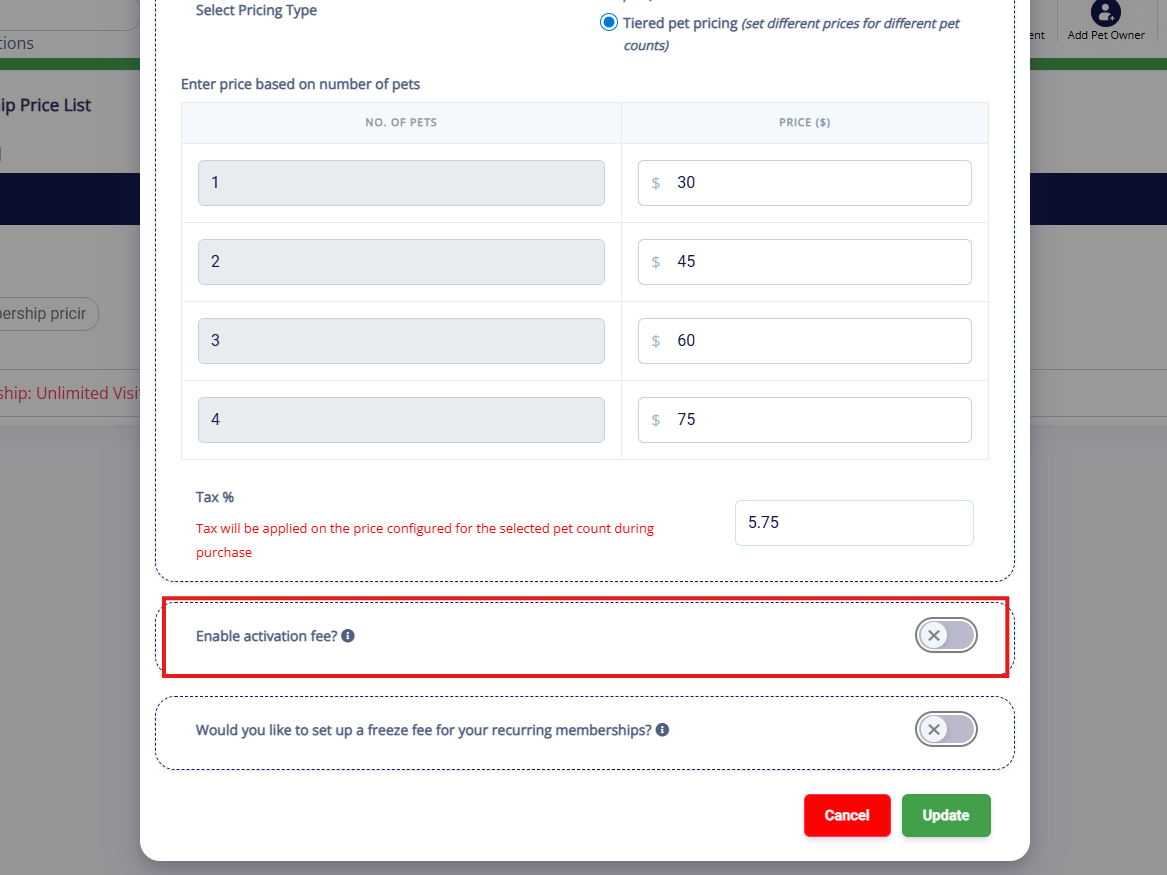
5. If you set up a flat fee for memberships regardless of number of animals while configuring the membership settings, you will simply enter a flat rate. If you set up tiered pricing, then you will be prompted to enter the price per pet, depending on how many animals the pet owner has.
6. If there is an activation fee to enable the membership, toggle on the Enable activation fee? setting. The activation fee price can be set separately for recurring and non-recurring memberships. You can then set the activation fee for each pet and allow tax and/or coupons to be applied. This fee will be charged to the pet owner when setting up a first time membership.
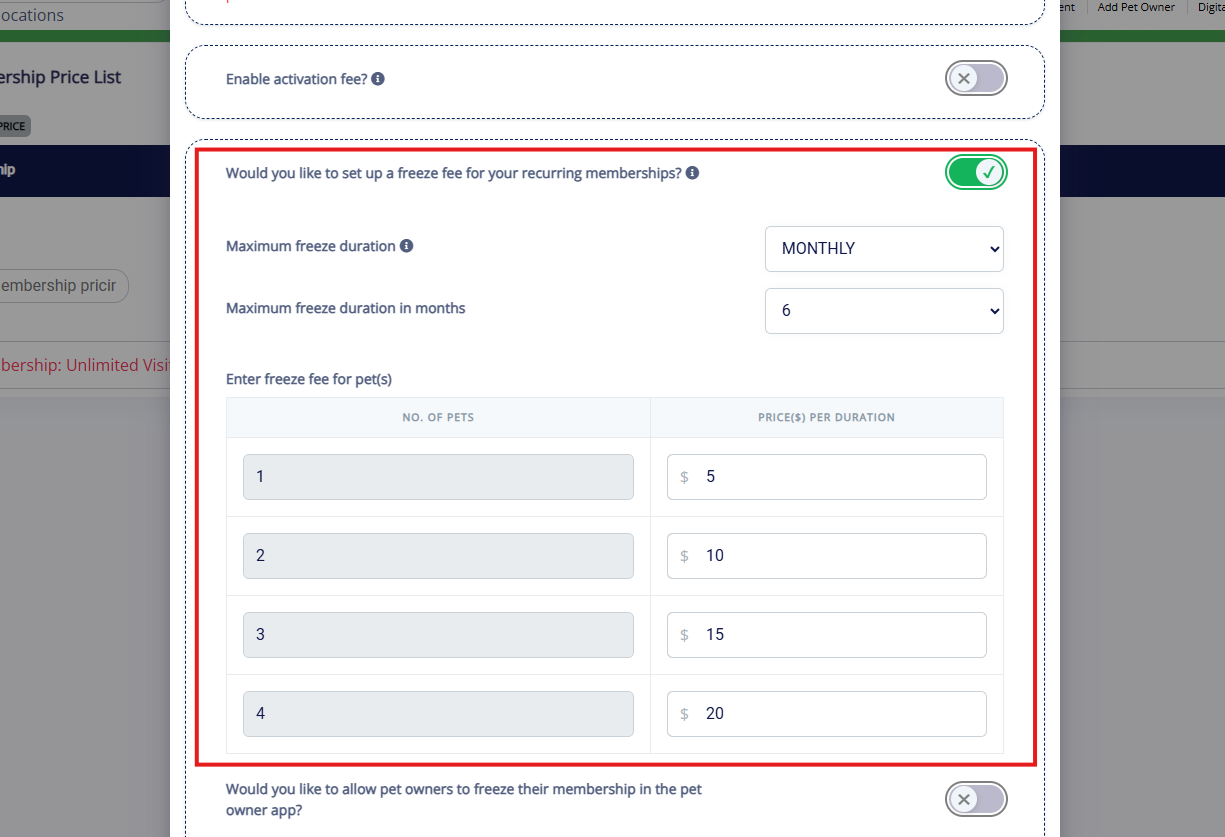
7. Memberships can also optionally be frozen if the pet parent wishes to keep their membership but temporarily pause for a set period of time. To charge a fee while the membership is frozen, enable Would you like to set up a freeze fee for your recurring memberships?. Then select if the freeze fee should occur monthly or weekly, and enter the maximum number of months or weeks it should charge. Then enter the freeze fees below.
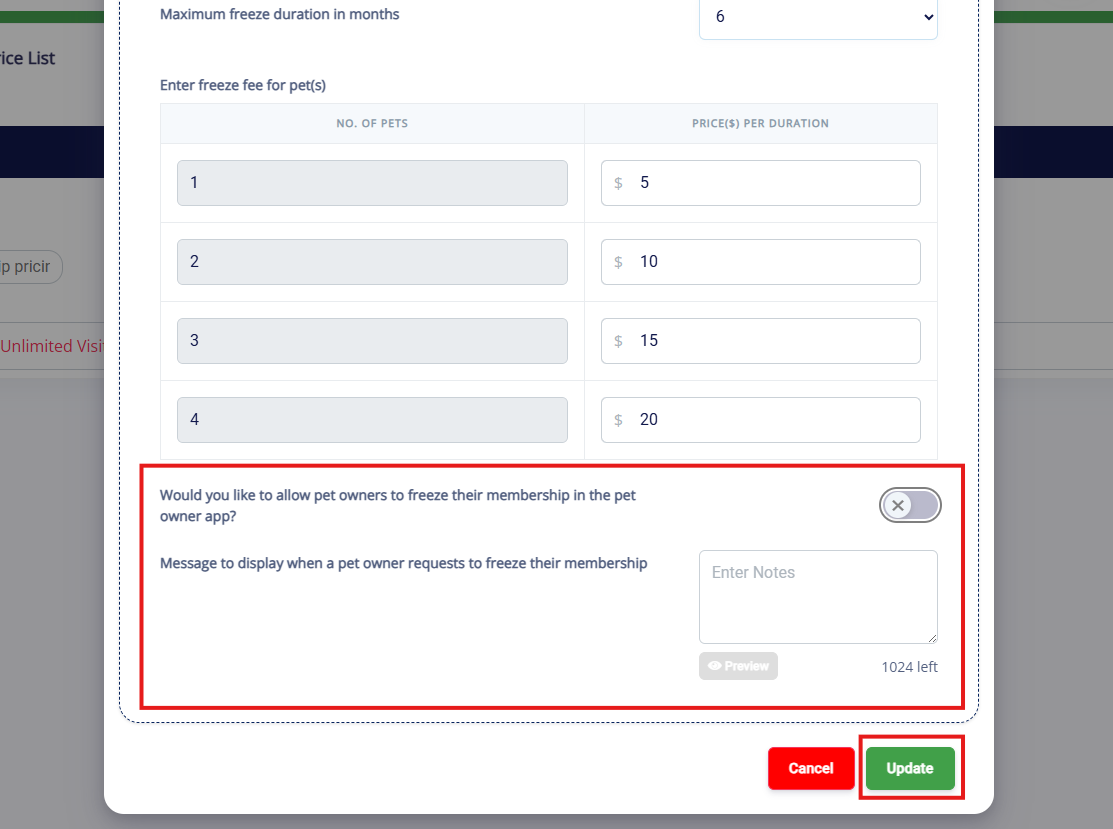
8. If you want memberships to be frozen only from the business side, toggle off Would you like to allow pet owners to freeze their membership in the pet owner app?. If you toggle this on, you can optionally enter a message that will display to pet owners when they opt to freeze the membership. Once you have confirmed all your changes, click Update.
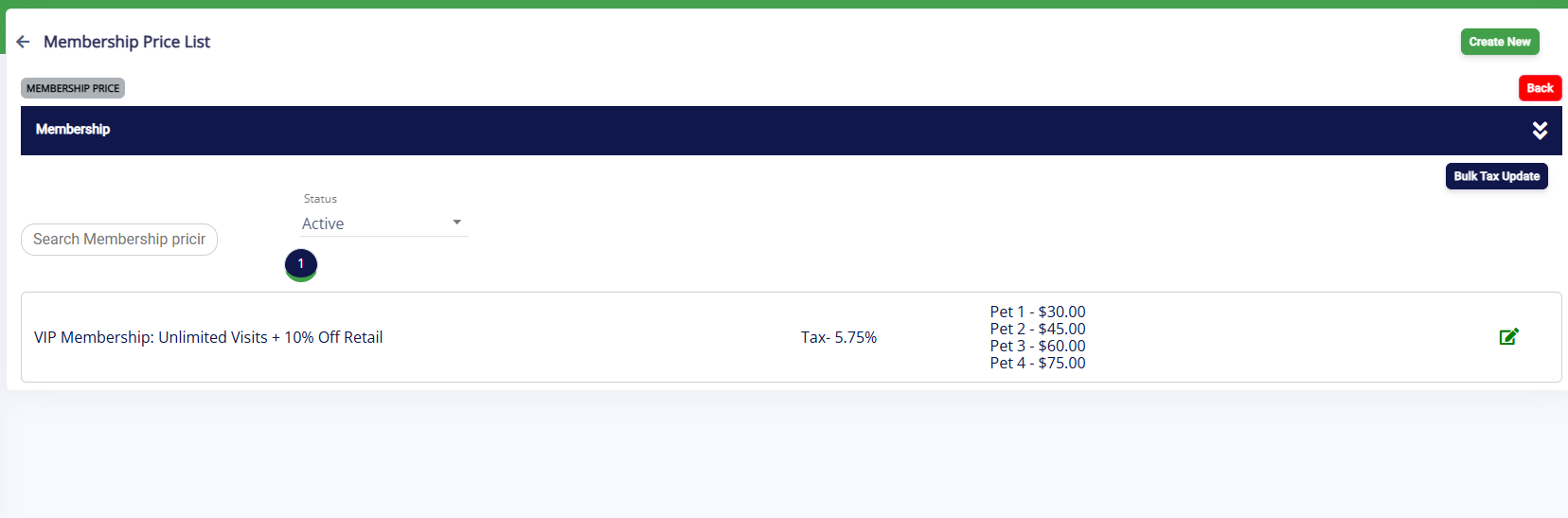
9. Verify your membership pricing displays as expected on the Pricing List page.
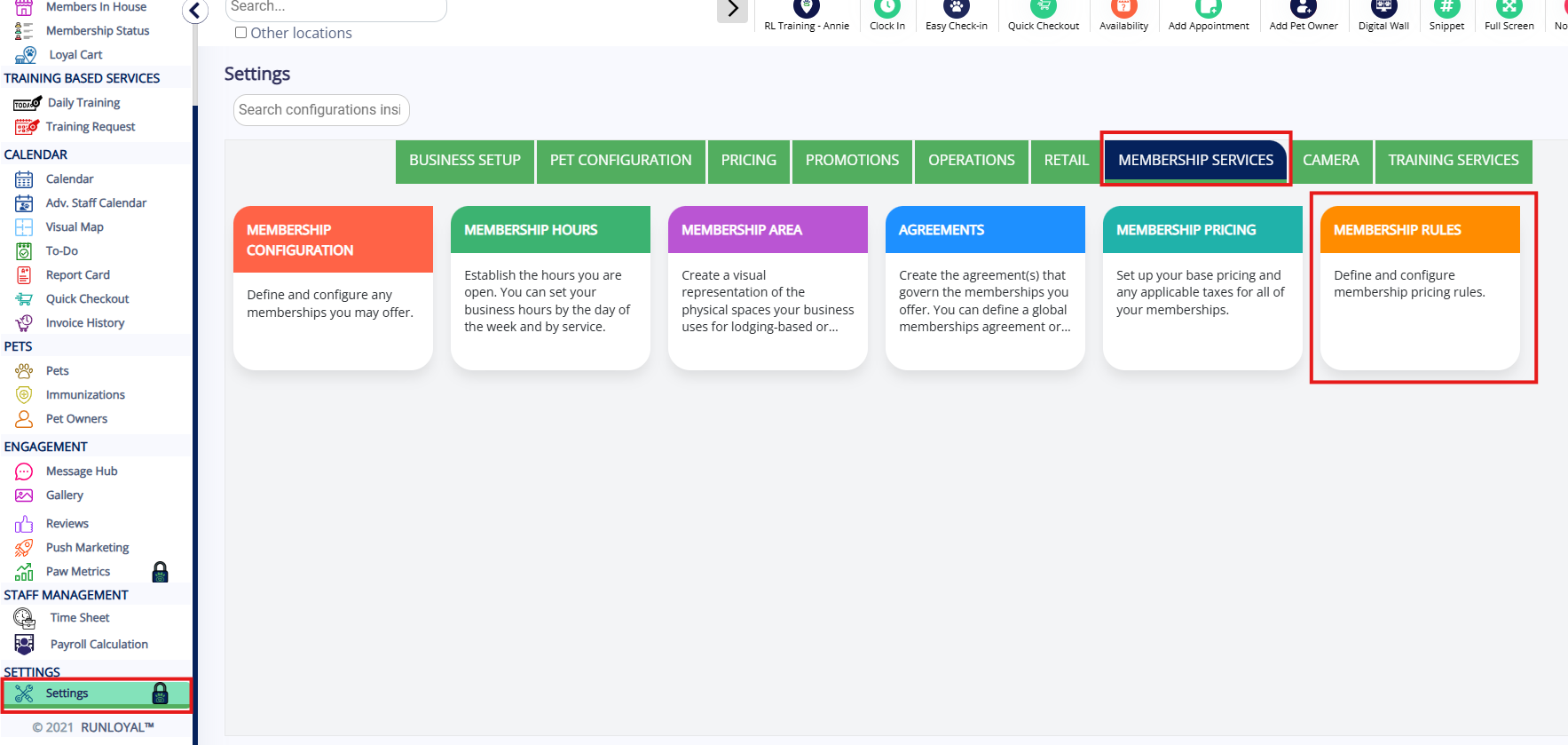
10. If you would like to set up pricing rules to give additional percentage or flat amount discounts on other services, navigate to Settings > Membership Services > Membership Rules.
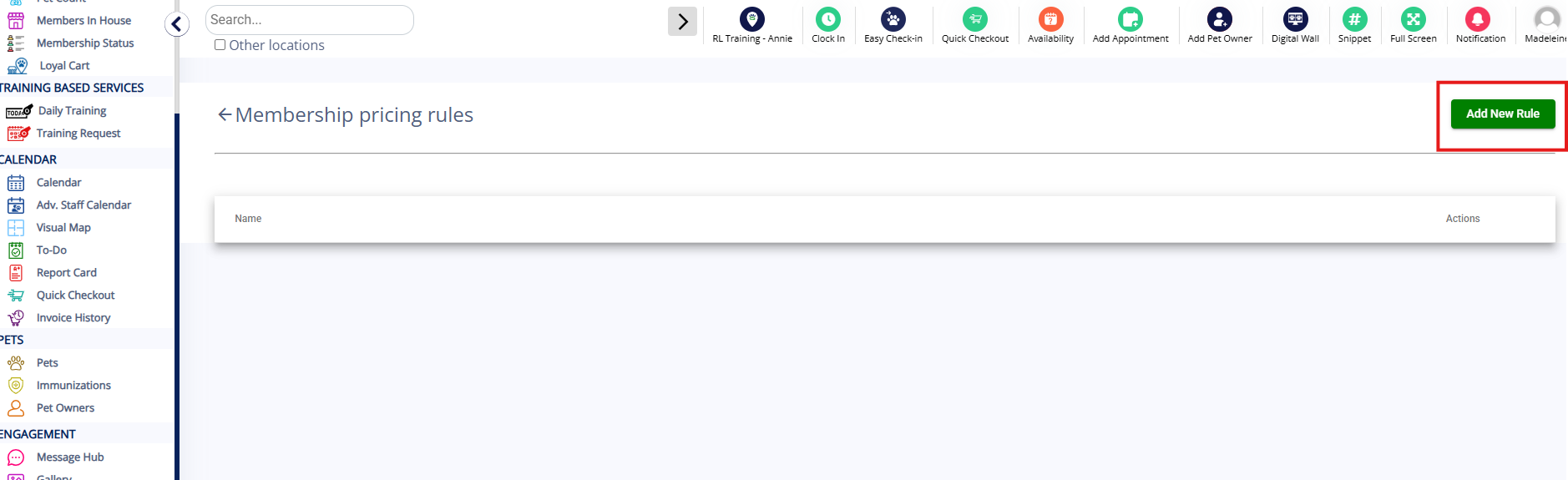
11. Click Add Rule.
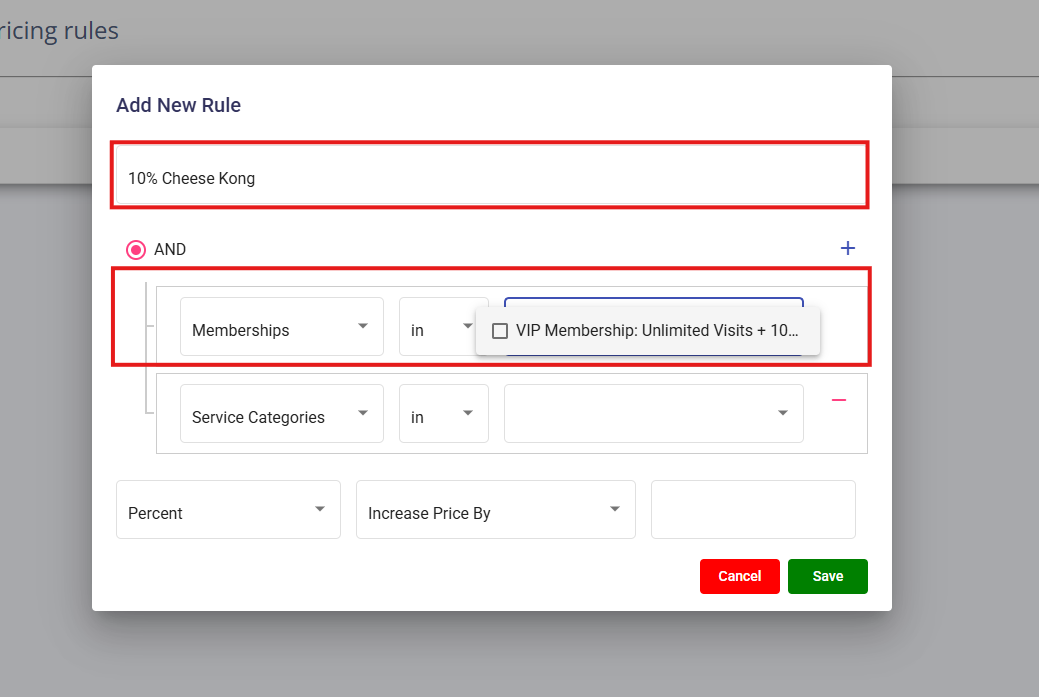
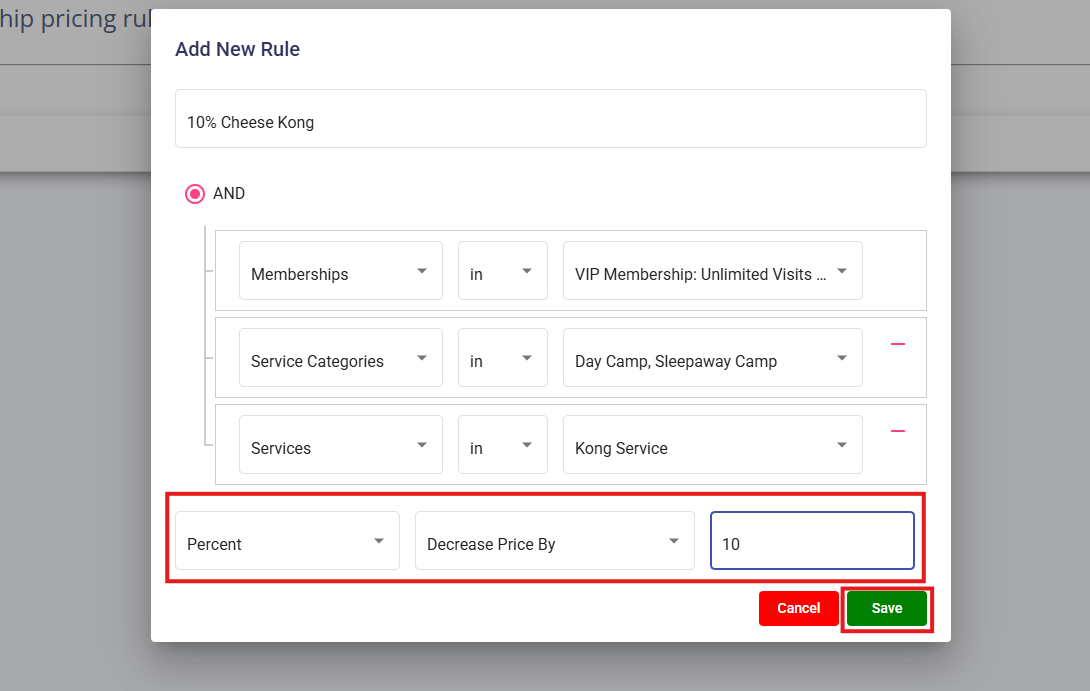
12. Name this pricing rule and select which memberships it should apply to.
13. Select all Service Categories and Services. If your service or add-on exists under multiple categories, select all that are applicable.
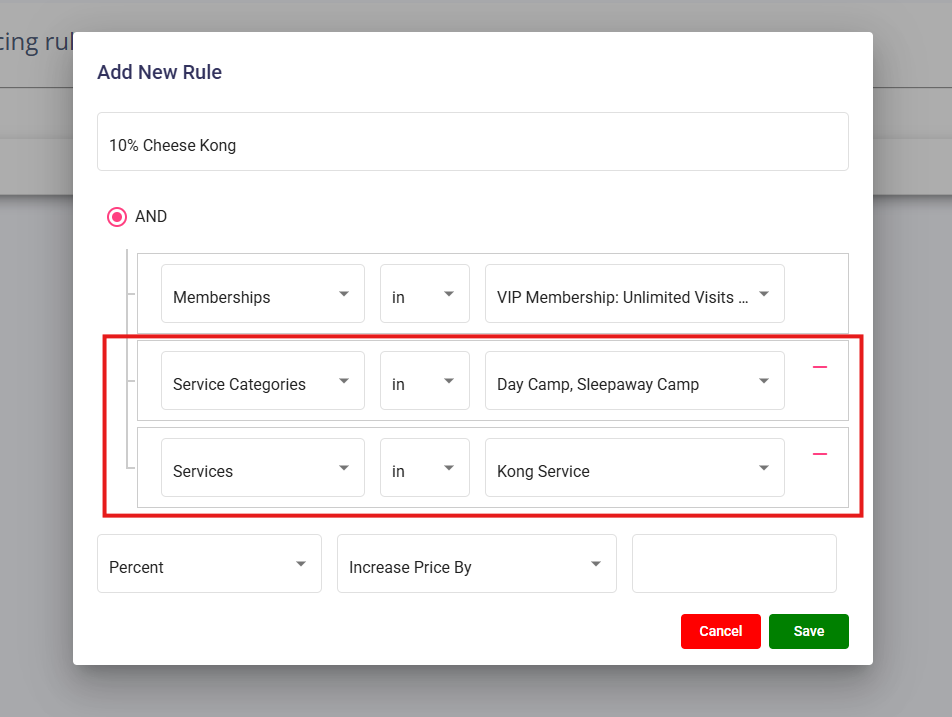
14. Select whether this rule should apply an Amount or Percentage, Increase or Decrease the price, and enter the amount the item should be affected by if the pet parent has this membership. Then click Save.
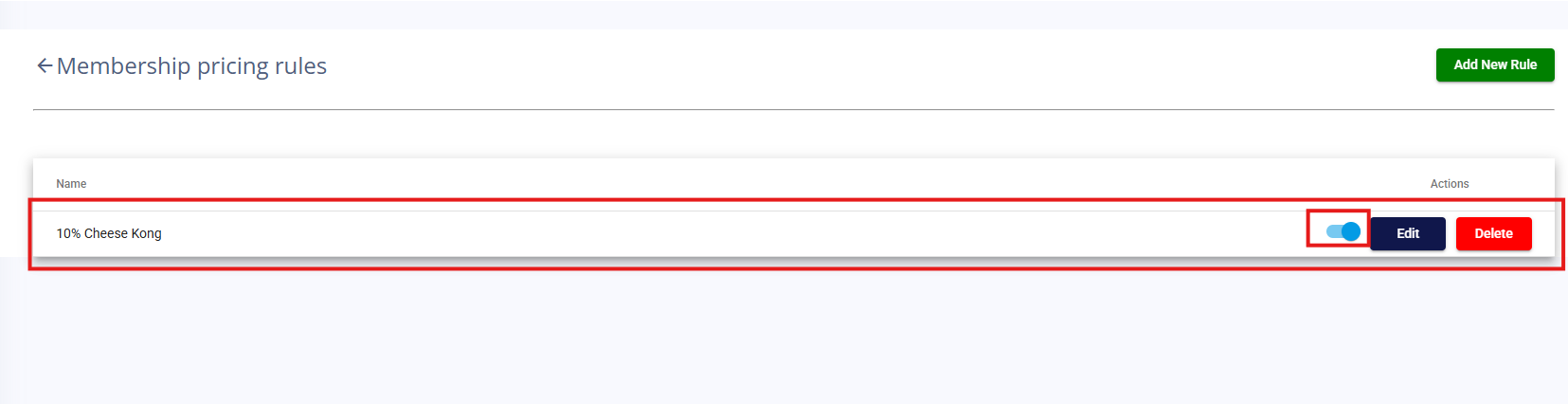
15. Verify your rule displays as expected, toggle on the rule to enable it, and add additional rules as needed.
Add a Membership Agreement (Optional)
1. Navigate to Settings > Membership Services > Agreements.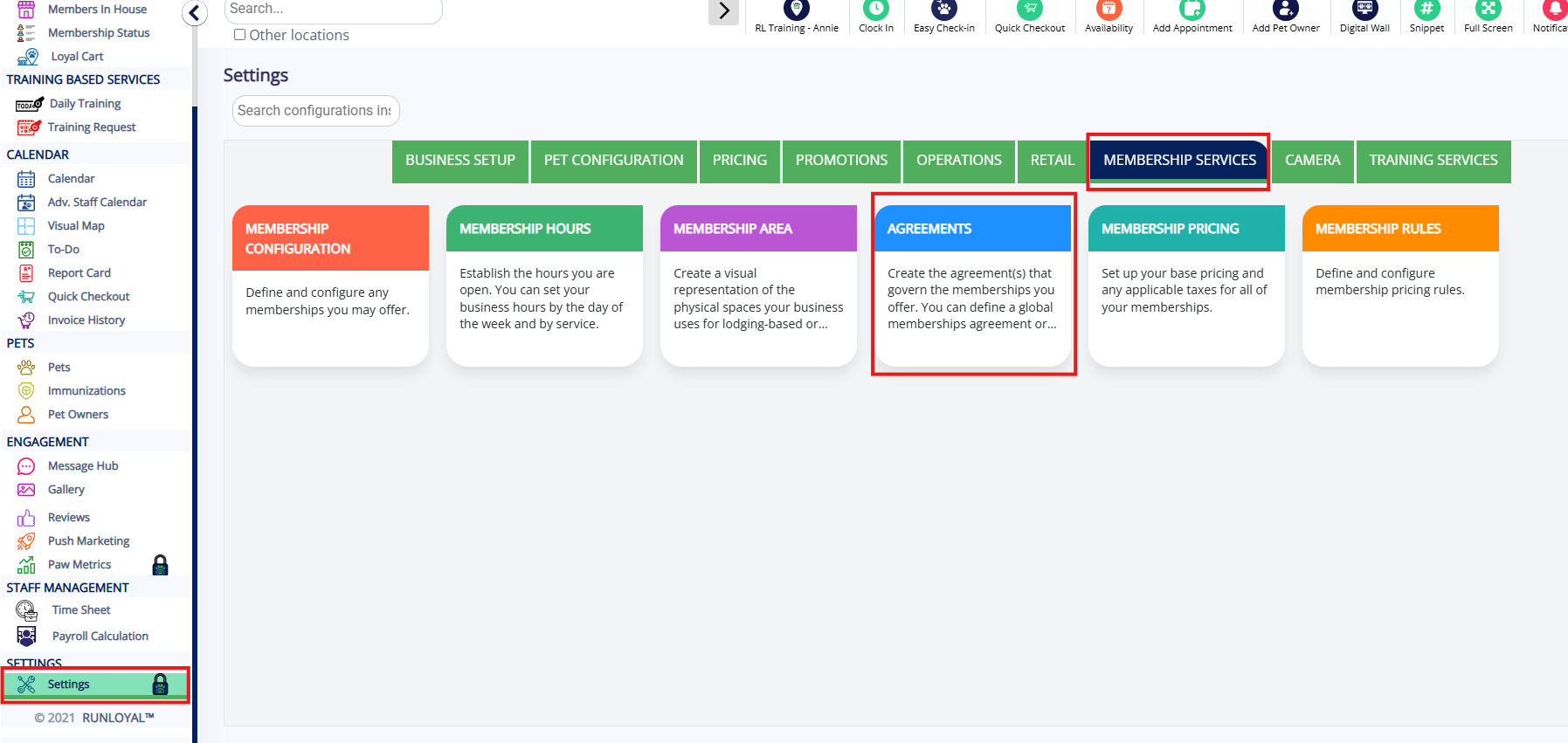
2. Click Add Membership Agreement.
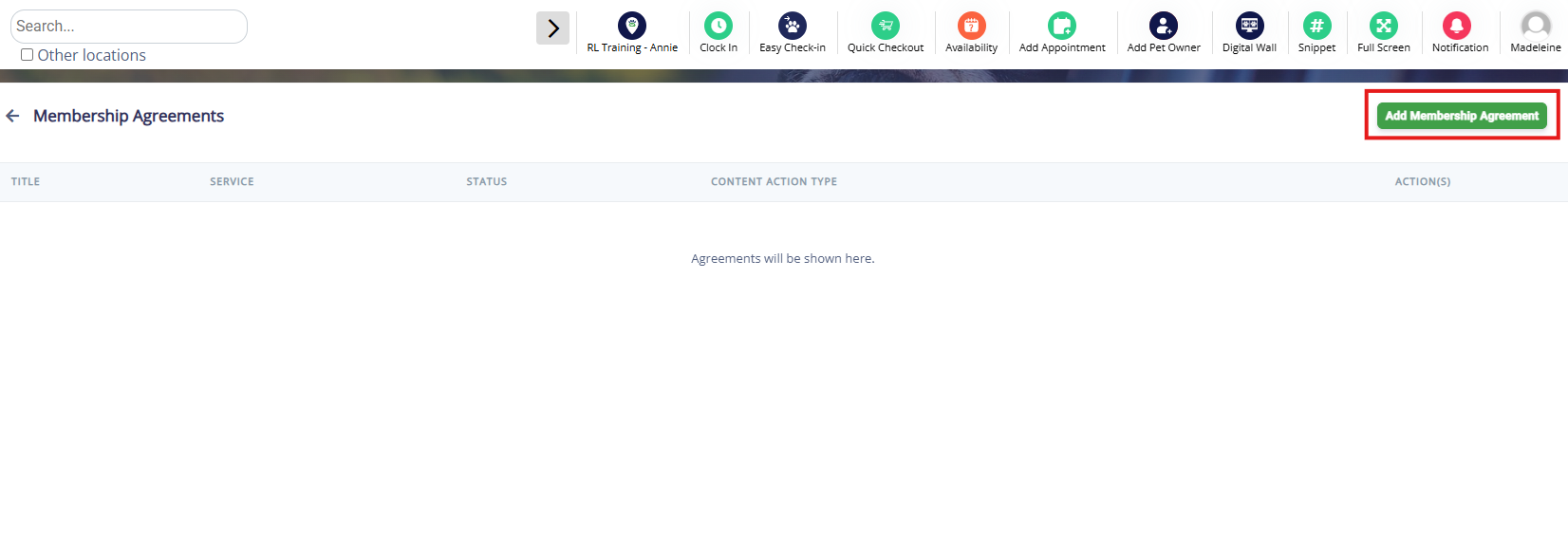
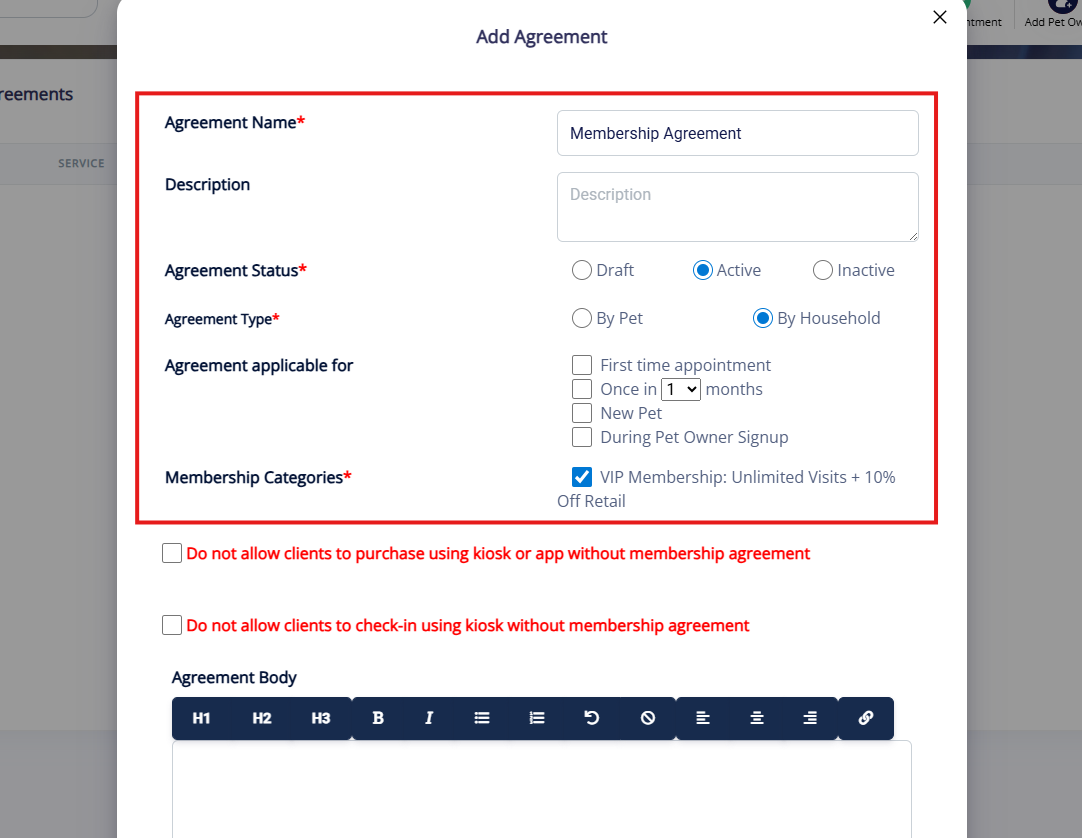
3. Enter an Agreement Name and optional Description. Set if the status should be Draft, Active, or Inactive. Select if the agreement should be By Pet or By Household. Then check the box next to all Membership Categories this should apply to.
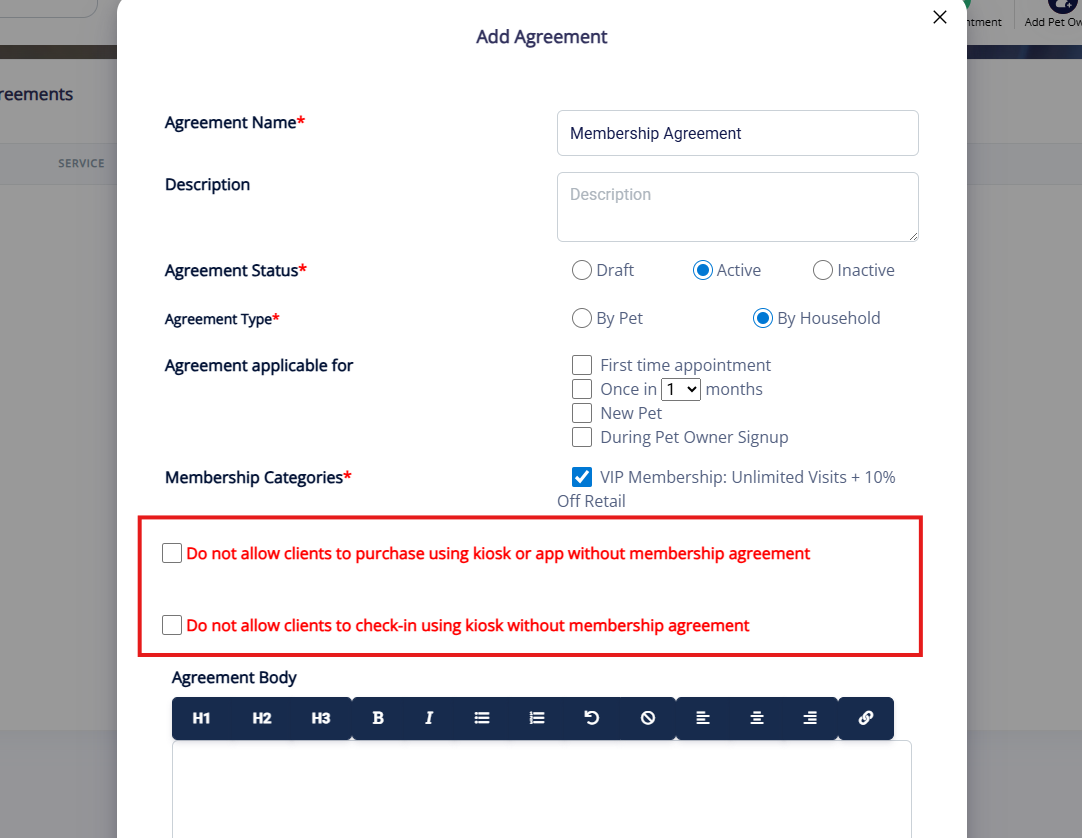
4. Check the boxes if clients should not purchase without membership agreement and/or clients should not check in without membership agreement.
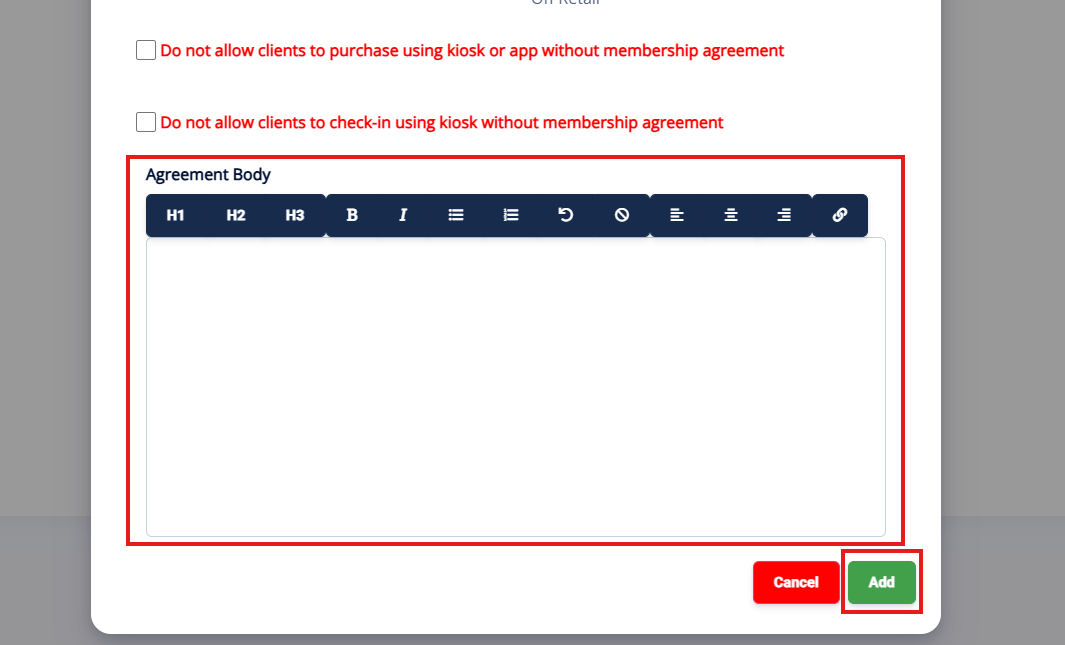
5. Enter in your Agreement Body. Then click Add.
More Information
For more information on selling a membership to a pet owner, please refer to this article: Enrolling a Pet Owner in a Membership
For more information on freezing a membership, please refer to this article: Freeze and Unfreeze Memberships
Was this article helpful?
That’s Great!
Thank you for your feedback
Sorry! We couldn't be helpful
Thank you for your feedback
Feedback sent
We appreciate your effort and will try to fix the article