Overview
Based on staff user groups such as Admin, Staff, other other Staff Groups, you can assign notification preferences to business employees. Notifications can be set up to populate in the business portal in the top-right Notifications menu, in the business portal Staff App, or send an email directly to your employee's inbox. You can toggle on/off individual notification types for email or business portal/staff app.
Notifications can be viewed in the following areas:
- Top-right Notifications Menu
- Staff App
- Email Inbox
- Settings > Business Setup > Staff Notification Preferences
TABLE OF CONTENTS
- Overview
- How to Customize User Notifications (Emails & In-App)
- Description of Notifications
- Assign Non-Admin Users to Receive Copy of Admin Emails
- How to Set Up Gmail Filters
- More Information
How to Customize User Notifications (Emails & In-App)
1. Navigate to Settings > Business Setup > Staff Notification Preferences.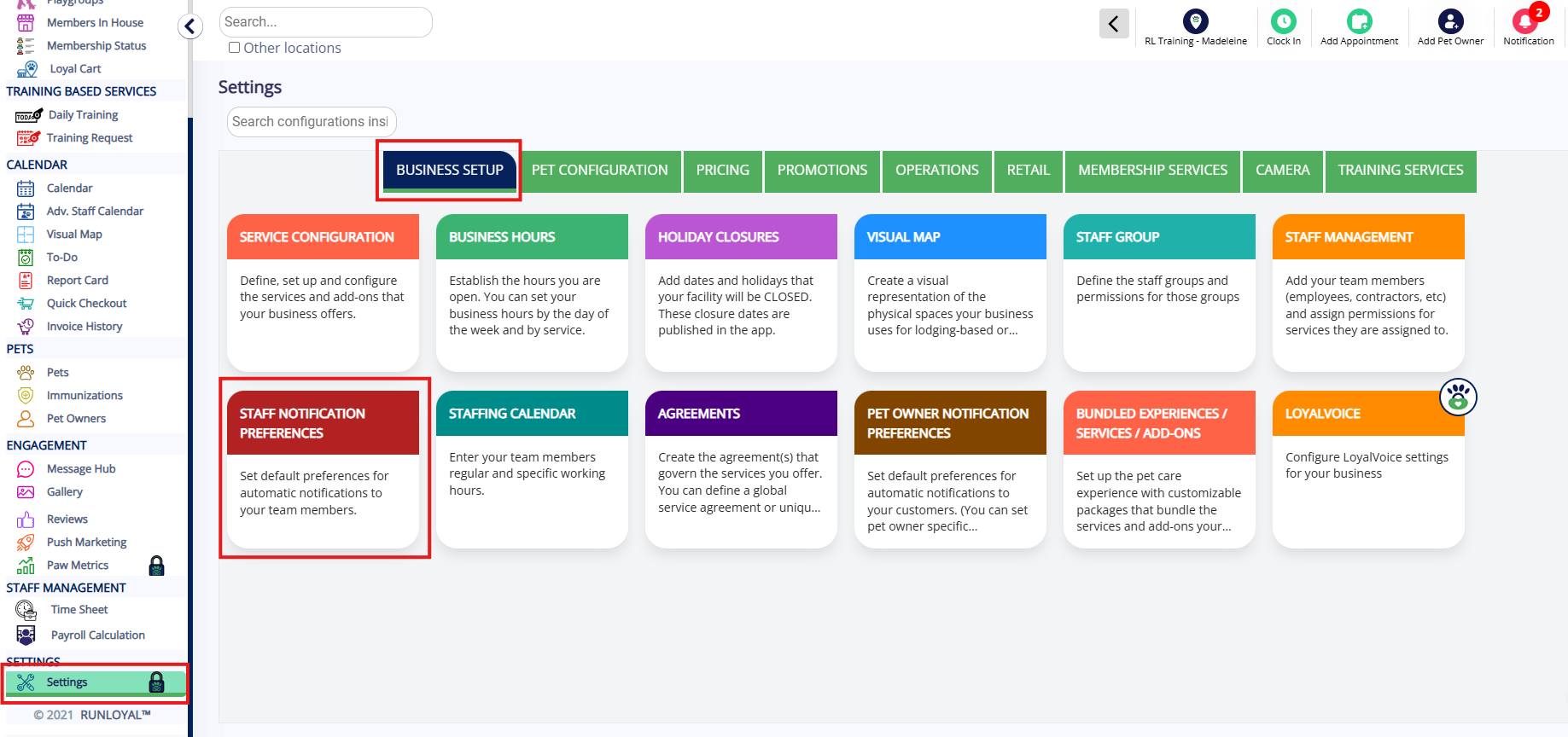
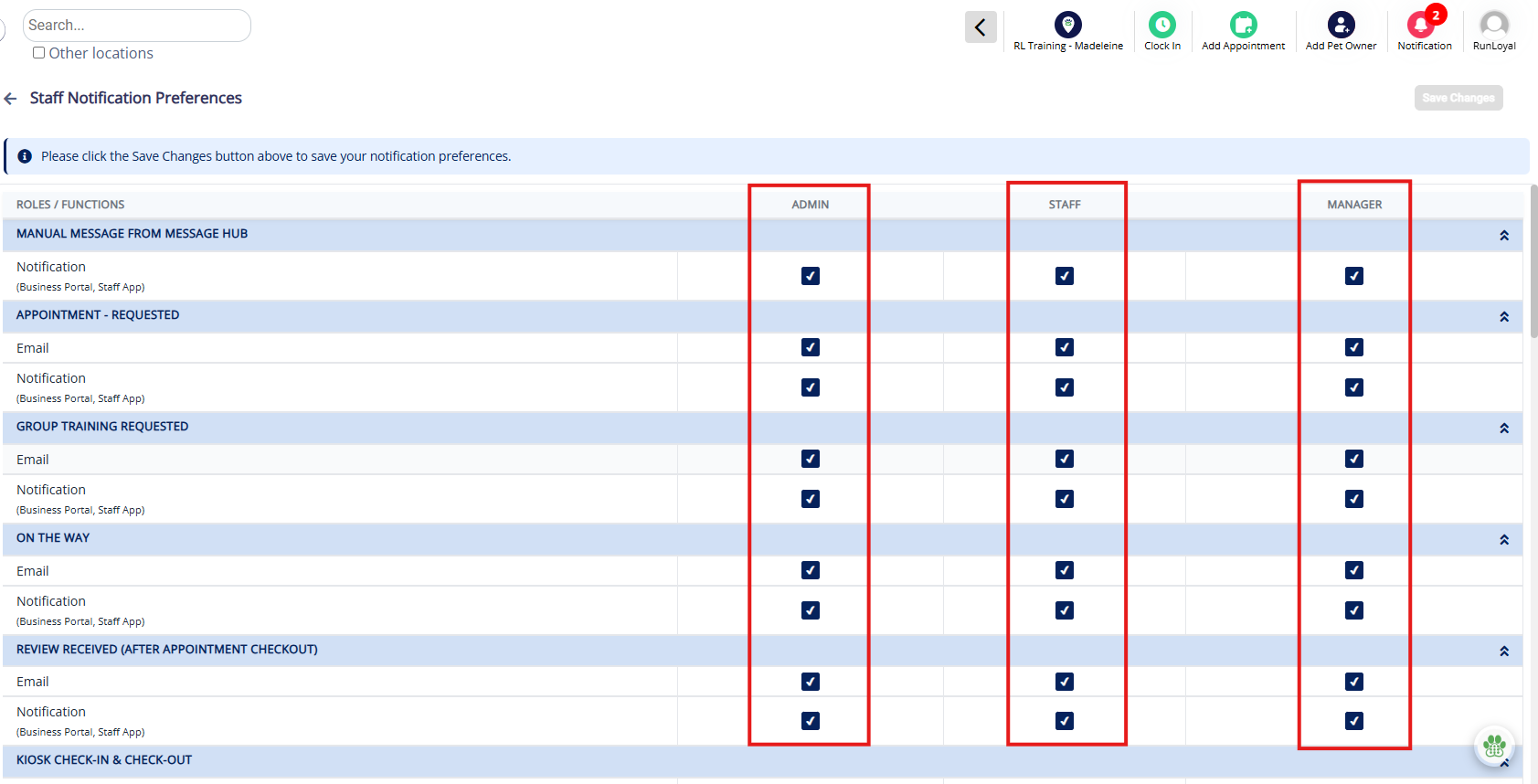
2. All notifications will be checked by default for all staff groups. To remove an notification type for email or business portal/staff app, uncheck the box. You can find a full list of all notification types below.
If you wish to set up additional staff groups, follow the steps in this article: Create Staff Groups (Permissions)
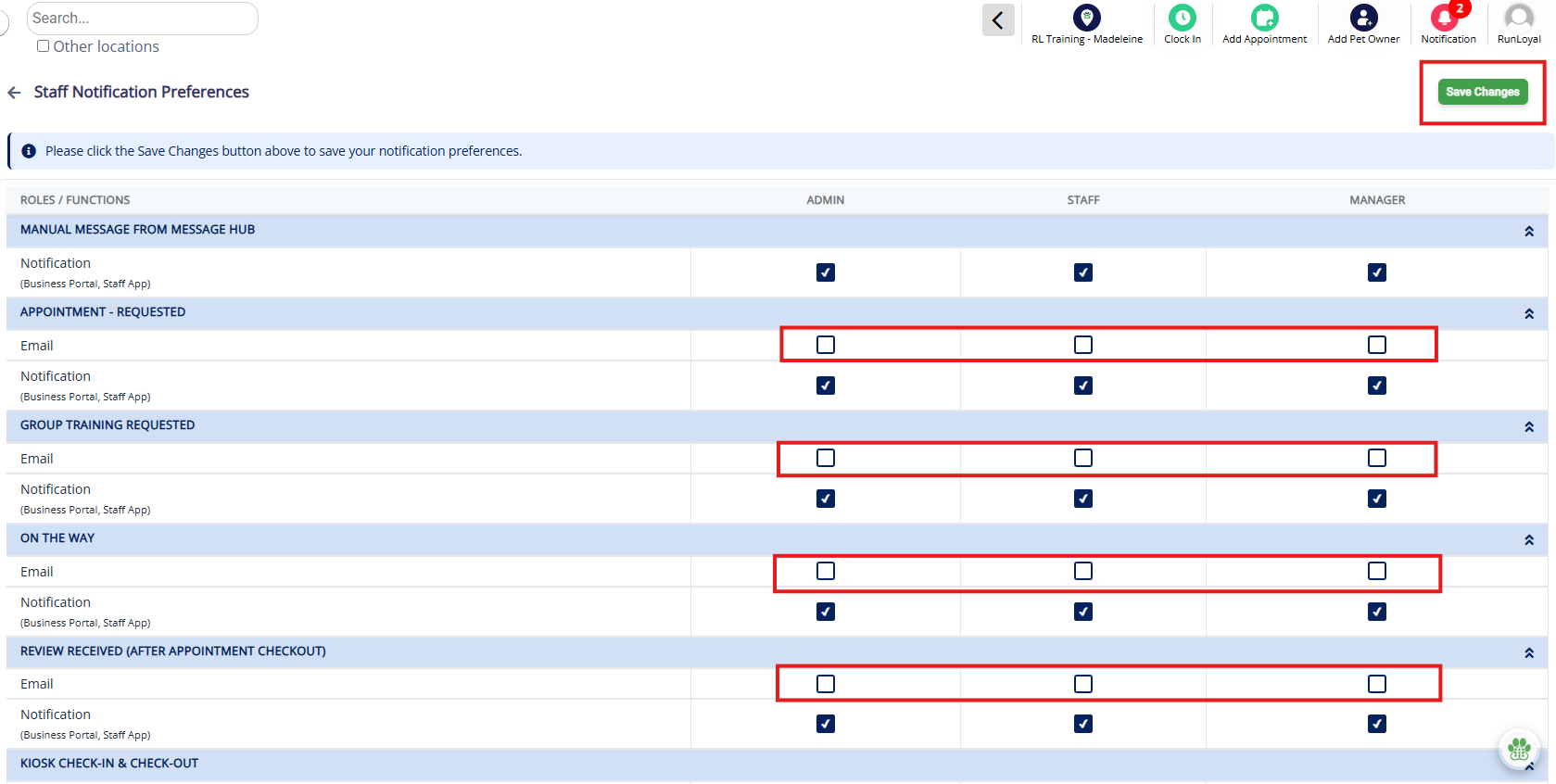
3. When you have finished checking or unchecking the notifications in question, click the green Save Changes button in the top right corner.
⚠️ Important: If you do not click the Save button, your changes will not be saved!
Description of Notifications
Each notification triggers based on different actions taken in the app, either by a staff user or pet owner. Below is a full list of all notifications.
Manual Message from Message Hub: Customer sends SMS to business. The business can then read or respond to the message as necessary.
Appointment - Requested: Pet owner submits an appointment request via online booking link, mobile app, or customer portal. The business can then accept or confirm the appointment.
Group Training Requested: Pet owner submits a group training appointment request via online booking link, mobile app, or customer portal. The business can then accept or confirm the appointment.
On the Way: Pet owner has clicked that they are "on the way" via the mobile app, indicating they are in route to the facility.
Review Received (After Appointment Checkout): Pet owner has submitted a review for your business after checkout. The business can address the review if needed.
Kiosk Check-in and Check-out: Pet owner has checked in or out via the iPad Kiosk.
Package Subscription Update: Pet owner package was edited to adjust expiration date, delete the package, or another update.
I'm Here: Pet owner has clicked that they have arrived at the facility via the mobile app, indicating they are present at the facility.
Payment: Pet owner has submitted a payment to an estimate or open invoice.
Agreement Signed: Pet owner has signed a legal agreement.
Membership Subscription Renewal Success: Membership for pet owner successfully renewed.
Membership Subscription Renewal Failure: Membership for pet owner failed to renew (normally because of a credit card issue). Business staff or pet owner should place a new card on file, depending on reason for renewal failure.
Package Subscription Renewal Success: Package subscription for pet owner successfully renewed.
Package Subscription Renewal Failure: Package subscription for pet owner failed to renew (card issue). Business staff or pet owner should place a new card on file, depending on reason for renewal failure.
Recurring Appointment Completion: Pet owner's series of appointments for their pet has reached the end of the recurring cycle. Business staff can optionally re-start with new series of recurring appointments.
Receive Homework: Pet owner completes homework for group training class by marking homework as complete in the mobile app or link.
Immunization Upload: Pet owner uploaded a copy of their immunization document(s) from the mobile app. A business portal staff user can review the dates, confirm against the document, and enter the confirmed dates onto the pet's account.
Membership Subscription Renewal Freeze: Membership subscription frozen, which prevents auto-renewal for next charge.
Membership Subscription Renewal Freeze Failure: When fee is set up for frozen memberships, if membership attempts to change frozen fee and it fails.
Membership Subscription Paused: Membership subscription has been paused due to multiple failed payment attempts.
Membership Subscription Resumed: Membership subscription has been resumed due to action taken on the business side (card updated and/or manual processing of membership) after pause due to multiple re-try failures.
Assign Non-Admin Users to Receive Copy of Admin Emails
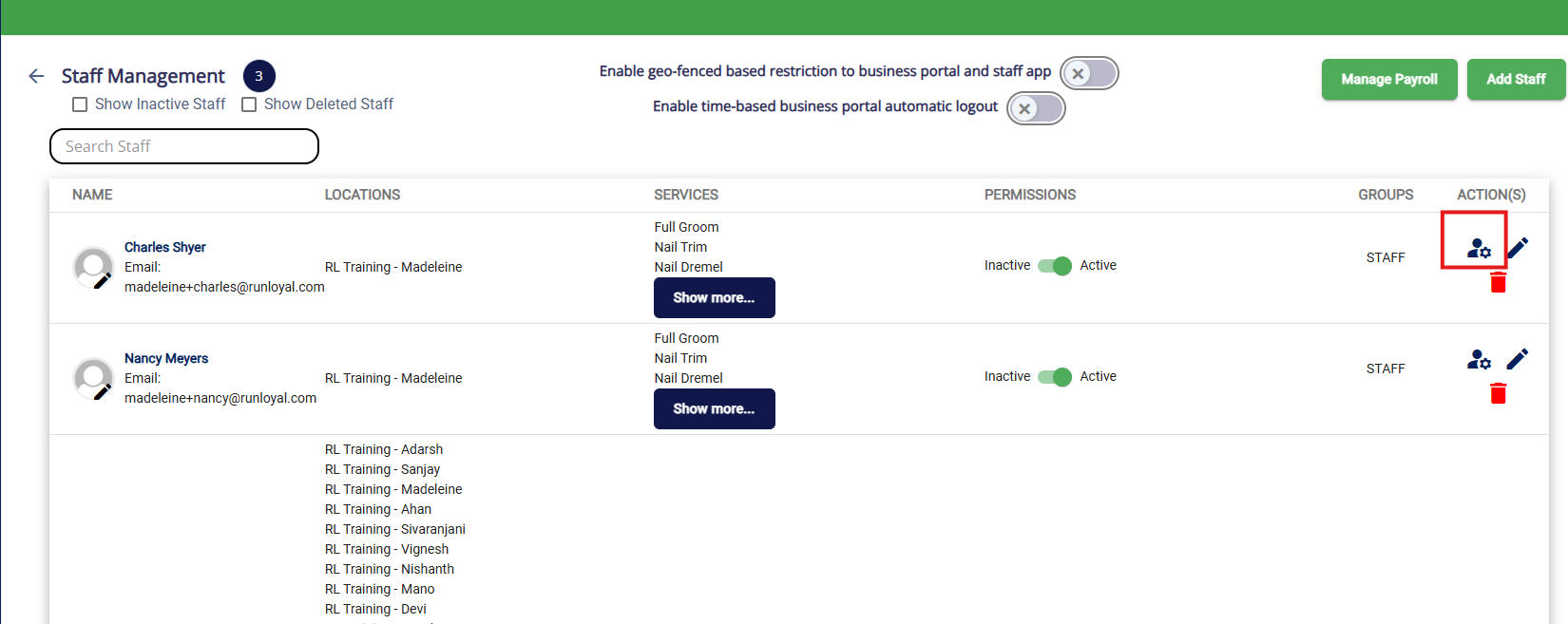
1. To edit an existing user so they receive a copy of all Admin Emails, navigate to Settings > Business Setup > Staff Management.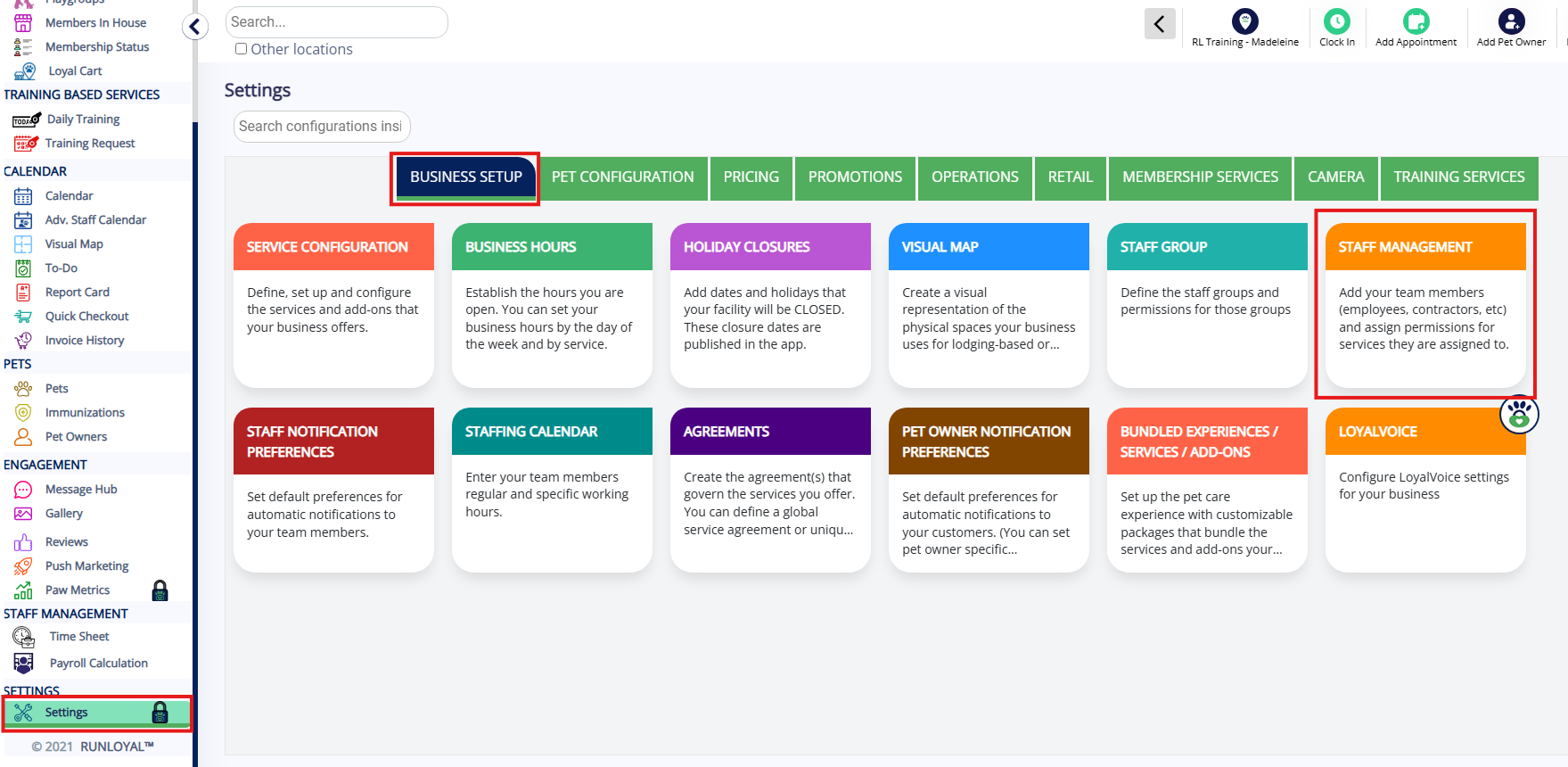
2. Click the User Settings icon next to the user in question.
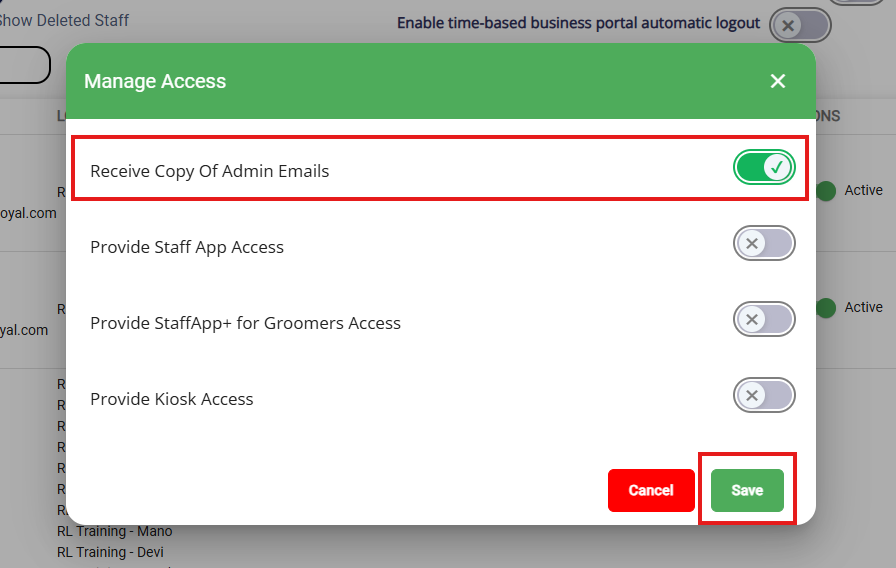
3. Toggle On Receive Copy of Admin Emails, then click Save.
How to Set Up Gmail Filters
In your email mailbox, you can filter out any unwanted emails and leave the ones that you do. This will make those certain email types skip your mailbox and go directly into a folder.
Please see this Google guide on how to setup a filter to your Gmail mailbox: Gmail Inbox Filters.
More Information
For more information on adding new staff users, please refer to this article: Add & Edit Staff Users
For more information on creating a Staff Group (User Permissions), please refer to this article: Create Staff Groups (Permissions)
For more information on Geo-Fencing (Location-Based Restriction), please refer to this article: Staff Geo-Fencing (Physical Access Restriction)
Was this article helpful?
That’s Great!
Thank you for your feedback
Sorry! We couldn't be helpful
Thank you for your feedback
Feedback sent
We appreciate your effort and will try to fix the article