Overview
Capacity-based services, such as daycare, are used for single-day bookings. Appointment availability for capacity-based services is based on the number of spots in a facility for the requested day. Capacity-based services can be all-inclusive or offer optional add-ons.
Service categories are the overall header of potentially multiple services you offer at your business. For example, you may have a Service Category titled Daycare that includes the Services titled Full Day Daycare and Half Day Daycare. This article will assist in setting up the overall Service Category Daycare. If you would like to add Daycare Services, please navigate to the article: Create Capacity-Based Services (Daycare)
Capacity-Based Services can be viewed in the following areas:
- Appointments tab
- Settings > Business Setup > Service Configuration
- Making a new appointment on the business portal
- Booking in mobile app or web link
TABLE OF CONTENTS
Create a New Capacity-Based Service Category
1. Navigate to Settings > Business Setup > Service Configuration.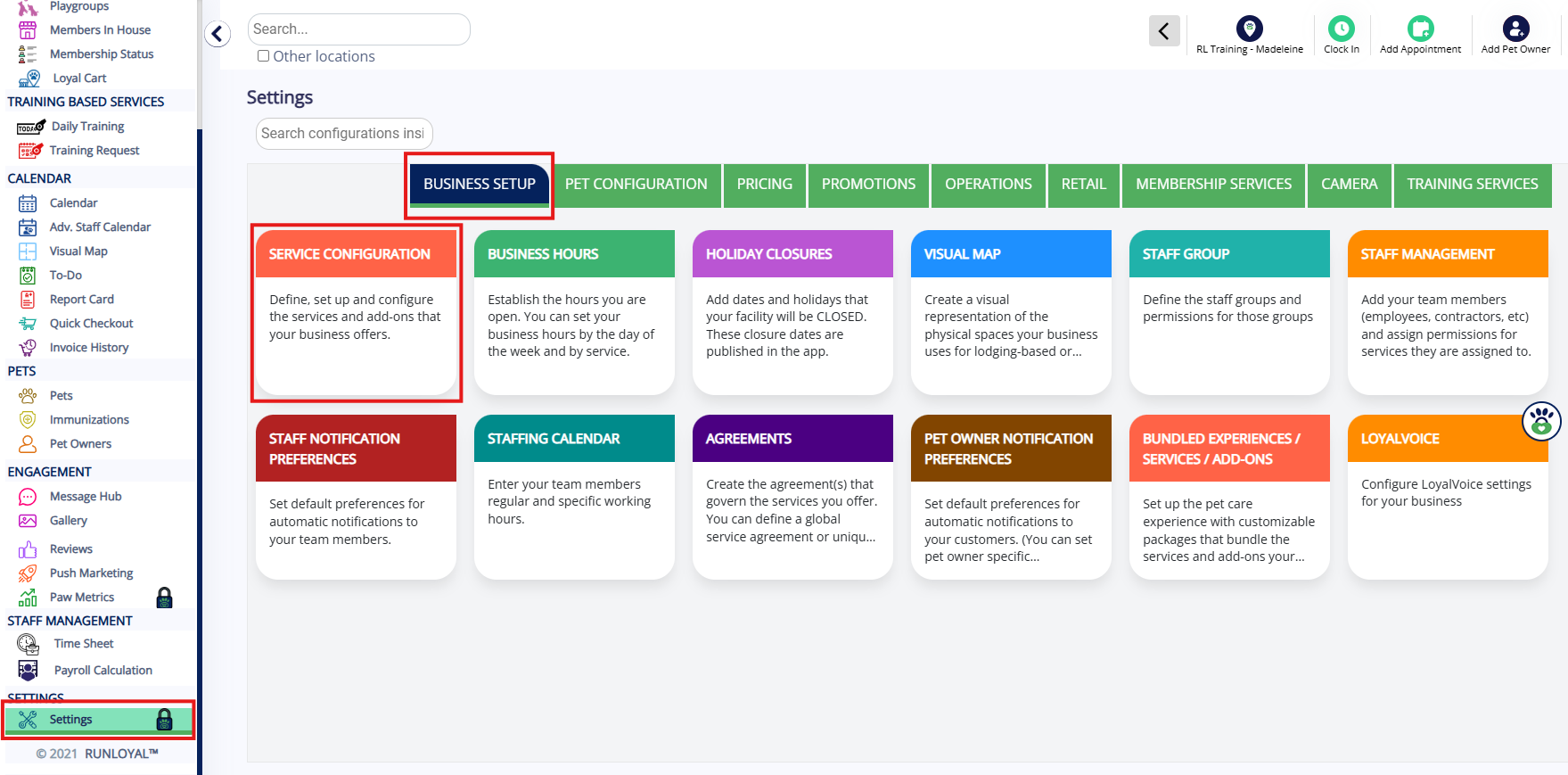
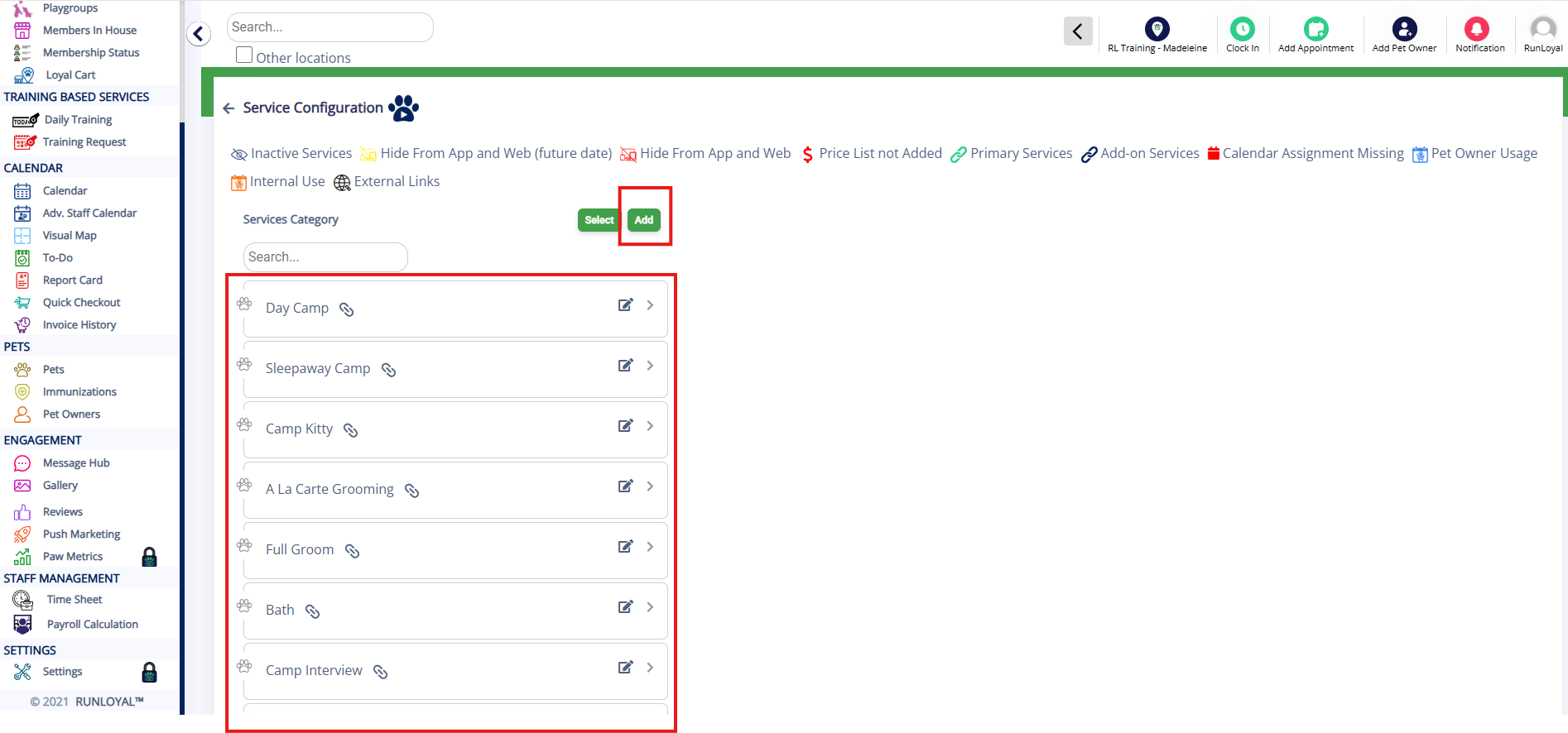
2. If you are creating a brand new category such as Daycare, click Add next to Service Category.
If you would like to add a new service under an existing category, simply click the category in question to expand it and then go to our article here: Create Capacity-Based Services (Daycare)
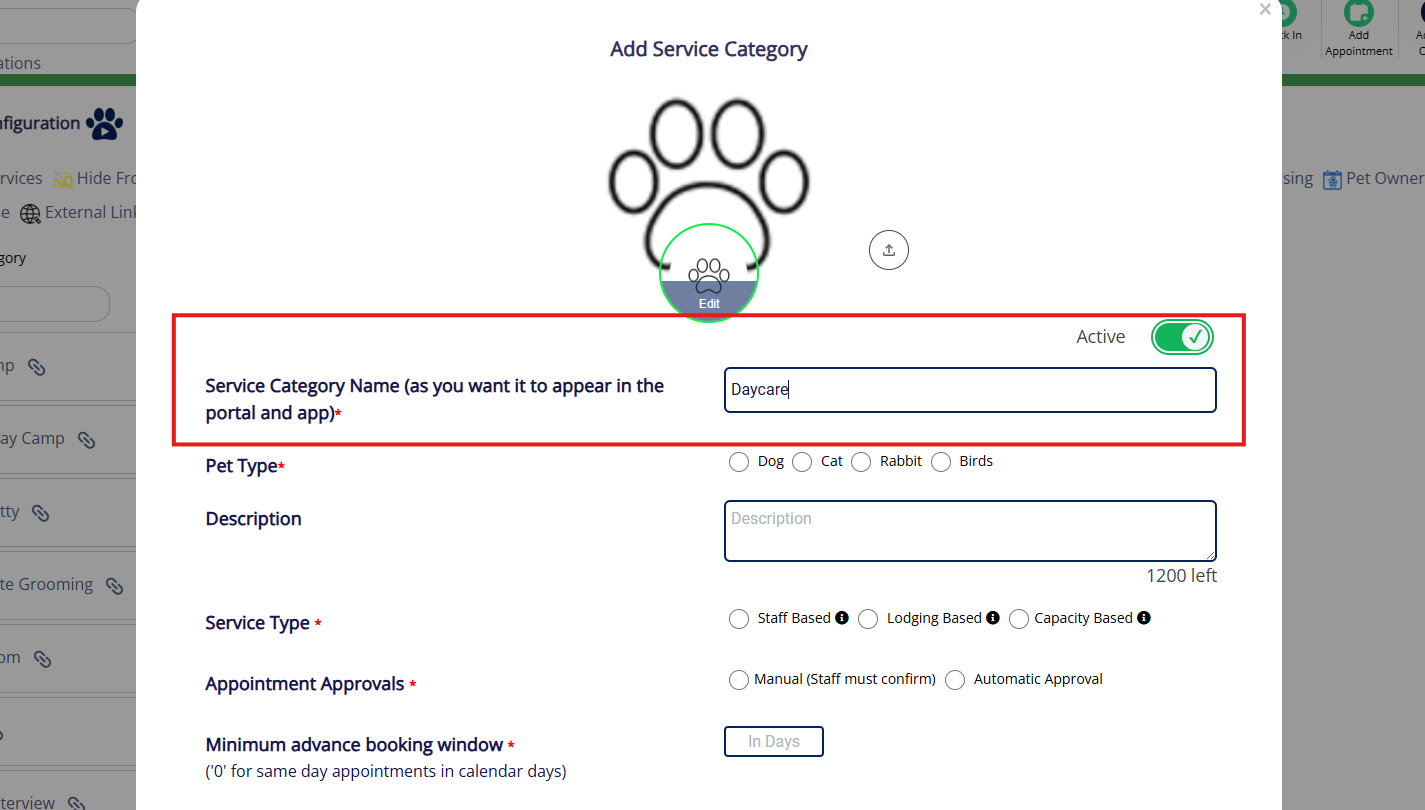
3. If adding a new category, fill in the category details starting with Service Category Name (such as Daycare).
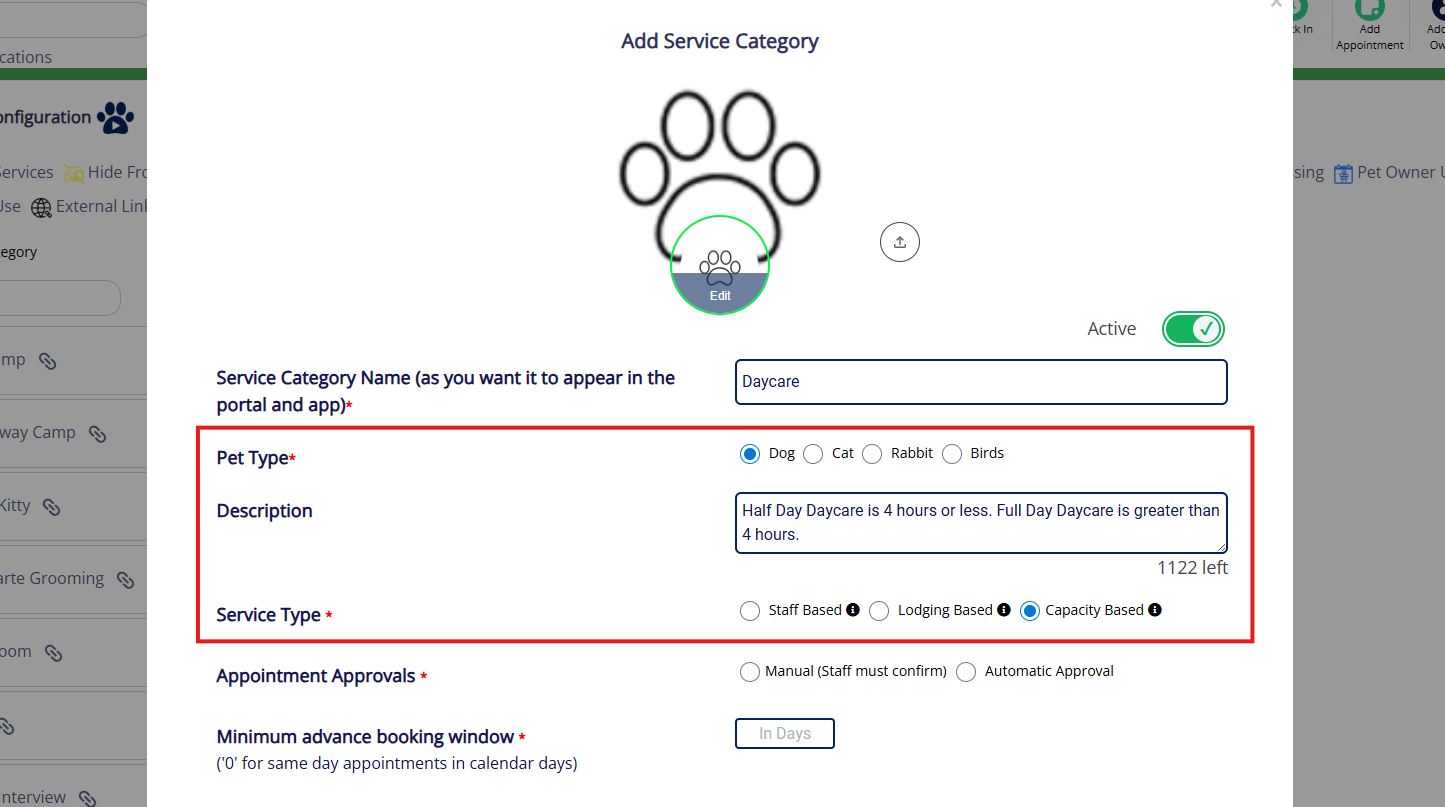
4. Choose the Pet Type (such as dog) and optionally enter a brief description that will be visible to staff and customers when creating the booking. For Service Type, select Capacity Based.
5. Choose Appointment Approvals to be either Manual (the pet owner submits the request and your staff approves it) or Automatic (all requests submitted by the pet owner are automatically approved). Set Minimum Advance Booking Window to the minimum number of days a customer must request in advance of their drop-off date (such as 0 if you allow same-day requests). For How many days before to send appointment reminders?, enter the number of days in advance appointment reminders should send (such as 1).
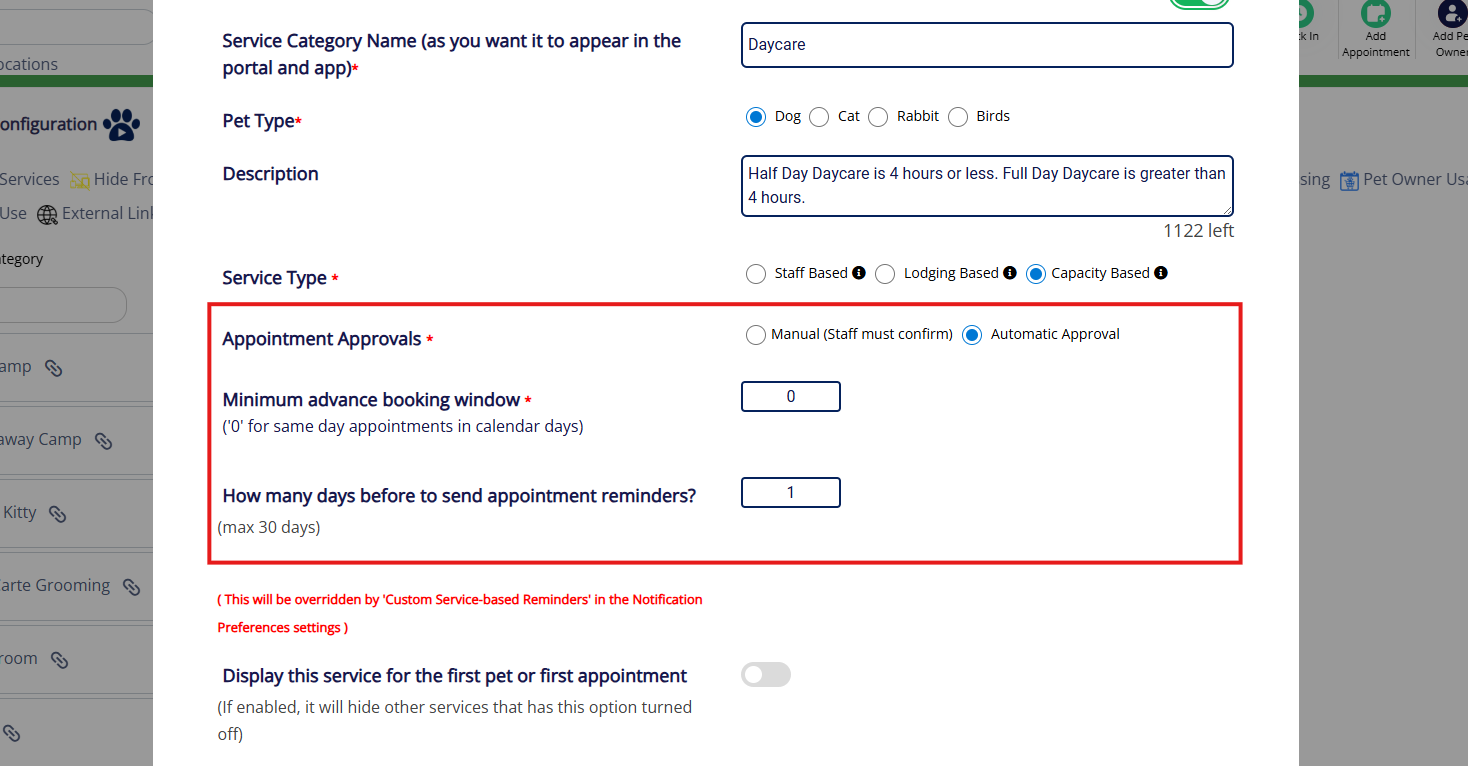
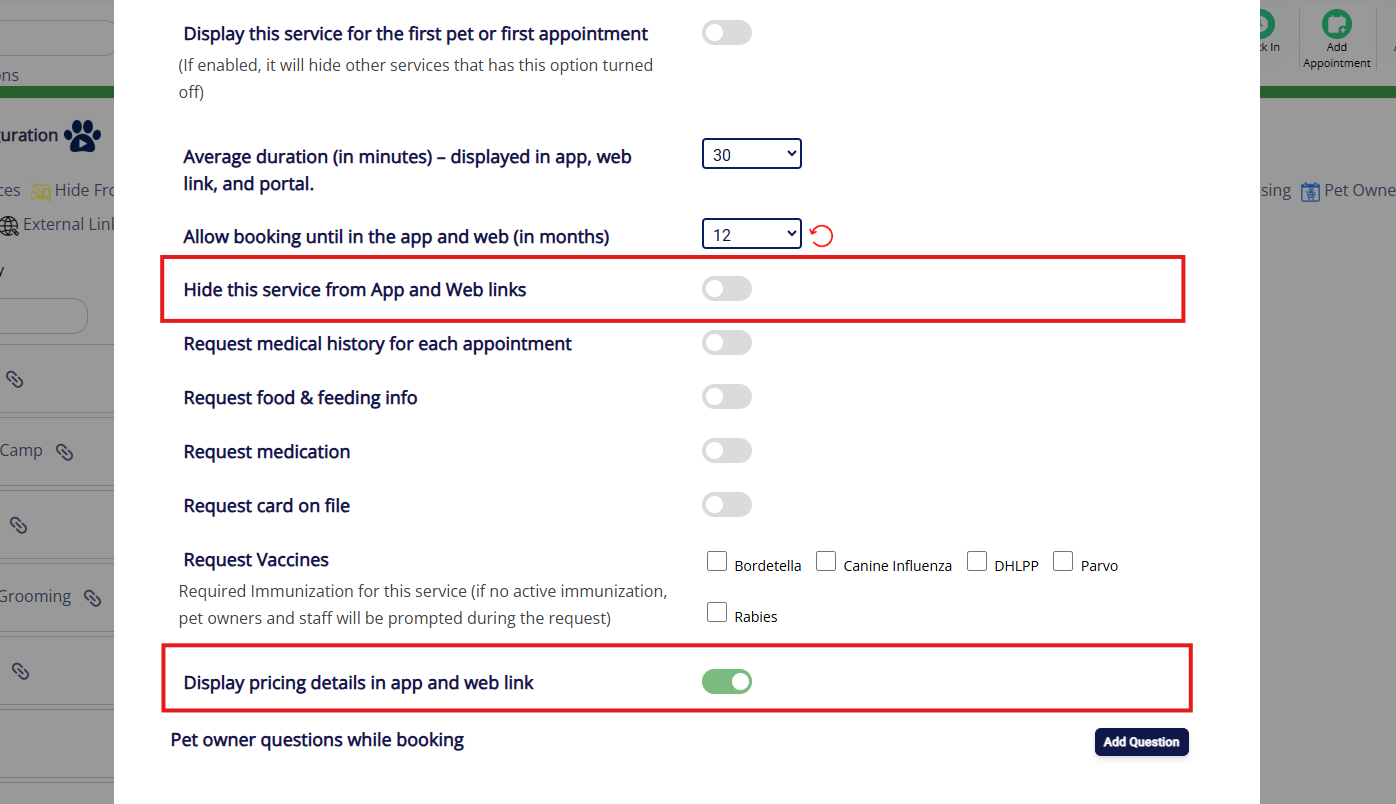
6. For Display this service for the first pet or first appointment?, only toggle this setting on if customers must book this service before they can book anything else at your facility. For Daycare, some facilities offer a separate category for Daycare Interview and other facilities may leave it disabled.
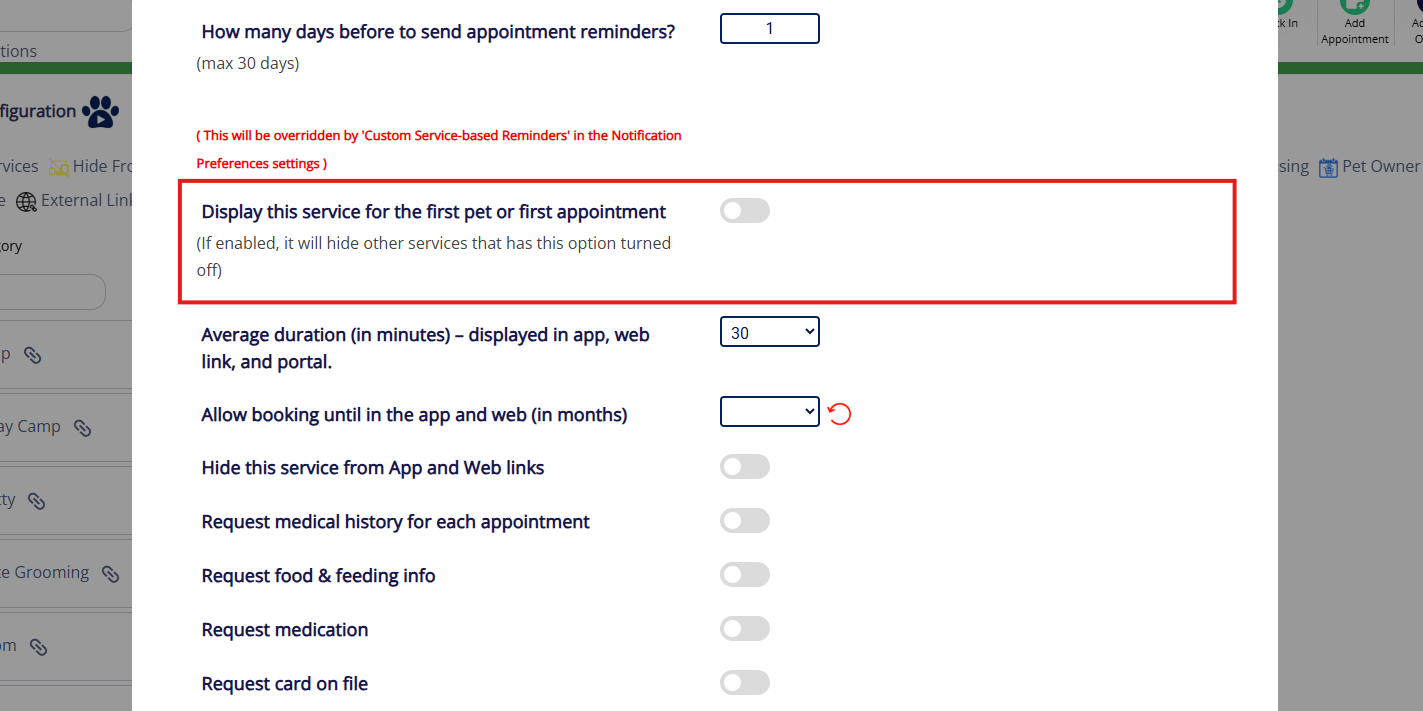
7. For Average Duration, enter the increment number of minutes that should display when creating or editing an appointment. For example, if the business is open for drop-offs from 9am-11am daily and you set Average Duration to 30 (minutes), then the time slots visible when creating an appointment would show as 9:00am, 9:30am, 10:00am, and 10:30am.
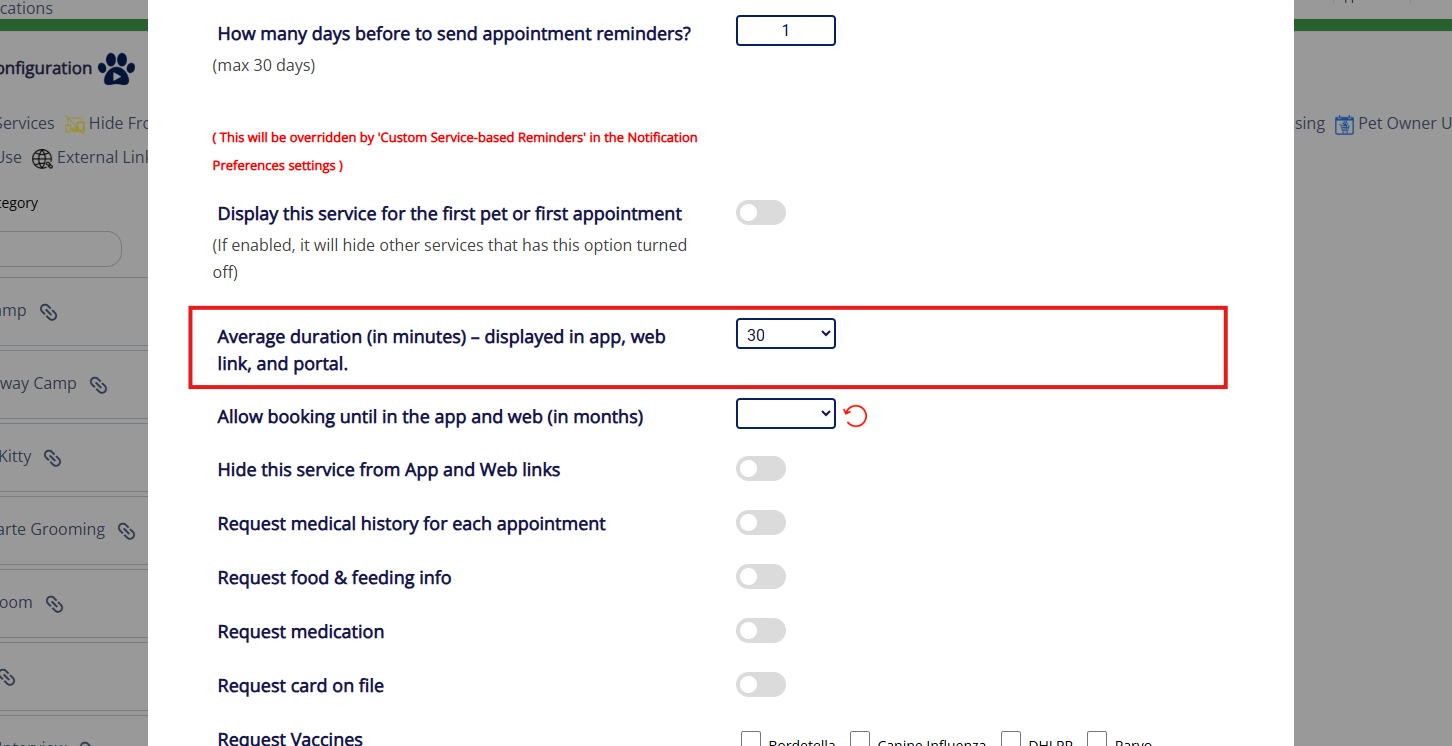
8. For Allow Booking Until in the app and web, enter the number of months in advance that a pet owner could request this appointment (such as 12 months in advance).
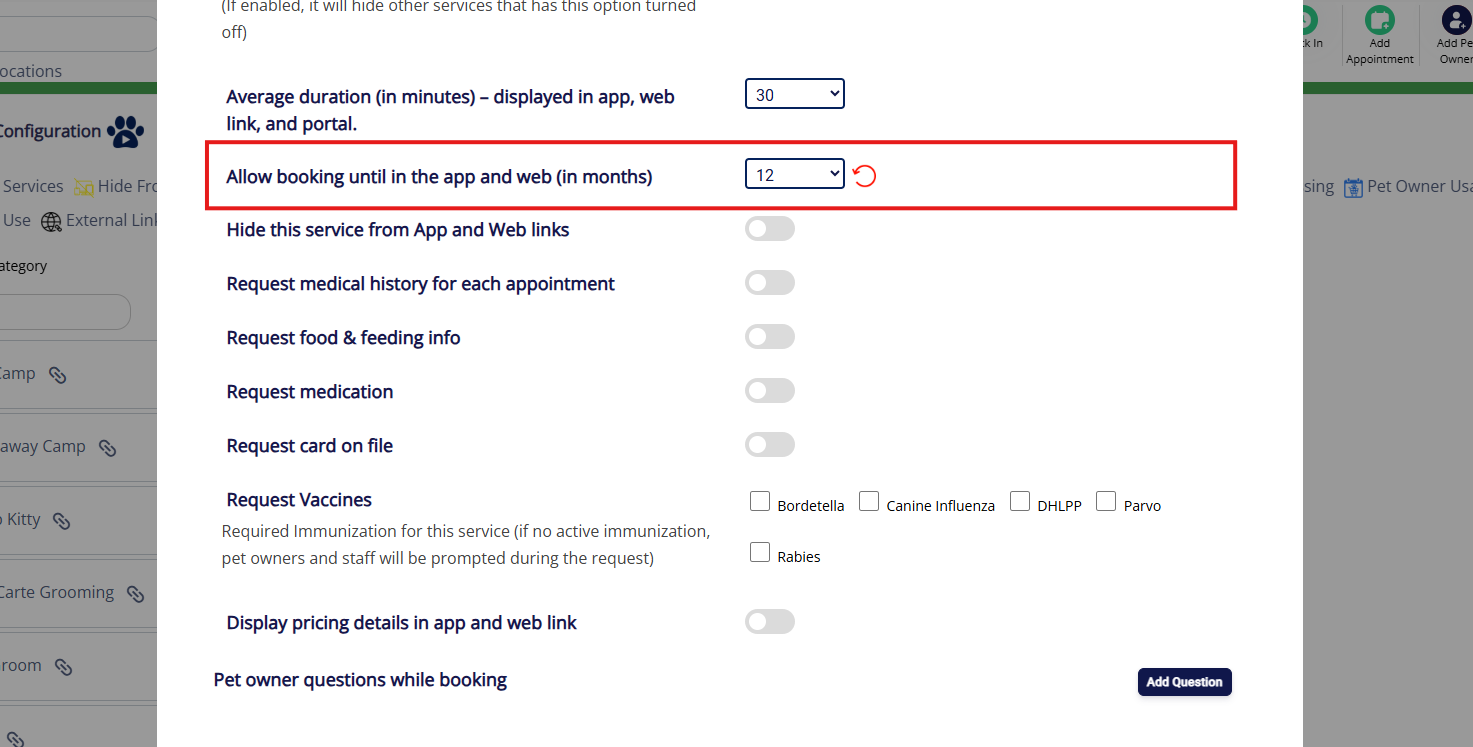
9. For Hide this service from app and web links, only toggle this on if customers should not see this service category. For display pricing details in app and web link, toggle this on if customers should see the price of the services in this service category.
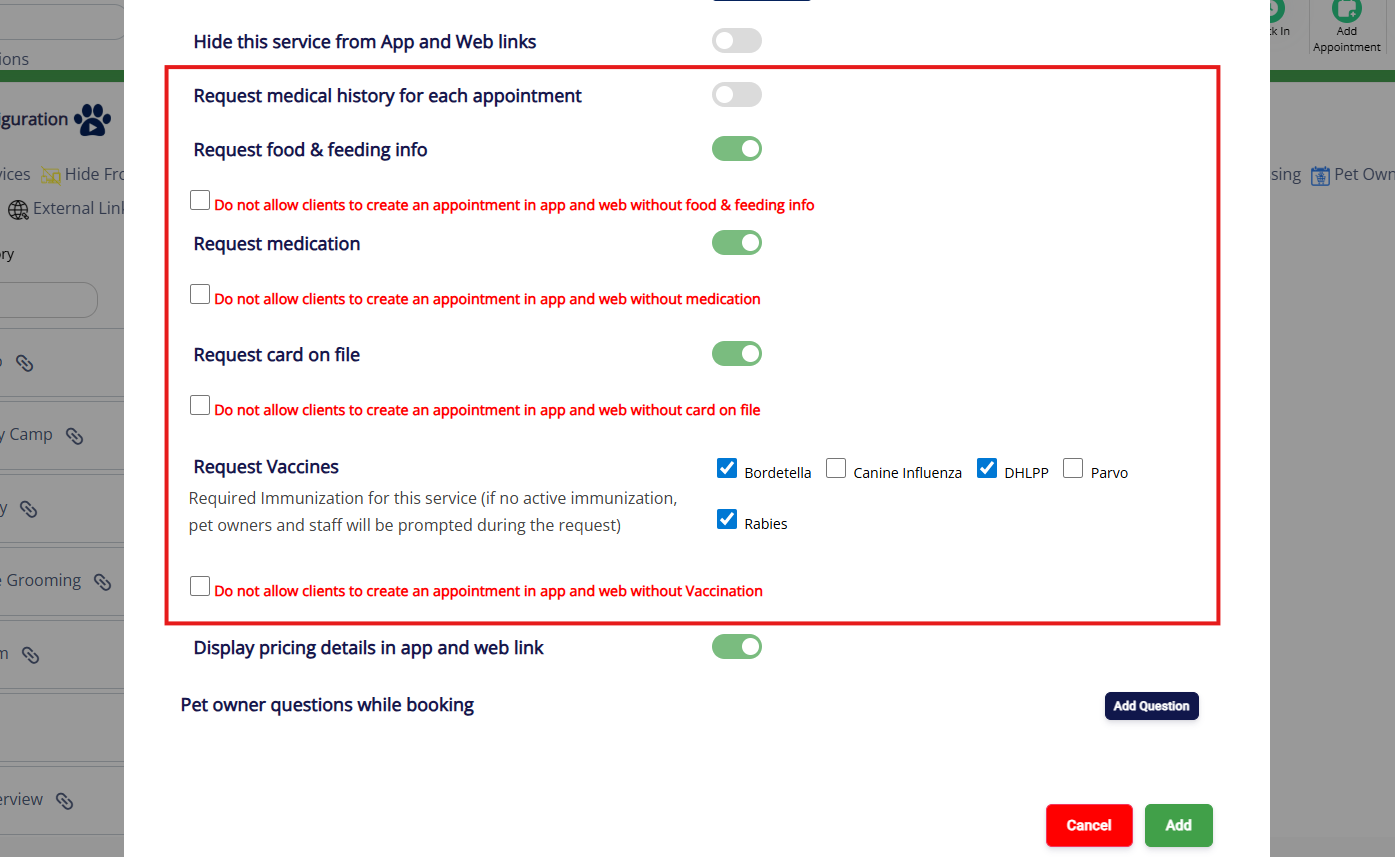
10. If the customer should be prompted to enter pet medical history, toggle on Request medical history for each appointment. If the customer should be prompted to enter pet feeding information, toggle on Request food and feeding info. If the customer should be prompted to enter pet medication, toggle on Request medication. If the customer should be prompted to enter a card on file, toggle on Request card on file. If the customer should be prompted to submit pet vaccine data, check the box next to each required vaccine next to Request Vaccines. For all of these options, the customer can optionally enter the data. Once the toggles are enabled, you can check the required box make some of these fields mandatory. If you check this box, the customer will be unable to submit the appointment request until data is entered in the required field(s).
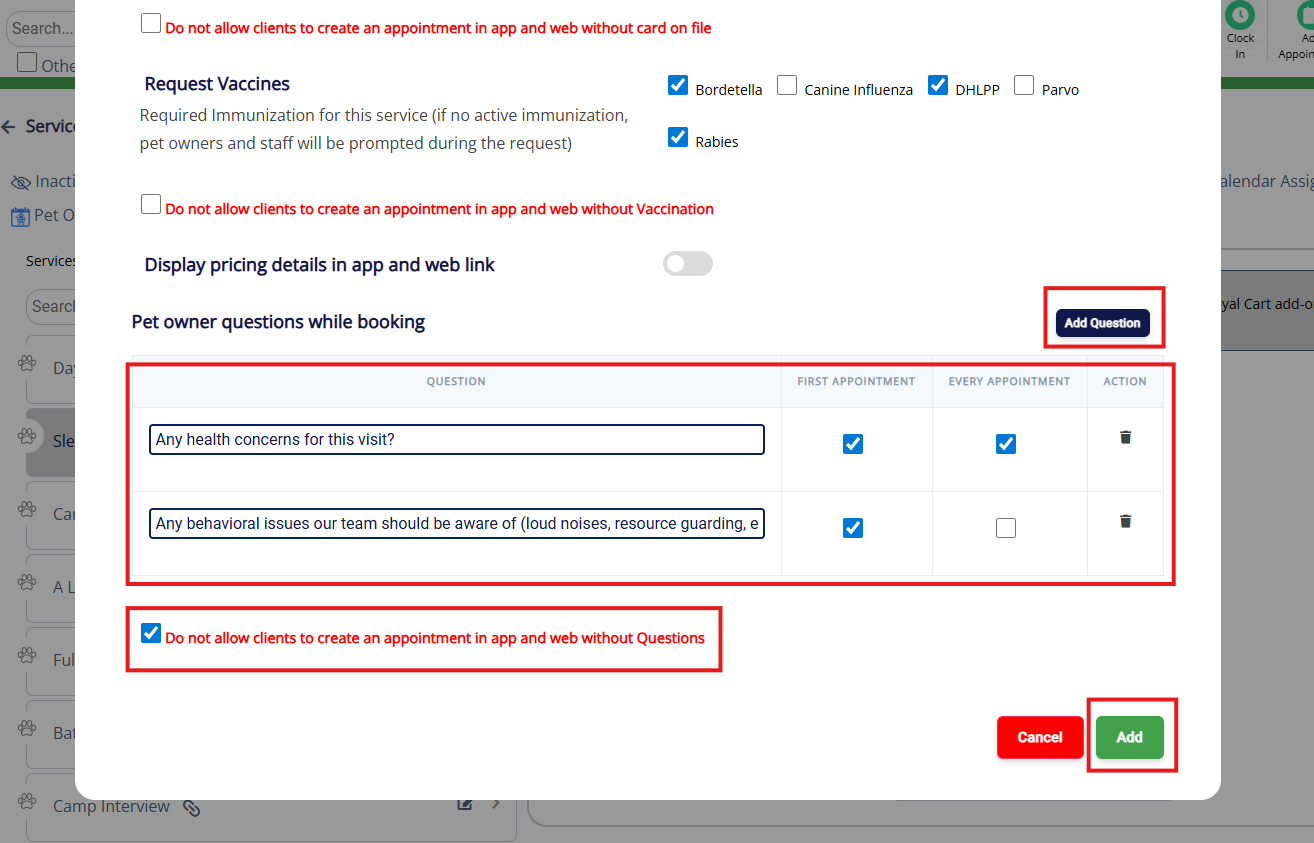
11. You can optionally add any questions unique to this booking category by clicking Add Question. Then enter your question and set whether it should be prompted at the first appointment or all appointments. Check the required box to make all questions mandatory. Once all settings are correct, click Add to save the service category.
More Information
For more information on setting up a Capacity-Based Service, please refer to this article: Create Capacity-Based Services (Daycare)
For more information on Add-On Services, please refer to this article: Primary Service Add-Ons and Linked Add-Ons
For more information on Pricing and Deposits, please refer to this article: Set Up Pricing & Deposits
For more information on Service Category Hours, please refer to this article: Configuring Service Category Hours
Was this article helpful?
That’s Great!
Thank you for your feedback
Sorry! We couldn't be helpful
Thank you for your feedback
Feedback sent
We appreciate your effort and will try to fix the article