Overview
Service Add-Ons can be added to appointments as an optional additional offering as part of the pet's stay. With linked primary services and service add-ons, you only need to create a service once that can be used across all your service categories. Linked services streamline your offerings and help save time when building out your services.
This article will review adding an existing service add-on to a service. These steps requires the service add-on you are wishing to add has already been created. If you need to create a new service add-on, please follow the steps in our article here: Service Add-Ons.
There are two types of linked services: primary services and service add-ons.
- Primary services are main services that exist under staff-based or capacity-based appointments. You can add these to function like an add-on under another existing service.
- Service add-ons are secondary services that are used as an add-on in an existing service category, and you wish to also set it as an add-on under a different service category.
Service Add-Ons can be viewed in the following areas:
- Settings > Business Setup > Service Configuration
- Creating or editing an appointment
- Appointments tab
- Calendar and Advanced Staff Calendar
- Run cards and To-Do
TABLE OF CONTENTS
- Overview
- How To Link an Existing Service (Primary) as an Add-On for Another Service
- How To Link an Existing Service Add-On as an Add-On for Another Service
- More Information
How To Link an Existing Service (Primary) as an Add-On for Another Service
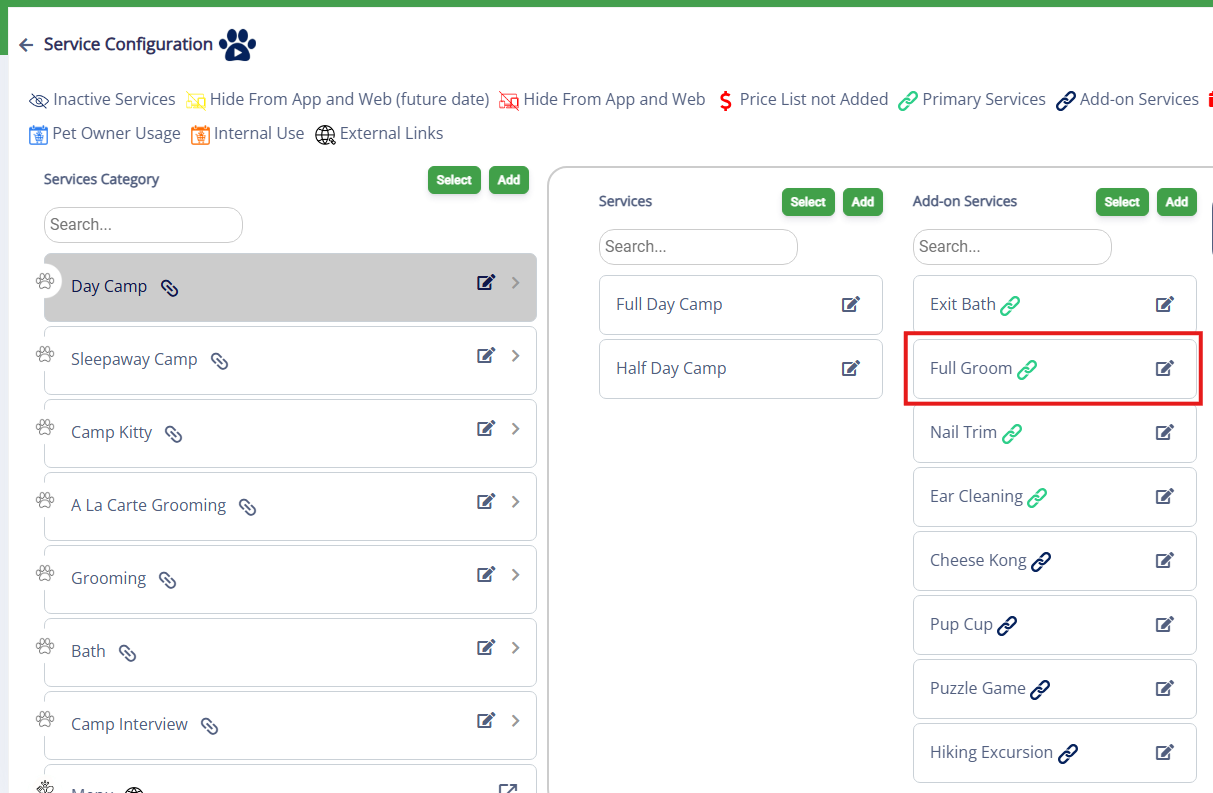
Primary services are main services that exist under staff-based or capacity-based appointments. For example, you may have a service category titled Baths with a service called Bath & Brush that you book as a standalone appointment with a groomer. However, you may also wish to book Bath & Brush as part of a Full Day Daycare appointment. You could add this as a primary service under Full Day Daycare, which will ensure it is still booked with a specialist but functions like an add-on. When primary services are set up under a service, they will display a green link icon.
1. Navigate to Settings > Business Setup > Service Configuration.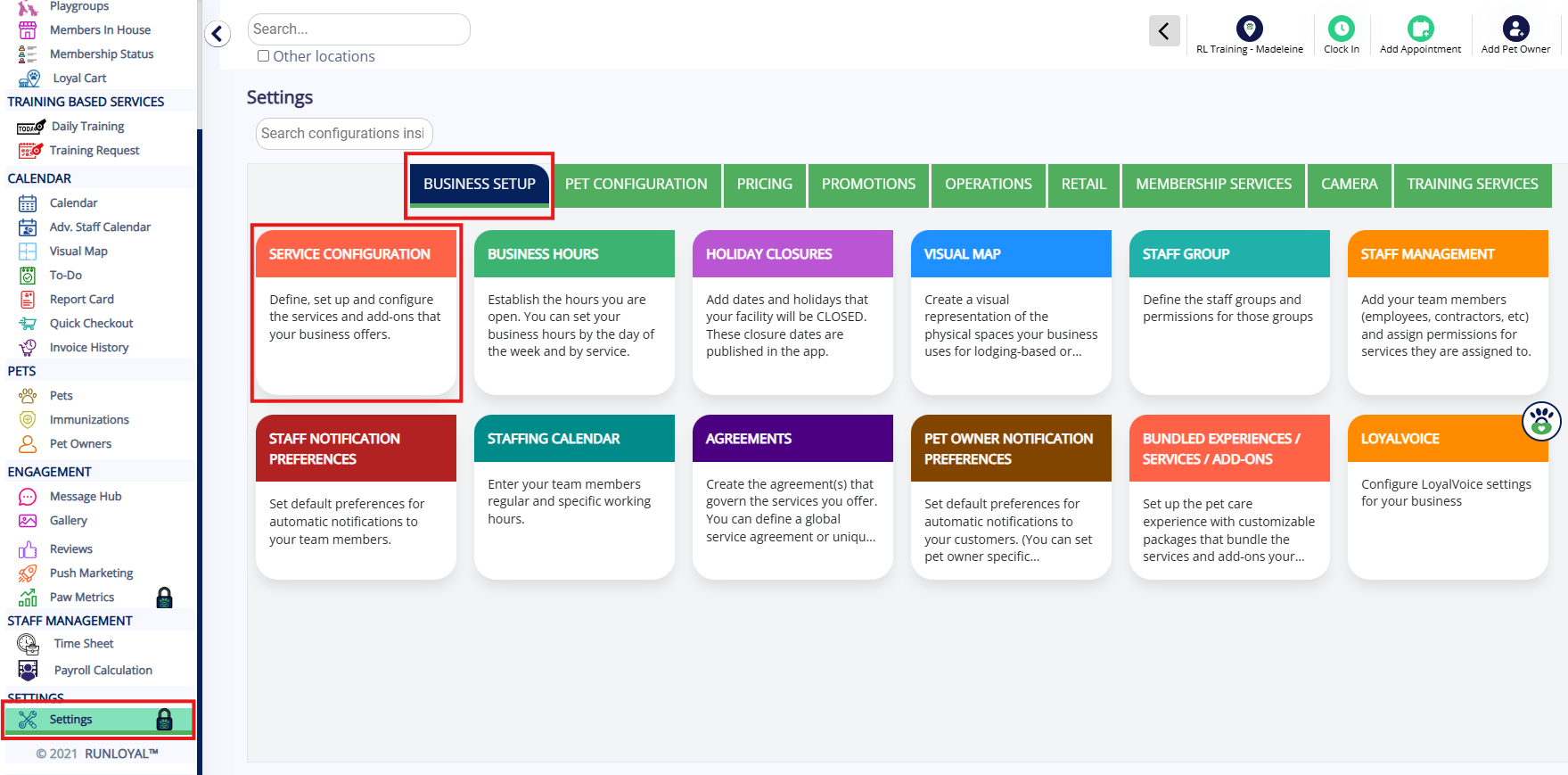
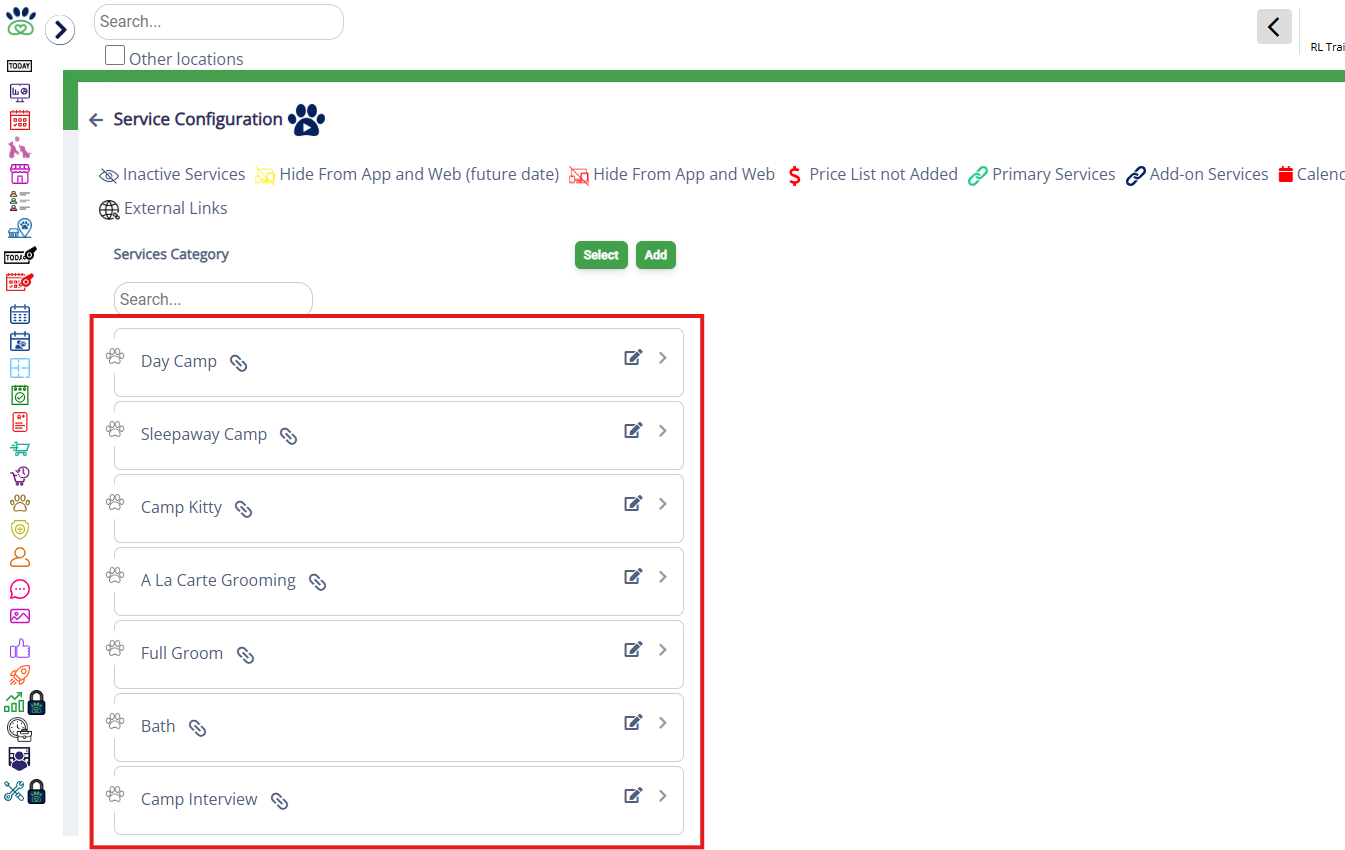
2.Click the category name to which you wish to add add-ons to expand the service category.
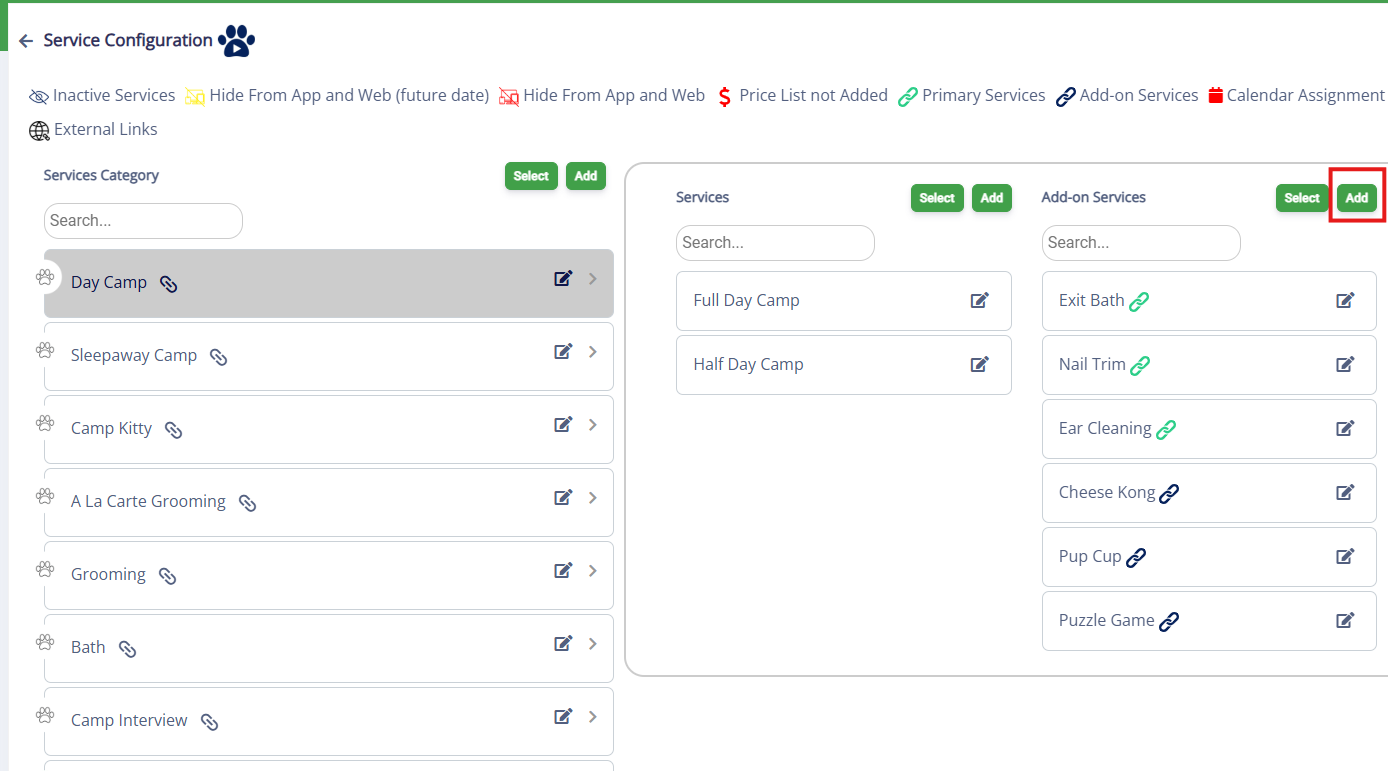
3. In the Add-On Services column, click Add to add a new service.
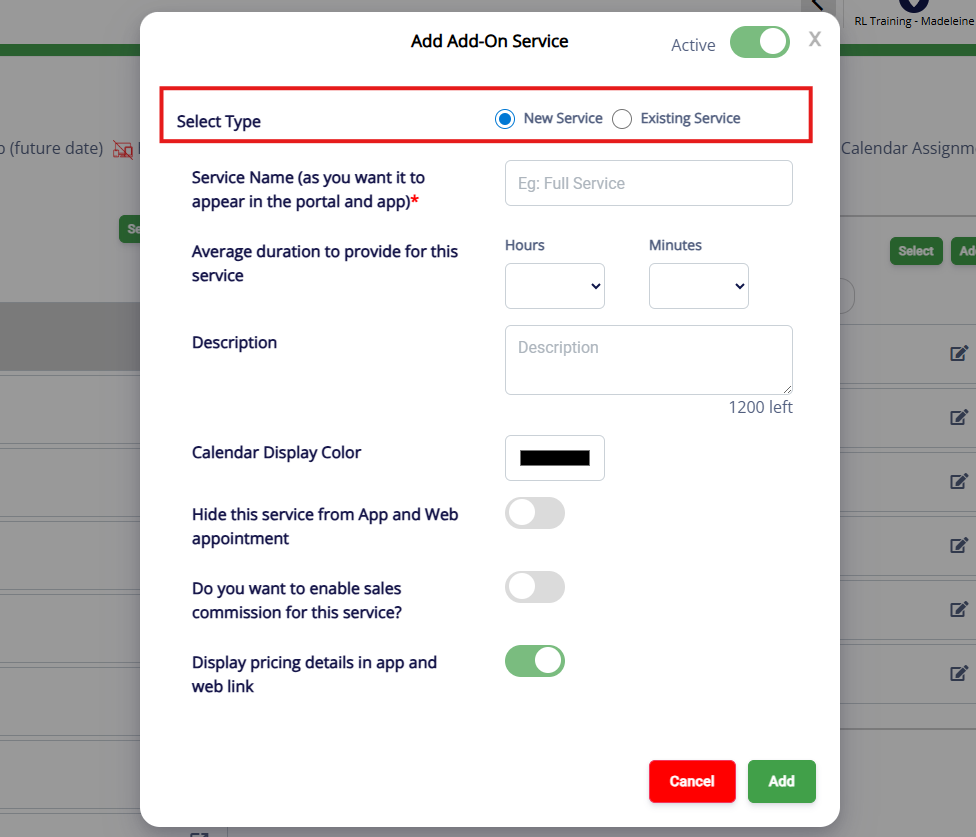
4. If this service already exists (you have created it under a different service category), select Existing Service under Select Type.
5. Once Existing Service is selected, you will see the Reservation Type dropdown. Click into this dropdown and select the service category that hosts the service you wish to add.
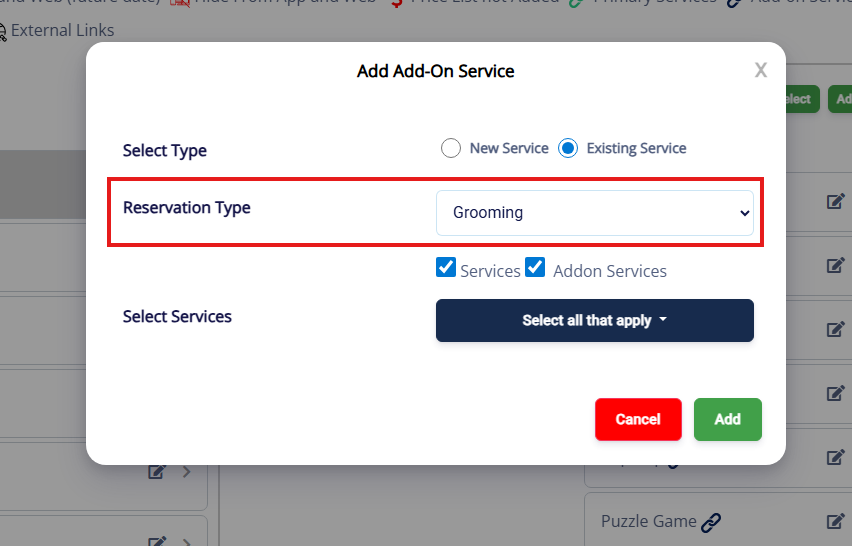
6. Once the service category is selected, click Select all that apply in the Select Services dropdown. If you choose a staff-based or capacity-based service category, you can also limit by only services, only add-on services, or both.
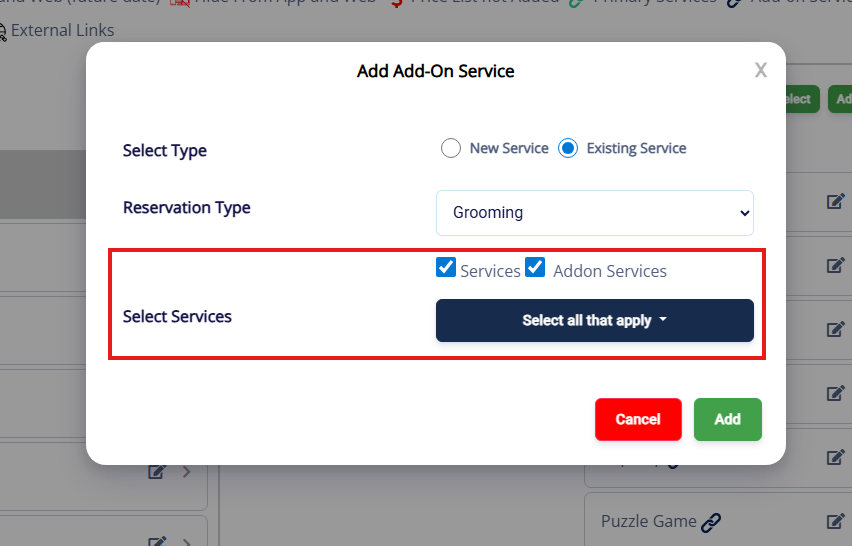
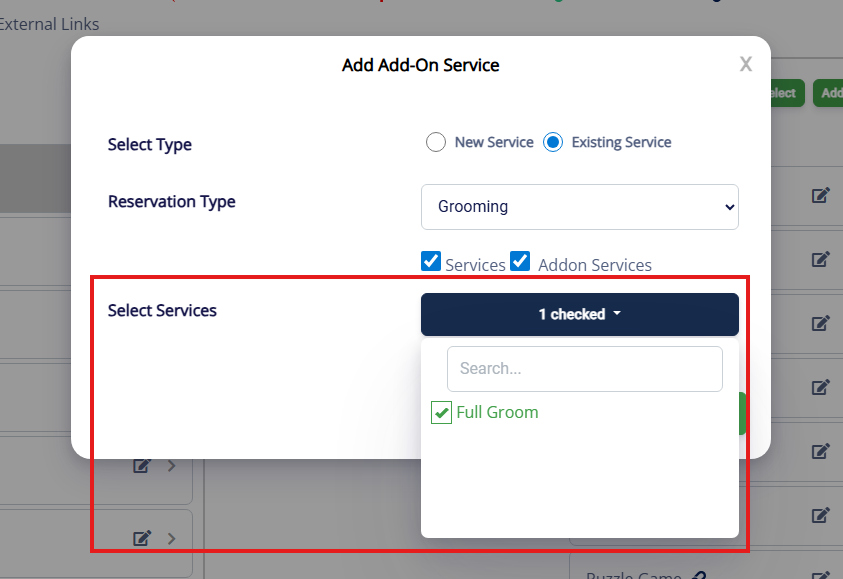
7. Click every service you wish to add to the new service category from the selected service category. The services will turn green and display a checkmark next to them when they have been selected.
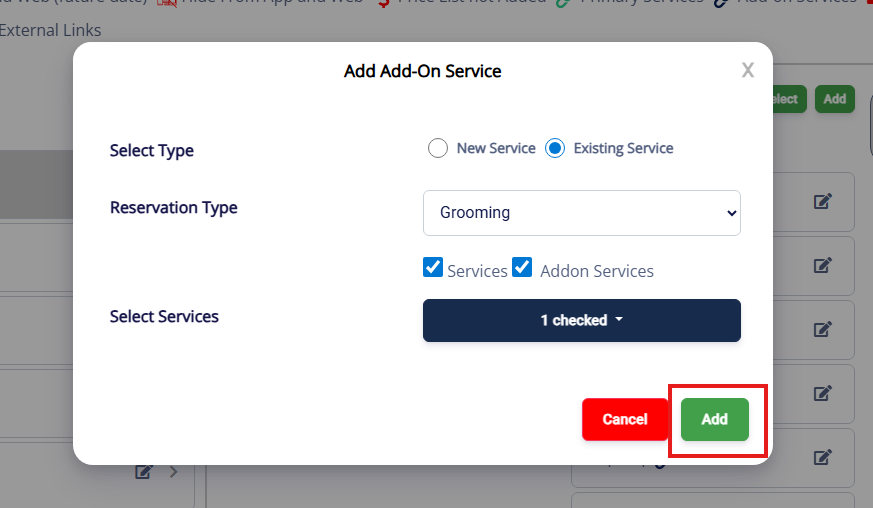
7. Once all your services from this service category have been selected successfully, click Add.
7. Verify the service add-ons show correctly in the new service category. It is a primary service when it shows a green link icon.
How To Link an Existing Service Add-On as an Add-On for Another Service
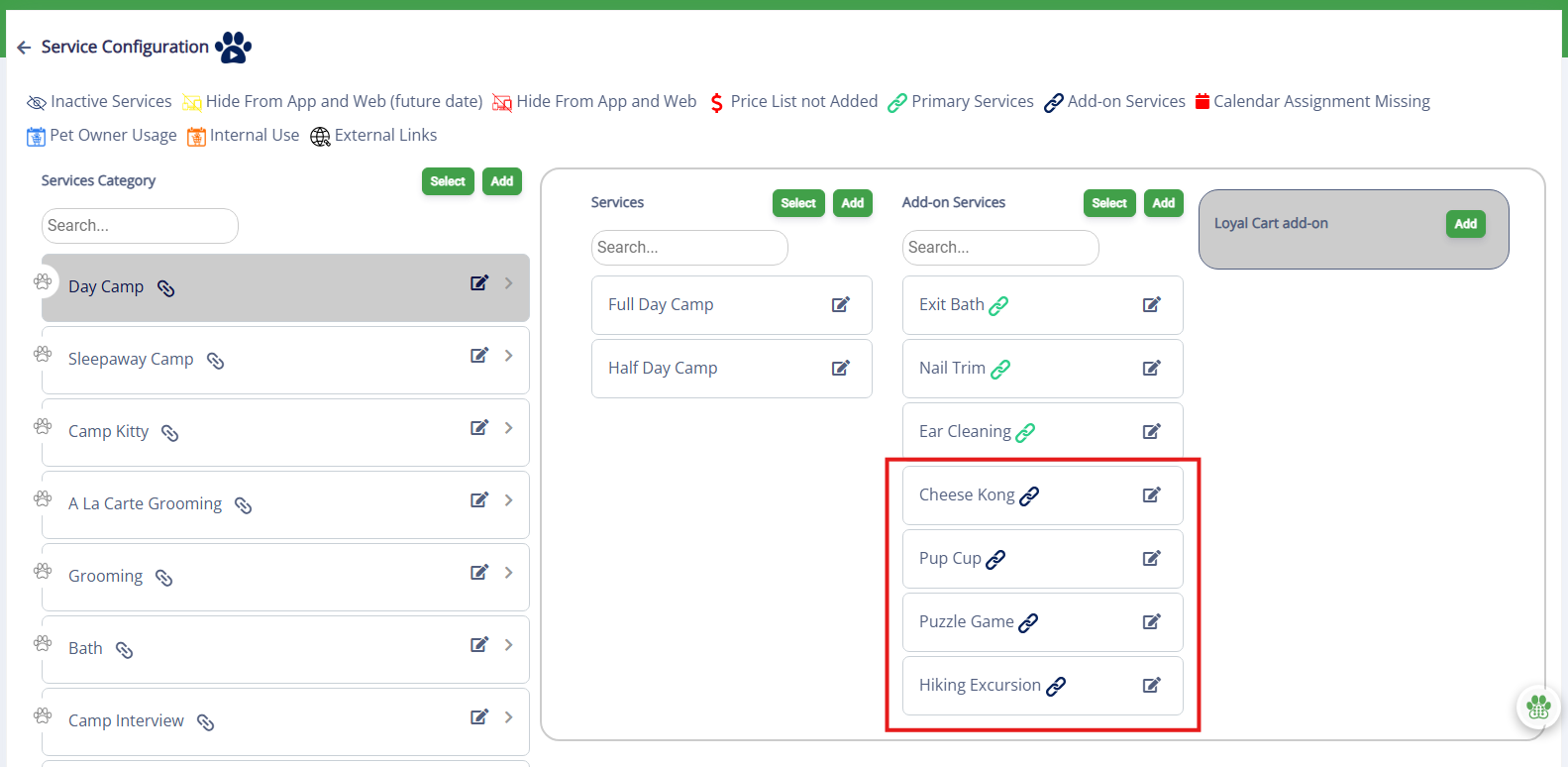
Service Add-ons are optional offerings that can be added to a service under multiple categories. For example, you may have a service category titled Daycare with a service called Full Day Daycare that offers an optional Frozen Kong add-on. However, you may also wish to add the Frozen Kong add-on under a Boarding Standard Suite appointment. As long as the Frozen Kong add-on has already been created, you can set it as an add-on in as many service categories as you want. Service add-ons that were added from another service category they will display a black link icon.
1. Navigate to Settings > Business Setup > Service Configuration.
2.Click the category name to which you wish to add add-ons to expand the service category.
3. In the Add-On Services column, click Add to add a new service.
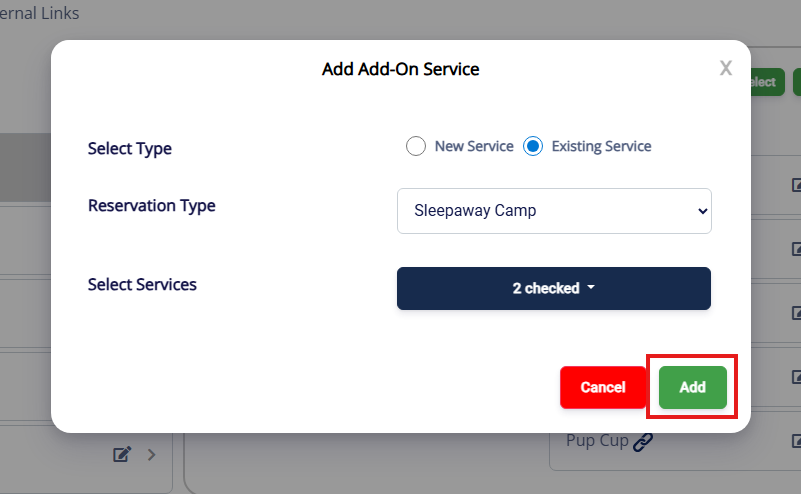
4. If this service add-on already exists (you have created it under a different service type), select Existing Service under Select Type. If you are wanting to add a brand new service, choose New Service and follow the steps in our article: Service Add-Ons.
5. Once Existing Service is selected, you will see the Reservation Type dropdown. Click into this dropdown and select the service category that hosts the add-on you wish to add.
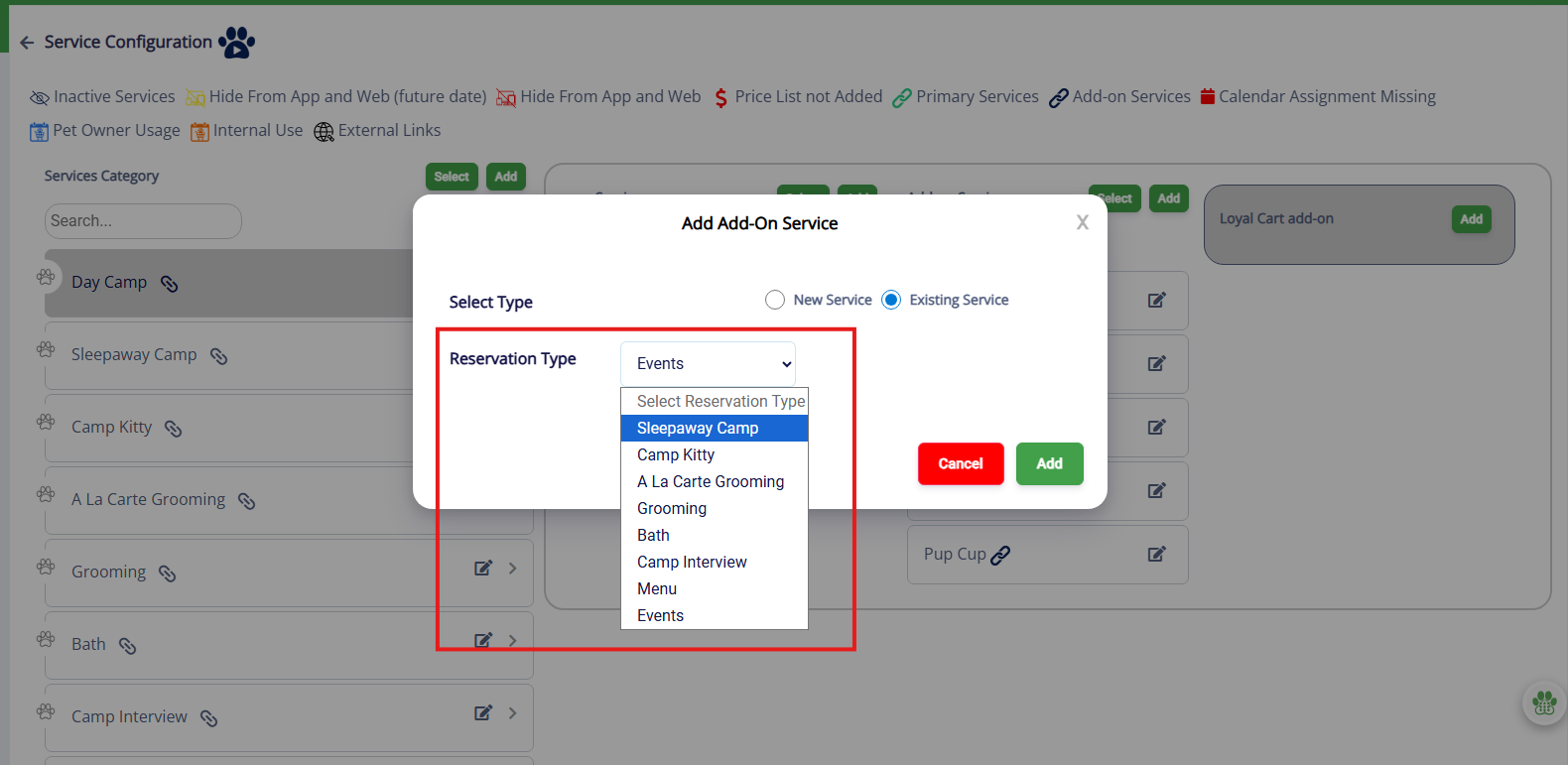
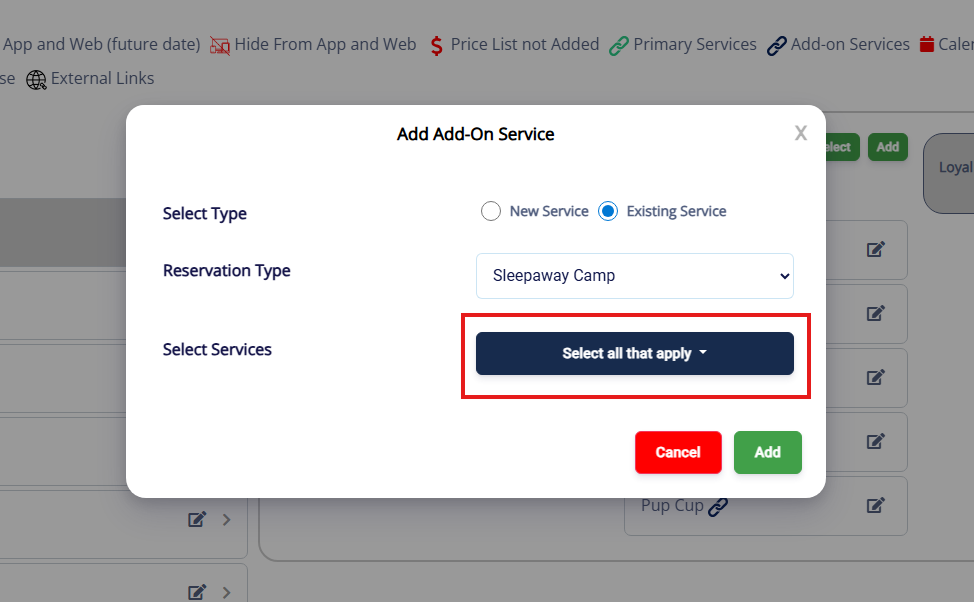
6. Once the service category is selected, click Select all that apply in the Select Services dropdown.
7. Click every service you wish to add to the new service category from the selected service category. The services will turn green and display a checkmark next to them when they have been selected.
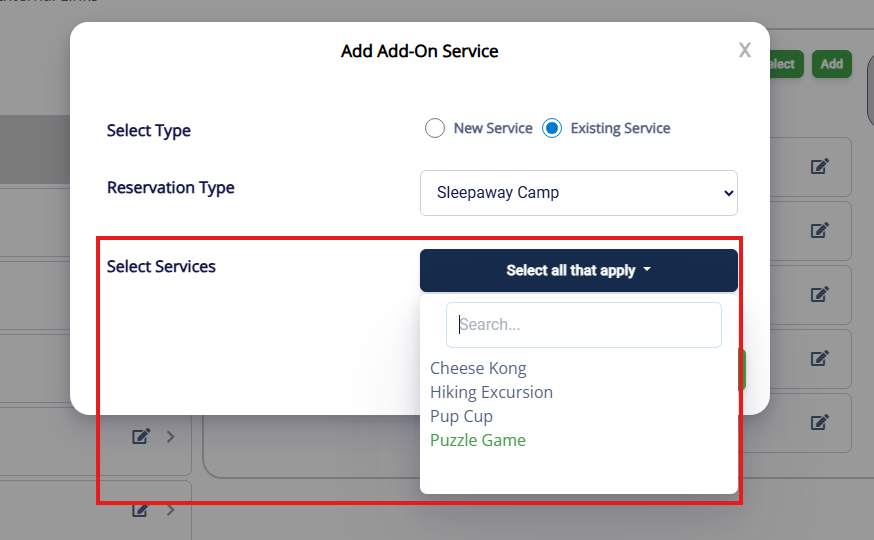
7. Once all your services from this service category have been selected successfully, click Add.
7. Verify the service add-ons show correctly in the new service category. It is a service add-on that displays in multiple categories when it shows a black link icon.
More Information
For more information on adding new service-add-ons to a service type, please refer to this article: Service Add-Ons.
Was this article helpful?
That’s Great!
Thank you for your feedback
Sorry! We couldn't be helpful
Thank you for your feedback
Feedback sent
We appreciate your effort and will try to fix the article