Overview
Peak date, early check-in, and late checkout pricing rules make it easy to automatically adjust pricing based on timing and demand. This article will walk you through how to configure these rules so surcharges are applied automatically during busy periods or when pets arrive early or depart later than scheduled. Once set up, these pricing adjustments will appear directly on invoices when the rule criteria are met. You’ll also learn how to review and toggle these charges on or off at checkout when needed.
Pricing Rules can be viewed in the following areas:
- Settings > Pricing > Peak Days/Late/Early Dropoff
- Invoices
TABLE OF CONTENTS
- Overview
- How to Create a New Peak/Early/Late Pricing Rule
- Peak/Early/Late Pricing Rules on Invoices
- Guide for Each Type of Pricing Rule
- More Information
How to Create a New Peak/Early/Late Pricing Rule
1. Navigate to Settings > Pricing > Peak Days / Late / Early Dropoff.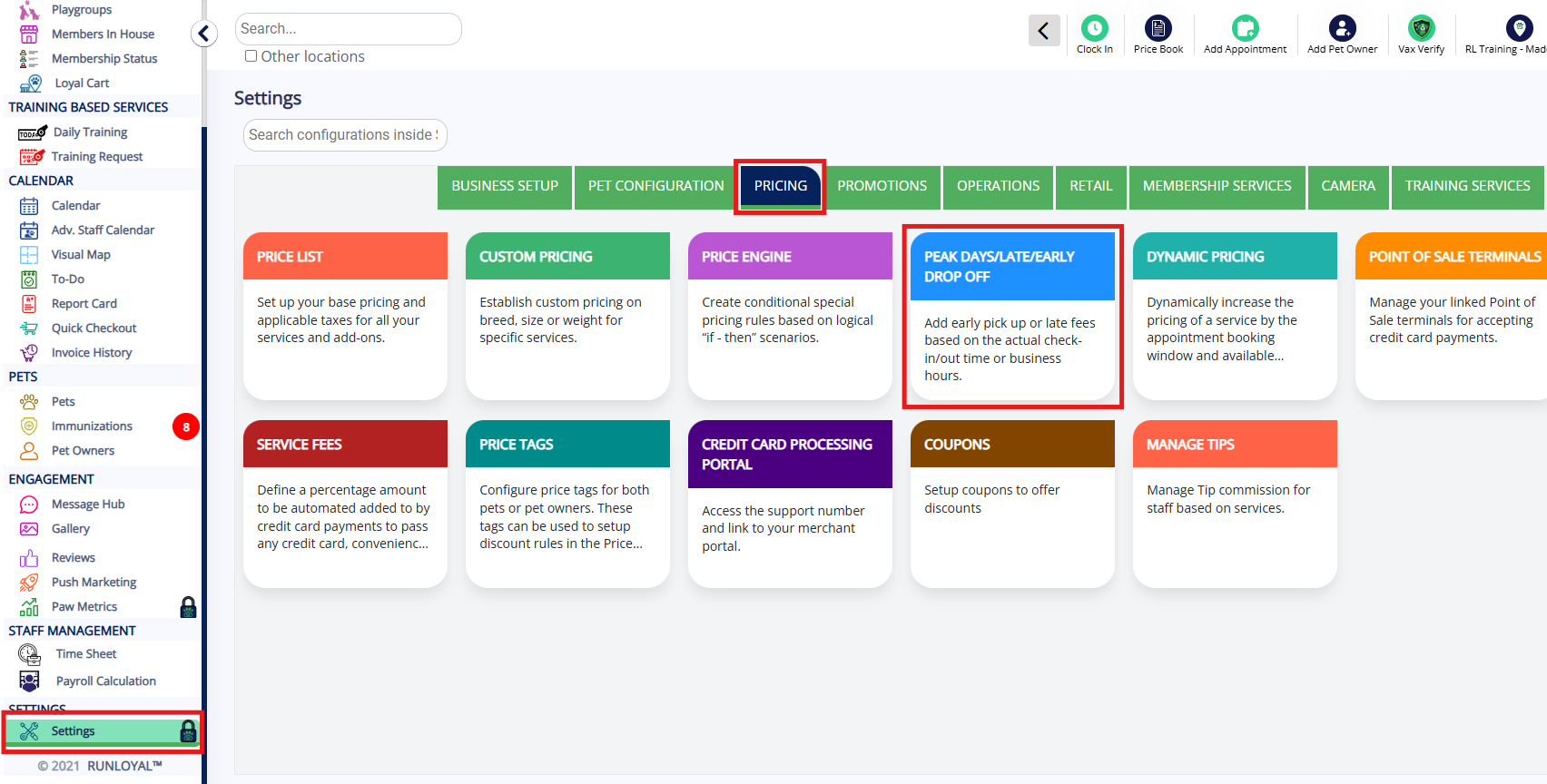
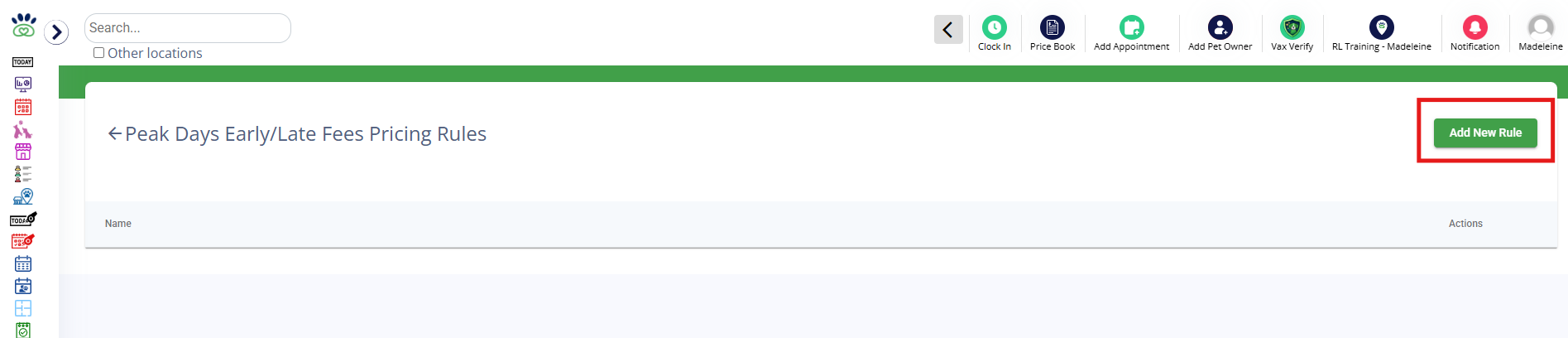
2. Click Add New Rule.
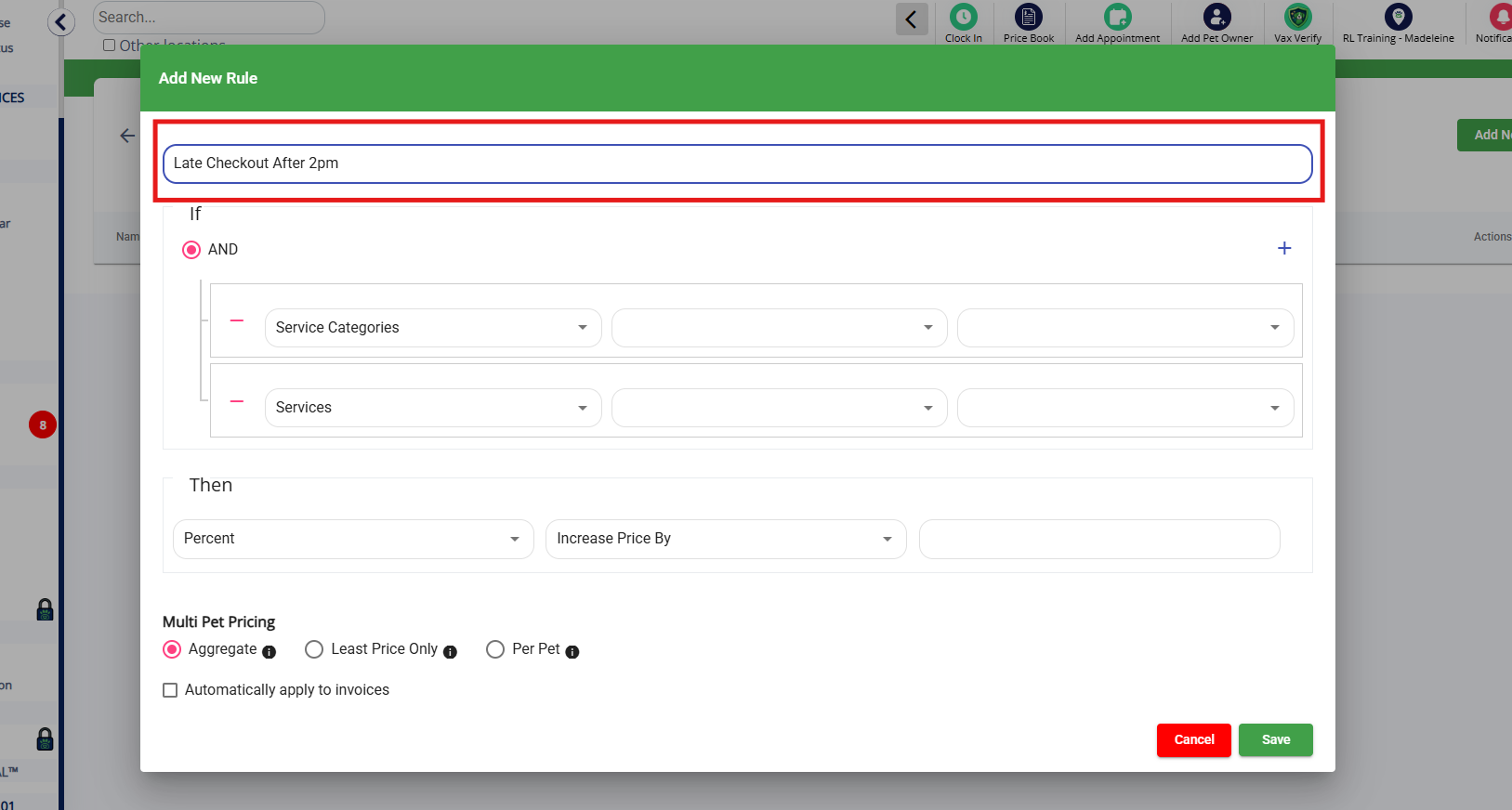
3. Enter the Name of the rule. This name will display on all invoices for both staff and customers.
4. Select the Service Categories where this rule should apply, such as Boarding.
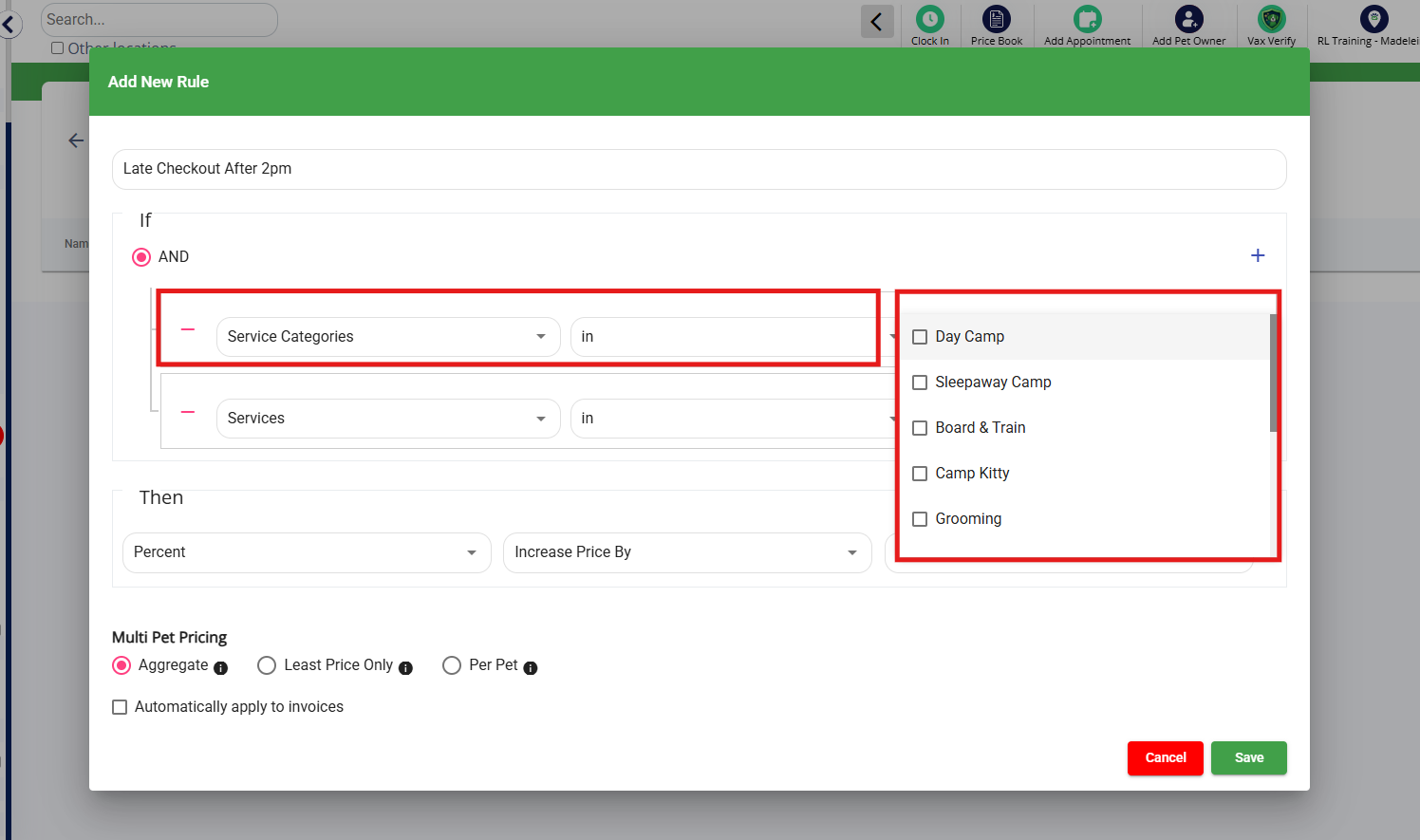
5. Select the Services where this rule should apply, such as Boarding Standard and Deluxe.
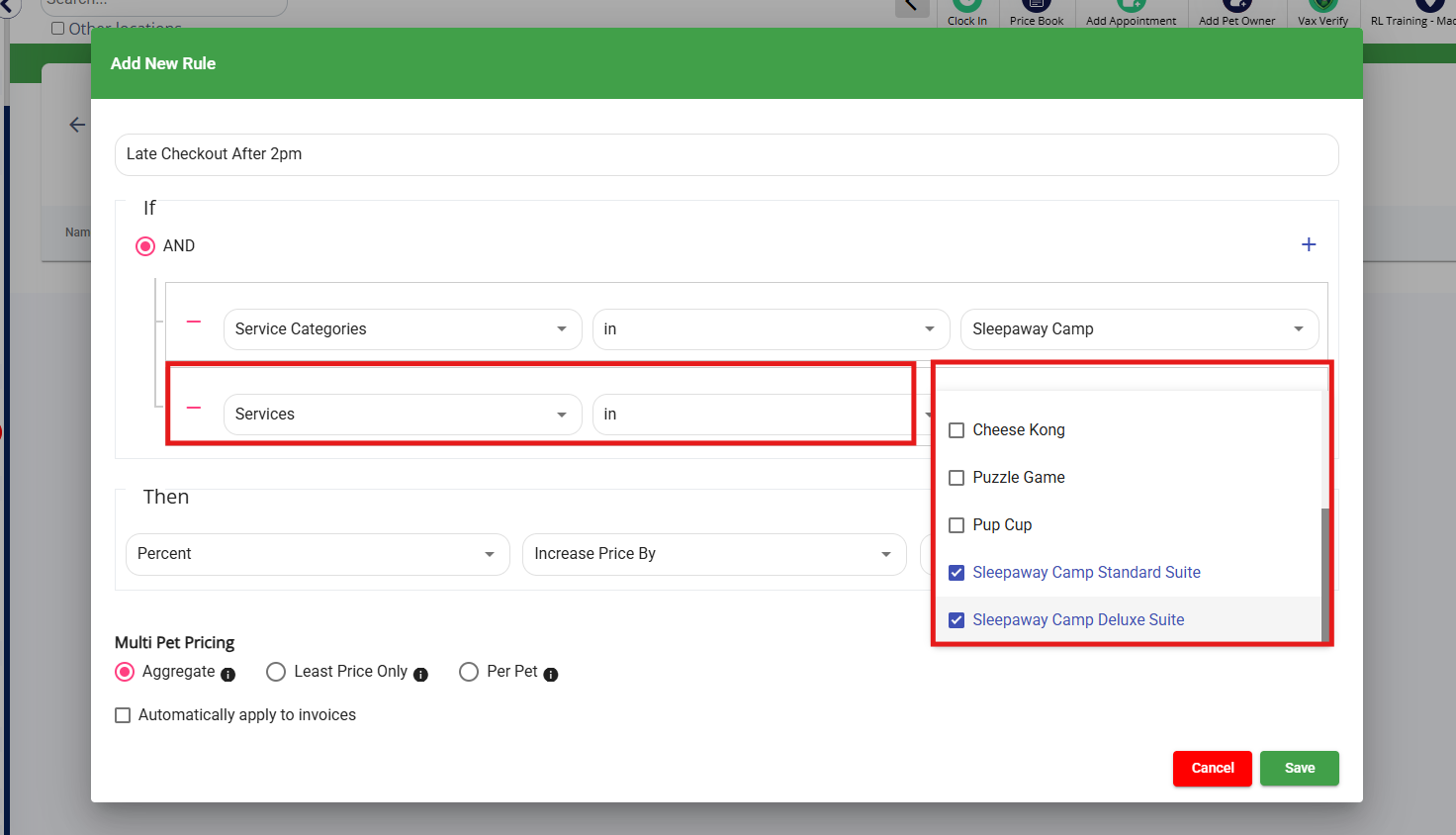
6. Click the "+" icon in the top right corner to add an additional parameter.
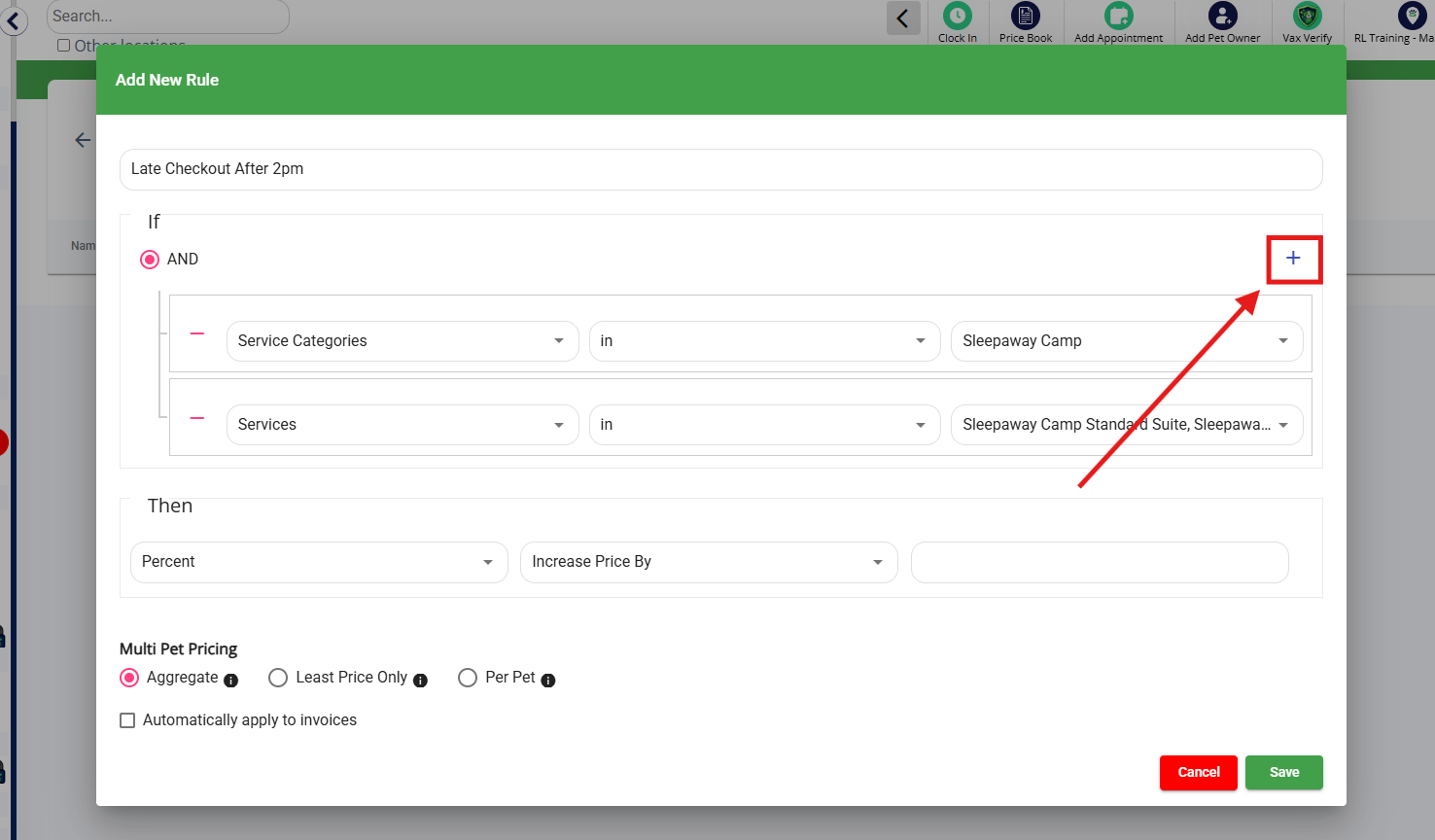
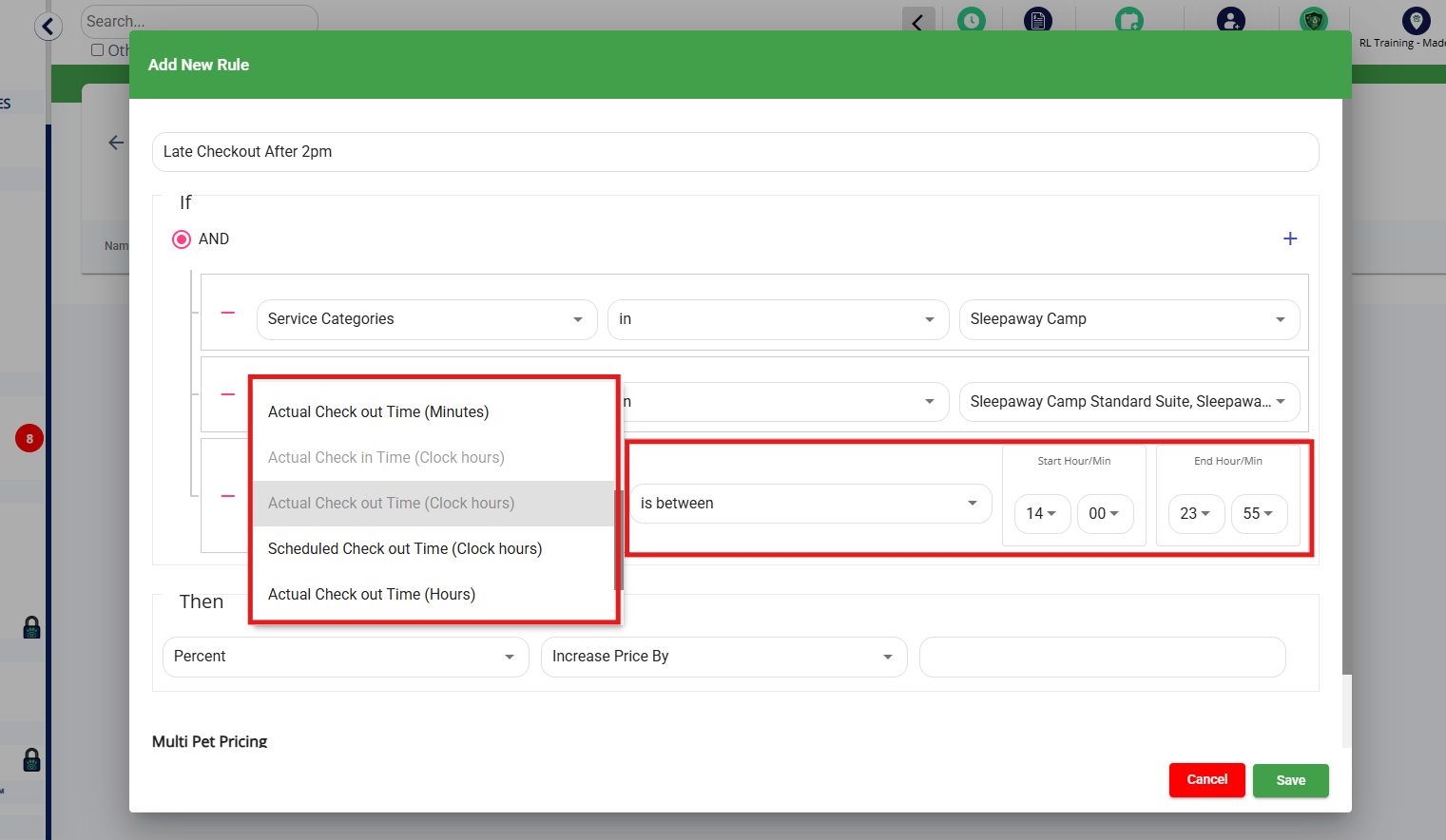
7. Select the parameter for the rule from the dropdown menu. A full description of each pricing rule is found below.
For example, if you wanted to create a late pickup fee for dogs that checkout after 2pm for Boarding, you would select Actual Checkout Time (Clock Hours). Then choose is between. Then enter 14:00 (2pm) to 23:55 (11:55pm). This tells the system if the checkout (scheduled or actual) is between 2pm and 11:55pm, this rule should apply.
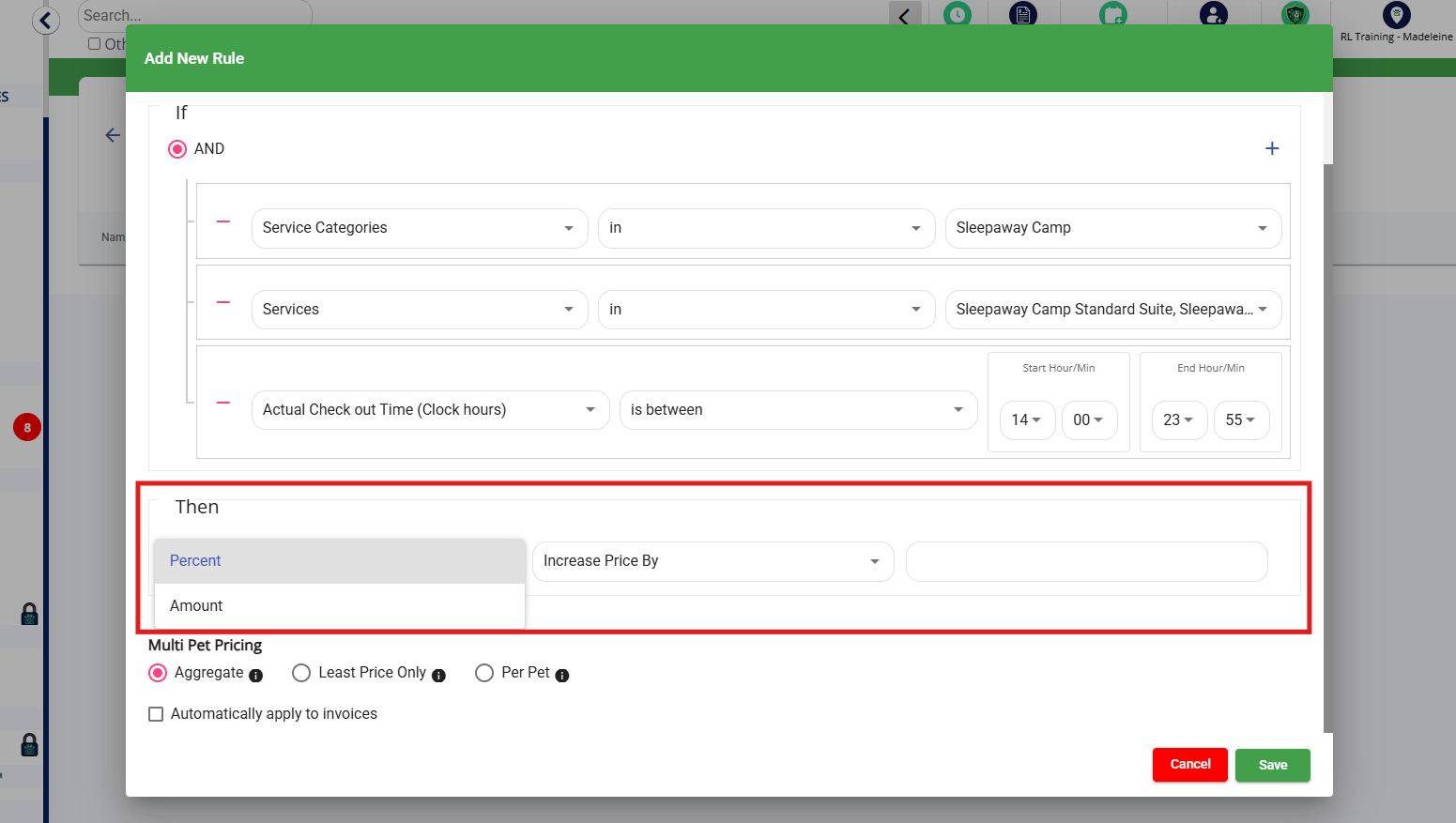
8. Select Amount or Percentage. Then choose Increase by or Decrease by. Then enter a number. For example, if you want to charge a late pickup fee of $30 after 2pm, you would enter Amount Increase by 30.
9. Select if this should apply to the entire cost of the invoice, one pet, or all pets. If the rule should apply to the entire appointment (such as a 10% increase), click Aggregate. If the rule should only apply to one pet, click Least Price one pet only. If the rule should apply to all pets, click Calculate Per Pet.
⚠️Please Note: When different prices are offered for a service, if you have Least Price one pet only selected, the discount will only apply to the pet who has the lesser price. For example, say there is a service called "Boarding" at $50 for a pet named Bailey and "Boarding" at $45 for Zoey in the same family on the same appointment. The discount will be calculated based on the $45 price for Zoey only. If Bailey and Zoey's boarding price is both $50, then is going to give this discount to one pet only at the $50 rate.
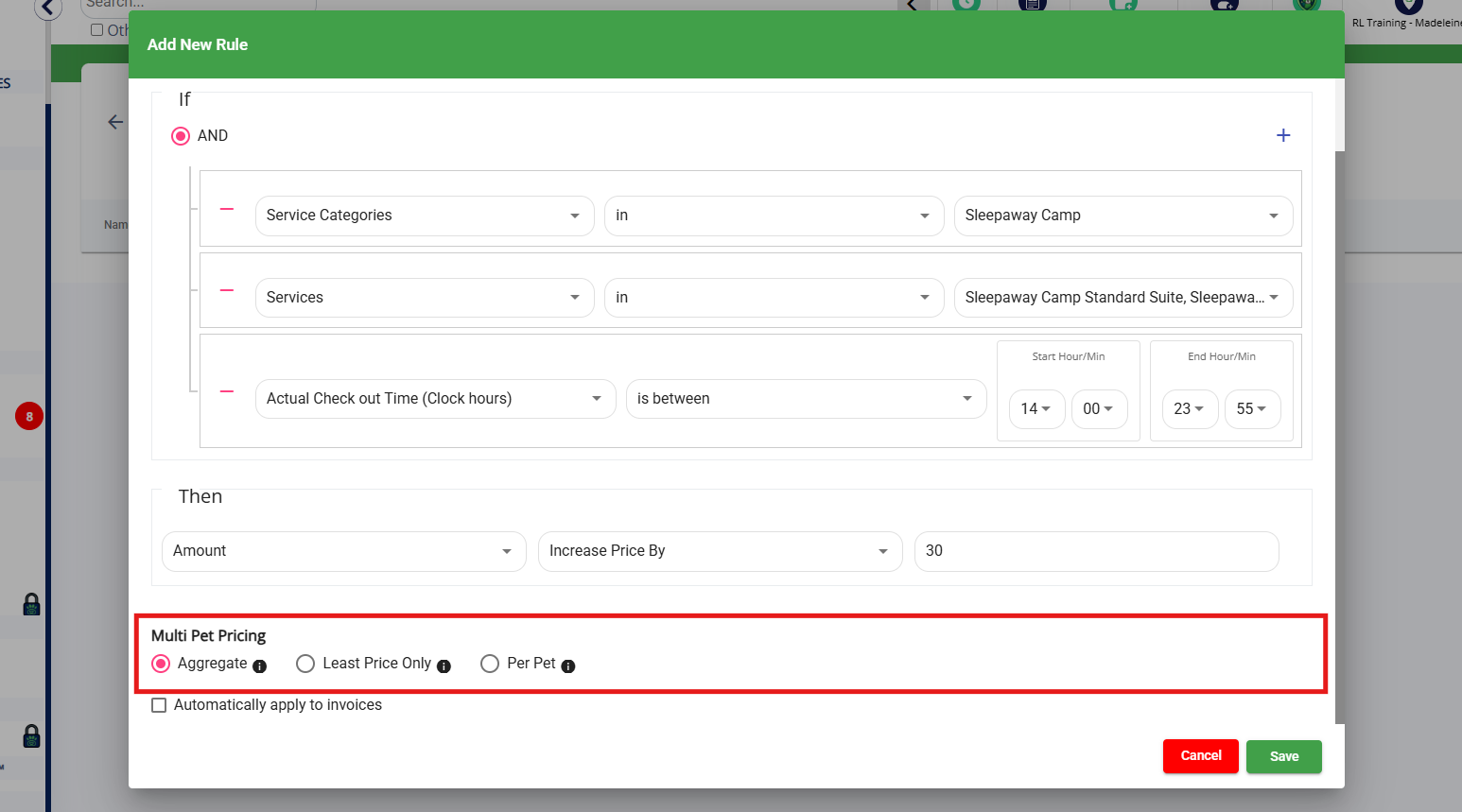
12. Select if this rule should automatically apply to invoices, or be manually toggled on only. If it should automatically apply at checkin, check the box Automatically apply to invoices. If you check the box to auto-apply, select if you want it to be automatically enabled only if it is the only rule on the invoice (Single Rule Auto Apply), OR automatically enabled regardless of any other rules on the invoice (Always Auto Apply).
For example, let's say you charge a late checkout fee and an early checkin fee. If you want both to apply, you would check Always Auto Apply. If you only want a family to be charge the late checkout fee, you would set the late checkout fee to Always auto apply and the early checkin fee to Single Rule Auto Apply. This ensures the late checkout fee will always be enabled, whereas the early checkin will only auto-apply if it's the only rule on the invoice.
⚠️Please note: Even if the rule is set to automatically apply at checkin, you can enable it any time in advance of checkin from the estimate.
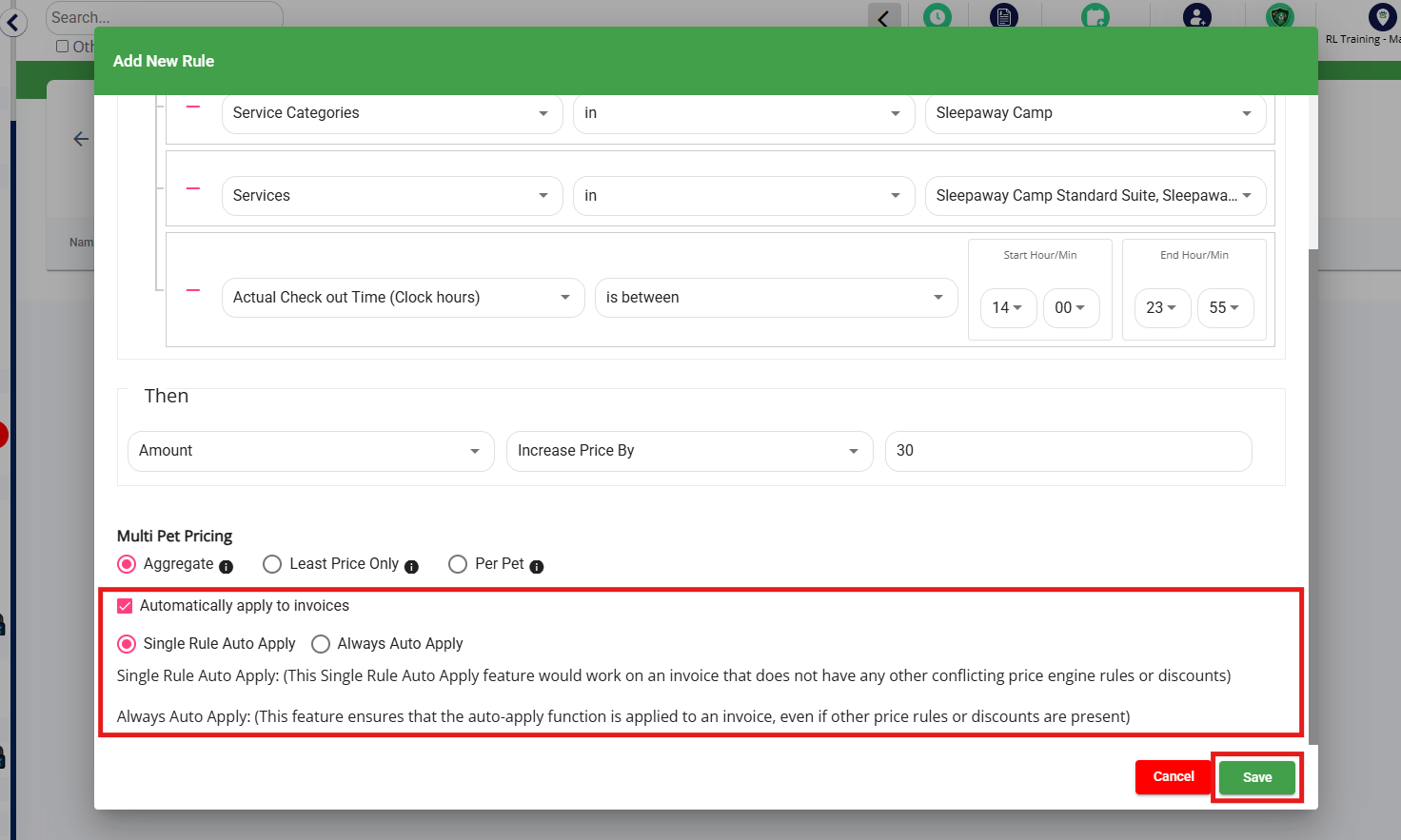
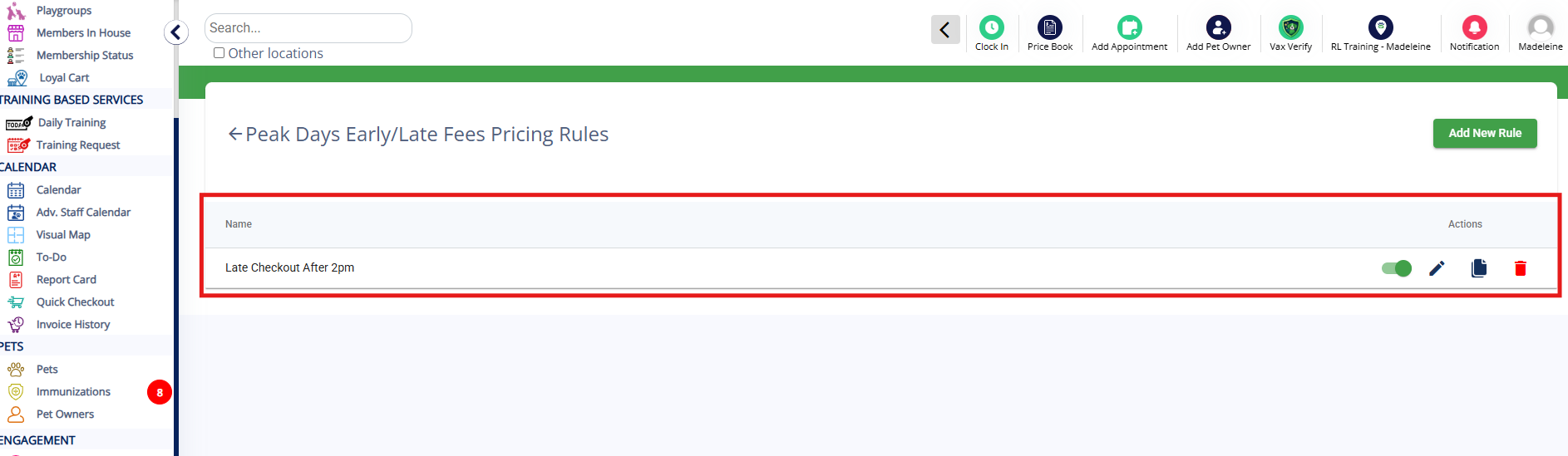
13. When you have finished adding all parameters, click Save. Then confirm your pricing rule shows as expected.
Peak/Early/Late Pricing Rules on Invoices
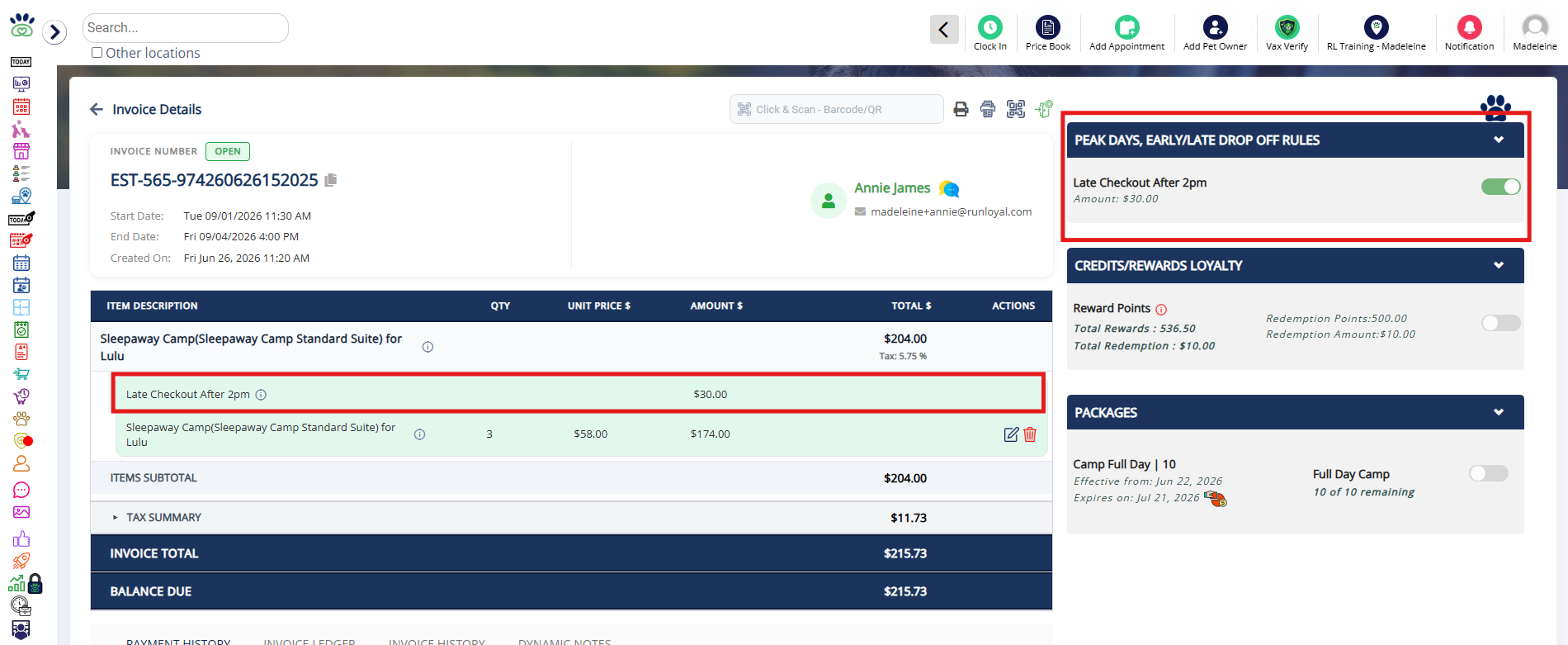
1. On an invoice where the appointment meets the required criteria (such as checking out after 2pm), you will see the pricing rule on the right-hand side. You can toggle it on or off in advance. Once the pet is checked in, it will turn on automatically if Auto apply to invoice is enabled in the pricing rule settings.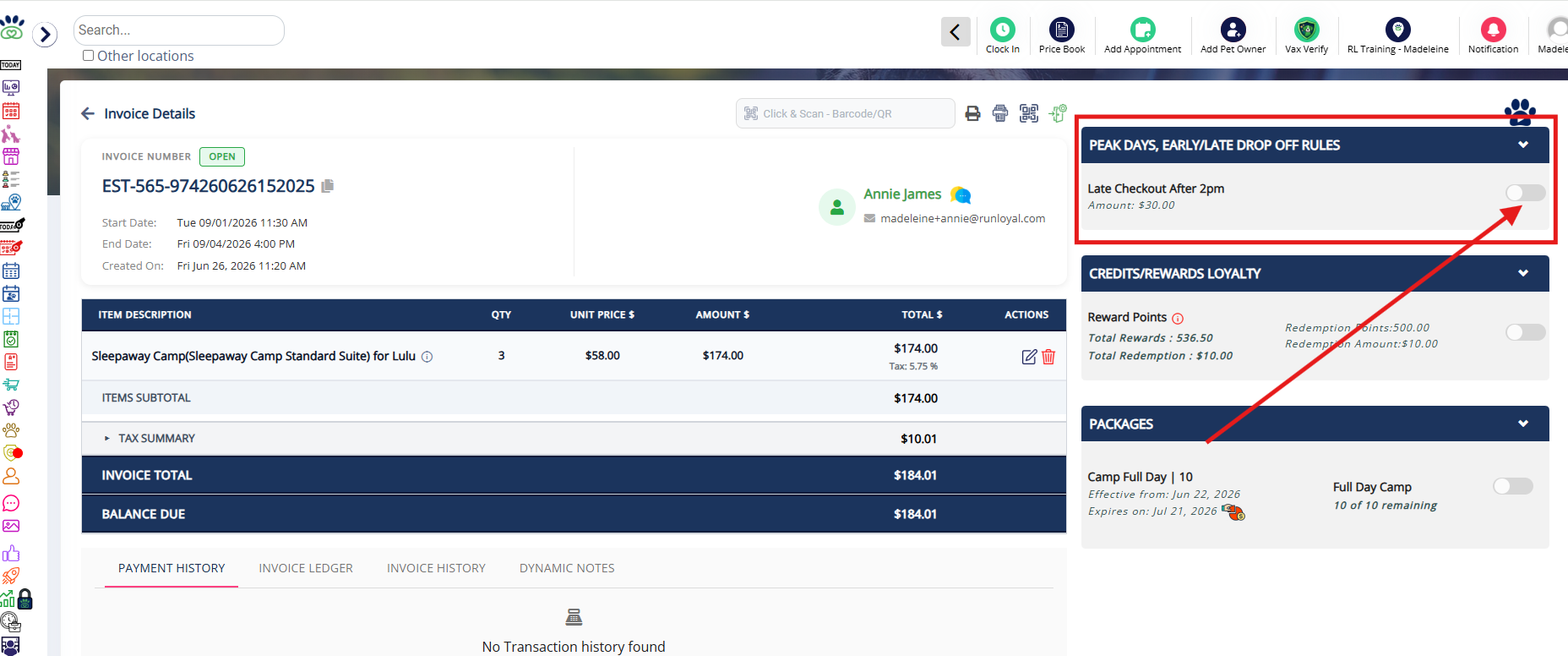
2. Once enabled, the pricing will display for the item on the invoice.
Guide for Each Type of Pricing Rule
When creating Peak/Early/Late pricing rules, there are multiple options that can be created to give discounts or surcharges on an invoice. You can select these option(s) while creating a new pricing rule.
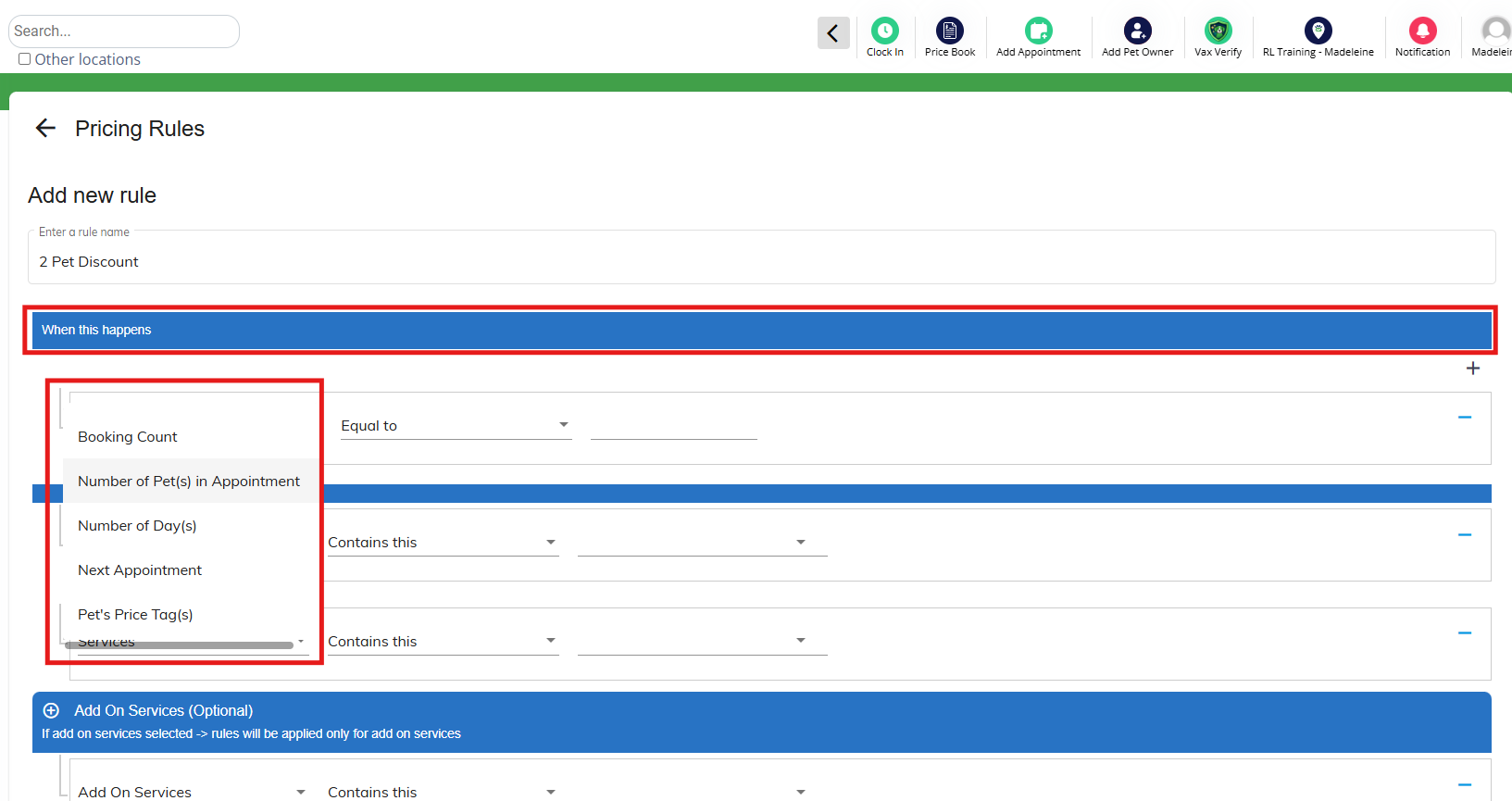
Below is a list of each scenario and when it will apply.
| Services | This rule applies based on the service associated with the booking. For example, you may charge a late checkout fee for Full Day Daycare that differs (in time and/or surcharge amount) from Half Day Daycare. You must first select service categories (below) for services to populate. |
| Appointment Day | This rule applies based on Peak Dates (if the appointment day falls on a peak date). You can also select if it should charge peak dates by night OR by day (default). For example, say you charge peak dates on 12/24, 12/25, and 12/26. There is an appointment that runs 12/20-12/26. If peak date is set to charge by night, they would only be charged the peak date fee for 12/24 and 12/25. If peak date is set to charge by day (default), they would be charged the peak date fee for 12/24, 12/25, and 12/26. |
| Actual Check in Time | This rule applies either "Before scheduled checkin time" or "Before business opening hours", and is used with Actual Check out Time (Minutes) below. For example, if your business opens on different times on different days, you may wish to charge a fee if the checkin time is before the business hours on any given day. |
| Actual Check out Time | This rule applies either "After scheduled checkout time" or "After business closing hours", and is used with Actual Check in Time (Minutes) below. For example, if your business closes on different times on different days, you may wish to charge a fee if the checkout time is after the business hours on any given day. |
| Actual Check in Time (Minutes) | This rule applies in conjunction with Actual Check in Time, and allows entering a minute range. For example, let's say you enter Actual check in time = before business opening hours, and Actual Check in Time (minutes) = 5 to 30. This would charge a fee if the checkin time is 5 to 30 minutes prior to business start time. |
| Actual Check out Time (Minutes) | This rule applies in conjunction with Actual Check out Time, and allows entering a minute range. For example, let's say you enter Actual check out time = after business closing hours, and Actual Check out Time (minutes) = 5 to 30. This would charge a fee if the checkout time is 5 to 30 minutes after business end time. |
| Actual Check in Time (Clock Hours) | This rule applies based on the checkin time of the appointment. For example, if you charge a fee to checkin between 6am and 1pm, you would enter Actual Check in Time (Clock Hours) = is between = 0600 to 1300 (military time). |
| Actual Check out Time (Clock Hours) | This rule applies based on the actual checkout time of the appointment. For example, if you charge a fee to checkout between 2pm and 11:55pm, you would enter Actual Check out Time (Clock Hours) = is between = 1400 to 23:55 (military time). |
| Scheduled Check out Time (Clock Hours) | This rule applies based on the scheduled checkout time of the appointment. For example, if you charge a fee to checkout between 2pm and 11:55pm, you would enter Actual Check out Time (Clock Hours) = is between = 1400 to 23:55 (military time). |
| Actual Check out Time (Hours) | This rule applies in conjunction with Actual Check out Time, and allows entering a hour range. For example, let's say you enter Actual check out time = after business closing hours, and Actual Check out Time (hours) = 1 to 5. This would charge a fee if the checkout time is 1 hours to 5 hours after business end time. |
| Actual Check in Time (Hours) | This rule applies in conjunction with Actual Check in Time, and allows entering a hour range. For example, let's say you enter Actual check in time = before business opening hours, and Actual Check in Time (hours) = 1 to 5. This would charge a fee if the checkin time is 1 hours to 5 hours prior to business start time. |
| Service Categories | This rule applies based on the service category associated with the booking. For example, you may charge a late checkout fee for Daycare that differs (in time and/or surcharge amount) from Boarding. You must first select service categories for services (above) to populate. |
More Information
For more information on Price Lists (standard pricing), please refer to this article: Set Up Pricing, Deposits, & Cancellation/No-Show Fees
For more information on custom pricing (by breed or weight), please refer to this article: Custom Pricing (Automated Price by Weight, Breed, and/or Size)
For more information on multi-pet or extended stay pricing rules, please refer to this article: Creating Pricing Rules (Multi-pet discounts, Extended Stay Discounts)
Was this article helpful?
That’s Great!
Thank you for your feedback
Sorry! We couldn't be helpful
Thank you for your feedback
Feedback sent
We appreciate your effort and will try to fix the article