Overview
Peak Days allow you to mark specific days on your calendar, such as holidays or days surrounding the holidays, as "peak" times. If you have peak day pricing set up, this will apply an automated surcharge to customers on their invoice for the applicable services if they are in-house during peak days.
Peak Dates can be viewed in the following areas:
- Invoices
- Settings > Business Setup > Business Hours
- Settings > Pricing > Peak Days / Late/Early Dropoff
TABLE OF CONTENTS
How To Set Up Peak Days:
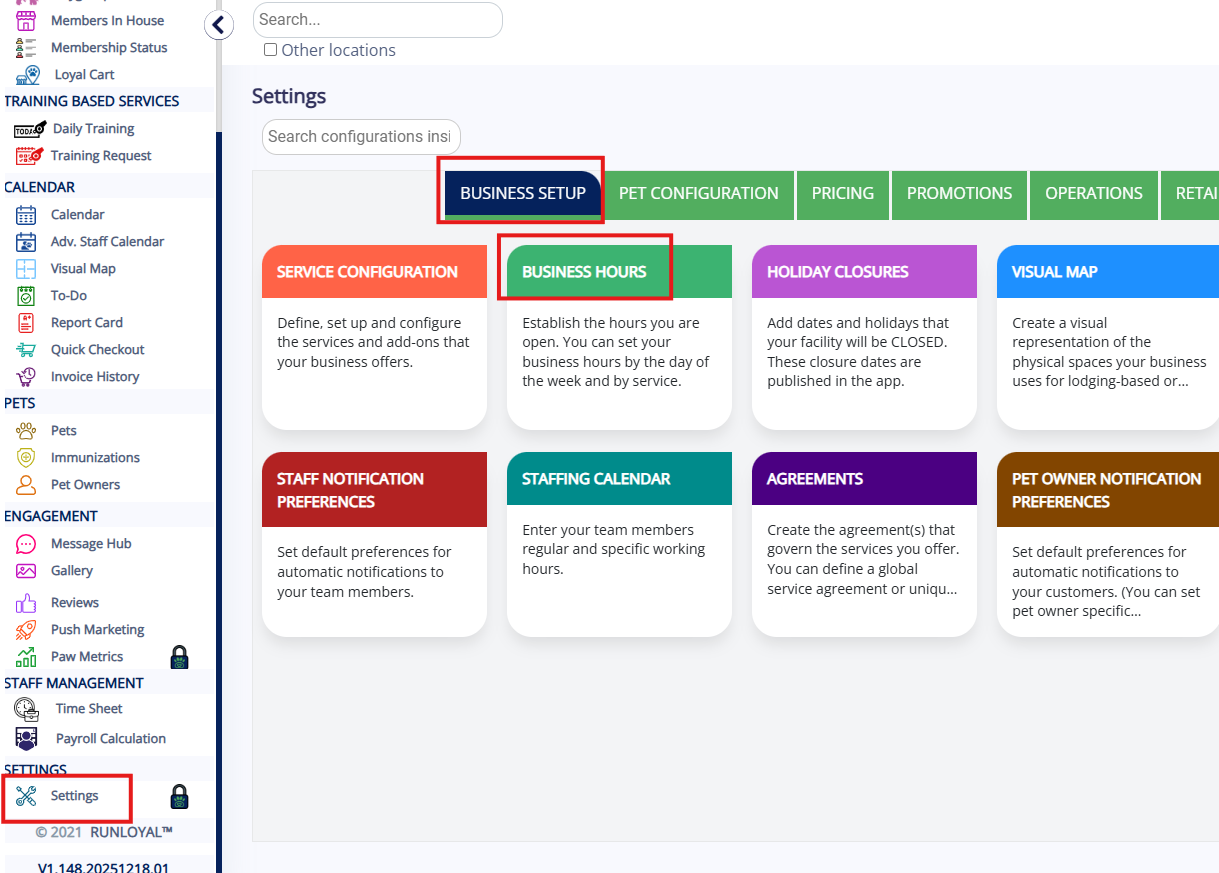
1. Navigate to Settings > Business Setup > Business Hours.
2. Select the specific service category for which you want to designate a holiday as a peak day.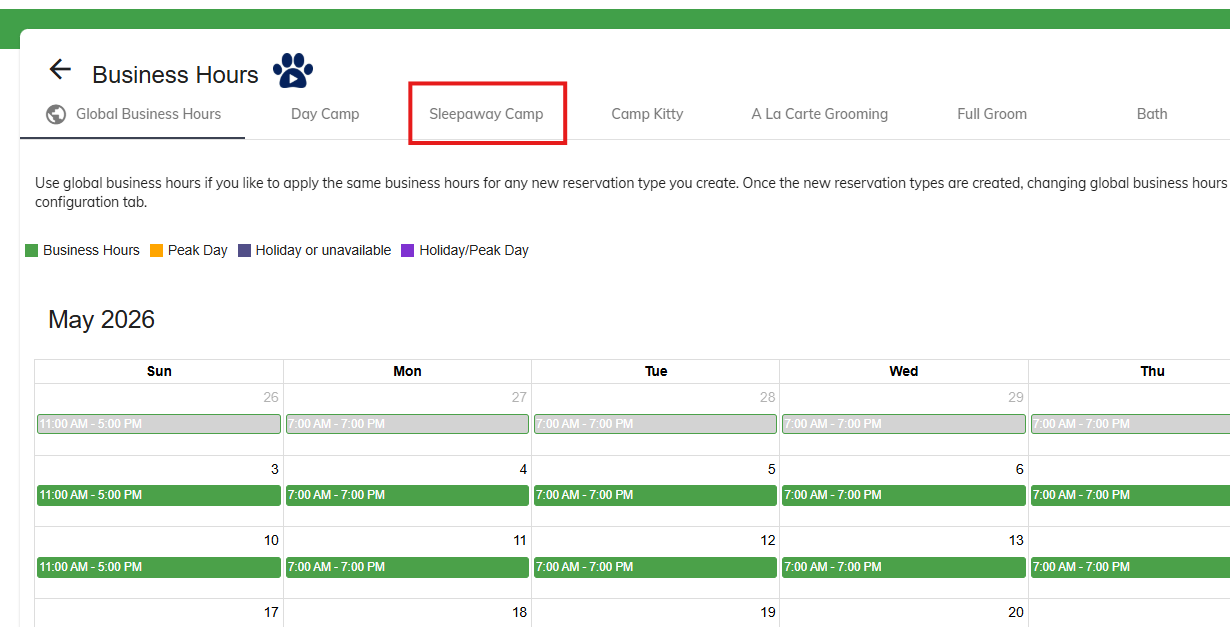
3. Locate the holiday date or date(s) surrounding the holiday date in the service calendar. If you are just designating one singular peak day, click on the date. If you are setting a peak day range, click on the first day of the peak day range.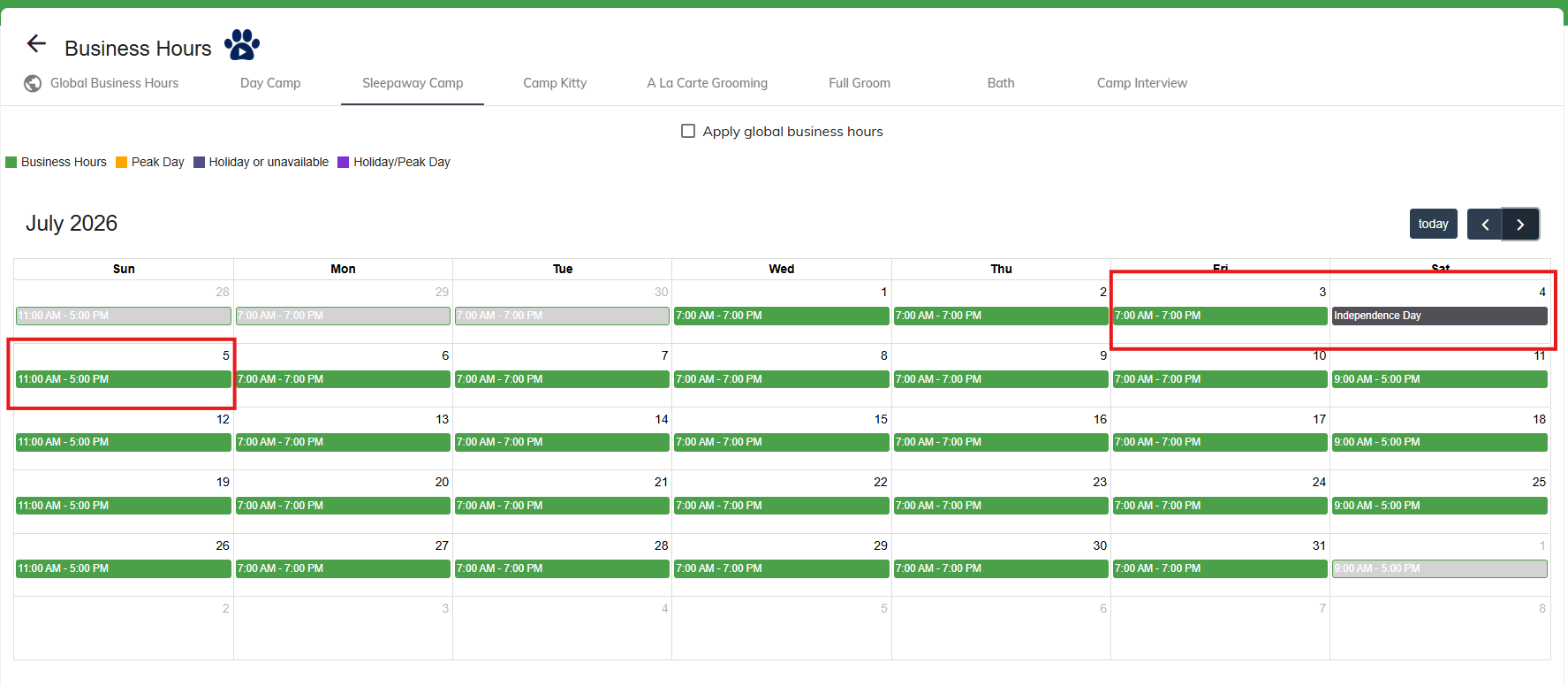
4. Check the Peak Day checkbox to mark the holiday as a peak day. If you are just selecting a singular peak date, then select Apply.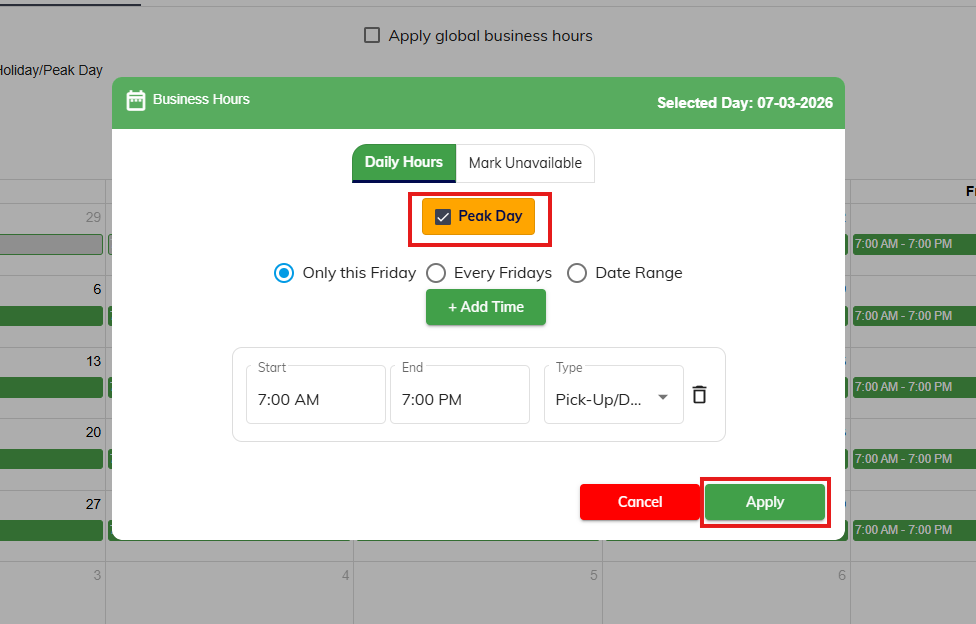
5. If you are setting a peak day range, check the Peak Day checkbox and then select Date Range. Select the range for your peak days. Then select Apply.
⚠️ Important: You can only select a peak day range for the selected month. If you need to span multiple months, you will need to add peak days per month.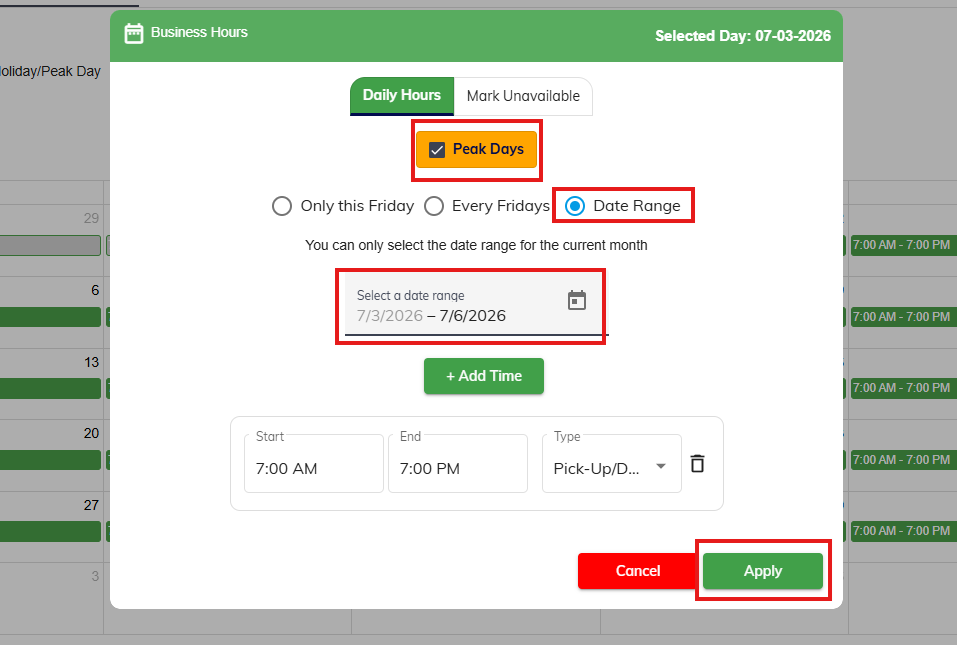
6. Verify the date(s) on the the service calendar.
⚠️ Important: An orange date indicates it is a non-holiday peak date that still allows pickup or dropoff. A purple date indicates it is a holiday peak date, which does not allow pickup or dropoff.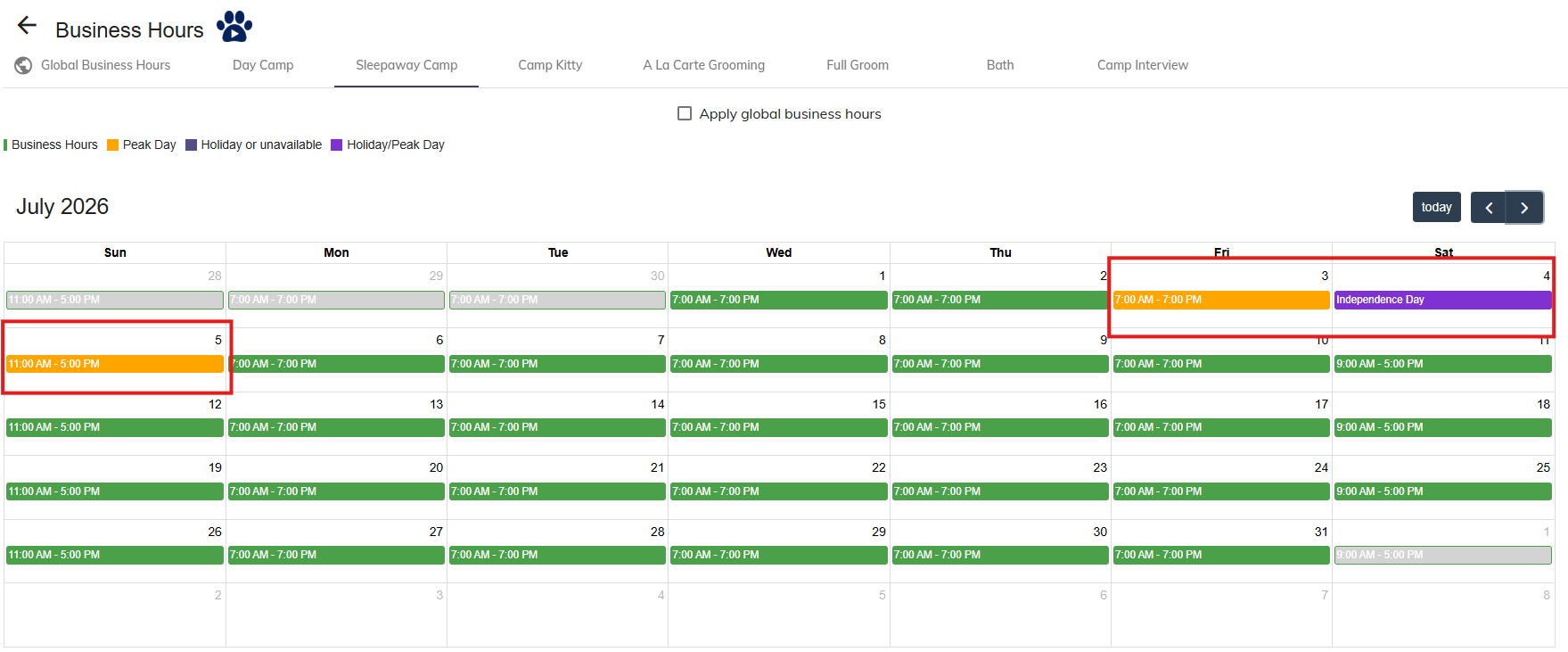
7. Repeat for any other service categories that should have peak days applied.
How to Add Peak Day Fees:
1. Navigate to Settings > Pricing > Peak Days / Late/Early Dropoff.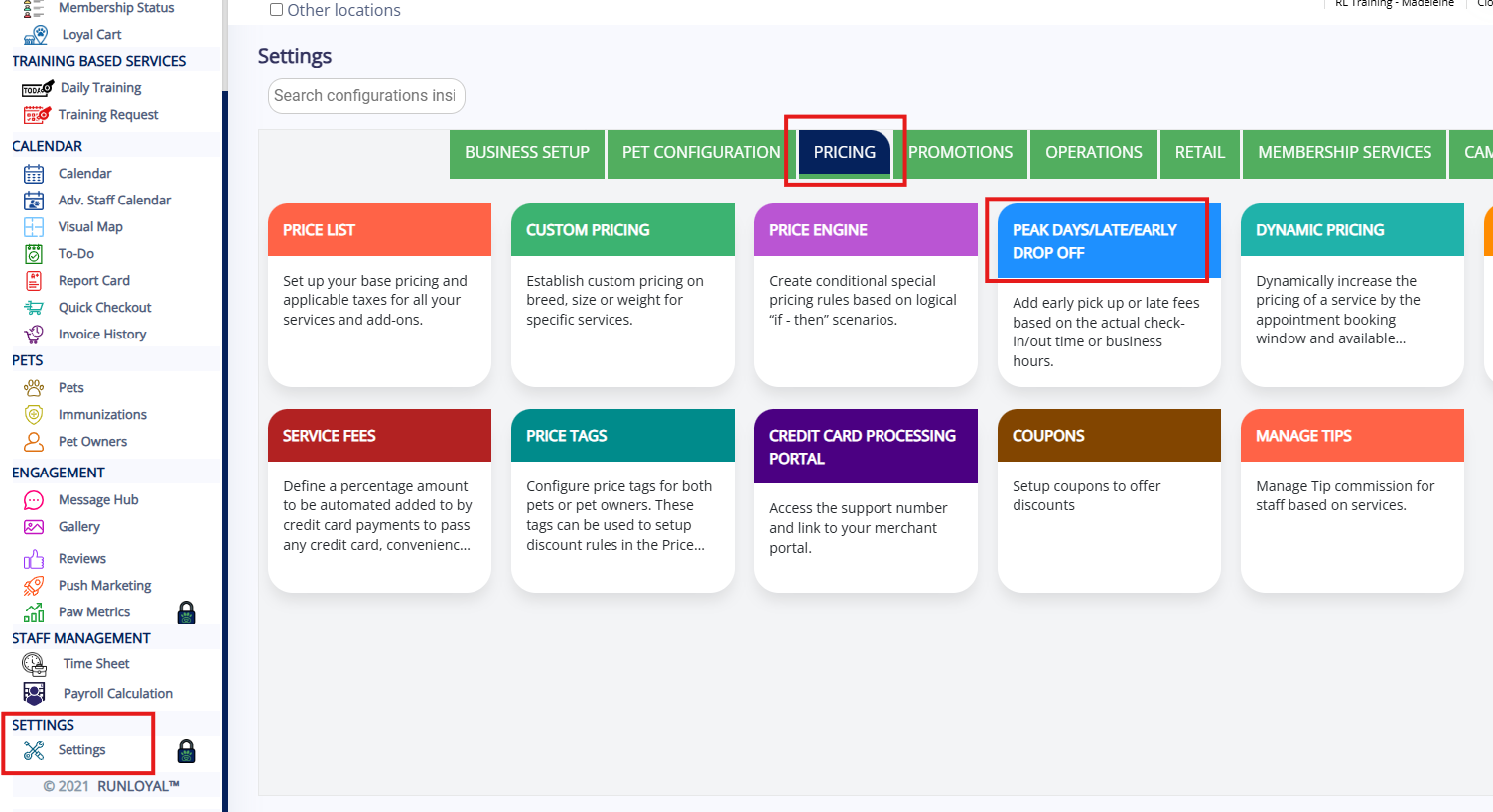
2. Select Add a New Rule.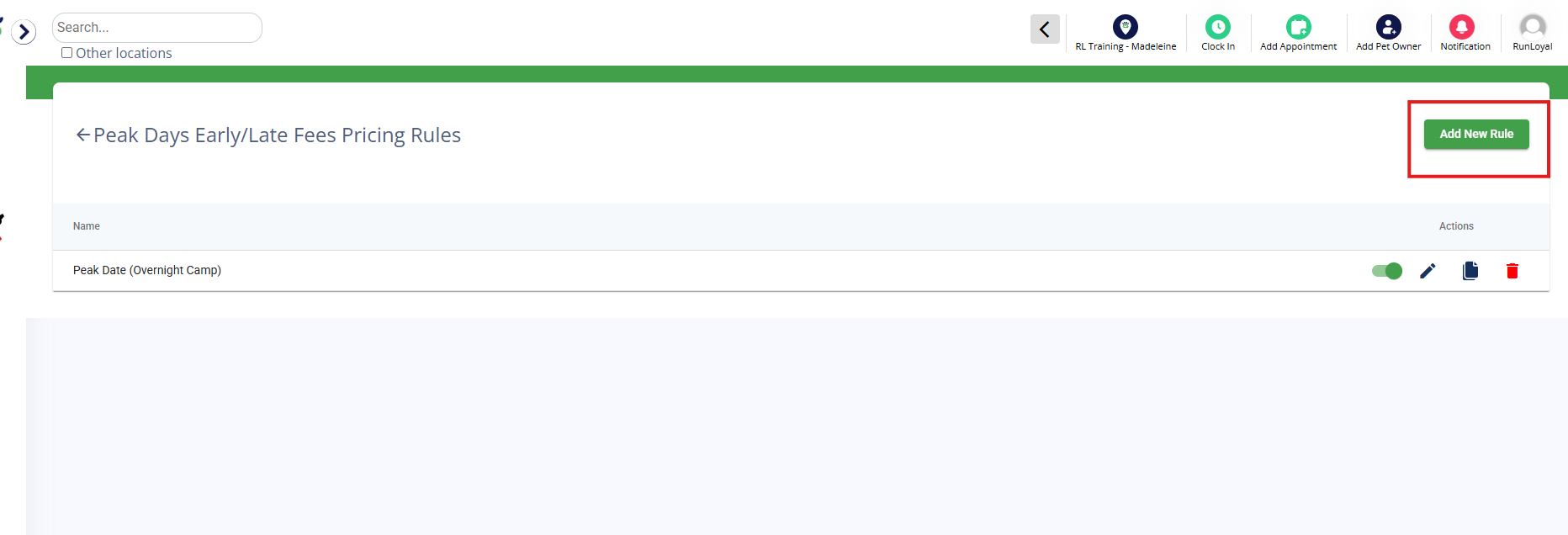
3. Enter a title for your peak day.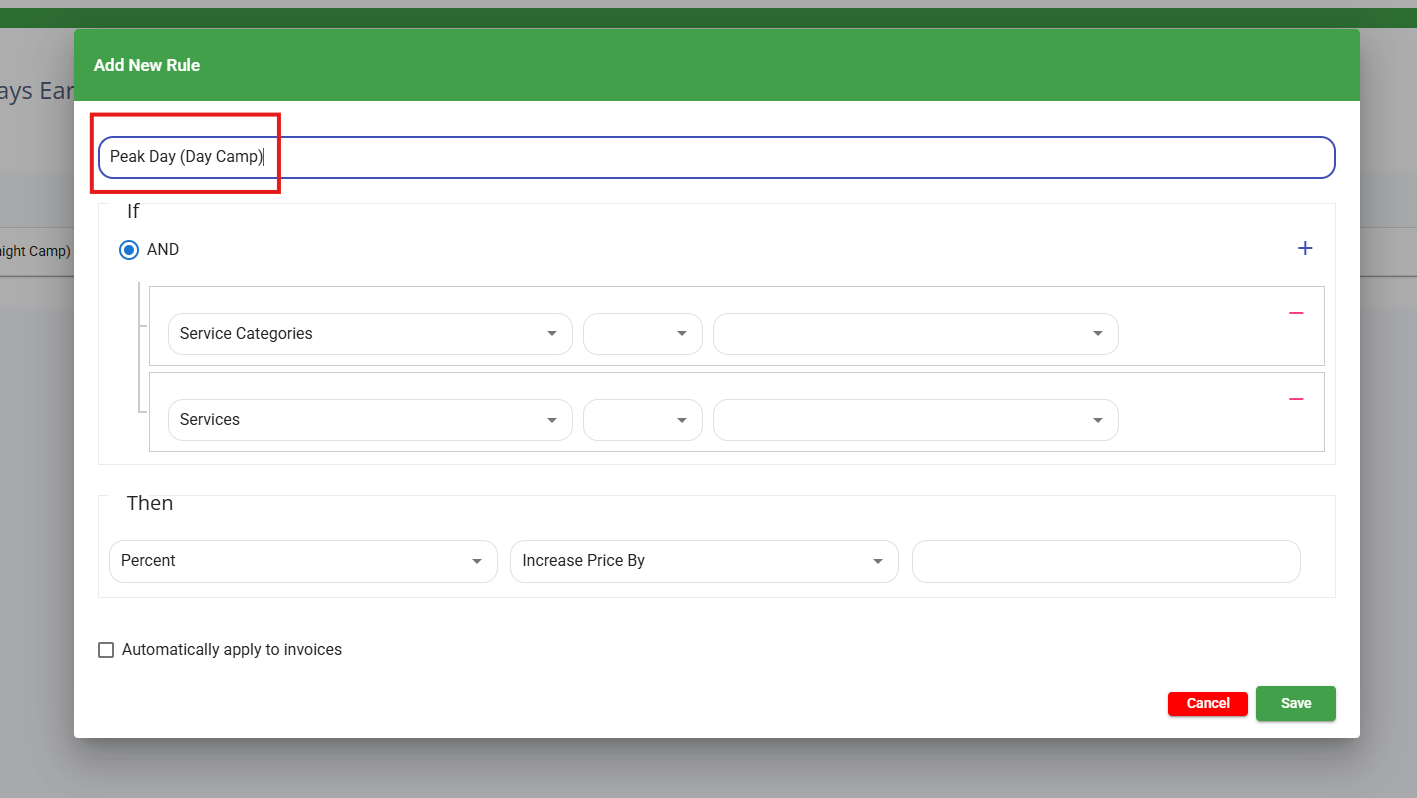
4. In the section starting with "If", select the Service Categories and Services to which this peak day fee should apply.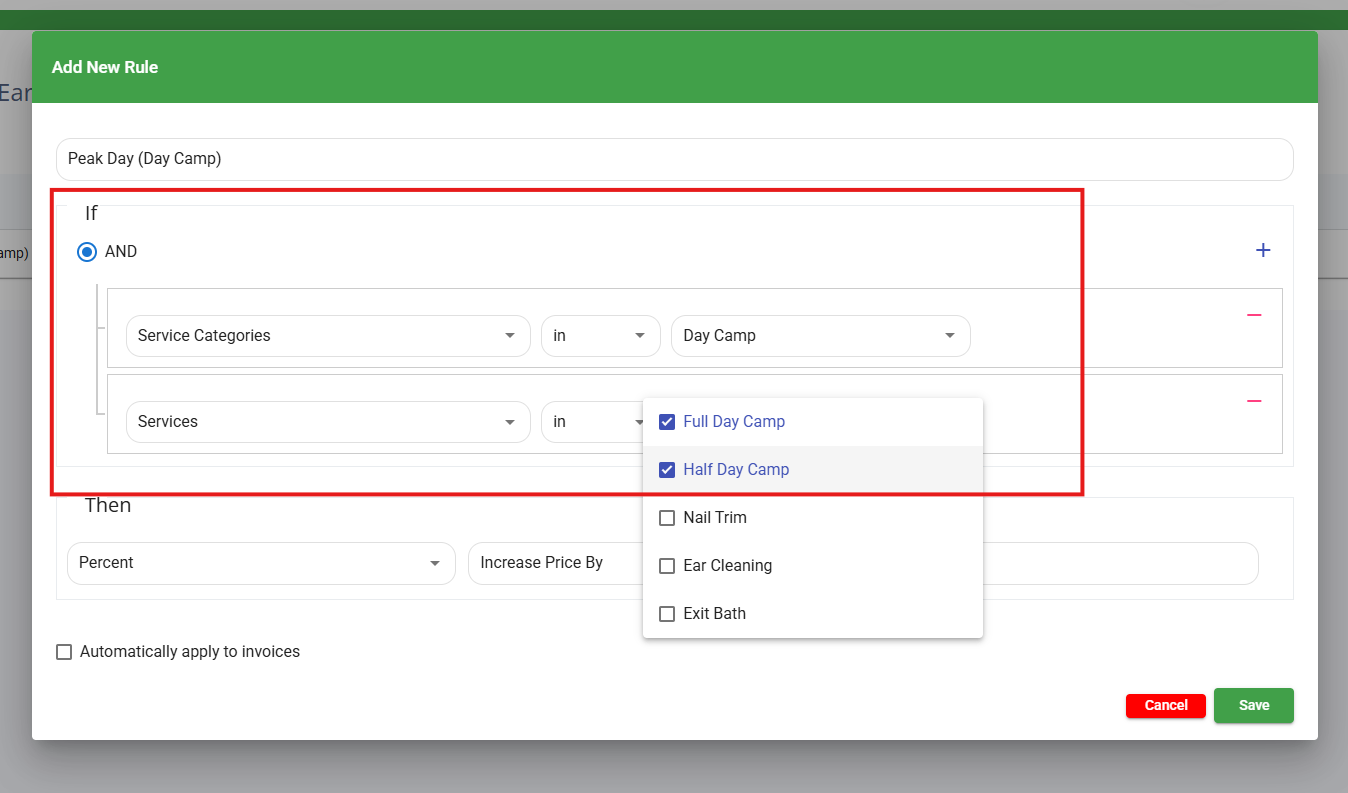
5. Click the "+" icon and for the final rule, select Appointment Day. It should automatically populate with Is a Peak Day.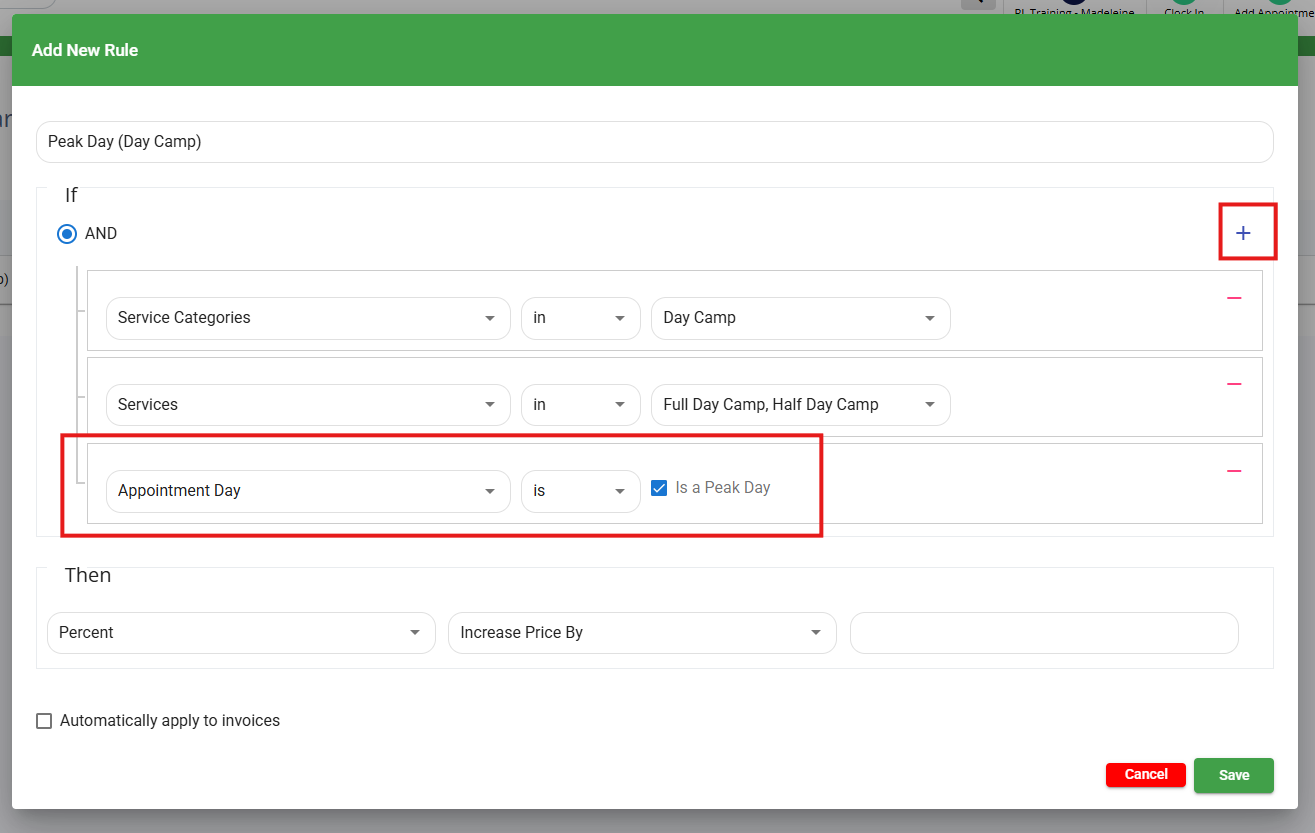
6. In the section starting with "Then", select either a percentage or flat amount that will adjust the service price, as well as Increase Price By or Decrease Price By. Then enter the amount.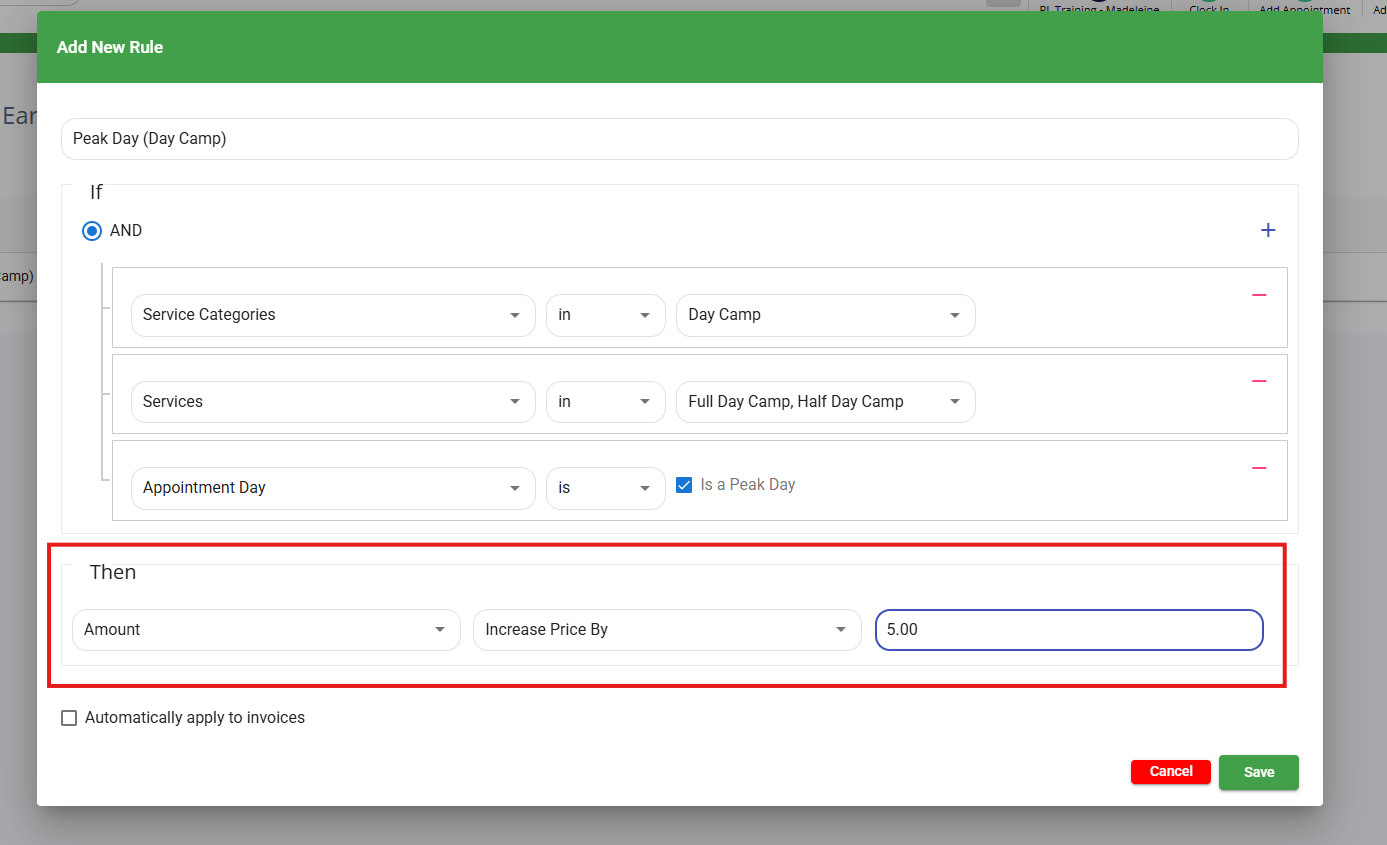
7. Optionally check the box to Automatically apply to invoices. This ensures that the peak day fee is applied to an invoice automatically once the pet is checked in. You can also optionally toggle on the fee prior to check-in. If you check this box, you can then further select if the fee should Single Rule Auto Apply (if the invoice does not have any other pricing engine rules) or Always Auto Apply (apply regardless of other pricing engine rules on the invoice). Then click Save.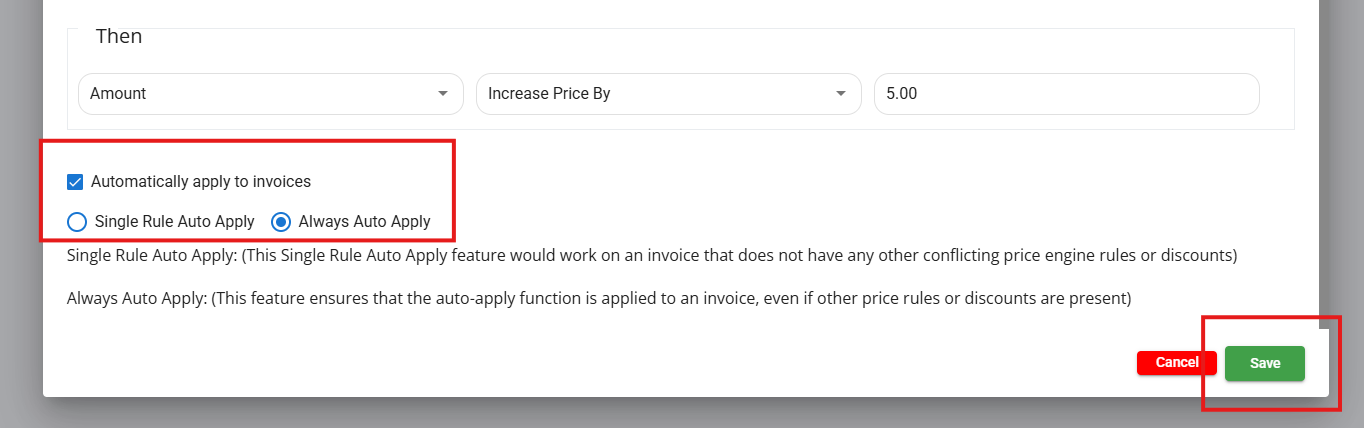
More Information
For more information on Holidays, please refer to this article: Managing Holiday Closures: Step-by-Step Instructions
Was this article helpful?
That’s Great!
Thank you for your feedback
Sorry! We couldn't be helpful
Thank you for your feedback
Feedback sent
We appreciate your effort and will try to fix the article