Overview
Internal Reviews prompt customers to leave a review of your business that shares to your RunLoyal account internally. You can then share those reviews to Facebook or copy them to your website. You can prompt for reviews for any appointment where "Request review" is toggled on at checkout.
We also offer External Reviews, which is a paid add-on to prompt customers to leave reviews on Google or Yelp!. Learn more about External Reviews here: Adding & Requesting External Reviews.
Reviews can be viewed in the following areas:
- Left-hand Navigation > Reviews
- Checking out > Request Review
TABLE OF CONTENTS
- Overview
- Set Up a Review Request Notification Preferences
- How Pet Owners Complete a Review
- Checking Your Internal Reviews
- More Information
Set Up a Review Request Notification Preferences
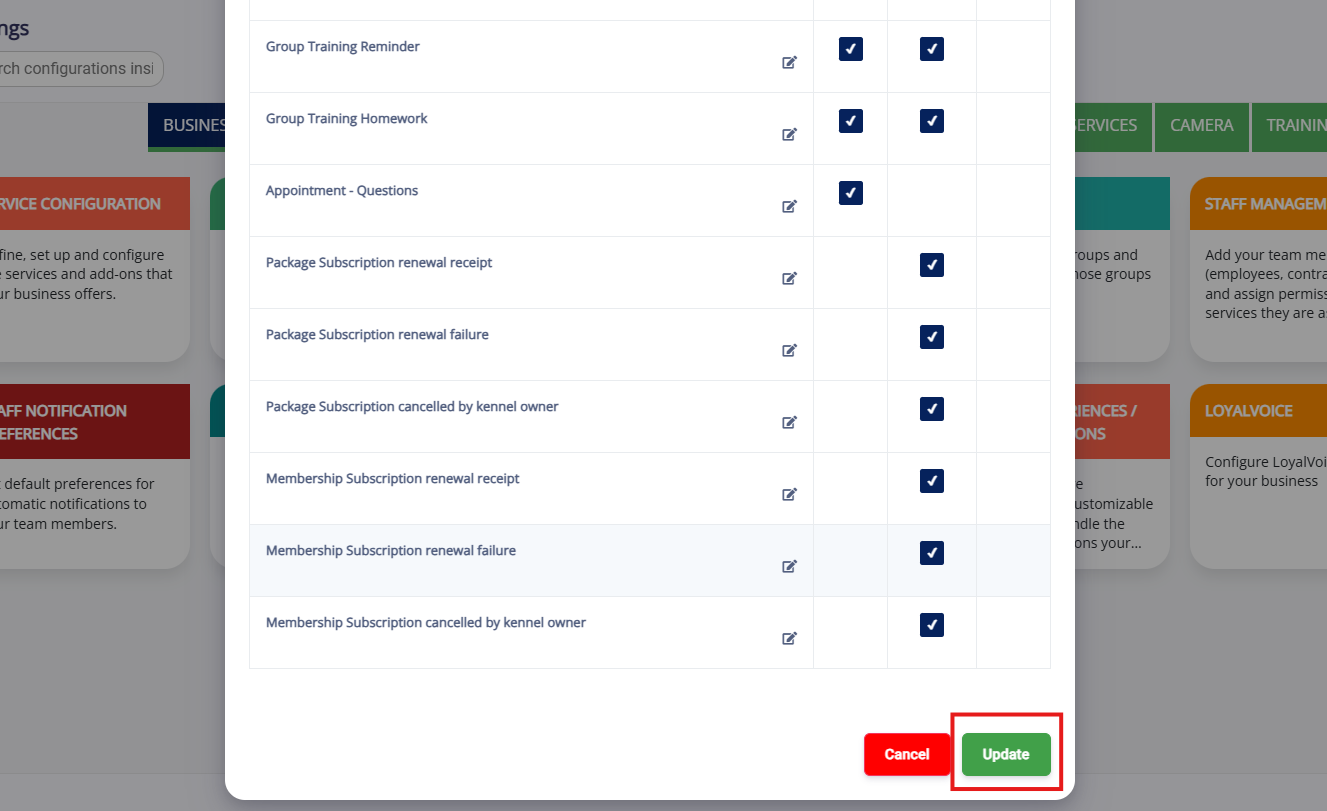
1. Navigate to Settings > Business Setup > Pet Owner Notification Preferences.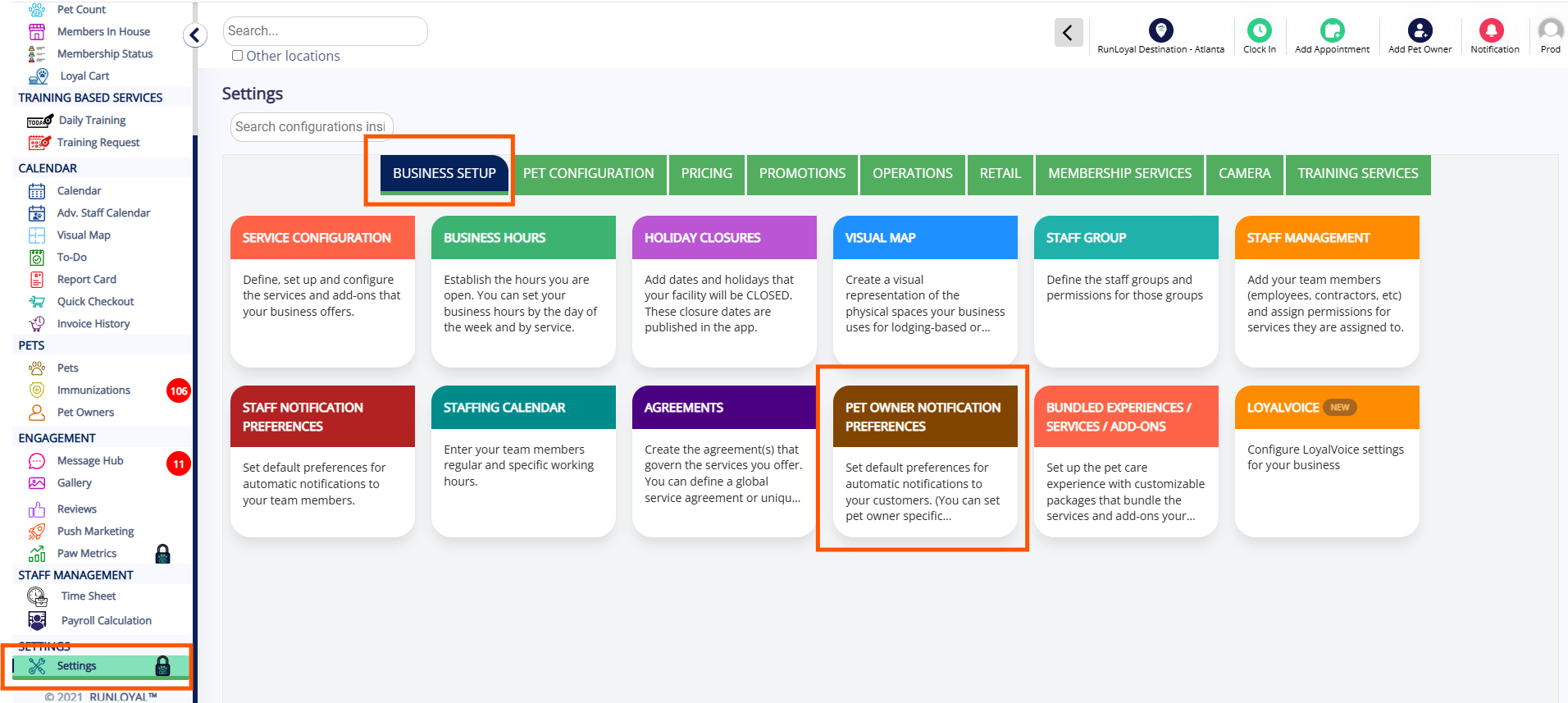
2. Ensure Review Requested (During Appointment Checkout) is checked for app notification, email, and/or SMS. This notification sends when you toggle on Request Review at checkout. If you would like to edit the content of the email, click the Edit pencil icon.
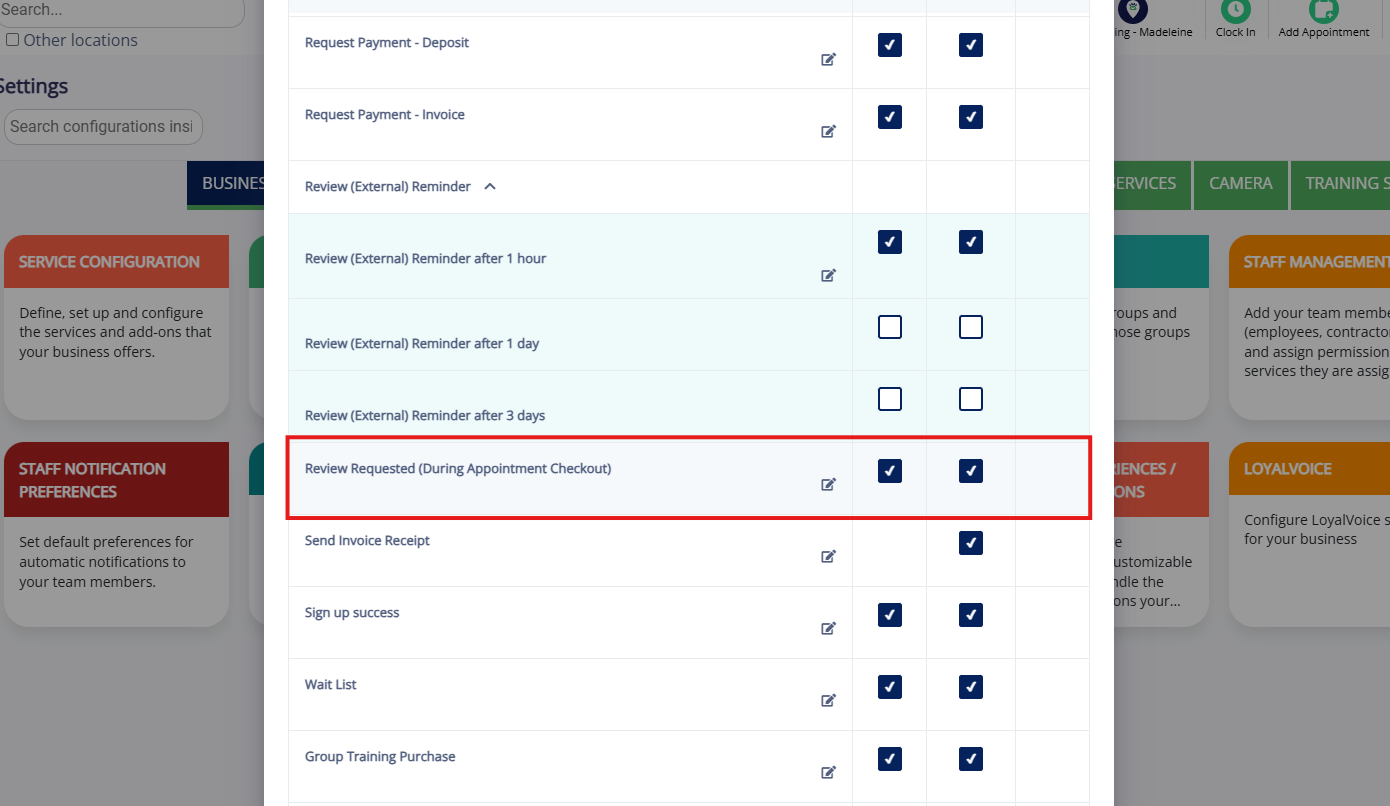
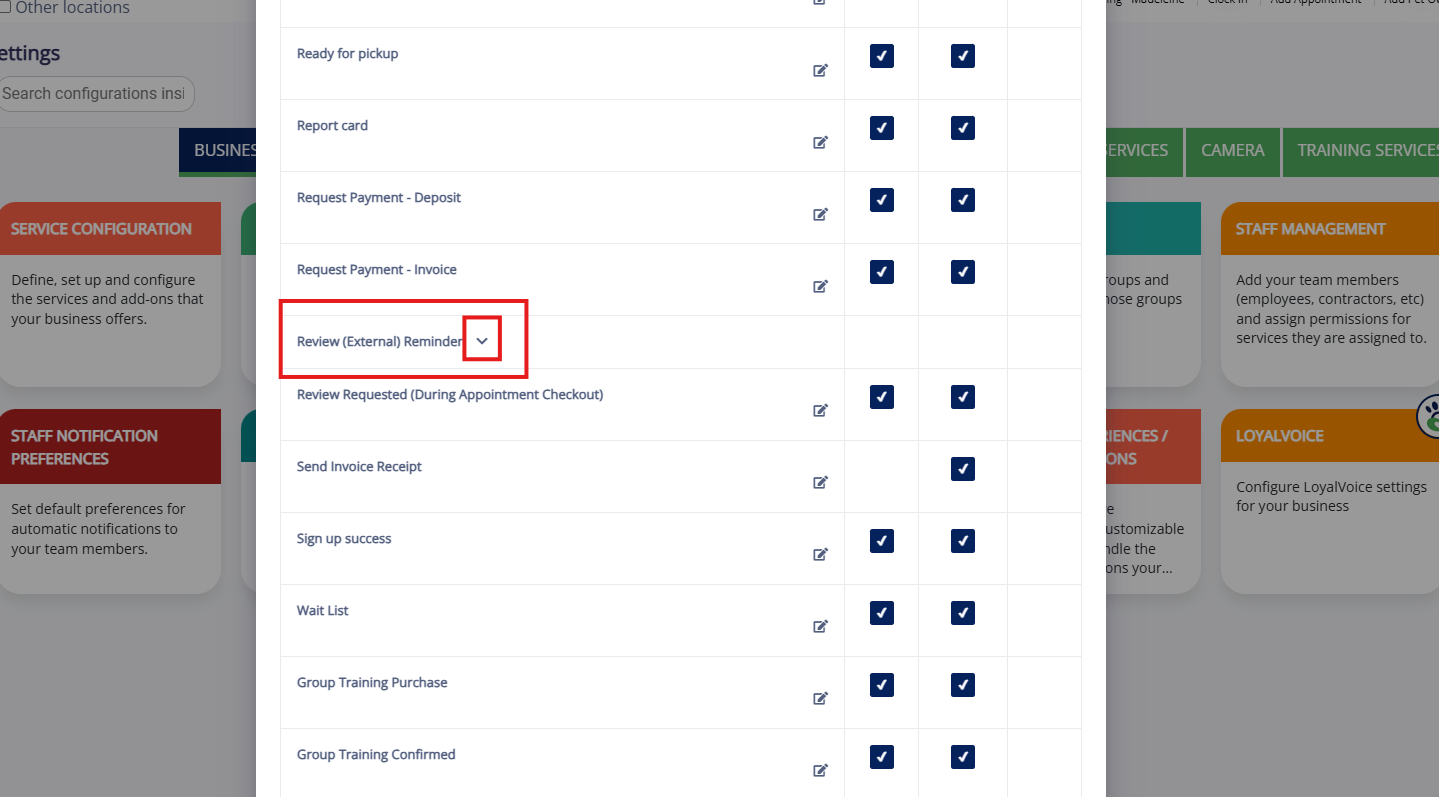
3. Optionally click the downward arrow next to Review - External Reminder. This notification sends as a reminder when you toggle on Request Review at checkout but the client does not complete the review immediately.
4. Set if the Review Reminder should send for app notification, email, and/or SMS. You can set the reminder to send after 1 hour, after 1 day, and/or after 3 days.
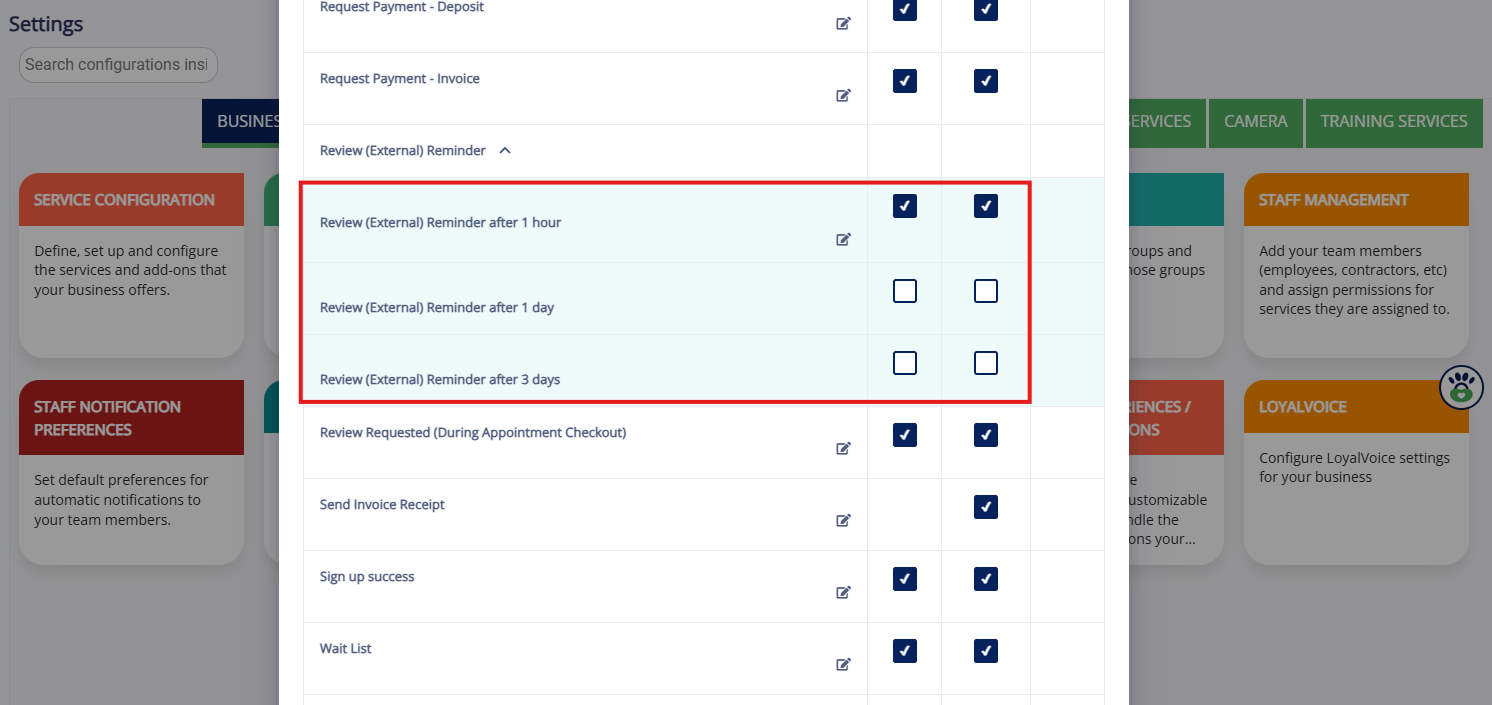
5. When all notification templates are toggled on and edited as necessary, click Update at the bottom of the popup to save your changes.
How Pet Owners Complete a Review
1. When checking out a pet on the business portal, in the cart click Checkout Pet. Then toggle on Request review and click Checkout. This will send the pet parent a review request via app, email, and/or SMS, depending on their notification preferences.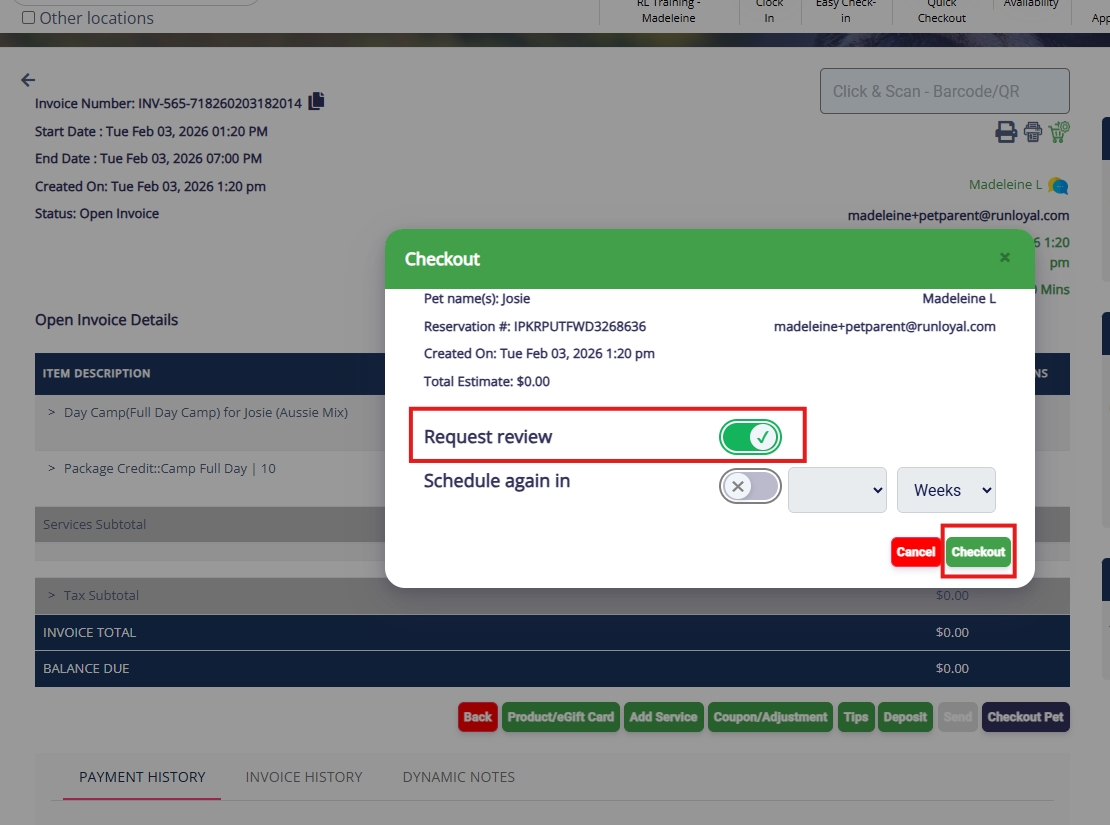
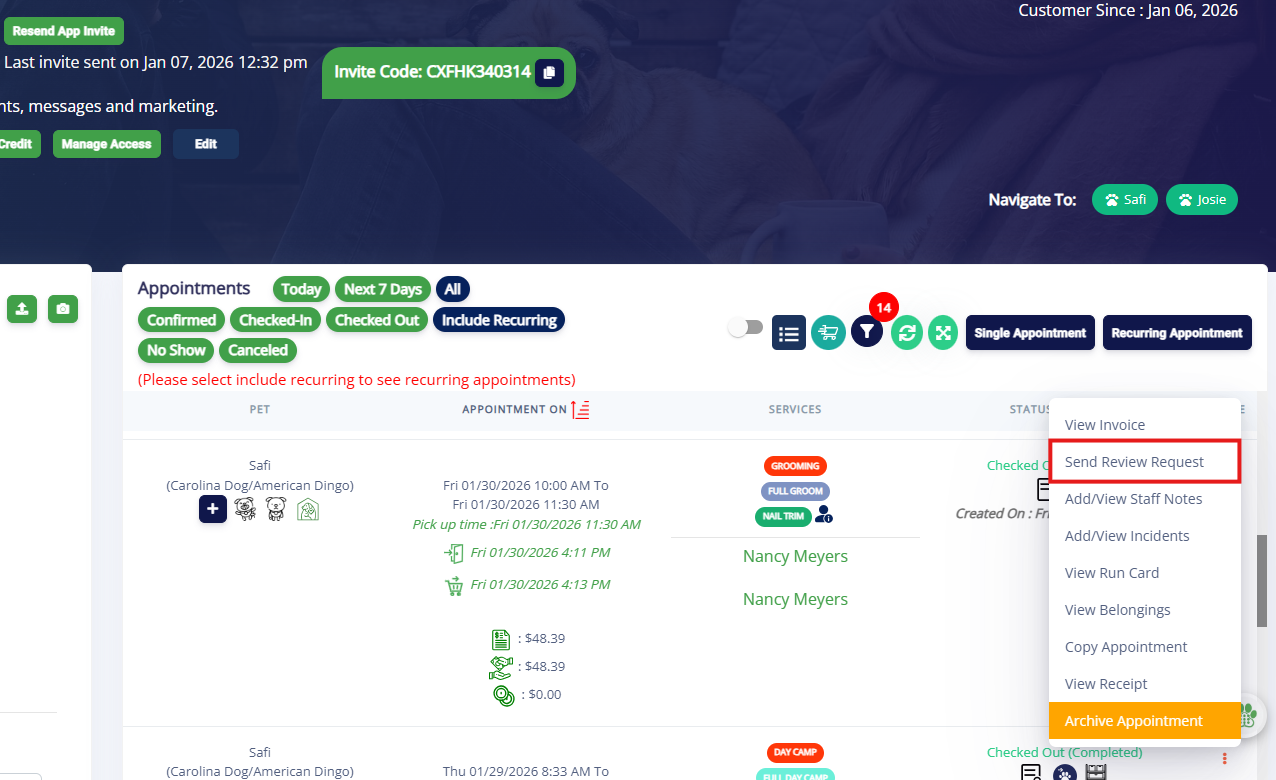
2. If you need to send a review after checkout, you can navigate to the pet parent profile and click the three dots next to the appointment in question. Then select Send Review Request.
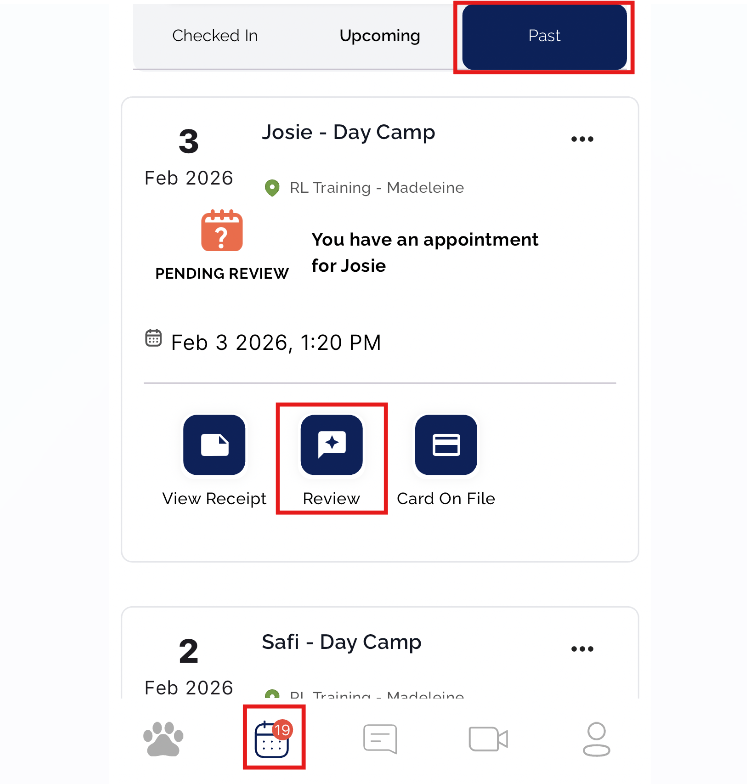
3. The pet parent can also complete a review (if requested previously) from their mobile app > Appointments tab > Past > Review.
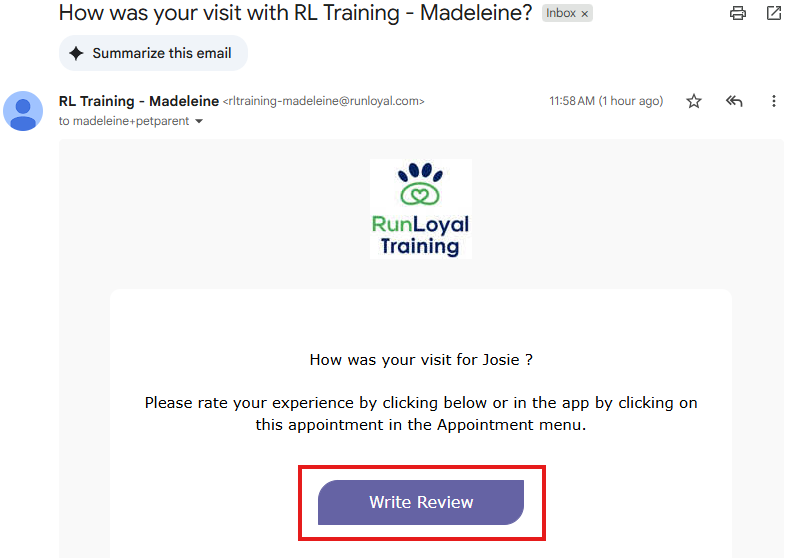
4. Once the review is sent, the pet parent can click on the Write Review link from the review email, app notification, or SMS.
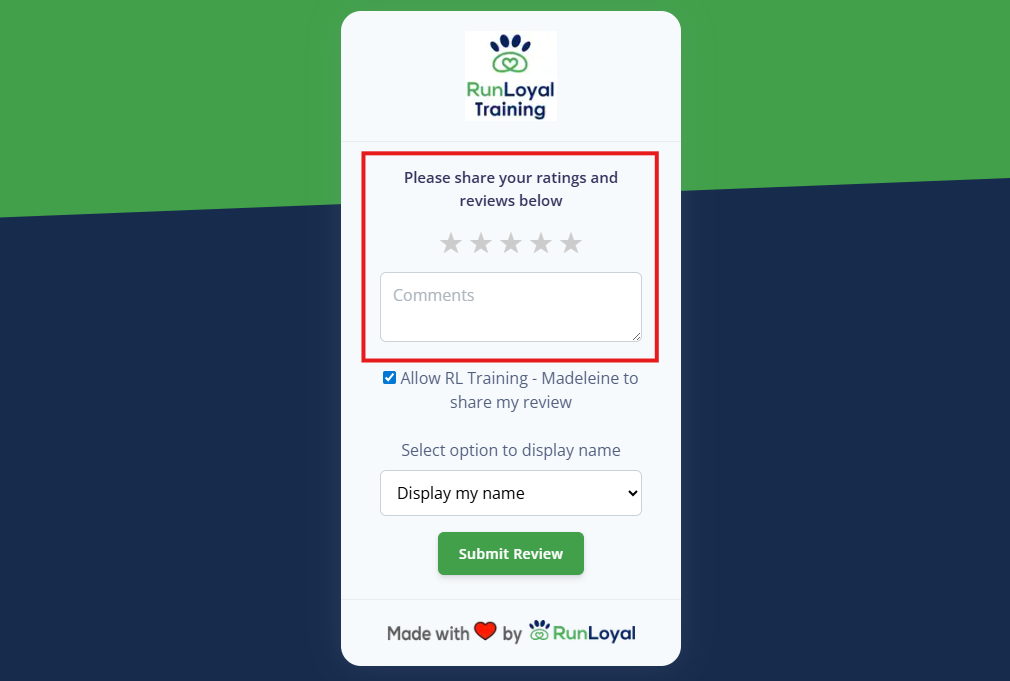
5. As part of the RunLoyal internal review, the pet owner can choose a star rating, write their review.
Checking Your Internal Reviews
1. When a pet owner leaves a review, you will receive an in-app notification.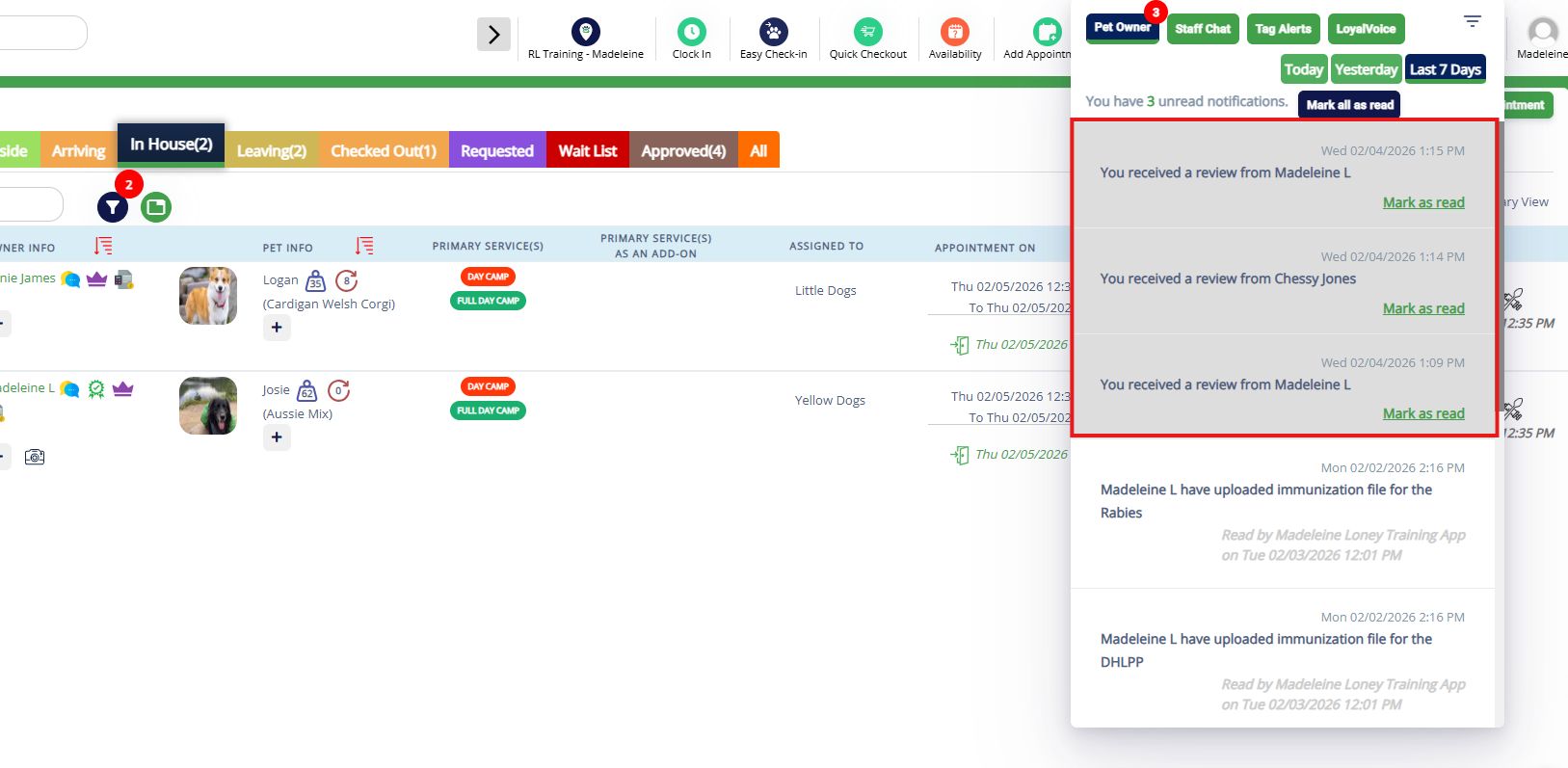
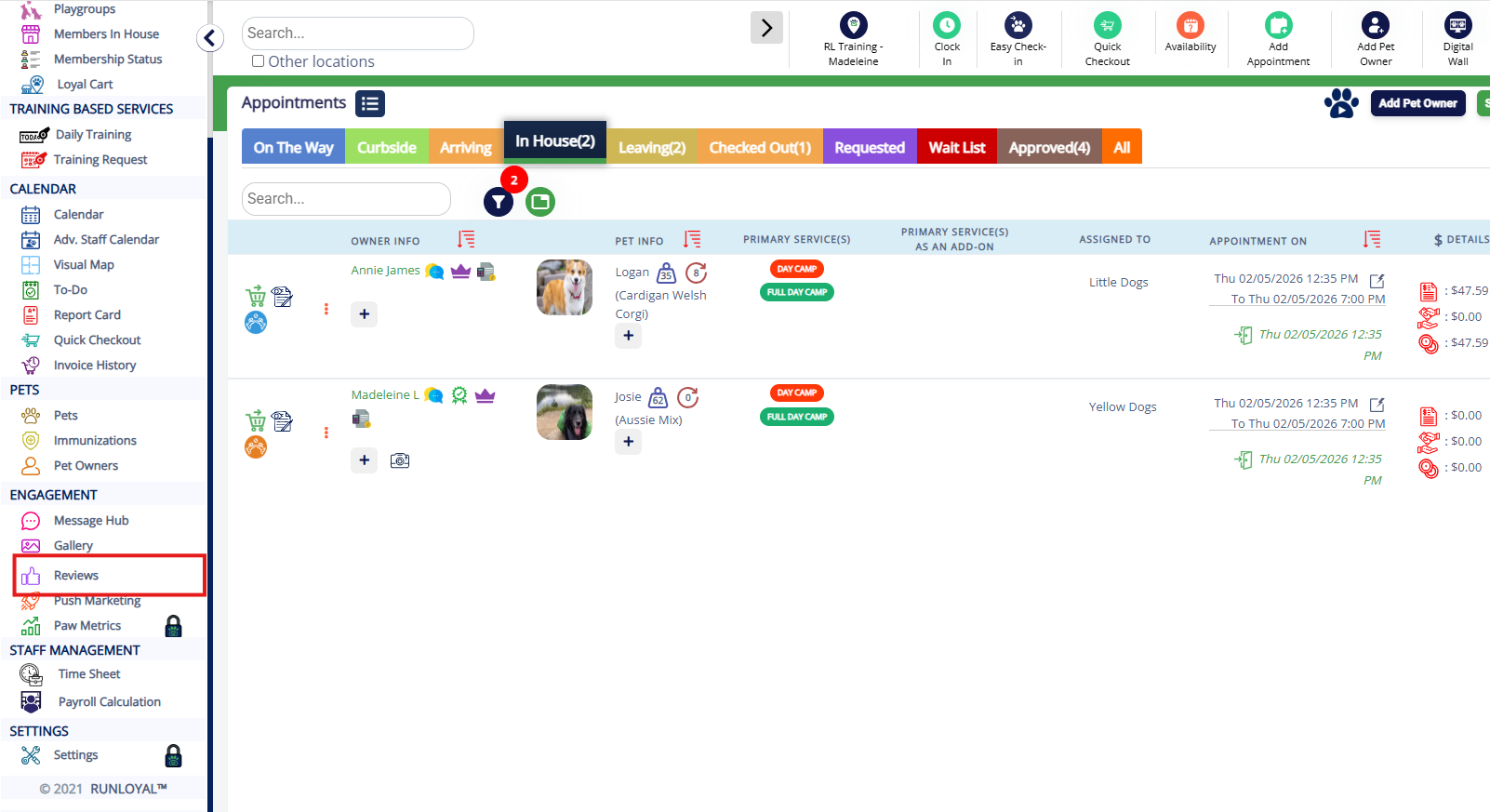
2. To view the review, click on the notification or navigate to Left-hand navigation > Reviews.
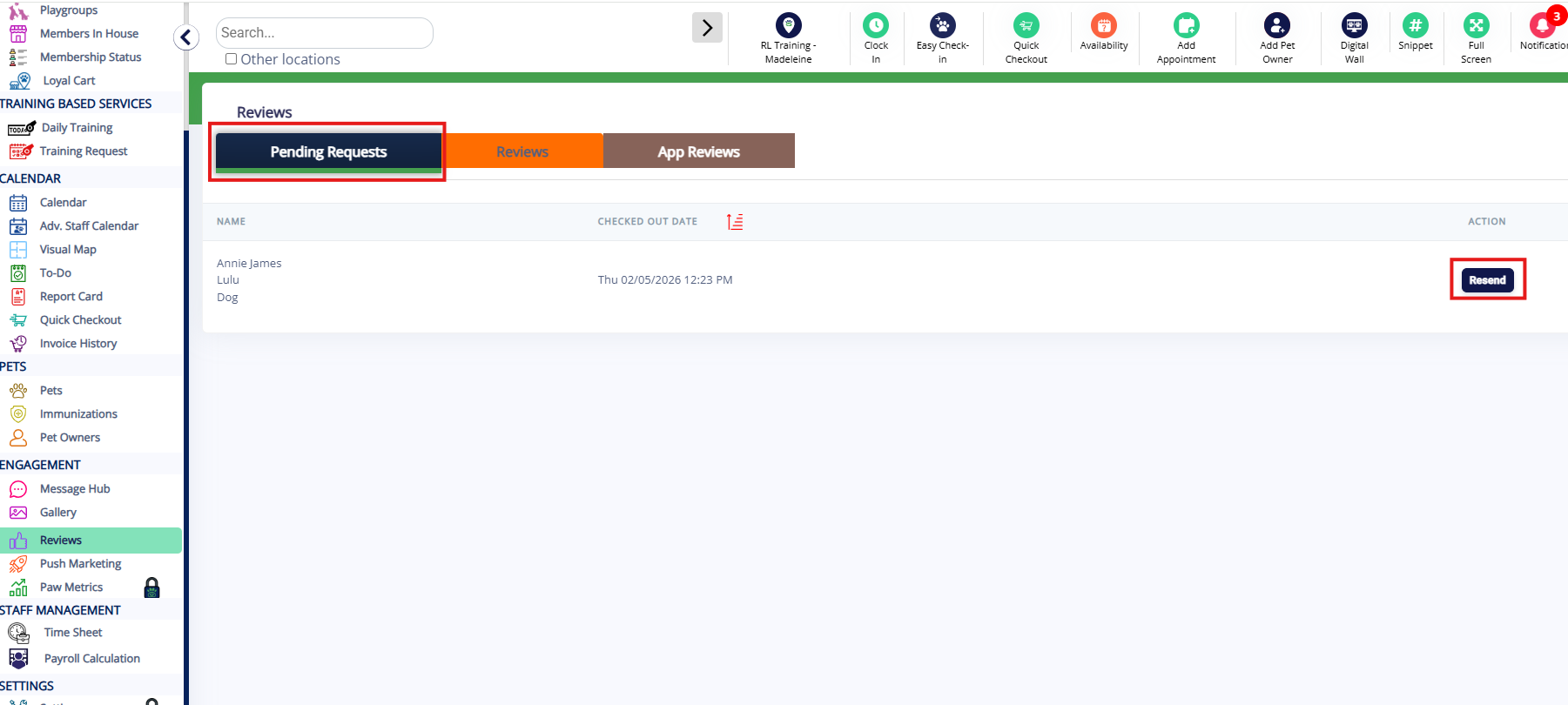
3. Under Pending Requests, you can view all requested reviews that the pet parent has not completed. If you wish to re-send the review request, click Resend.
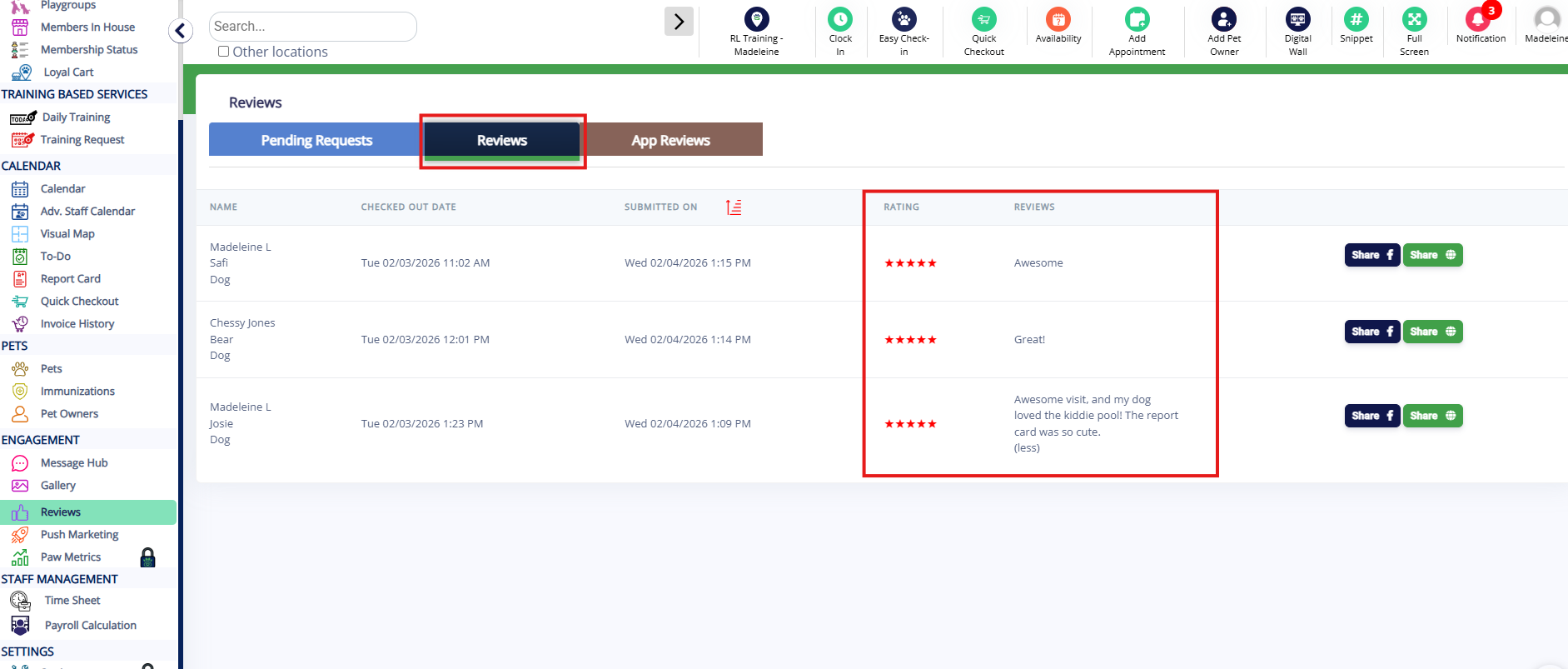
4. Under the Reviews tab, you can view all the star ratings and written reviews from pet owners.
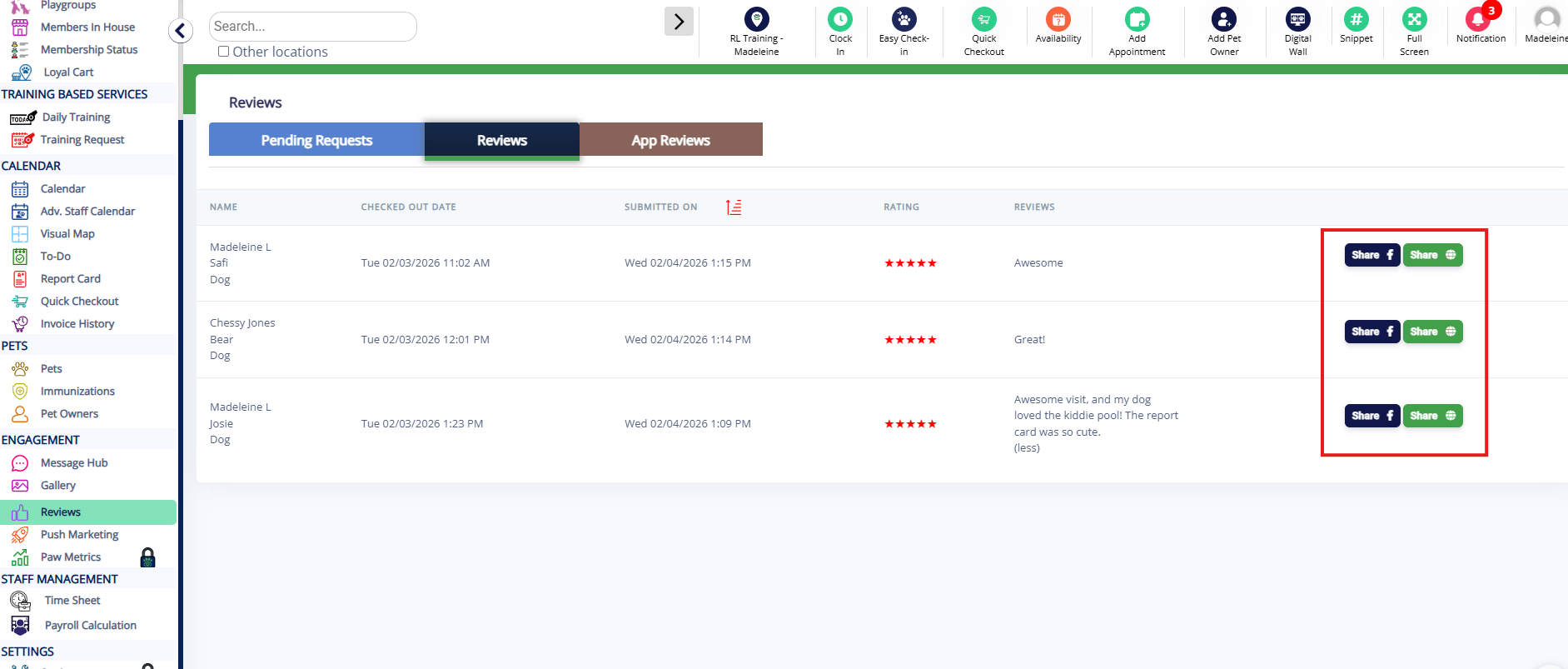
5. To share the review to Facebook, click Share (f). To share the review on the web, click Share global icon.
More Information
For more information on external reviews, please refer to this article: Adding & Requesting External Reviews
For more information on sharing reviews to Facebook, please refer to this article: Post & Share Reviews to Facebook
Was this article helpful?
That’s Great!
Thank you for your feedback
Sorry! We couldn't be helpful
Thank you for your feedback
Feedback sent
We appreciate your effort and will try to fix the article