Overview
Custom pricing allows you to automatically apply service pricing based on each dog’s details, helping create a faster and more consistent checkout experience. This article will walk you through how to set up pricing rules using either weight + breed or weight + size combinations. Once configured, the system can automatically populate the correct price on invoices based on the pet’s profile information. With custom pricing in place, you can reduce manual updates and ensure pricing stays accurate across your services.
Custom Pricing can be viewed in the following areas:
- Settings > Pricing > Custom Pricing
- Invoices
TABLE OF CONTENTS
How to Set Up Custom Pricing
1. Navigate to Settings > Pricing > Custom Pricing.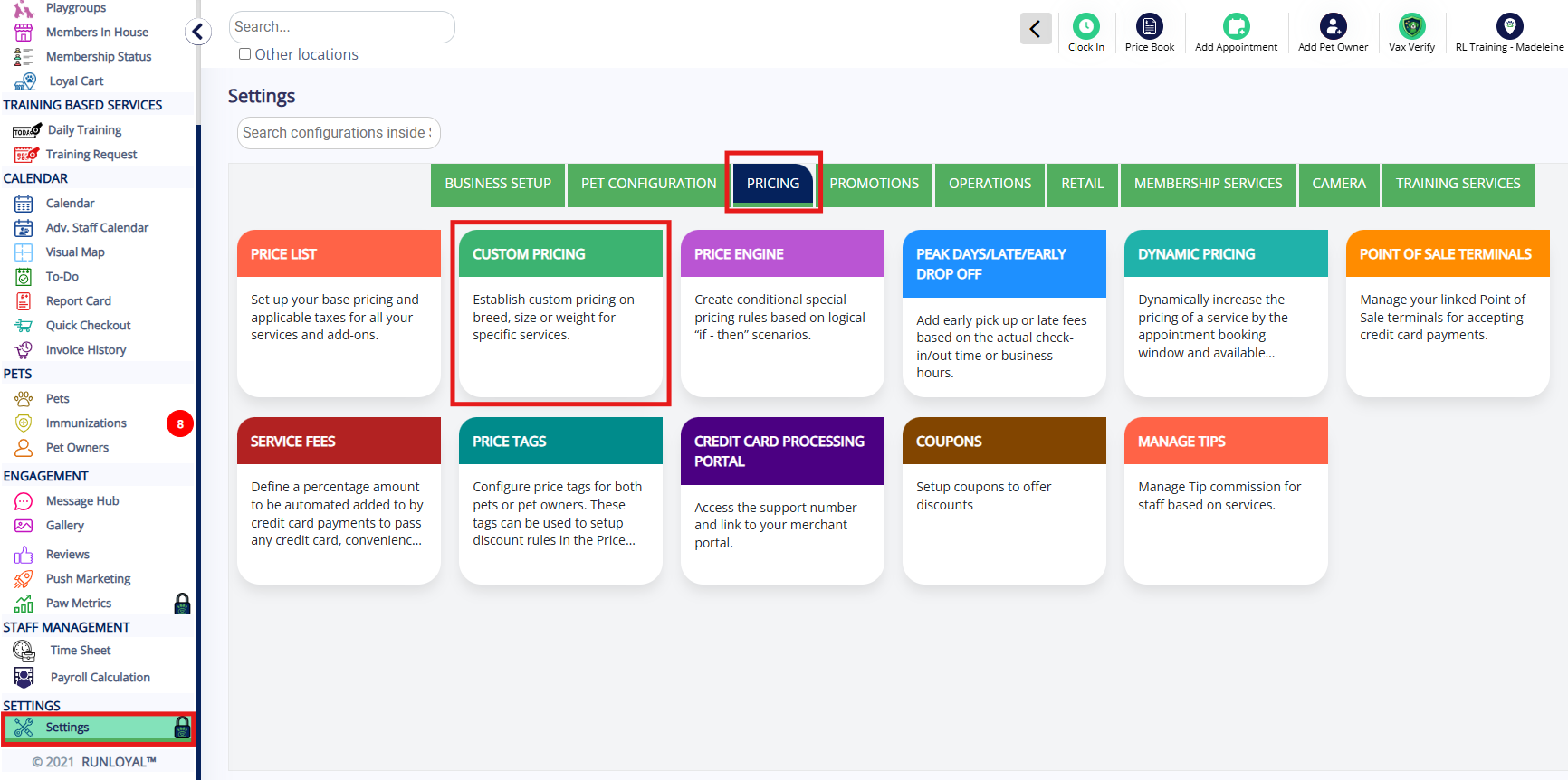
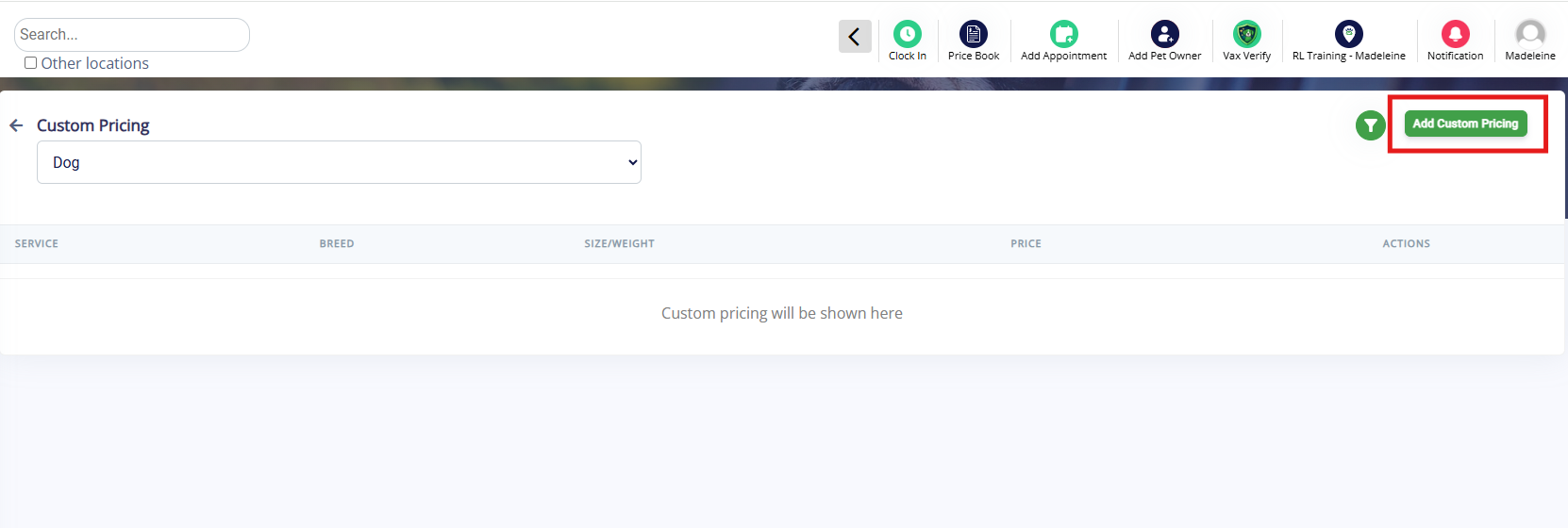
2. Click Add Custom Pricing in the top right corner.
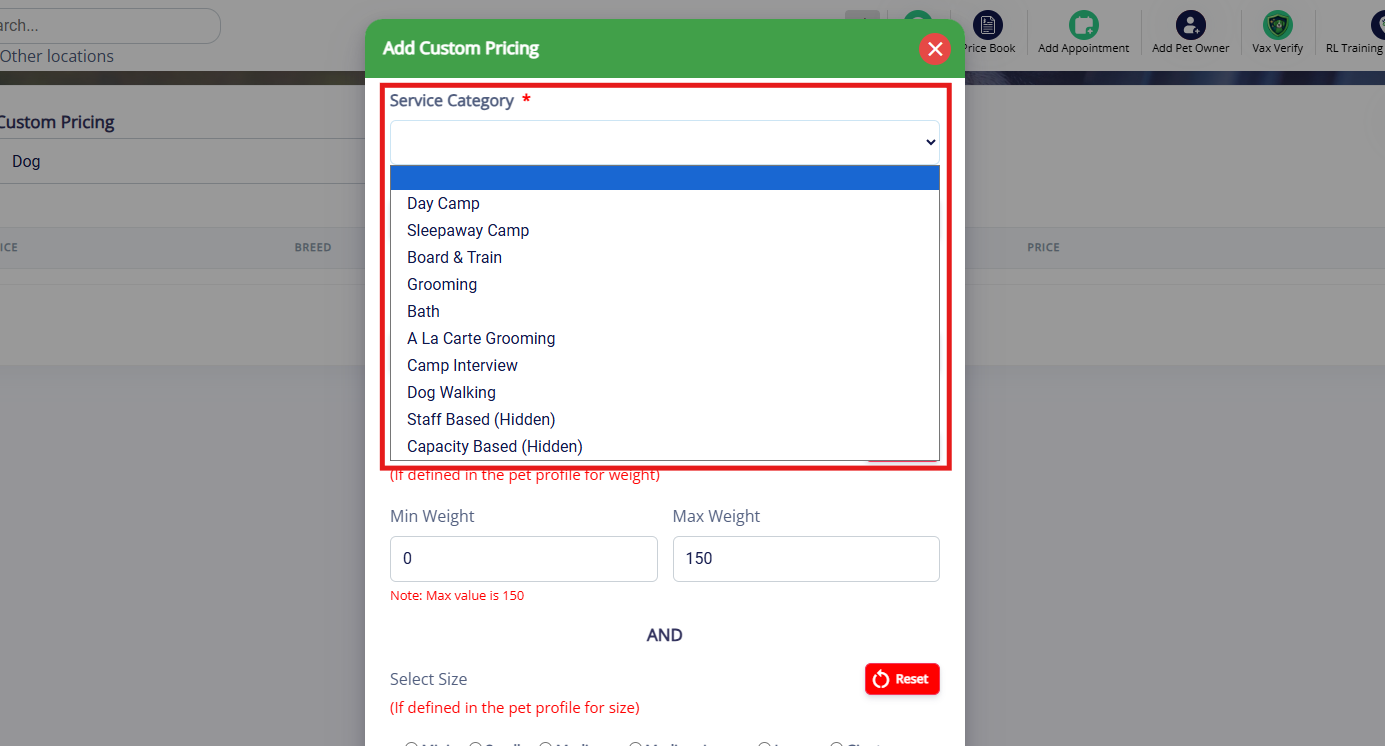
3. Select the Service Category where this custom pricing should apply, such as Grooming.
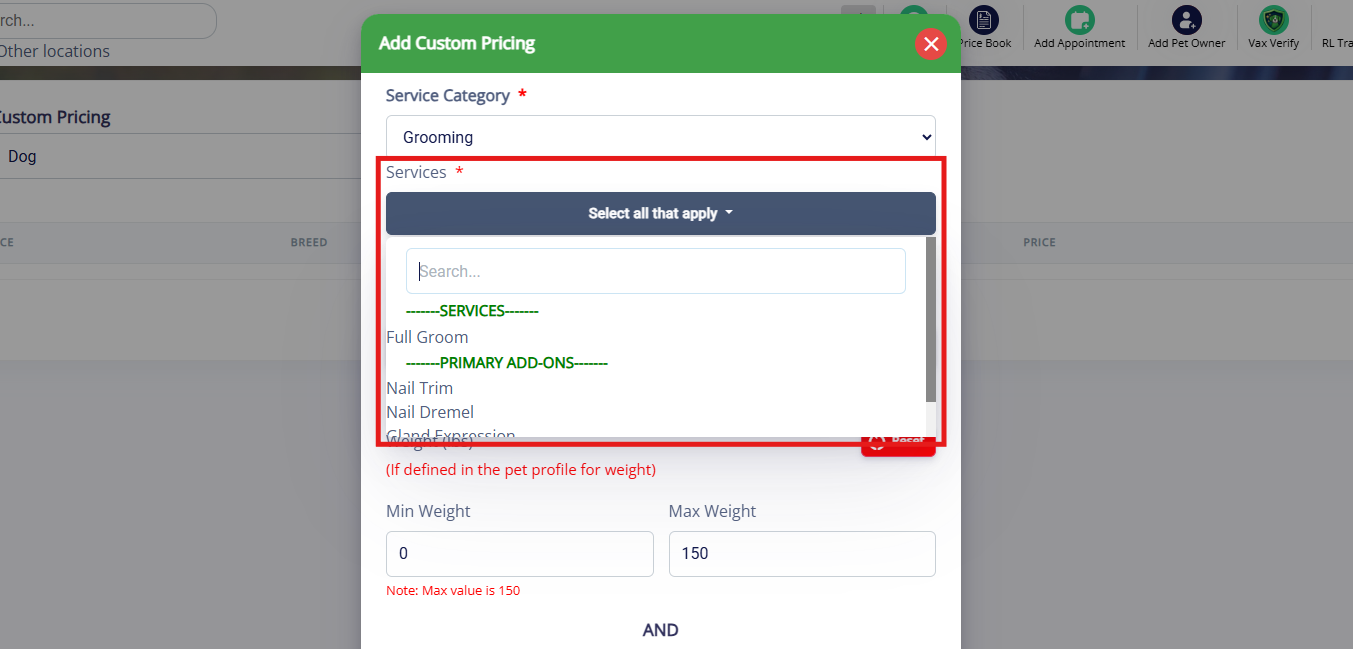
4. Select the Service(s) that this should apply to, such as Full Groom.
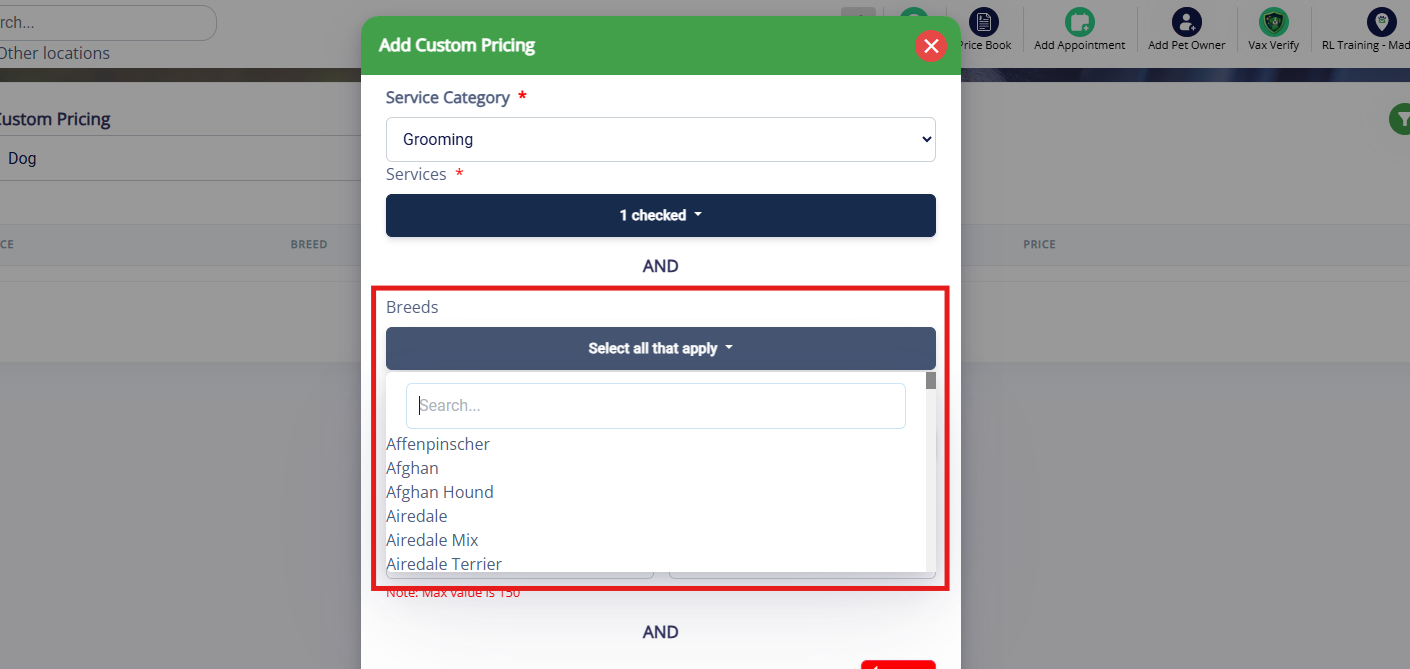
5. If desired, select the Breed that this custom pricing should apply to, such as German Shepherd and German Shepherd mix.
⚠️Please note: You must choose breed(s) + weight OR weight + size.
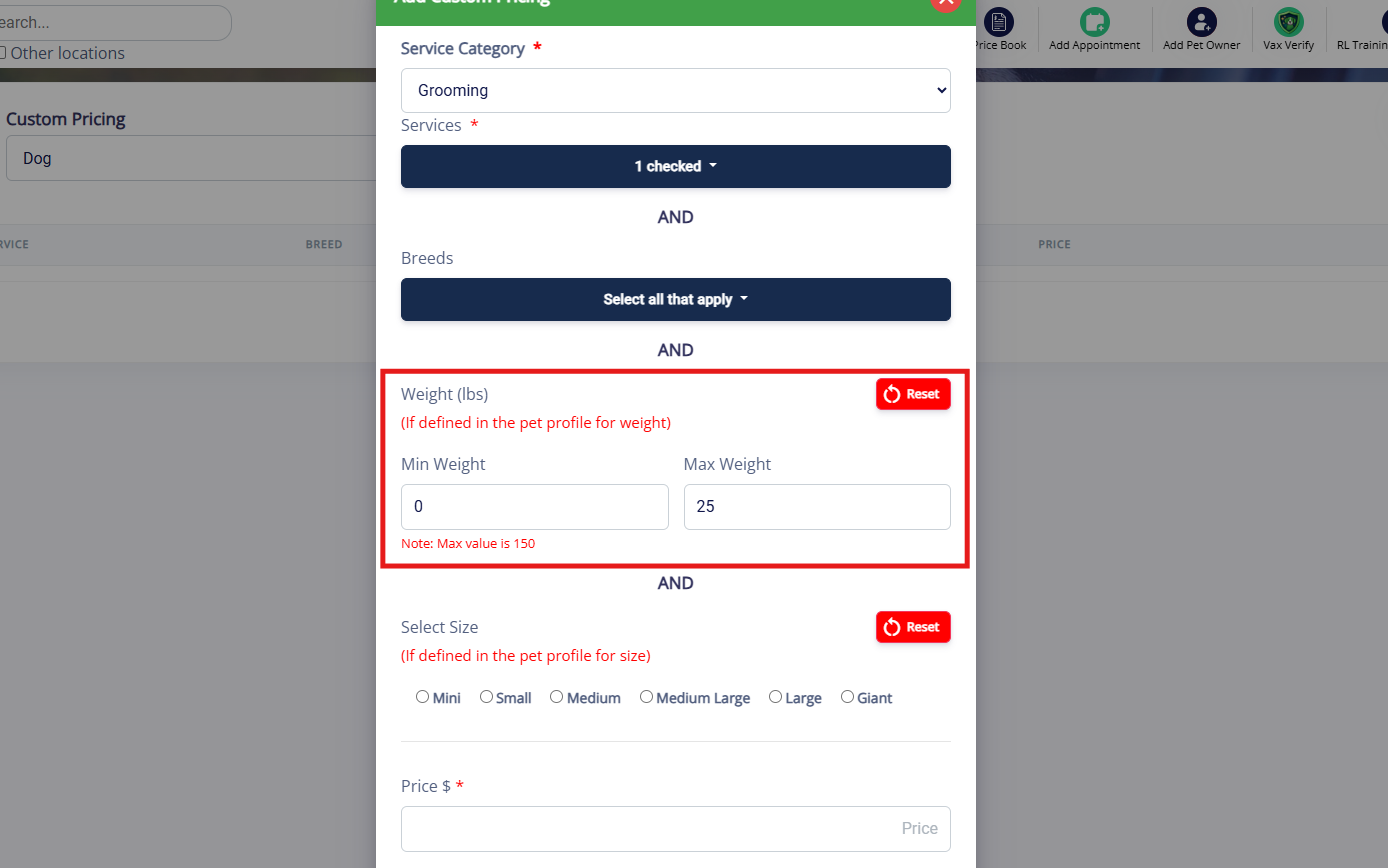
6. Enter the Weight that this custom pricing should apply to, such as 0 to 25 lbs. The maximum weight is 150.
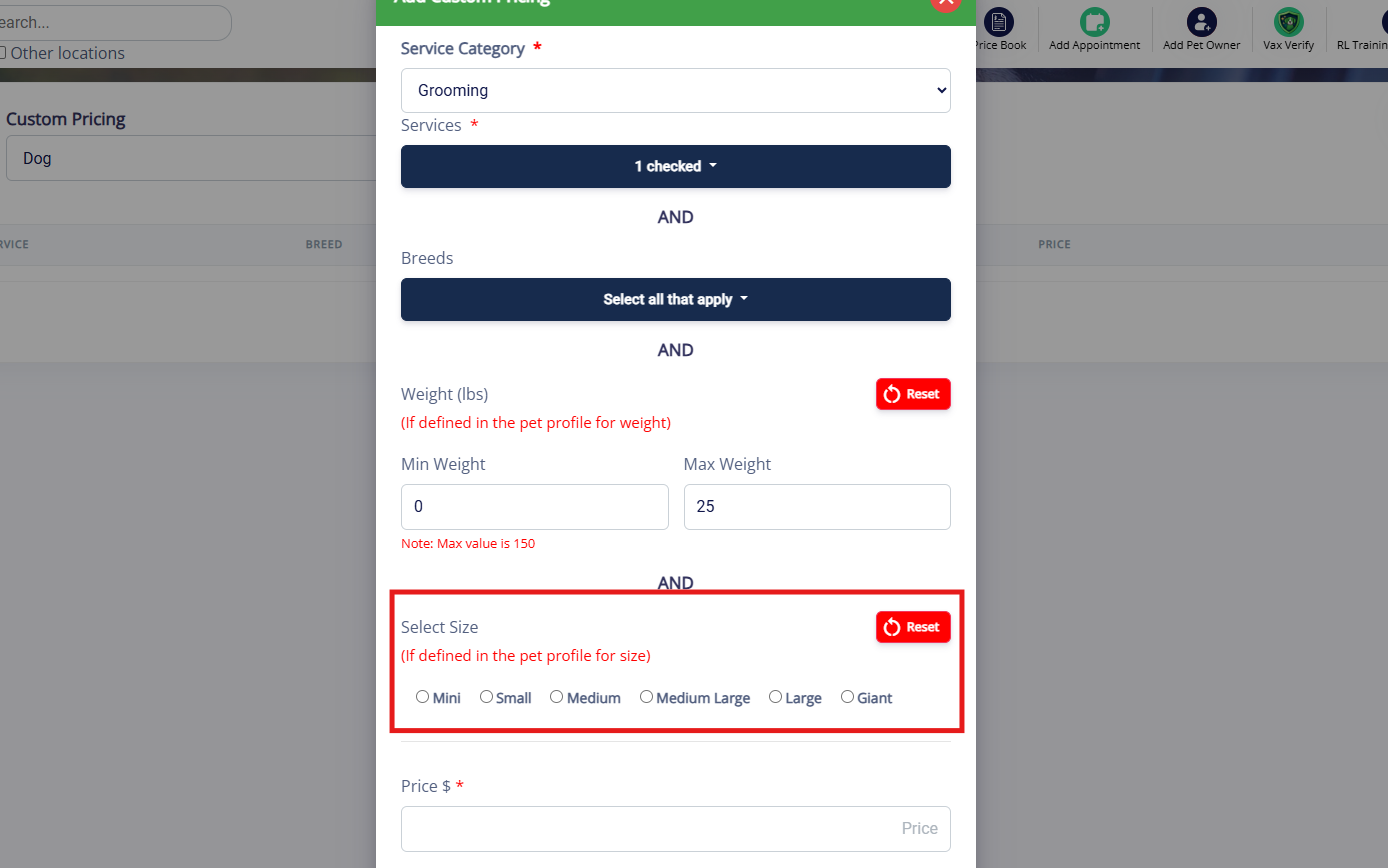
7. If desired, select the Size that this custom pricing should apply to, such as Small, Medium, Large, etc. These sizes are set on the pets' profile.
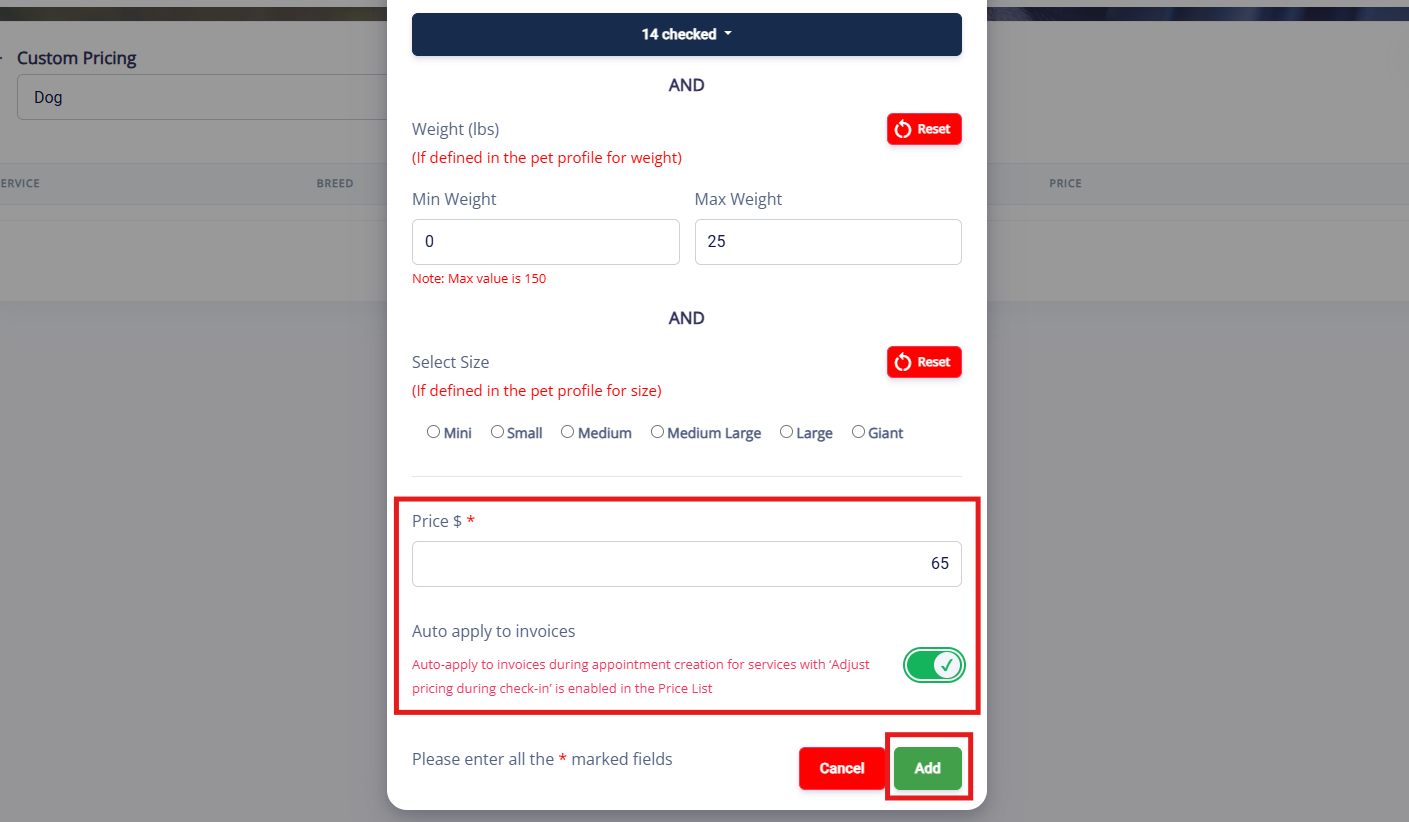
8. Enter the price. If you want the price to automatically apply to the invoice, toggle on the Auto-apply to invoices button which will cause the price to apply automatically once the appointment is checked in (you can also toggle on in advance of checkin). Then click Save.
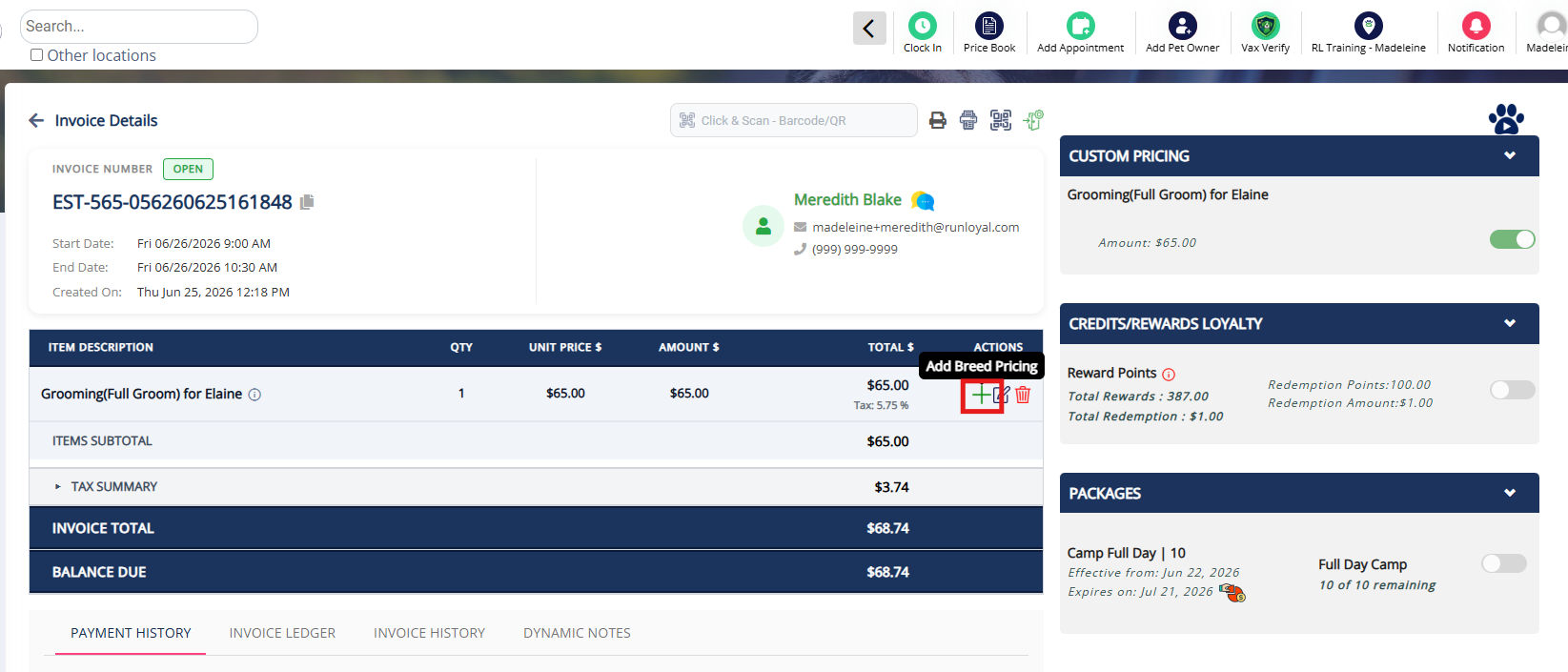
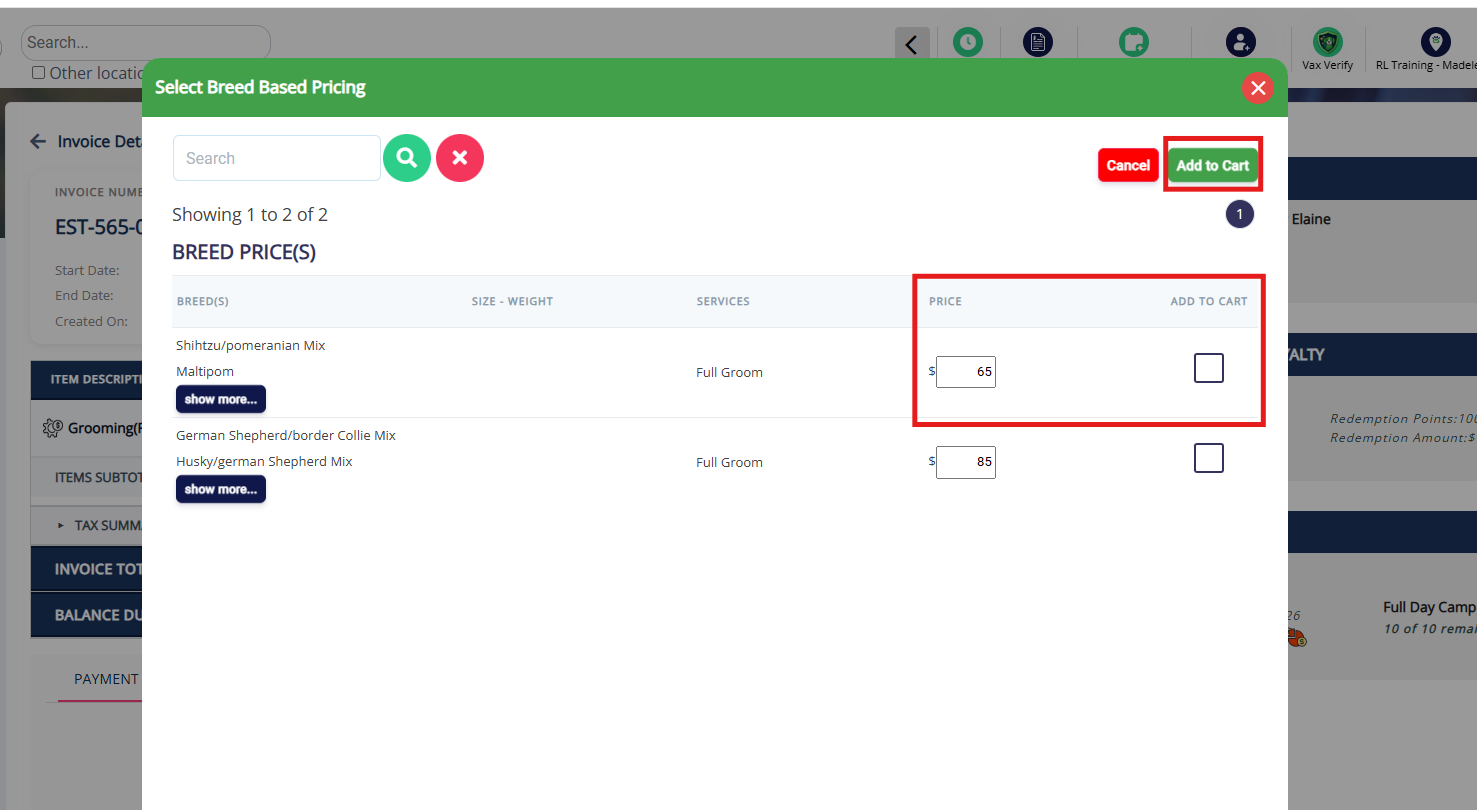
⚠️Please note: If this setting is not toggled on, you will need to manually add the price on the invoice by clicking the plus sign and selecting the correct price..
9. Confirm your custom pricing shows as expected. Continue adding custom pricing until all your breeds and weights are entered into the system.
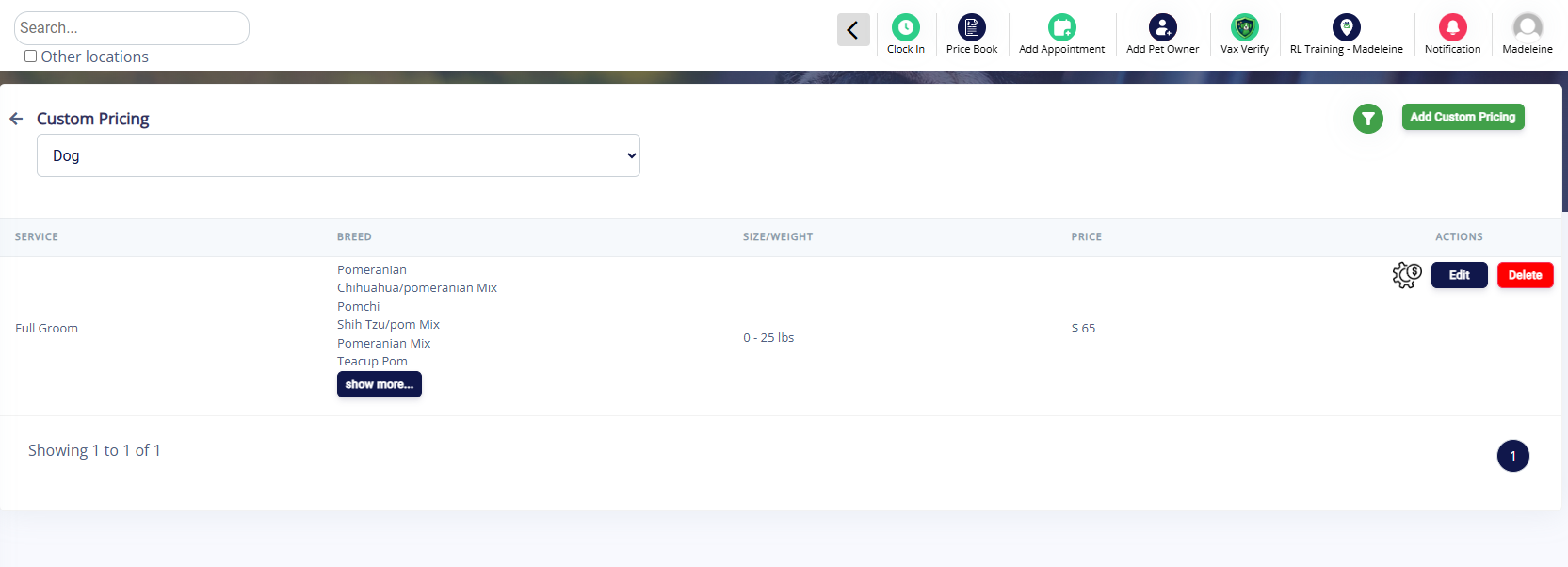
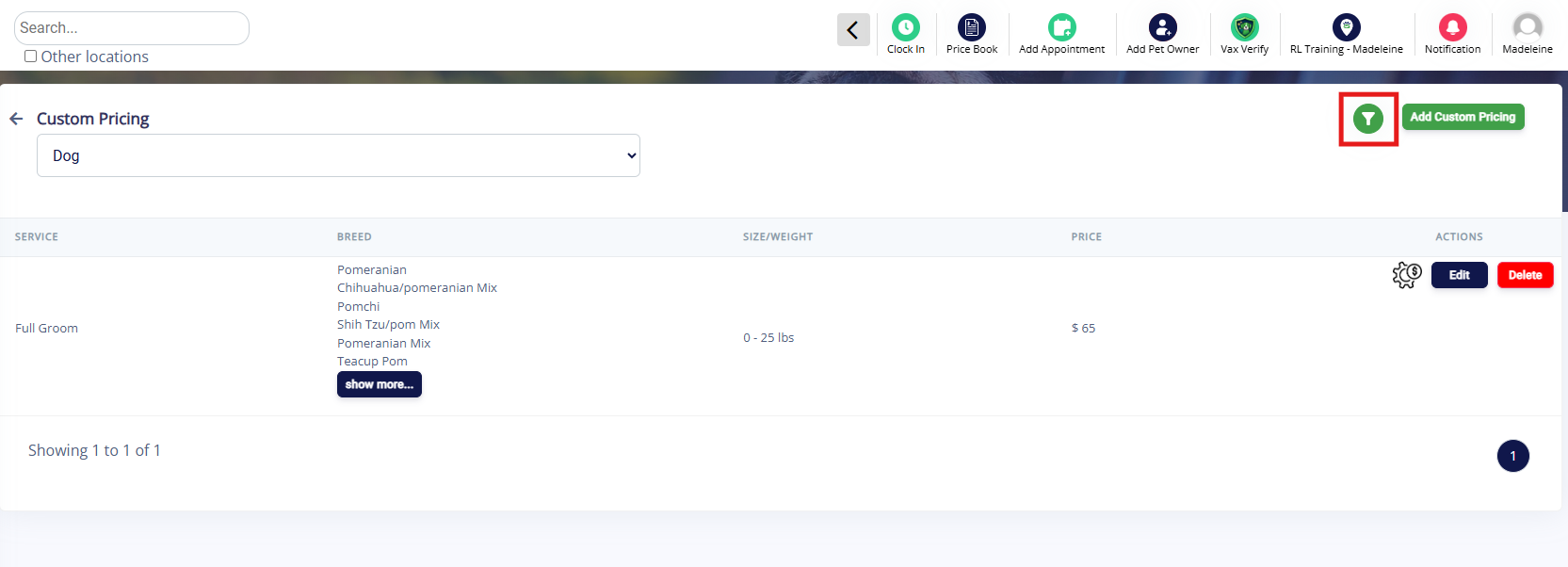
10. If you wish to view custom pricing for only some services, click the Filter (green funnel icon) in the top right corner.
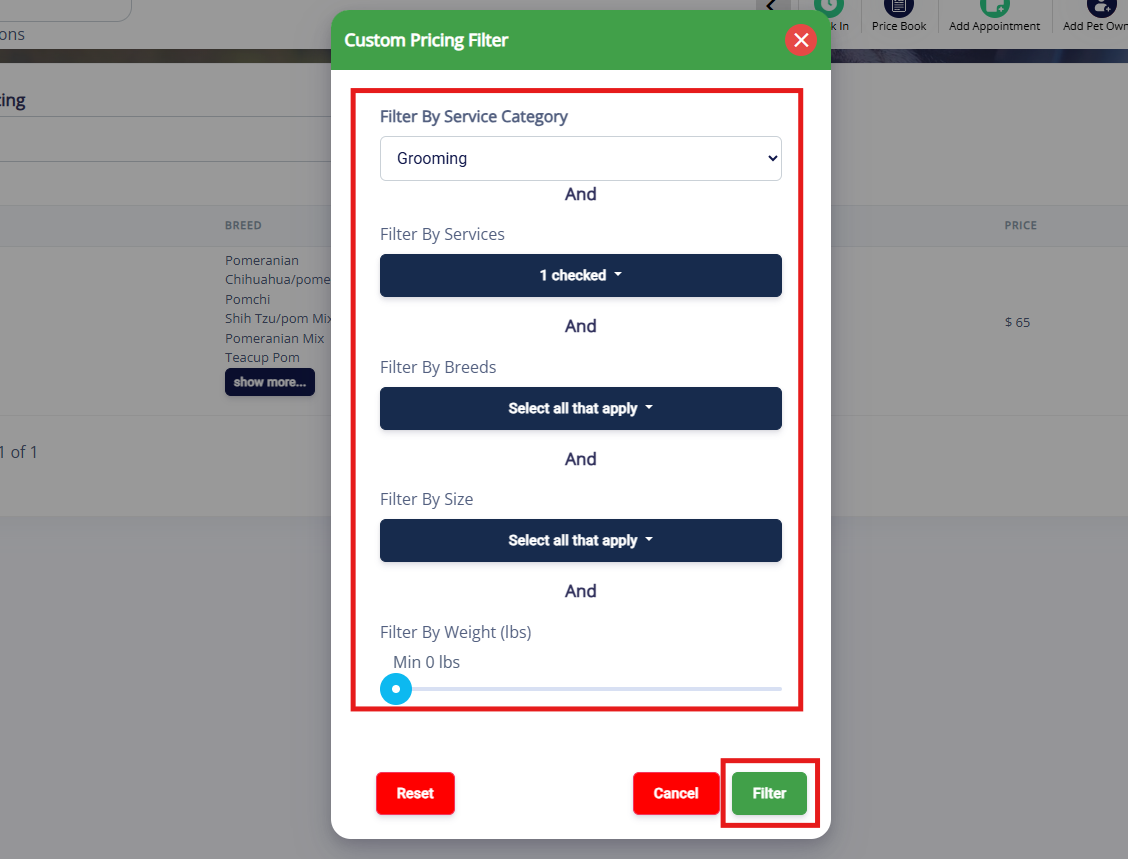
11. Select the desired service category and/or service. Optionally, filter by a specific service within that category. Then click Filter to view results.
Custom Pricing Display on Invoices
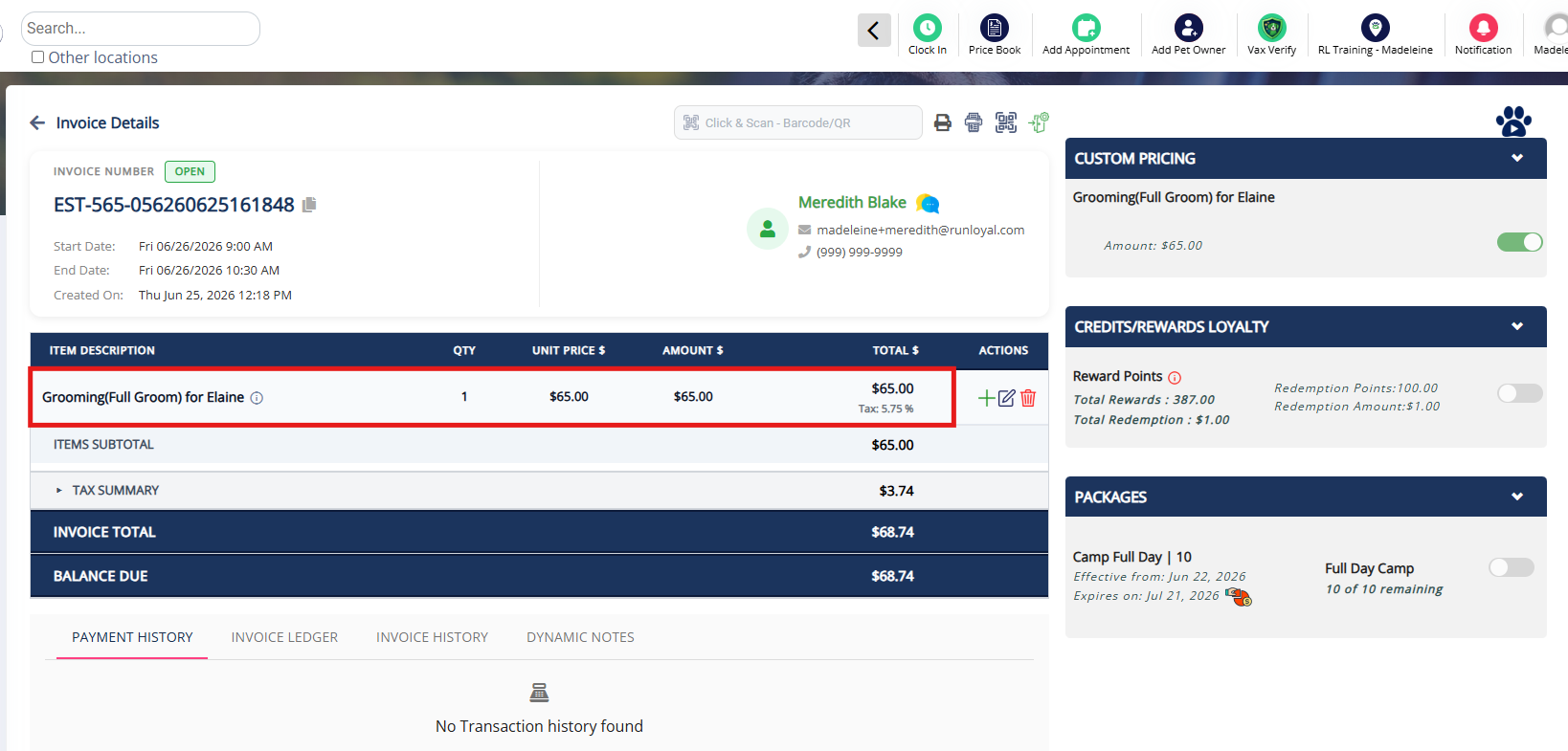
1. On an invoice where the pet meets the required criteria (such as breed + weight), you will see the pricing rule for custom pricing. Prior to checkin, this rule will be toggled off, but you can toggle it on in advance. Once the pet is checked in, it will turn on automatically if Auto apply to invoice is enabled in the custom pricing settings.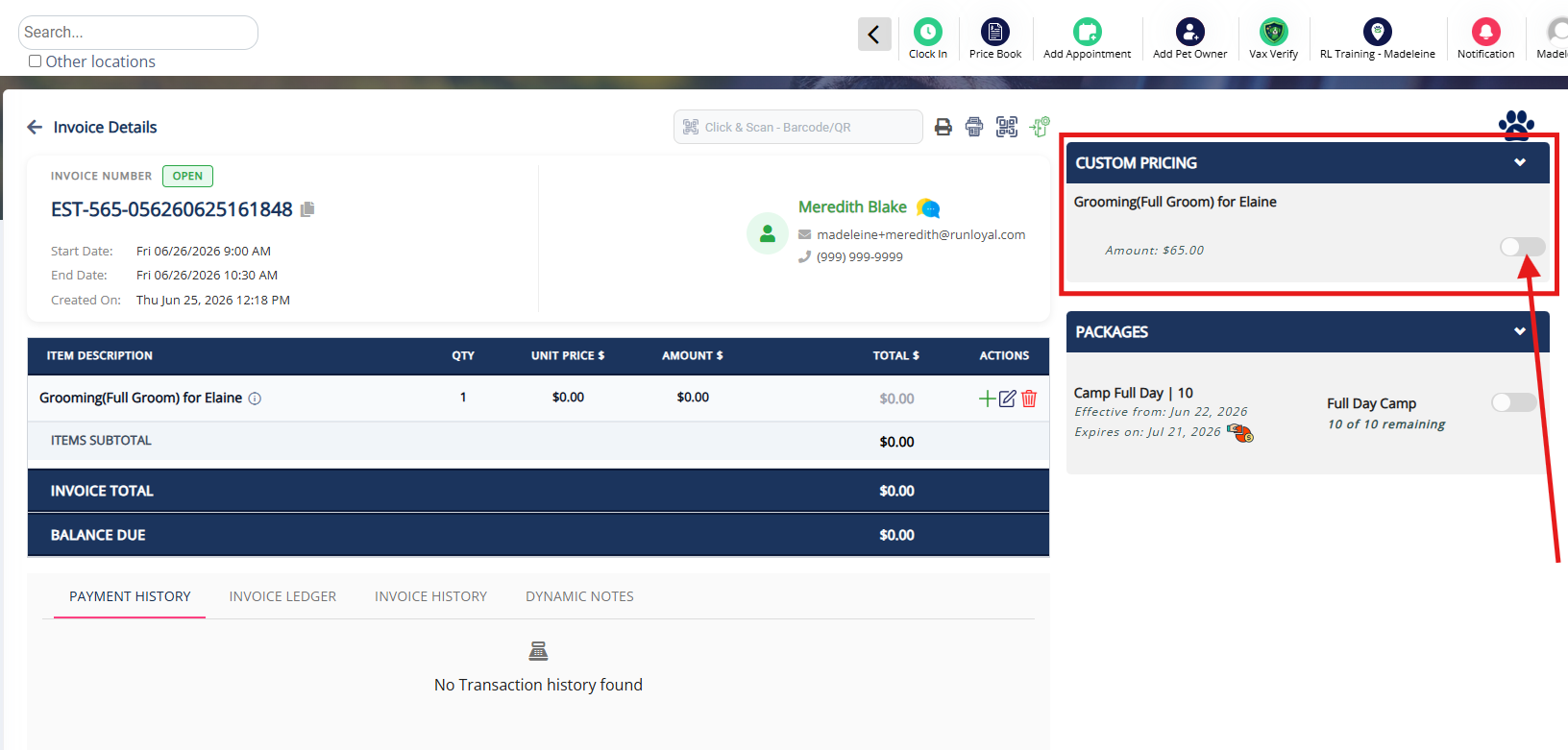
2. Once enabled, the pricing will display for the item on the invoice.
3. If you wish to manually select the price, click the + icon next to the item in question.
4. Select the appropriate item, confirm the price, and click Add to Cart. This will apply that price to the item in the cart.
More Information
For more information on Price Lists (standard pricing), please refer to this article: Set Up Pricing, Deposits, & Cancellation/No-Show Fees
For more information on increasing your prices, please refer to this article: Updating Your Prices (Future Rates)
Was this article helpful?
That’s Great!
Thank you for your feedback
Sorry! We couldn't be helpful
Thank you for your feedback
Feedback sent
We appreciate your effort and will try to fix the article