Overview
Checking out a pet is the final step in completing an appointment and ensuring all services are accurately recorded and paid for. During checkout, staff can review and confirm service pricing, apply available packages, and collect payment from the pet owner. This process supports flexibility in payment, allowing staff to take full or partial payments, as well as add any last-minute charges before finalizing the invoice.
Checking out can happen in the following areas:
- Viewing appointment invoice
- Appointments tab > Checkout
- Daily Snapshot > Checkout
TABLE OF CONTENTS
- Overview
- How to Check Out an Appointment and Collect Payment
- How to Check Out an Appointment Without Payment
- More Information
How to Check Out an Appointment and Collect Payment
1. From the Appointments tab, click the Checkout icon (green cart) next to the pet in question who needs to be checked out.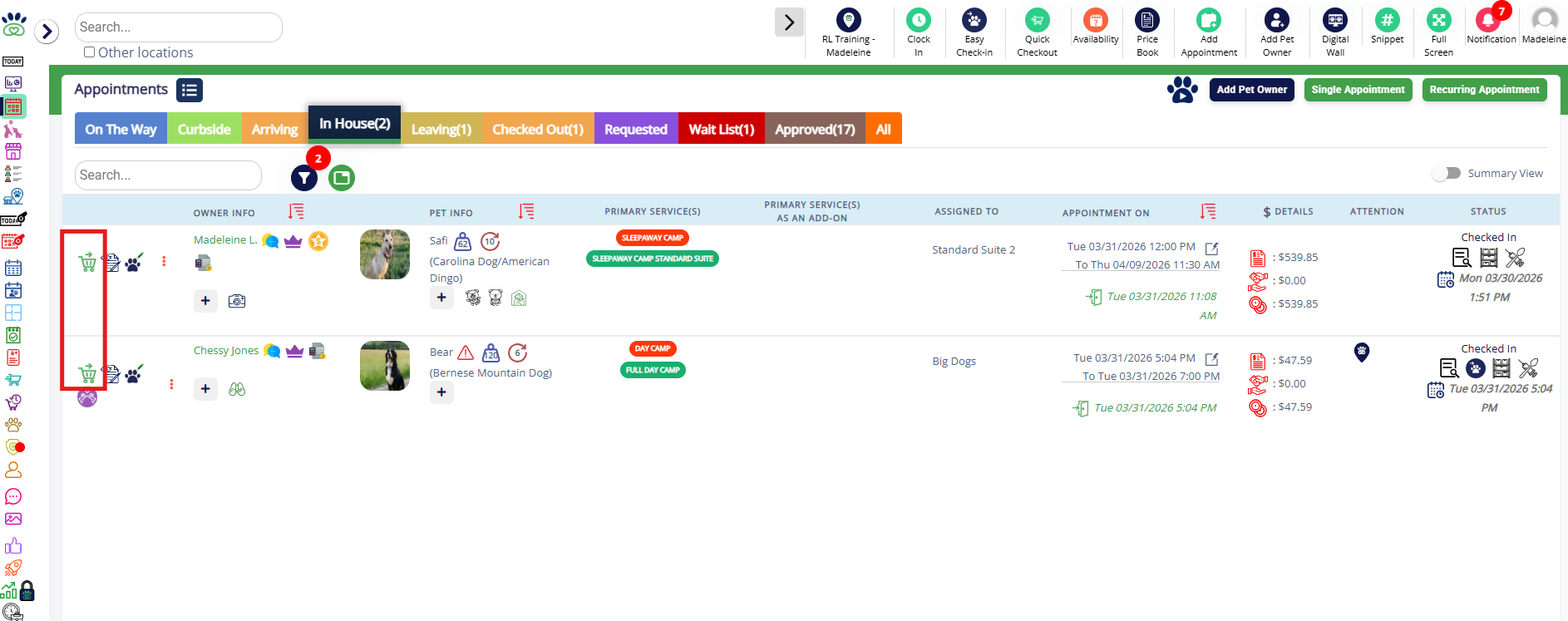
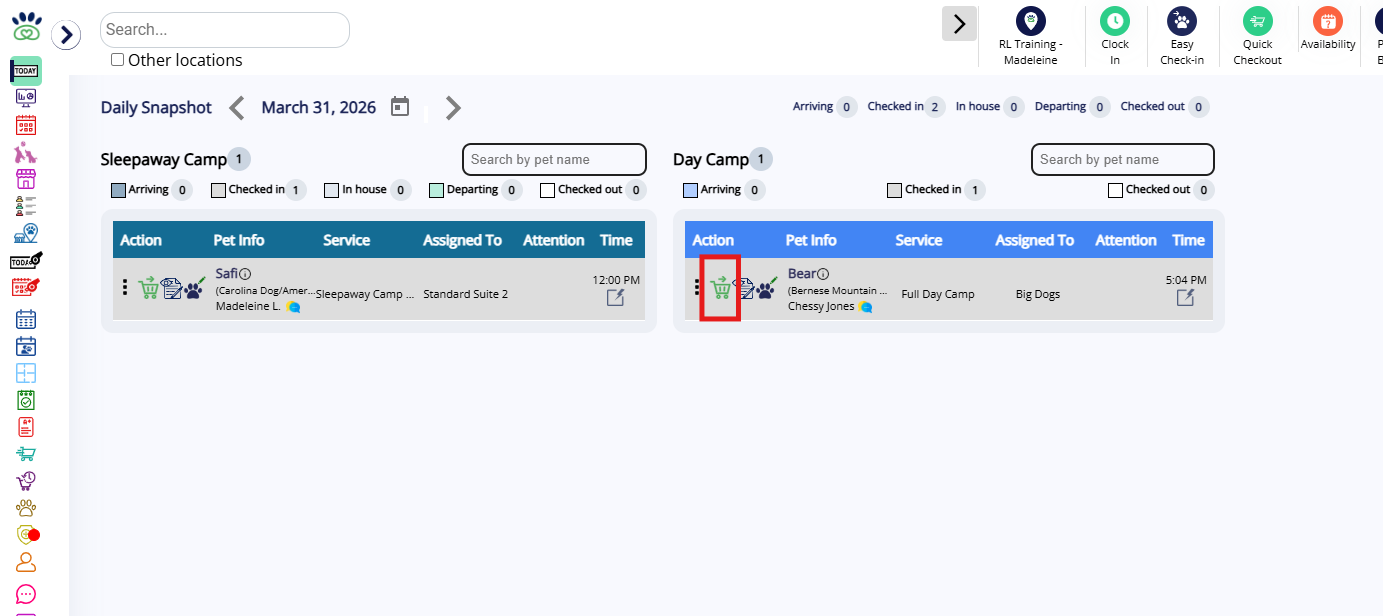
2. You can also navigate to the Daily Snapshot tab and click the Checkout icon (green cart) next to the pet in question who needs to be checked out.
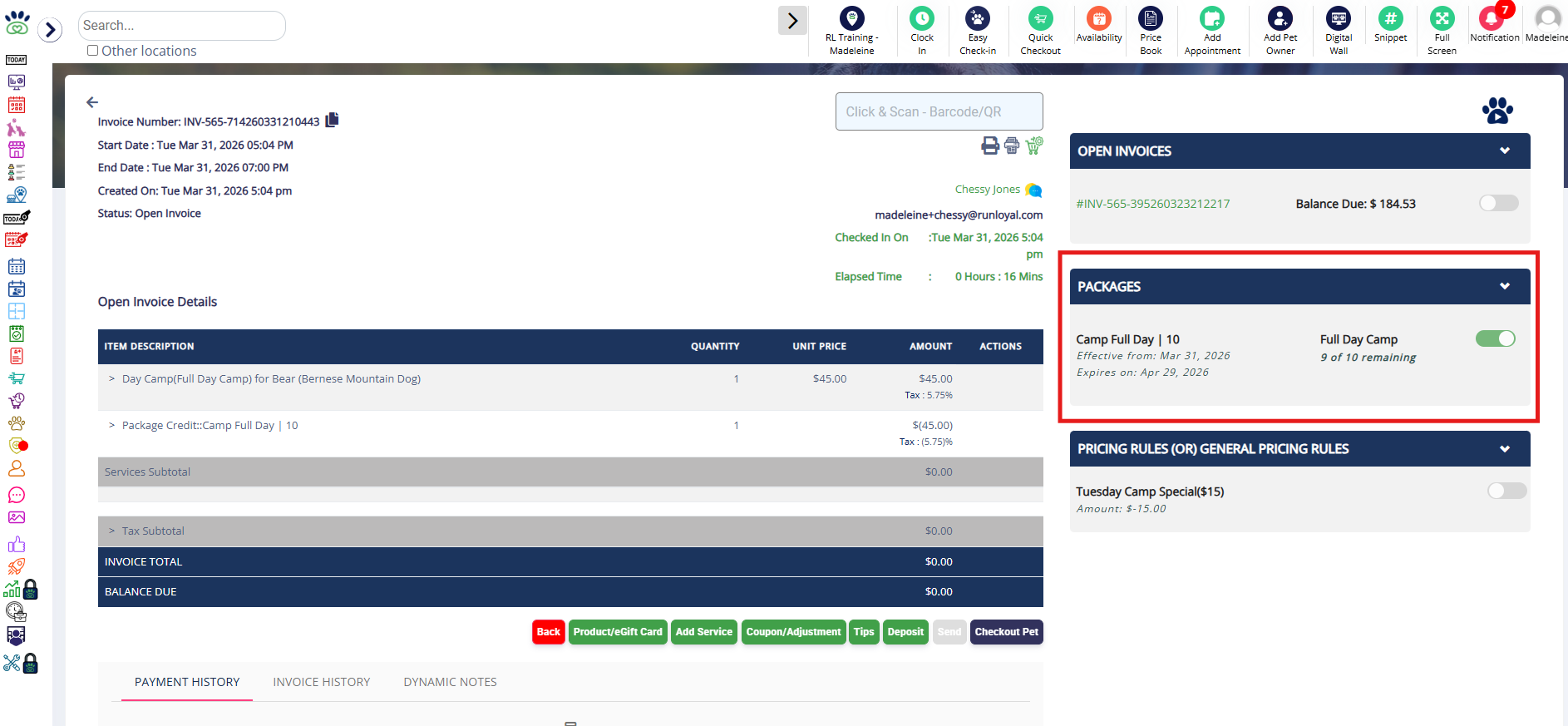
3. If applicable, the right-hand side will display items that can be handled or applied to the invoice. If the pet owner has an available package that can be applied, this will display under Packages. The package can be set to apply by default, or you can apply it manually, which will display the deduction on the invoice.
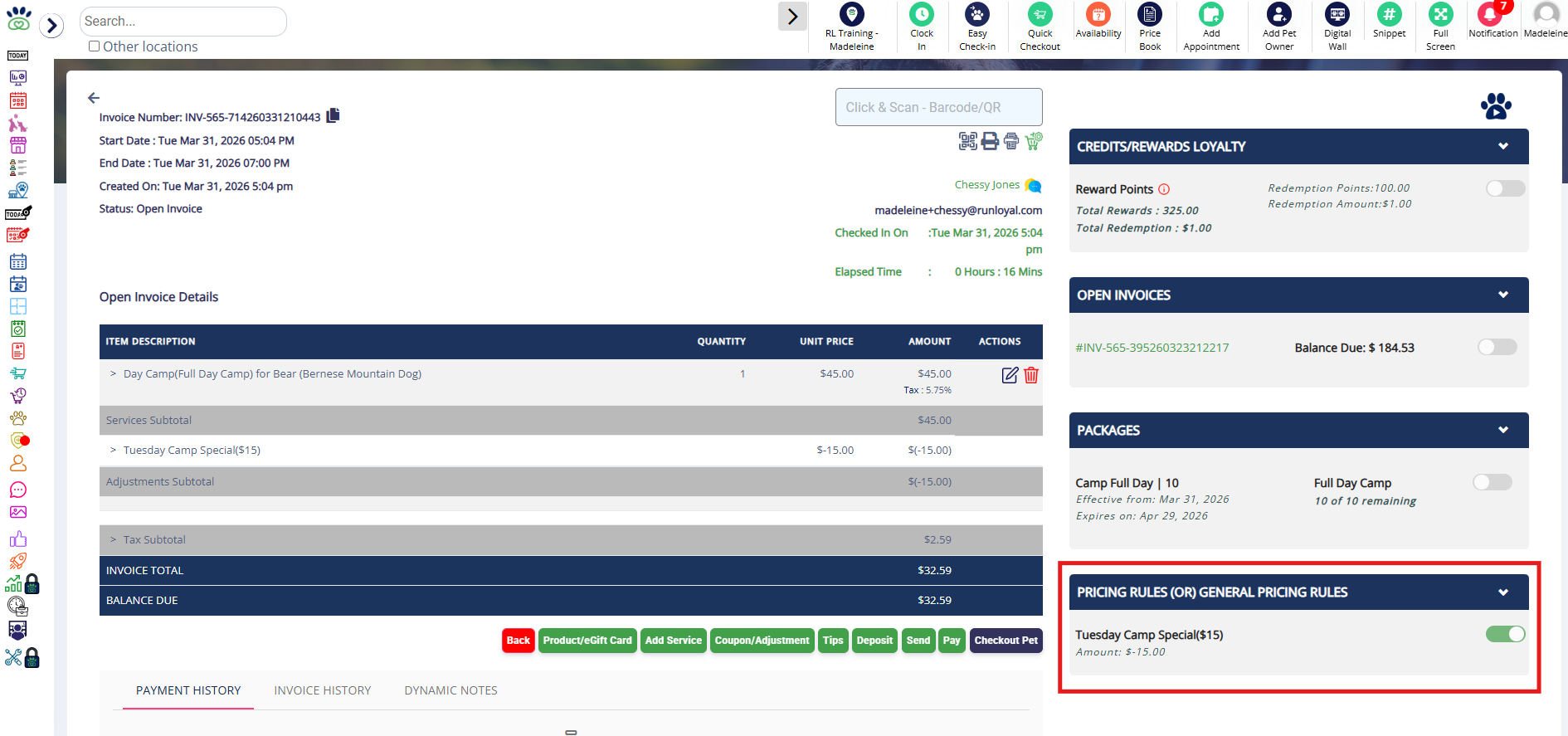
4. If there are pricing rules that apply to the service(s), they will display under Pricing Rules (OR) General Pricing Rules. These are automated discounts or surcharges that can apply to the bill. Pricing rules can be set to apply by default after checkin, or you can apply them individually. Once toggled on, you will then see the surcharge or discount on the invoice.
5. If the pet owner has Account Credit, Loyalty Points that can be redeemed, or e-Gift Card balances, these can be applied to the invoice.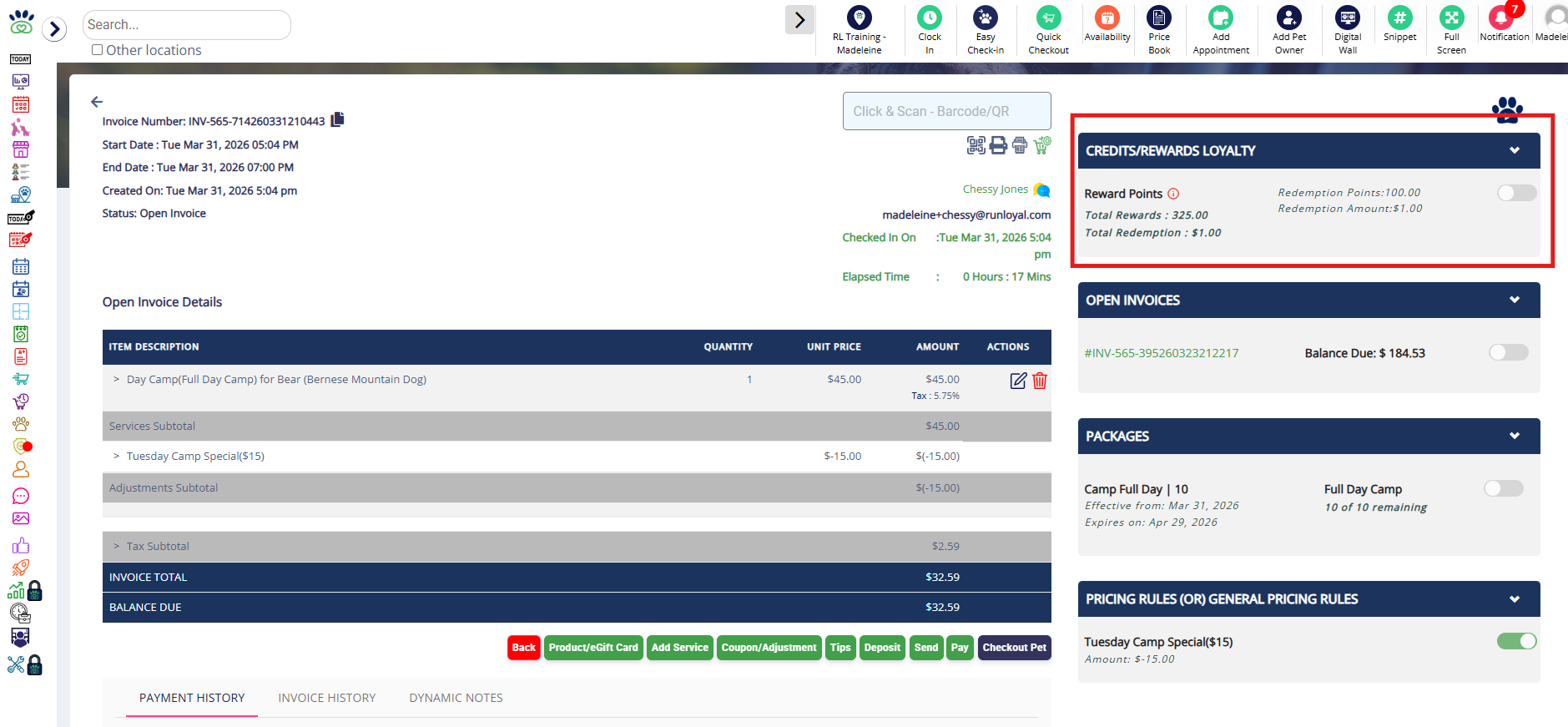
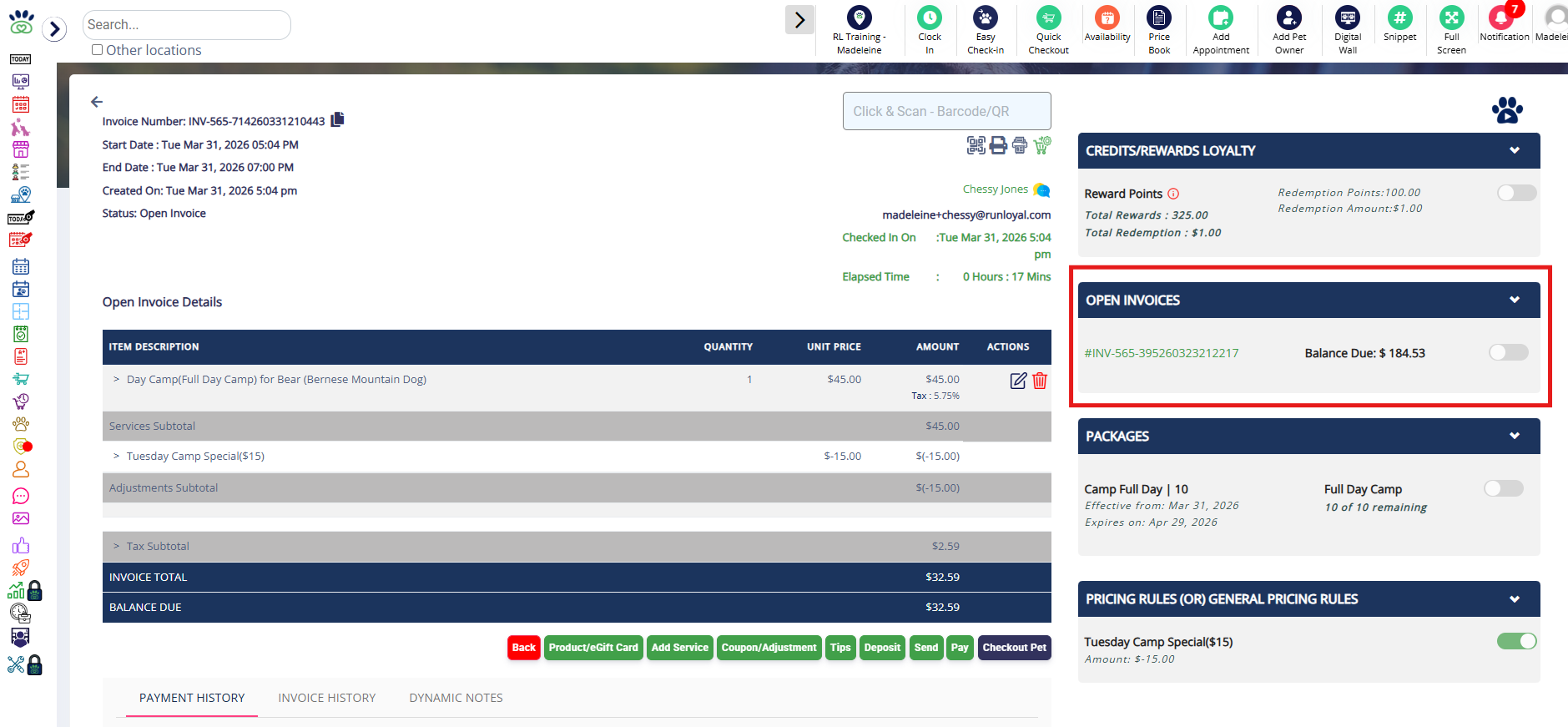
6. If the owner has any other unpaid invoices, these will display under Open Invoices. To view what is on each invoice, click the invoice ID to expand details. You can optionally toggle on the invoice to close the original invoice and add the balance to the current invoice.
⚠️ Important: Merging invoices cannot be undone. Please proceed with caution!
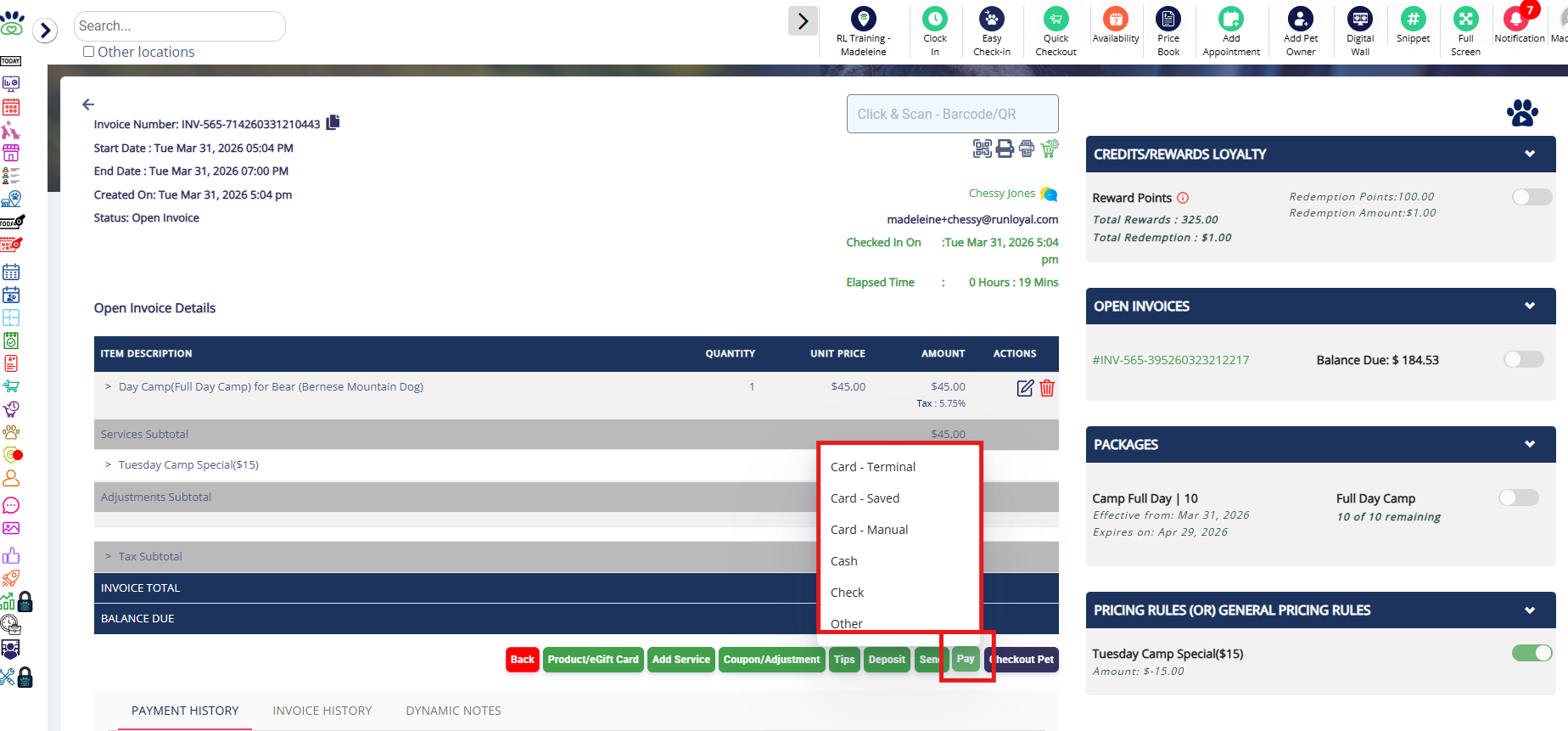
7. Existing payments will display on the invoice under Payments. If additional payment is required, when you are ready to collect payment, click Pay and then select the payment method (card, cash, check, other).
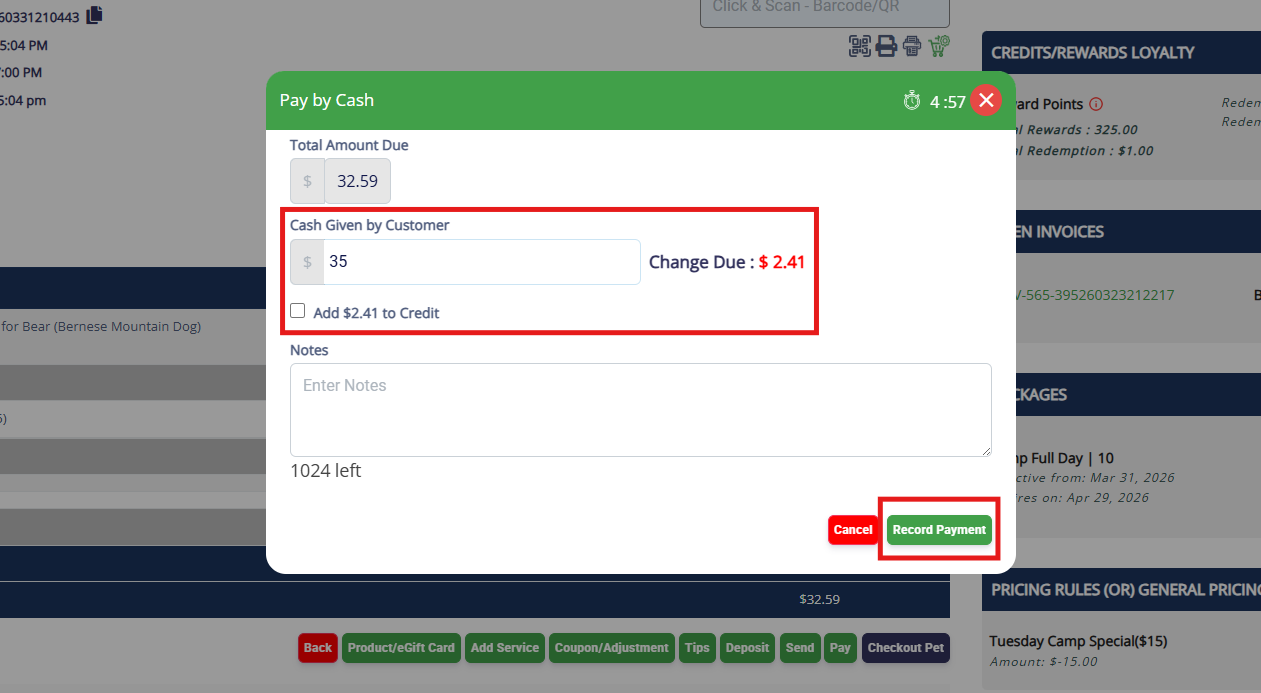
8. The amount due on the invoice will show in light gray. If you wish to enter a partial payment without fully paying the invoice, enter the amount in the box and click Record Payment. If you enter over the amount due, you will be prompted to either give change or add the overage to account credit.
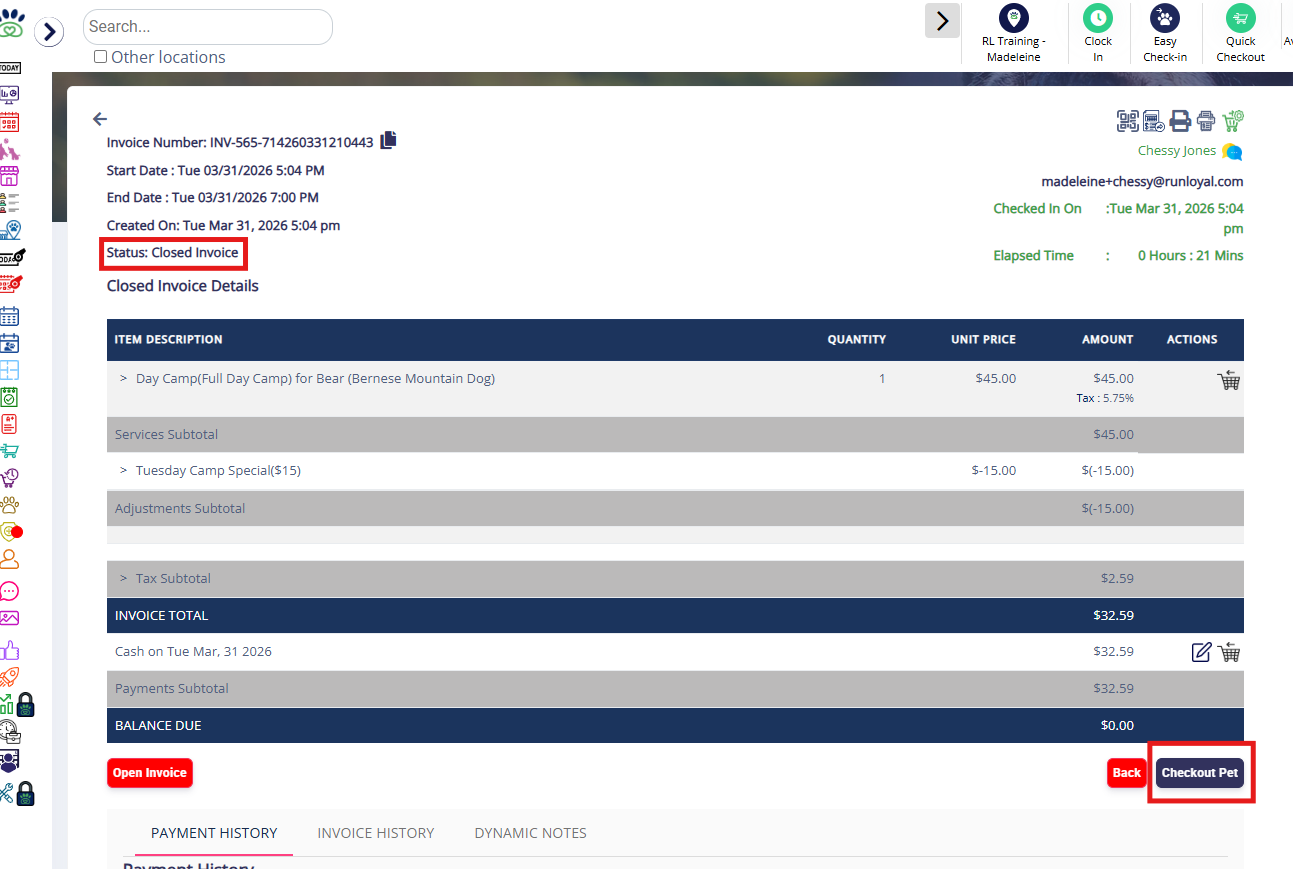
9. Once the invoice is fully paid, it will automatically become a Closed Invoice. Then click Checkout Pet to complete the appointment checkout.
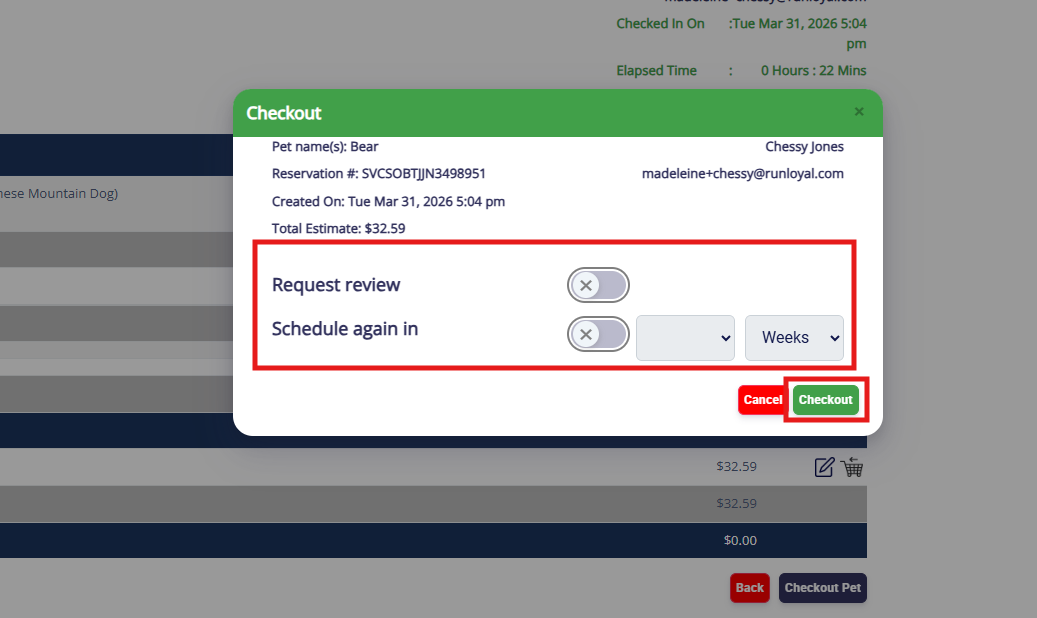
10. You can optionally toggle on to request a review from the pet owner, and/or schedule the pet for a future appointment. Once you have confirmed the toggles, click Checkout.
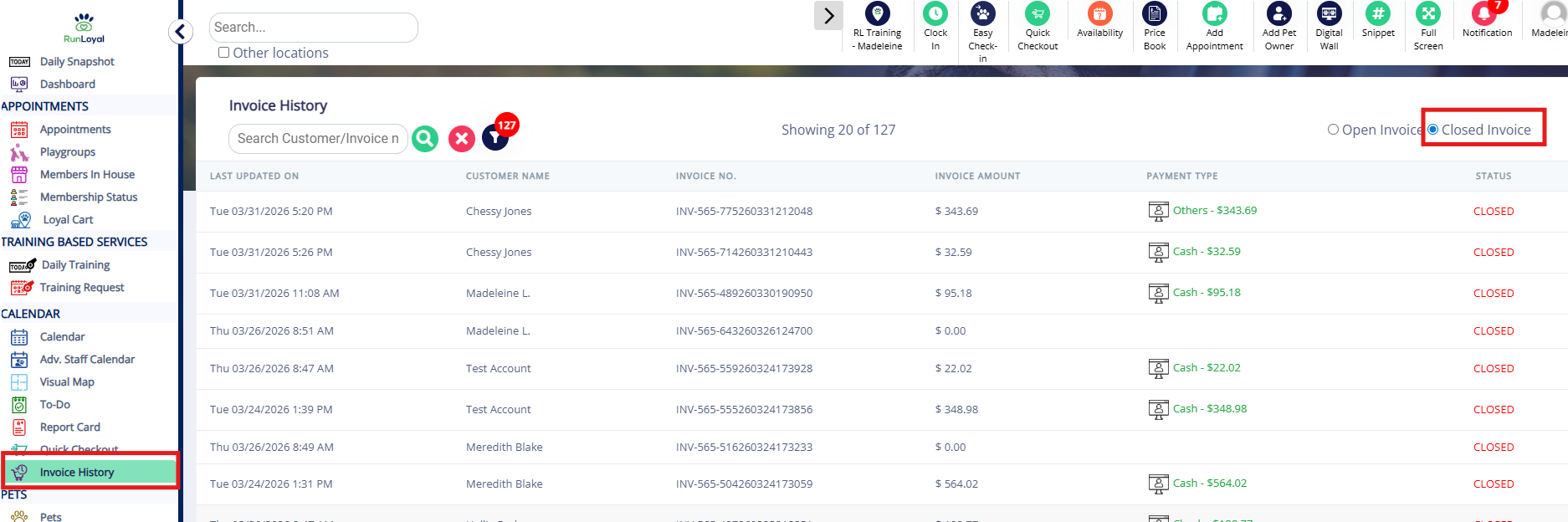
11. This fully paid invoice will now display in Invoice History > Closed Invoices.
How to Check Out an Appointment Without Payment
1. From the Appointments tab or Daily Snapshot tab, click the Checkout icon (green cart) next to the pet in question who needs to be checked out.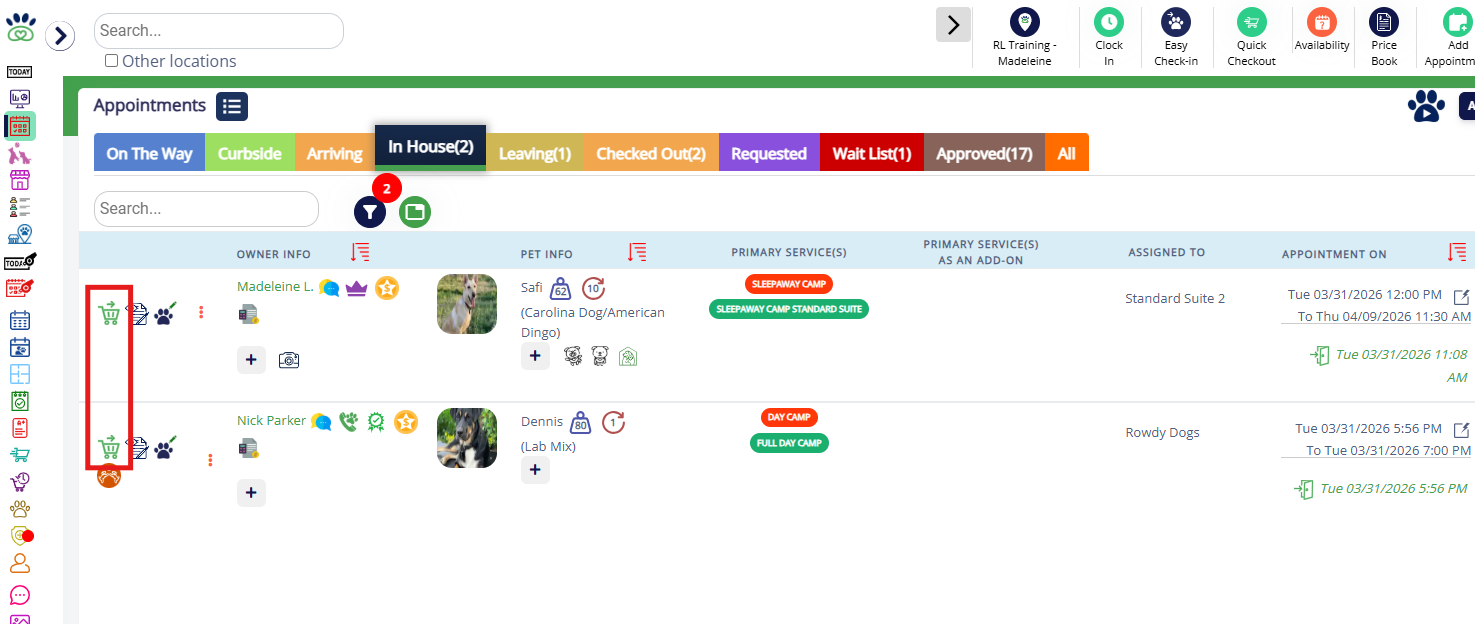
2. Existing payments will display on the invoice under Payments. If you wish to collect additional partial payment, click Pay and then select the payment method (card, cash, check, other).
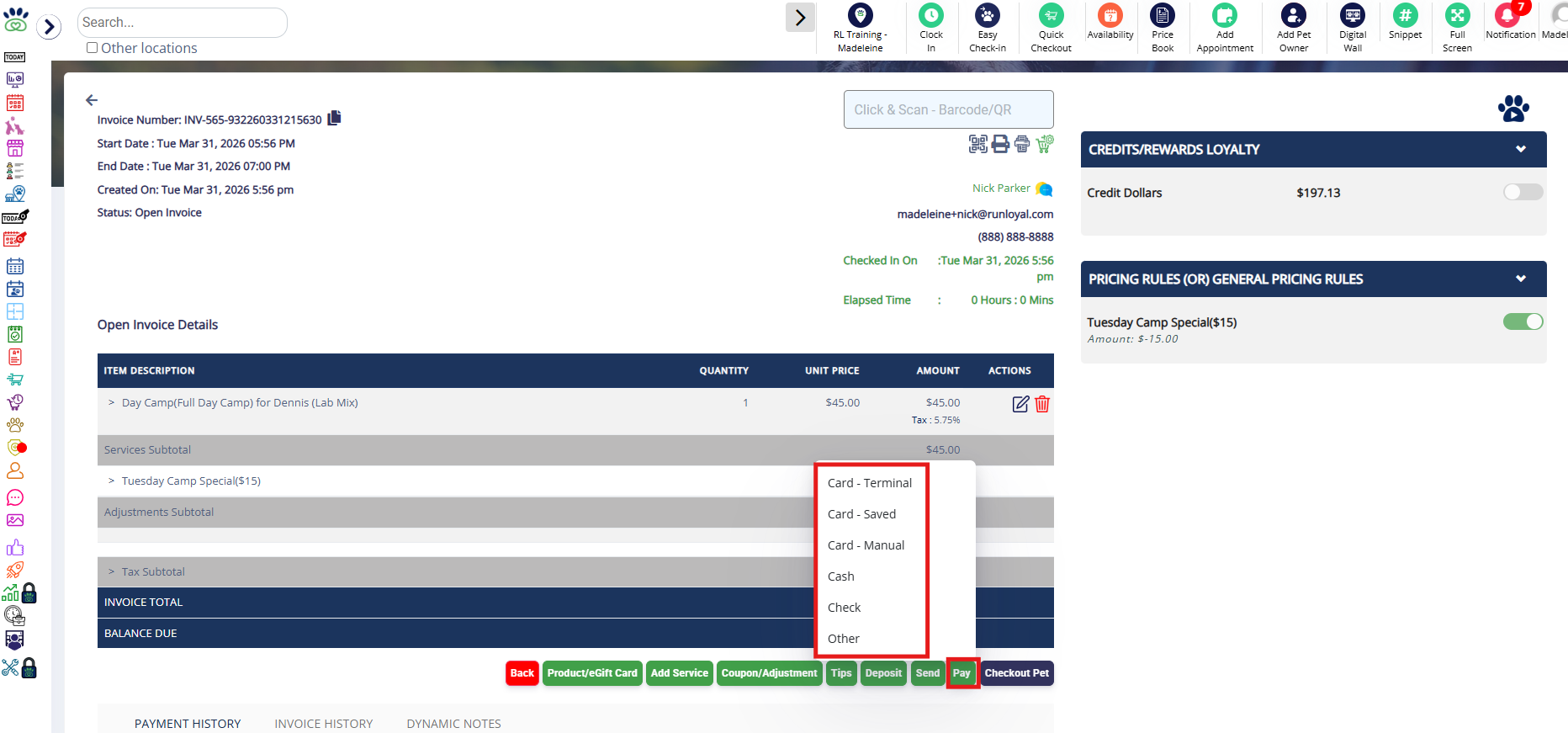
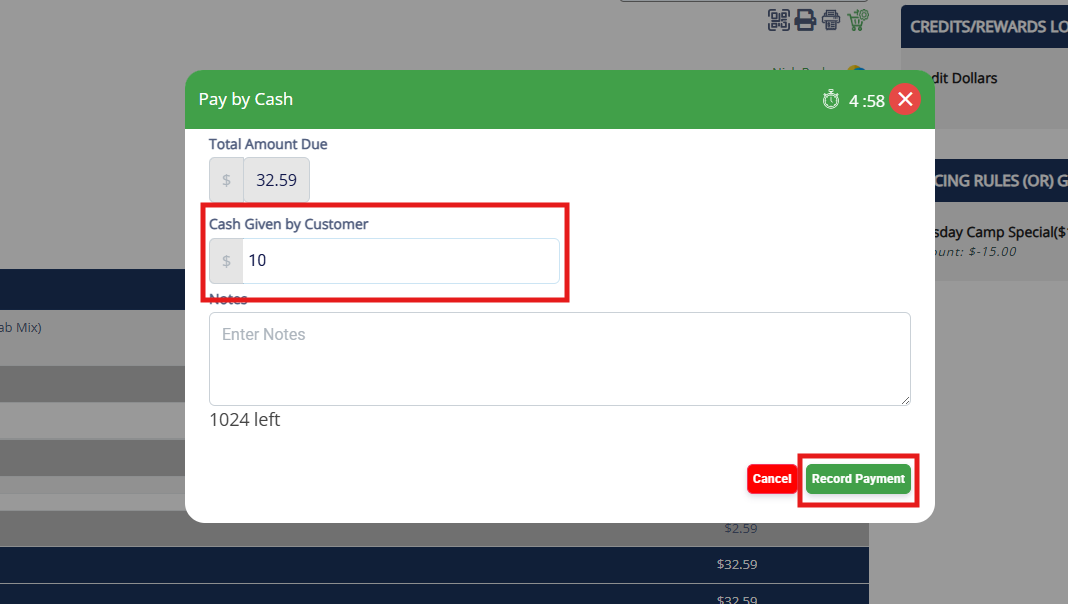
3. The amount due on the invoice will show in light gray. If you wish to enter a partial payment without fully paying the invoice, enter the amount in the box and click Record Payment.
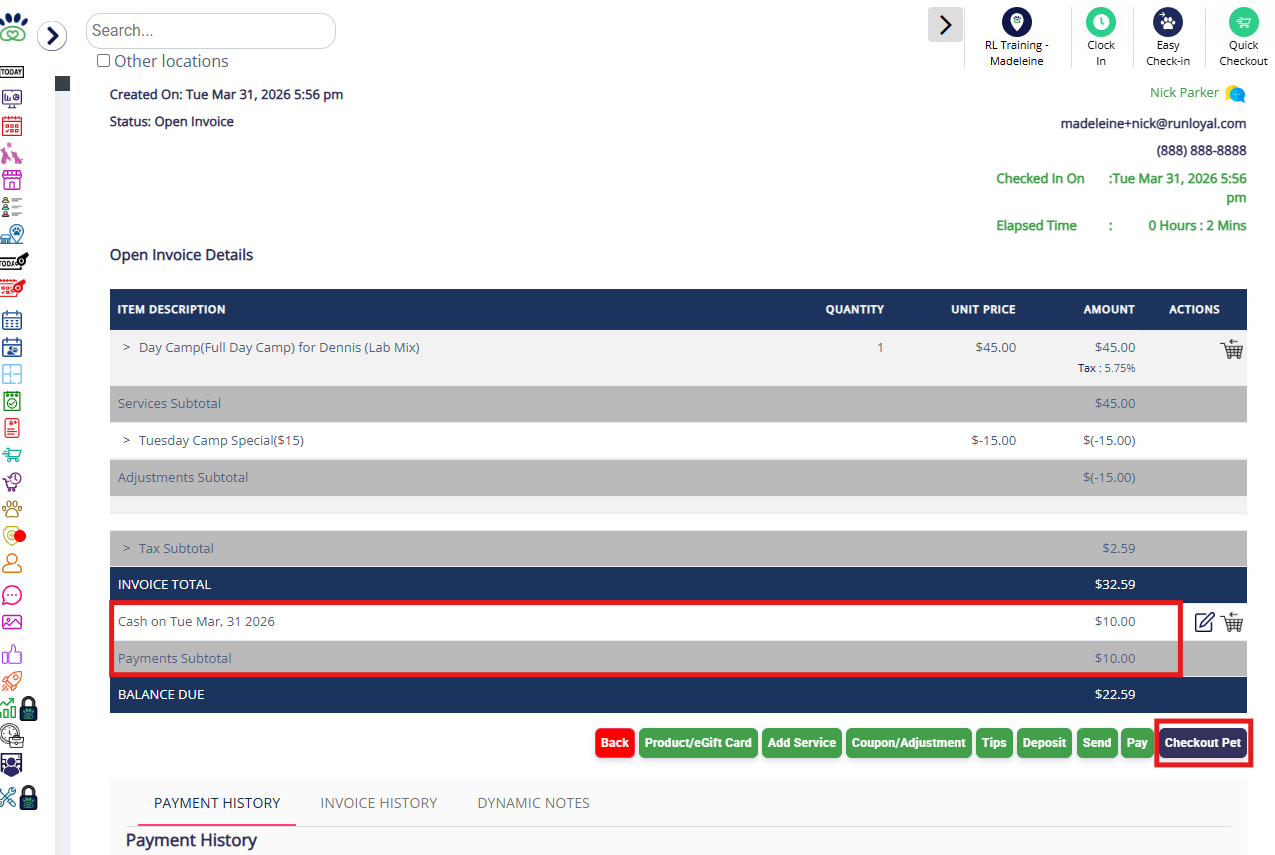
4. If the invoice is not fully paid, it will remain an Open Invoice. If you are not going to collect additional payment, then click Checkout Pet to complete the appointment checkout.
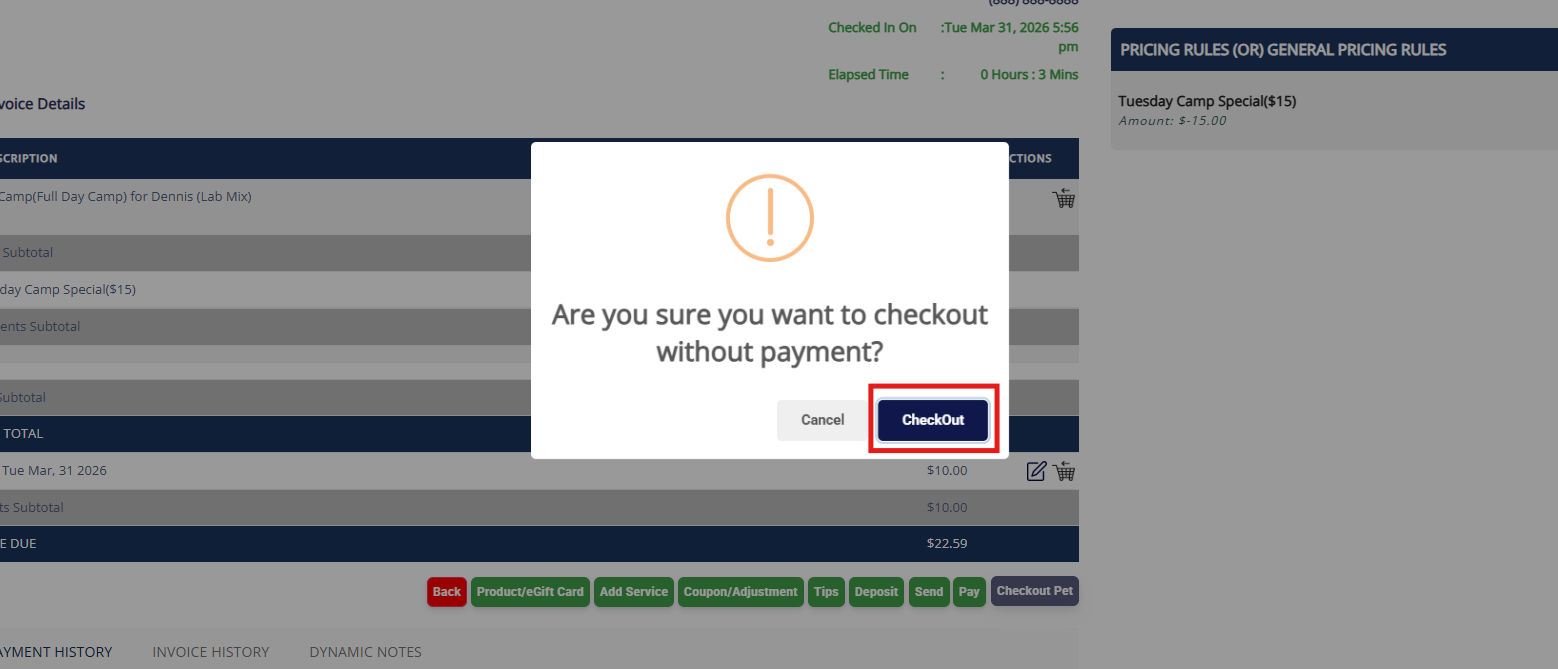
5. If you want to checkout without full payment, confirm by clicking Check Out.
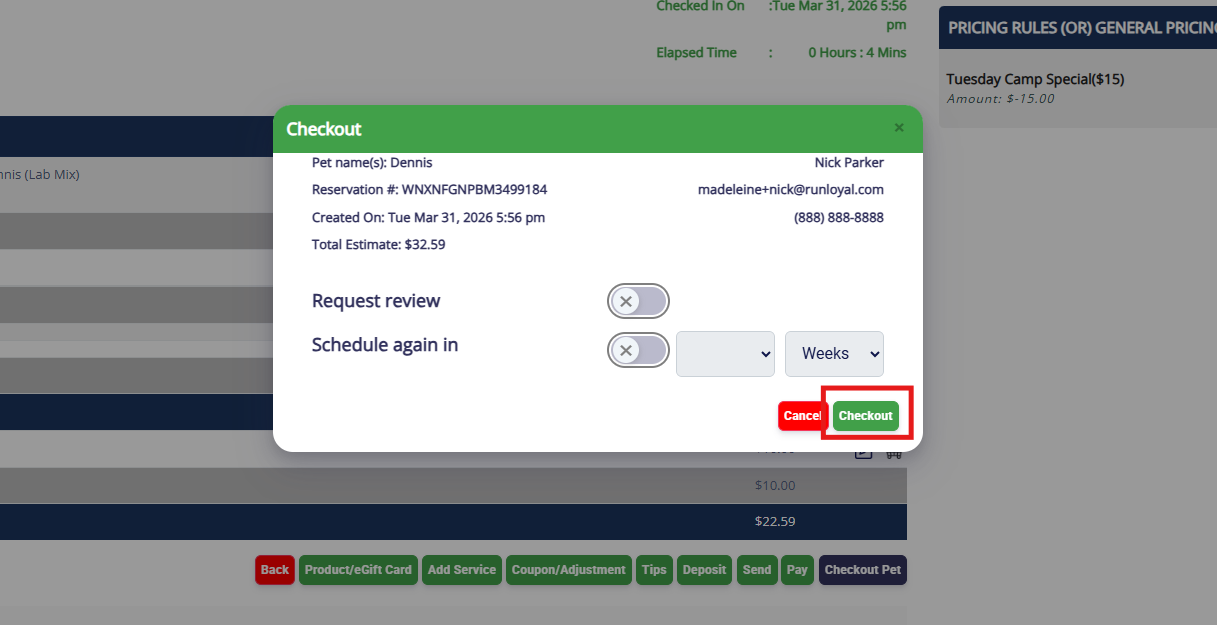
6. You can optionally toggle on to request a review from the pet owner, and/or schedule the pet for a future appointment. Once you have confirmed the toggles, click Checkout.
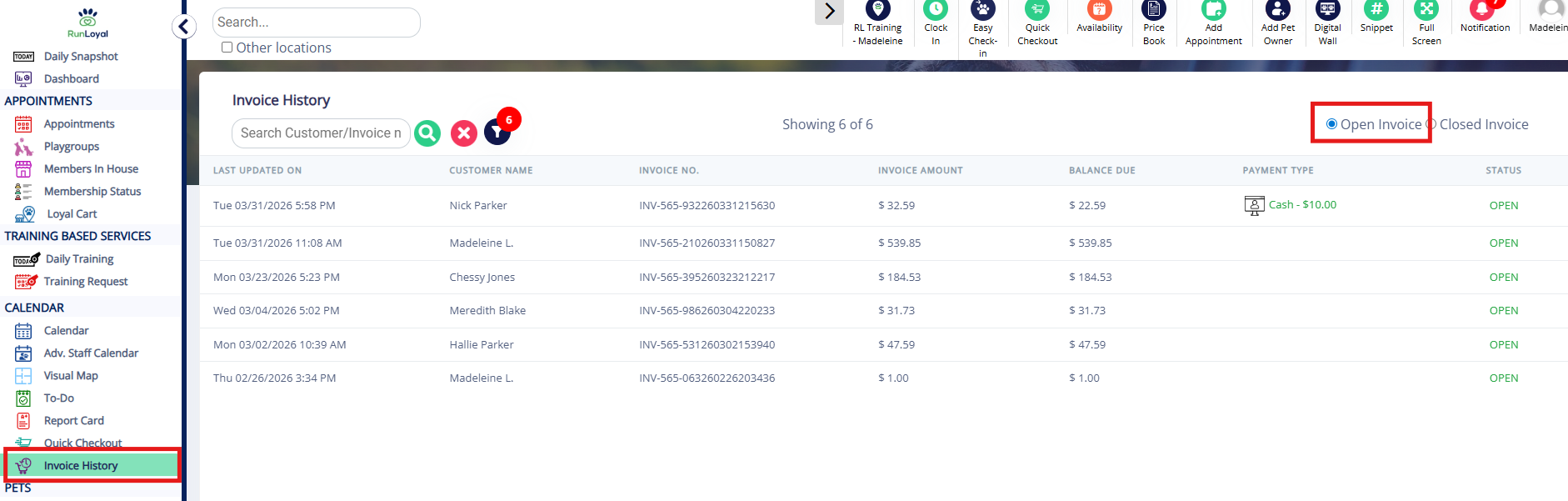
7. This open invoice will now display in Invoice History > Open Invoices.
More Information
For more information on checking in appointments, please refer to this article: Checking In an Appointment
For more information on Quick Checkout (purchasing packages or retail), please refer to this article: How to Use Quick Checkout
Was this article helpful?
That’s Great!
Thank you for your feedback
Sorry! We couldn't be helpful
Thank you for your feedback
Feedback sent
We appreciate your effort and will try to fix the article