Overview
External Reviews is a paid add-on for your RunLoyal subscription that prompts customers to leave a review of your business on an external website, such as Google, Yelp!, or Facebook. You can prompt for external reviews automatically for anyone where "Request review" is toggled on at checkout. You can also optionally limit the prompt for external reviews only for customers who have completed an internal review of a certain number of stars or above. External reviews help promote your business to new customers on common review sites visible to potential leads.
If you are interested in this add-on, please reach out to puppylove@runloyal.com.
Reviews can be viewed in the following areas:
- Settings > Promotions > External Reviews
- Left-hand Navigation > Reviews
- Google Facebook, Yelp!, etc.
TABLE OF CONTENTS
- Overview
- Set Up a Review Request Notification Preferences
- Set Up a New External Review Link
- How Pet Owners Complete External Review
- How Pet Owners Complete Mobile App Review via App Store
- More Information
Set Up a Review Request Notification Preferences
1. Navigate to Settings > Business Setup > Pet Owner Notification Preferences.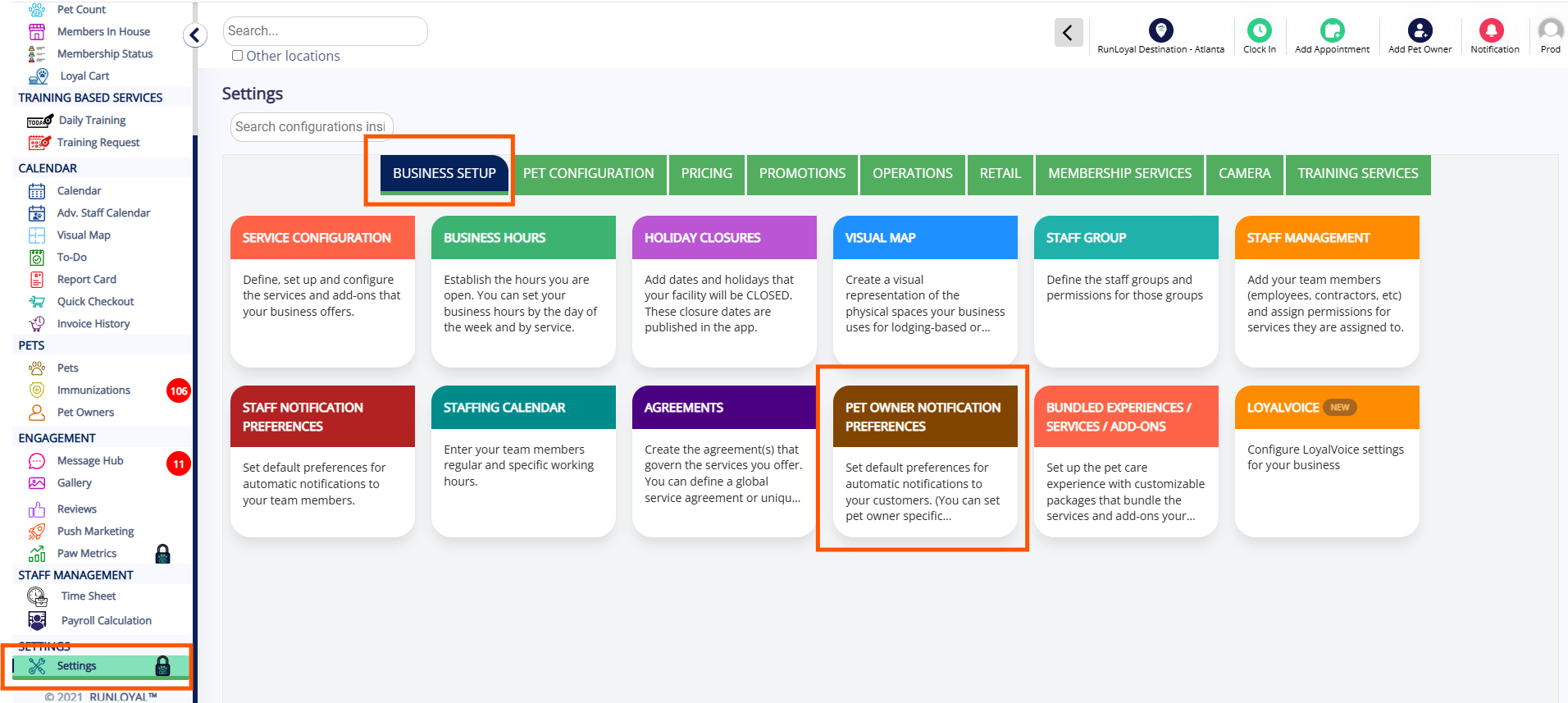
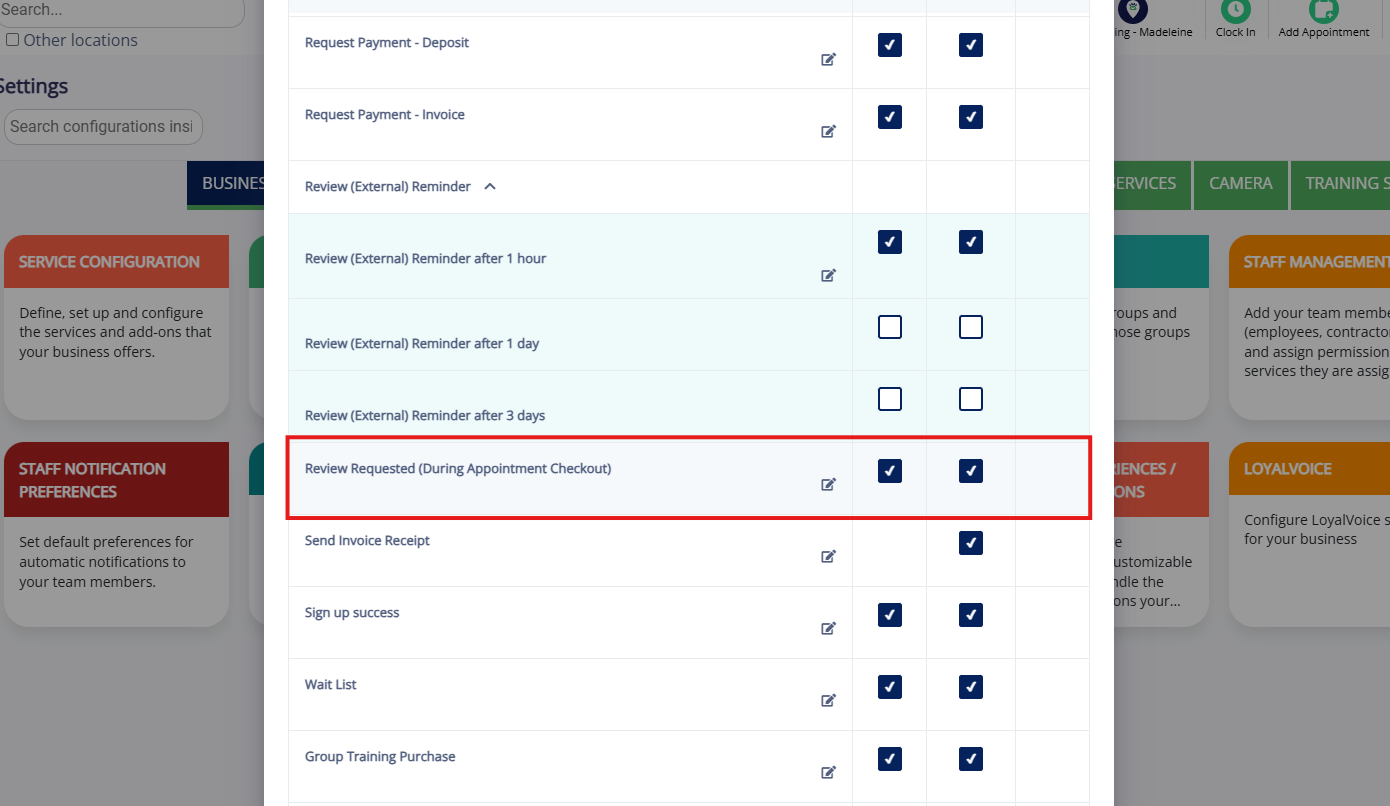
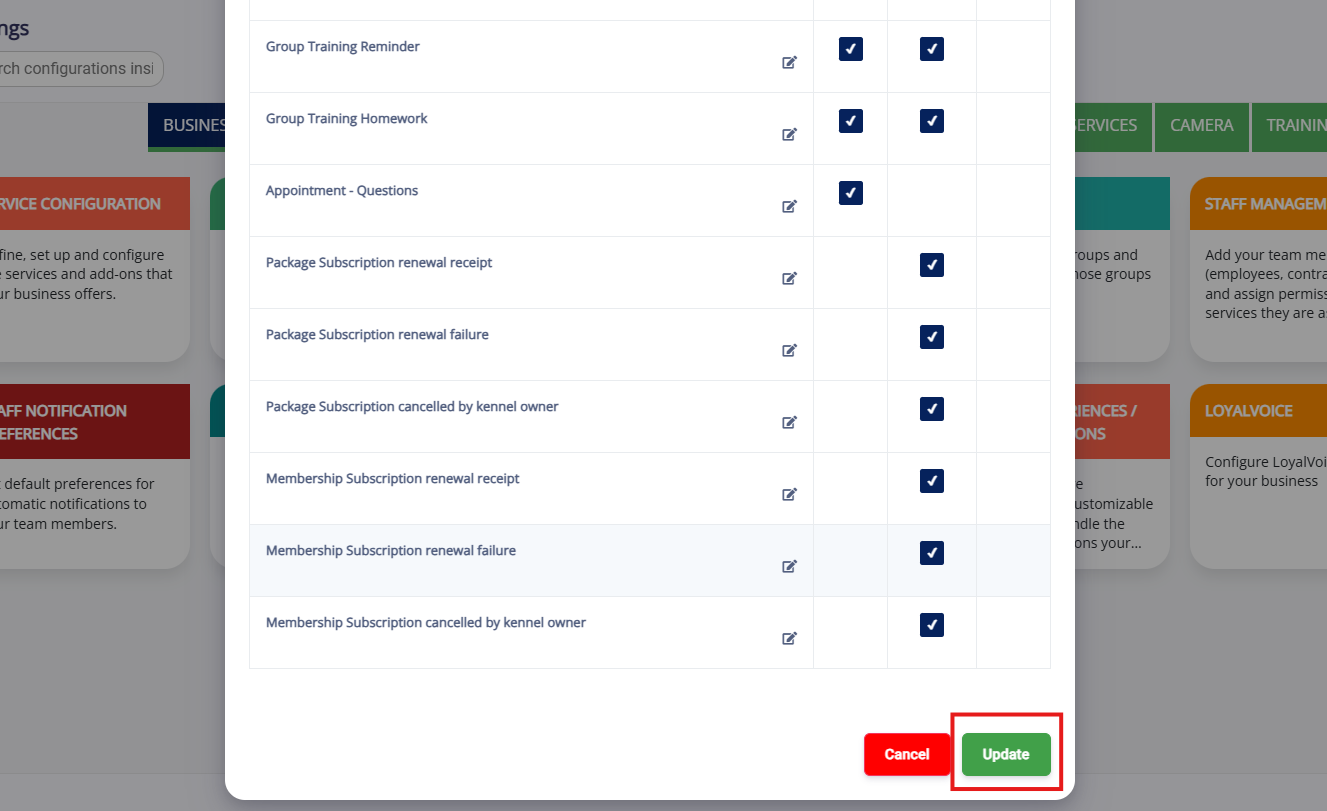
2. Ensure Review Requested (During Appointment Checkout) is checked for app notification, email, and/or SMS. This notification sends when you toggle on Request Review at checkout.
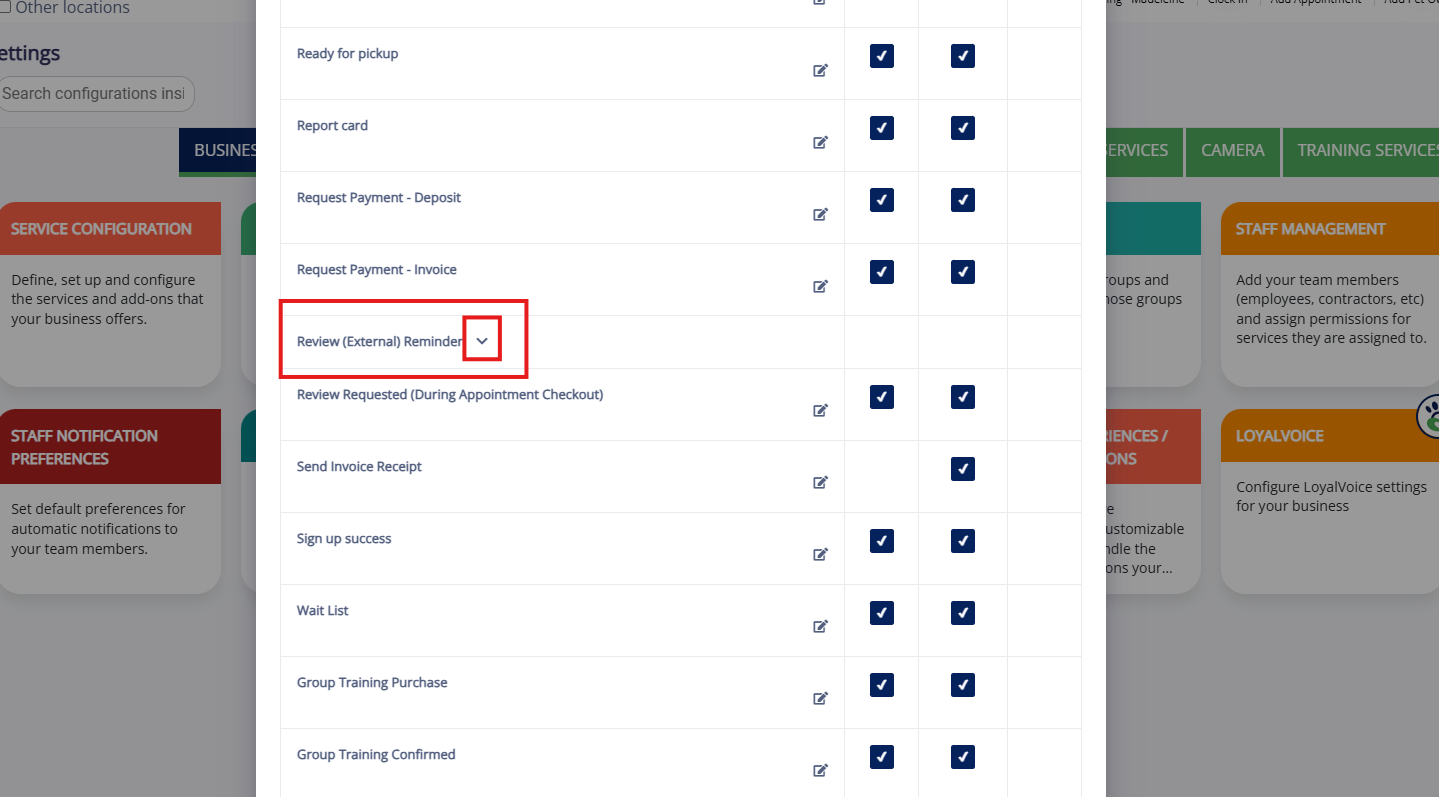
3. Optionally click the downward arrow next to Review - External Reminder. This notification sends as a reminder when you toggle on Request Review at checkout but the client does not complete the review immediately.
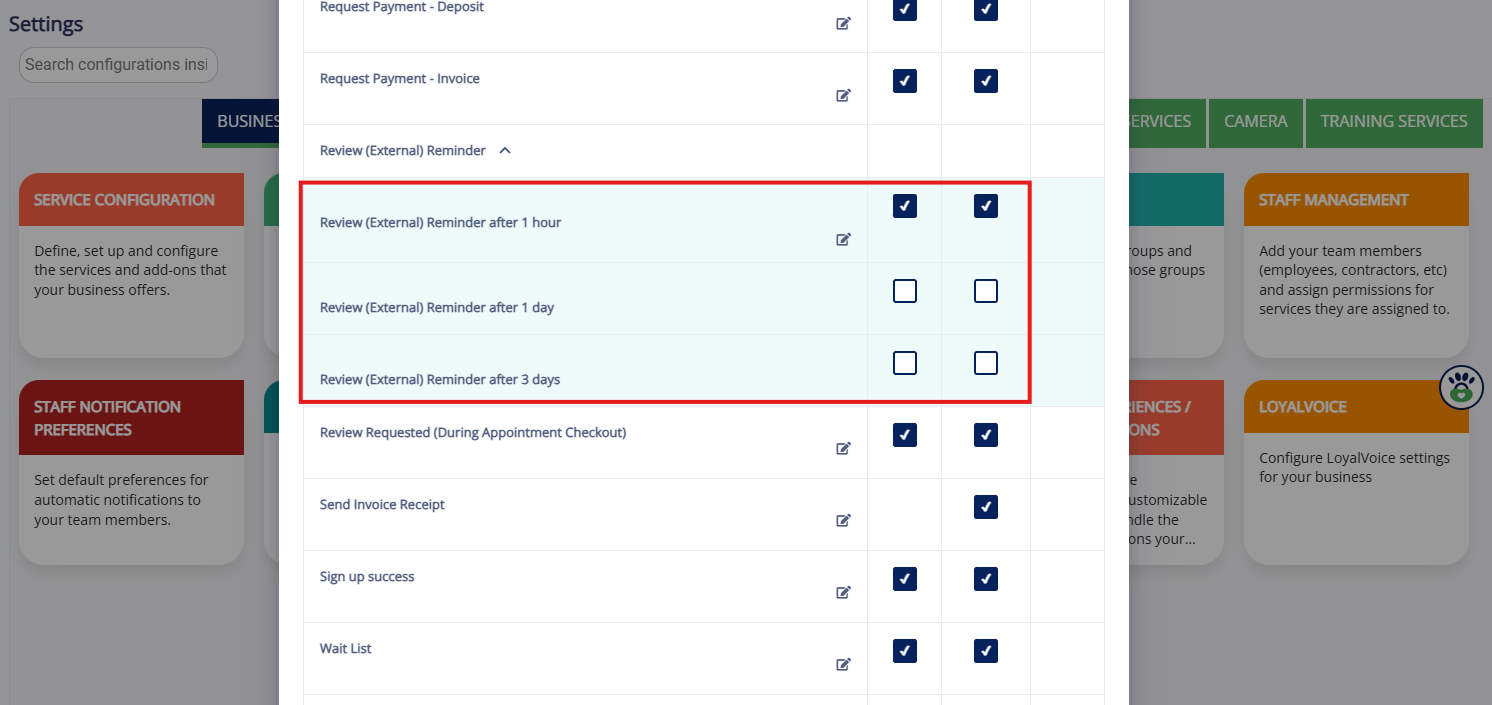
4. Set if the Review Reminder should send for app notification, email, and/or SMS. You can set the reminder to send after 1 hour, after 1 day, and/or after 3 days.
5. When all notification templates are toggled on and edited as necessary, click Update at the bottom of the popup to save your changes.
Set Up a New External Review Link
1. Navigate to Settings > Promotions > External Reviews.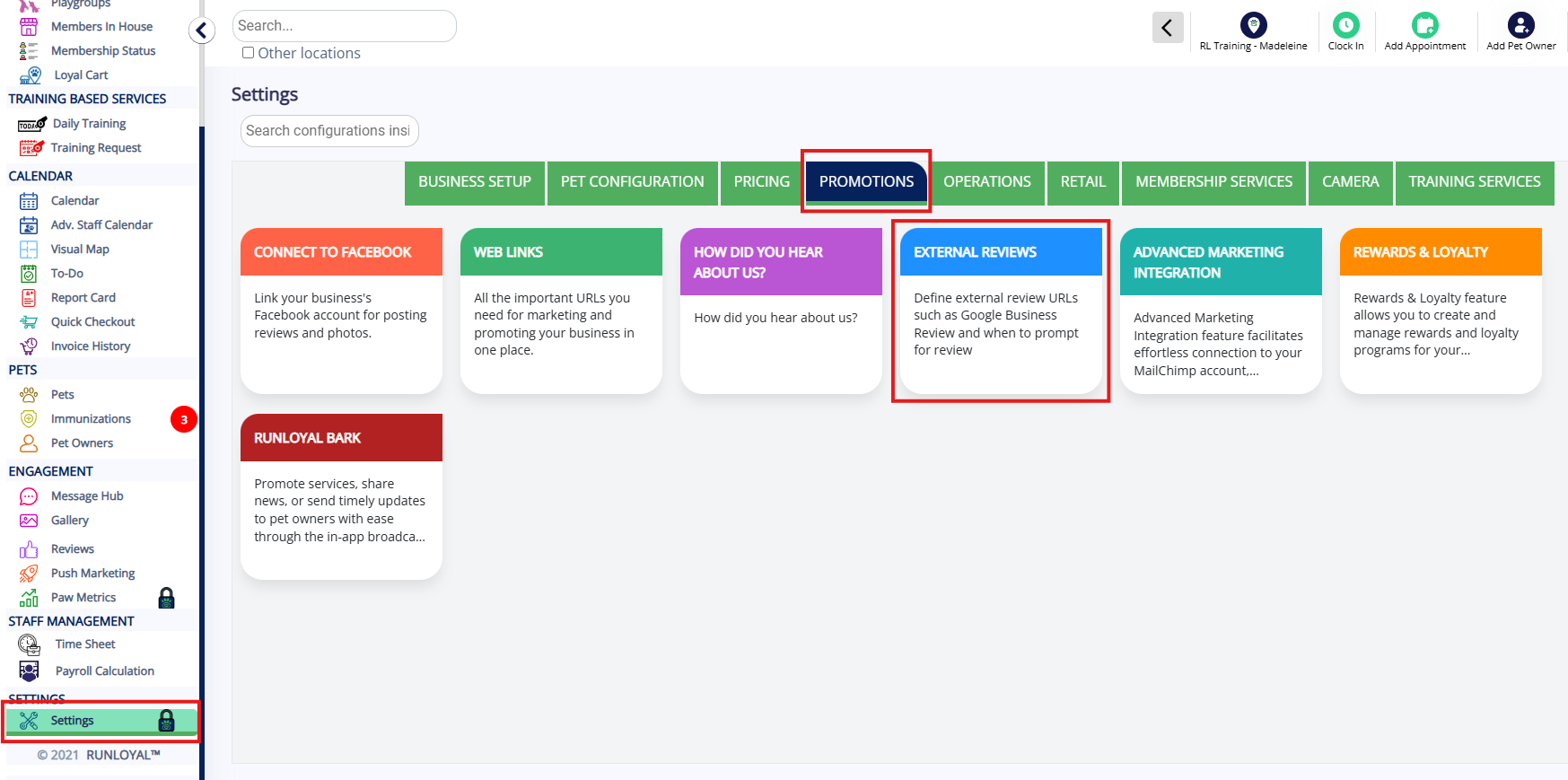
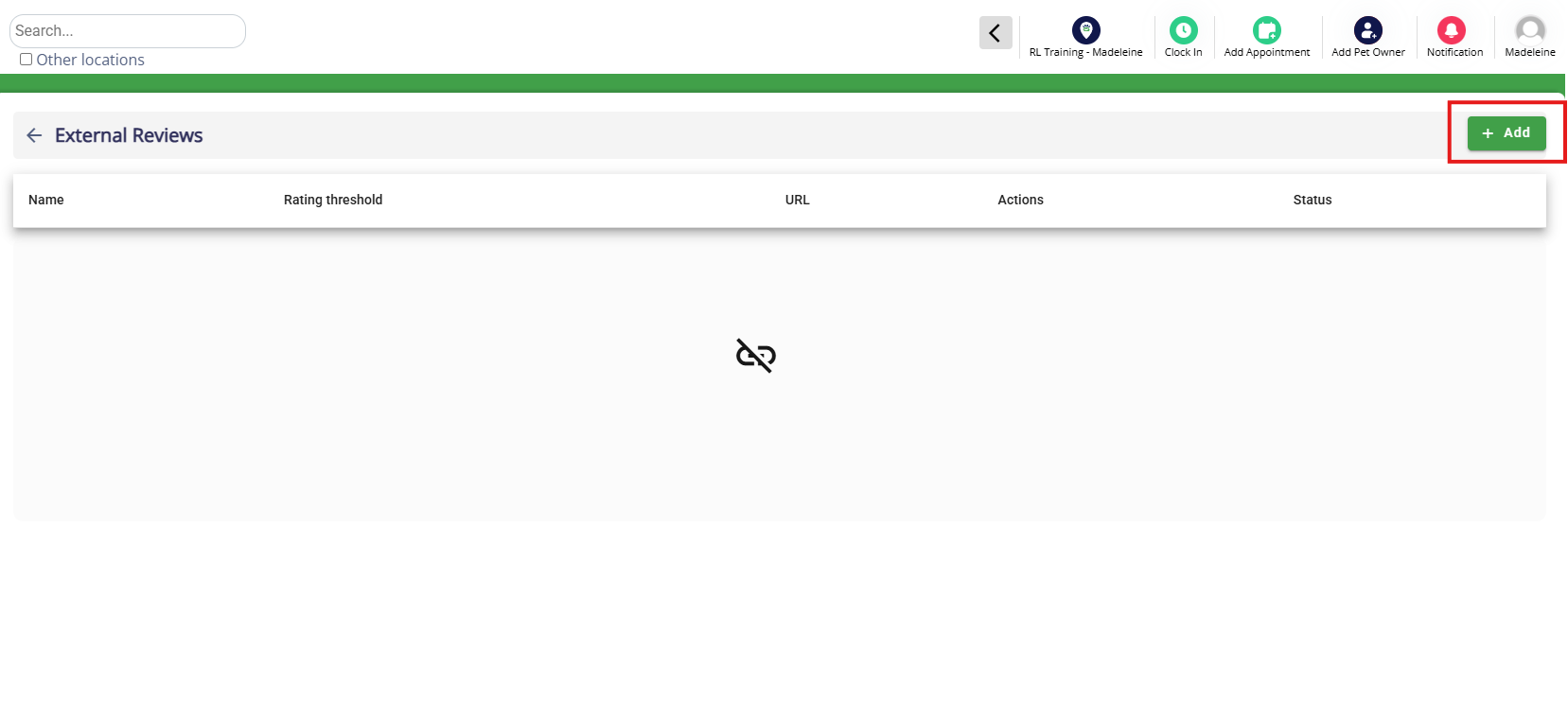
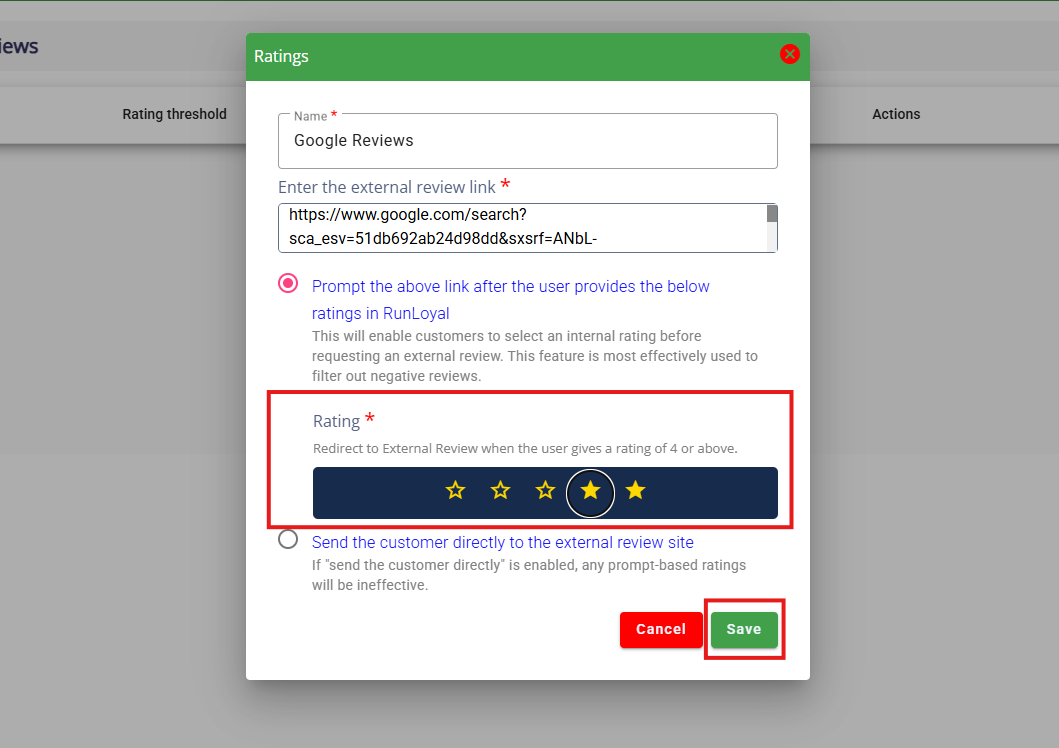
2. Click + Add to add a new external review link.
3. Enter a clear and descriptive name for this review source (such as Google Reviews).
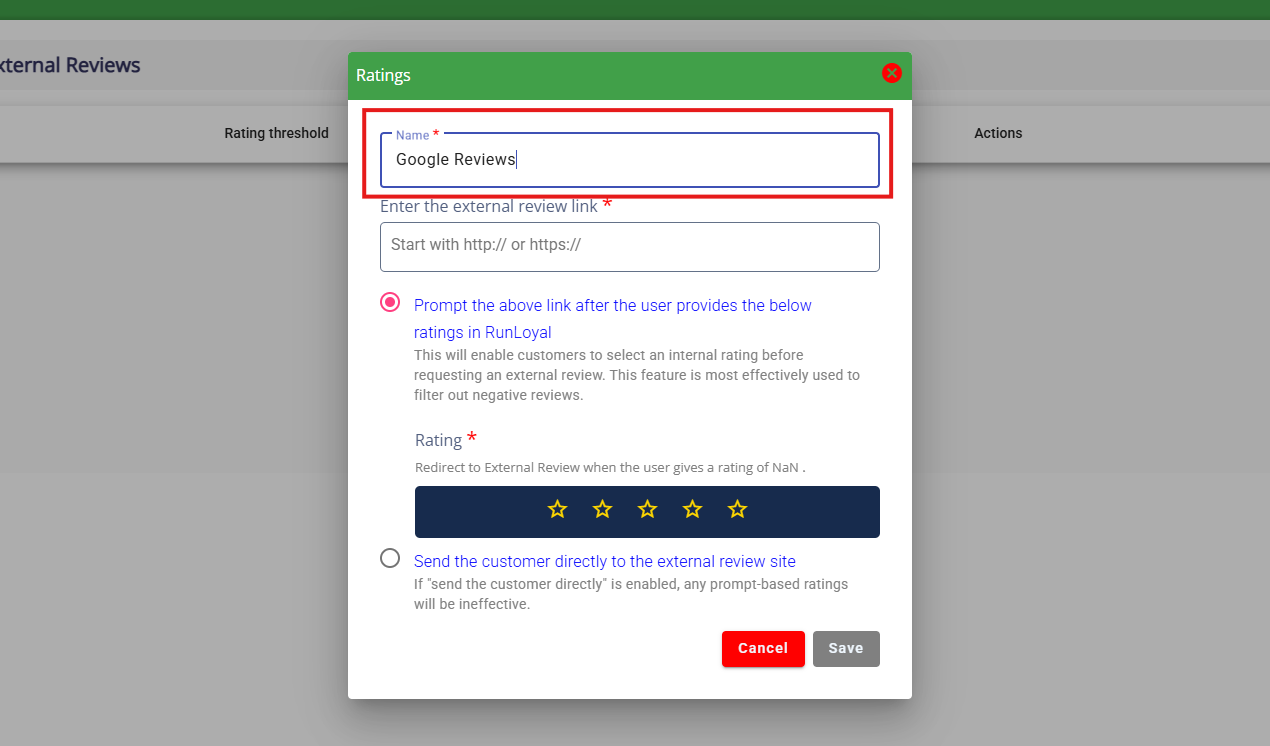
4. Enter the direct external link where the pet owner should leave their review.
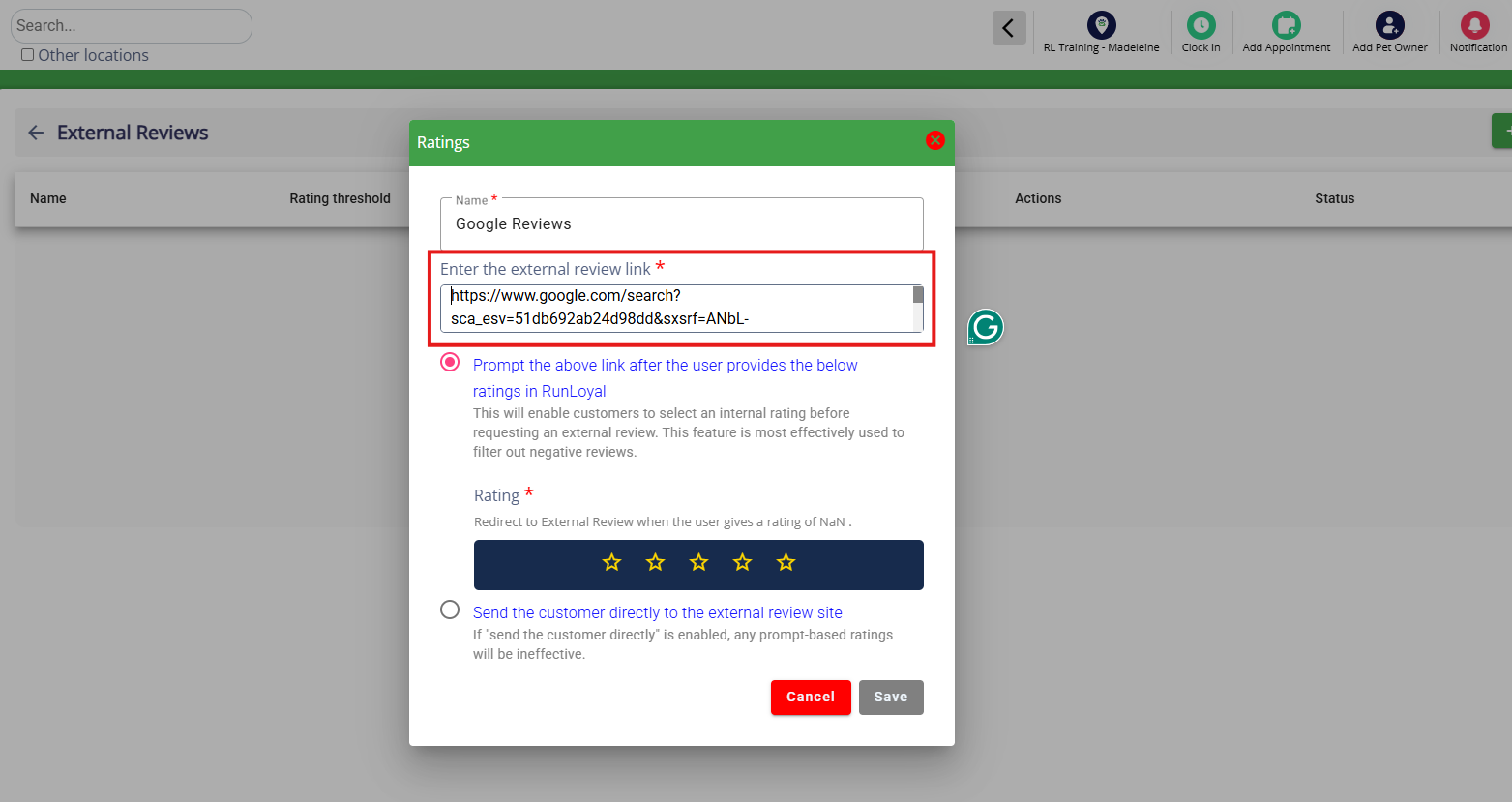
5. For Google Reviews, search your business on Google and click Reviews.
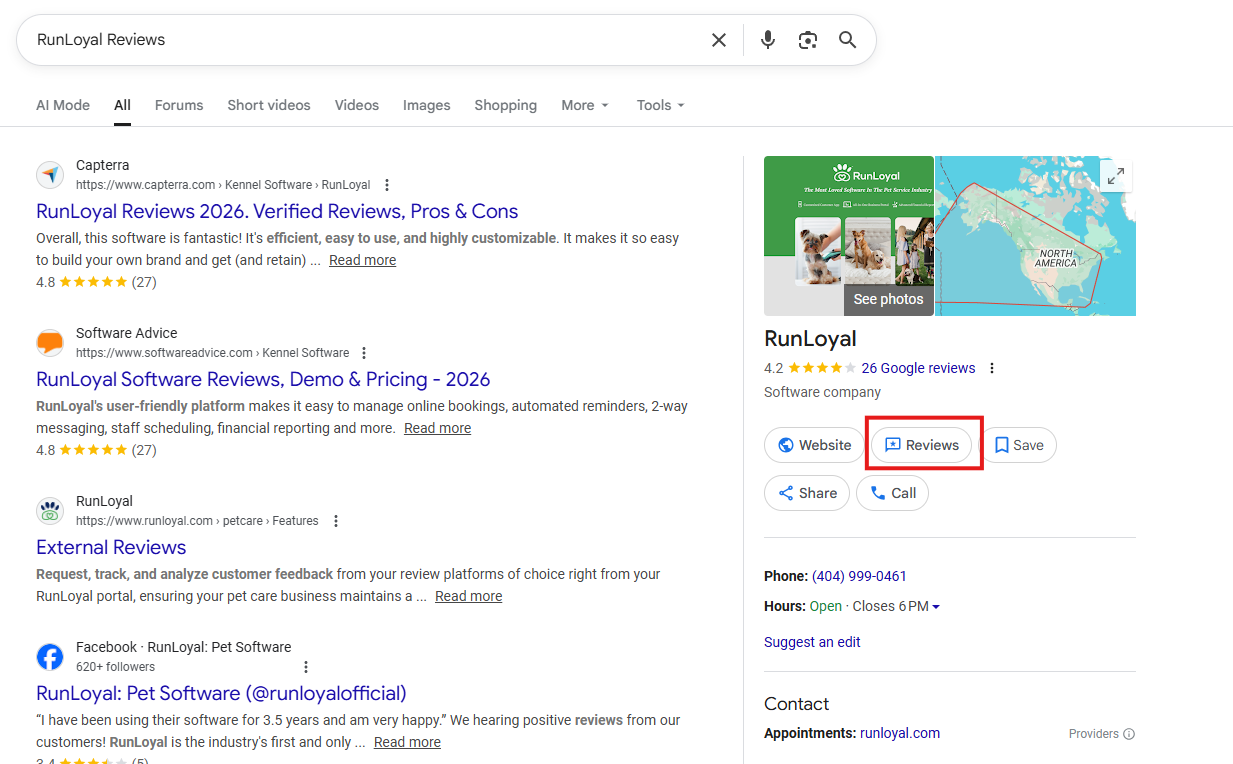
5. Then click Write a Review. On the Write a Review popup, copy the entire URL and paste into the external review link in RunLoyal.
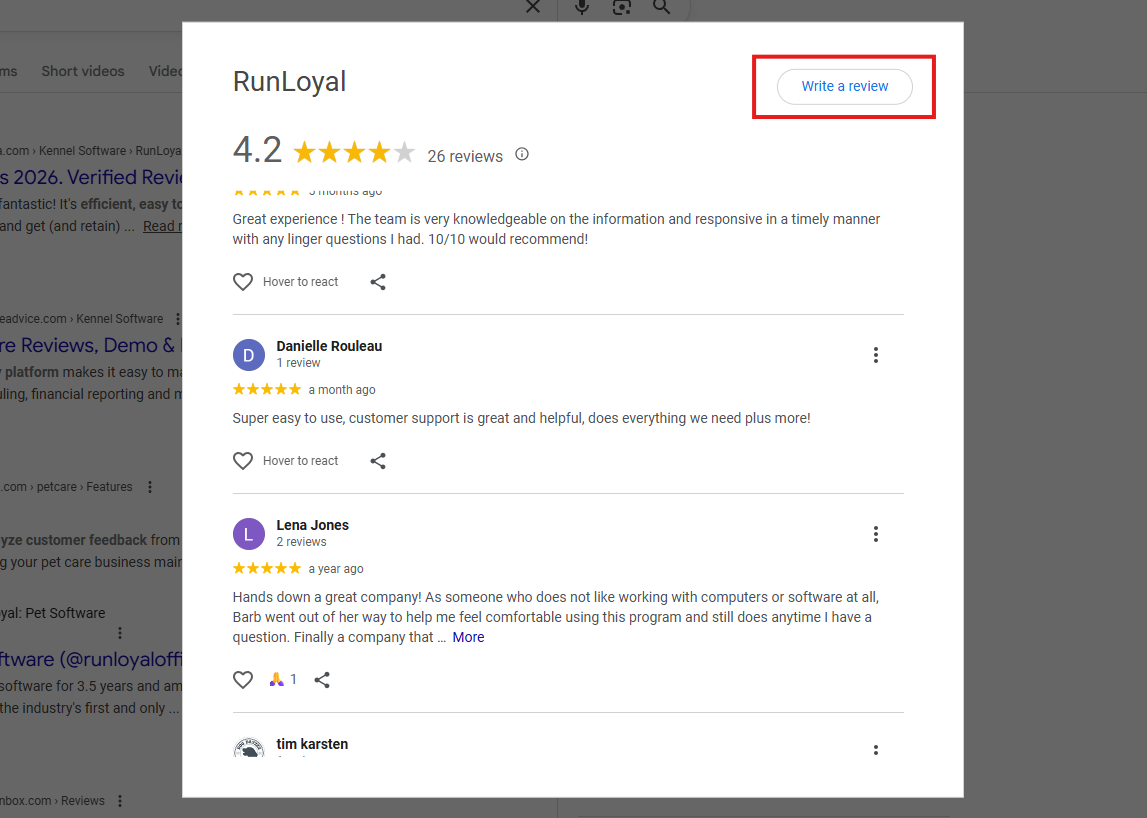
5. Decide if you want to Prompt the above link only after the user provides the below ratings in Runloyal, meaning that the pet owner will only be directed to the external review site after giving a certain level of rating in RunLoyal's internal review system (such as 4 stars). You can also opt to Send the customer directly to the external review site, meaning that the customer can leave any rating in RunLoyal's internal review and will still be directed to the external review site.
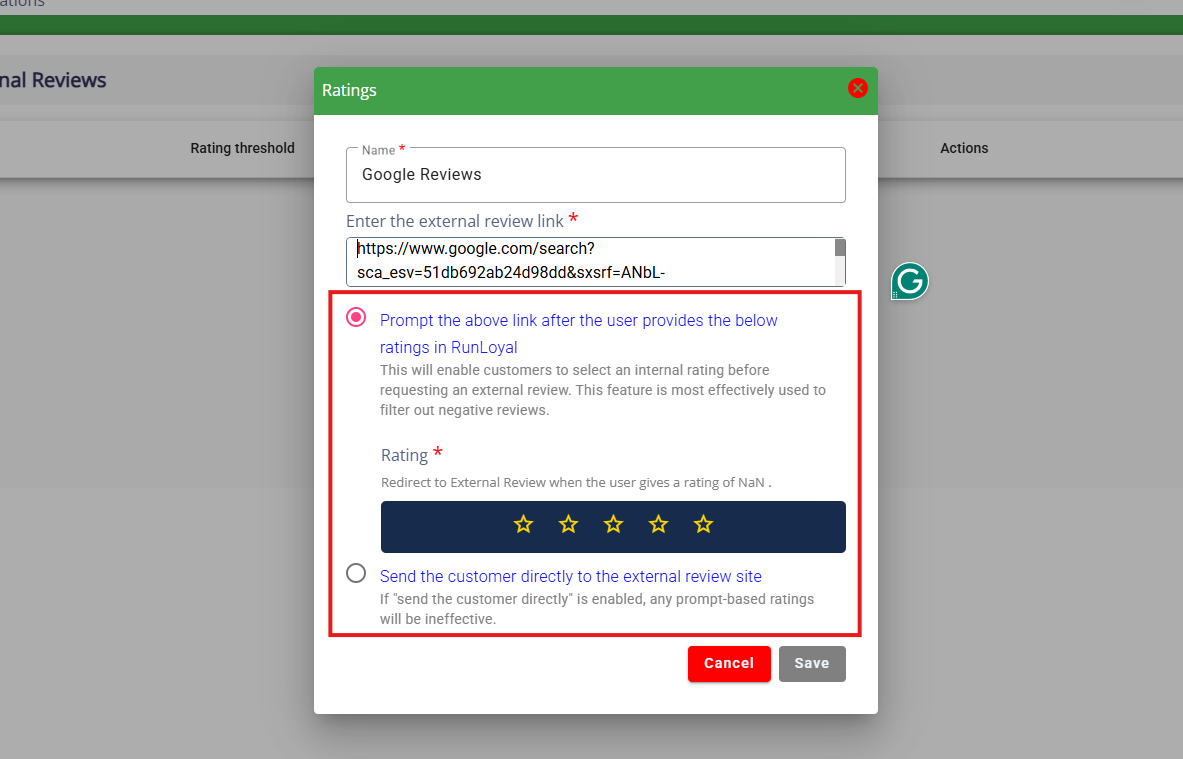
5. If you selected Prompt the above link only after the user provides the below ratings in Runloyal, choose the rating level required. For example, if you click the fourth star, this indicates that the pet owner will be prompted if leaving an internal review of four or five stars. Once you have made your prompt selection, click Save.
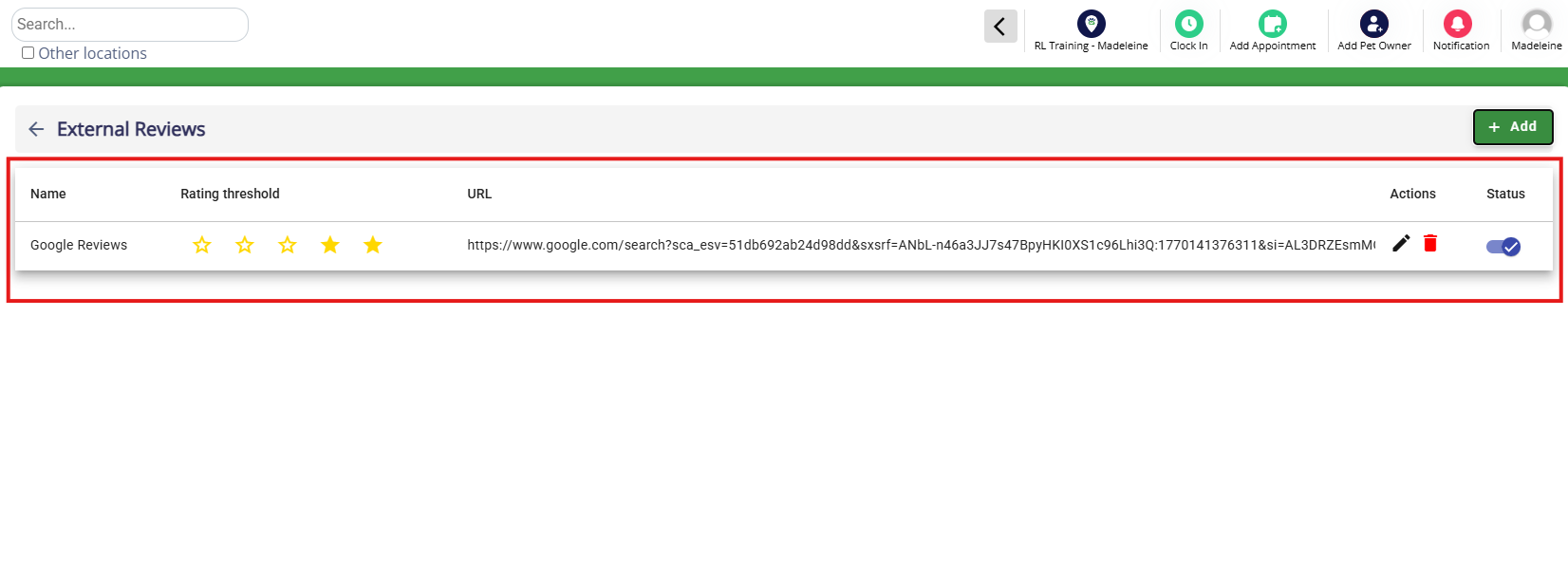
5. Verify your new external review shows as expected and the status is enabled.
How Pet Owners Complete External Review
1. When checking out a pet on the business portal, in the cart click Checkout Pet. Then toggle on Request review and click Checkout. This will send the pet parent a review request via app, email, and/or SMS, depending on their notification preferences.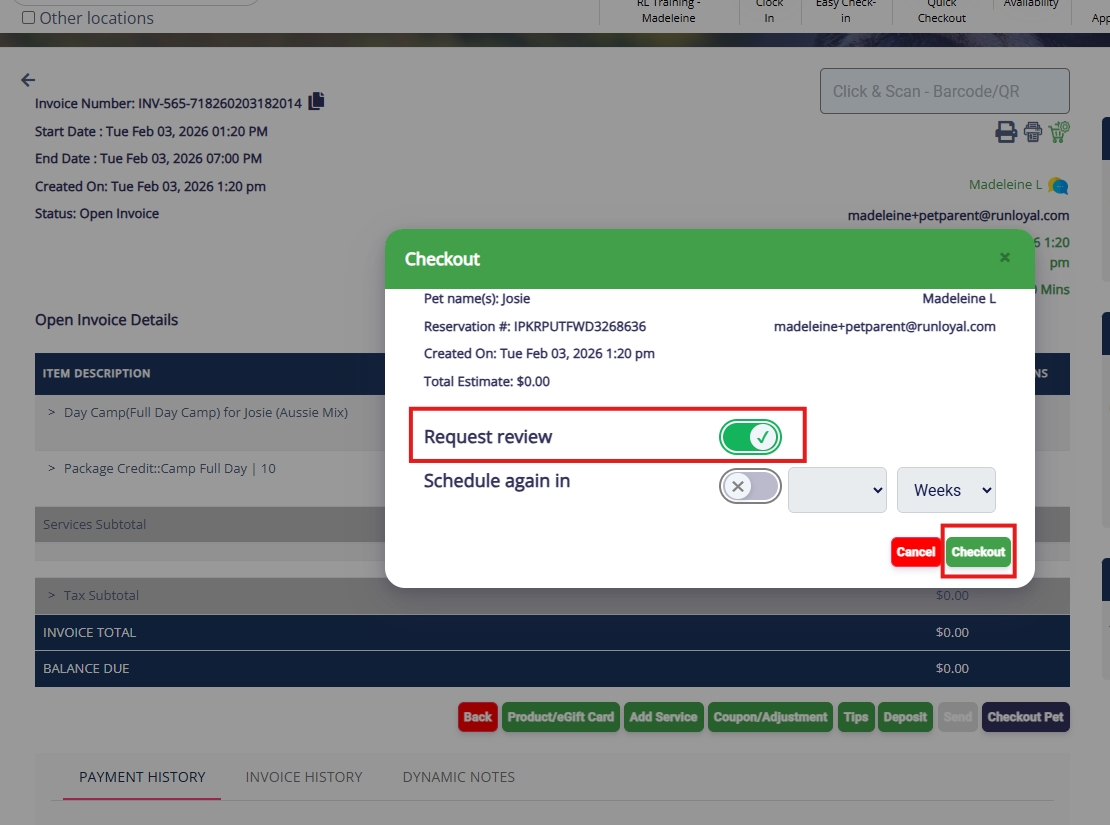
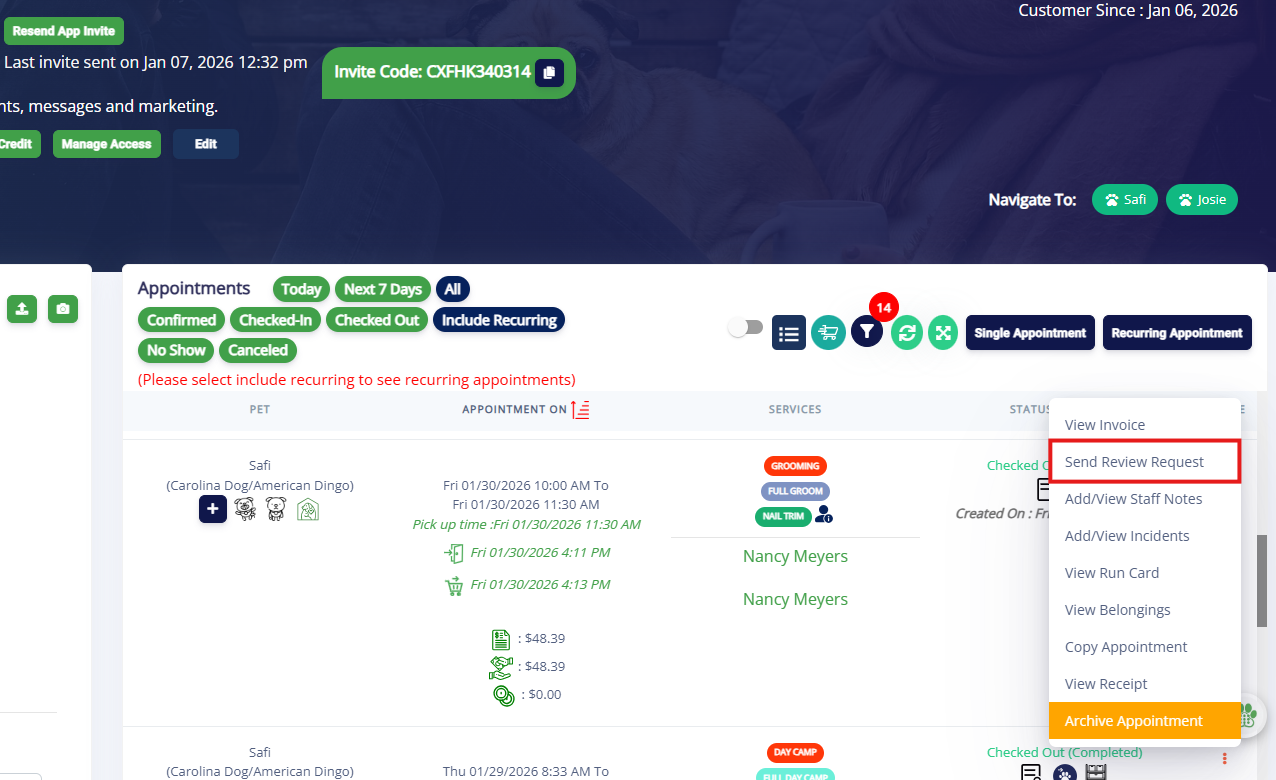
2. If you need to send a review after checkout, you can navigate to the pet parent profile and click the three dots next to the appointment in question. Then select Send Review Request.
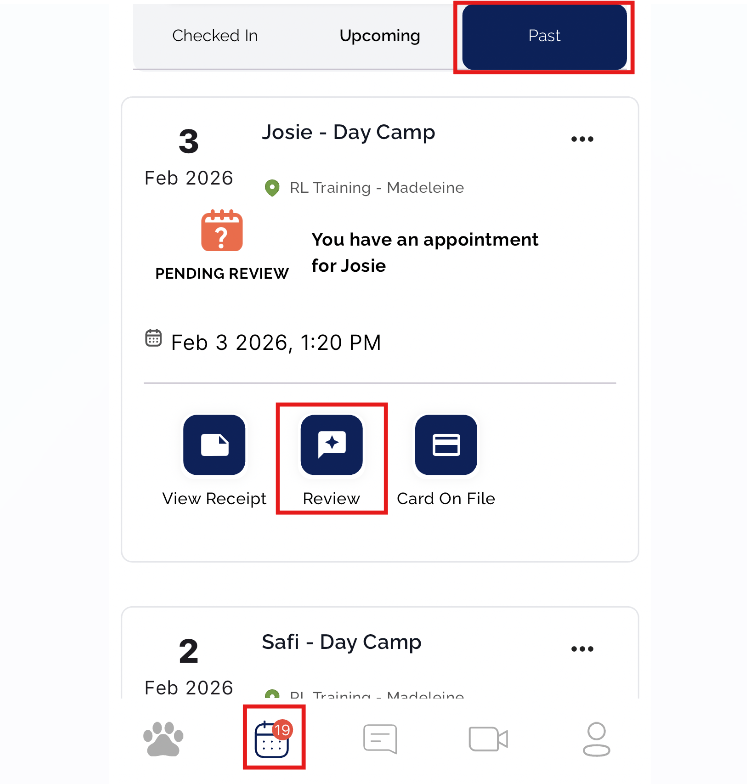
3. The pet parent can also complete a review (if requested previously) from their mobile app > Appointments tab > Past > Review.
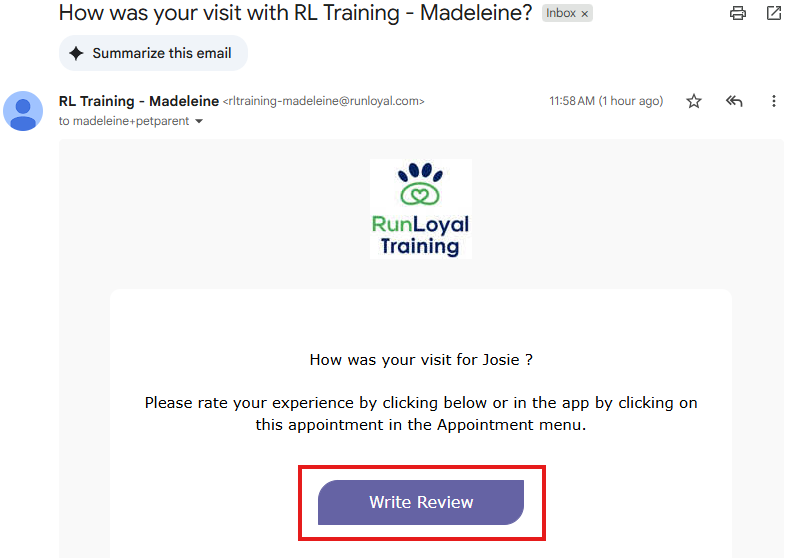
4. Once the review is sent, the pet parent can click on the Write Review link from the review email, app notification, or SMS.
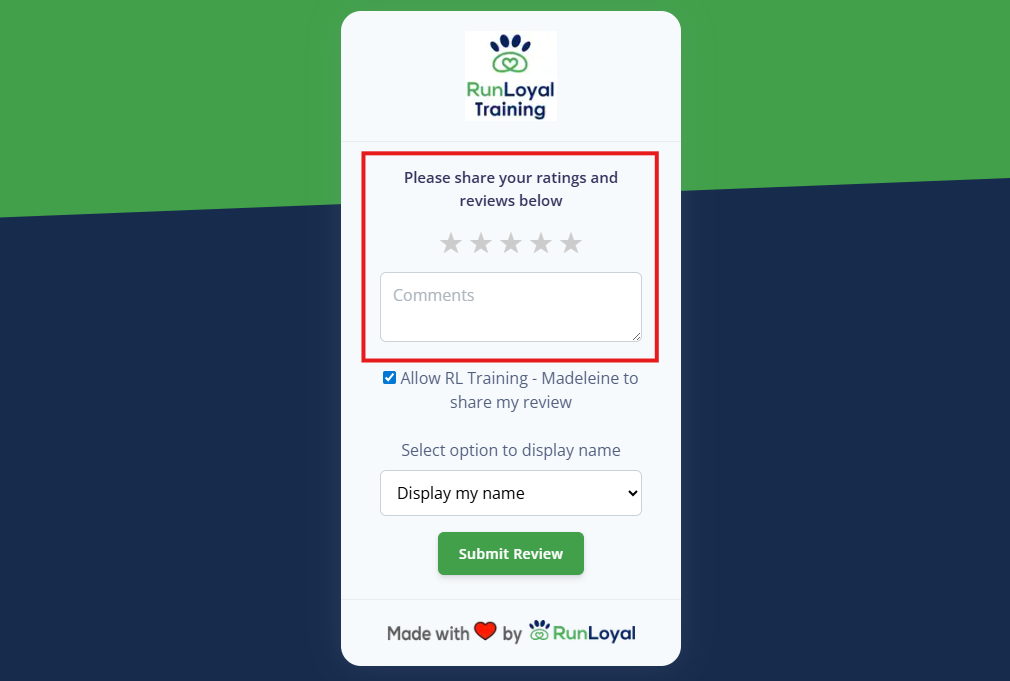
5. As part of the RunLoyal internal review, the pet owner can choose a star rating, write their review.
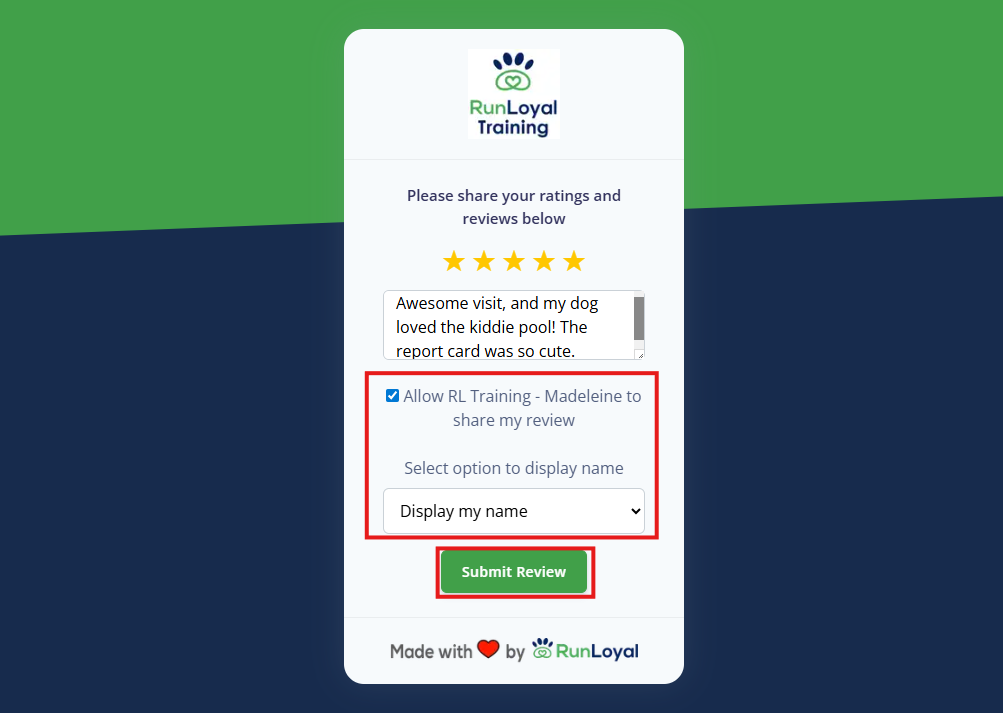
6. The pet parent should decide if their review can be shared, and if so, if they want to display their name publicly.
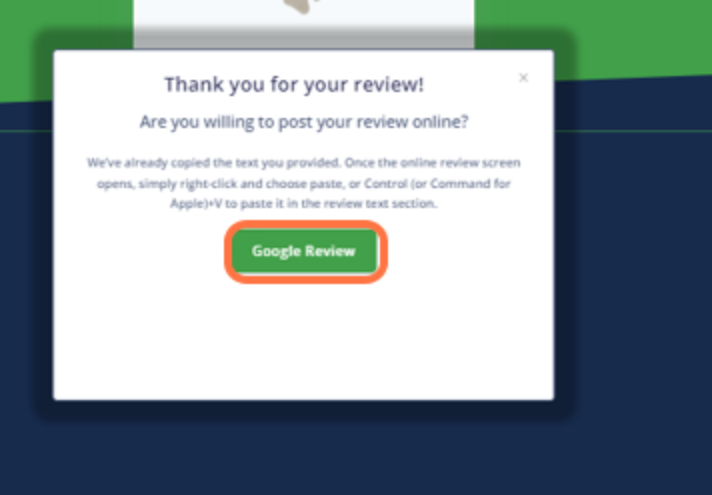
6. If Prompt the above link only after the user provides the below ratings in Runloyal was enabled when setting up the external review link, then the pet owner will see the external review popup only after giving a certain level of rating (such as 4 stars). If Send the customer directly to the external review site was enabled when setting up the external review link, then all pet owners will see the external review popup.
The customer can click on the link(s) to go to the external review site. The text from their review is copied automatically to the clipboard.
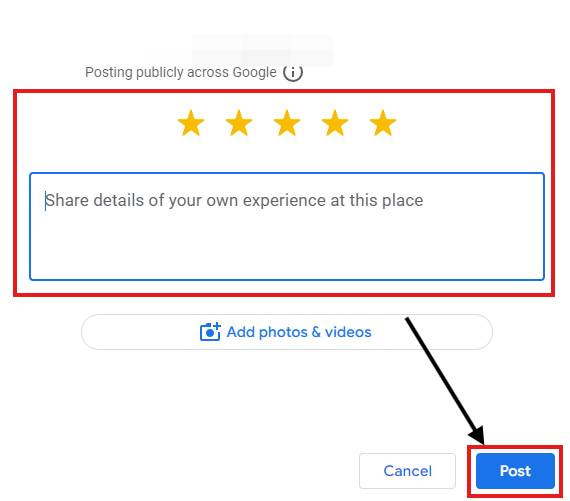
7. The pet owner can post their review by selecting a star rating and pasting their copied review. Once complete, their Google review can be shared by clicking on Post.
How Pet Owners Complete Mobile App Review via App Store
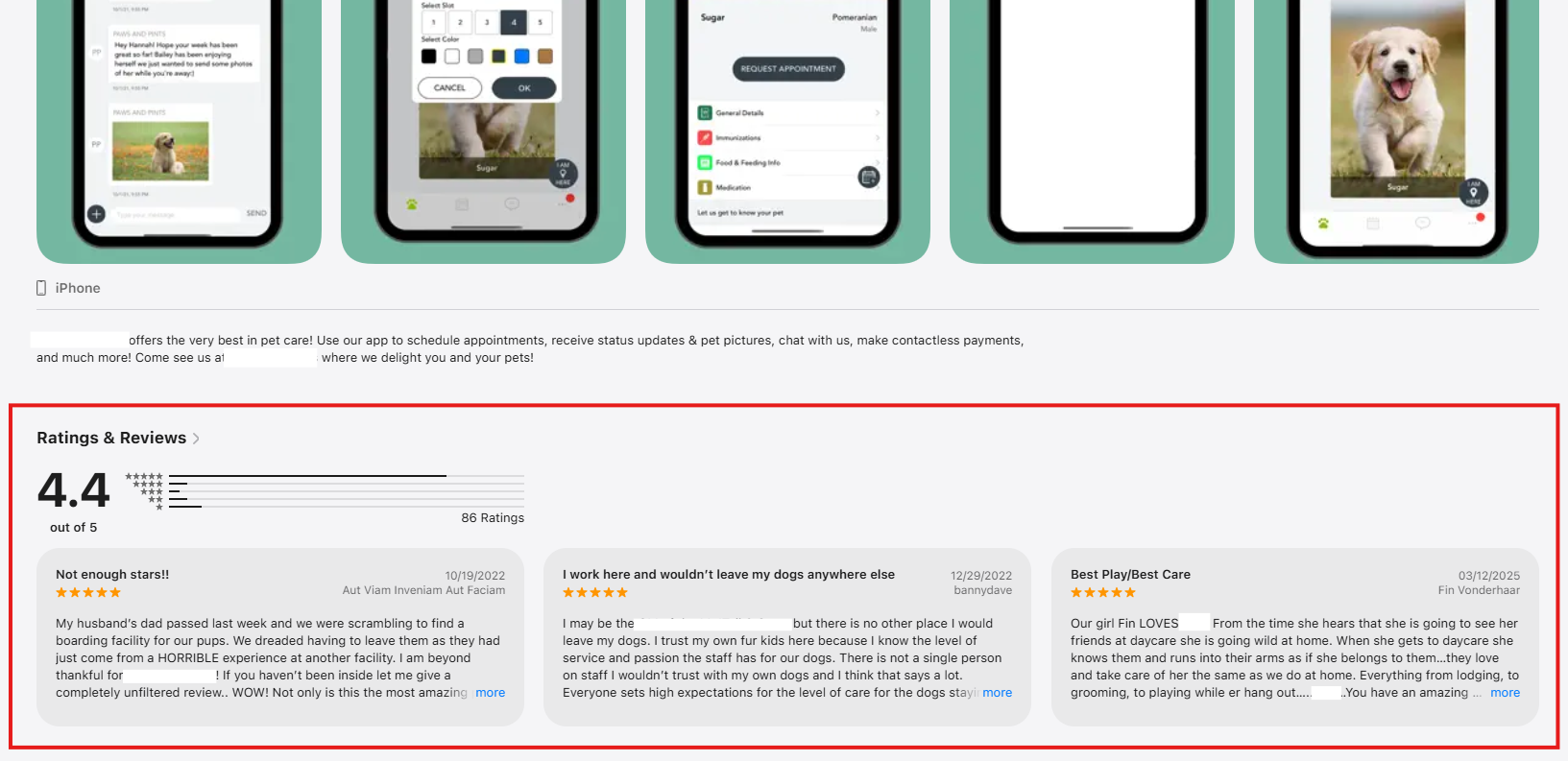
1. Pet owners can also leave reviews of your custom mobile app via the App Store. If you have the External Reviews add-on, you will be notified of these reviews via business portal notification.
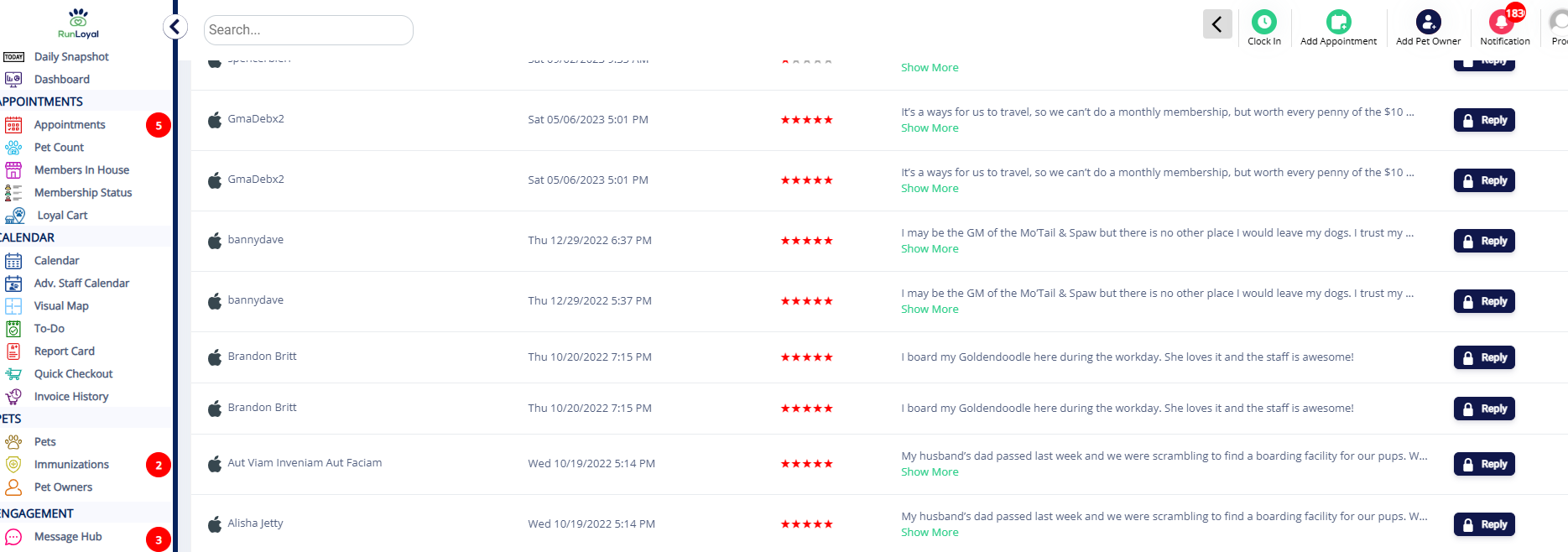
2. You can also view reviews of your custom mobile app via the App Store in the Left-hand Navigation > Reviews > App Reviews.
More Information
For more information on internal reviews, please refer to this article: Request & View Internal Reviews
For more information on sharing reviews to Facebook, please refer to this article: Post & Share Reviews to Facebook
Was this article helpful?
That’s Great!
Thank you for your feedback
Sorry! We couldn't be helpful
Thank you for your feedback
Feedback sent
We appreciate your effort and will try to fix the article