Overview
Checking in a pet in the Business Portal is an important step in confirming the pet’s arrival and ensuring they are scheduled for the correct services and time slots. A pet can only be checked in once the appointment is in a Confirmed status. Staff can check in pets from several areas of the system, including the Daily Snapshot, Appointments Tab, Easy Check-In, and the Pet or Pet Owner Details Page. During the check-in process, staff can review important information and add details such as appointment notes, belongings, and feeding or medication instructions.
Checking in a pet can be done in the following areas:
- Daily Snapshot
- Appointments Tab
- Pet / Pet Owner Details Page
- Easy Check-in
TABLE OF CONTENTS
- Overview
- Check In an Existing Appointment
- Check In an Appointment during Appointment Creation
- Easy Check-In
- More Information
Check In an Existing Appointment
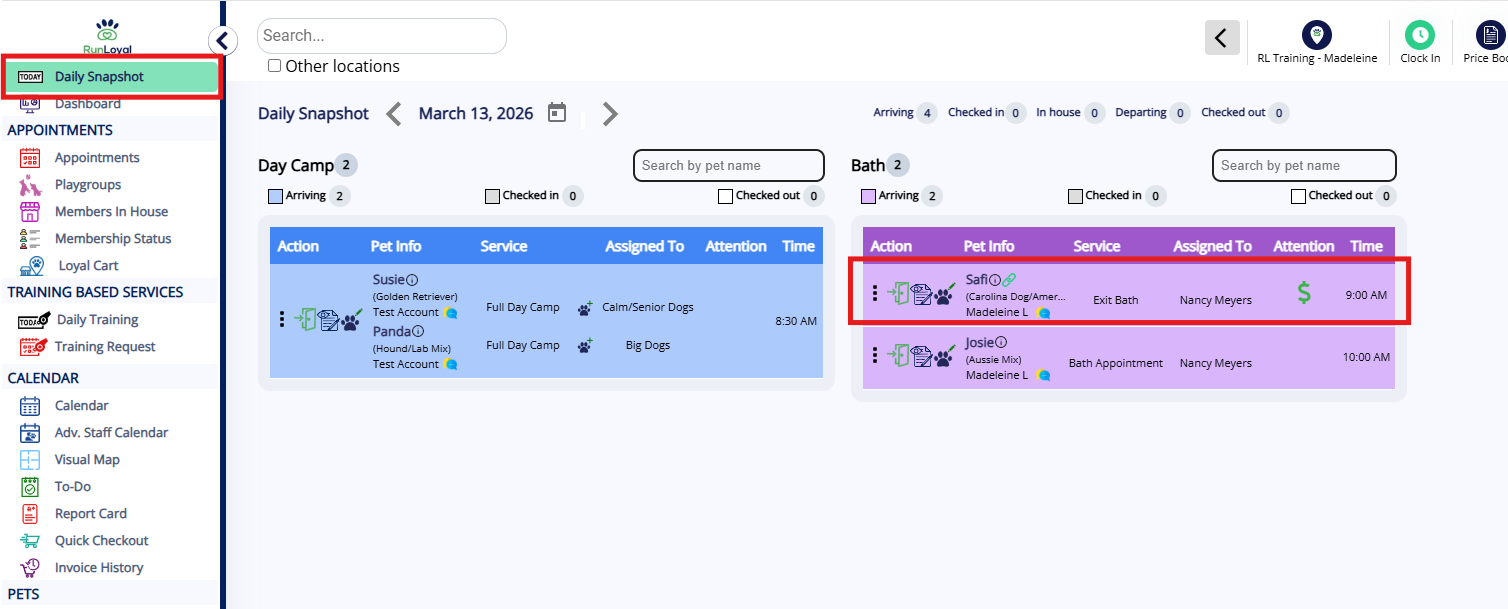
1. If a pet has an existing appointment, navigate to the Left-hand navigation > Daily Snapshot and locate the appointment that should be checked in (highlighted if checking in today).
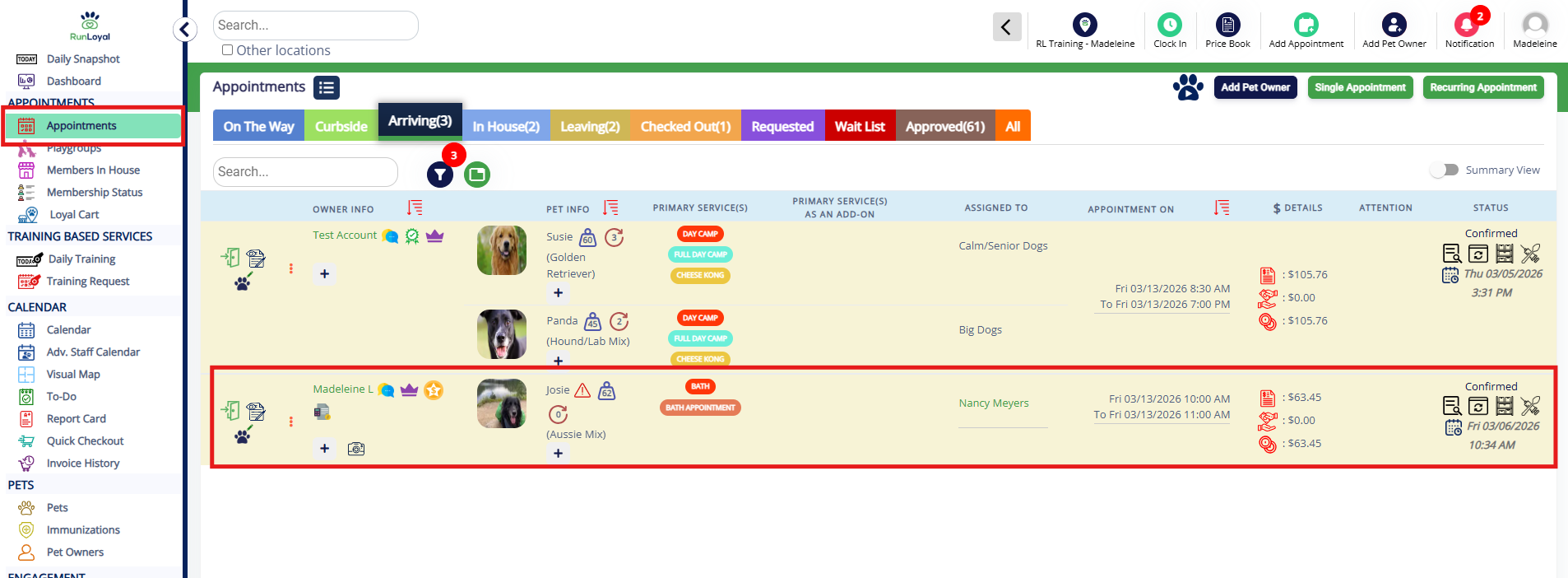
2. You can also navigate to Left-hand navigation > Appointments > Arriving and locate the appointment that should be checked in (highlighted if checking in today).
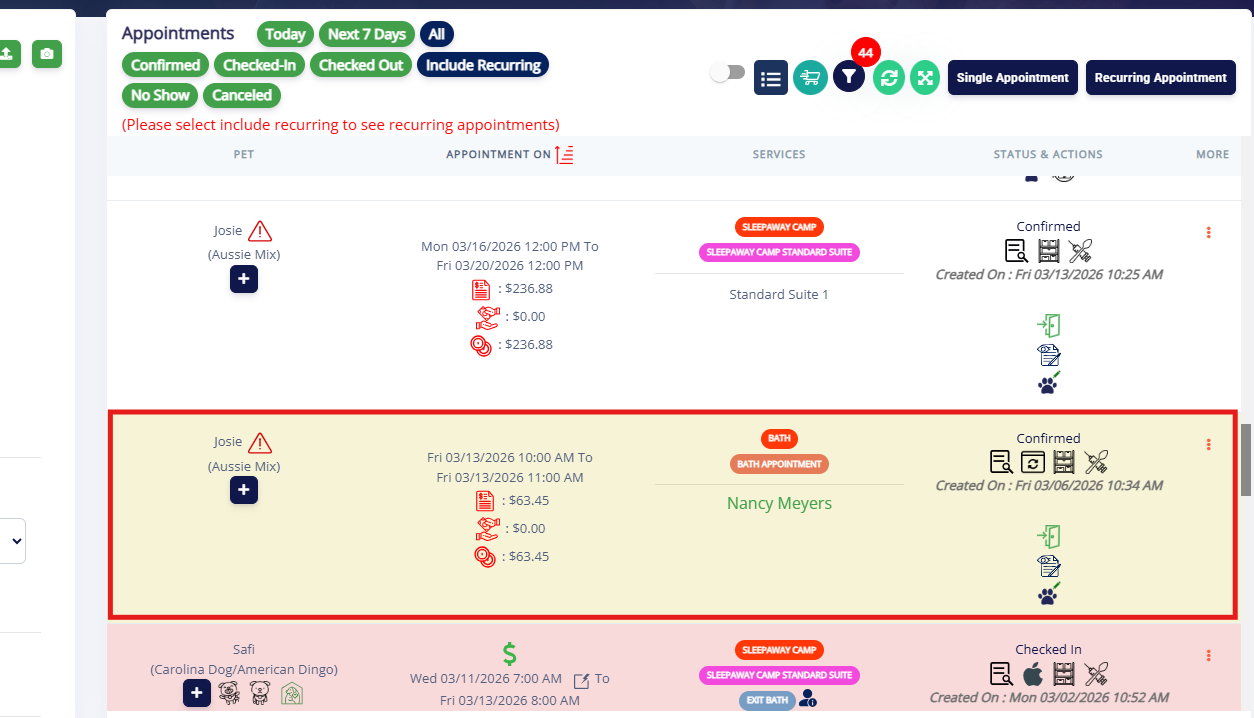
3. You can also navigate to the Pet owner or pet's profile and locate the appointment that should be checked in.
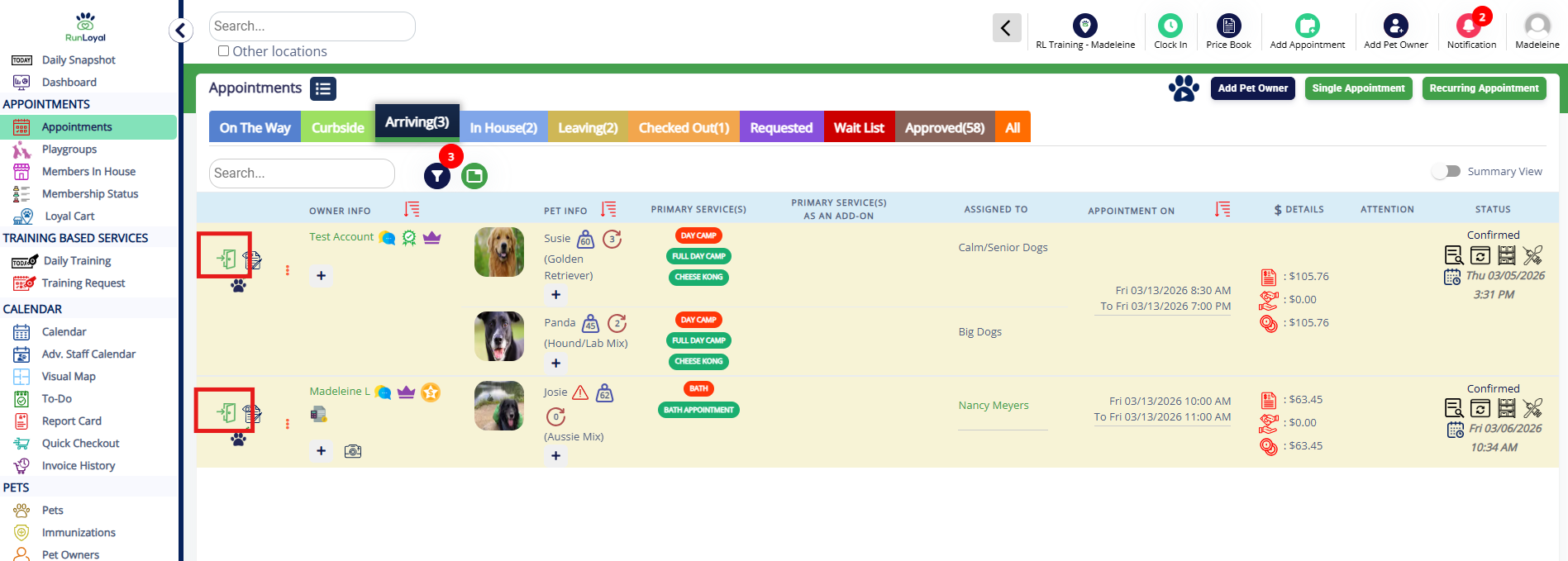
4. Regardless of the page where you're checking in the appointment, to perform check-in, click on the Check-in icon (green door).
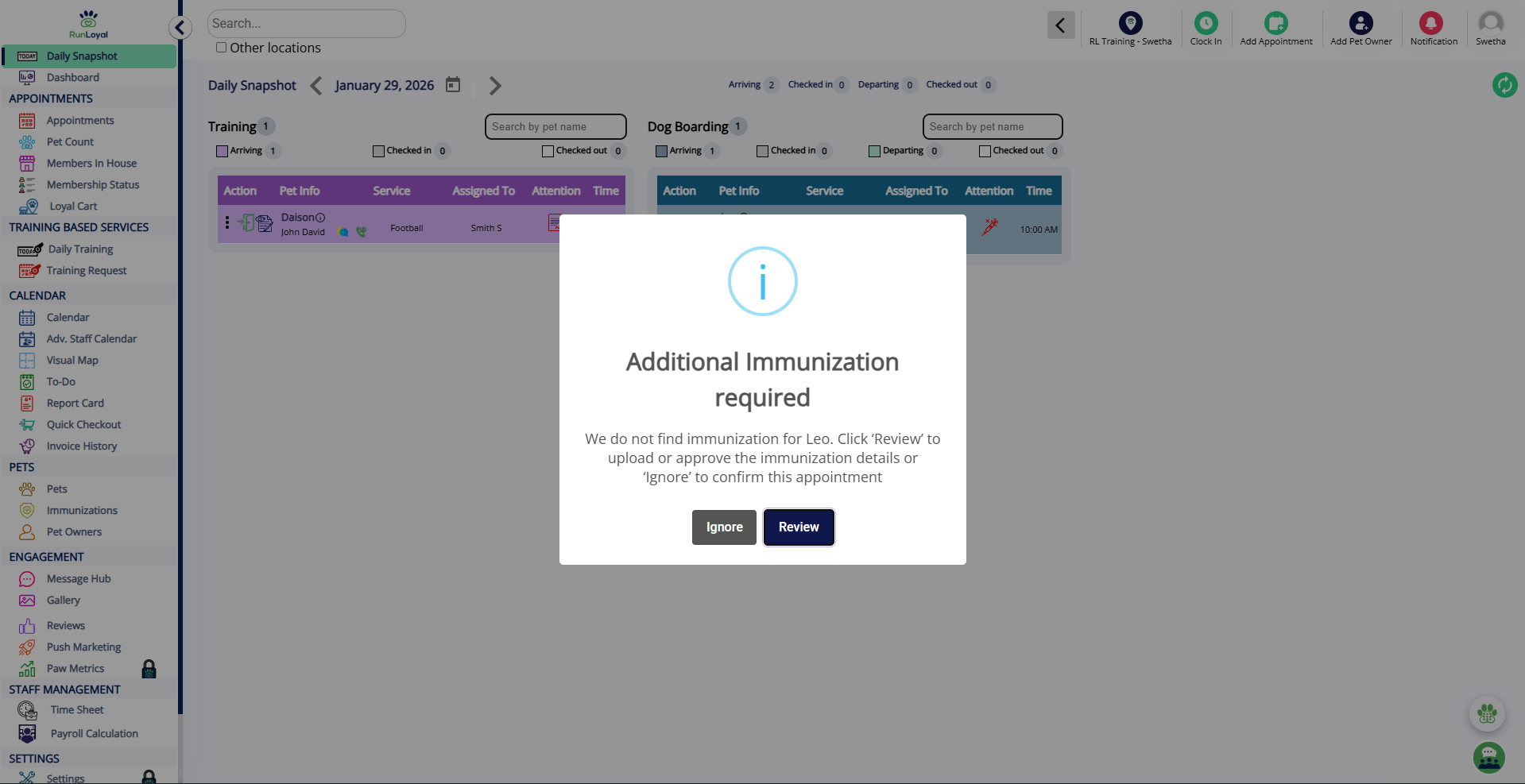
5. If the pet has expired vaccines, or if the owner has unsigned agreements, then an information required pop-up will appear for the pet you are trying to check in. Review the details to make requested updates, or click Ignore to bypass the requirements.
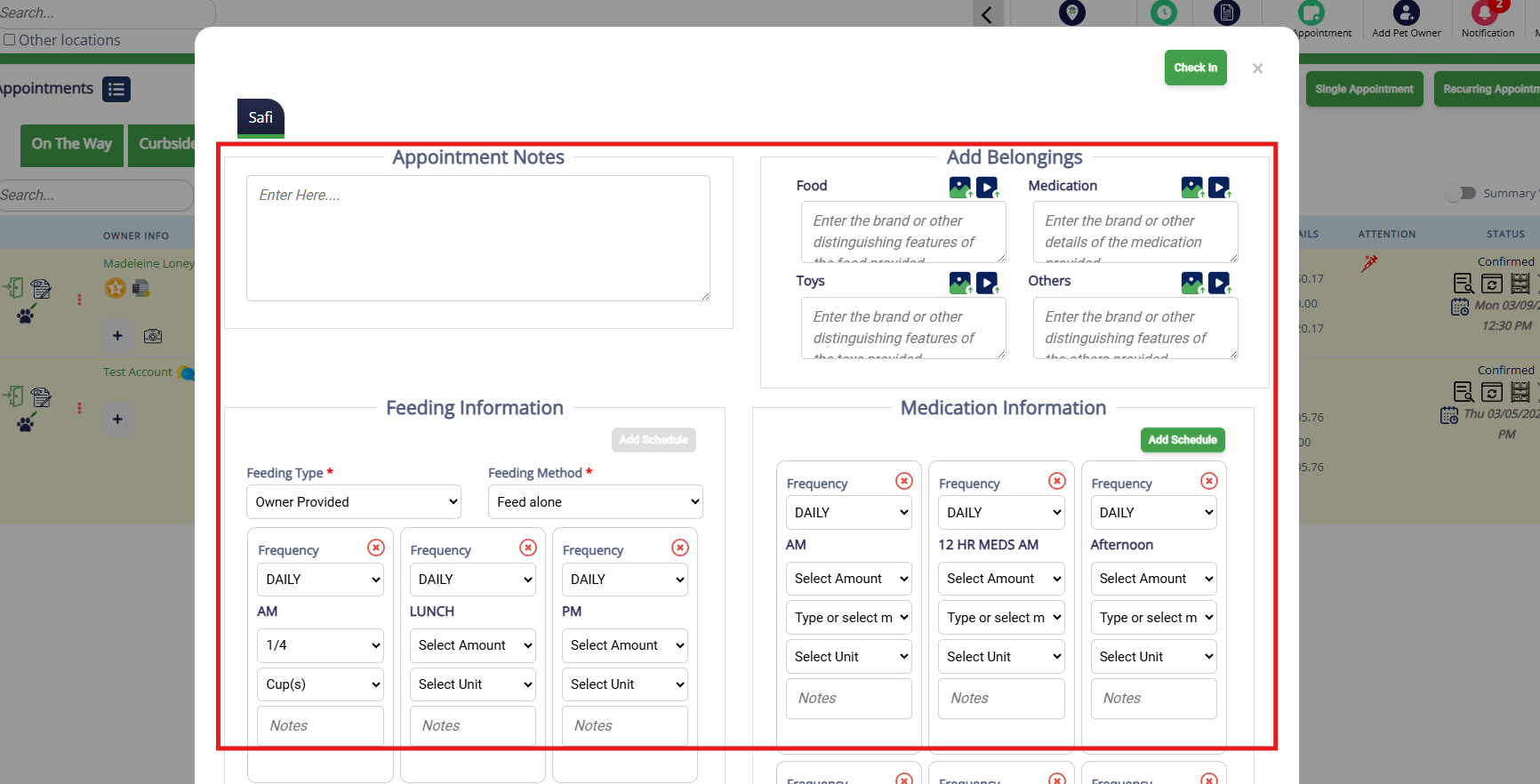
6. You can add the pet's appointment notes, belongings, and feeding/medication information as required.
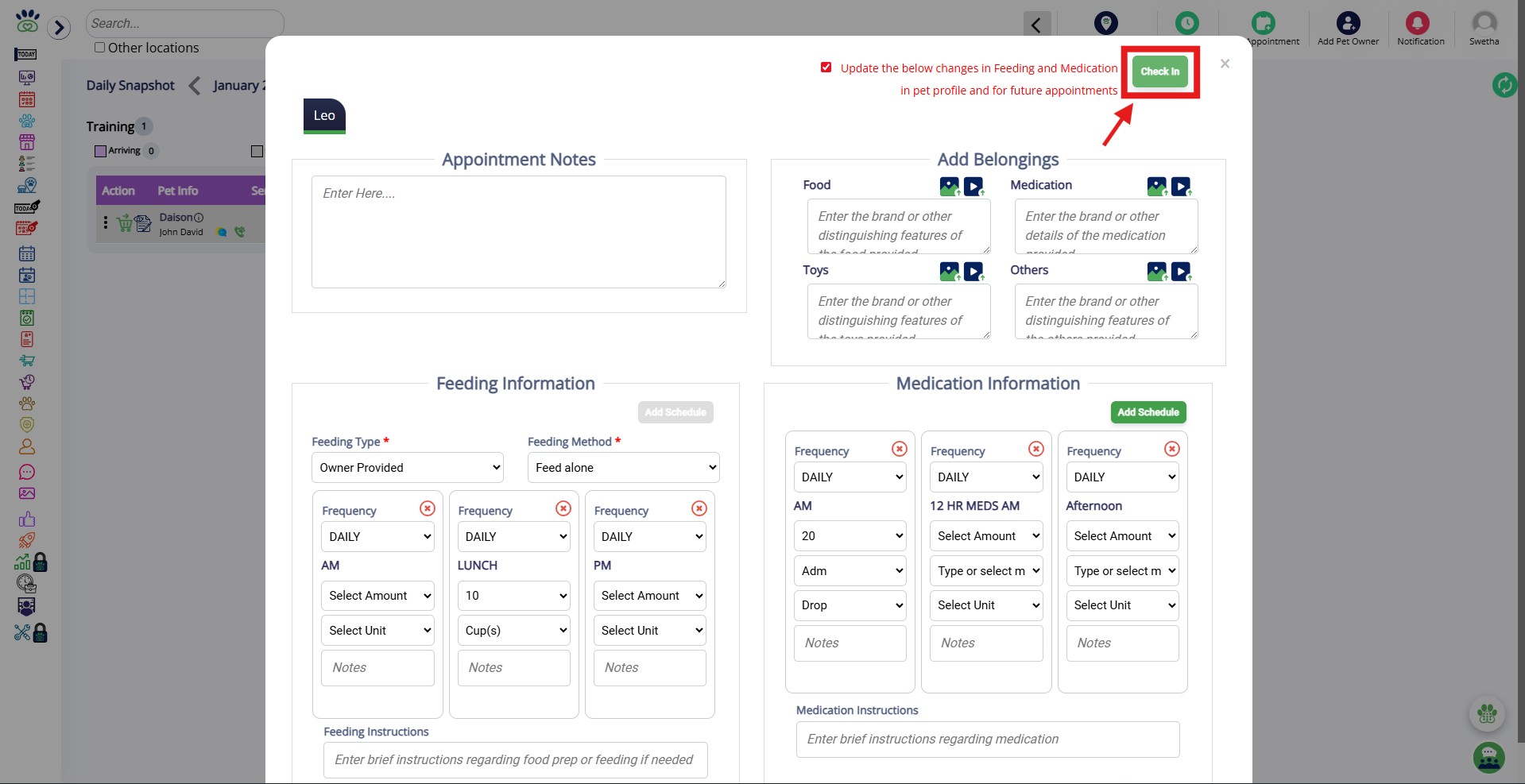
7. Click the Check-In button at the top to confirm the check-in.
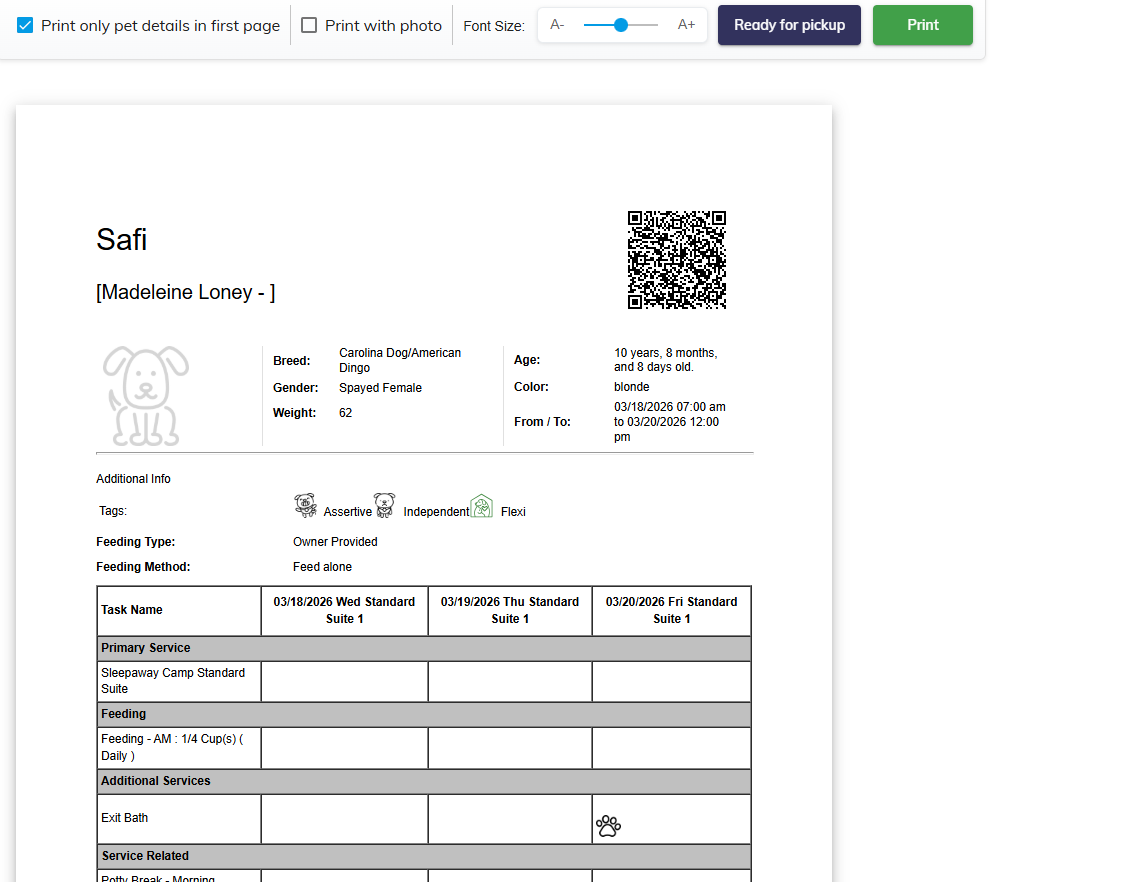
7. Once checked in, this popup will prompt to view and/or print the pet's run card. To open, click View Run Card.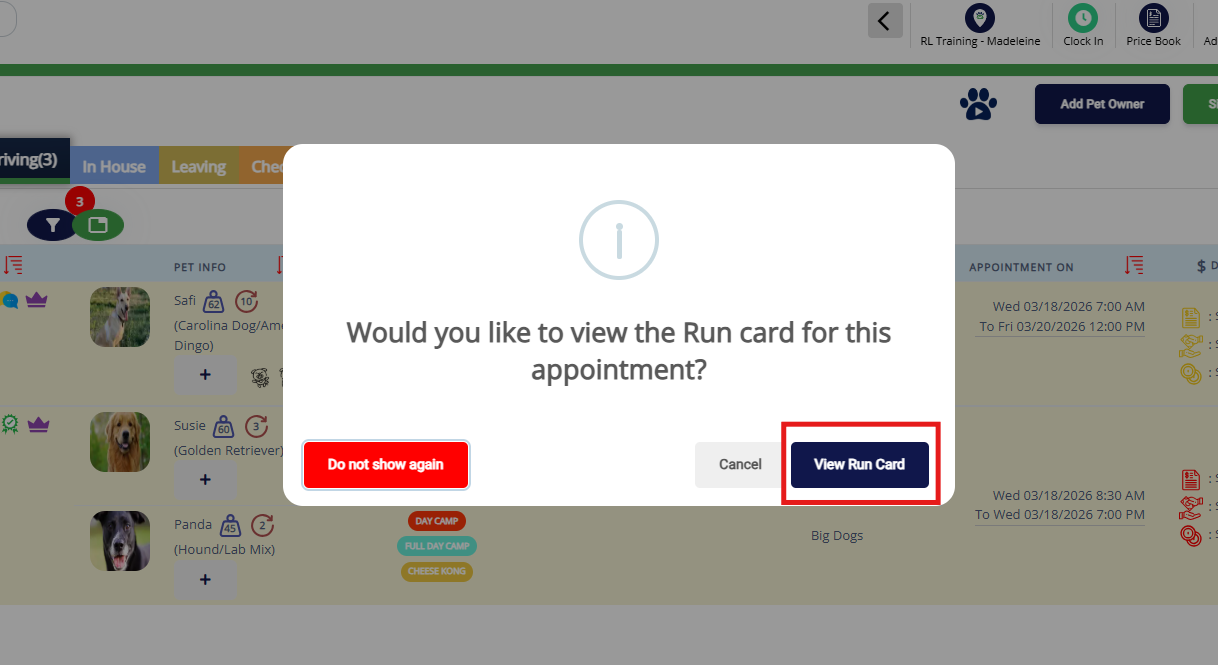
8. You can then print the run card as needed.
Check In an Appointment during Appointment Creation
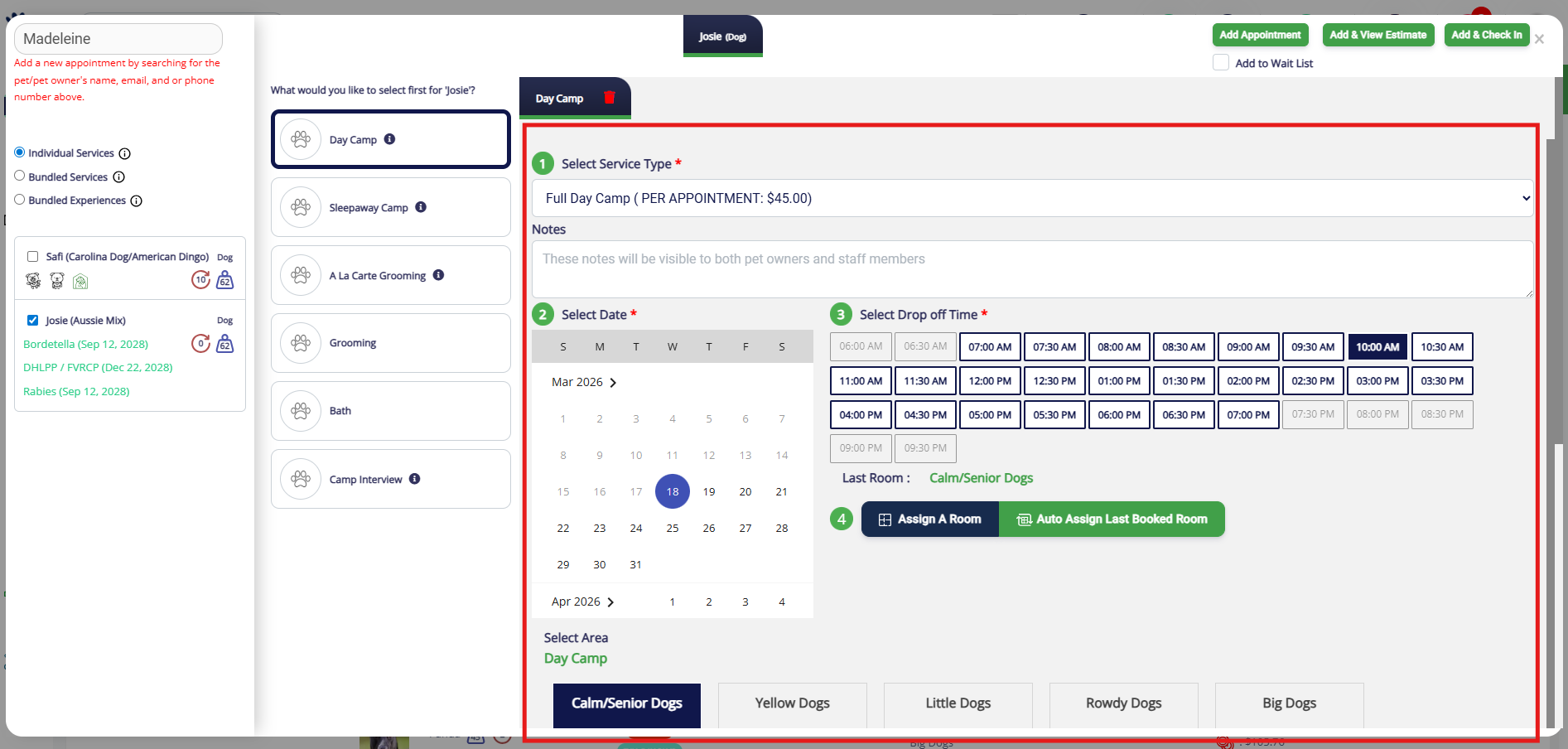
1. While creating an appointment, if the start date of the appointment is for today, you are able to create the booking and check the pet in at the same time! First enter in your data and verify the data is added correctly.
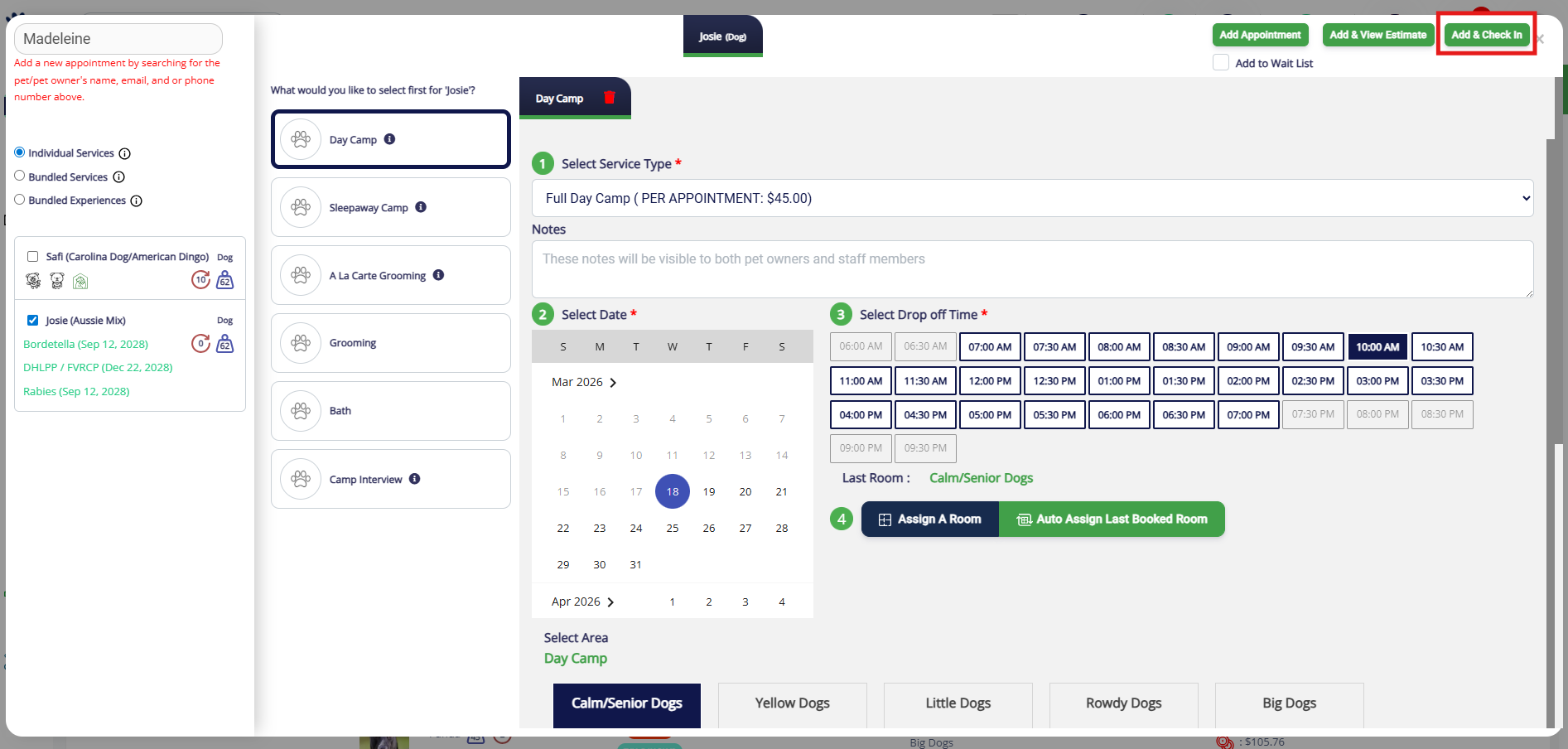
2. Then click Add & Check-in to check in the pet.
Easy Check-In
If you are need to quickly create and check in appointments for multiple pets (even from different families!) at the same time, you can use Easy Check-In. Easy check-in appointment creation can only be used for single day appointments such as daycare or grooming.
You can also use Easy Check-In to check in multiple existing appointments. If there is a confirmed appointment already in the system and you add the pet to Easy Check-In, then the pet will be checked in for the existing appointment.
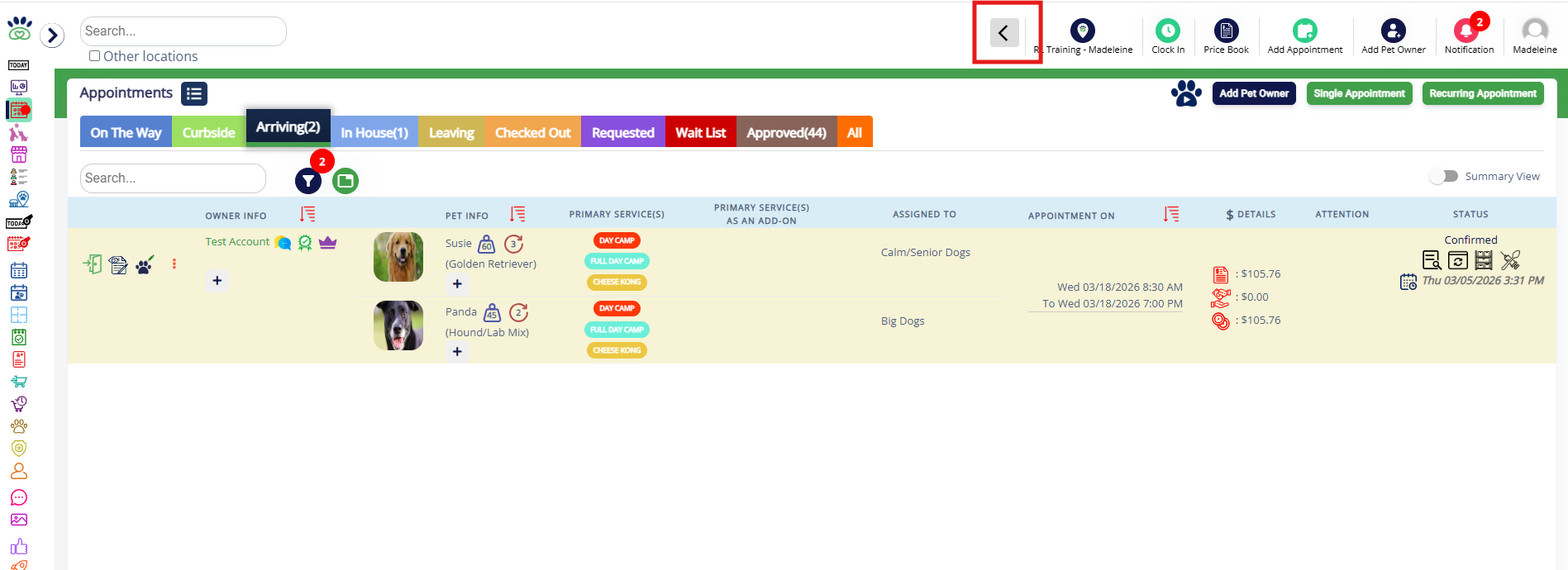
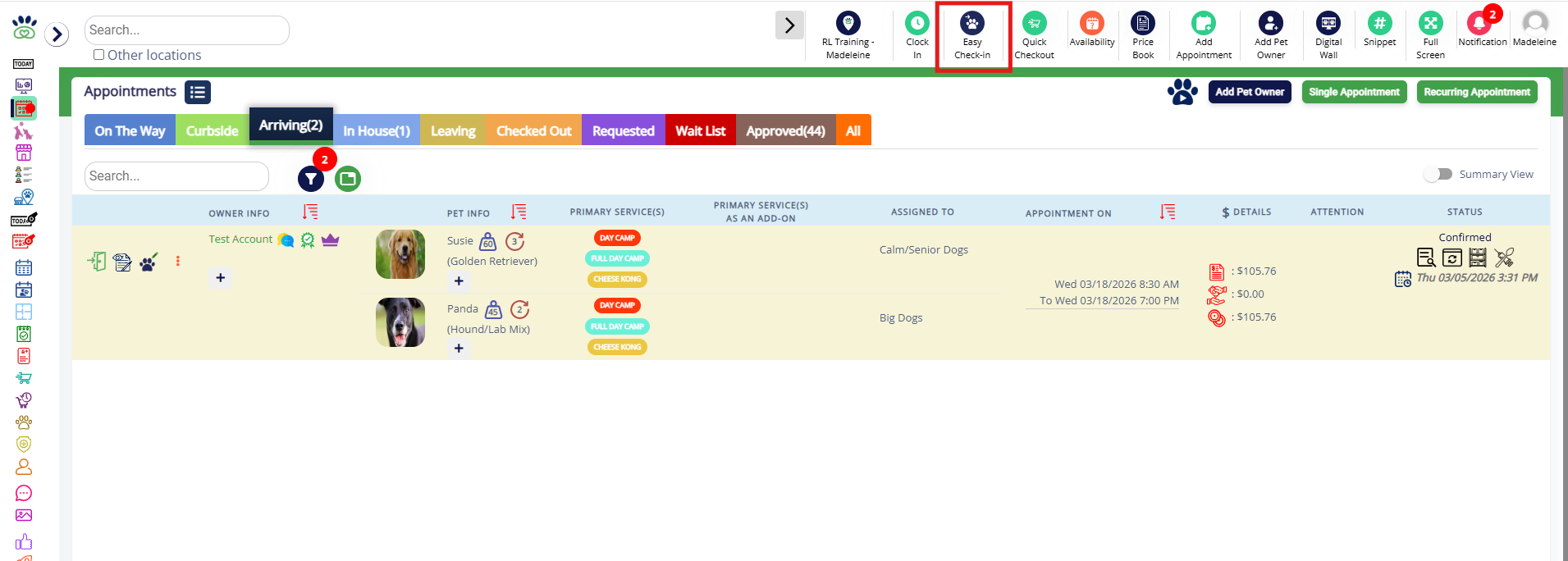
1. To access Easy Check-In, first expand the top menu by clicking the arrow icon in the top header.
2. Then click Easy Check-In (blue pawprint with arrow icon).
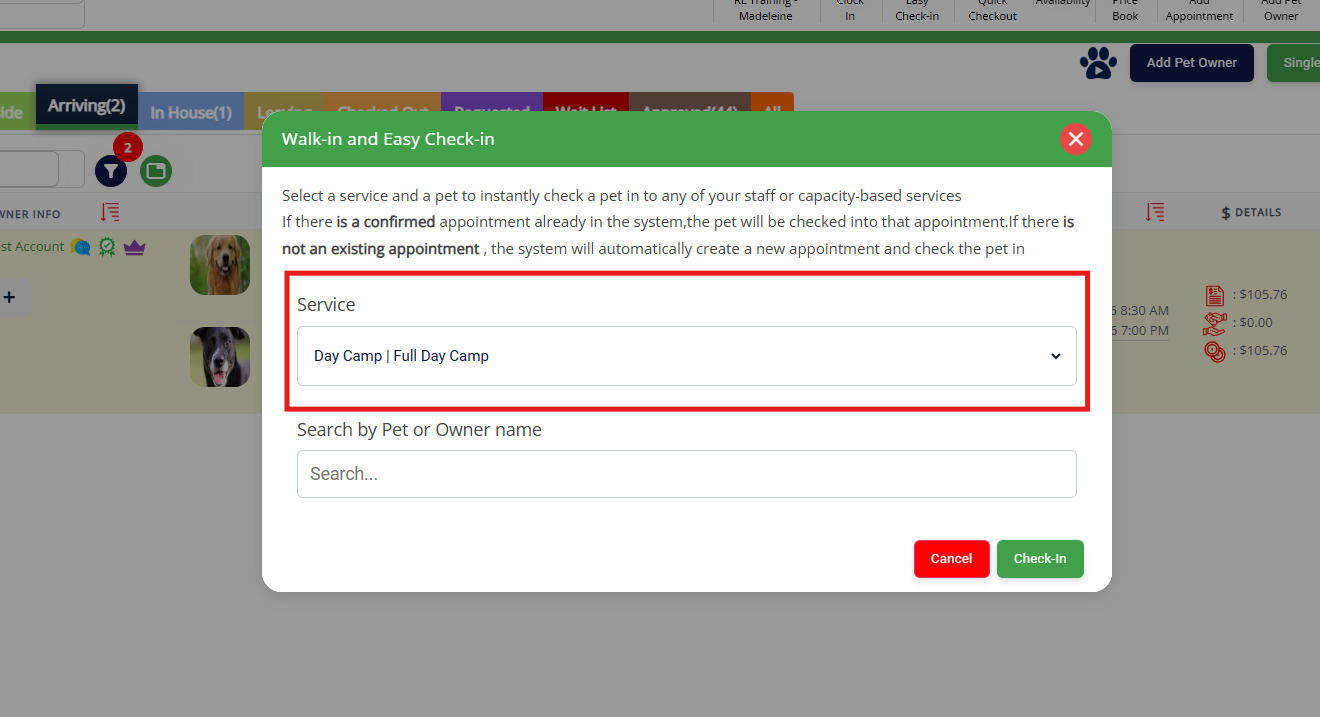
3. Select the service that should be used for Easy Check-In. All pets will have the appointment created for the same selected service type. This will default to the first service in the first capacity- or staff-based service category.
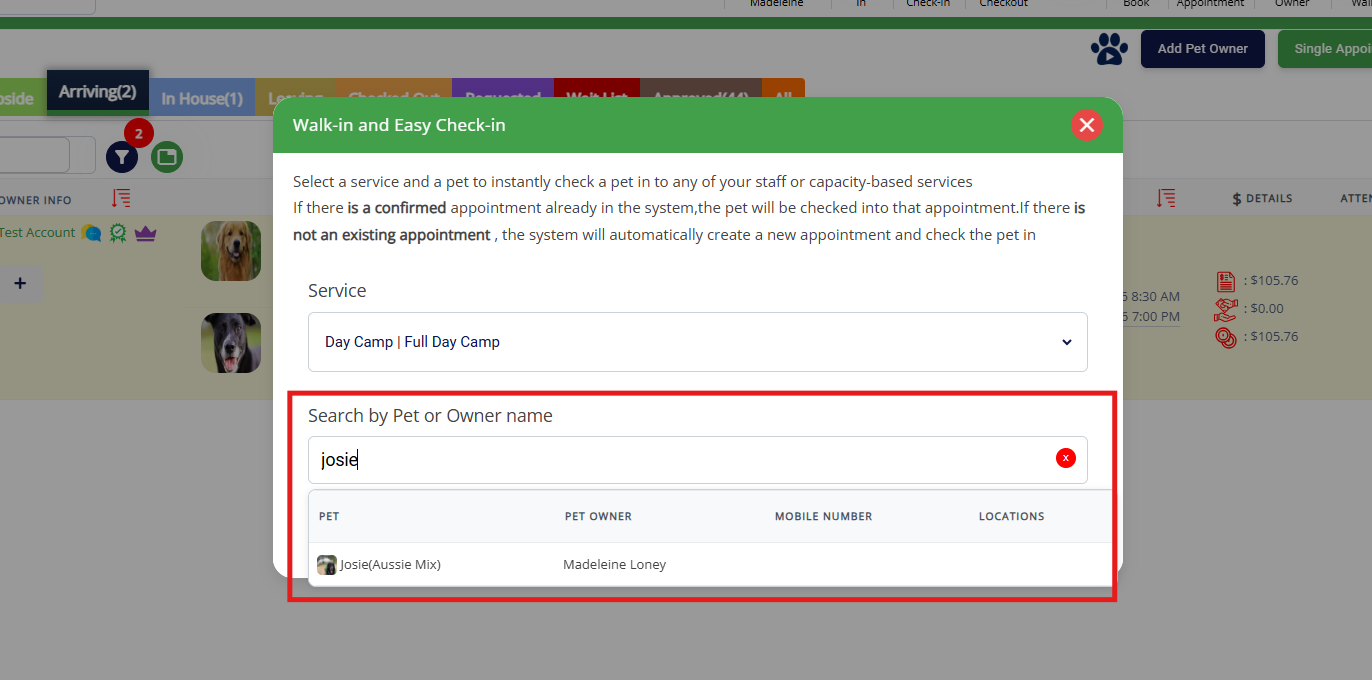
4. Search for pet(s) using the pet owner or pet name, and click on the pet in question to select them.
5. Add multiple pets (if desired) by continuing to search by pet or pet owner name.
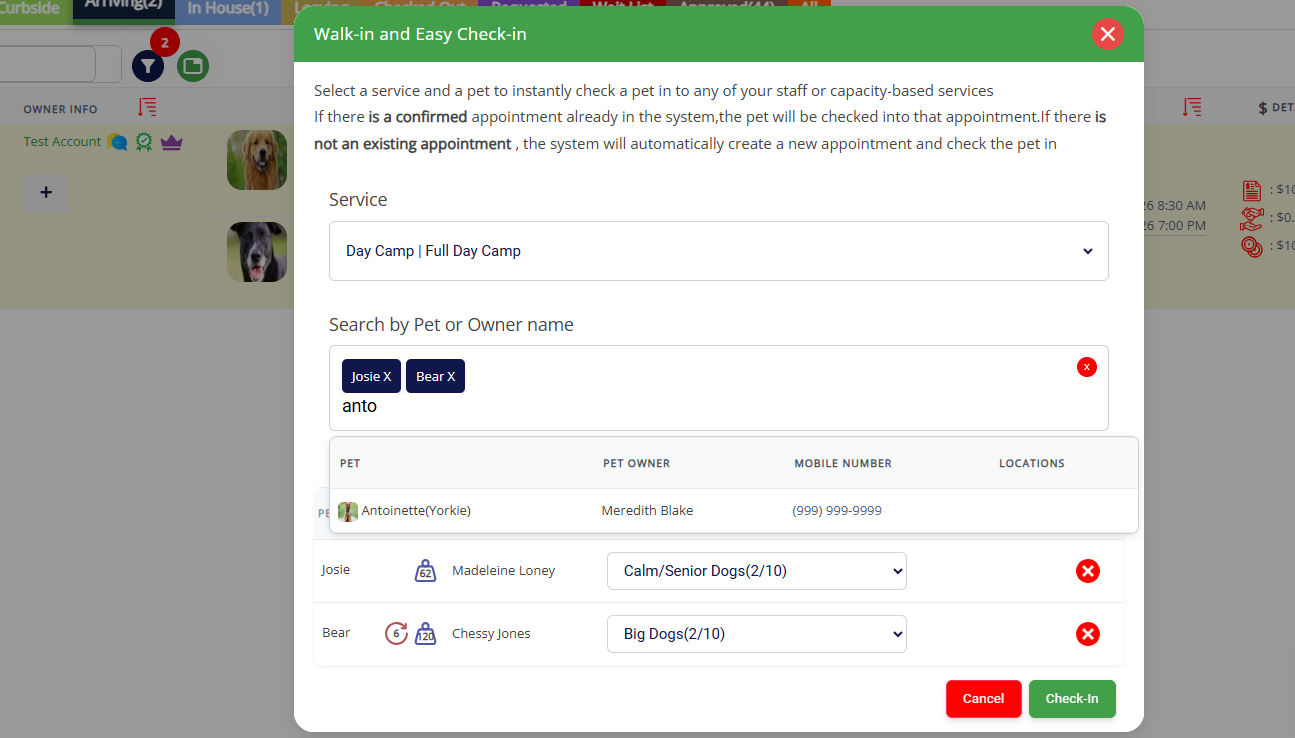
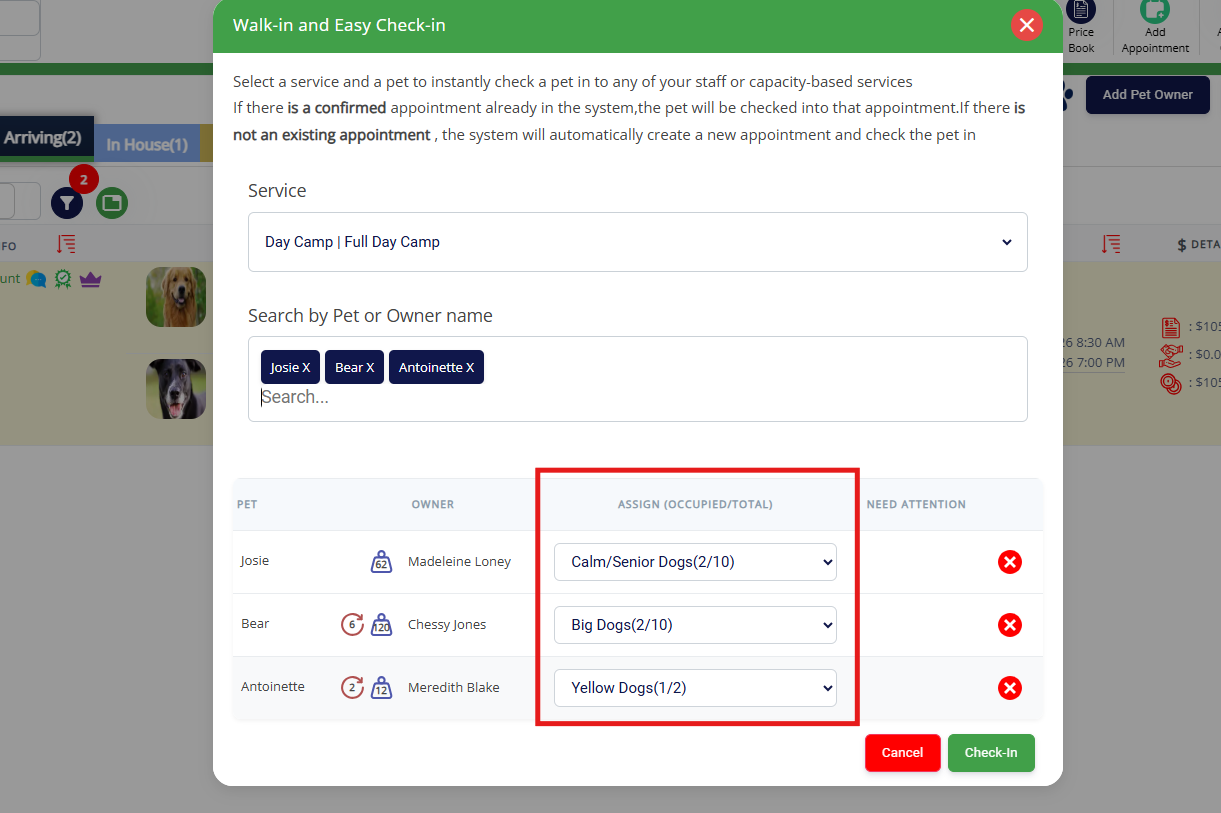
6. If capacity-based, choose the pet's run assignment/area. It will default to their last selected run assignment for their most recent appointment.
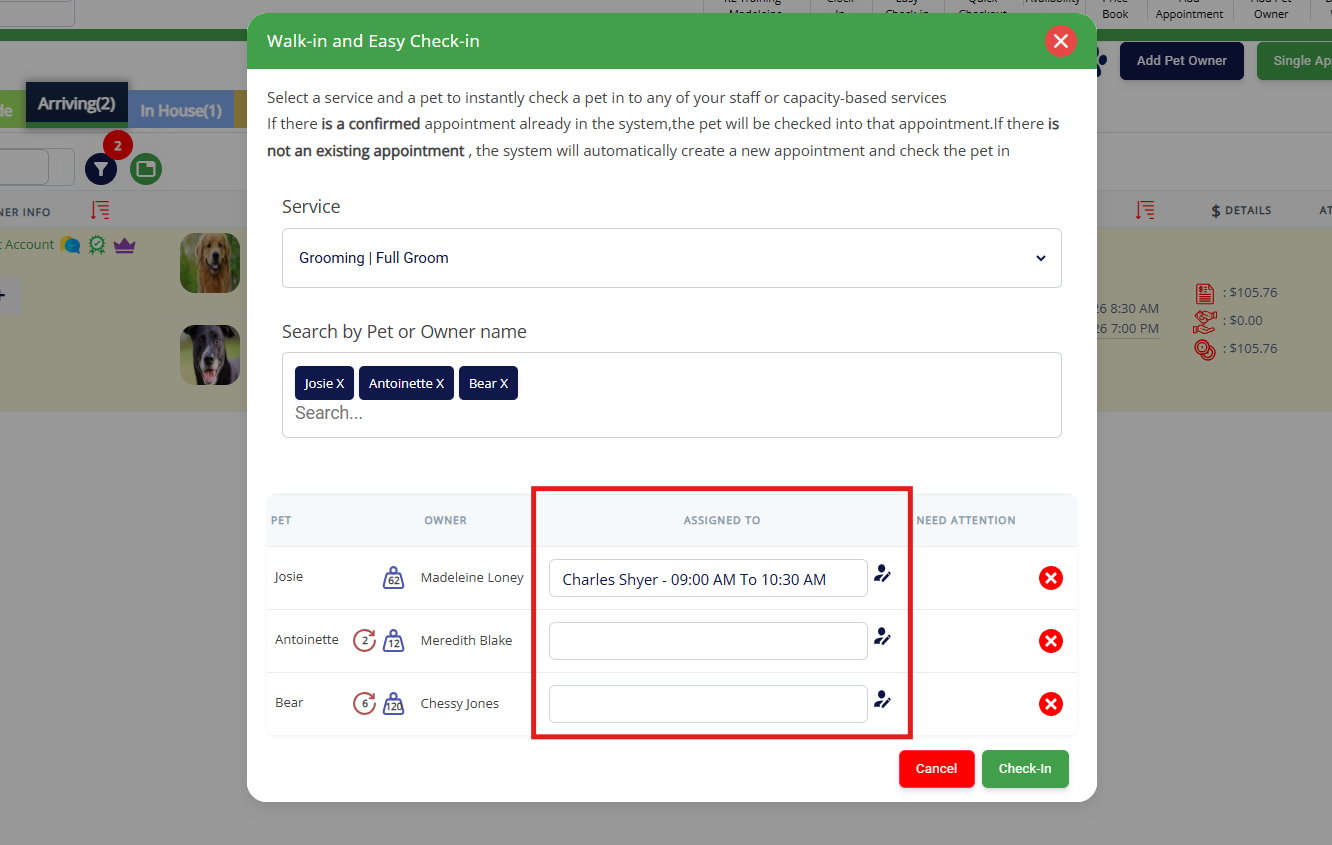
7. If staff-based, click the staff icon to choose the specialist and time the service will be performed.
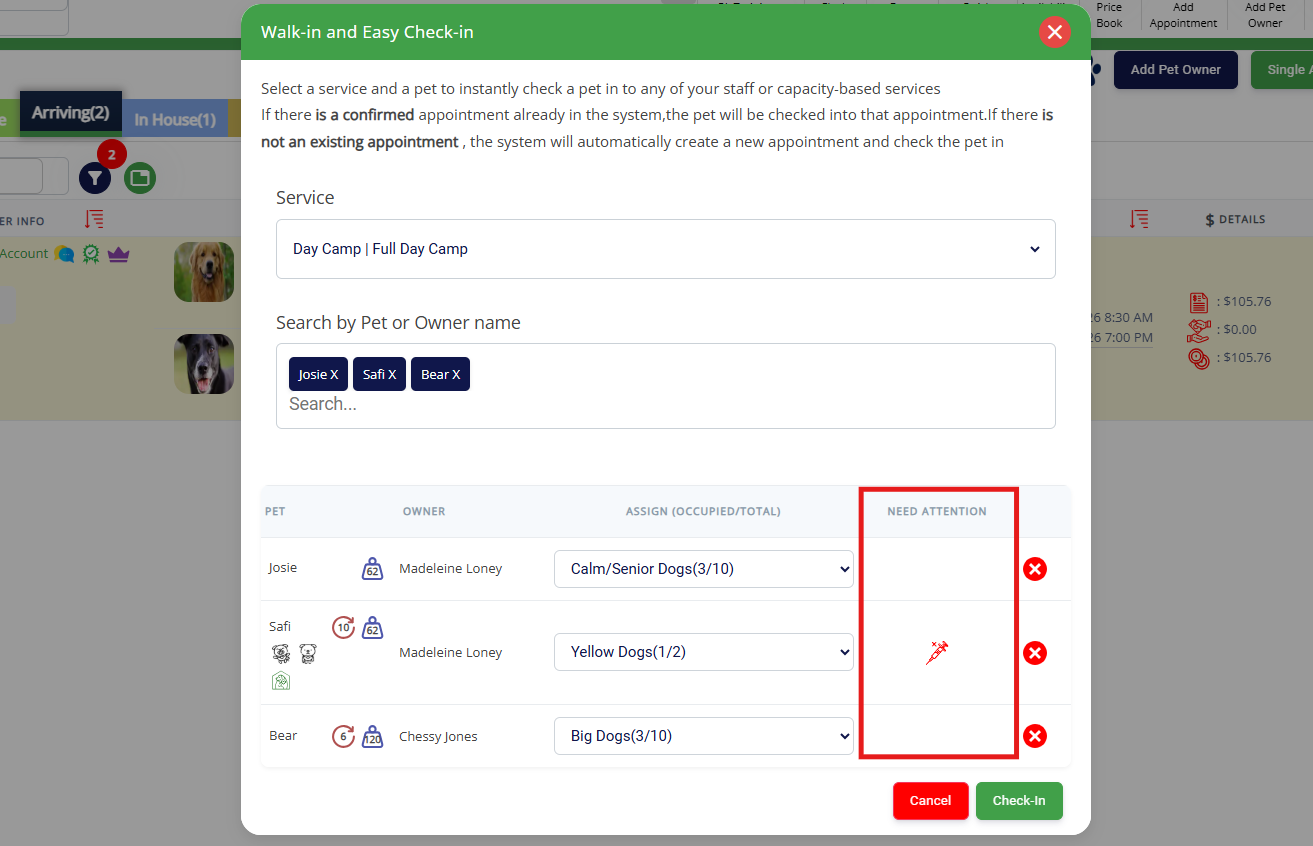
8. Review any concerning alerts (such as expired immunizations, unsigned agreements, etc) under Needs Attention.
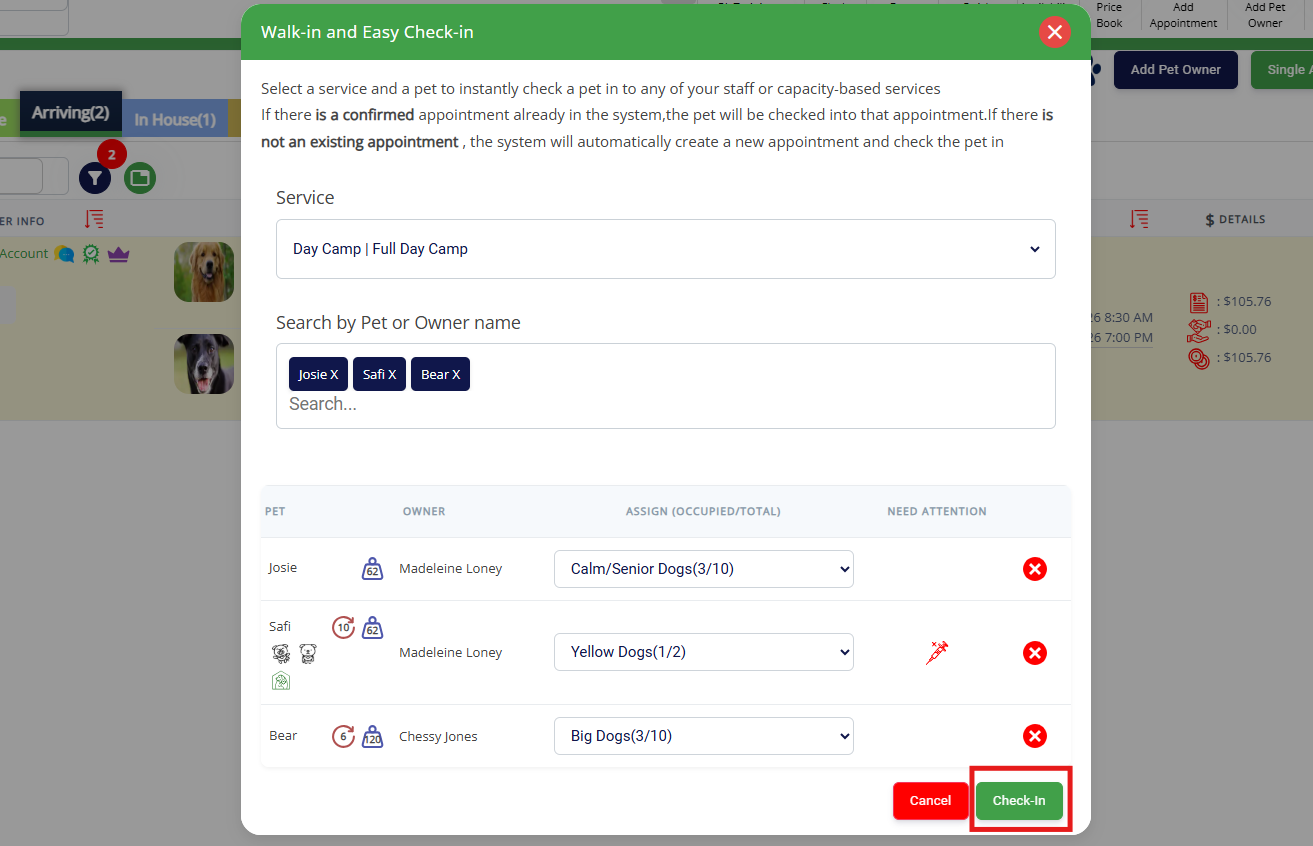
9. Once all pets have their details confirmed, click the green Check-In button to create the appointments and check in all pets at the same time.
More Information
For more information on creating and managing appointments, please refer to this article: Creating & Managing Appointments
For more information on checking out an appointment, please refer to this article: Checking Out an Appointment
Was this article helpful?
That’s Great!
Thank you for your feedback
Sorry! We couldn't be helpful
Thank you for your feedback
Feedback sent
We appreciate your effort and will try to fix the article