Overview
Appointments are single or multi-day bookings for one pet or multiple pets in the same family. You can select services such as boarding, daycare, grooming, dog walking, or any other service set up under Settings > Business Setup > Service Configuration. You can optionally include add-on services to the appointment, such as exit bath, pup cups, and more.
Appointments can be viewed in the following areas:
- Top right-hand navigation > Add Appointment
- Left-hand navigation > Appointments tab
- Pet owner or pet profile > Appointments section
TABLE OF CONTENTS
- Overview
- How to Create an Appointment for a Single Pet
- How to Create an Appointment for Multiple Pets
- How to Edit an Appointment
- How to Cancel an Appointment
- How to Delete or Archive an Appointment
- More Information
How to Create an Appointment for a Single Pet
1. From any page in the app, click Top right-hand navigation > Add Appointment to create a new appointment for any pet.
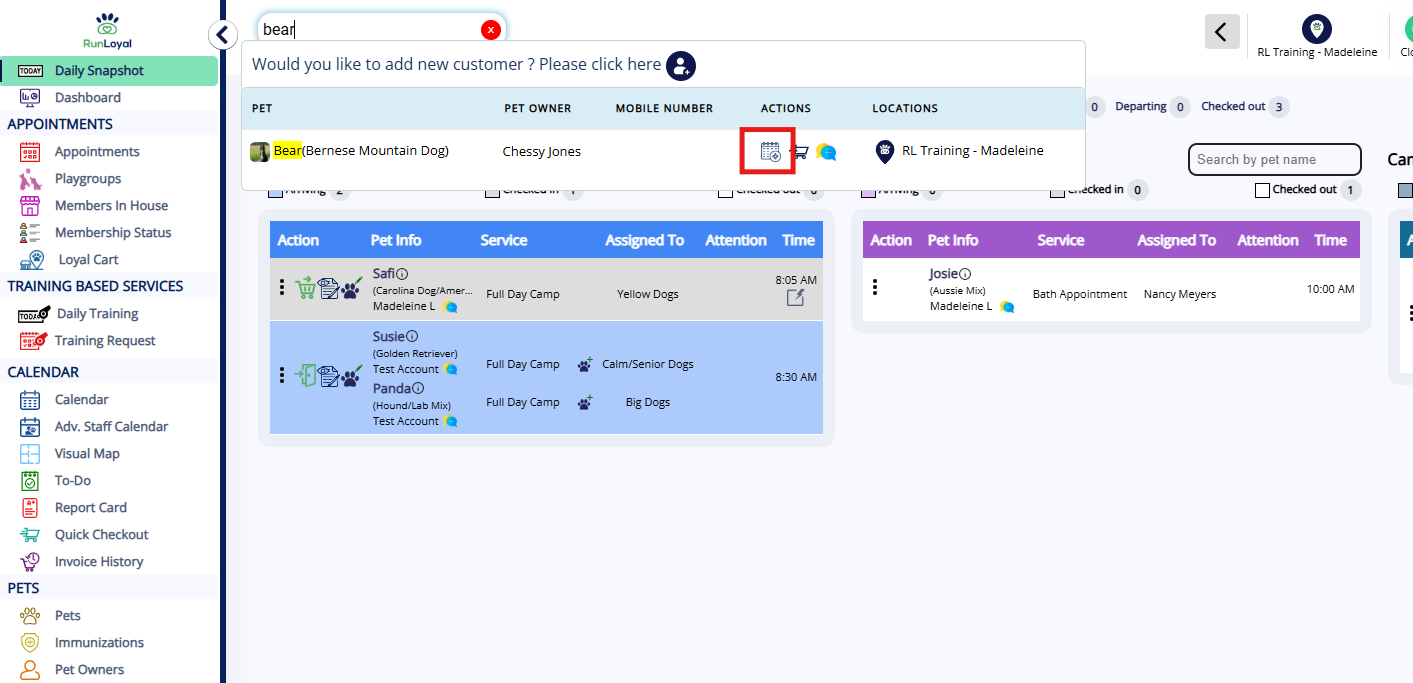
2. You can also use the search bar to search the pet owner or pet's name and then select the Add Appointment icon.
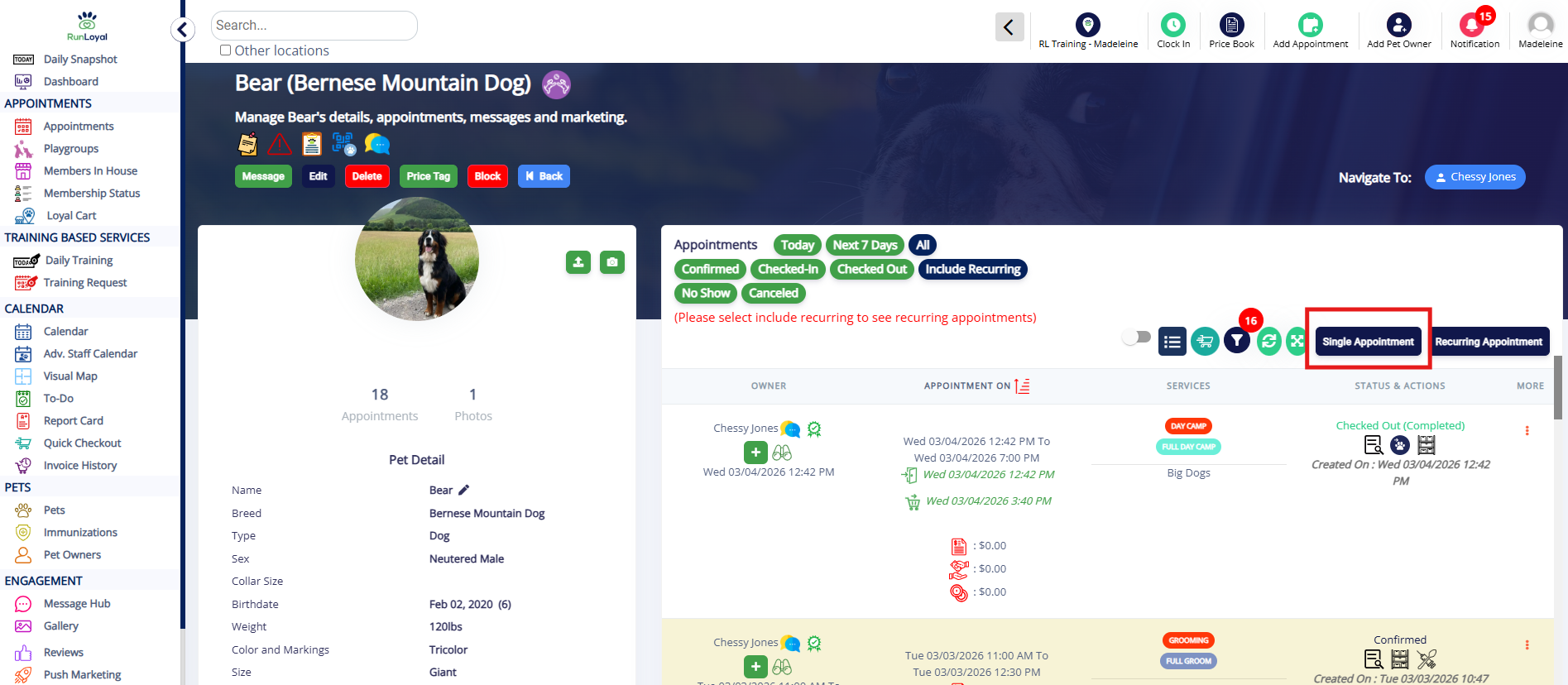
3. You can also navigate to the pet owner or pet's profile and click to add a Single Appointment.
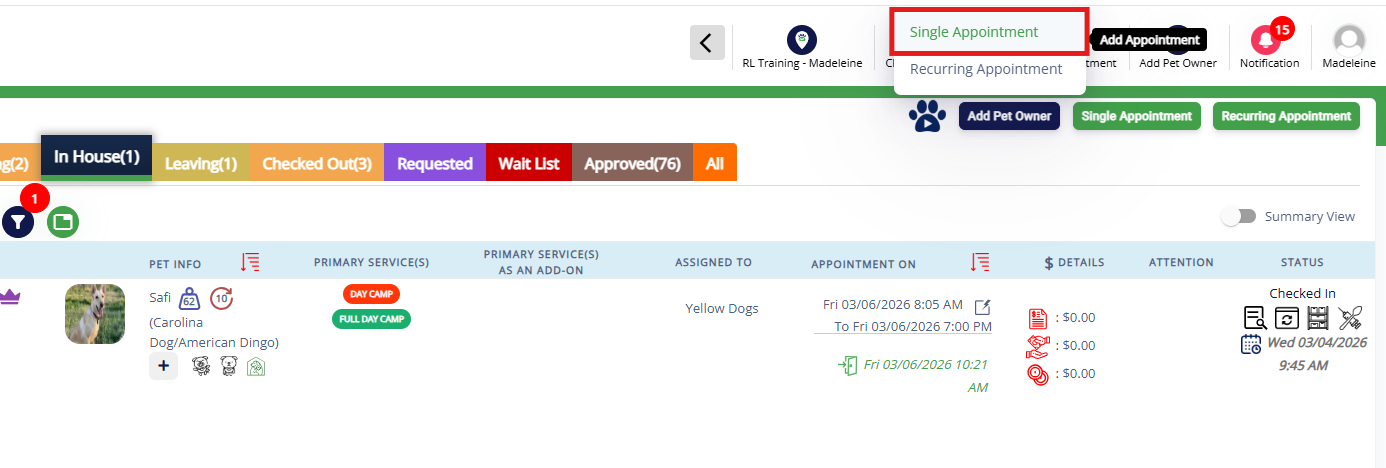
4. If adding from the Top right-hand navigation > Add Appointment icon, when prompted, select Single Appointment to make an appointment for one day.
If you wish to make multiple recurring appointments (requiring pet to come on the same day(s) of the week at the same time), click Recurring Appointment. You can learn more about recurring appointments in this article: Recurring Appointments.
5. Search the pet owner or pet's name in the search bar. Then select the pet in question.

6. Select if the appointment should be for Individual Services (most common), Bundled Services, or Bundled Experiences. Once you have selected the type, select the Service Category.
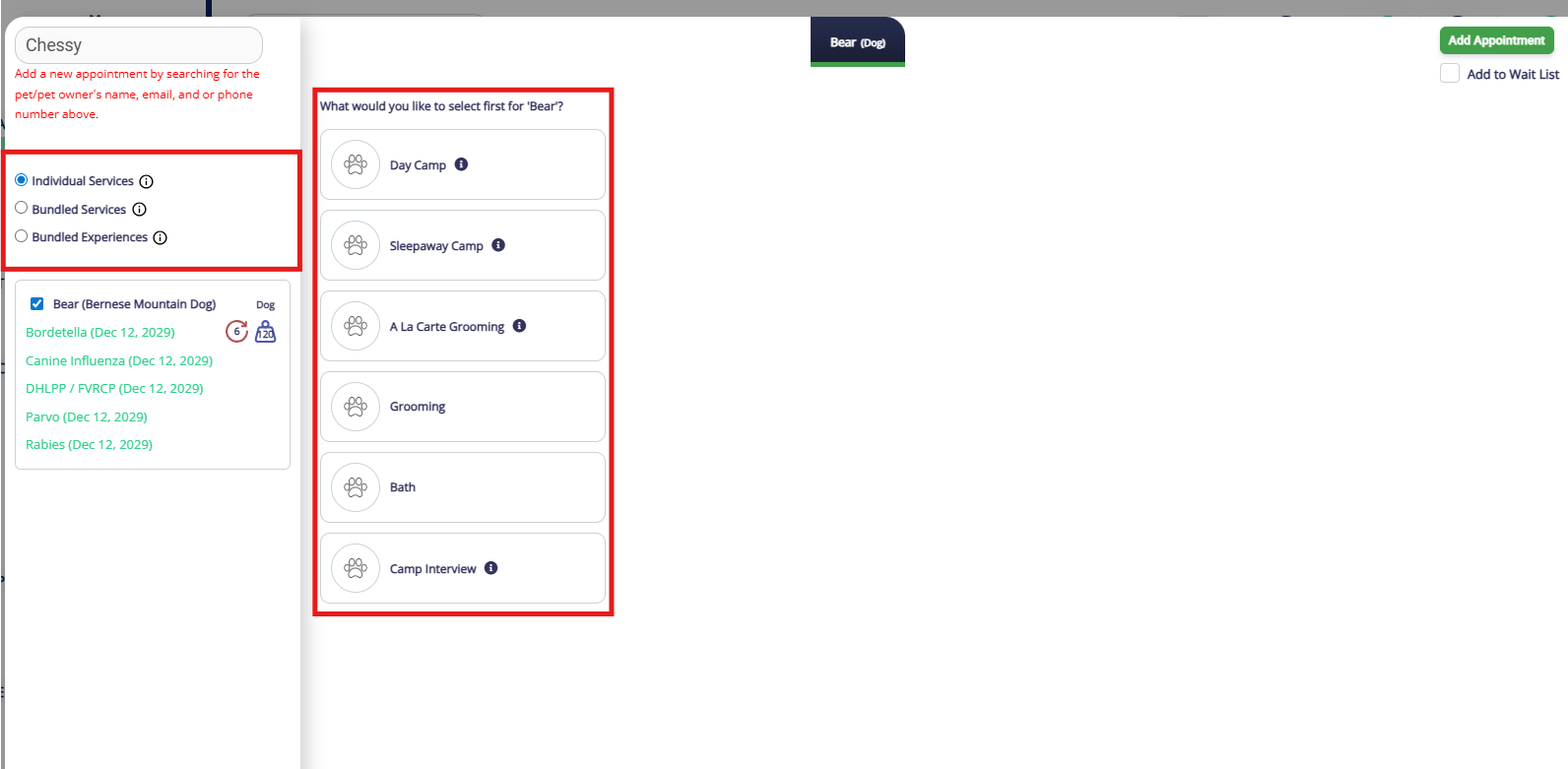
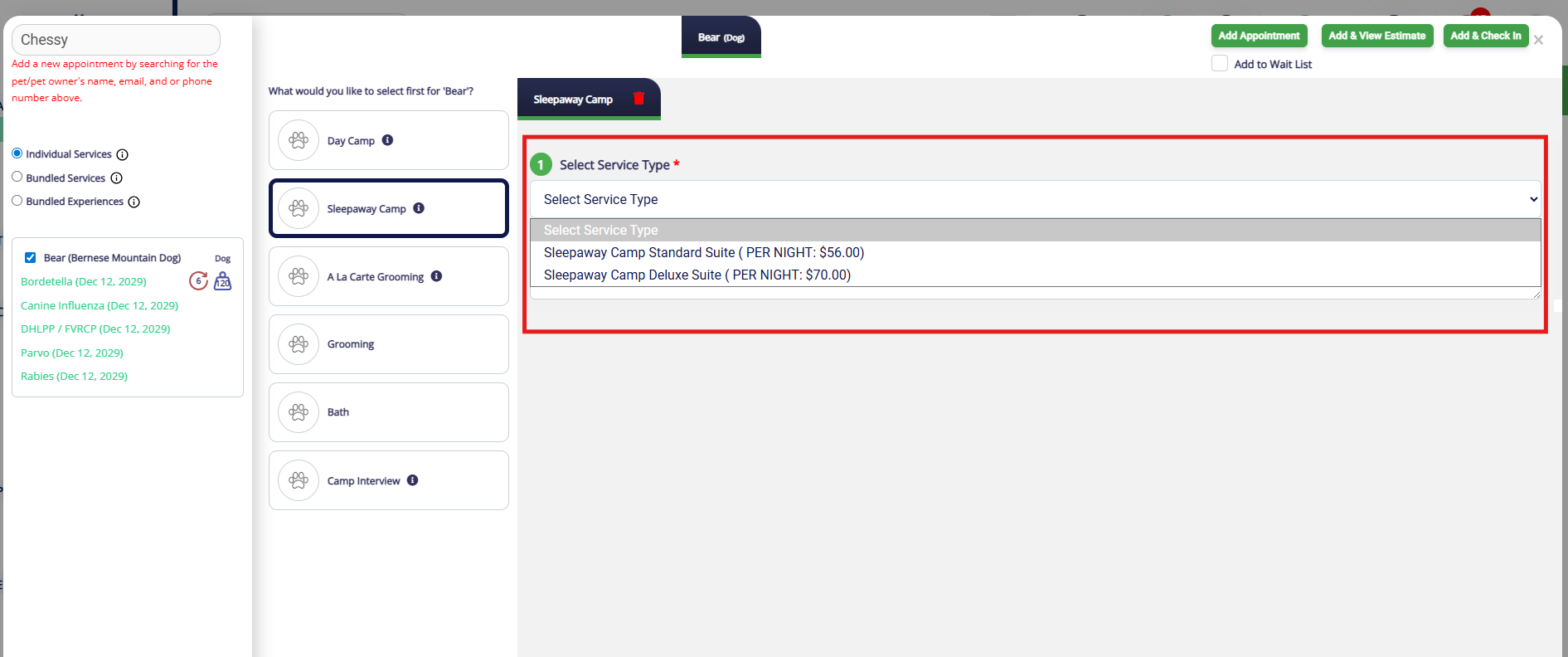
7. Choose the correct service from the service type dropdown.
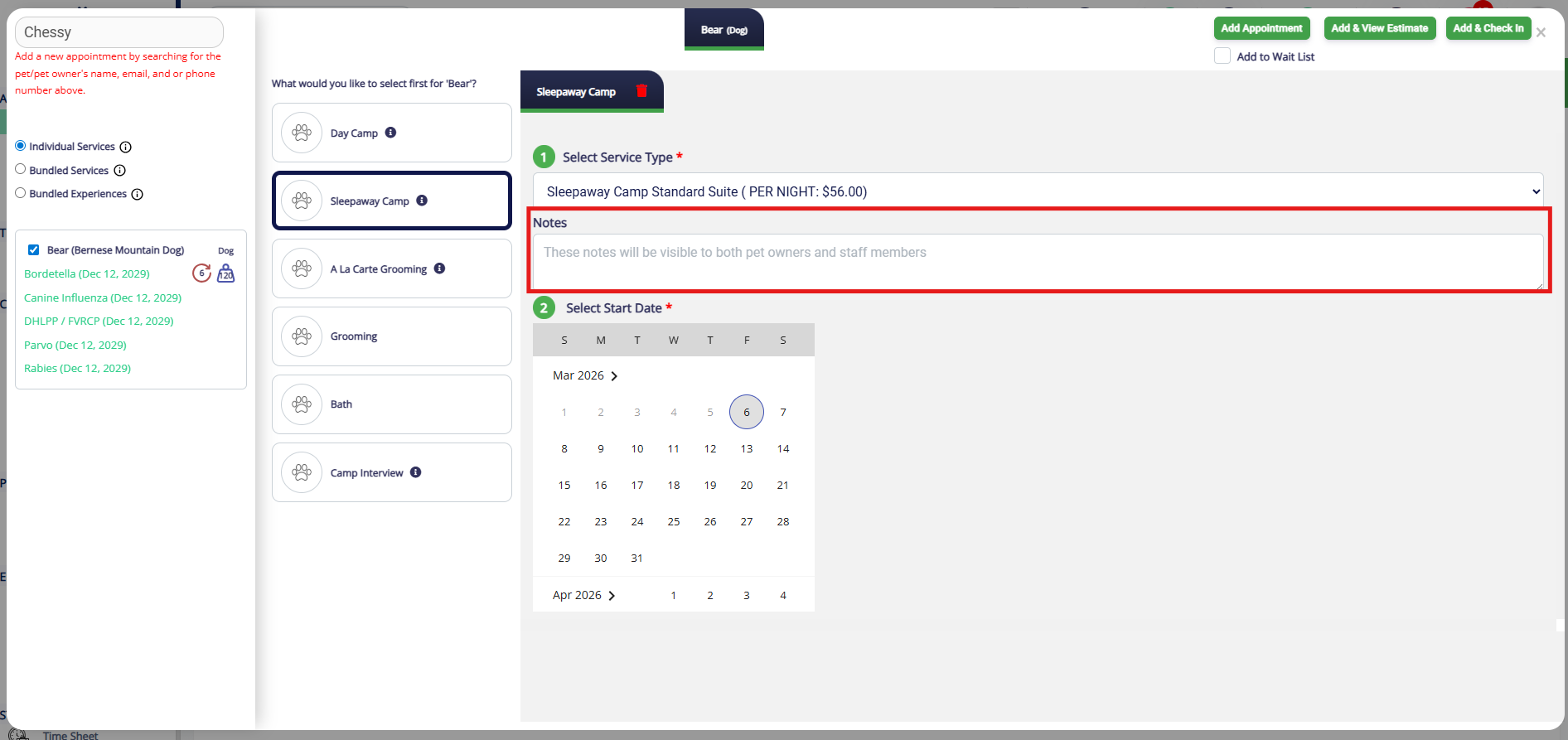
8. If you would like to add any notes about the appointment, enter them in the Notes field. You can learn more about Appointment Notes in this article: Adding an Appointment Note (Public).
⚠️ Important: Notes entered here are visible to the business and pet owner!
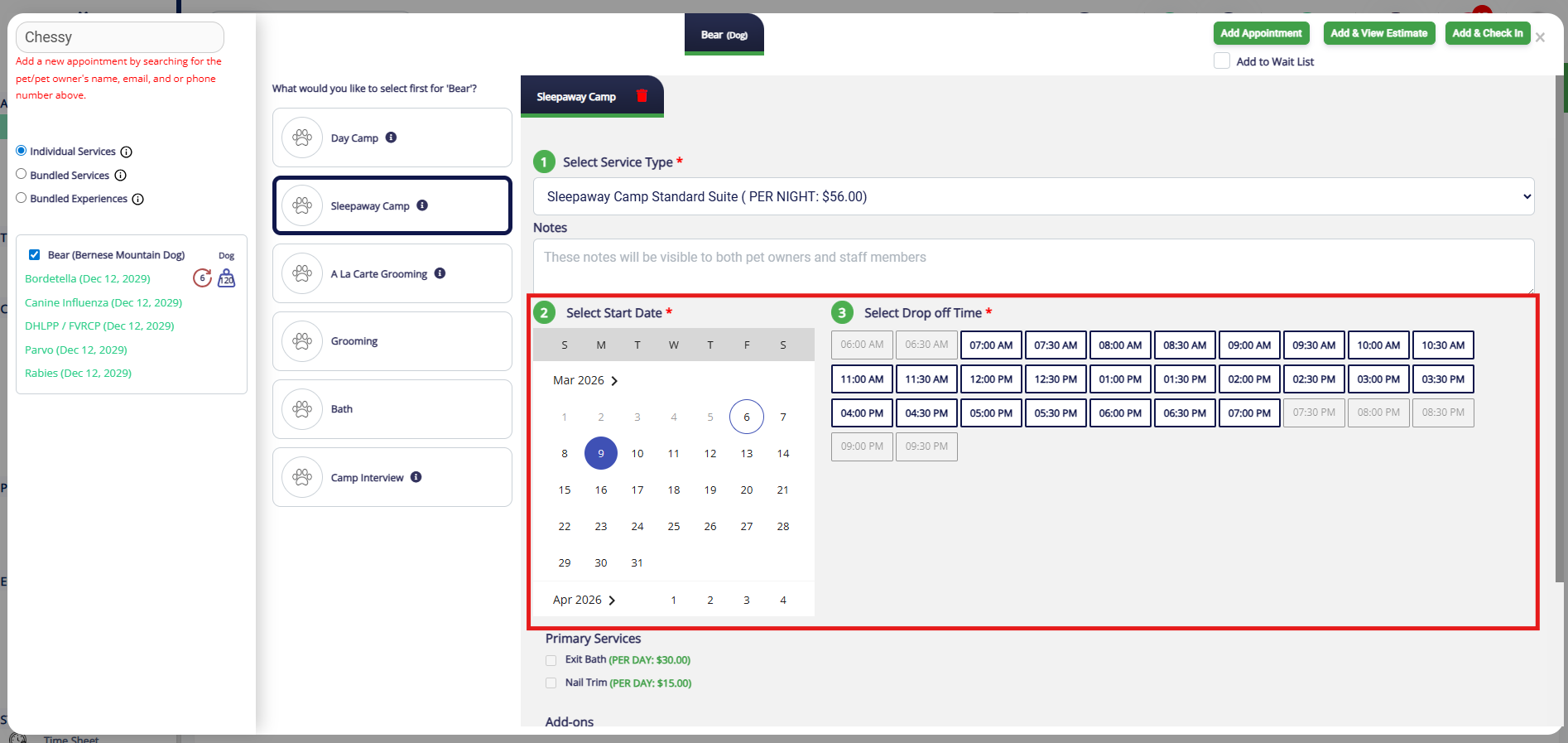
9. Select the start date and start time.
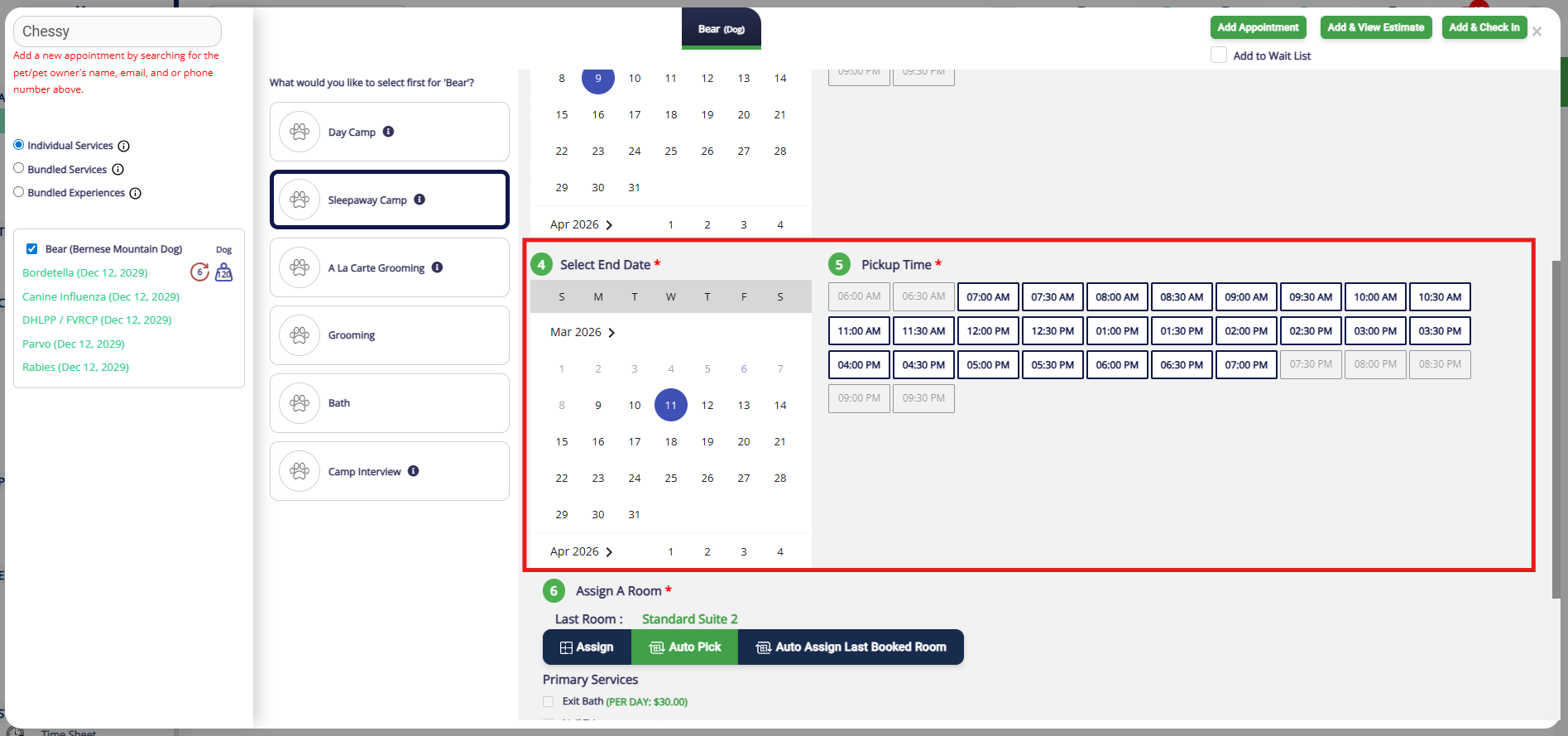
10. Select the end date and end time.
11. Select a room (run) for the appointment. If the pet has been booked before for at your facility, their last room will display for your convenience. The option Assign will bring up your Visual Map so you can see the available rooms and select manually. The option Auto Pick will automatically pick the first available run, based on the pet's weight. The option Auto-Assign Last Booked Room will place them in the room showing under Last Room, if available.
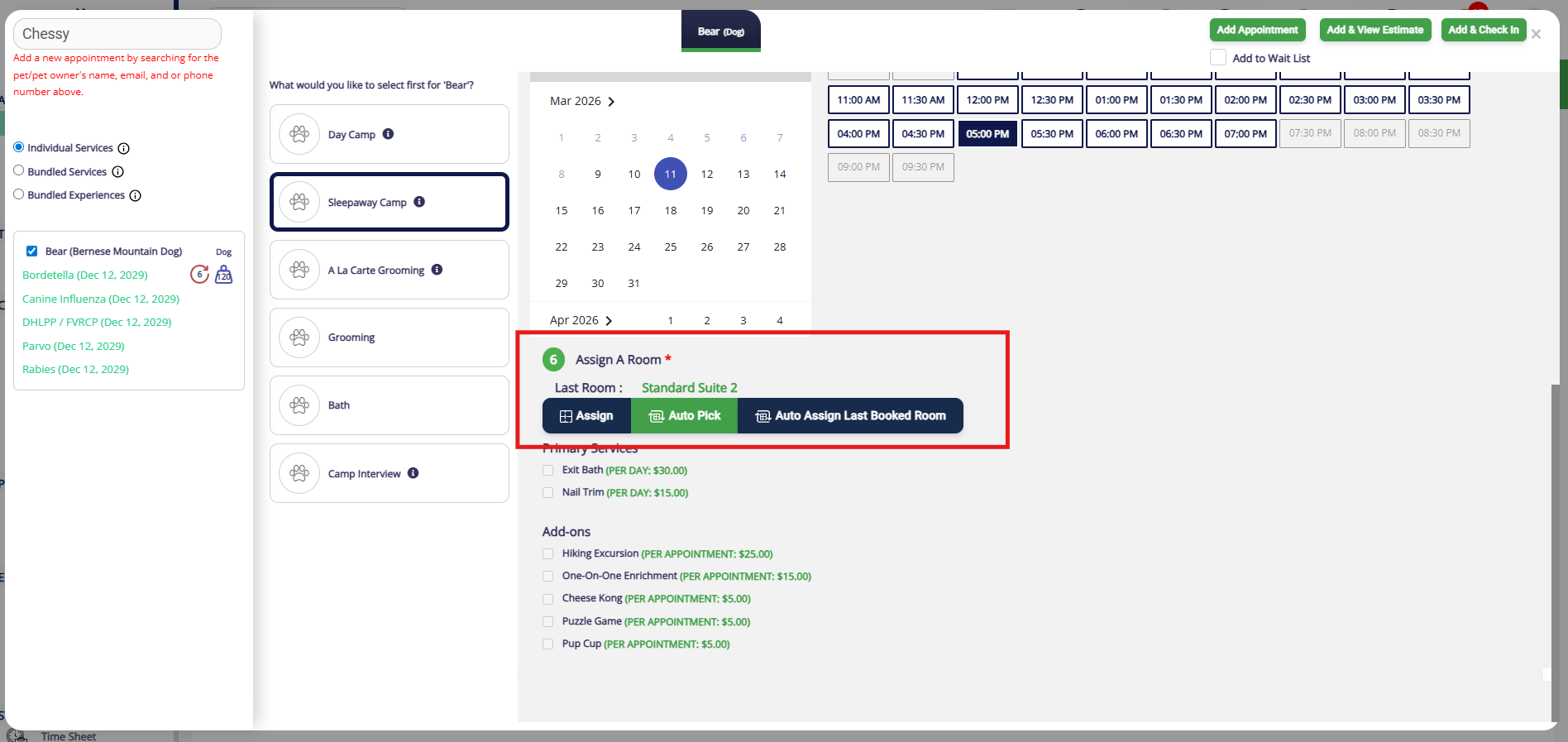
12. If you select Assign, use the Visual Map to assign the pet to a run for their booking.
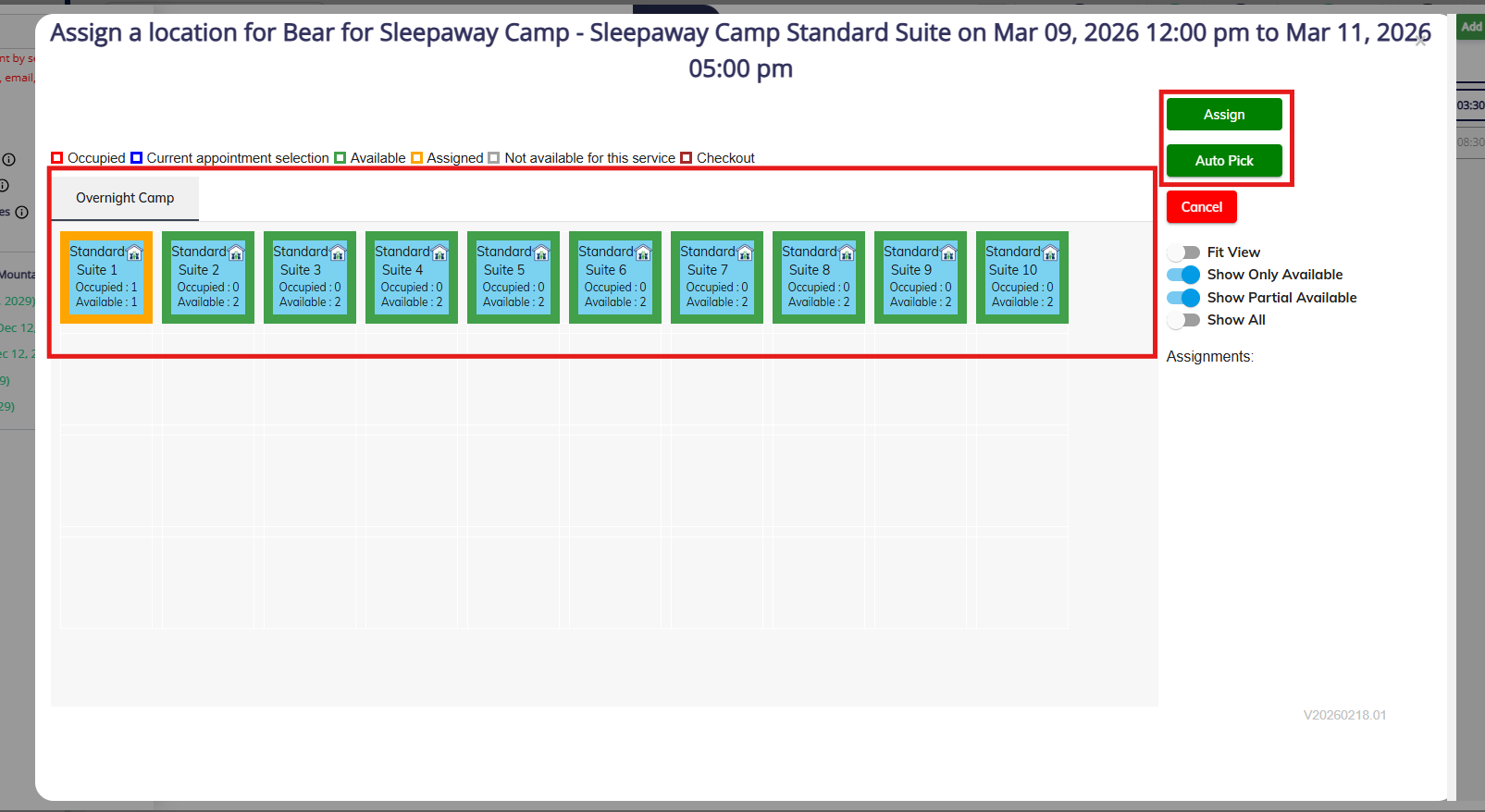
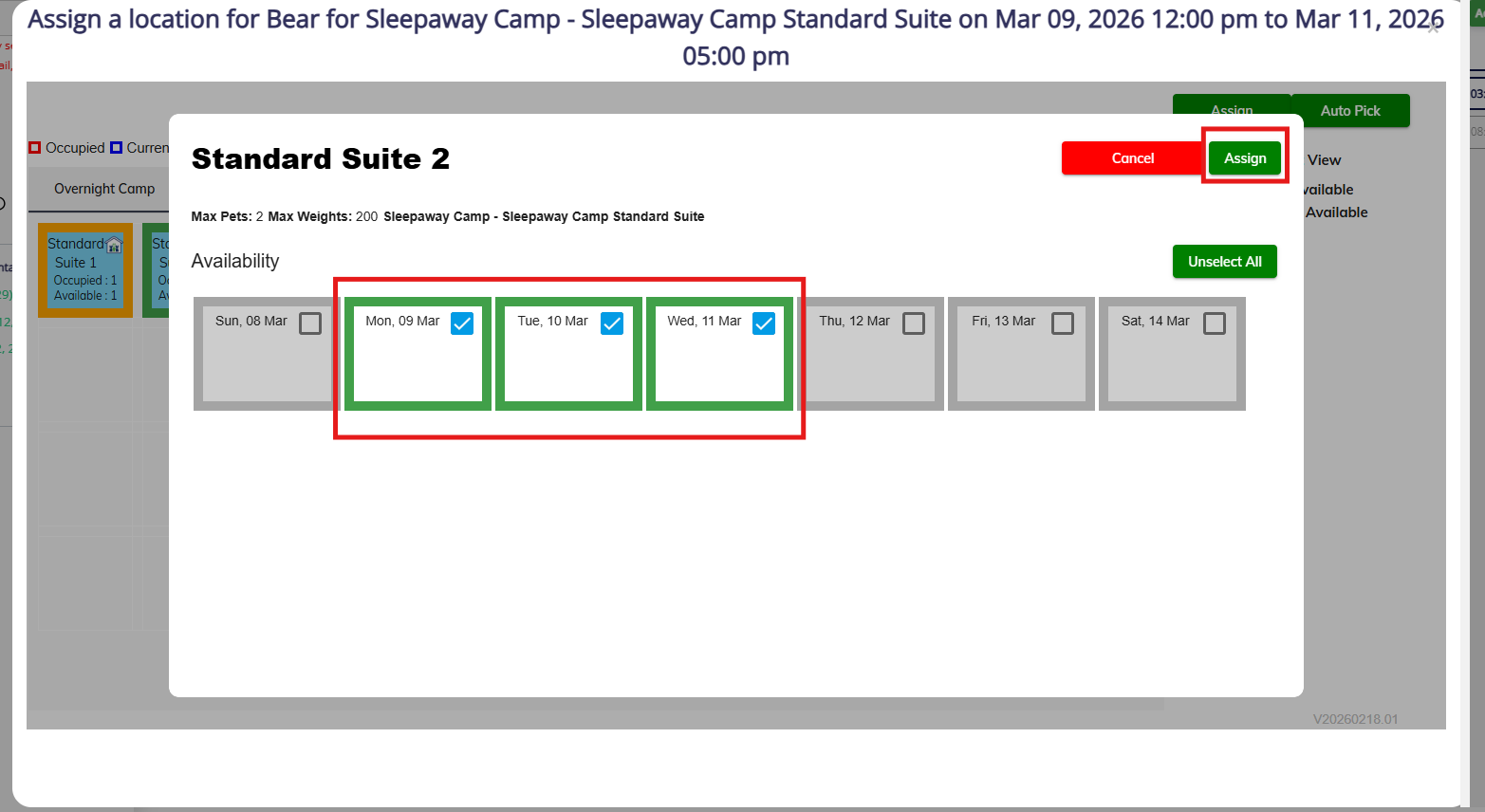
13. When you click the run, all dates are selected by default. You can optionally select some dates in one run and some dates in another. When finished, click Assign.
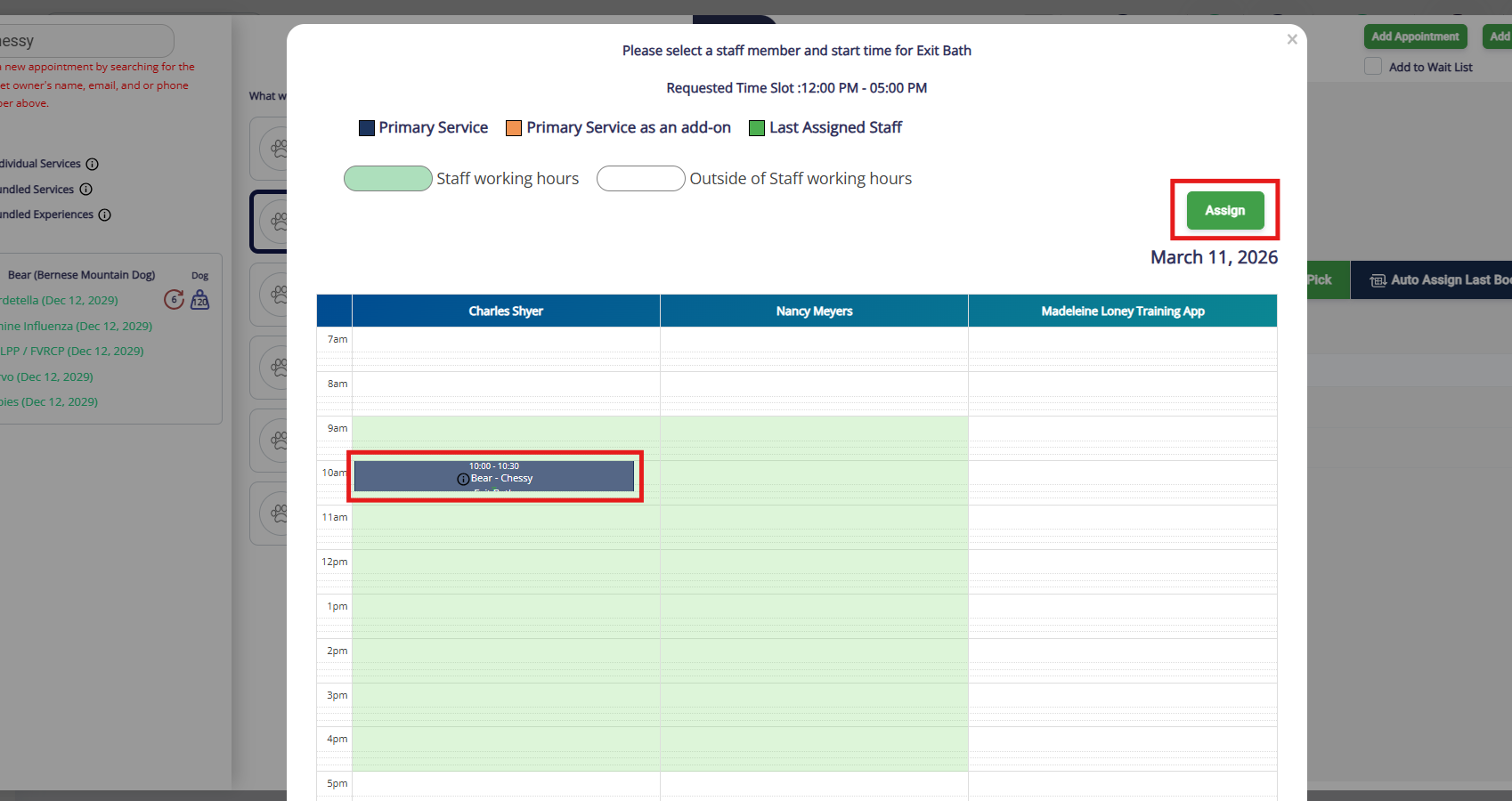
14. The section Primary Services must be assigned to a staff user. Once you select the service, the dates will dropdown so you can select a specific date or all dates.
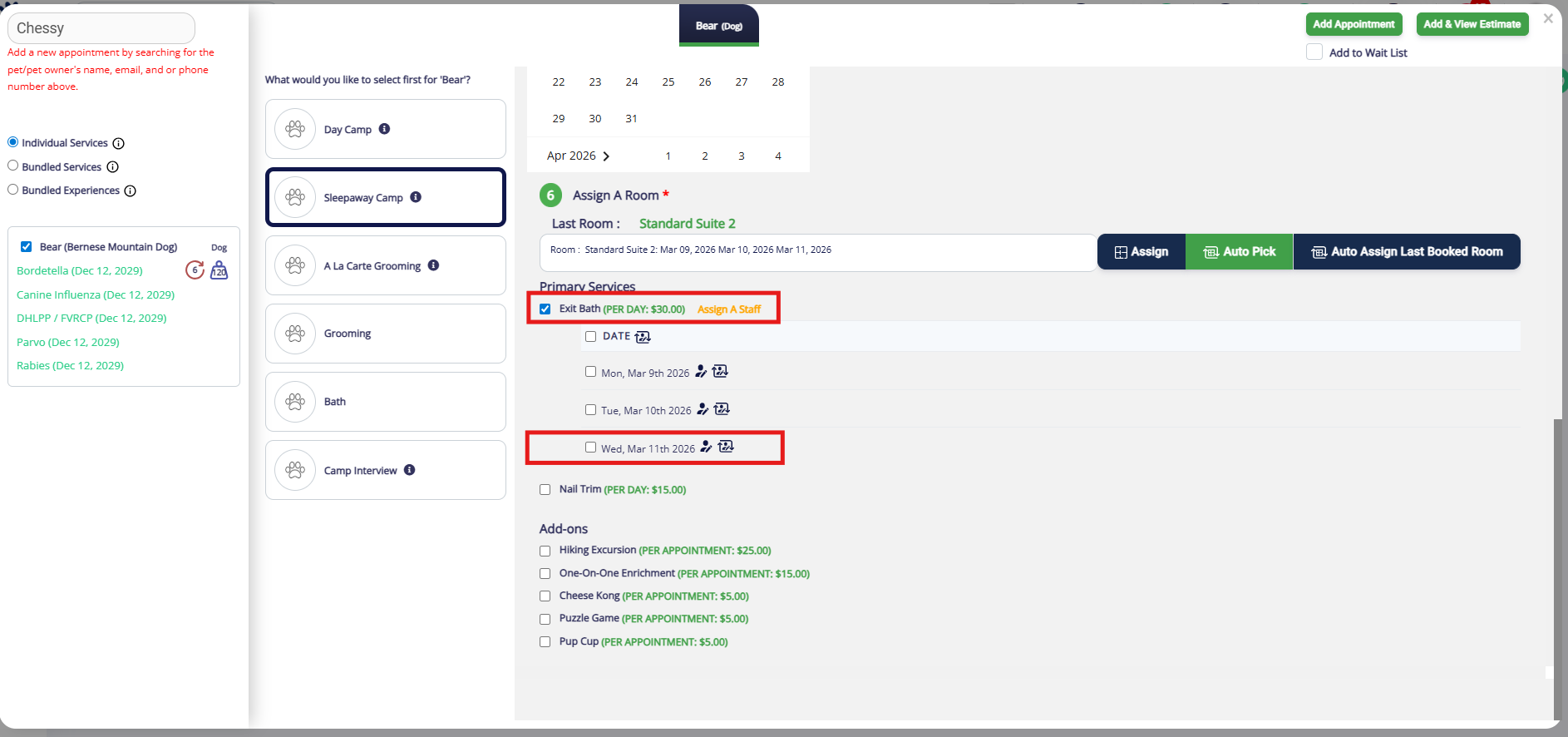
15. Once the date is selected, click on the calendar under the correct staff user to add the service to their schedule. Then click Assign.
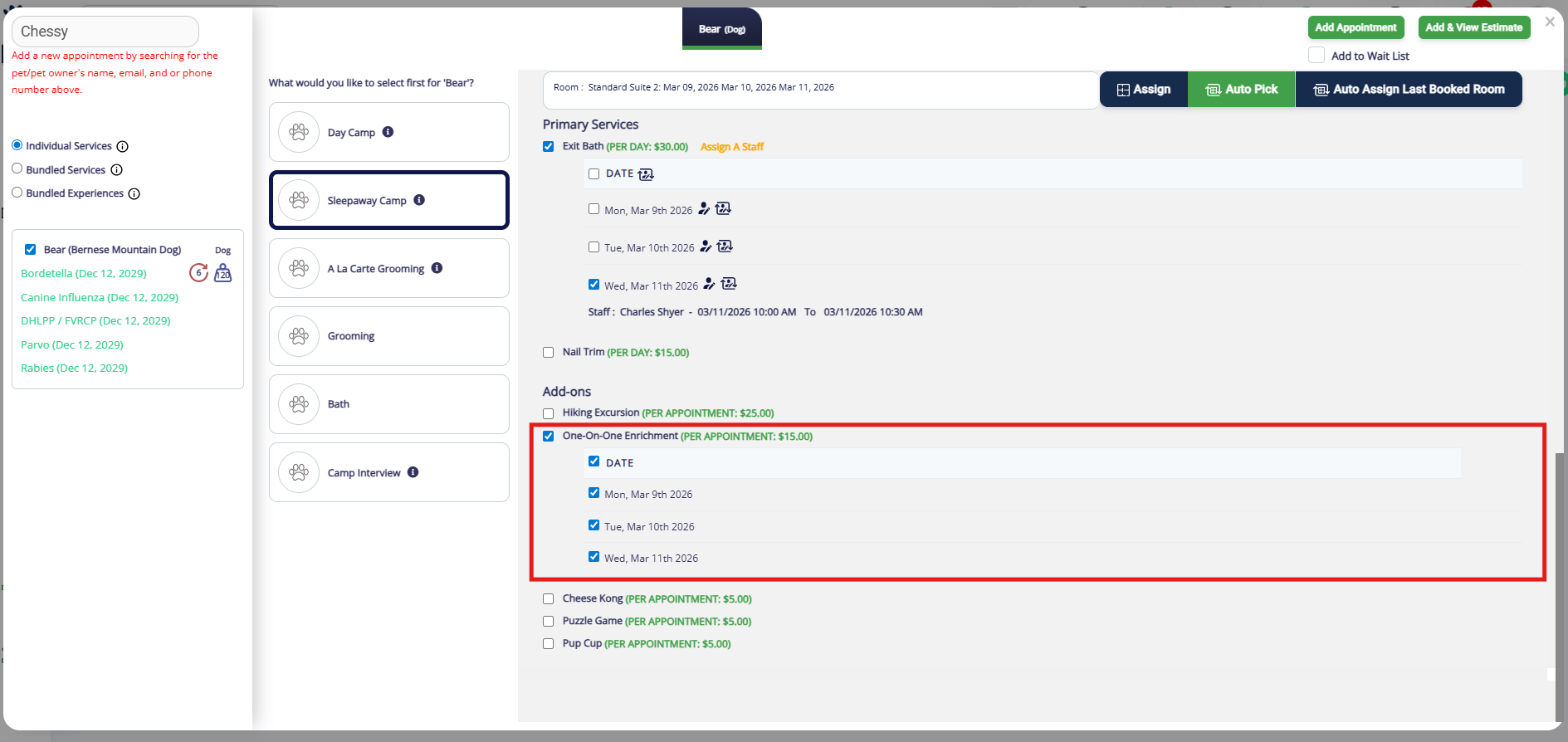
16. The section Add Ons do not require a staff user, so when you select the add-on, it will default to all days of the appointment. You can unselect any days as needed.
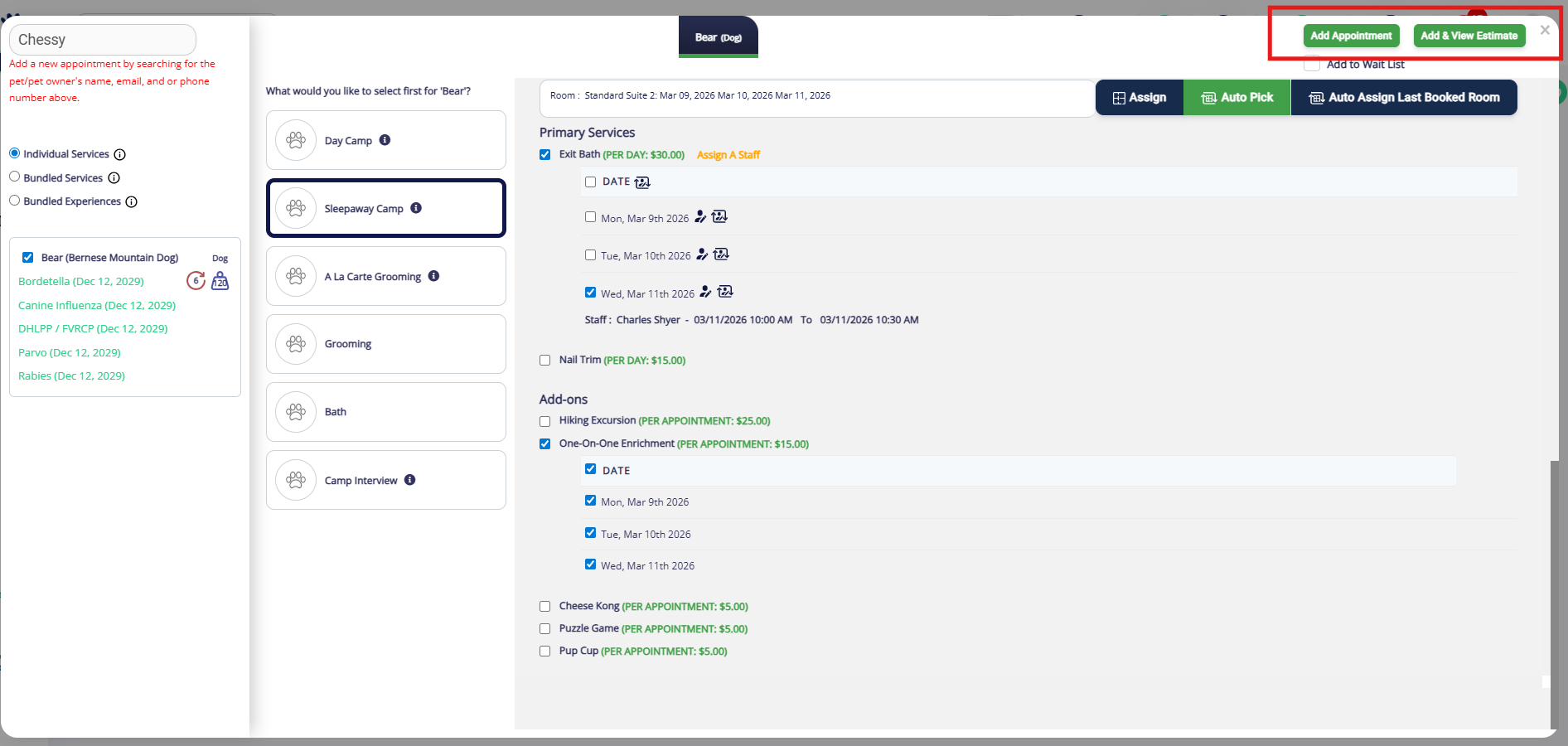
17. Once you have confirmed the dates, times, room, and add-ons, click Add Appointment or Add & View Estimate.
How to Create an Appointment for Multiple Pets
When creating an appointment for multiple pets, the steps will be very similar to the single pet appointment described above. The main difference is that you need to select if the pets should have the same service & same room assignment, same service & different room assignment, or different services.
1. From any page in the app, click Top right-hand navigation > Add Appointment to create a new appointment for multiple pets in the same family.
2. You can also navigate to the pet owner's profile and click to add a Single Appointment.
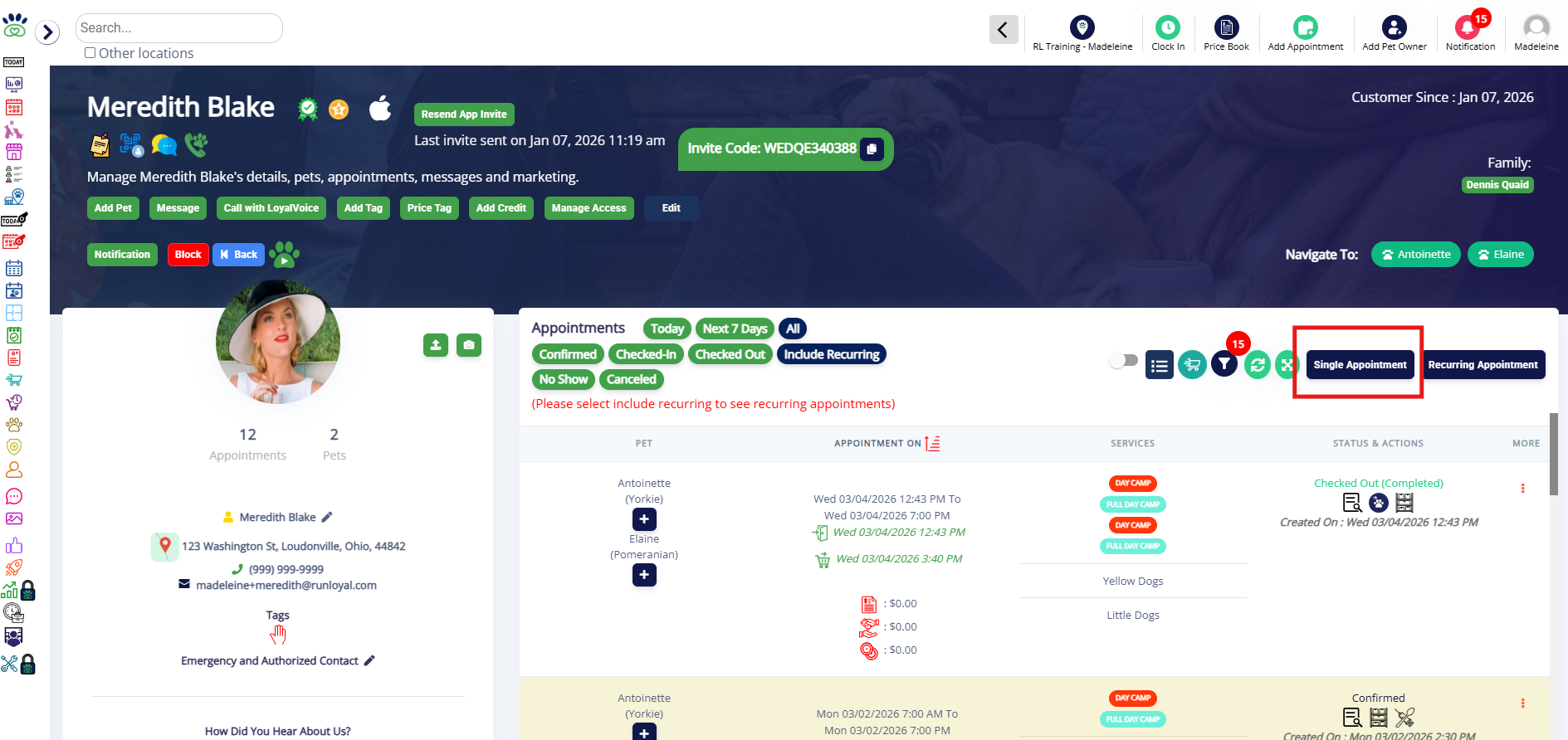
3. If adding from the Top right-hand navigation > Add Appointment icon, when prompted, select Single Appointment to make an appointment for one day.
If you wish to make multiple recurring appointments (requiring pet to come on the same day(s) of the week at the same time), click Recurring Appointment. You can learn more about recurring appointments in this article: Recurring Appointments.
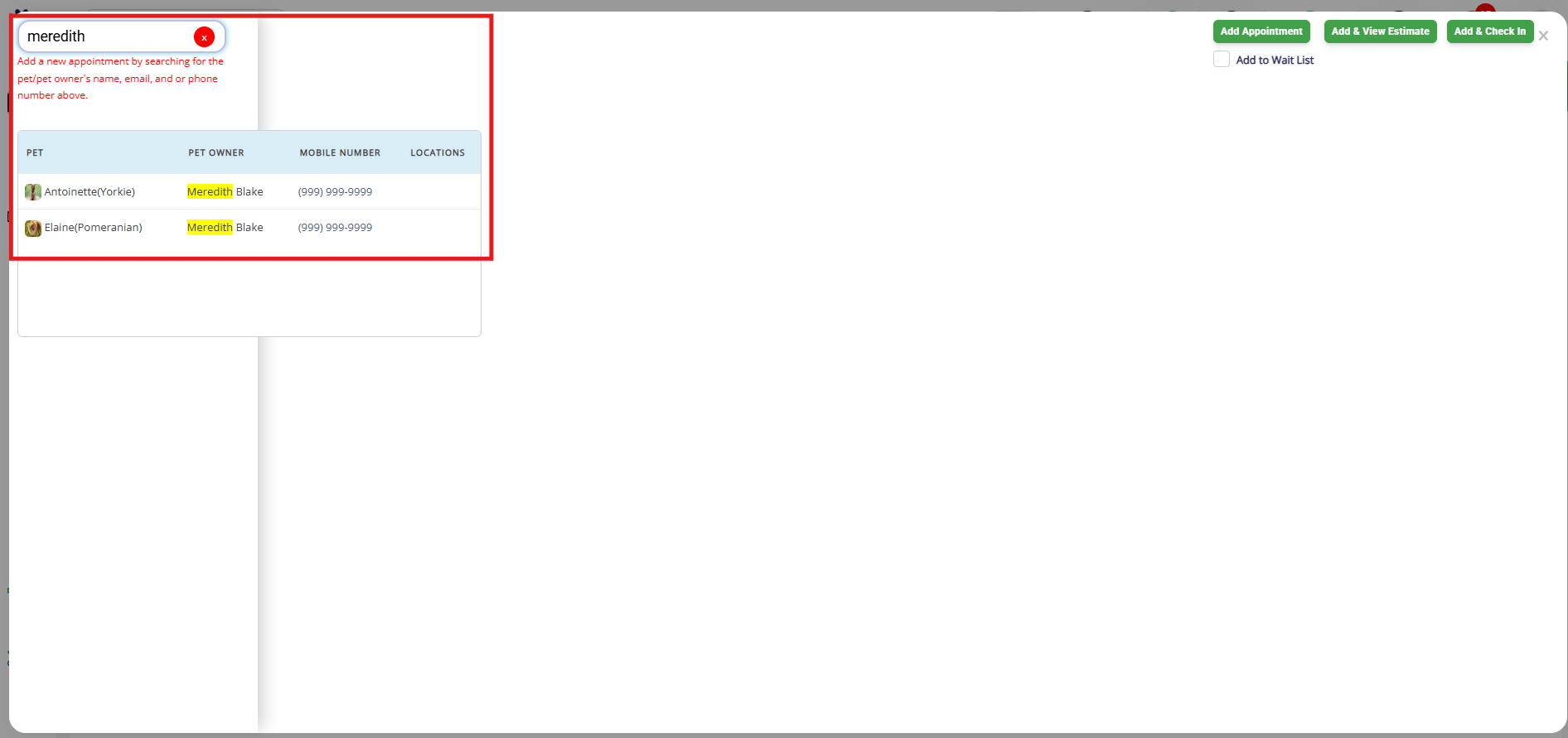
4. Search the pet owner or one of the pets' names in the search bar. Then select any of the pets.
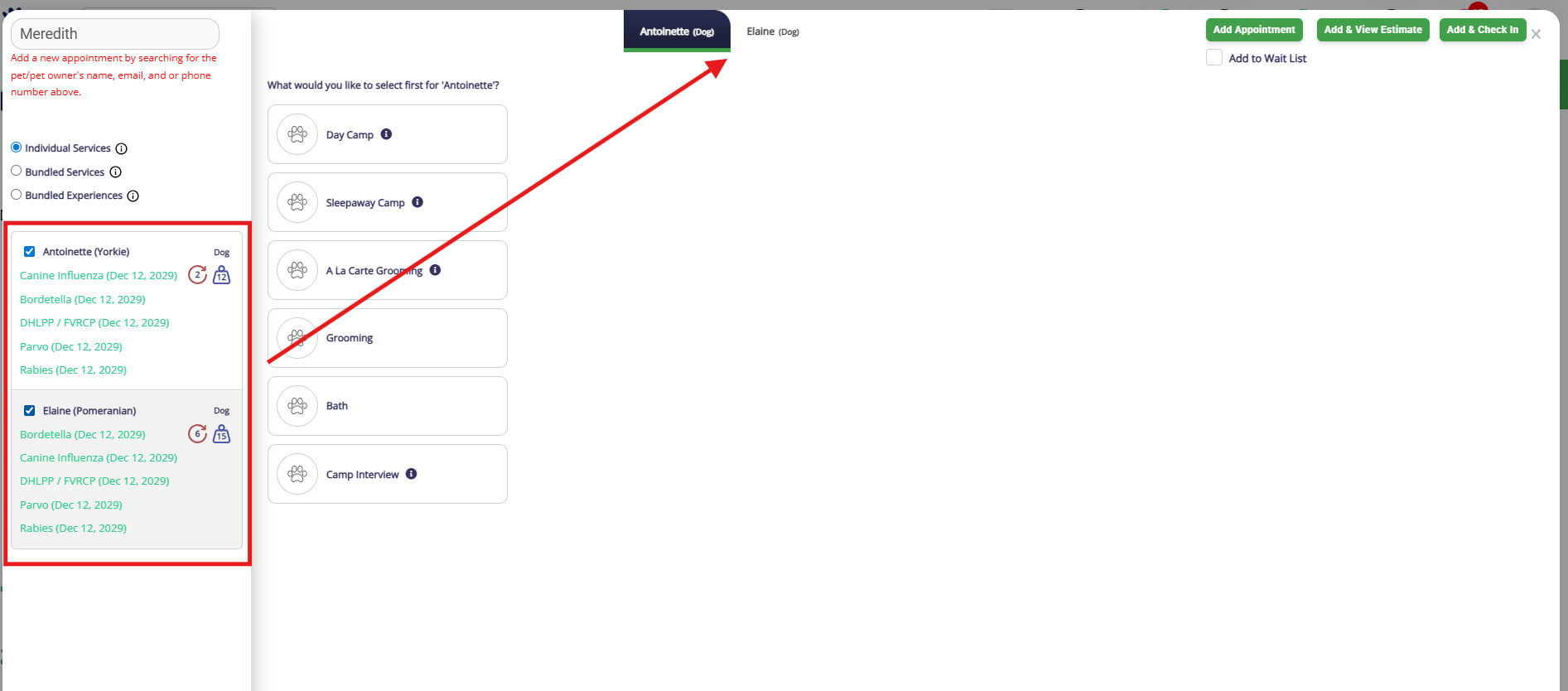
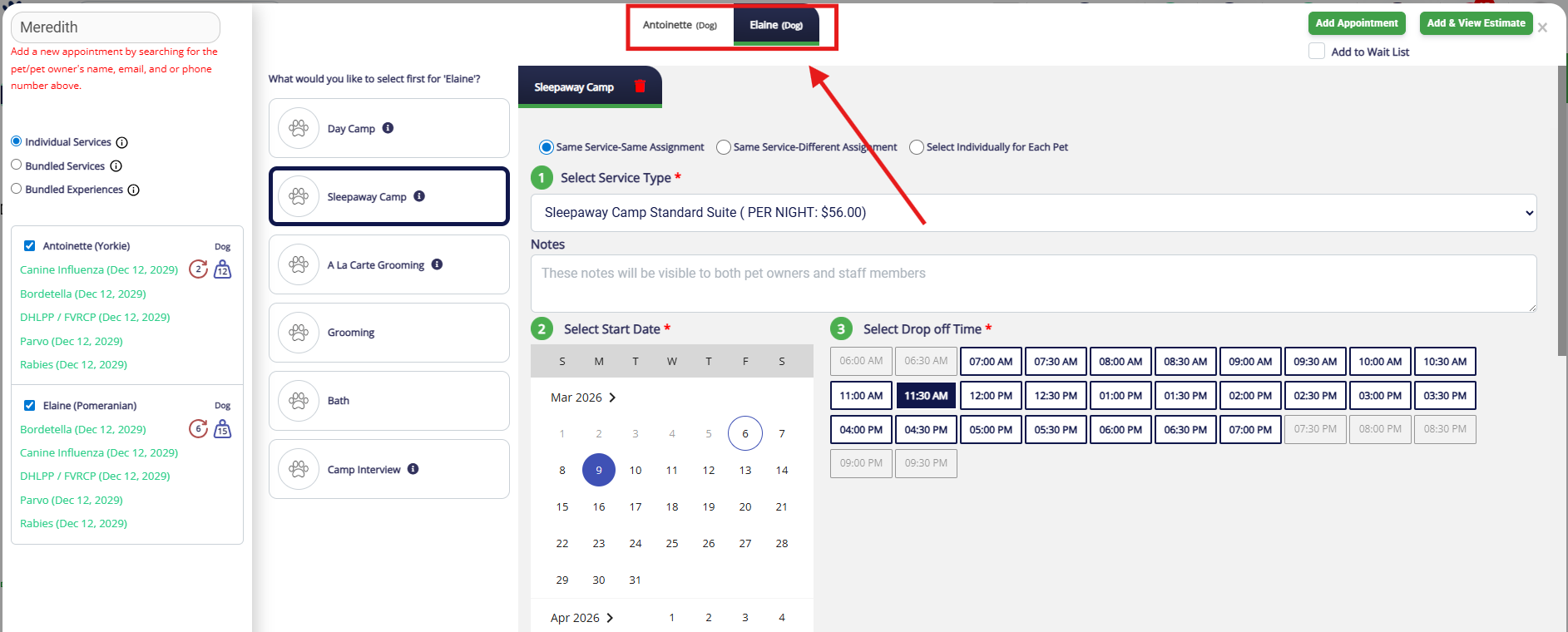
5. Check the box next to all of the pets in question. Observe how they each open in a tab on the Appointment popup. This tab is what controls each pet's service selection.
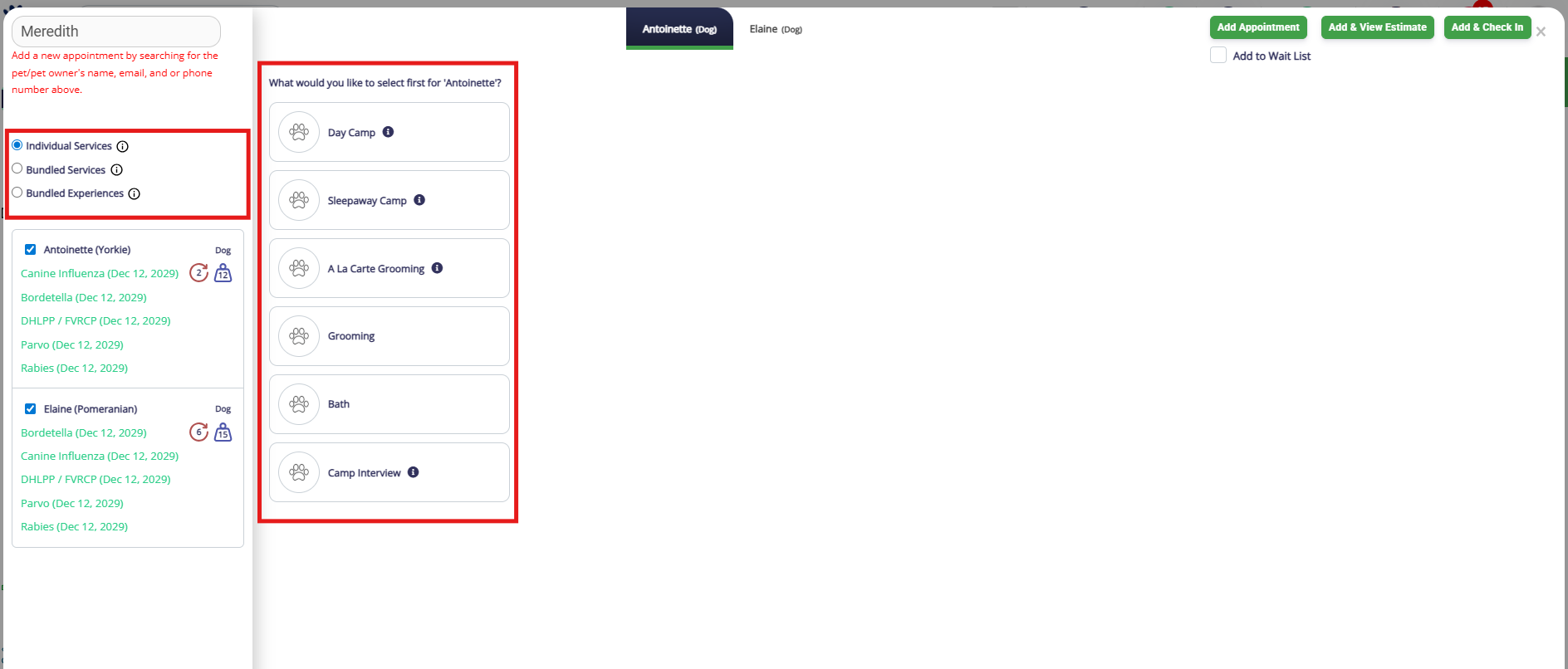
6. Select if the appointment should be for Individual Services (most common), Bundled Services, or Bundled Experiences. Once you have selected the type, select the Service Category.
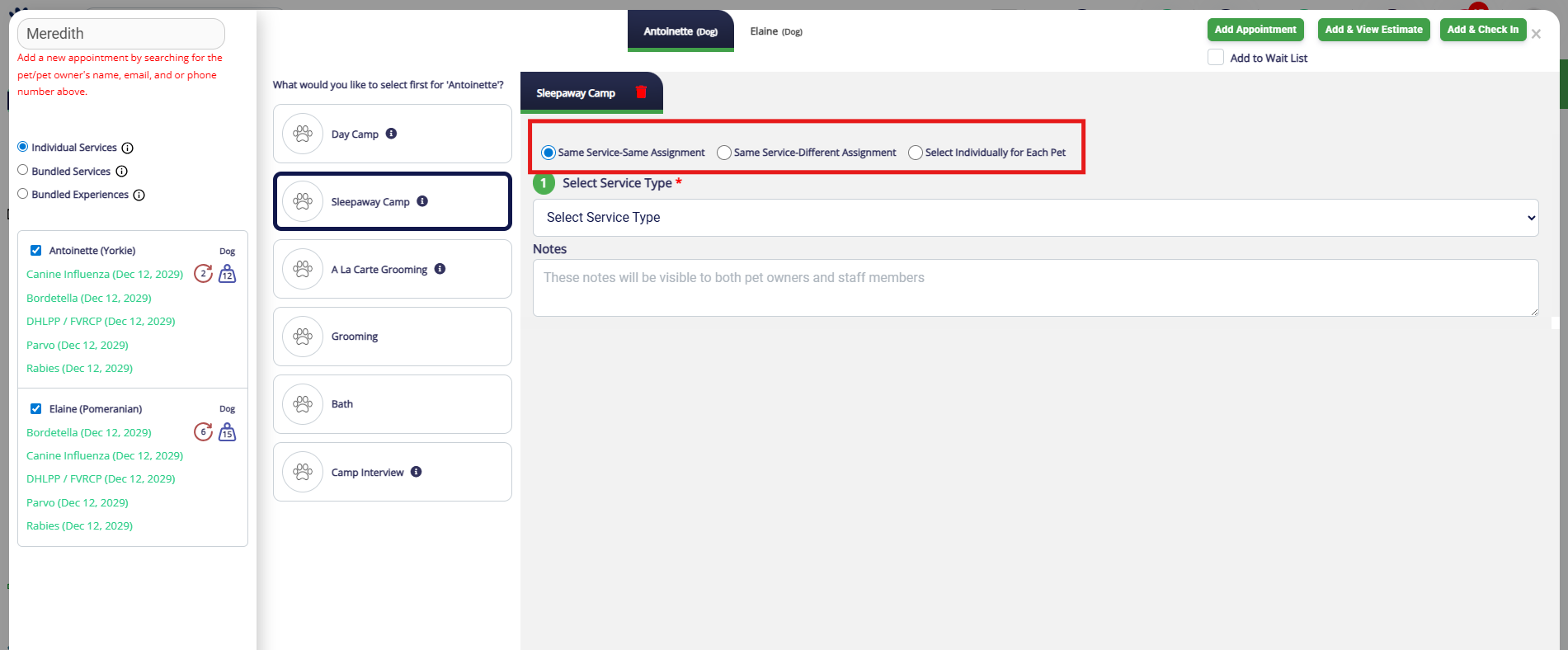
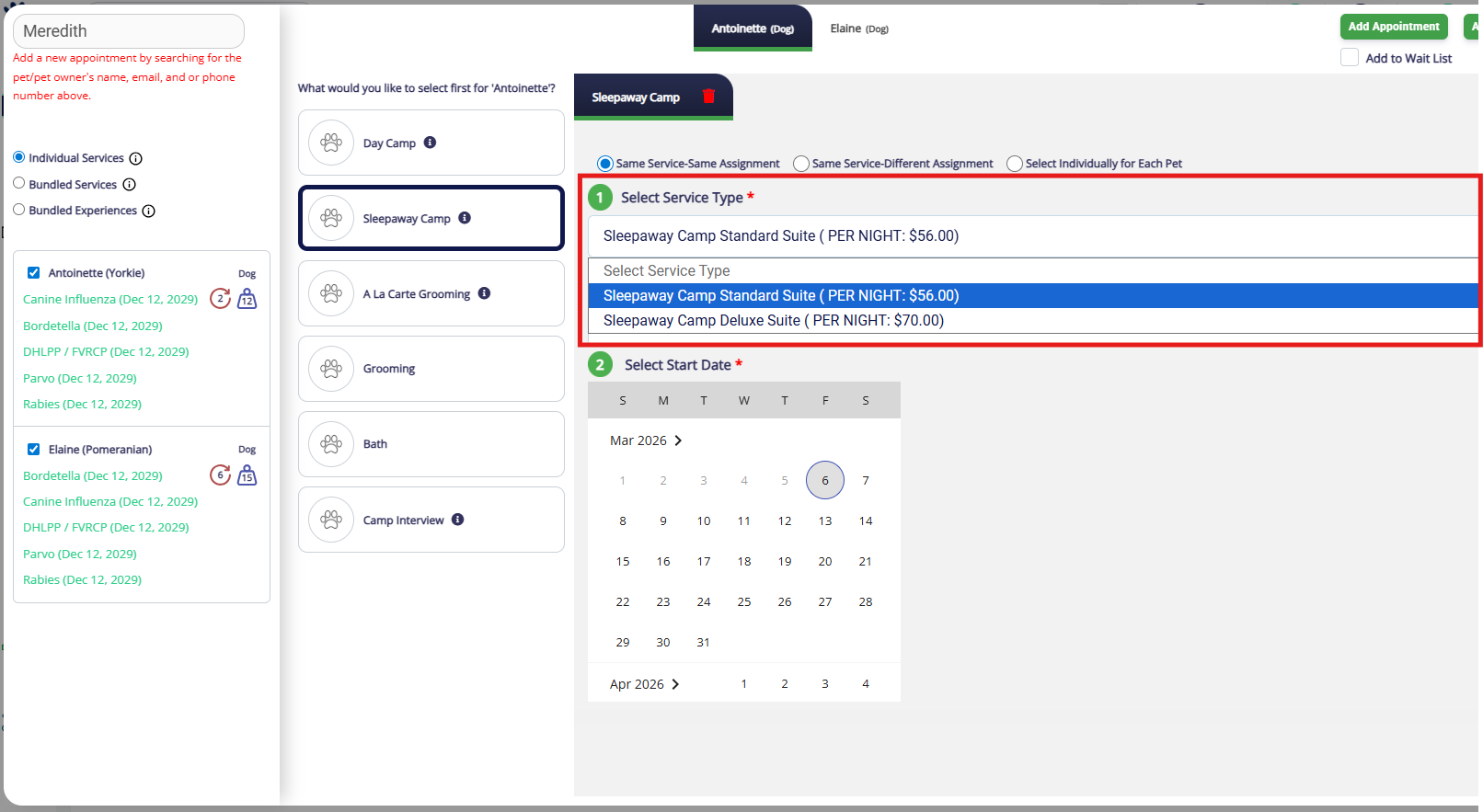
7. Confirm if the pets should have the same types of services and/or rooms. The option Same service & same room assignment means the pets will be booked for the same type of service and placed in the same runs, so you only need to select everything once! The option Same service & different room assignment means the services will copy over to both but you need to put the pets in separate runs. The option Select individually for each pet means you will need to build each appointment from scratch as the services should not be the same.
8. Regardless of what you selected above, select the correct service for the first pet from the service type dropdown.
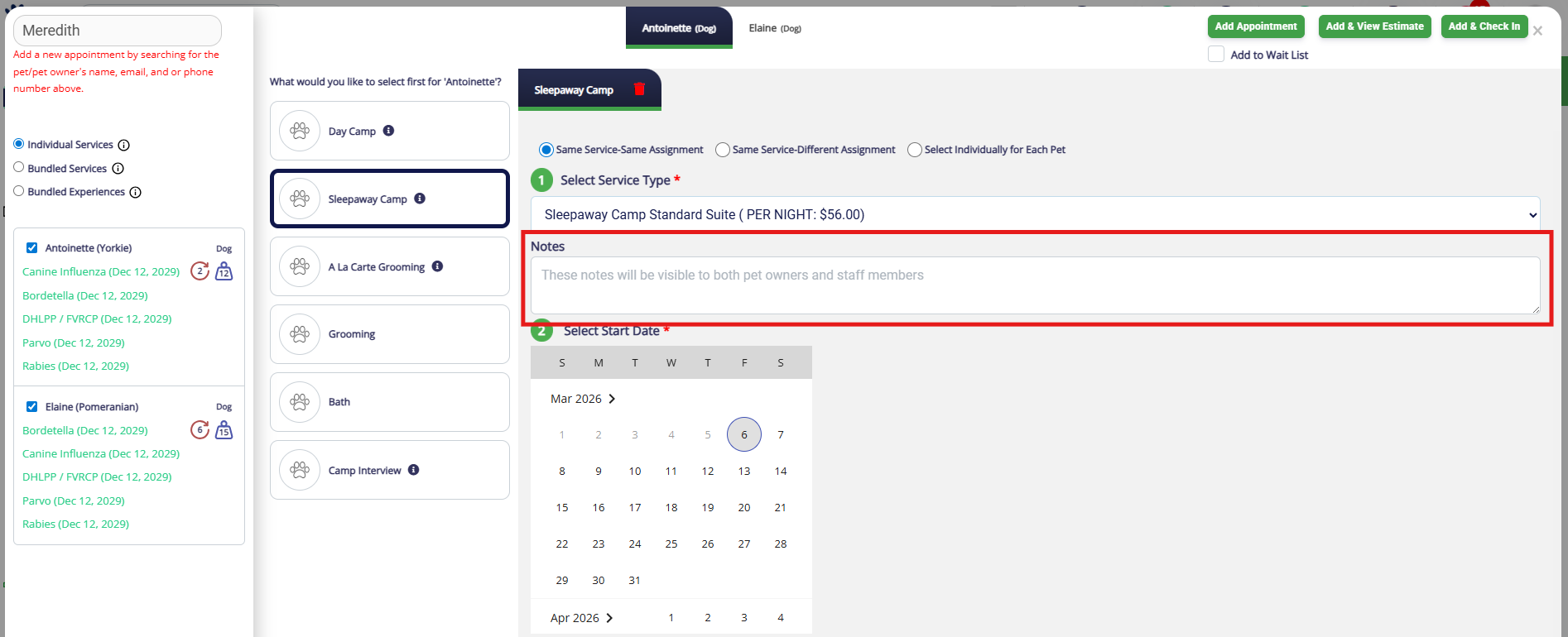
9. If you would like to add any notes about the appointment, enter them in the Notes field. You can learn more about Appointment Notes in this article: Adding an Appointment Note (Public).
⚠️ Important: Notes entered here are visible to the business and pet owner!
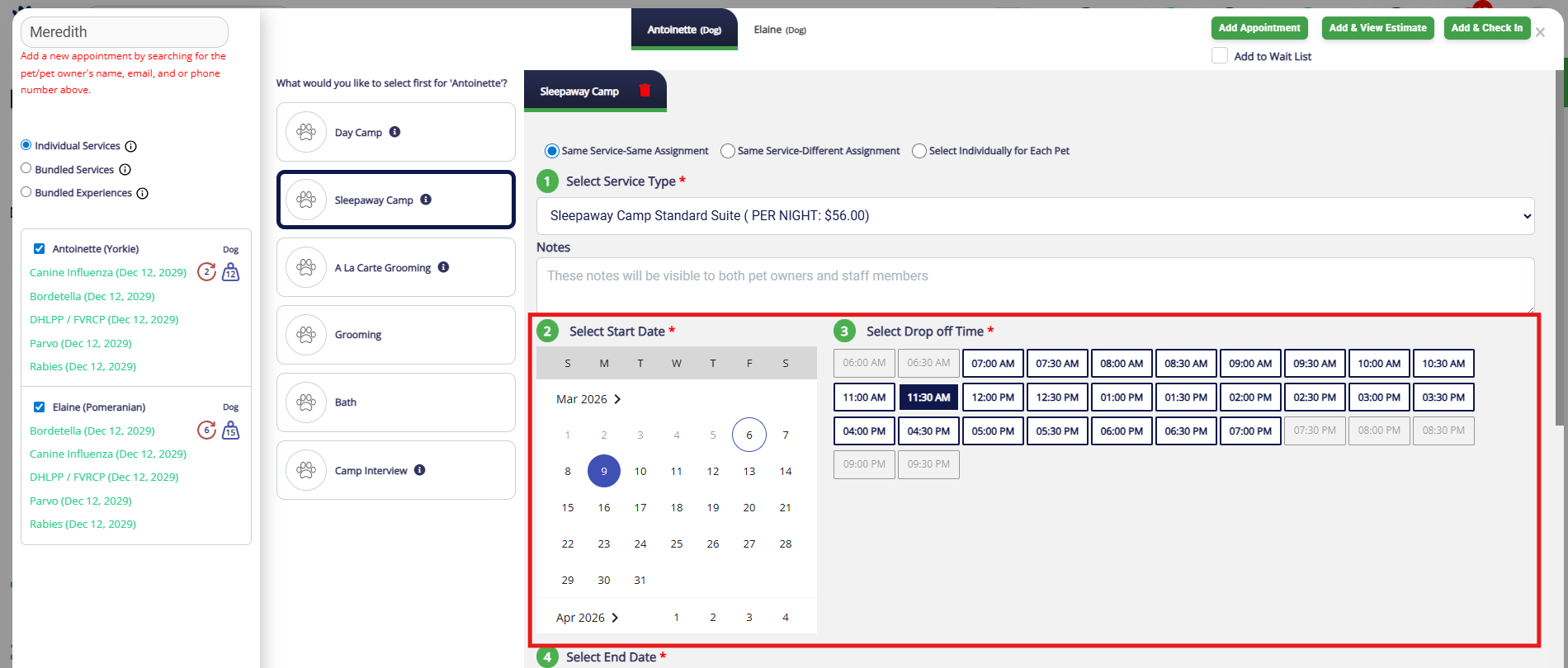
10. Select the start date and start time.
11. Select the end date and end time.
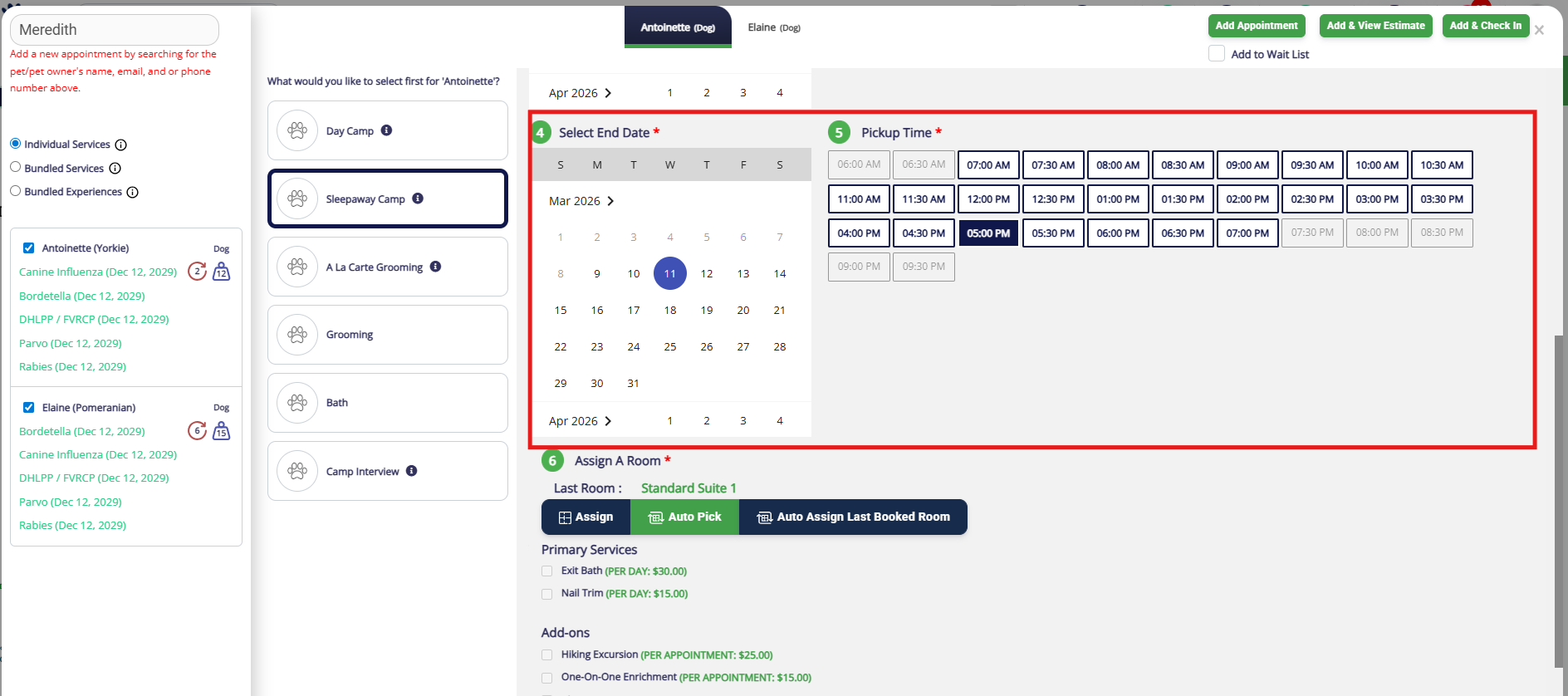
12. Select a room (run) for the first pet in the appointment. If you opted to share room assignment for the additional pet(s), this will select the room for all pets.
If the pet has been booked before for at your facility, their last room will display for your convenience. The option Assign will bring up your Visual Map so you can see the available rooms and select manually. The option Auto Pick will automatically pick the first available run, based on the pet's weight. The option Auto-Assign Last Booked Room will place them in the room showing under Last Room, if available.
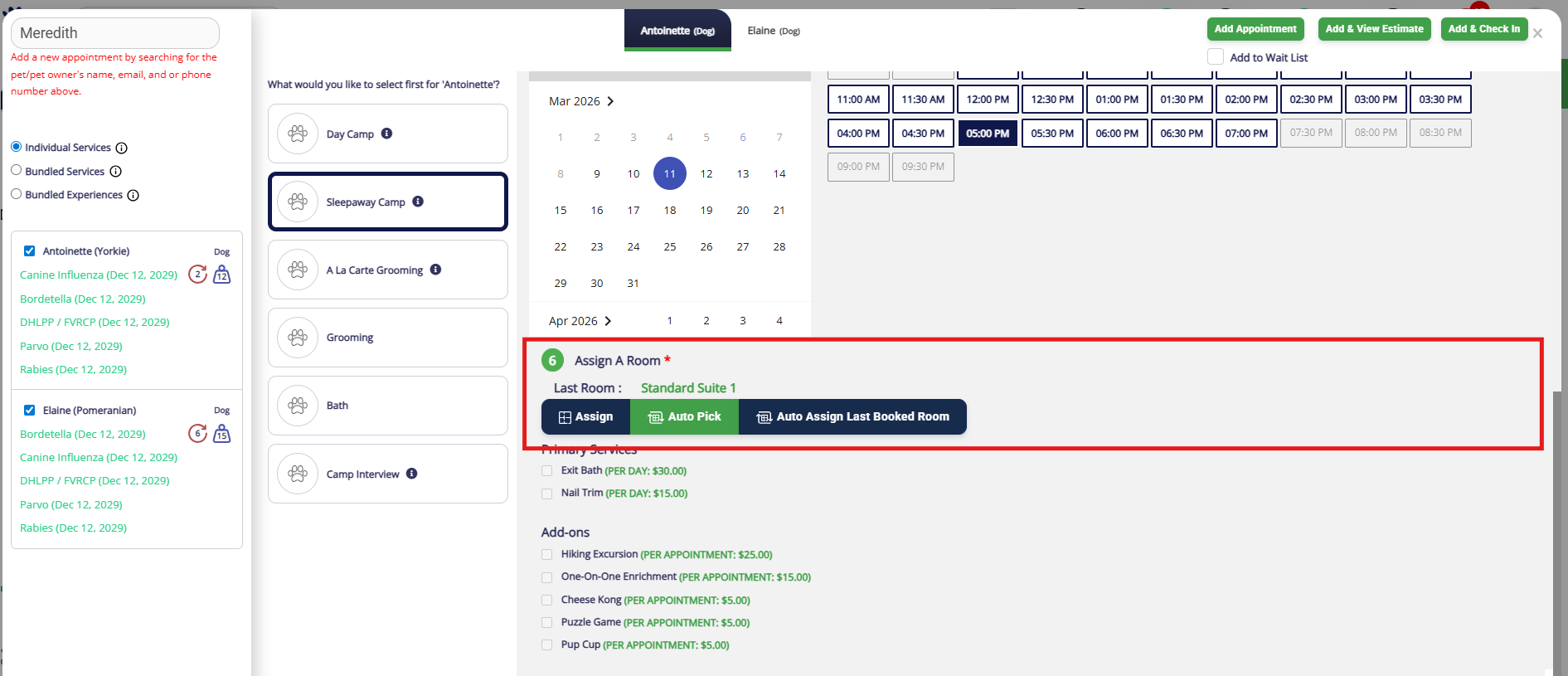
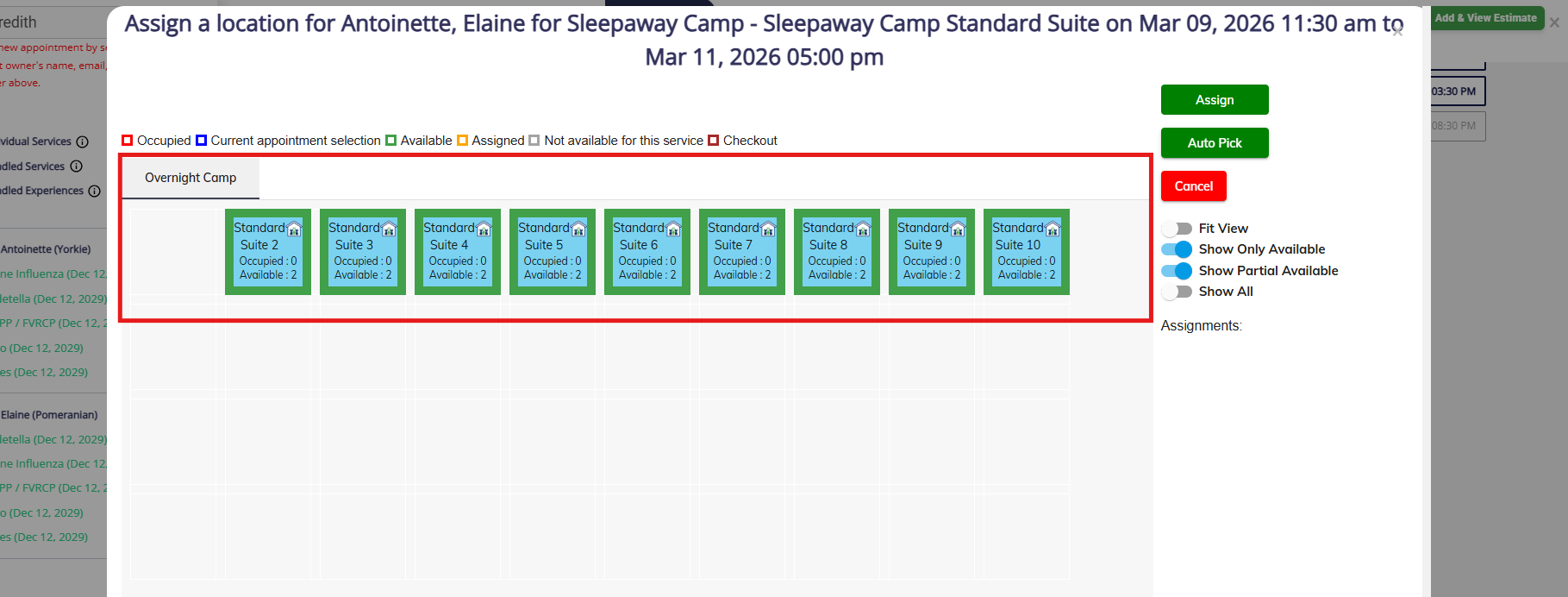
13. If you select Assign, use the Visual Map to assign the pet to a run for their booking.
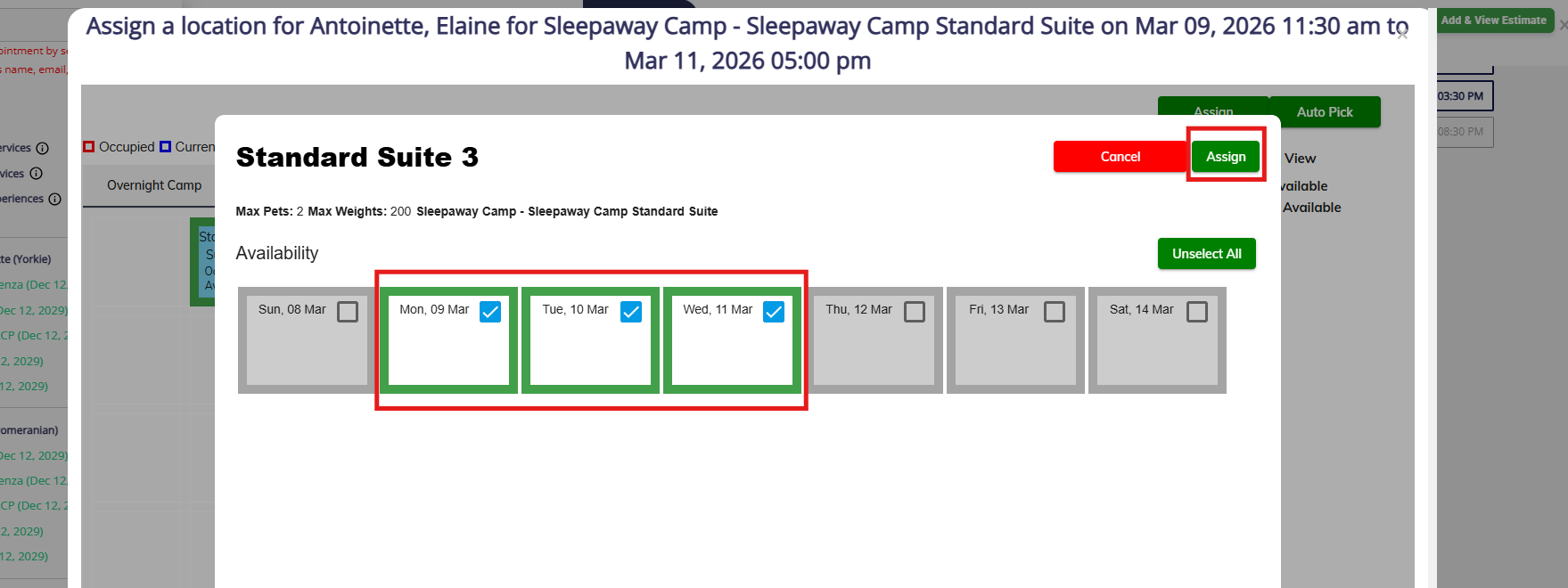
14. When you click the run, all dates are selected by default. You can optionally select some dates in one run and some dates in another. When finished, click Assign.
15. Add Primary Services or Add-On Services as desired for the first pet. If same services was checked above, this will copy the services for the additional pet(s) as well.
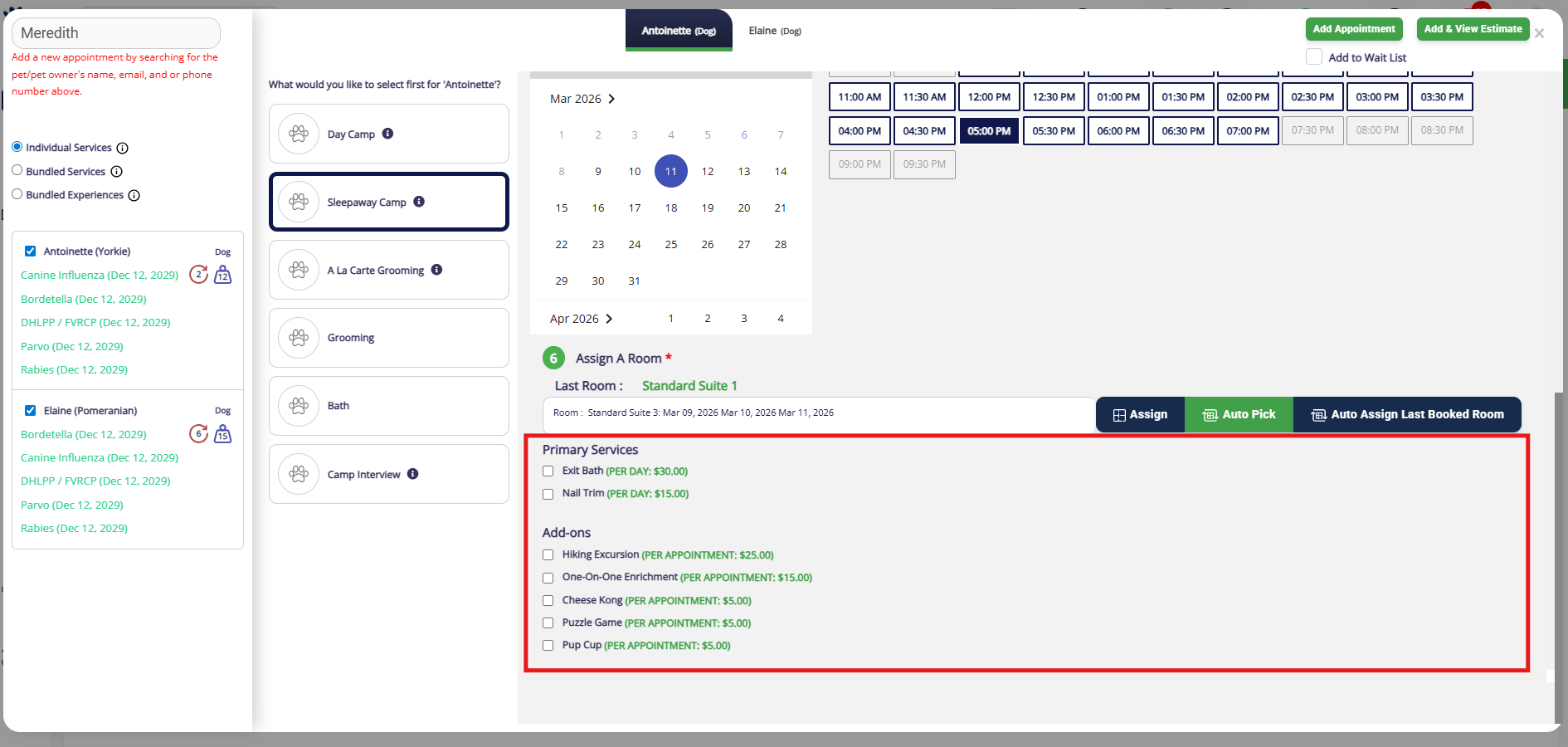
16. Click the other pet's name to verify their services.
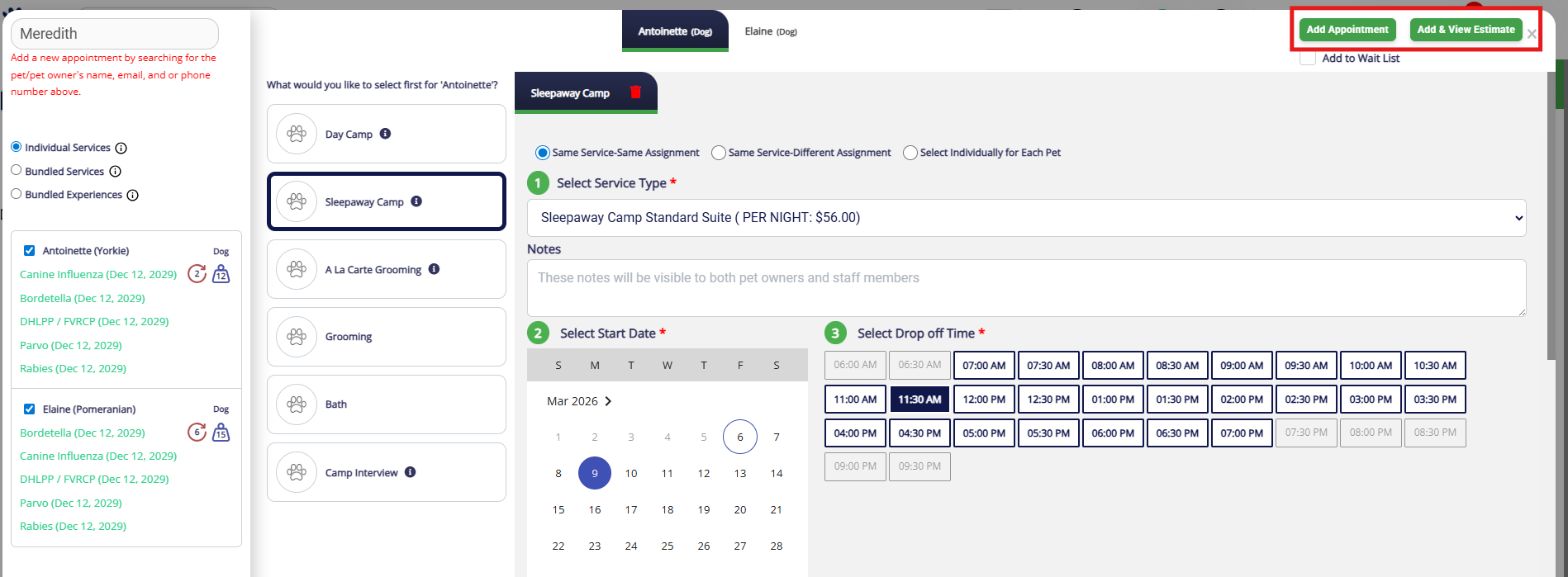
17. Once you have confirmed the dates, times, room, and add-ons, click Add Appointment or Add & View Estimate.
How to Edit an Appointment
1. To edit an appointment for a future or current date, navigate to the pet owner or pet's profile.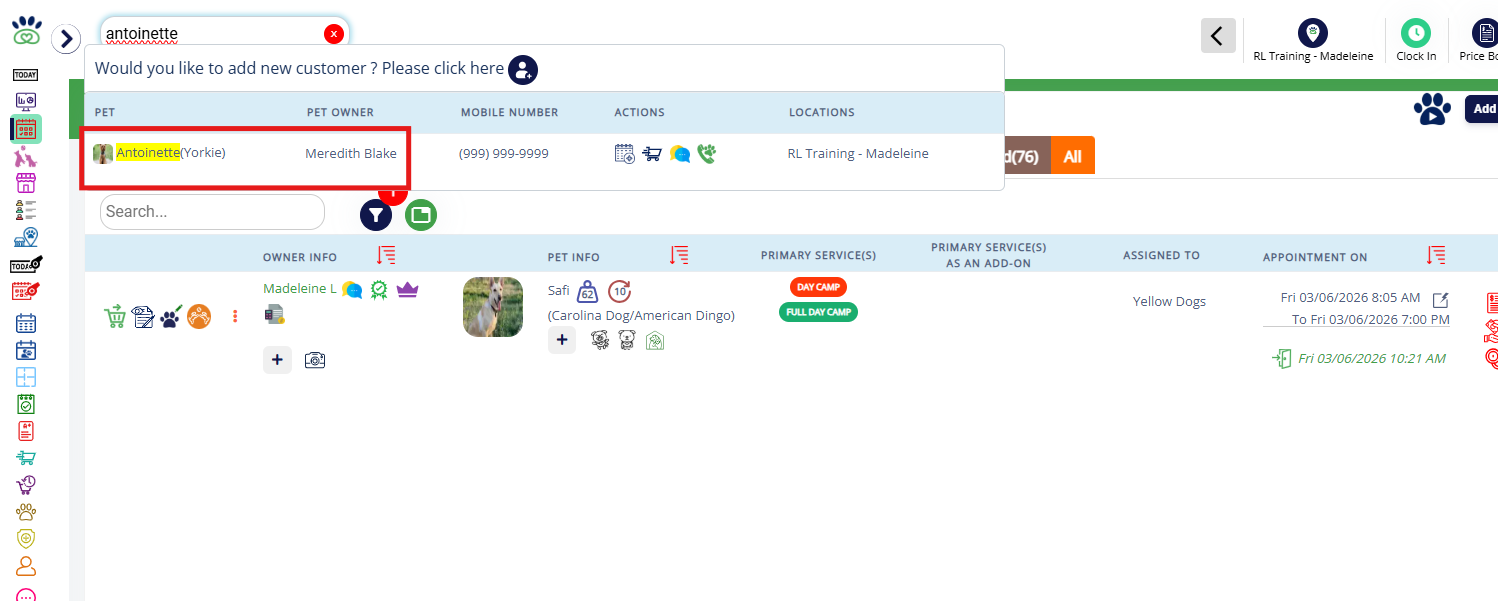
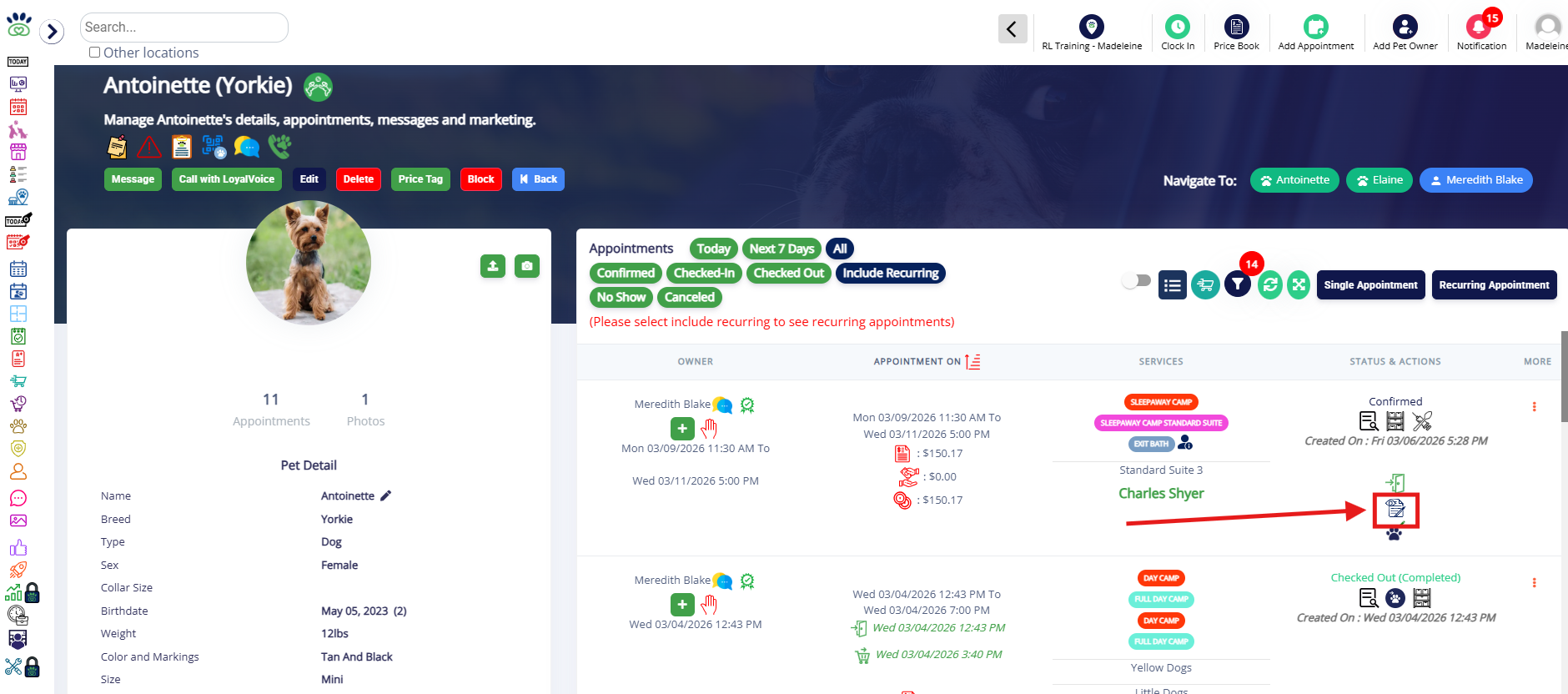
2. To edit an appointment for a current date, you can also click the edit icon (paper with eye and pencil) on the Daily Snapshot tab or Appointments tab.

3. If editing the appointment from the pet or pet owner's profile, click the edit icon (paper with eye and pencil).
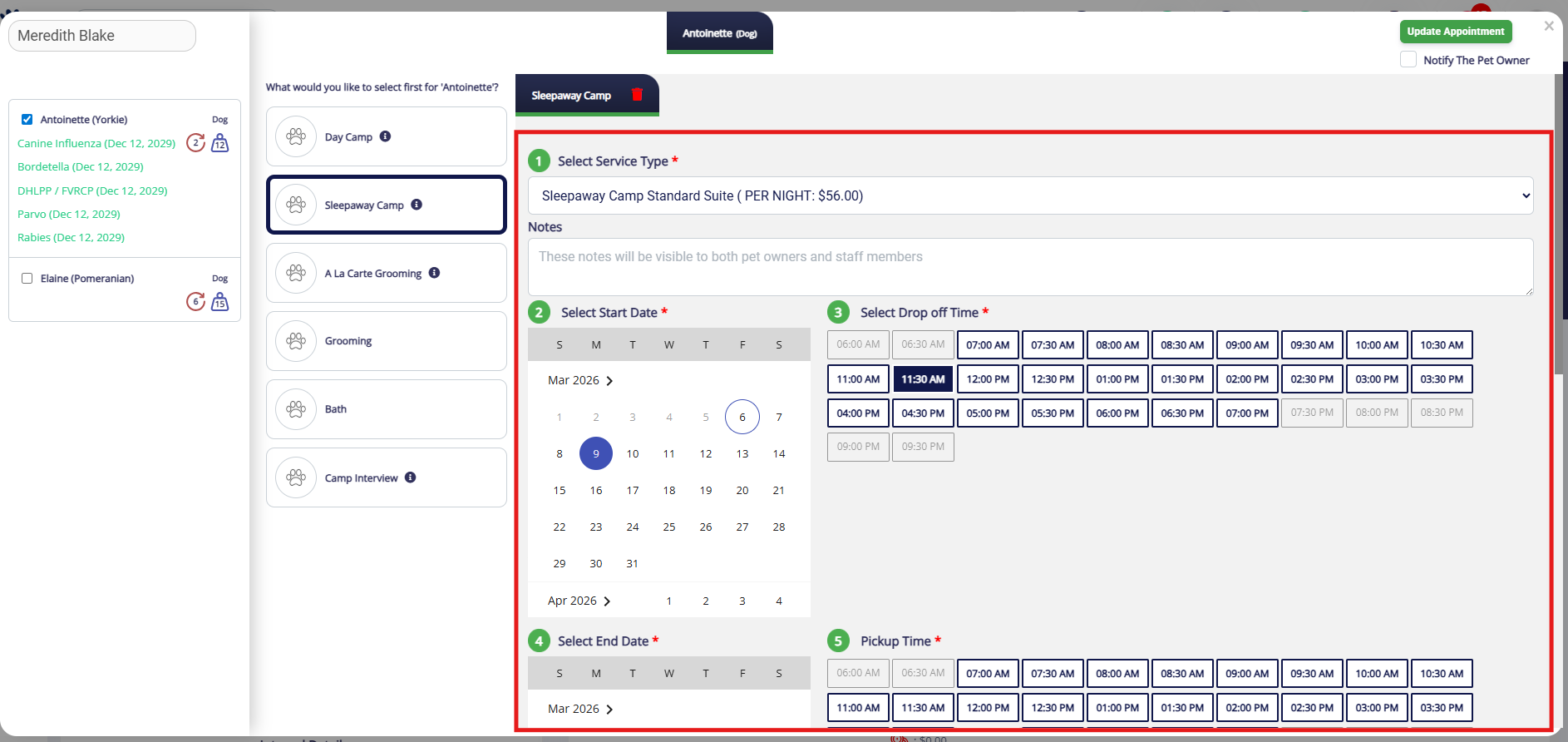
4. Adjust the appointment as needed by editing start date/time, end date/time, notes, run, or services.
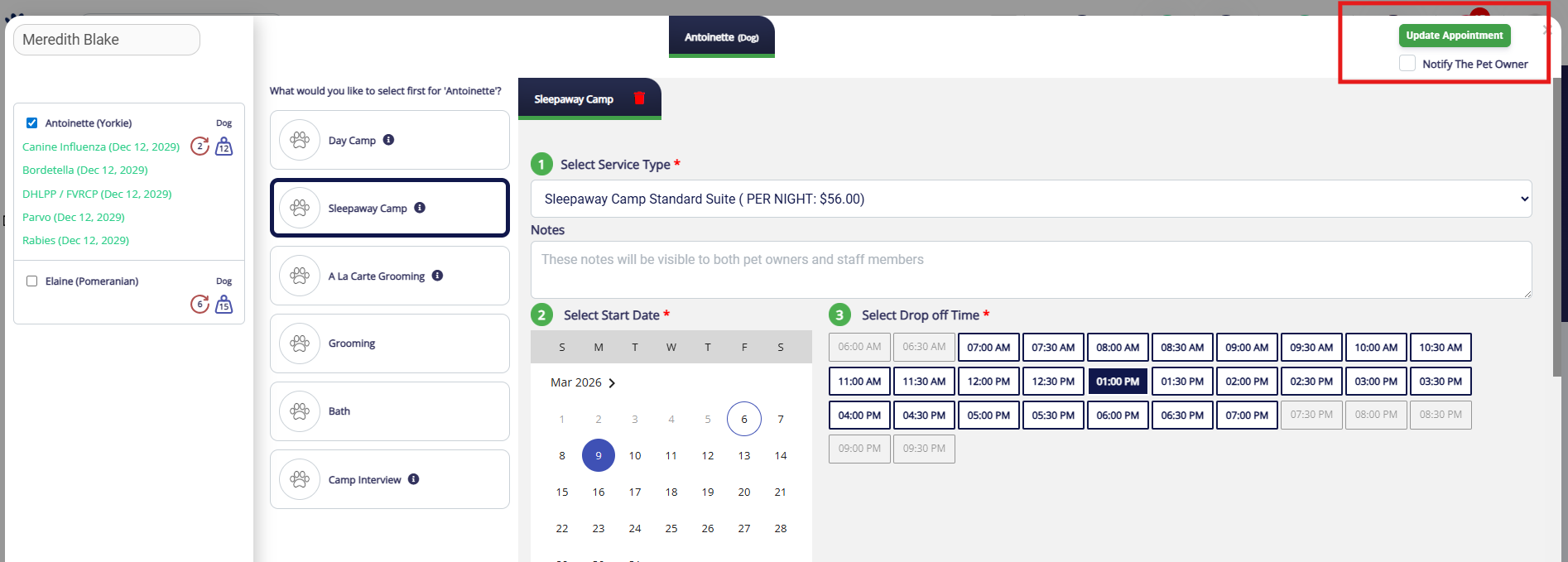
5. Once you have completed the changes, click Update Appointment. You can also optionally check the box to Notify The Pet Owner if you would like for them to receive an email about the edit.
How to Cancel an Appointment
1. To cancel an appointment for a future or current date, navigate to the pet owner or pet's profile.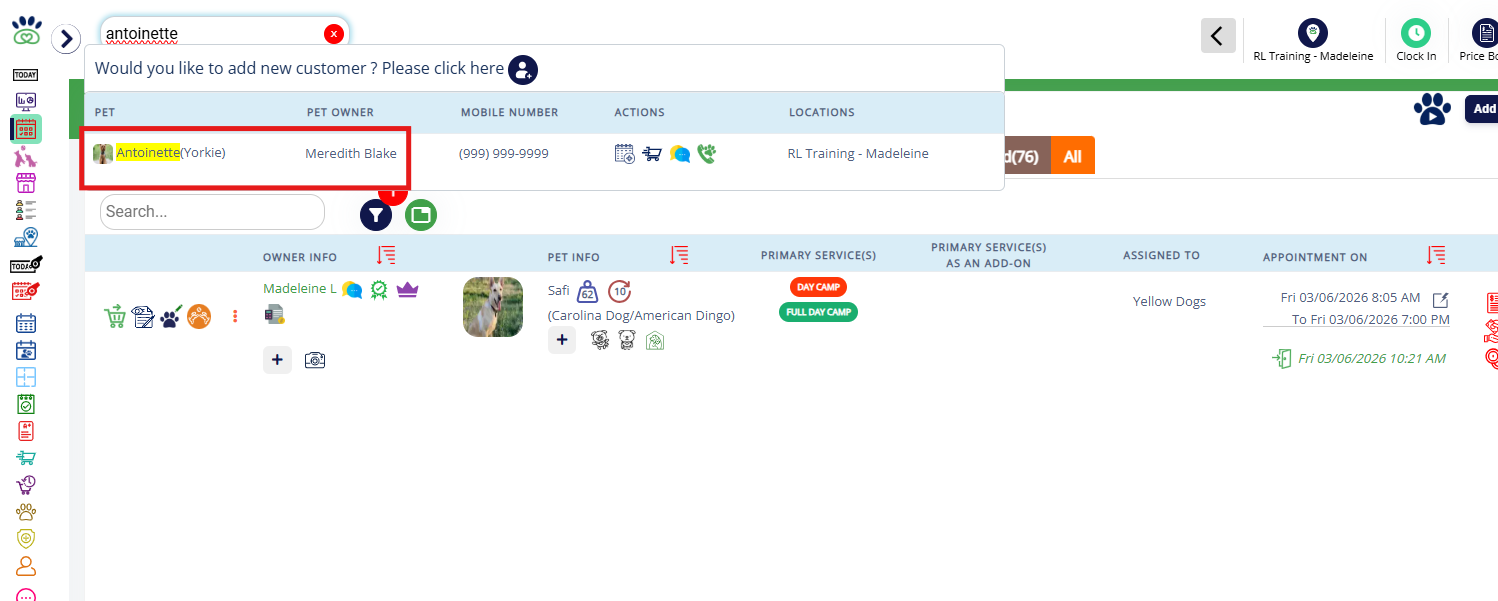
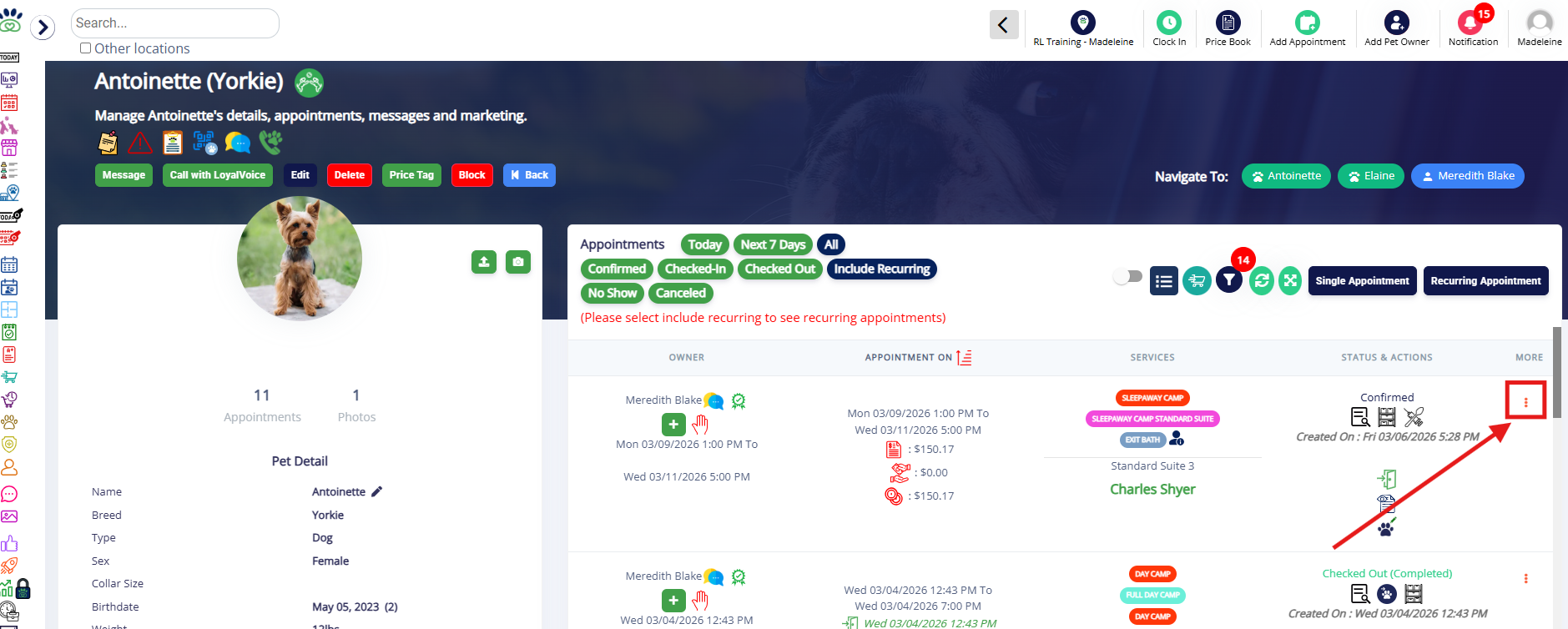
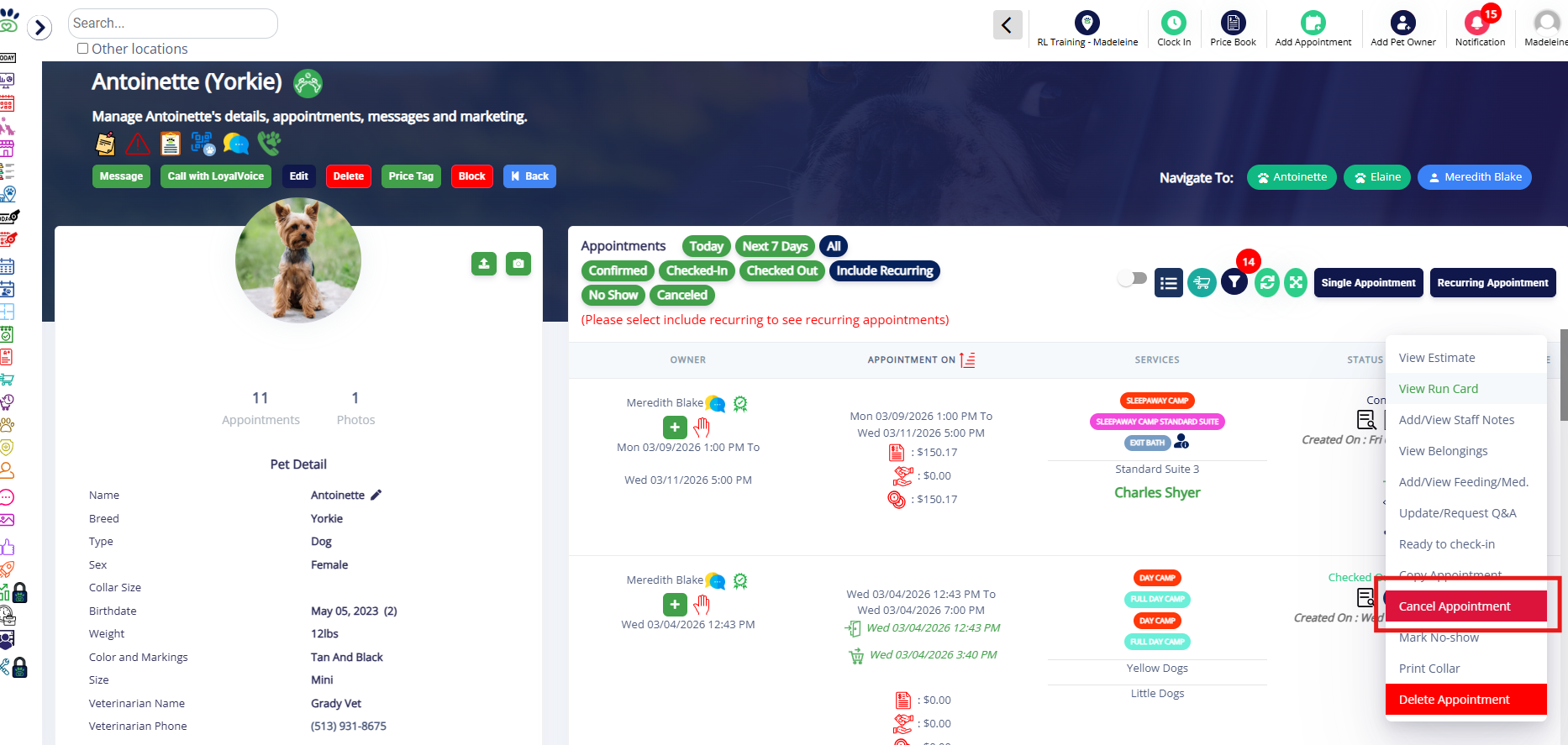
2.Click the appointment menu (three dots next to the appointment in question).
3. Select Cancel Appointment.
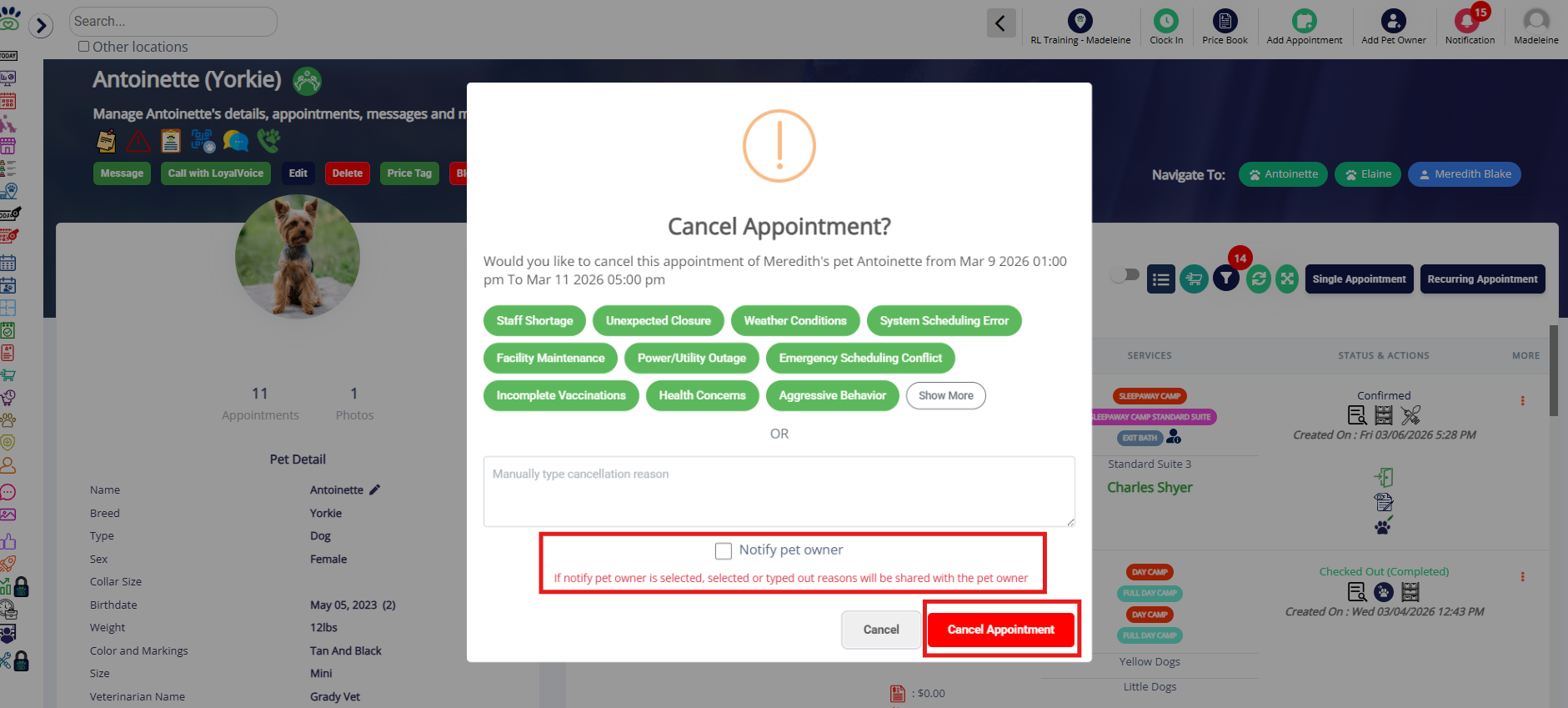
4. Optionally select an existing cancellation reason, or type the cancellation reason into the manual field.

6. Once you have selected the reason, click Cancel Appointment. You can also optionally check the box to Notify The Pet Owner if you would like for them to receive an email about the cancellation.
⚠️Important: The pet owner will see the cancellation reason entered or manually typed.
How to Delete or Archive an Appointment
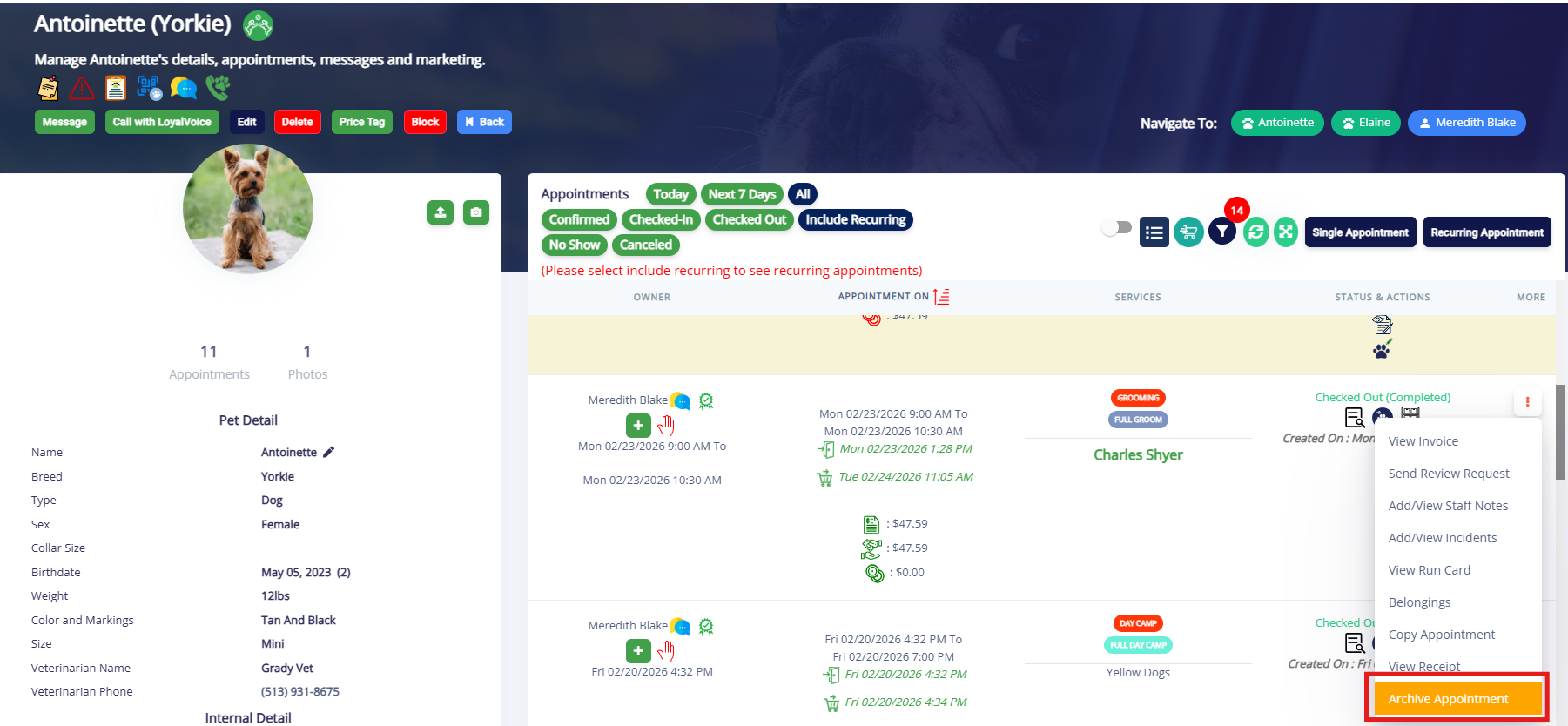
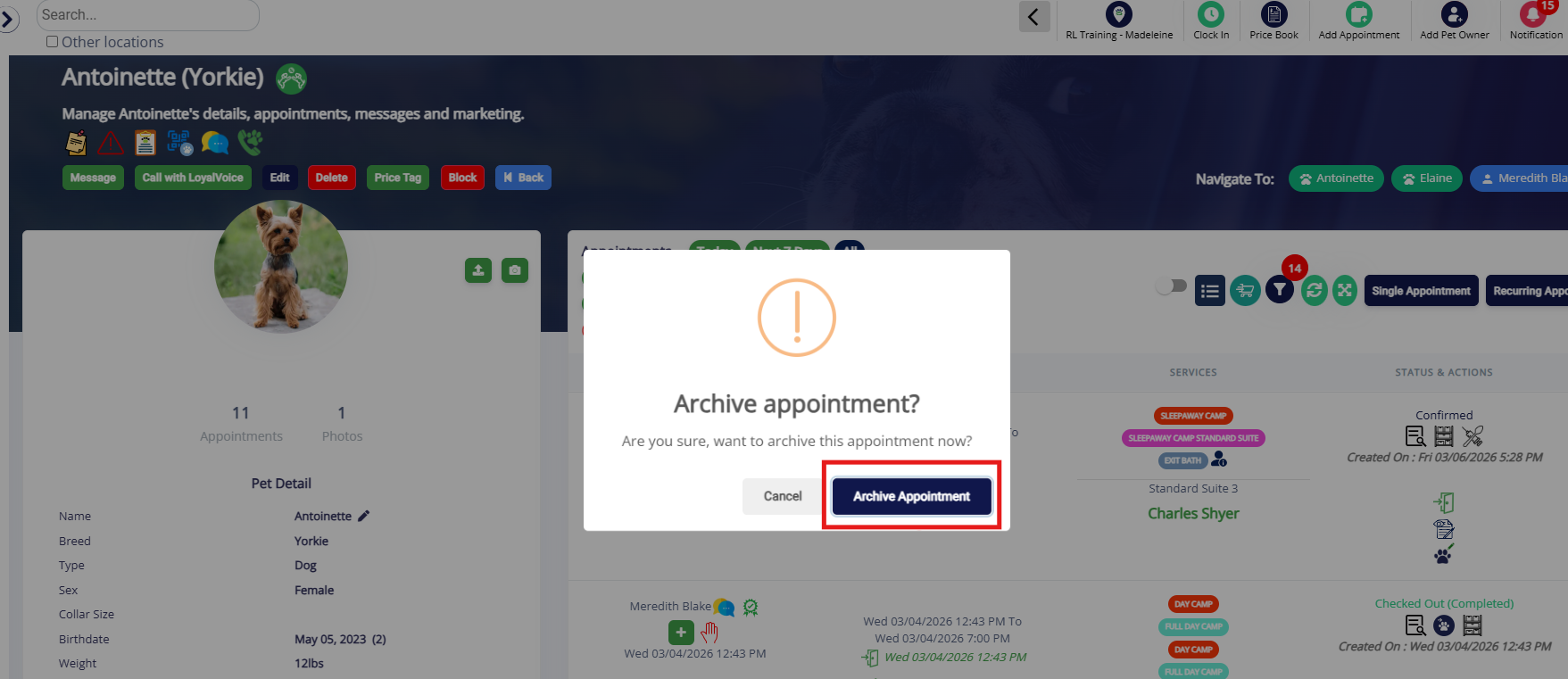
Appointments in the future are able to be deleted. Appointments in the past can only be archived to preserve their invoice and other audit log details.
1. To delete or archive an appointment, navigate to the pet owner or pet's profile.
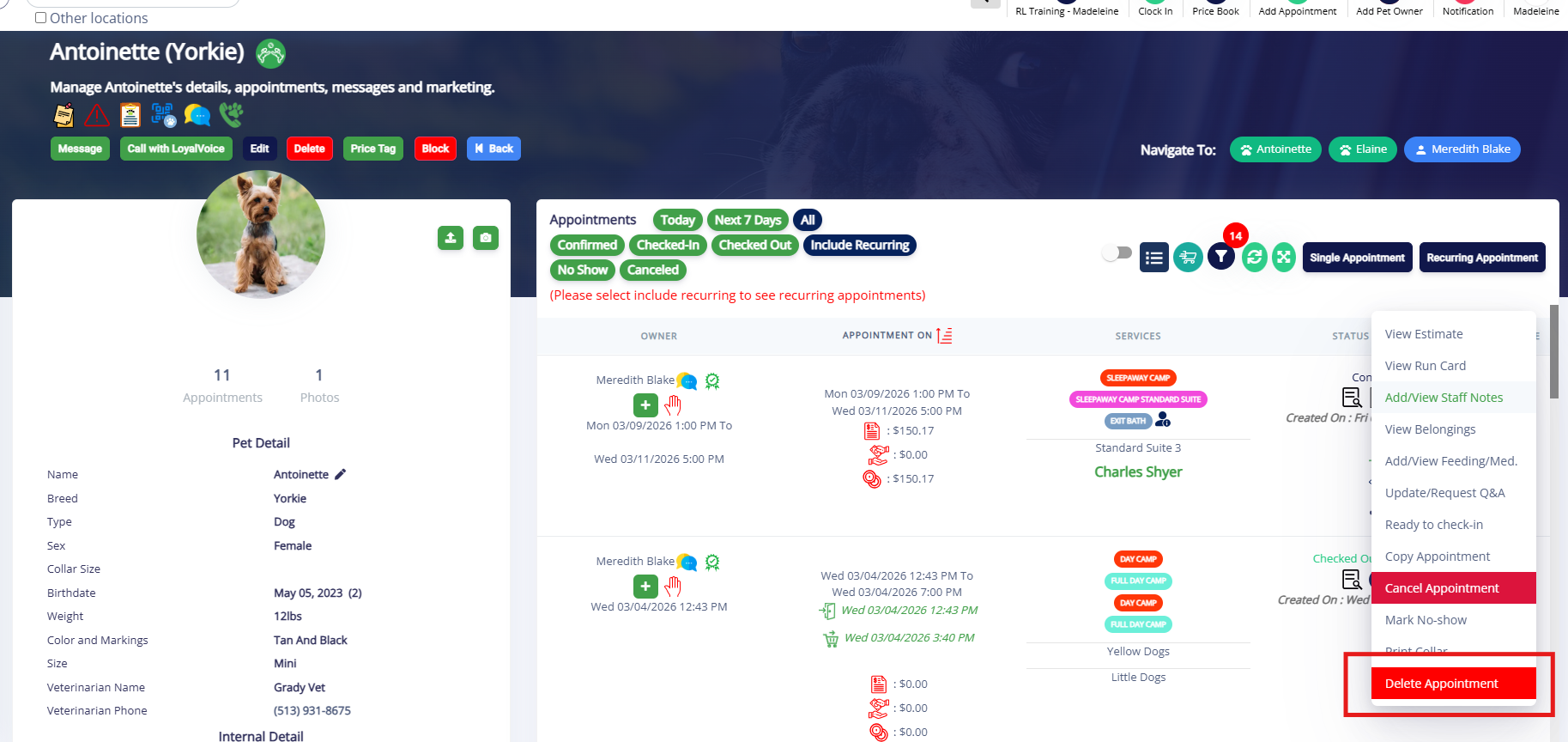
2.Click the appointment menu (three dots next to the appointment in question).
4. To delete a future appointment, select Delete Appointment.
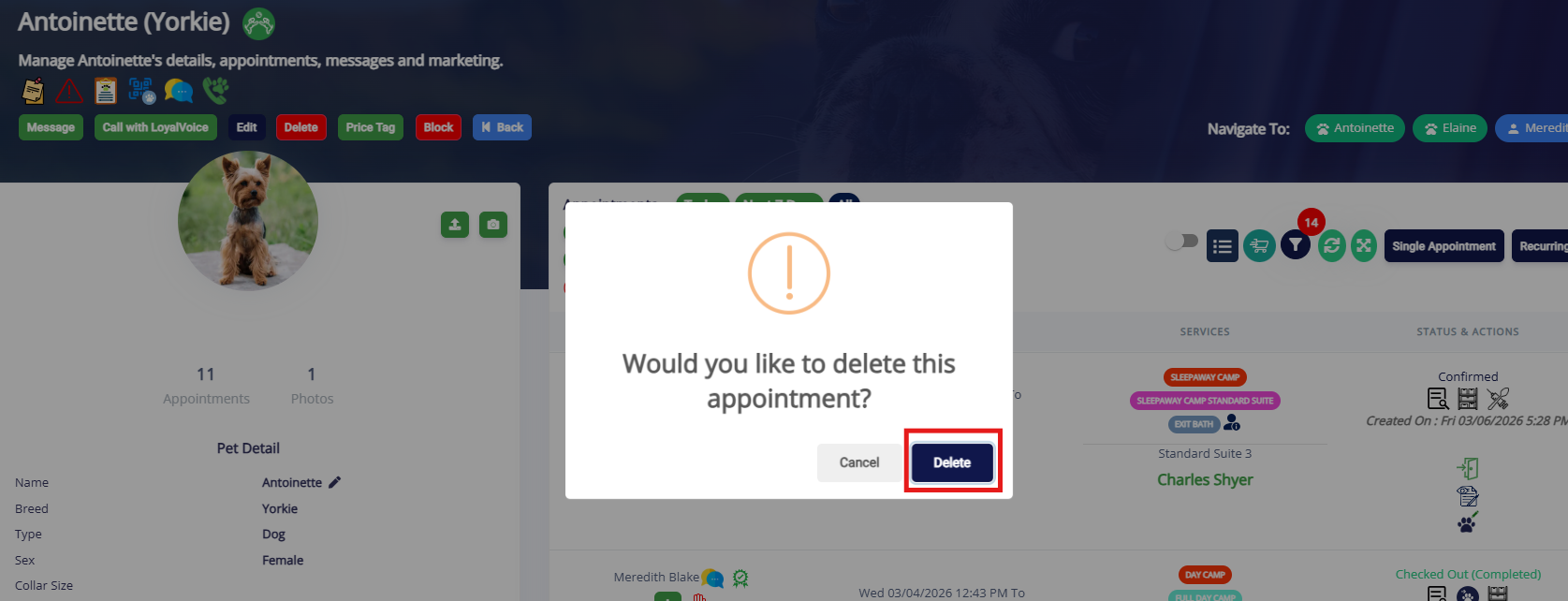
5. Confirm the deletion by clicking Delete.
6. To archive a past appointment, select Archive Appointment.
7. Confirm the archival by clicking Archive Appointment.
More Information
For more information on View estimate of an appointment, please refer to this article: View estimate
For more information on checking in an appointment, please refer to this article: Checking In an Appointment
For more information on checking out an appointment, please refer to this article: Checking Out an Appointment
For more information on recurring appointments, please refer to this article: Recurring Appointments
For more information on Past Appointment, please refer to this article: Past Appointments
Was this article helpful?
That’s Great!
Thank you for your feedback
Sorry! We couldn't be helpful
Thank you for your feedback
Feedback sent
We appreciate your effort and will try to fix the article