Overview
Report Cards allow pet owners to learn how their pet is doing while staying at your facility. Report cards are also an excellent way to share photos and updates throughout the pet's appointment. You can make report cards an included item or up-sell service. Many facilities use report cards to note a pet's daily activities, wellness, personality, energy level, favorite playmates, and more.
Report card categories are the sections that display on the report card, such as "Behavior", "Wellness", "Favorite Playmates", etc. Report card items are questions that can be added to each category. For example, some questions that might be in the "Behavior" category could be "Today, I was really good at" or "Staff worked with me on".
Report Cards can be viewed in the following areas:
- Settings > Operations > Report Card
- Left-hand Navigation > Report Cards (to send)
- Appointments tab > Appointment Menu > Update & Send Report Card
TABLE OF CONTENTS
- Overview
- How To Set Up Report Card Categories
- How to Set Up Report Card Items (Questions)
- More Information
How To Set Up Report Card Categories
1. Navigate to Settings > Operations > Report Card.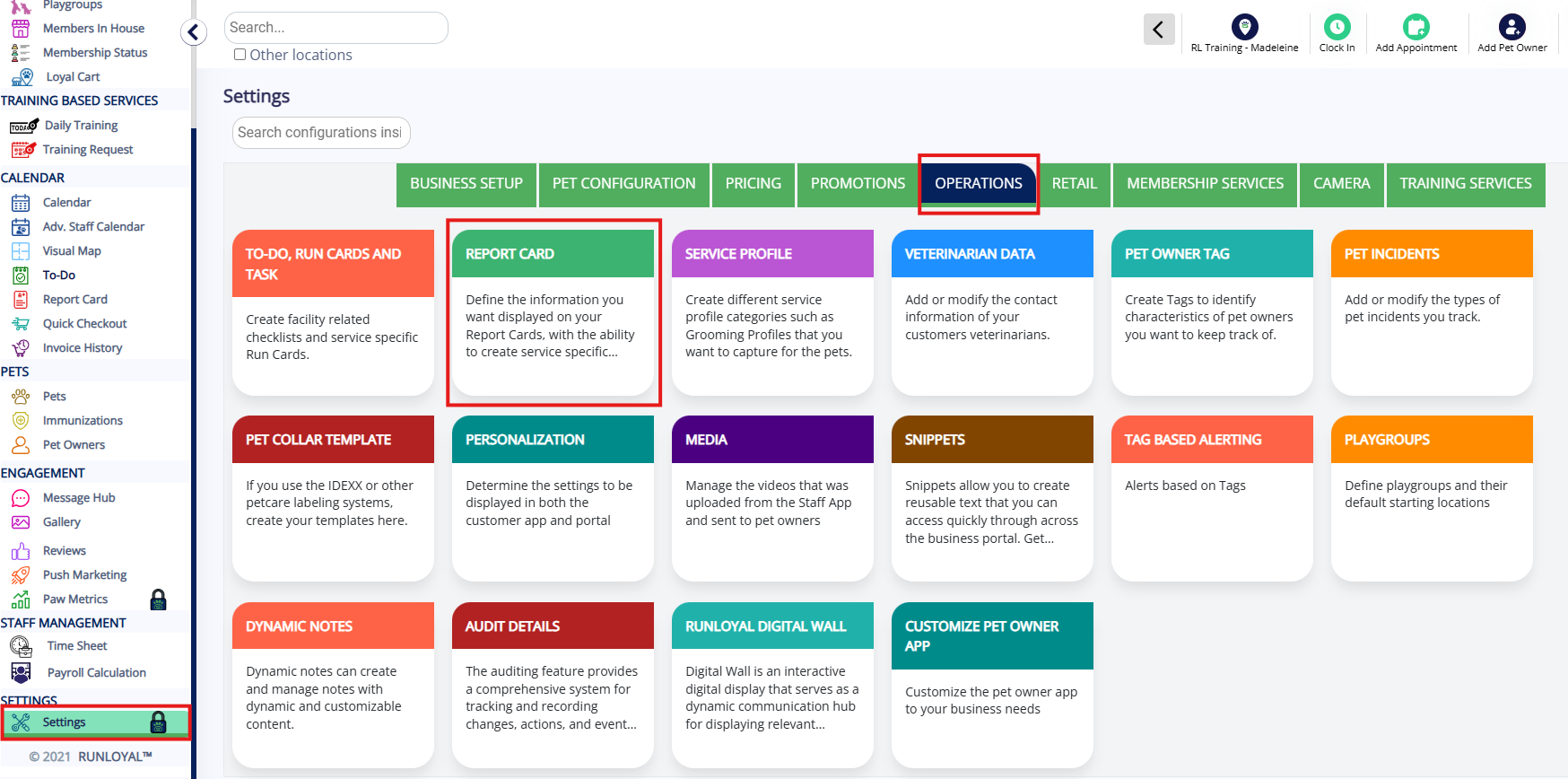
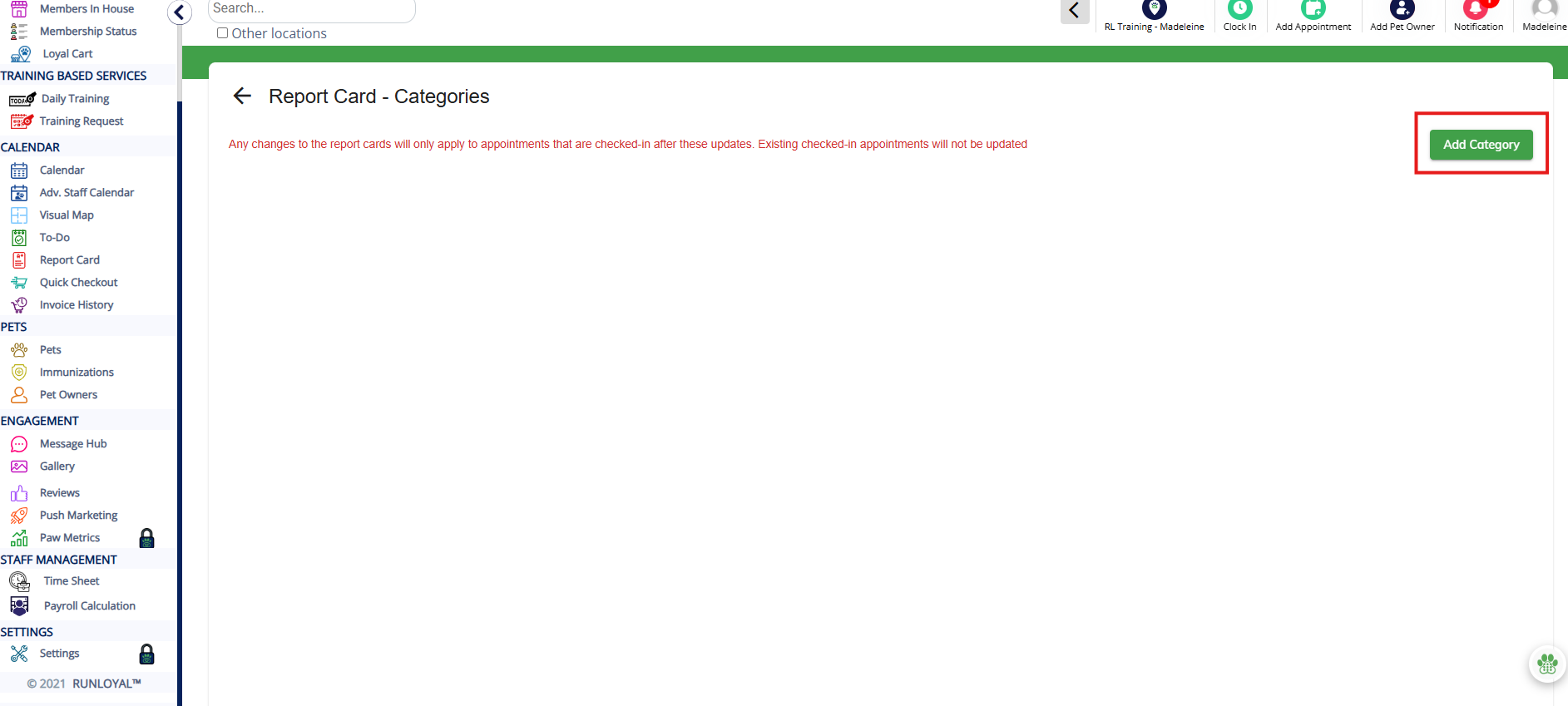
2. Click Add Category.
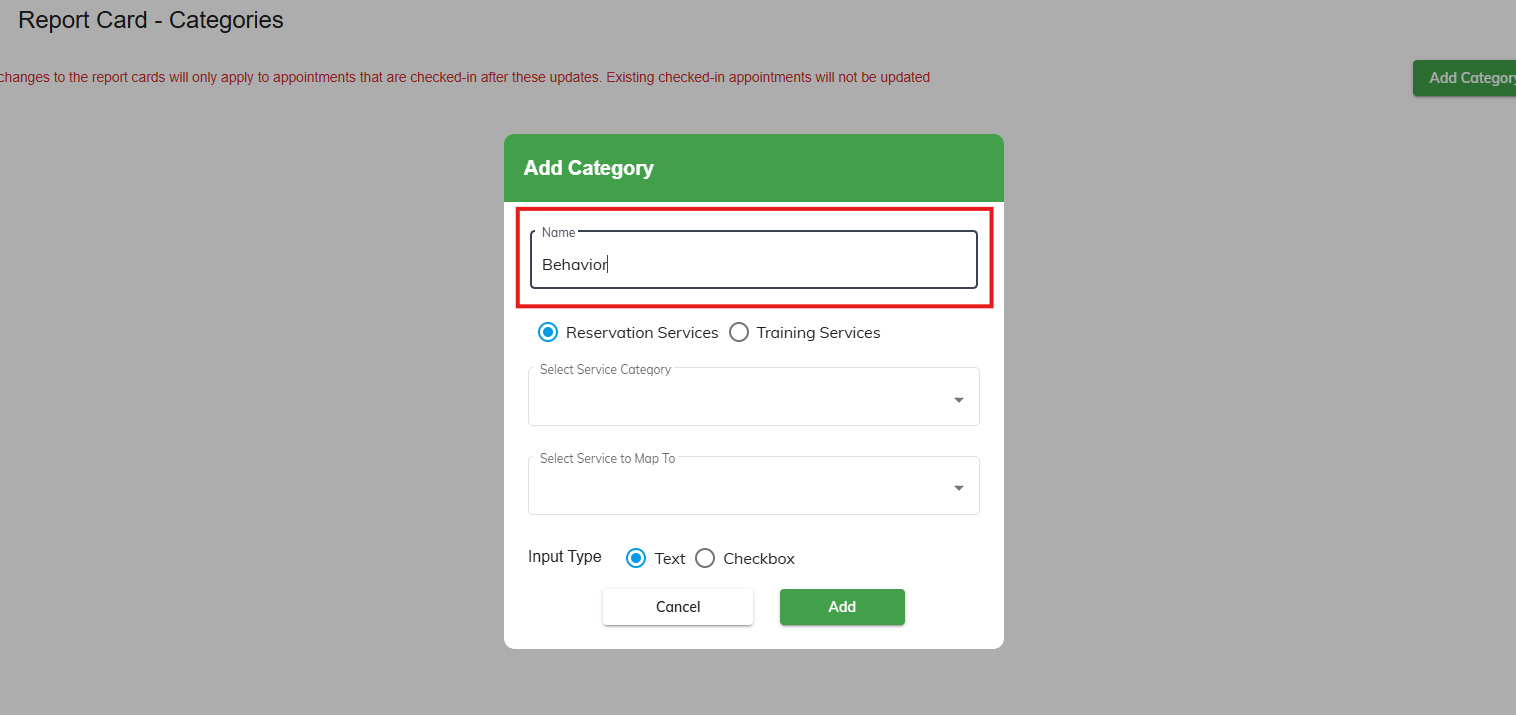
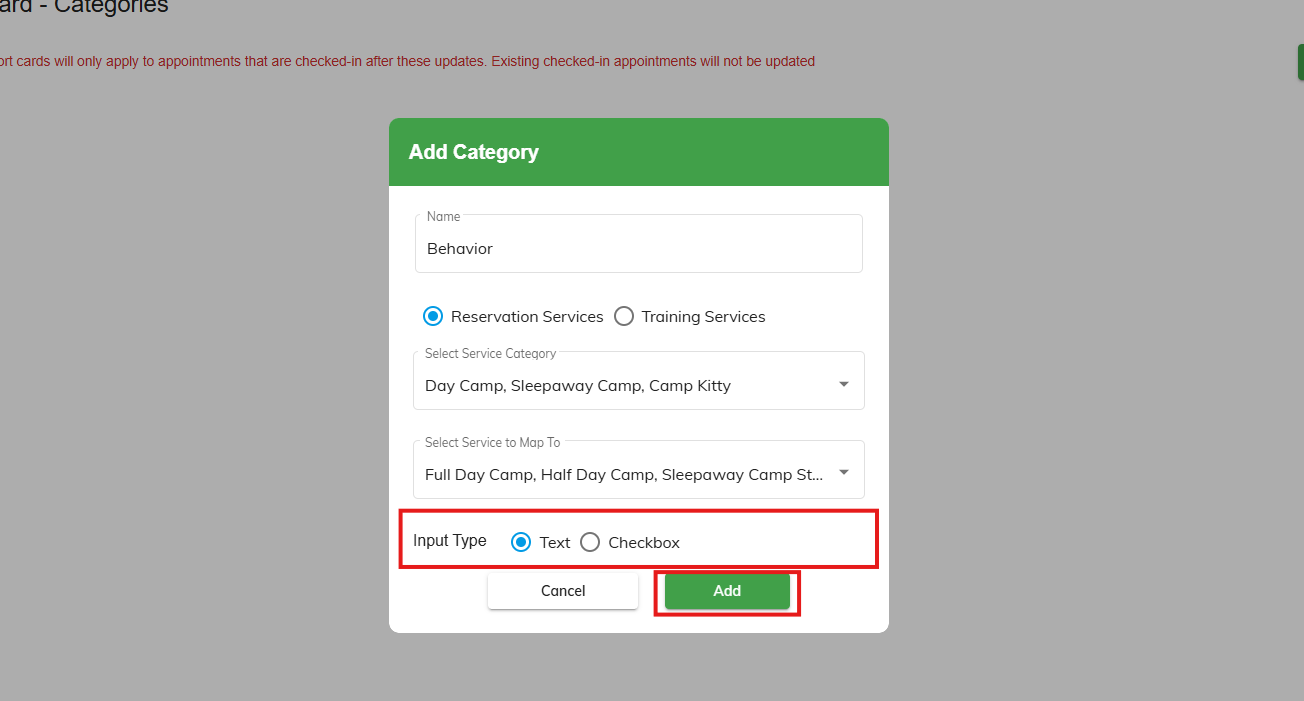
3. Enter the category name, such as Behavior.
4. Select which service categories and services that should display this category. For example, you may have different categories for Boarding services (such as Sleeping Notes) than for Daycare services (such as Playmates).
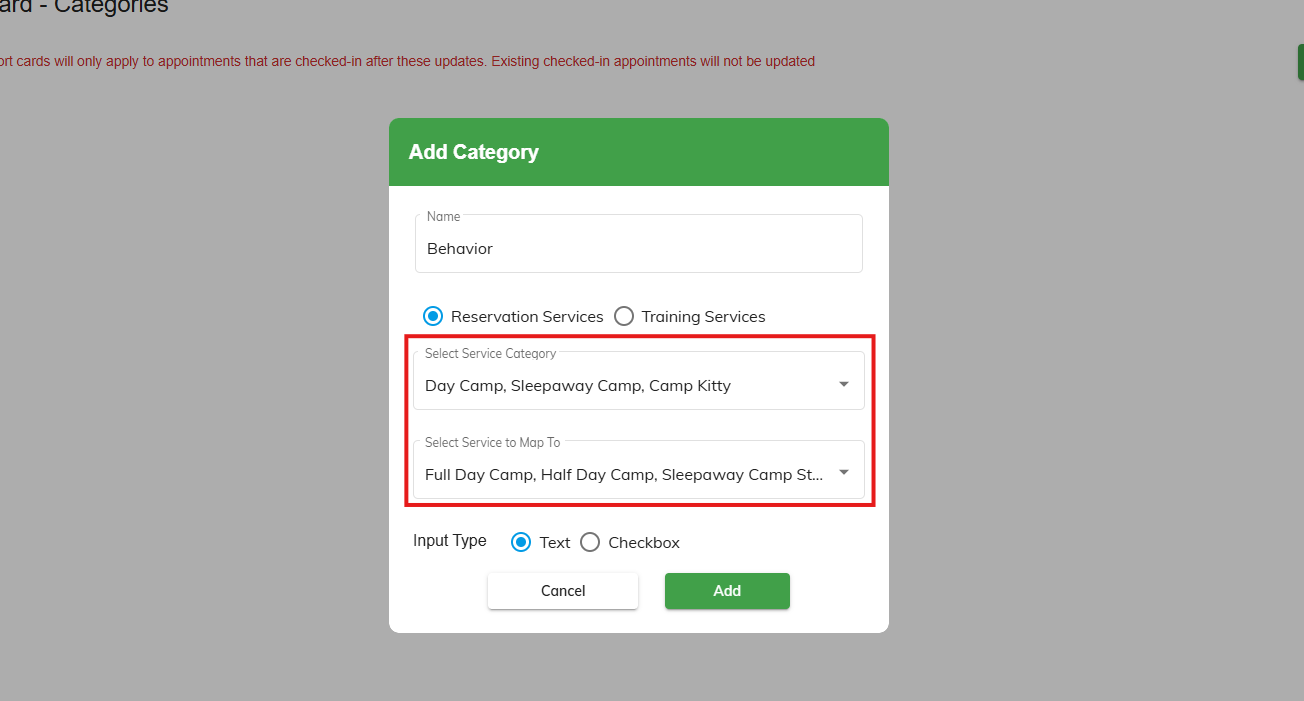
5. For Input type, select Text or Checkbox. If you select Text, each question you add in this category will allow you to freely type the answer into a textbox. If you select Checkbox, each question you add in this category can only be checked or unchecked.
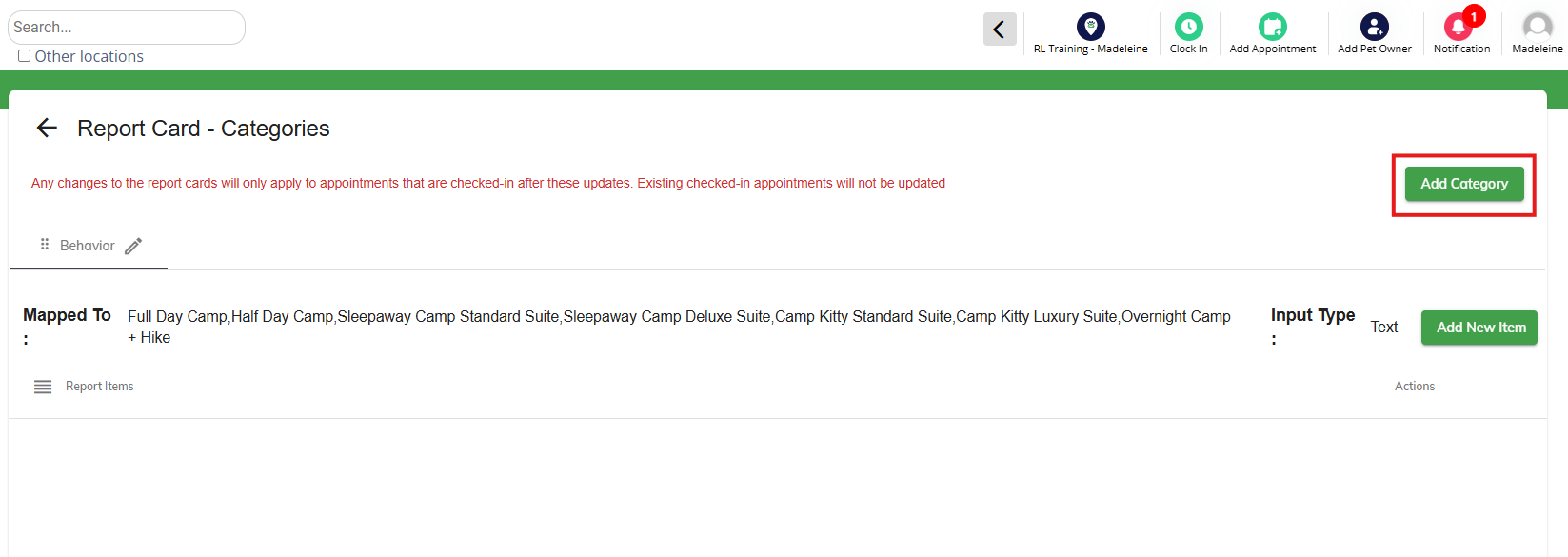
6. Once you have added your first report card category, click Add Category to add additional categories. Drag and drop the categories into the desired order.
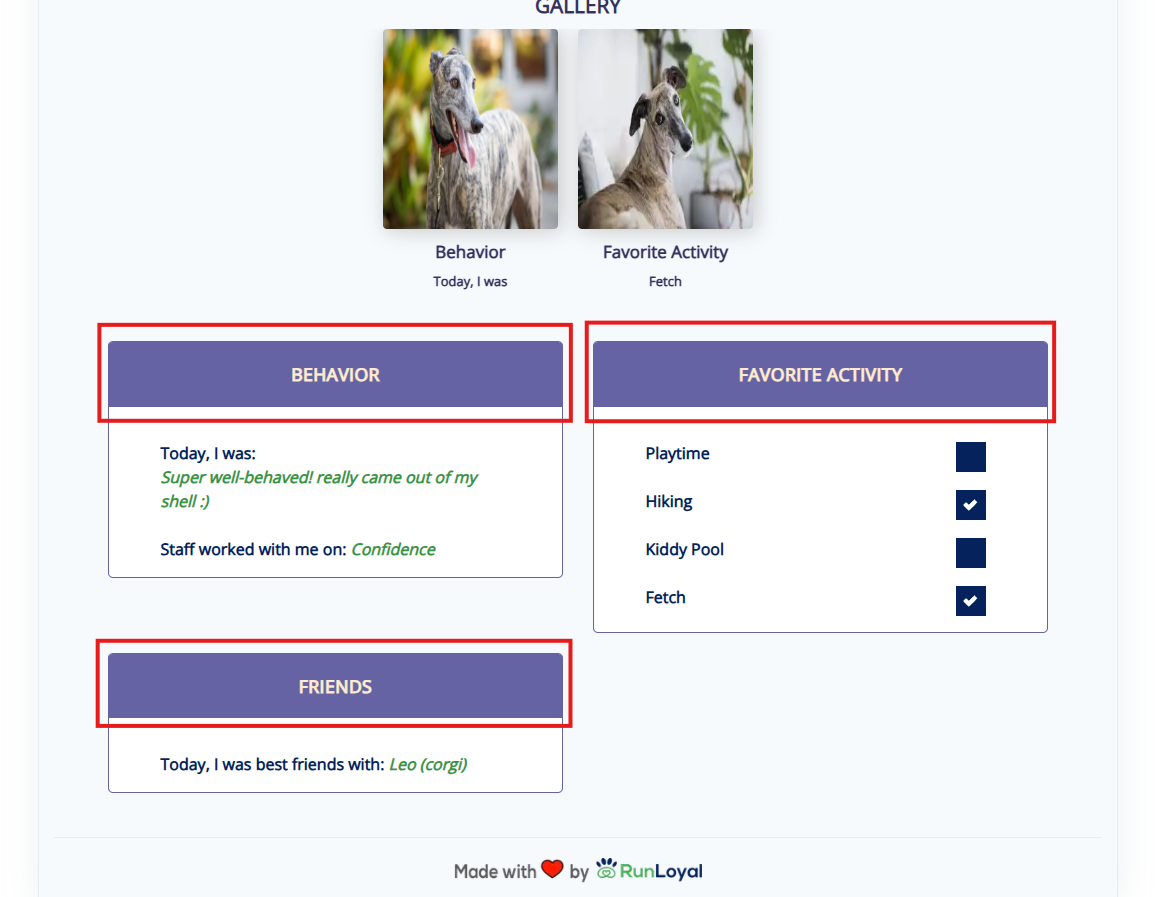
7. Categories will display on the report cards as headers.
How to Set Up Report Card Items (Questions)
1. Navigate to Settings > Operations > Report Card.
2. Select the Report Card Category where you wish to add items.
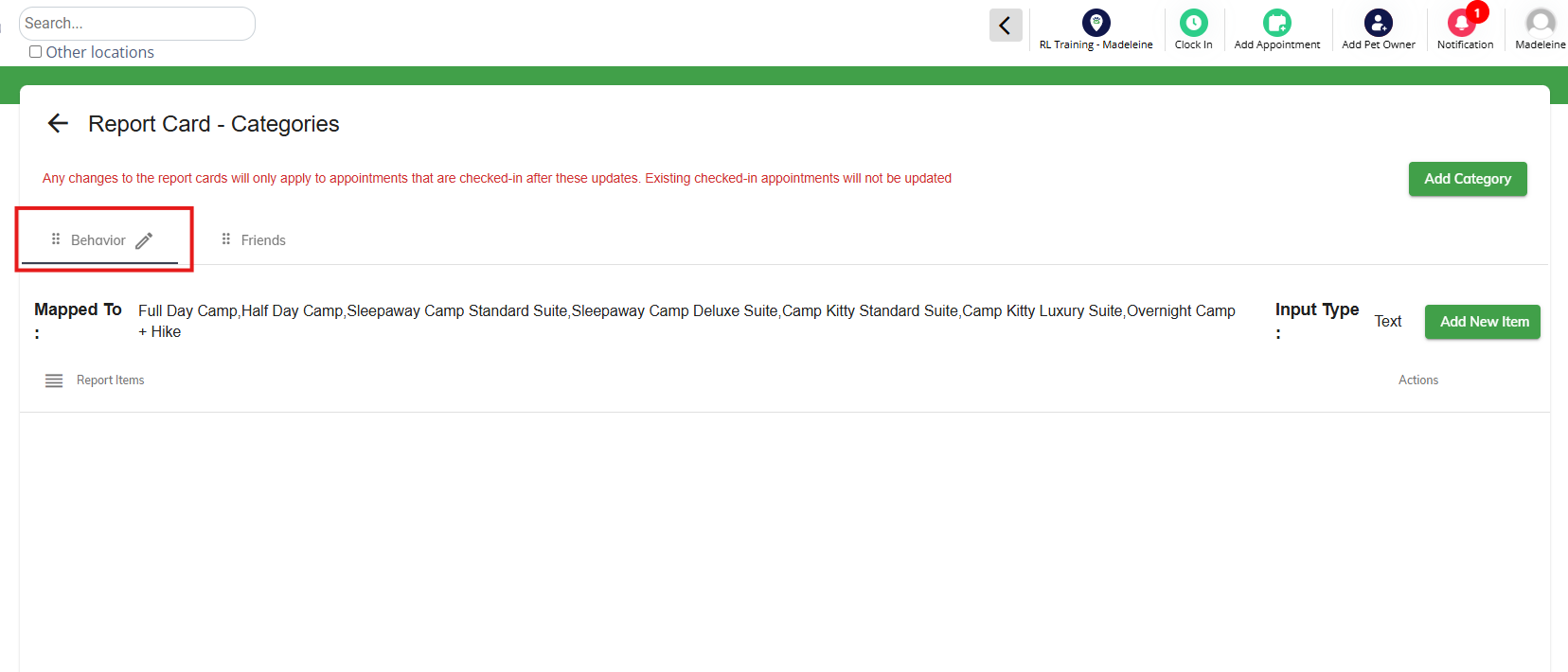
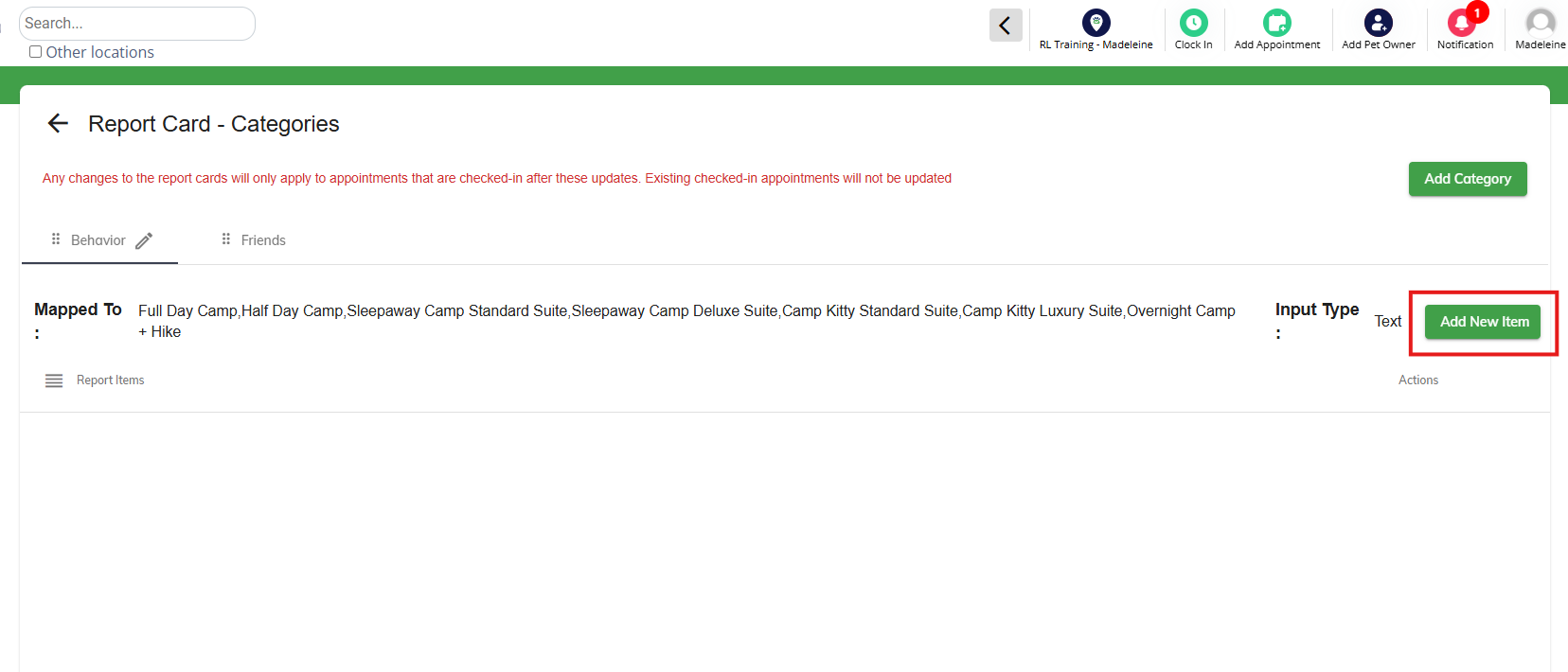
3. Click Add New Item.
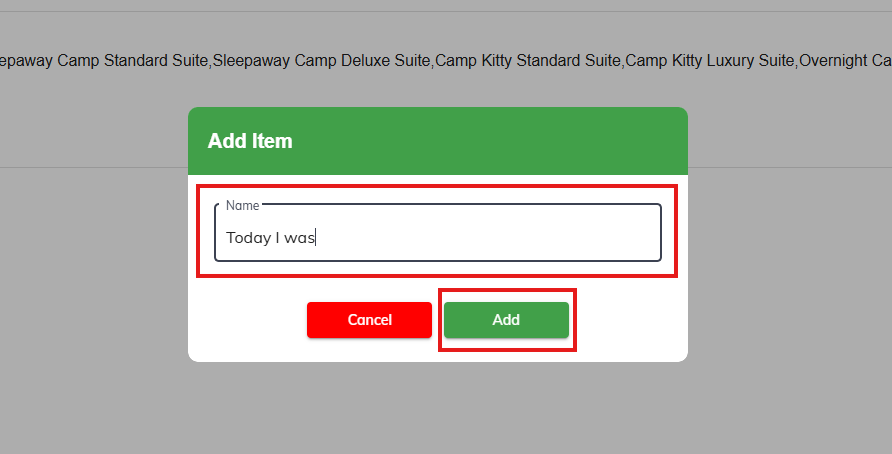
4. Enter the Item Name and click Add. Please note, the system will automatically add a colon and a space after each item when it displays to the customer so you do not need to add this as part of the question (such as ": ").
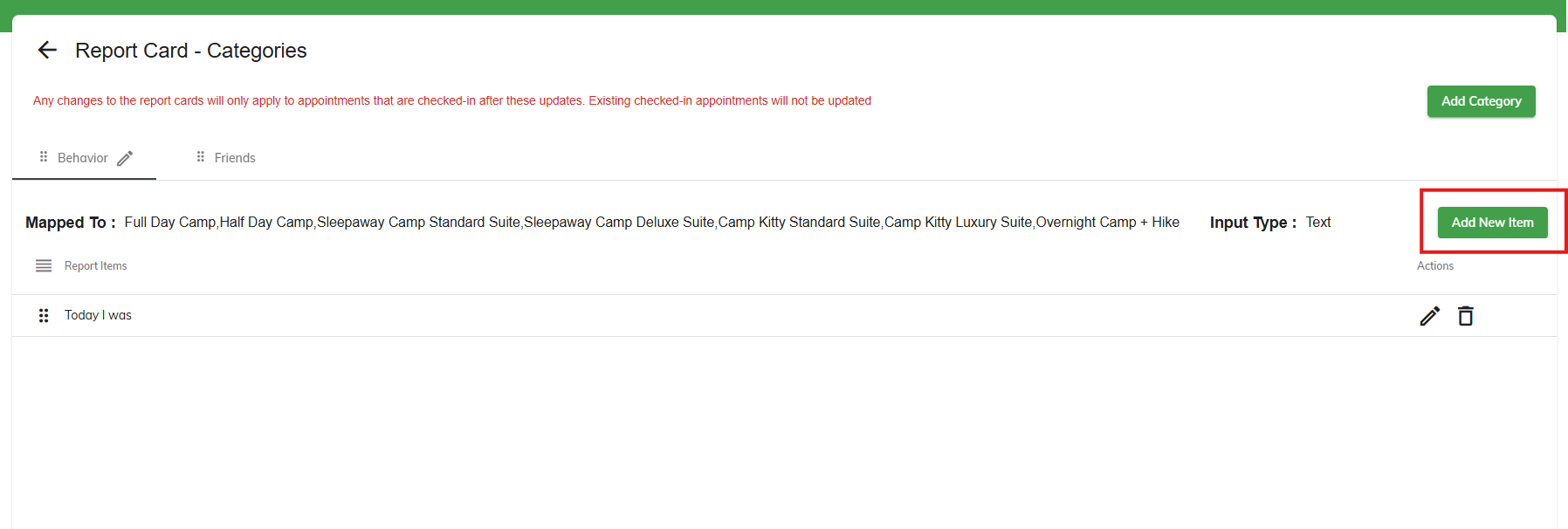
4. Continue adding items by clicking Add New Item until all questions are added to the report card categories.
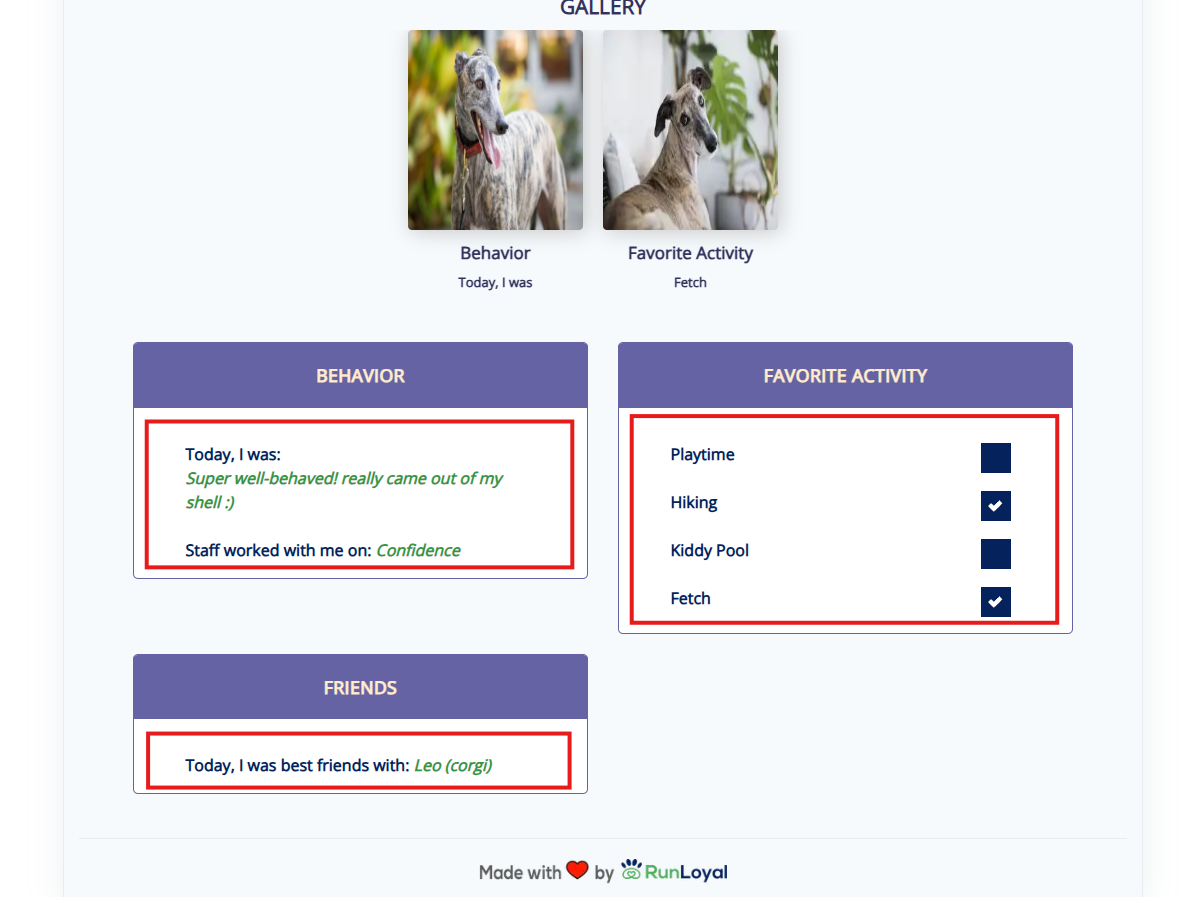
4. Questions will display under each category and will display custom text entered by staff users.
⚠️ Important: Any changes to the report cards will only apply to appointments that are checked-in after these updates. Existing checked-in appointments will not be updated.
More Information
For more information on creating and sending report cards to pet owners, please refer to this article: Sending a Report Card
For more information on uploading photos to report cards, please refer to this article: How To Add and View Pictures
Was this article helpful?
That’s Great!
Thank you for your feedback
Sorry! We couldn't be helpful
Thank you for your feedback
Feedback sent
We appreciate your effort and will try to fix the article