Overview
Report Cards allow pet owners to learn how their pet is doing while staying at your facility. Report cards are also an excellent way to share photos and updates throughout the pet's appointment. Many facilities use report cards to note a pet's daily activities, wellness, personality, energy level, favorite playmates, and more.
Report Cards can be viewed in the following areas:
- Left-hand Navigation > Report Cards (to send)
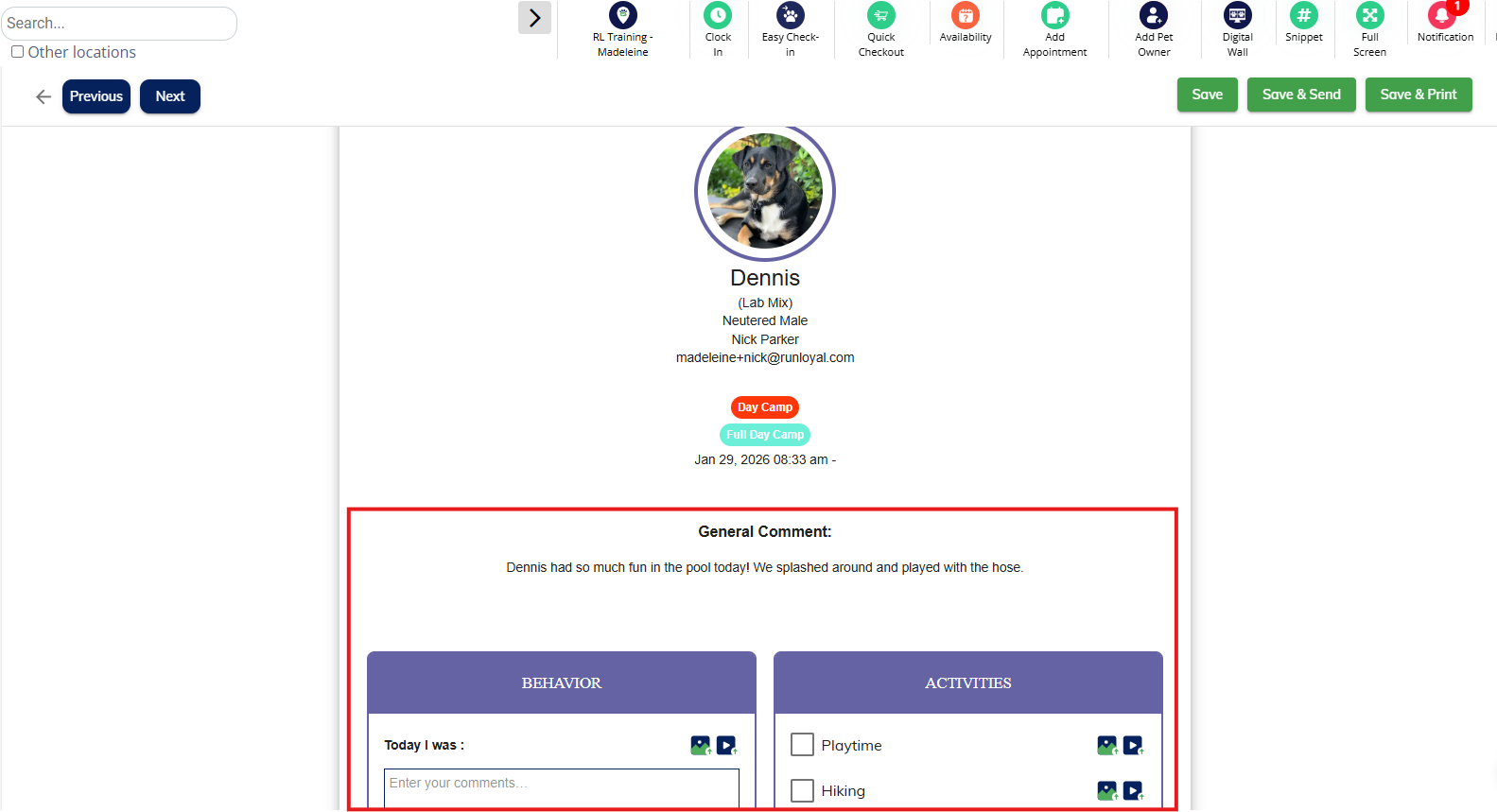
- Appointments tab > Appointment Menu > Update & Send Report Card
TABLE OF CONTENTS
- Overview
- How To Create & Send a Report Card for a Pet
- How To Create a Report Cards in Bulk for Multiple Pets
- More Information
How To Create & Send a Report Card for a Pet
1. Navigate to Left-hand Navigation > Report Card to select any pet's report card who has an appointment for today. You can also go to Left-hand Navigation > Appointments > action button next to specific appointment > Update & Send Report Card if you wish to edit a specific pet's report card.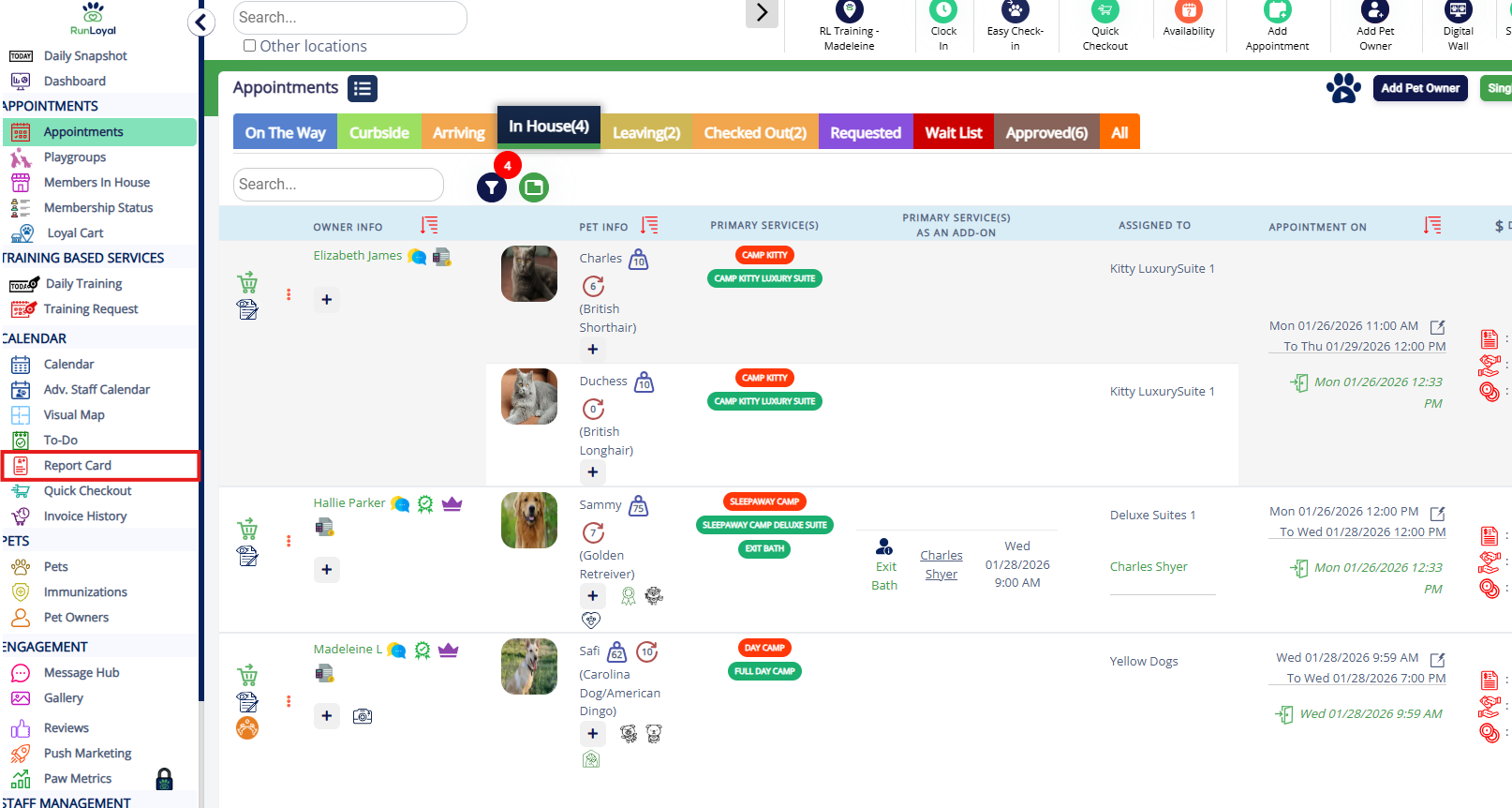
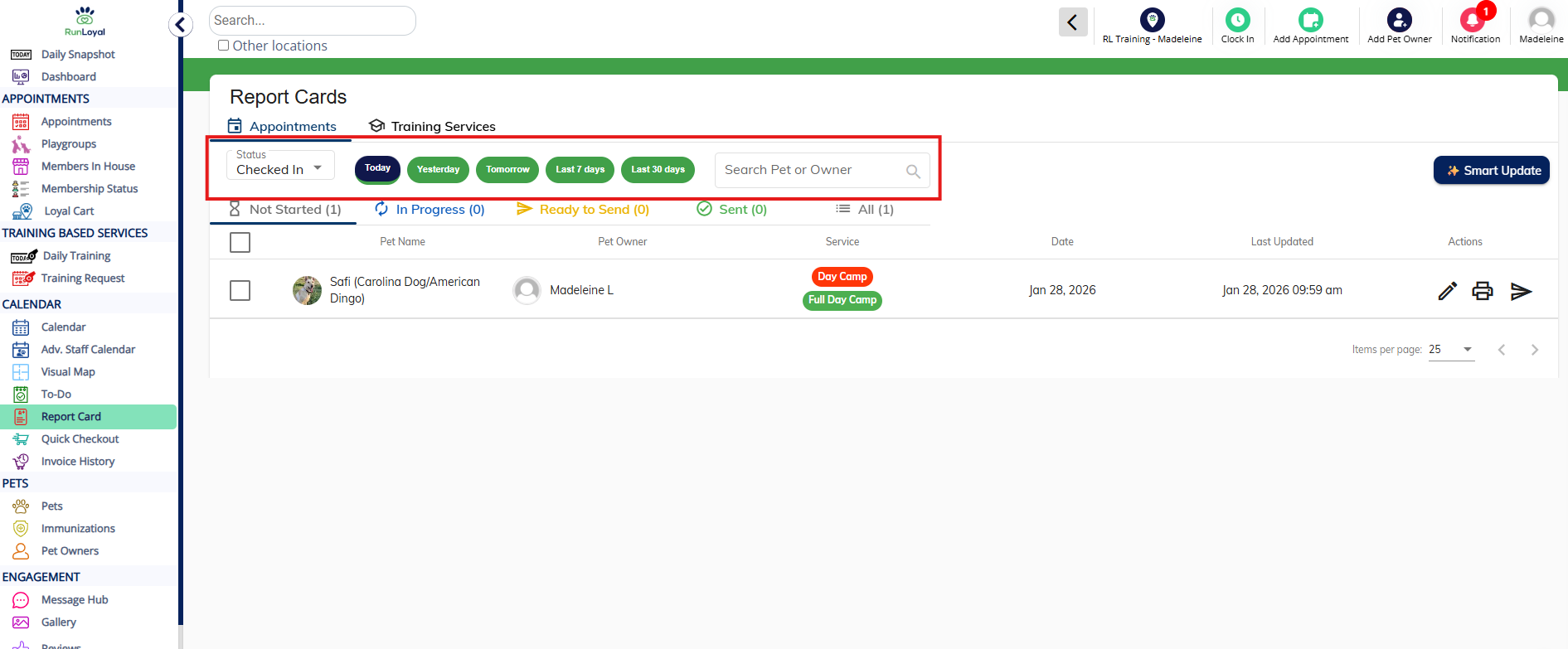
2. The report cards will default to pets checked in today that have not yet had a report card started. You can optionally filter for all pets for today (regardless of checked in status), or checked out pets. If you are wanting to find a specific pet, type their name into the Search Bar.
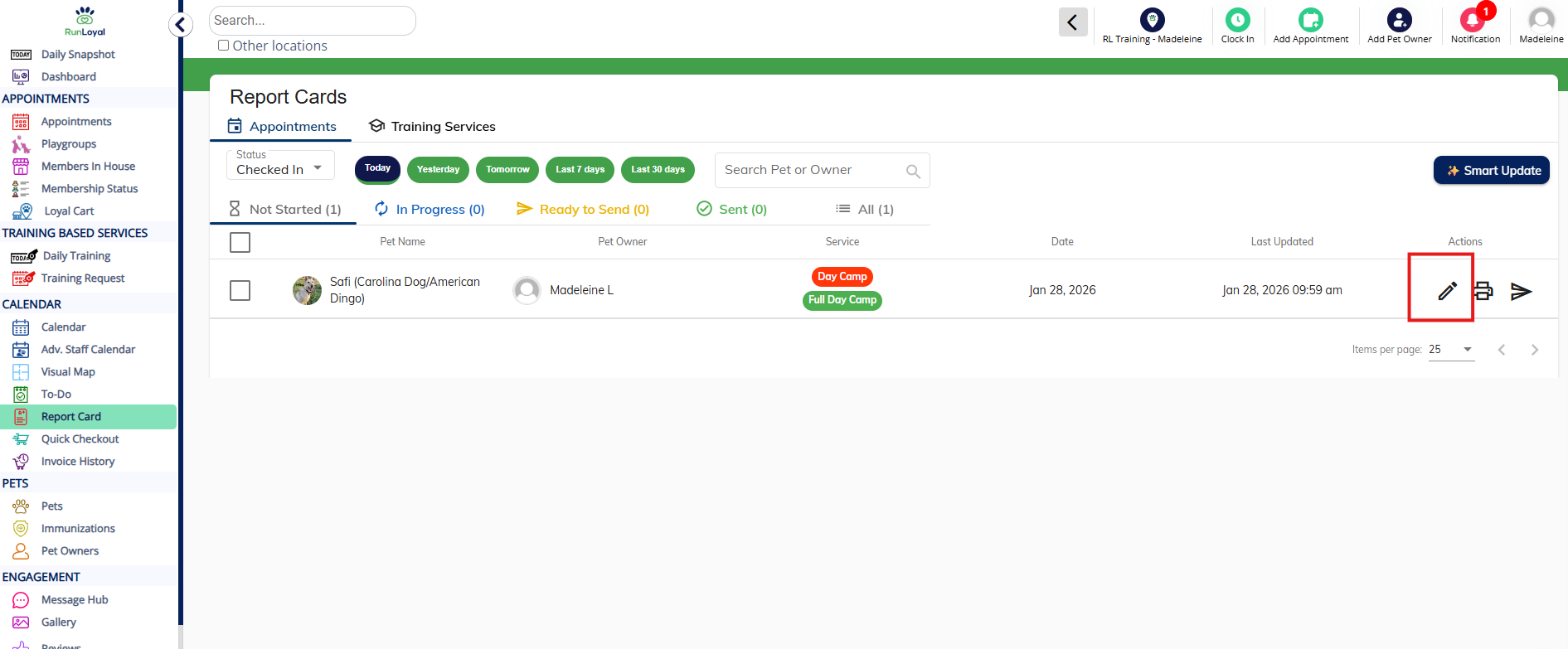
3. To create or edit a report card, click the Edit pencil icon next to the appointment in question.
4. Complete the questions in the report card categories based on the pet's experience. To learn more about setting up report card categories and questions, follow the steps in this article: Setting Up Report Cards.
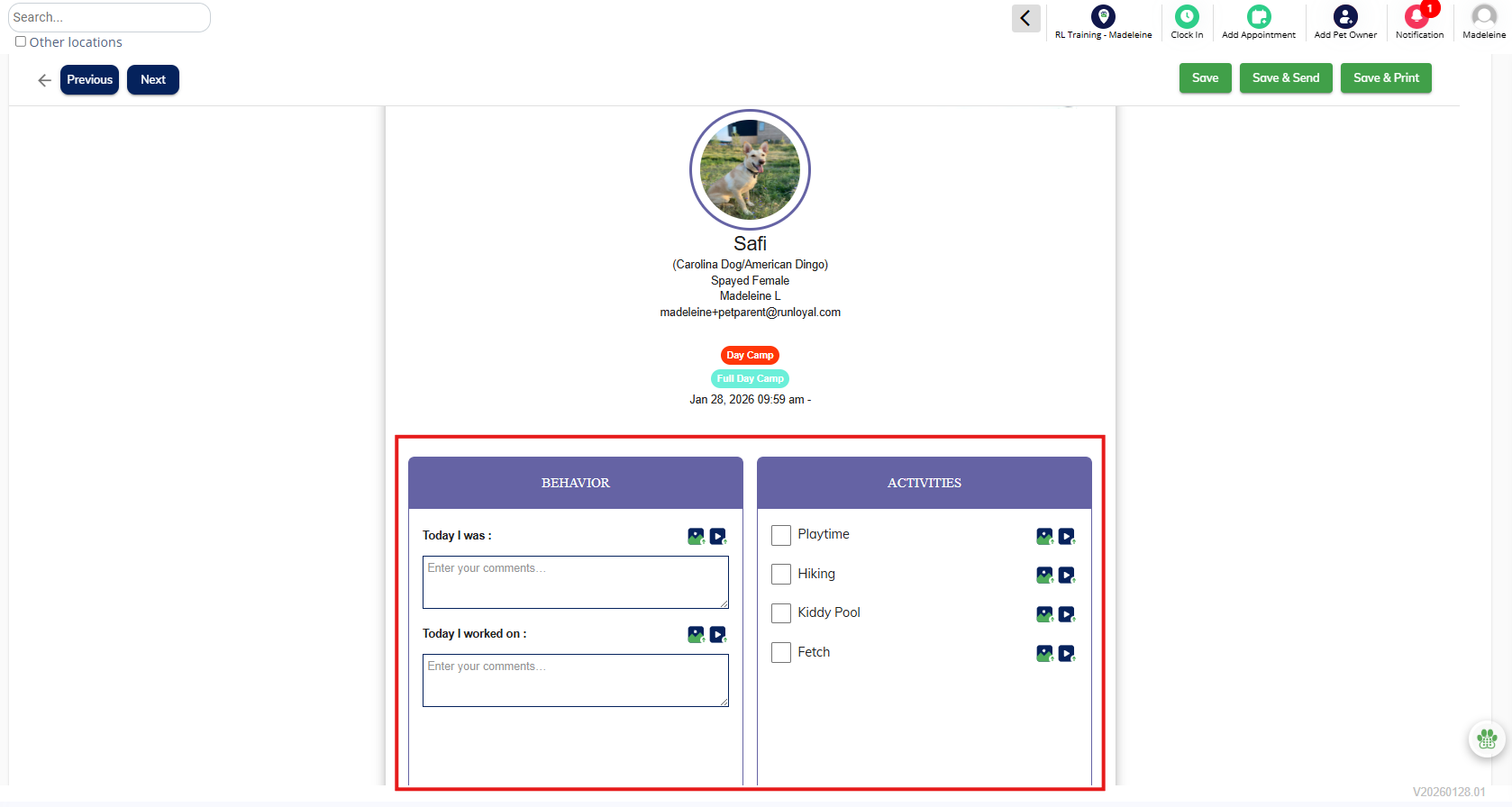
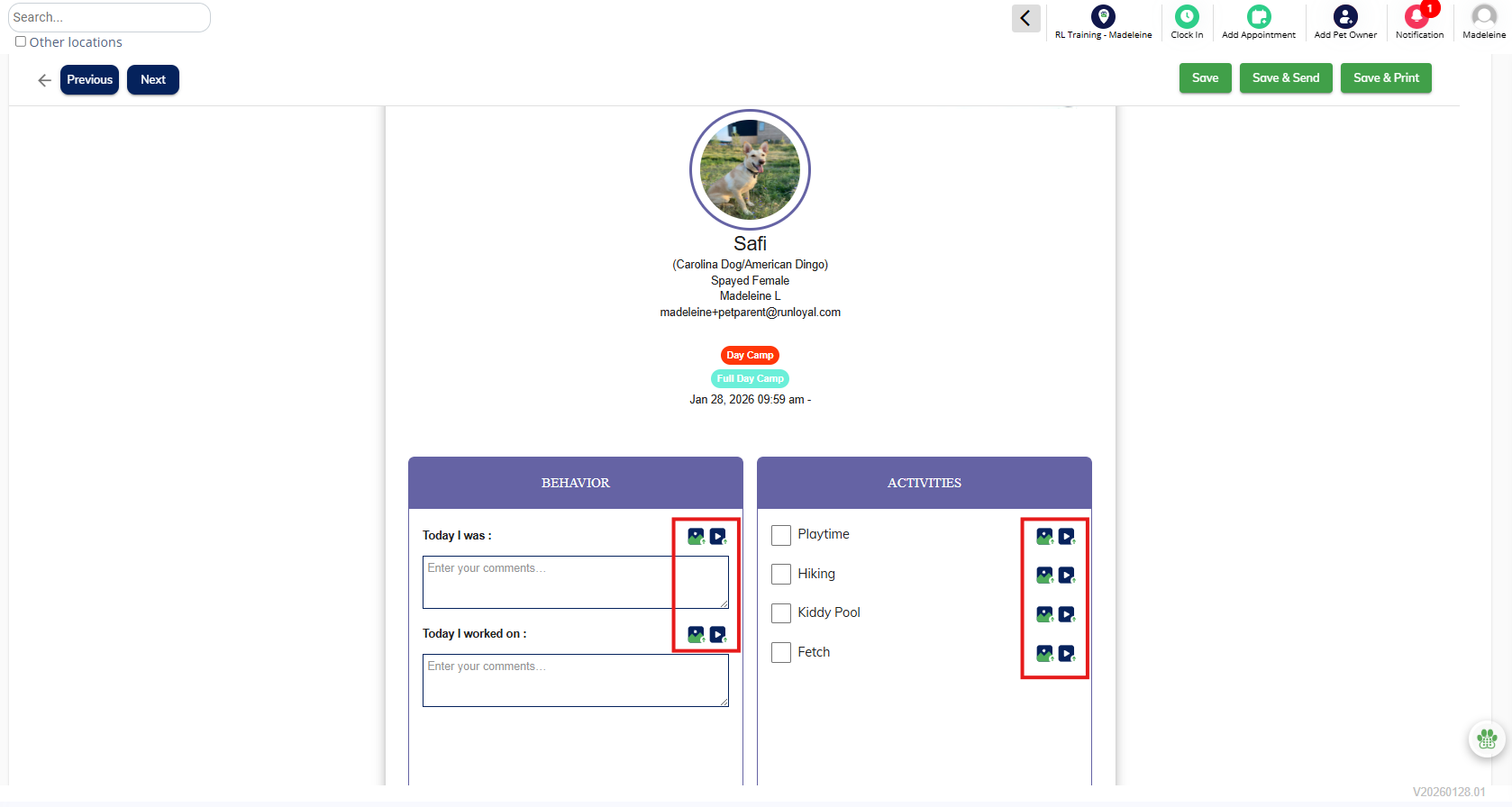
5. To add photos to the report card, click the photo or video icons next to the specific question the photo relates to.
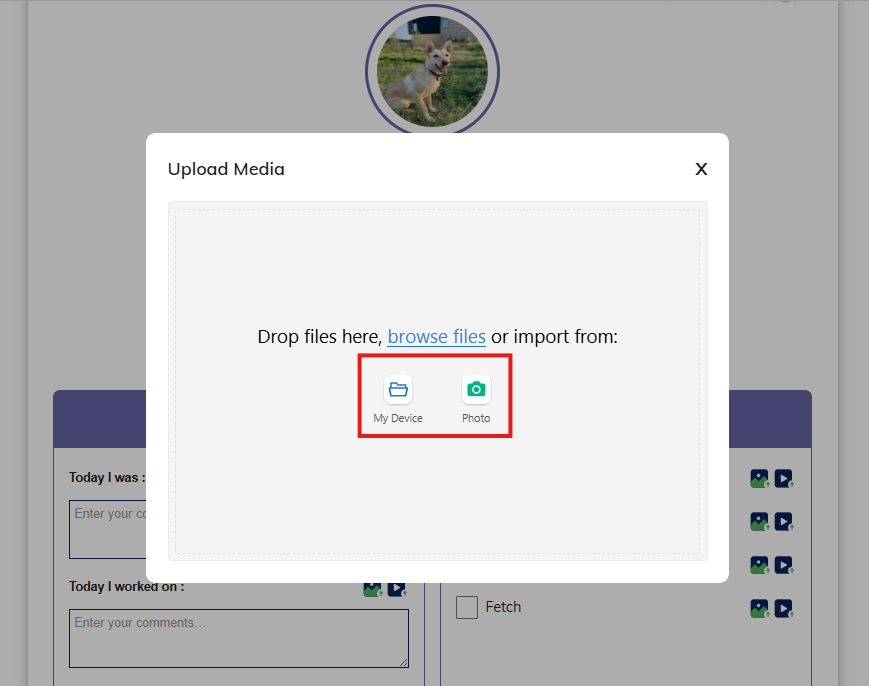
6. You can either upload an existing photo from your device, or click Photo to take a photo from your device.
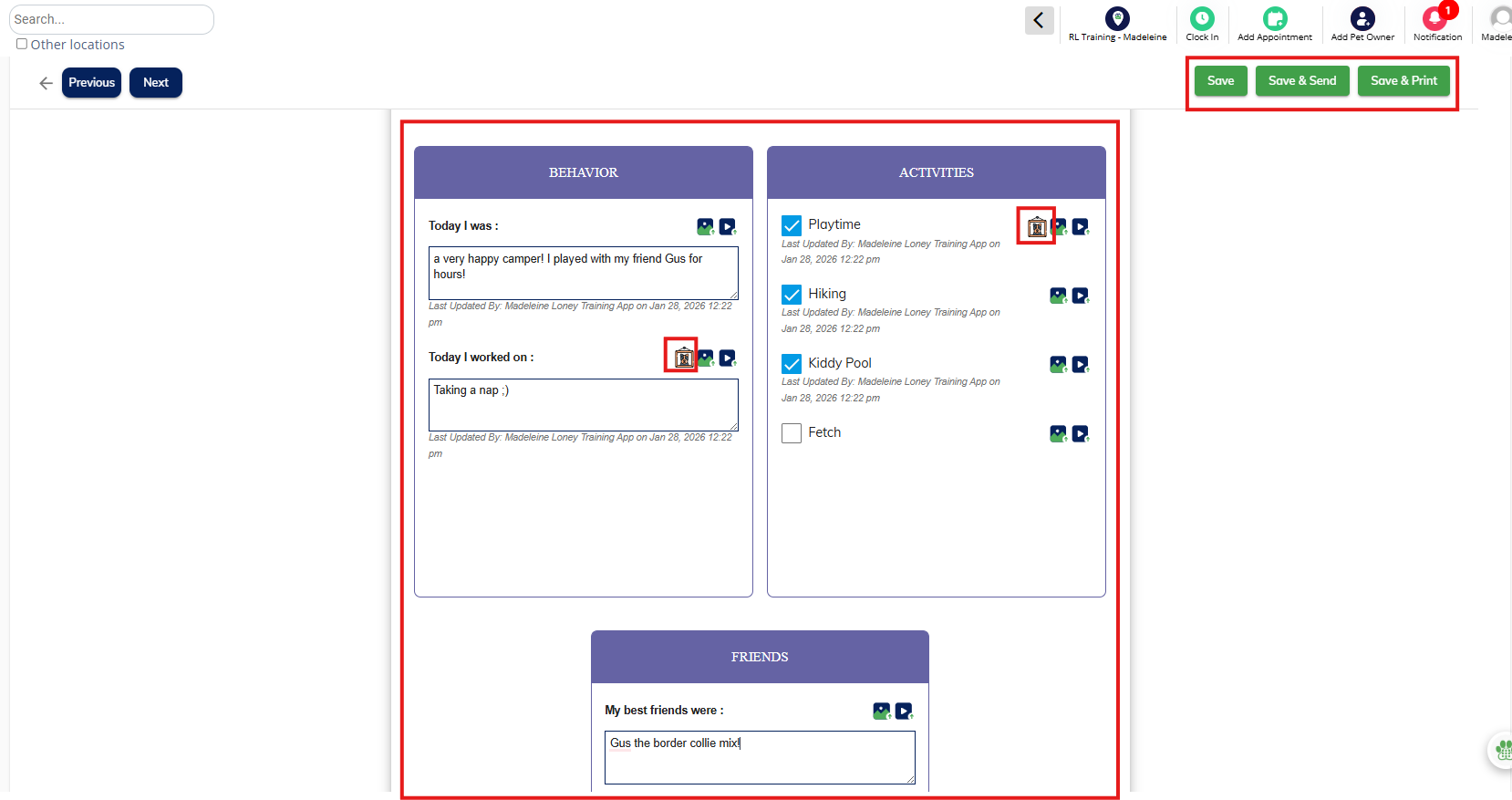
7. Once the report card has all necessary fields completed and photos added, you can click Save, Save & Send, or Save & Print. Clicking Save will save your edits but allow you to come back to the report card for additional edits later. Clicking Save & Send will immediately email the report card to the pet owner.
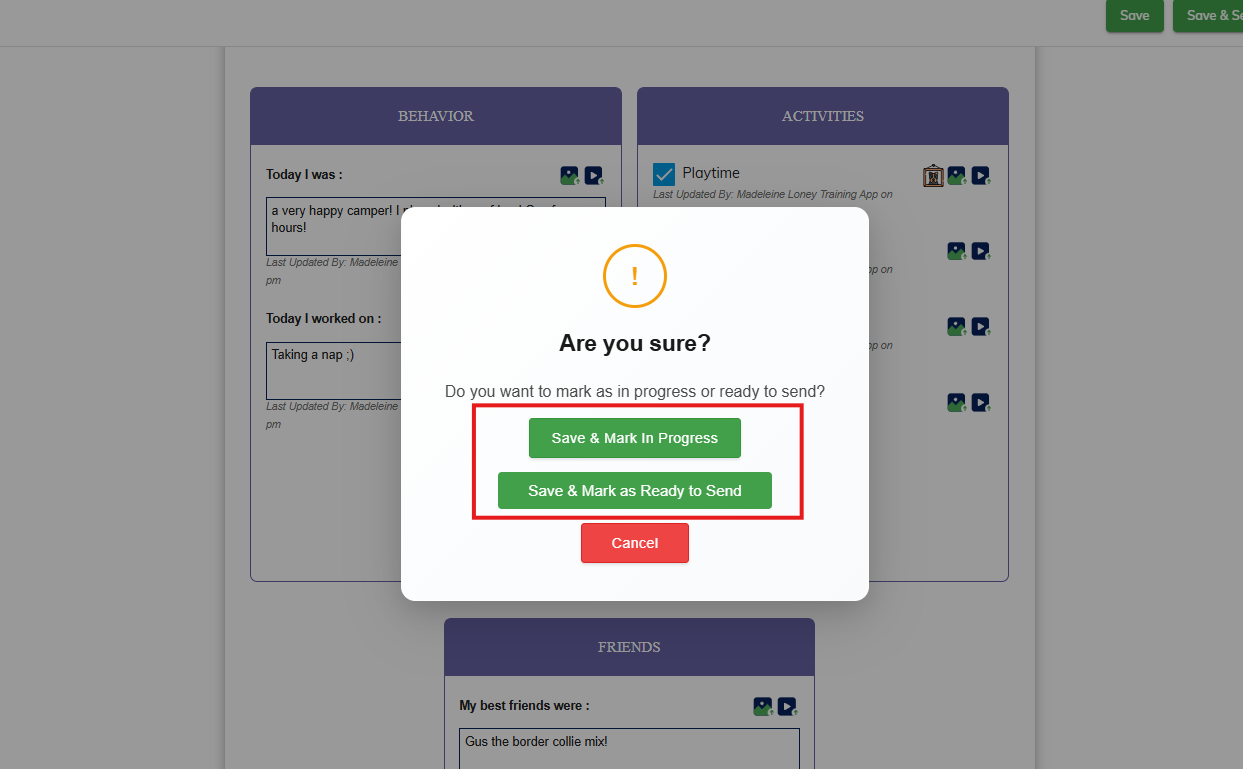
8. If you click Save, it will prompt you to Save & Mark In Progress which will put the report card in the "In Progress" tab, or Save & Mark as Ready to Send which will put the report card in the "Ready to Send" tab.
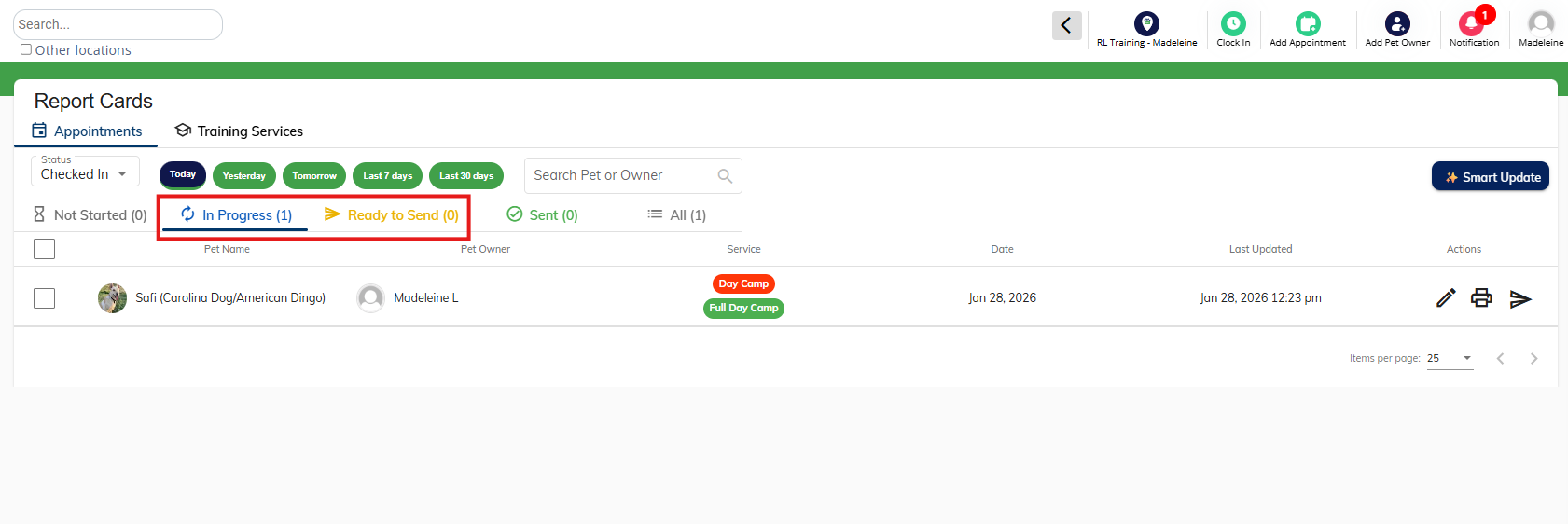
9. Depending on where the report card was saved, you can make additional edits if needed by clicking the In Progress or Ready to Send tabs.
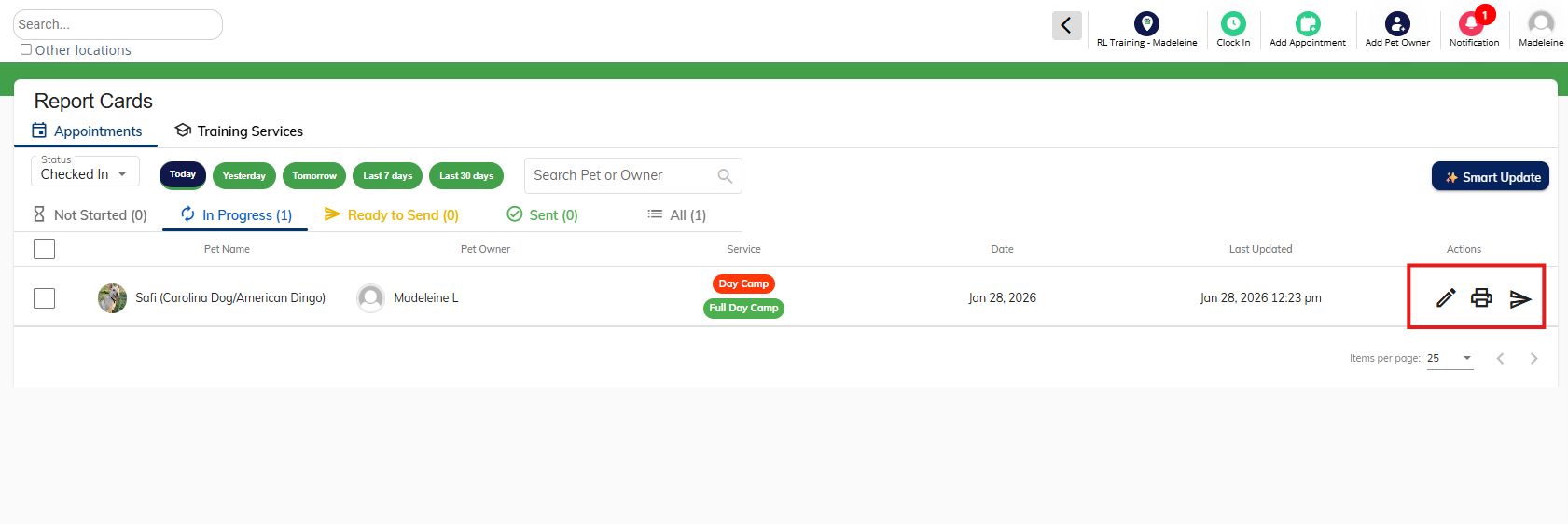
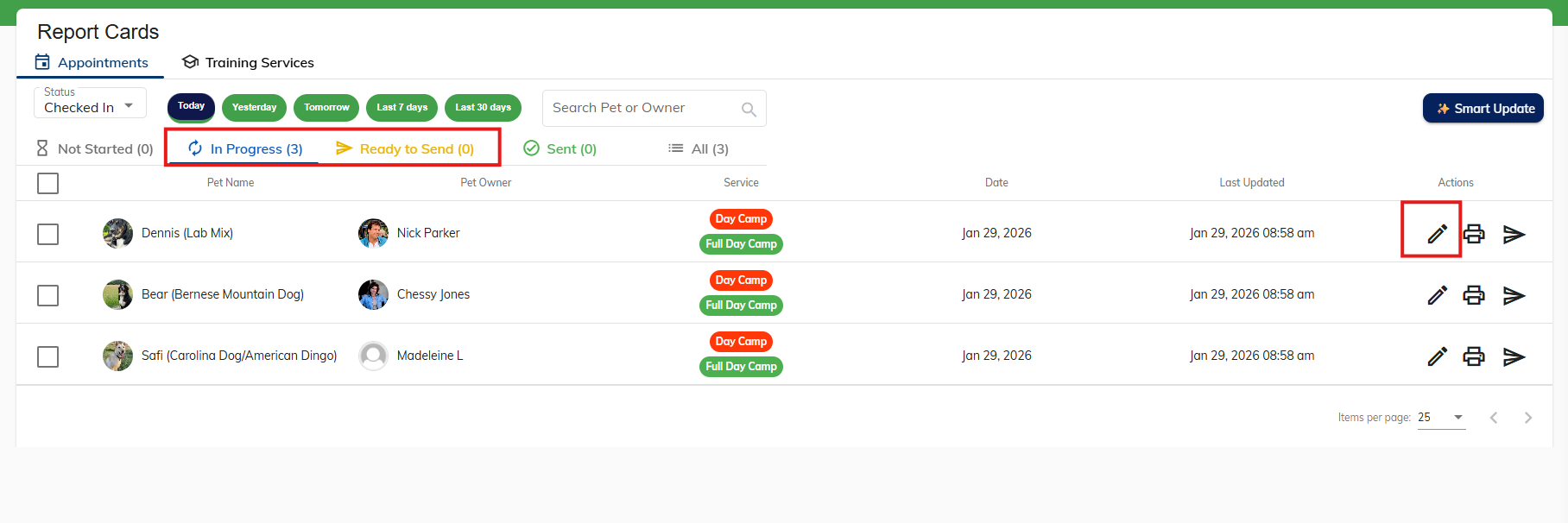
10. To make additional edits, click the Edit pencil icon. To print the report card, click the Print icon. To send the report card to the pet owner, click the Send arrow icon. You can also select multiple report cards via the checkboxes on the left-hand side and send all at once.
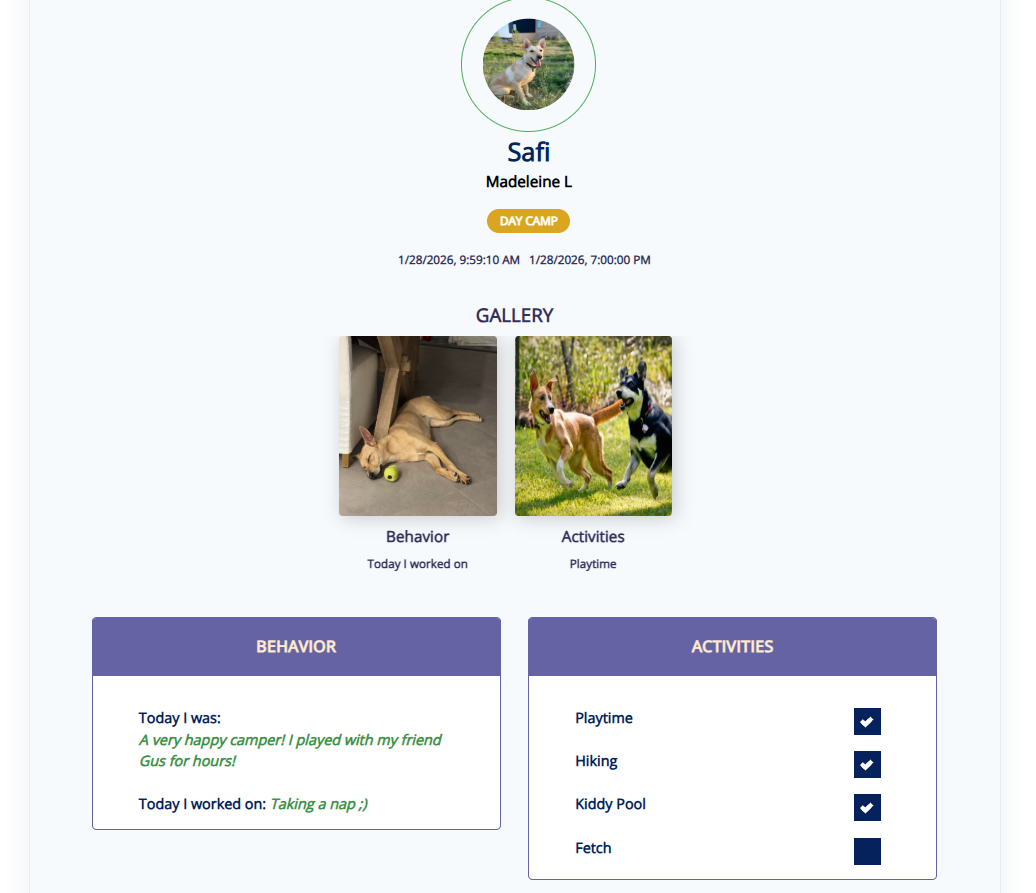
11. Once the report card is sent, the pet owner can then open their report card to view pictures and read the updates.
How To Create a Report Cards in Bulk for Multiple Pets
1. To create several report cards at once for multiple pets, navigate to Left-hand Navigation > Report Card.
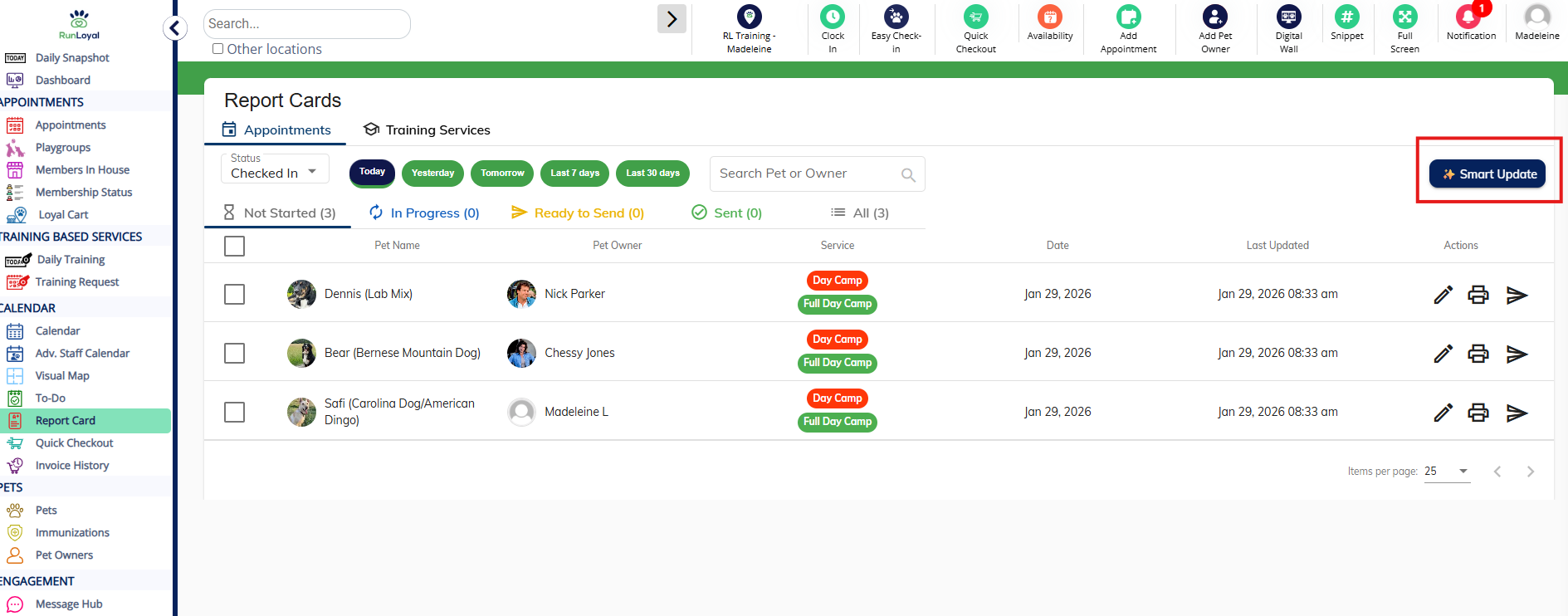
2. Click Smart Update in the top-right corner.
3. Click to expand the update section in the top-right corner.
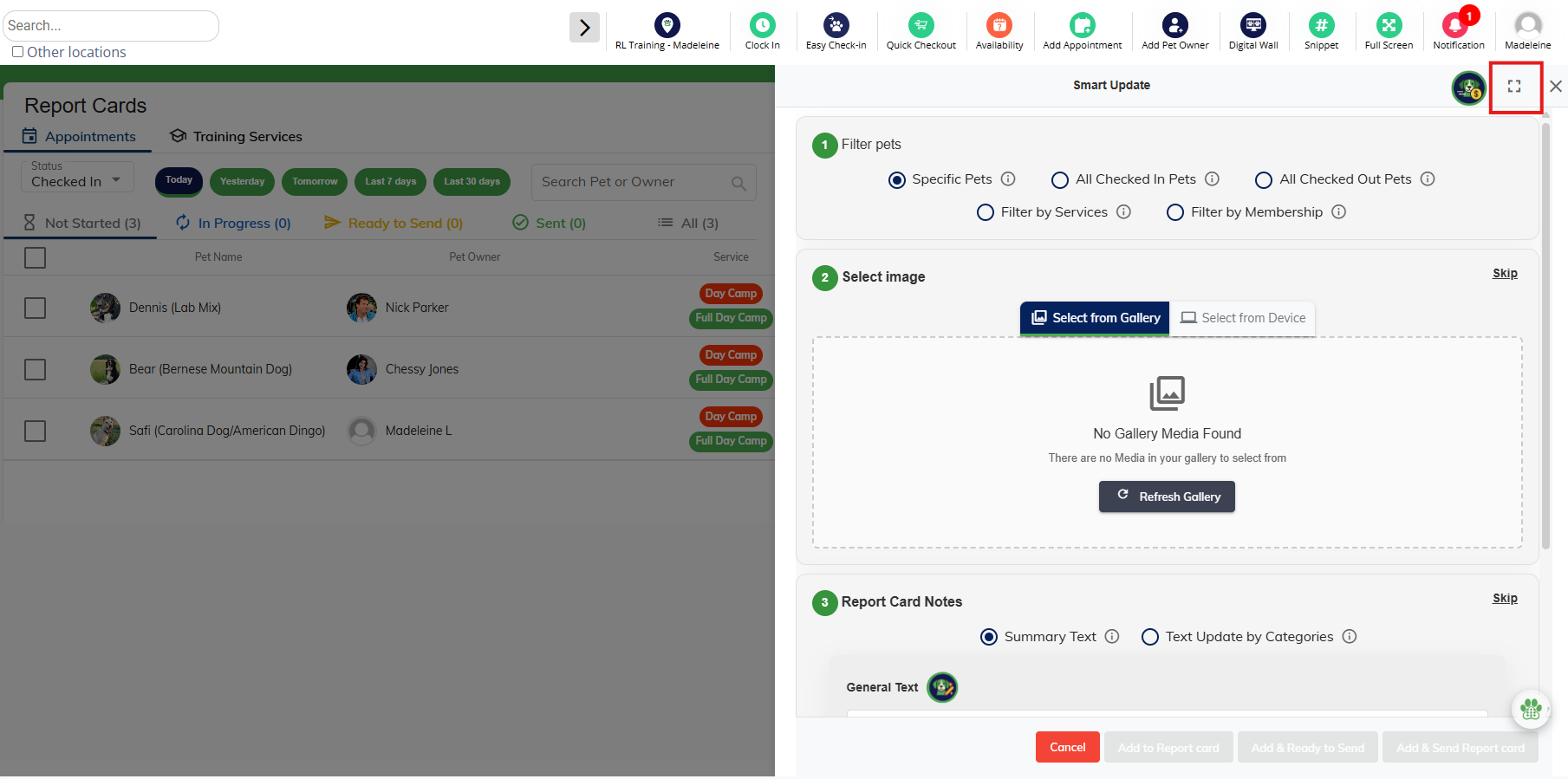
4. Select if you would like to bulk update for specific pets, all checked in pets, all checked out pets, or pets at the facility for specific services and/or memberships.
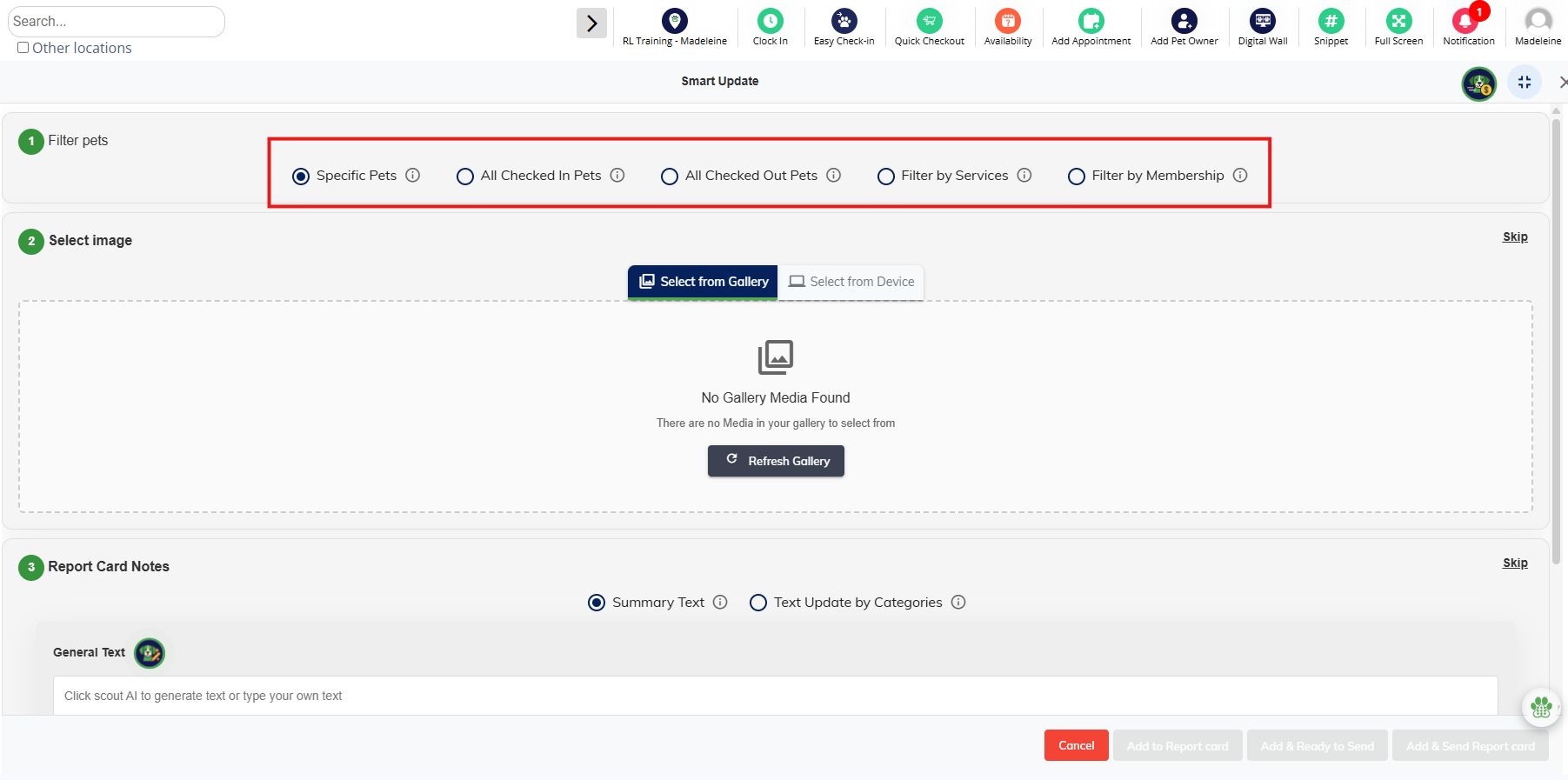
5. Upload images from the gallery or via your device. If you don't wish to upload photos and instead only enter text, click Skip.
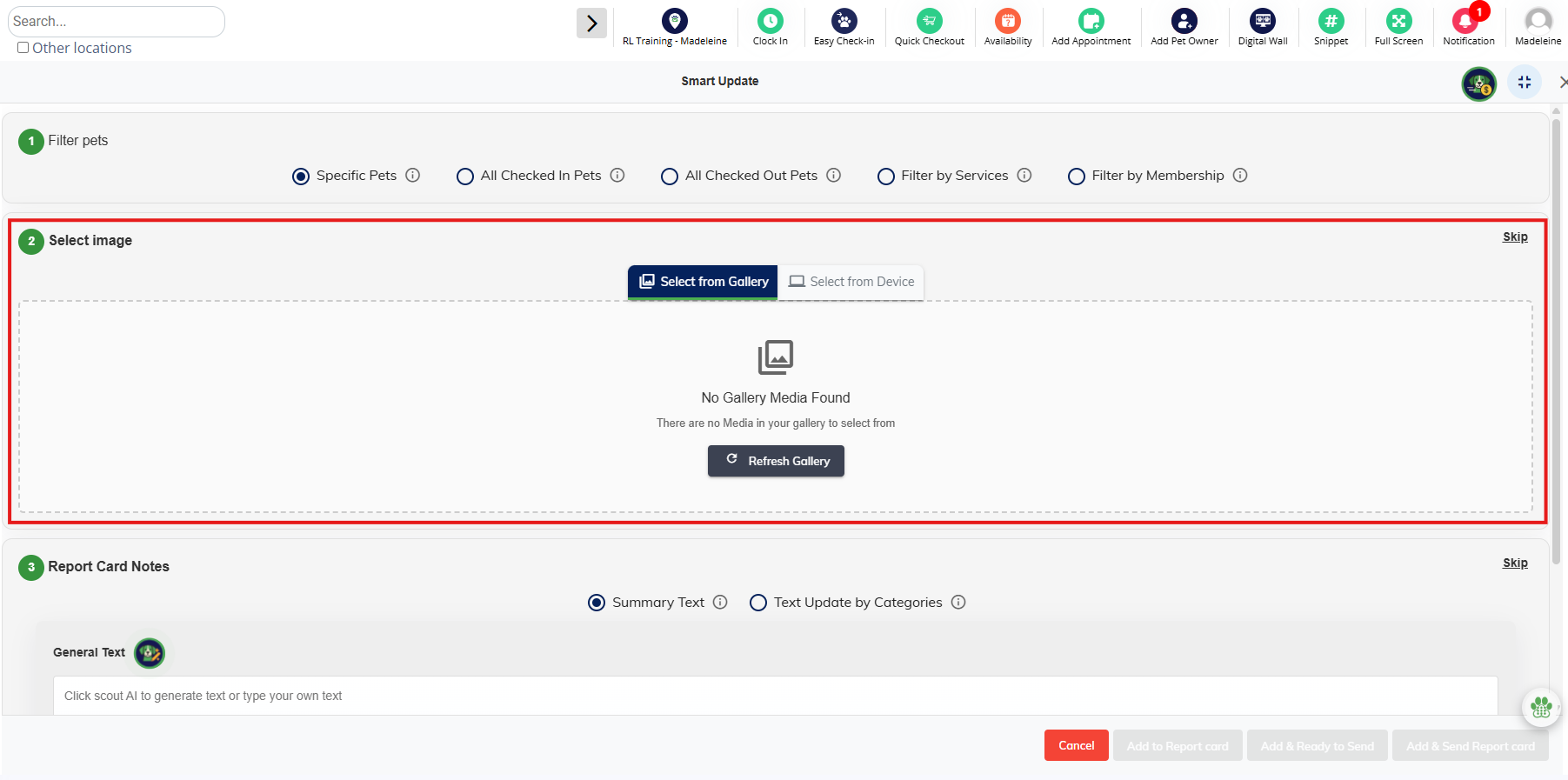
6. If Specific Pets were selected above, tag the pets who should have each photo assigned.
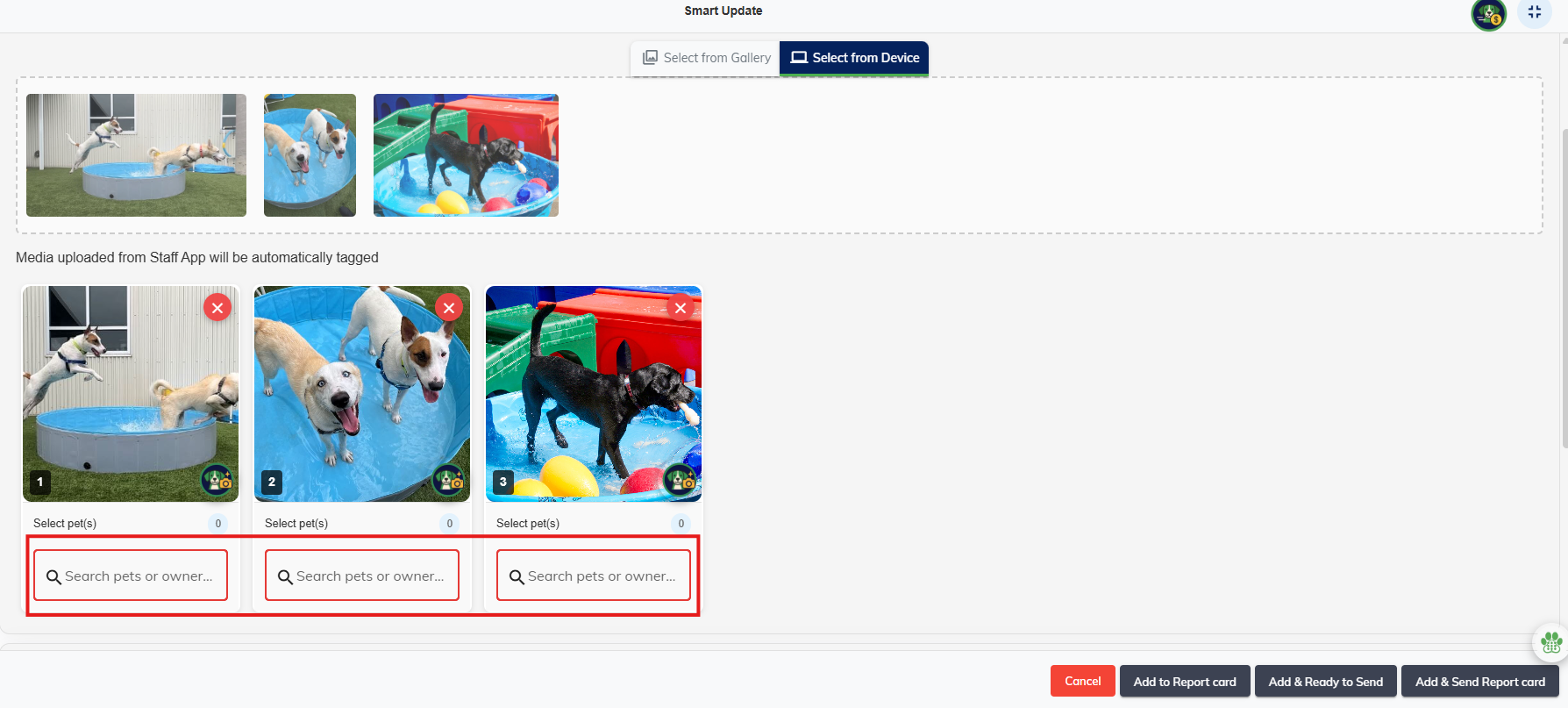
7. Once photos are uploaded, enter general Summary Text which will show at the top of the top of the report card for all pets selected above.
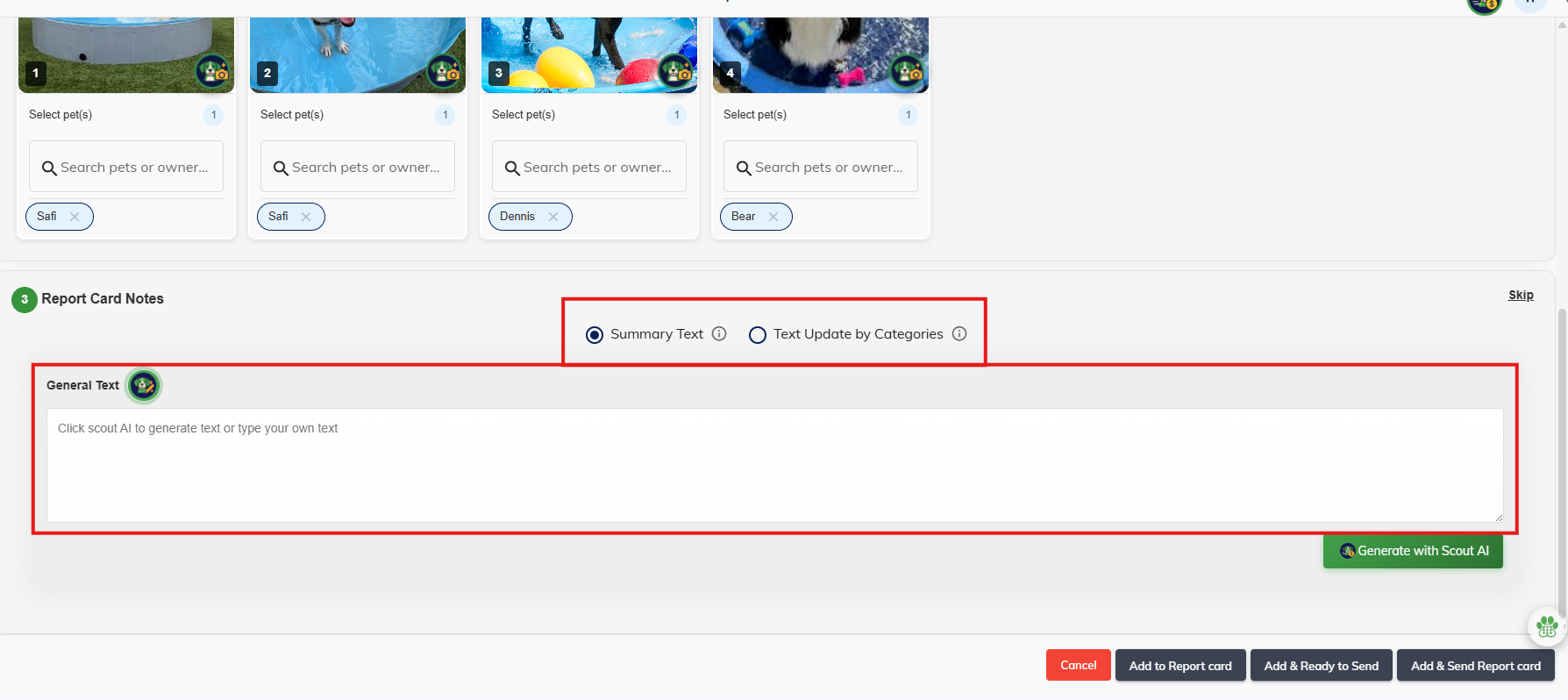
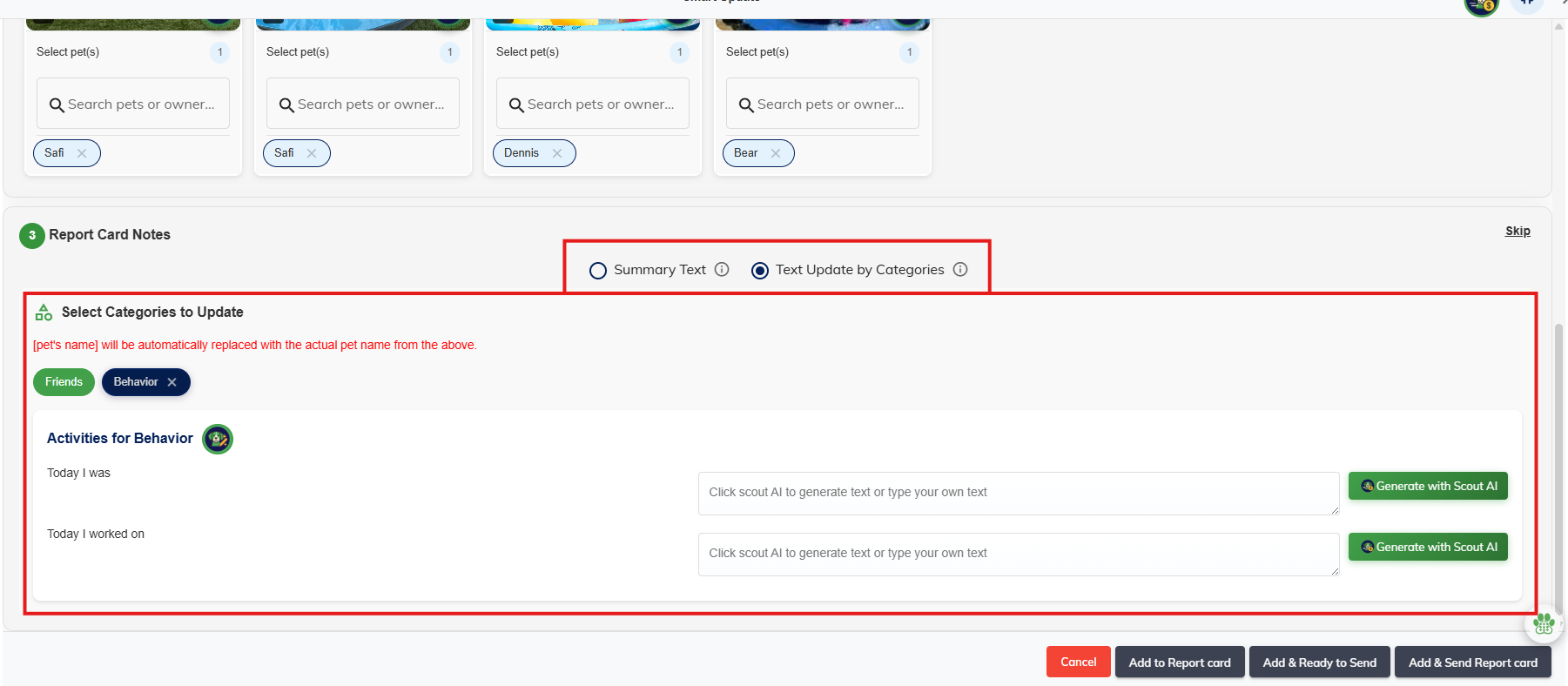
8. If you wish to update via category questions, choose the category and type in the answers to the questions. This will upload the text to the report card for all pets selected above.
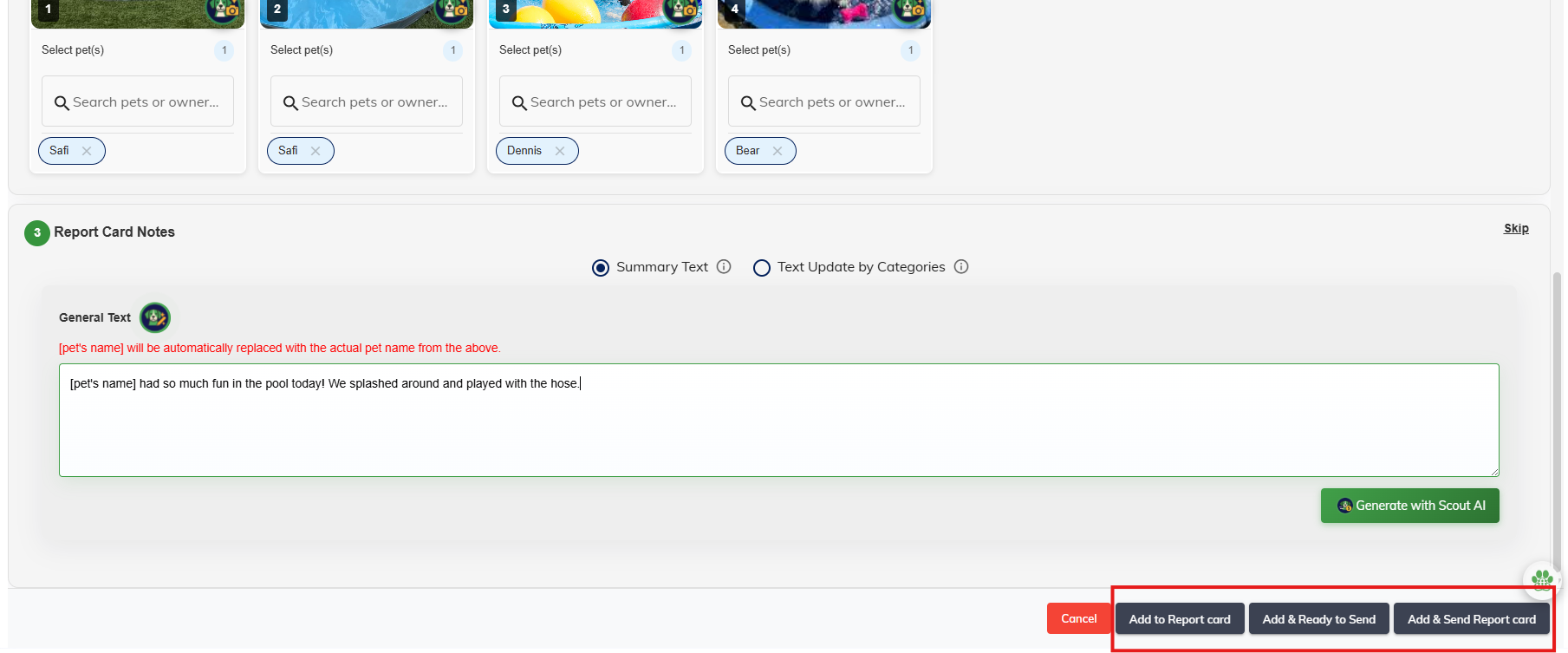
9. Once photos and/or text has been added, click Add to Report Card to save and mark the report card as In Progress. Click Add & Ready to Send to save and mark the report card as Ready to Send. Click Save & Send Report Card to immediately send a notification to the pet owner and allow them to view the report card.
10. To make additional edits to an individual report card showing the bulk updates, navigate to In Progress or Ready to Send and click the Edit pencil icon.
11. The report card will display information added in bulk under photos, general comments, or categories. You can edit this information for the individual report card by typing into the report card or uploading additional photos. When you are done with the edits, click Save.
More Information
For more information on setting up report card sections and questions, please refer to this article: Setting Up Report Cards
For more information on sending report cards with AI, please refer to this article: AI-Enhanced Pet Report Cards
Was this article helpful?
That’s Great!
Thank you for your feedback
Sorry! We couldn't be helpful
Thank you for your feedback
Feedback sent
We appreciate your effort and will try to fix the article