Overview
The Visual Map allows you to create a digital map that mirrors your physical kennel, play yard, grooming, and/or training setup at the facility. The Visual Map displays when
Visual Map can be viewed in the following areas:
- When creating or editing an appointment
- Left-hand Navigation > Visual Map
- Settings > Business Setup > Visual Map
TABLE OF CONTENTS
- Overview
- How to Create an Area
- How to Add Units (Runs/Spaces)
- How to Edit / Bulk Update Units
- How to Delete Areas / Units
- More Information
How to Create an Area
Areas are the physical spaces where many units (runs) can exist. For example, if you have runs in an East Wing and a West Wing, you might wish to add two areas to show that the wings are physically separate spaces. You can also separate areas by service type, such as a Dog Boarding area and a Cat Boarding area. Keep in mind that when booking an appointment, staff will need to select the area and then the run.
1. Navigate to Settings > Business Setup > Visual Map.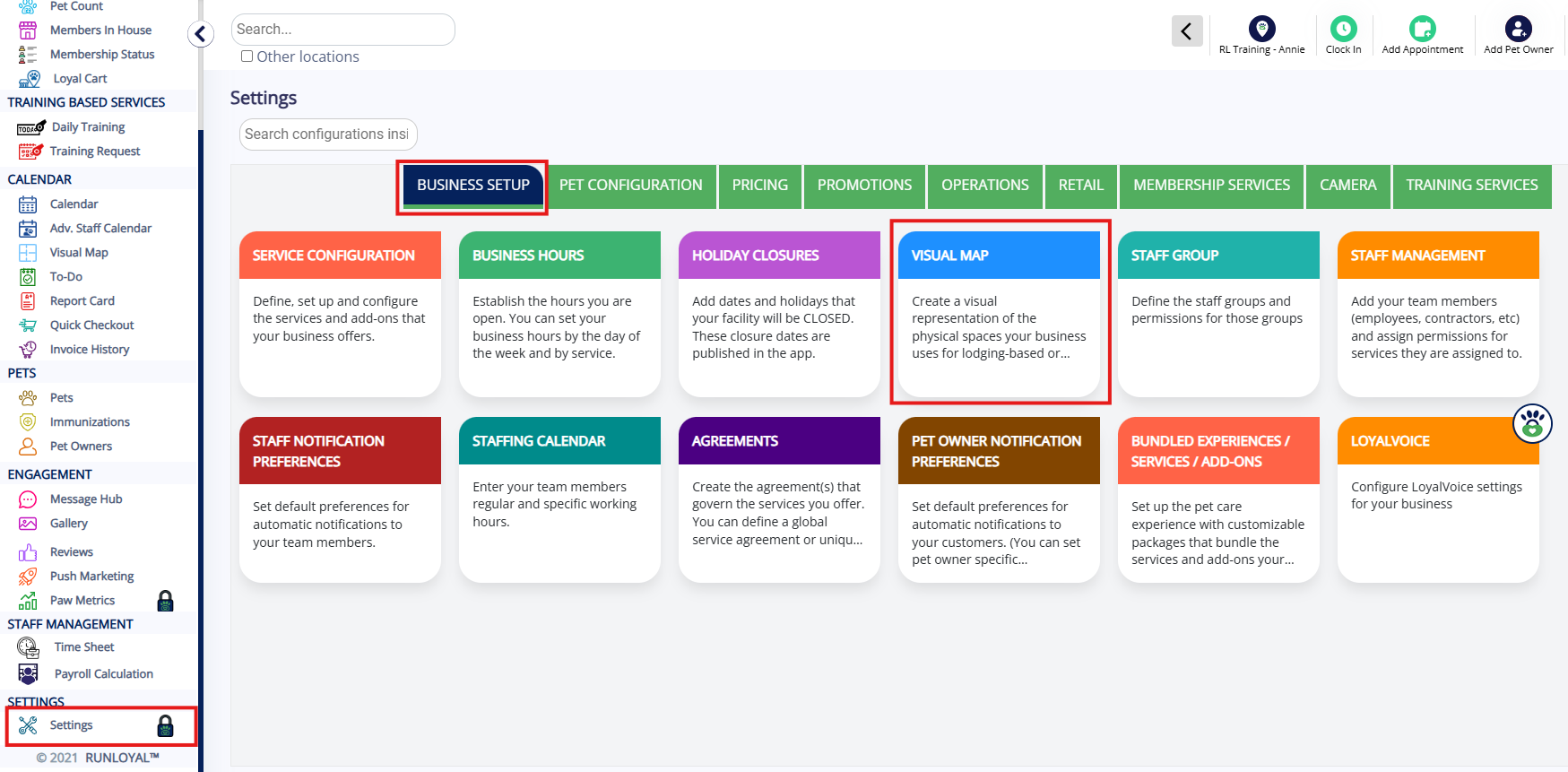
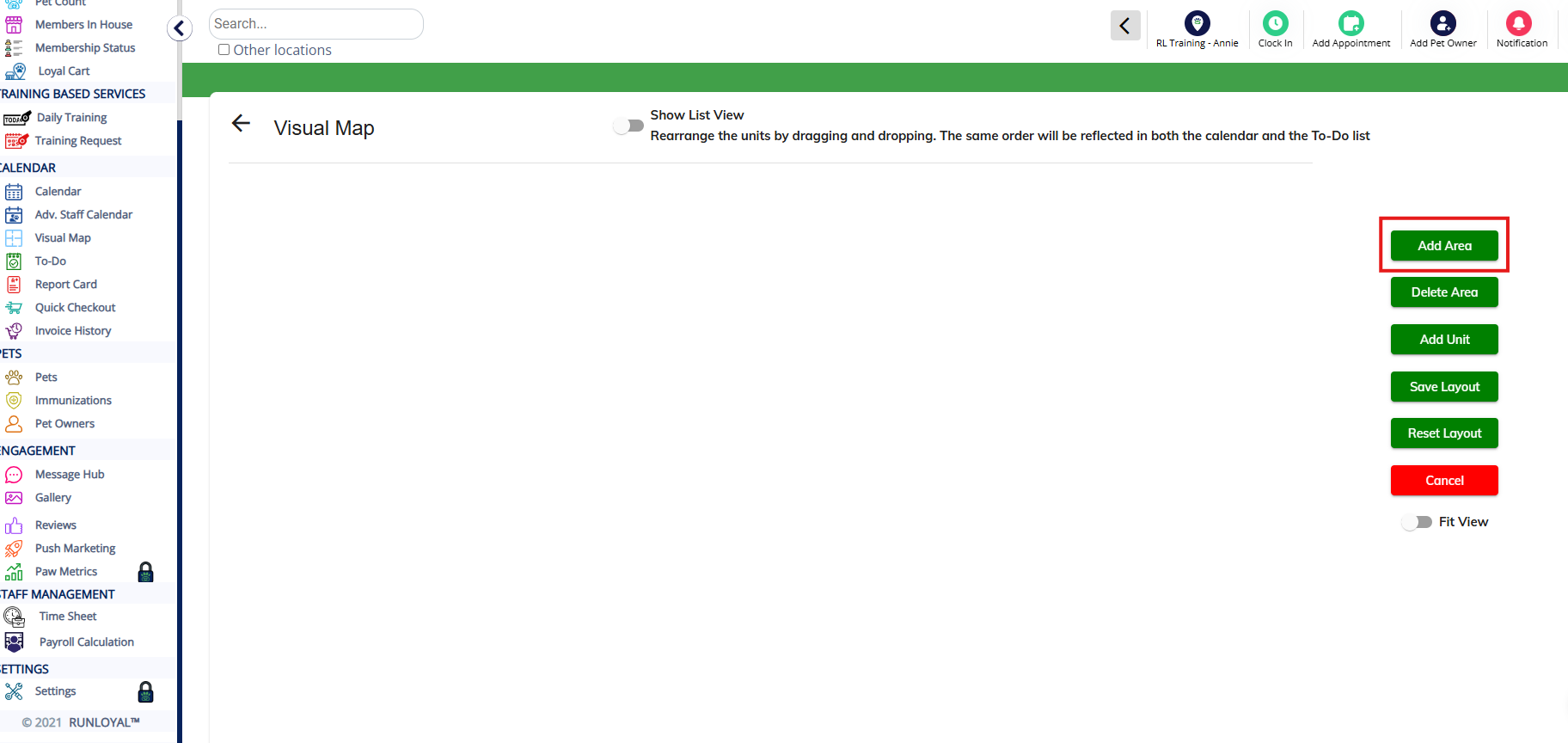
2. To add a new area, click Add Area.
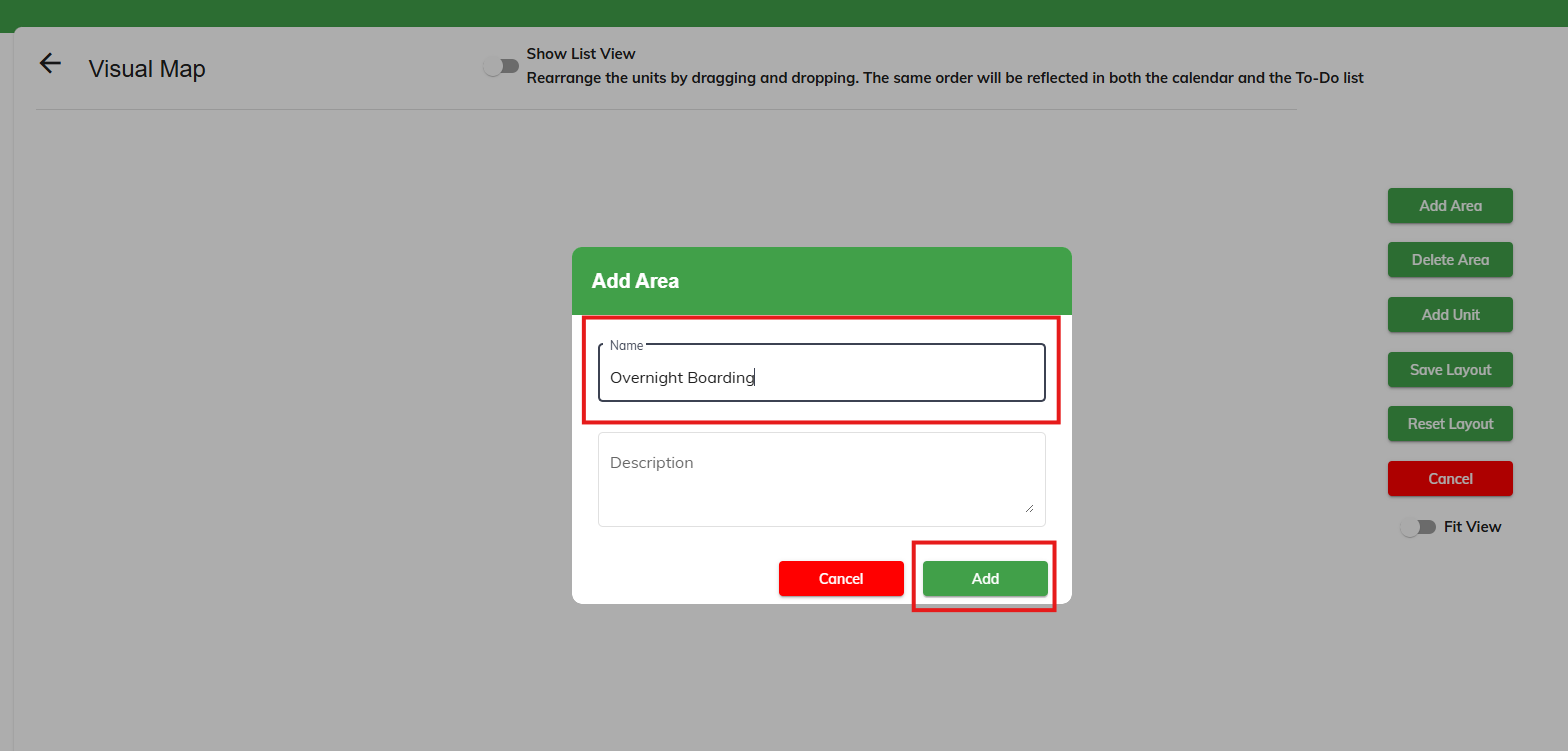
3. Enter the name of the area, such as Overnight Boarding, then click Add.
4. Verify the area now displays as expected. To add an additional area, click Add Area again.
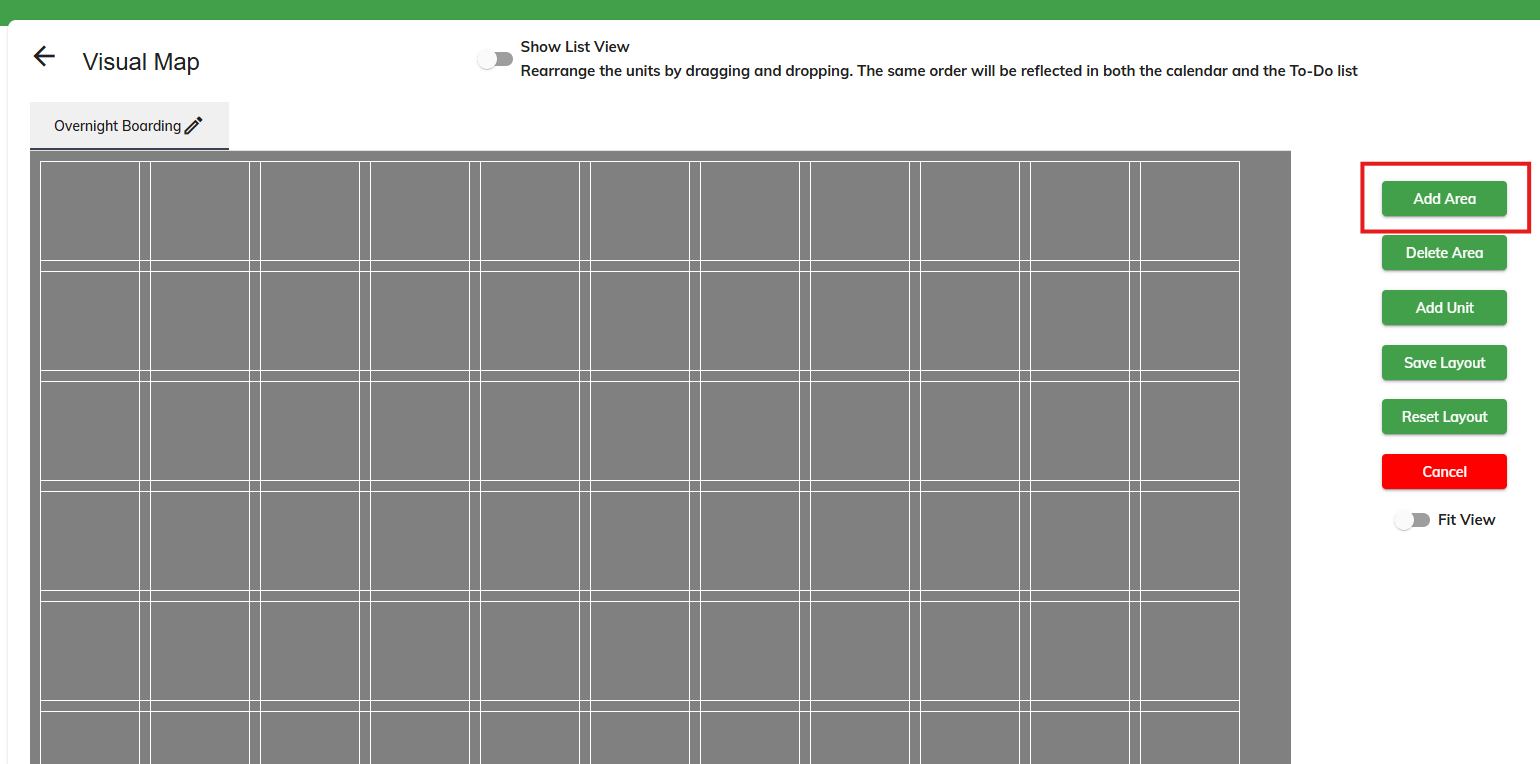
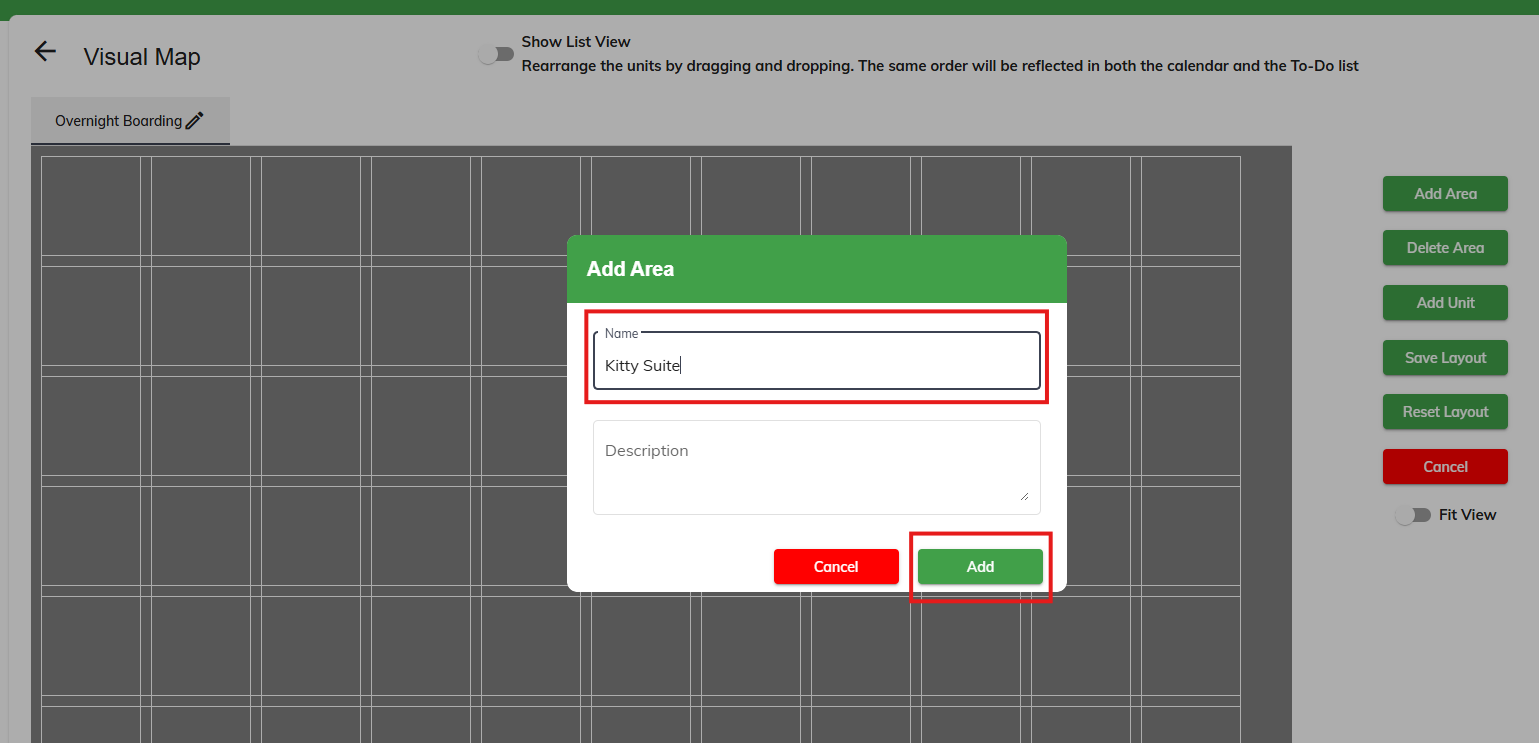
5. Enter the name of the area, such as Kitty Suites, then click Add.
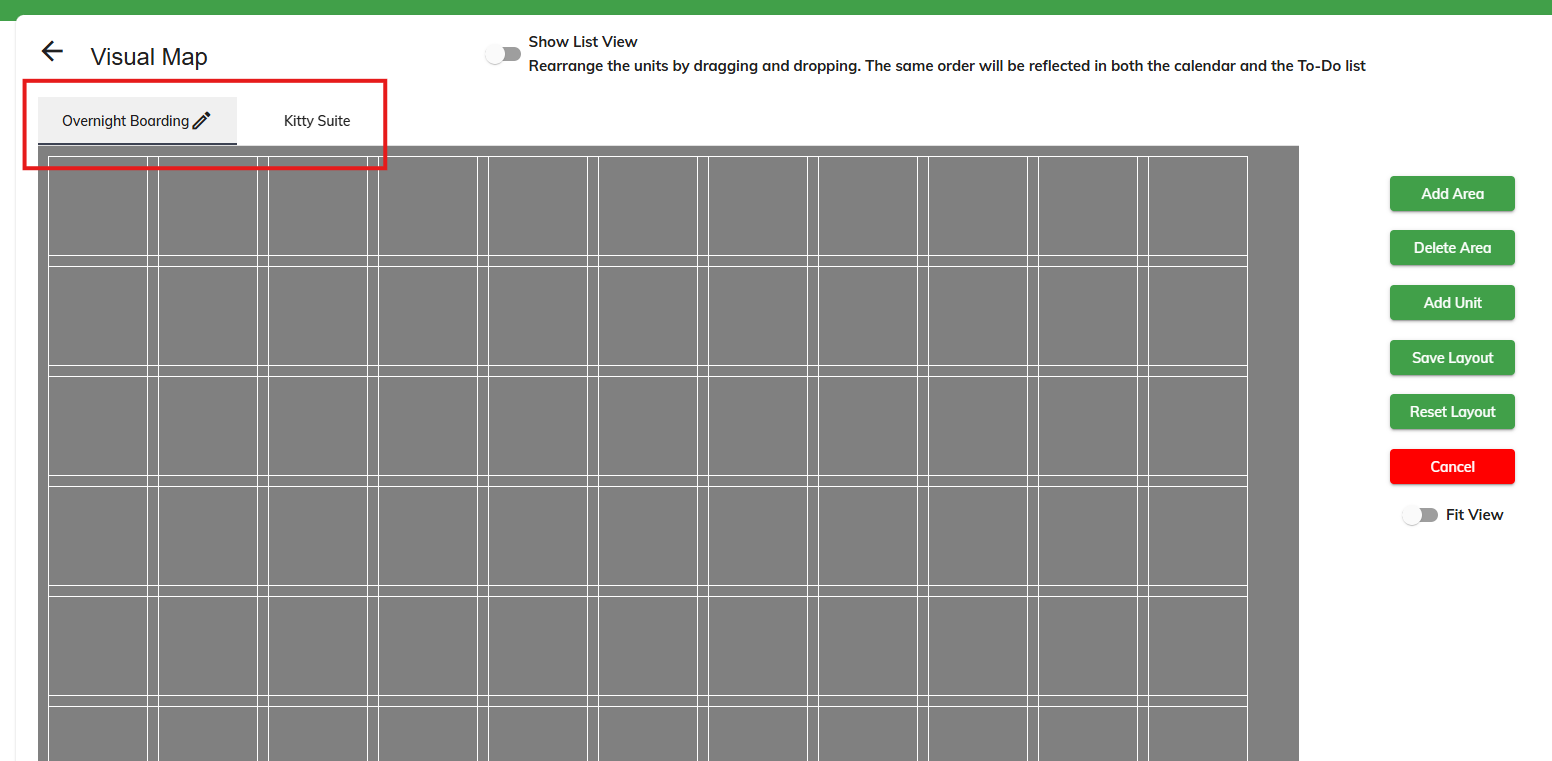
6. Verify the area now displays as expected. Once you have added all your areas, you can drag and drop to customize the display order by clicking on the area names in the top left. The most commonly used area should be the first one listed.
How to Add Units (Runs/Spaces)
Units are the physical runs where you place a dog or dogs. For boarding, many businesses have different units that cost more than the standard unit, depending on their size and quality. We advise making different services for those deluxe units. For example, you may have two services called Boarding (Standard Run) and Boarding (Deluxe Suite). The units section of the visual map is where you can assign each of those services to the correct physical run.
1. Navigate to Settings > Business Setup > Visual Map.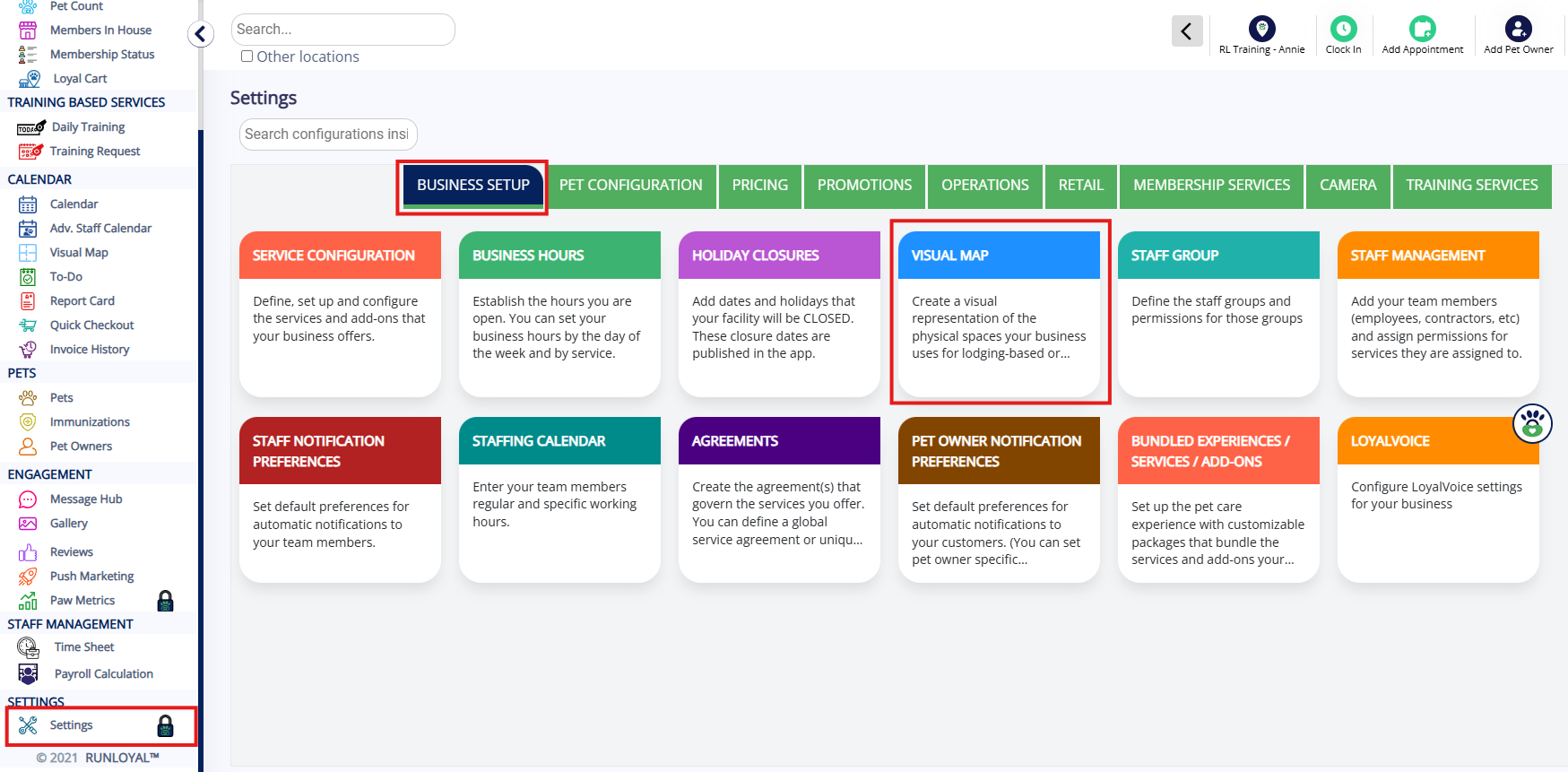
2. Select the area where you wish to add units (runs).
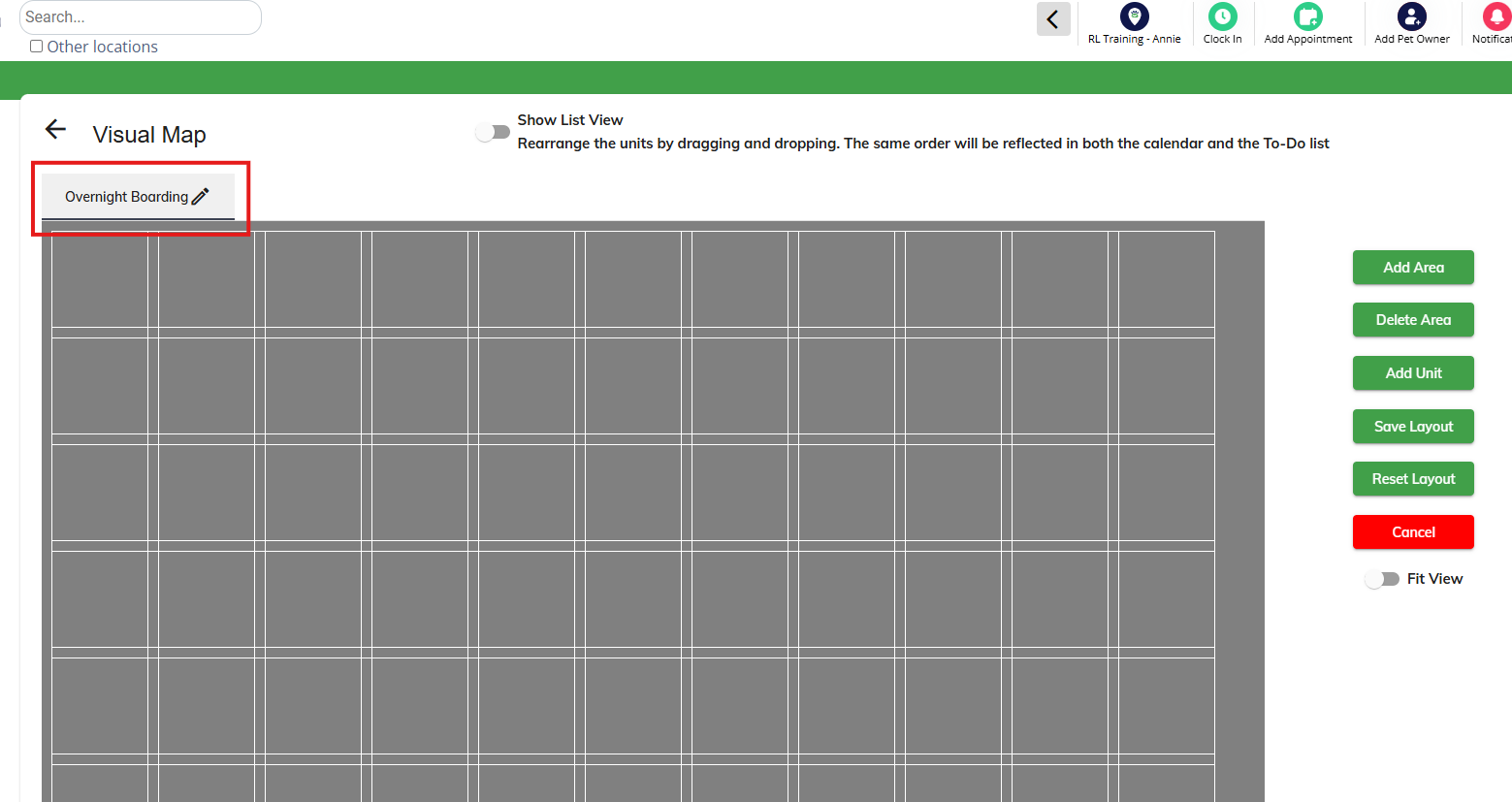
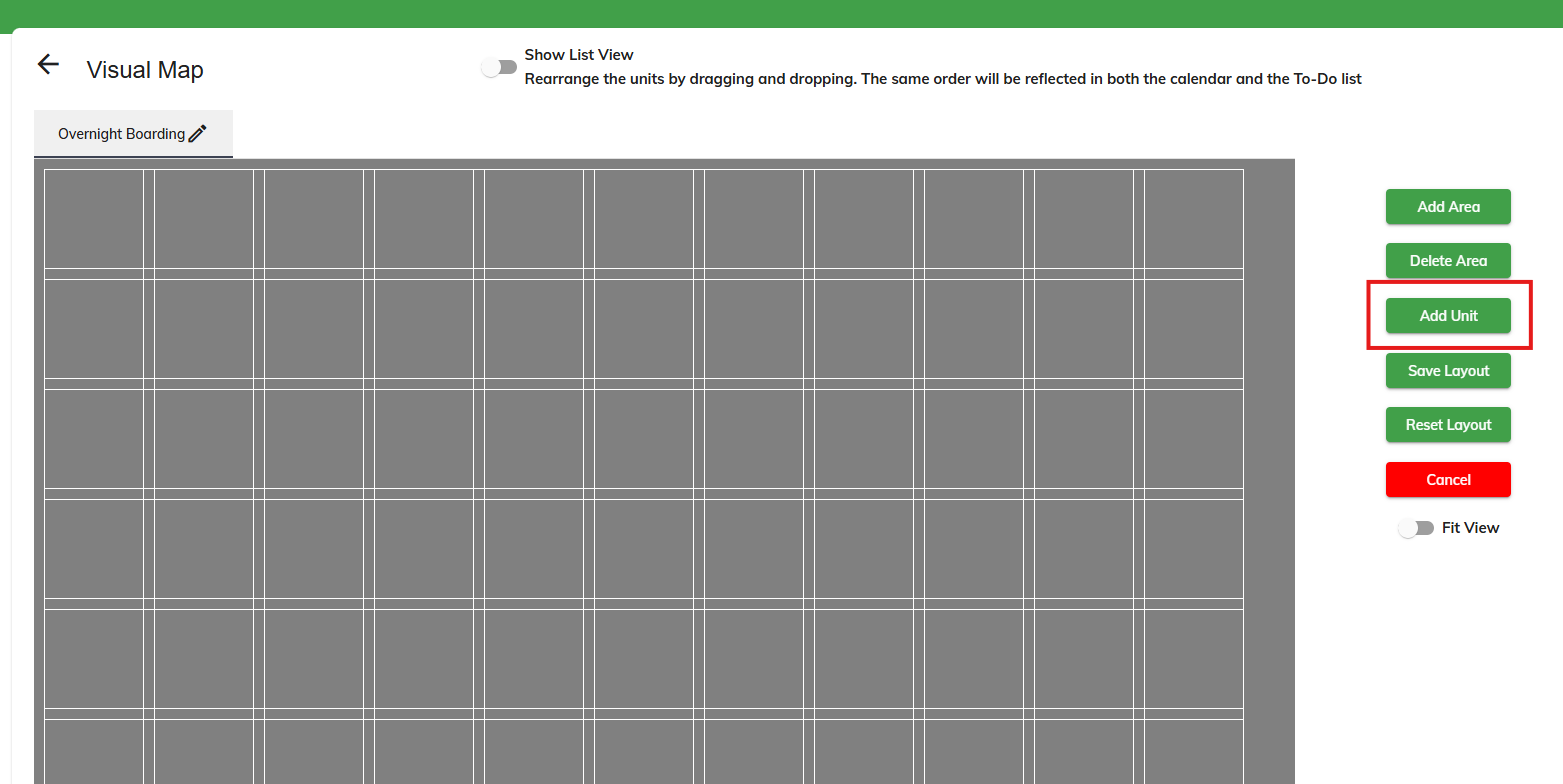
3. Click Add Unit.
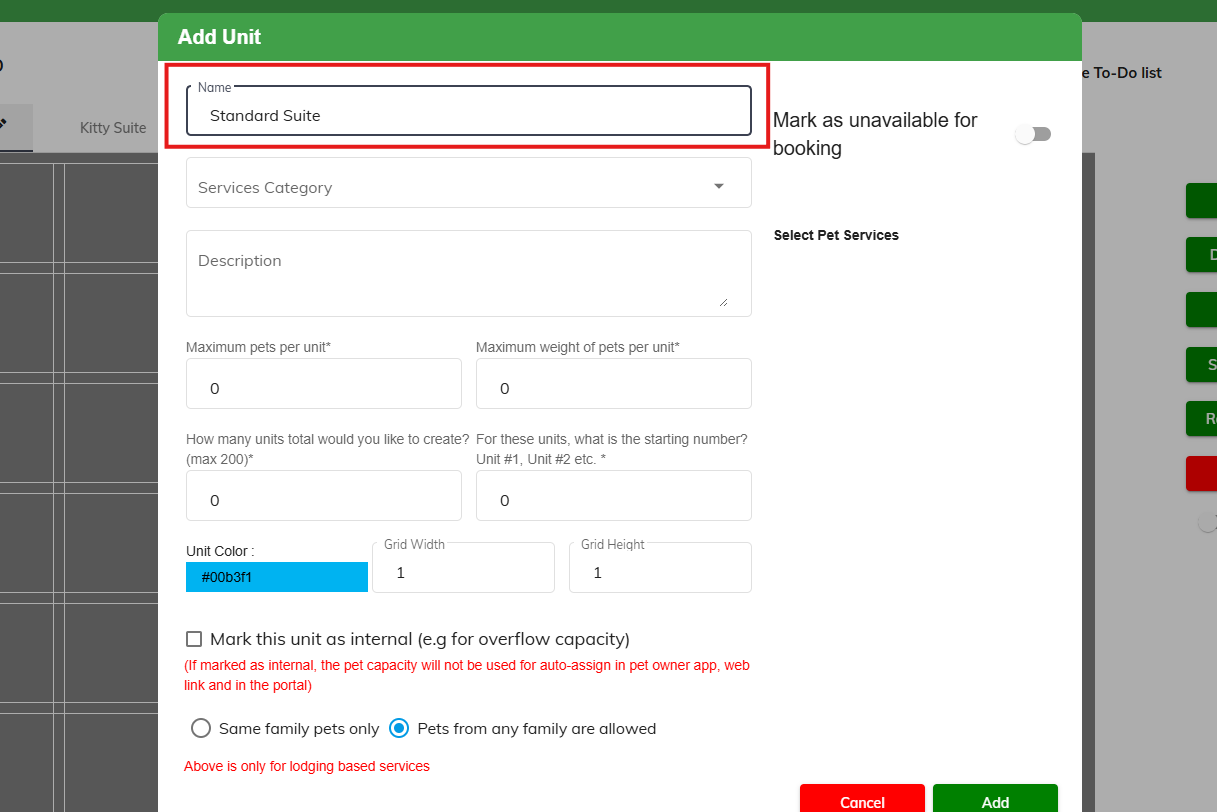
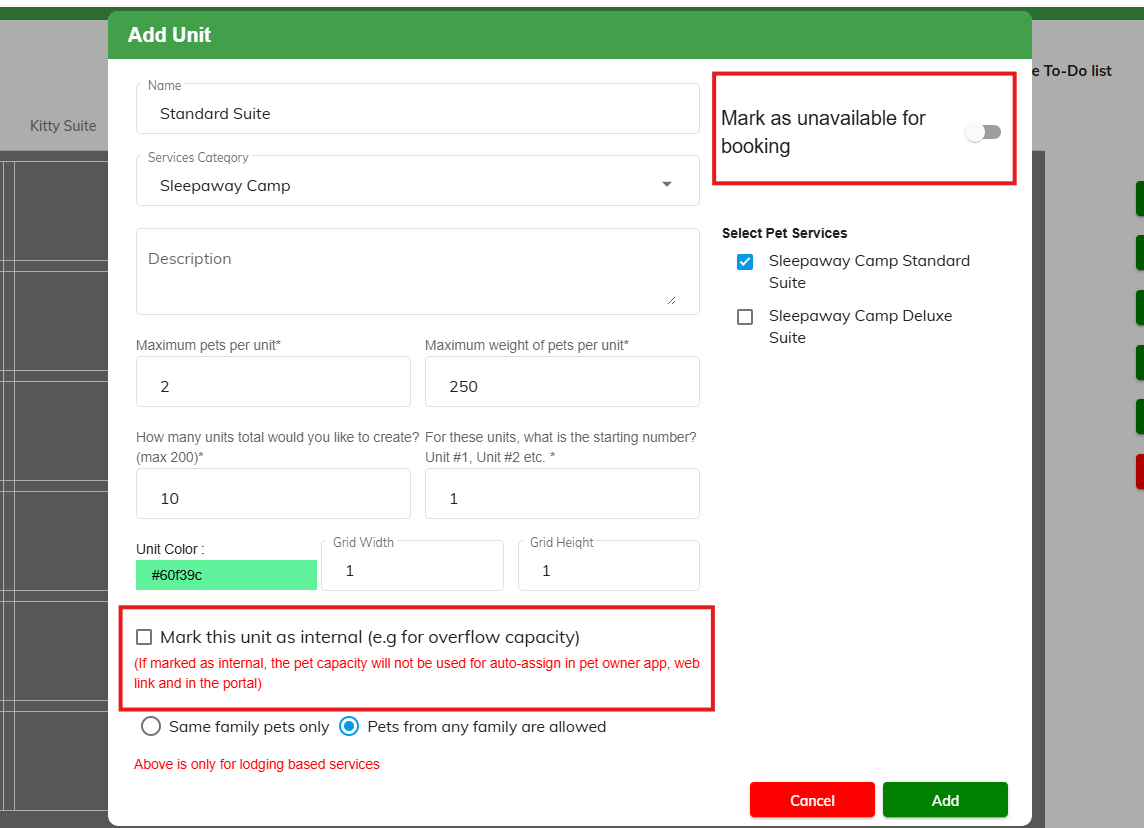
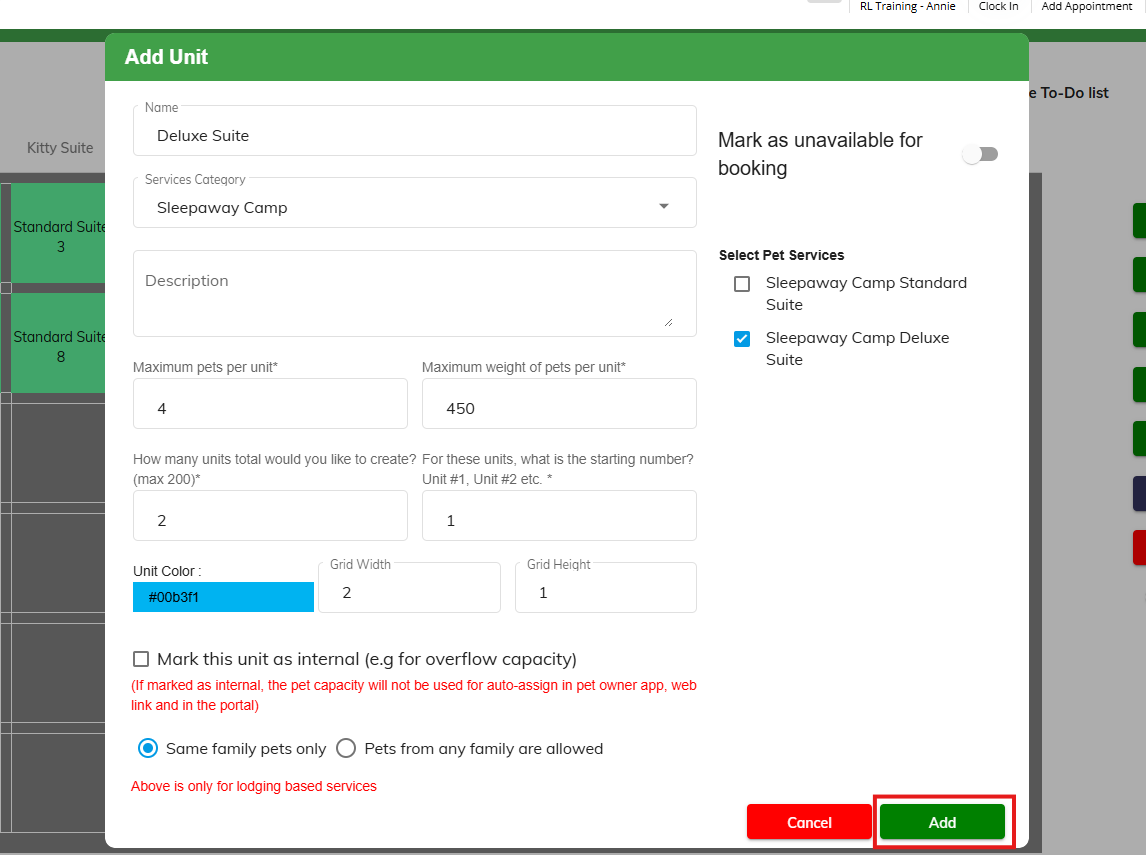
4. In the Add Unit popup, enter the name of the unit (such as Standard Suite).
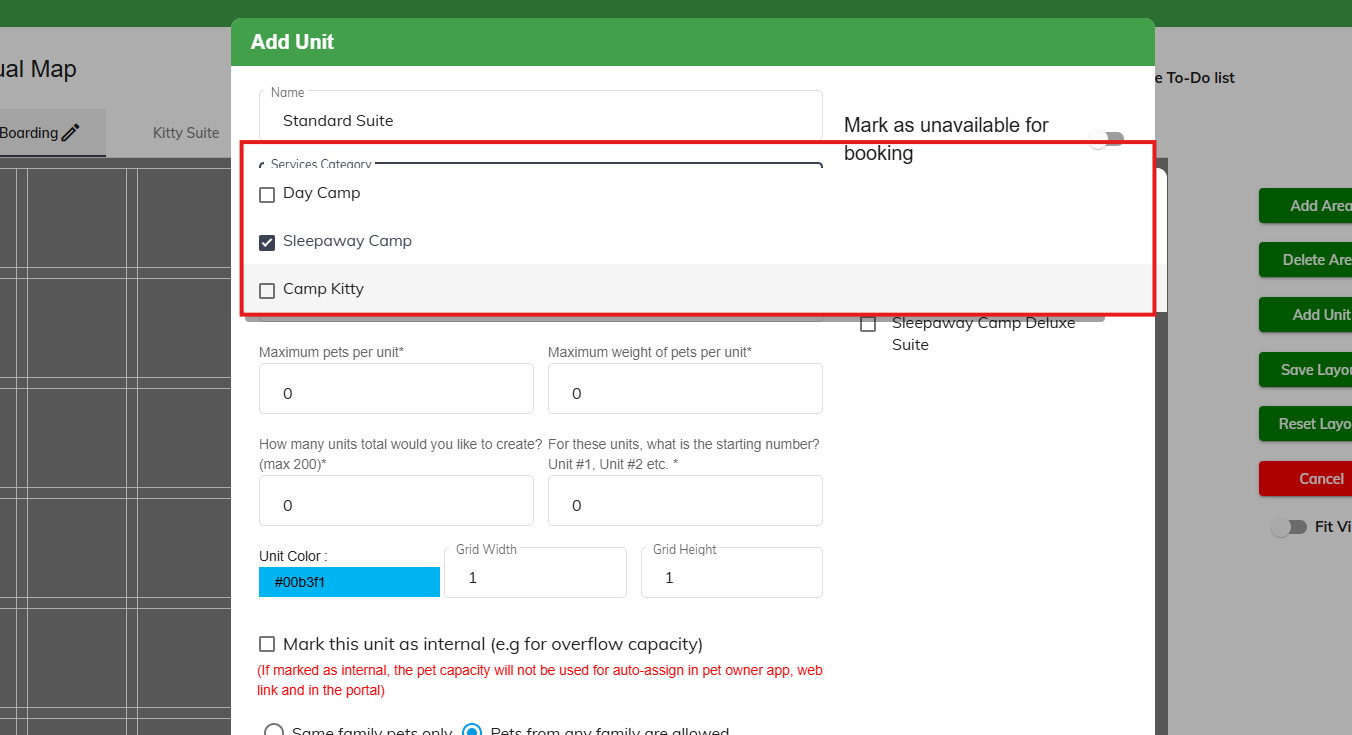
5. In the Services Category dropdown, select which service category is associated with these units.
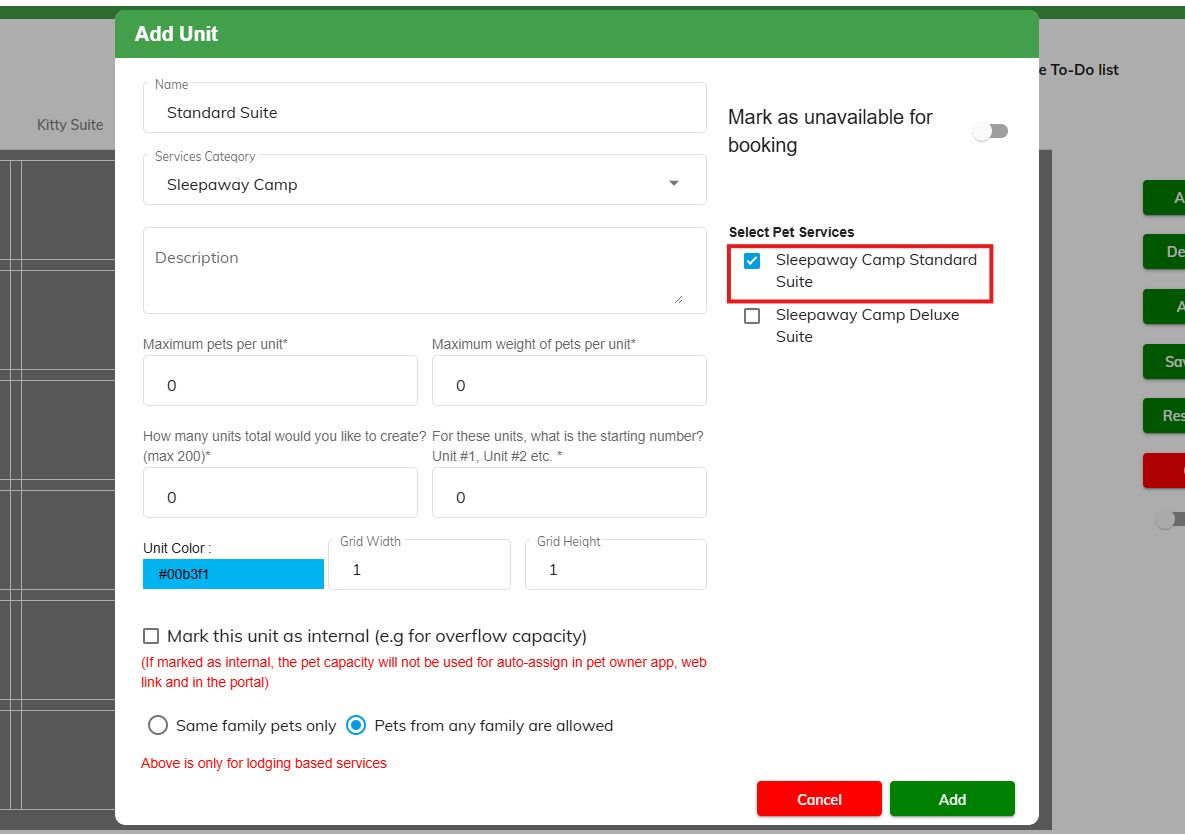
6. Select all the applicable services on the right.
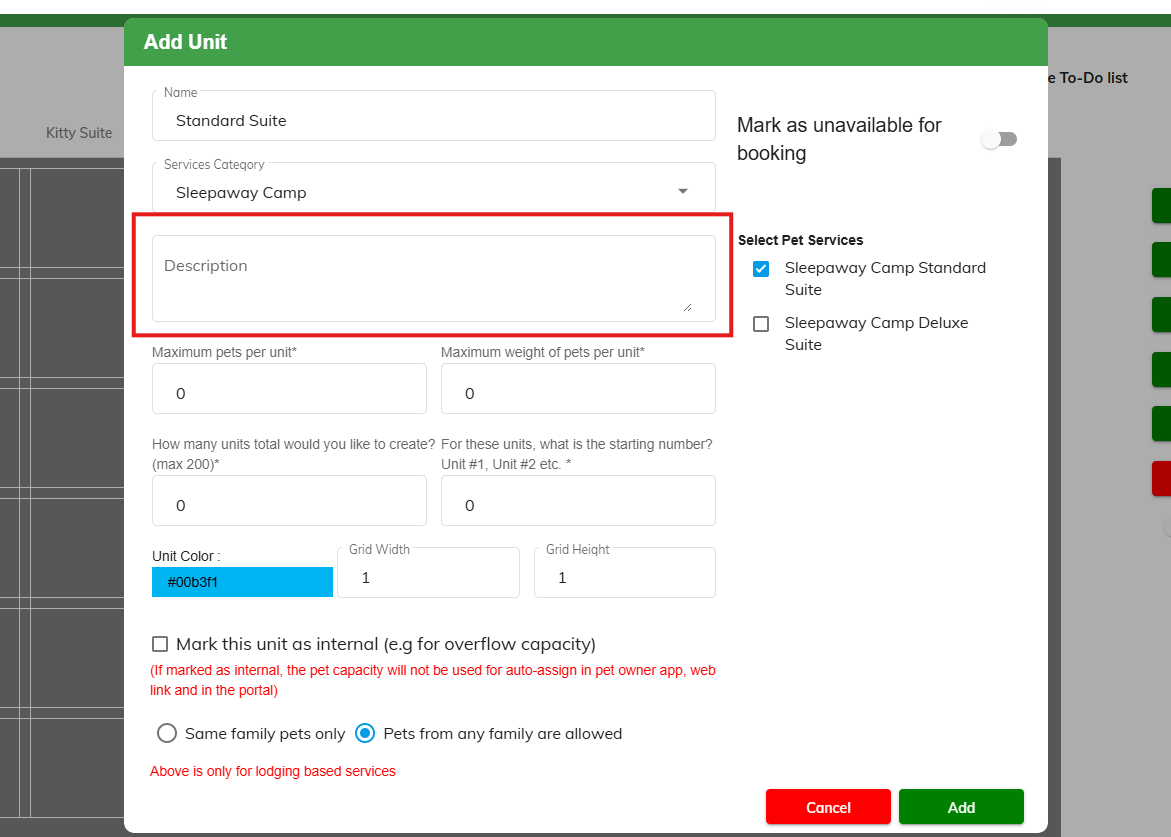
7. Optionally enter a description.
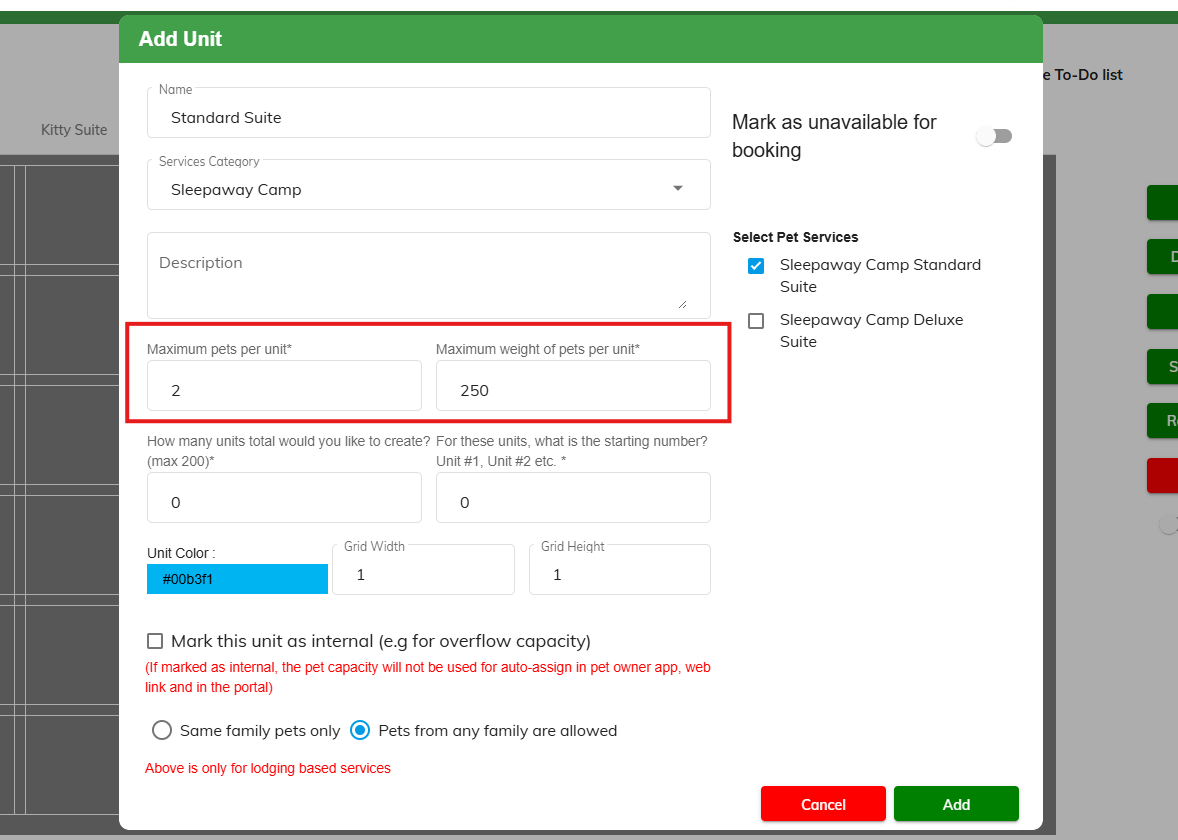
8. Set the Maximum pets per unit and Maximum weight of pets per unit. For example, maybe your standard runs can only fit comfortably two pets with a maximum total combined weight of 250. These limitations will prevent pets who exceed this capacity from being places in these runs via auto-select when booking.
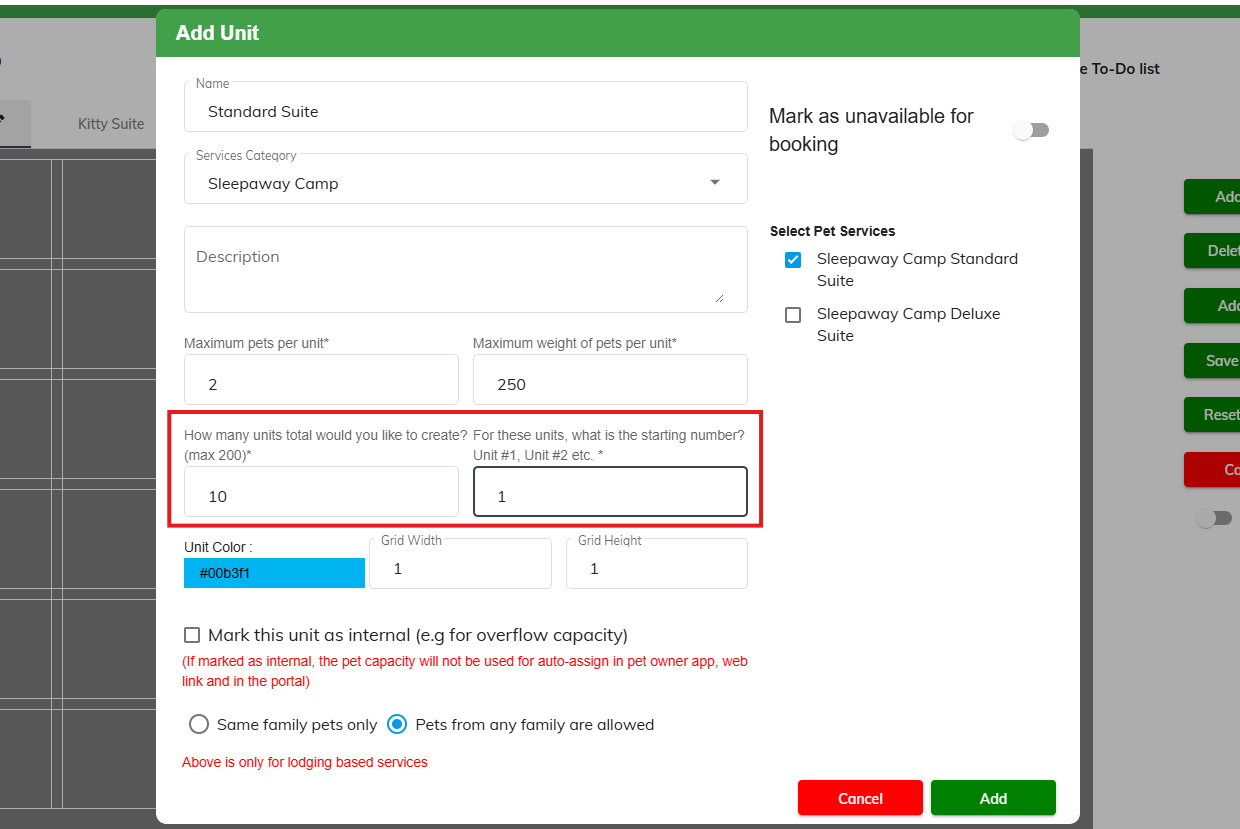
9. If creating runs in bulk, select How many units total would you like to create? and The starting number. For example, you may wish to create 10 standard suites with a starting number of 1. The starting number will add to whatever you set the unit name as (such as "Standard Suite #1").
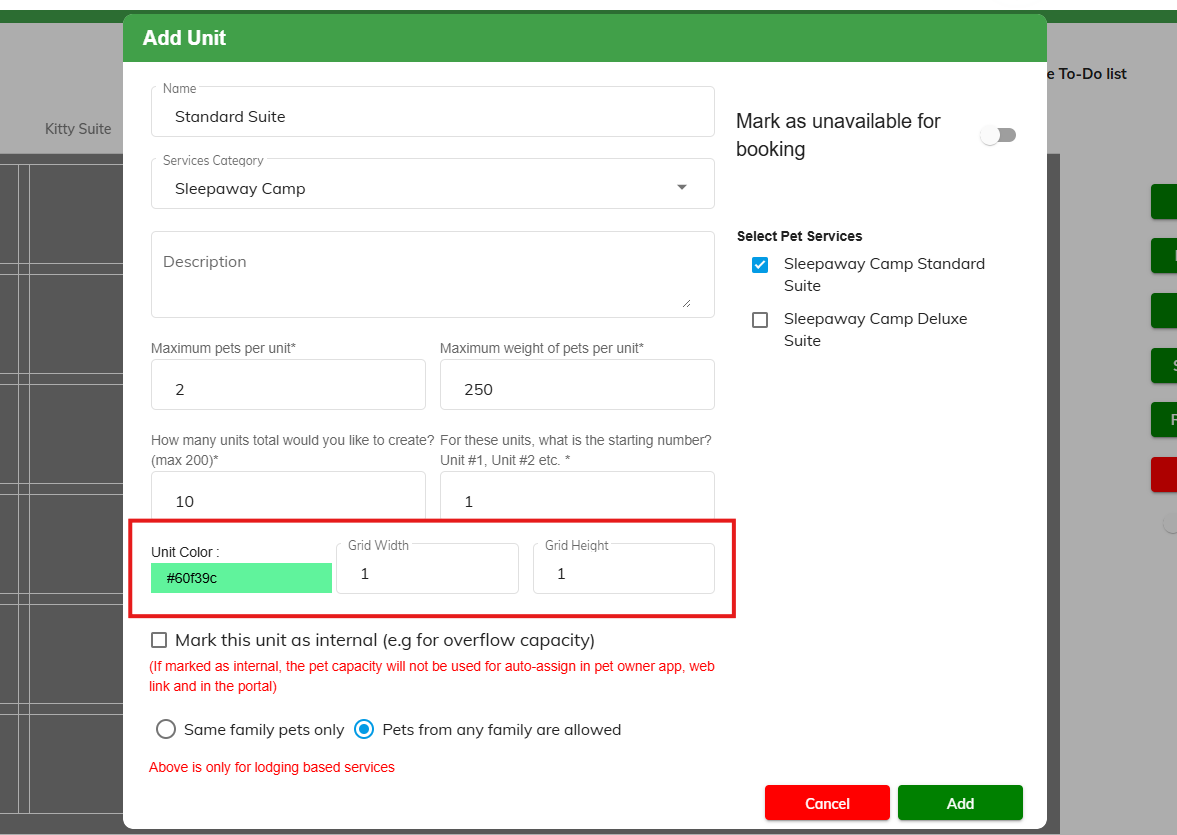
10. Select a color for the units, and indicate their width and height. You can also adjust this later by dragging and dropping if you need to indicate some units are larger or smaller.
11. Check the box Mark this unit as internal if you want the unit to not be auto-selected or count towards your capacity. This is most commonly used for overflow kennels. You can also toggle on Mark unit as unavailable for booking if it should be totally blocked off.
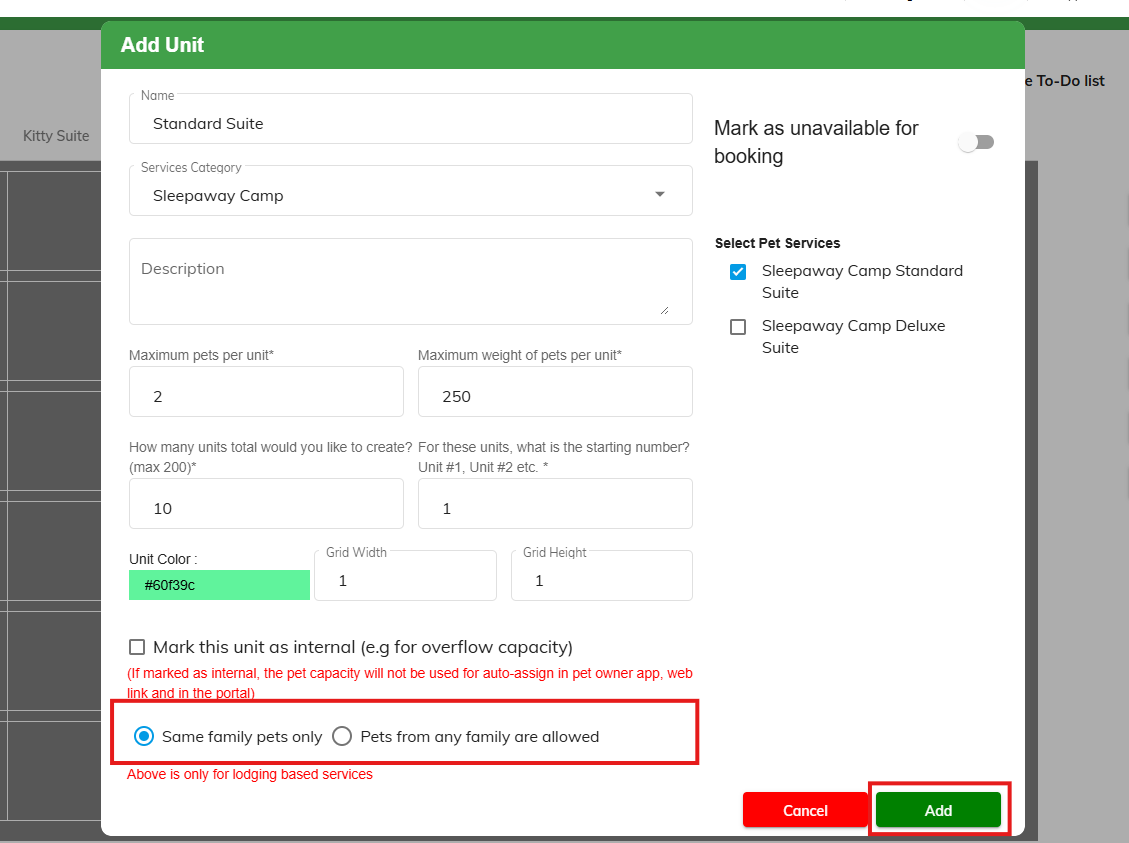
12. Set whether these units should be limited to Same family pets only or Pets from any family are allowed. The most common selection is Same family pets only. When you have confirmed all your settings, click Add.
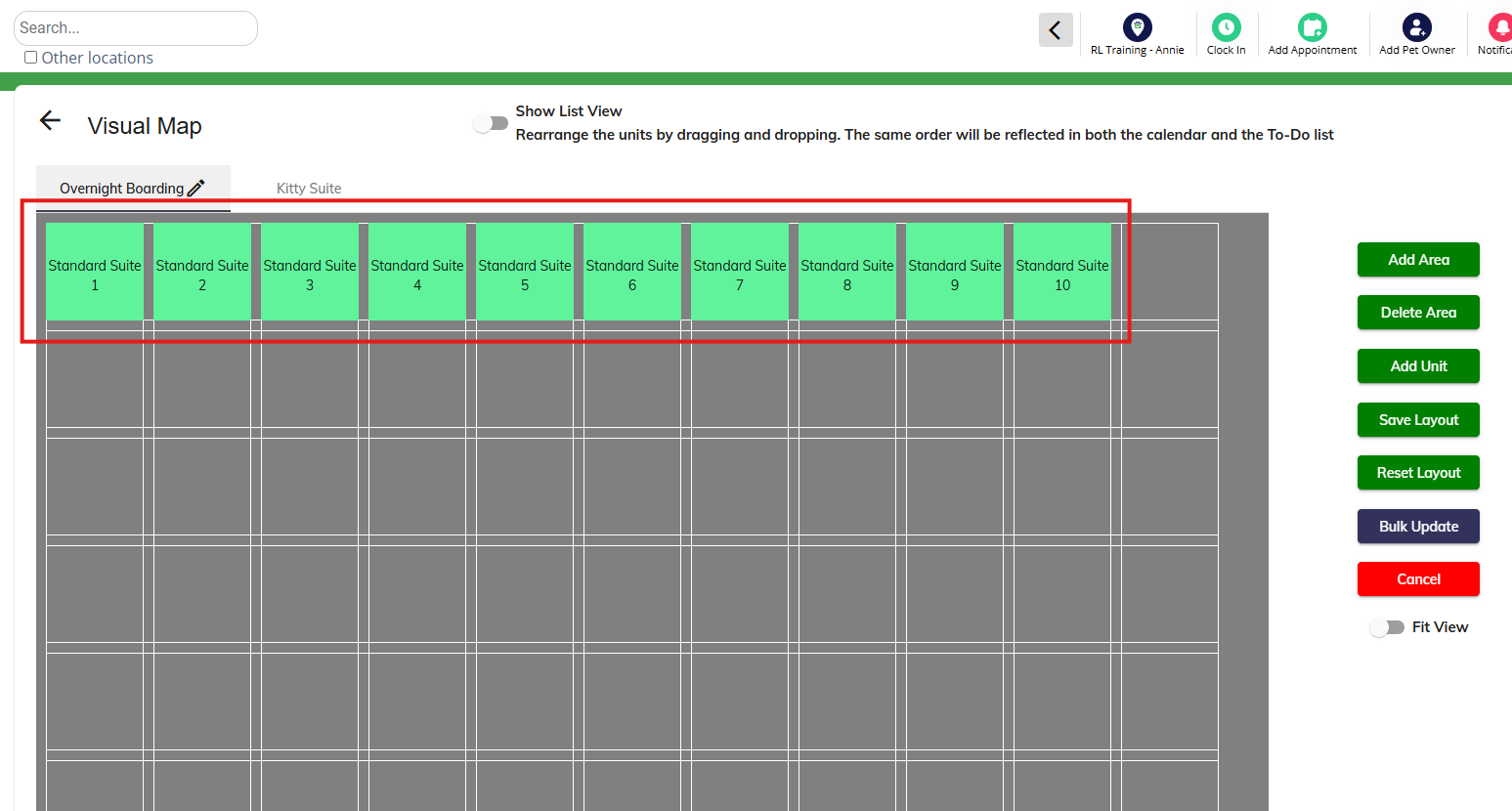
13. Verify the units added correctly, and drag and drop the units to their appropriate places on the map.
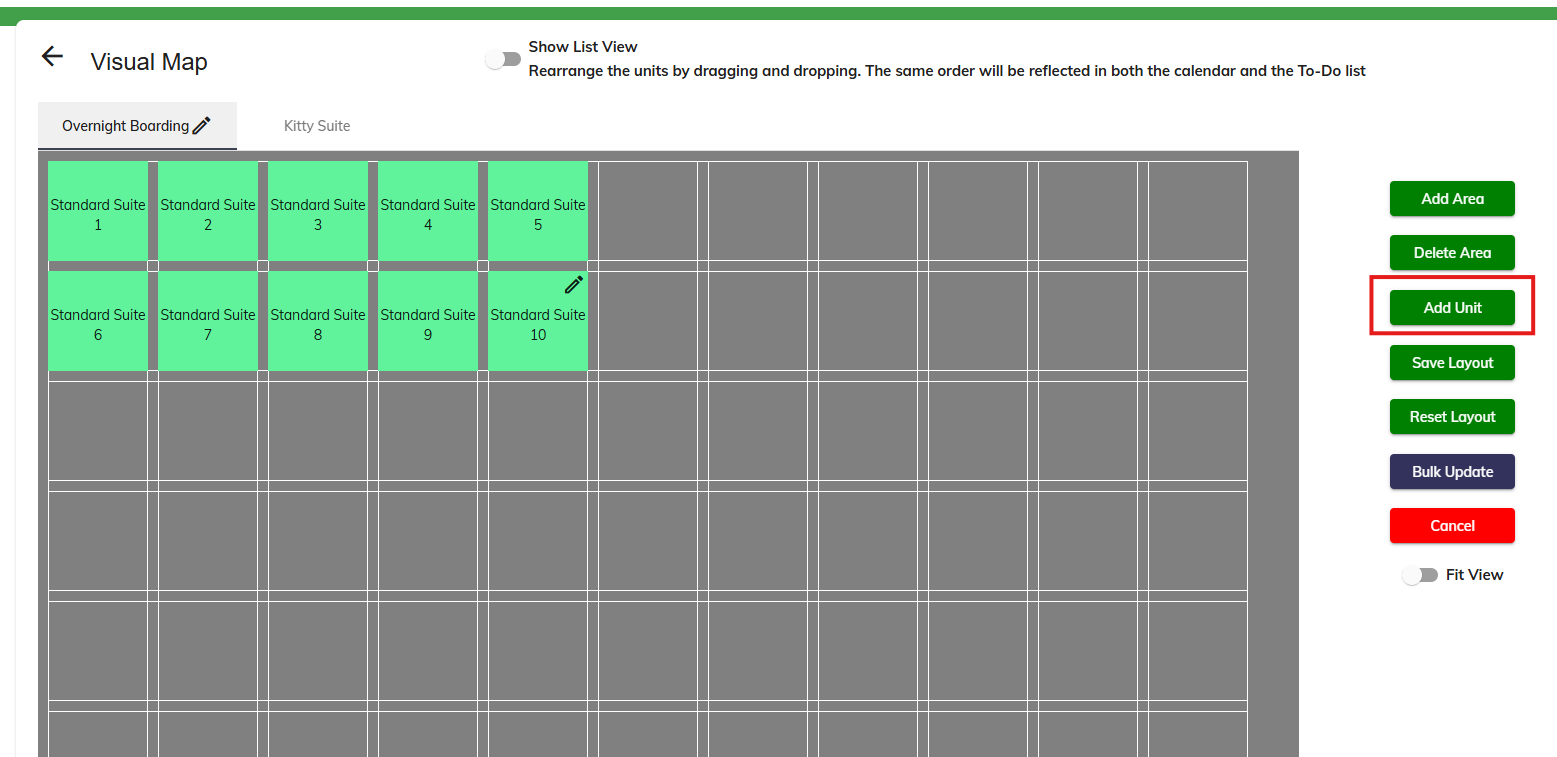
14. To add additional units (such as Deluxe Suites), click Add Unit.
15. Enter the details for your next unit, then click Add. Repeat until all runs are added properly.
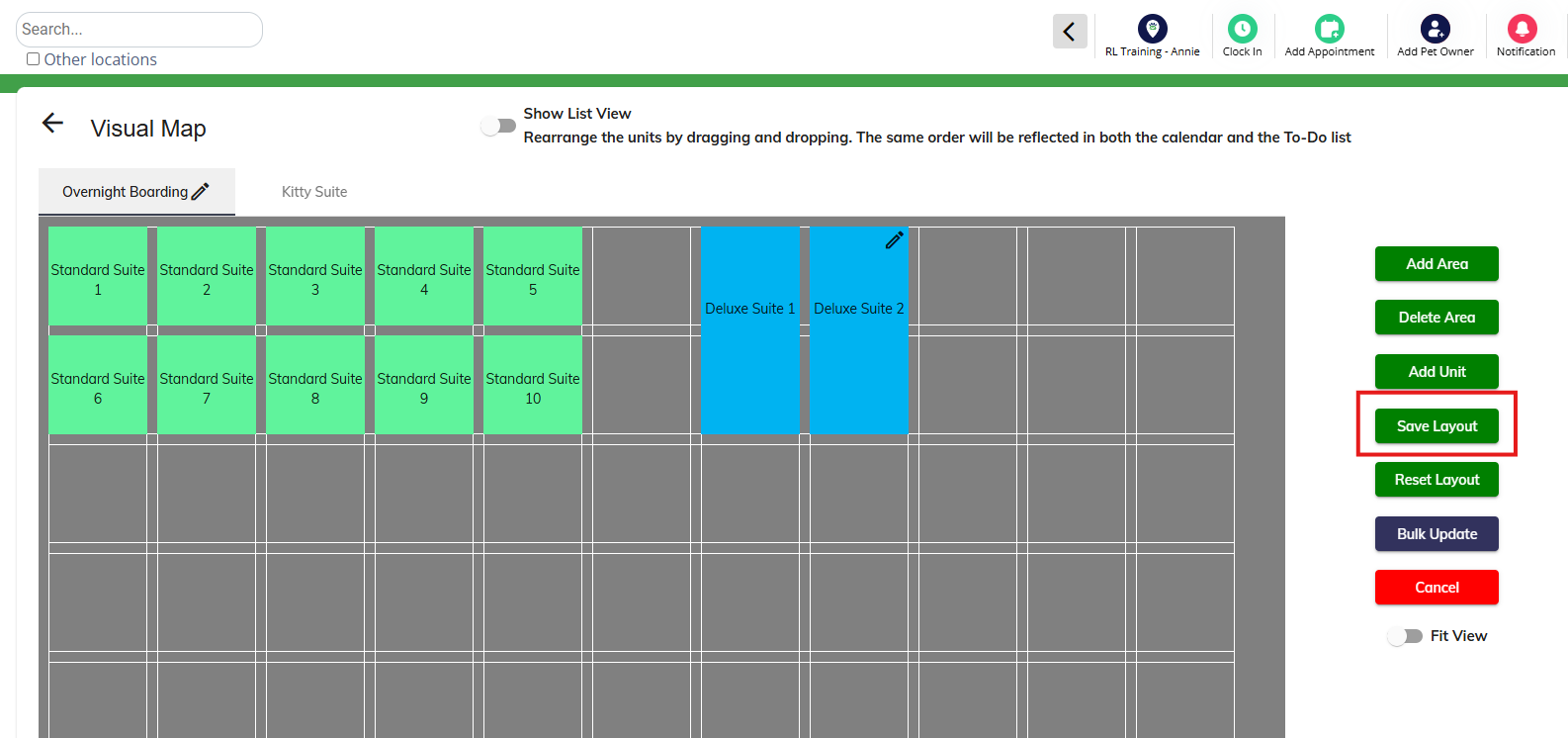
16. Once you have finished dragging and dropping all units to the correct places on your visual map, click Save Layout to save your work.
⚠️ Important: If you do not click Save Layout, your changes will be lost!
How to Edit / Bulk Update Units
1. Navigate to Settings > Business Setup > Visual Map.
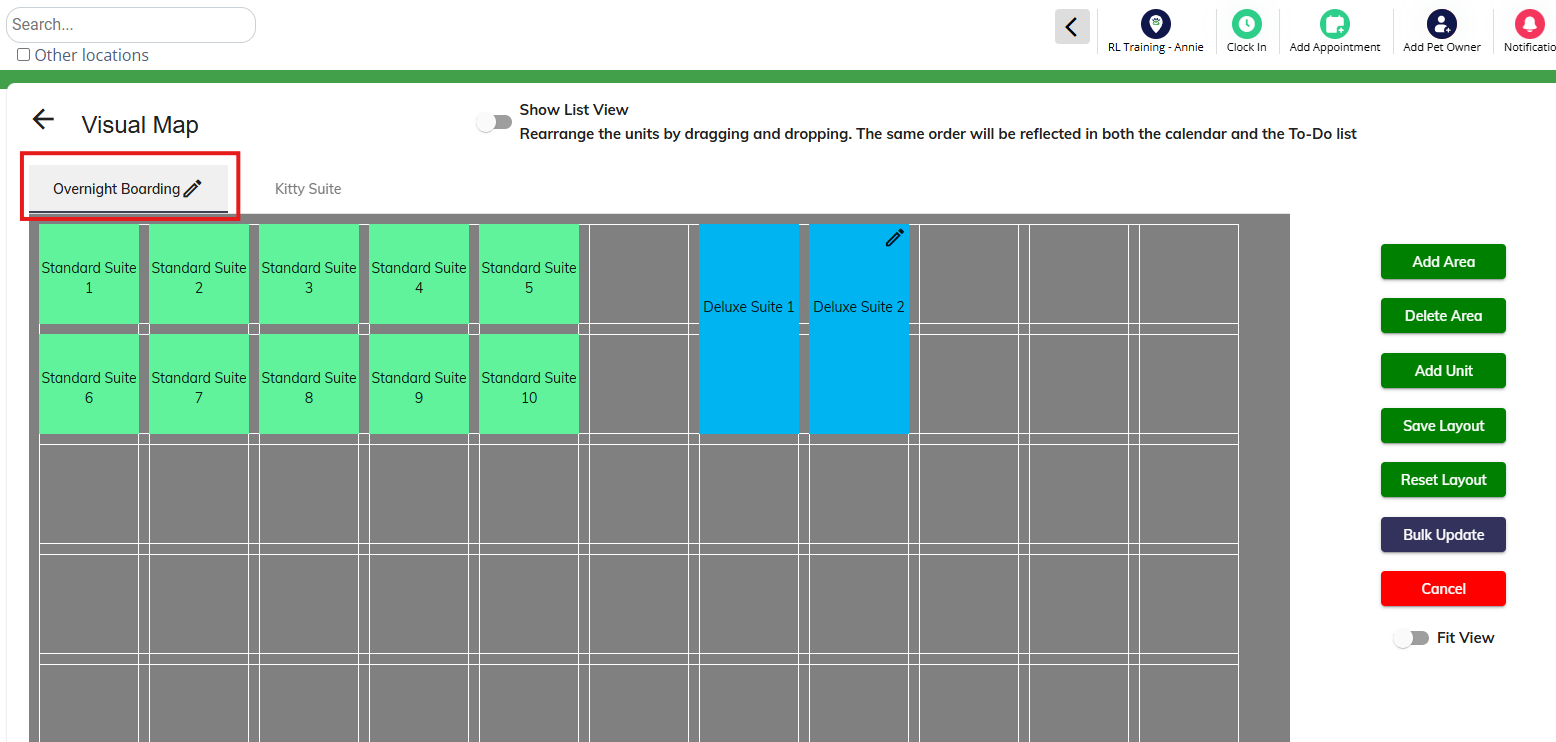
2. Select the area where you wish to edit units (runs).
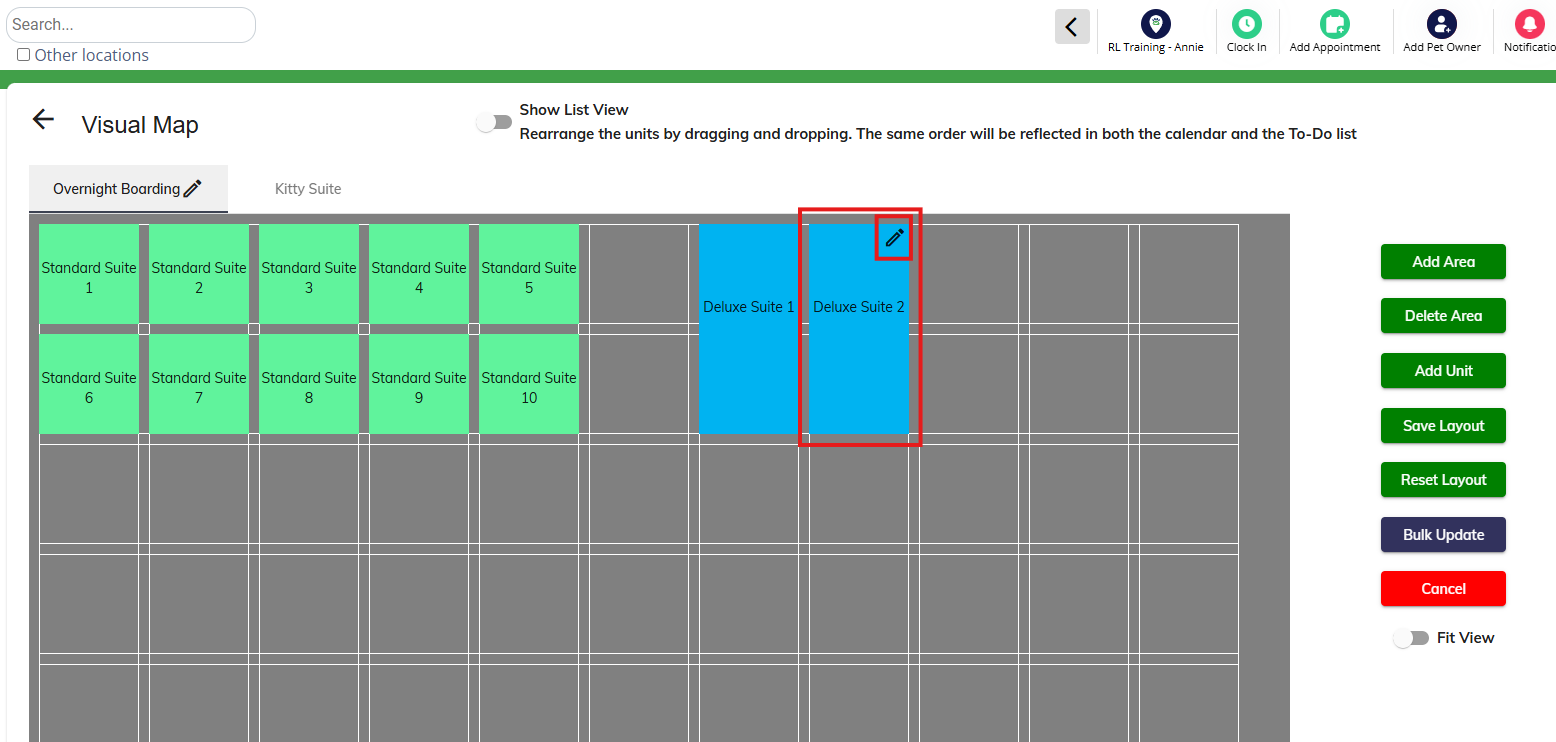
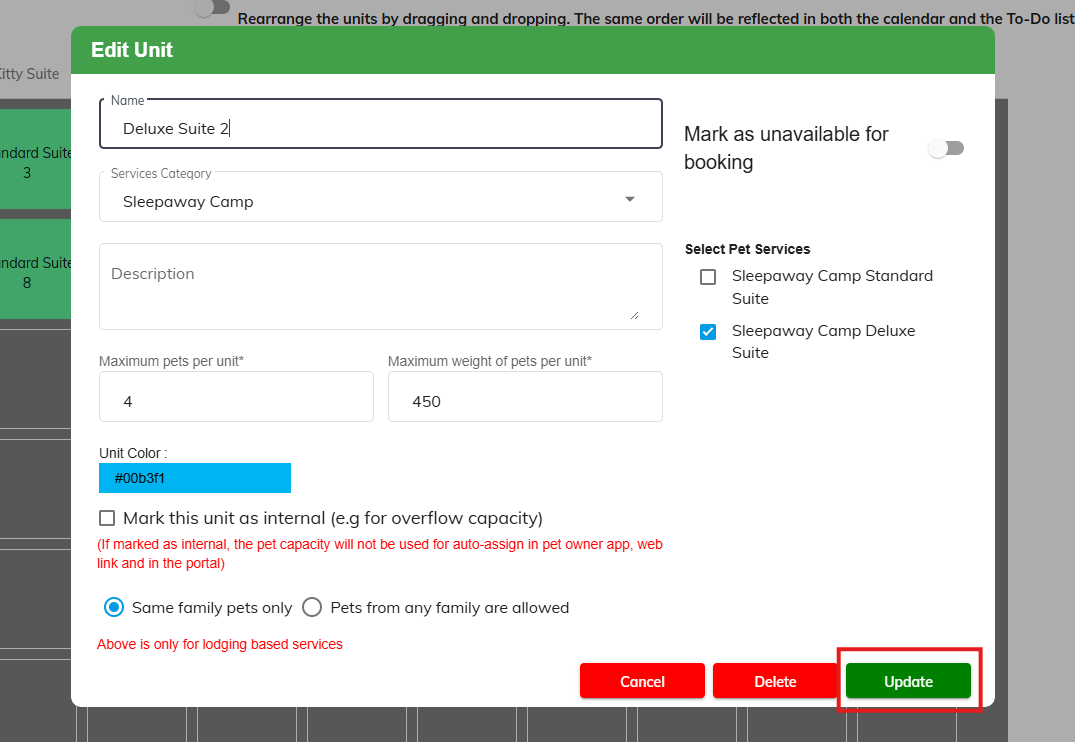
3. To make an edit to a single run, hover over the unit in question and then click the Edit pencil icon.
4. Make changes to your unit as needed, then click Update.
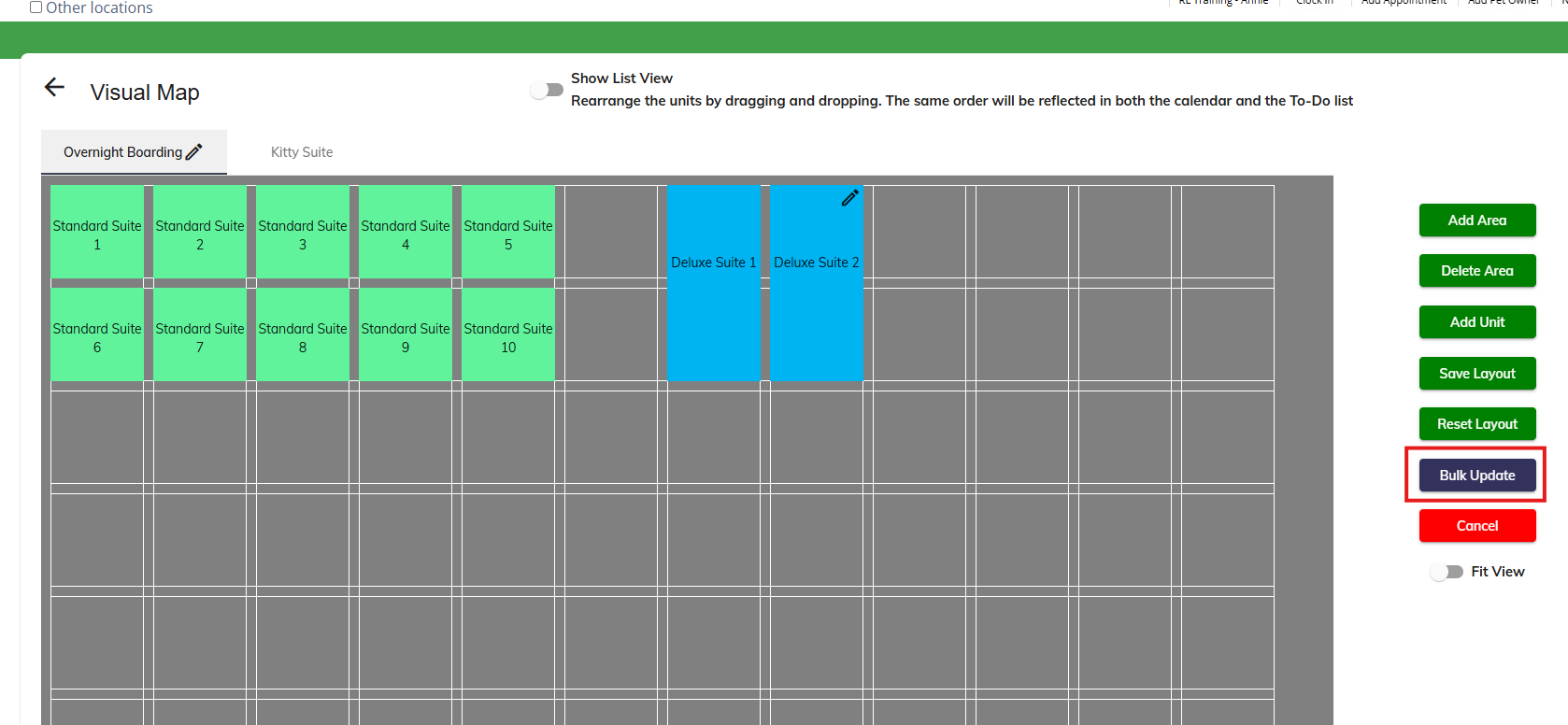
5. To make bulk updates to all units in the area, click Bulk Update.
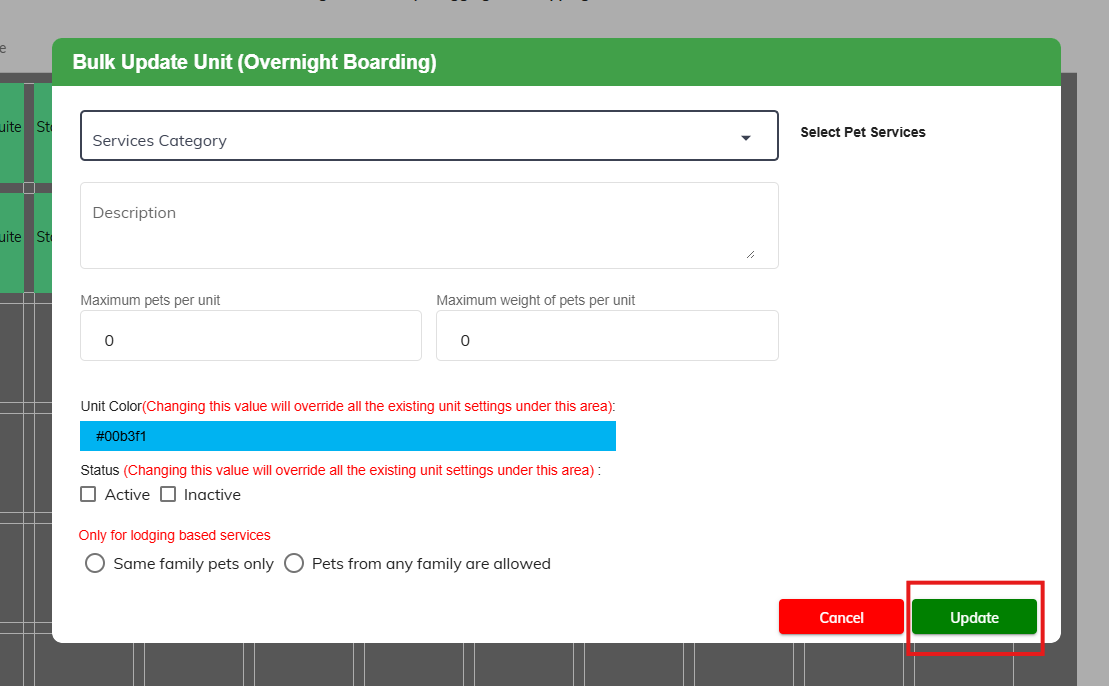
6. Make changes to all units as needed, then click Update.
⚠️ Important: this will update all units in the area to have these settings.
7. Once you have finished dragging and dropping all units to the correct places on your visual map, click Save Layout to save your work.
⚠️ Important: If you do not click Save Layout, your changes will be lost!
How to Delete Areas / Units
1. Navigate to Settings > Business Setup > Visual Map.
2. Select the area where you wish to delete units (runs) or delete the entire area.
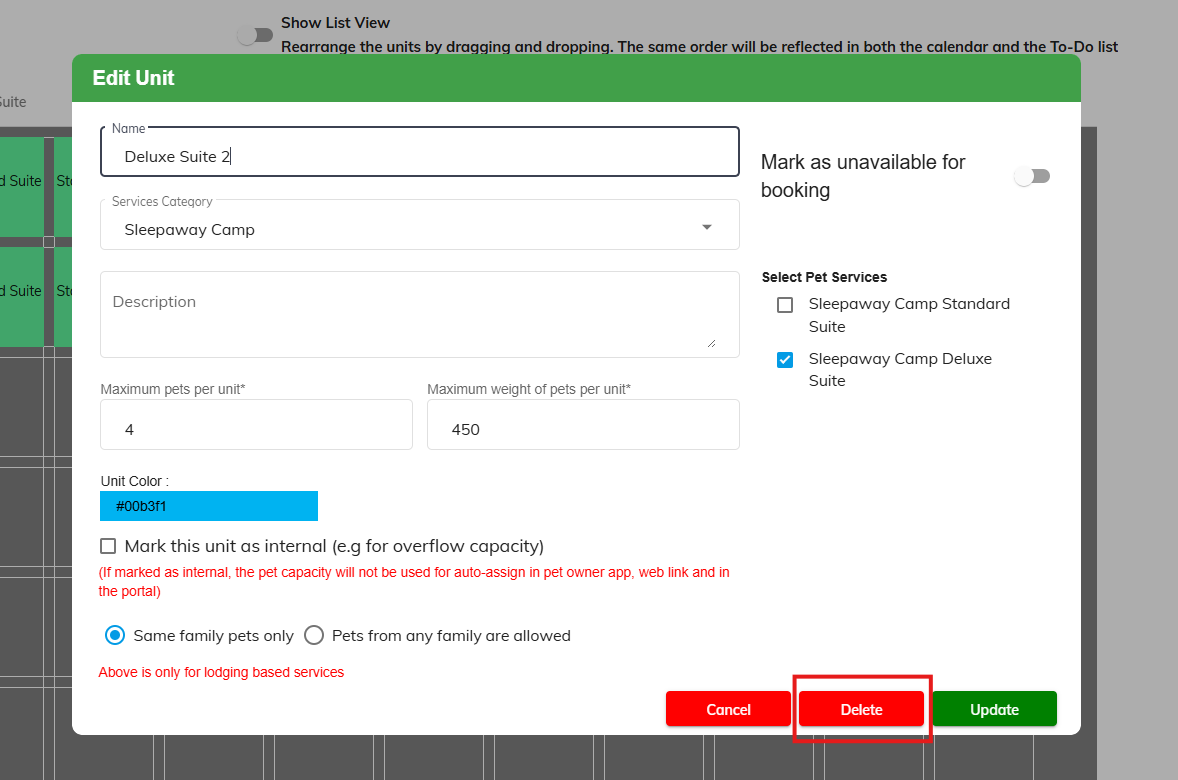
3. To delete a specific run, hover over the unit in question and then click the Edit pencil icon.
4. On the Edit Run popup, click Delete. Then type "DELETE" and click Yes, delete this run.
⚠️ Important: Deleting a run is permanent and will cause issues if any pets are booked in that run! Please reschedule pets into a different run before removing the run, or consider deactivating the run instead.
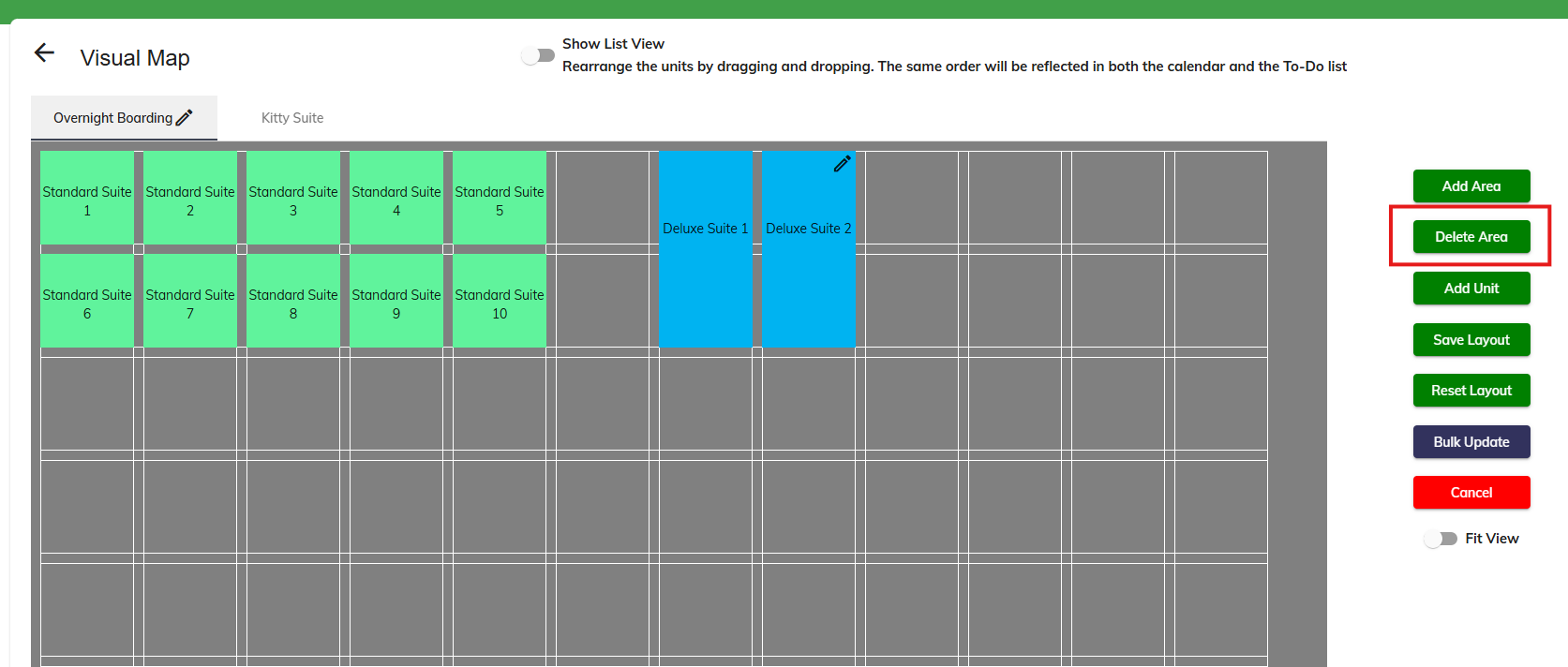
5. To delete the entire area and all runs in it, click Delete Area. Then type "DELETE" and click Yes, delete this run.
⚠️ Important: Deleting an area and all runs within is permanent and will cause issues if any pets are booked in those runs! Please reschedule pets into different runs before removing the run, or consider deactivating the runs instead.
More Information
For more information on creating service types, please refer to this article: Create Lodging-Based Services (Boarding)
For more information on daycare playgroups, please refer to this article: Managing Playgroup Areas
Was this article helpful?
That’s Great!
Thank you for your feedback
Sorry! We couldn't be helpful
Thank you for your feedback
Feedback sent
We appreciate your effort and will try to fix the article