Overview
The Visual Map allows you to create a digital map that mirrors your physical kennel, play yard, grooming, and/or training setup at the facility. The Visual Map displays when
TABLE OF CONTENTS
- Overview
- Applicable business types
- Requirements
- Portal Path
- How to Create an Area?
- How to Add Units (Runs/Spaces)?
- How to Edit / Bulk Update Units?
- How to Delete Areas / Units?
- More Information
Applicable business types
Boarding, Daycare, Grooming (Optional)
Requirements
Before configuring or managing a Visual Map, ensure that:
- The business and location are already created in the Business Portal.
- The service categories needs to exist.
Portal Path
- When creating or editing an appointment
- Settings > Business Setup > Visual Map
How to Create an Area?
Areas are the physical spaces where many units (runs) can exist. For example, if you have runs in an East Wing and a West Wing, you might wish to add two areas to show that the wings are physically separate spaces. You can also separate areas by service type, such as a Dog Boarding area and a Cat Boarding area. Keep in mind that when booking an appointment, staff will need to select the area and then the run.
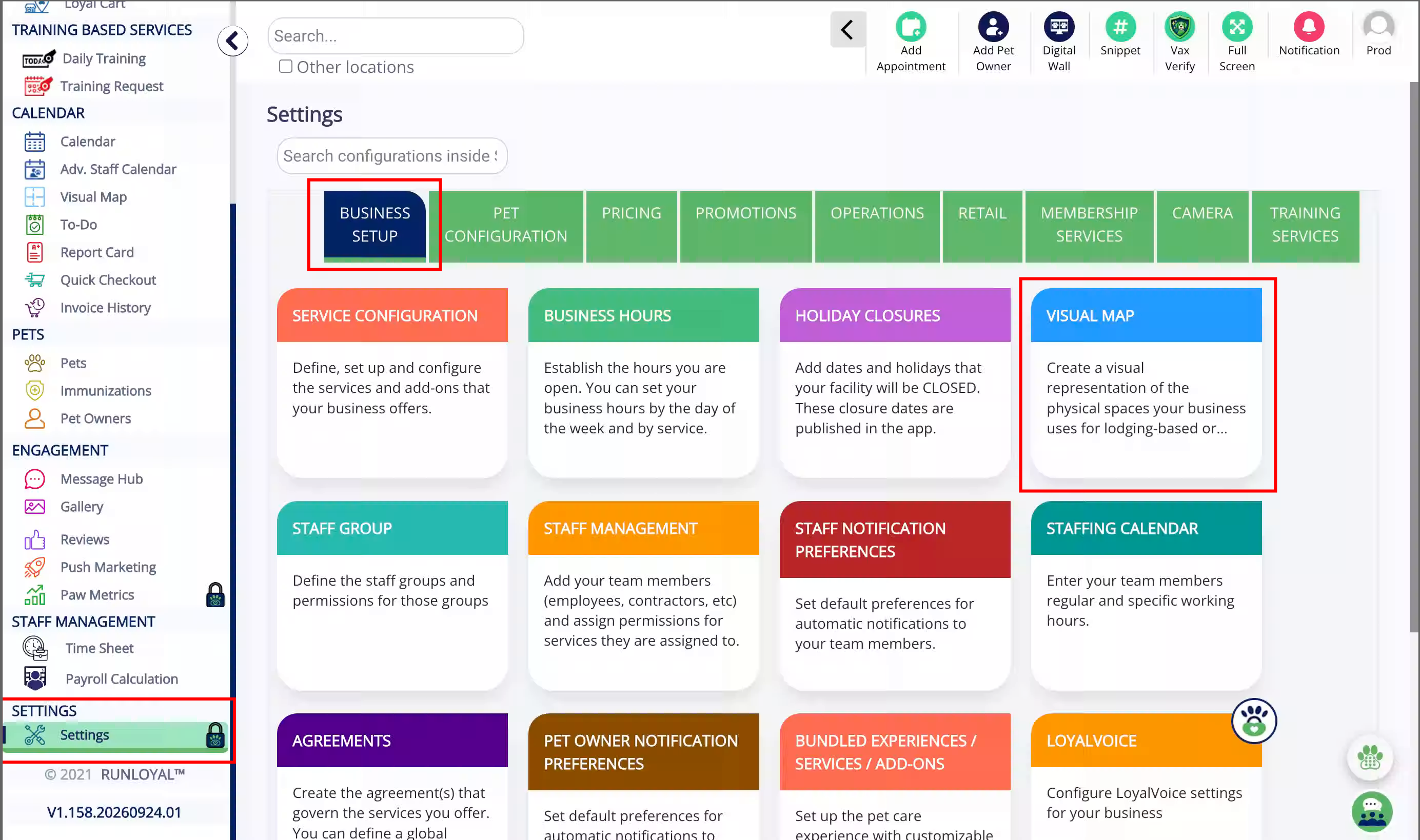
1. Navigate to Settings > Business Setup > Visual Map.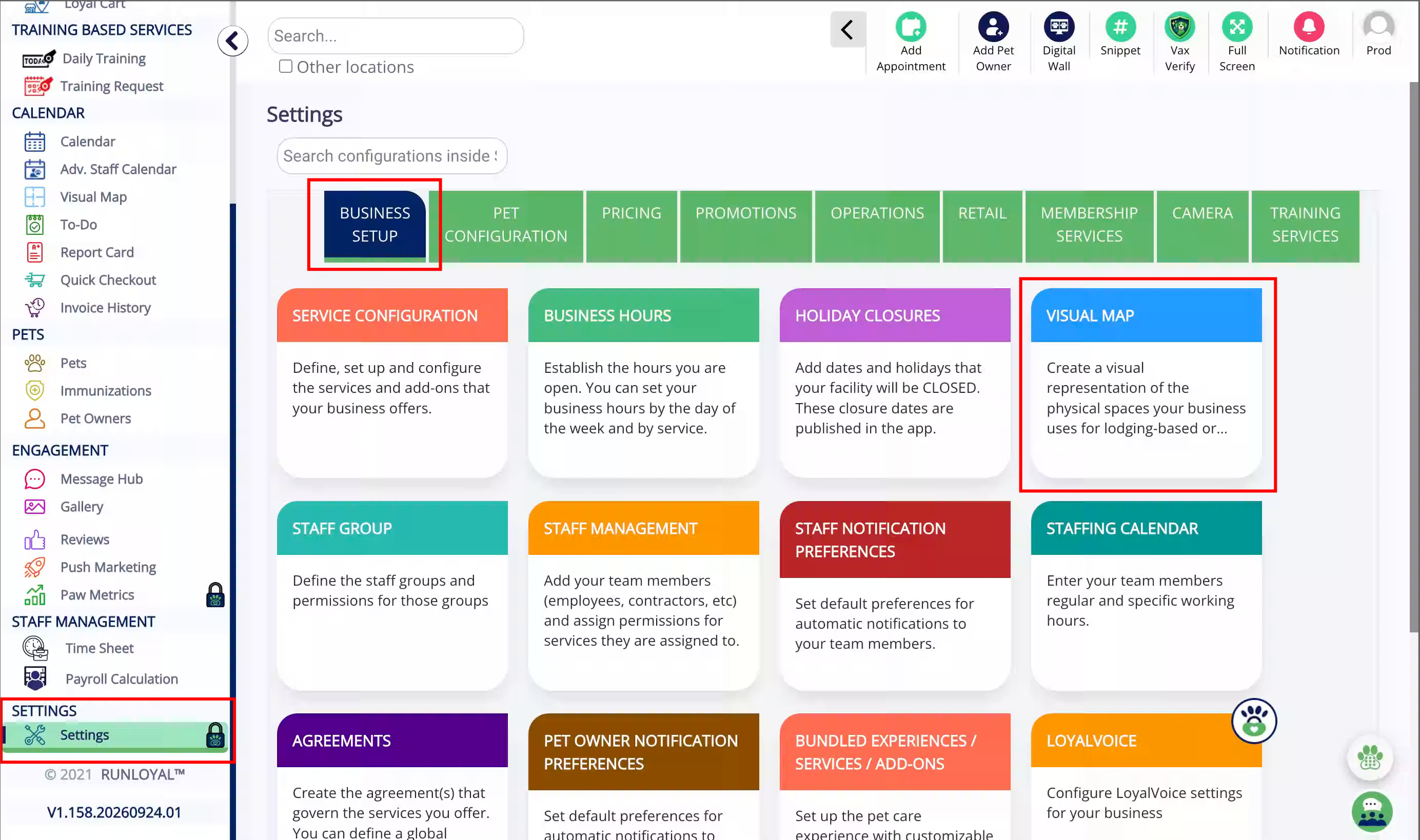
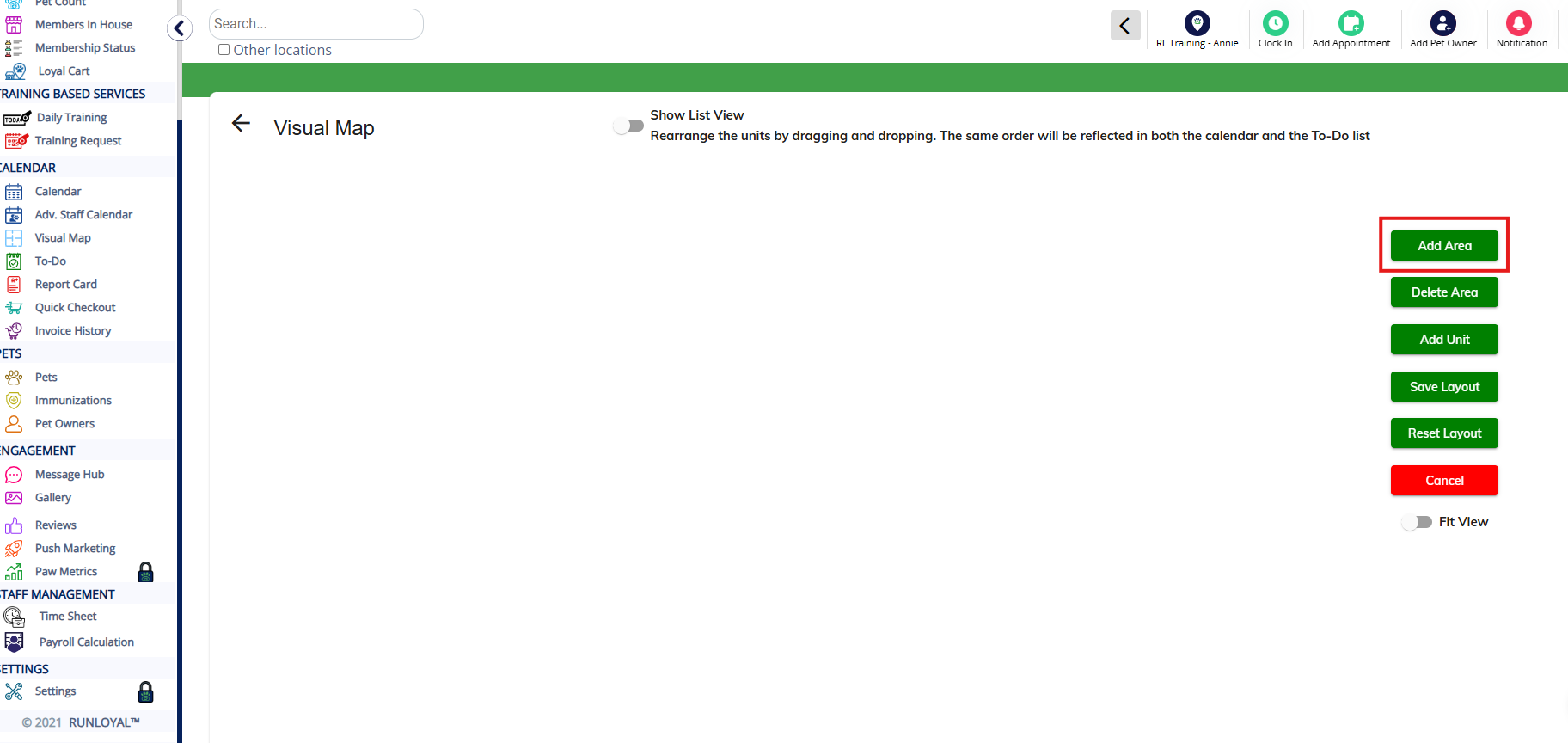
2. To add a new area, click Add Area.
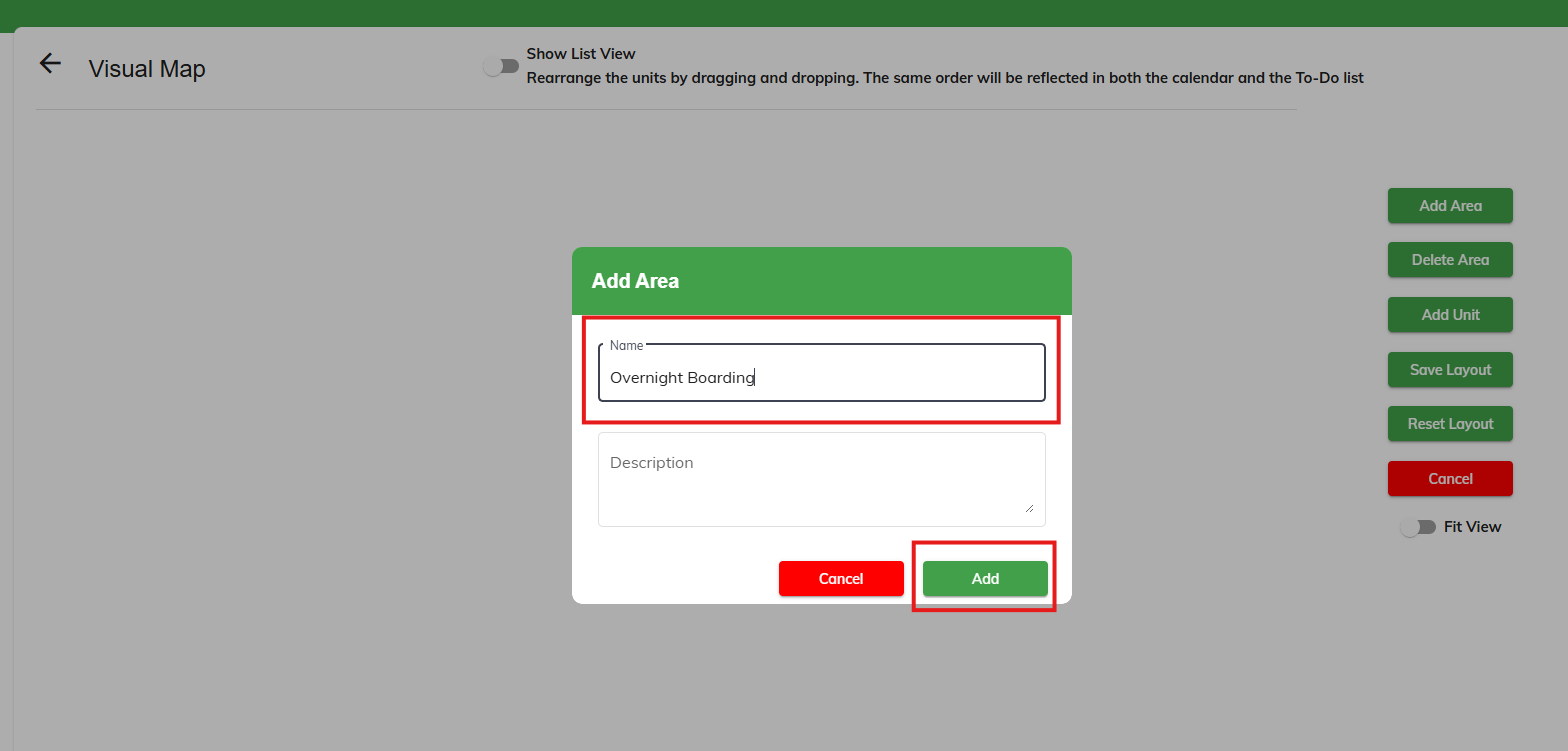
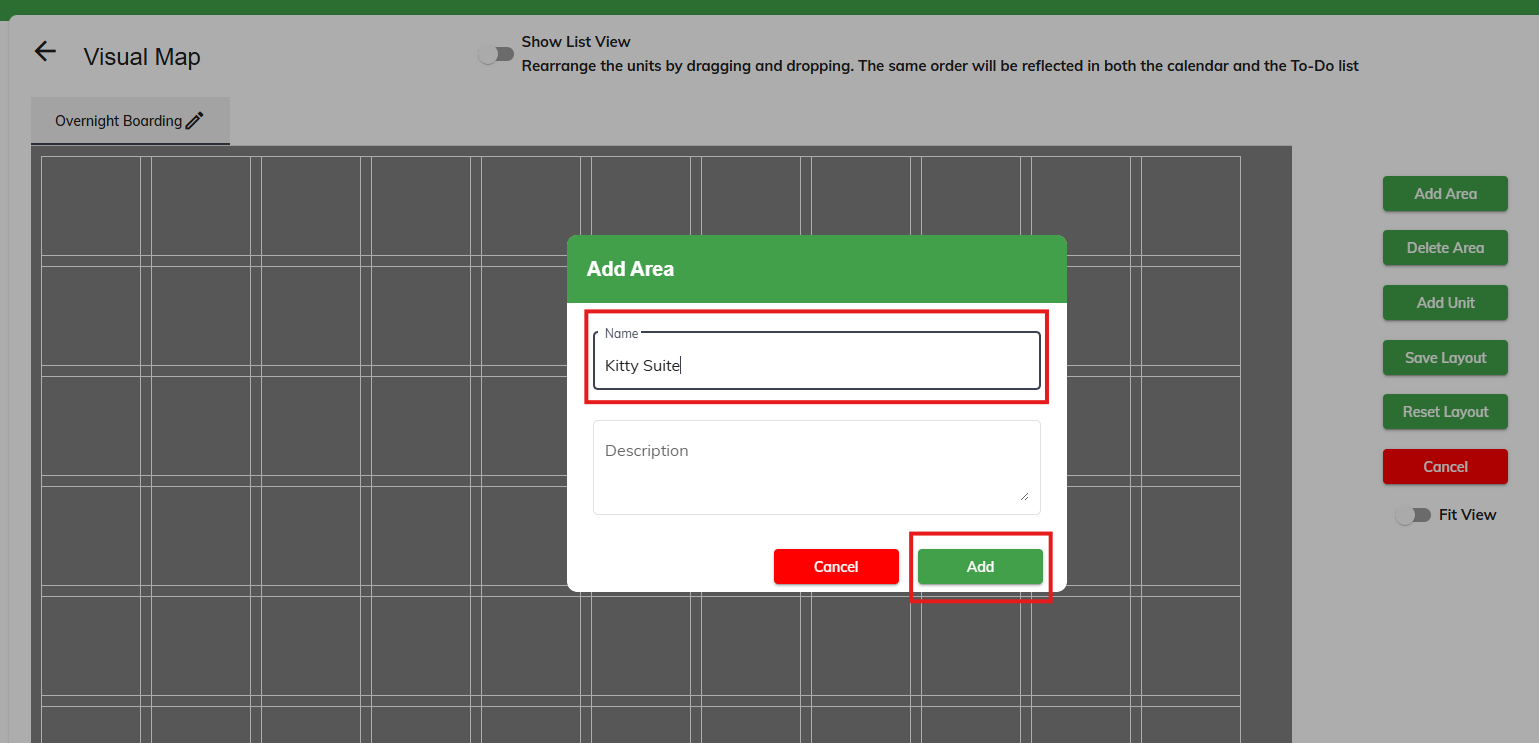
3. Enter the name of the area, such as Overnight Boarding, then click Add.
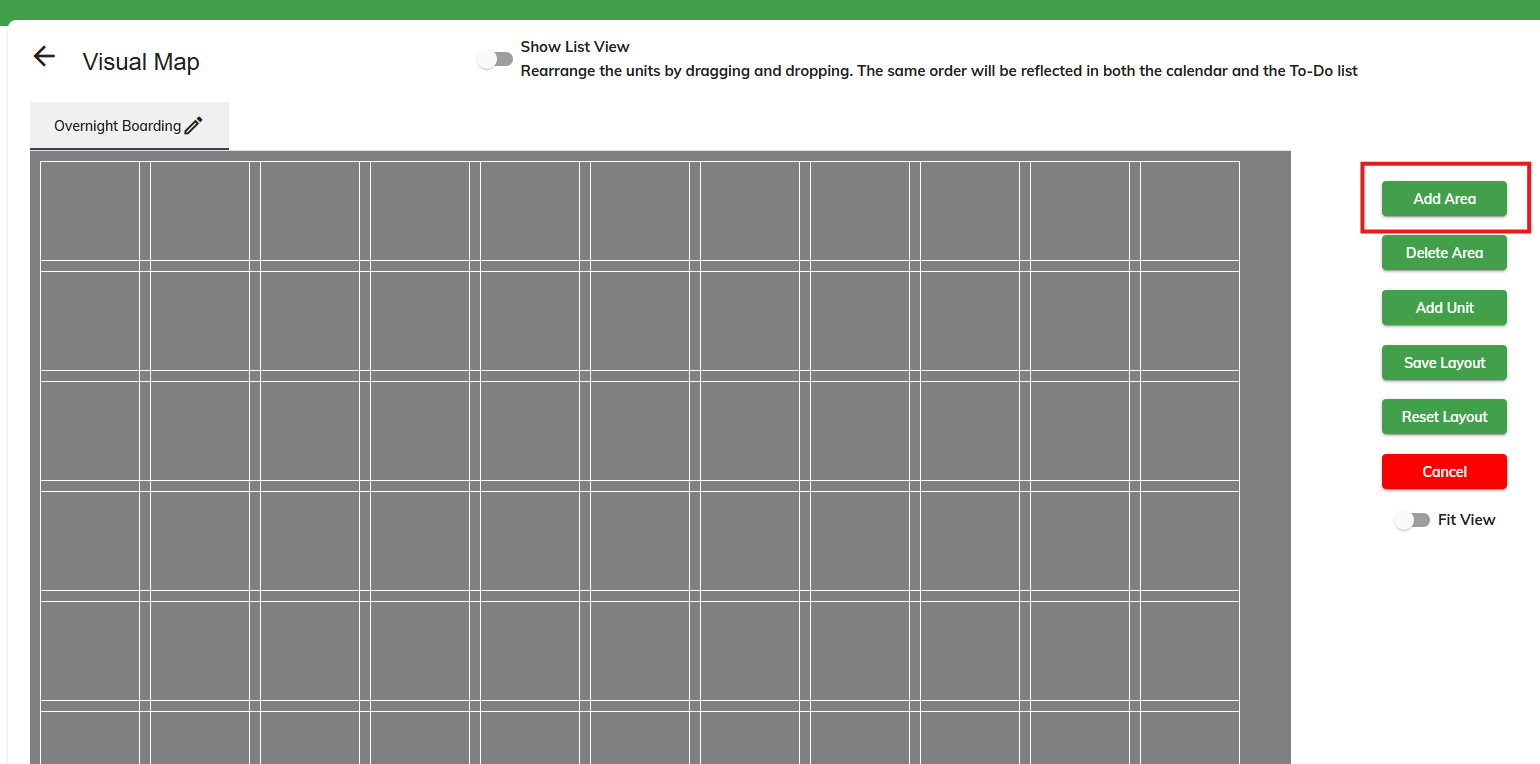
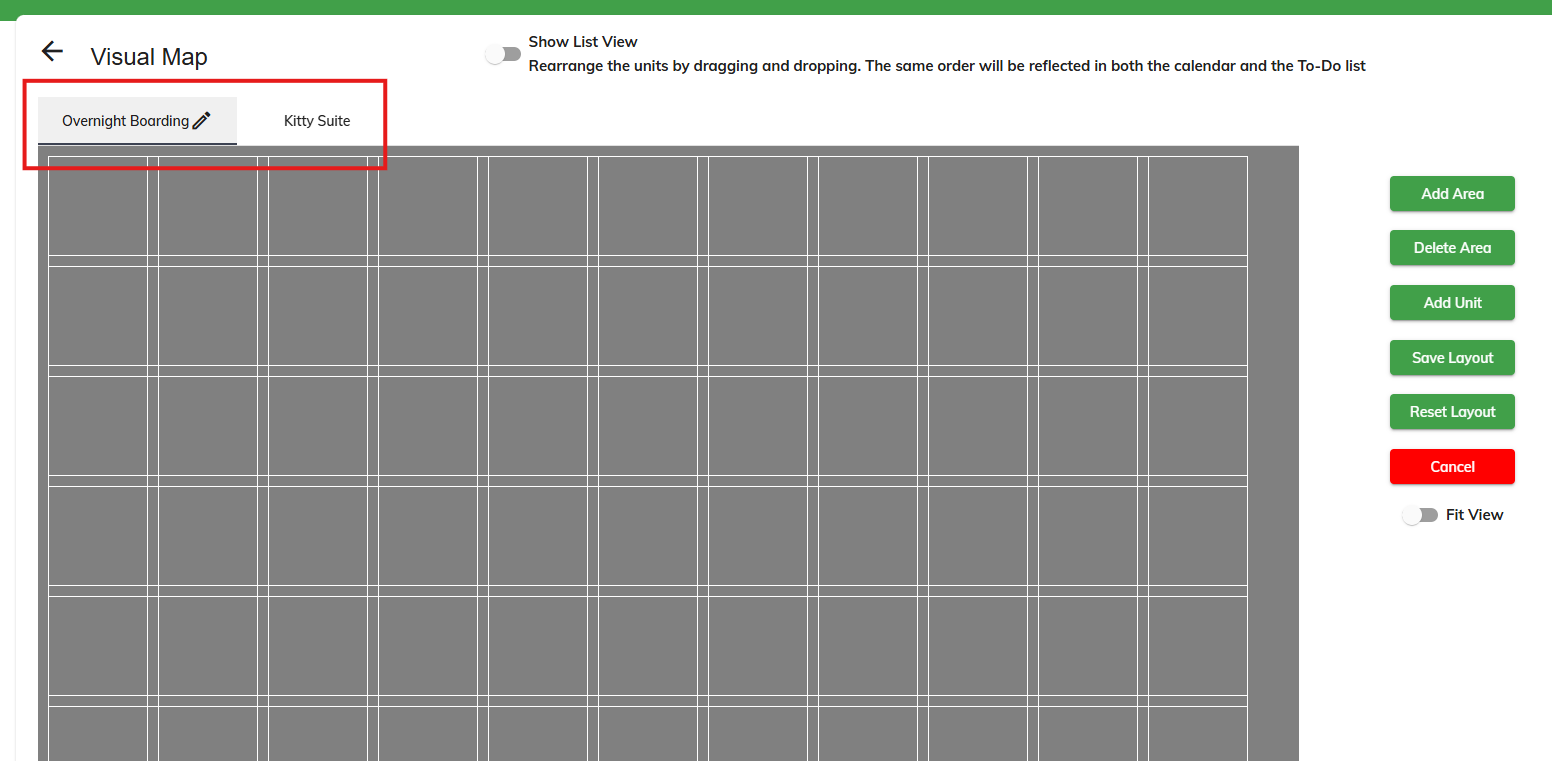
4. Verify the area now displays as expected. To add an additional area, click Add Area again.
5. Enter the name of the area, such as Kitty Suites, then click Add.
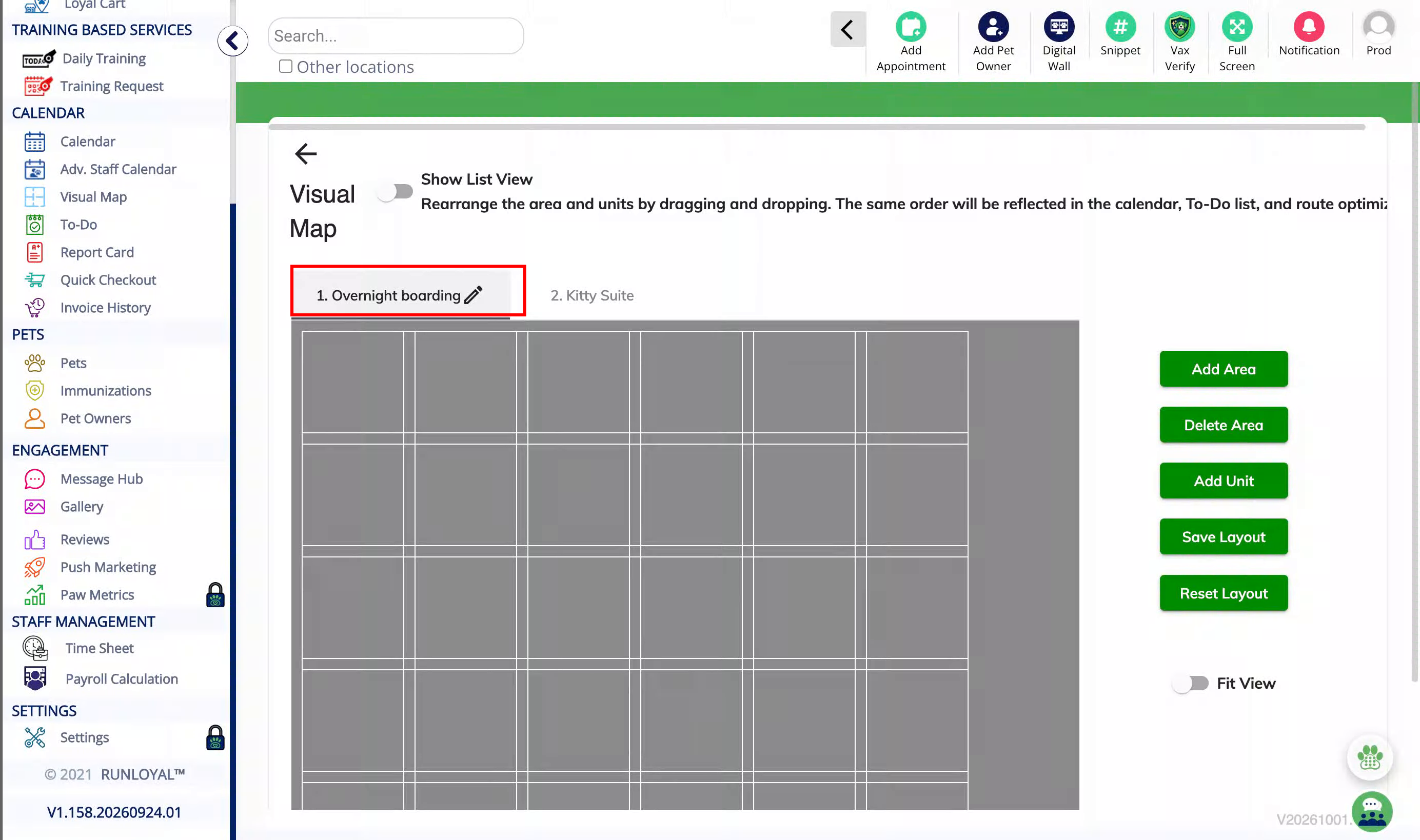
6. Verify the area now displays as expected. Once you have added all your areas, you can drag and drop to customize the display order by clicking on the area names in the top left. The most commonly used area should be the first one listed.
How to Add Units (Runs/Spaces)?
Units are the physical runs where you place a dog or dogs. For boarding, many businesses have different units that cost more than the standard unit, depending on their size and quality. We advise making different services for those deluxe units. For example, you may have two services called Boarding (Standard Run) and Boarding (Deluxe Suite). The units section of the visual map is where you can assign each of those services to the correct physical run.
1. Settings
2. Select the Area
3. How to Add Unit?
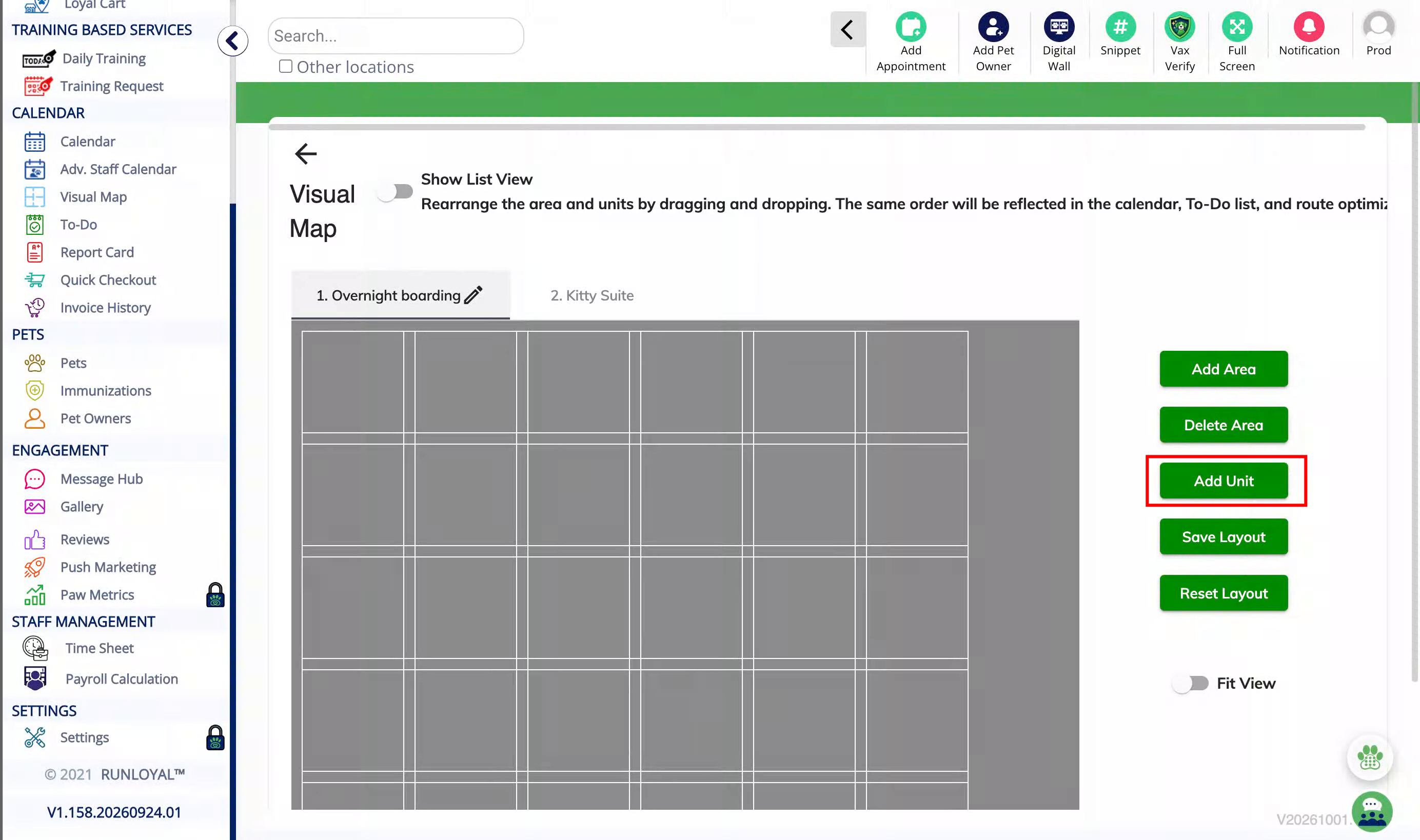
4. Unit Availability
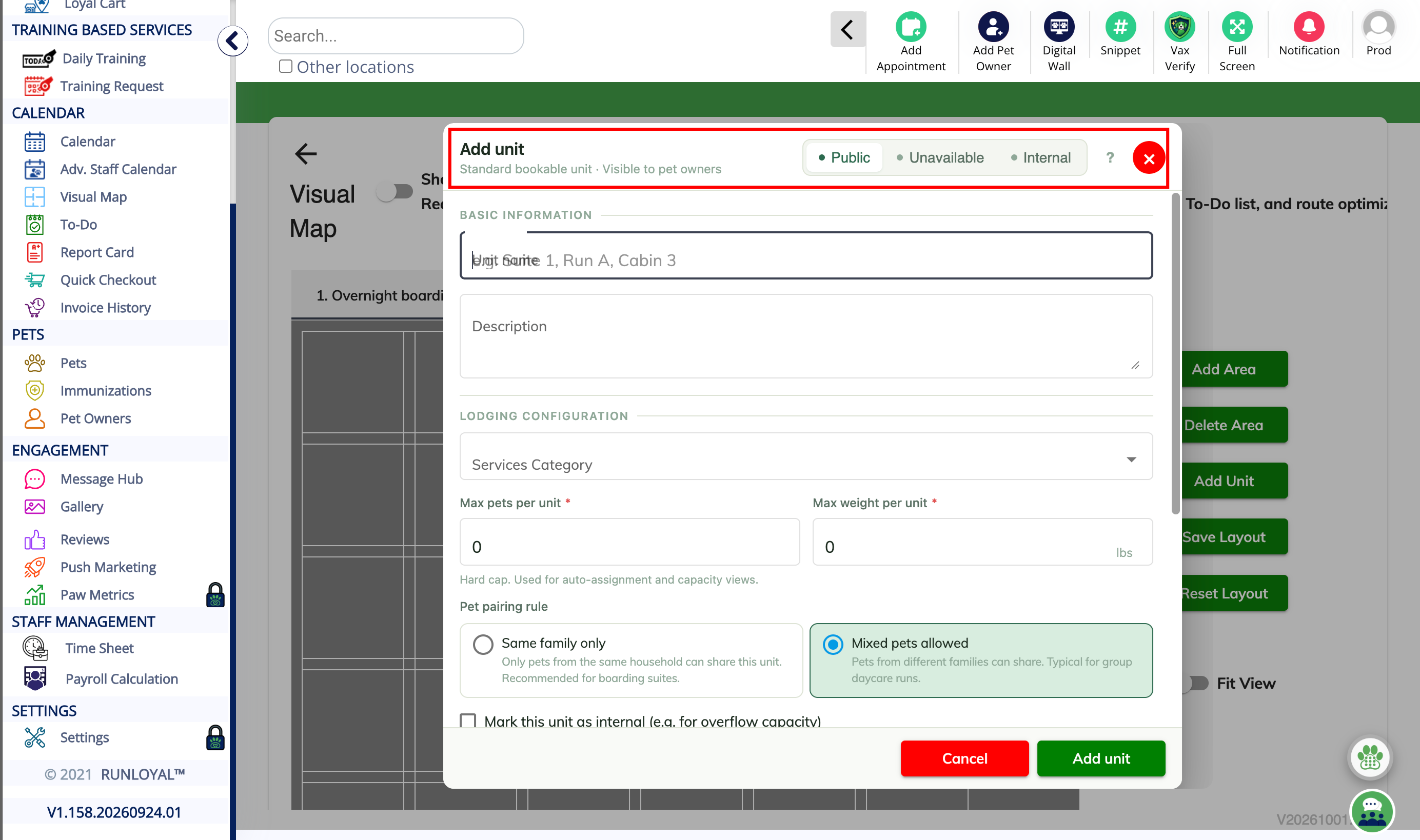
5. How to add a Public Unit?
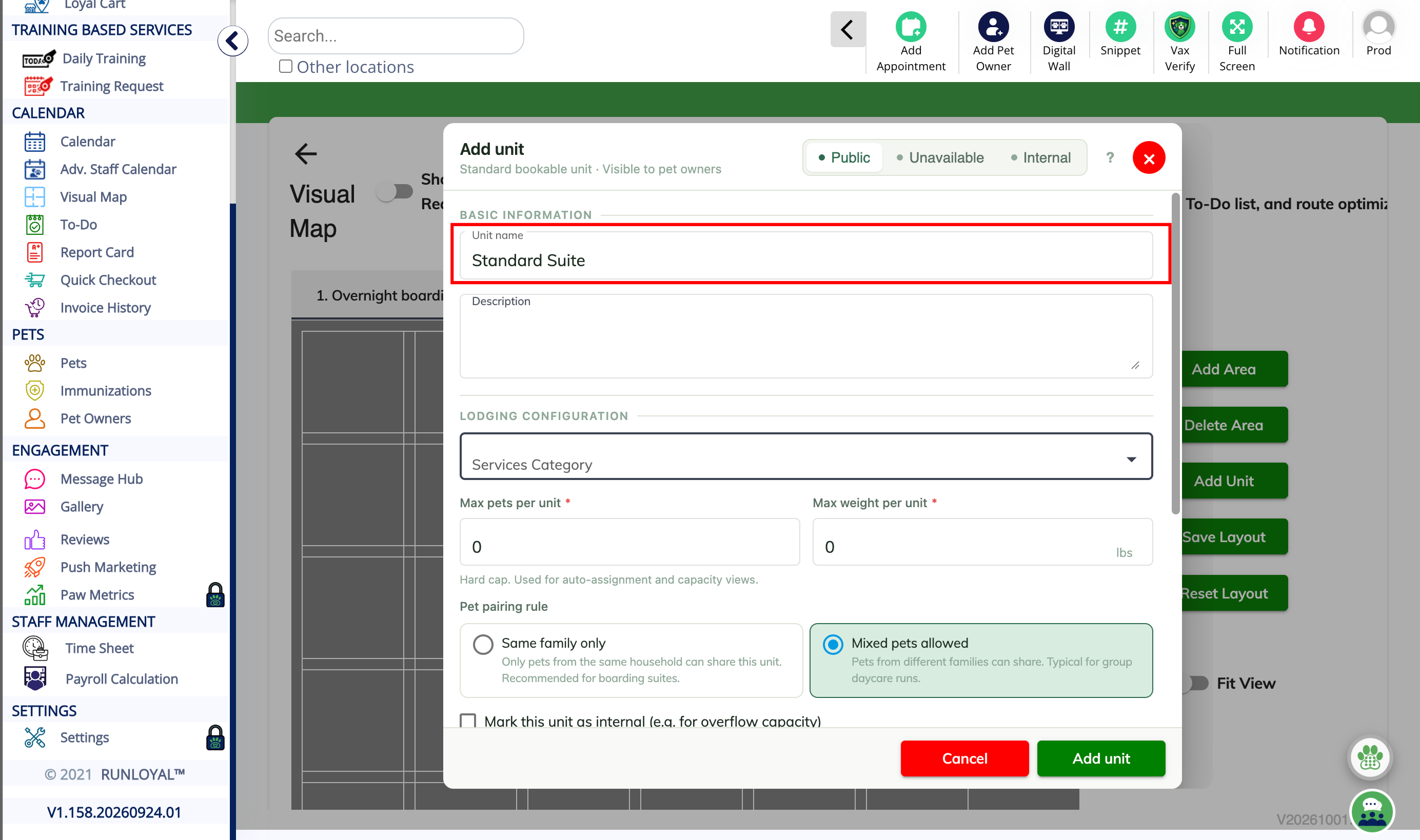
6. Description
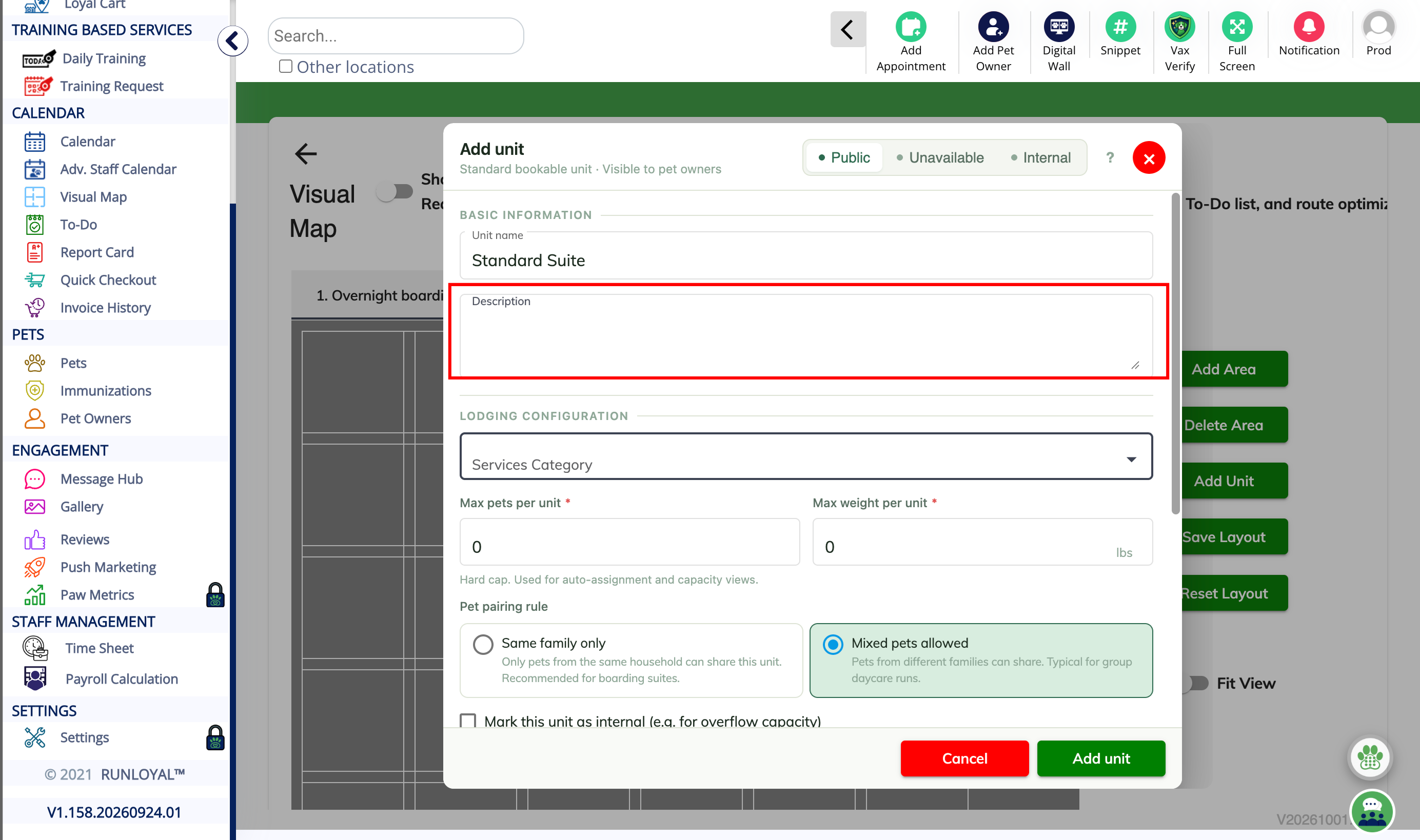
7. Service Category
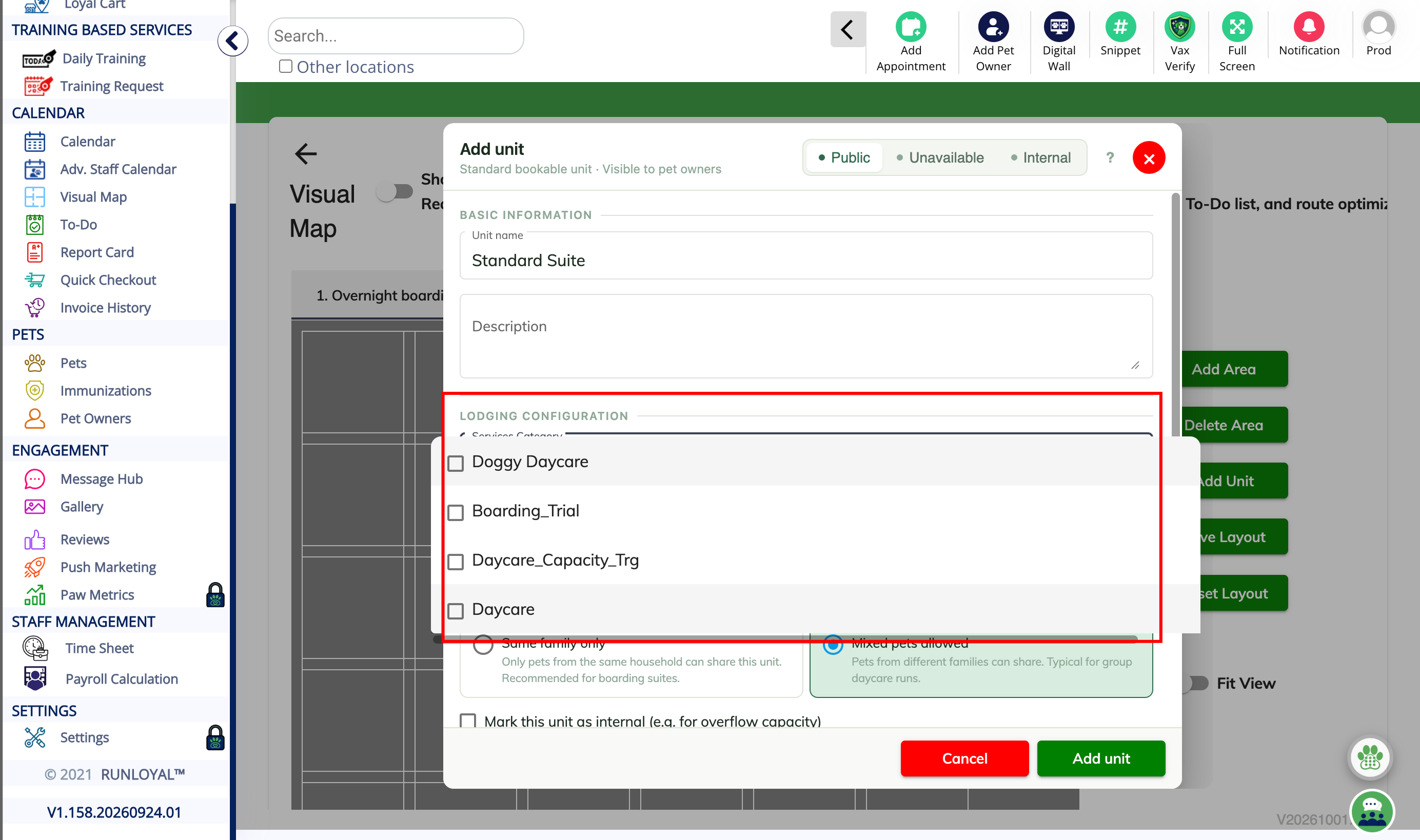
8. Eligible Services
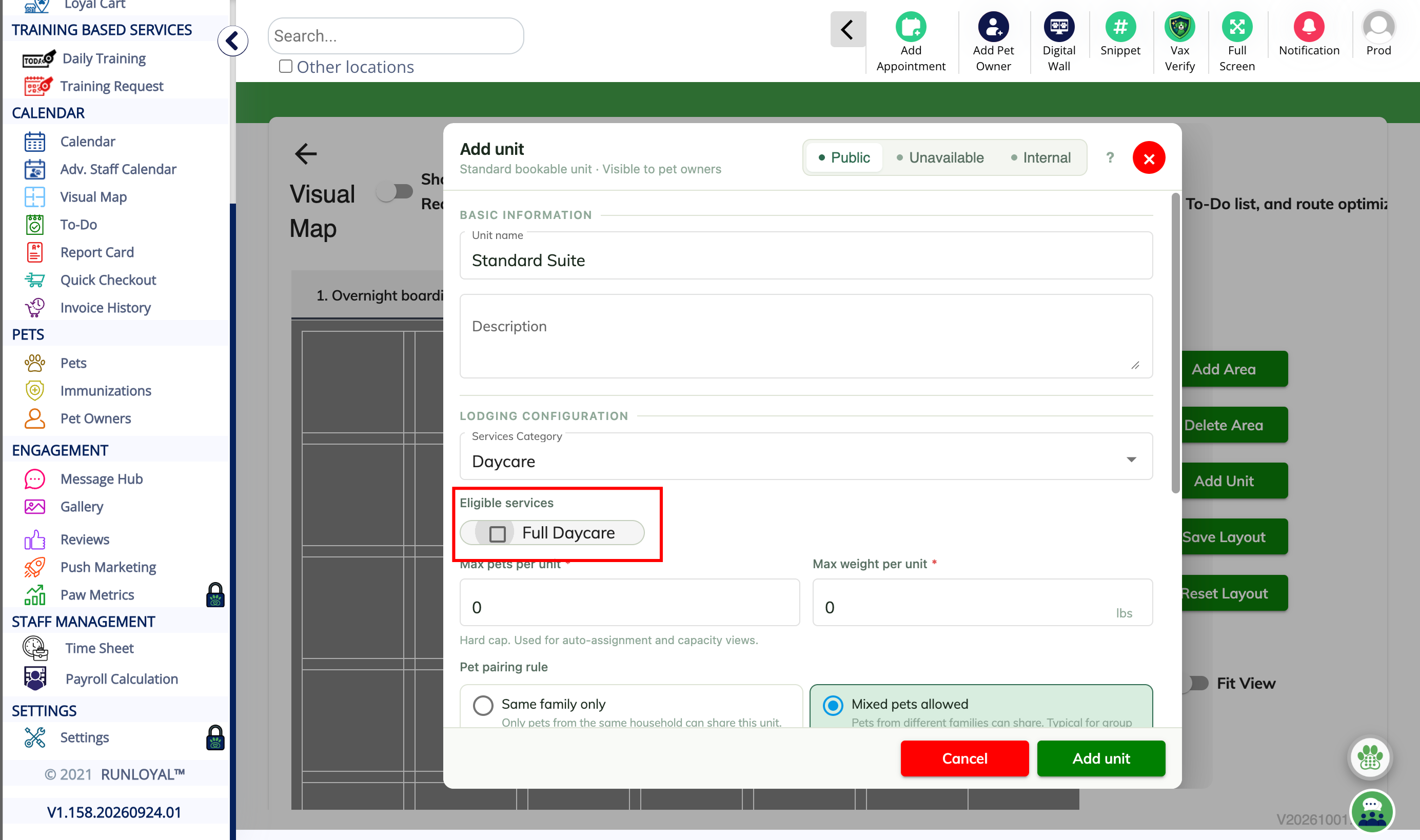
9. Max pets and weight per unit
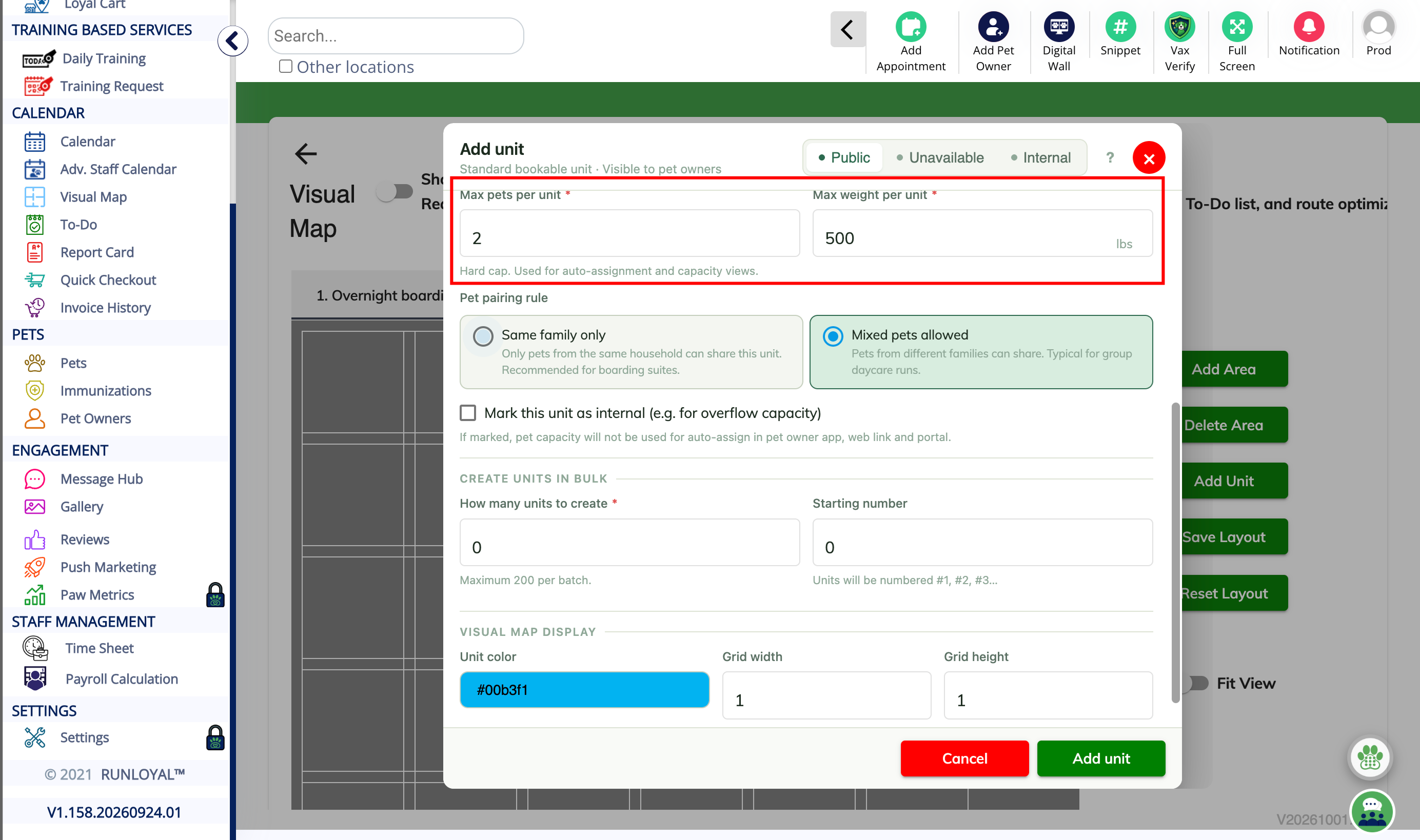
10. Pet pairing rule
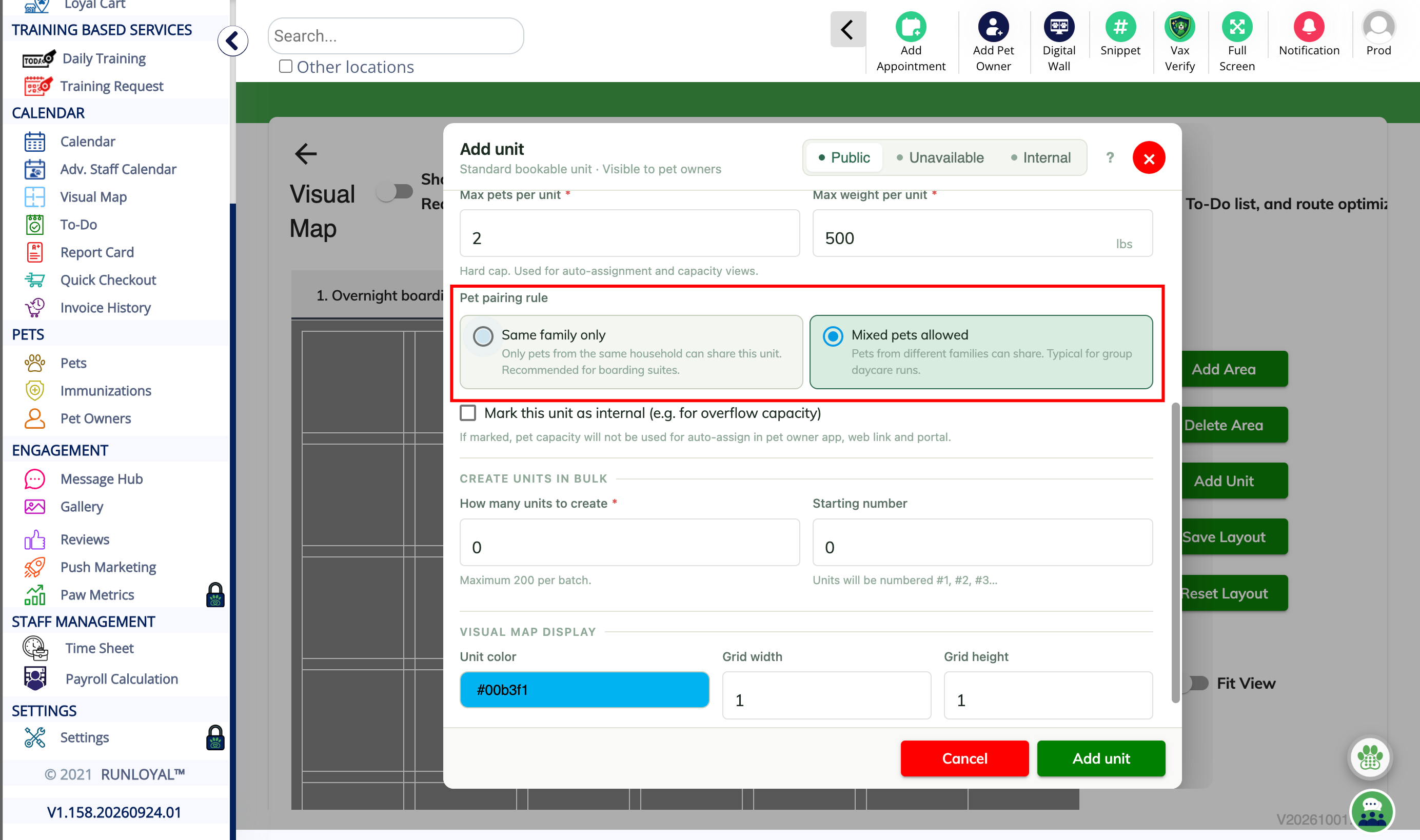
11. Internal unit
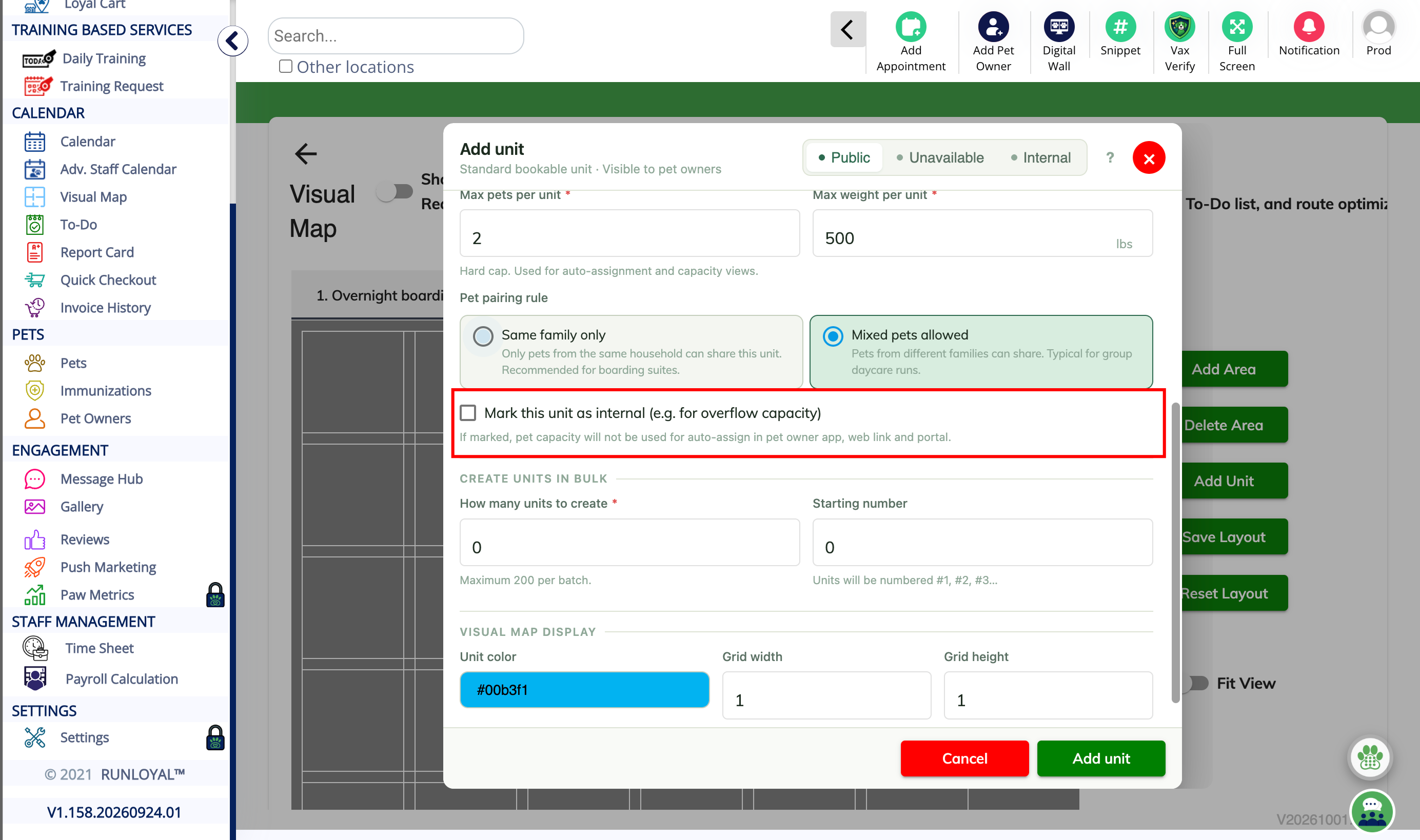
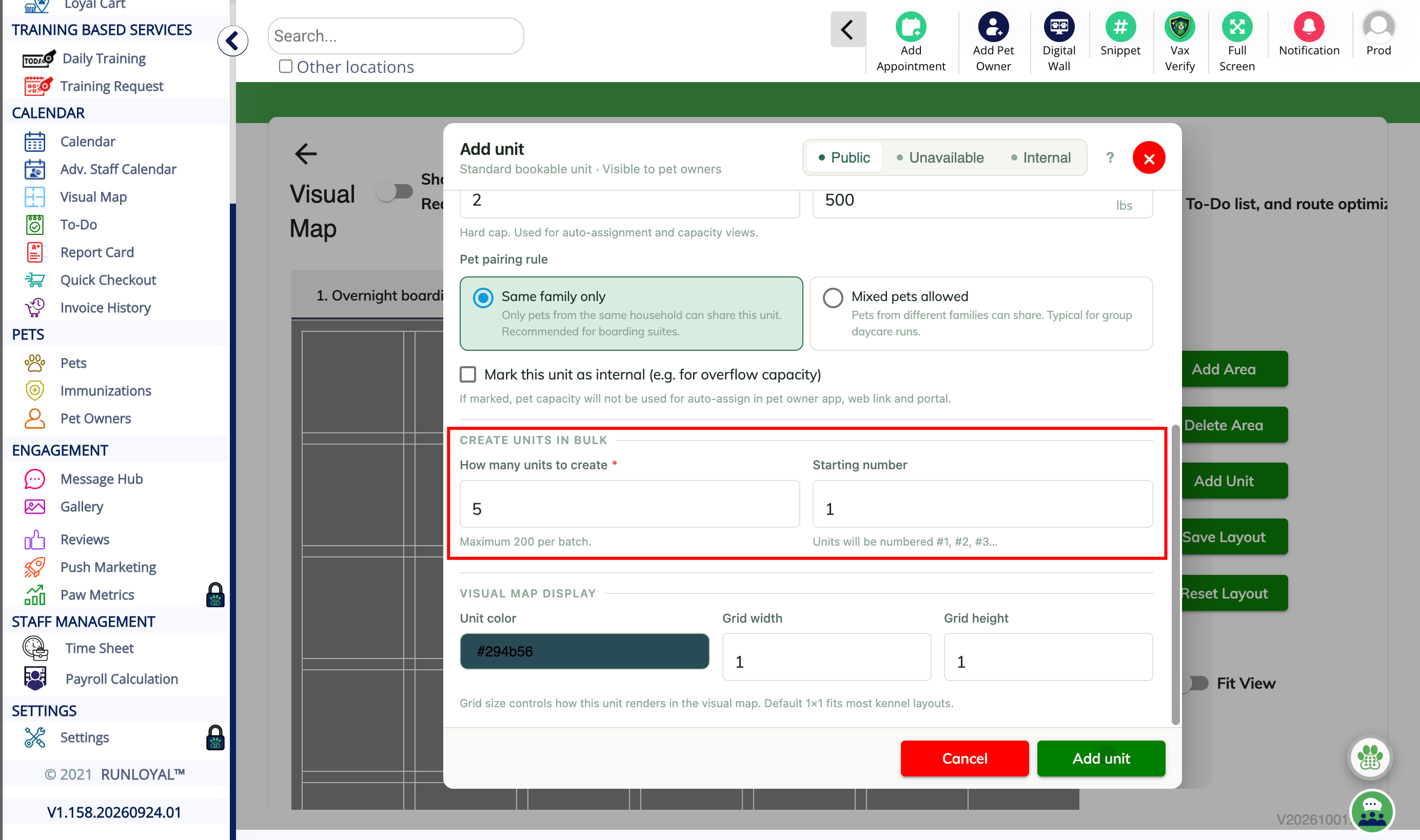
12. Create Units in Bulk
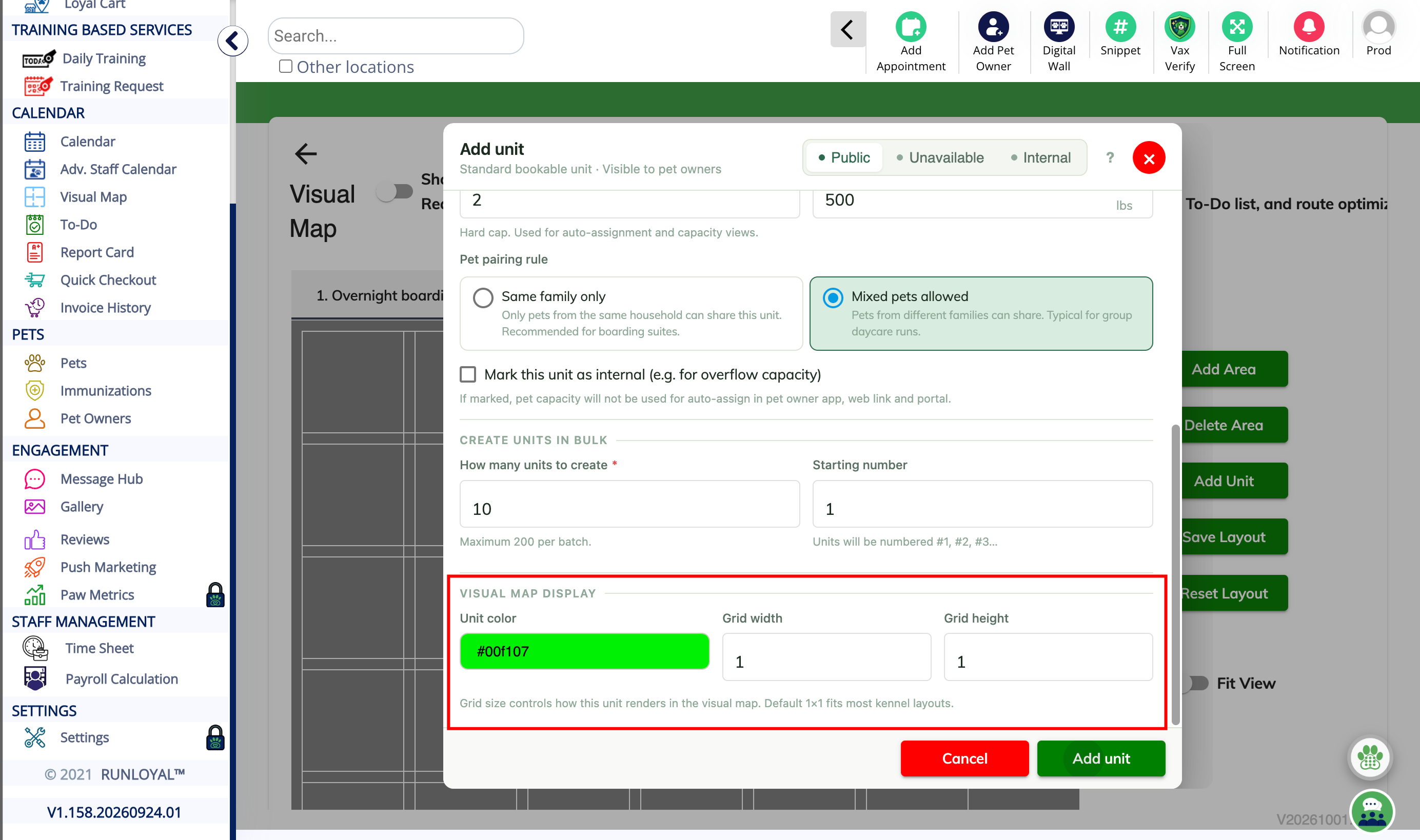
13. Visual map display
14. Verify the units
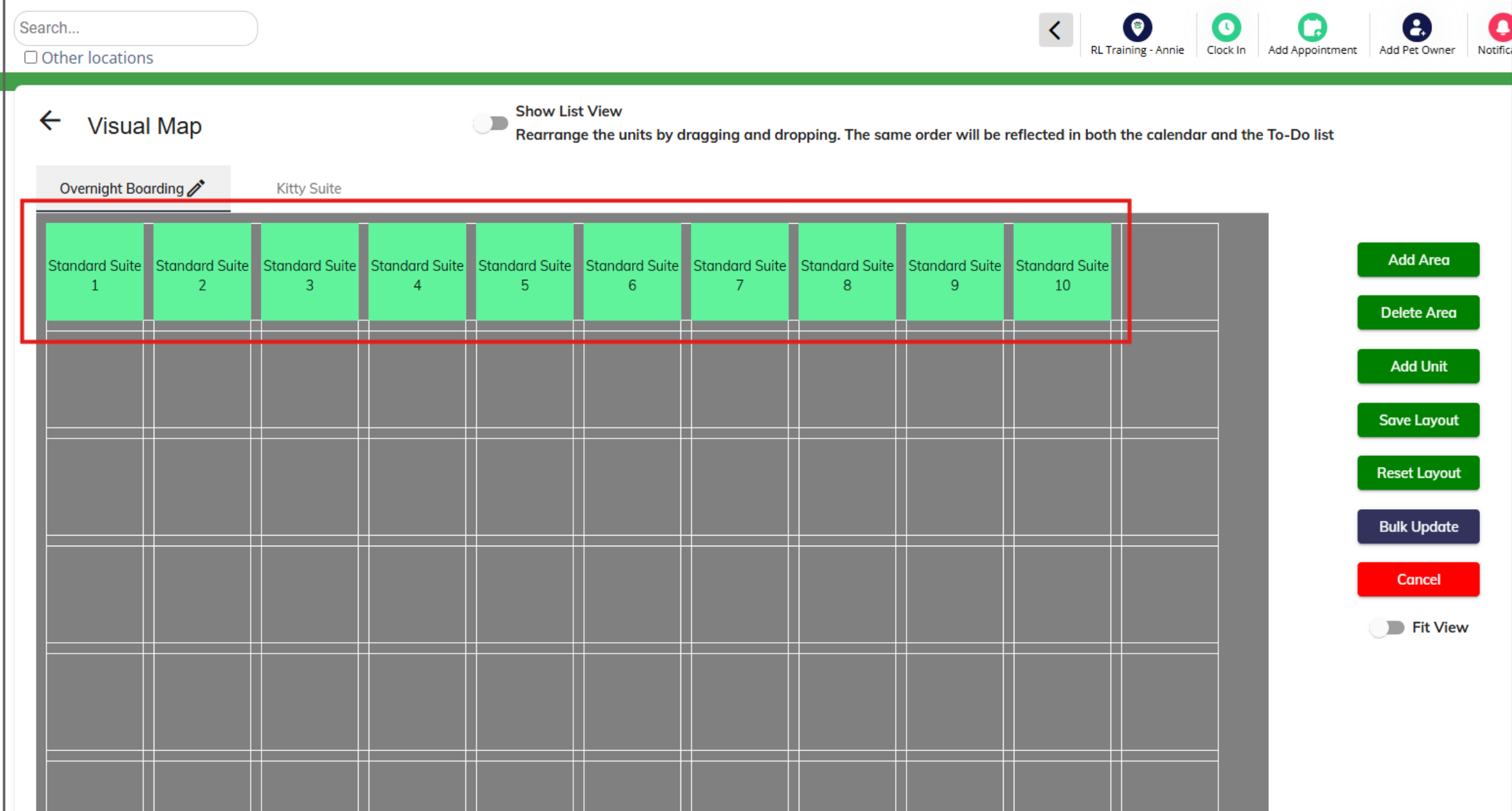
15. Drag and drop units
16. How to add an Unavailable Unit?
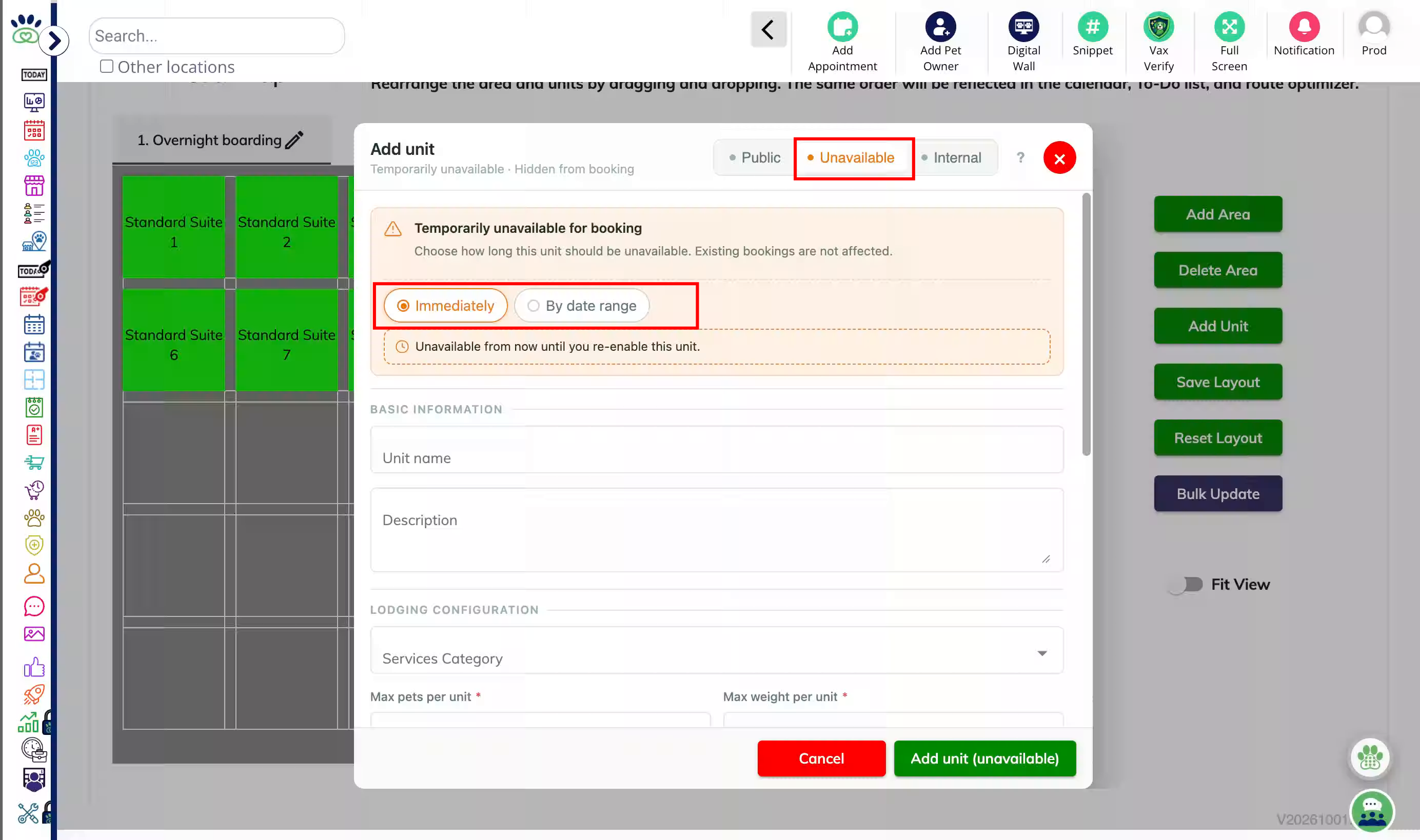
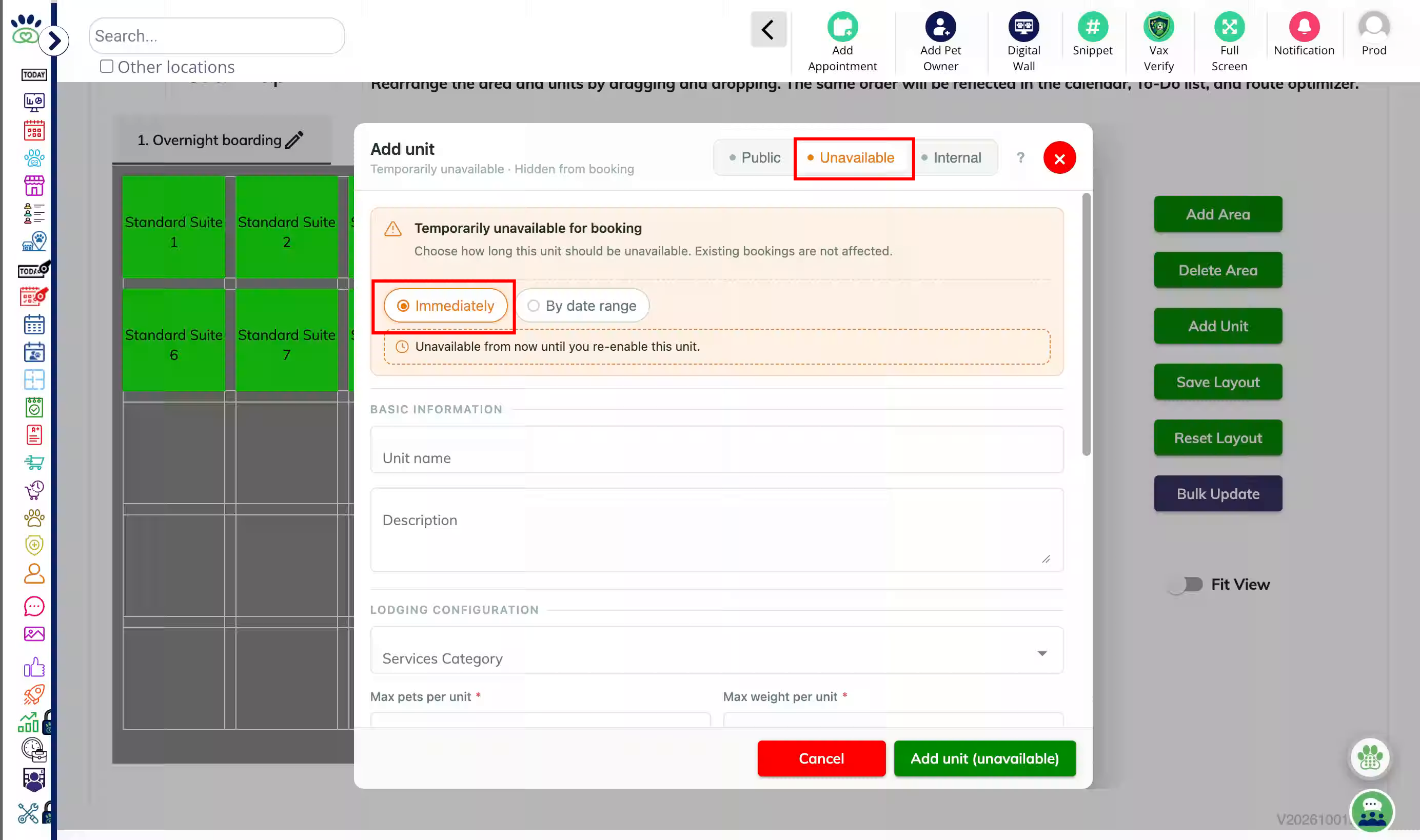
17. Unavailable duration - Immediately
18. Unavailable duration - By date range
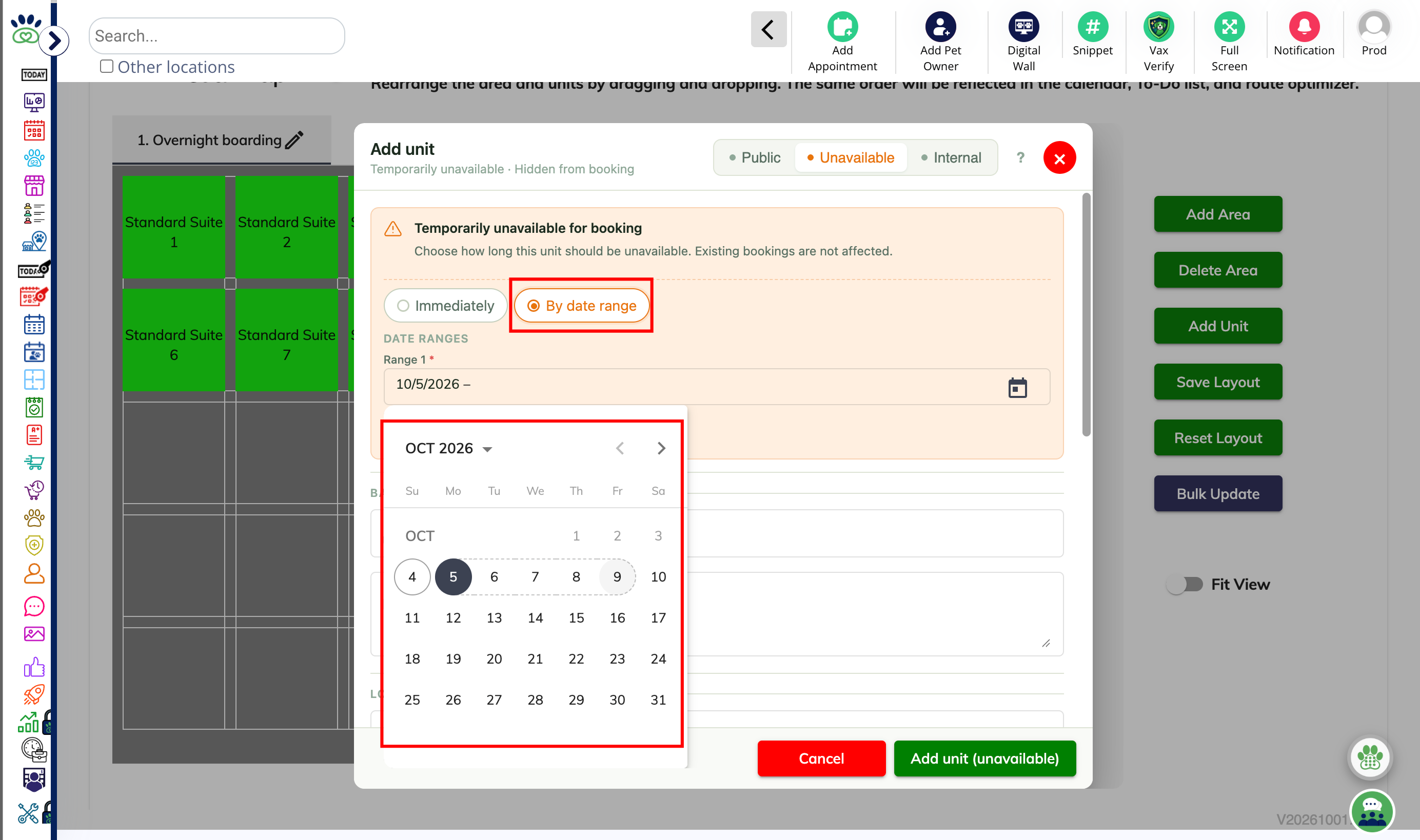
19. By date range
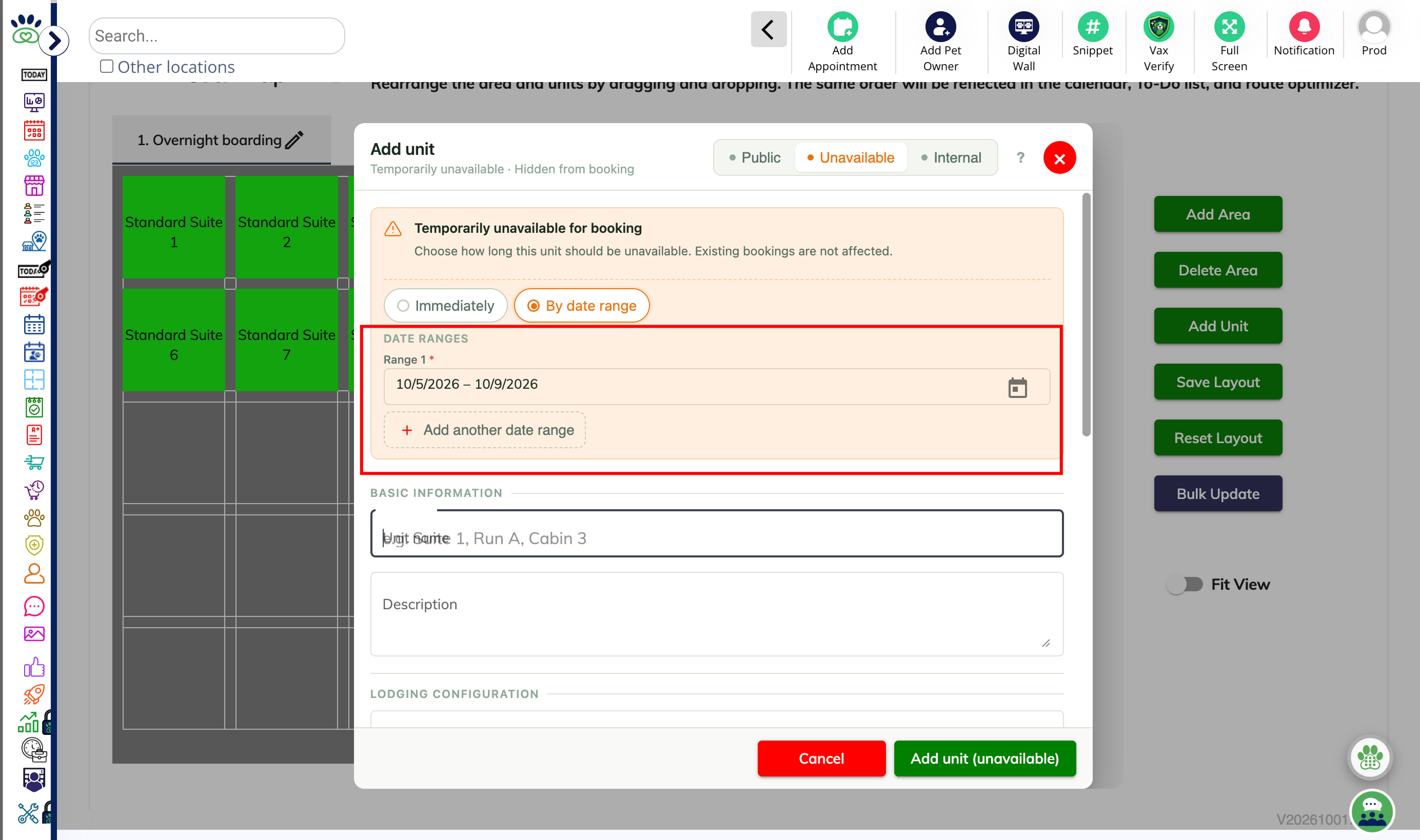
20. Unit details
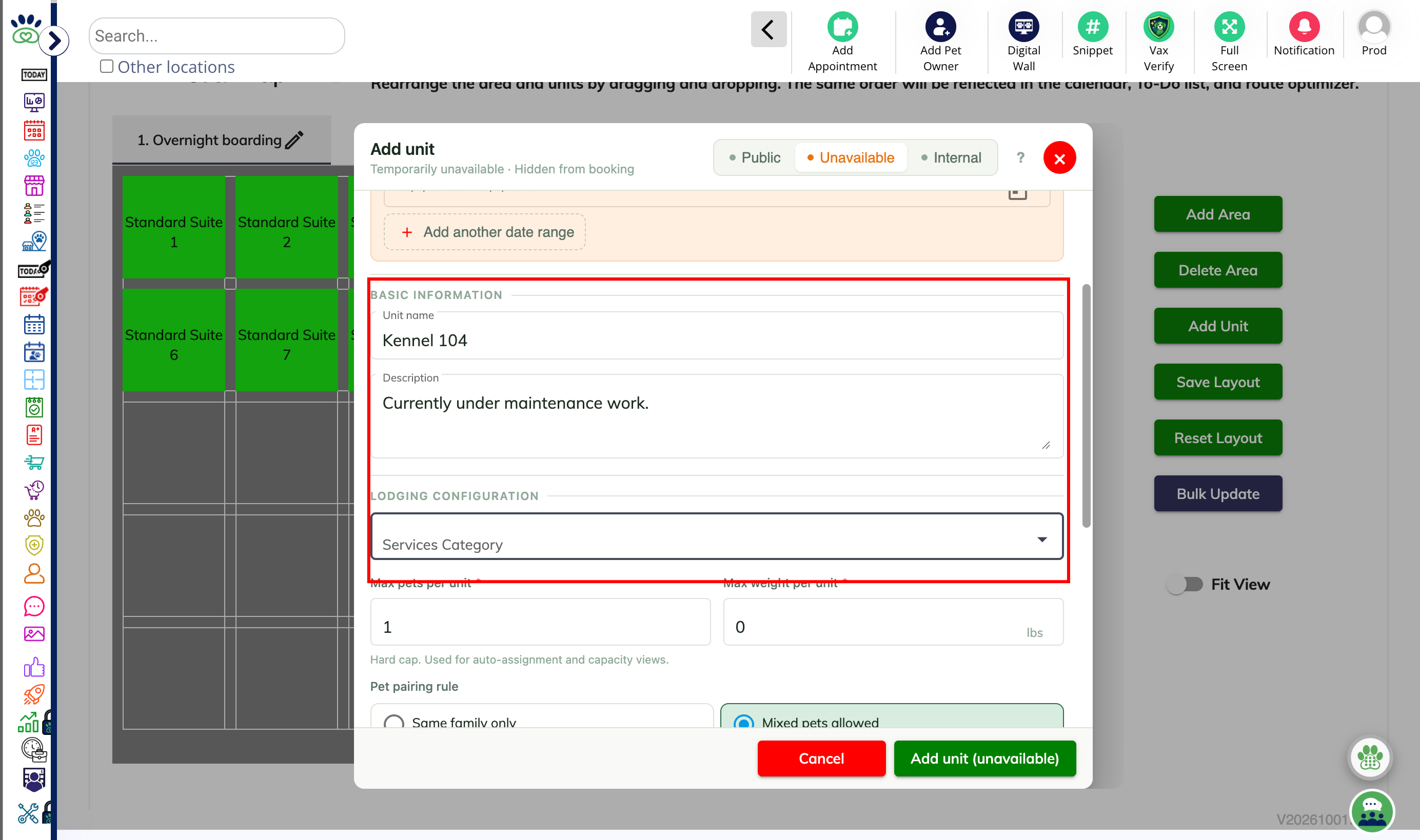
21. Review and confirm
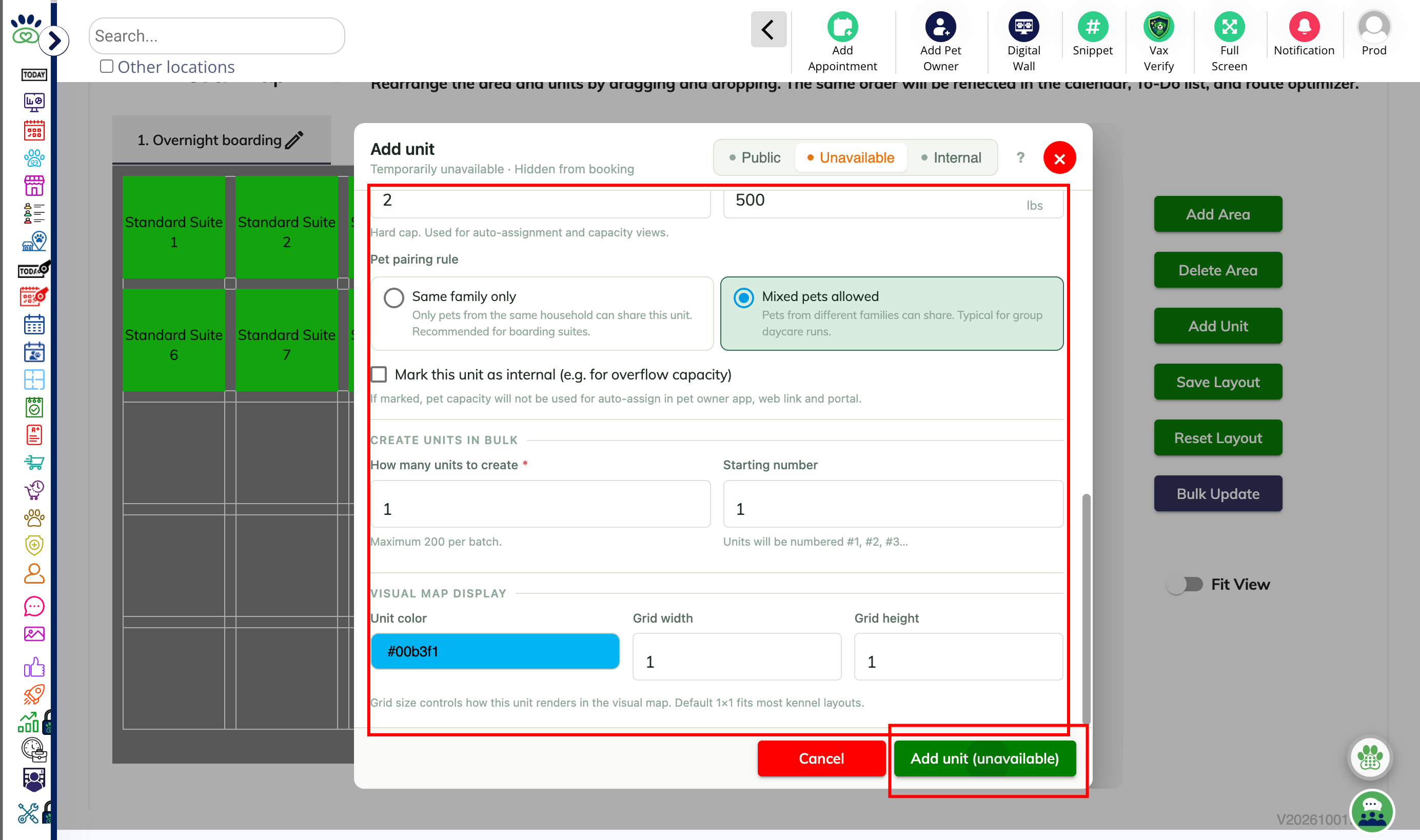
22. Add Unit
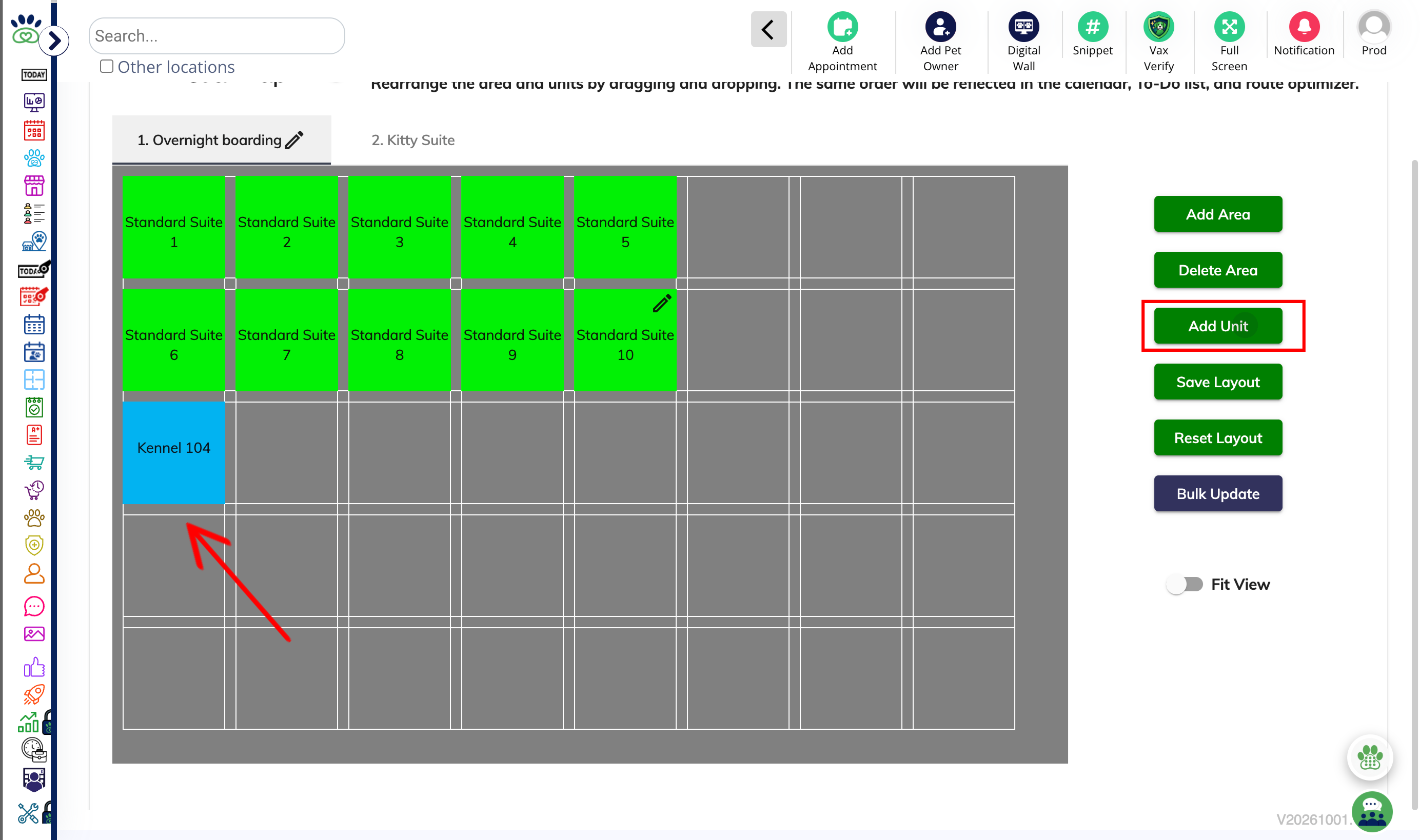
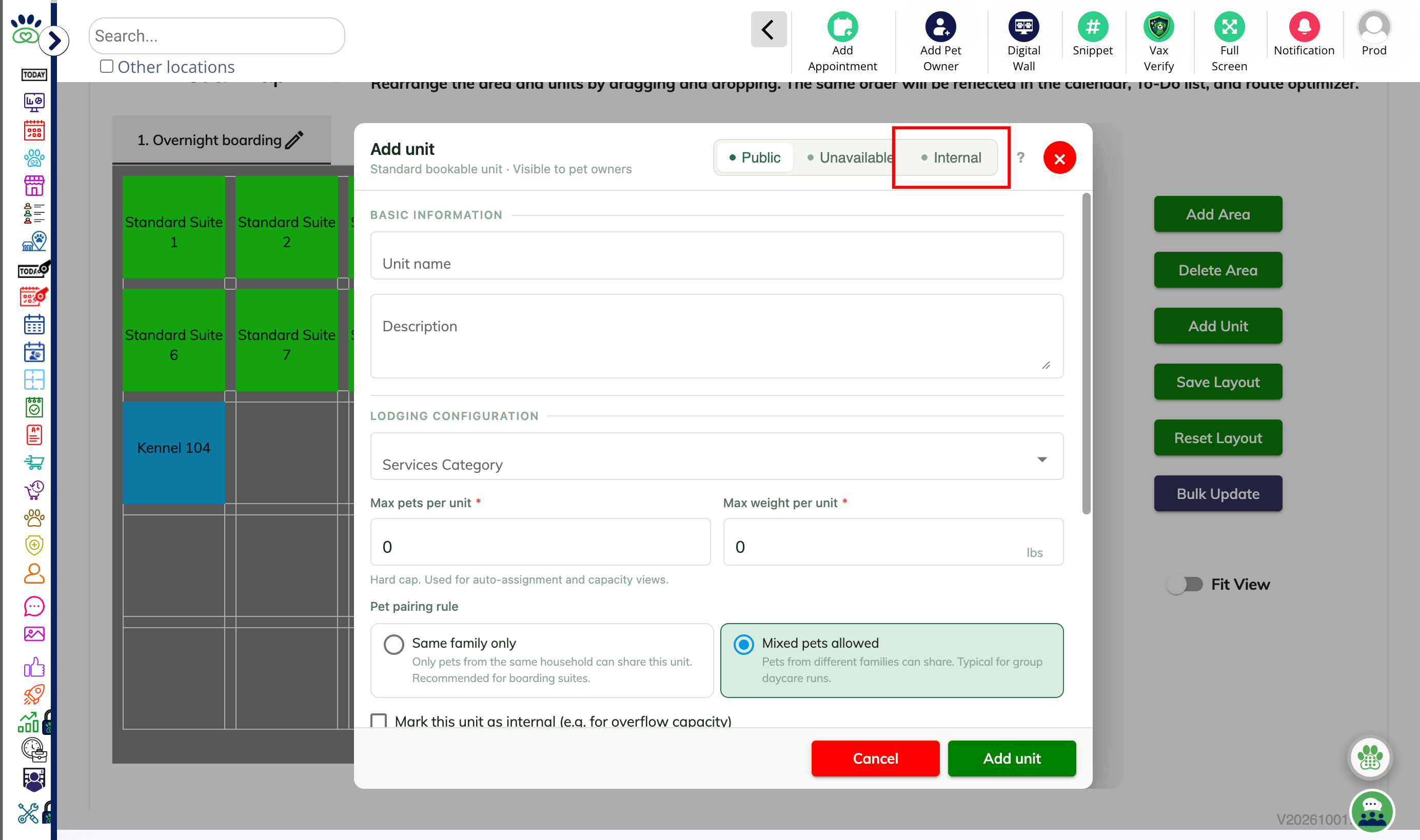
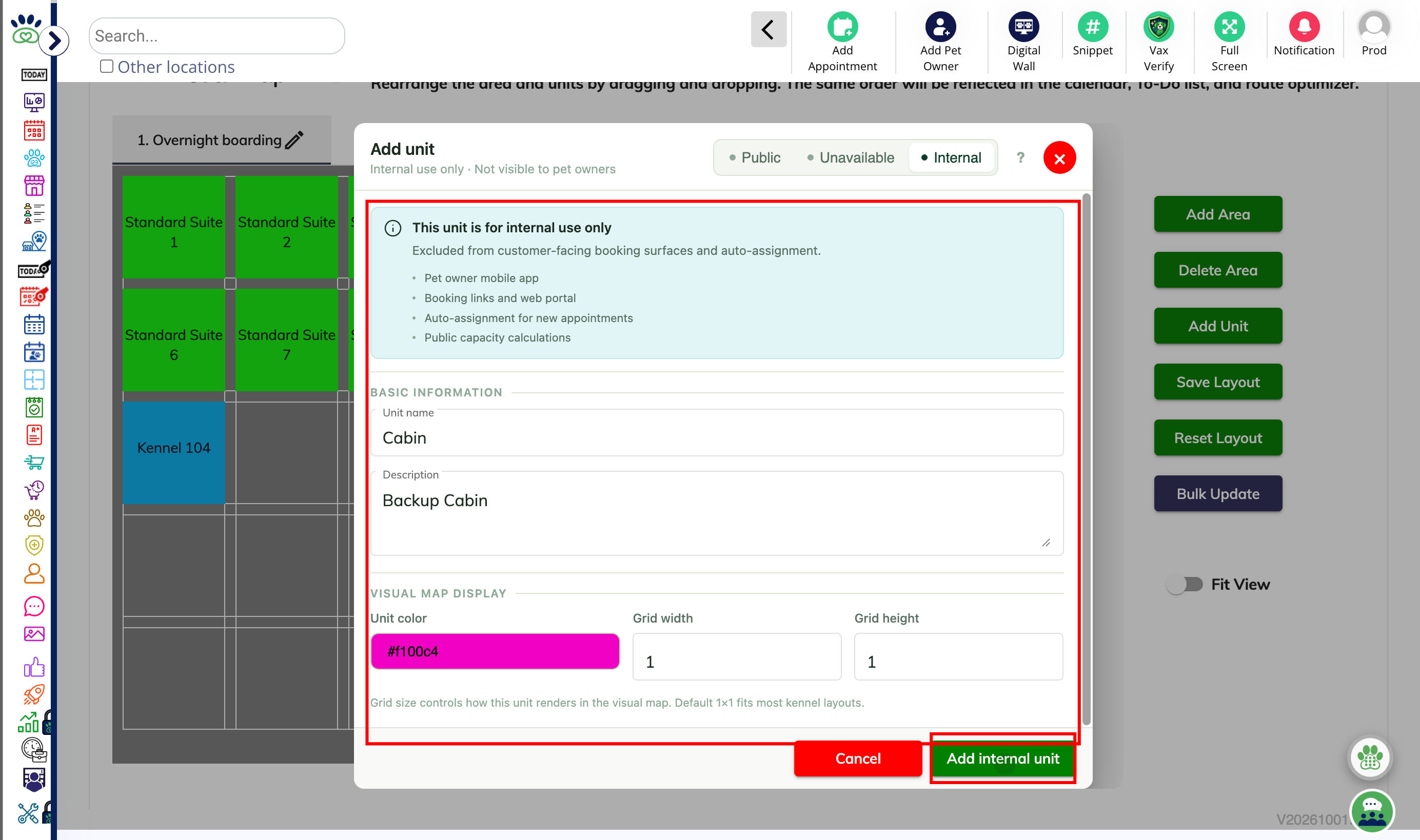
23. How to add an Internal Unit?
24. Fill the details and confirm
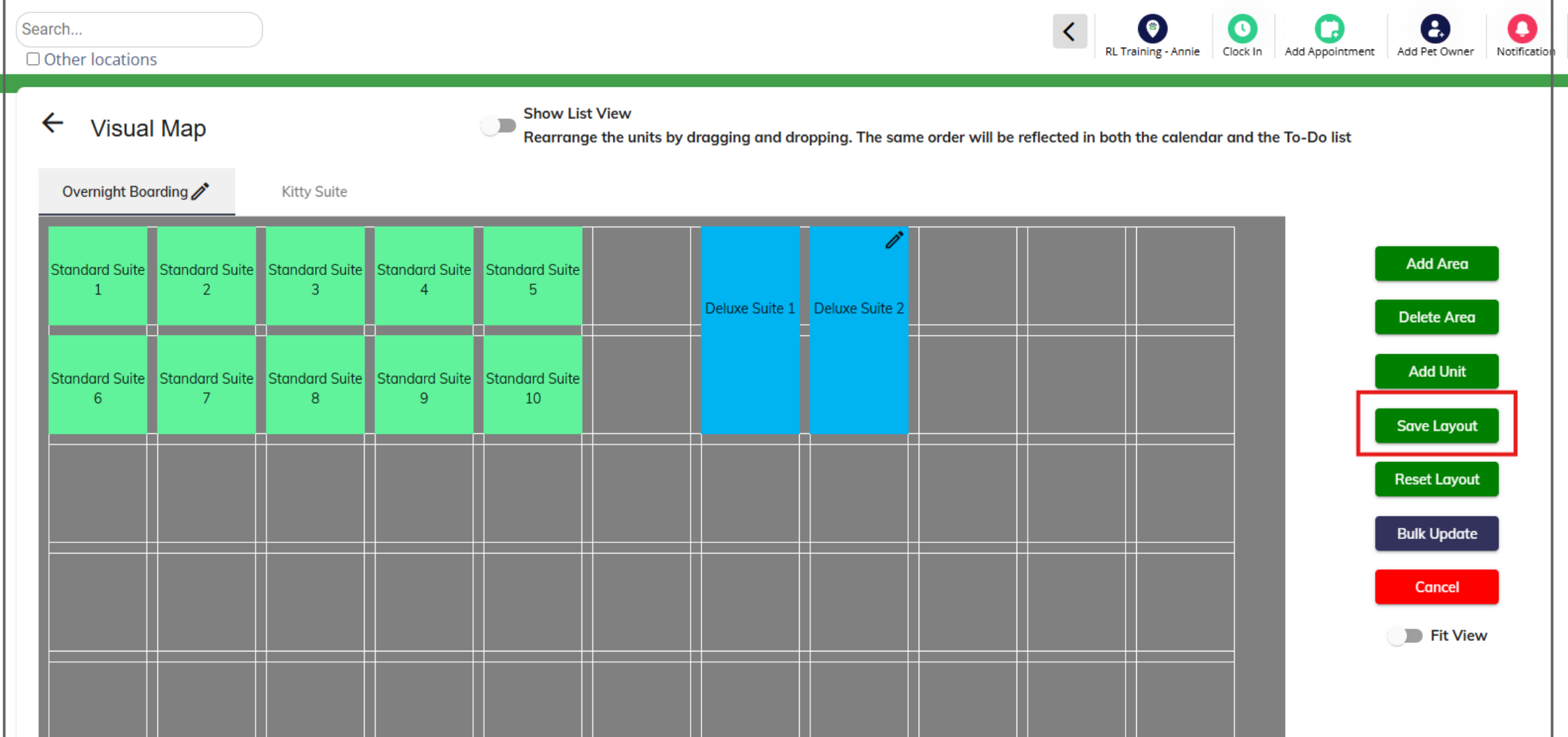
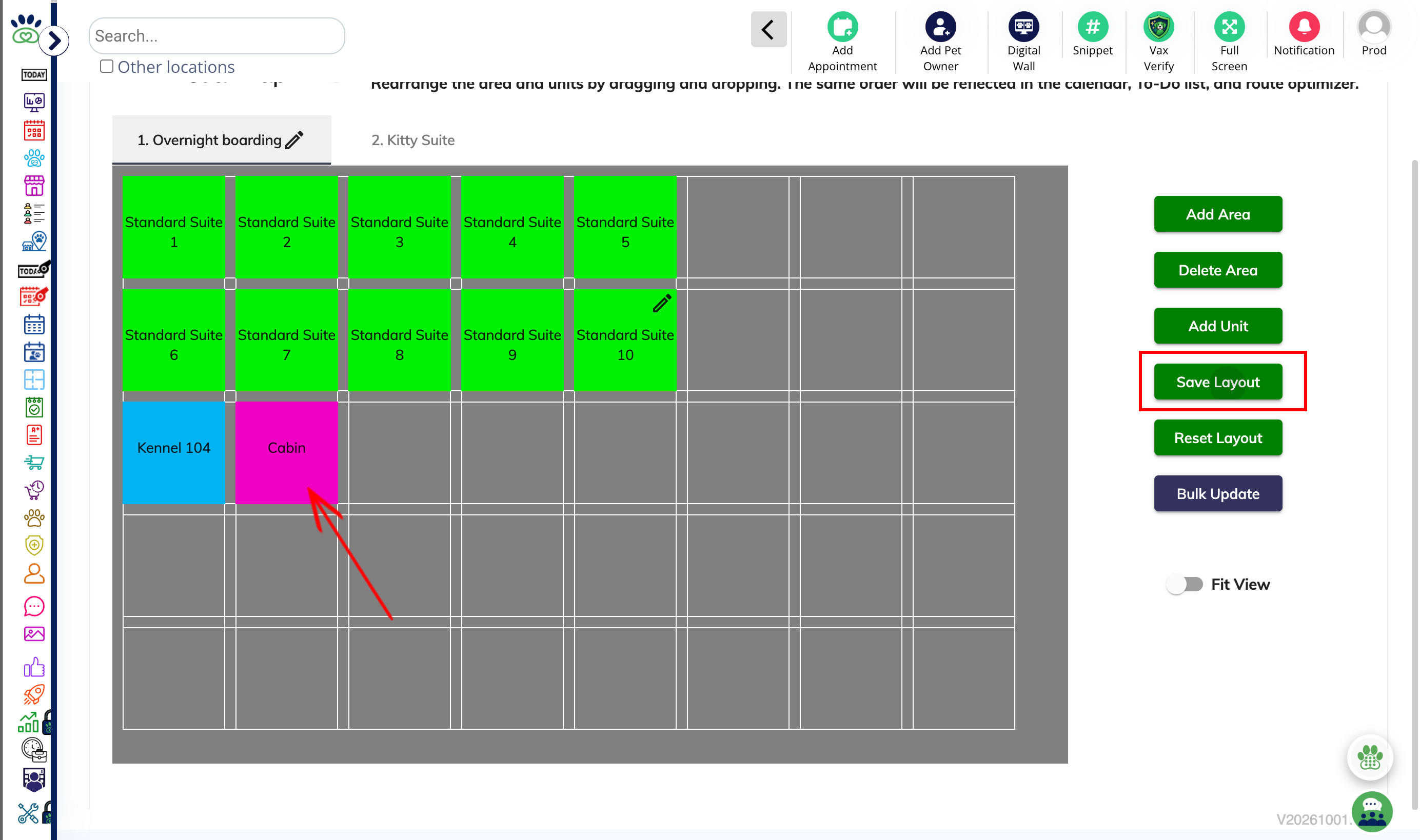
25. Save Layout Changes
How to Edit / Bulk Update Units?
1. Navigate to Settings > Business Setup > Visual Map.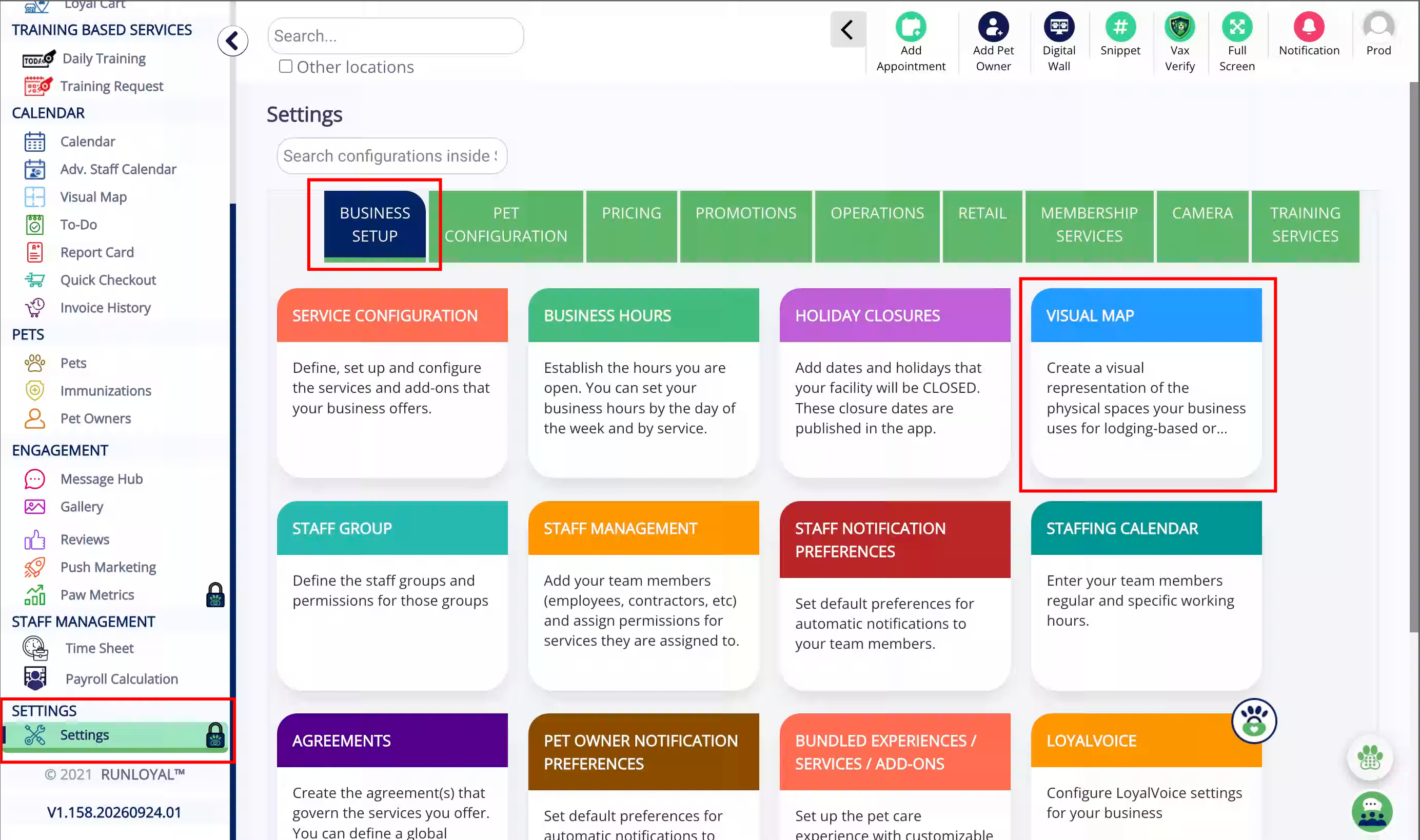
2. Select the area where you wish to edit units (runs).
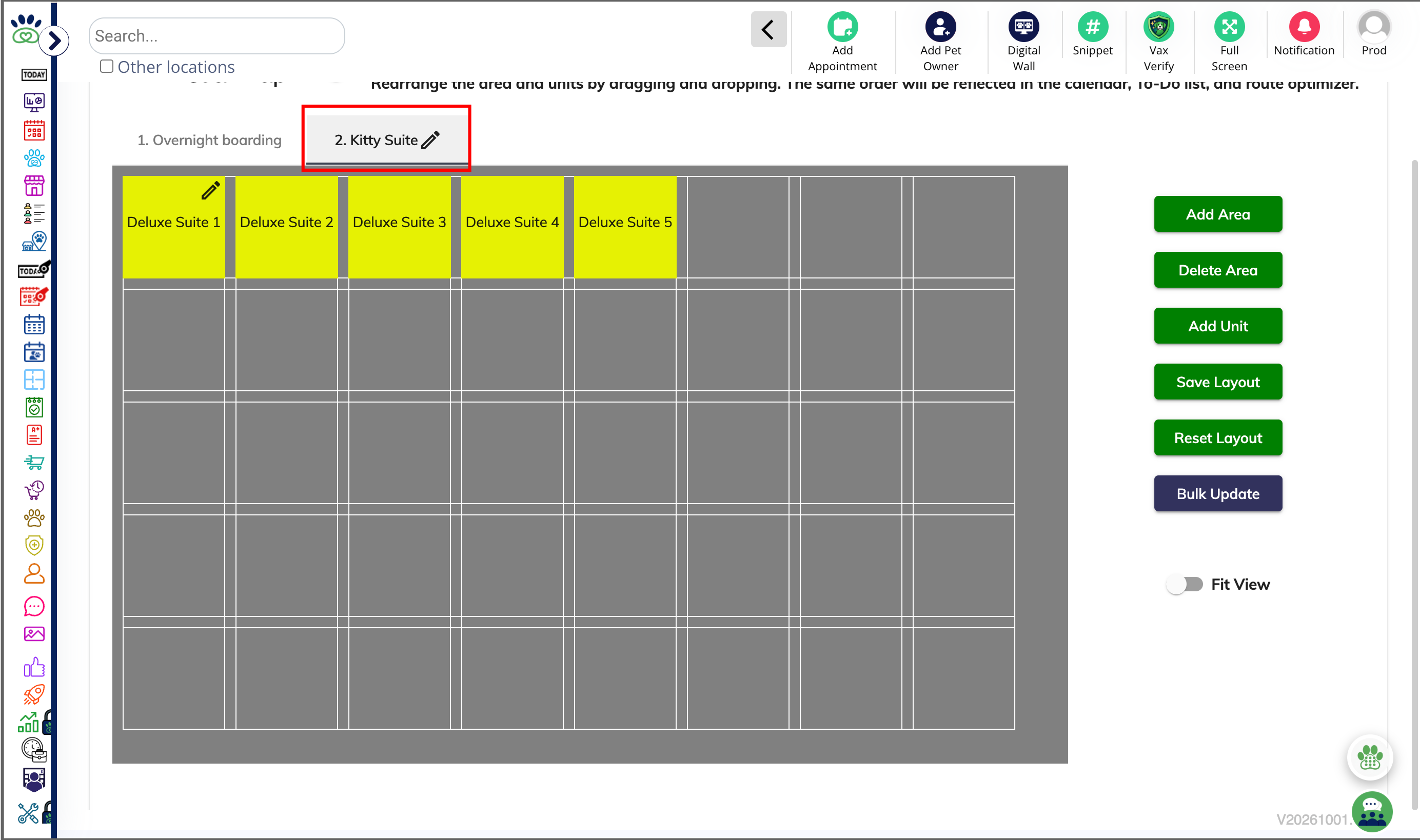
3. To make an edit to a single run, hover over the unit in question and then click the Edit pencil icon.
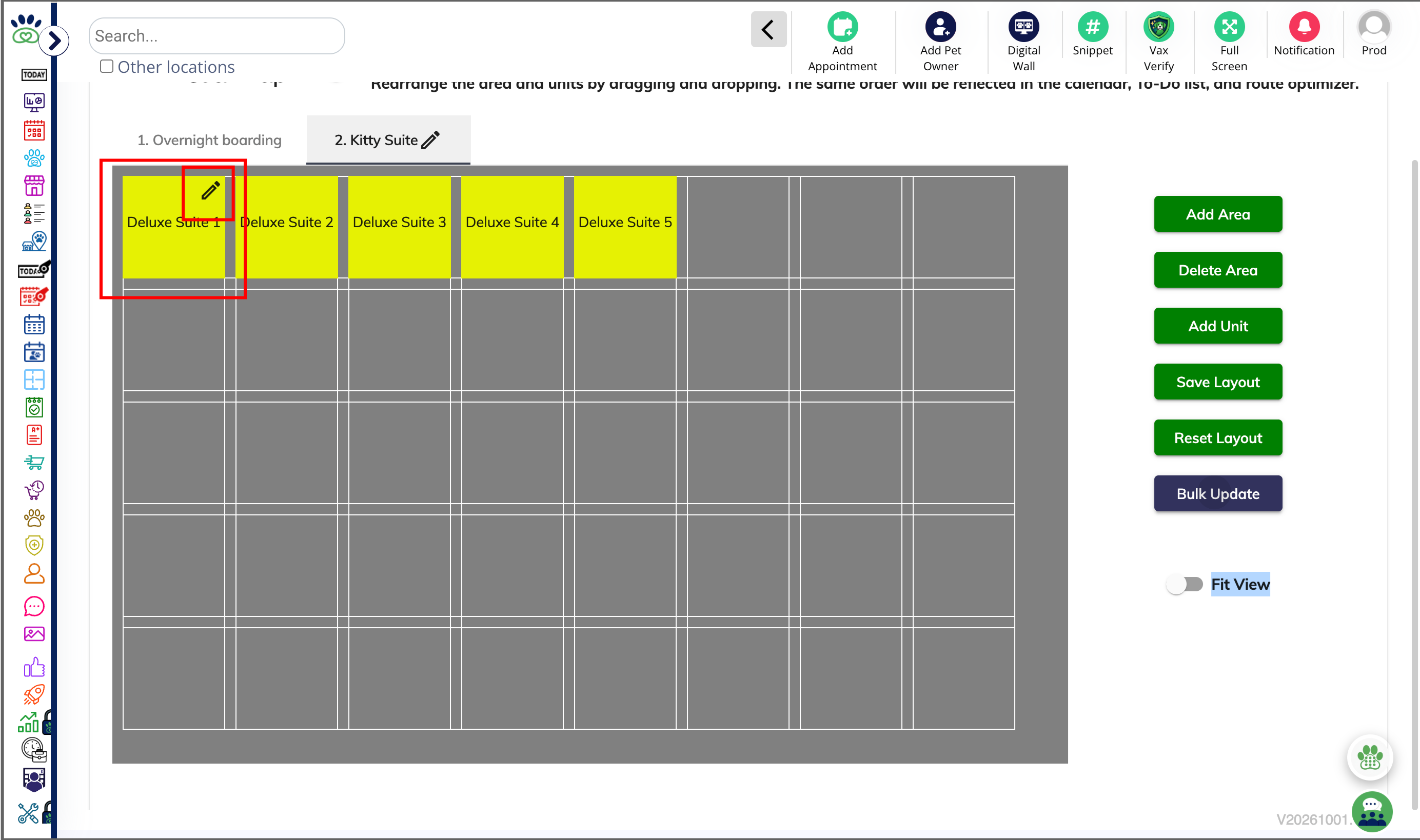
4. Make changes to your unit as needed, then click Update.
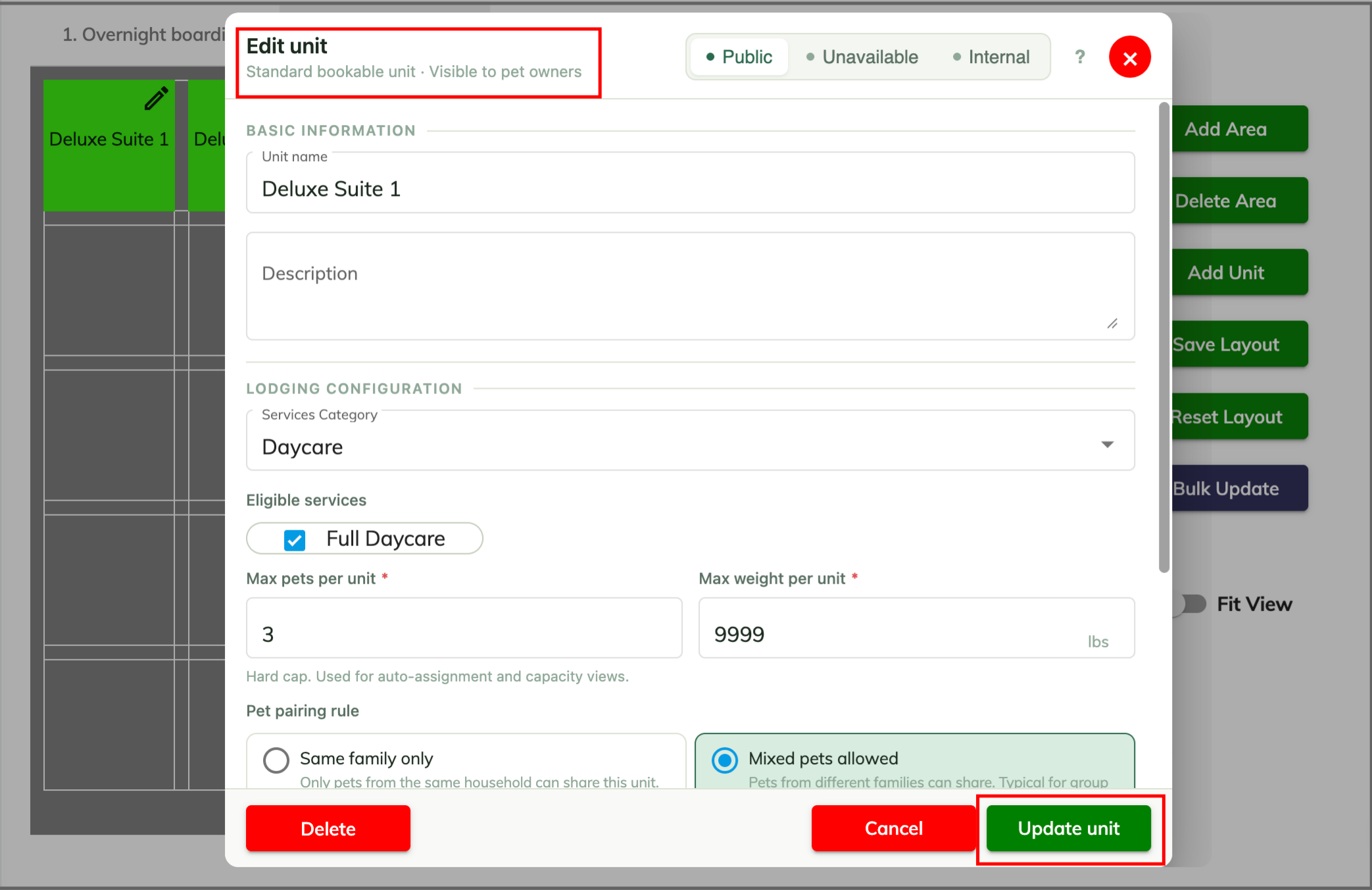
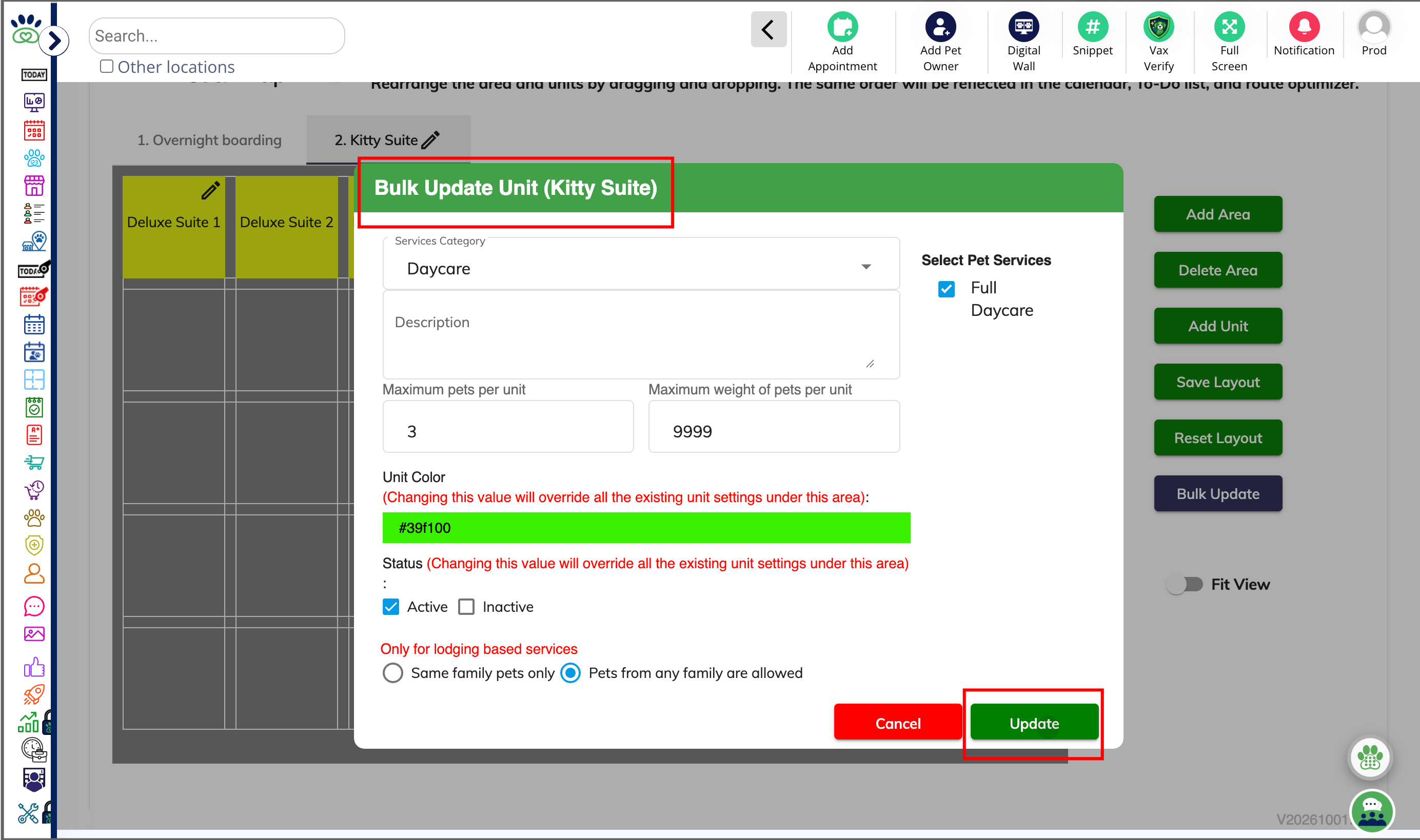
5. To make bulk updates to all units in the area, click Bulk Update.
6. Make changes to all units as needed, then click Update.
⚠️ Important: this will update all units in the area to have these settings.
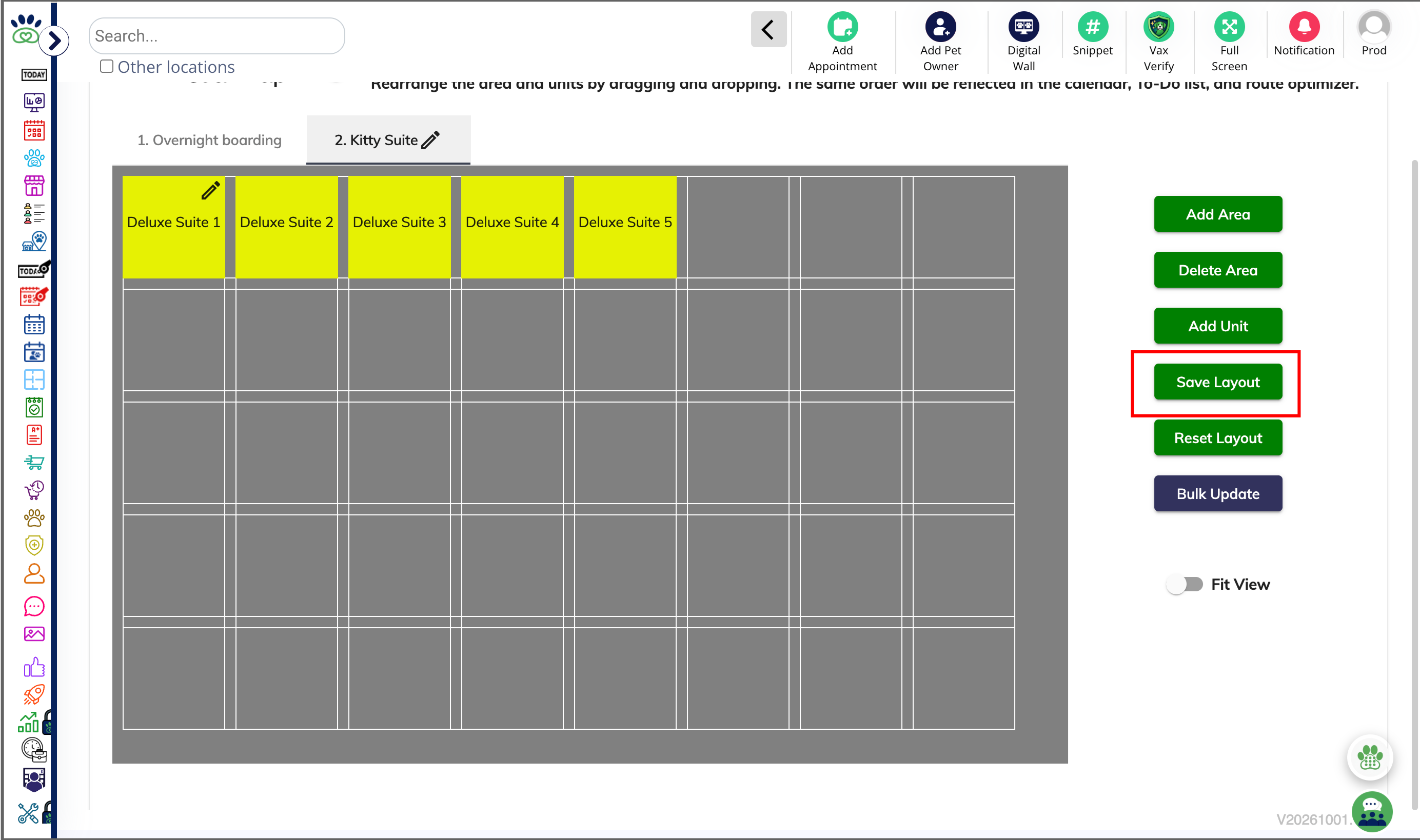
7. Once you have finished dragging and dropping all units to the correct places on your visual map, click Save Layout to save your work.
⚠️ Important: If you do not click Save Layout, your changes will be lost!
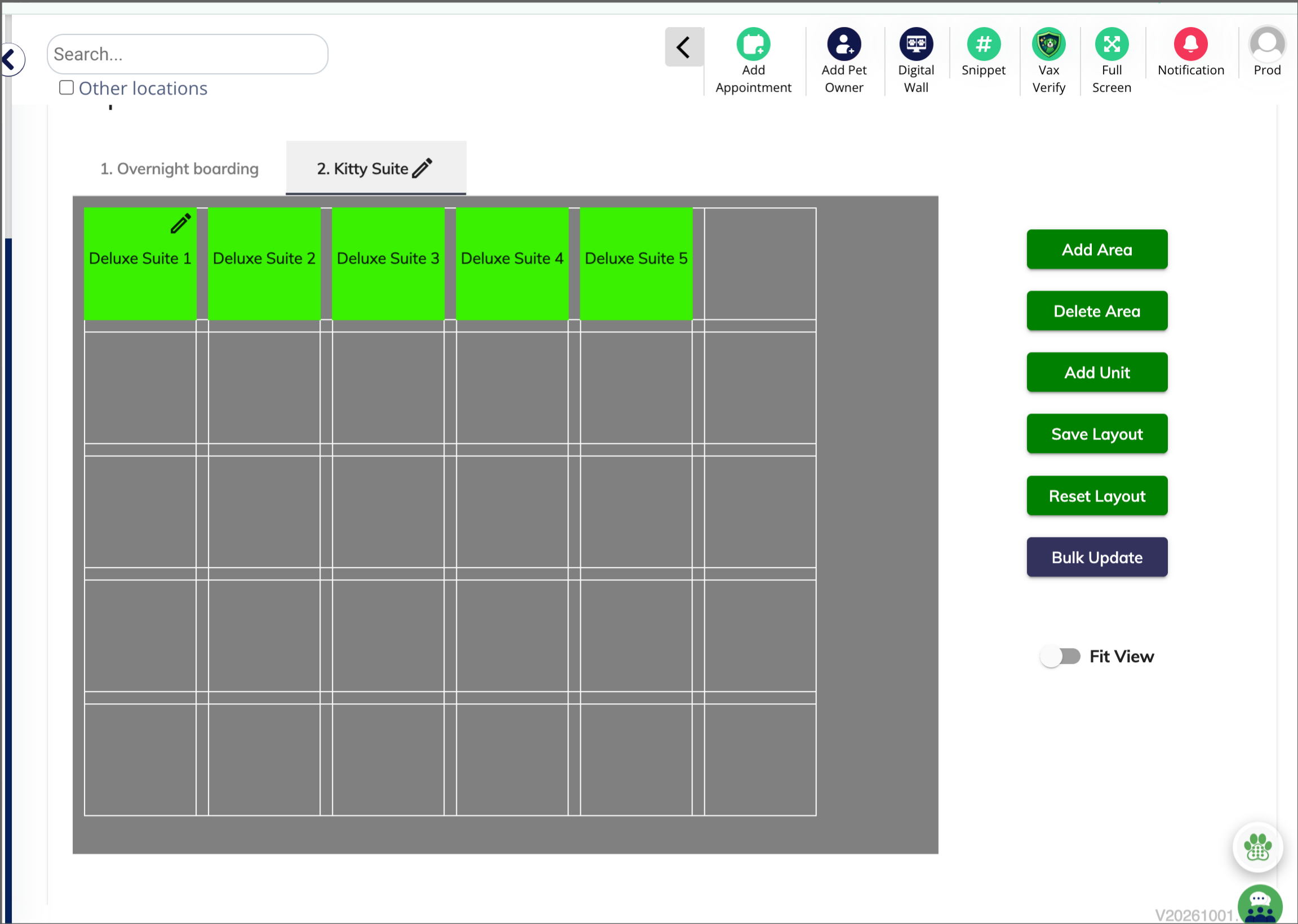
8. View of saved layout after bulk update.
How to Delete Areas / Units?
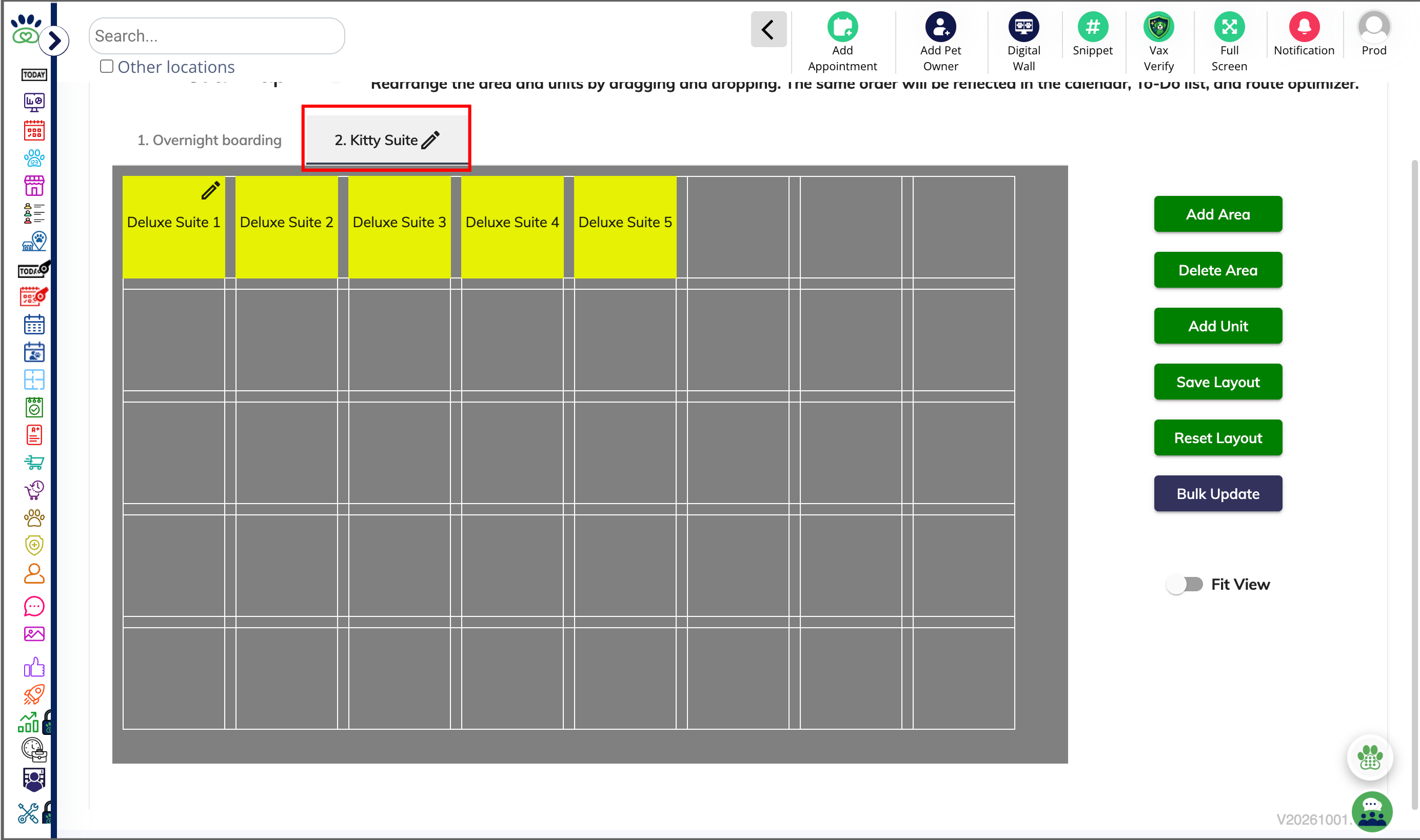
1. Navigate to Settings > Business Setup > Visual Map.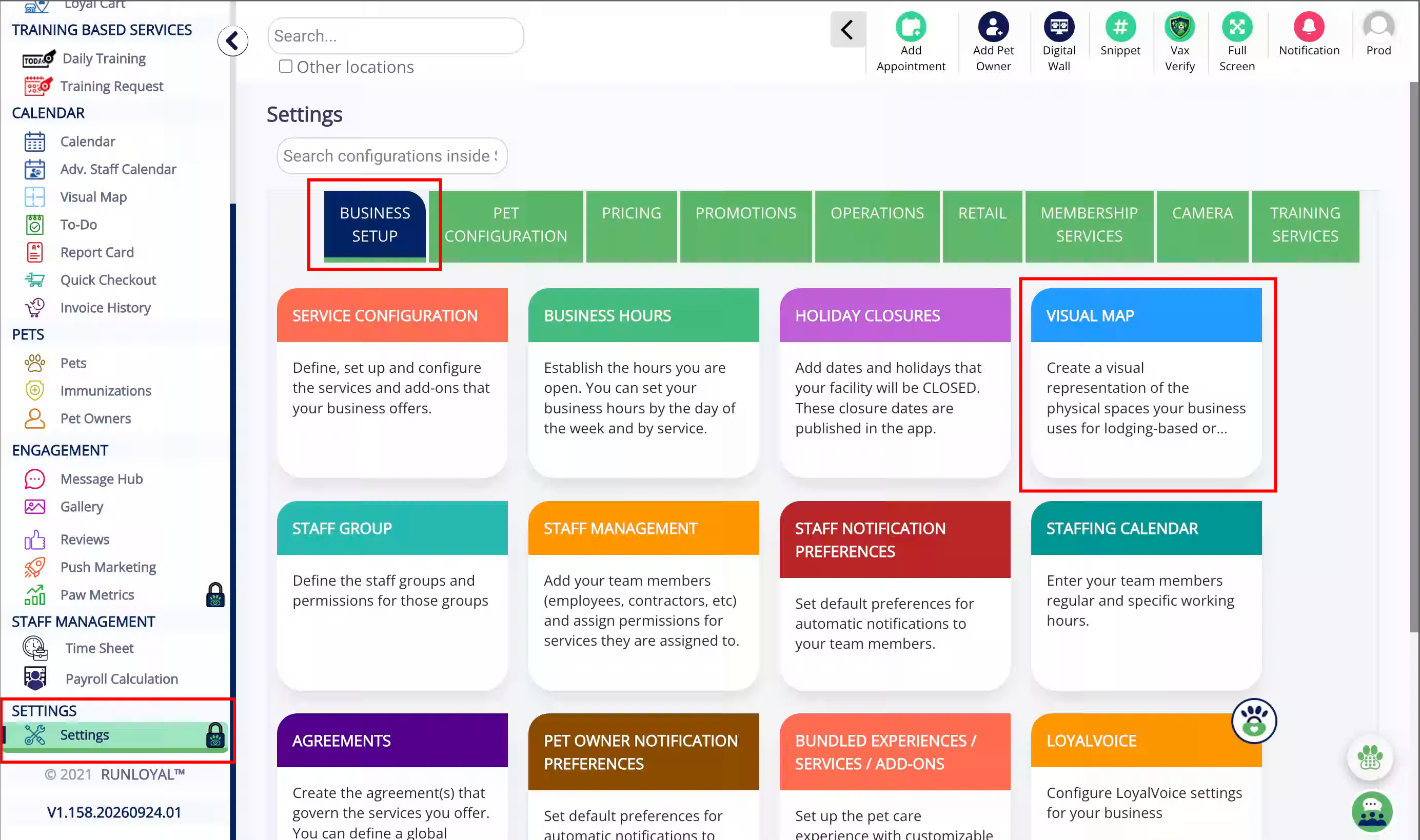
2. Select the area where you wish to delete units (runs) or delete the entire area.
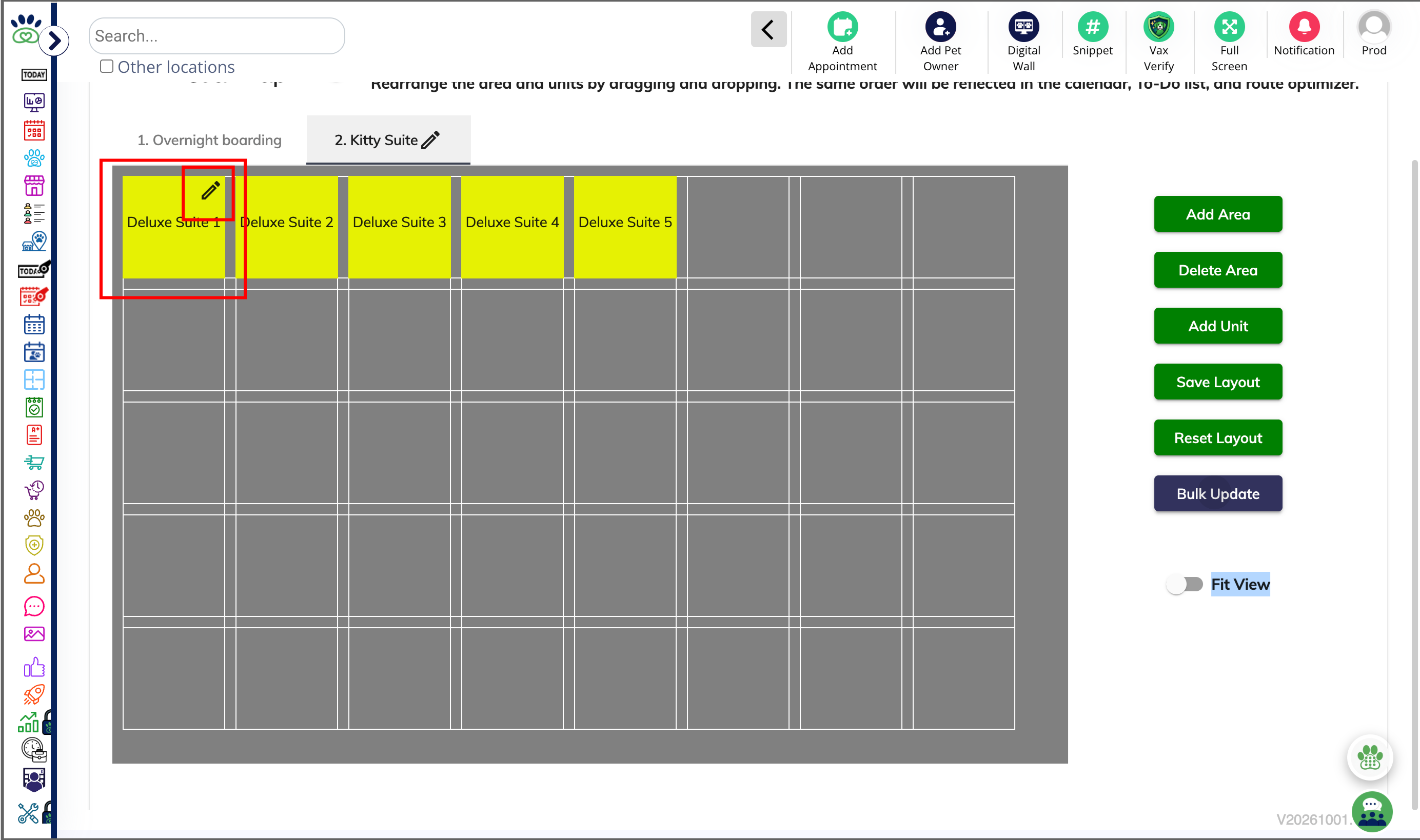
3. To delete a specific run, hover over the unit in question and then click the Edit pencil icon.
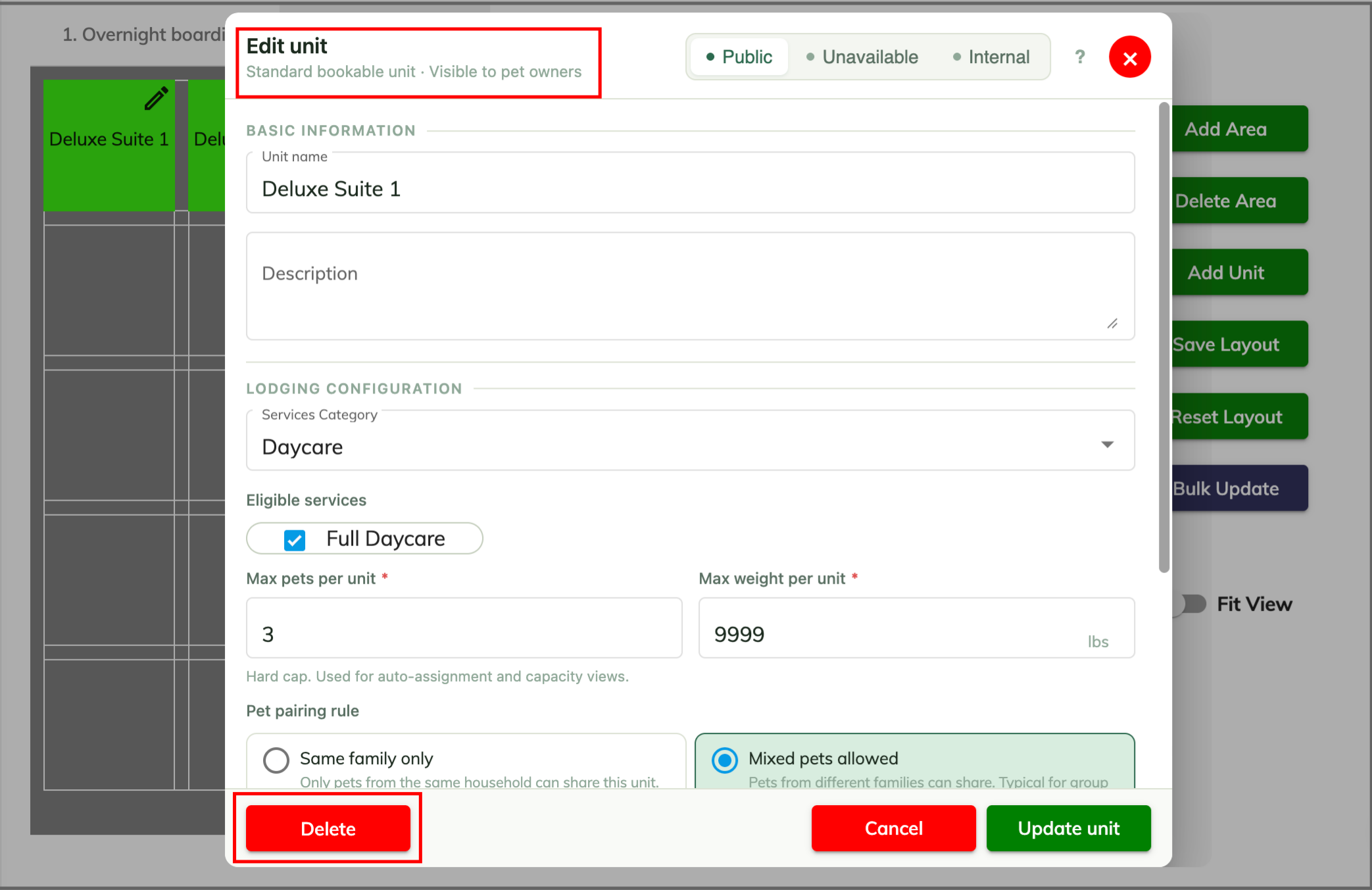
4. On the Edit Run popup, click Delete. Then type "DELETE" and click Yes, delete this run.
⚠️ Important: Deleting a run is permanent and will cause issues if any pets are booked in that run! Please reschedule pets into a different run before removing the run, or consider deactivating the run instead.
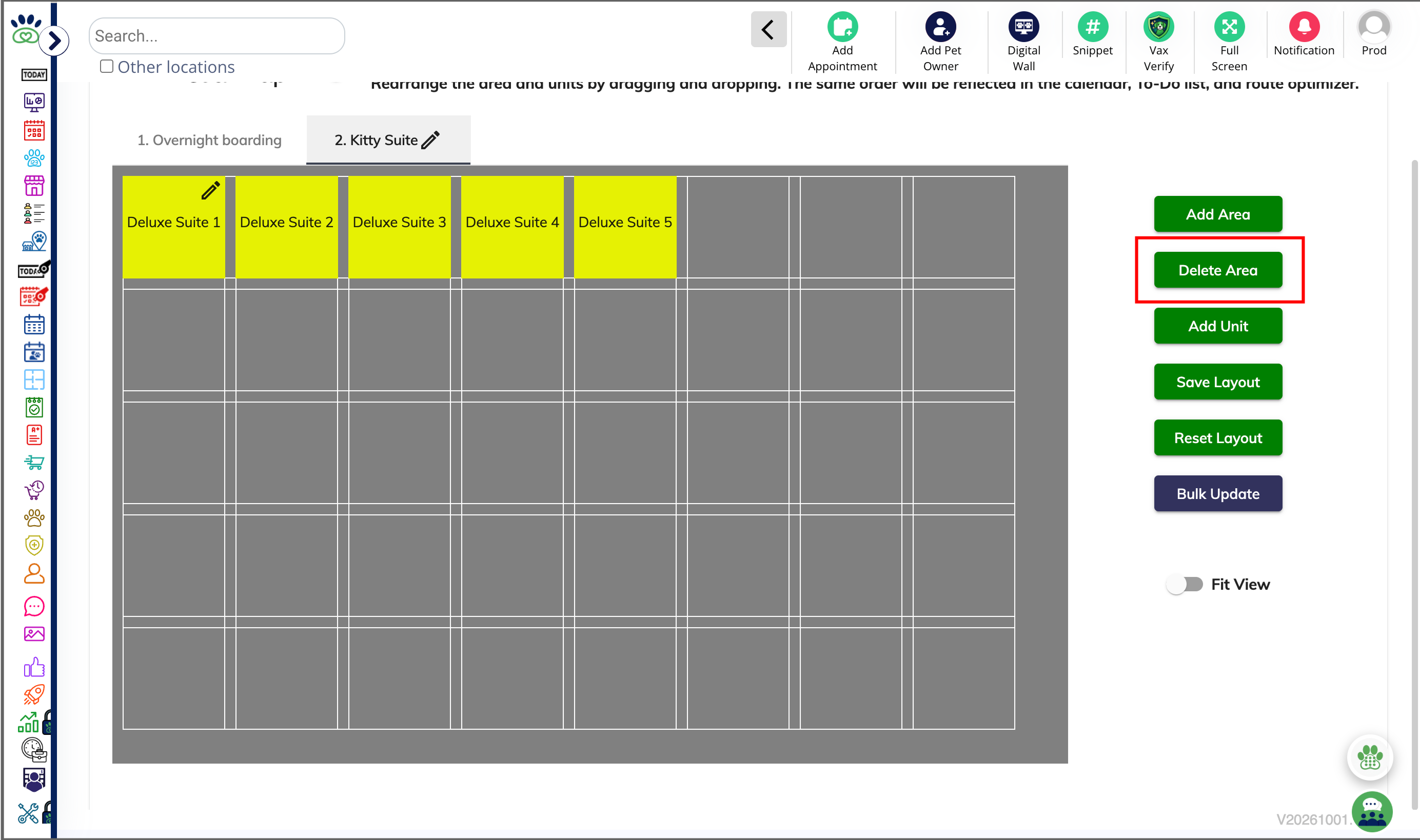
5. To delete the entire area and all runs in it, click Delete Area. Then type "DELETE" and click Yes, delete this run.
⚠️ Important: Deleting an area and all runs within is permanent and will cause issues if any pets are booked in those runs! Please reschedule pets into different runs before removing the run, or consider deactivating the runs instead.
More Information
For more information on creating service types, please refer to this article: Create Lodging-Based Services (Boarding)
For more information on daycare playgroups, please refer to this article: Managing Playgroup Areas
Was this article helpful?
That’s Great!
Thank you for your feedback
Sorry! We couldn't be helpful
Thank you for your feedback
Feedback sent
We appreciate your effort and will try to fix the article