Overview
Pricing rules give you a flexible way to automate discounts and surcharges based on the needs of your business. This article will walk you through setting up pricing rules for scenarios such as multi-pet discounts, extended stay discounts, owner or pet price tags, and more. Rules can be applied to a single pet or across multiple pets and will automatically appear on invoices when the conditions are met. You’ll also learn how to review these adjustments at checkout and toggle them on or off as needed before completing the invoice.
Pricing Rules can be viewed in the following areas:
- Settings > Pricing > Price Engine
- Invoices
TABLE OF CONTENTS
- Overview
- How to Create a New Pricing Rule
- Pricing Rules on Invoices
- Guide for Each Type of Pricing Rule
- More Information
How to Create a New Pricing Rule
1. Navigate to Settings > Pricing > Price Engine.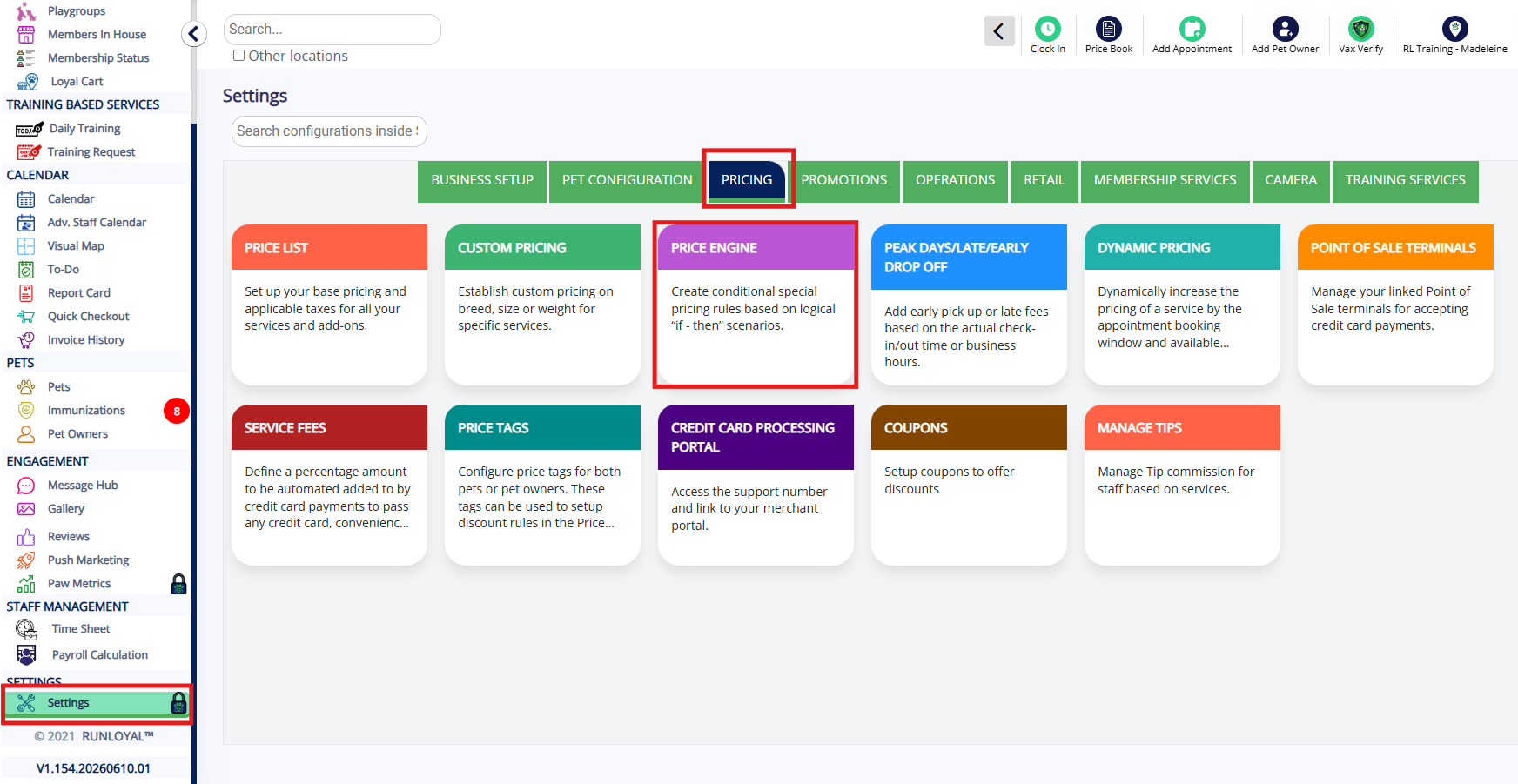
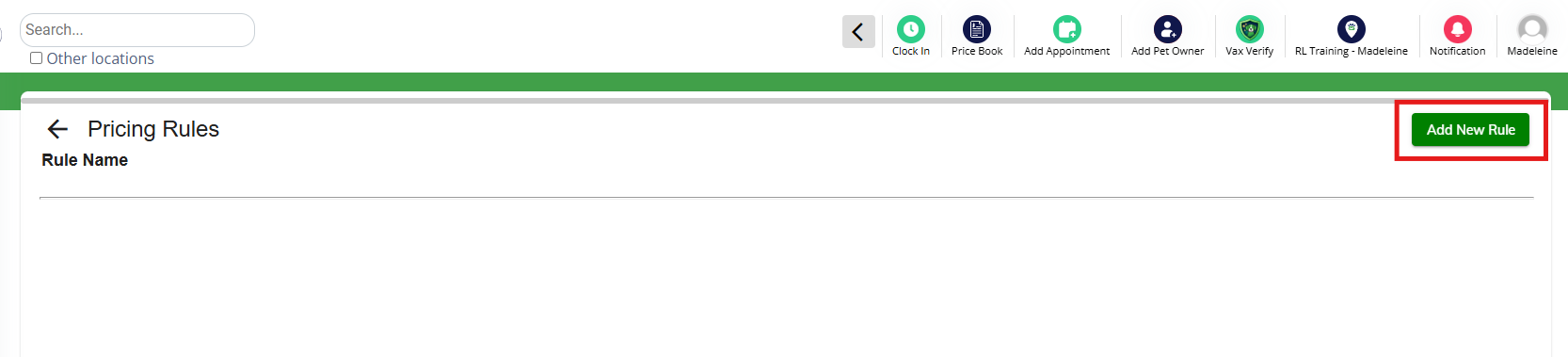
2. Click Add New Rule.
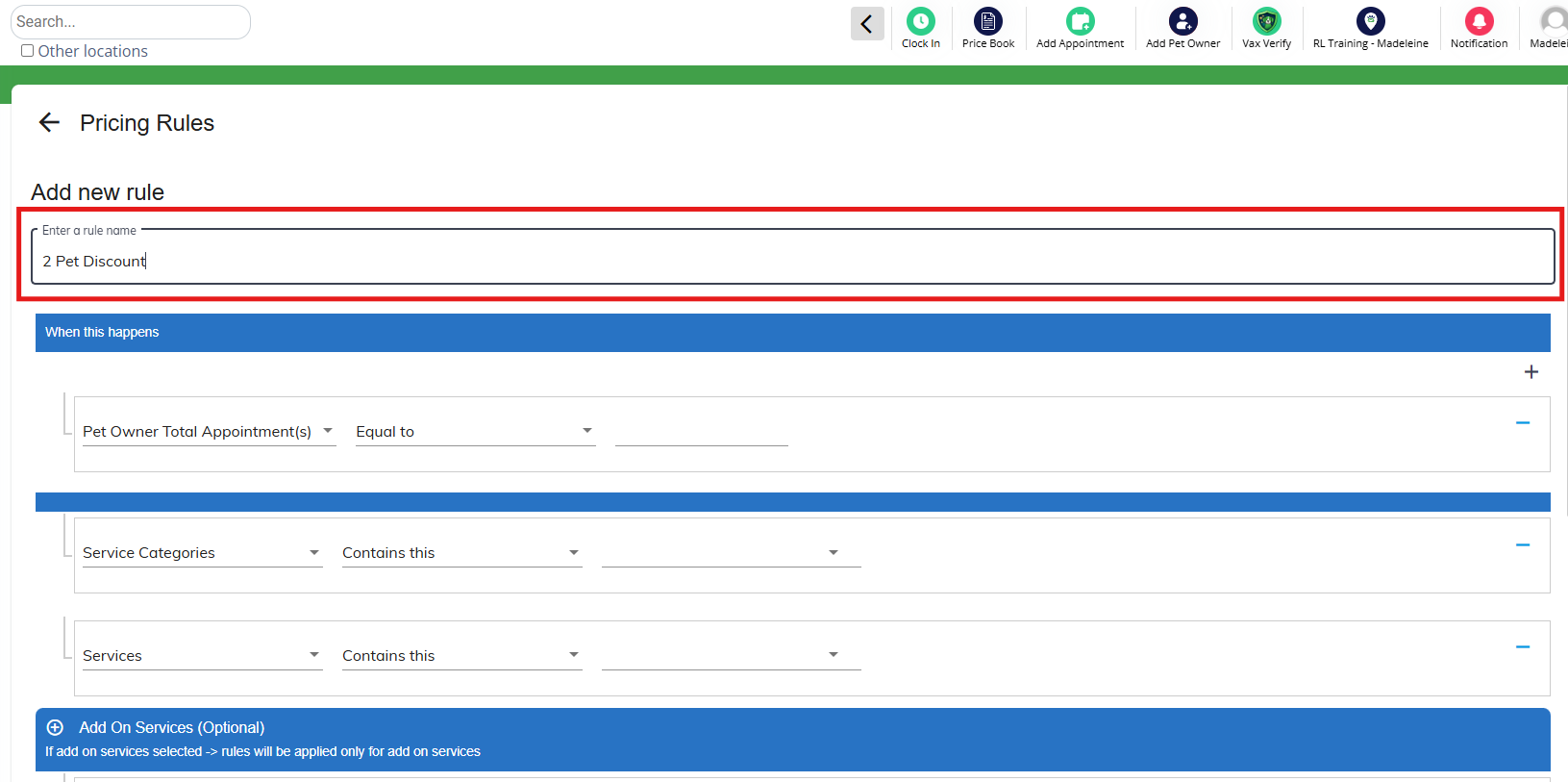
3. Enter the Name of the rule. This name will display on all invoices for both staff and customers.
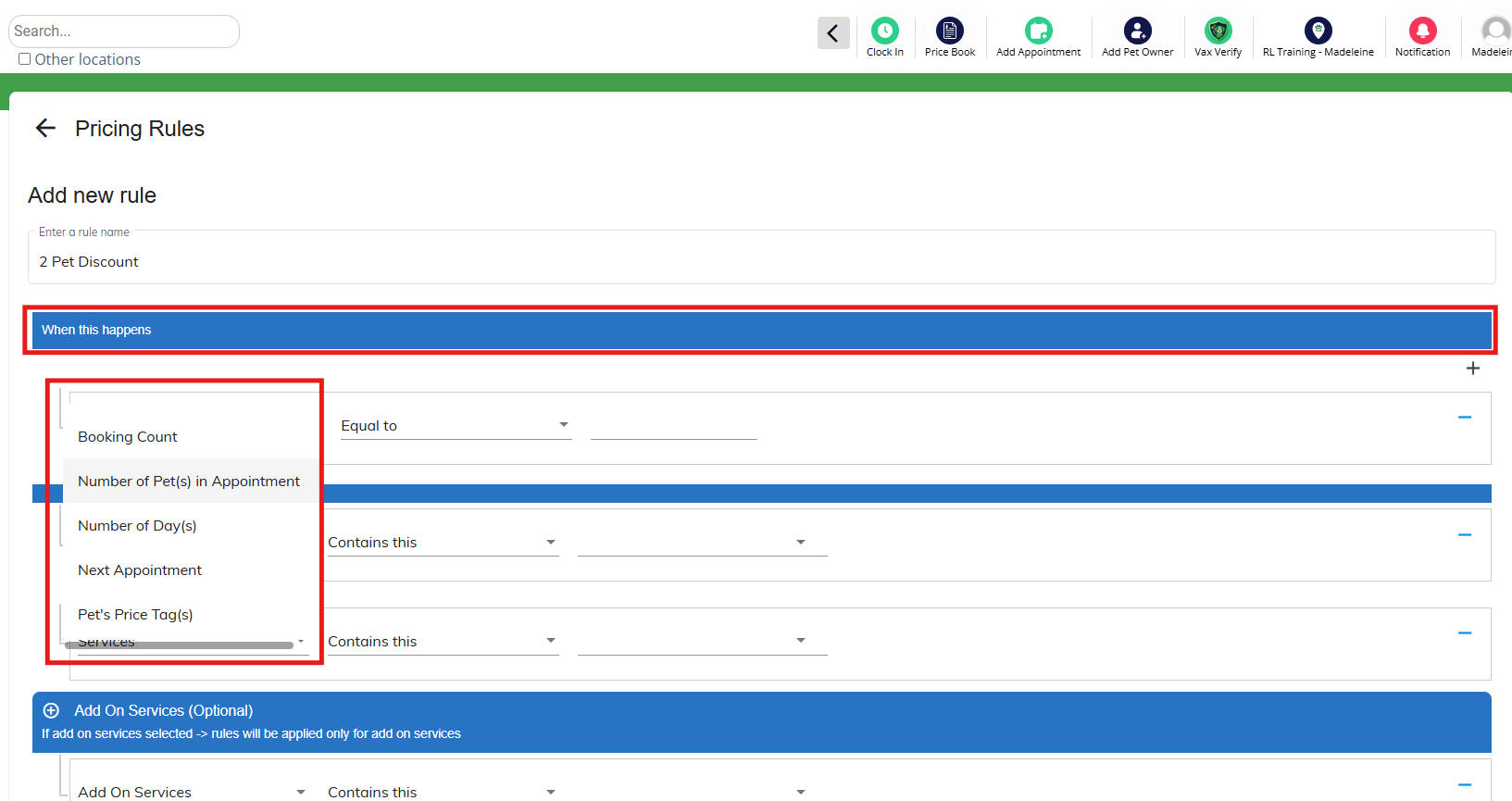
4. Select the parameters under the When this happens section. A full description of each pricing rule is found below.
For example, if you wanted to give a multi-pet discount for two dogs, you would select Number of Pet(s) in Appointment. Then choose equal to OR greater or equal to. Then enter the number 2. This tells the system if 2 (or more) pets are in the appointment, this discount should apply.
5. If multiple parameters are required, such as multiple pets that also have to lodge together, click the "+" icon under When this happens to add an additional parameter.
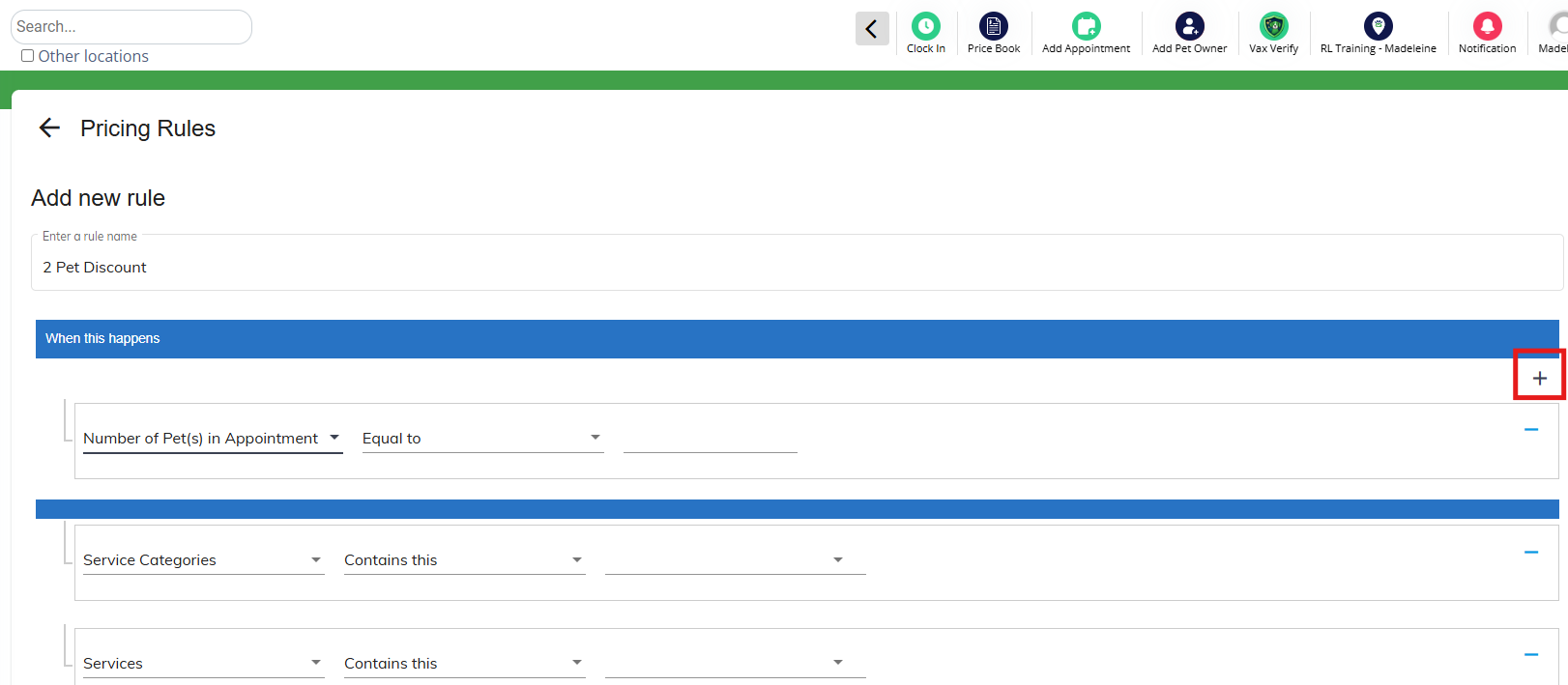
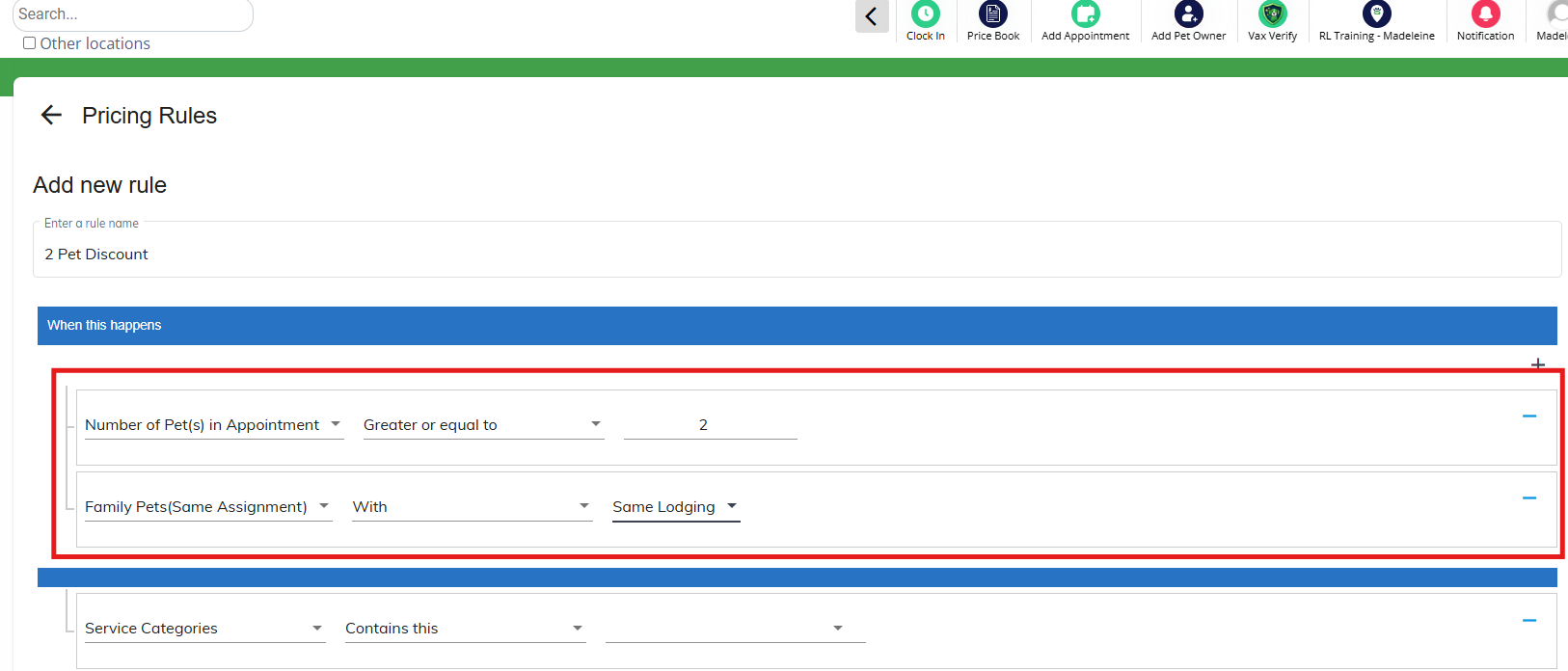
6. Select the additional parameters under the When this happens section.
For example, if you wanted to give a multi-pet discount but only if the dogs are lodged together, you would first select Number of Pet(s) in Appointment greater or equal to 2. Then you would add another parameter and select Family Pets (Same Assignment) with Same Lodging. This will cause the rule to apply only if they have two or more pets AND the pets share the same run.
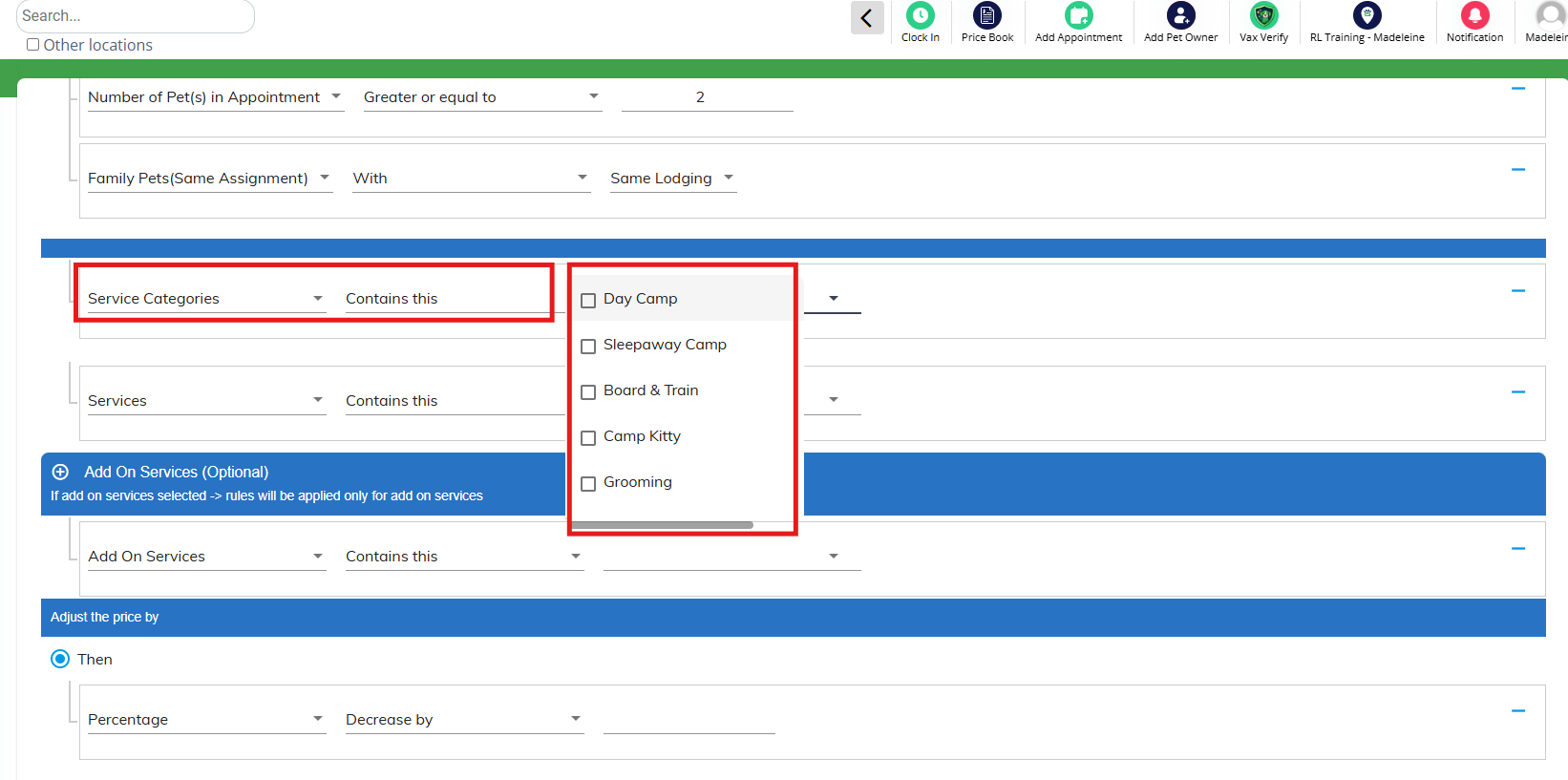
7. Select the Service Categories where this rule should apply, such as Boarding.
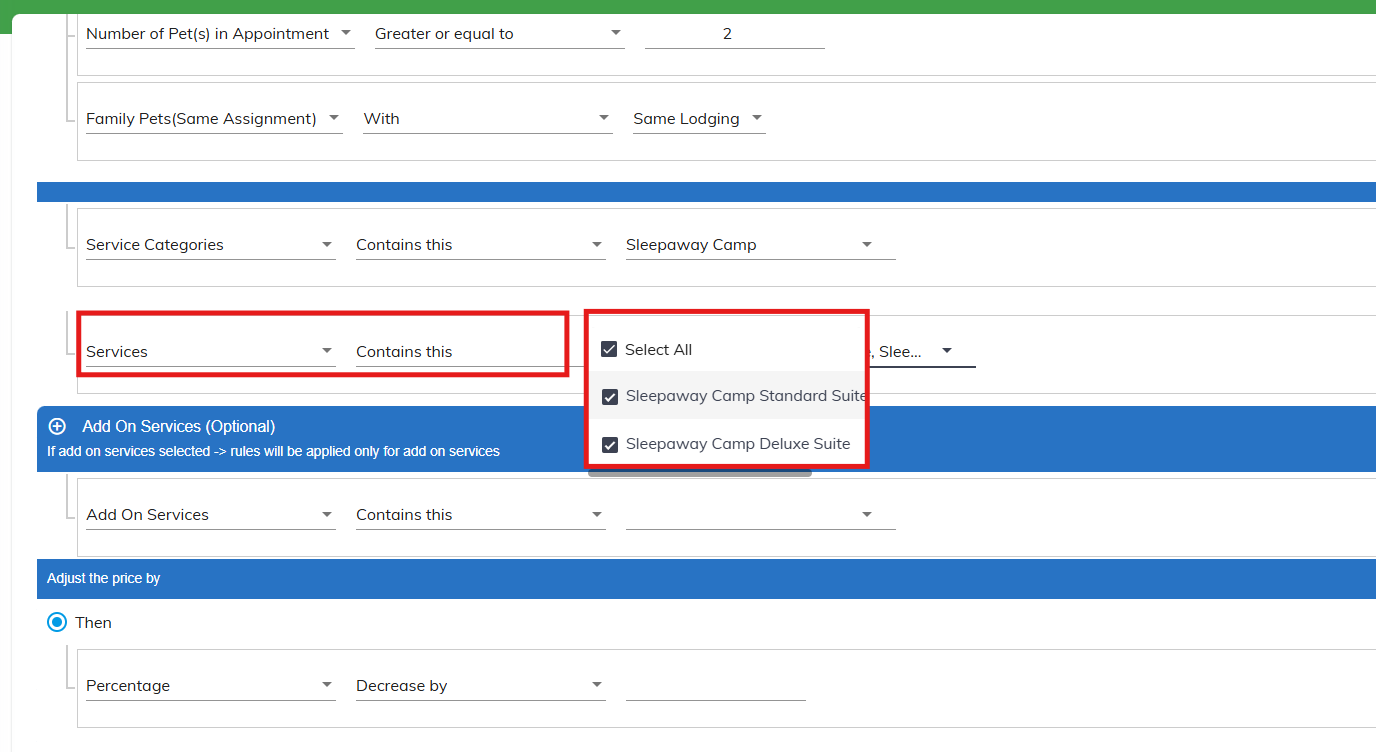
8. Select the Services where this rule should apply, such as Boarding Standard and Deluxe.
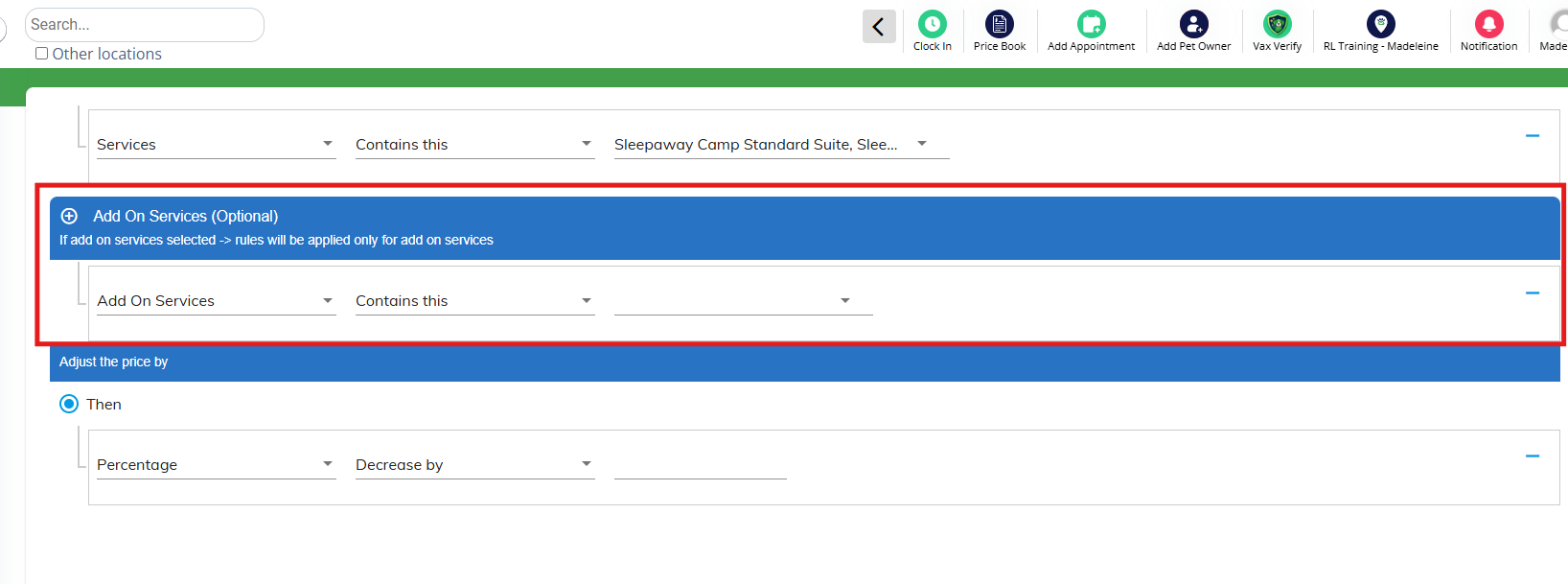
9. Optionally select add-ons if the rule should ONLY apply to add-ons.
⚠️Please note: Selecting add-ons will cause the rule to not apply to the primary services and only apply to add-ons. If you offer 10% off on both Boarding and Boarding add-ons, then you will need to make two rules: one for primary Boarding services, and one for add-ons.
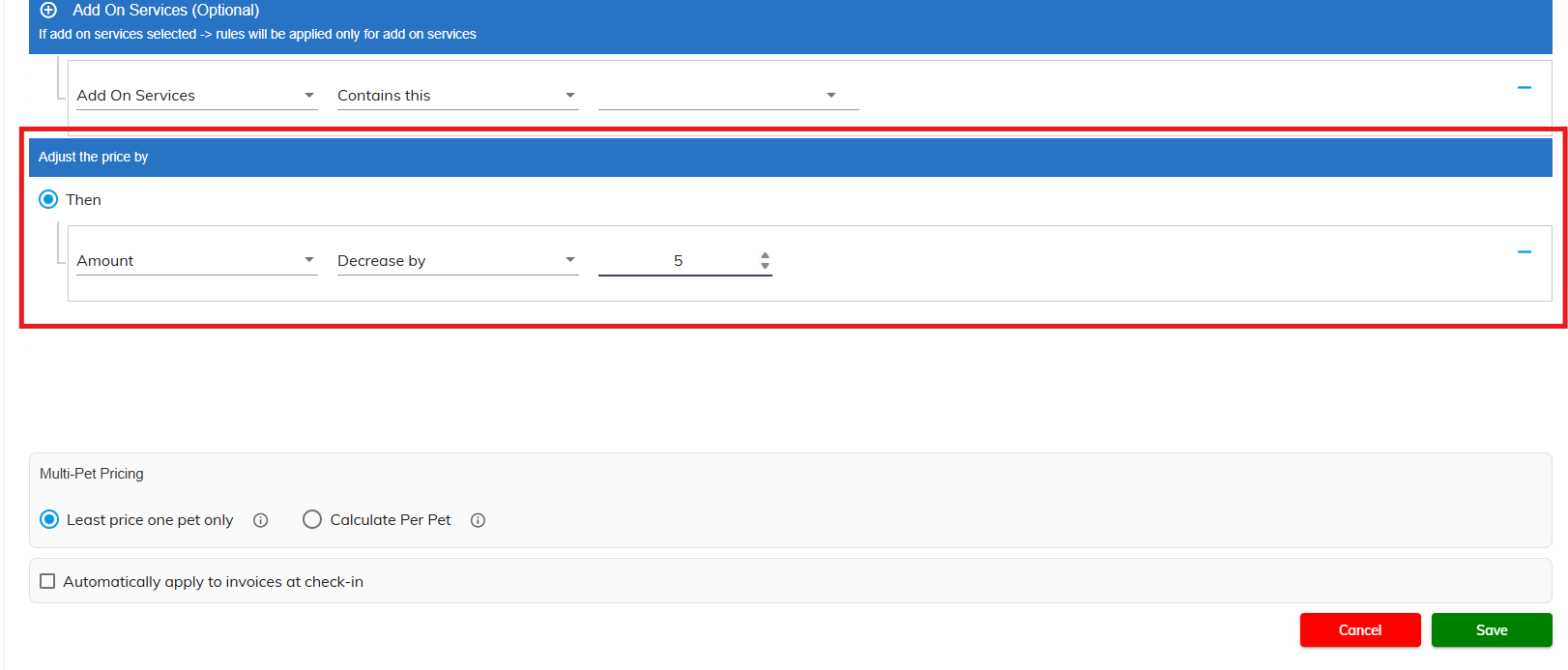
10. Select Amount or Percentage. Then choose Increase by or Decrease by. Then enter a number. For example, if you want to give the second dog $5 off, select Amount Decrease by 5. If you wanted to increase by 10%, you would enter Percent Increase by 10.
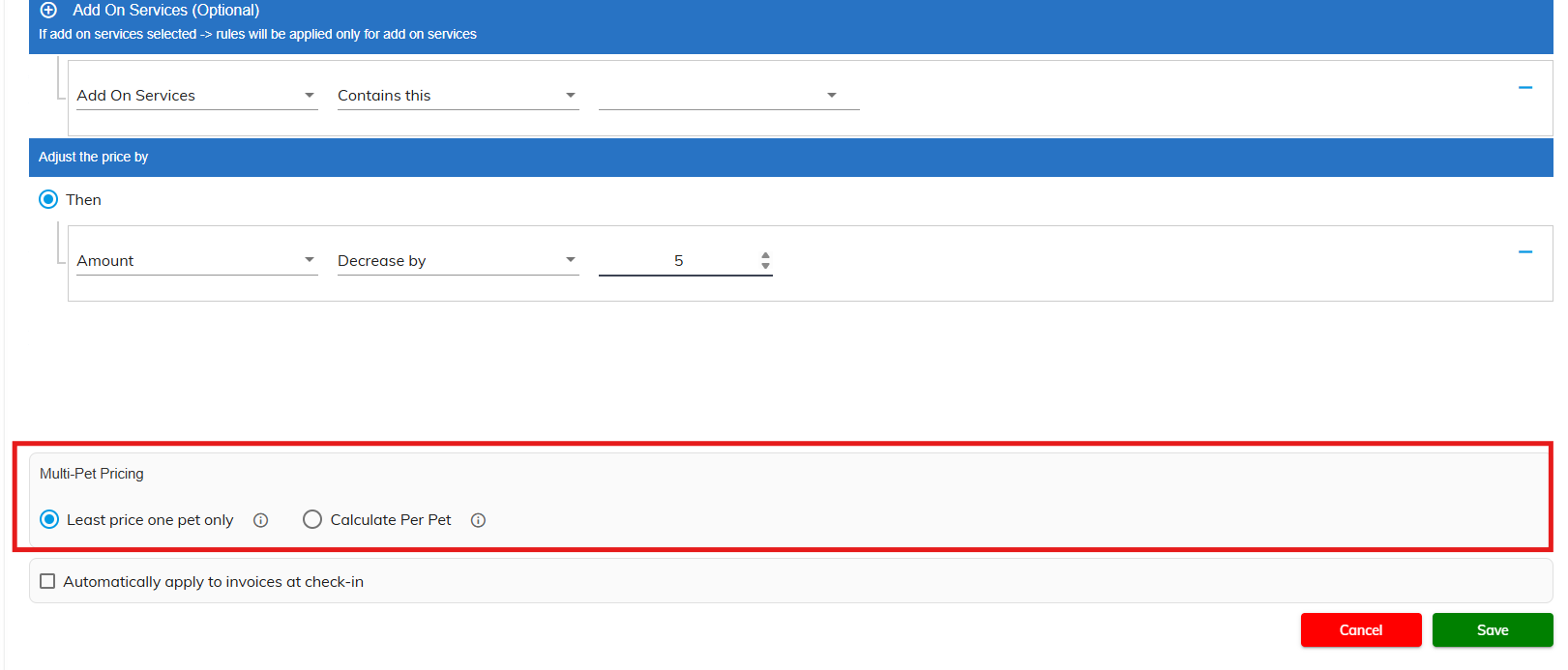
11. Select if this should apply to one pet or all pets. If the rule should only apply to one pet, click Least Price one pet only. If the rule should apply to all pets, click Calculate Per Pet.
⚠️Please Note: When different prices are offered for a service, if you have Least Price one pet only selected, the discount will only apply to the pet who has the lesser price. For example, say there is a service called "Boarding" at $50 for a pet named Bailey and "Boarding" at $45 for Zoey in the same family on the same appointment. The discount will be calculated based on the $45 price for Zoey only. If Bailey and Zoey's boarding price is both $50, then is going to give this discount to one pet only at the $50 rate.
12. Select if this rule should automatically apply to invoices, or be manually toggled on only. If it should automatically apply at checkin, check the box Automatically apply to invoices at check in. If you check the box to auto-apply, select if you want it to be automatically enabled only if it is the only rule on the invoice (Single Rule Auto Apply), OR automatically enabled regardless of any other rules on the invoice (Always Auto Apply).
For example, let's say you offer a multi-pet discount and an extended stay discount for lodging over 10 days. If you want the family to get both discounts, you would check Always Auto Apply. If you only want them to get the Multi-pet discount, you would set the Multi-pet discount to Always auto apply and the extended stay discount to Single Rule Auto Apply. This ensures the multi-pet will always be enabled, whereas the extended stay discount will only auto-apply if it's the only rule on the invoice.
⚠️Please note: Even if the rule is set to automatically apply at checkin, you can enable it any time in advance of checkin from the estimate.
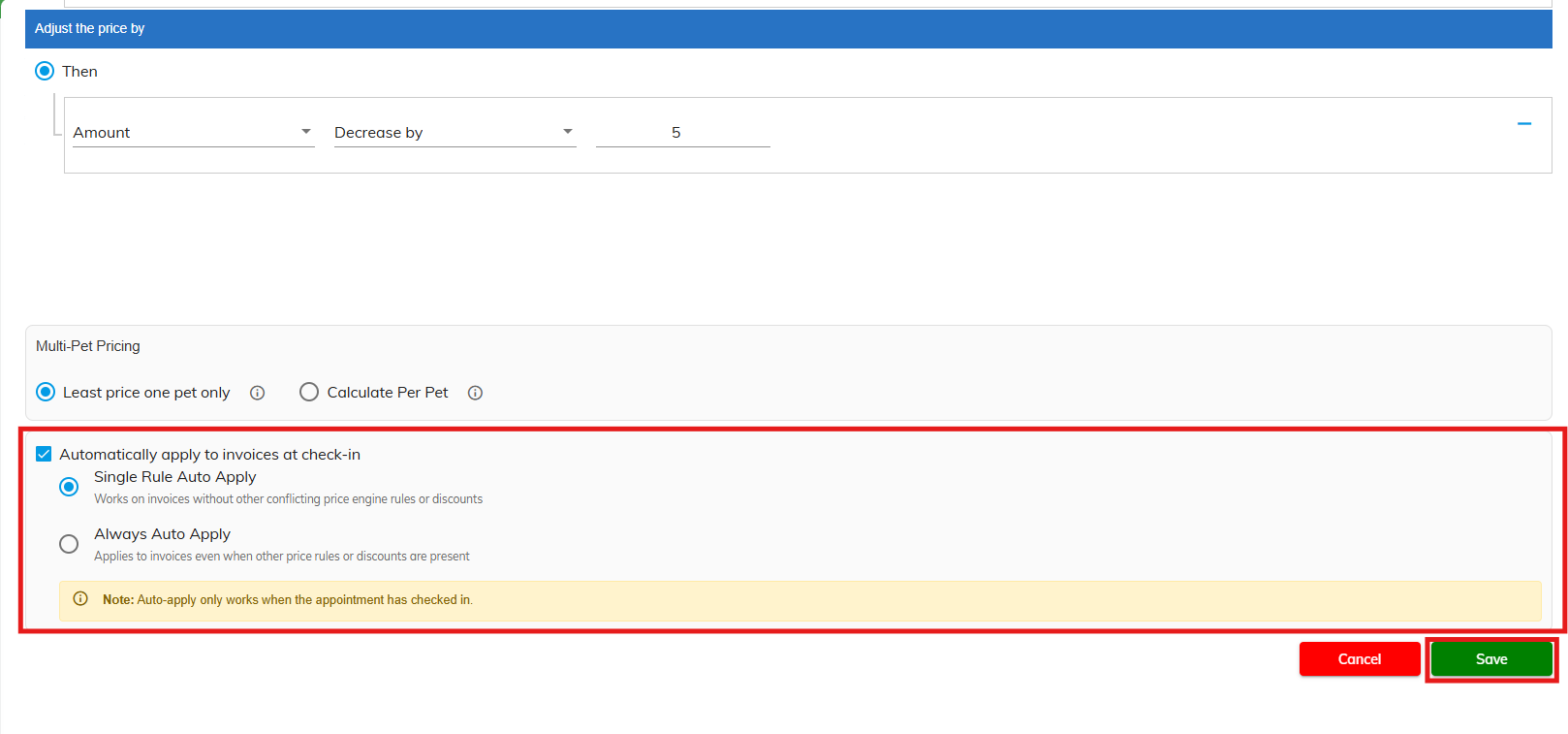
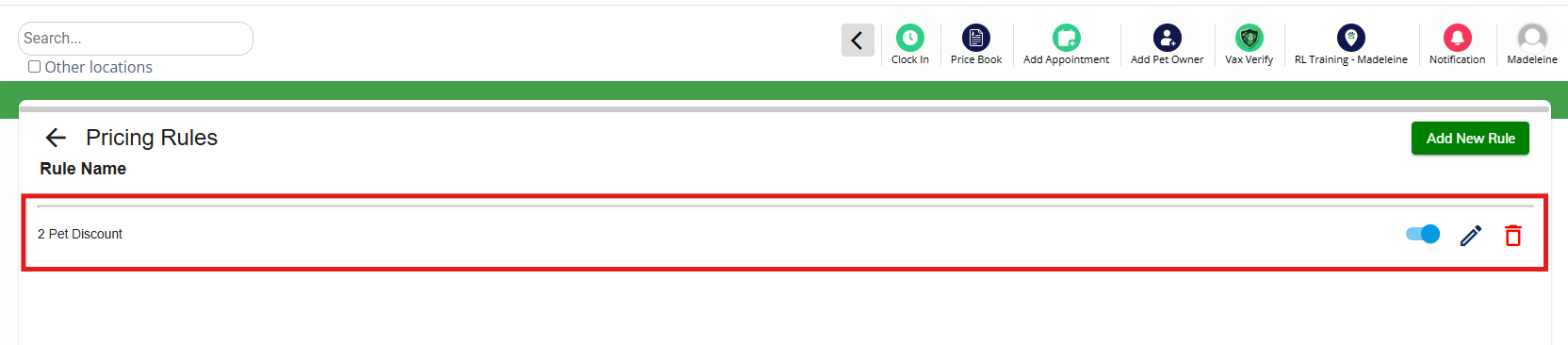
13. When you have finished adding all parameters, click Save. Then confirm your pricing rule shows as expected.
Pricing Rules on Invoices
1. On an invoice where the appointment meets the required criteria (such as multiple pets in the same lodging), you will see the pricing rule on the right-hand side. Prior to checkin, this rule will be toggled off, but you can toggle it on in advance. Once the pet is checked in, it will turn on automatically if Auto apply to invoice is enabled in the pricing rule settings.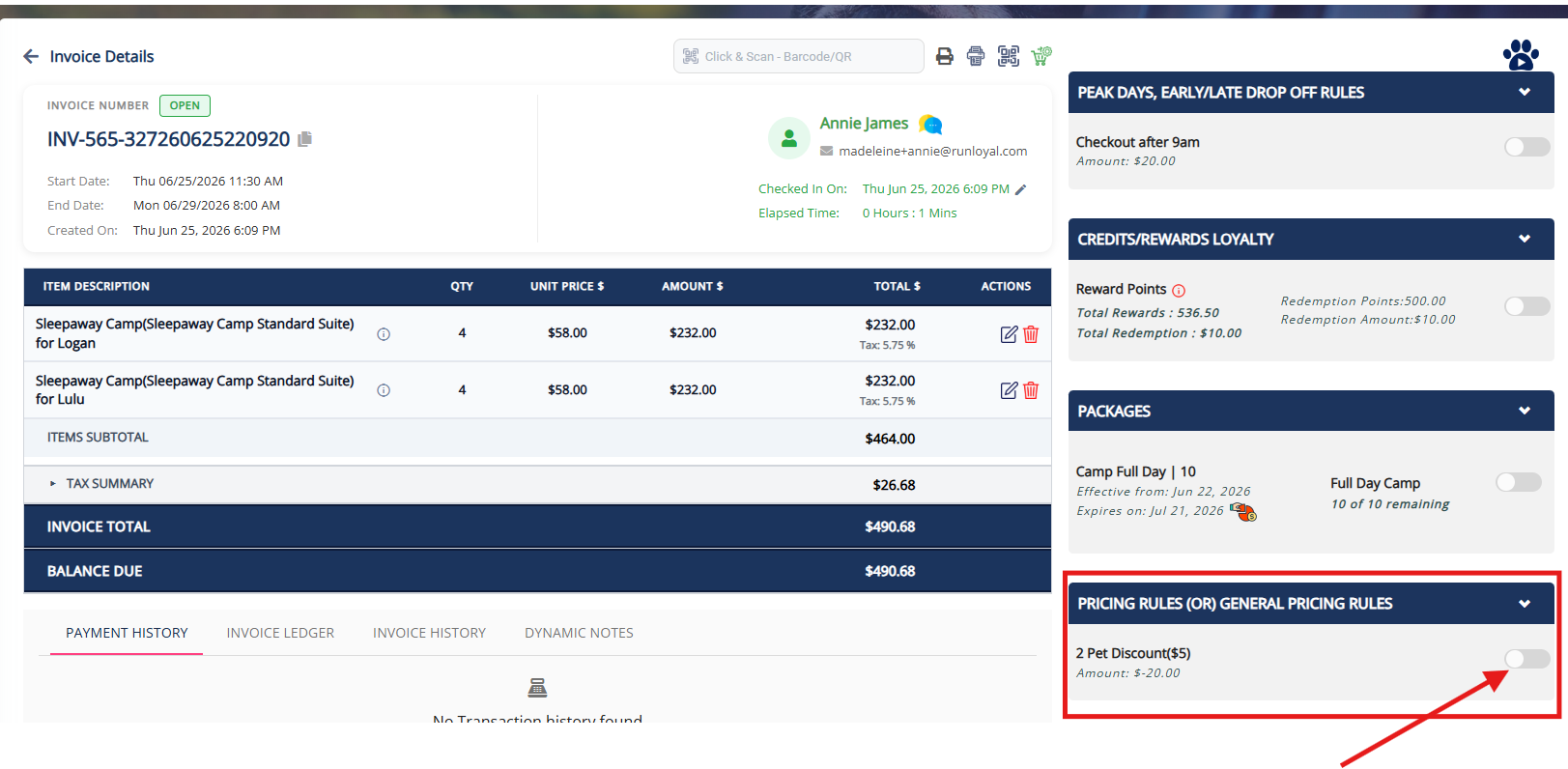
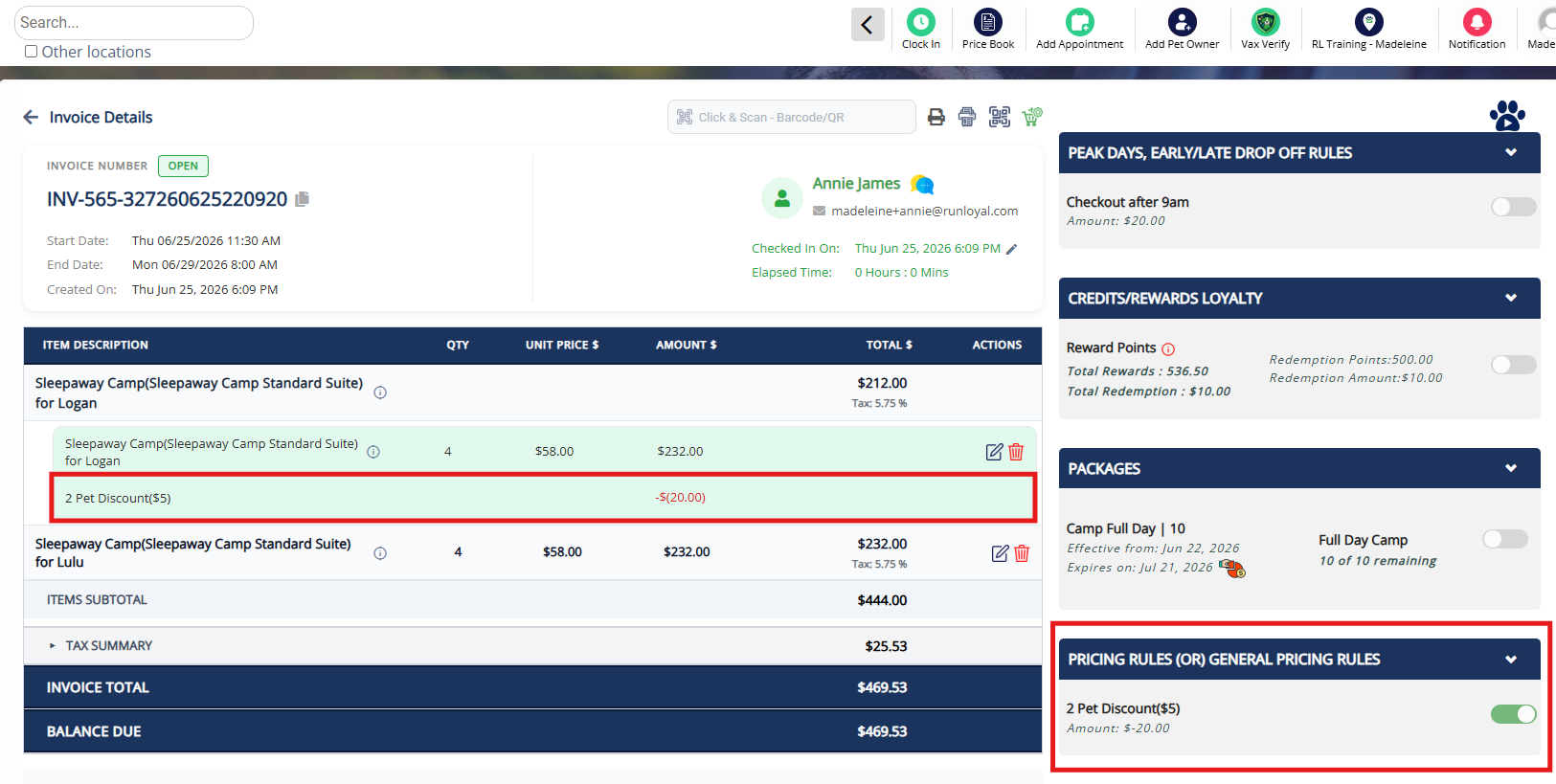
2. Once enabled, the pricing will display for the item on the invoice.
Guide for Each Type of Pricing Rule
When creating pricing rules, there are multiple options that can be created or combined to give discounts or surcharges on an invoice. You can select these option(s) under When this happens while creating a new pricing rule.
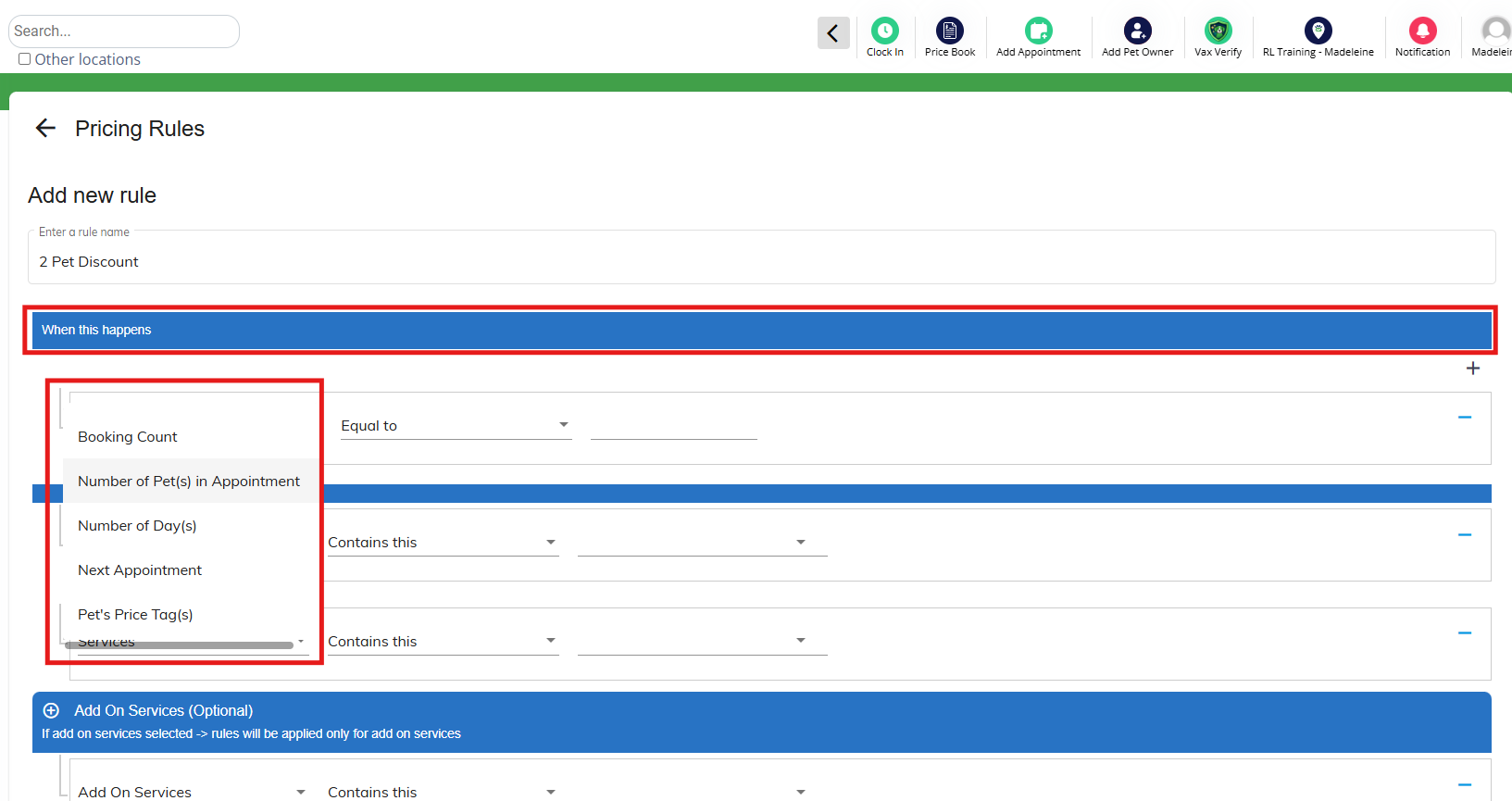
Below is a list of each scenario and when it will apply.
| Pet Owner Total Appointment(s) | This rule applies based on how many appointments the pet owner has on their account. For example, you may give a 5% discount to clients with over 100 appointments. |
| Appointment Frequency | This rule works with Booking Count (below) to combine the number of overall bookings with how often the appointments are booked. For example, if Booking Count = 5 and Appointment Frequency = in 2 weeks, this will give a discount if the owner's most recent 2 weeks had over 5 bookings. |
| Booking Count | This rule works with Appointment Frequency (above) to combine the number of overall bookings with how often the appointments are booked. For example, if Booking Count = 5 and Appointment Frequency = in 2 weeks, this will give a discount if the owner's most recent 2 weeks had over 5 bookings. |
| Number of Pet(s) in Appointment | This rule applies if the number of pets in the appointment is equal to OR greater than or equal to 2, 3, 4, etc pets. For example, if you give discounts for second or third pets, you would enter those under this rule. Can also be combined with Family Pets (Same Assignment) below. |
| Number of Day(s) | This rule applies based on the number of days in the booking. For example, maybe you give an extended stay discount if the booking is 10 days or longer. You would enter number of days = 10. |
| Next Appointment | This rule applies based on the pet owner's next appointment. You can select within 5 days, 10 days, etc. |
| Pet's Price Tag(s) | This rule applies based on the pet's price tag. Learn more about Price tags here: Adding Pet Owner & Pet Price Tags |
| Pet Owner's Price Tag(s) | This rule applies based on the pet owner's price tag. Learn more about Price tags here: Adding Pet Owner & Pet Price Tags |
| Family Pets (Same Assignment) | This rule applies if the pets in the same family are lodging together. Can be combined with Number of Pet(s) in Appointment (above). |
| Day of Week | This rule applies if the booking falls on (single day) or crosses (multi-day) a specific day of the week. For example, let's say you give 50% off Daycare on Tuesdays. You could use this rule for Day of Week = Tuesday. |
More Information
For more information on Price Lists (standard pricing), please refer to this article: Set Up Pricing, Deposits, & Cancellation/No-Show Fees
For more information on custom pricing (by breed or weight), please refer to this article: Custom Pricing (Automated Price by Weight, Breed, and/or Size)
For more information on late checkouts/early checkins/peak date pricing rules, please refer to this article: Early Dropoff, Late Pickup, and Peak Date Pricing Rules
Was this article helpful?
That’s Great!
Thank you for your feedback
Sorry! We couldn't be helpful
Thank you for your feedback
Feedback sent
We appreciate your effort and will try to fix the article