Overview
Global Business Hours are the general open and close times for your business. Business hours are foundational for booking appointments on the business and client portal, as they set the earliest and latest times an appointment can be marked for drop-off or pickup. Business hours can be set for individual days, repeating days of the week, or specific date ranges. You can also mark your business as closed on specific days or days of the week.
Service Categories can also have unique hours that may differ from your Global Business Hours, or you can copy your Global Business Hours to your Service Categories if the hours should be the same.
Business Hours can be viewed in the following areas:
- Settings > Business Setup > Business Hours
- Making a new appointment on the business portal
- Booking in mobile app
- Booking in web link
TABLE OF CONTENTS
- Overview
- How To Set Up Global Business Hours
- How to Mark Specific Days or Days of Week Unavailable
- How to Edit or Delete Global Business Hours
- More Information
How To Set Up Global Business Hours
1. Navigate to Settings > Business Setup > Business Hours.
2. On the Global Business Hours tab, click any day of the week in the future to add hours.
3. Confirm if you would like to add hours for this specific date, for this day of the week for all weeks going forward, or for a specific date range.
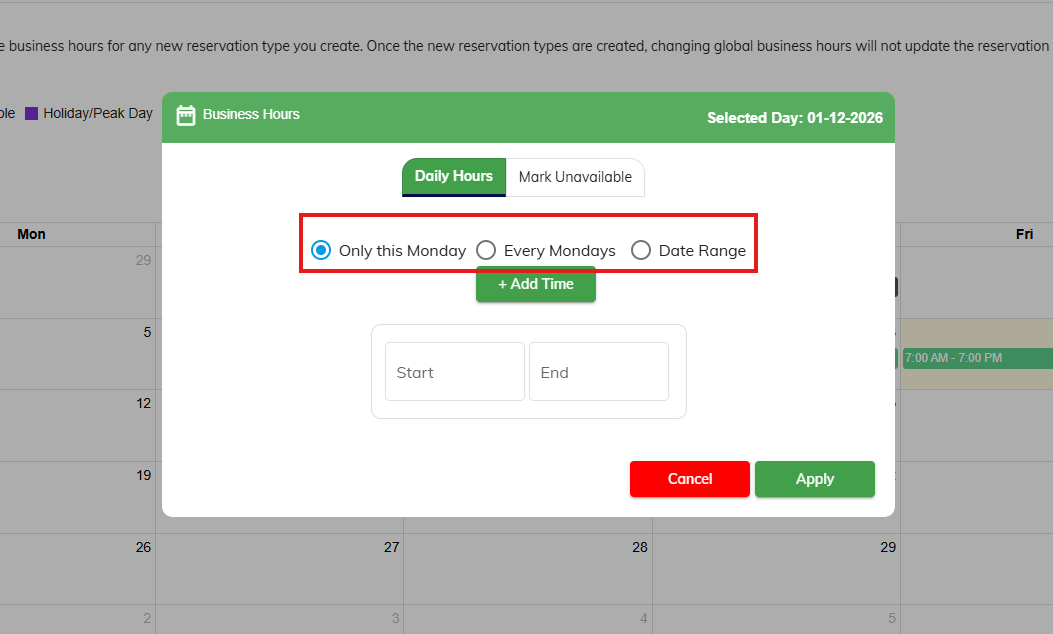
4. Click the Start box and select the start time for these hours. Click OK. Then click the End box and select the end time for these hours. Click OK. 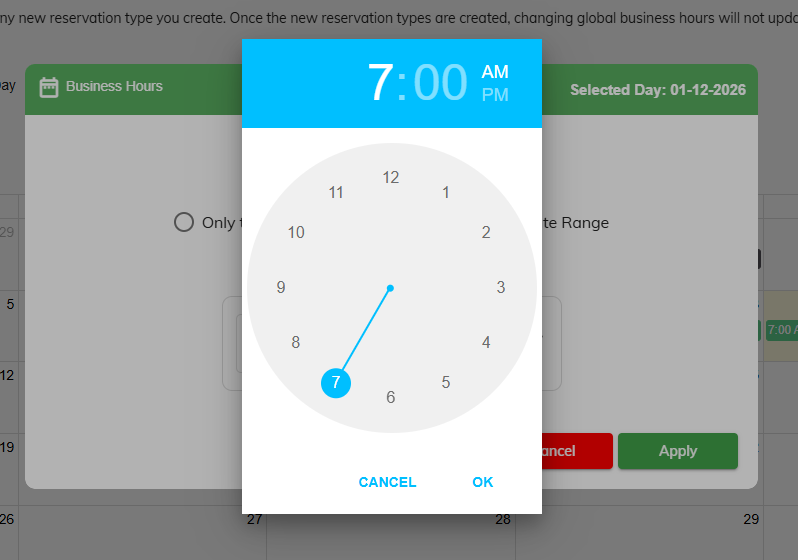
5. If you have split hours where your business is closed for pickups and drop-offs during a specific period in the day, click +Add Time and enter the additional hours.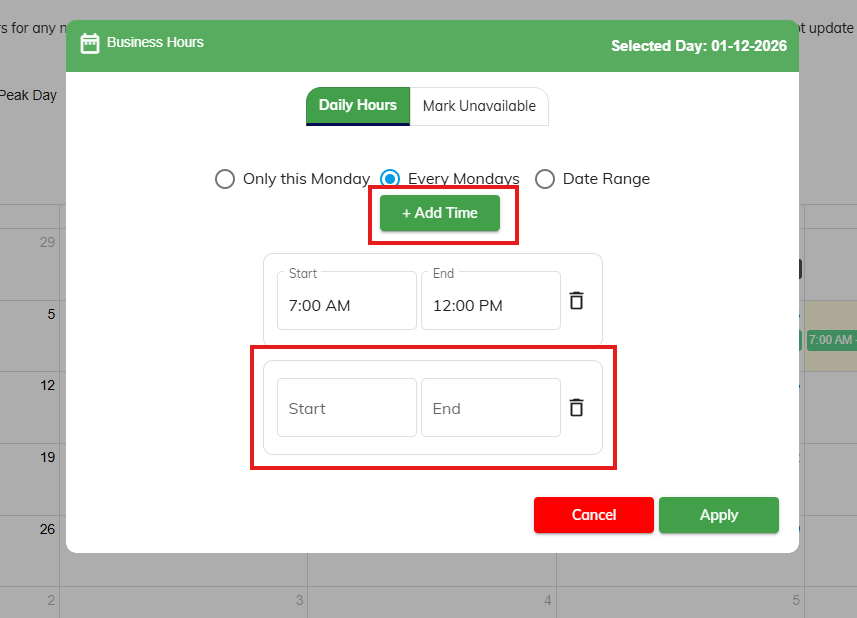
6. Once your hours are entered for this specific day or repeating day of the week, click Apply.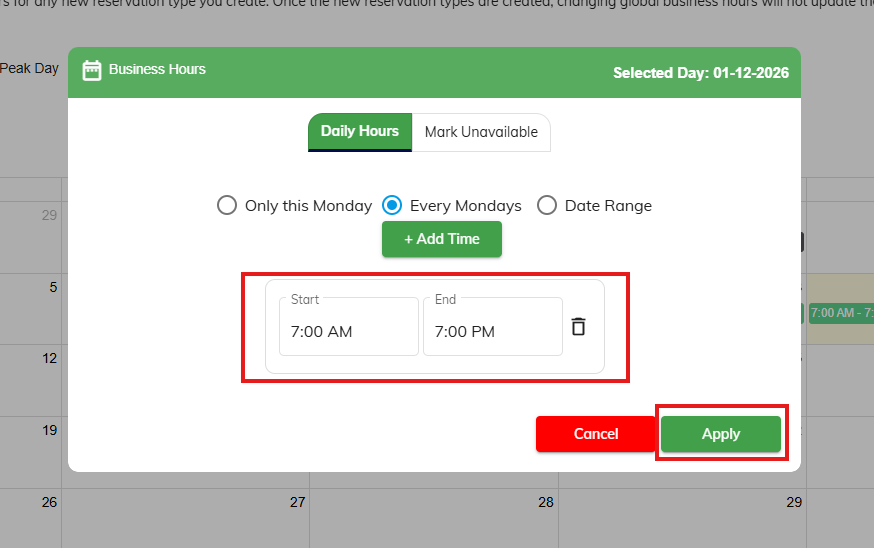
7. Repeat for all other days of the week, then verify hours show correctly in the calendar.

How to Mark Specific Days or Days of Week Unavailable
If your business is fully closed on a specific day of the week, you can mark that day Unavailable.
1. Navigate to Settings > Business Setup > Business Hours.
2. On the Global Business Hours or a specific Service Category tab, click any day of the week in the future to add hours.
3. Select Mark Unavailable.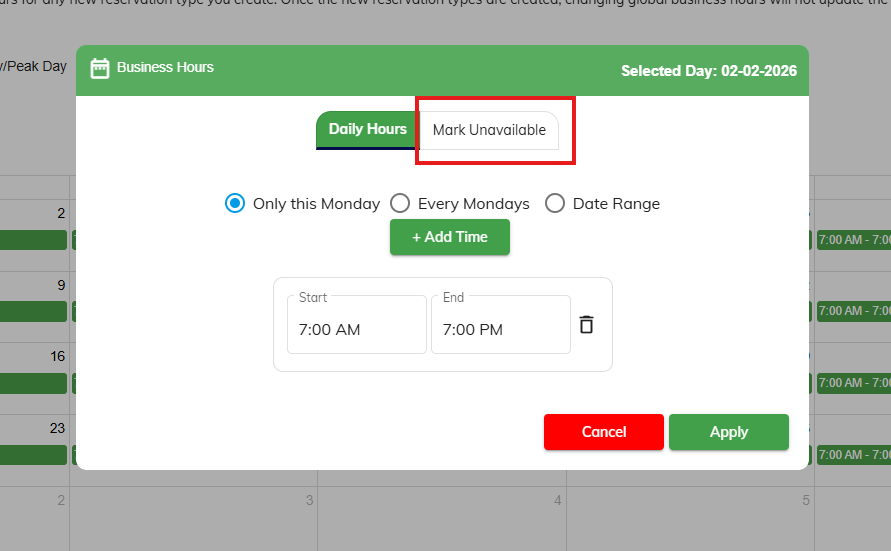
4. Confirm if you would like to add hours for this specific date, for this day of the week for all weeks going forward, or for a specific date range.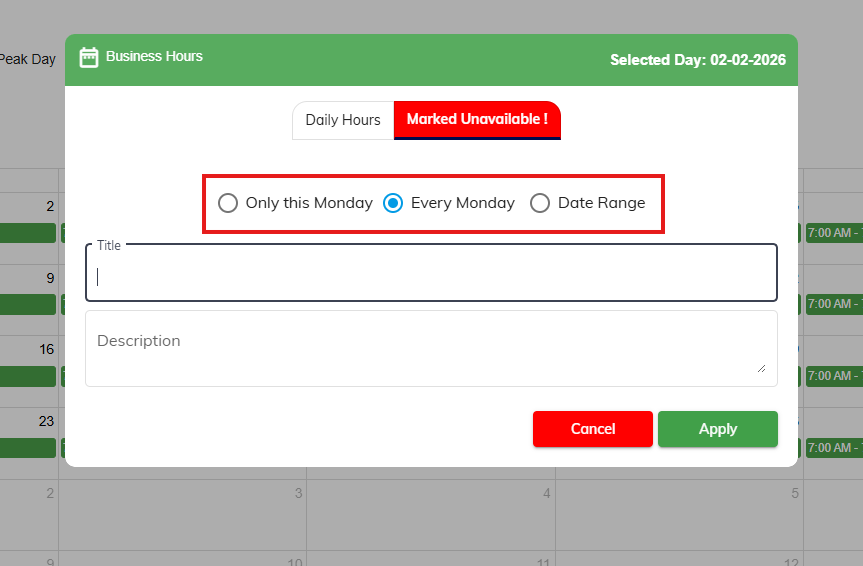
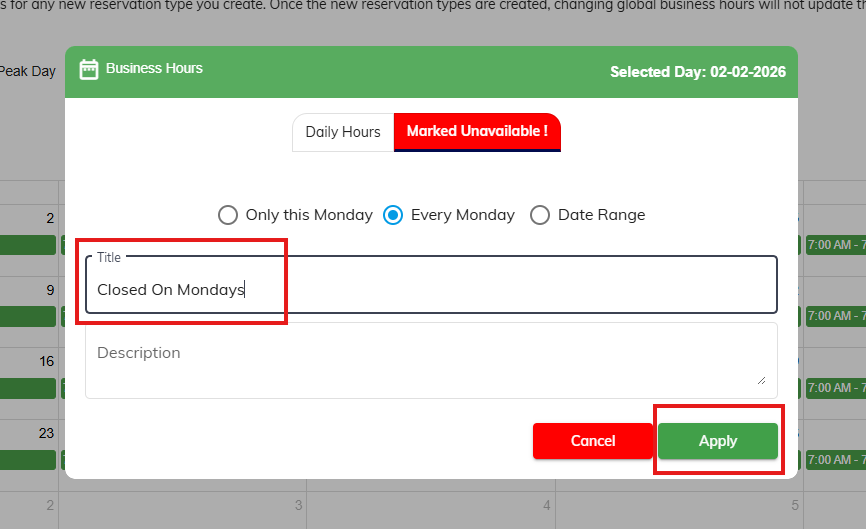
5. Enter a title and optionally enter a description. Then click Apply.
⚠️ Important: The title and description will display to customers and staff if attempting to select this day or day of week while booking an appointment.
How to Edit or Delete Global Business Hours
1. Navigate to Settings > Business Setup > Business Hours.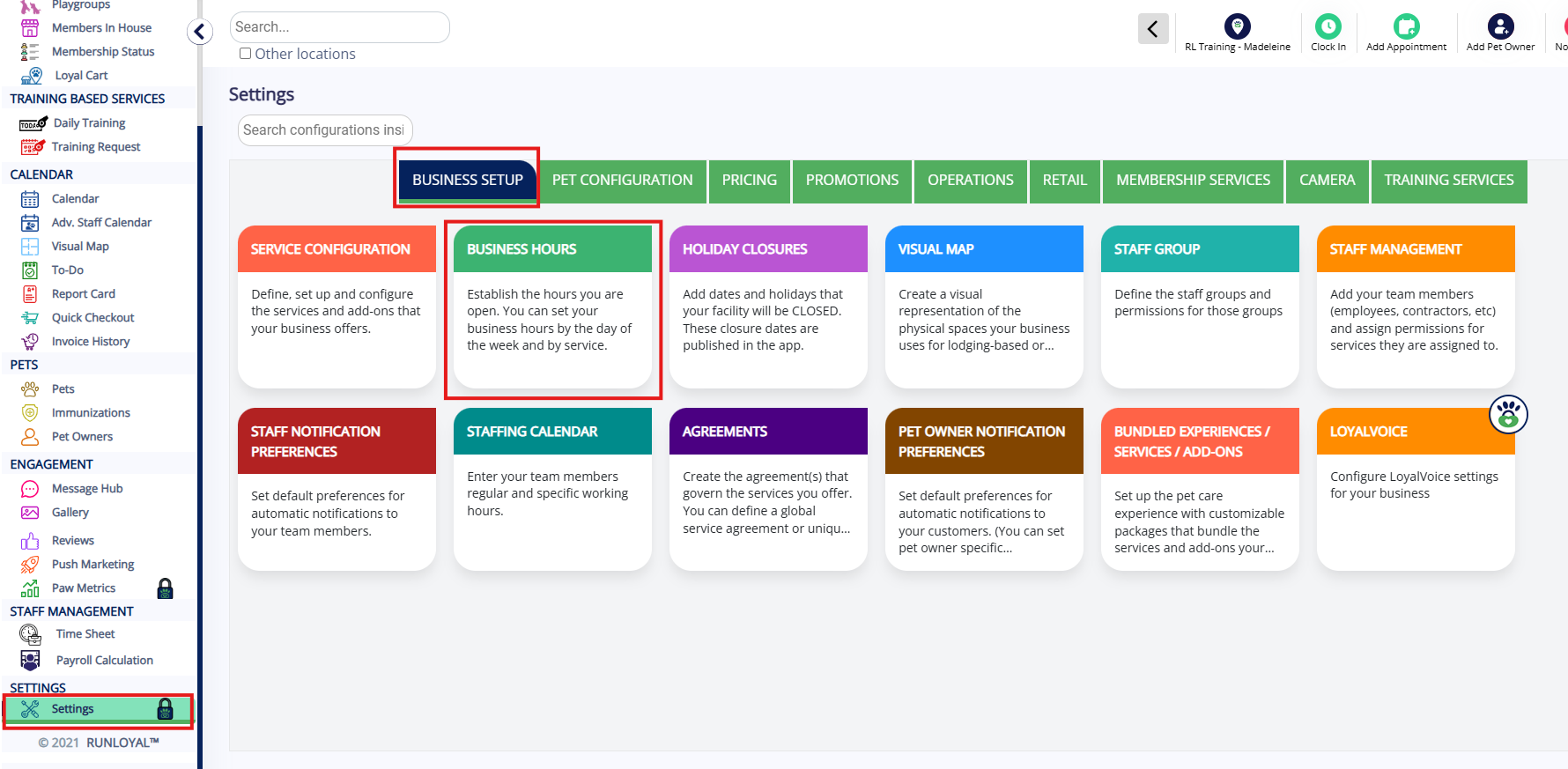
2. On the Global Business Hours tab, click any day's hours to edit or delete.

3. Confirm if you would like to edit/delete hours for this specific date, for this day of the week for all weeks, or for a specific date range.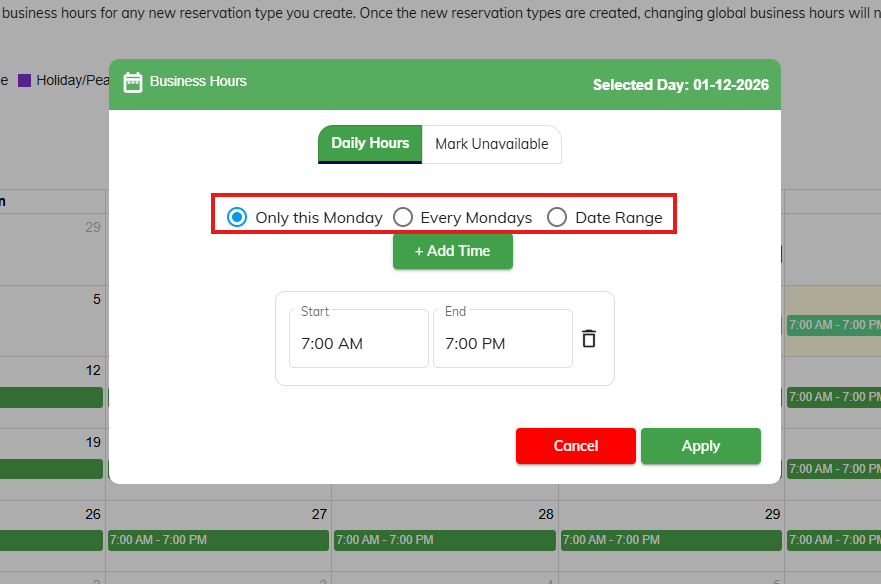
4. If you wish to edit the existing times, click the Start box and edit the start time for these hours. Click OK. Then click the End box and select the end time for these hours. Click OK. 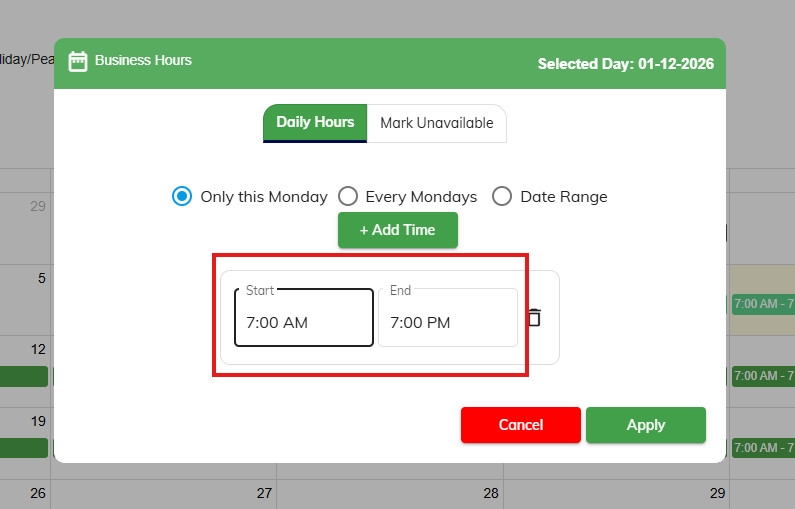
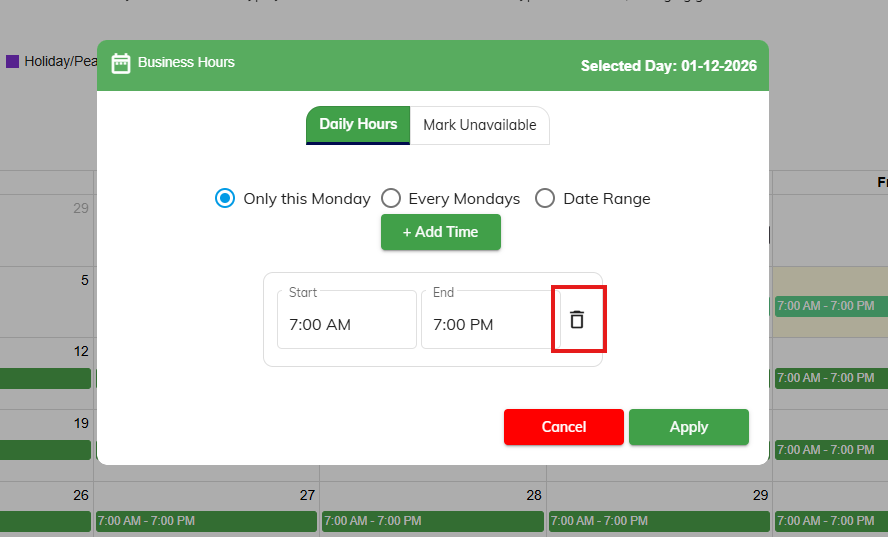
5. If you wish to delete hours, click the trash can icon next to the hours in question.
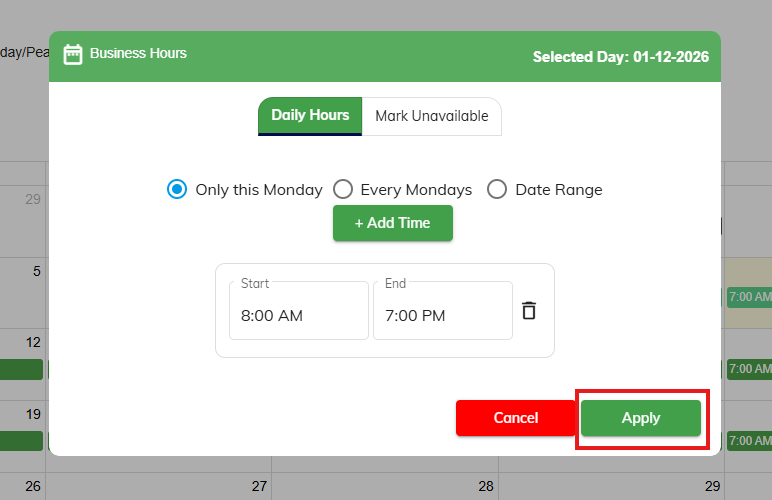
6. Once you finish making your changes, click Apply.
7. If these hours should be copied to your Service Category hours after making these Global Business edits, please navigate to the Service Category tabs and check the checkbox that says Apply Global Business Hours.
More Information
For more information on Service Category Hours, please refer to this article: Configuring Service Category Hours
For more information on Holidays, please refer to this article: Managing Holiday Closures: Step-by-Step Instructions
Was this article helpful?
That’s Great!
Thank you for your feedback
Sorry! We couldn't be helpful
Thank you for your feedback
Feedback sent
We appreciate your effort and will try to fix the article