Tag-based alerts help you quickly identify important information about a pet or a pet owner whenever their profile or appointment is accessed. Both pet and pet owner tags are internal to your operation and not visible to your pet parents.
Follow the steps below to create and activate tag-based alerts:
Step 1: Create Pet Tags
Go to Settings → Pet Configurations → Pet Tags.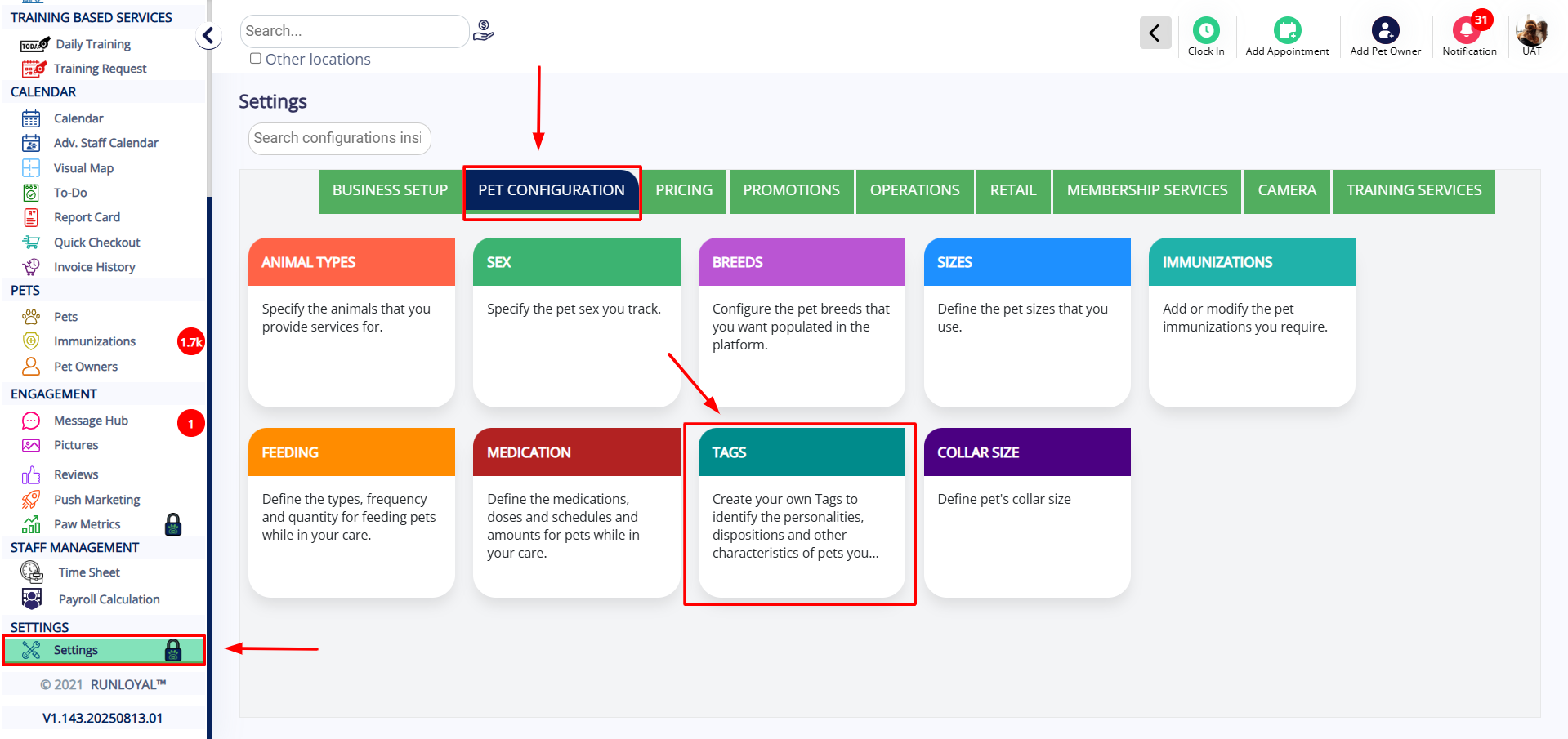 Click Add New.
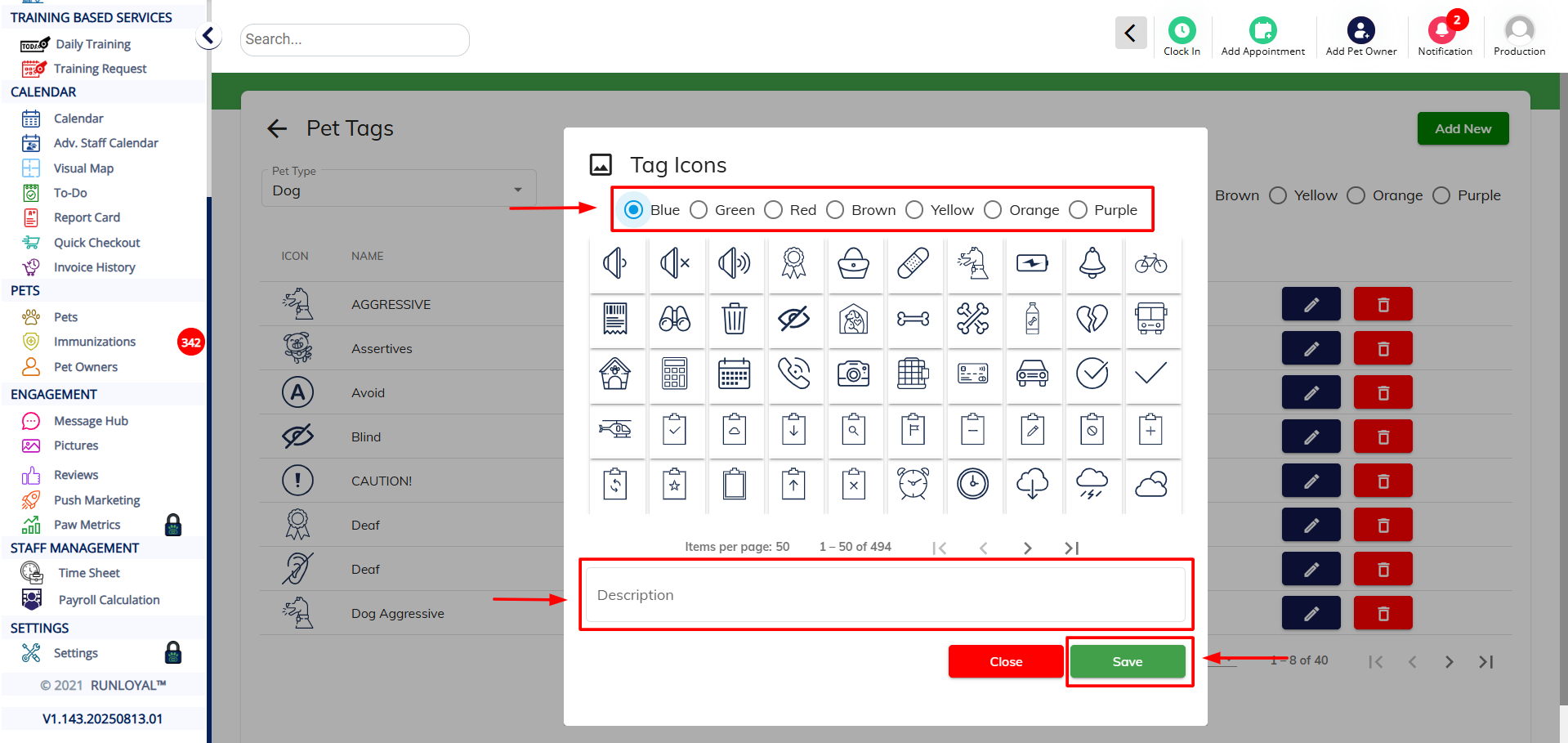
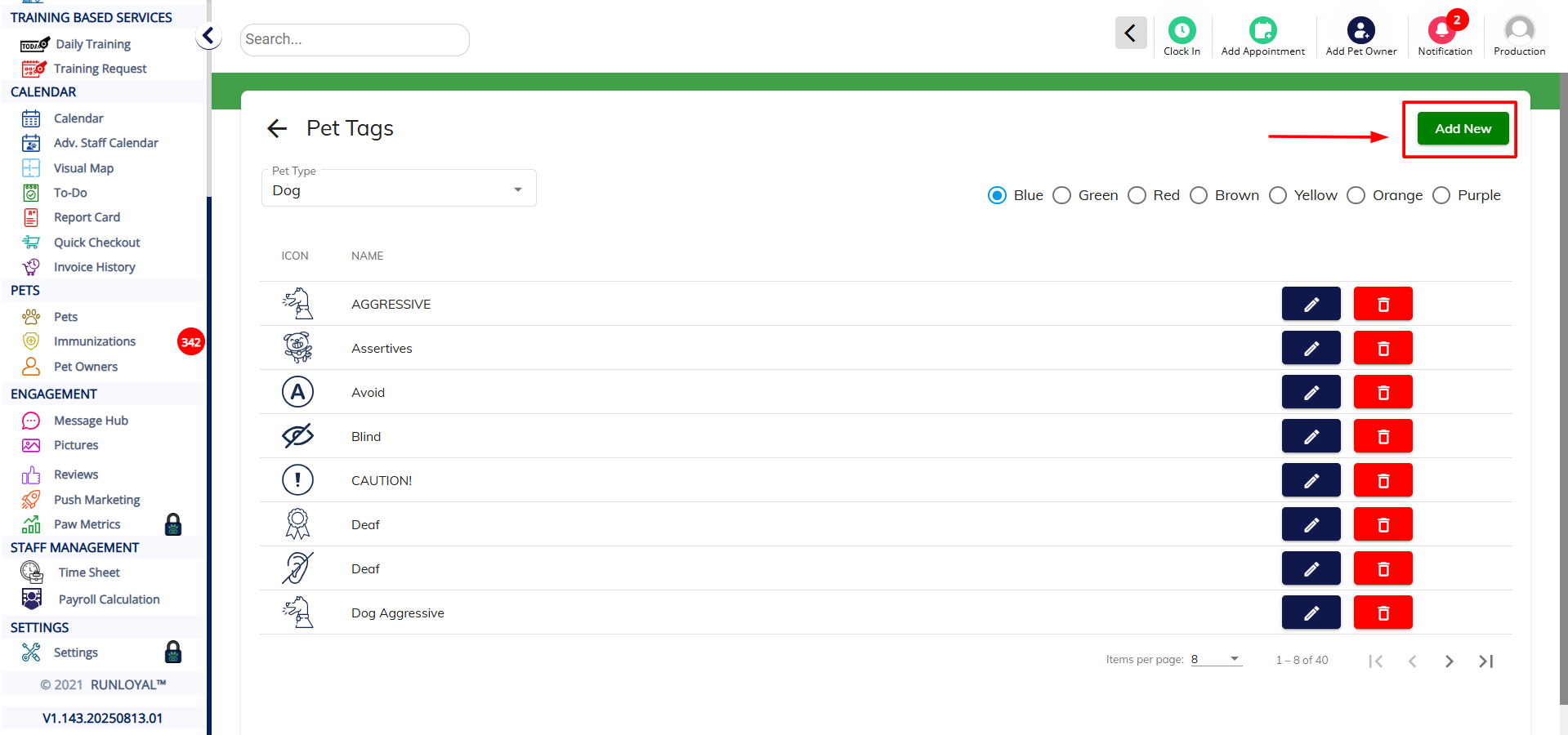 Choose a Tag Color and Logo/Icon, enter the Tag Name/Description, and click Save.
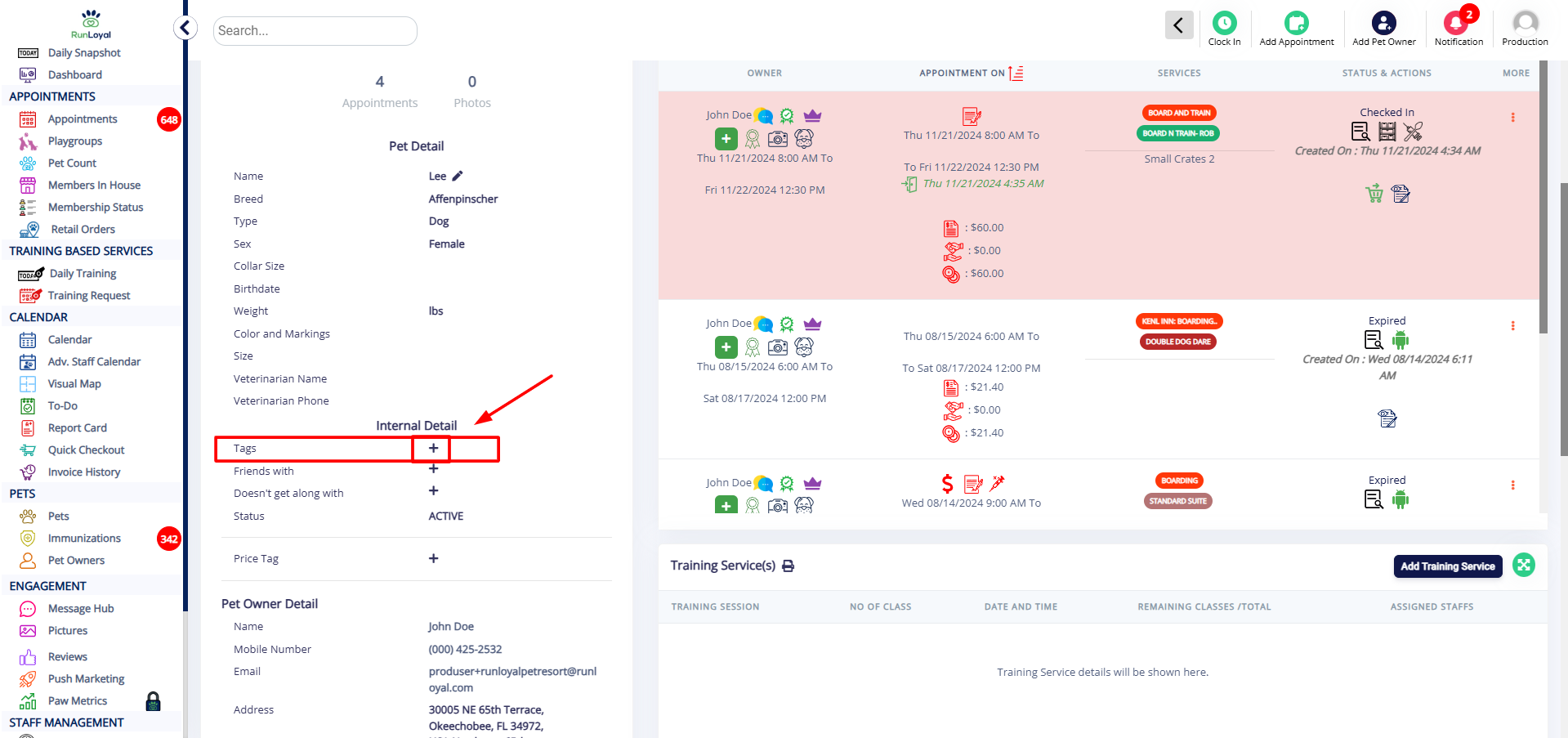
 You can now assign the created tag to a pet by opening their profile and clicking the “Add” icon next to Tags. You can do the same by visiting pet owner profile and tags for them.
  Select the tag and click Save to assign it.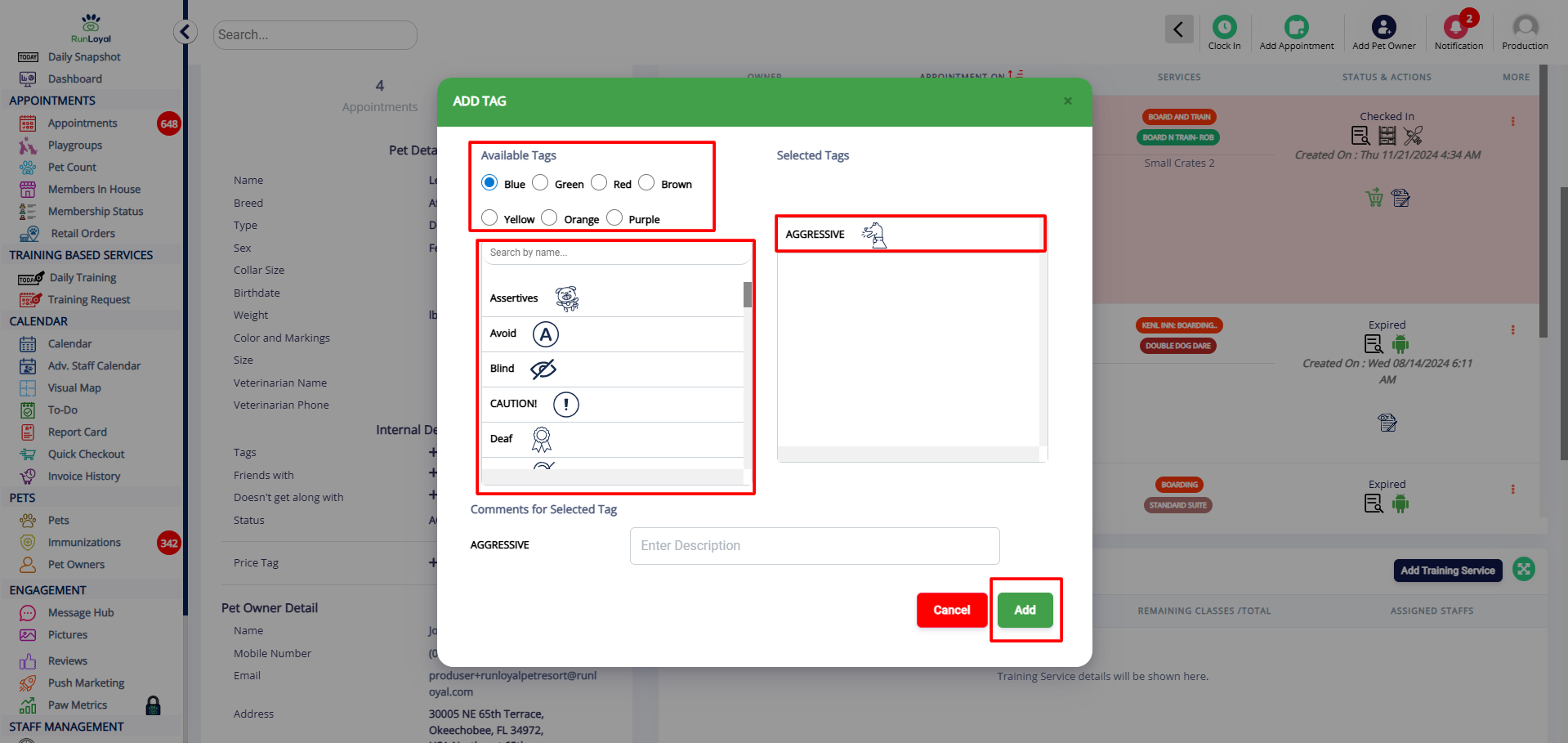
Step 2: Activate Tag-Based Alerts
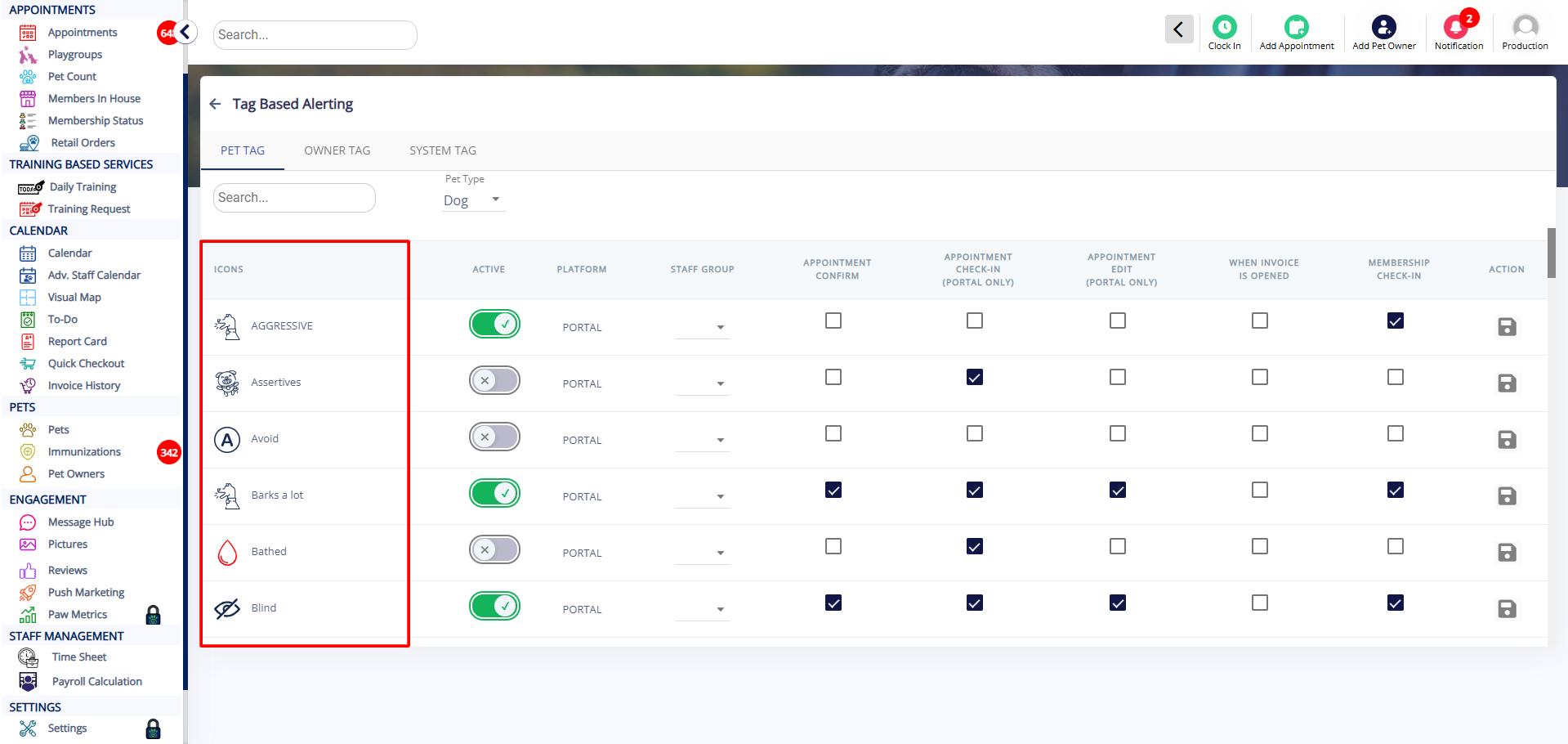
Navigate to Settings → Operations → Tag-Based Alerting.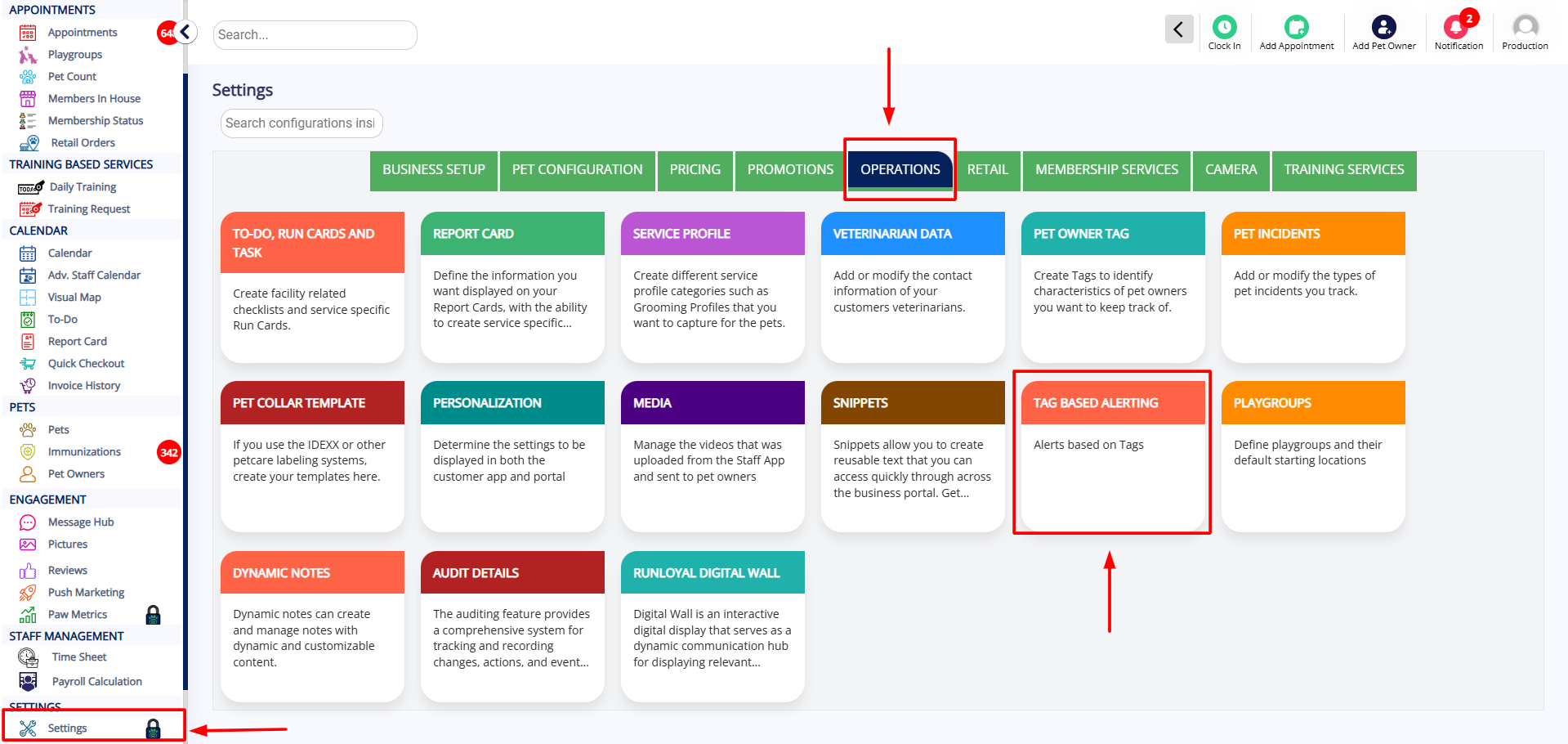 You’ll see the list of tags you’ve created.
 Turn ON the toggle next to the tag you want to activate.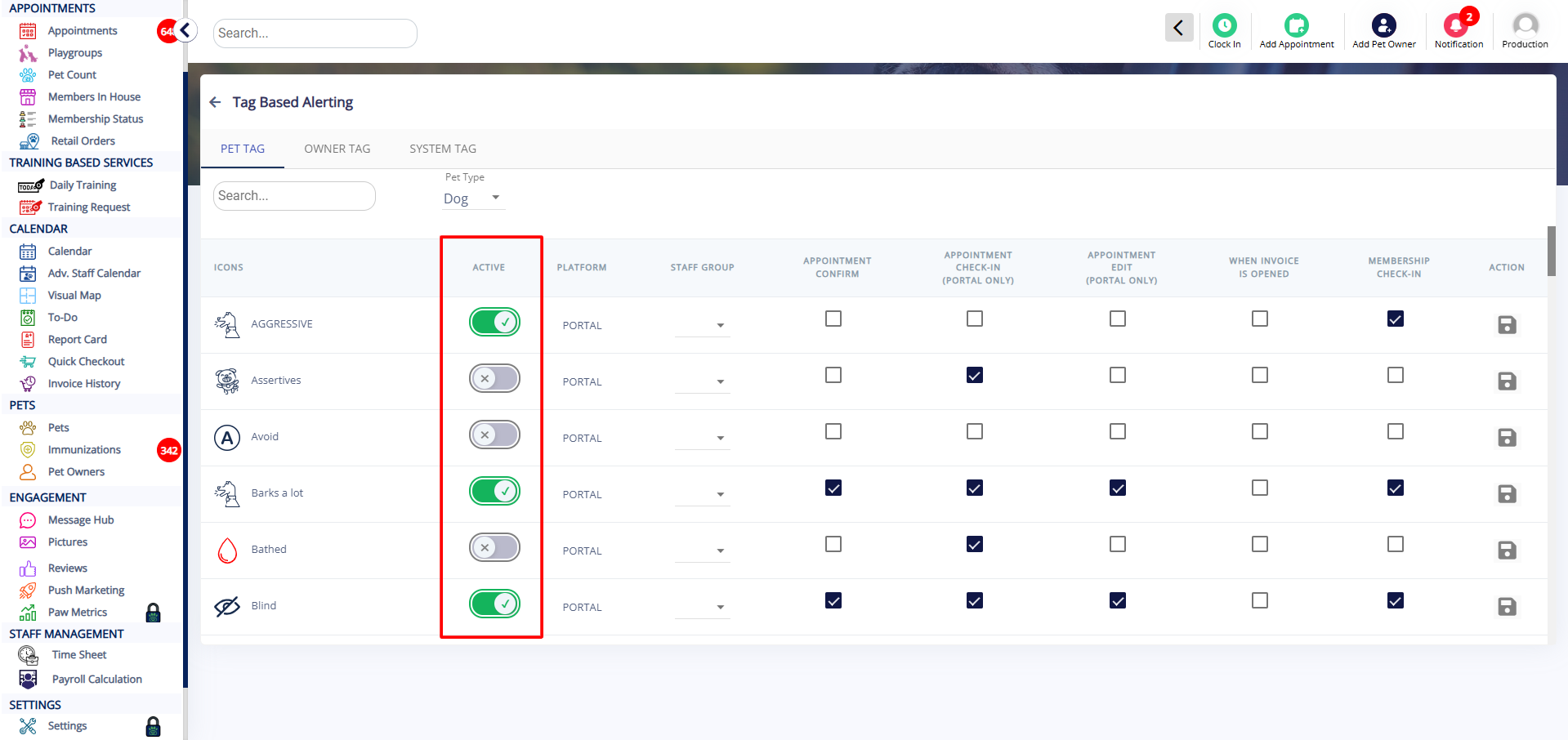
Use the checkboxes next to each tag to select where you want the alert to appear (e.g., appointment screen, check-in, etc.).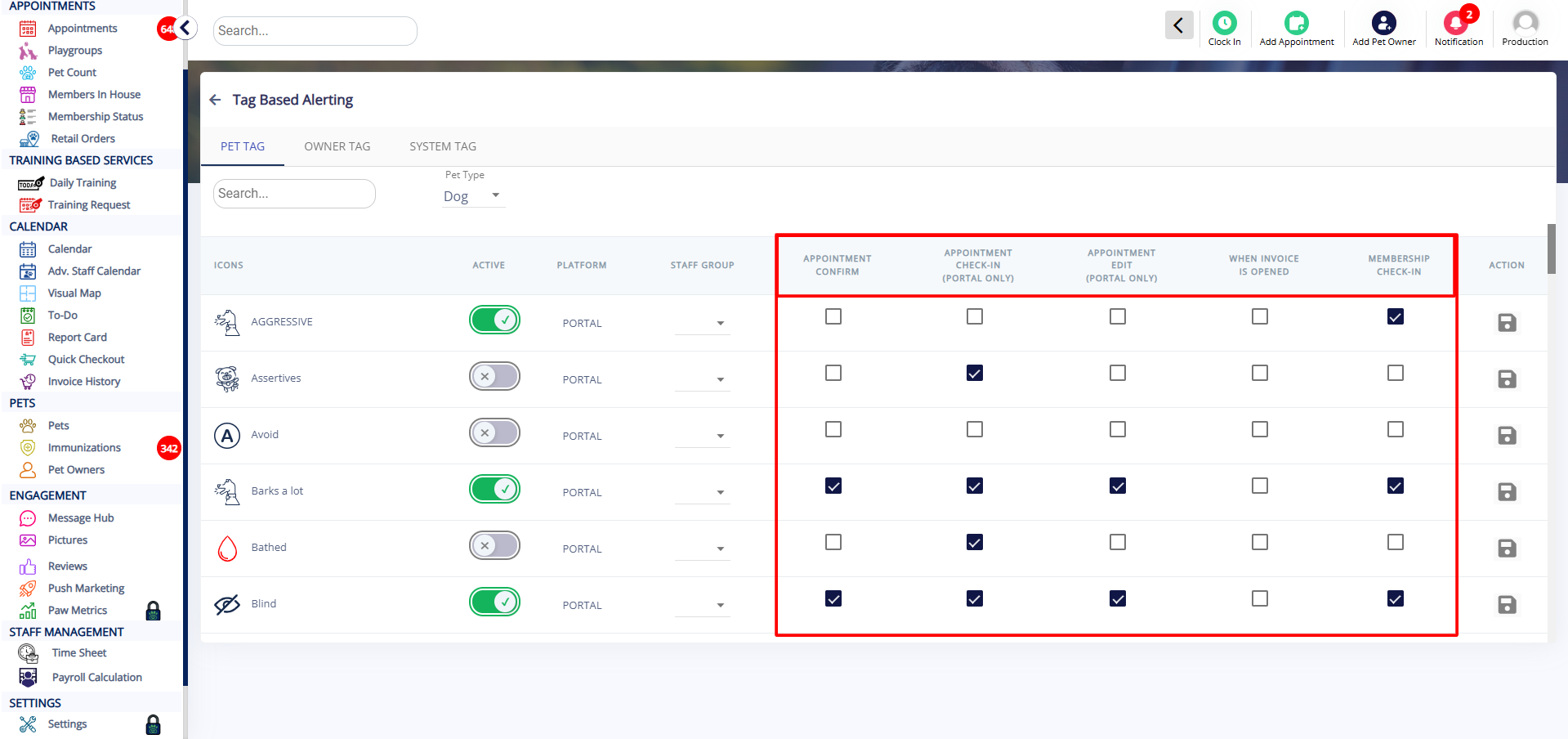 Click Save (the button turns red when changes are made).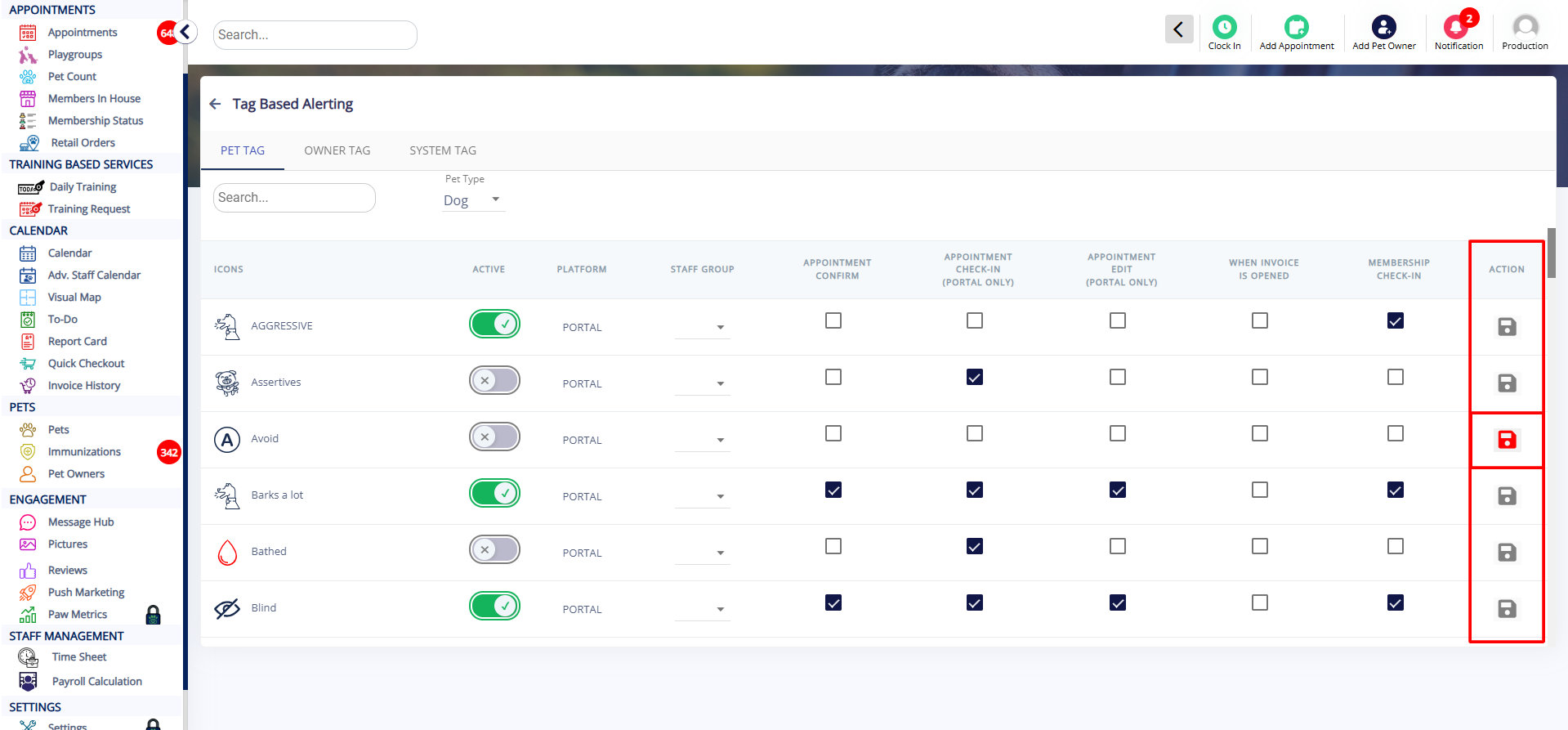
Once activated, whenever you open the areas you selected (appointments, check-ins, etc.), a pop-up alert will display the tag you created.
That’s it! You’ve successfully set up Tag-Based Alerts.
Was this article helpful?
That’s Great!
Thank you for your feedback
Sorry! We couldn't be helpful
Thank you for your feedback
Feedback sent
We appreciate your effort and will try to fix the article