There are two ways to share pictures and reviews from our platform to Facebook and the website.
RunLoyal – Connect to Facebook
Note: Use a desktop or laptop for all settings-related tasks.
Click Settings in RunLoyal.
Click Promotions.
Click Connect to Facebook.
Click the Connect to Facebook button.

Facebook Login
Enter your email address or phone number.
Enter your password.
Click Login.
Upon successfully logging in, you can start sharing pictures from RunLoyal.
Creating a Facebook Page (If You Don’t Have One)
Create a Facebook Page – Select the Create a Page button after logging in.
Customize Your Page – Follow Facebook’s guided questions to set up your page.
Complete Your Page Setup – Add business details such as name, category, and contact info.
Add Visuals – Upload a profile picture (logo) and a cover photo (banner).
Build Your Audience – Invite pet owners and clients to follow your page.
Connect Page in RunLoyal – Go back to Connect to Facebook in RunLoyal and select the page you created.
Enable All Toggles – Turn on all necessary toggles to finalize the connection.
Posting Pictures from RunLoyal to Facebook
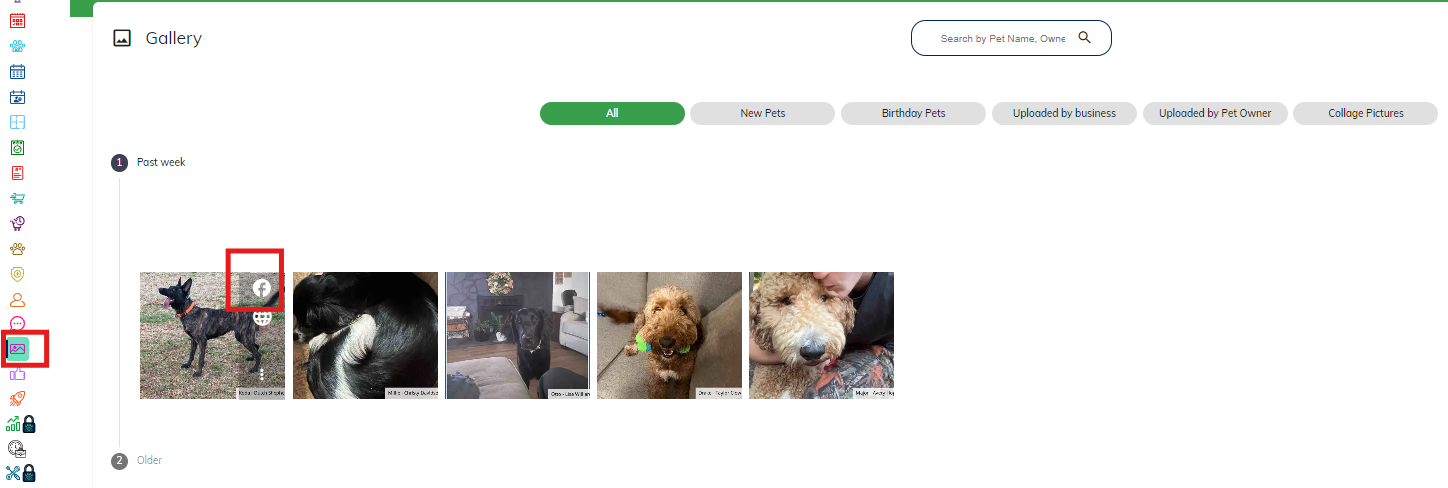
Click on Pictures.
Click the Facebook icon at the top right corner of the picture-When you hover over a picture, you will see the option to share it on Facebook. Click on Facebook, add a message, and then share it to the business's Facebook page. The post will appear as coming from the account admin user on your Facebook profile.
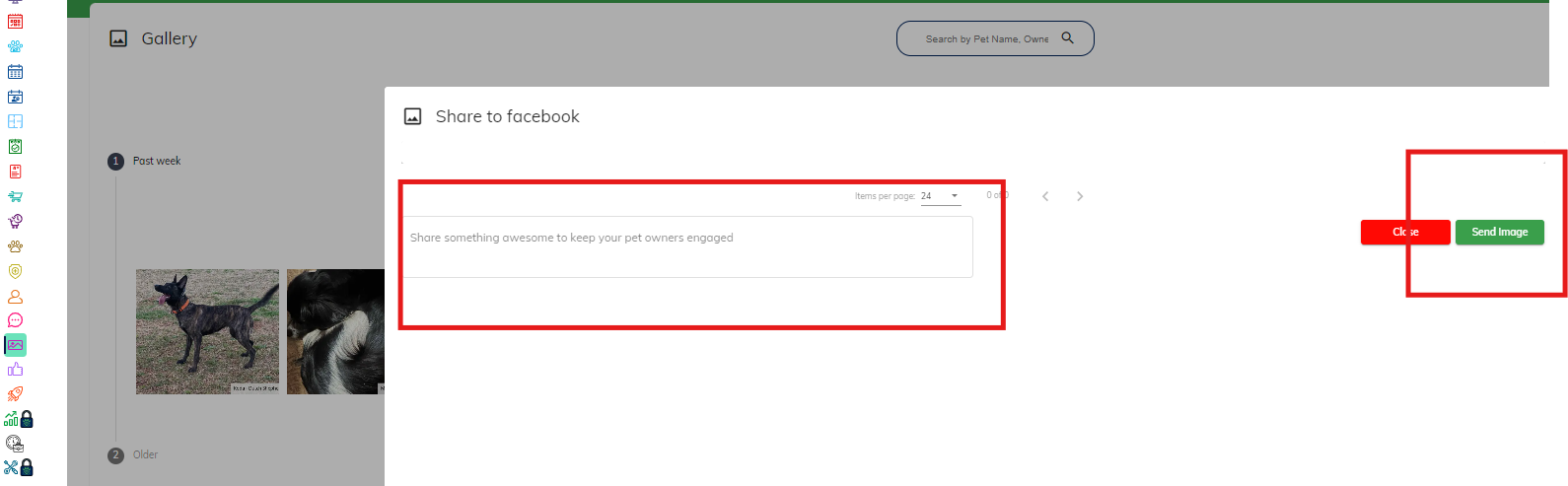
Compose your message in the Share something section and click Send Image.
Sharing Reviews on Facebook
Click on the Reviews menu.
Select the review you want to share.
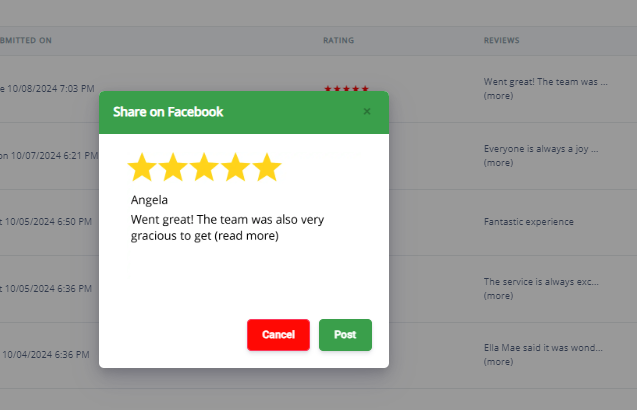
Click Share
After typing out your comment, click the Post button.
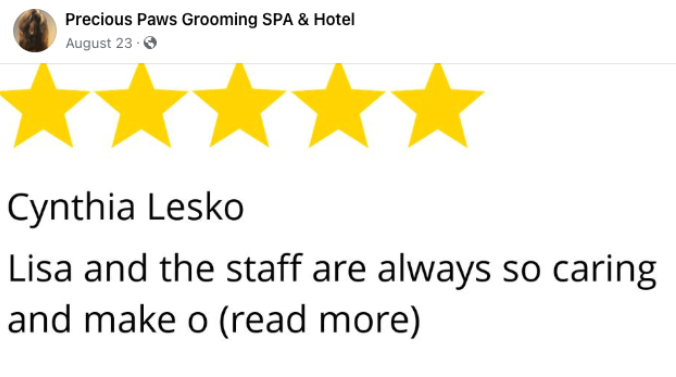
It will appear on your Facebook feed as a post from your Facebook administrator.
This is how it will look on Facebook as an example:
Was this article helpful?
That’s Great!
Thank you for your feedback
Sorry! We couldn't be helpful
Thank you for your feedback
Feedback sent
We appreciate your effort and will try to fix the article