Overview
The Waitlist feature allows you to add pets to a queue for a specific service if existing appointments are full or if a client would like an earlier opening. If a slot becomes available due to a cancellation or schedule change, staff can review the waitlist and fill the opening with a pet that is already waiting. Using the waitlist feature helps maximize schedule utilization and ensures clients who want earlier availability can be accommodated when openings arise.
Waitlisted Appointments can be viewed in the following areas:
- Pet owner and pet profiles
- Calendar > Check "Show Wait List"
- Edit appointment > "Waitlist"
TABLE OF CONTENTS
- Overview
- How to Add an Appointment to the Waitlist
- How to Accept an Appointment from the Waitlist
- More Information
How to Add an Appointment to the Waitlist
1. From any page in the app, click Top right-hand navigation > Add Appointment to create a new appointment for any pet.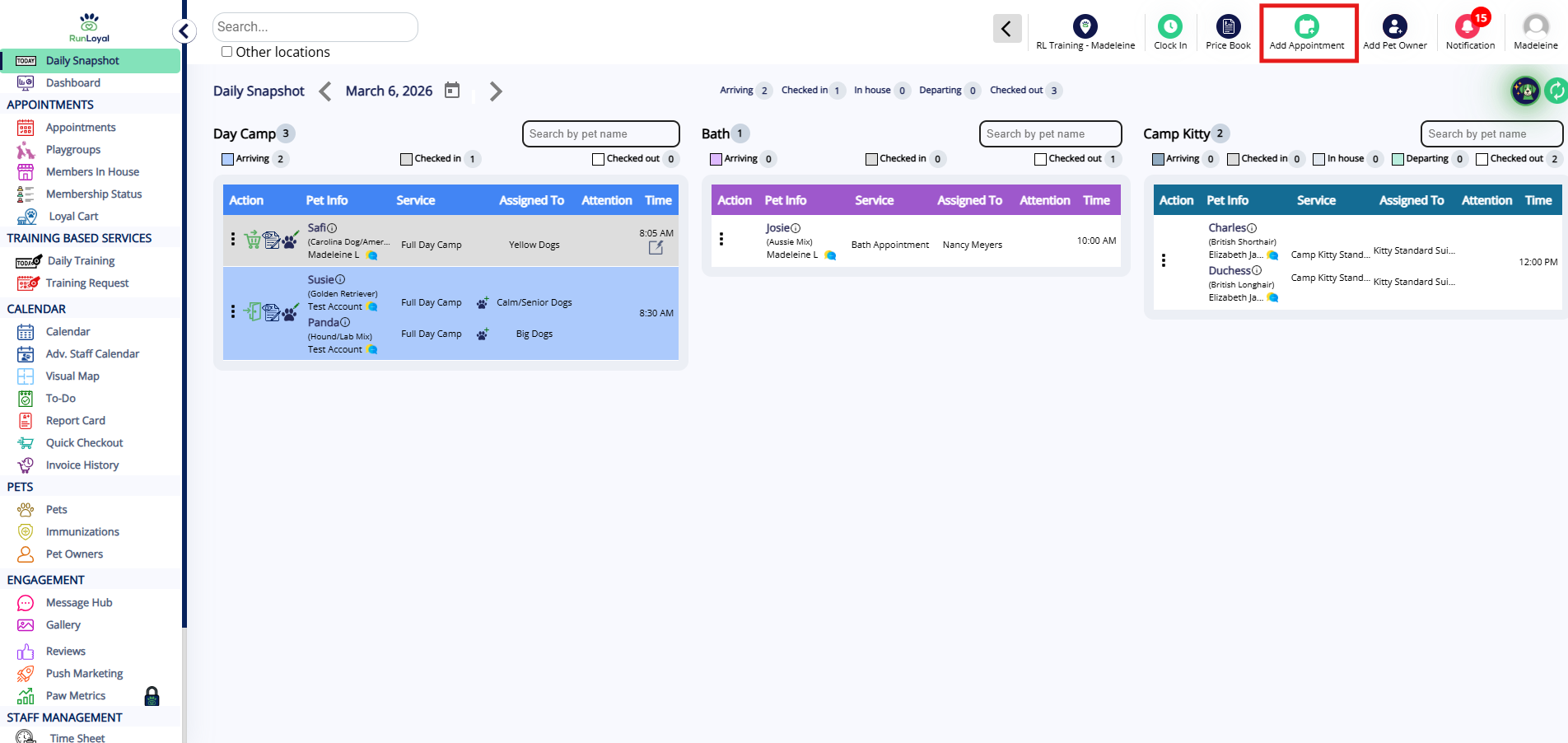
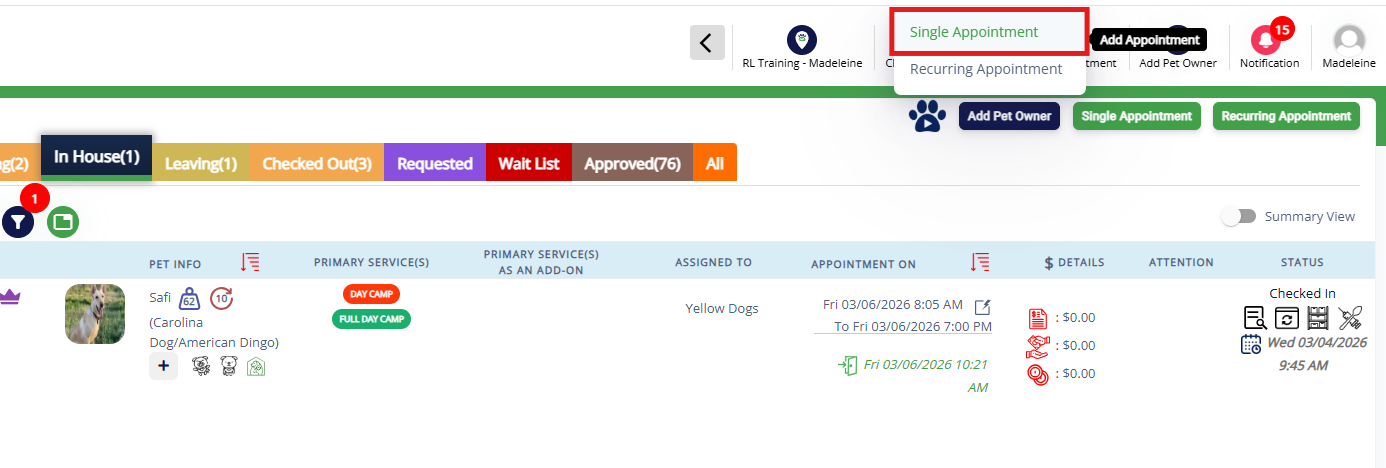
2. When prompted, select Single Appointment to make an appointment for one day.
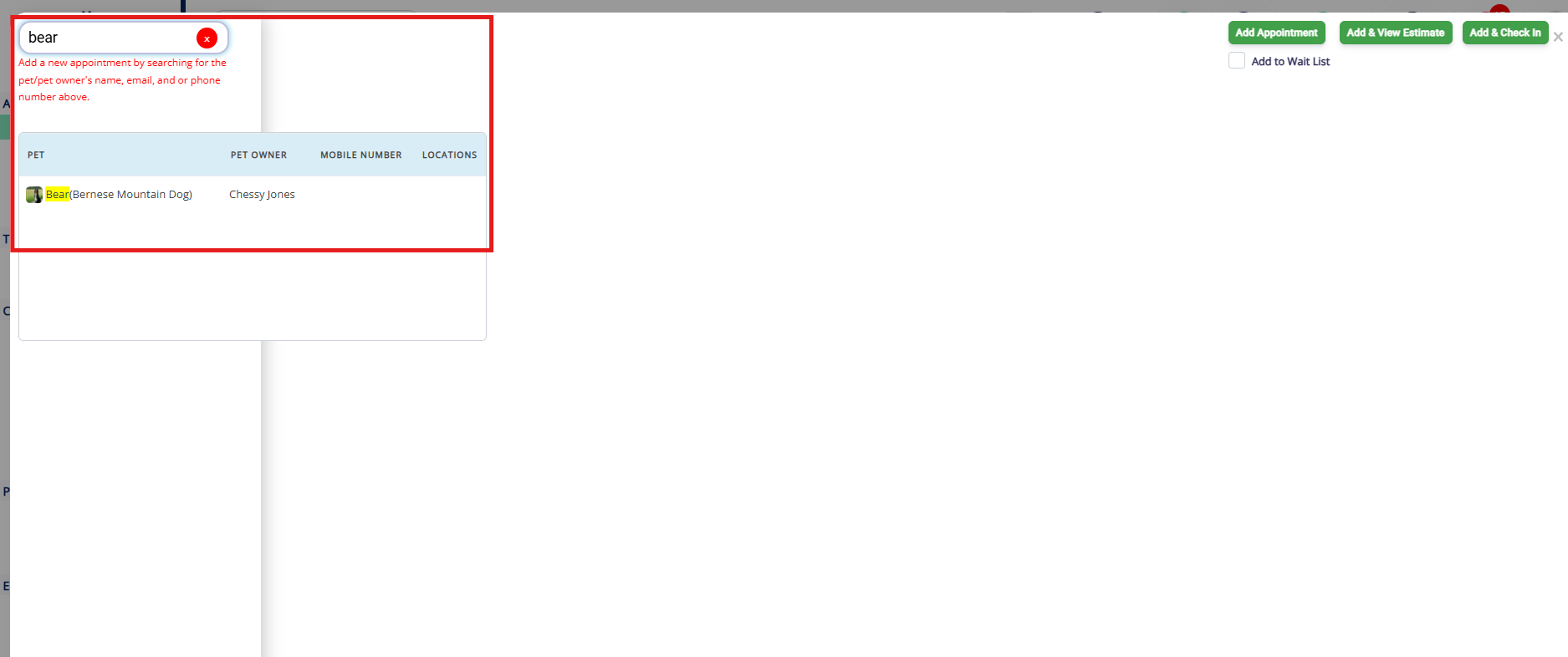
3. Search the pet owner or pet's name in the search bar. Then select the pet in question.
4. Select if the appointment should be for Individual Services (most common), Bundled Services, or Bundled Experiences. Once you have selected the type, select the Service Category.
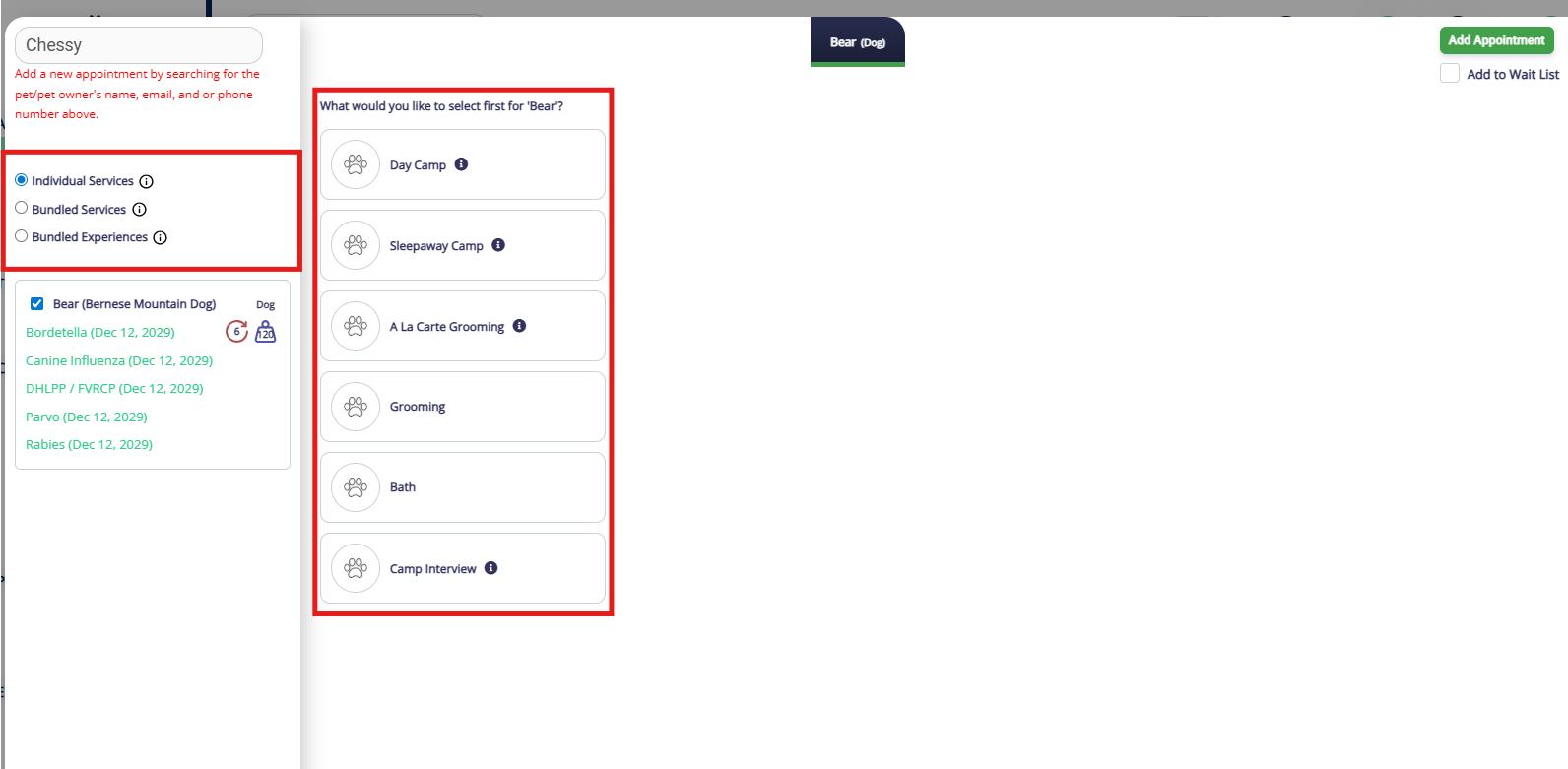
5. Choose the correct service from the service type dropdown.
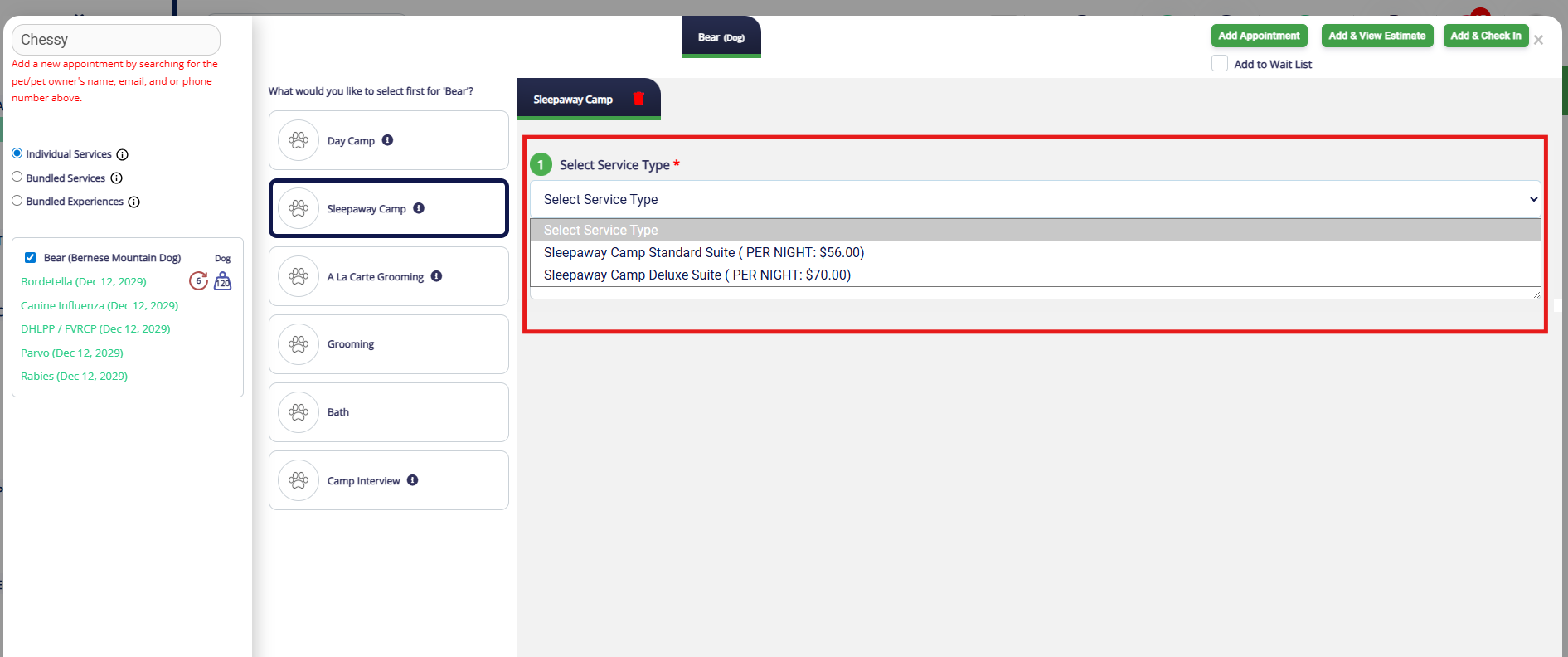
6. Check the Add to Waitlist box in the top right-hand corner.
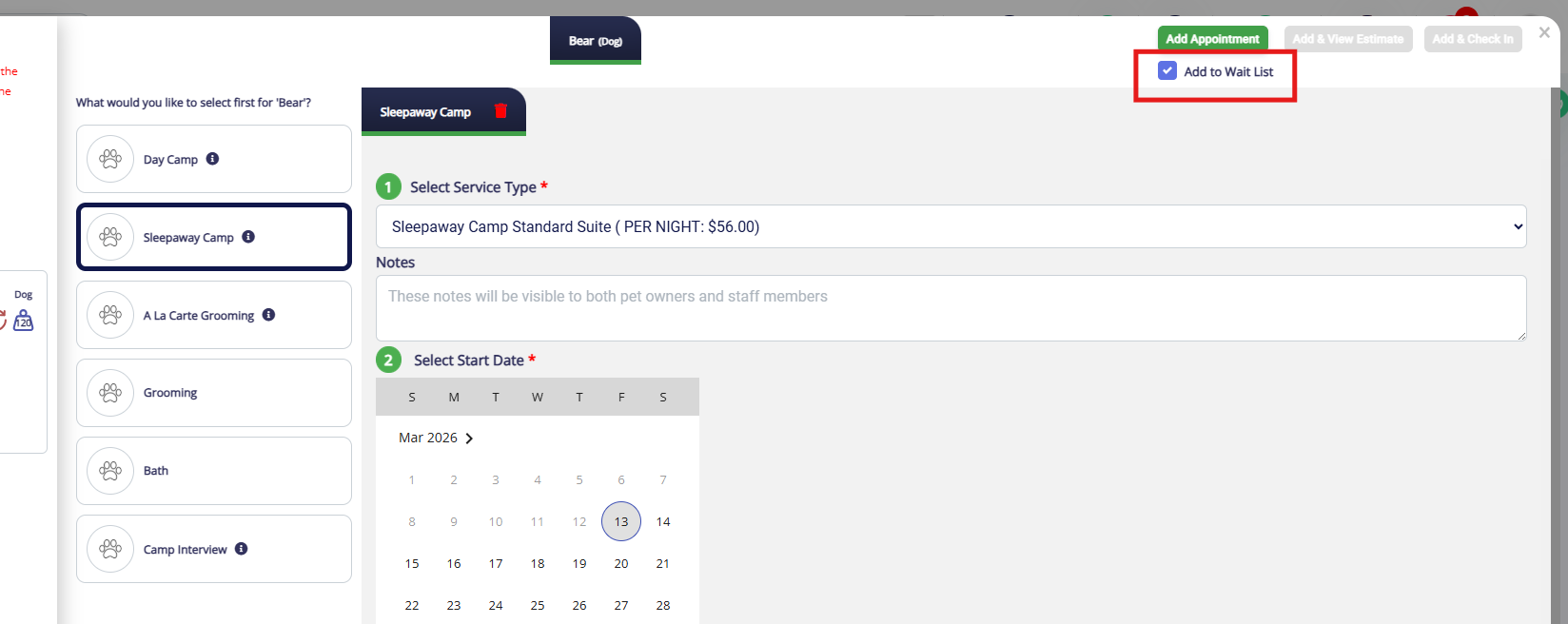
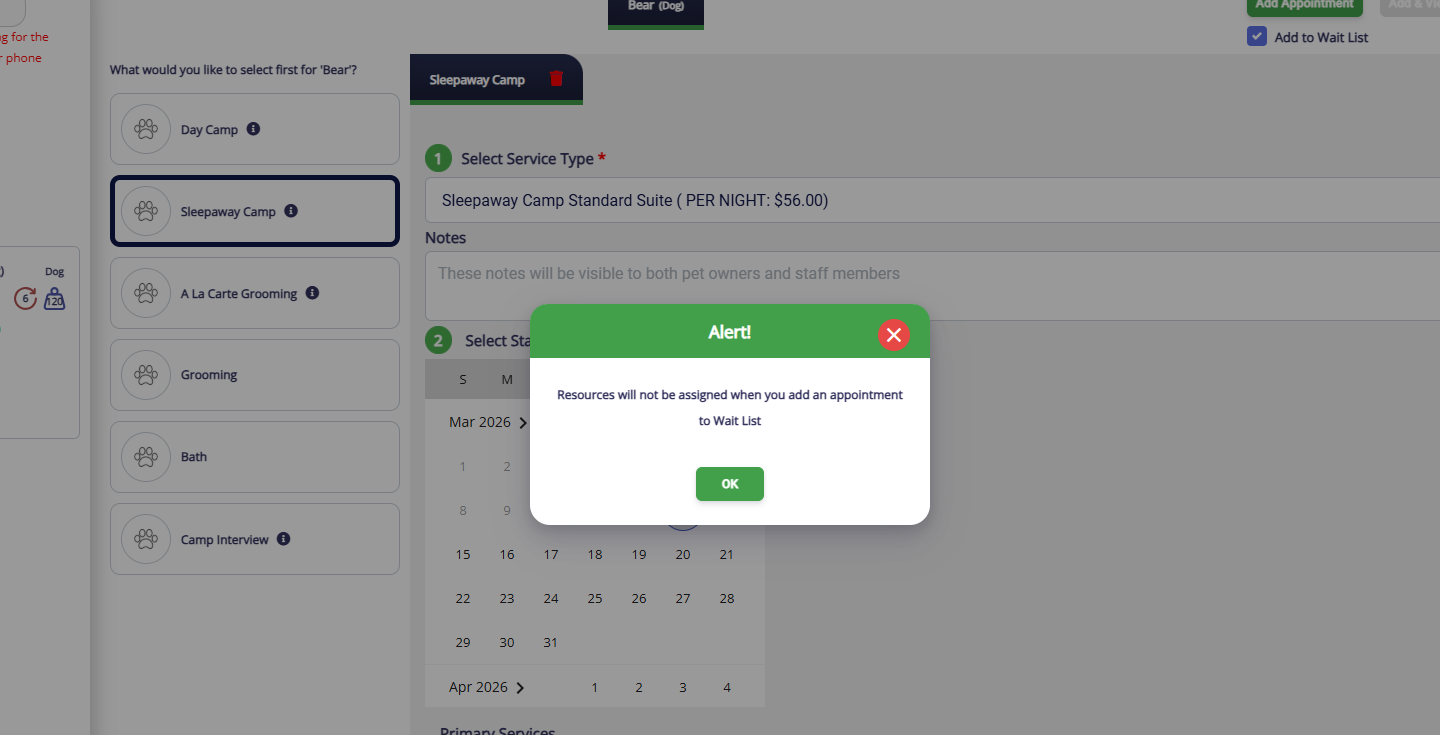
5. Waitlisted appointments do not have assigned runs, so click Confirm on the popup to acknowledge a run will not be assigned. Continue filling out the details of the appointment, such as start and end dates/times and any services.
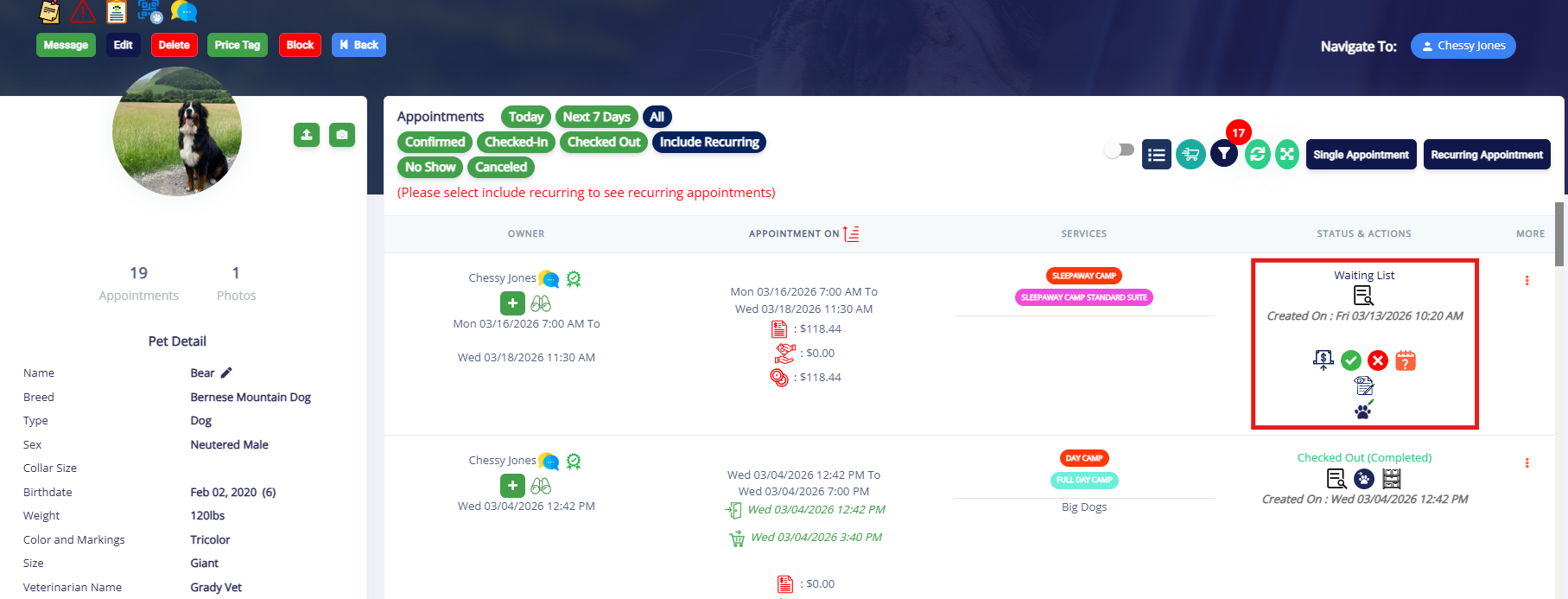
6. Once the appointment is finalized and the Add to Waitlist box is checked, click Add Appointment. It should then display the appointment as Waitlisted.
How to Accept an Appointment from the Waitlist
1. To view waitlisted appointments, go to the Left-hand navigation > Calendar tab. Select the appropriate type of service category (Capacity, Lodging, or Staff) and toggle Show Wait List at the top.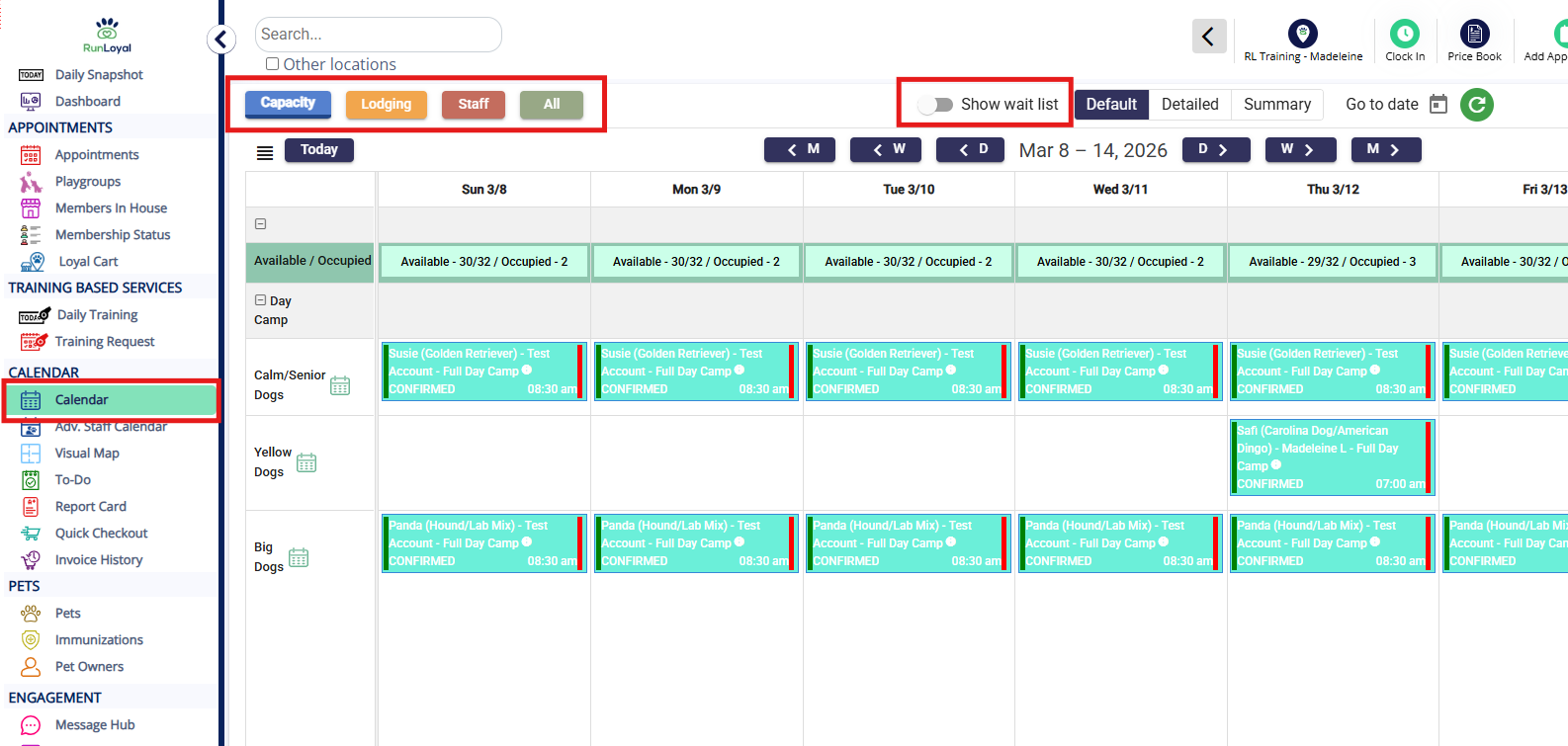
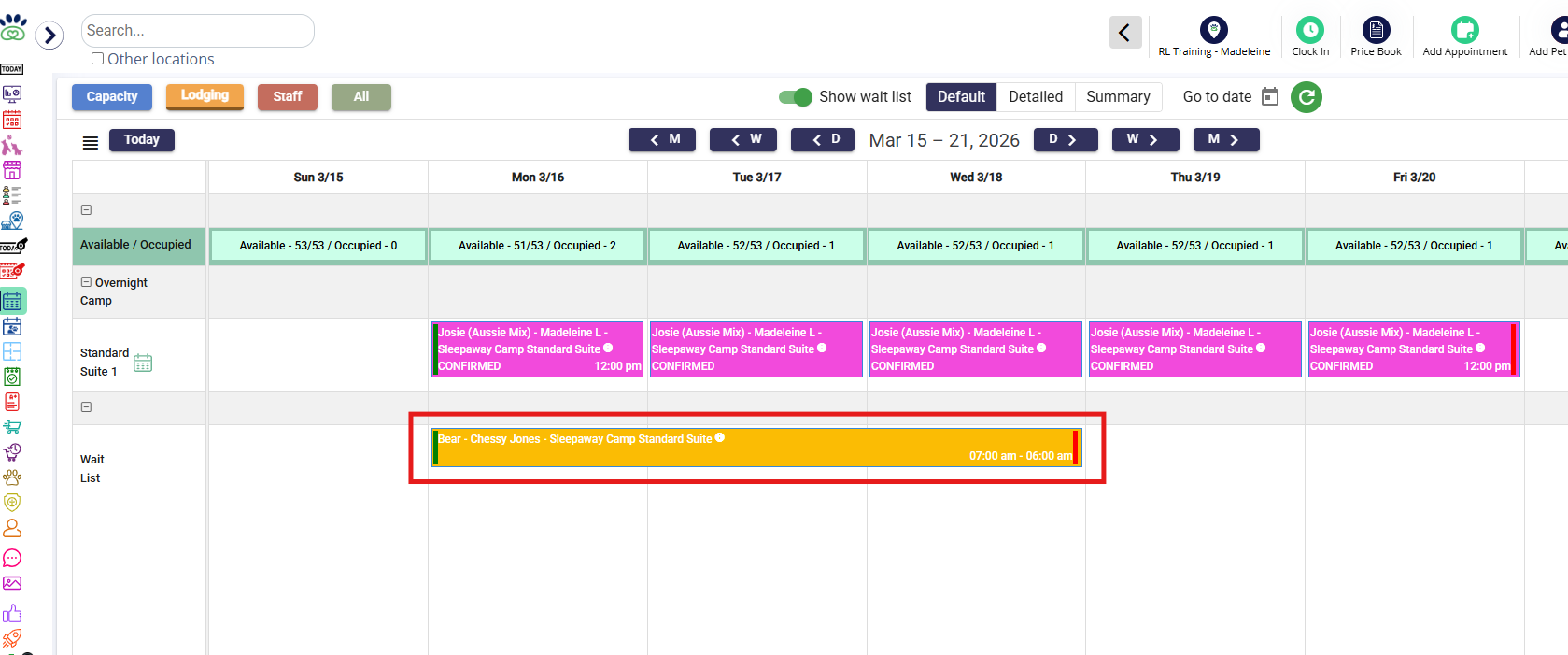
2. Waitlisted appointments appear at the bottom of the calendar. When ready, click on the pet owner’s name to open the confirmation screen.
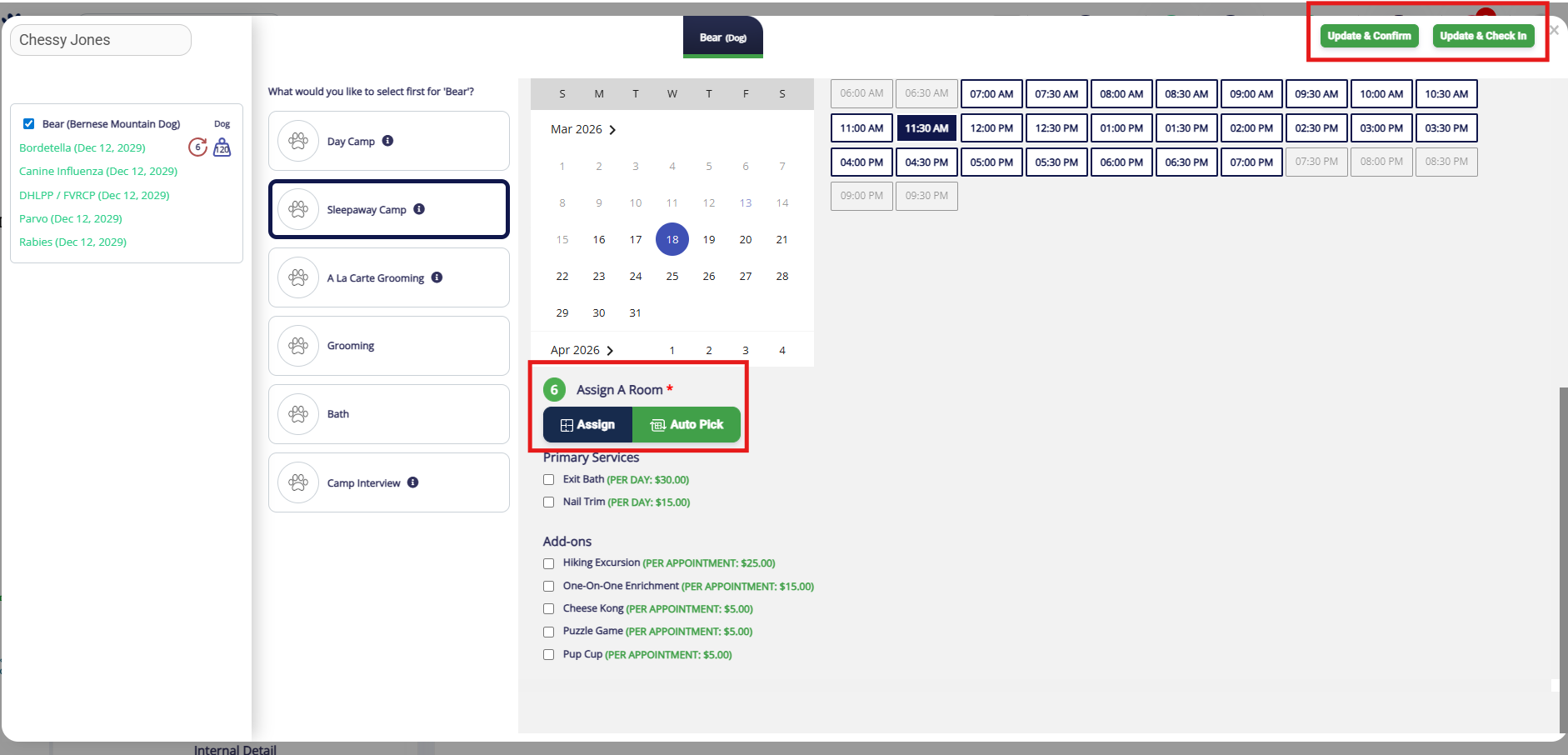
3. Select an assignment, then click Update & Confirm or Update & Check In.
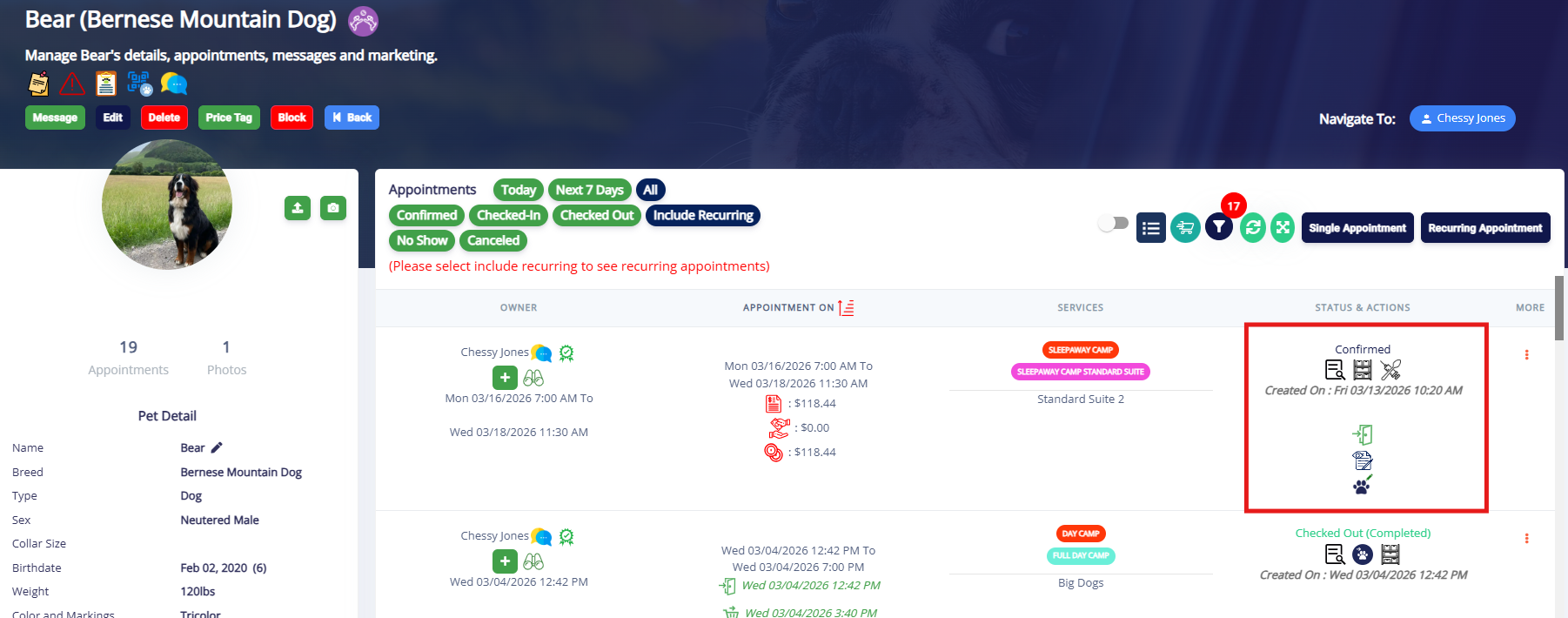
4. The status will update from Waiting List to Confirmed or Checked In.
More Information
For more information on creating and managing appointments, please refer to this article: Creating & Managing Appointments
For more information on checking in an appointment, please refer to this article: Checking In an Appointment
Was this article helpful?
That’s Great!
Thank you for your feedback
Sorry! We couldn't be helpful
Thank you for your feedback
Feedback sent
We appreciate your effort and will try to fix the article