Overview
Appointment Staff Notes are a great way for businesses to keep track of important information about a pet's appointments or monitor a pet's progress during their stay. Notes are organized by appointment and sorted by updated date, so all information regarding a pet's booking is saved in one place. You can also pin a note if you want to ensure key information stays easy to find. You can add multiple Appointment Staff Notes for a single appointment, ensuring each staff member who interacts with the animal can leave a separate note if necessary.
Appointment Staff Notes are for internal use only and are not visible to the pet owner.
Appointment Staff Notes can be viewed in the following areas:
- Appointments tab
- Daily Snapshot tab
- Pet Profile
- Owner Profile
- Viewing past/future appointments
- Paw Metrics > Operational > Notes Report
TABLE OF CONTENTS
- Overview
- How To Add an Appointment Note from Appointments tab
- How To Add an Appointment Note from Daily Snapshot tab
- How To Add an Appointment Note from a Pet Profile
- How To Edit/Delete Appointment Staff Notes
- How To Pin/Unpin an Appointment Staff Note
- How To Limit Results To Appointment Staff Notes Only
- More Information
How To Add an Appointment Note from Appointments tab
1. Navigate to the left-hand navigation > Appointments tab.
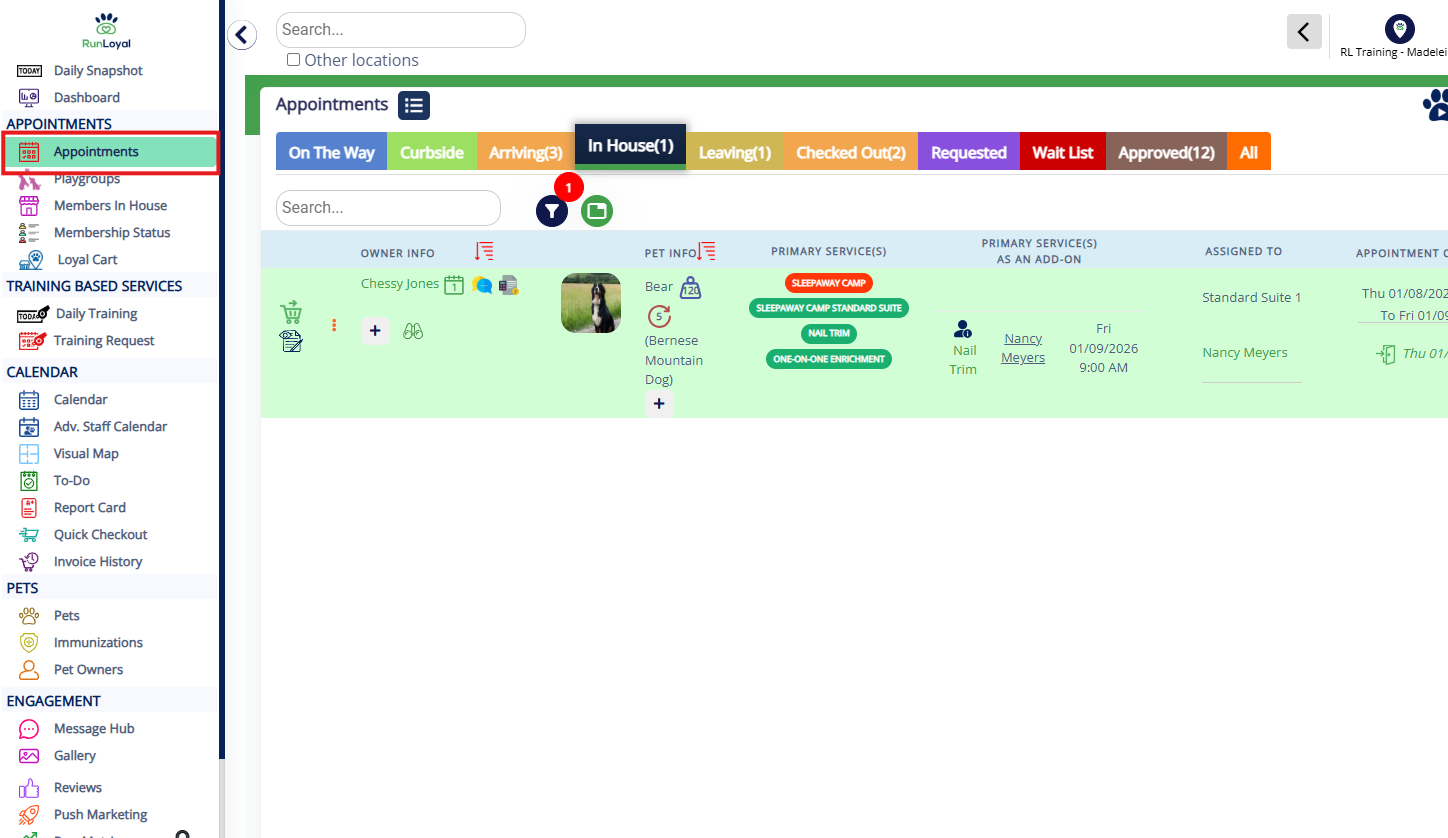
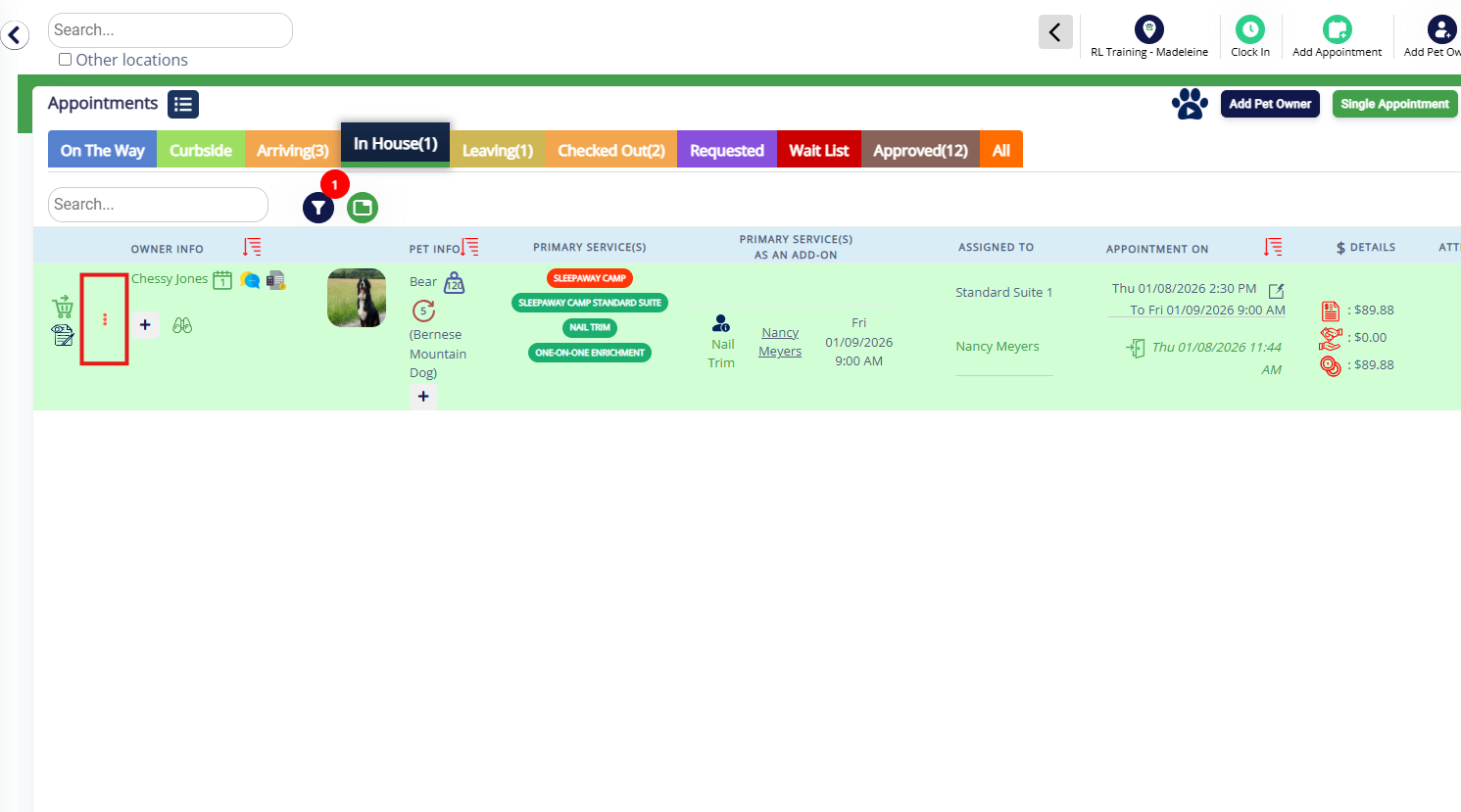
2. On the Appointments tab, click the three dots next to the pet's appointment in question.
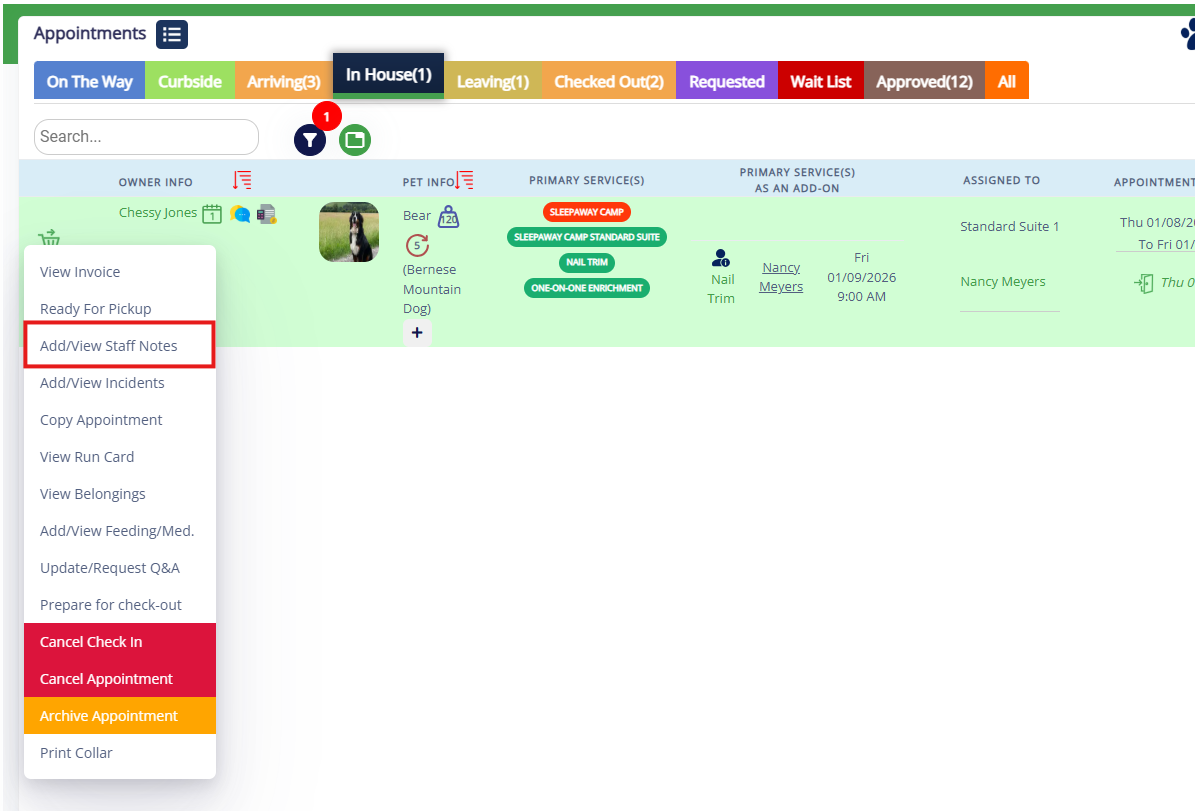
3. Select Add/View Staff Notes.
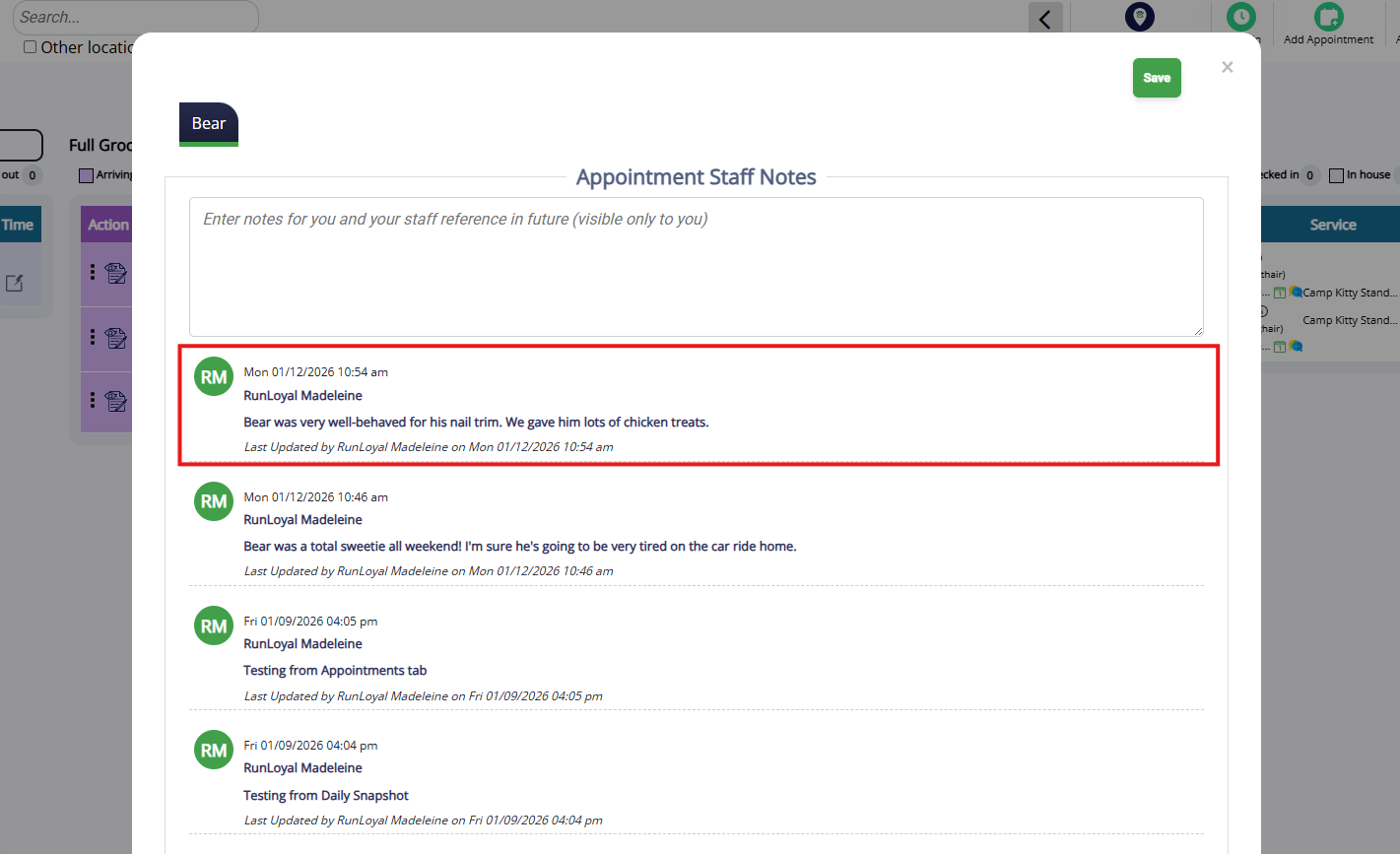
4. Type the note detail directly into the Appointment Staff Notes textbox and click Save.
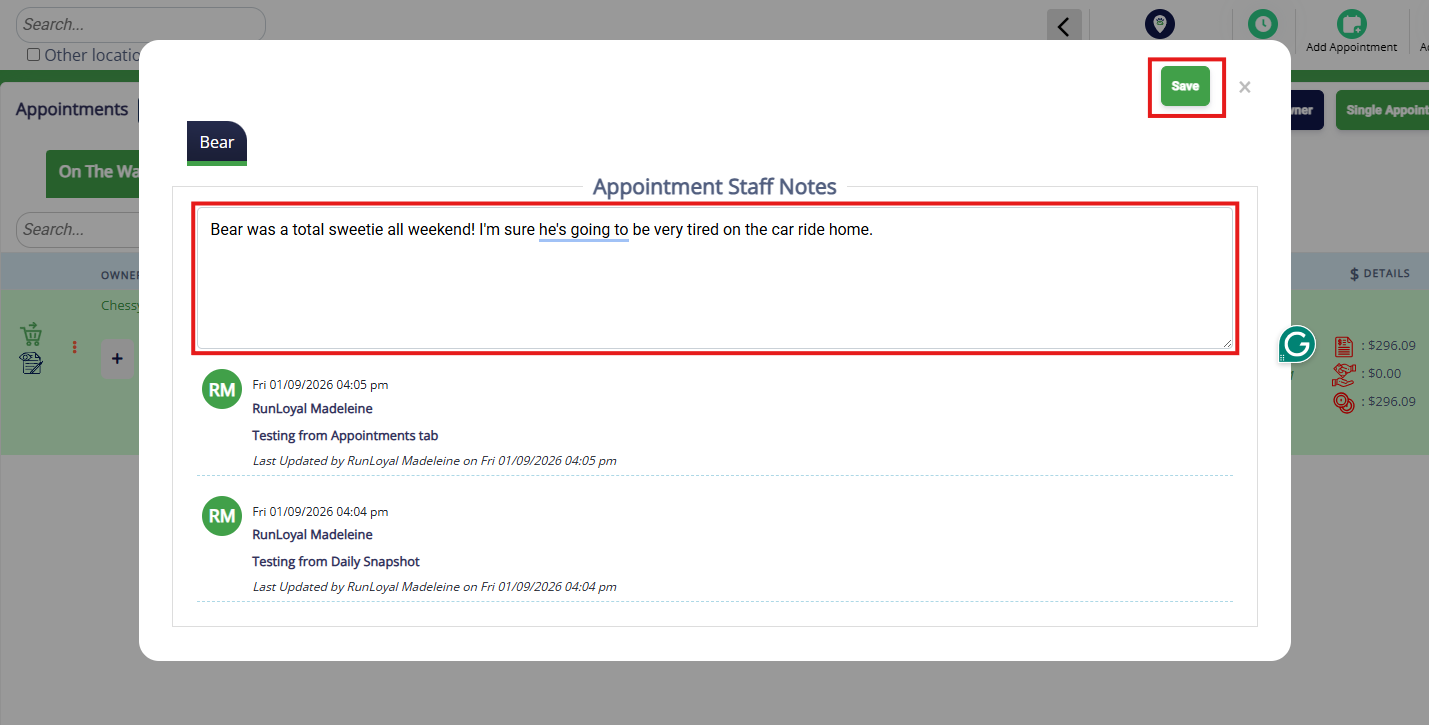
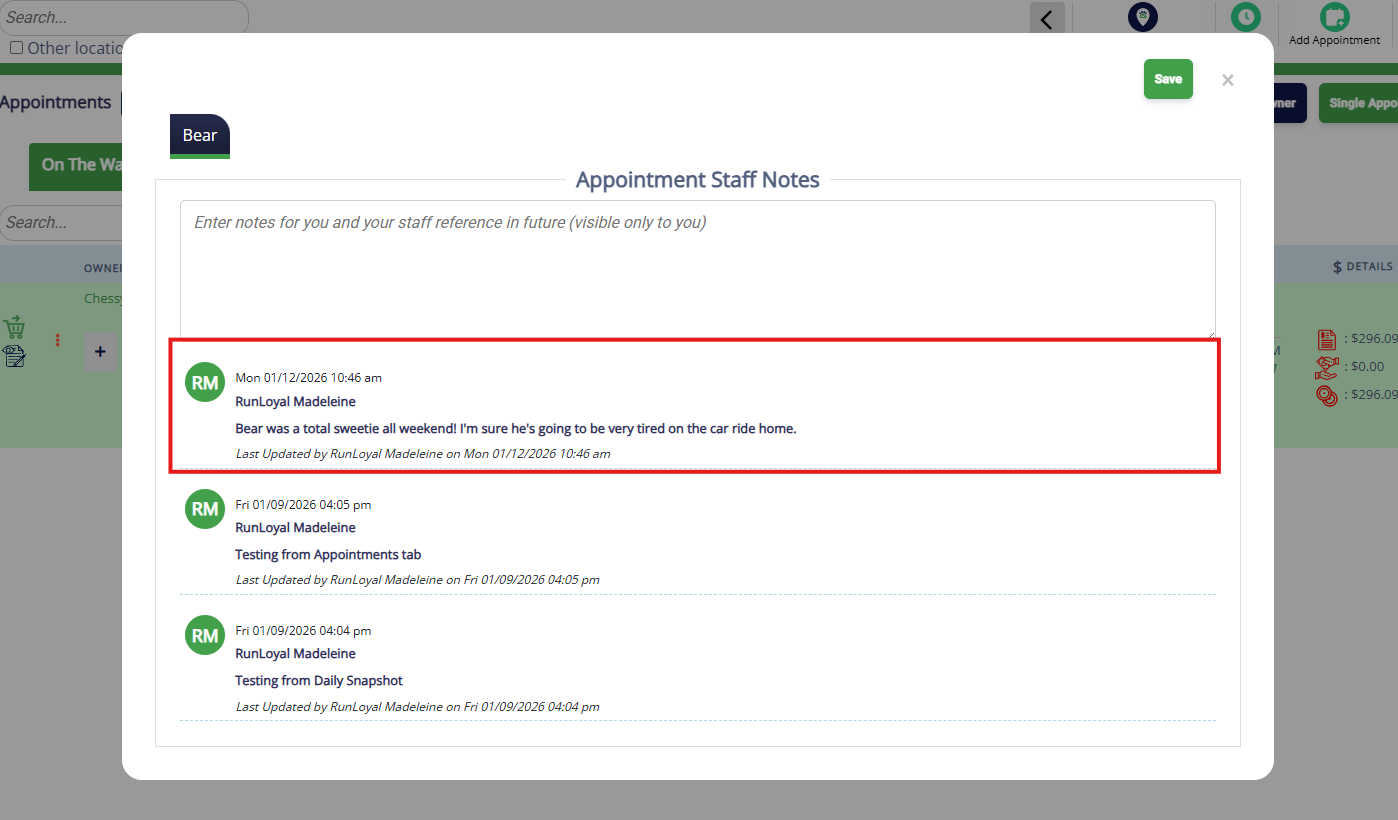
5. Verify your note displays at the top of the Notes popup.
How To Add an Appointment Note from Daily Snapshot tab
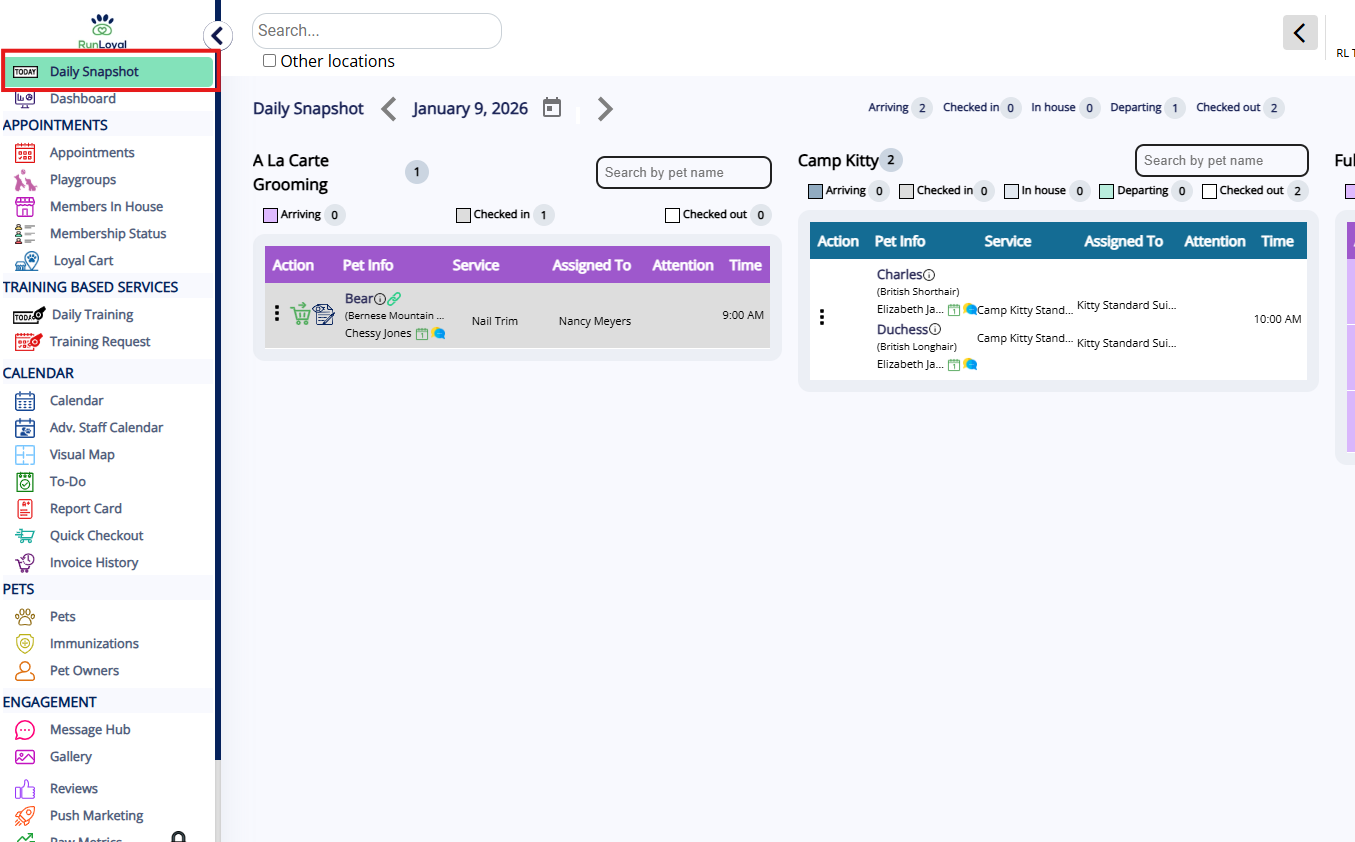
1. Navigate to the left-hand navigation > Daily Snapshot tab.
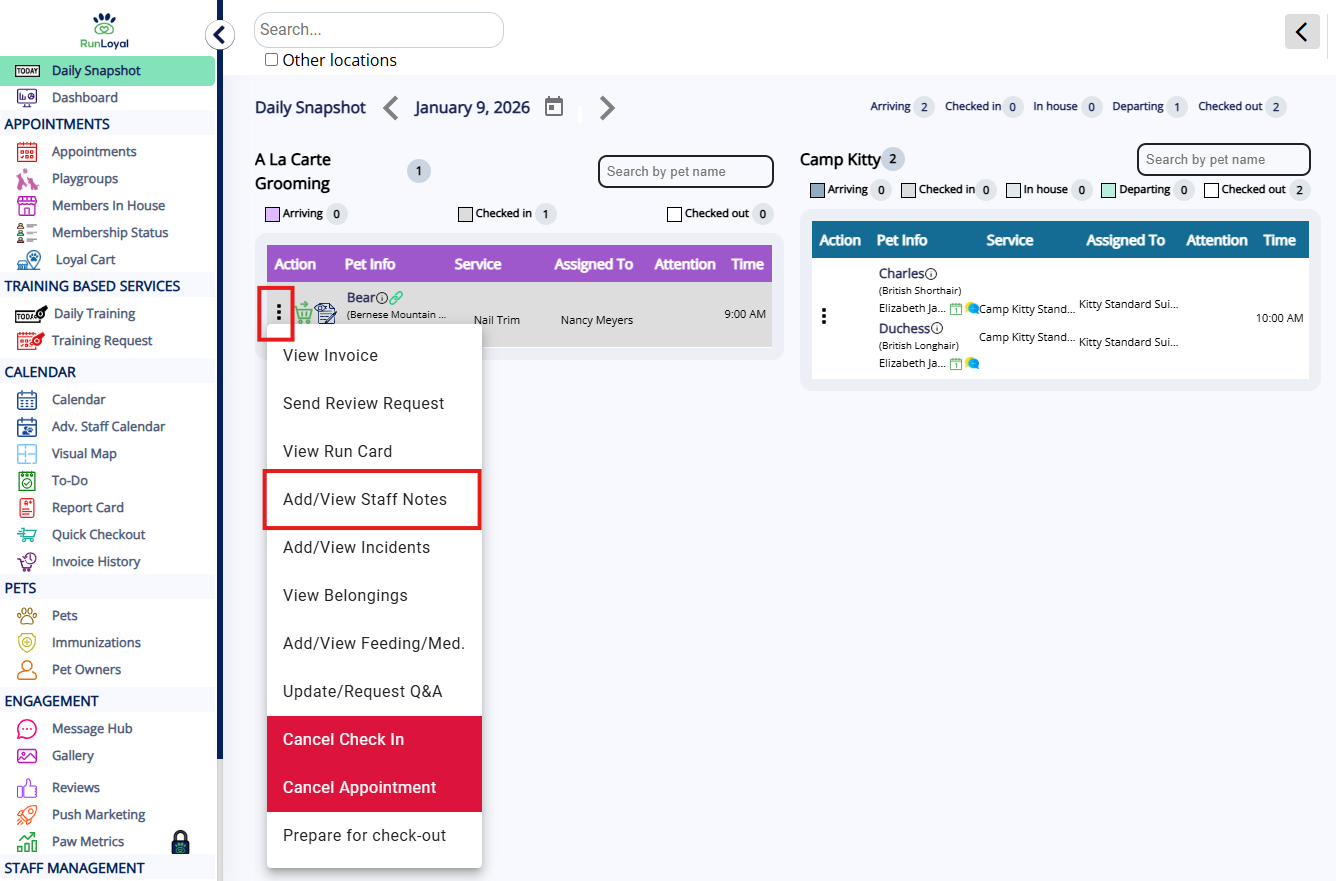
2. On the Appointments tab, click the three dots next to the pet's appointment in question and select Add/View Staff Notes.
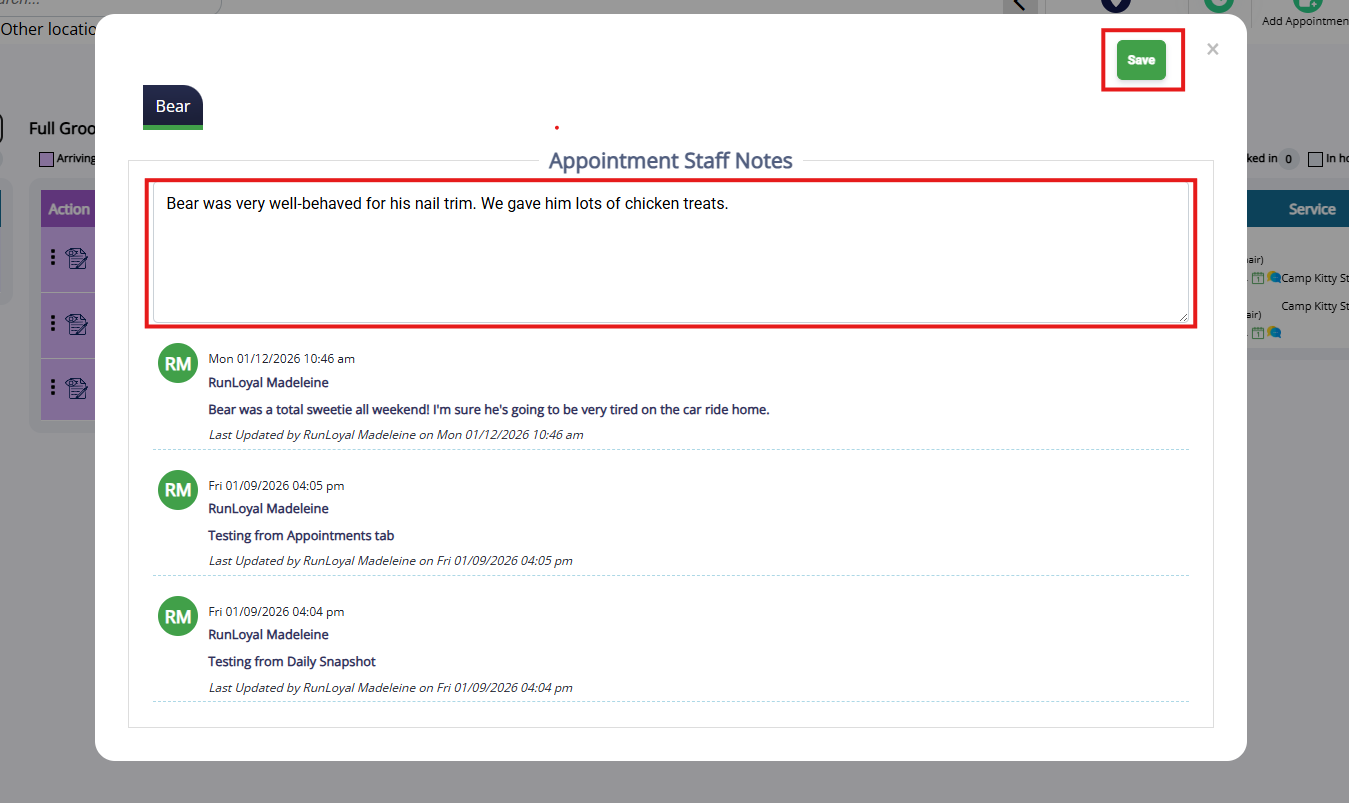
4. Type the note detail directly into the Appointment Staff Notes textbox and click Save.
5. Verify your note displays at the top of the Notes popup.
How To Add an Appointment Note from a Pet Profile
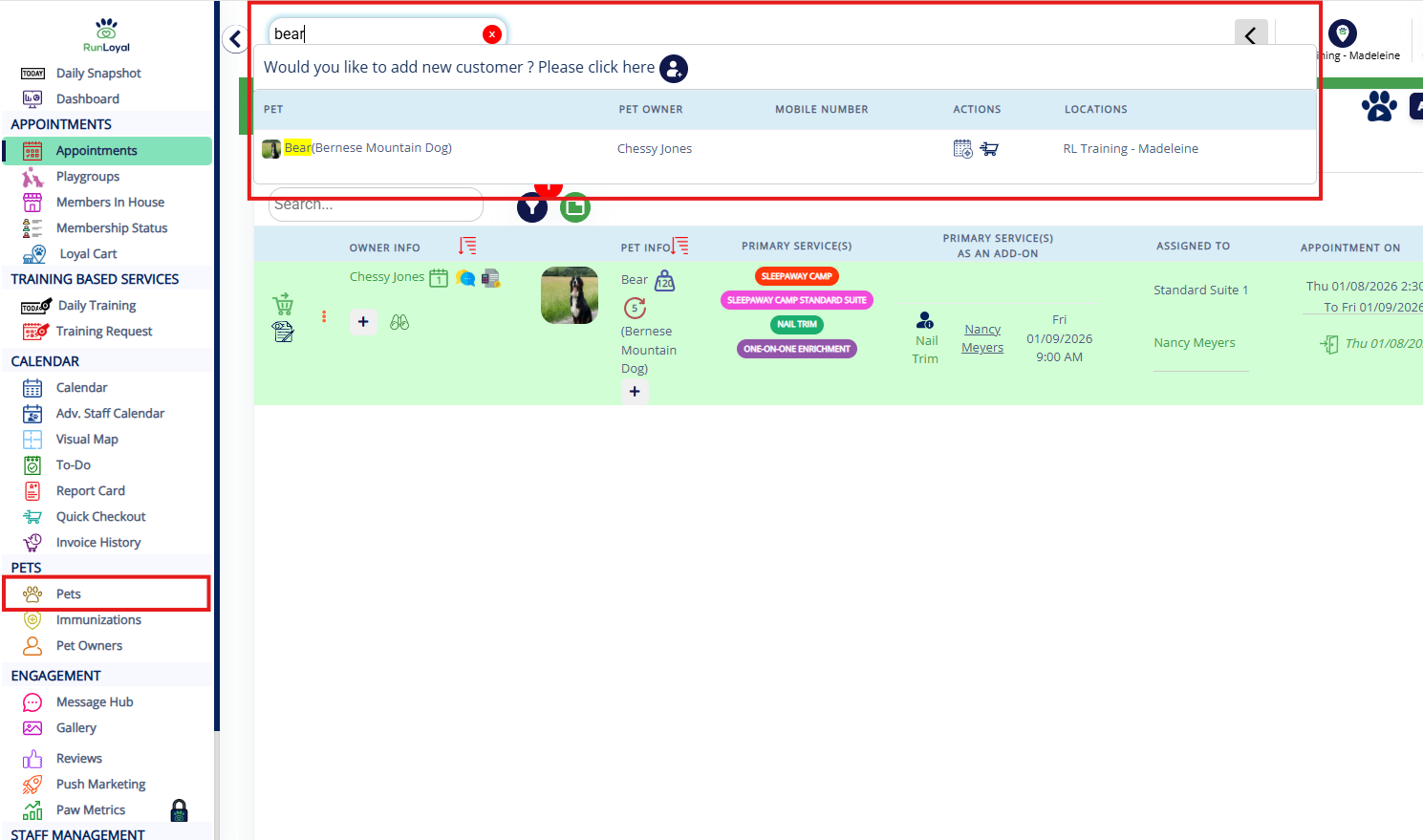
1. Navigate to any pet or pet owner's profile by searching the pet or owner name in the search bar, or using the navigation bar to open the Pets or Pet Owner page.
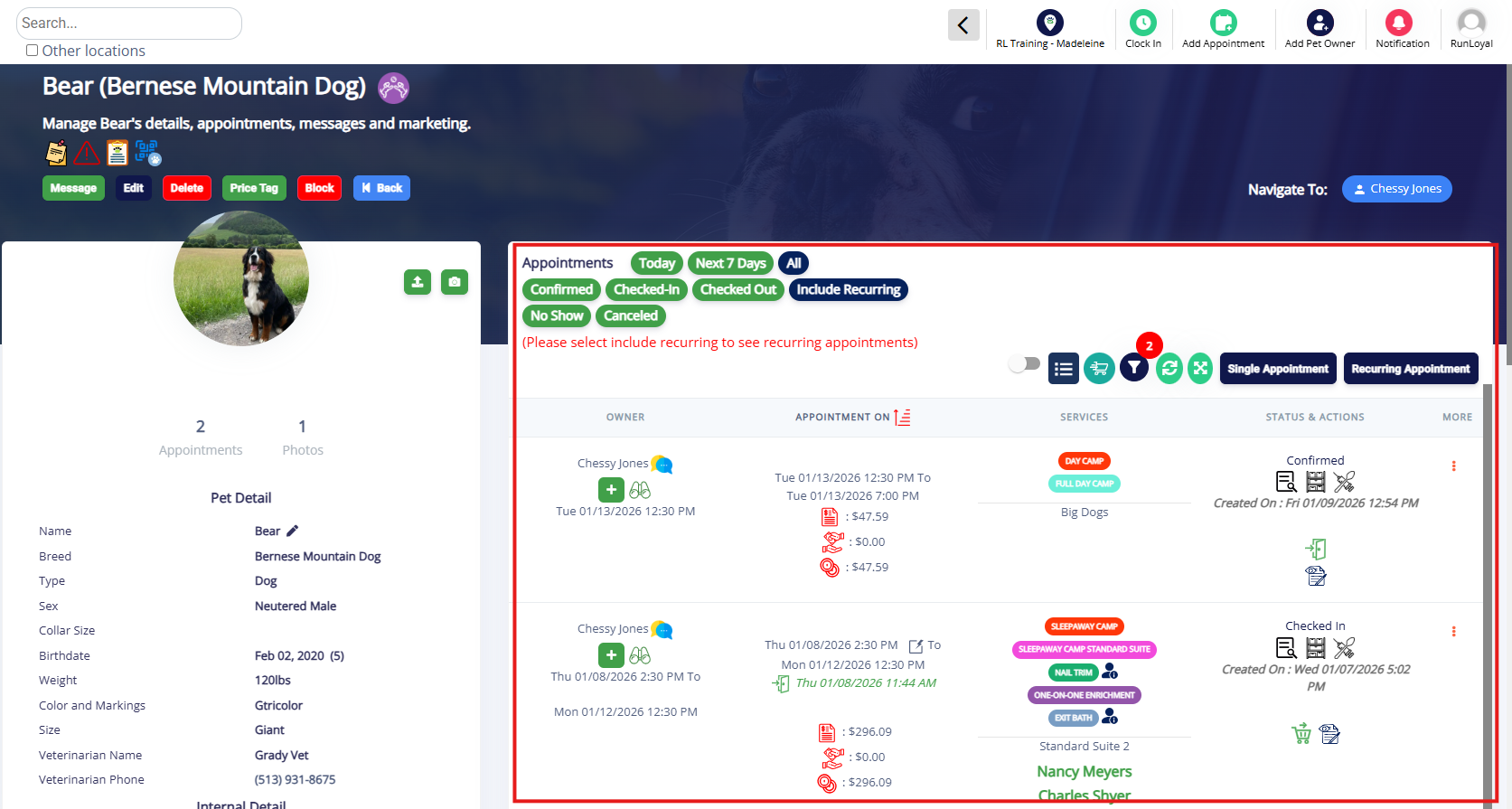
2. On the pet or pet owner profile, locate the Appointments section.
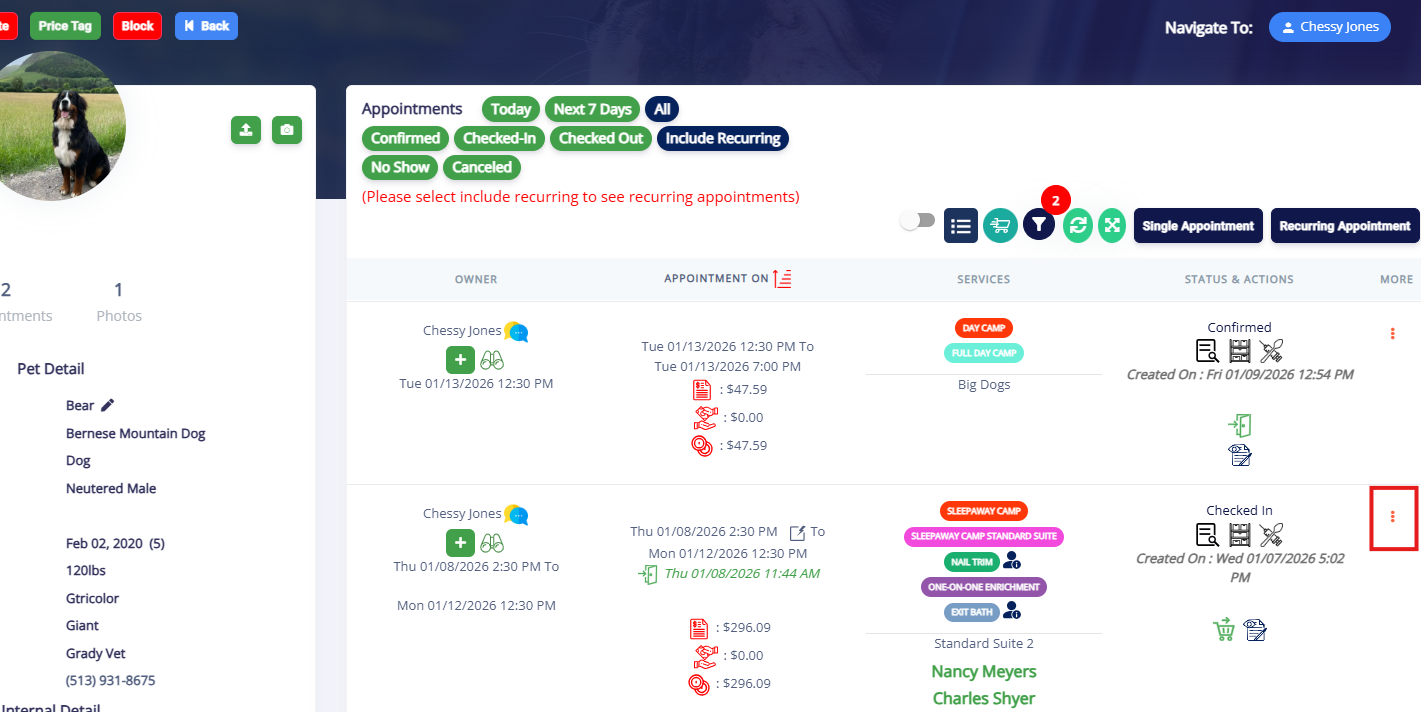
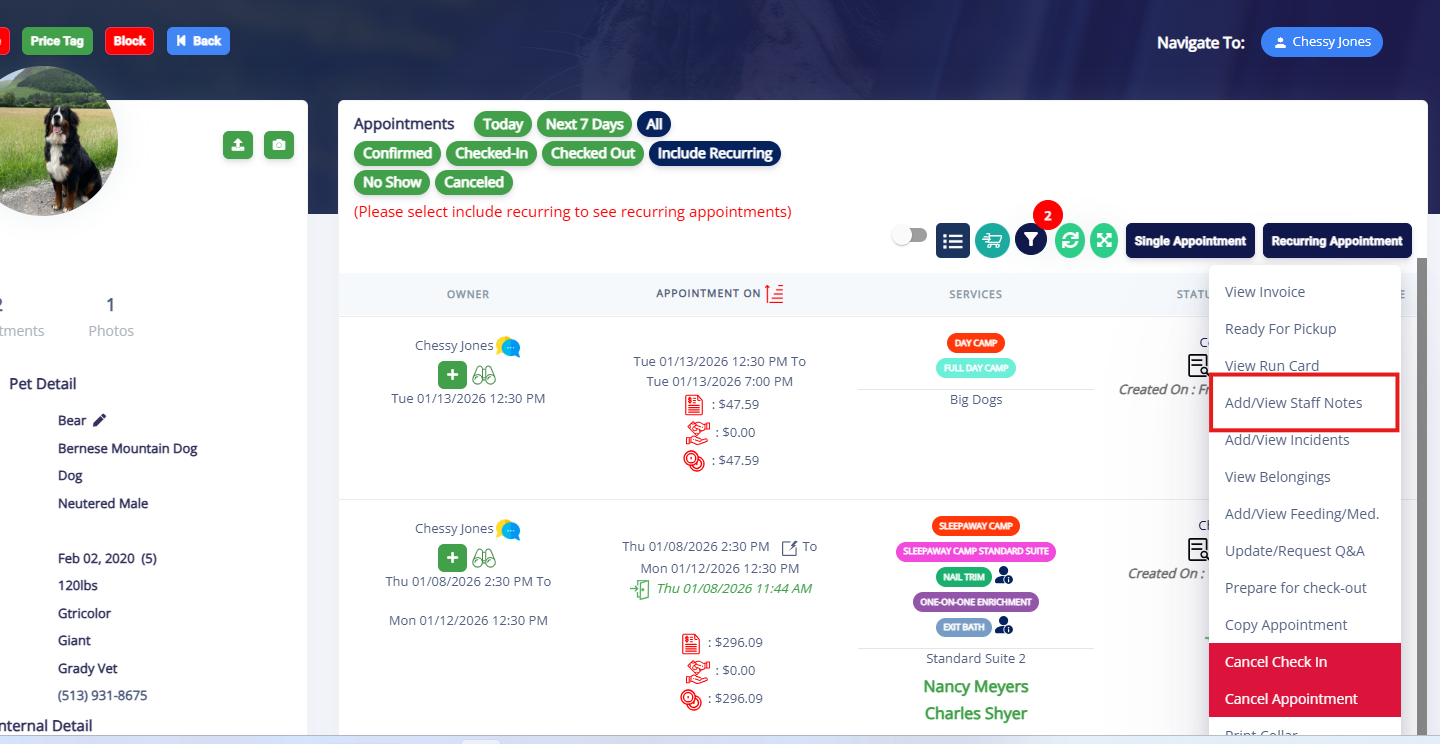
3. Click the three dots next to the appointment on which you wish to add a staff note.
4. Select Add/View Staff Notes.
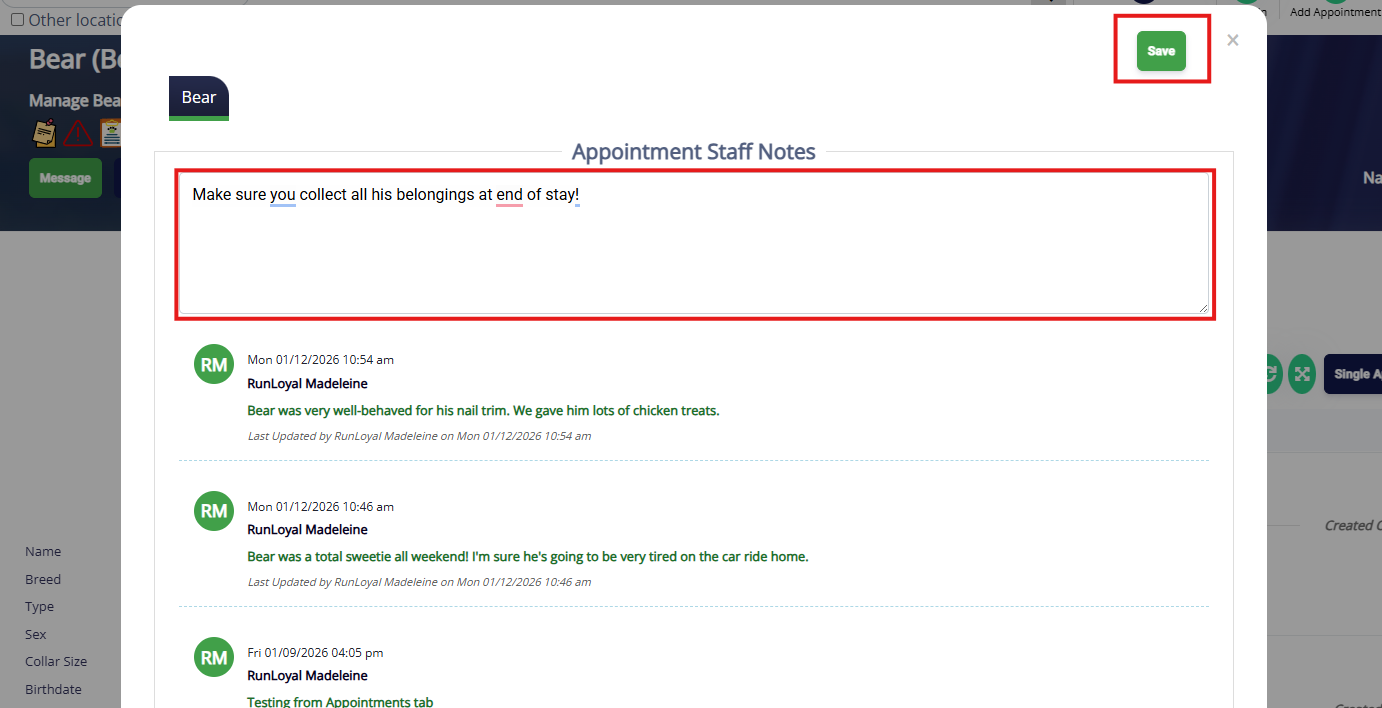
5. Type the note detail directly into the Appointment Staff Notes textbox and click Save.
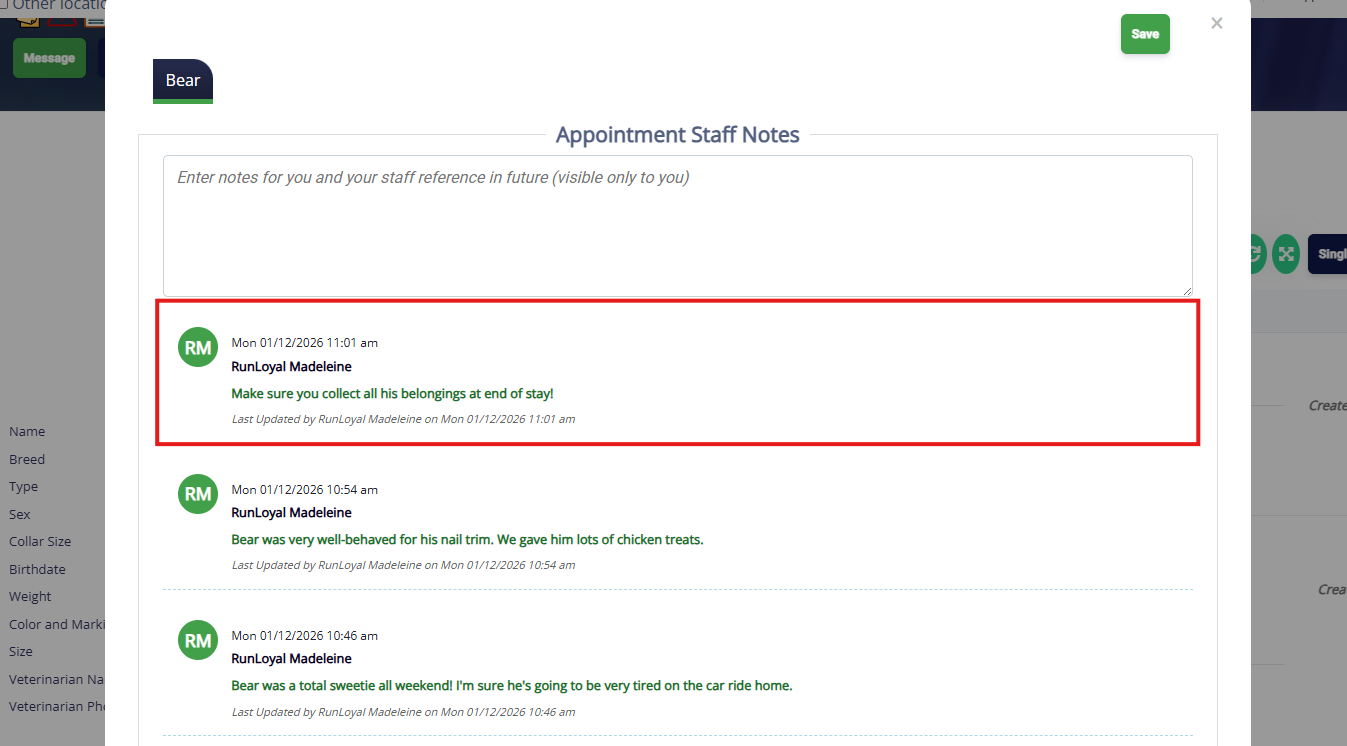
6. Verify your note displays at the top of the Notes popup.
How To Edit/Delete Appointment Staff Notes
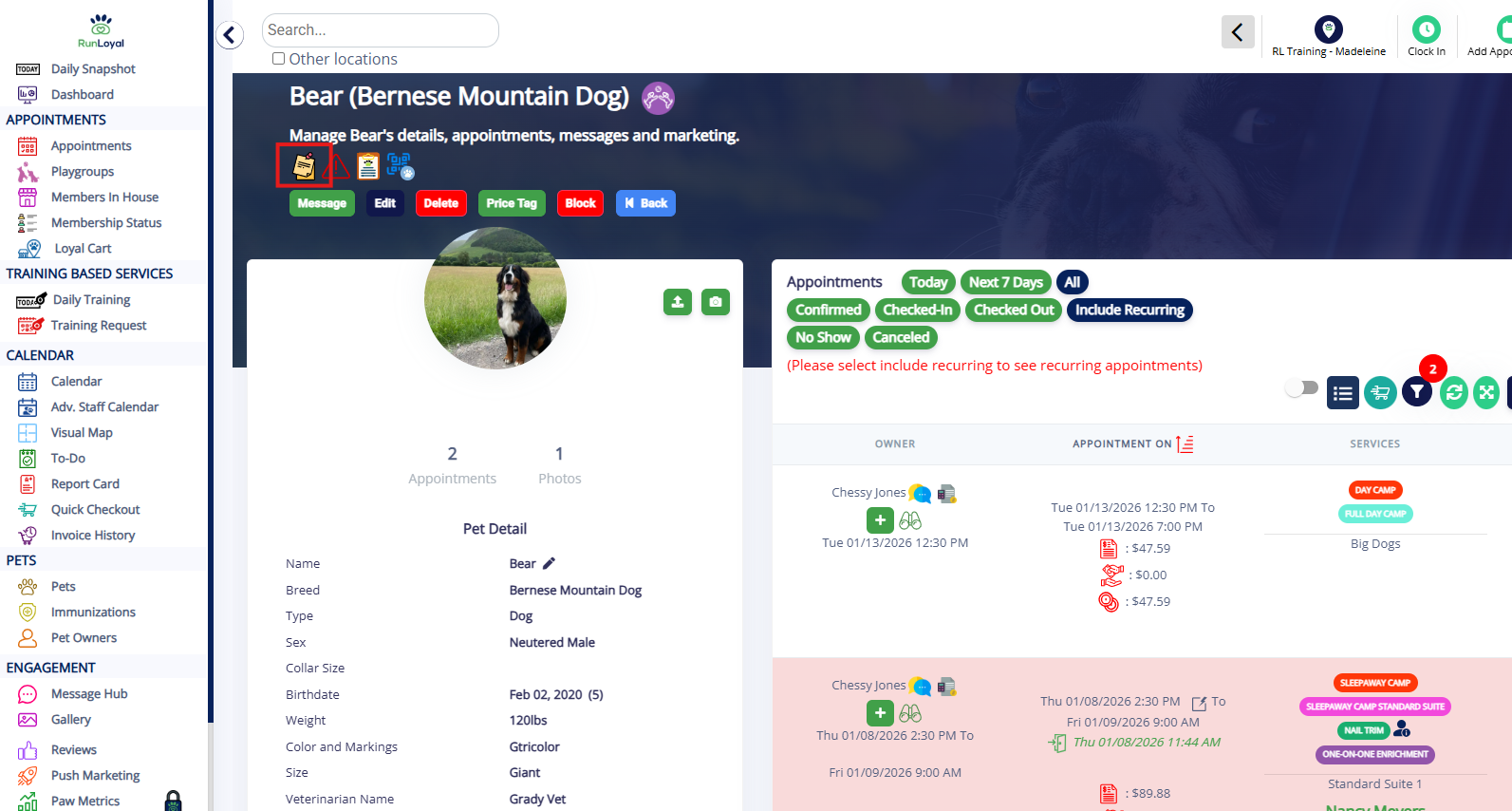
1. Navigate to any pet or pet owner profile and click the Notes icon in the top left of the page, just under the name.
2. From the Notes popup, to edit any note click the green pencil icon next to the note in question.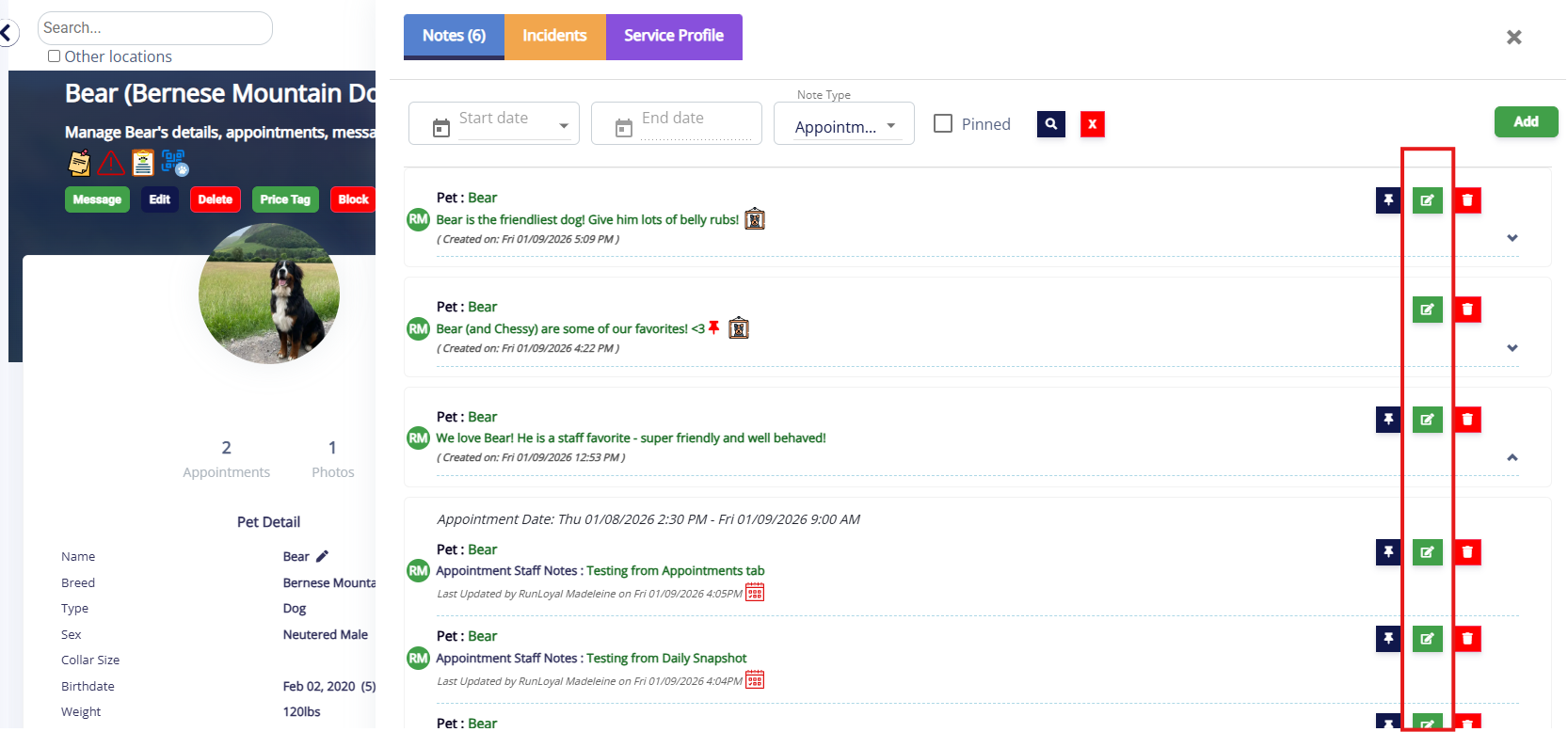
3. Update your text as needed, then click Update.
⚠️ Important: Any update will move the note to the top of the list.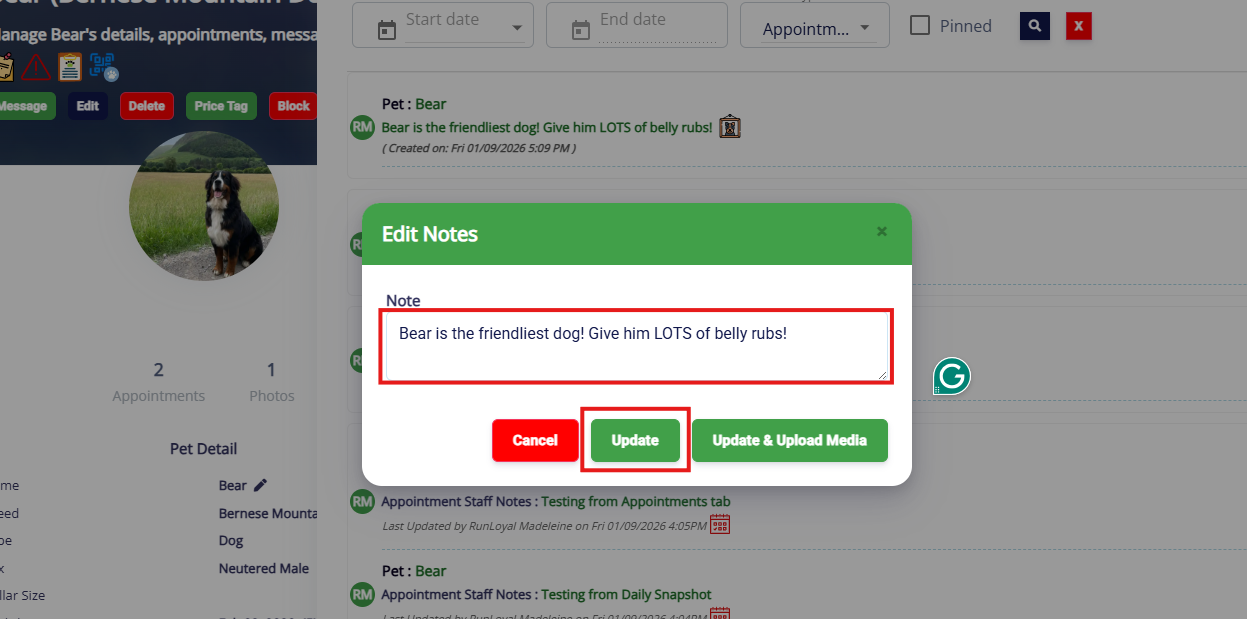
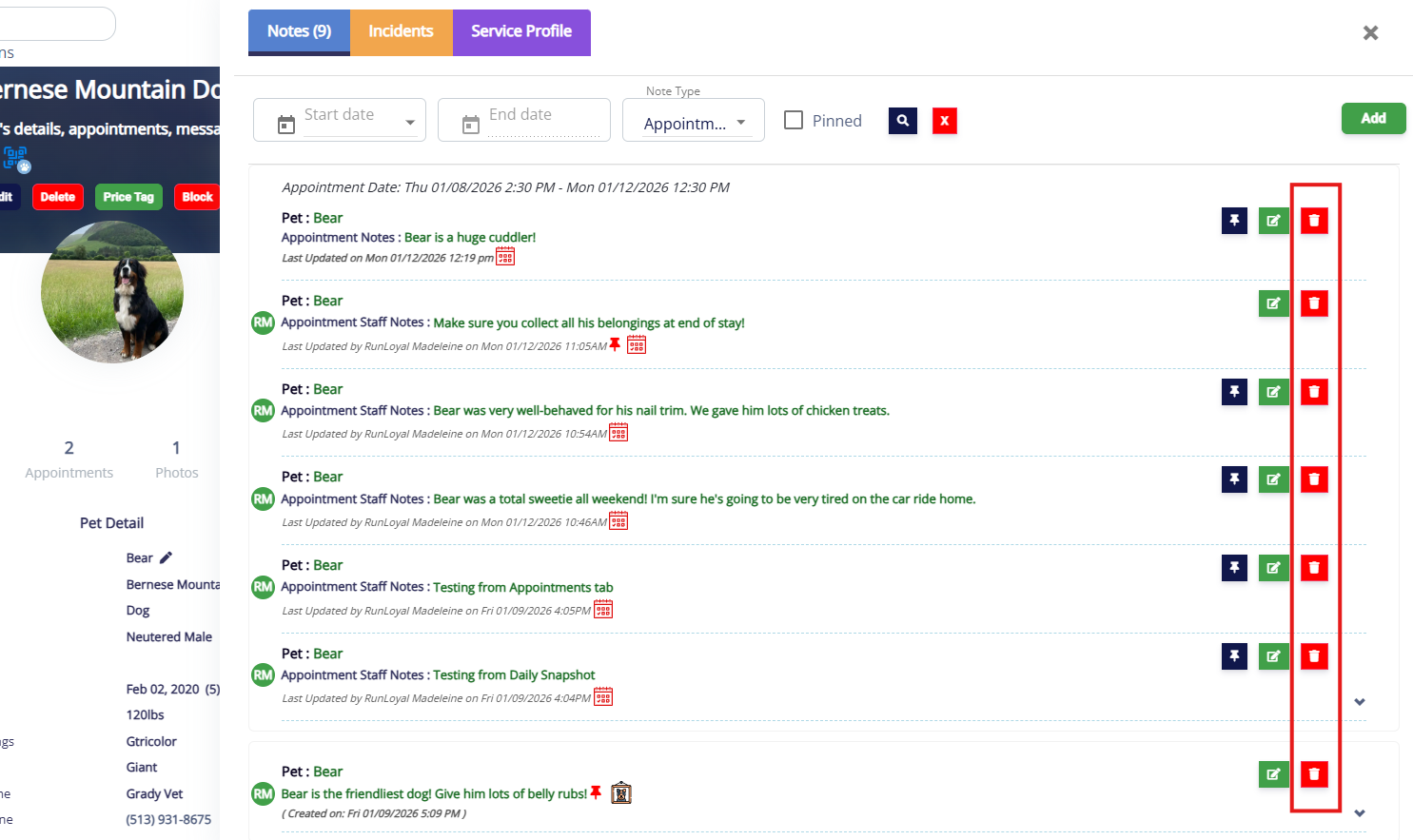
4. To delete a note, click the red Trash icon next to the note in question. Then type the word 'delete' and click Delete.
How To Pin/Unpin an Appointment Staff Note
1. Navigate to any pet or pet owner profile and click the Notes icon in the top left of the page, just under the name.
2. From the Notes popup, click the blue pin icon next to the note you wish to pin.
⚠️ Important: This is considered an update and will move the note to the top of the list.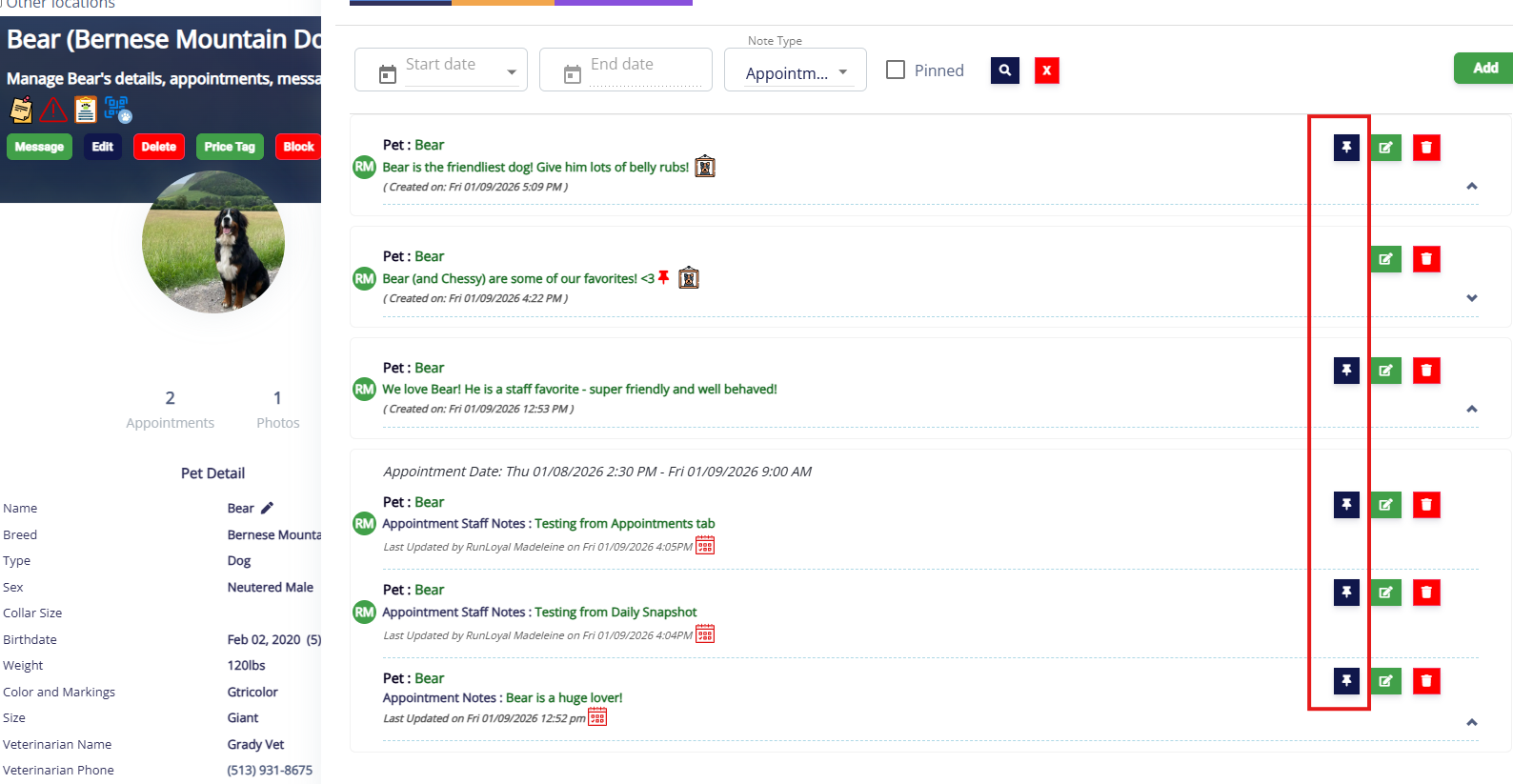
3. To unpin a note, click the red pin icon next to the pinned note.
⚠️ Important: This is considered an update and will move the note to the top of the list.
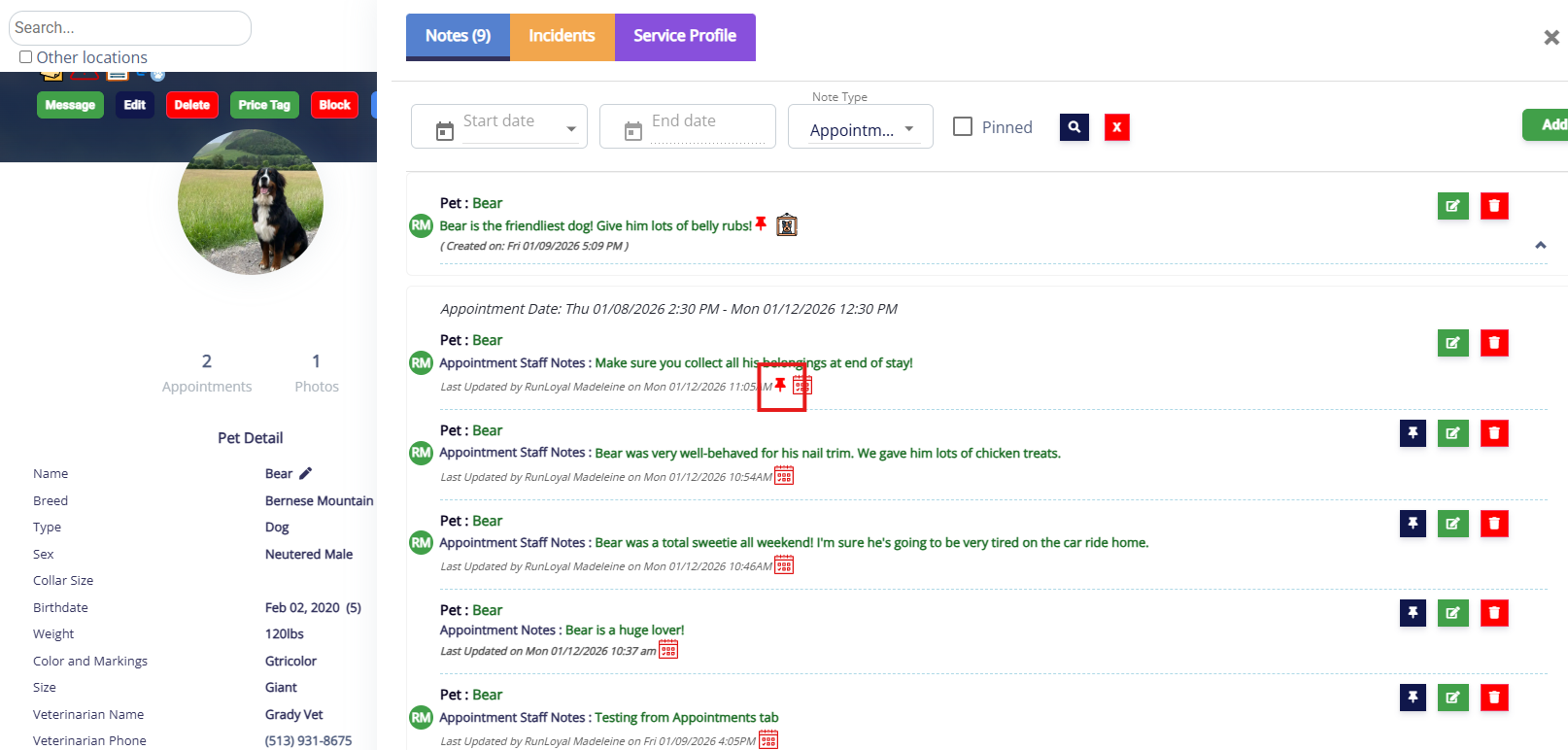
4. To limit the notes to only pinned notes, check the Pinned checkbox at the top of the Notes Popup, then click the blue search button. 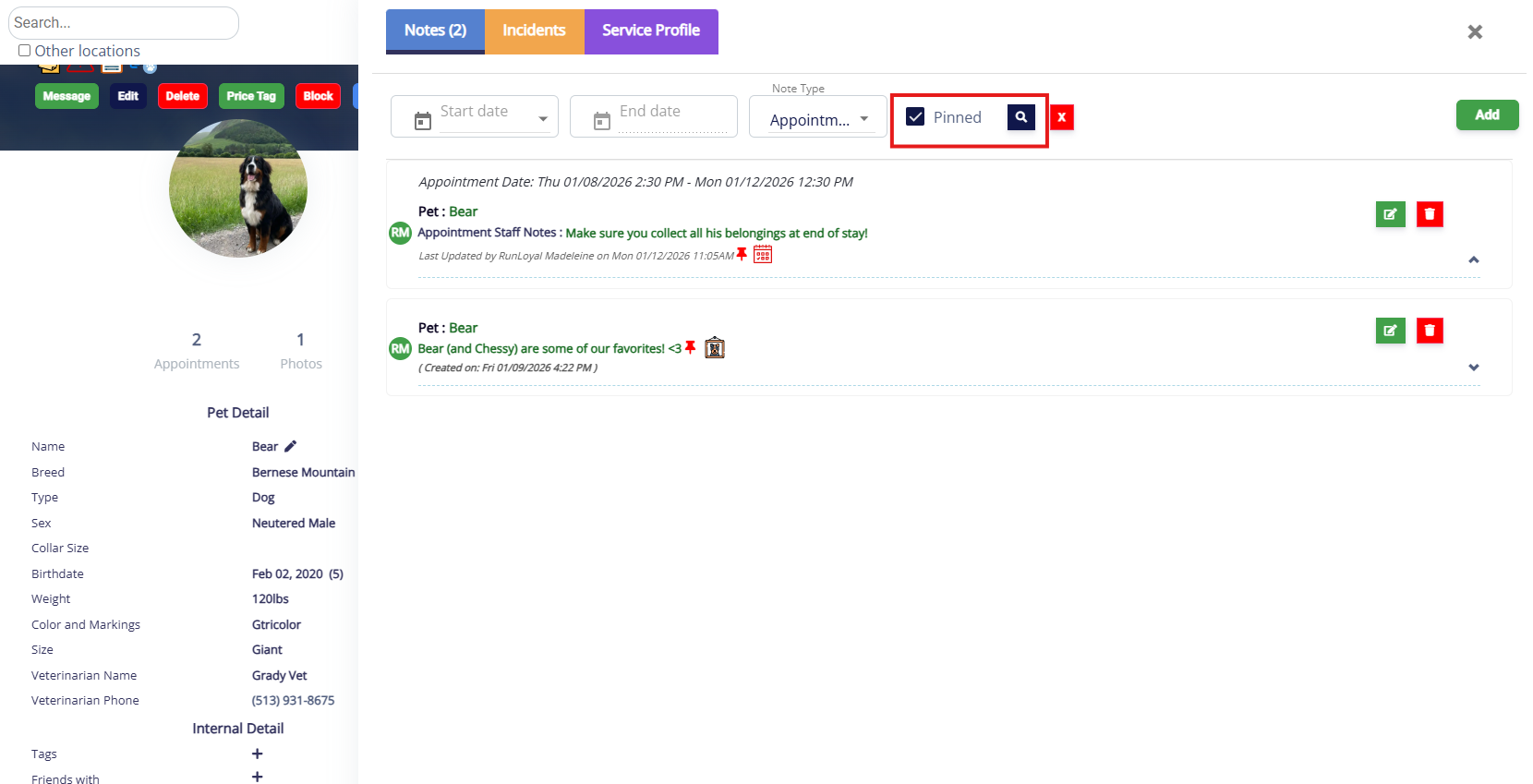
How To Limit Results To Appointment Staff Notes Only
1. Navigate to any pet or pet owner profile and click the Notes icon in the top left of the page, just under the name.
2. From the Notes popup, click the box titled Note Type.
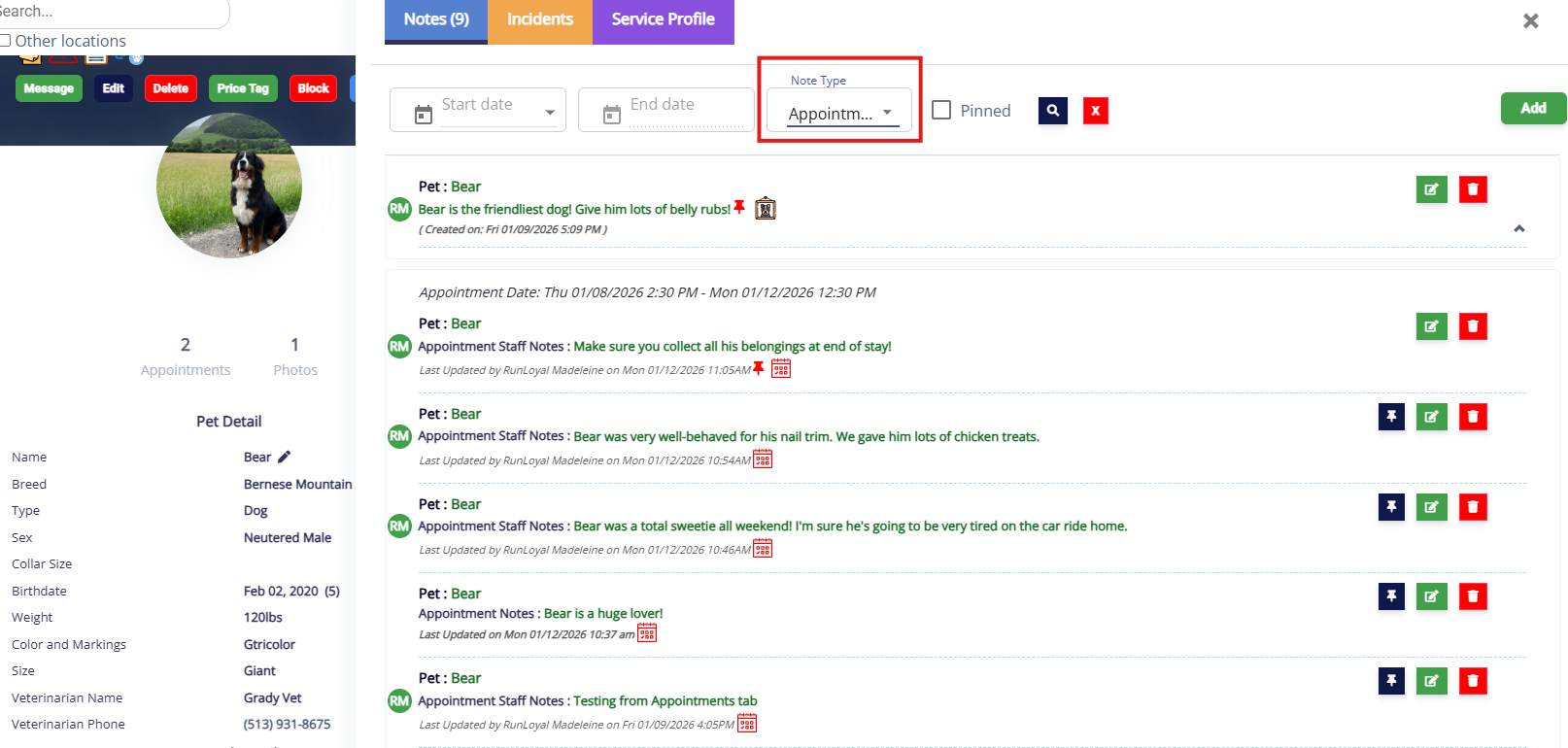
3. Uncheck Pet and make sure Appointment is checked. Then click the Search button.
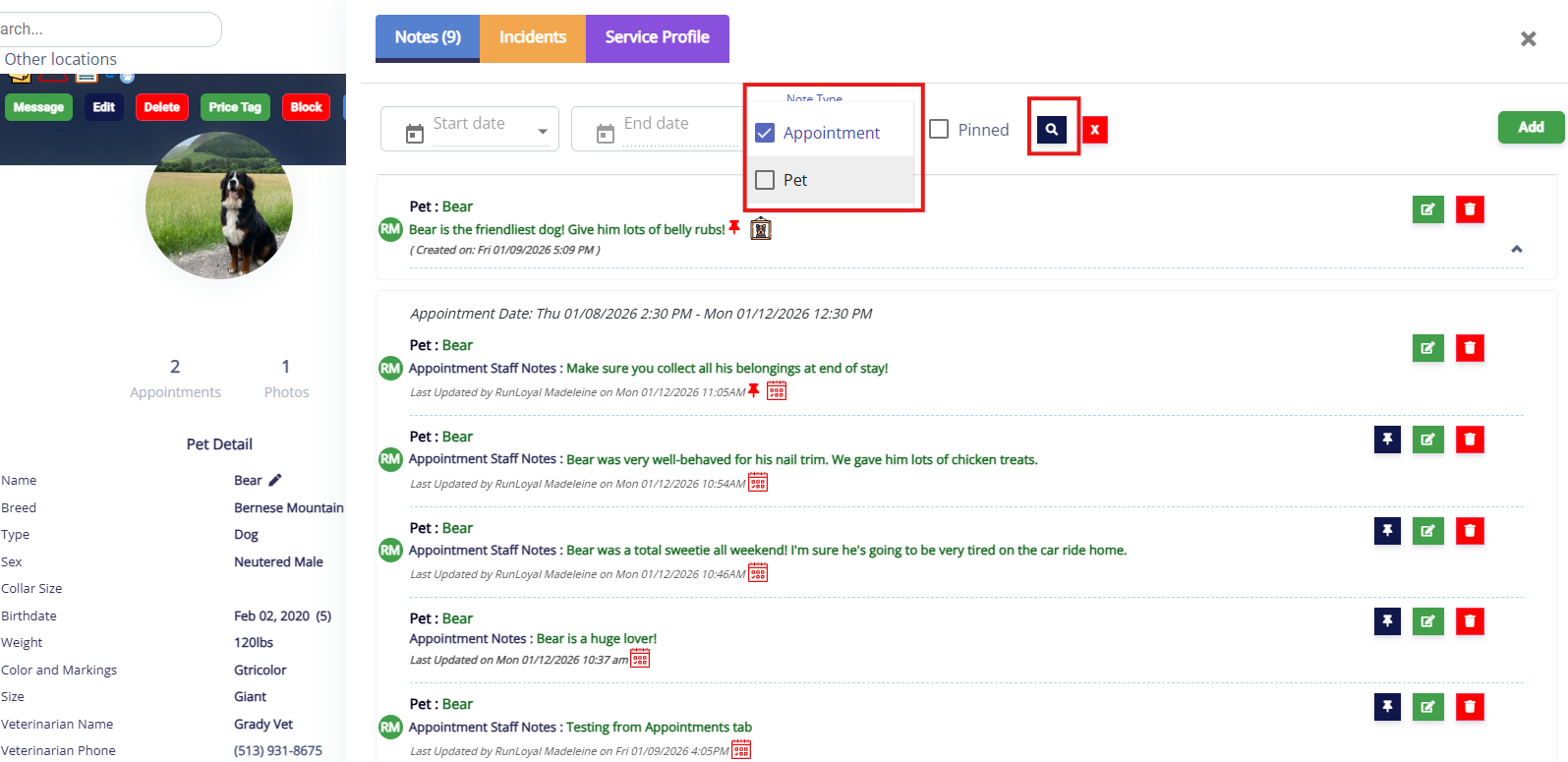
4. The results will then only display Appointment notes and exclude Pet notes.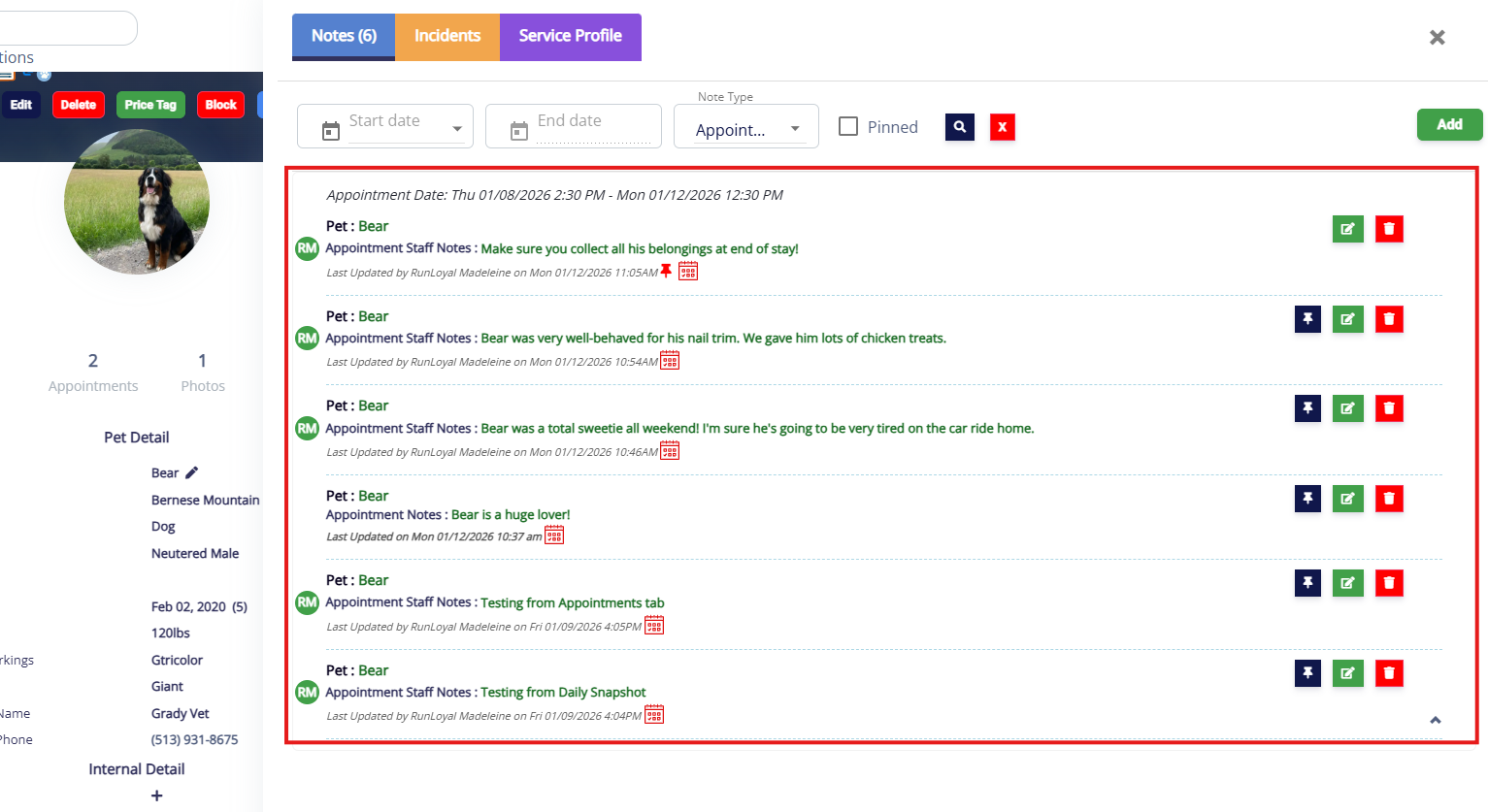
More Information
For more information on Pet Staff Notes, please refer to this article: Adding a Pet Staff Note
For more information on Owner Staff Notes, please refer to this article: Adding a Pet Owner Staff Note
For more information on Appointment Notes, please refer to this article: Adding an Appointment Note (Public)
Was this article helpful?
That’s Great!
Thank you for your feedback
Sorry! We couldn't be helpful
Thank you for your feedback
Feedback sent
We appreciate your effort and will try to fix the article