Overview
Service Add-Ons can be added to new and existing appointments as an optional additional offering for the pet's stay. Service add-ons can be set up to link to a specialist or without assigning a user. You can select to add add-ons for a single day, every day, or some other cadence of a multi-day booking.
Service categories are the overall header of potentially multiple services you offer at your business. Under each service, you can also offer service add-ons. For example, you may have a Service category titled Daycare that includes the services titled Full Day Daycare and Half Day Daycare. Under the service Full Day Daycare, you may offer optional add-ons such as Frozen Kong and One-on-One Enrichment. This article will assist in setting up the optional add-ons such as Frozen Kong and One-on-One Enrichment.
Service Add-Ons can be viewed in the following areas:
- Appointments tab
- Calendar and Advanced Staff Calendar
- Run card
- Settings > Business Setup > Service Configuration
- Creating or editing an appointment
TABLE OF CONTENTS
How To Create a Service Add-On
1. Navigate to Settings > Business Setup > Service Configuration.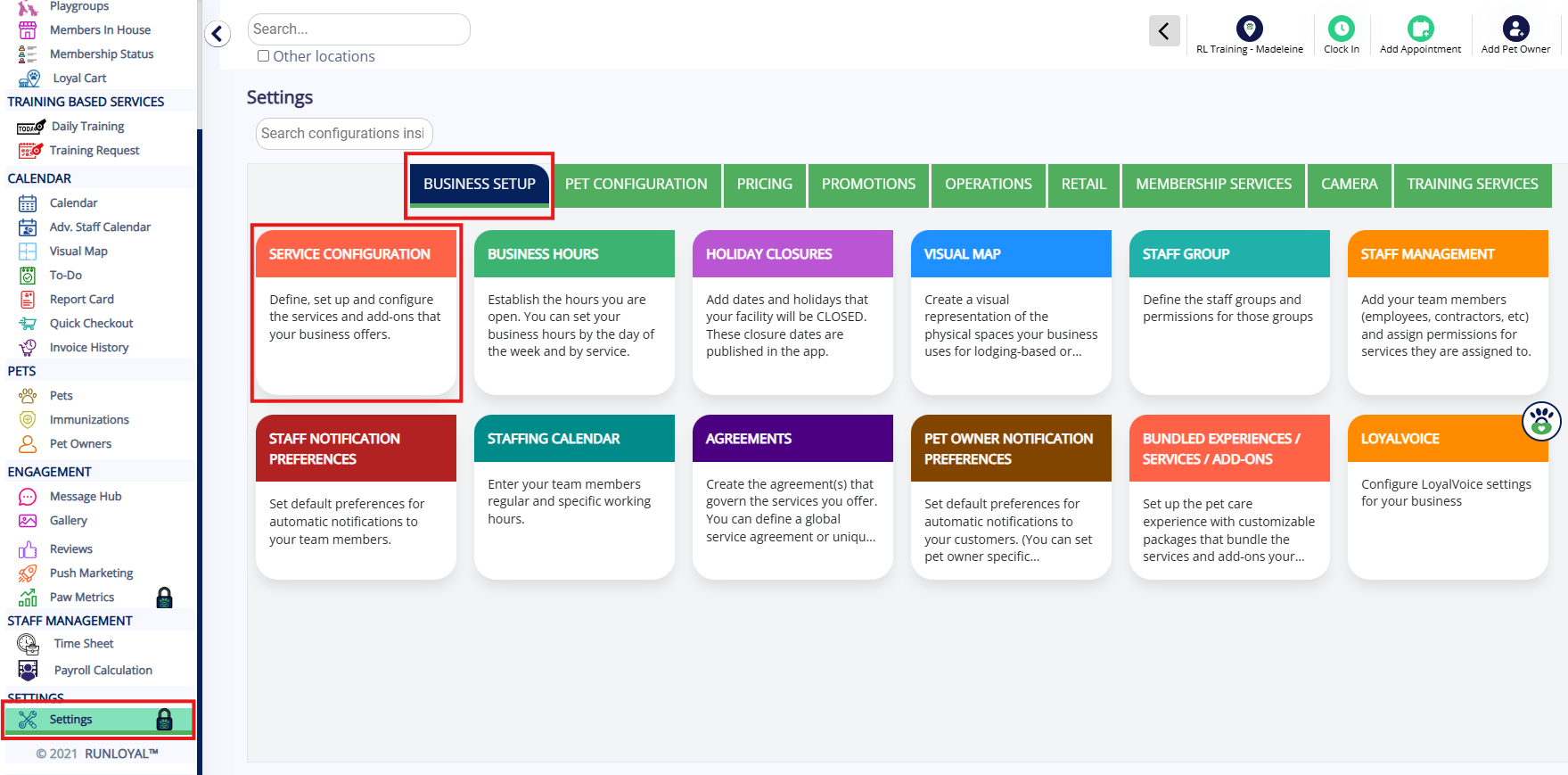
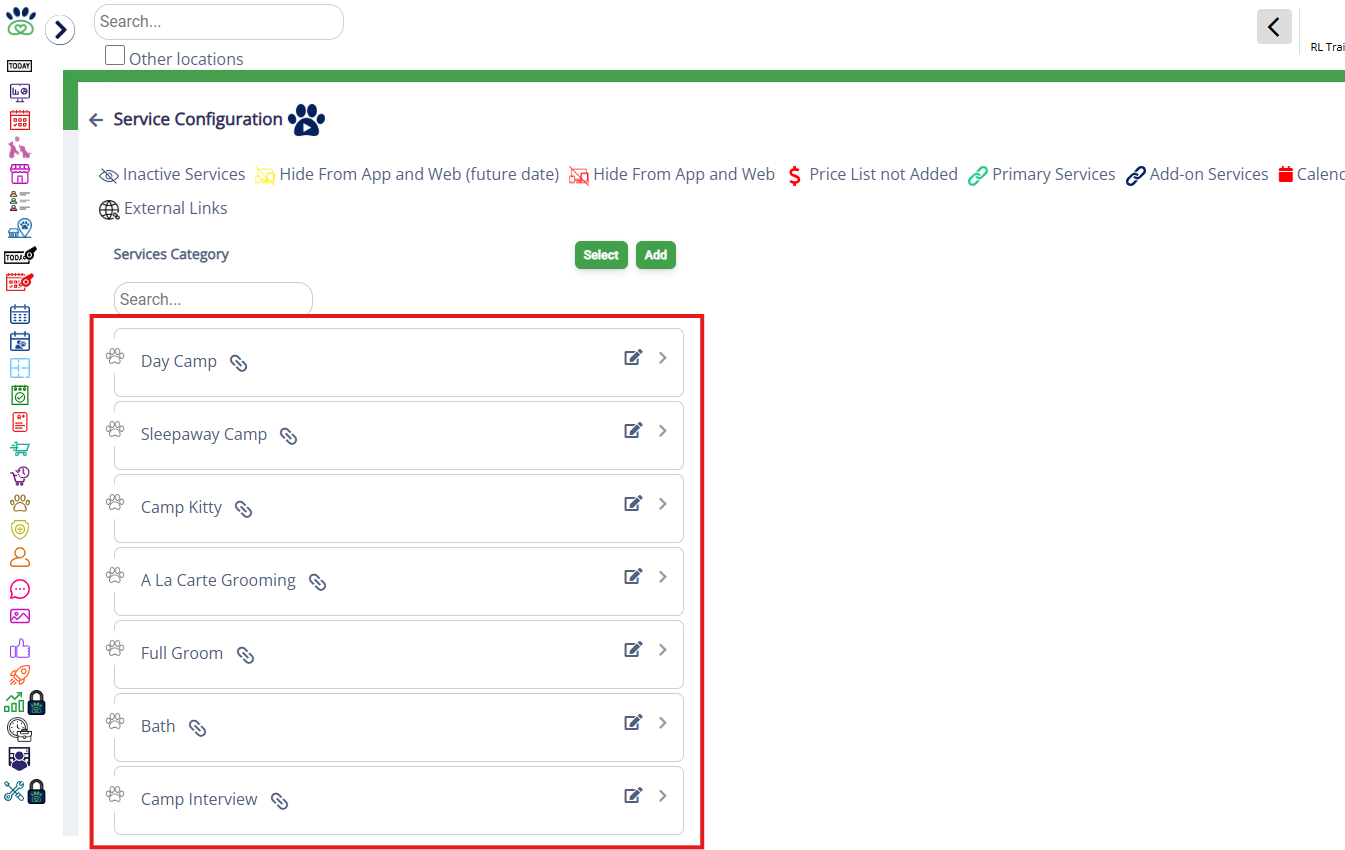
2. To add a new service add-on, click the category name in question to expand it.
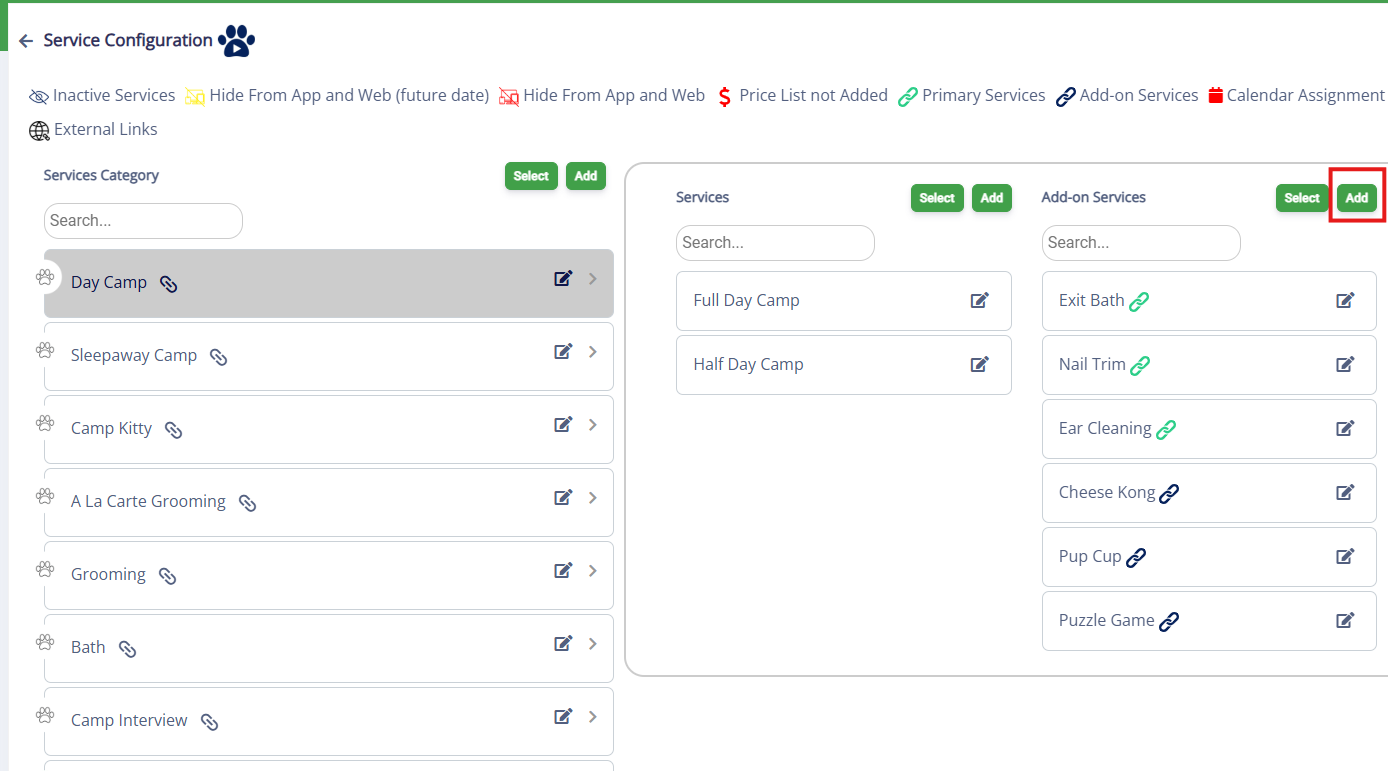
3. In the Add-On Services column, click Add to add a new service.
4. If this is a brand new service, under Select Type, choose New Service. If this service or add-on already exists (you have created it under a different service type), select Existing Service and follow the steps in our article: Linked Primary Services and Service Add-Ons.
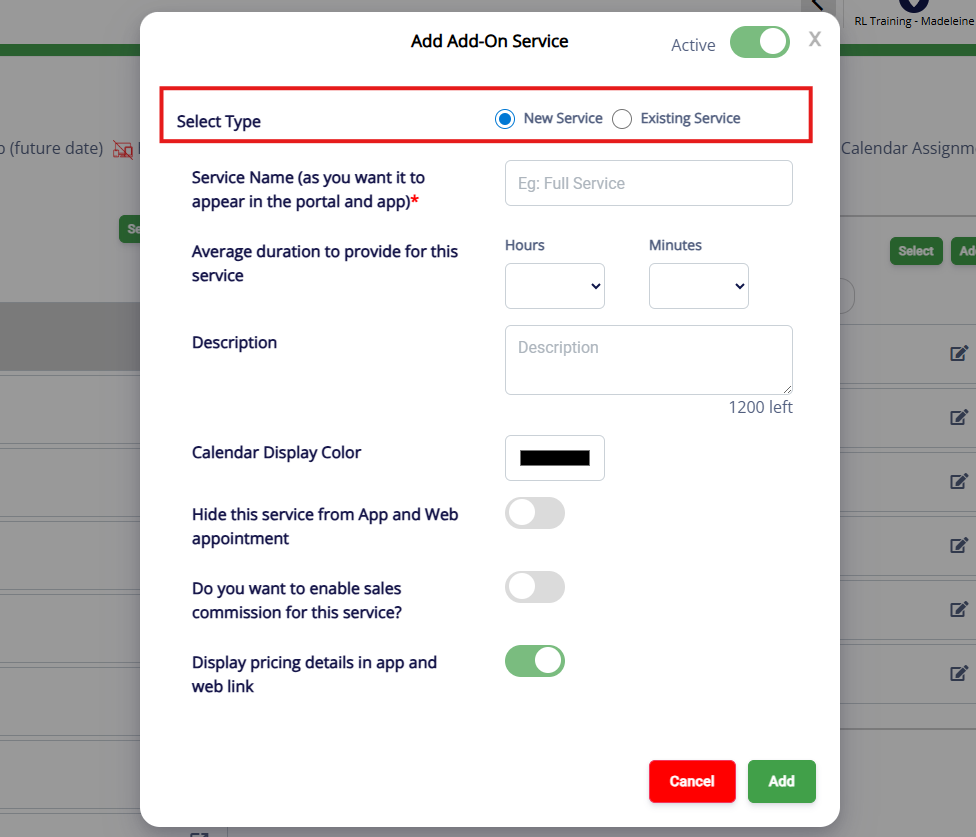
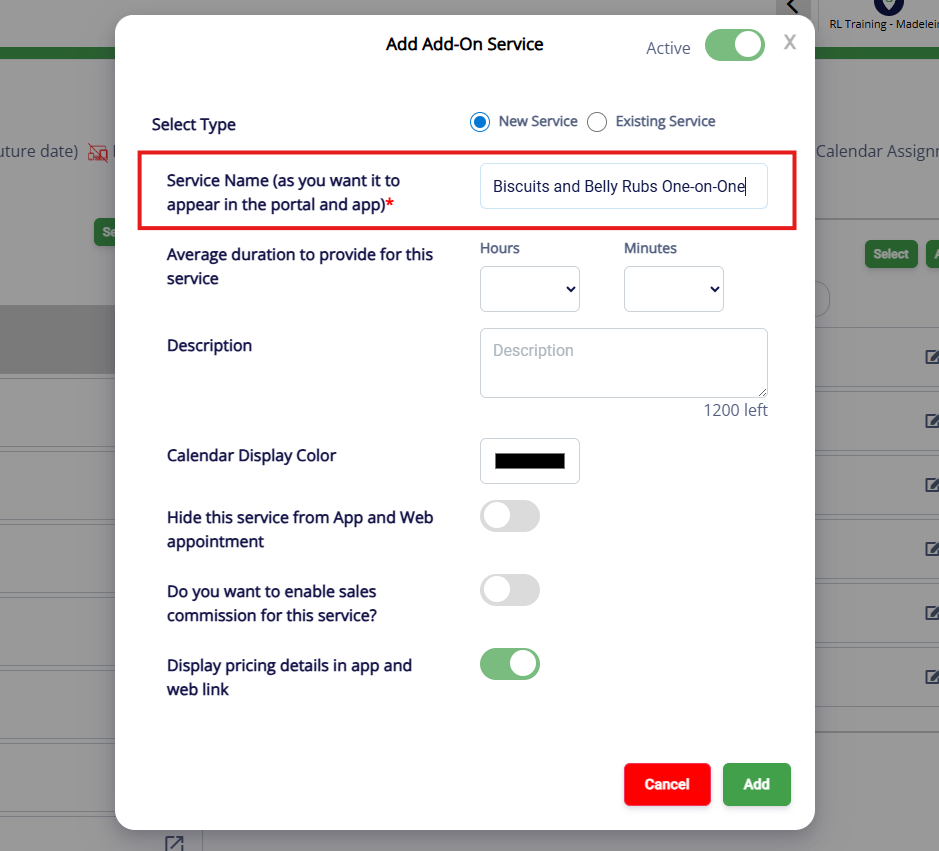
5. If the service is a brand new service, fill in the category details starting with Service Name (such as Biscuits and Belly Rubs One-on-One).
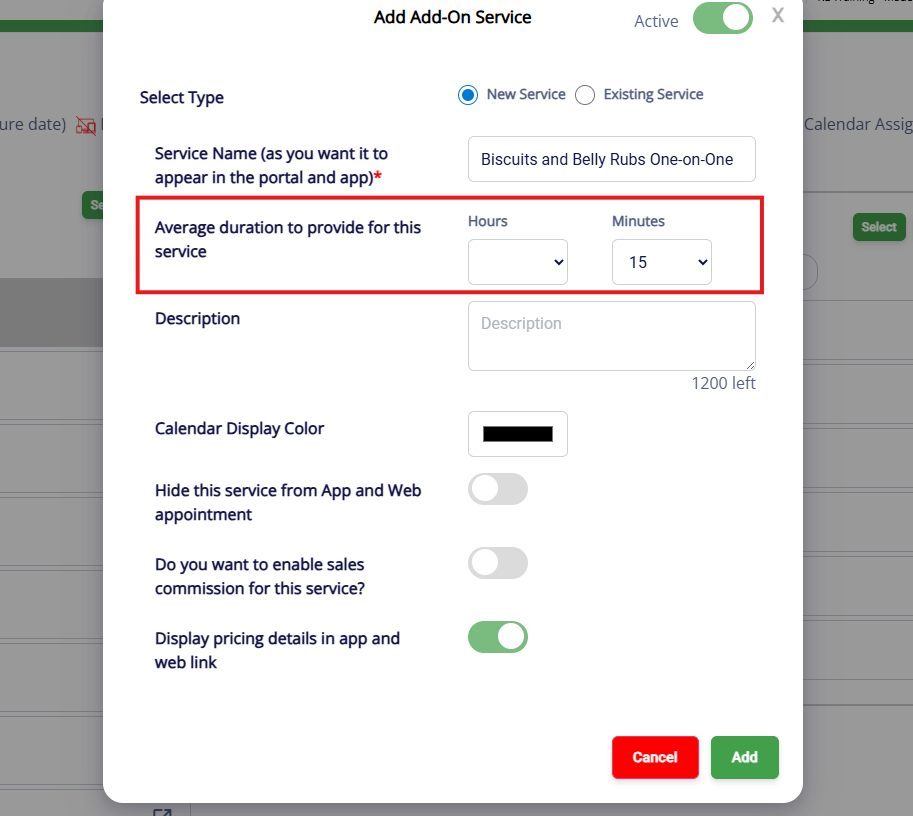
6. For Average Duration, enter the length of time this service requires in hours and/or minutes. This controls the time blocks that will display when creating or editing an appointment.
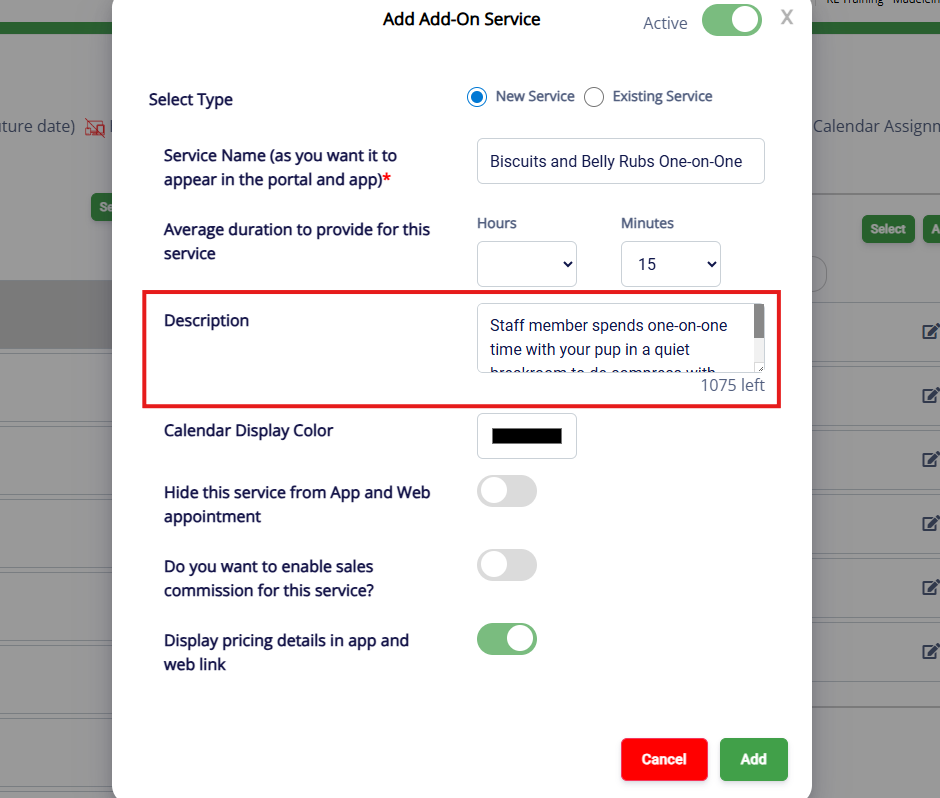
7. Optionally enter a brief description that will be visible to staff and customers when creating the booking.
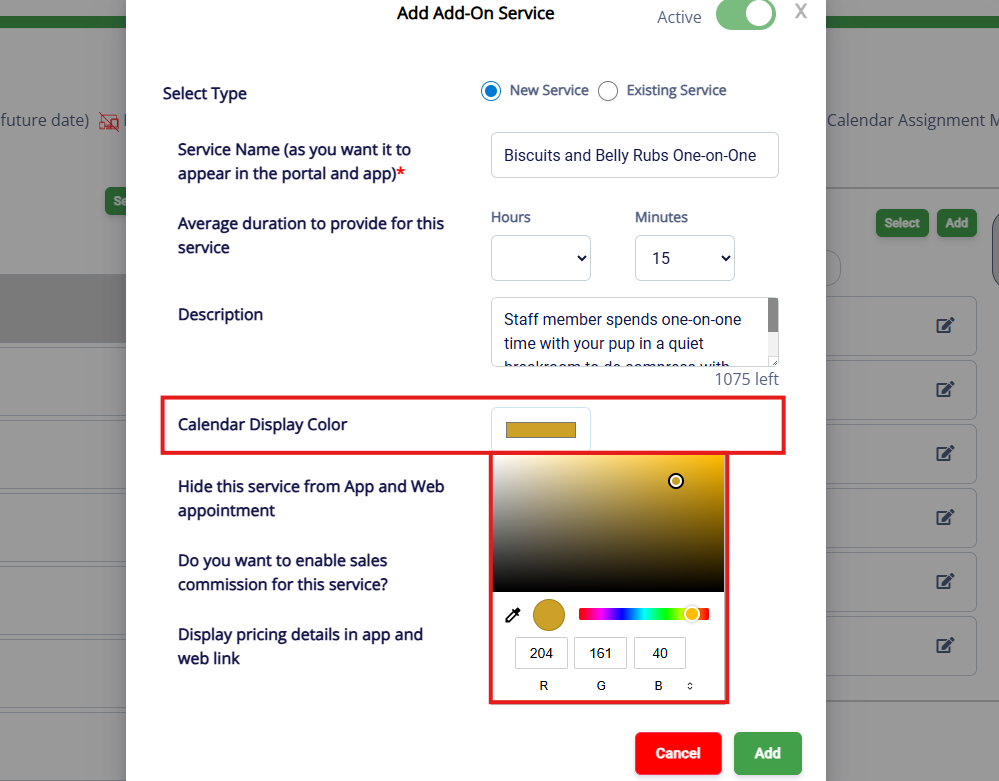
8. Select a Calendar Display Color. This color will show throughout the business portal for any pets booked under this service.
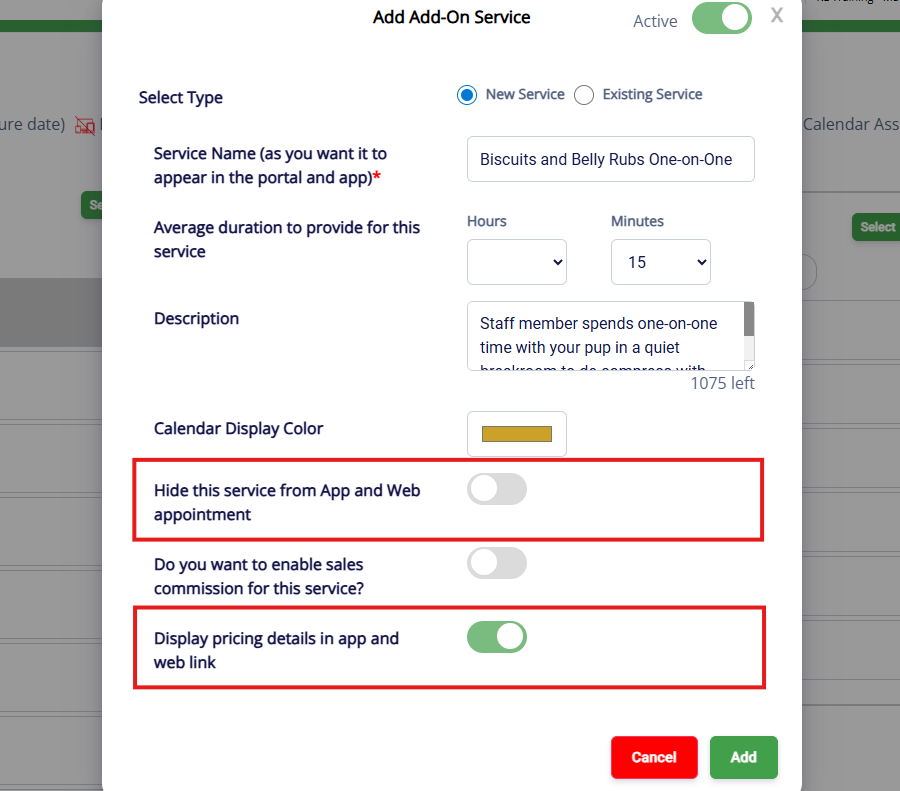
9. For Hide this service from app and web appointment, only toggle this on if customers should not see this service. For display pricing details in app and web link, toggle this on if customers should see the price of the services in this service category.
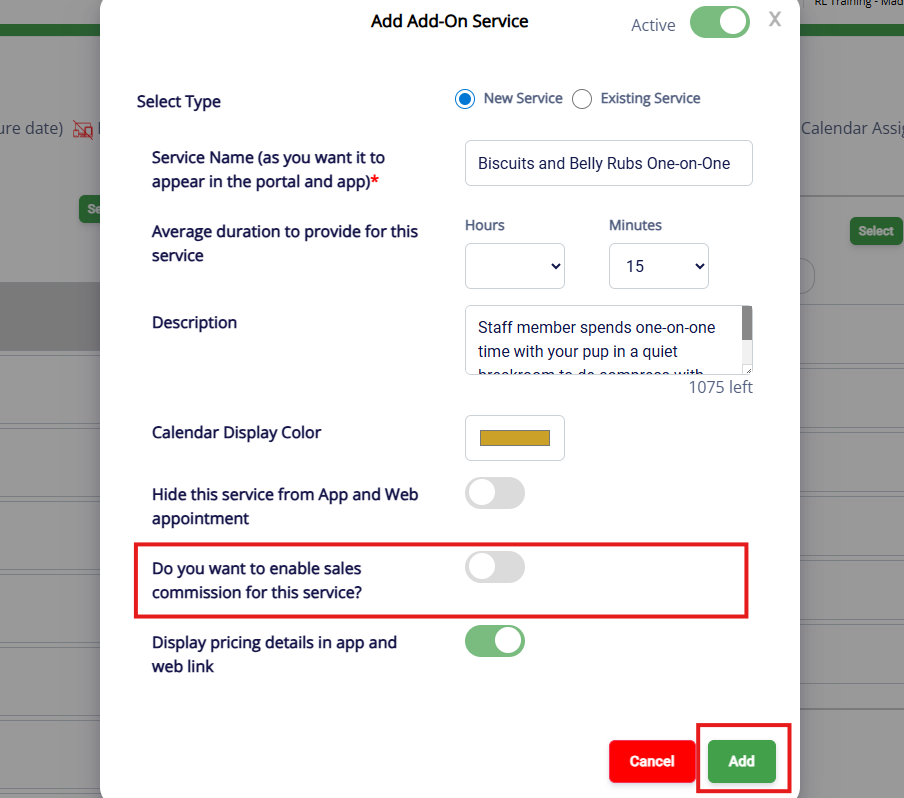
10. If this service should be eligible for commission, toggle on Do you want to enable sales commission for this service?. When you have confirmed all the settings, click Add.
More Information
For more information on adding existing services or service-add-ons to a service type, please refer to this article: Linked Primary Services and Service Add-Ons.
Was this article helpful?
That’s Great!
Thank you for your feedback
Sorry! We couldn't be helpful
Thank you for your feedback
Feedback sent
We appreciate your effort and will try to fix the article