Overview
Agreements are an integral part of doing business with customers, as they protect both you and the customer from potential legal issues. Many businesses have an existing agreement that may be pen-and-paper records or electronically signed. If you do not have an existing agreement, you can consult with a legal expert. You can enter your legal agreement into RunLoyal and then scan pen-and-paper agreements into the customers' profiles if they have already signed. You can also optionally ask them to re-sign in the software.
⚠️ Important: Some states may have additional requirements or restrictions for electronic signatures. It is important to research the specific laws and regulations in your jurisdiction to determine if electronic signatures are legally recognized and if any specific requirements must be met.
Legal Agreements can be viewed in the following areas:
- Settings > Business Setup > Agreements
- Pet owner profile > Agreements section
- Customer Mobile App
TABLE OF CONTENTS
How to Set Up Legal Agreements
1. Navigate to Settings > Business Setup > Agreements.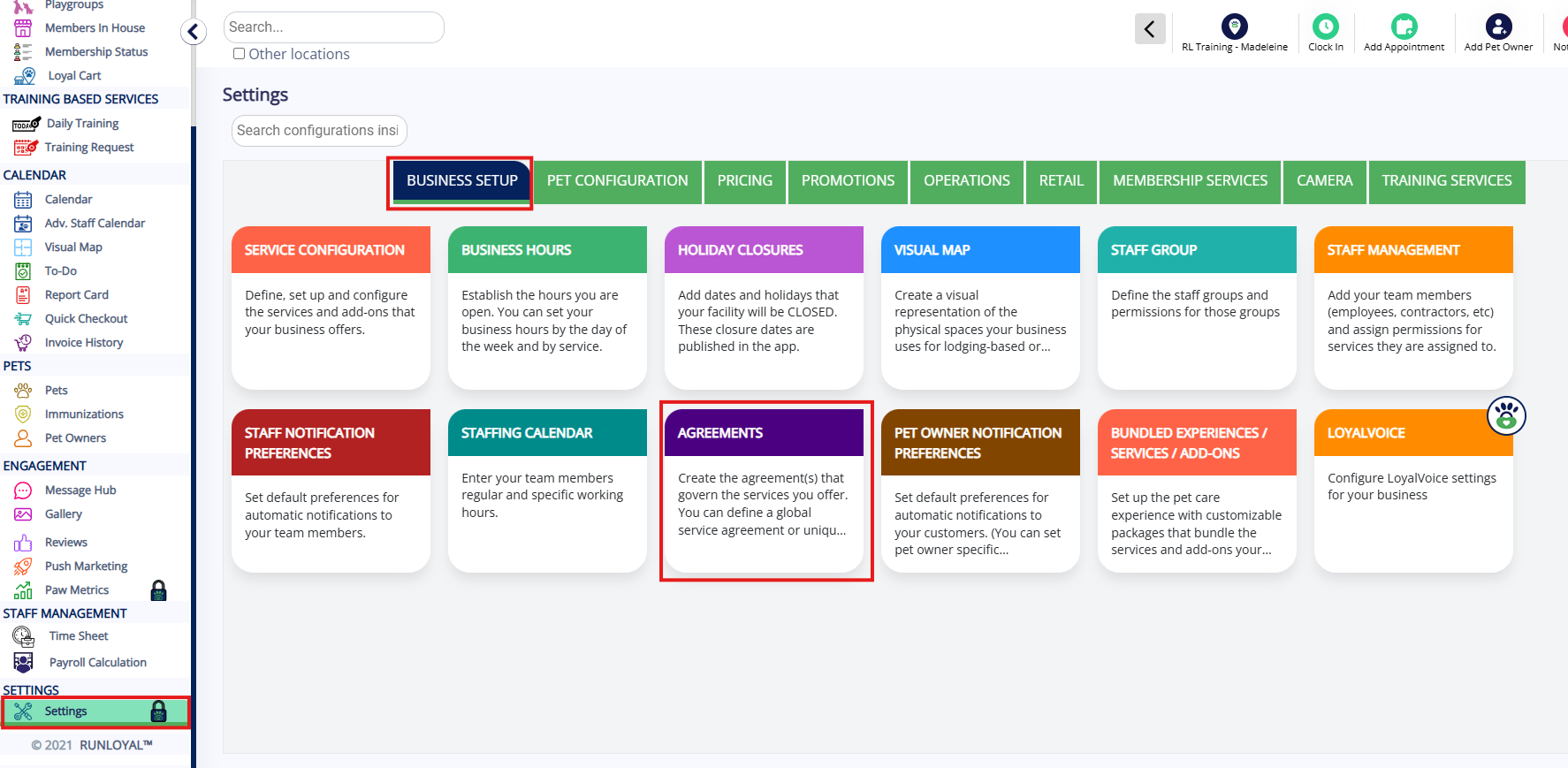
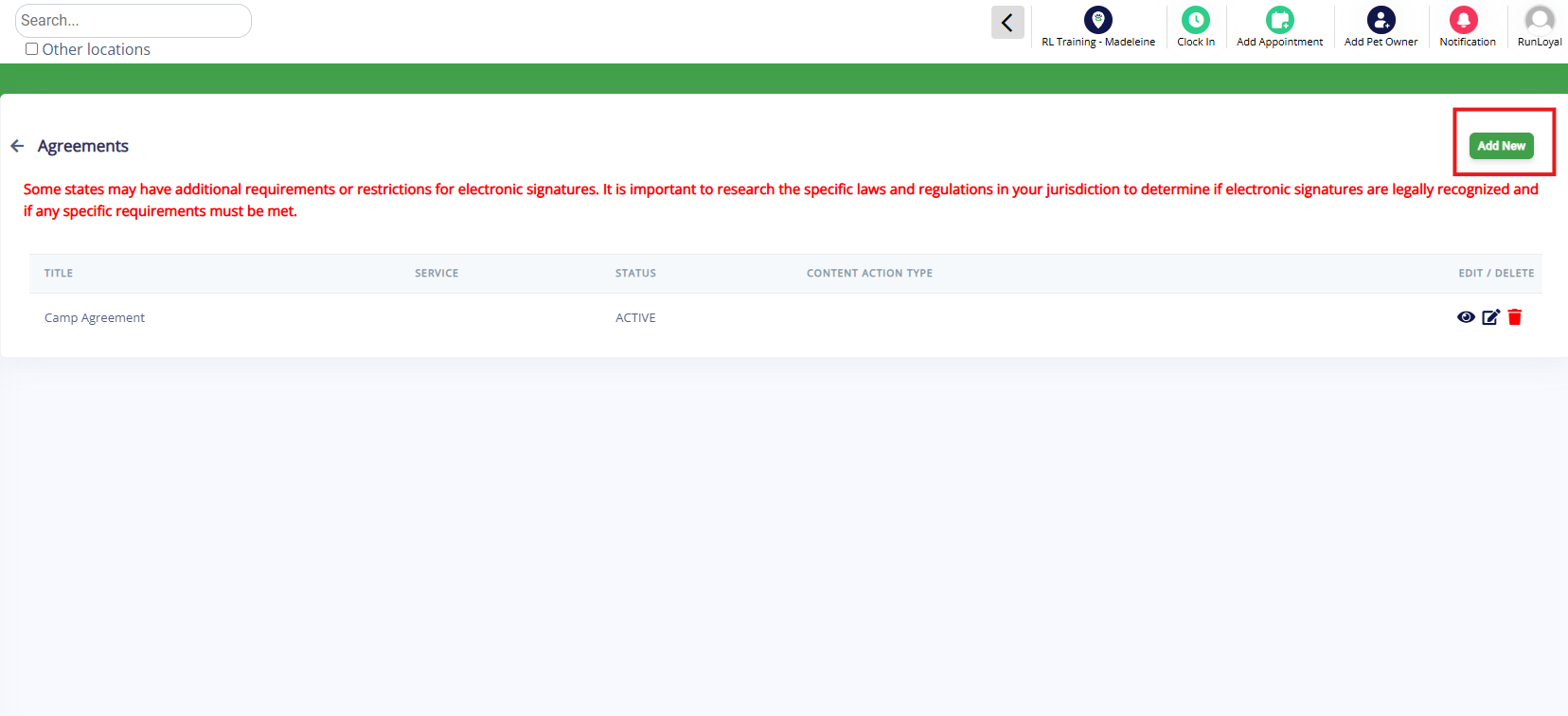
2. To add a new agreement, click Add New.
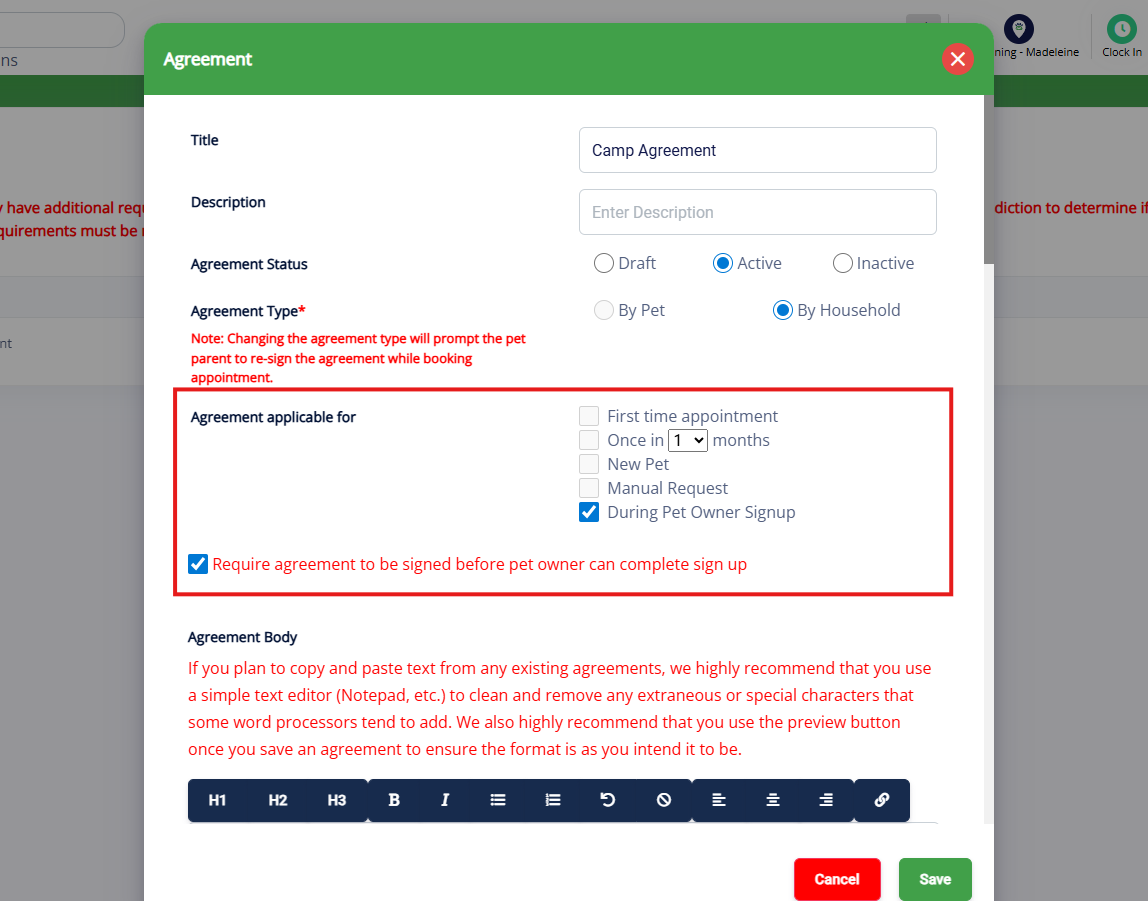
3. Enter the agreement Title and Description. Please note these will display to staff and pet owners while signing agreements.

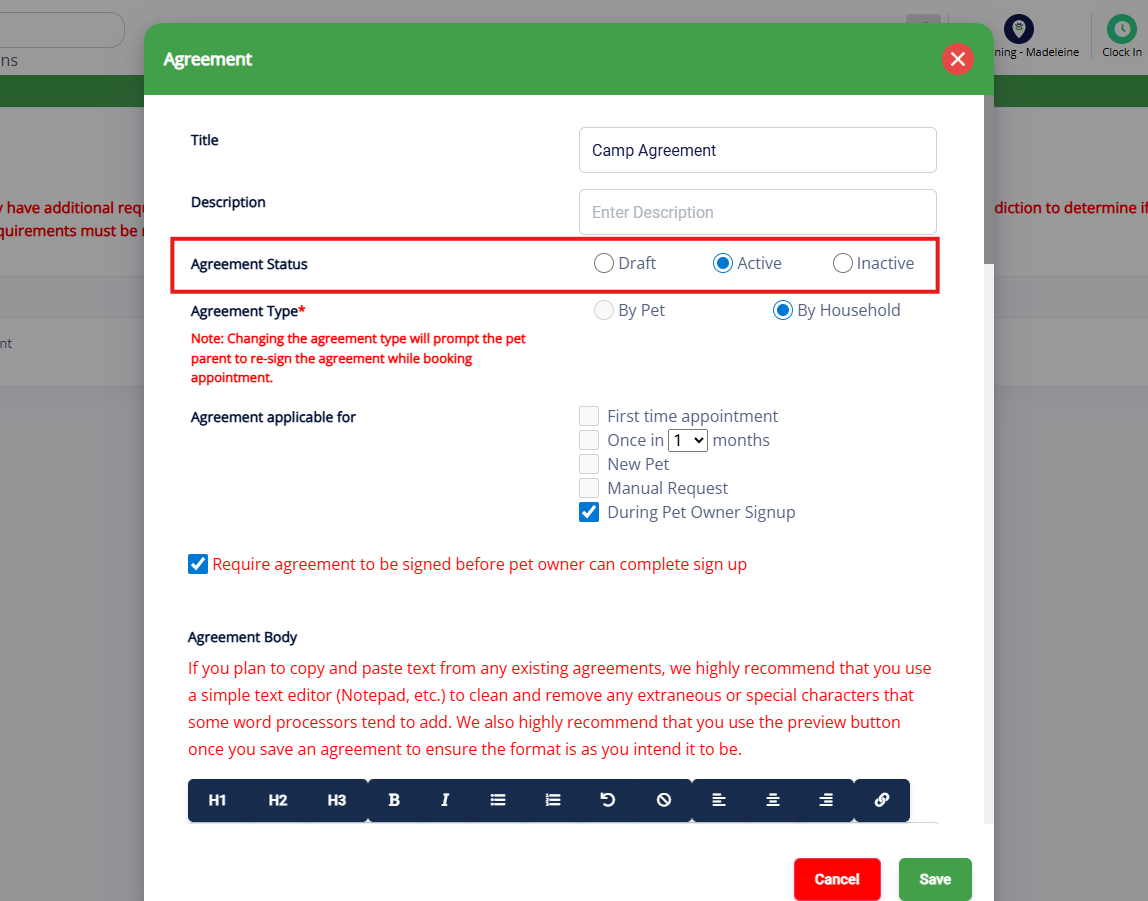
4. Under Agreement Status, select Draft if this Agreement should be saved as a draft but not yet visible to staff or pet owners. Select Active if this agreement should be signable and visible to staff and pet owners. Select Inactive if this was an existing agreement that you wish to deactivate to prevent future signatures but not remove signature history.
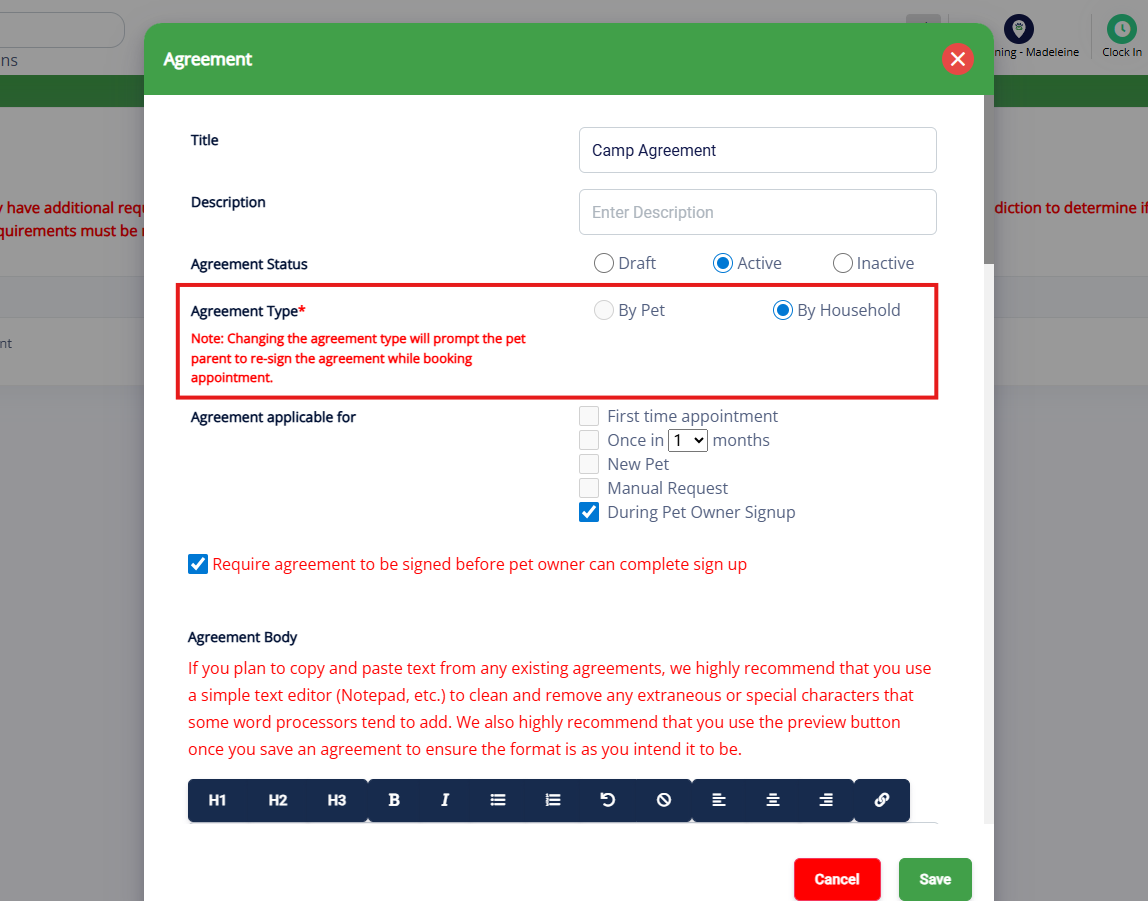
5. Under Agreement Type, select whether this agreement should be required By Pet or By Household. The most common option is By Household.
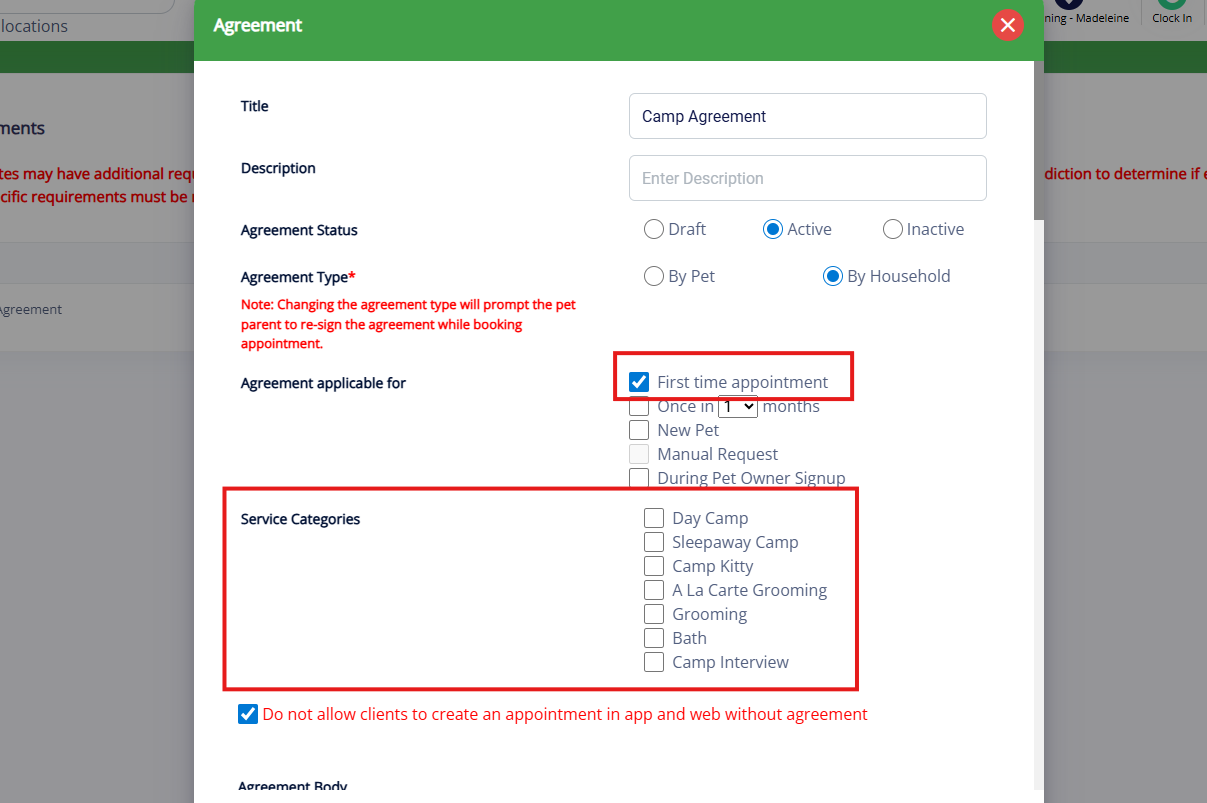
6. Under Agreement applicable for, there are a few options that can be selected and combined. First Time Appointment means the pet owner will be prompted to sign while booking their first appointment in the customer mobile app. You can select which service categories this should apply to below. You can also optionally check the box Do not allow clients to create an appointment in app and web without agreement which would make this required for any appointment created in the mobile app or web.
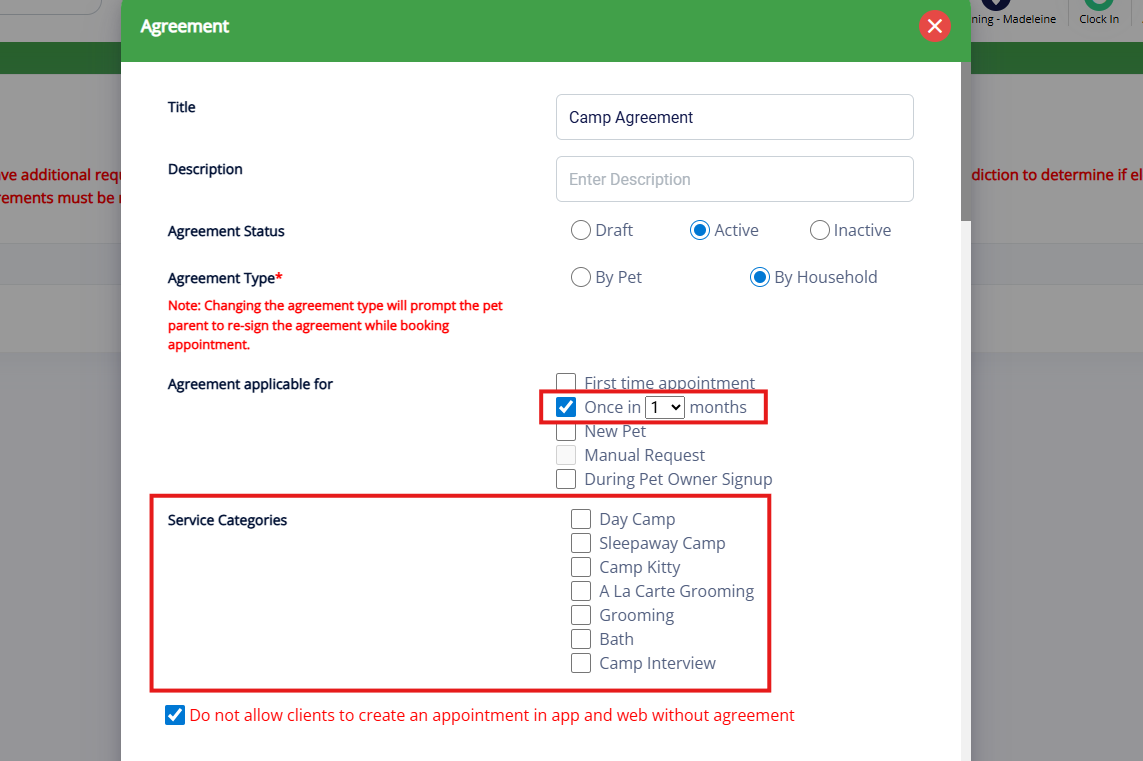
7. Once in [x] months means the pet owner will be prompted to re-sign the agreement every set number of months, such as every 6 months. You can also optionally check the box Do not allow clients to create an appointment in app and web without agreement which would make this required for any appointment created in the mobile app or web.
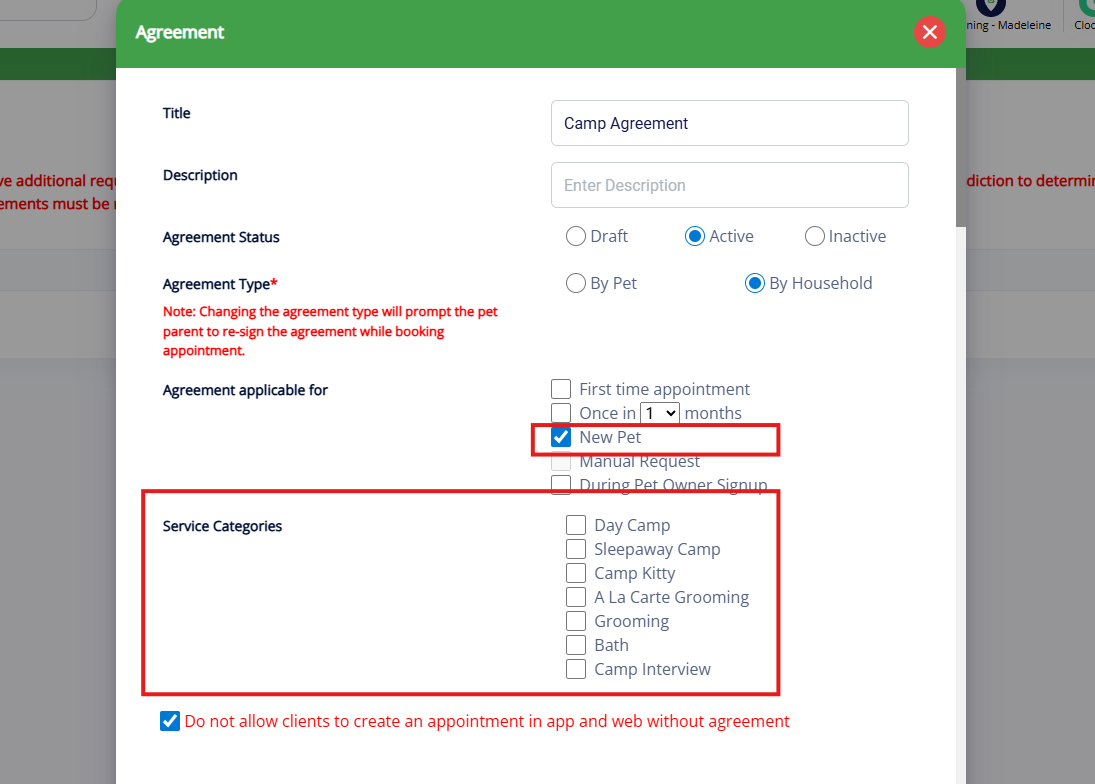
8. New Pet means the pet owner will be prompted to re-sign when they add a new pet. You can also optionally check the box Do not allow clients to create an appointment in app and web without agreement which would make this required for any appointment created in the mobile app or web.
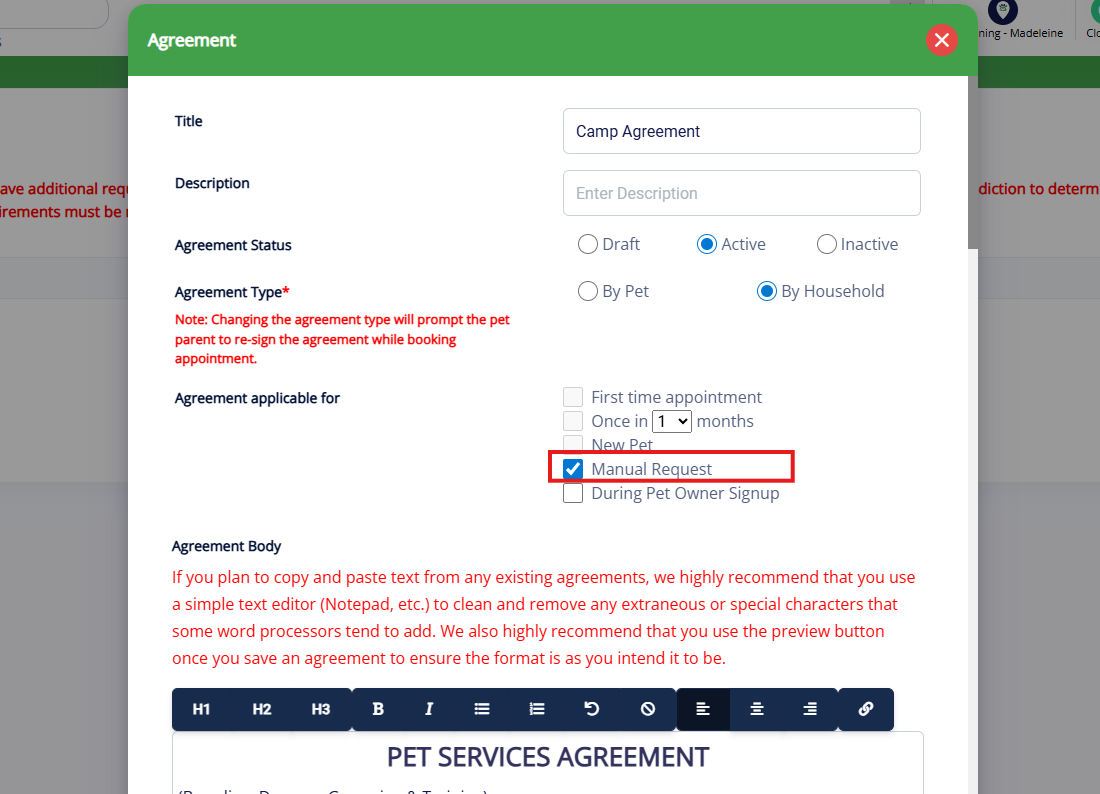
9. Manual Request means that the customer will only be prompted to sign the agreement if you manually send a request from their profile.
10. During Pet Owner Signup means that the pet owner will be prompted to sign the agreement when they sign up on the customer mobile app. You can also check the box to Require agreement to be signed before pet owner can complete sign up.
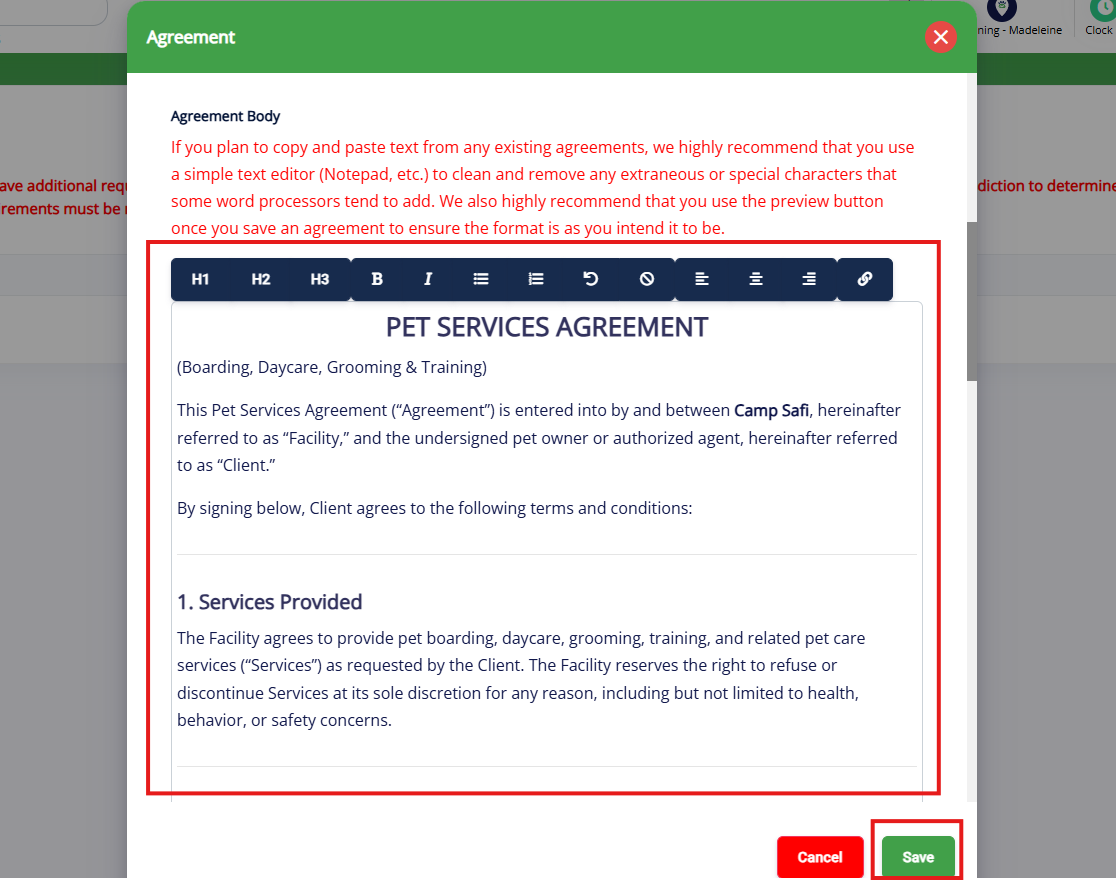
11. Under Agreement Body, paste in the plain text of your legal agreement. If you are copying and pasting from another software (such as Microsoft Word), we recommend removing all formatting by first pasting the agreement into a simple text editor such as Notepad. Once you have confirmed all settings and your agreement text, click Add.
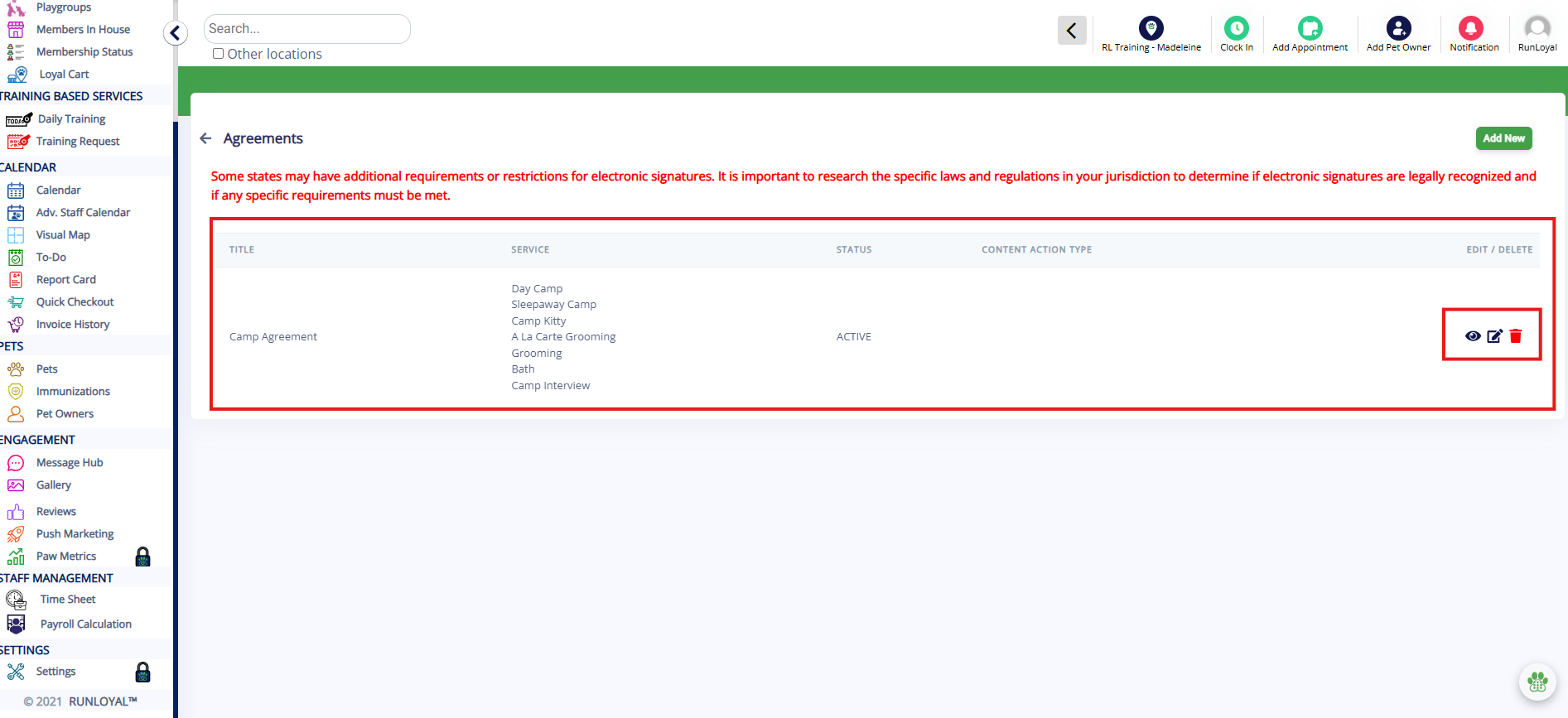
12. Verify your agreement displays on the Agreements page. You can also optionally Preview (eye icon), Edit (pencil icon), or Delete (red trash icon) the agreement.
More Information
For more information on how pet owners can sign agreements, please refer to this article: Signing Legal Agreements
Was this article helpful?
That’s Great!
Thank you for your feedback
Sorry! We couldn't be helpful
Thank you for your feedback
Feedback sent
We appreciate your effort and will try to fix the article