Overview
This article explains how to configure sales commission requirements for any services, add-ons and all other Quick checkout purchases like Packages, Memberships, Training services etc.,
TABLE OF CONTENTS
- Configure Sales commission requirement
- Configure Sales Commission in Services, Tips & Commissions
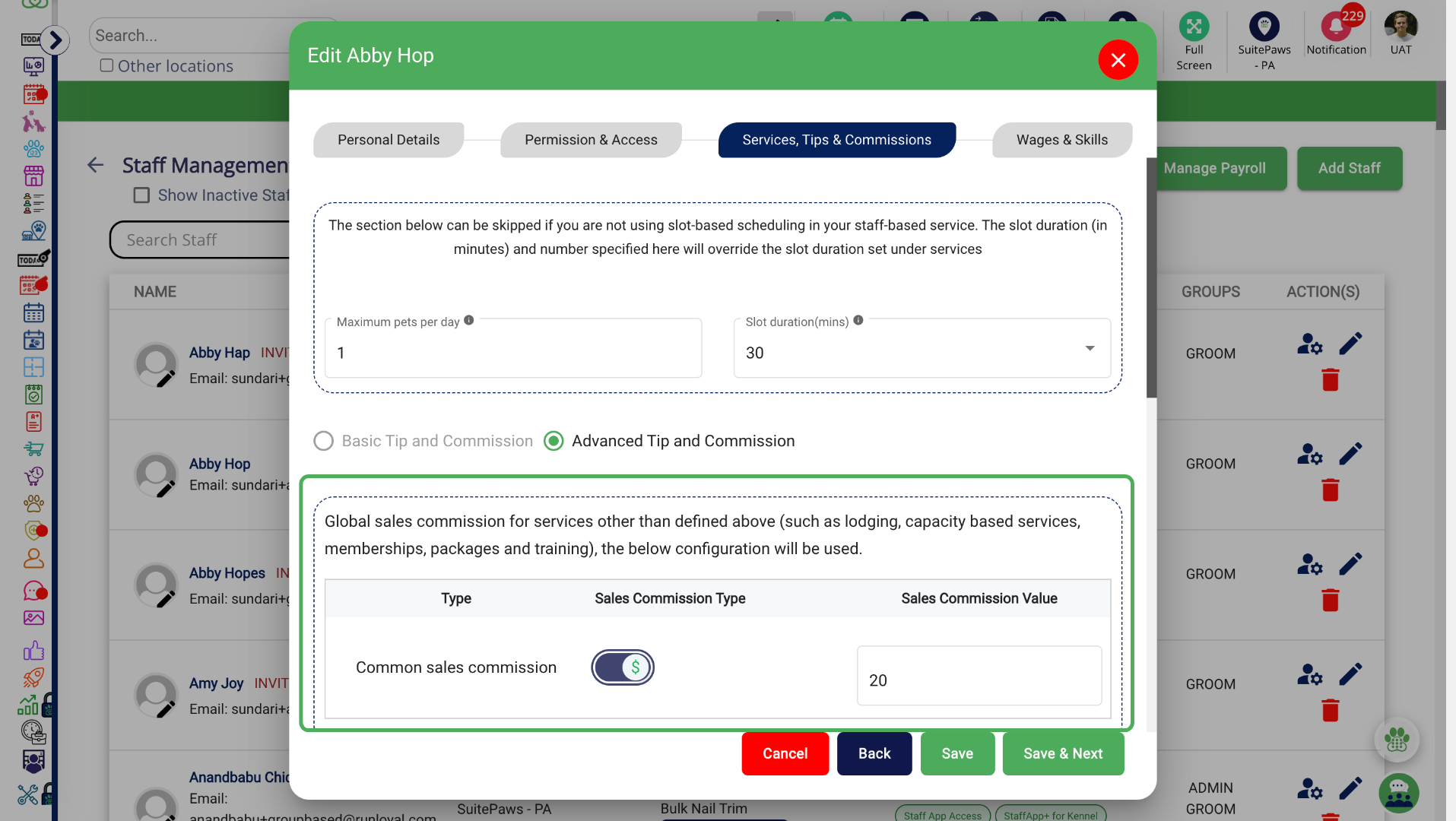
- Configure Global Sales Commission
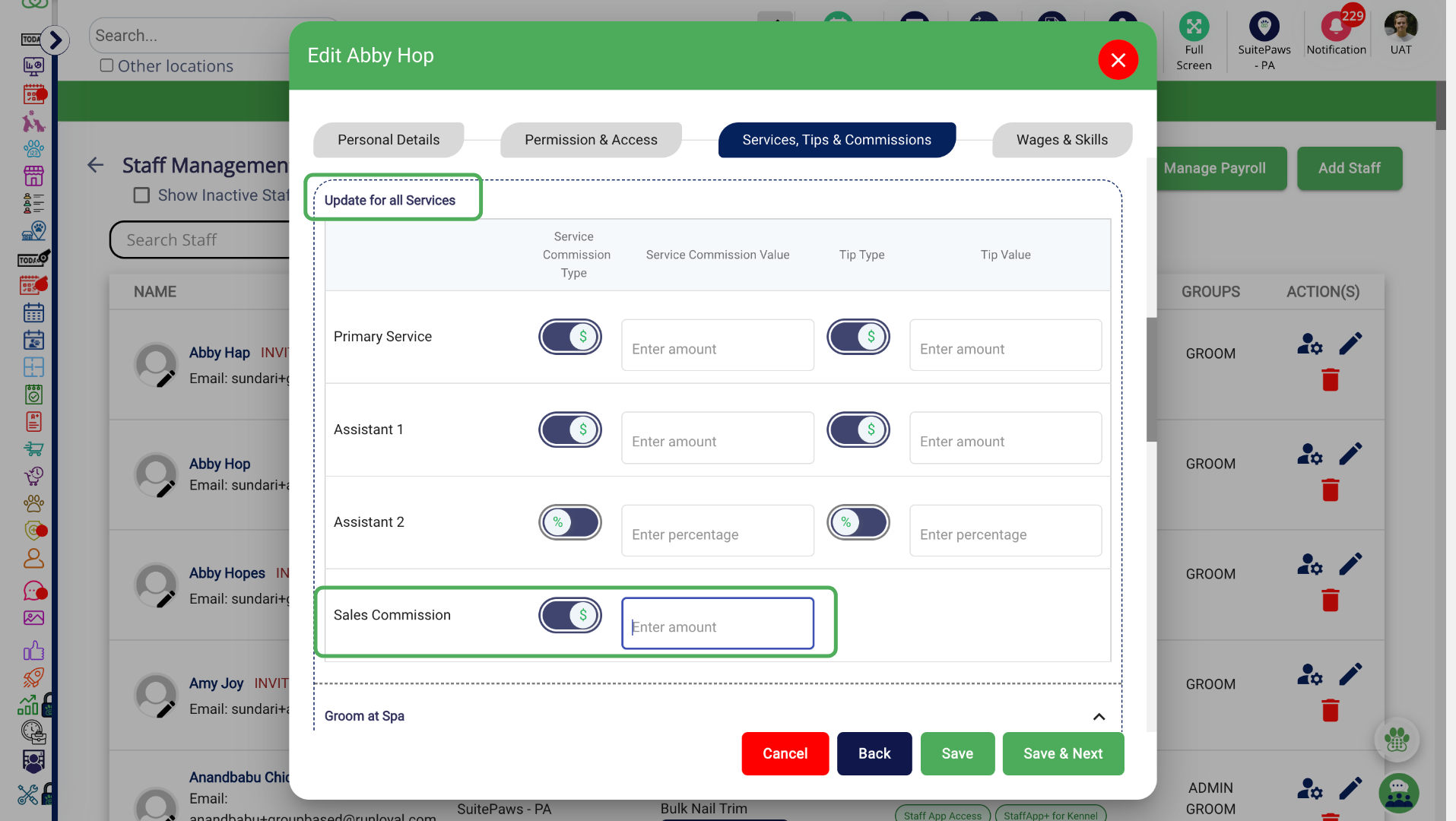
- Configure Specific Sales commission
- Configure Sales Commission in Quick Checkout
- Configure Staff Sales Commission in Appointment update
Sales Commission
Sales commission rewards staff for selling services, add-ons and Quick Checkout items such as Packages, Memberships and Training.
Configure Sales commission requirement
Go to Settings to enable the sales commission for any services, add-ons and all other Quick checkout purchases like Packages, Memberships, Training services etc.,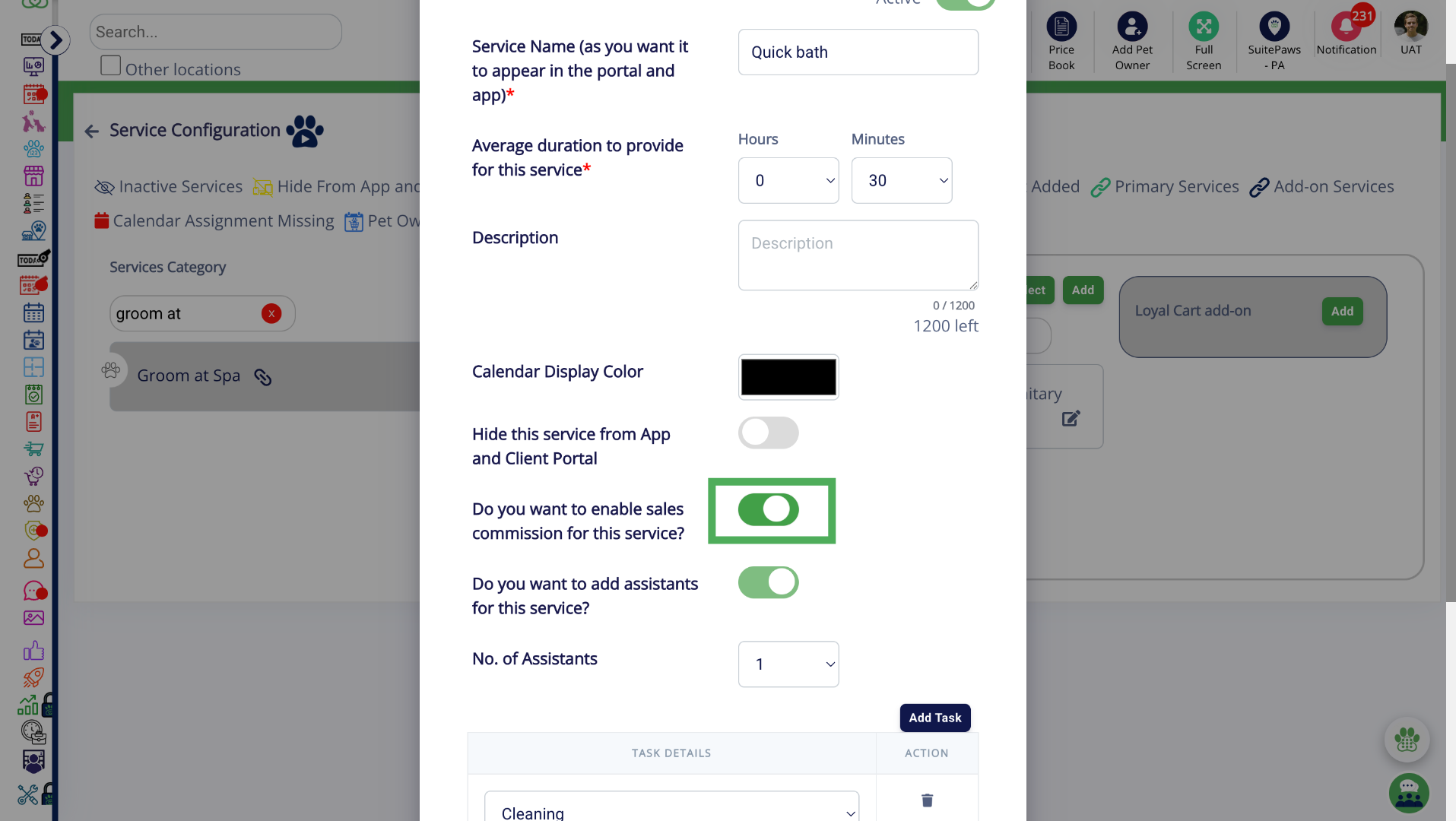
Configure Sales Commission in Services, Tips & Commissions
In Staff Management, configure sales commission as a percentage or fixed amount for each service.
Go to Settings > Staff Management > Add Staff > Services, Tips & Commission
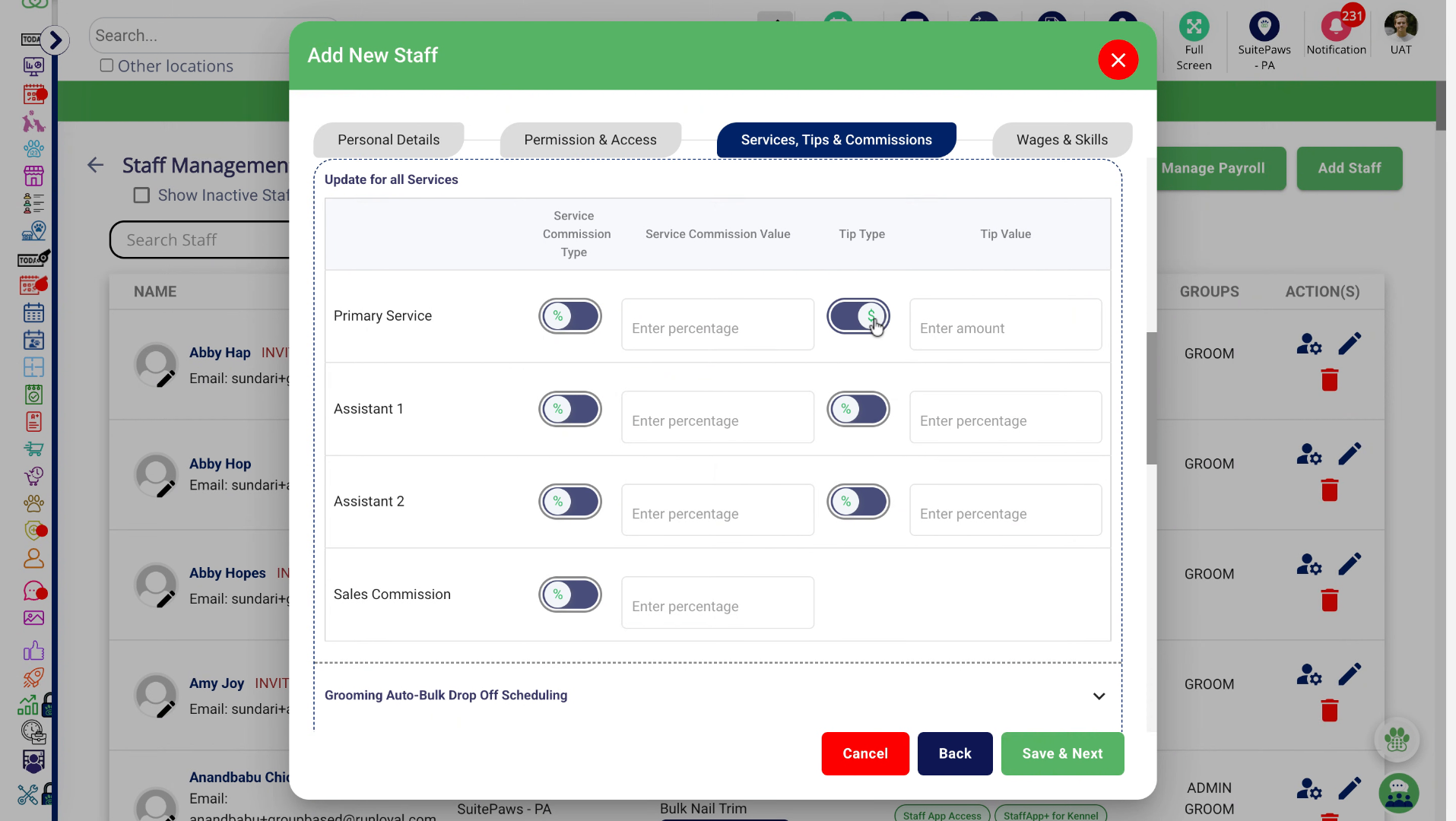
Configure Global Sales Commission
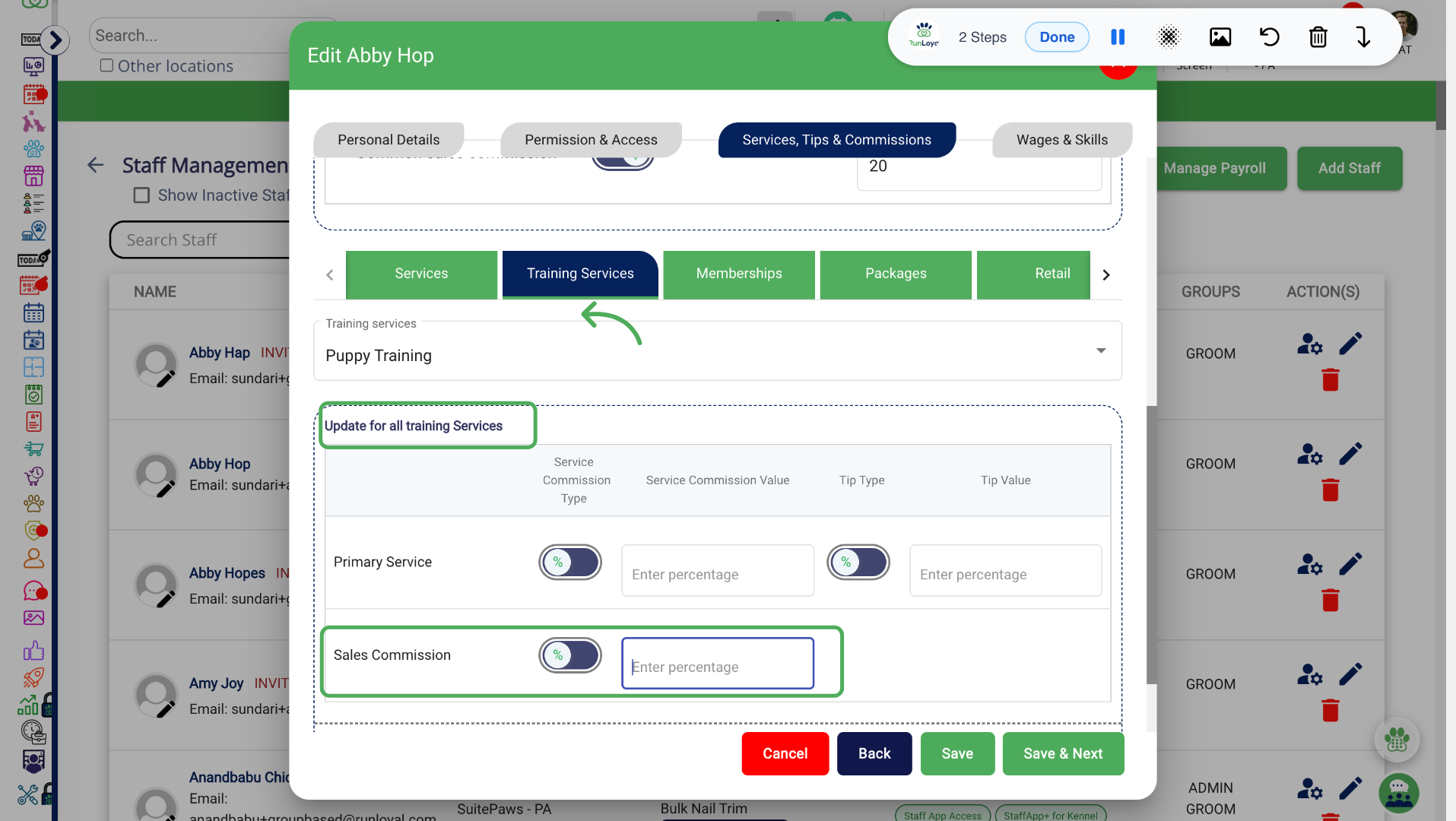
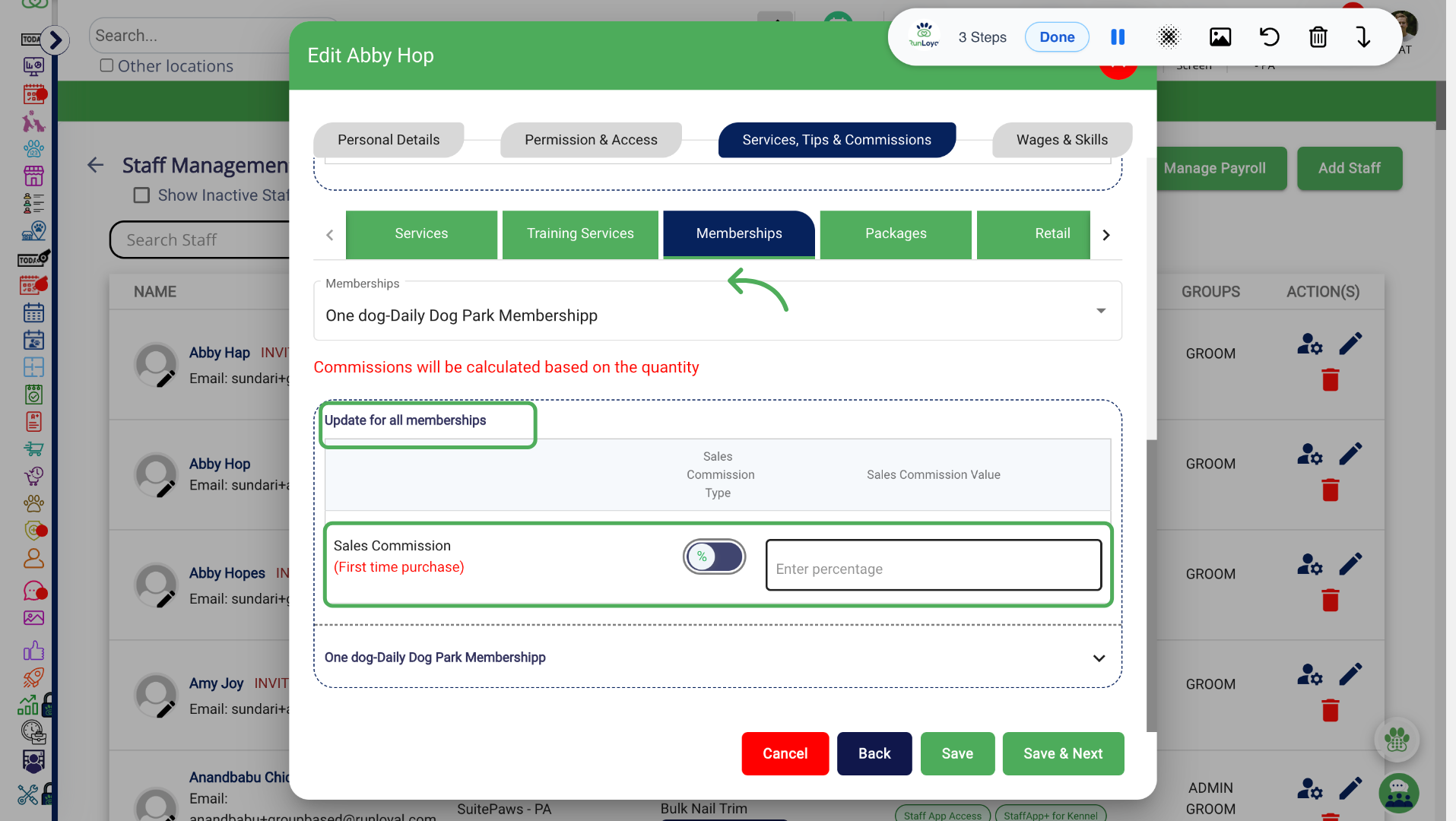
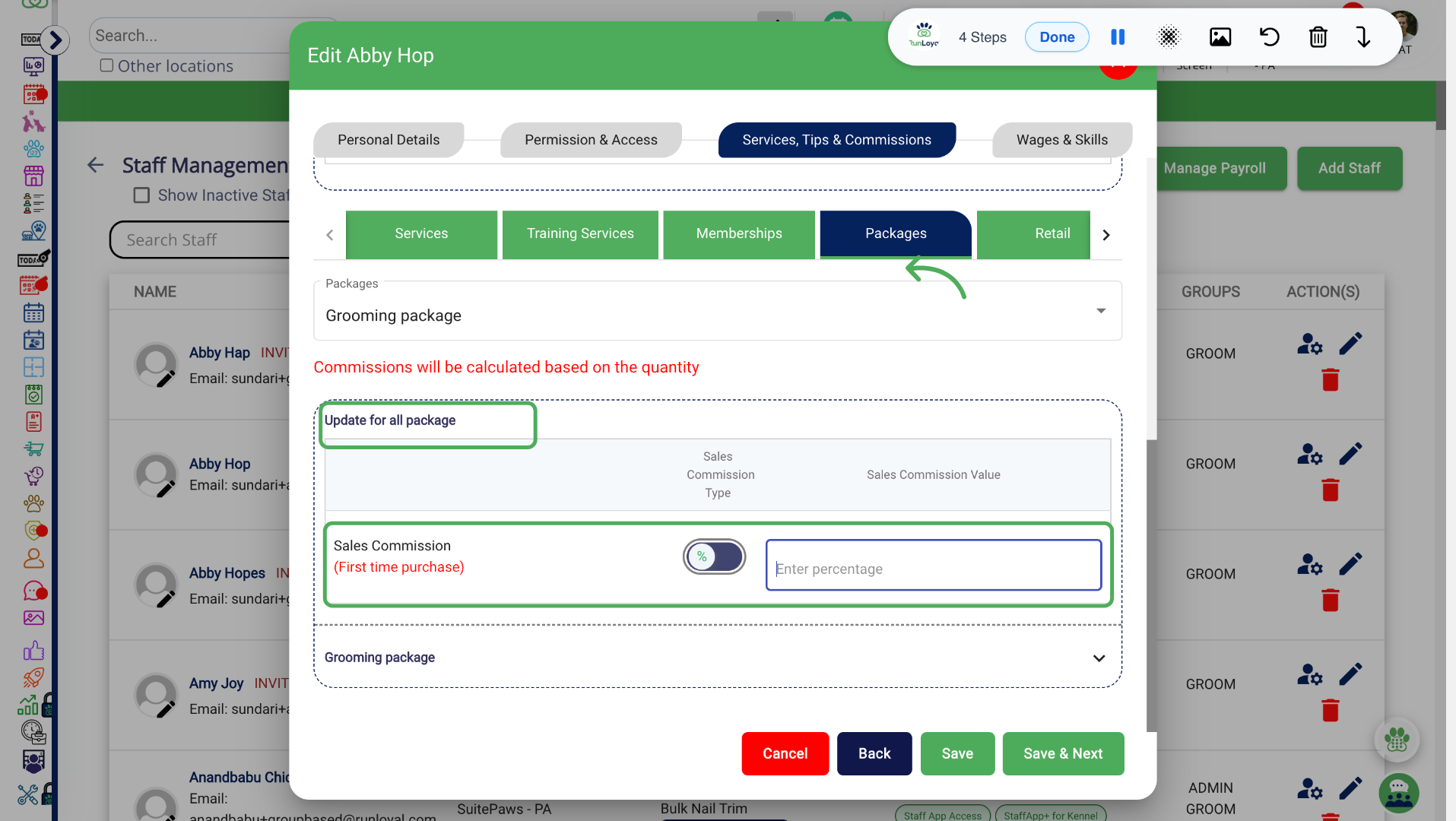
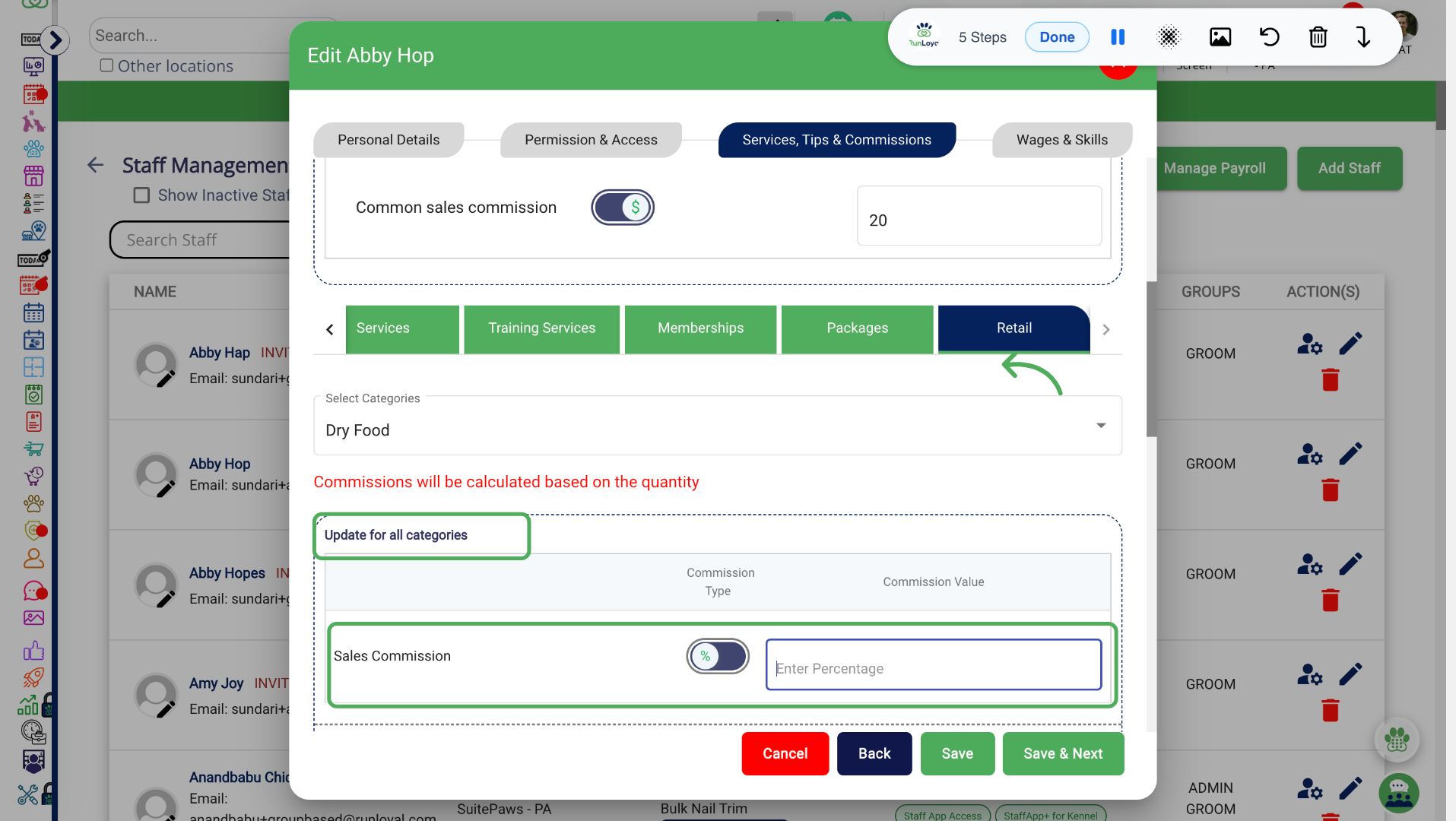
Configure Specific Sales commission
1. Services
2. Training Services
3. Memberships
4. Packages
5. Retail
Configure Sales Commission in Quick Checkout
Configure sales commissions during Quick Checkout for packages, memberships or training services.
1. Quick Checkout > Search for Client
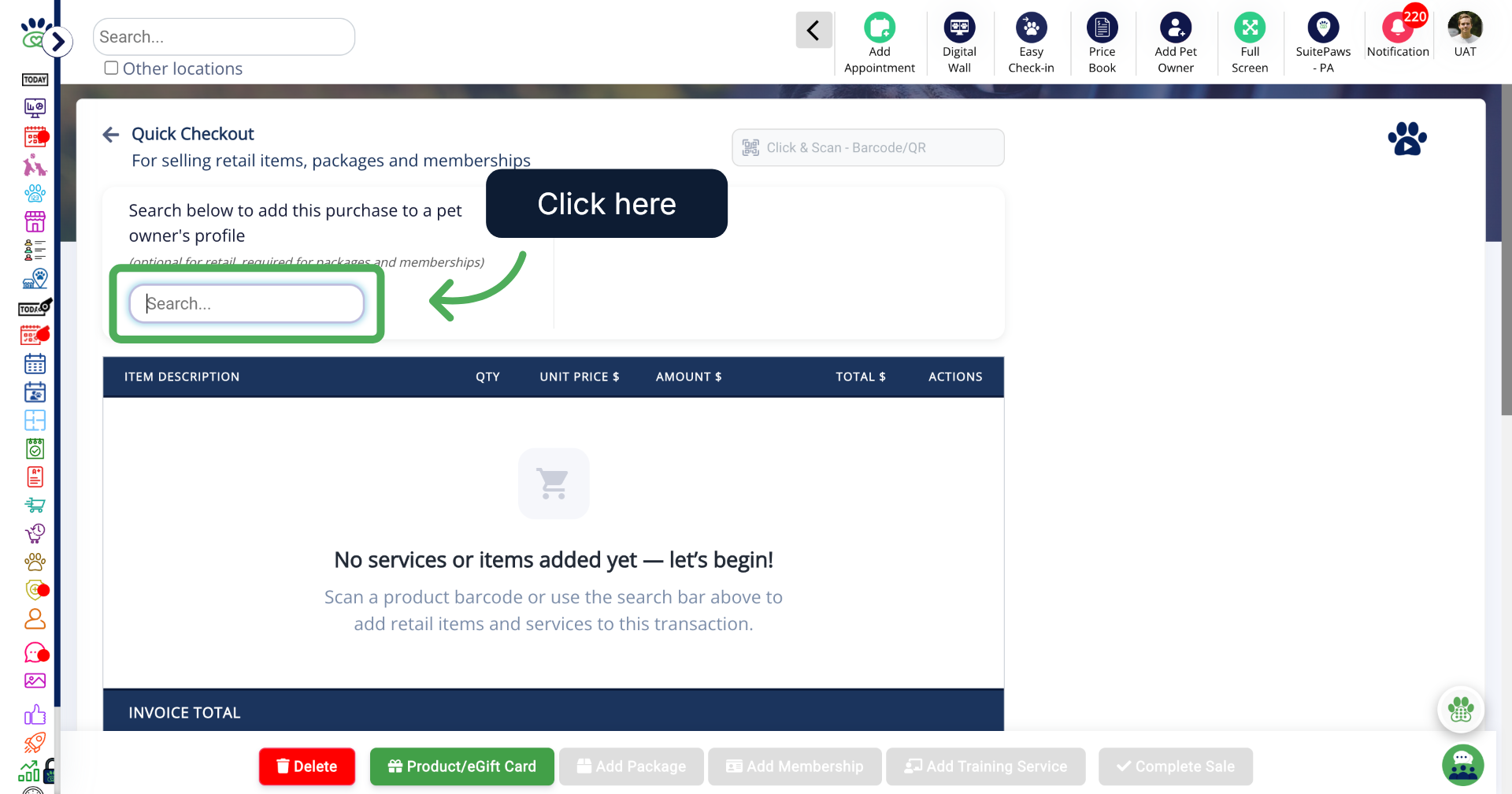
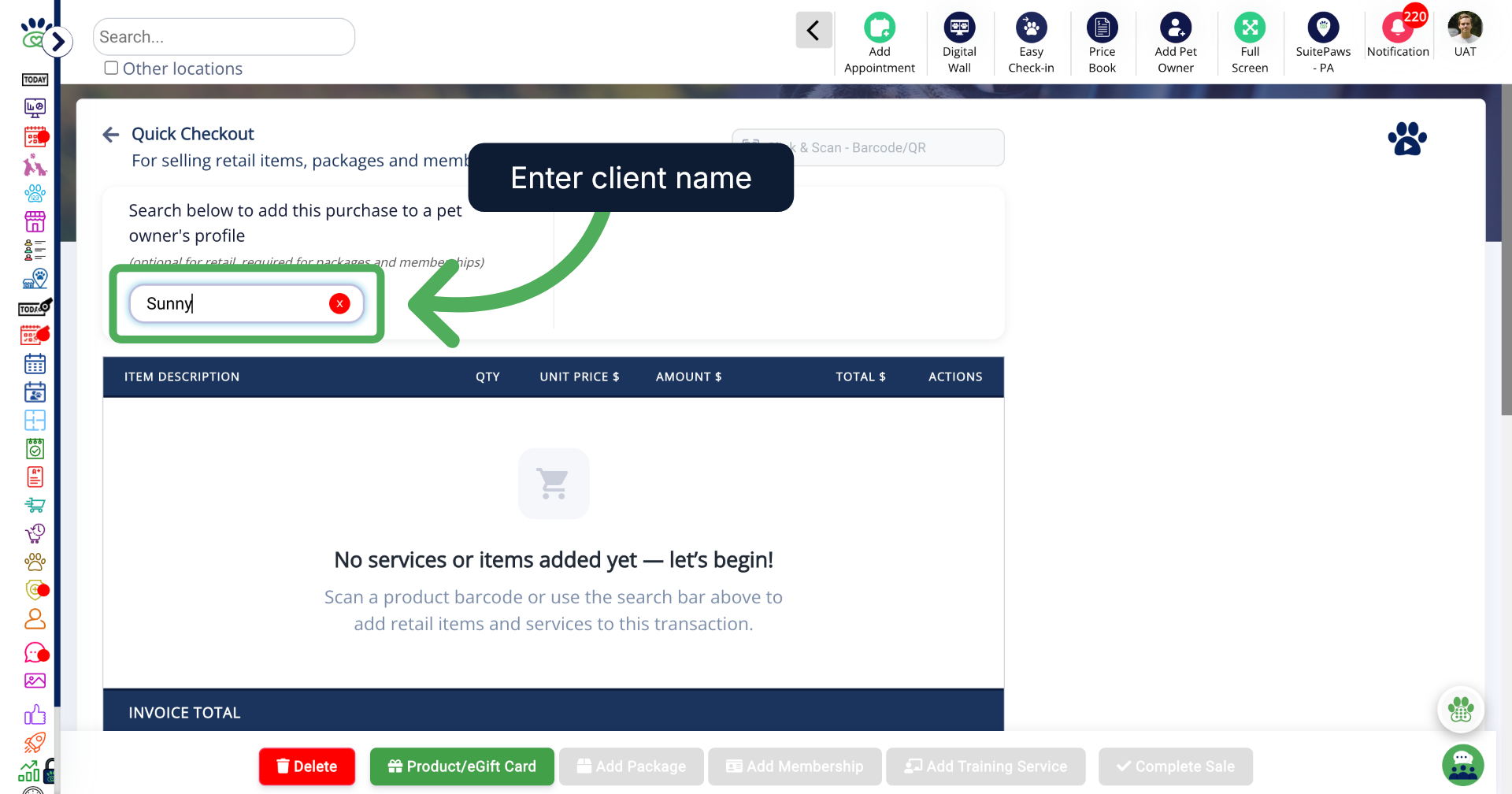
2. Enter Client Name
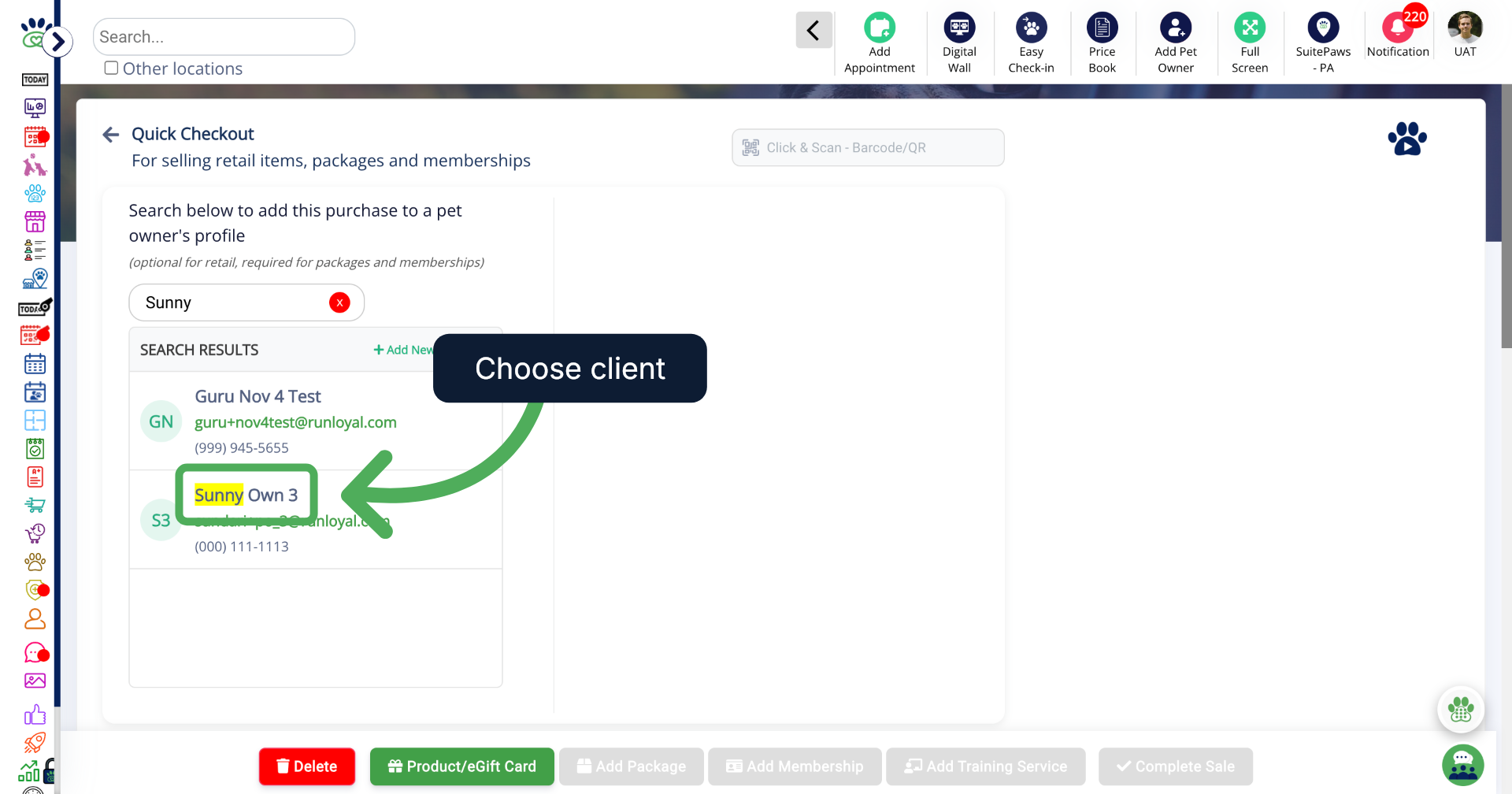
3. Select Client Profile
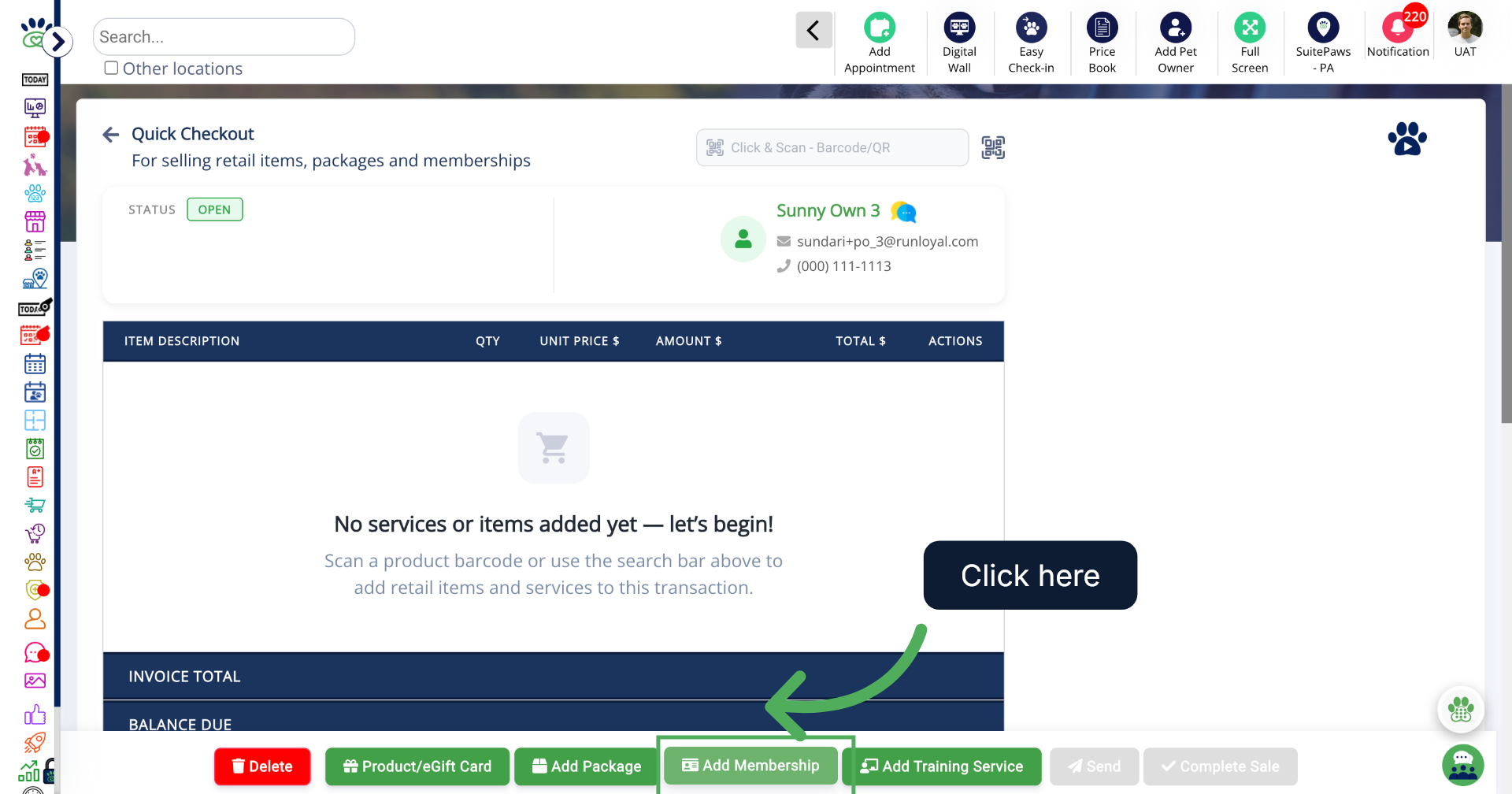
4. Add Membership
5. Select the Membership
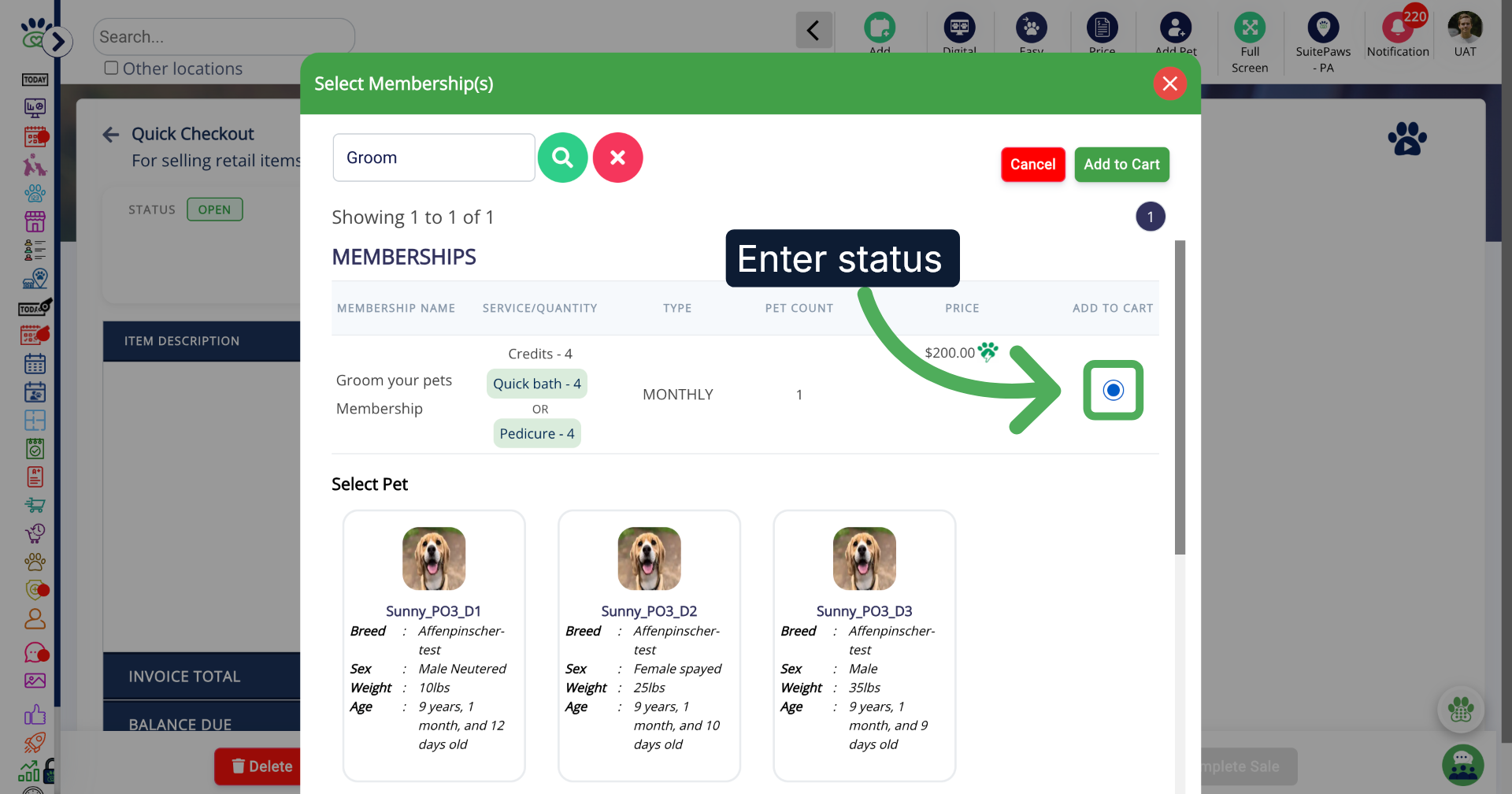
6. Choose the Pet(s)
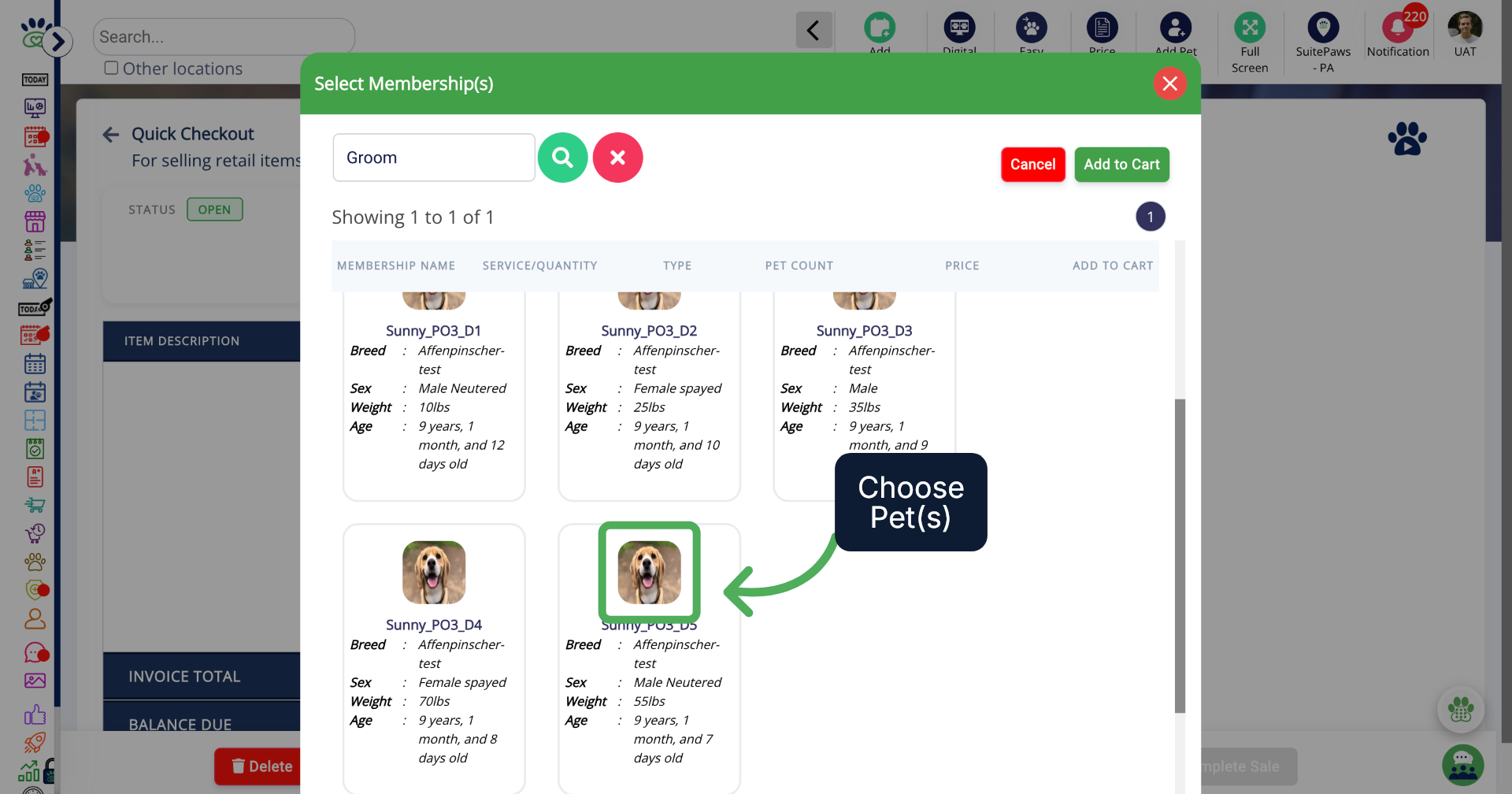
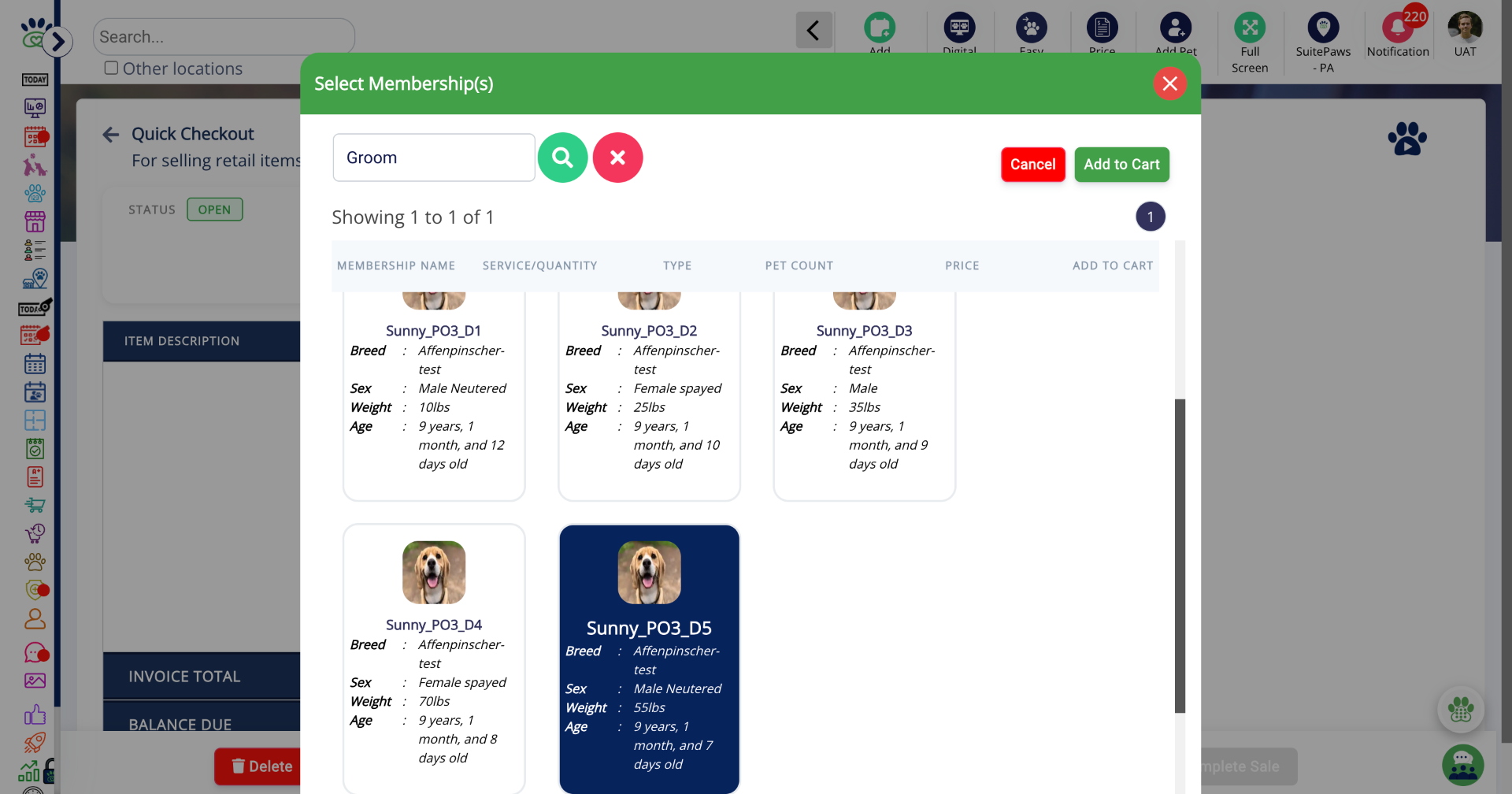
7. Selected Pets
8. Search for Staff Member
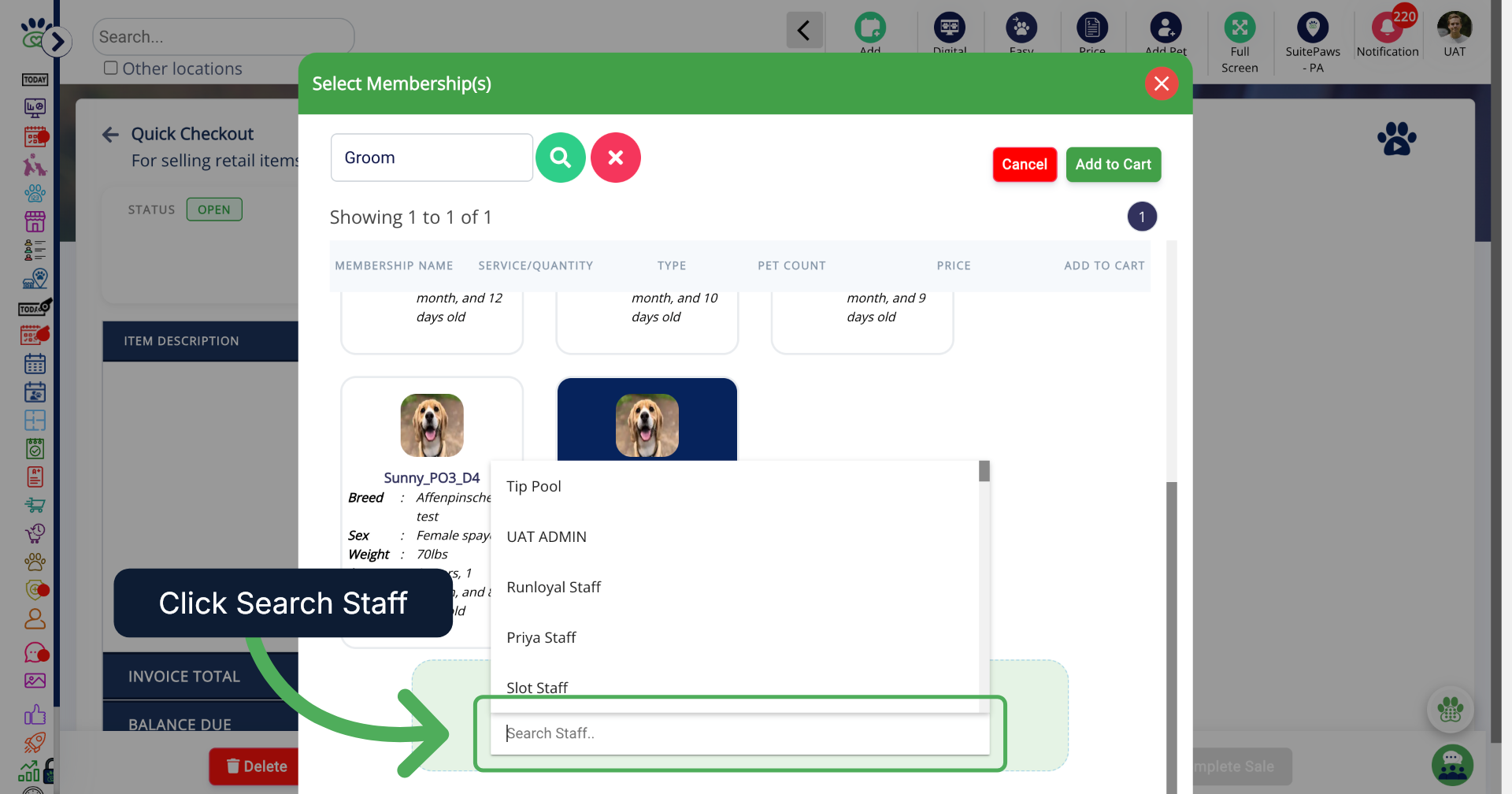
9. Select Staff Member
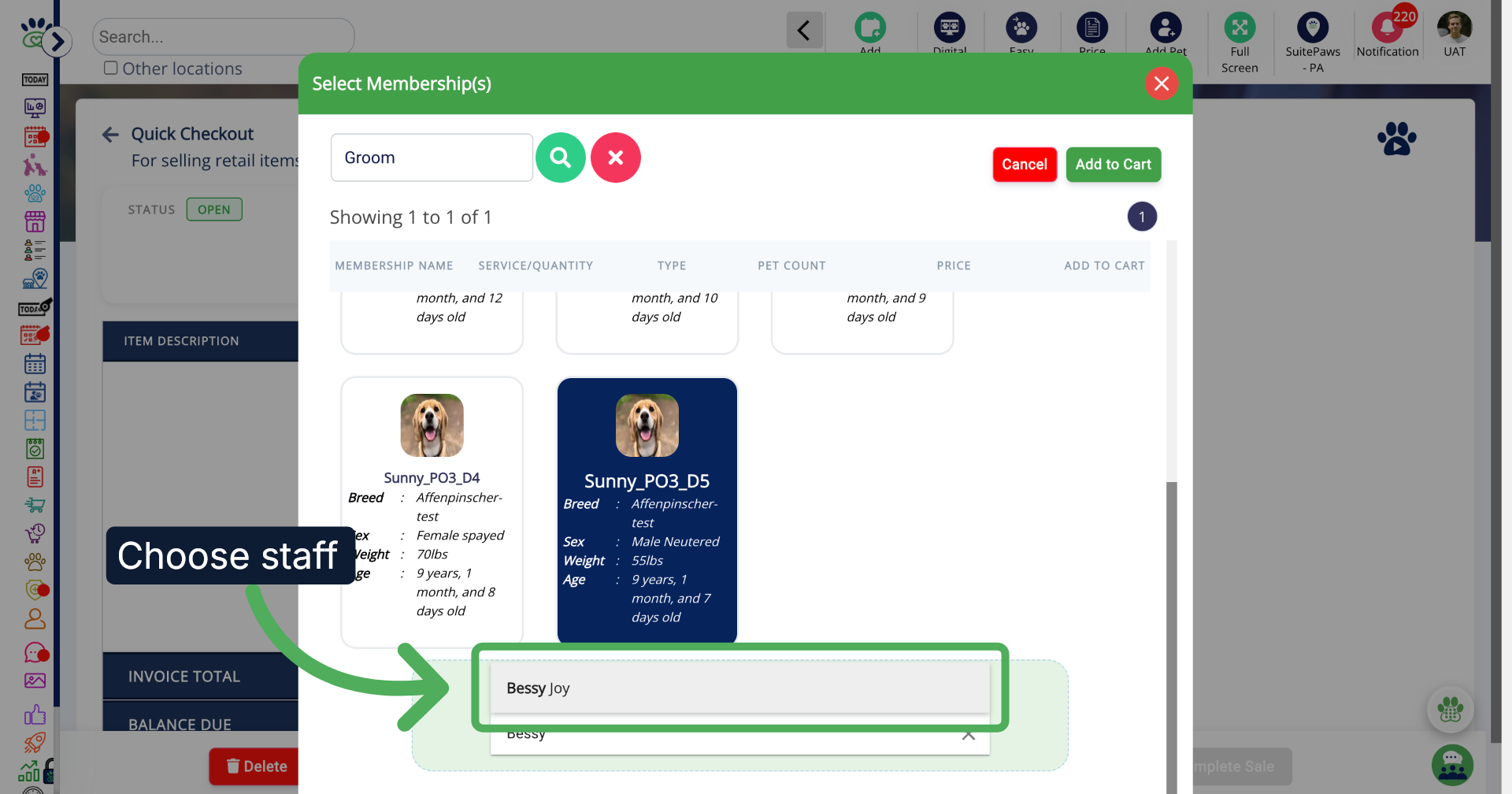
10. Complete Quick Checkout
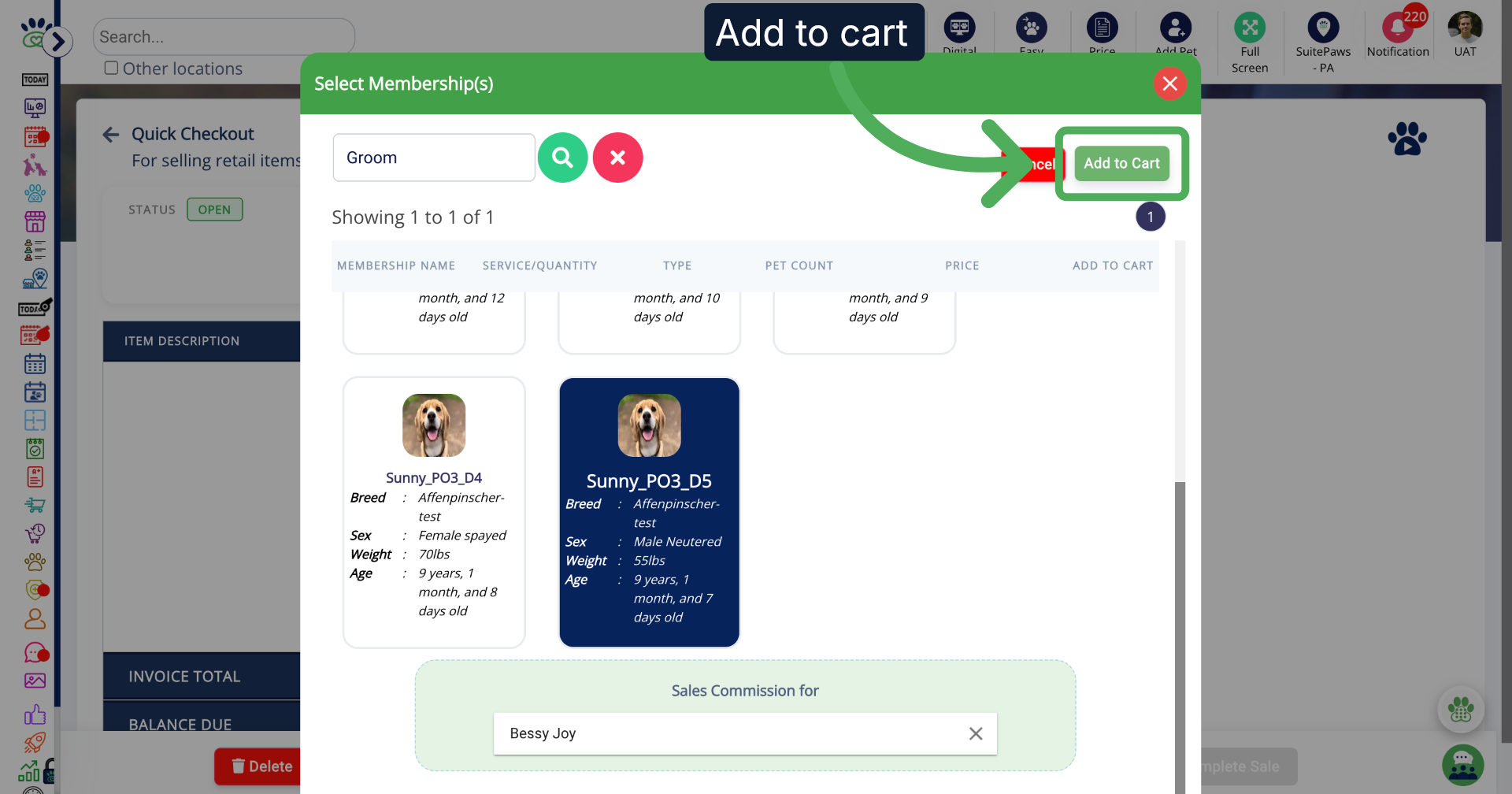
11. Proceed to Next Step
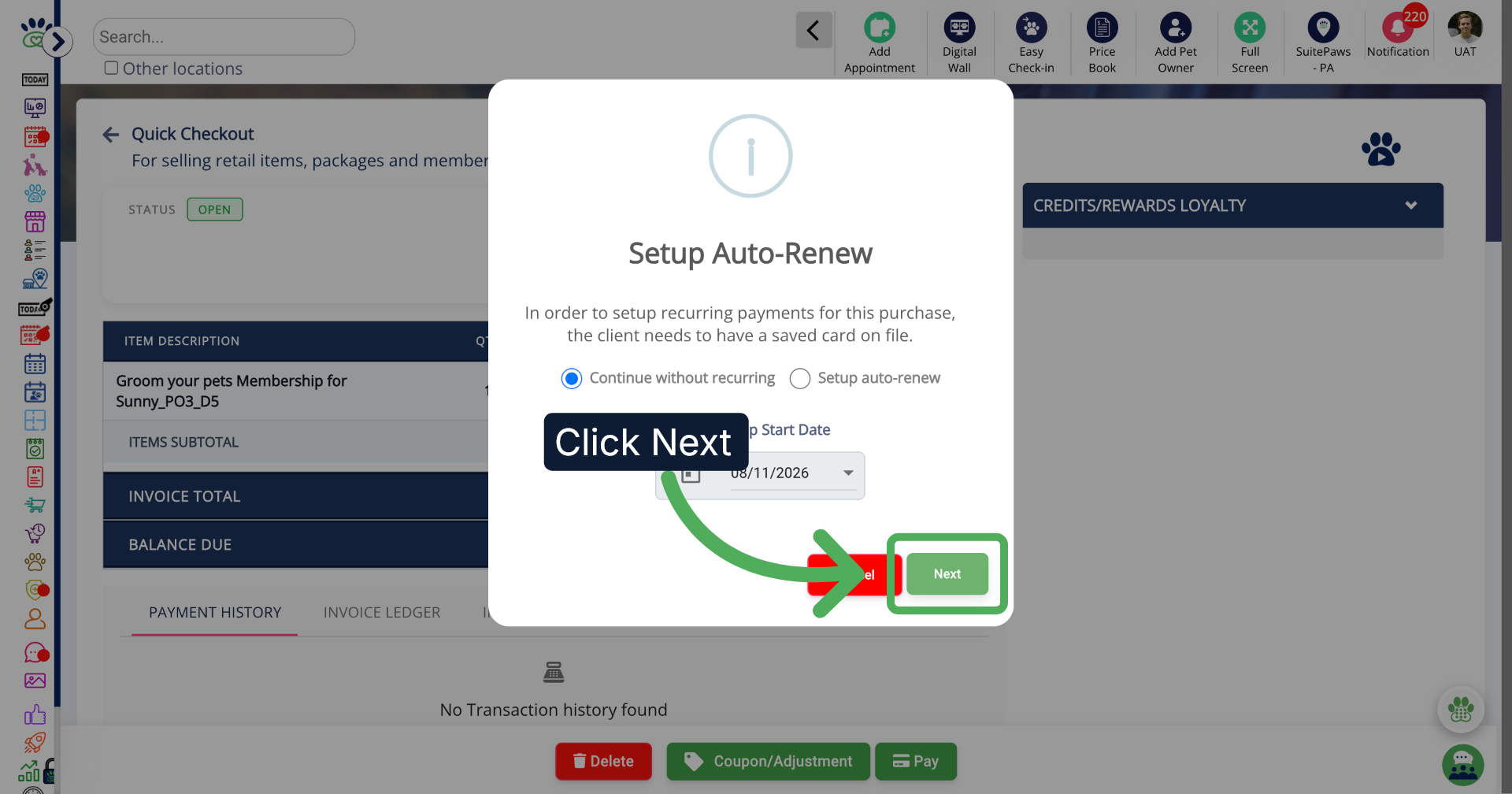
Configure Staff Sales Commission in Appointment update
1. Edit an Appointment
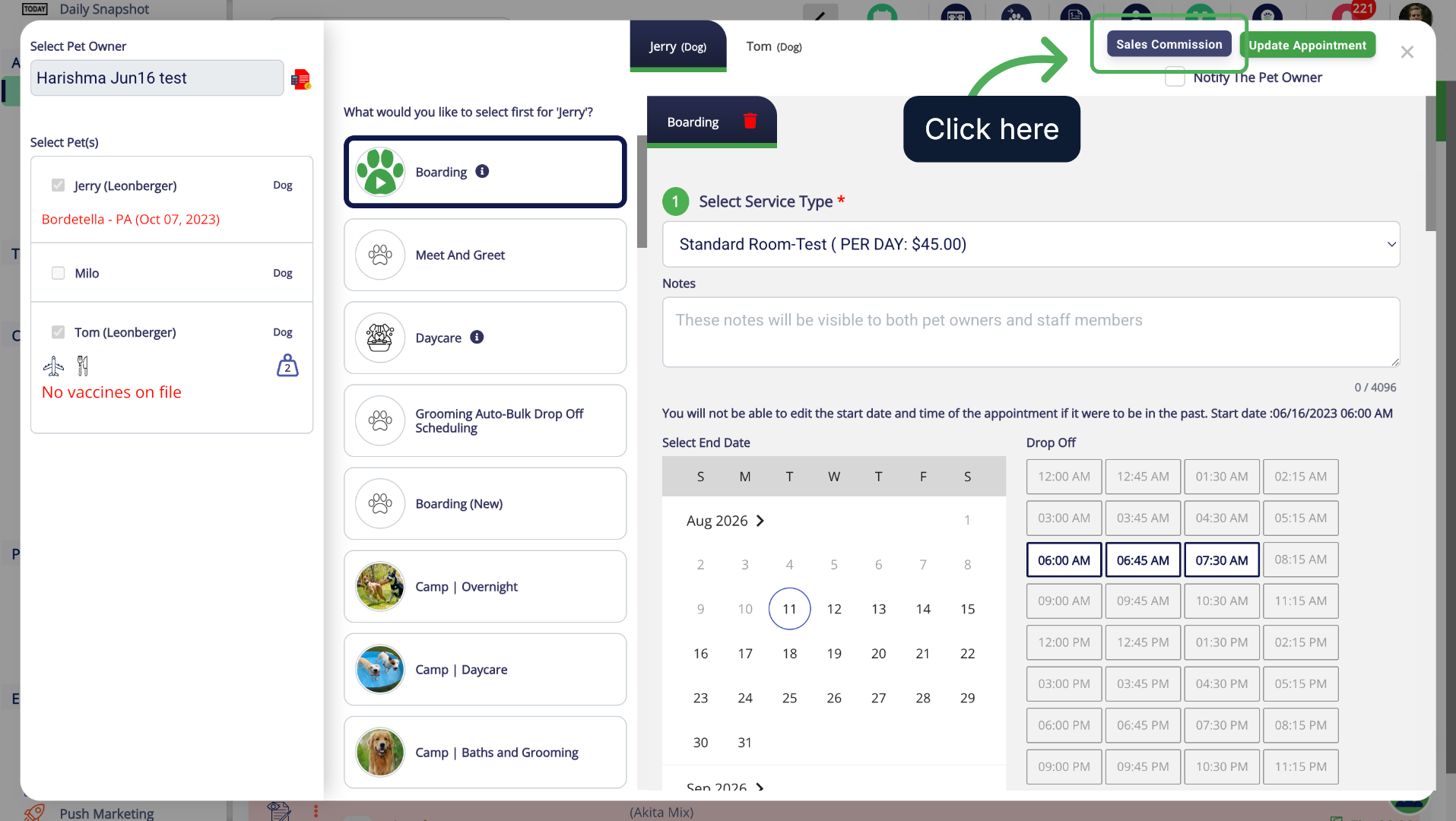
2. Assign Sales Commissions Panel
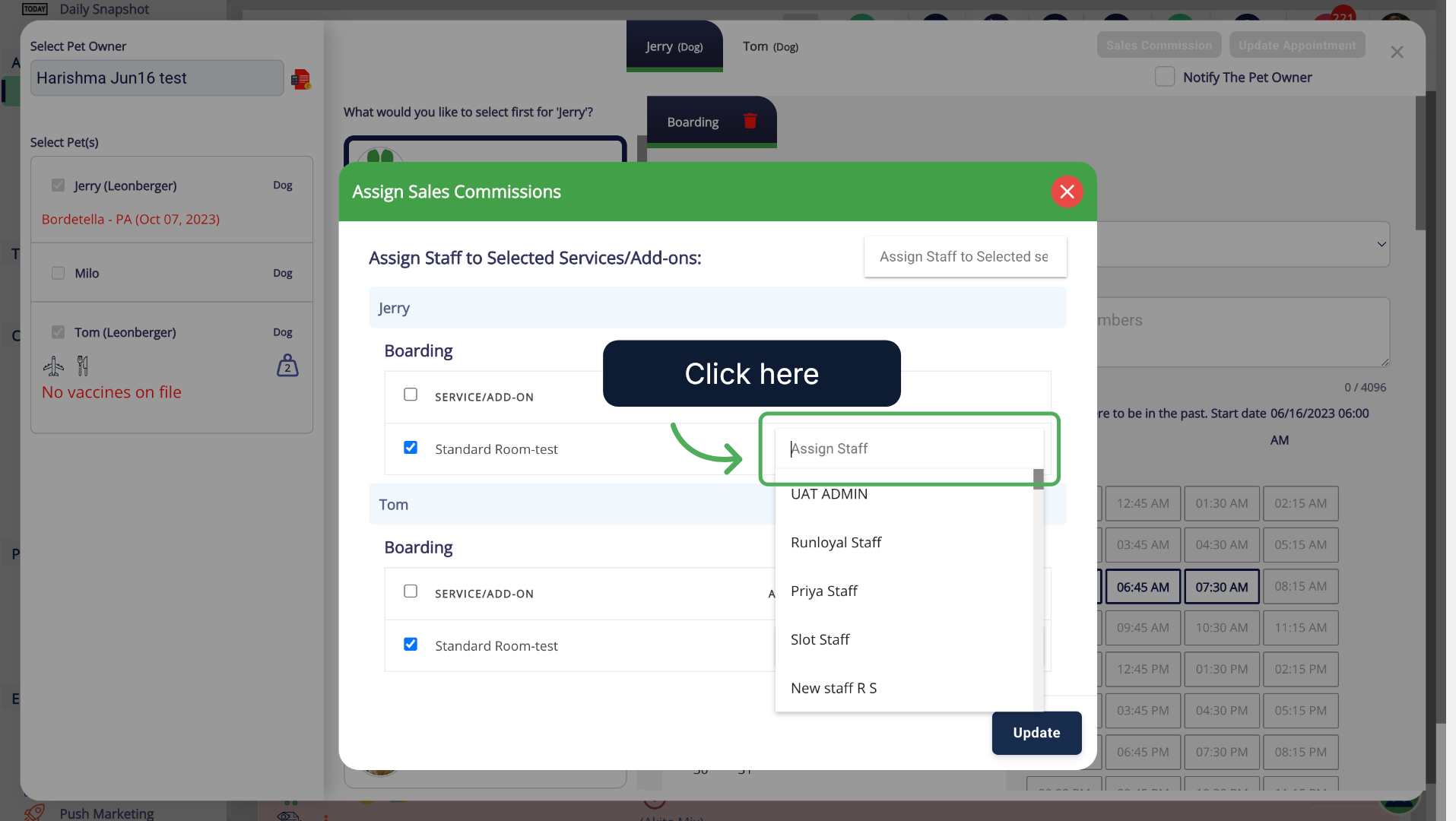
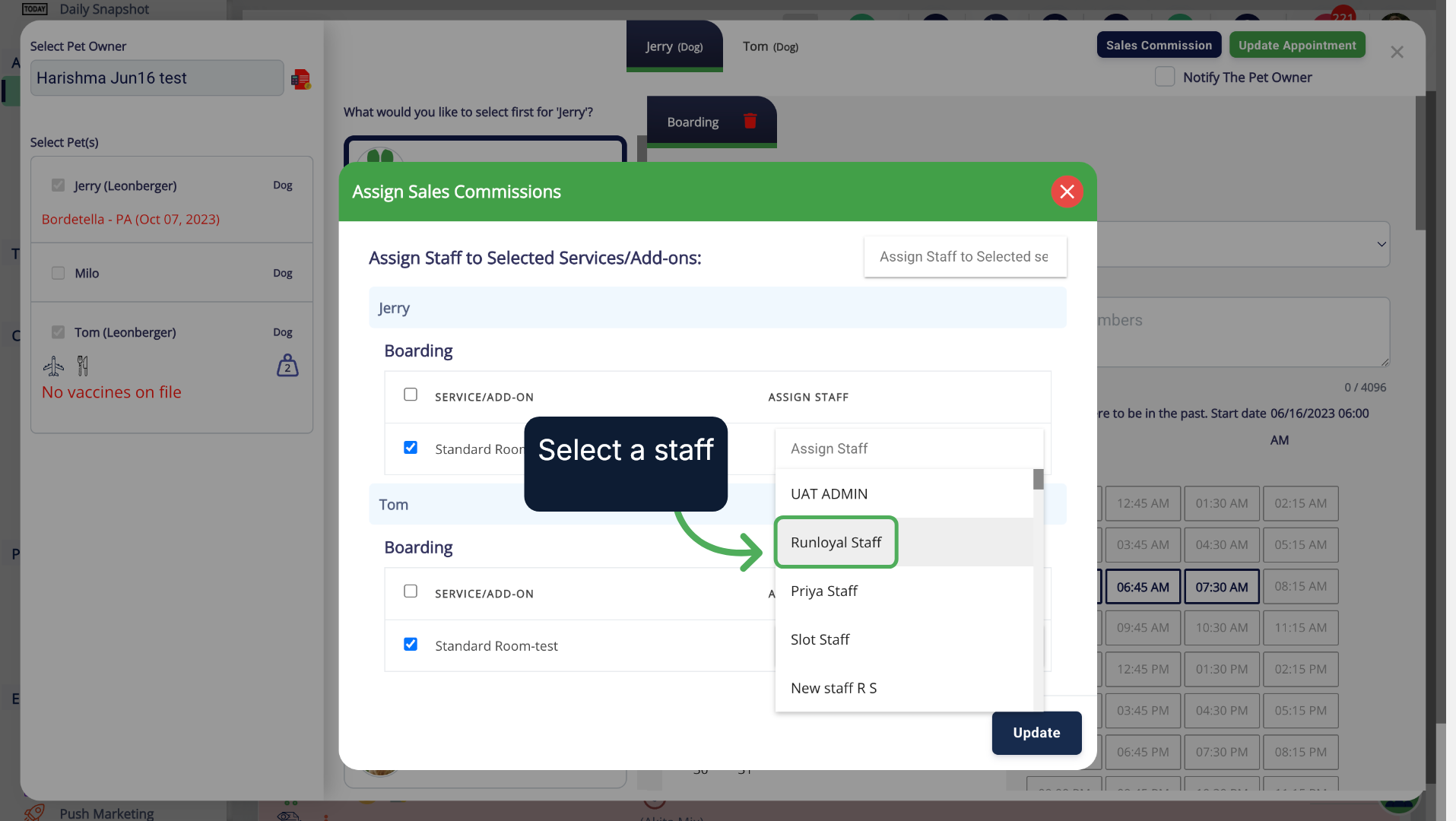
3. Select the staff
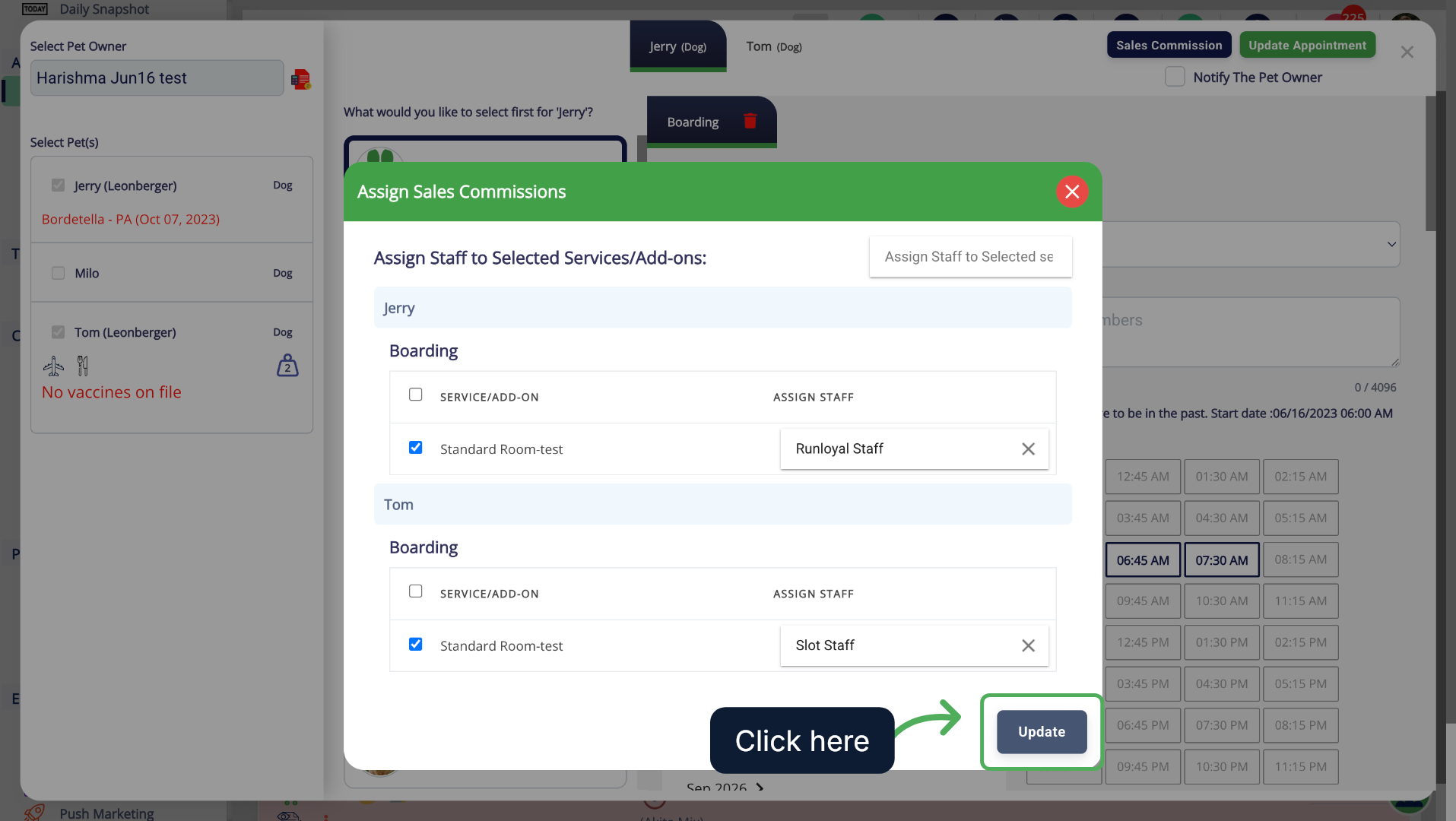
4. Update Staff Assignment
More Information
For more information please refer to this article on Advance Staff Feature.
Was this article helpful?
That’s Great!
Thank you for your feedback
Sorry! We couldn't be helpful
Thank you for your feedback
Feedback sent
We appreciate your effort and will try to fix the article