Overview
The Manage Tips feature provides a centralized way for businesses to configure tip options and deliver a consistent tipping experience across all platforms.Businesses can configure tip preferences once from the Business Portal and the same tip options are automatically available wherever tips are collected.
TABLE OF CONTENTS
Applicable Users
- Business Owner / Kennel Owner
- General Manager / Location Manager
Requirements
- User must have access to the RunLoyal Business Portal.
- User must have permission to access Pricing settings.
Portal Path
Configure Manage Tips
Business Portal → Settings → Pricing → Manage Tips
How to configure Tips?
This Video explains how to configure tipping options for the business.
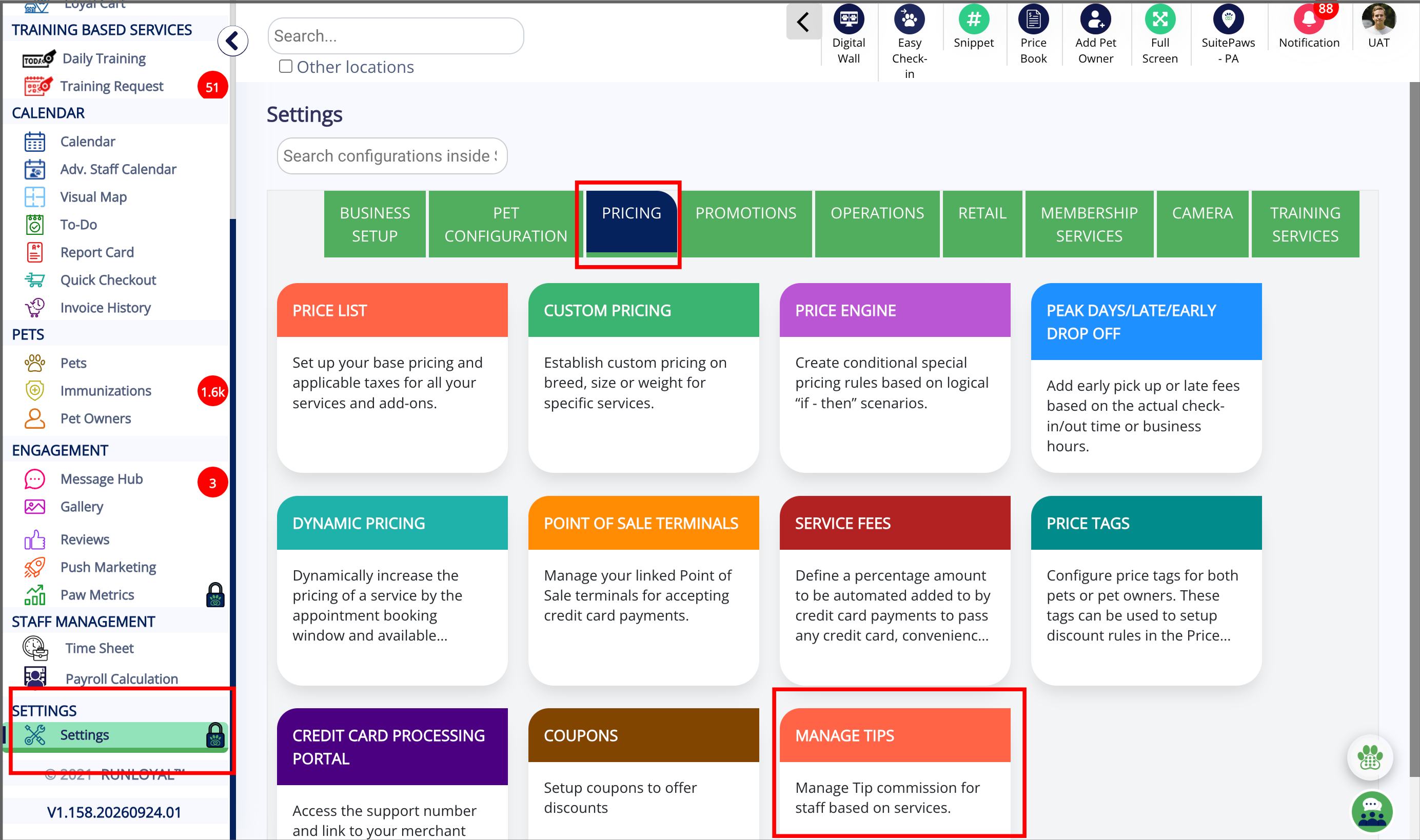
1. Settings
Go to Settings > Pricing > Manage Tips
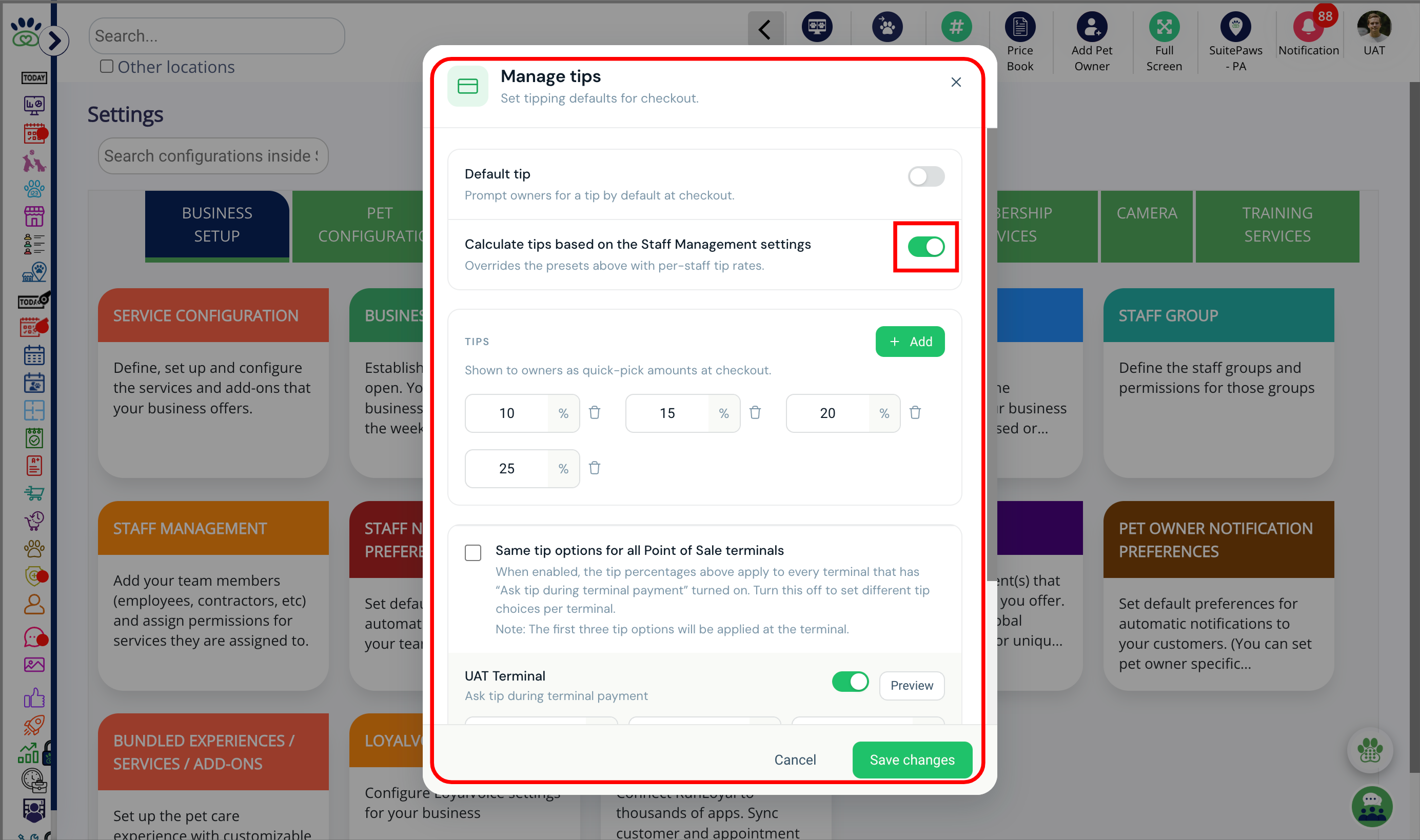
2. Manage Tips
Configure tips for the business.
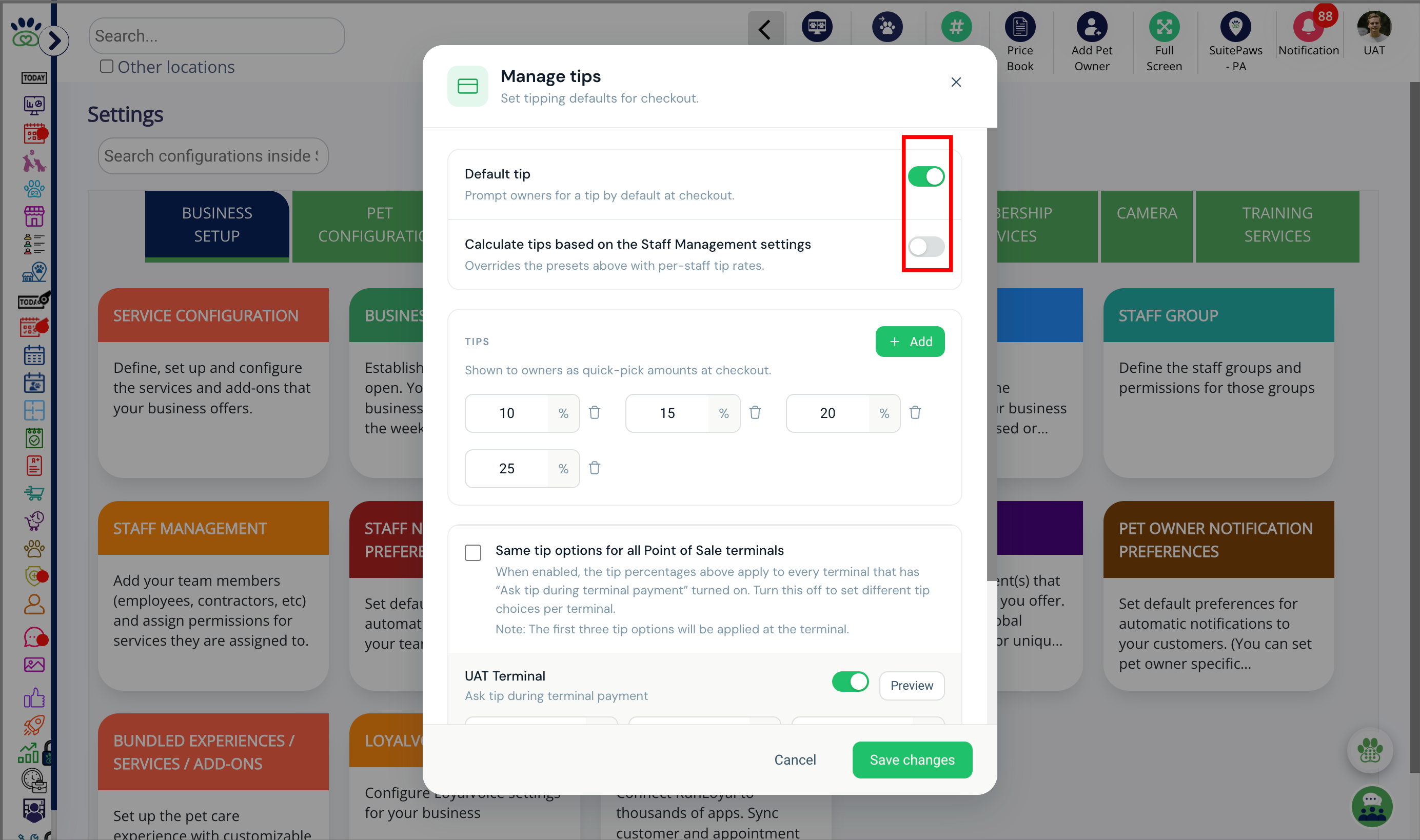
3. Choose the tipping option
Choose either Default Tip or Calculate tips based on the Staff Management settings.
4. Quick pick tips
Configure quick-pick tip amounts at checkout as percentage.
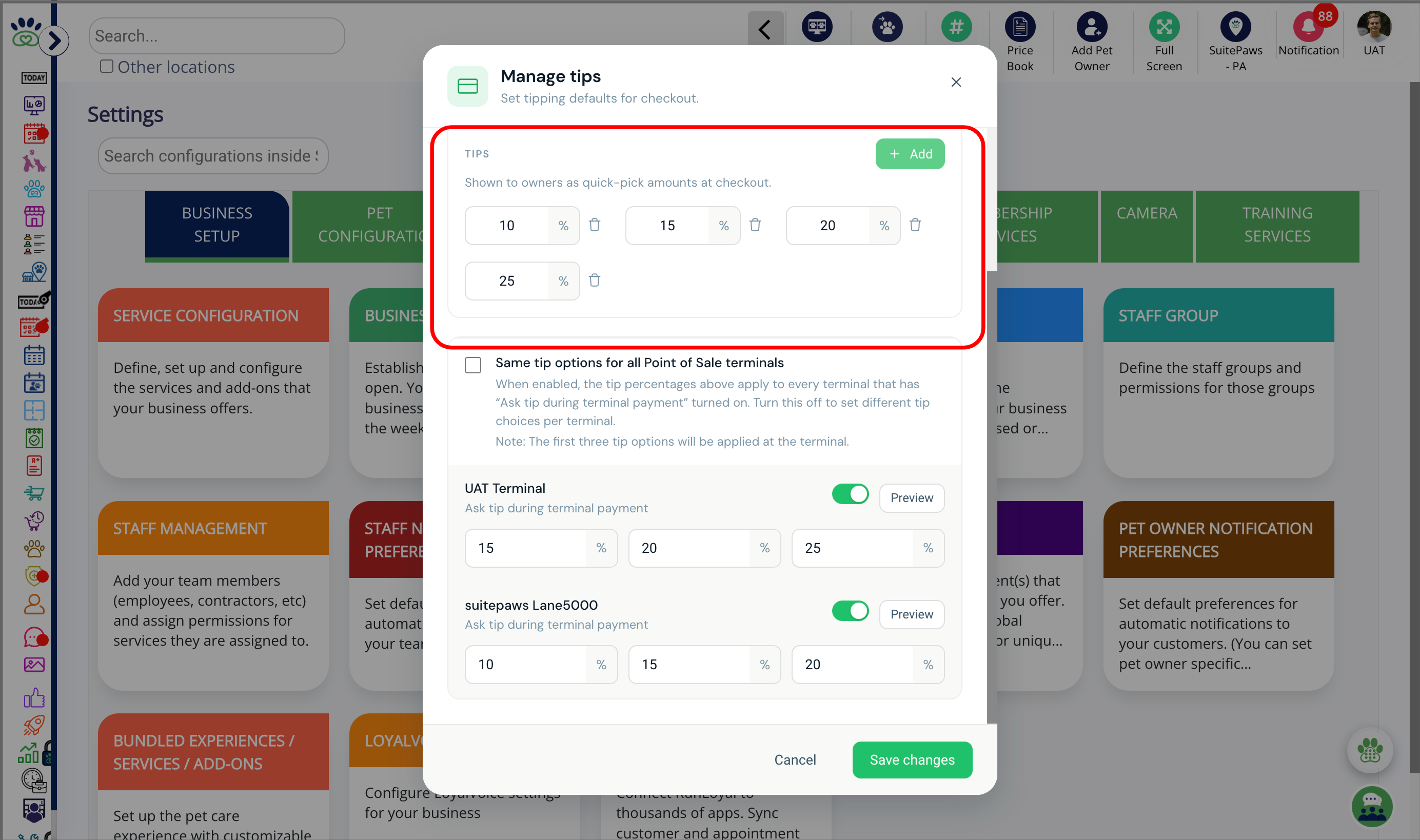
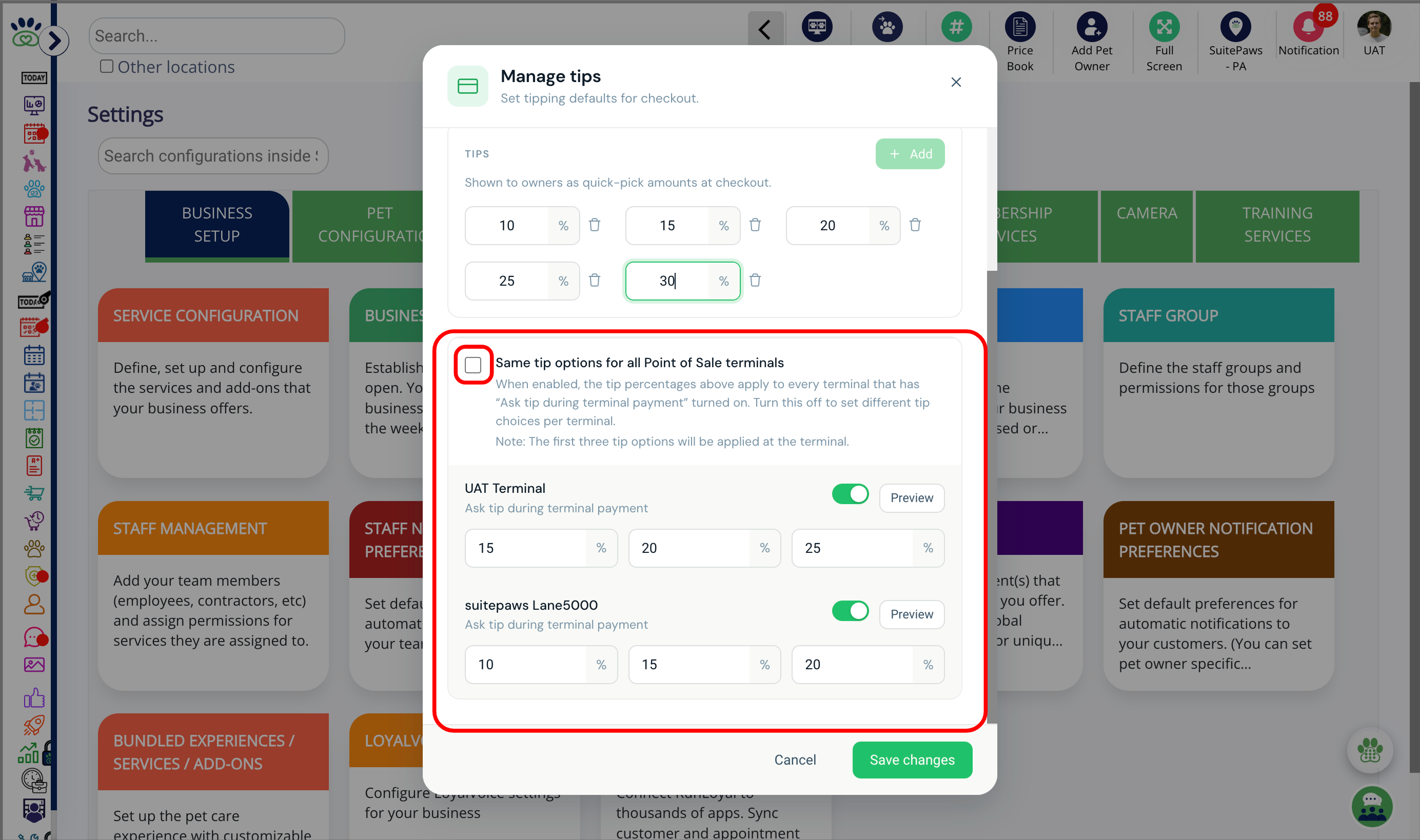
5. Tip for all Point of Sale terminals
When enabled, the tip percentages above apply to every terminal. Turn this off to set different tip choices per terminal.
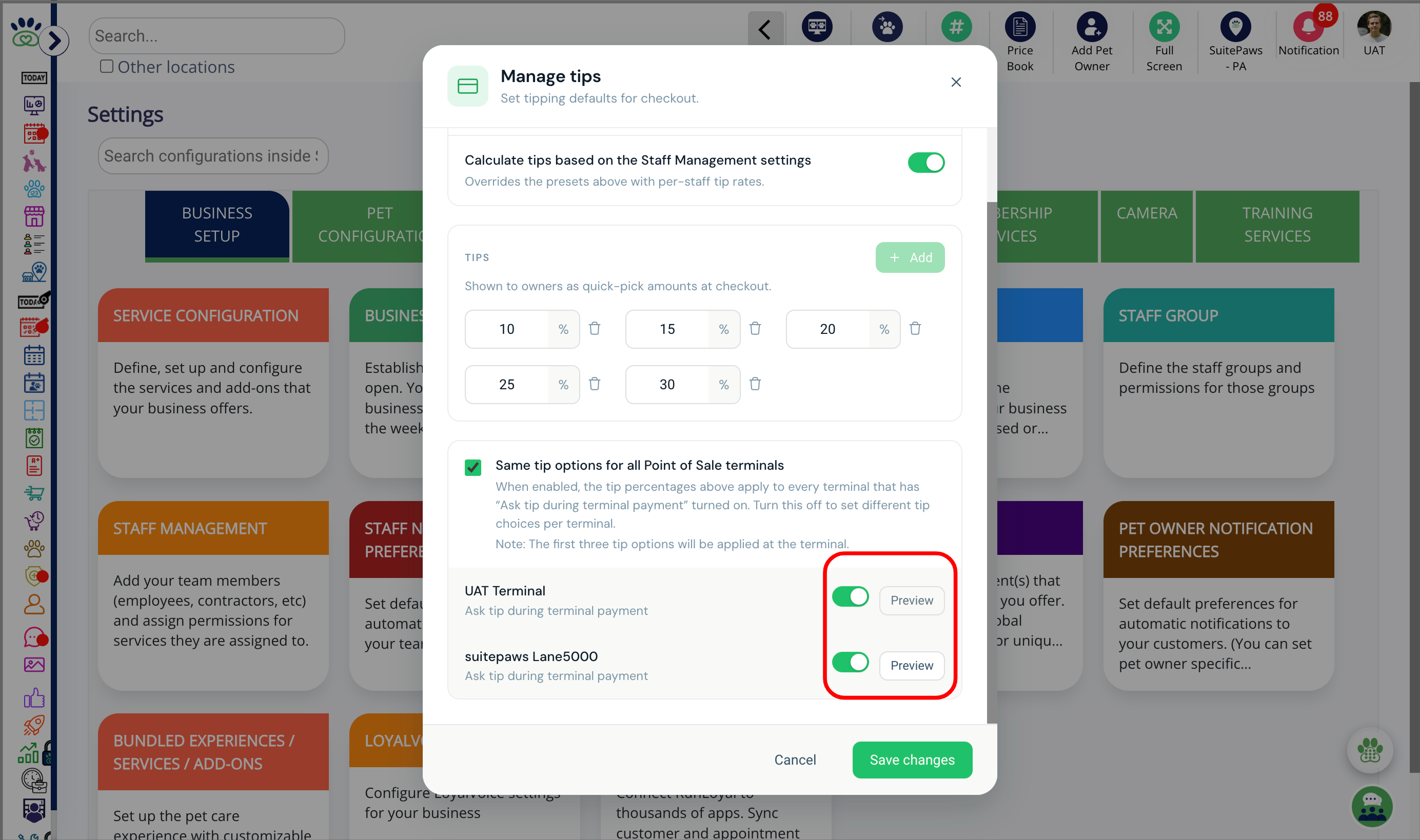
6. Preview Tip Settings
Open the preview to see how tip prompts will appear to customers during checkout.
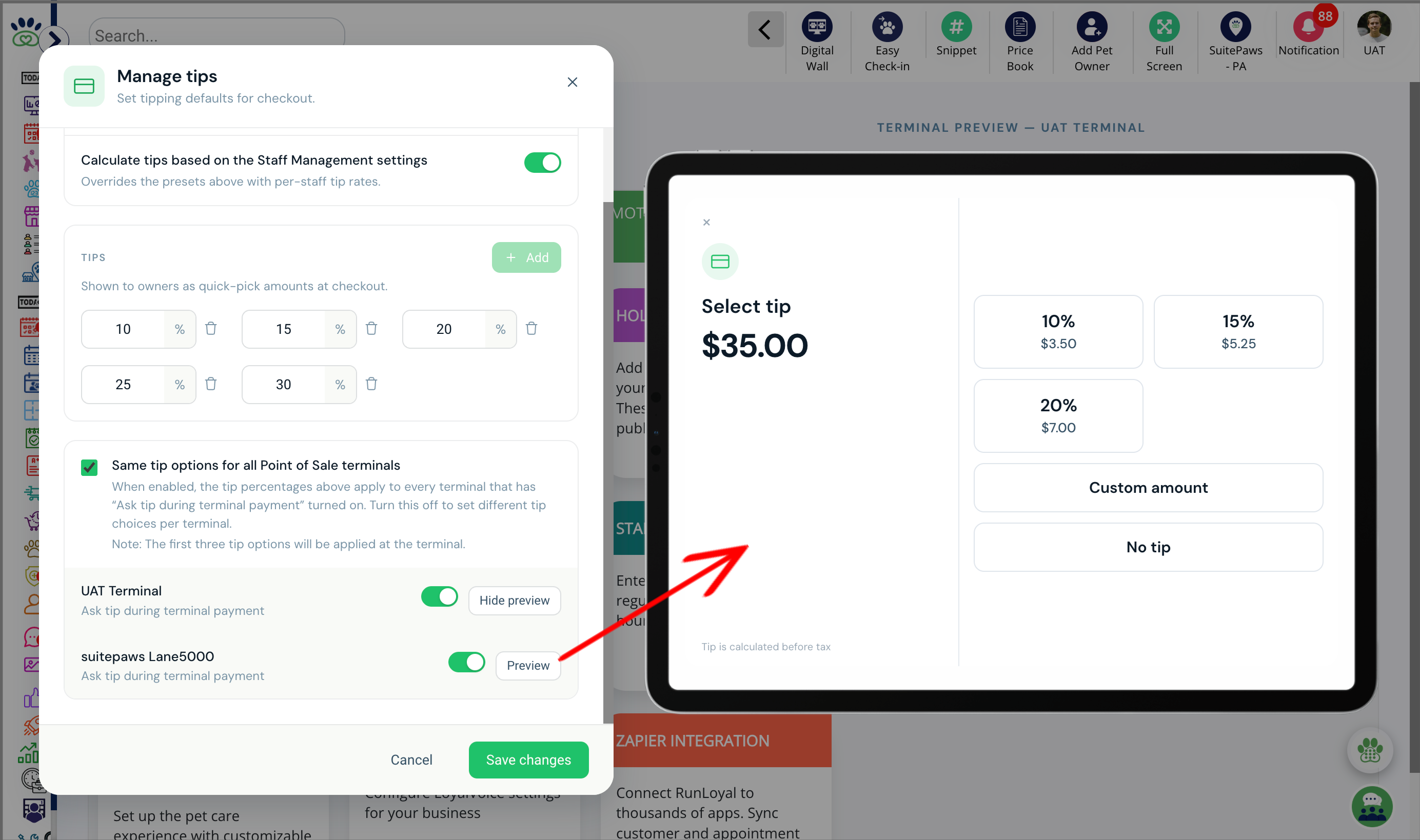
7. Preview
Preview of the Point of Sale Terminal with tip configuration.
More Information
For more information please refer to this article on Advanced Staff Feature.
Was this article helpful?
That’s Great!
Thank you for your feedback
Sorry! We couldn't be helpful
Thank you for your feedback
Feedback sent
We appreciate your effort and will try to fix the article