Overview
This article explains once advance staff feature is set up, for any Staff-based Services, tips will be automatically calculated based when a tip payment is made using the terminal, saved card (in the portal, pet owner app or Client Portal) or any other payment method.
Automated Tips (For Staff-Based Services)
Automated tips calculate a tip at the point of payment, based on the configuration you set for each service or add-on.
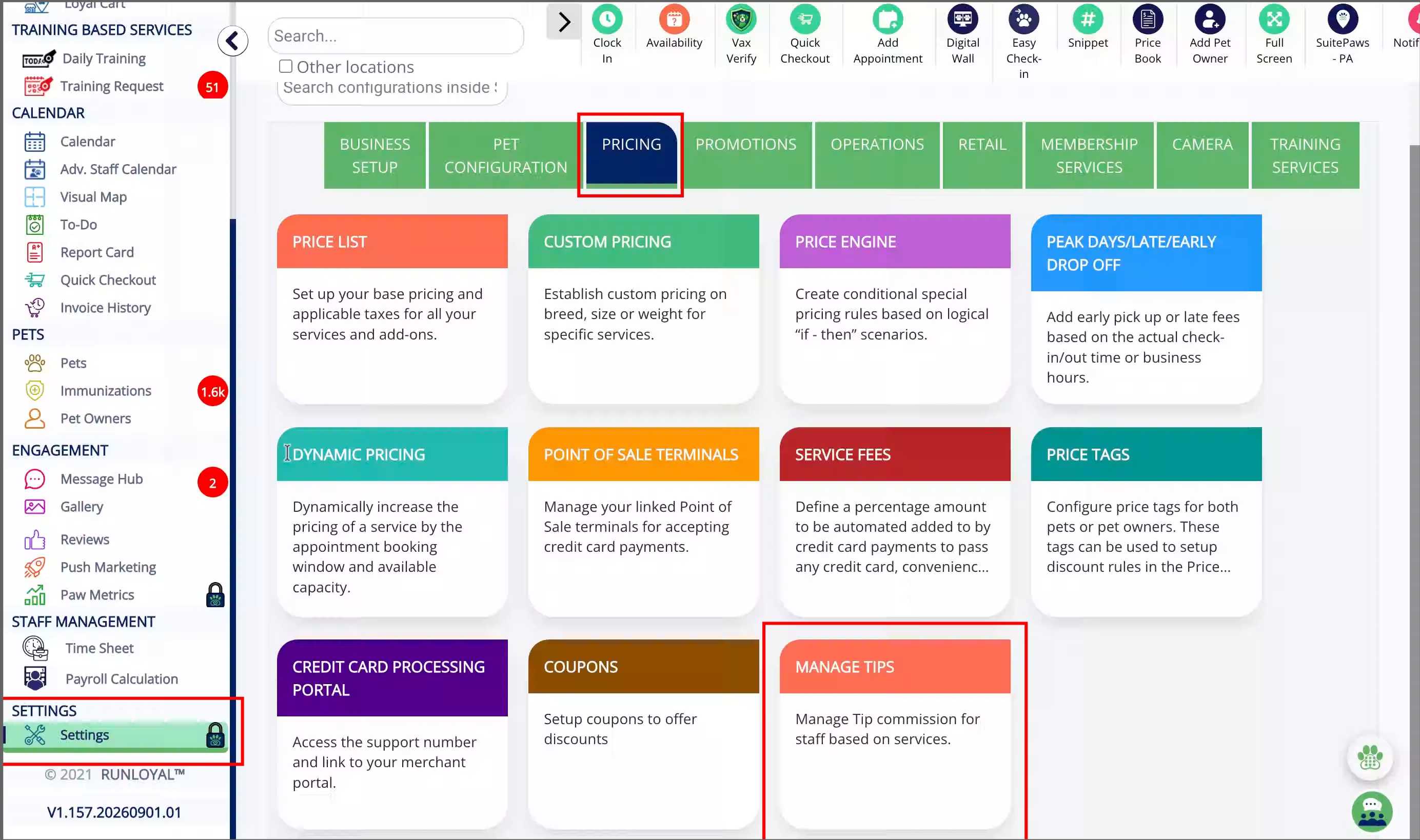
- Go to Settings > Pricing > Manage Tips.
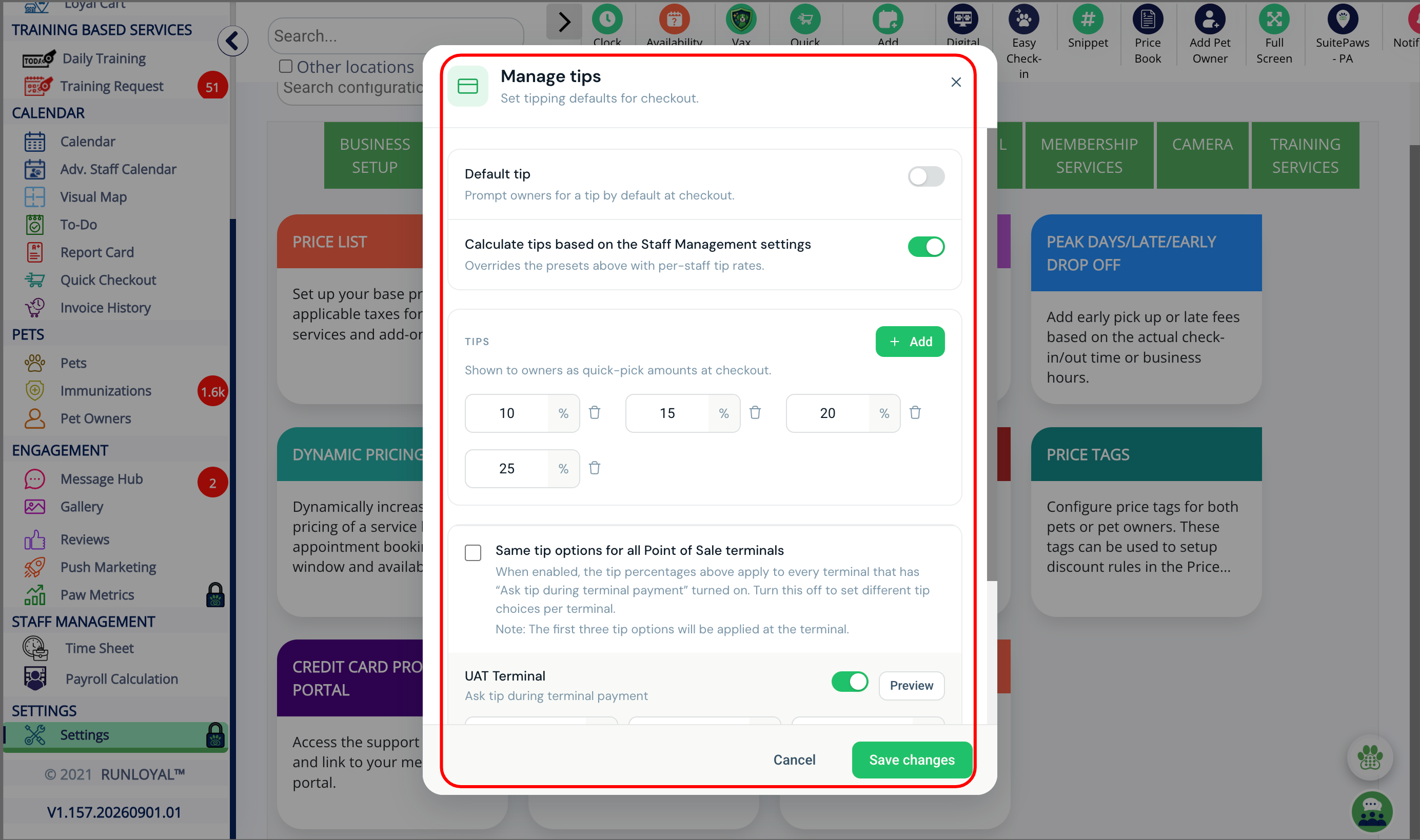
- Ensure Calculate tips based on the Staff Management settings is enabled.
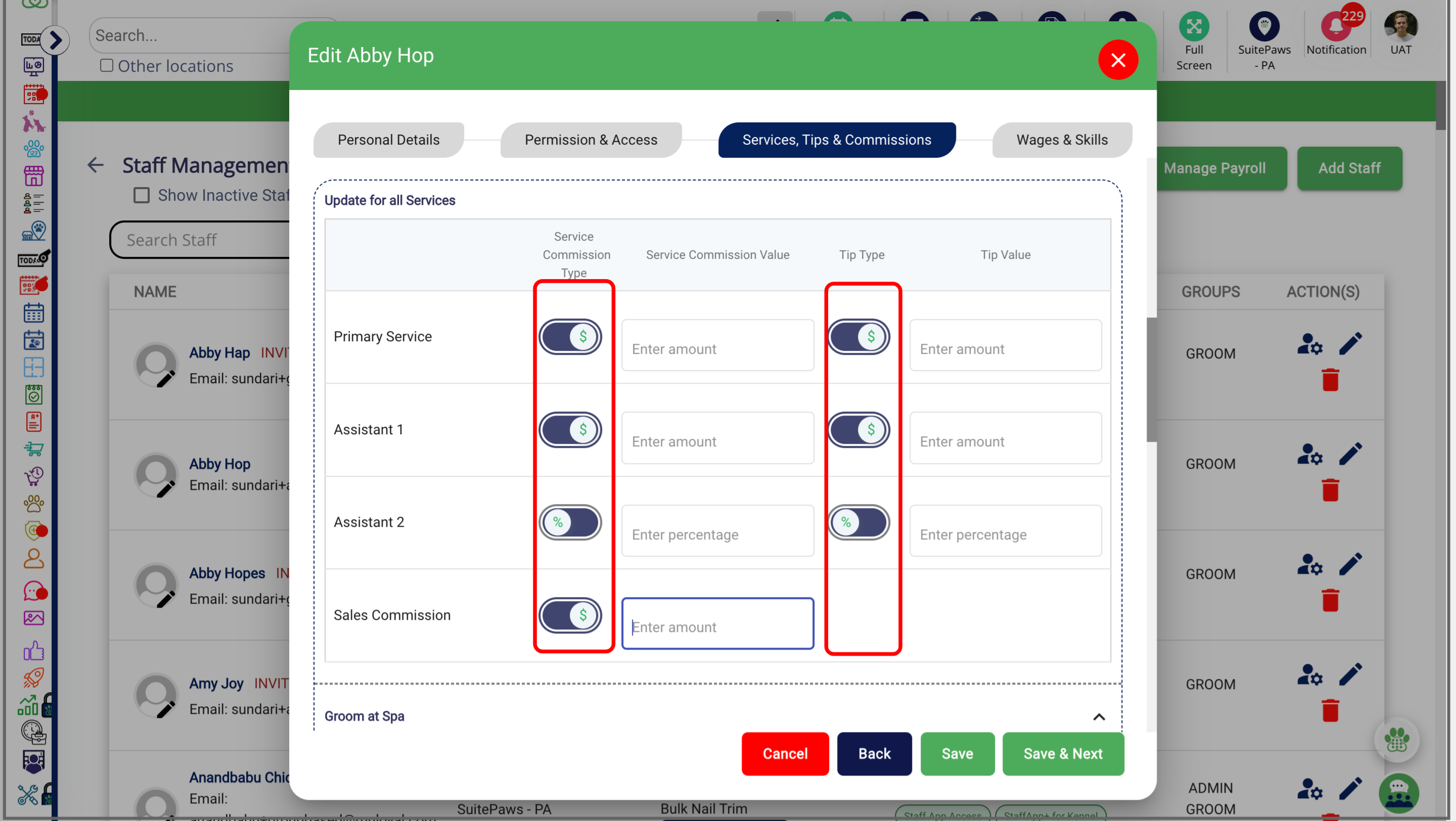
- Under Staff Management, configure tip calculations as a percentage or fixed amount for each service or add-on.
- Once configured, tips are automatically calculated for payments made through terminals, saved cards, the pet owner app or web link.
This article explains once advance staff feature is set up, tips will be automatically calculated based on your configuration when a tip payment is made using the terminal, saved card (in the portal, pet owner app or Client Portal) or any other payment method
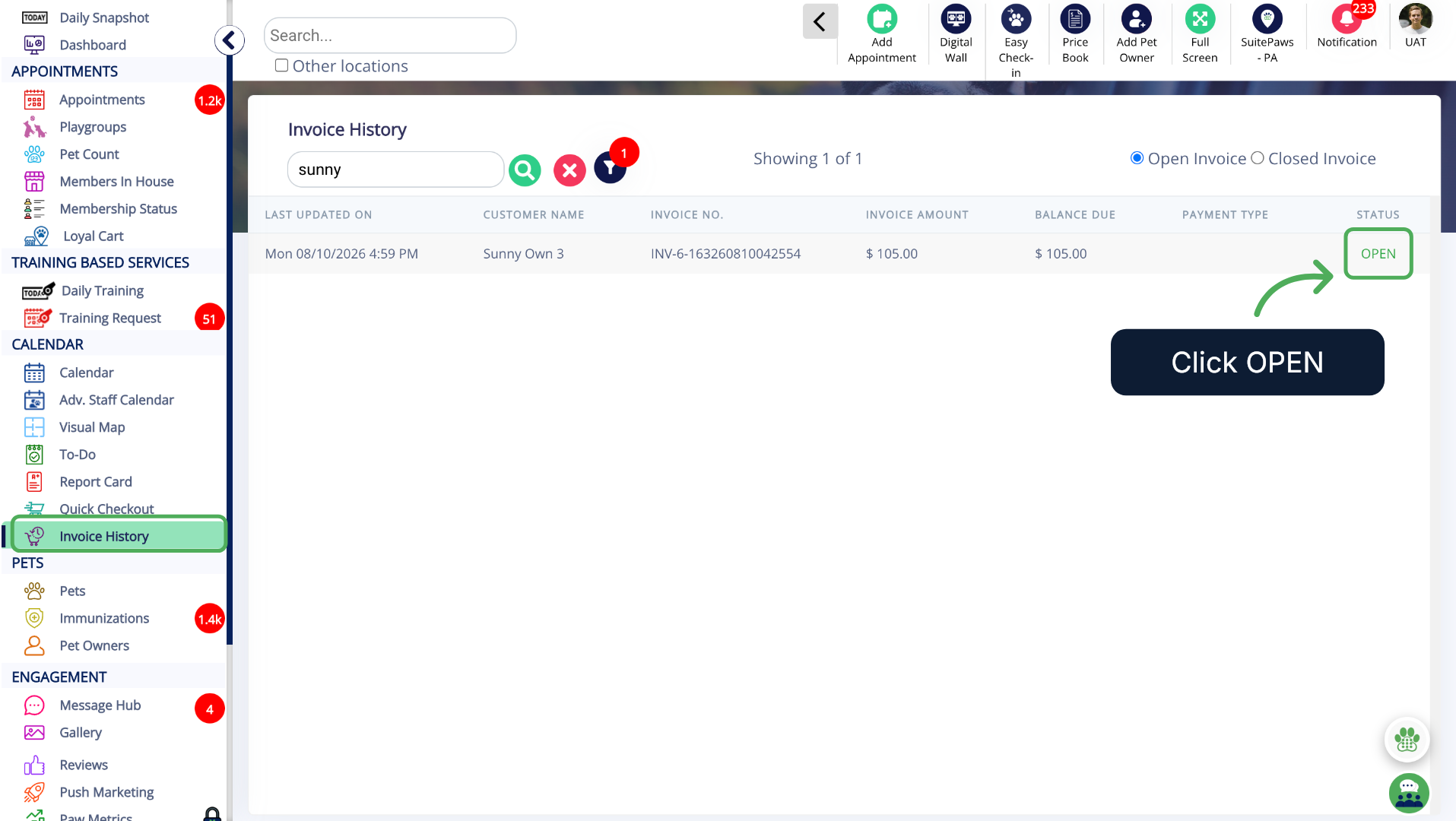
1. Open any Invoice
Select an Open invoice from Invoice History.
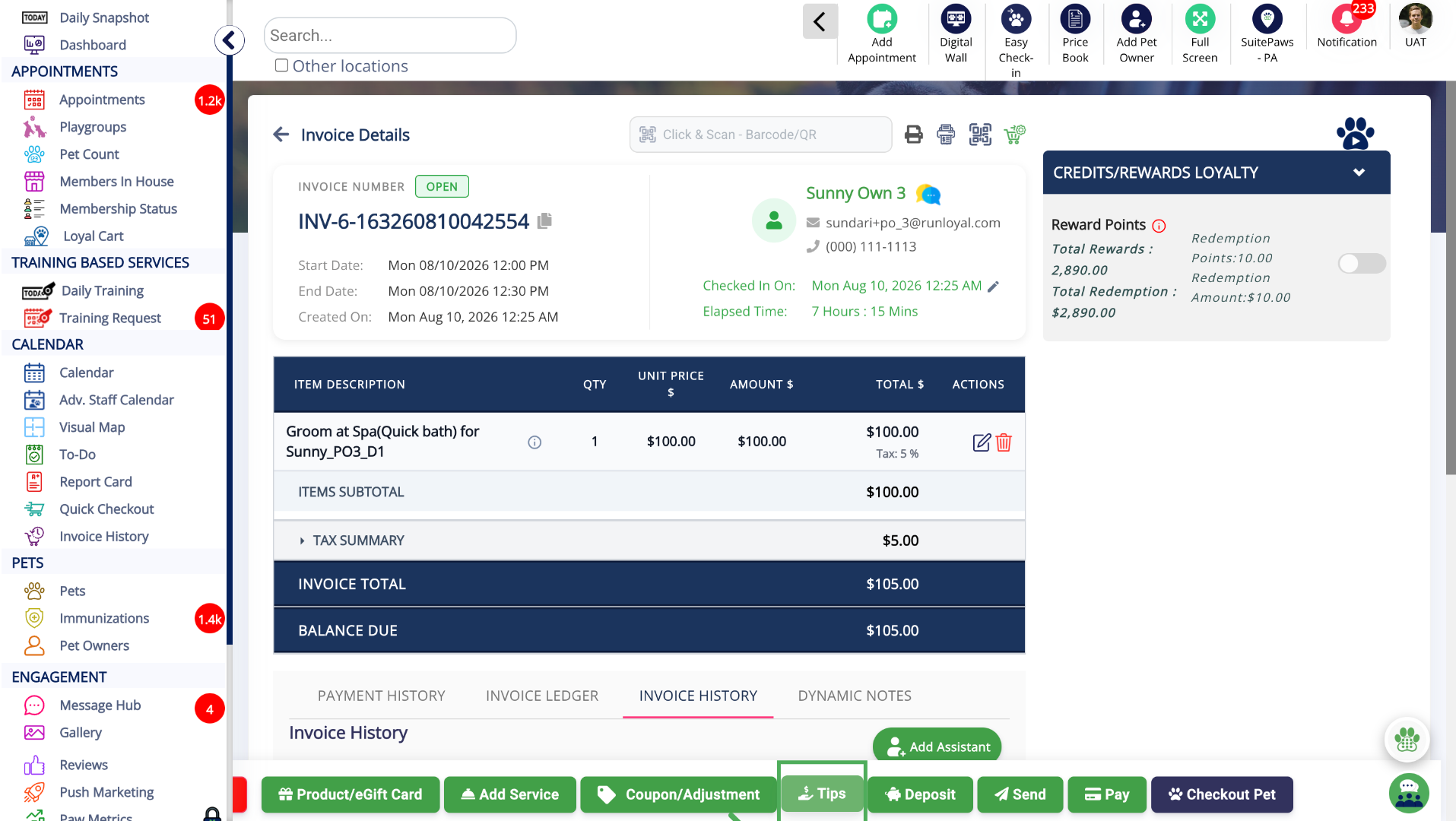
2. Tips Section
Click Tips to open the section where you can manage all tip entries.
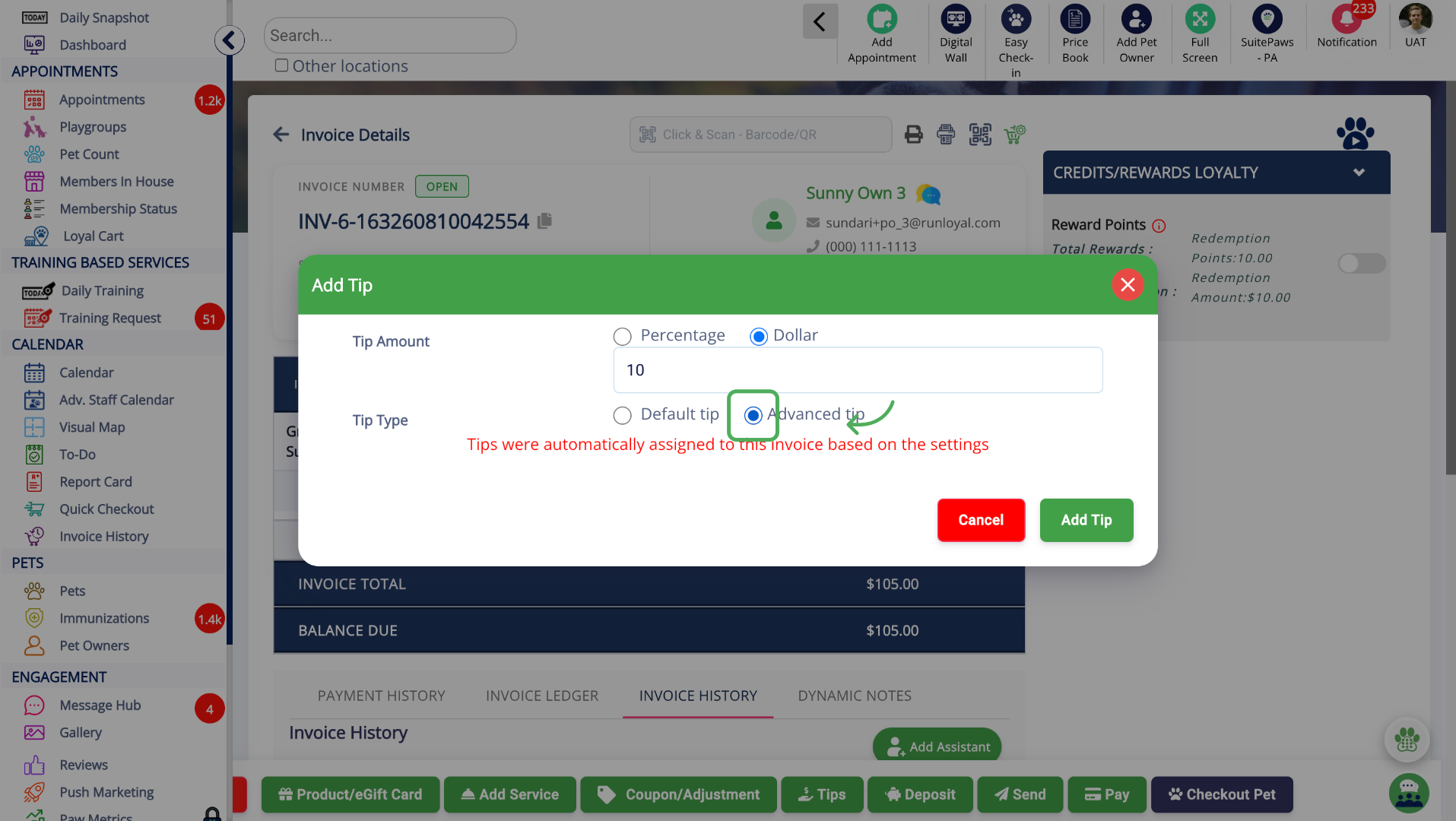
3. Advanced Tip
Select Advanced Tip and then click on Add Tip to apply the automated tip
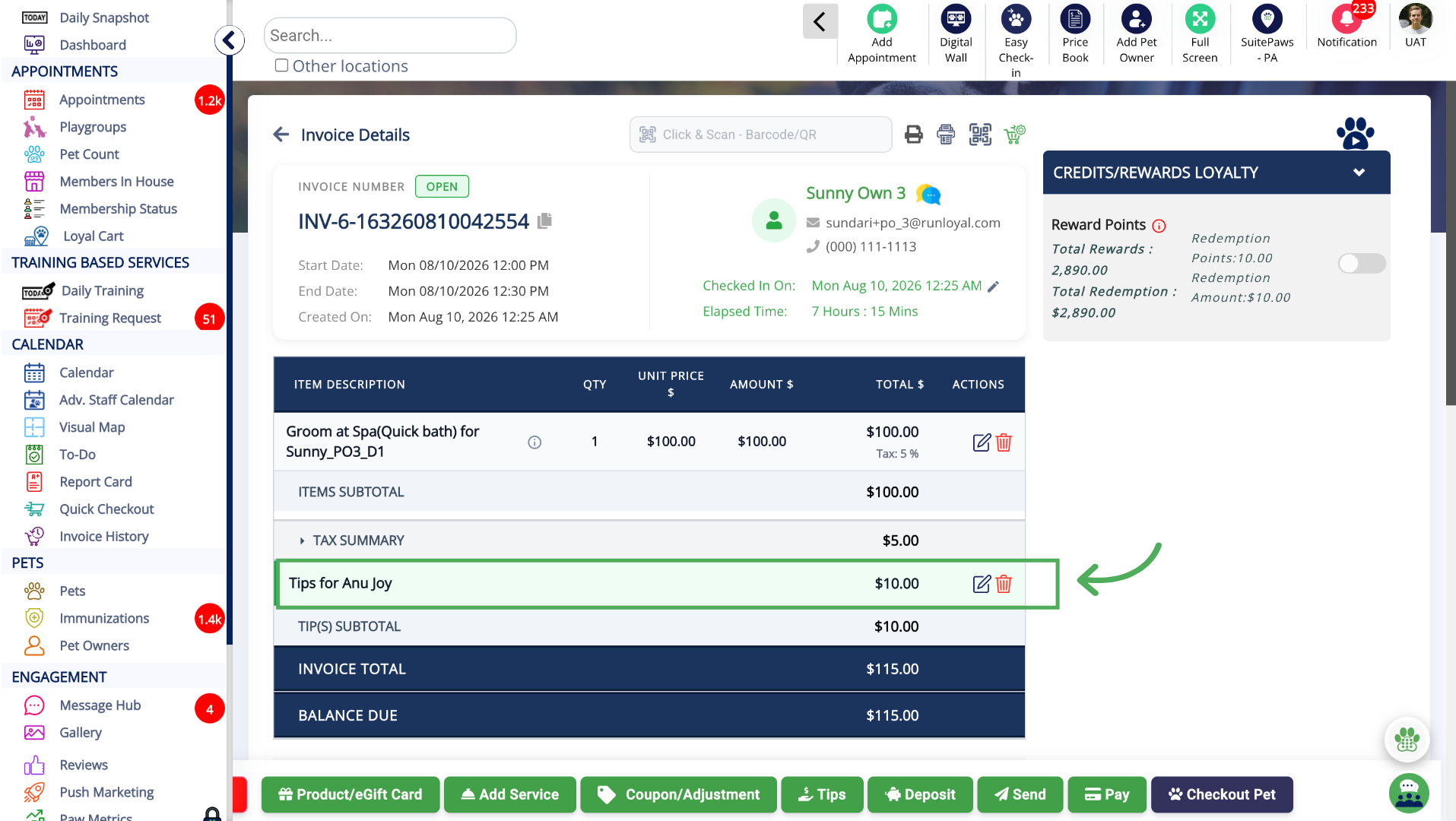
4. Automated tip
Automated tip is added for the Primary Staff
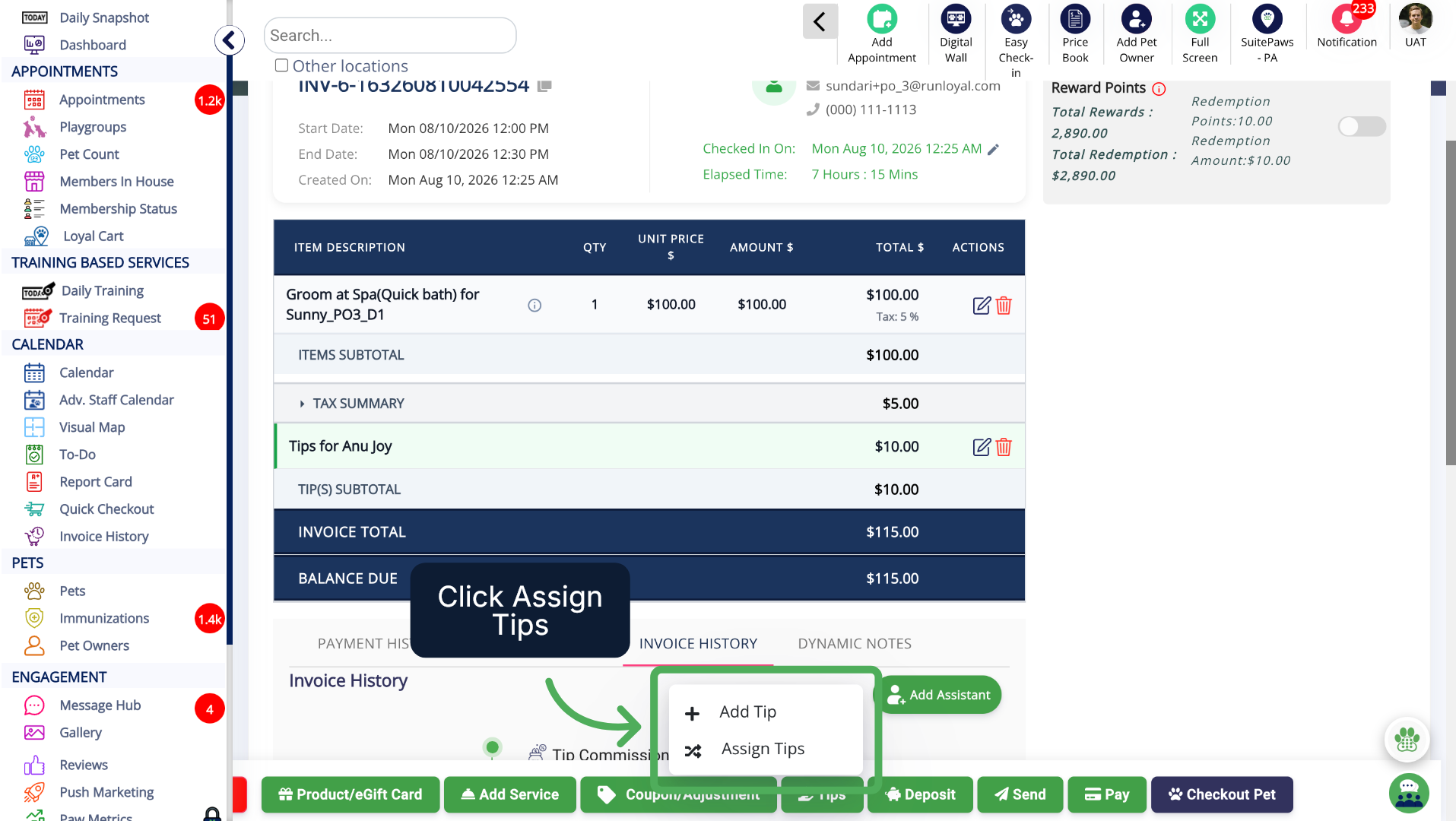
5. Tip distribution
Select Assign Tips to begin assigning tips to staff members.
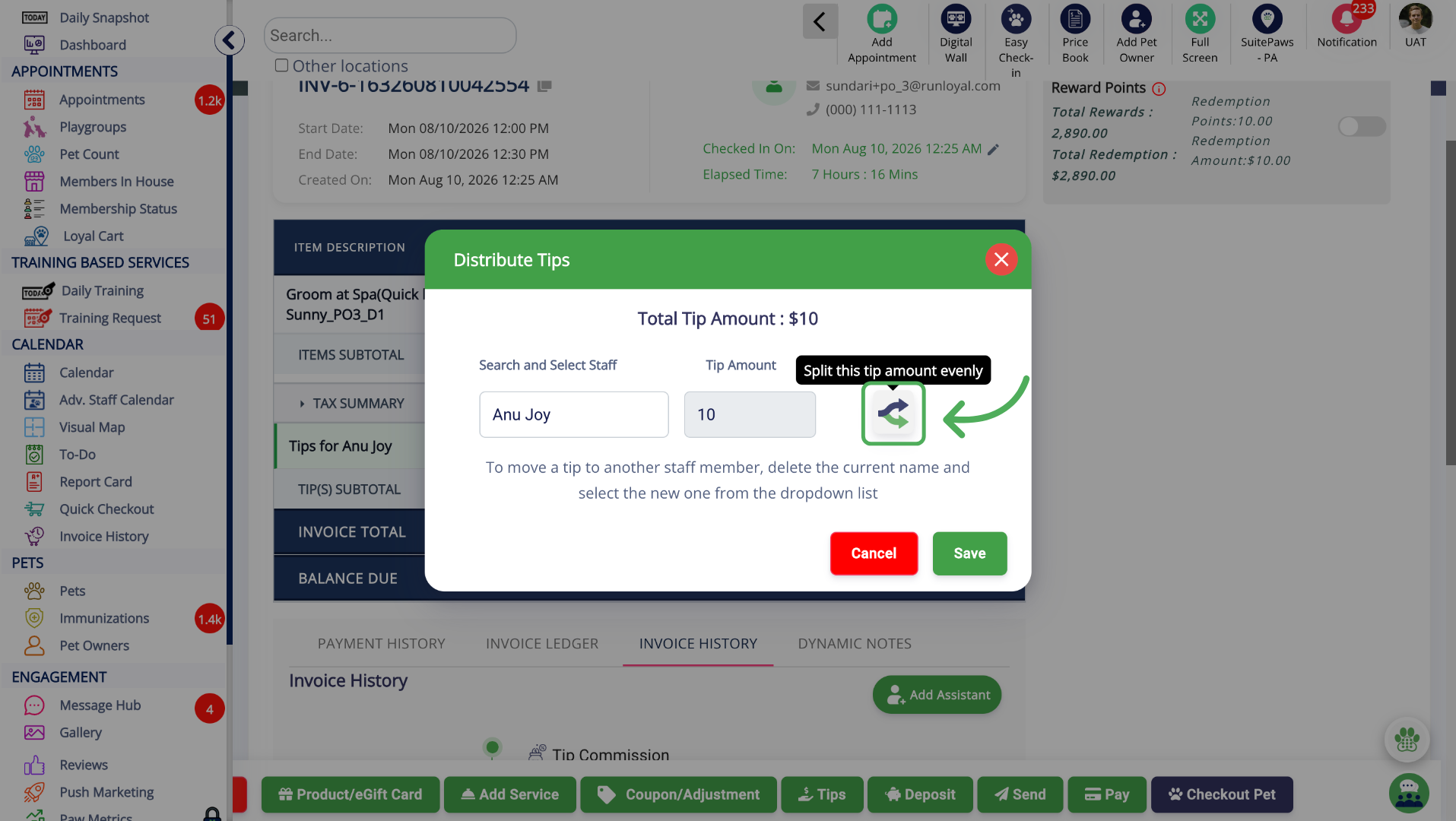
6. Distribute Tips
Click here to start splitting the tip amount to other staff members.
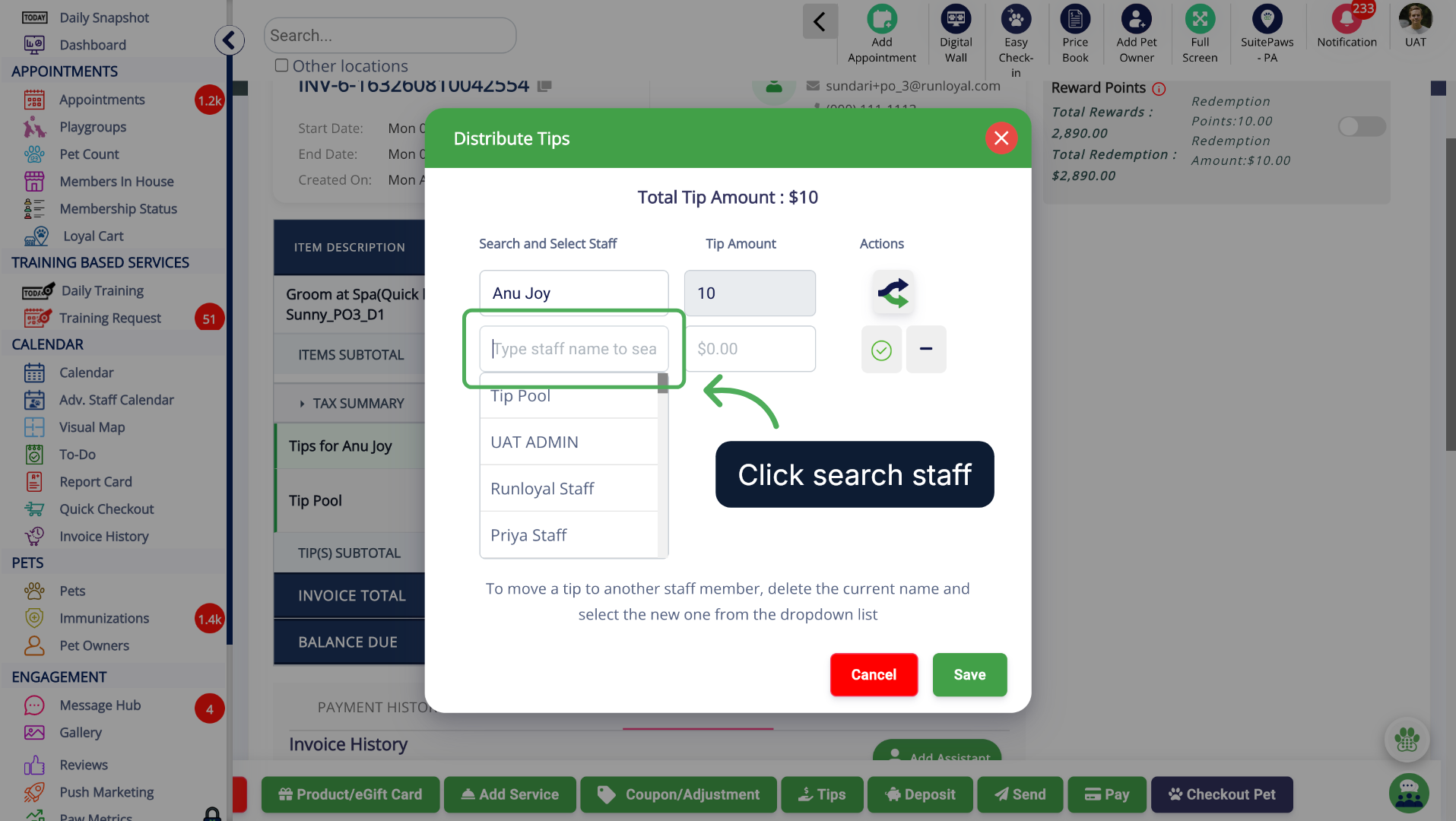
7. Search and Select Staff
Search and Select Staff from the list
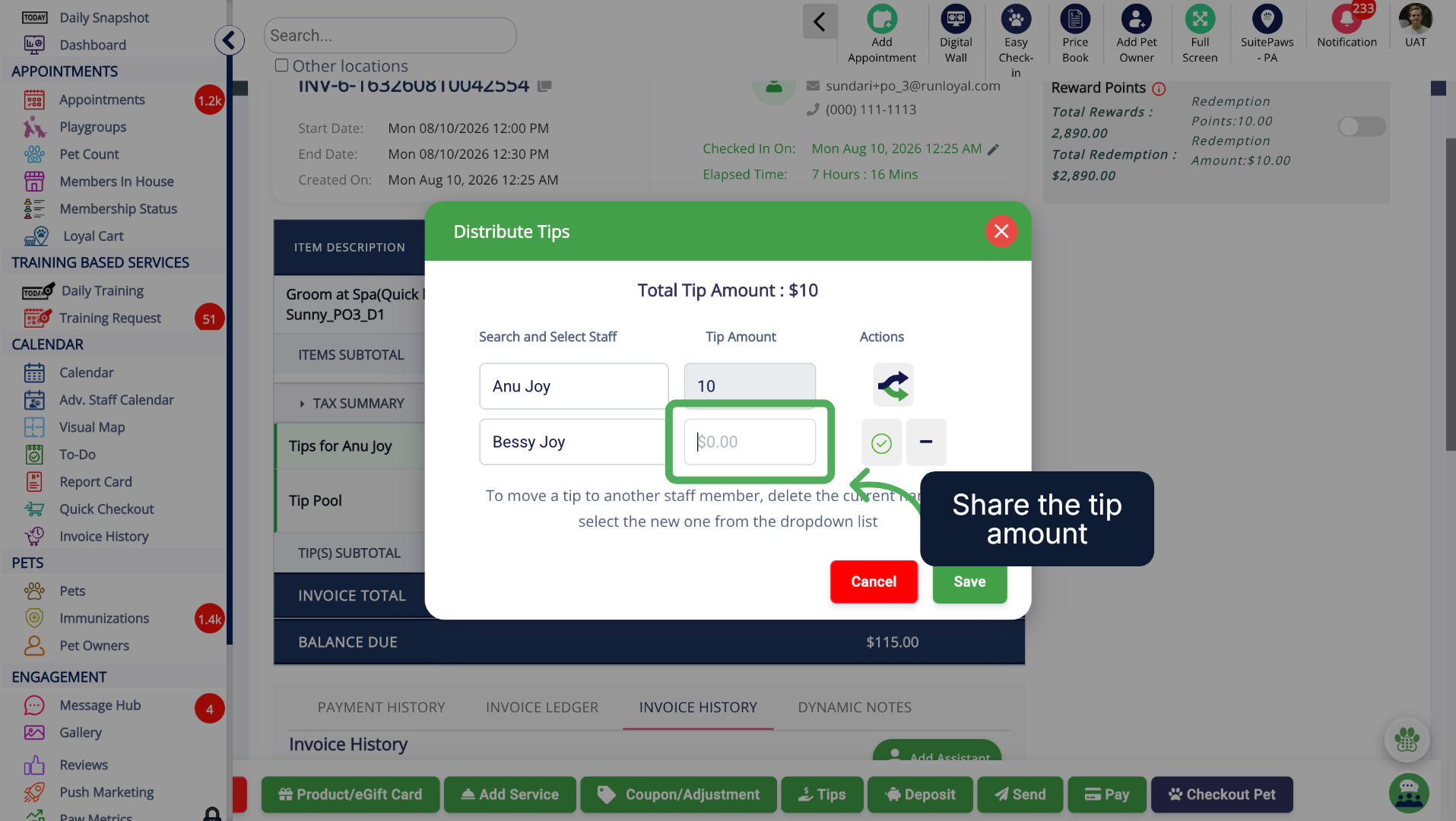
8. Share the Tip
Enter the tip amount here to be distributed.
9. Tip shared
This shows that the tips are distributed among the staffs
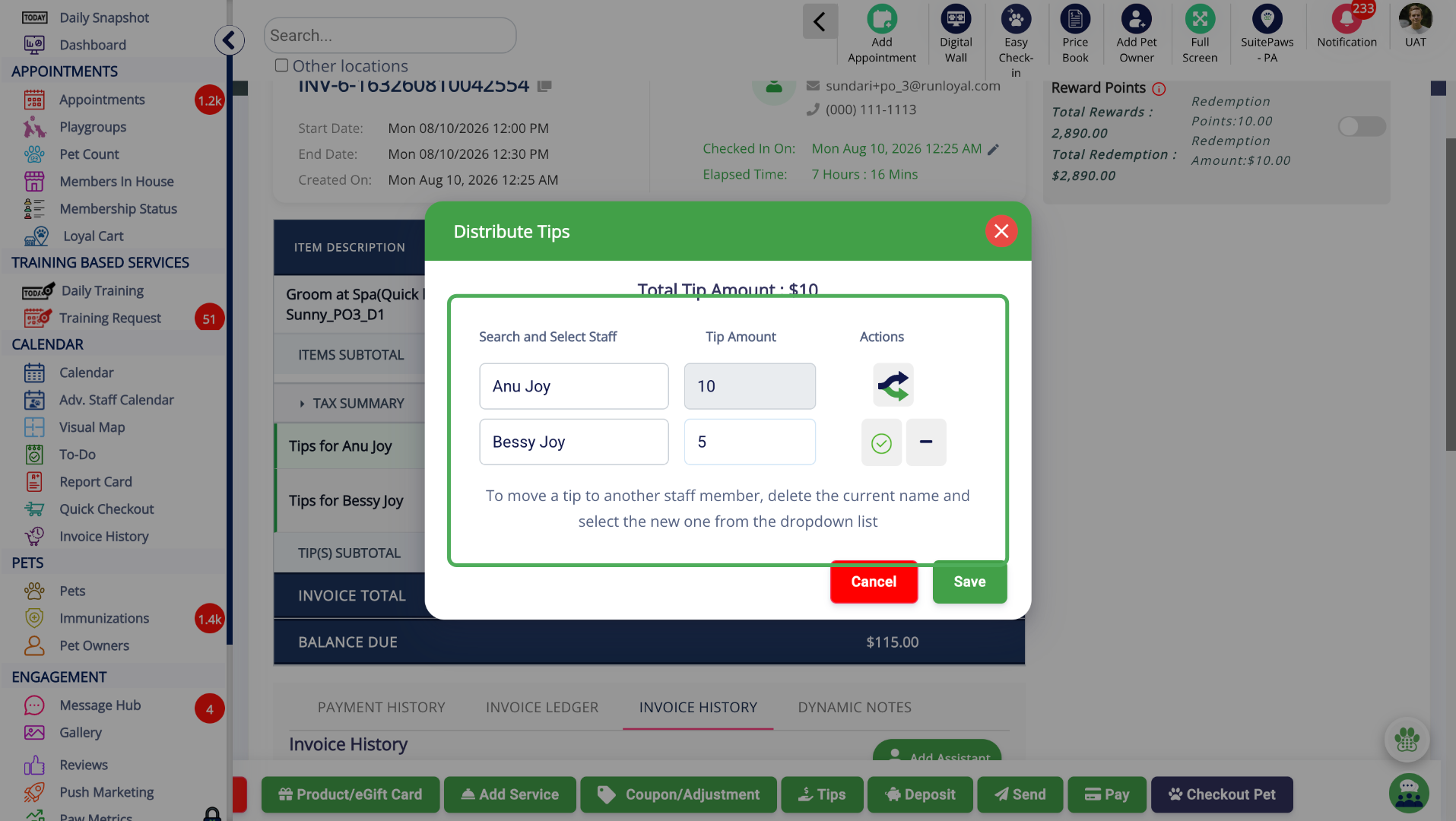
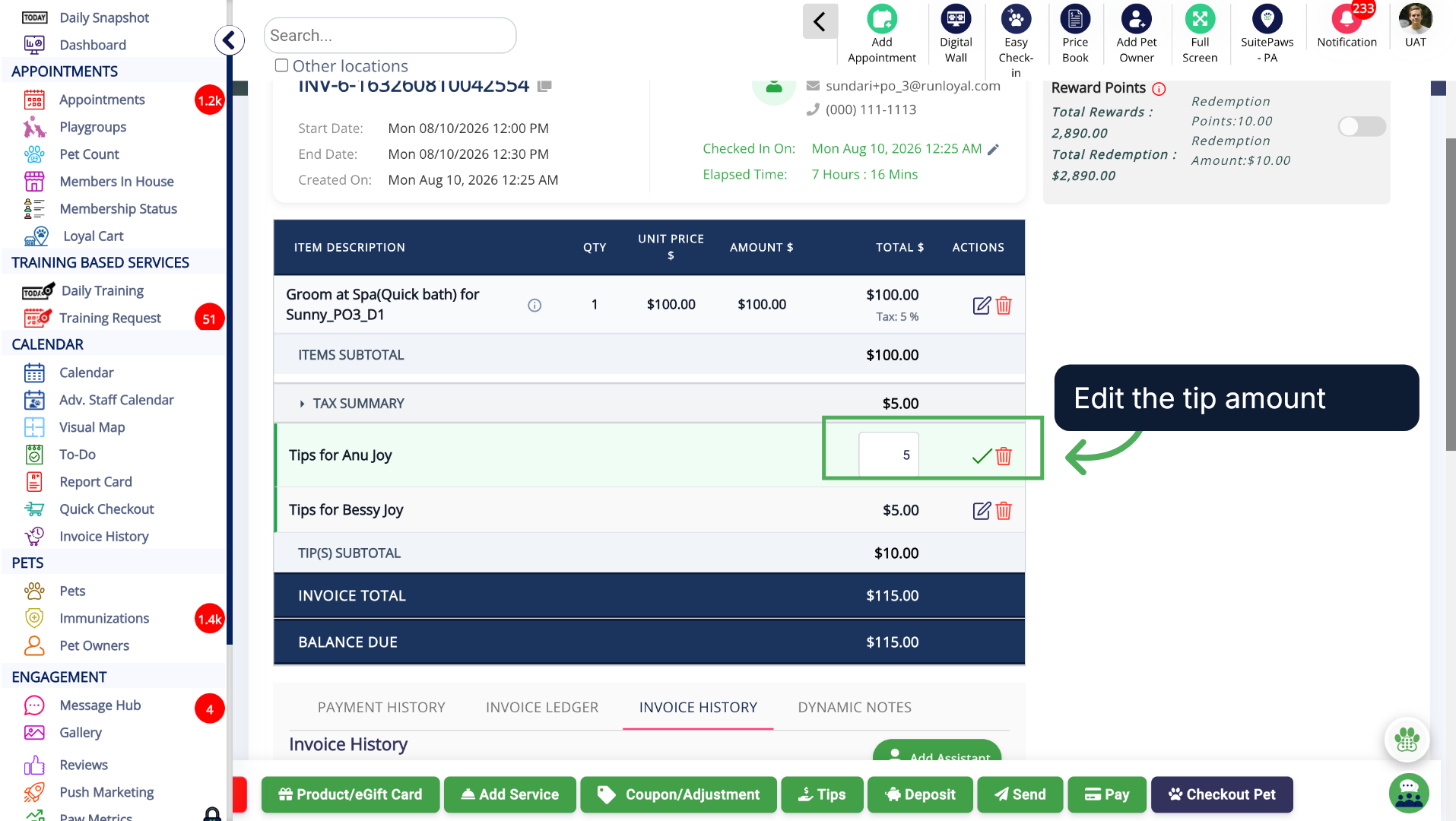
10. Edit the Tip amount
The tip amount are editable here.
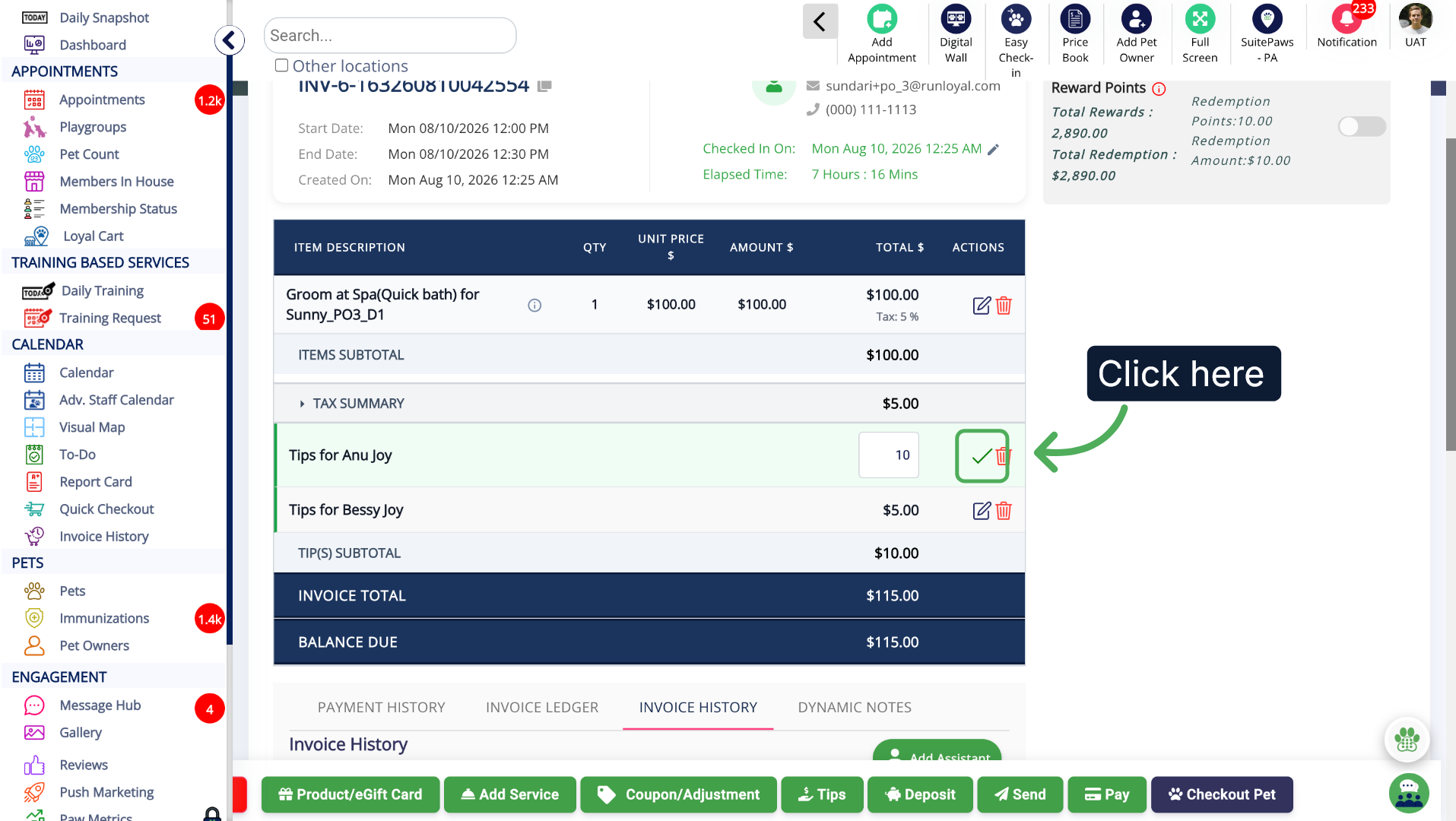
11. Confirm Tip Entry
Click here to confirm and save the tip entry details.
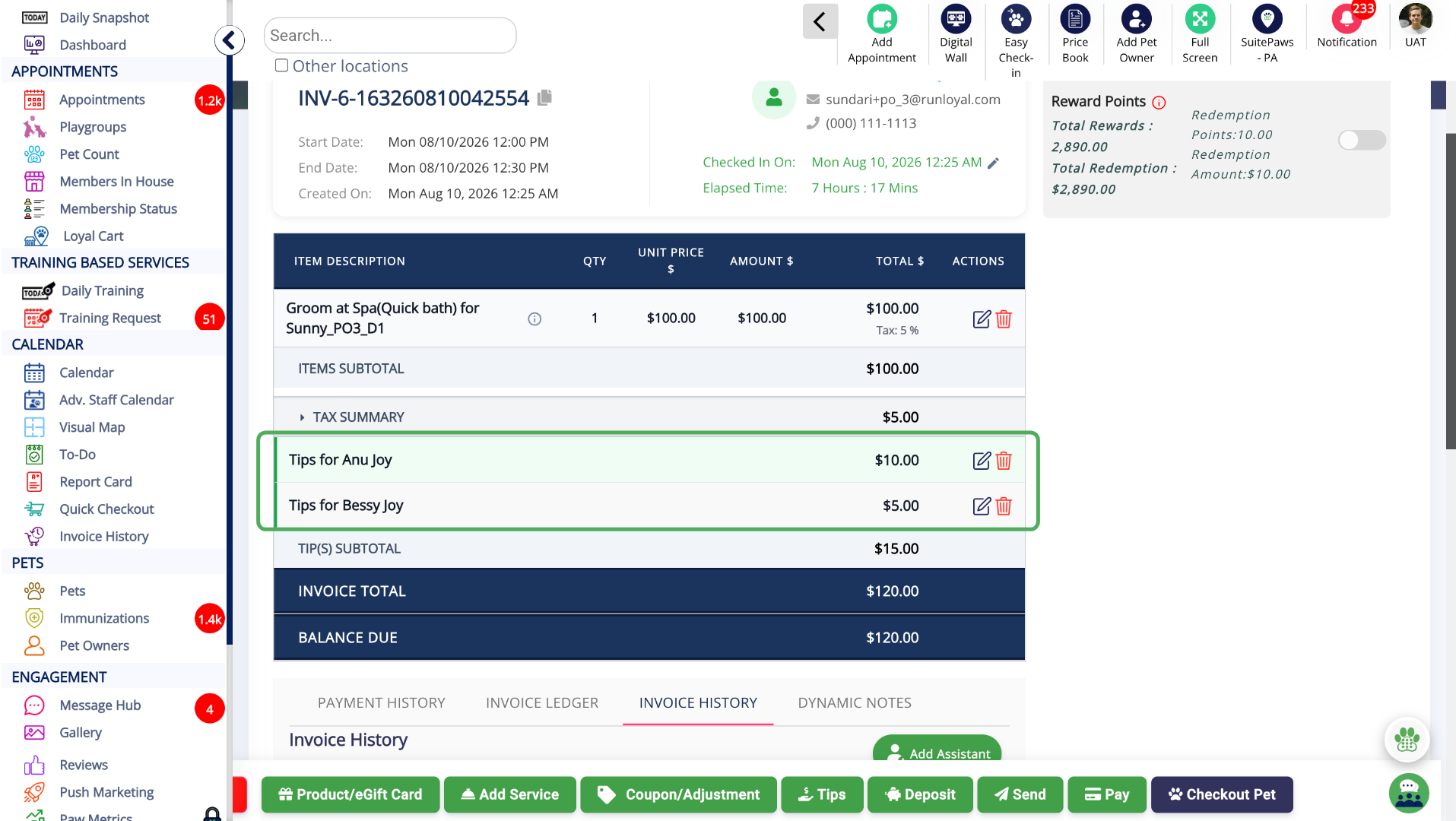
12. Invoice with Automated tips
Now the invoice contains the tip details of the primary staff and their assistant staff
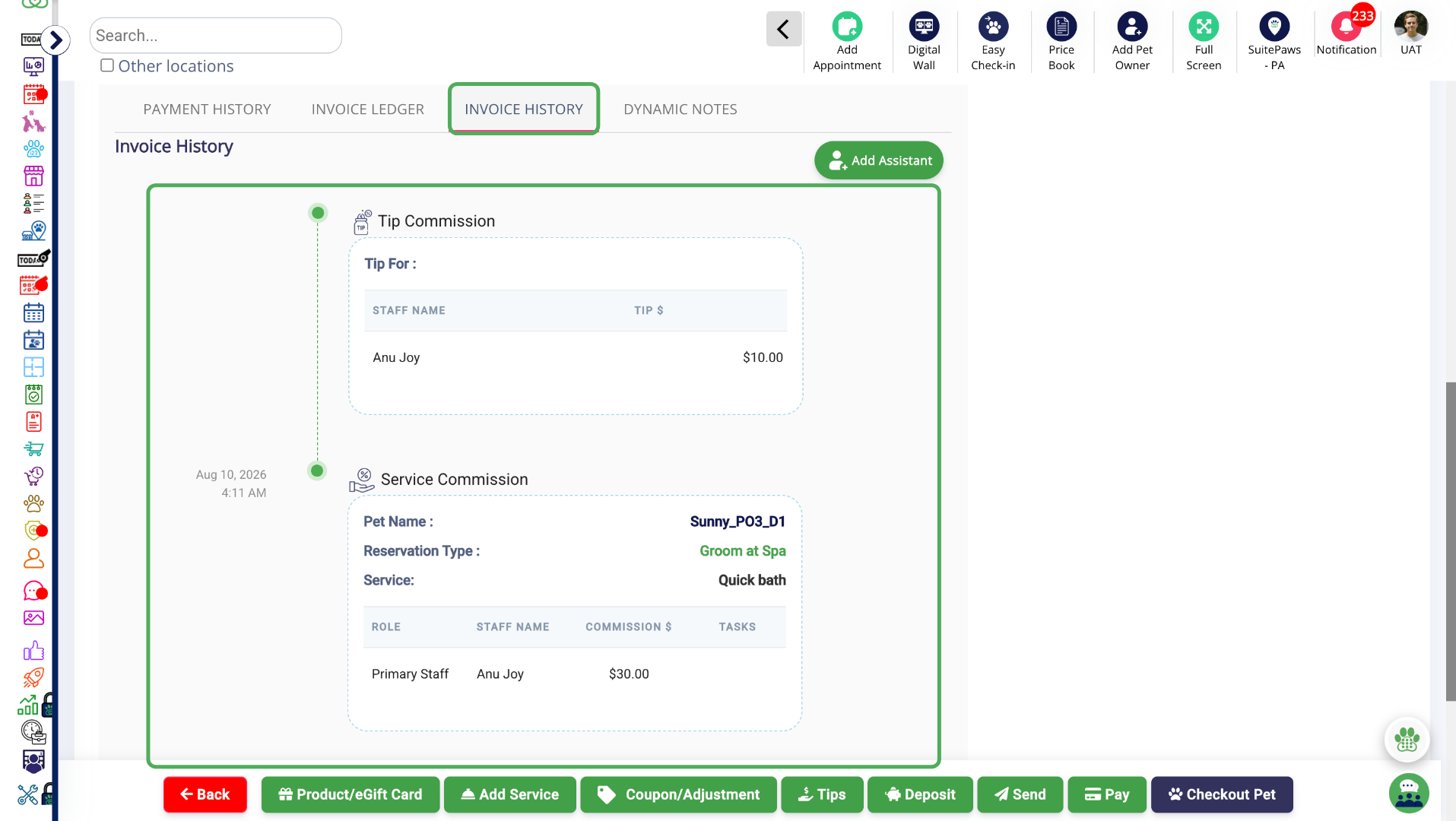
13. Open Invoice History Section
Click Invoice History at the bottom of the invoice to see the Tip Commission and Service Commission.
More Information
For more information please refer to this article on Advanced Staff Feature.
Was this article helpful?
That’s Great!
Thank you for your feedback
Sorry! We couldn't be helpful
Thank you for your feedback
Feedback sent
We appreciate your effort and will try to fix the article