| Article Type | : | How-To Guide |
| Product | : | Business Portal |
| Module | : | Invoice History |
| Applicable Businesses | : | Boarding · Daycare · Grooming · Training · Retail · Multi-Service |
| Applicable Roles | : | Business Owners / Staff |
Overview
The Invoice History feature allows businesses to review and manage invoices through the RunLoyal Business Portal. Users can access open invoices and closed Invoices, review invoice details, make necessary changes or adjustments, and bulk delete unpaid Quick CheckOut Invoices
This guide explains how to locate open invoices, view individual invoices, and update invoice details.
Before You Begin
- Ensure you have access to the RunLoyal Business Portal.
- Make sure you have the required permissions to view and update invoices.
| Business Portal Navigation | : | [Business Portal > Invoice History] |
Viewing and Managing Open Invoices
Follow these steps to locate and access open invoices.
1. Open Invoice History: Navigate to the Invoice History section from the left sidebar. The Invoice History page displays the available invoice records.
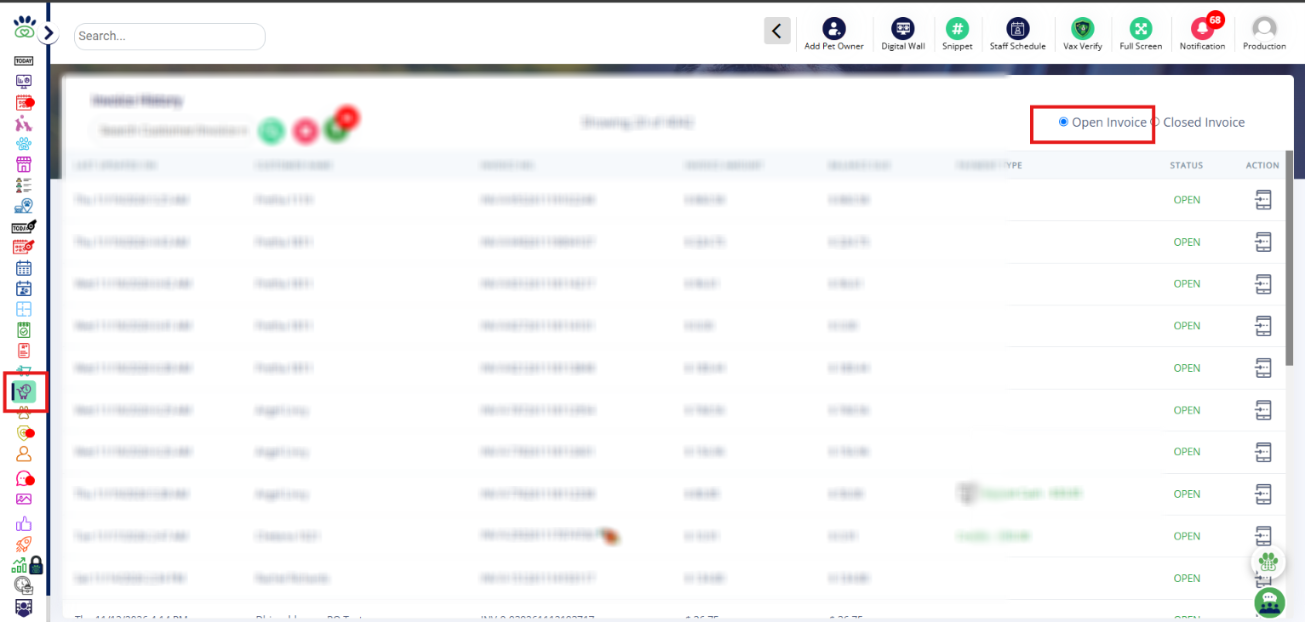
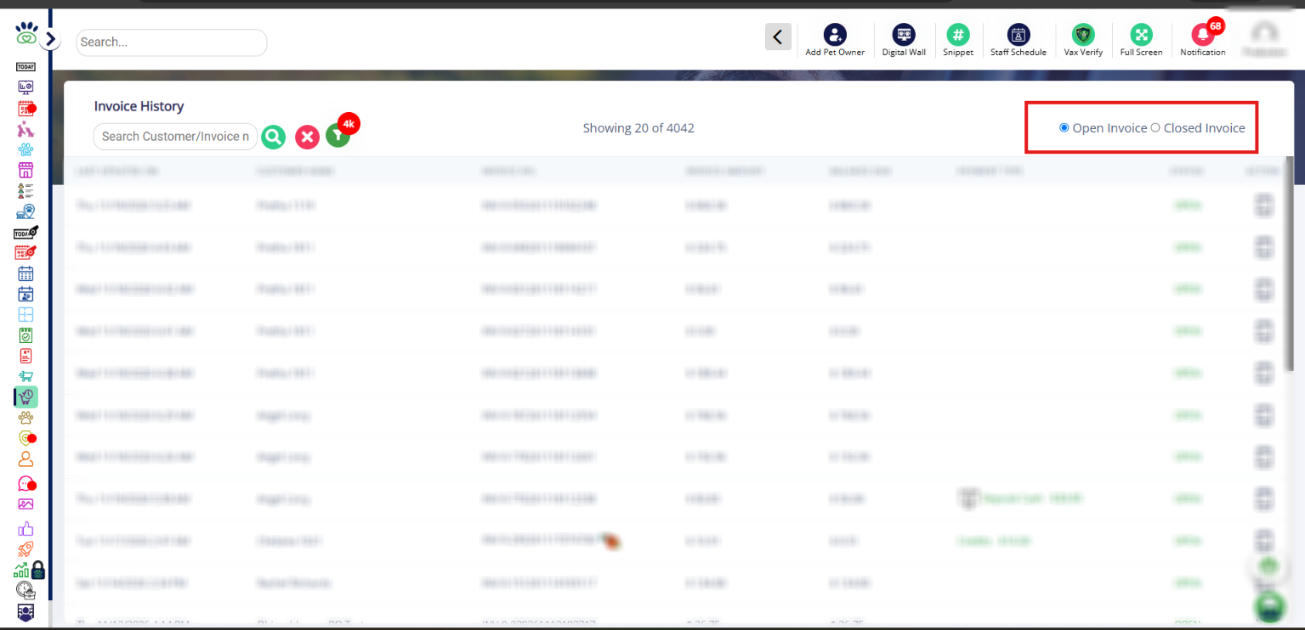
2. Select the Invoice Category: At the top-right corner, select the appropriate option:
- Open Invoice: Displays all open invoices.
- Closed Invoice: Displays all closed invoices.
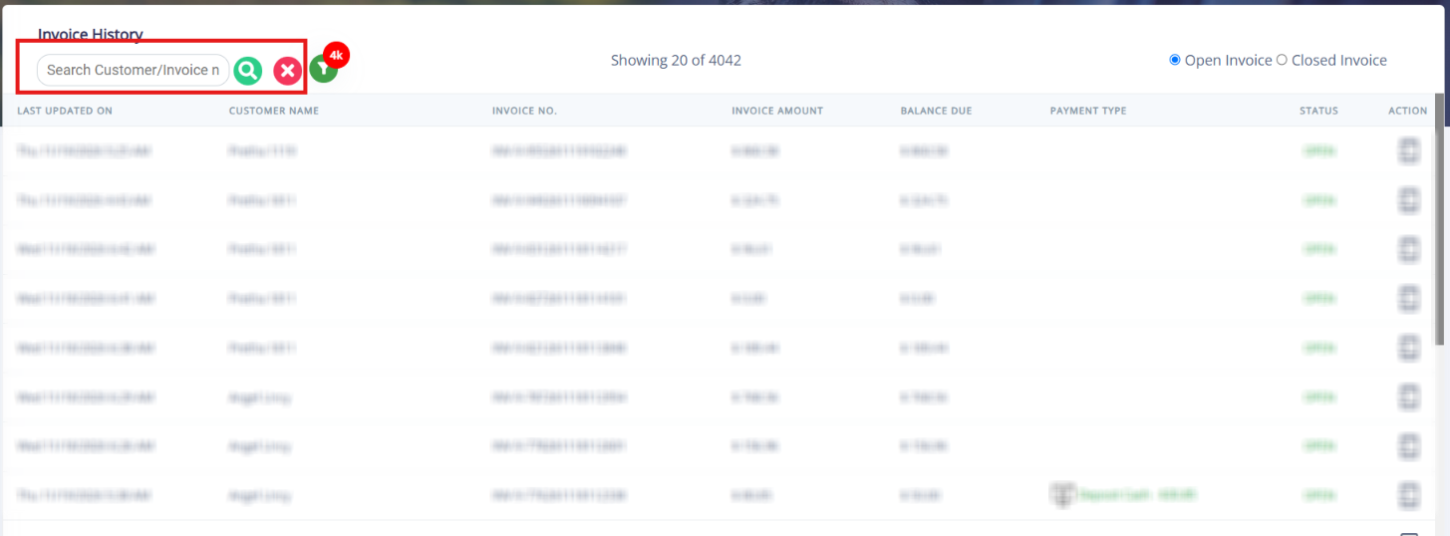
3. Search for an Invoice:
- Use the Search Customer/Invoice Number field to search for a specific customer or invoice.
- Enter the customer name or invoice number.
- Use the search option to locate the matching record.
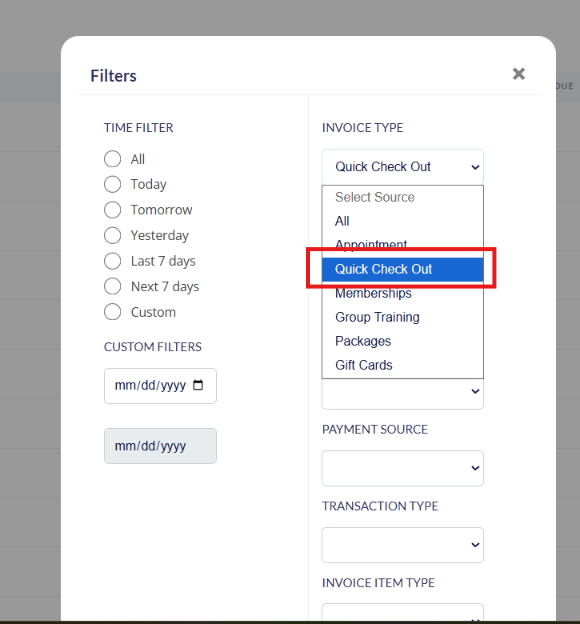
4. Apply Filters: Click the Filter option to open the Filters window. You can narrow down the invoice records using the following options
A. Time Filter
Select one of the available time filters:
- All
- Today
- Tomorrow
- Yesterday
- Last 7 days
- Next 7 days
- Custom
Custom Filters:
If you select Custom, you can specify a date range using the date fields provided.
B. Invoice and Payment Filters
You can further refine the results using the following dropdown filters:
- Invoice Type: Filter invoices by invoice type.
- Payment Status: Filter invoices based on payment status.
- Payment Type: Filter invoices by payment type.
- Payment Source: Filter invoices by payment source.
- Transaction Type: Filter invoices by transaction type.
- Invoice Item Type: Filter invoices by invoice item type.
Select the applicable filter criteria to narrow down the invoice records.
Bulk Delete the unpaid Quick Check Out invoices
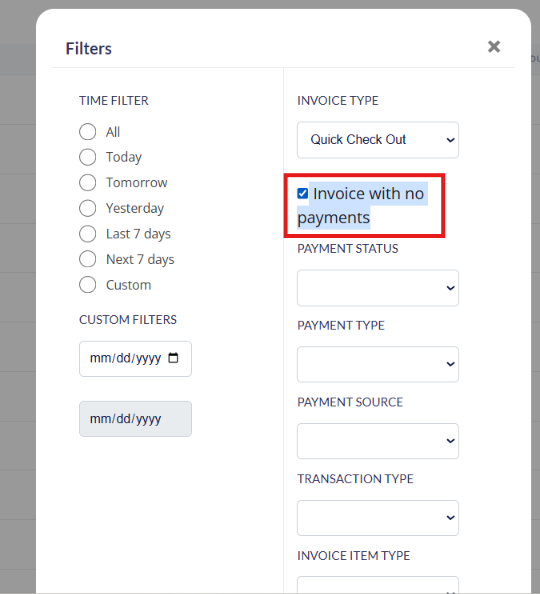
1. Click the Filter option to open the Filters window and filter the Quick Check Out by Invoice Type
2. Select the Invoice with no payments Option
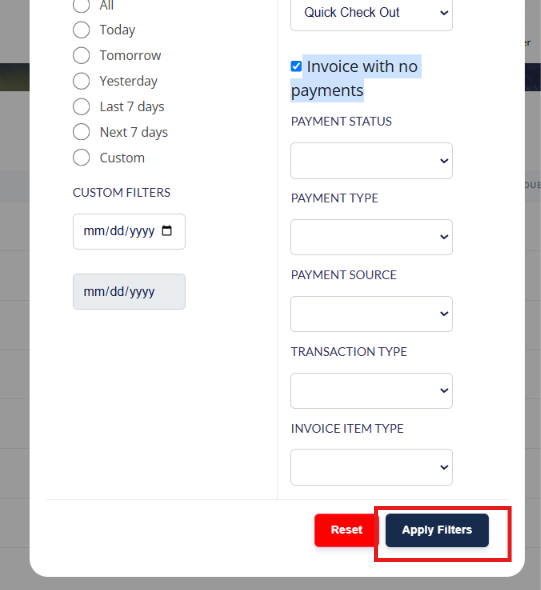
3. Click on Apply Filters
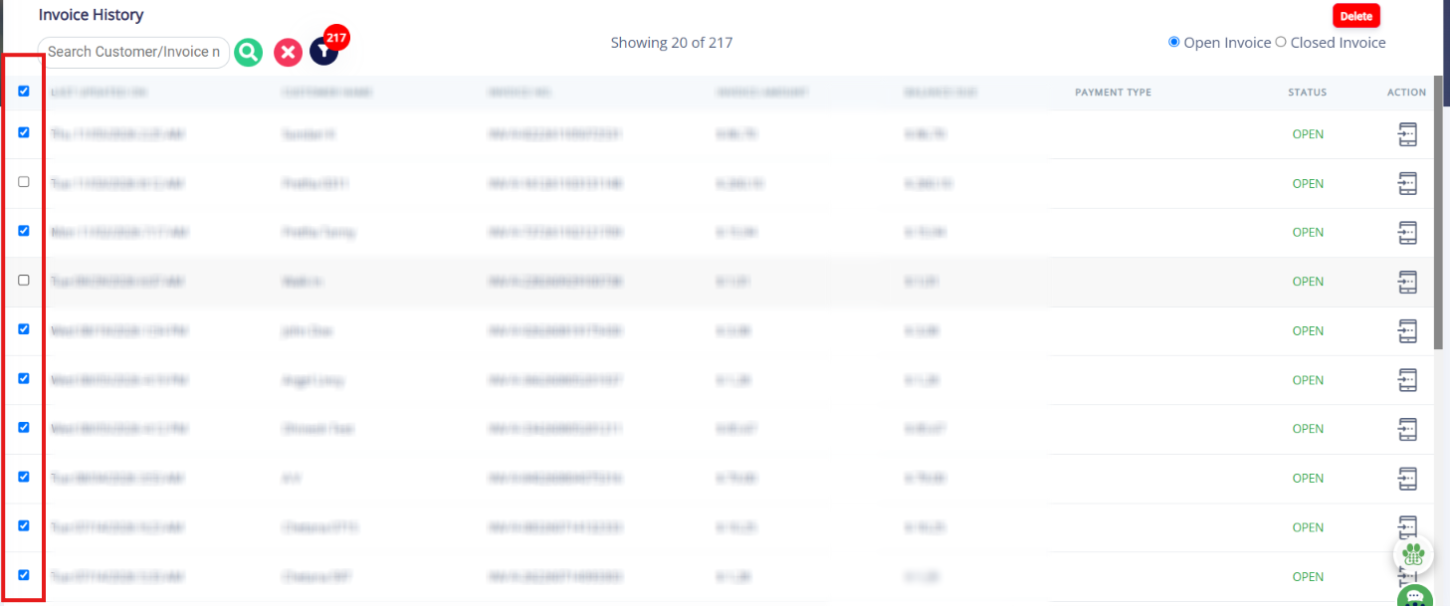
4. Select all or the required invoice you want to delete
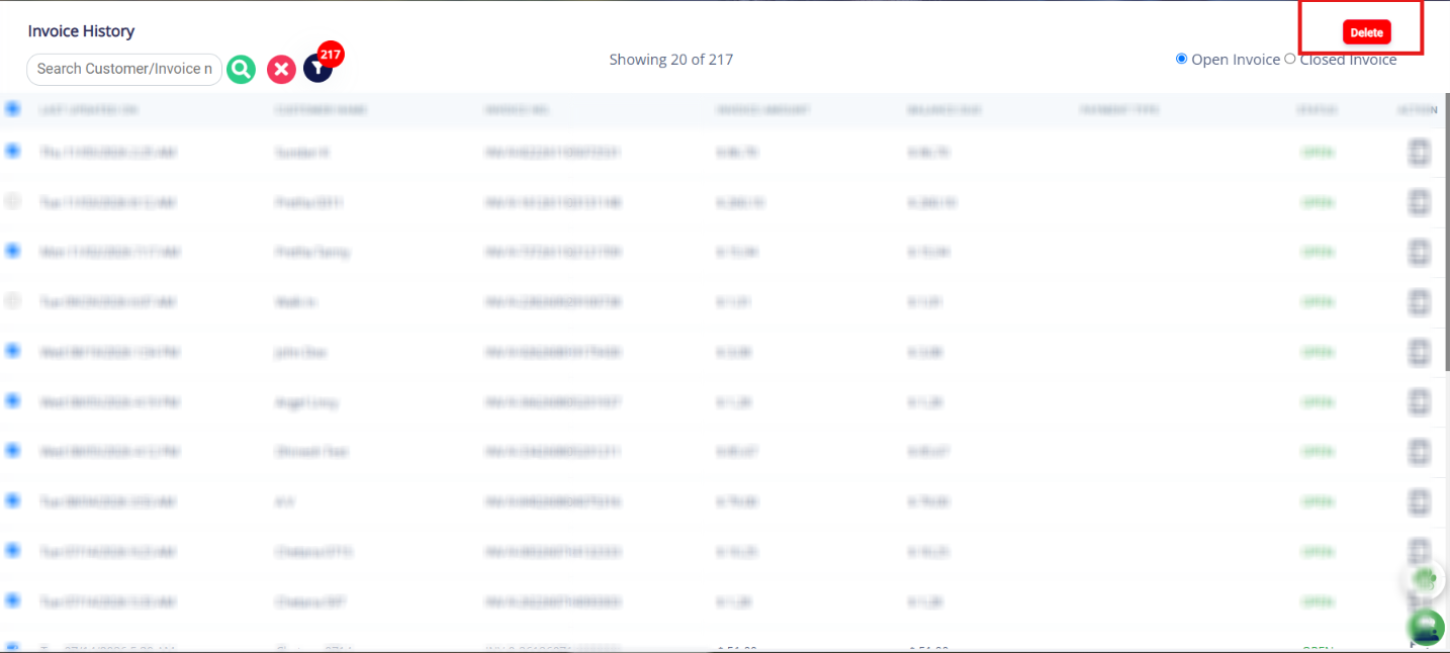
4. Click on Delete
Frequently Asked Questions
1. Can I filter invoices by date?
Yes. You can select a predefined time filter or choose Custom to specify a date range.
2. How do I access a specific invoice?
Click the invoice number in the Invoice History list to open the invoice and view its details.
Was this article helpful?
That’s Great!
Thank you for your feedback
Sorry! We couldn't be helpful
Thank you for your feedback
Feedback sent
We appreciate your effort and will try to fix the article