Overview
Staff user accounts can be created or removed for all employees of a business. A staff account allows employees to clock in and out, make changes throughout the app with full accountability, and limit access to certain areas of the app such as admin settings or reporting (if needed). If an employee no longer works at the business, you can deactivate their account to retain their edit history but prevent the employee from logging in and accessing the business portal. If they do not have any active history in the app, you can also fully delete their account.
Employees can be viewed in the following areas:
- Settings > Business Setup > Staff Management
- Calendar or Advanced Staff Calendar
TABLE OF CONTENTS
How to Deactivate/Reactivate an Existing User
1. Navigate to Settings > Business Setup > Staff Management.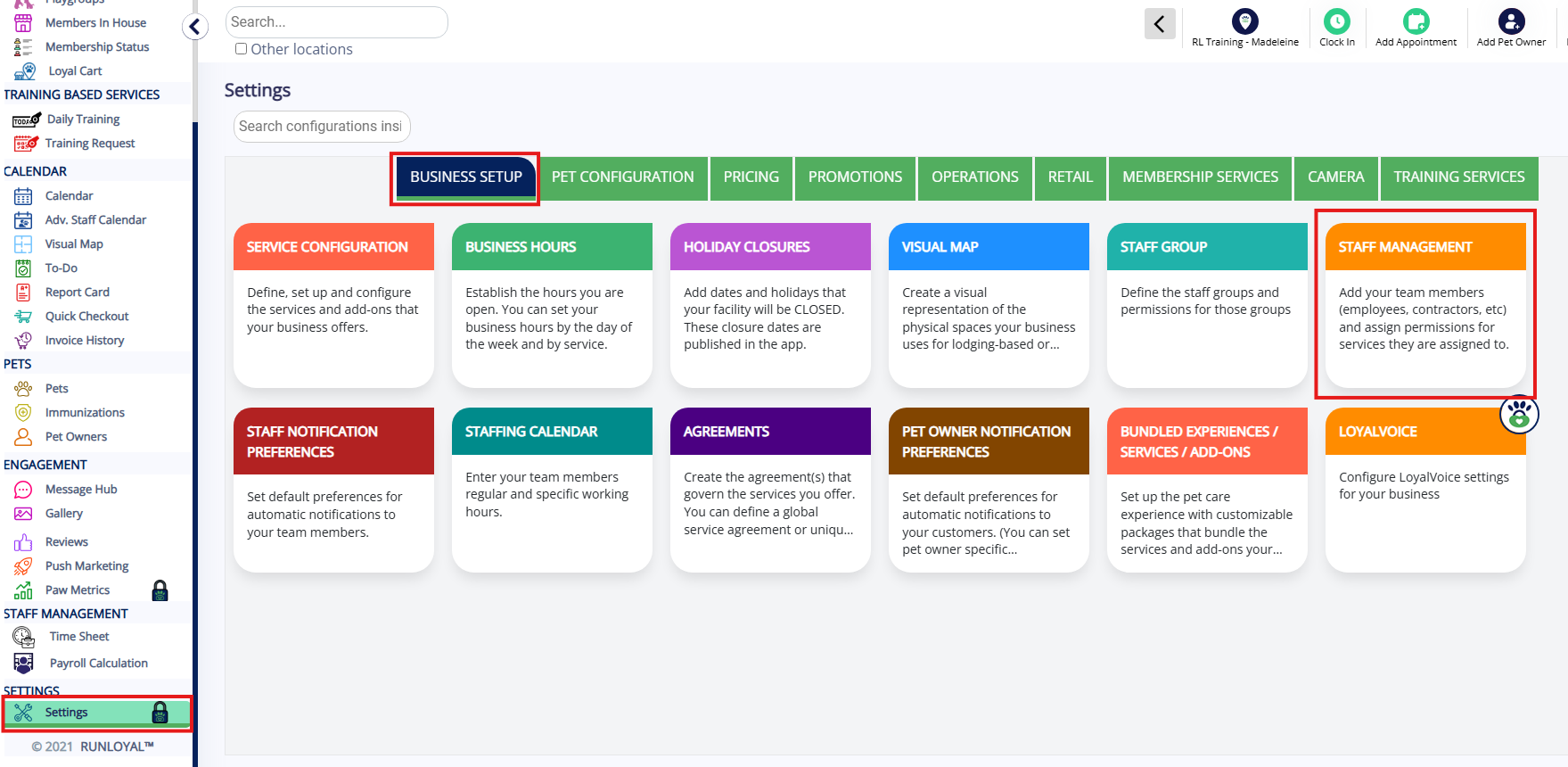
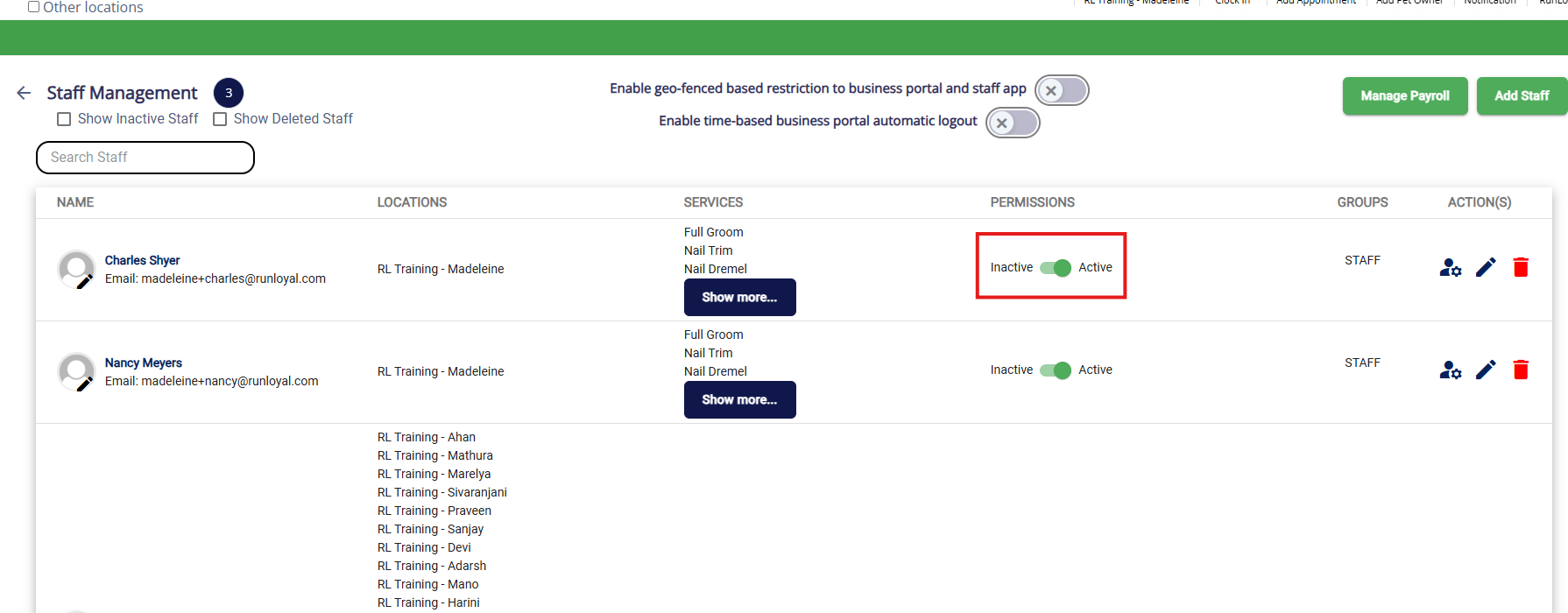
2. To deactivate an existing staff user, in the Permissions column, toggle the setting from Active to Inactive next to the user in question.
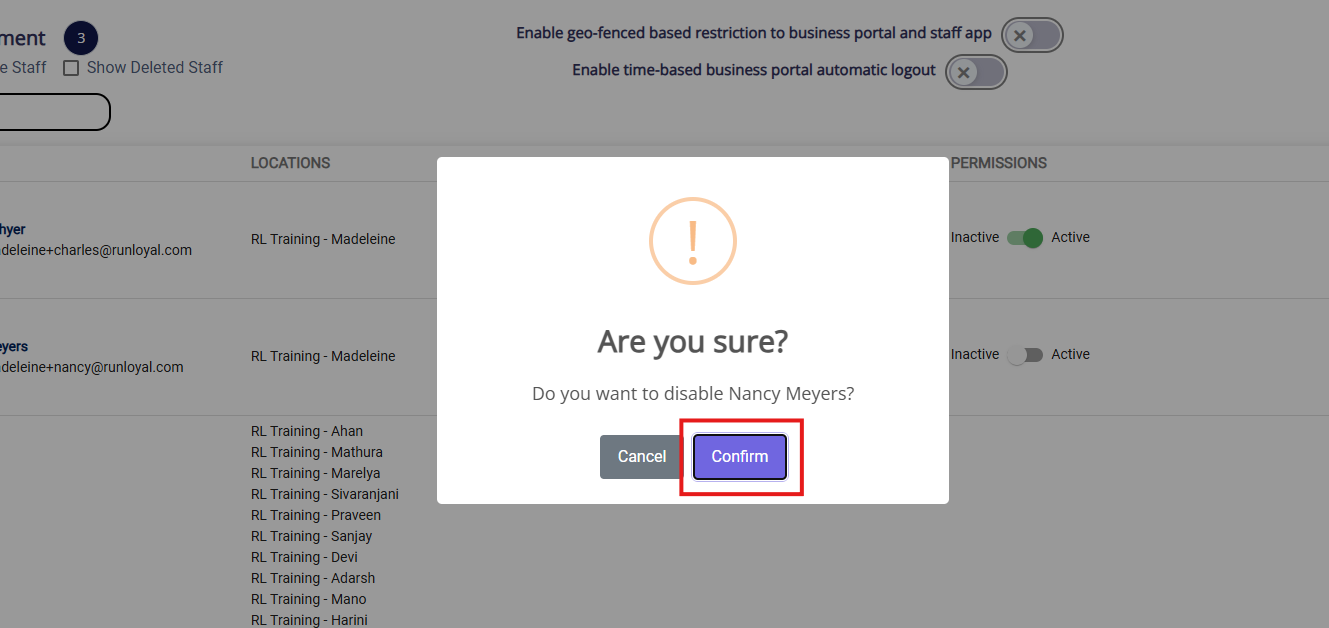
3. In the confirmation popup, click Confirm to proceed with deactivation.
4. Refresh your page to confirm the user is now inactive.
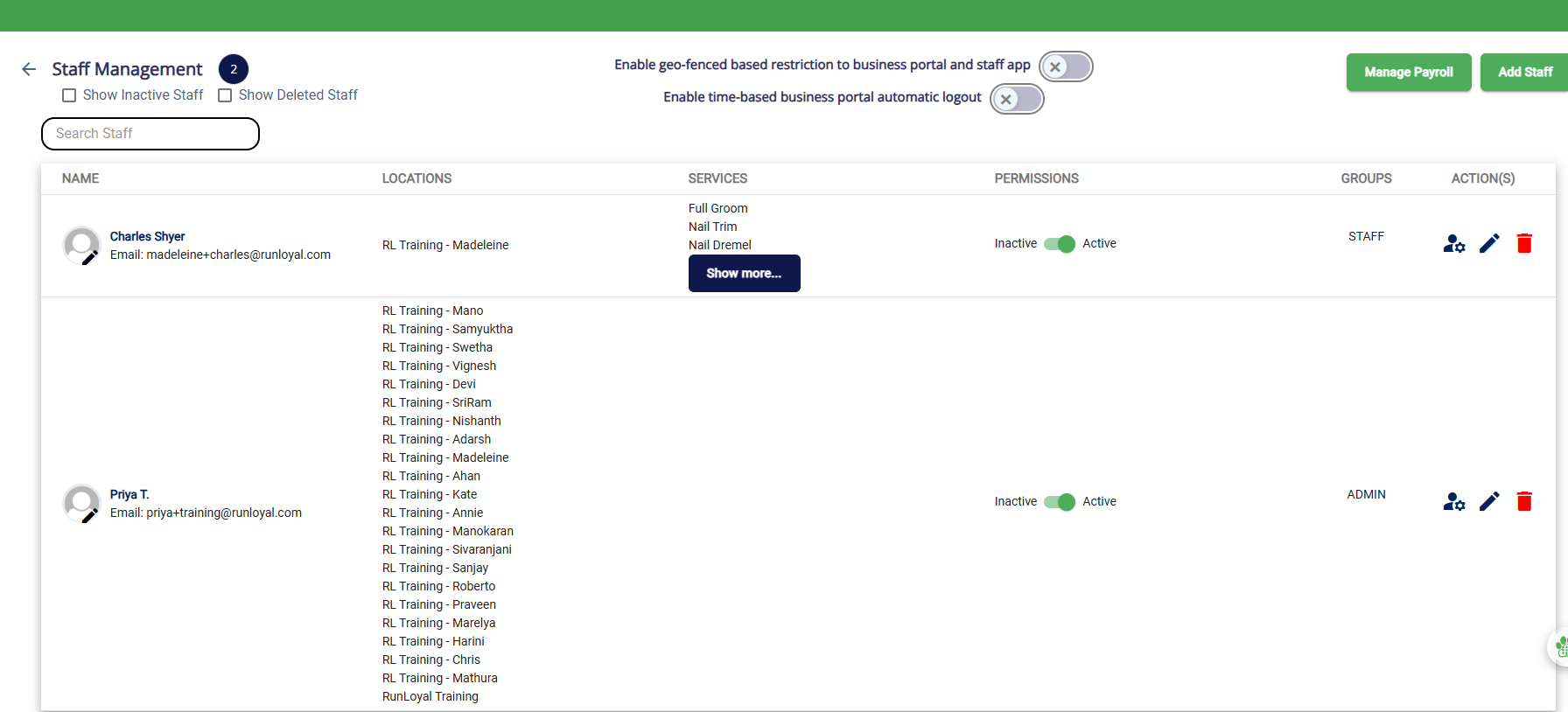
5. To view your inactive users, check the box Show Inactive Staff in the top left corner under Staff Management.
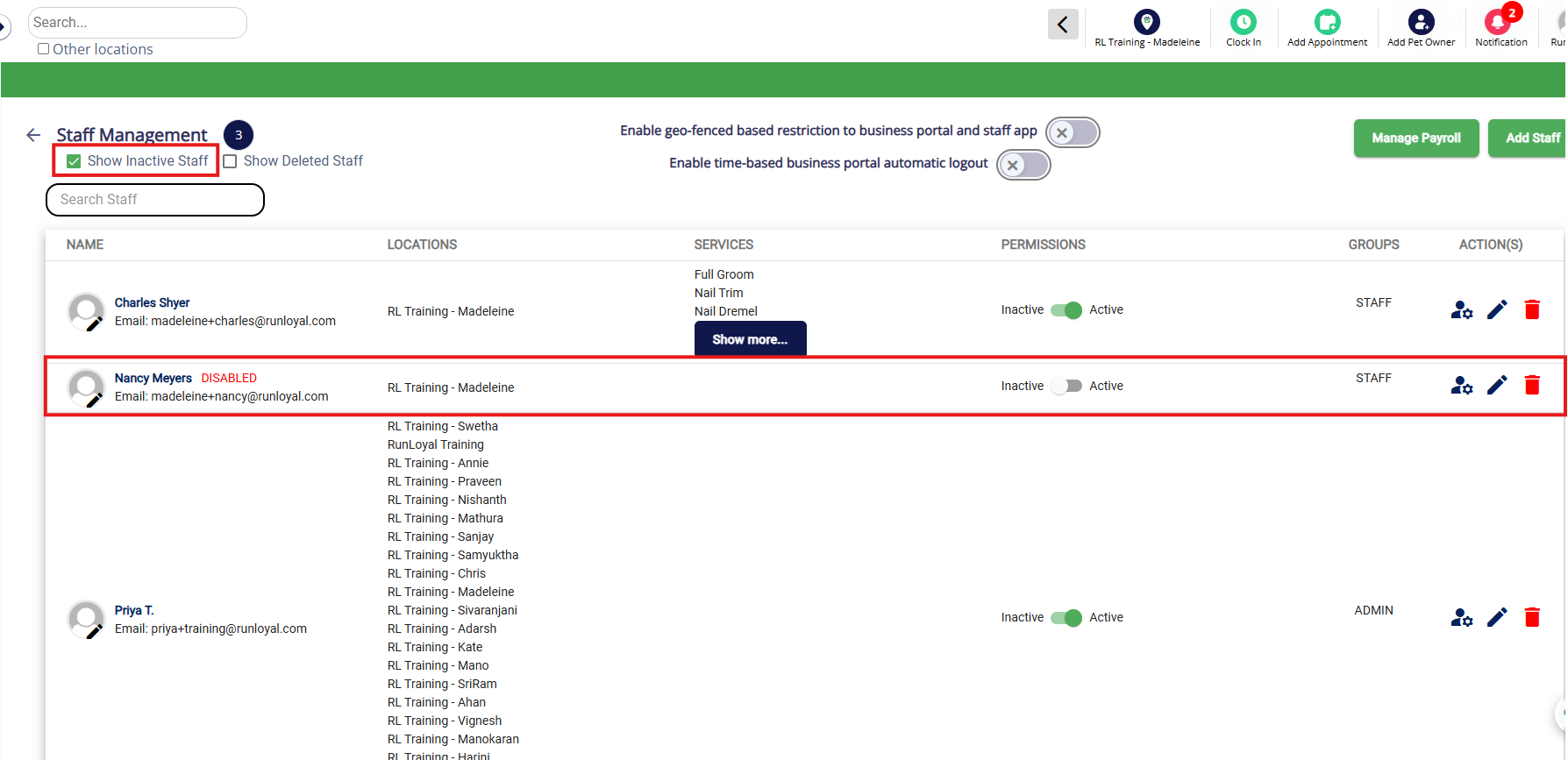
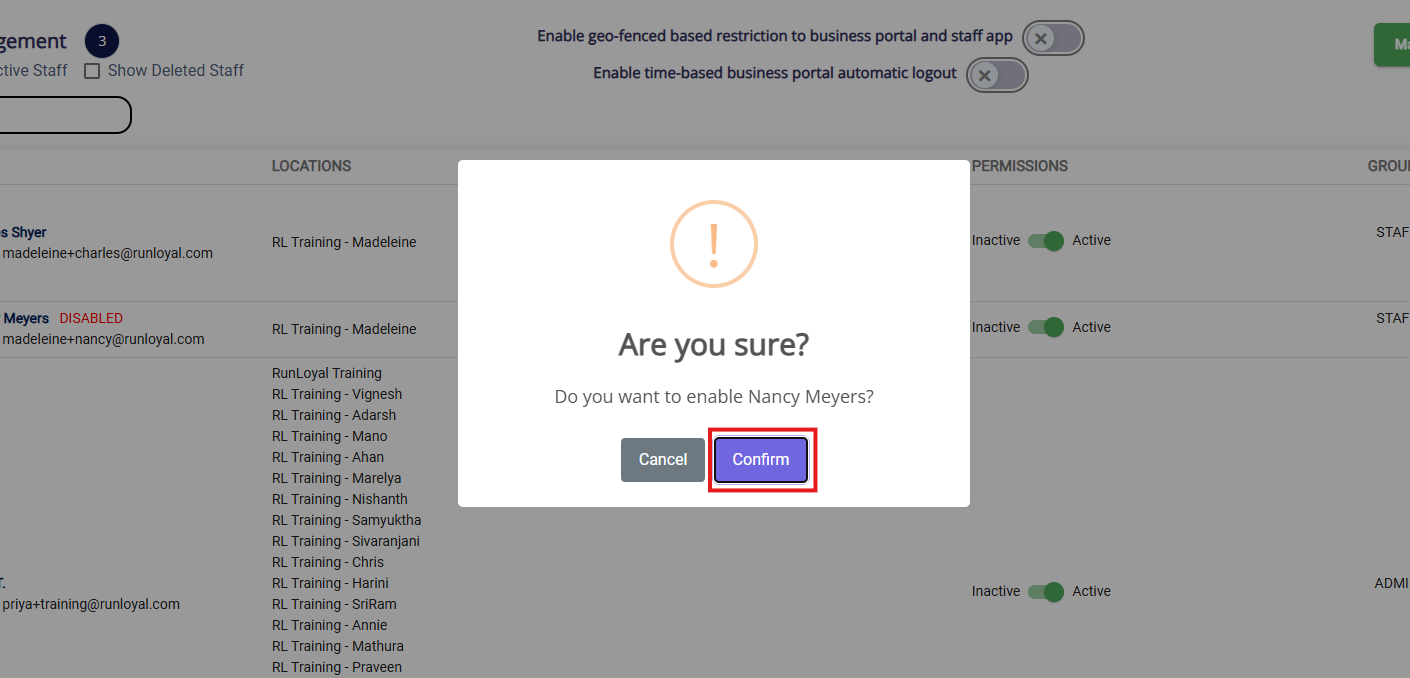
6. To re-activate the user, in the Permissions column, toggle the setting from Inactive to Active next to the user in question.
7. In the confirmation popup, click Confirm to proceed with reactivation. You can refresh your page to view the update.
How to Delete an Existing User
1. To delete an existing staff user, navigate to Settings > Business Setup > Staff Management.
2. Click the Edit pencil icon next to the user in question.
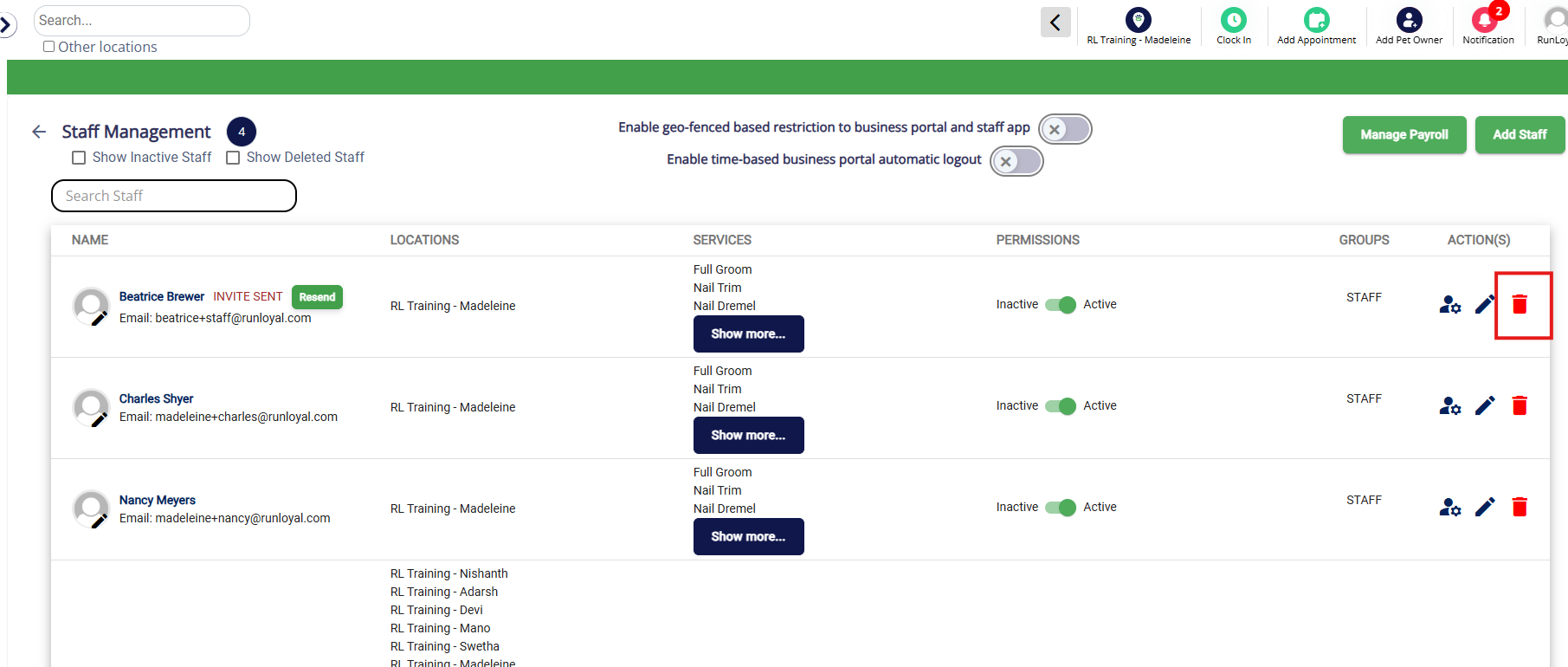
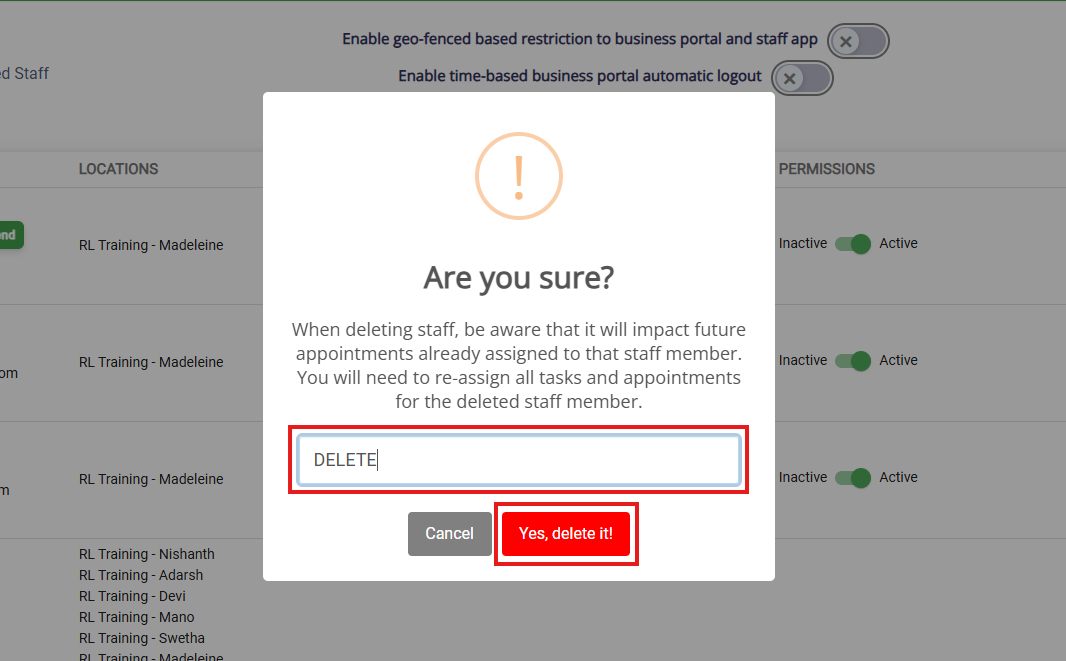
3. Type in DELETE to confirm deletion and click Yes, delete it!
More Information
For more information on creating and editing staff users, please refer to this article: Add & Edit Staff Users
For more information on creating a Staff Group (User Permissions), please refer to this article: Create Staff Groups (Permissions)
Was this article helpful?
That’s Great!
Thank you for your feedback
Sorry! We couldn't be helpful
Thank you for your feedback
Feedback sent
We appreciate your effort and will try to fix the article