Overview
Some users (such as groomers or trainers) should have specific services scheduled with them on the calendar. Additionally, they may get commission or designated tips from the completion of these services. To set up a user to be available to book a service, first make sure both the service and user already exist. Then edit the user to select the service in question and add commission rates. Lastly, you will set the user's calendar to be available on certain days and times.
Staff Schedule and Services can be viewed in the following areas:
- Settings > Business Setup > Staffing Calendar
- Settings > Business Setup > Staff Management
- Calendar or Advanced Staff Calendar
TABLE OF CONTENTS
Assign Services to a User
1. Navigate to Settings > Business Setup > Staff Management.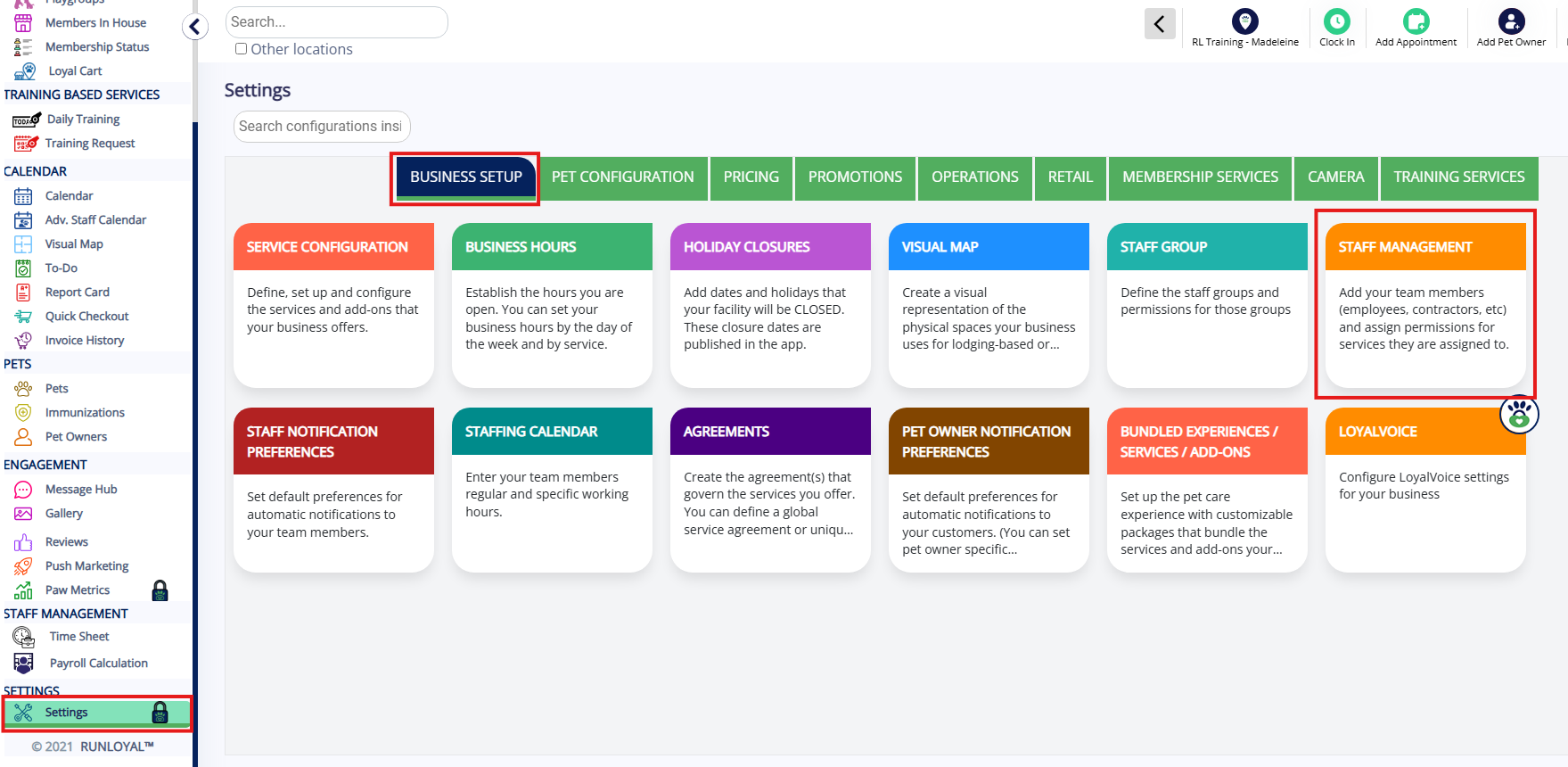
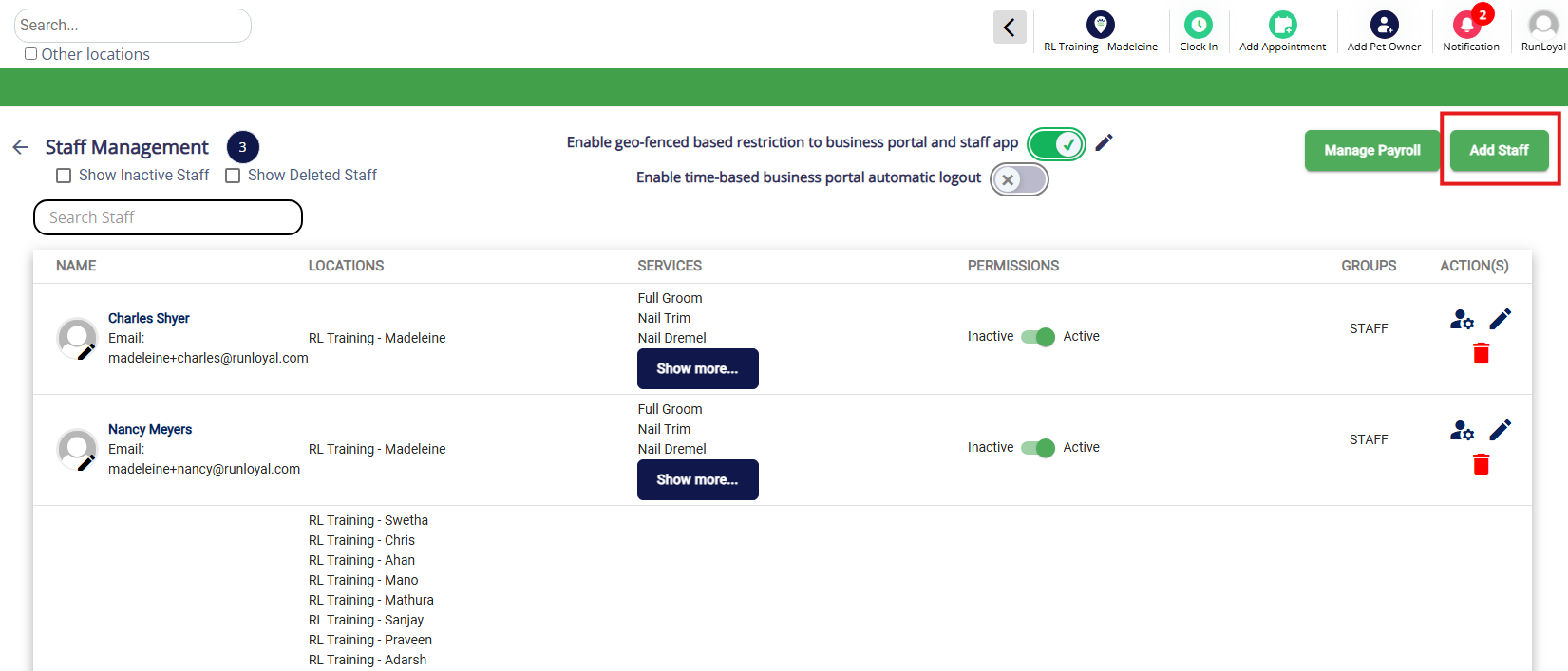
2. To create a new user to assign services, click Add Staff. You can learn more about creating a new user in this article: Add & Edit Staff Users.
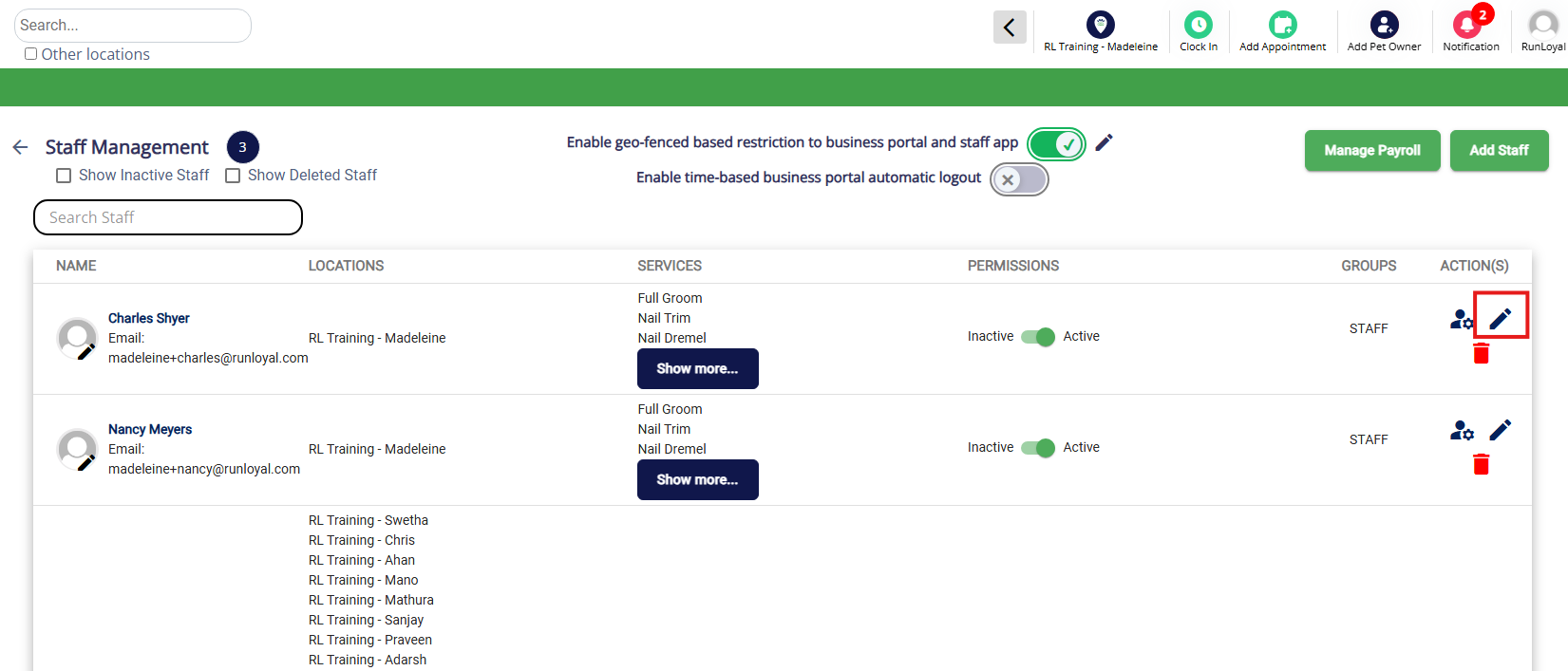
3. To edit an existing user to add services, click the Edit pencil icon next to the user in question.
4. Whether you are adding a new user or editing an existing user, navigate to the Services, Tips, & Commissions tab.
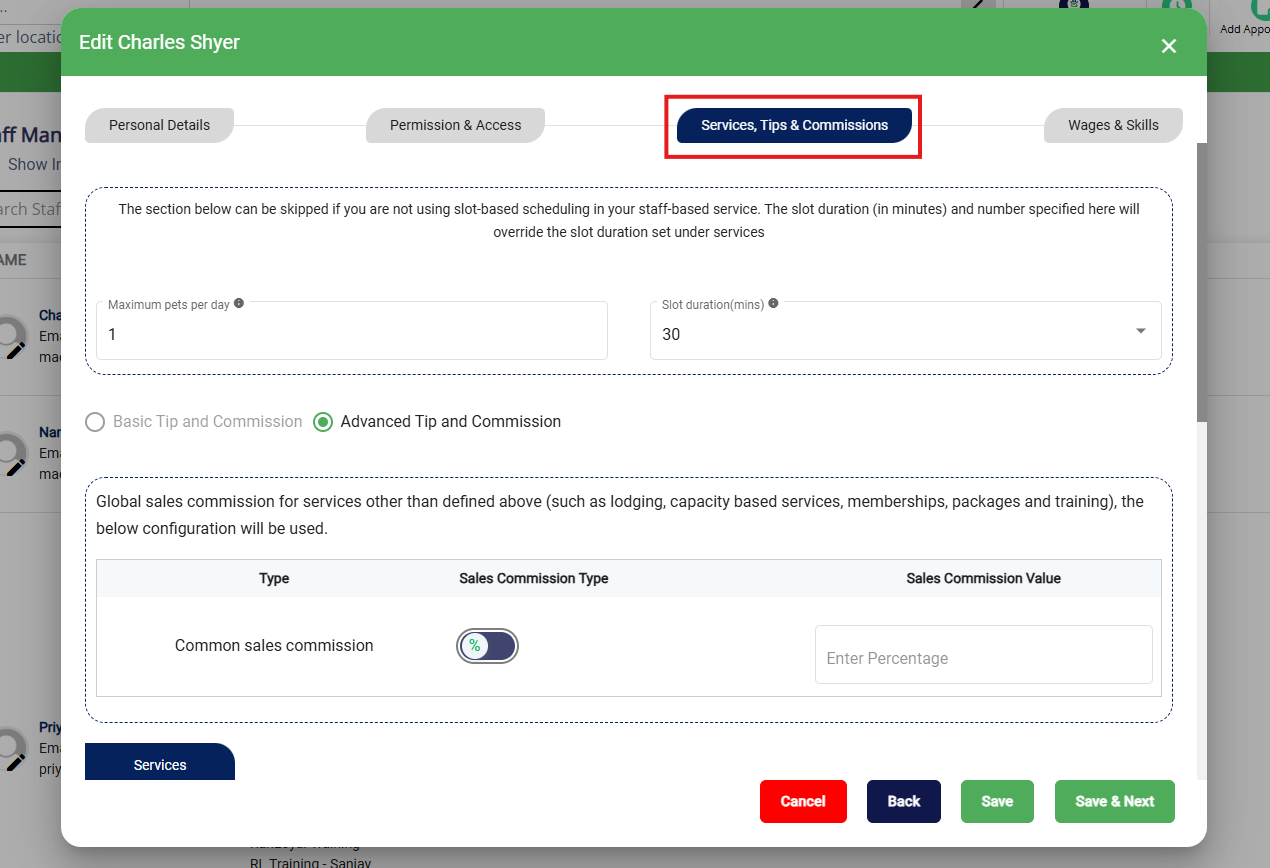
5. On the Services, Tips, & Commissions tab, the first section is if you have any service categories set up for Slot-Based Scheduling. It will default to 1 and 30. If you do not use Slot-Based Scheduling, you can leave these defaults as-is and skip this section.
Slot-Based Scheduling means staff are available during a given time period and multiple animals can be booked in a single time slot with a set daily maximum. For example, if grooms take 60 minutes and your groomer works from 9am - 5pm with a maximum of 10 animals per day, then time slots for this service would show as 9am, 10am, 11am, etc. Once an animal is placed in the 9am slot, customers would still be able to book in the 9am, or any other, slot (up to 10 animals for the entire day). You can learn more about Staff-Based Service Categories in this article: Set Up Staff-Based Service Category (Grooming, Training).
If you do use Slot-Based Scheduling, then enter the maximum total of animals that this user can have scheduled services for in Maximum pets per day. You can also enter a custom duration for appointment intervals in Slot duration (mins), such as 60 minutes. Please note this will override the slot duration set under services.
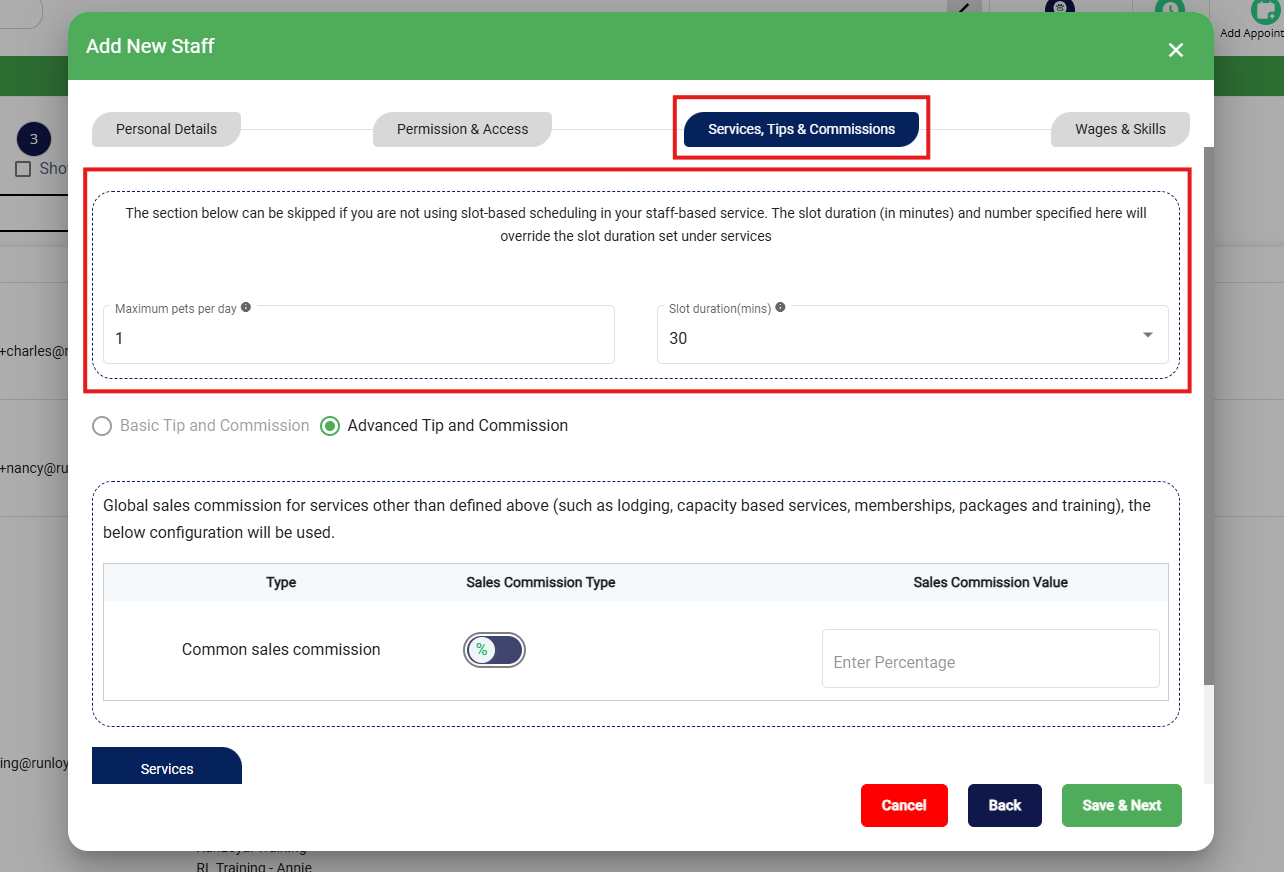
6. To assign scheduled services to this user, click into the Services dropdown to select the service categories.
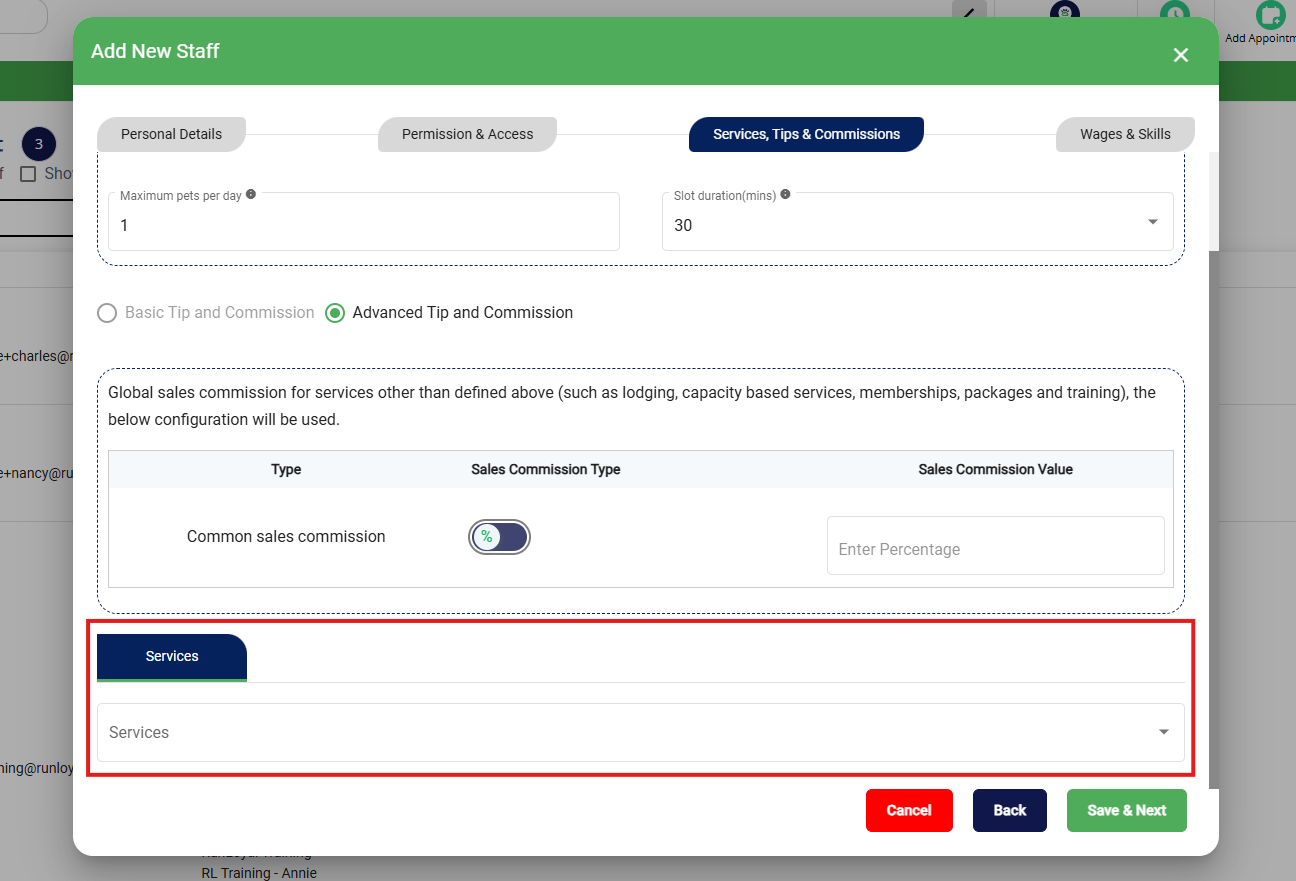
7. The dropdown will display all service categories at this location set to Staff-Based Scheduling. You can select specific categories or simply check the box Select All.
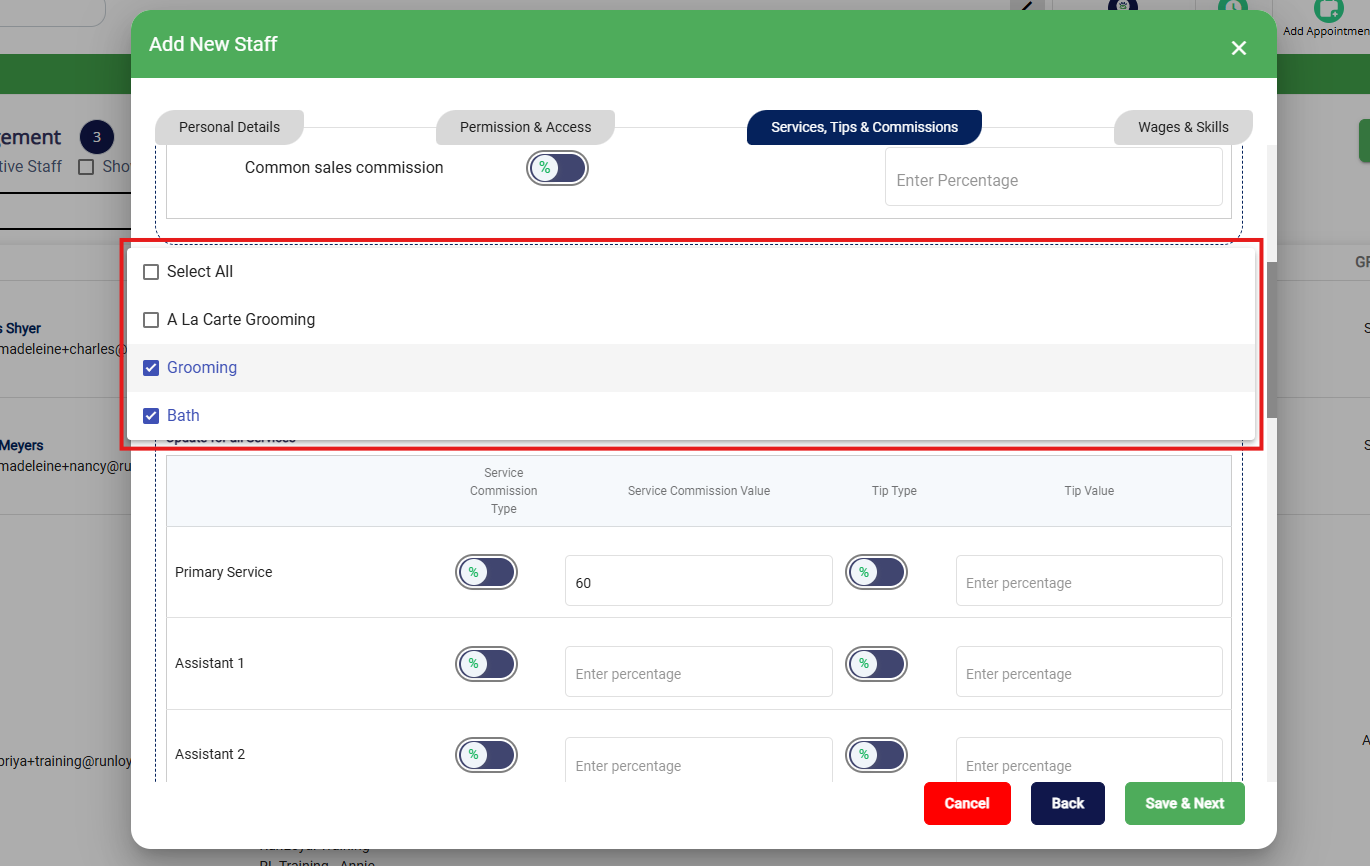
8. A box will populate below titled Update for all Services. You can use this to auto-fill the commission amount if this user receives the same commission amount for most or all services. Toggle if this should be a percentage or dollar amount under Service Commission Type, and enter the amount in Service Commission Value (for example, 60% commission for services).
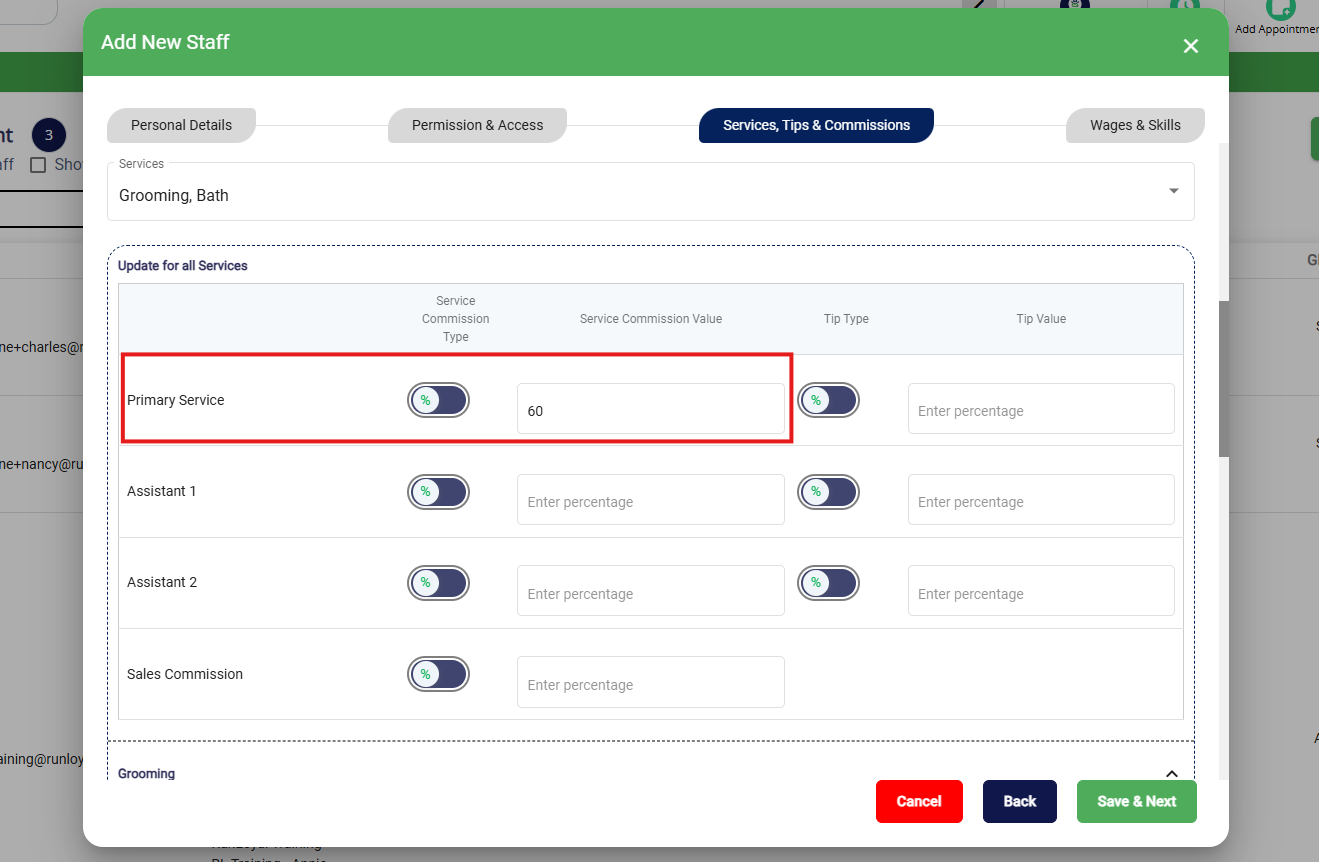
9. You can also set the amount or percentage of tips this user should receive. This global section will allow you to auto-fill the tip amount if this user receives the same tip amount for most or all services. Toggle if this should be a percentage or dollar amount under Tip Type, and enter the amount in Tip Value (for example, 100% of tip).
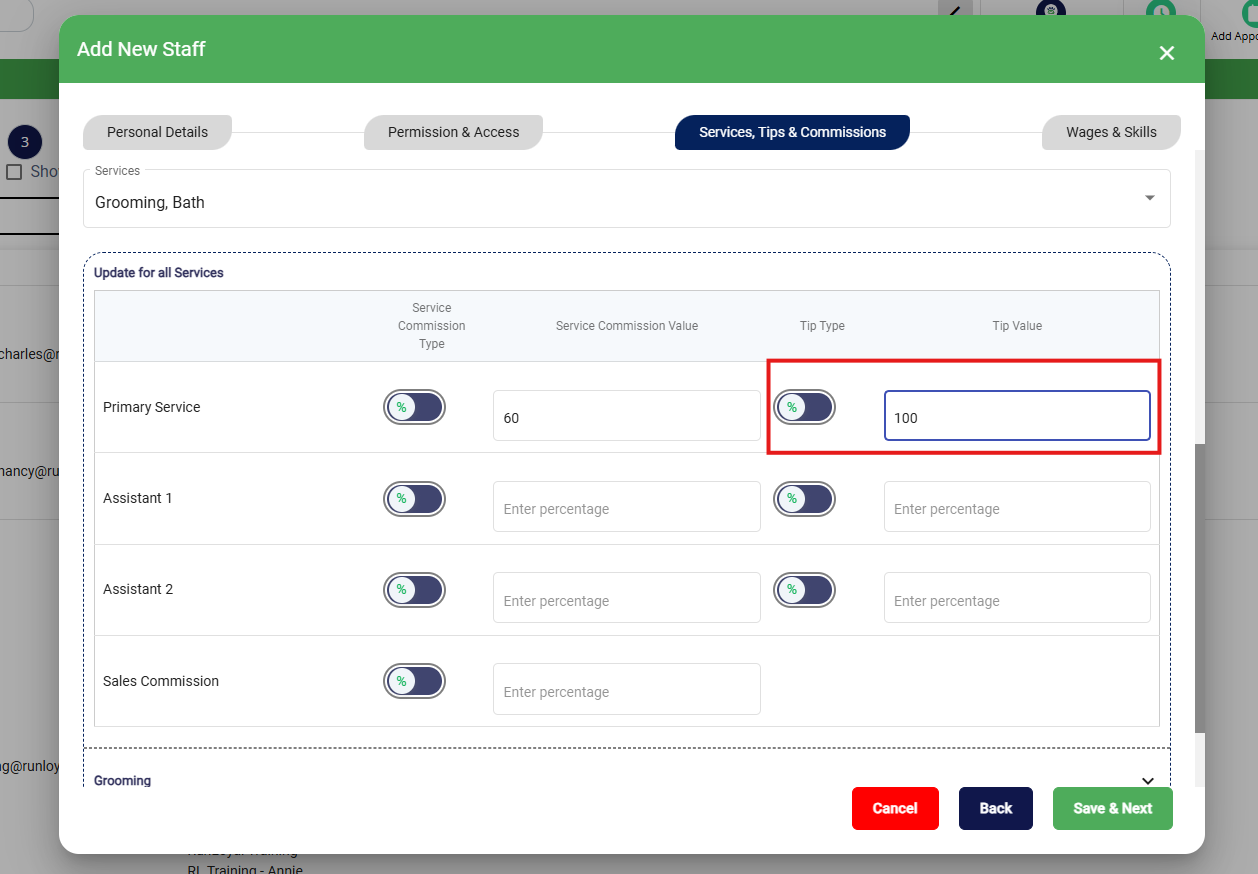
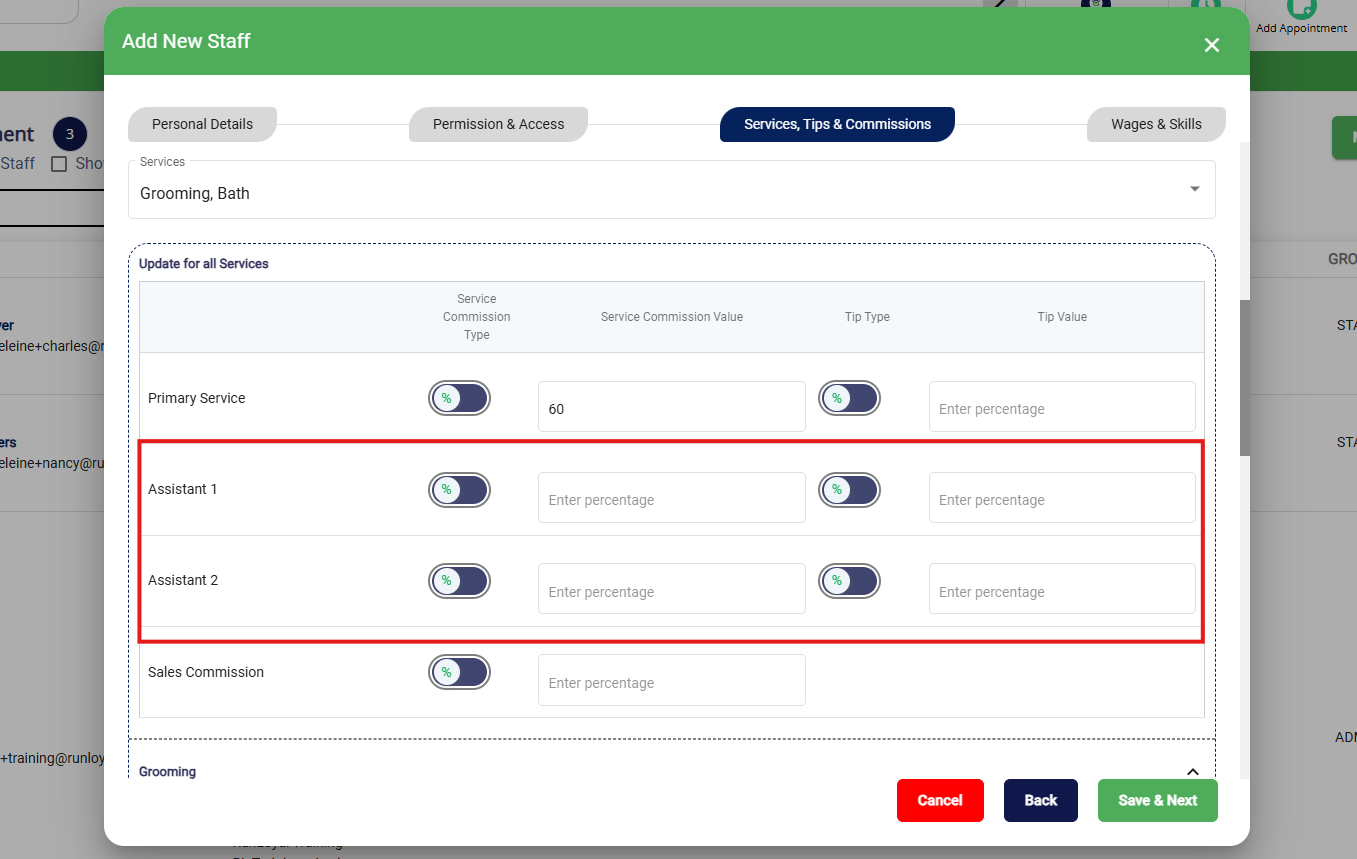
10. If this user will serve as an assistant, optionally enter their commission and tip amounts for Assistant 1 and/or Assistant 2.
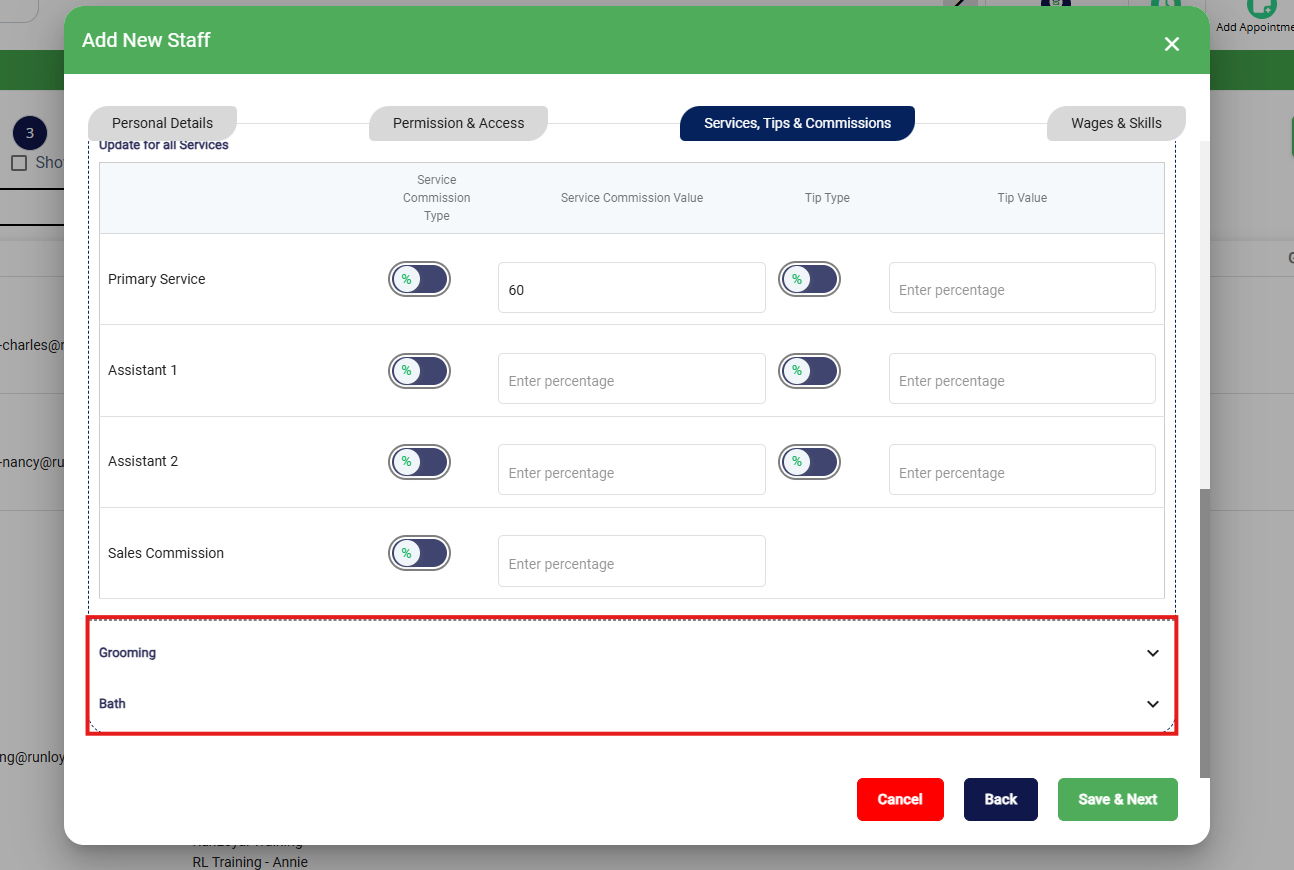
11. Once the Global Values are entered, click each Service Category to expand it.
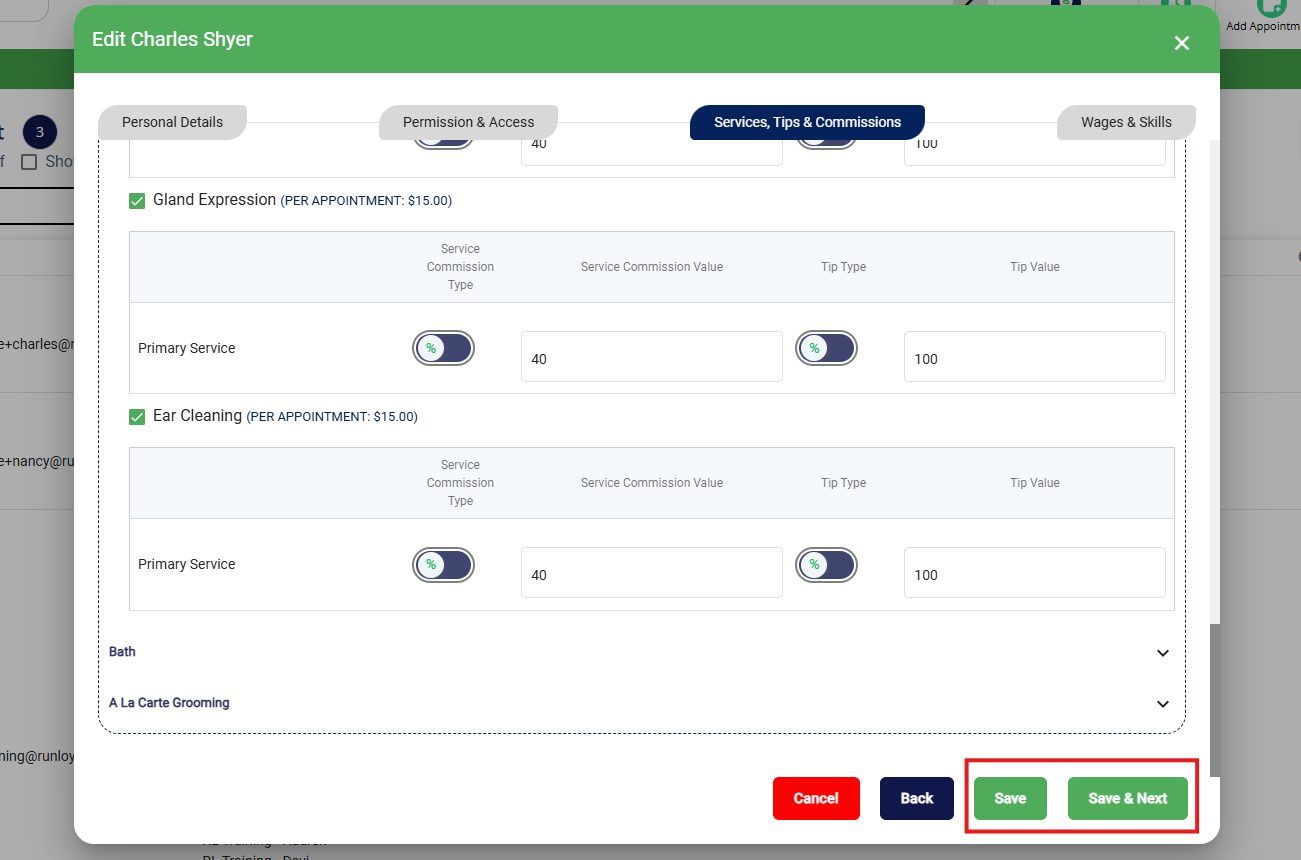
12. Either check to Select All Services or select individual services that this user performs. If you entered a commission rate above, you should see this commission rate auto-fill. You can optionally adjust the amounts if the user should receive a specific commission or tip for a certain service.
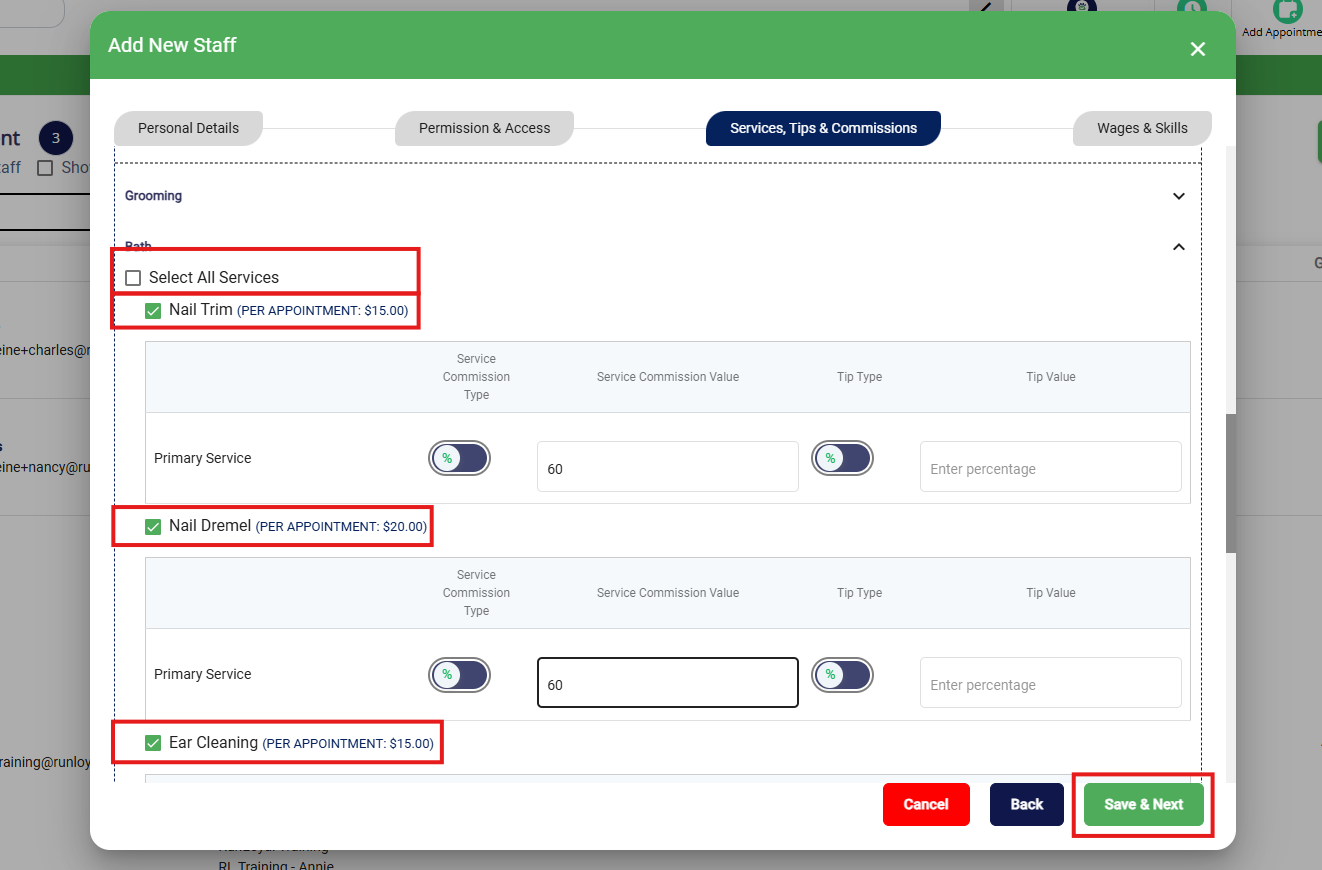
13. Once all commission amounts are entered properly, click Save to save your changes or Save & Next to save your changes and go to the next section to make additional user edits.
How to Set Up Staff User Calendar Availability
1. Navigate to Settings > Business Setup > Staffing Calendar.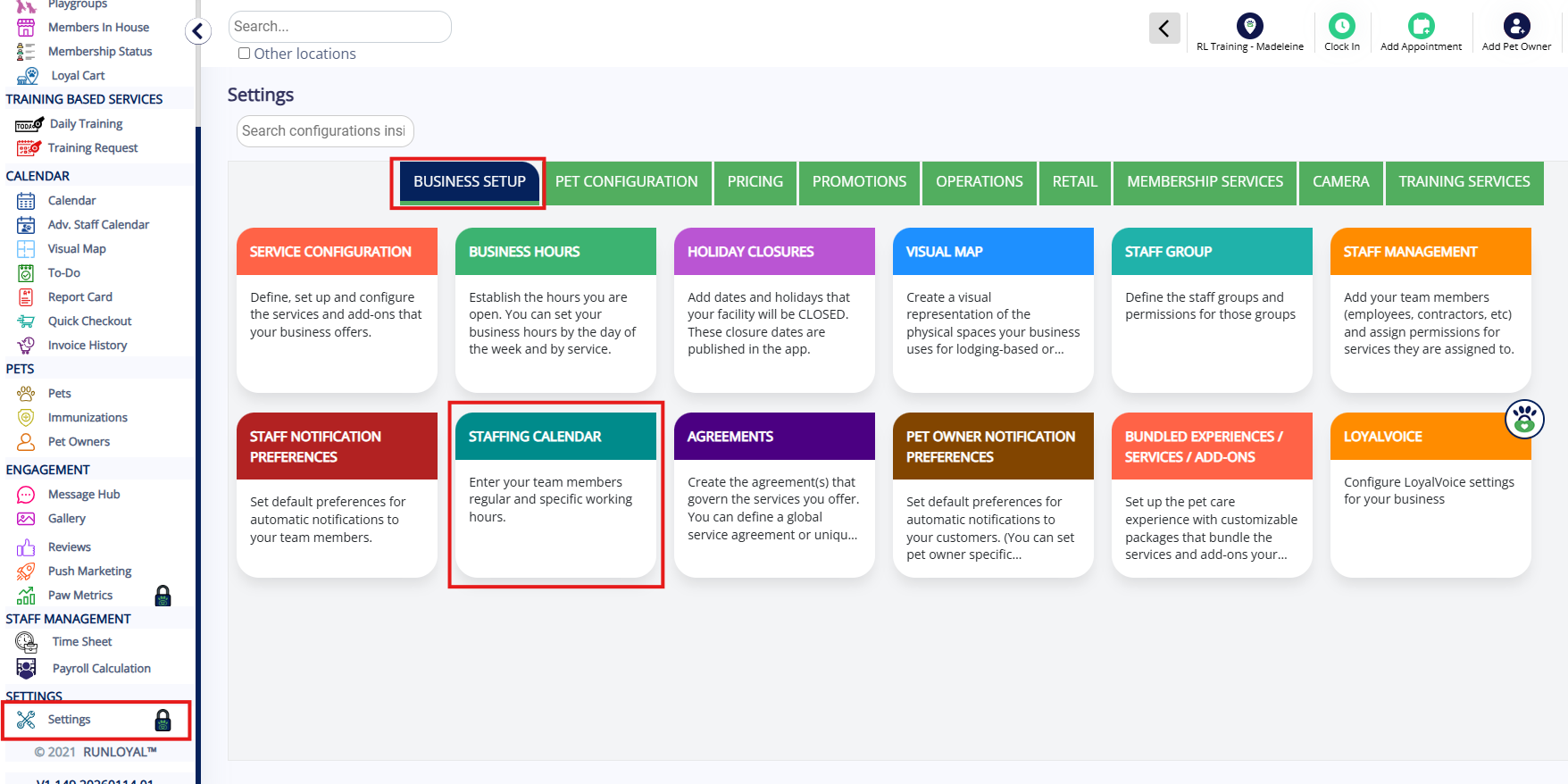
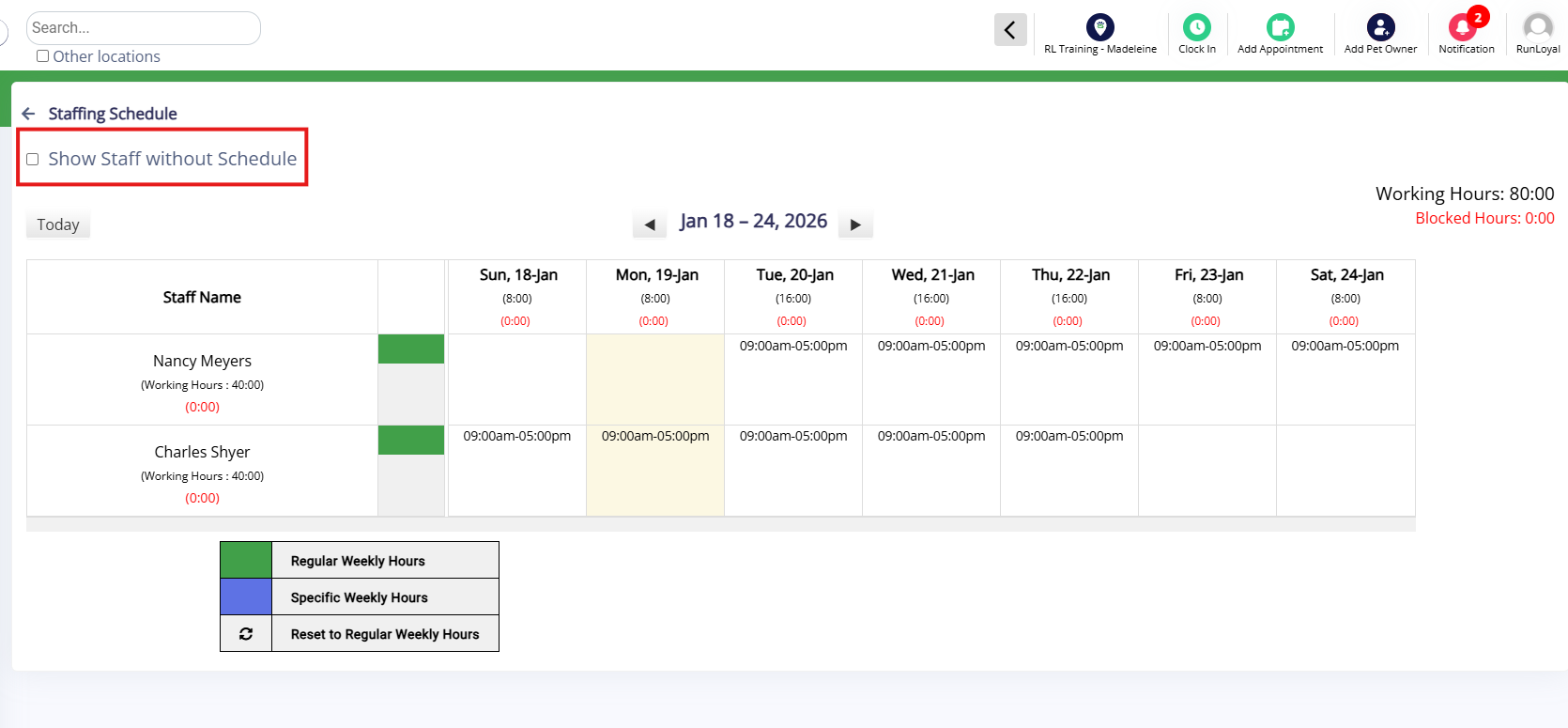
2. If the user in question does not already have a schedule, check the box Show Staff without Schedule to view this user.
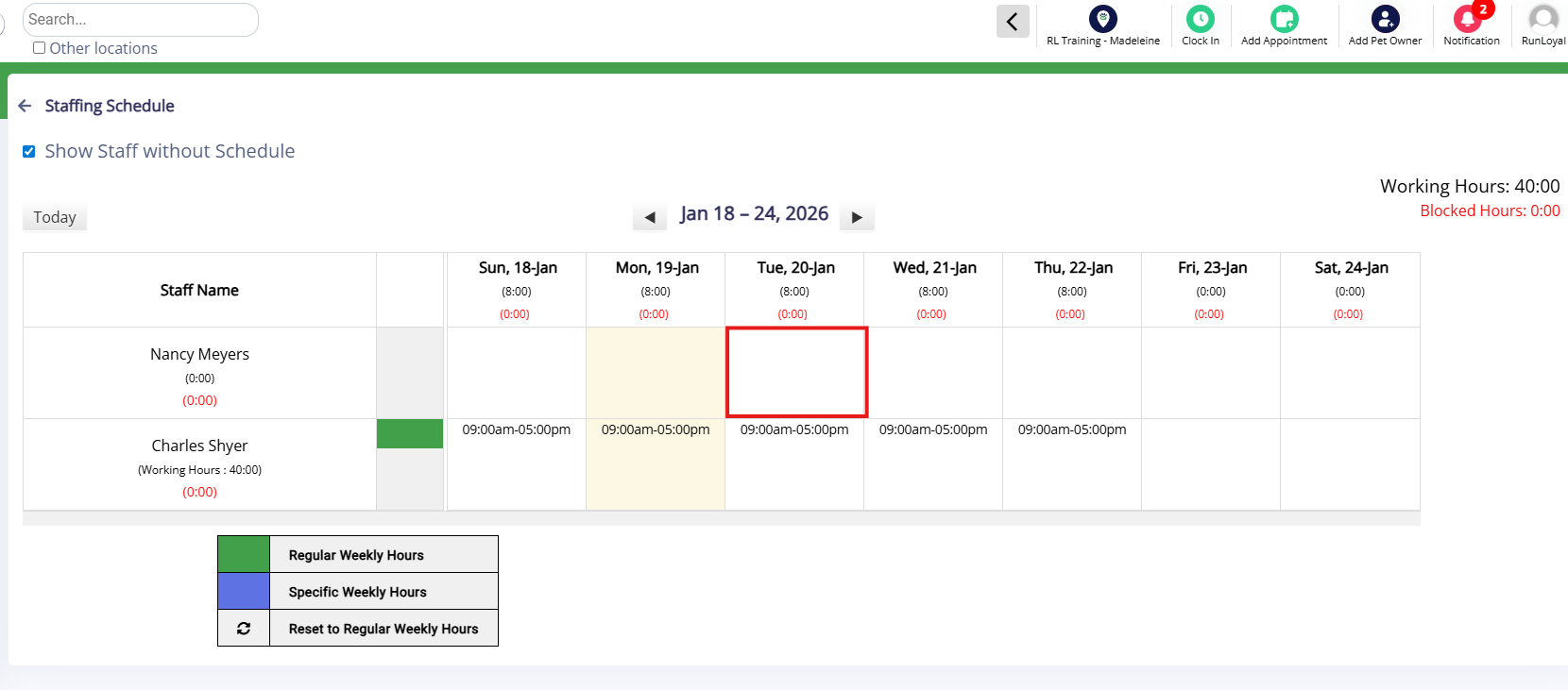
3. Find the user in question and click any date in the future to start adding an available schedule.
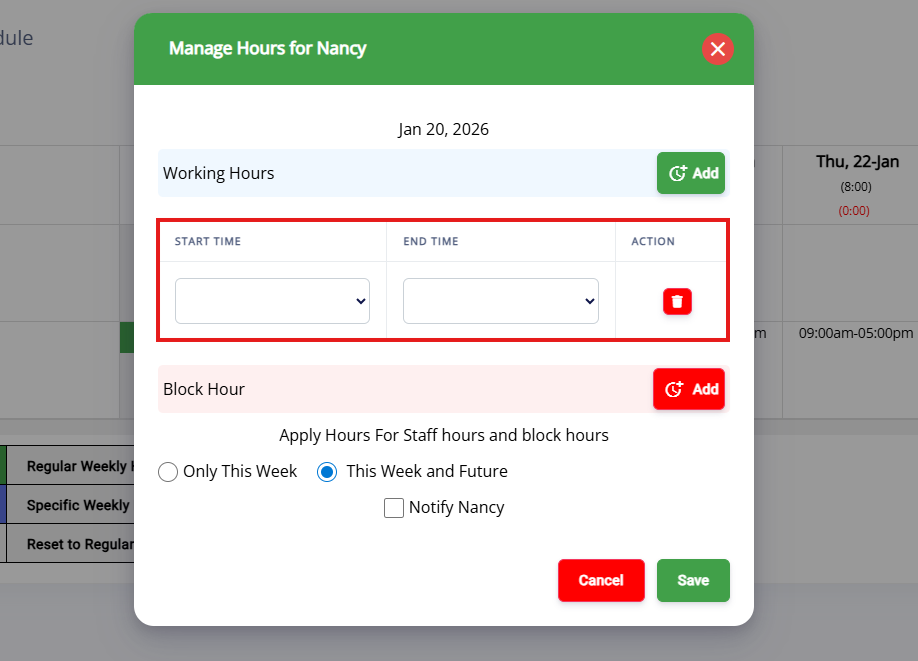
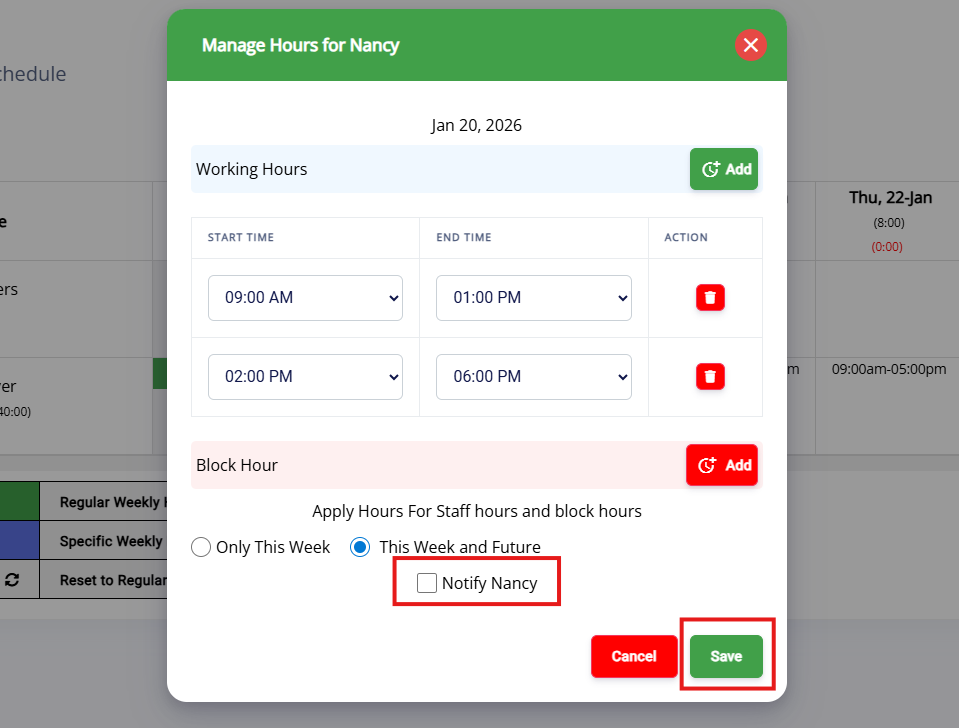
4. Click into Start Time and End Time to add the user's shift.
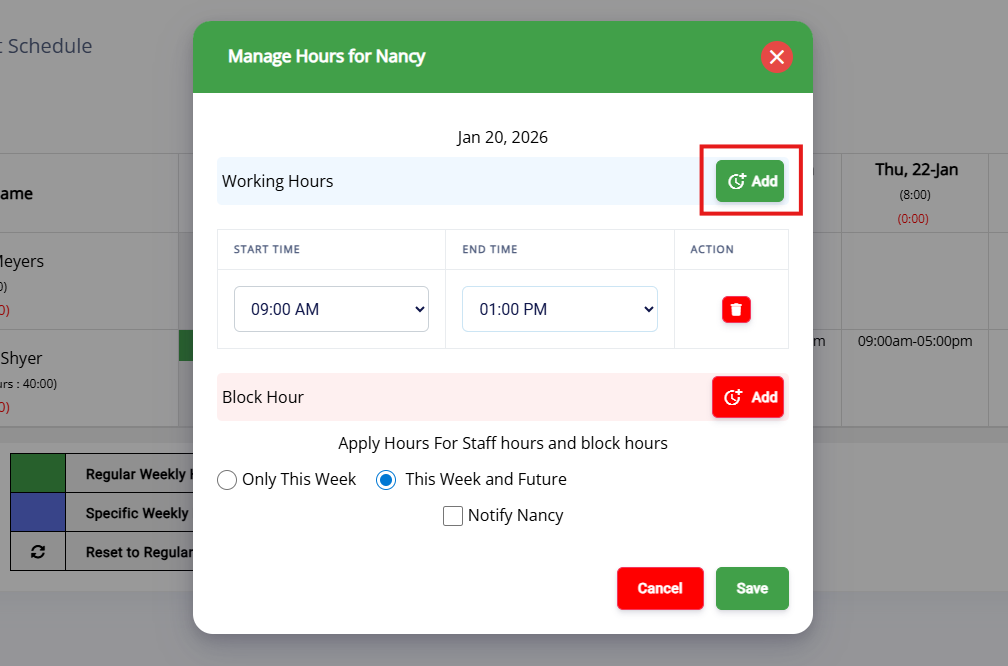
5. If they have a split shift (such as 9am - 1pm and 2pm - 6pm), click Add to enter an additional shift.
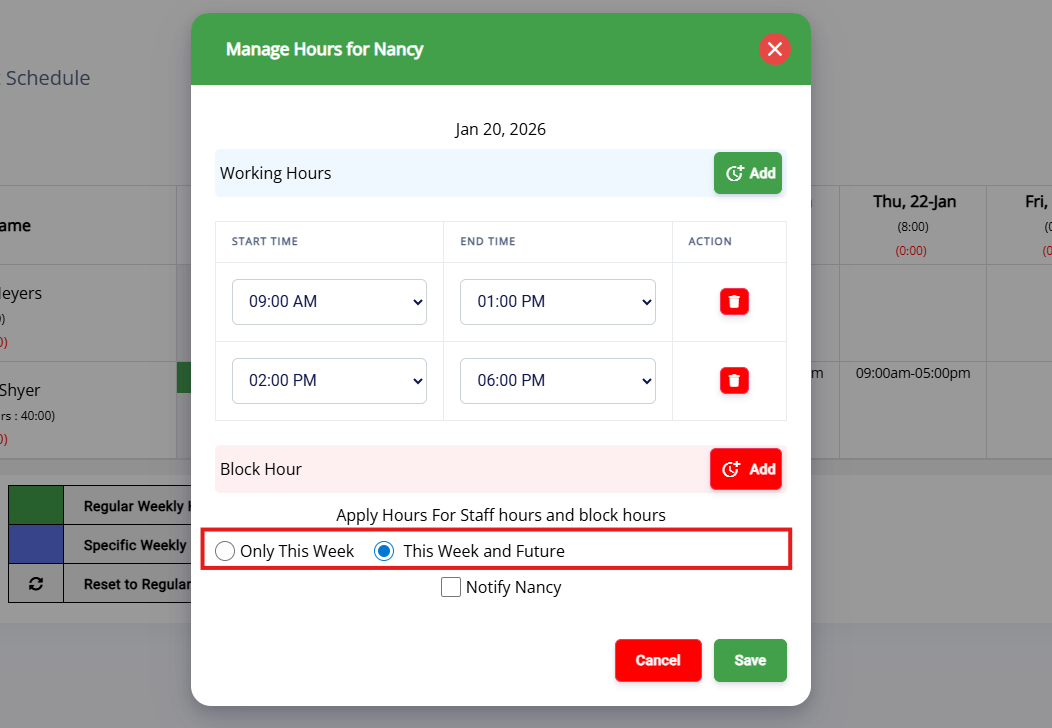
6. If the shift is recurring, toggle This Week and Future. If the shift is for this week only, toggle Only This Week.
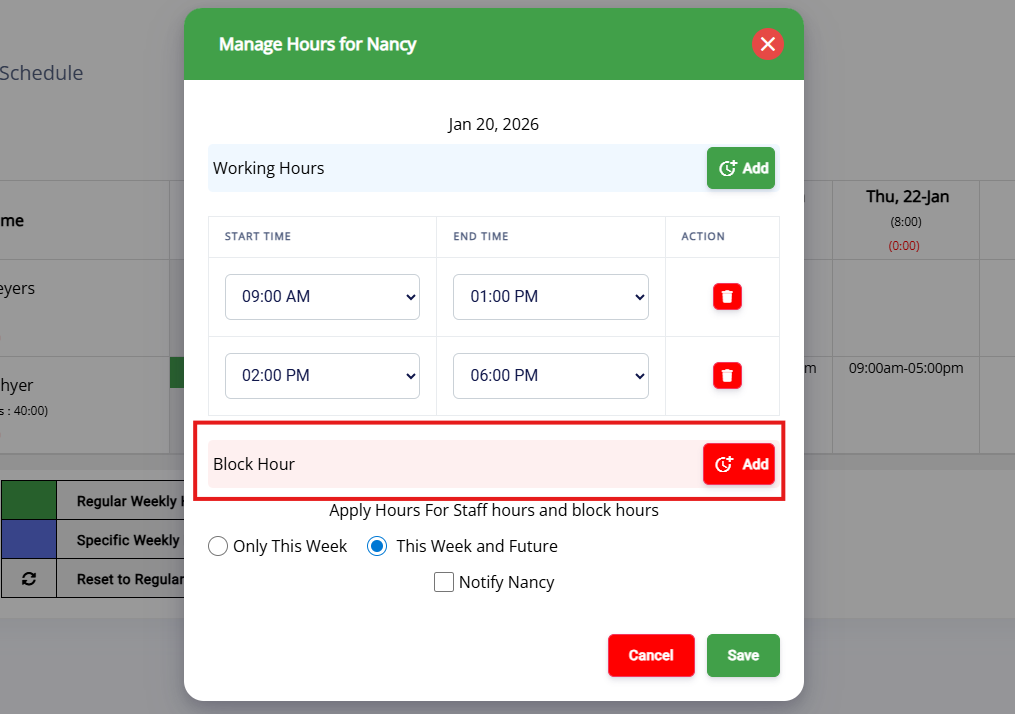
7. If you need to block off hours to set an unavailable block on their calendar, click Add in the Block Hour section.
8. When the shift is entered correctly, optionally check the box to Notify the user, then click Save.
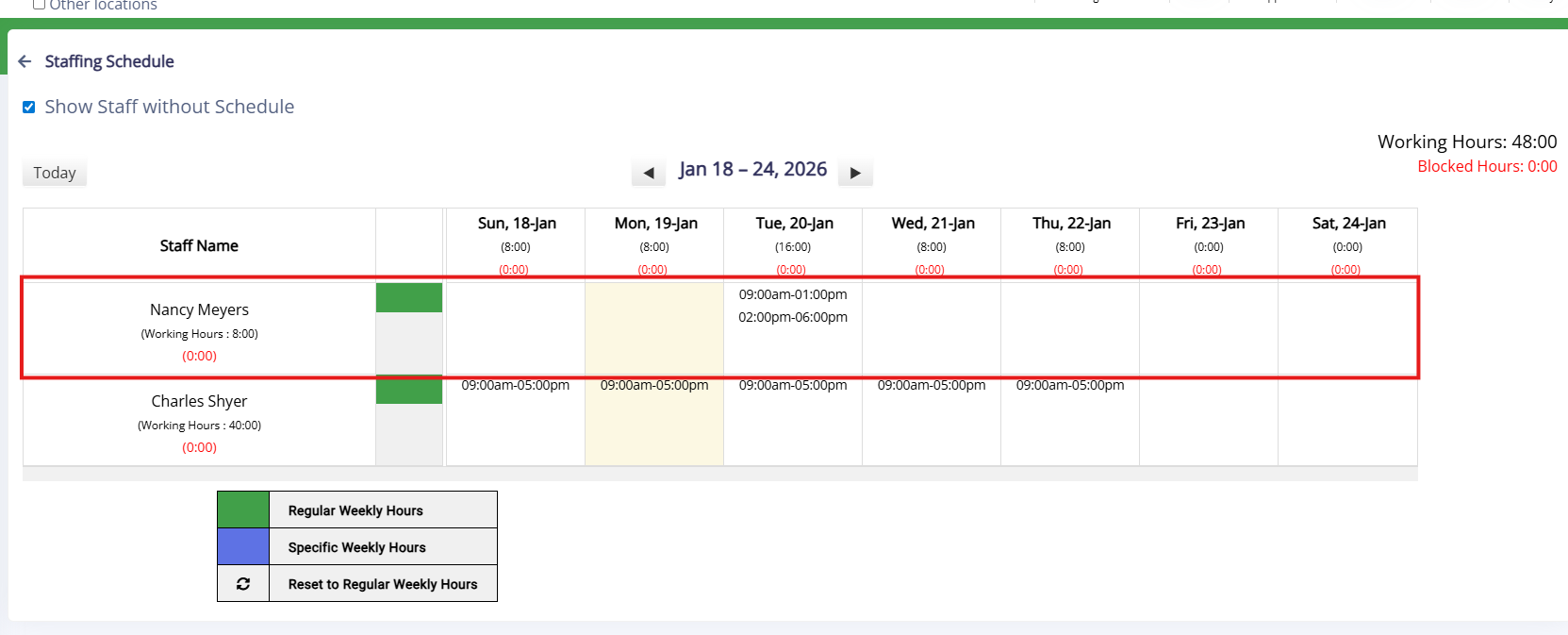
9. Verify the shift added as expected, and continue adding shifts for future days until the calendar is completed.
More Information
For more information on adding staff users, please refer to this article: Add & Edit Staff Users
For more information on creating staff-based service categories, please refer to this article: Set Up Staff-Based Service Category (Grooming, Training)
For more information on creating a Staff Group (User Permissions), please refer to this article: Create Staff Groups (Permissions)
Was this article helpful?
That’s Great!
Thank you for your feedback
Sorry! We couldn't be helpful
Thank you for your feedback
Feedback sent
We appreciate your effort and will try to fix the article