Overview
Staff groups allow you to customize which sections of the RunLoyal business portal employees can access and which actions they can take. You can also select certain reports that the staff group should be allowed to view. The default staff groups are Admin and Staff, and these options are not editable. However, you can create additional groups such as Manager that might need access to some admin permissions but not all.
Staff groups can be viewed in the following areas:
- Settings > Business Setup > Staff Group
- Creating or editing a staff user
TABLE OF CONTENTS
Create a New Staff Group
1. Navigate to Settings > Business Setup > Staff Group.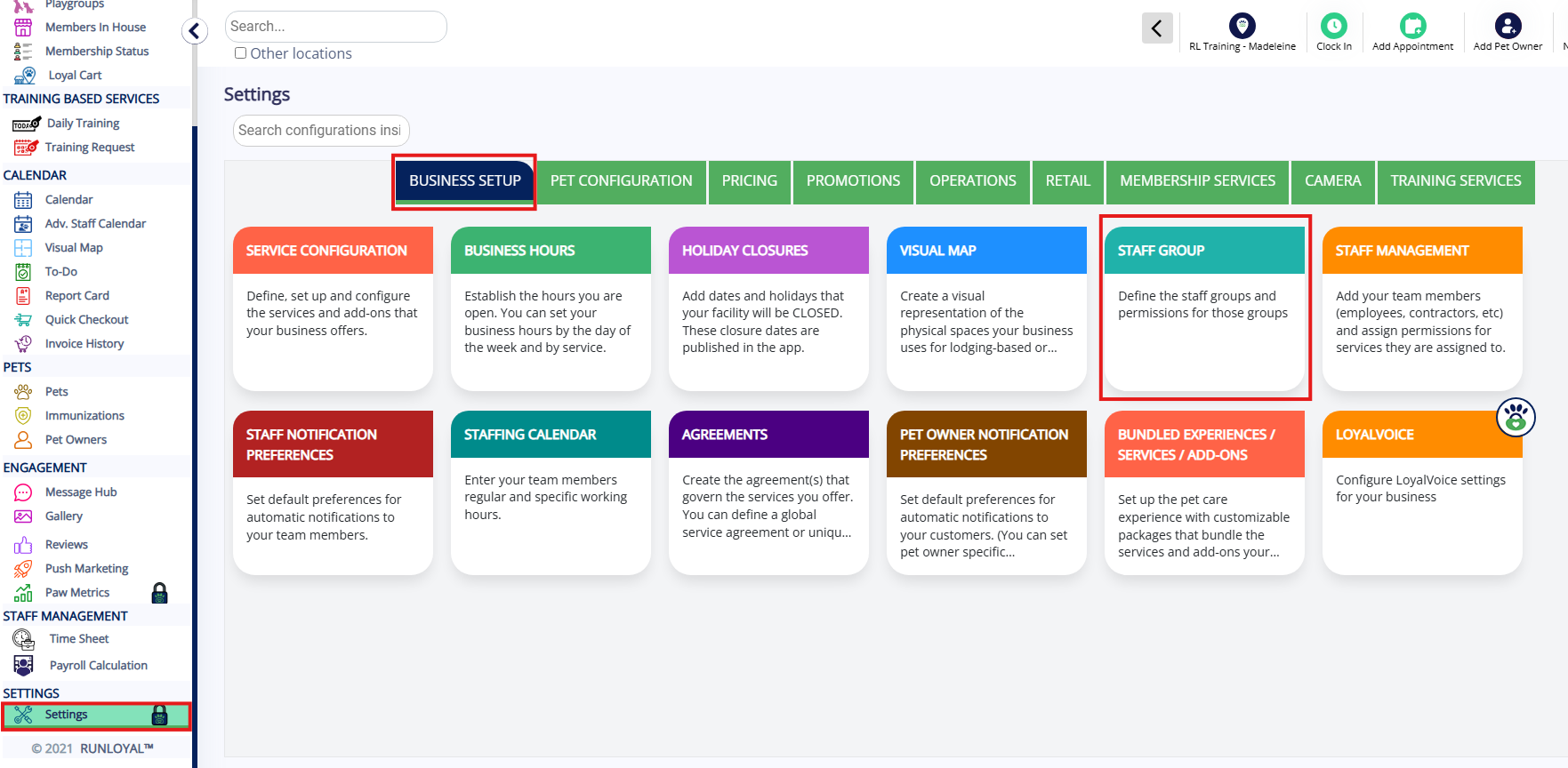
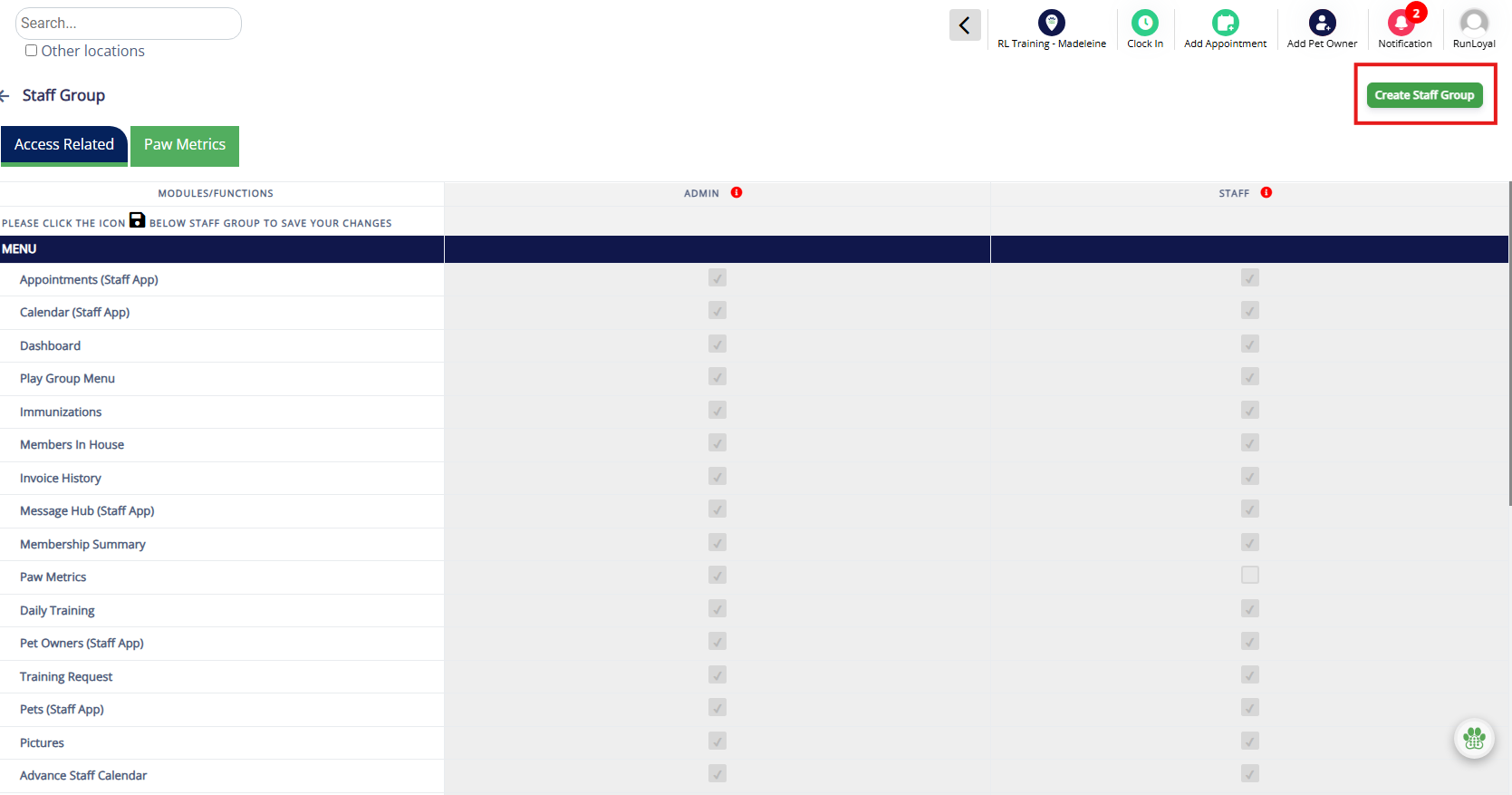
2. To add a new staff group, click Create Staff Group.
⚠️ Important: The default staff groups are Admin and Staff, and these options are not editable.
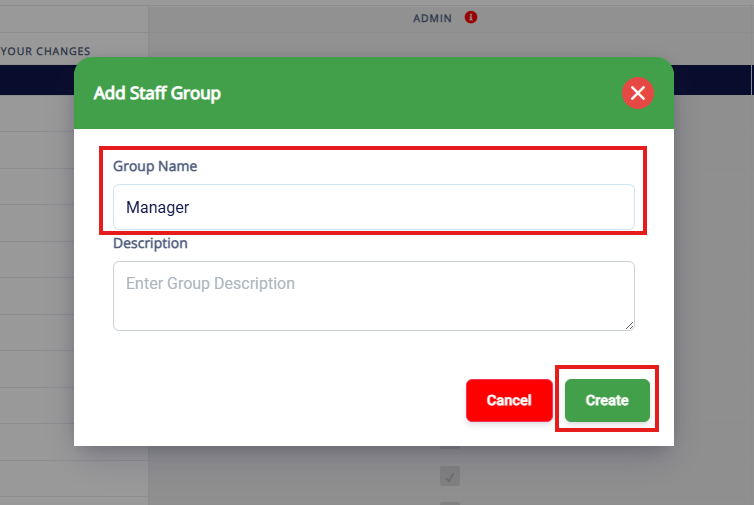
3. Enter the Staff Group Name, optionally enter a description, and click Create.
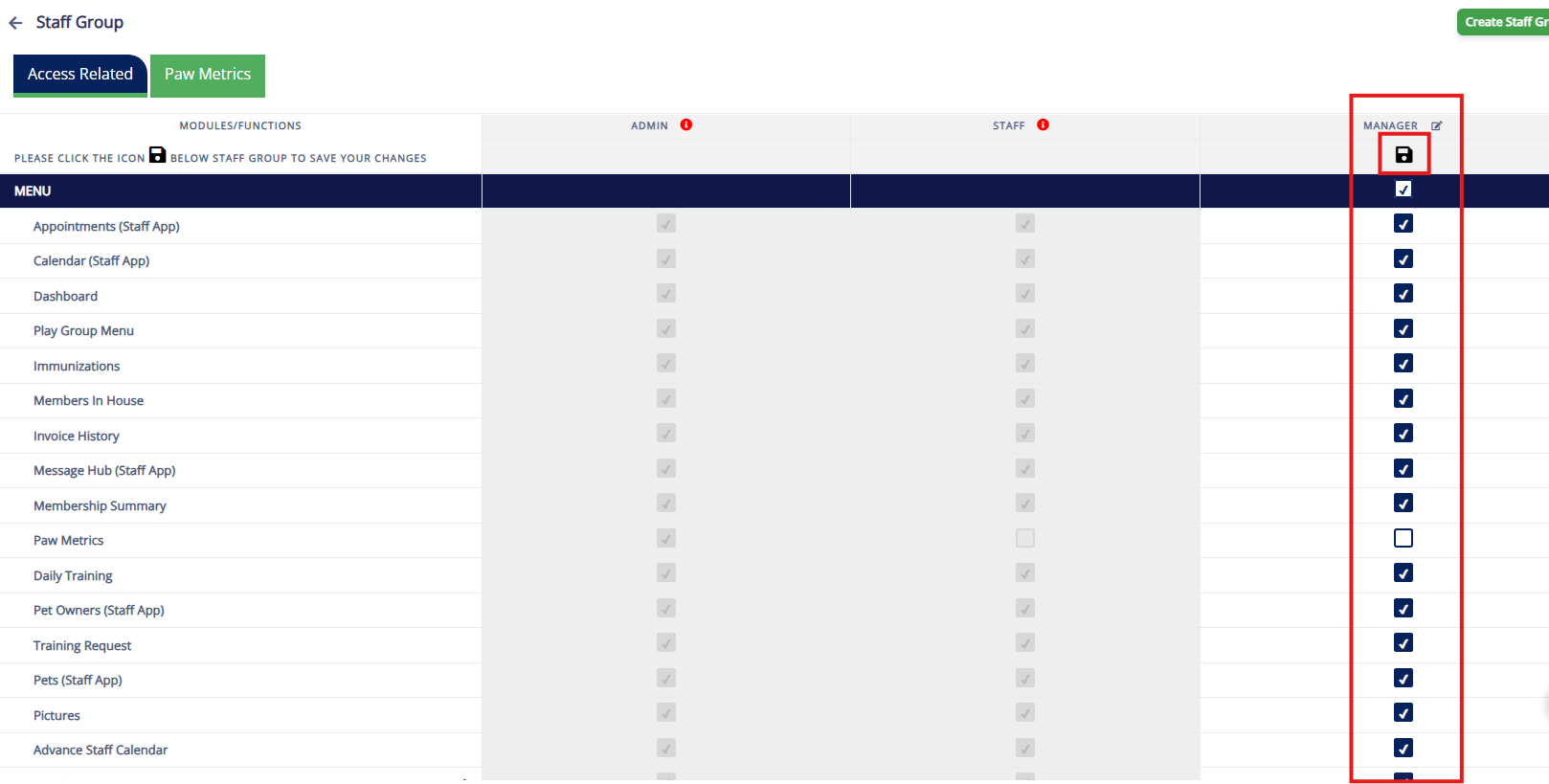
4. The new staff group will display on the Access Related tab. The checkboxes should populate with the standard items given to the default Staff user group. You can then add the additional checkboxes Paw Metrics and/or Settings permissions as these are what differentiate the Admin and Staff groups. You can also remove permissions if you would like to limit what your staff can access.
When you have finished making edits, click the Save icon.
5. After saving the permissions, you can optionally toggle to the Paw Metrics (Reporting) tab. If you checked the box to give the new staff group access to Paw Metrics (Reporting), you will see the group populate on the right column. You can then check which reporting tabs this group should be able to access.
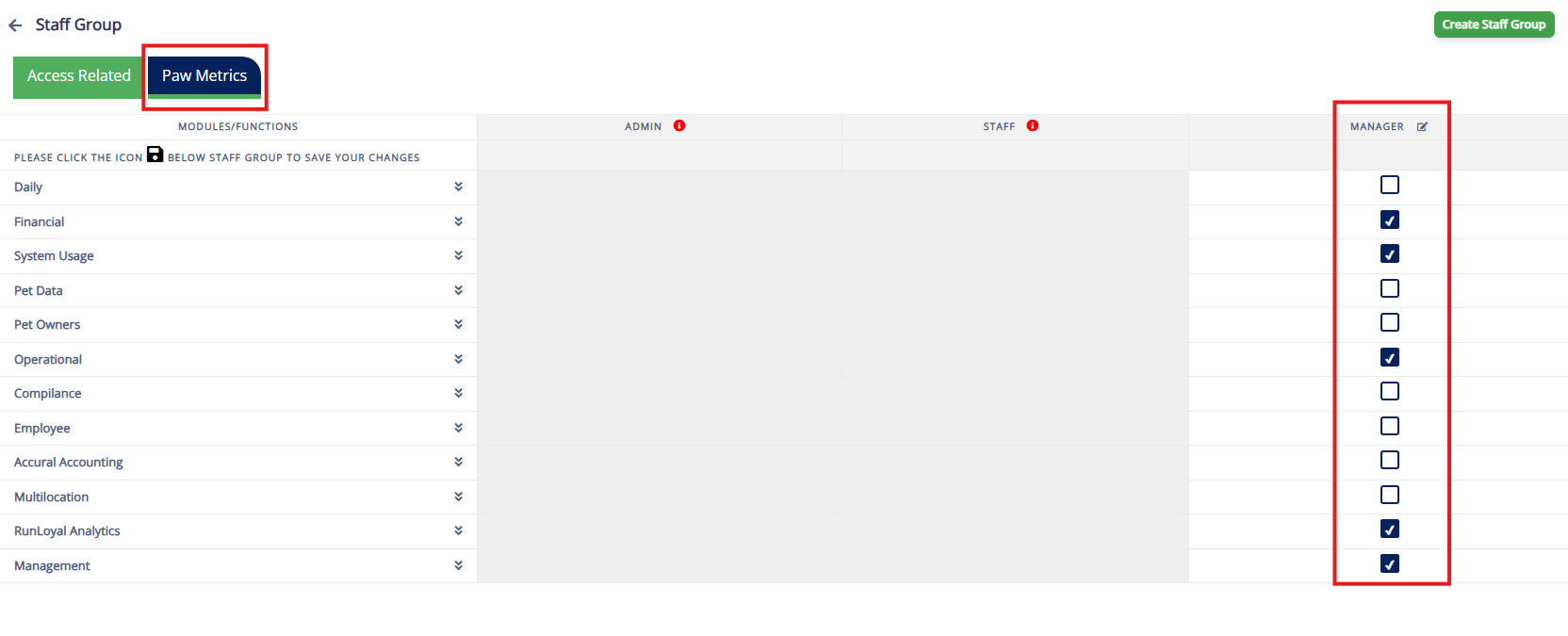
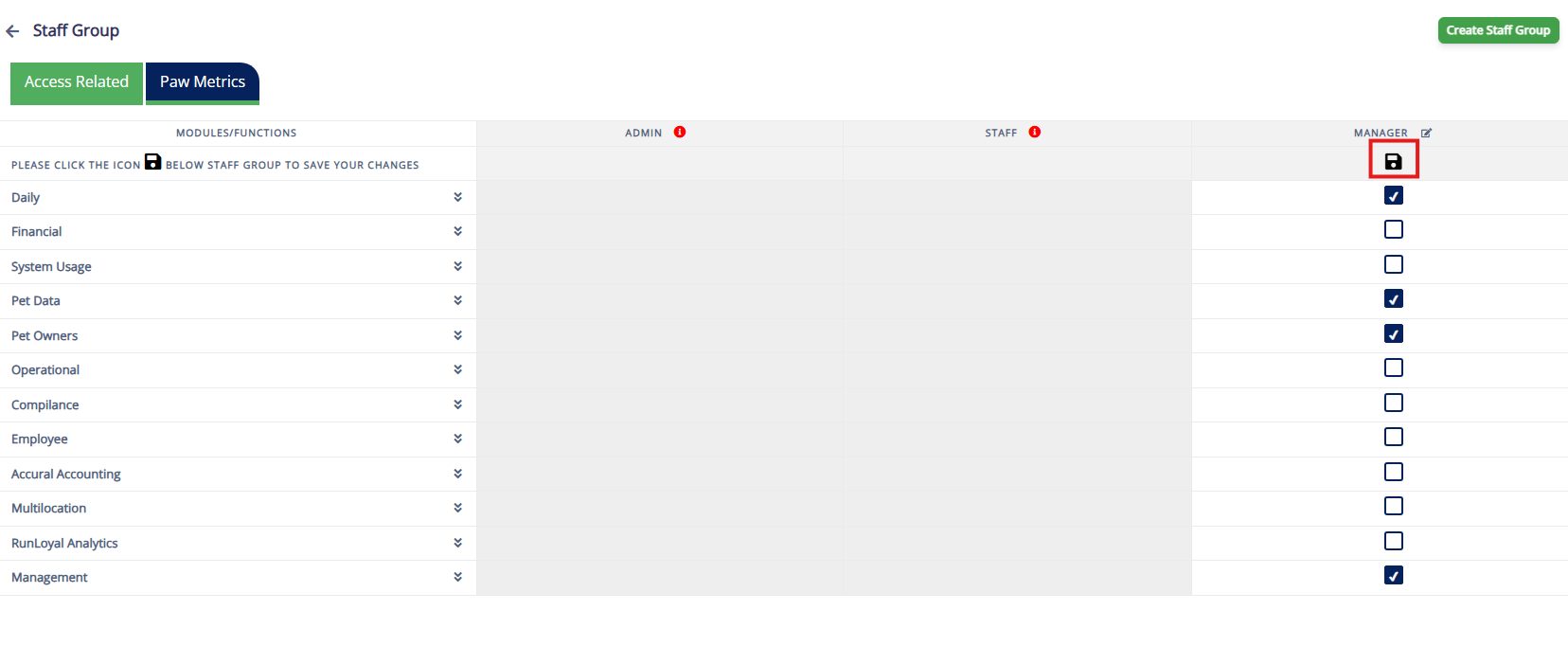
6. Once you have finished adding the reporting permissions, click the Save icon to save your changes.
Add Staff User to the Staff Group
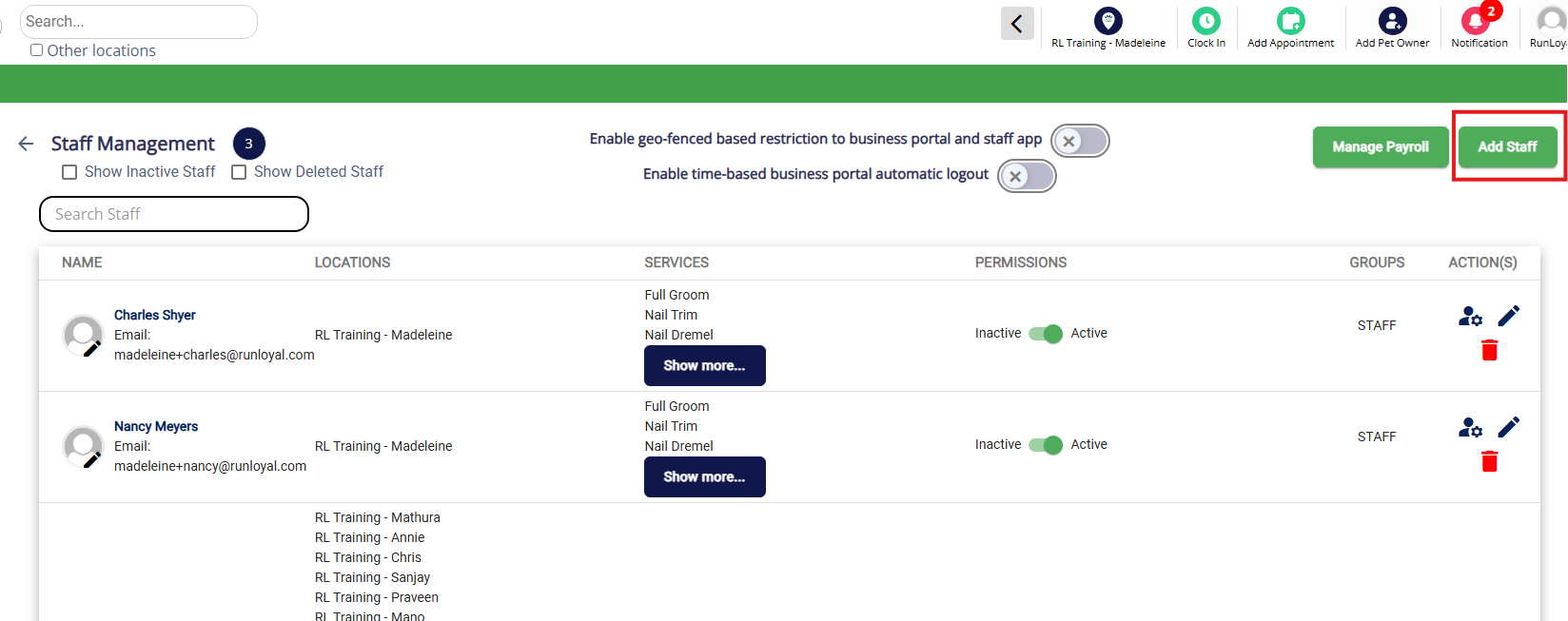
1. Add add a new or existing user to the staff group you just created, navigate to Settings > Business Setup > Staff Management.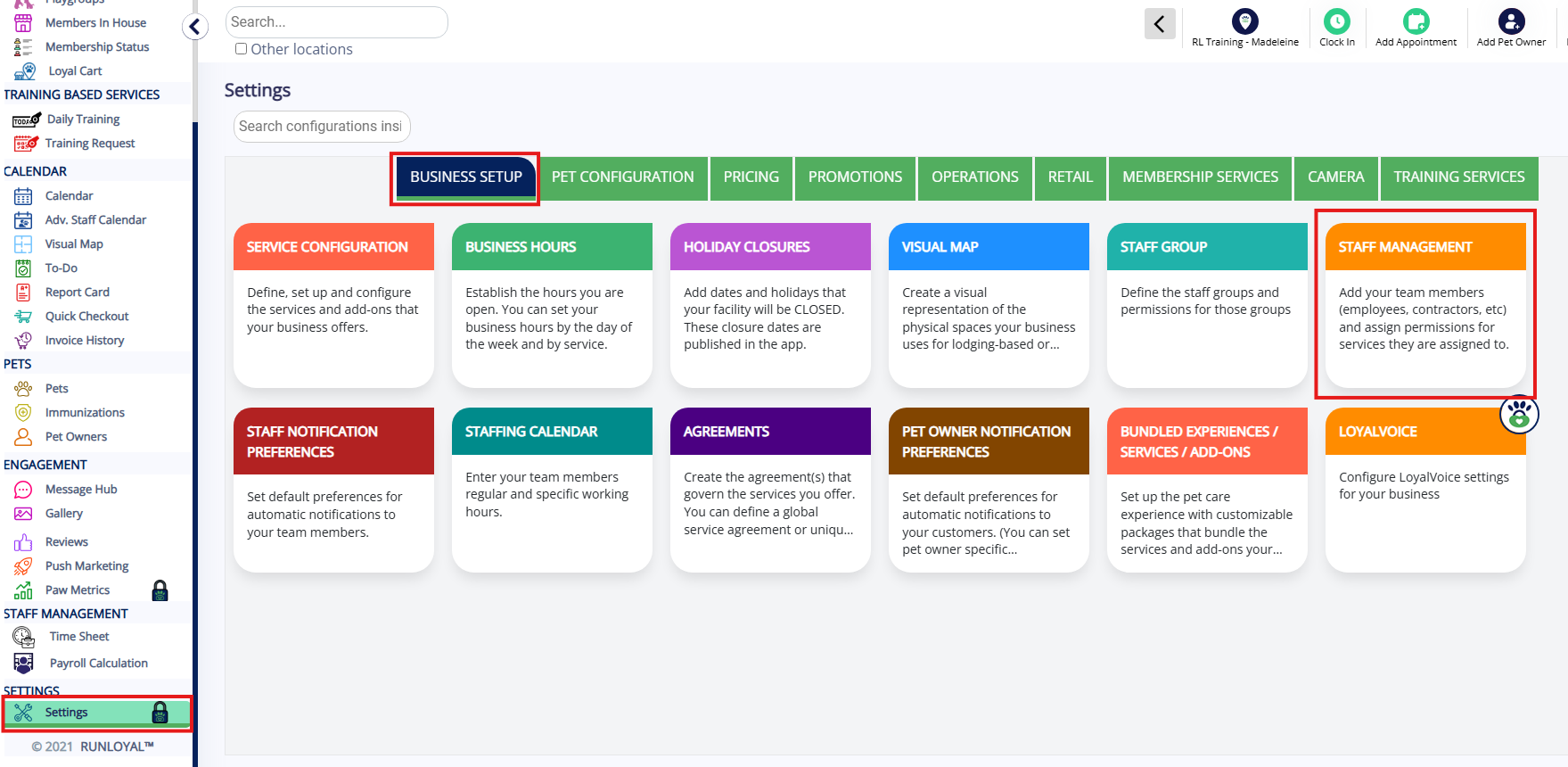
2. To add an existing user to this group, click the Edit pencil icon next to the user in question.
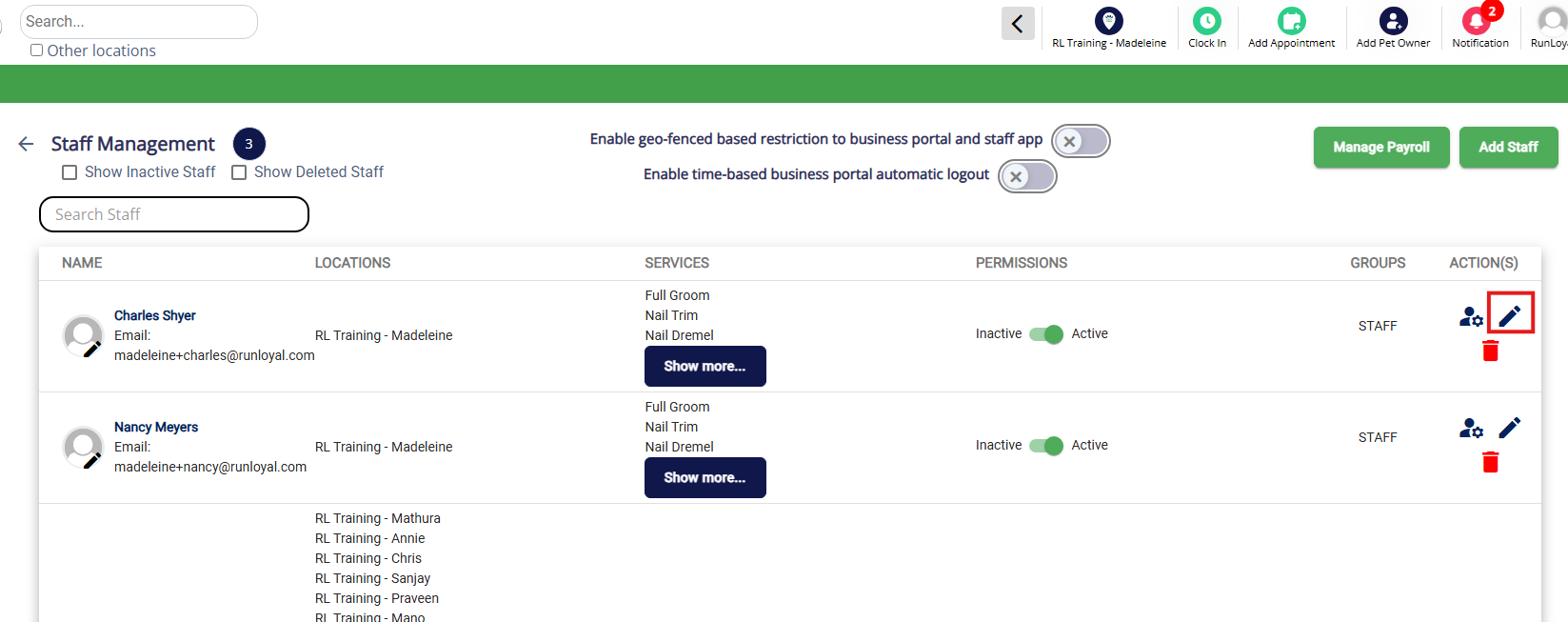
3. To create a new user and add them to the new staff group, click Add Staff. You can learn more about creating a new user in this article: Add & Edit Staff Users
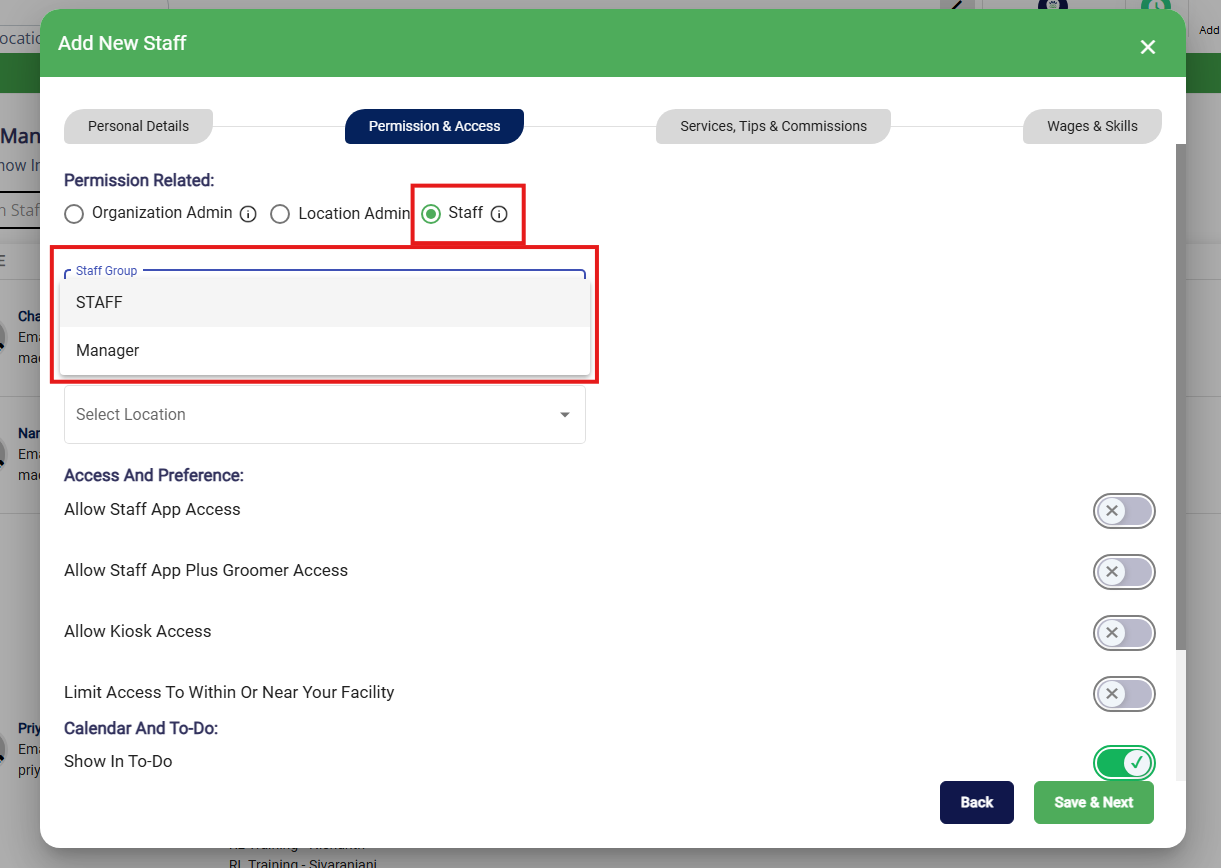
4. On the Permissions & Access tab while creating or editing the user, select Staff since the newly created staff group is not an admin. Then under the Staff Group dropdown, select your new Staff Group.
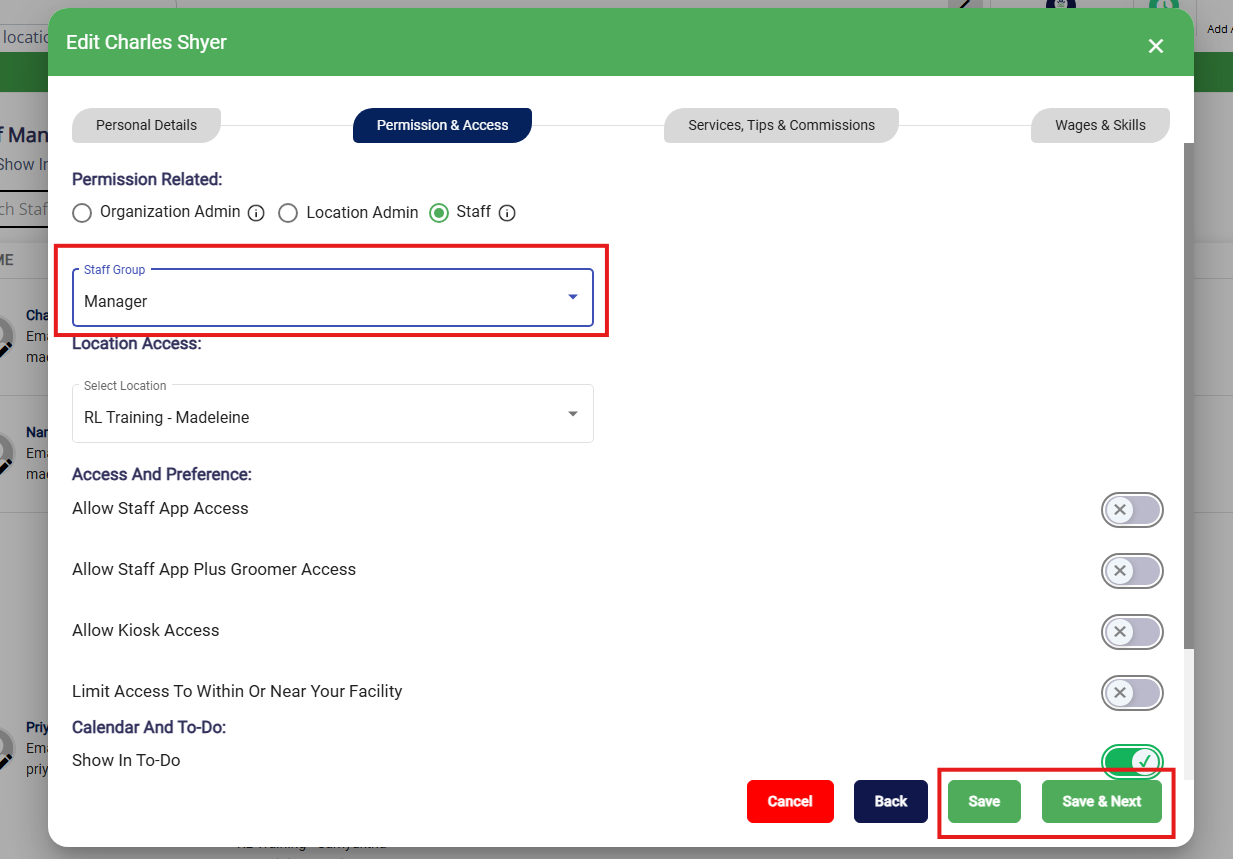
5. Once the Staff Group is selected, click Save to save your changes or Save & Next to save your changes and go to the next section to make additional user edits.
More Information
For more information on creating a new user, please refer to this article: Add & Edit Staff Users
For more information on Geo-Fencing (Location-Based Restriction), please refer to this article: Staff Geo-Fencing (Physical Access Restriction)
Was this article helpful?
That’s Great!
Thank you for your feedback
Sorry! We couldn't be helpful
Thank you for your feedback
Feedback sent
We appreciate your effort and will try to fix the article