Overview
The Memberships feature is a paid add-on for your RunLoyal subscription. It is optimized for dog parks, dog bars, or other areas where members should be able to easily check themselves in without business staff present. This article will cover how to refund a purchased membership, force-expire a membership so it can no longer be utilized, and delete a membership.
To set up and use Memberships, you must first subscribe to this add-on under right-hand navigation > Profile Menu > My Subscription > Membership-Based Services.
Memberships can be viewed in the following areas:
- Left-hand navigation > Members In House
- Settings > Membership Services
- Pet Owner profile > Memberships section
TABLE OF CONTENTS
- Overview
- How to Issue a Refund for a Membership
- Deleting/Removing a Membership
- Forcing a Membership to Expire
- More Information
How to Issue a Refund for a Membership
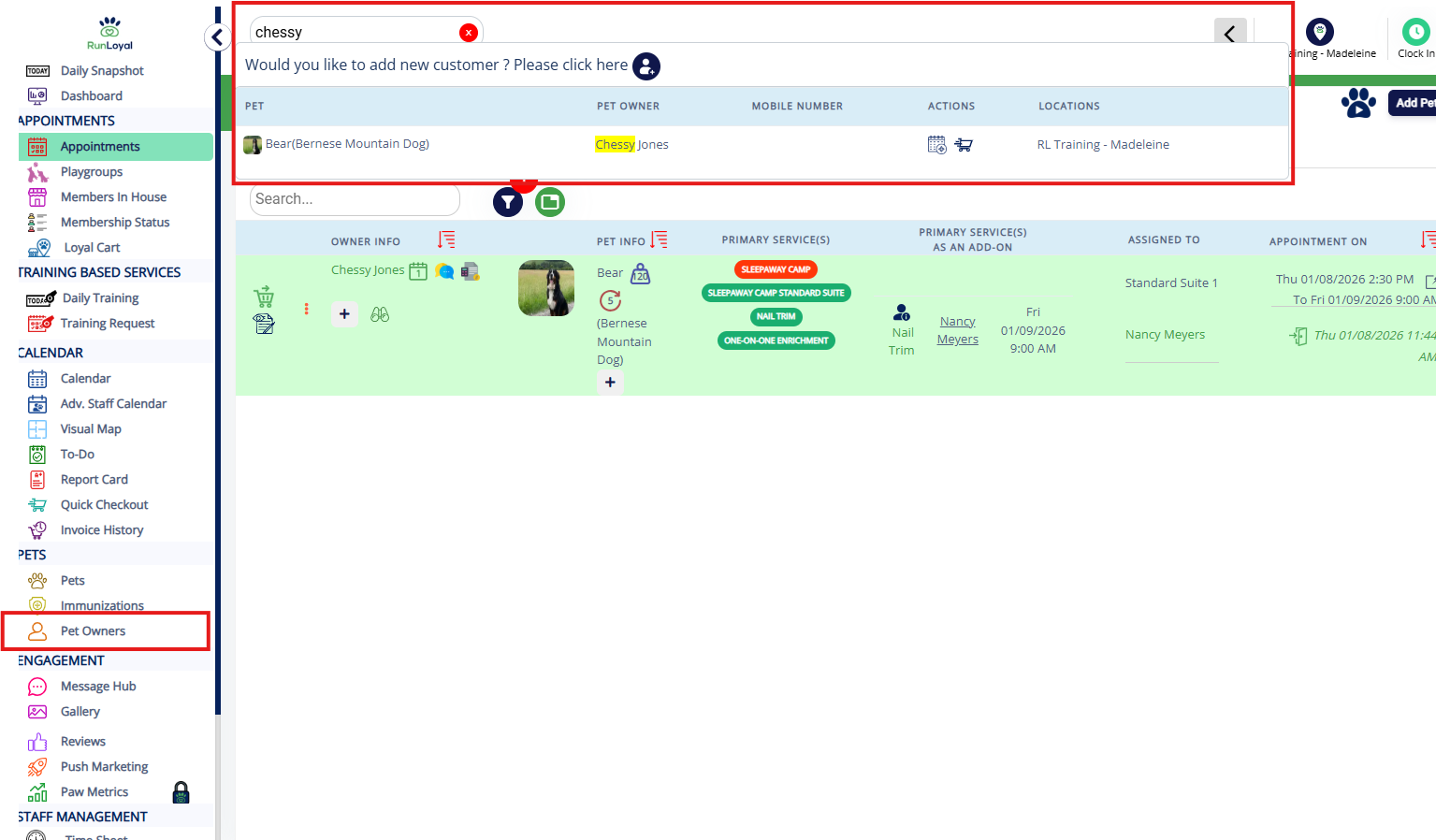
1. Navigate to any pet owner's profile by searching the pet or owner name in the search bar, or using the navigation bar to open the Pet Owners page.
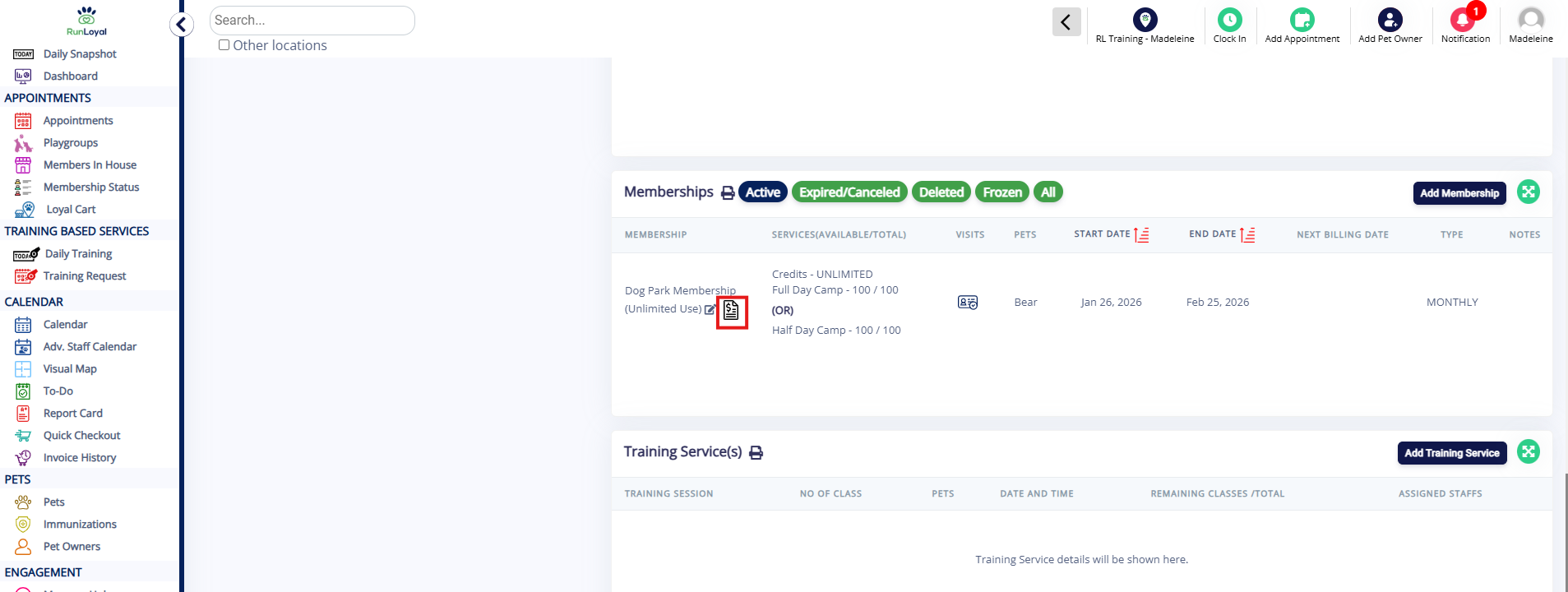
2. On the pet owner profile, scroll to the Memberships section and click the Invoice icon next to the membership in question you wish to refund.
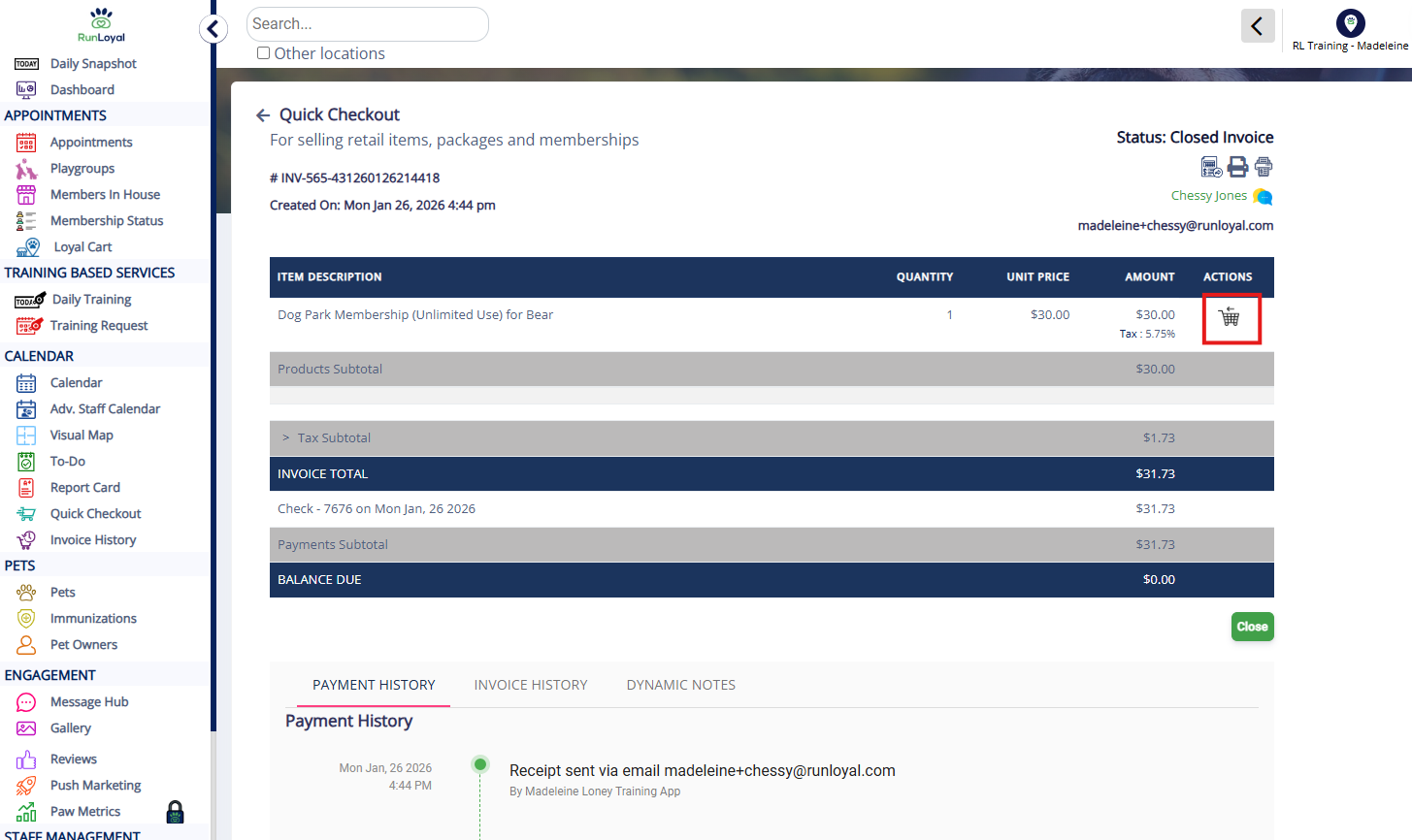
3. On the invoice, select the shopping cart icon next to the membership line item to initiate the refund.
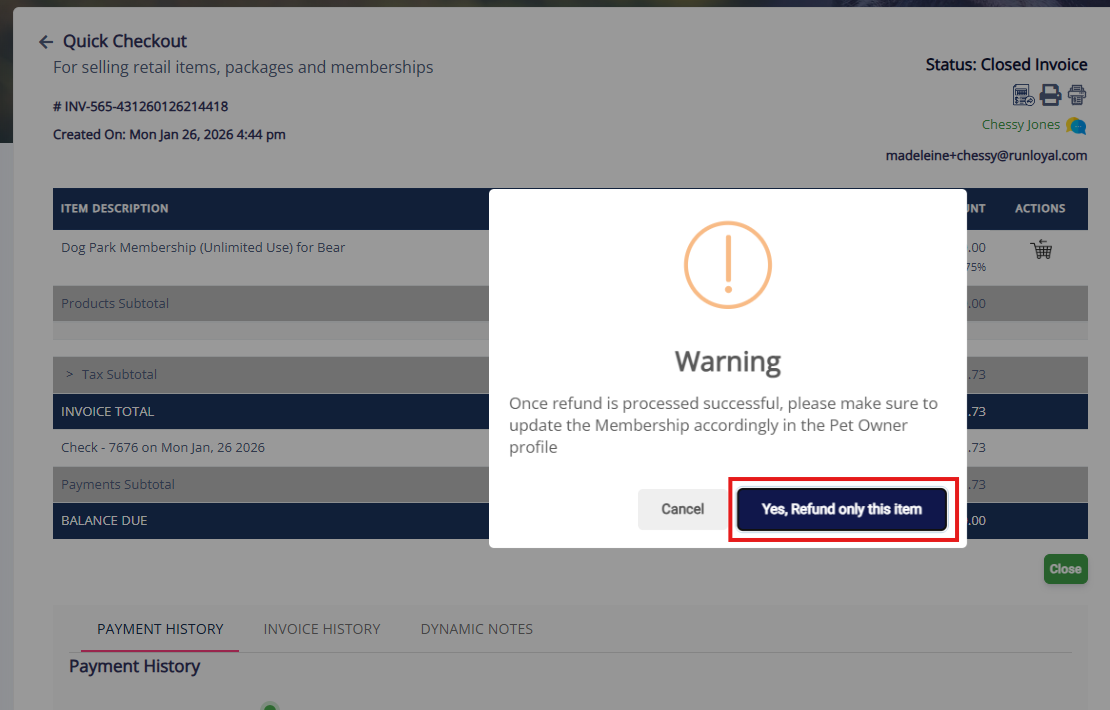
4. Select Yes, Refund only this item.
5. In the refund amount box, you can either refund the entire amount or adjust how much that you wish to refund. Then select Apply to Invoice.
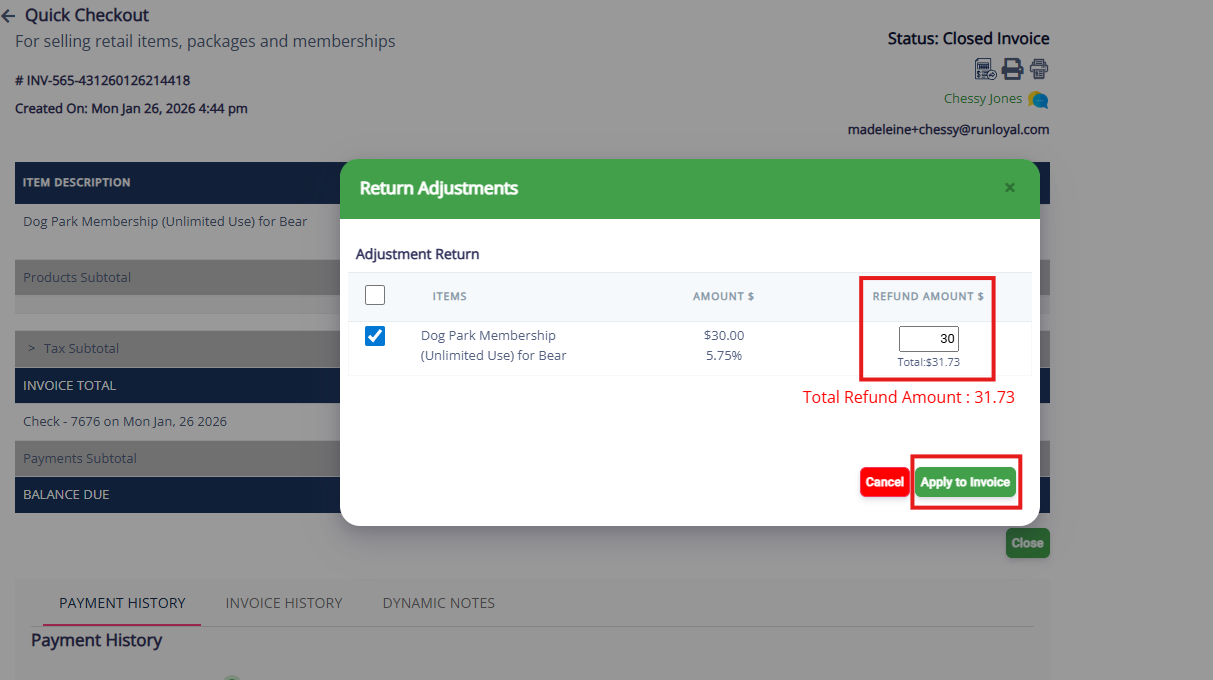
6. To refund the payment to a payment method such as credit card, cash, or check, click Process Refund. If you wish to refund to account credit, click Add to Credit. If you do not wish to issue a monetary refund and instead keep the payment as revenue, click Add to Revenue.
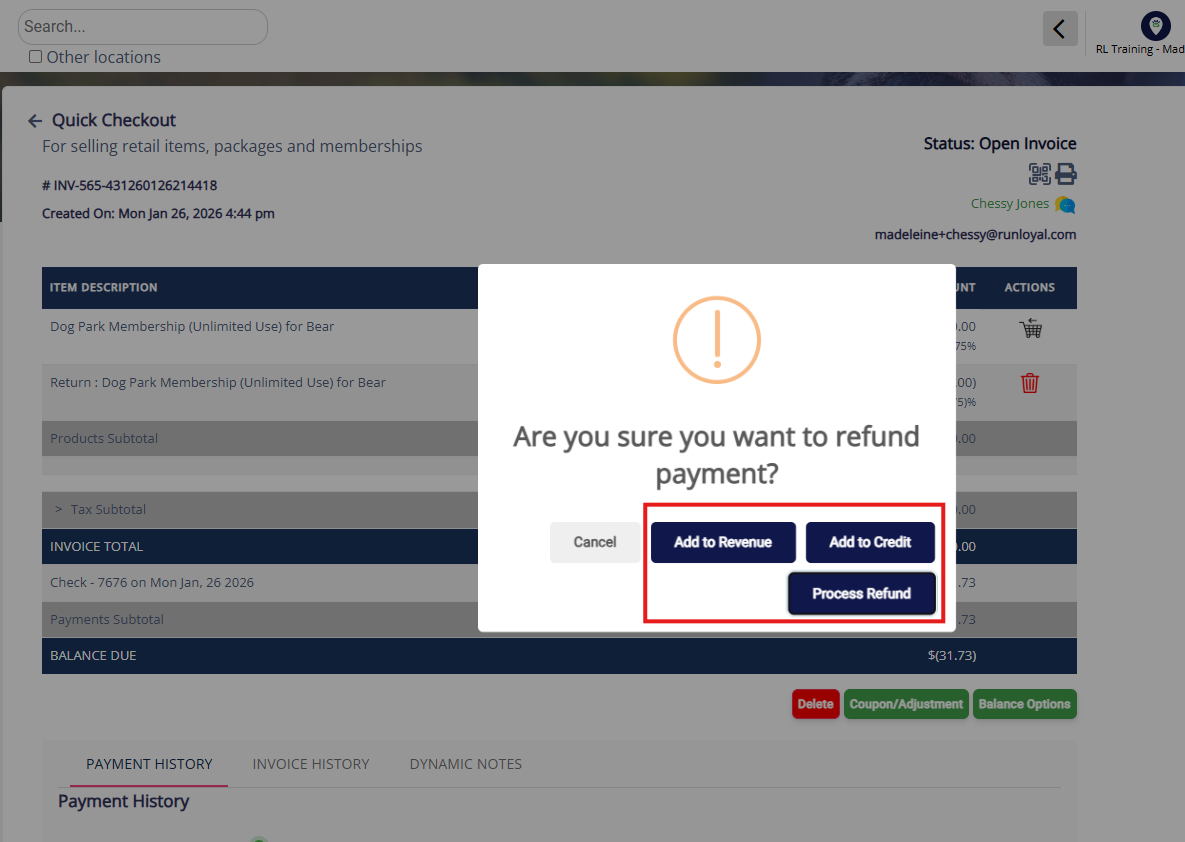
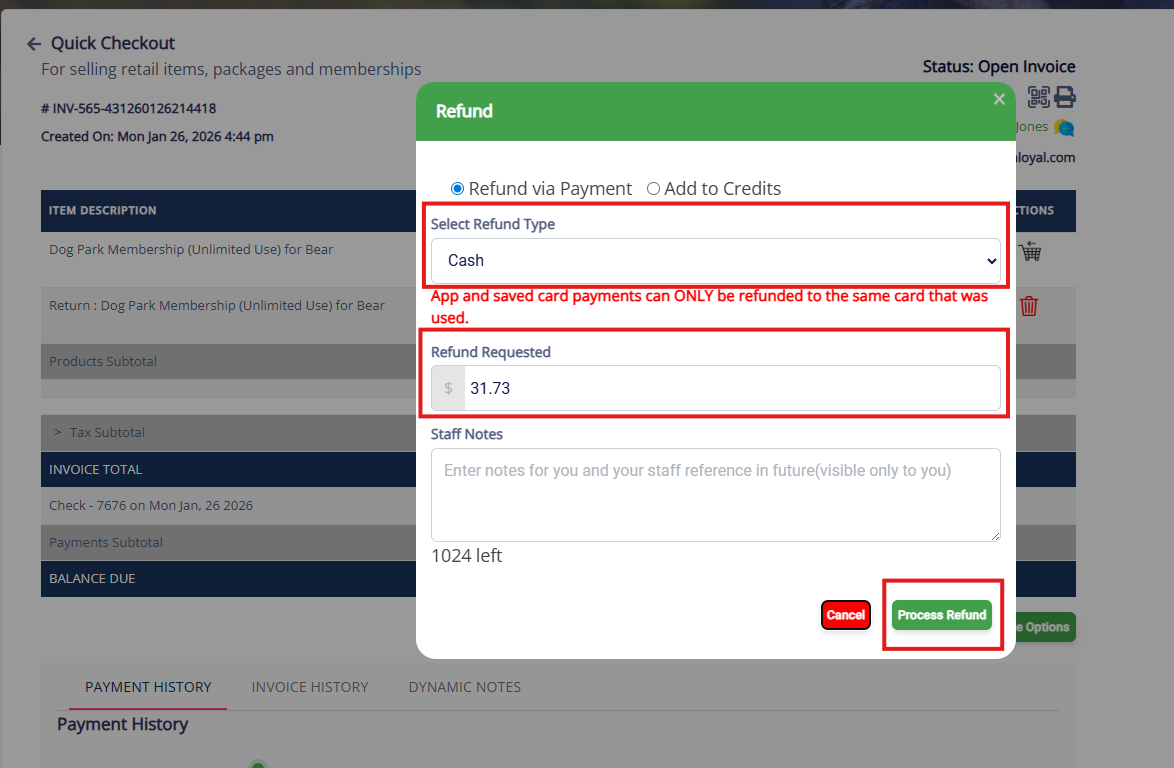
7. If refunding toa payment method, select the refund type and amount. Then click Process Refund.
8. If you wish to immediately disable the membership, click Remove Membership. This will delete the membership from the account so the pet owner loses access immediately. If you wish to keep the membership available for use with the original expiration date, or perhaps set the expiration date to be sooner, click Keep Membership Active.
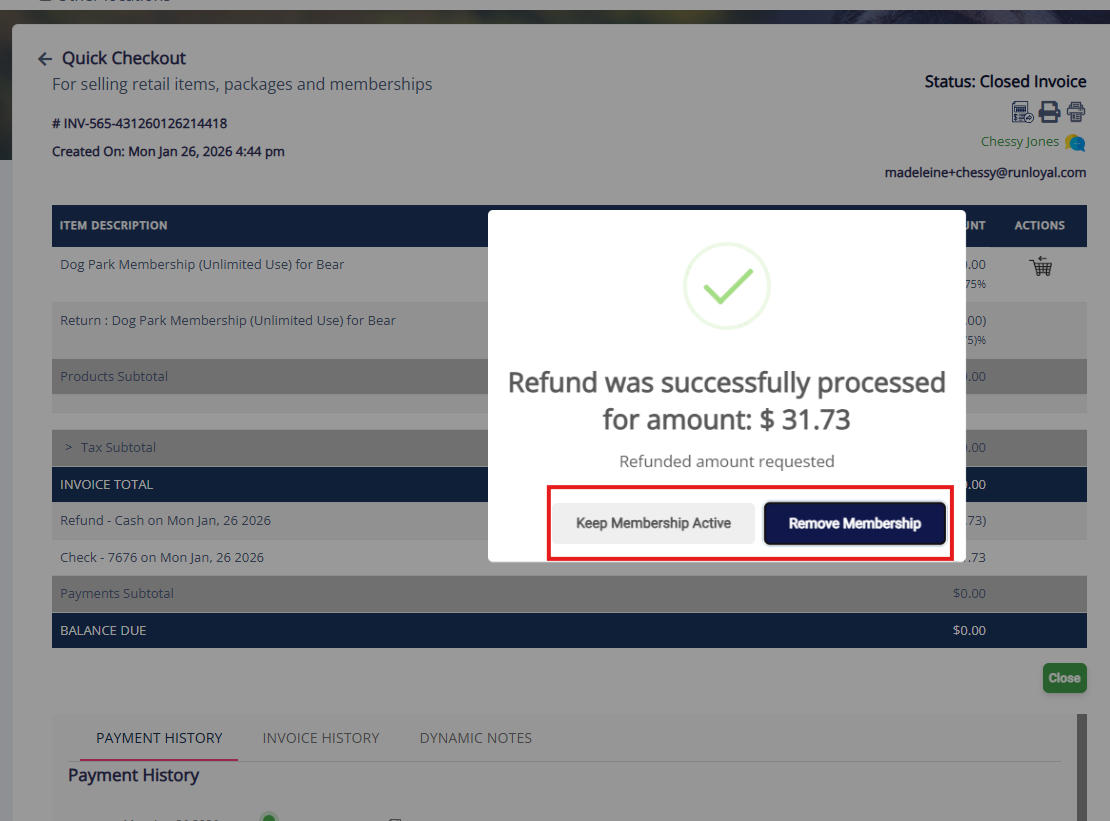
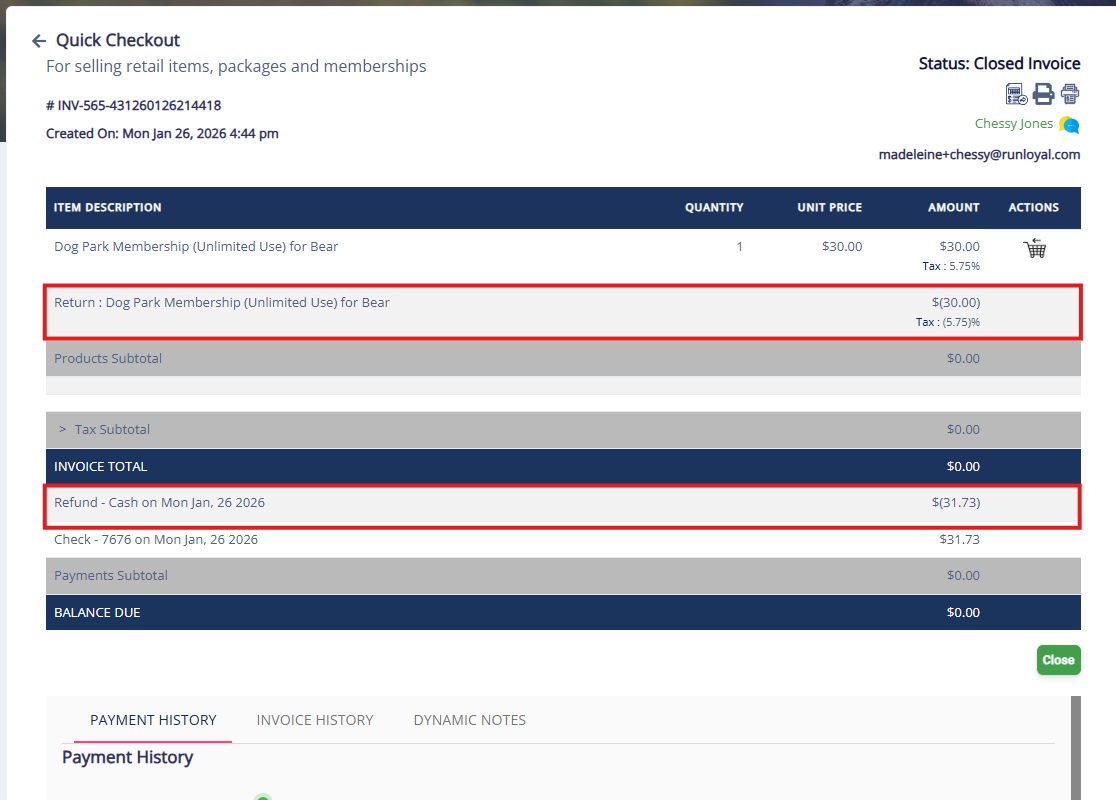
9. Verify the invoice shows the refund as expected.
Deleting/Removing a Membership
1. Navigate to any pet owner's profile by searching the pet or owner name in the search bar, or using the navigation bar to open the Pet Owners page.
2. On the pet owner profile, scroll to the Memberships section and click the Edit pencil icon next to the membership in question you wish to remove.
3. If the membership is set to auto-renew, turn off/disable Auto-Renewal.
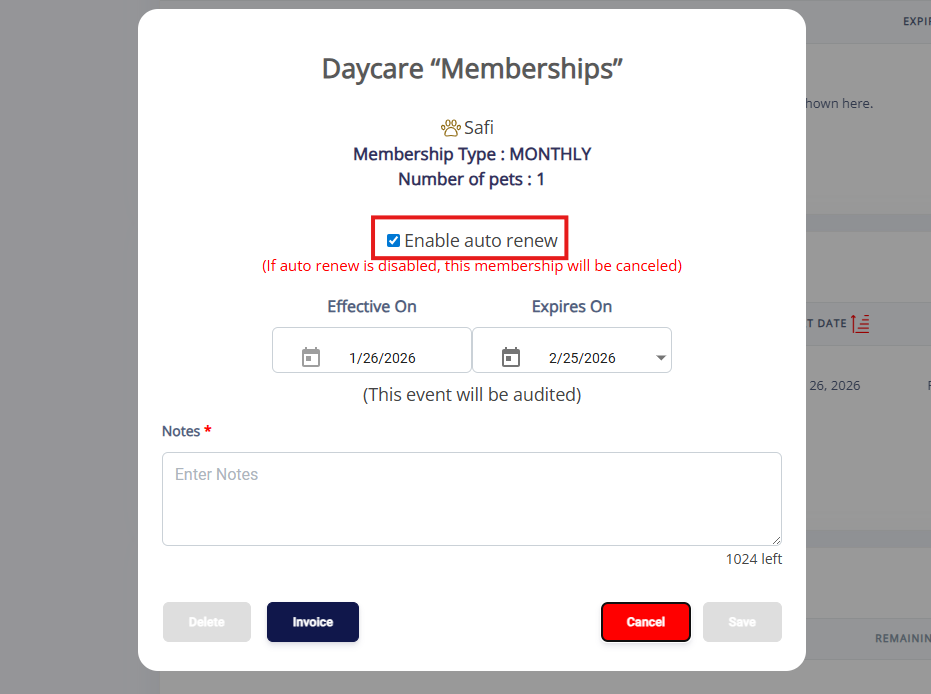
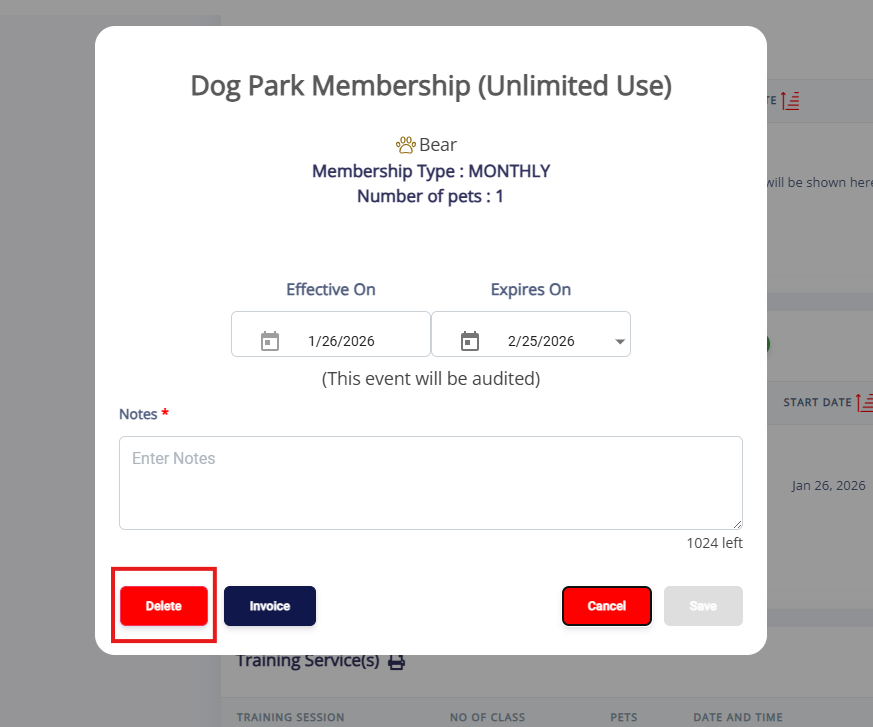
4. Select Delete.
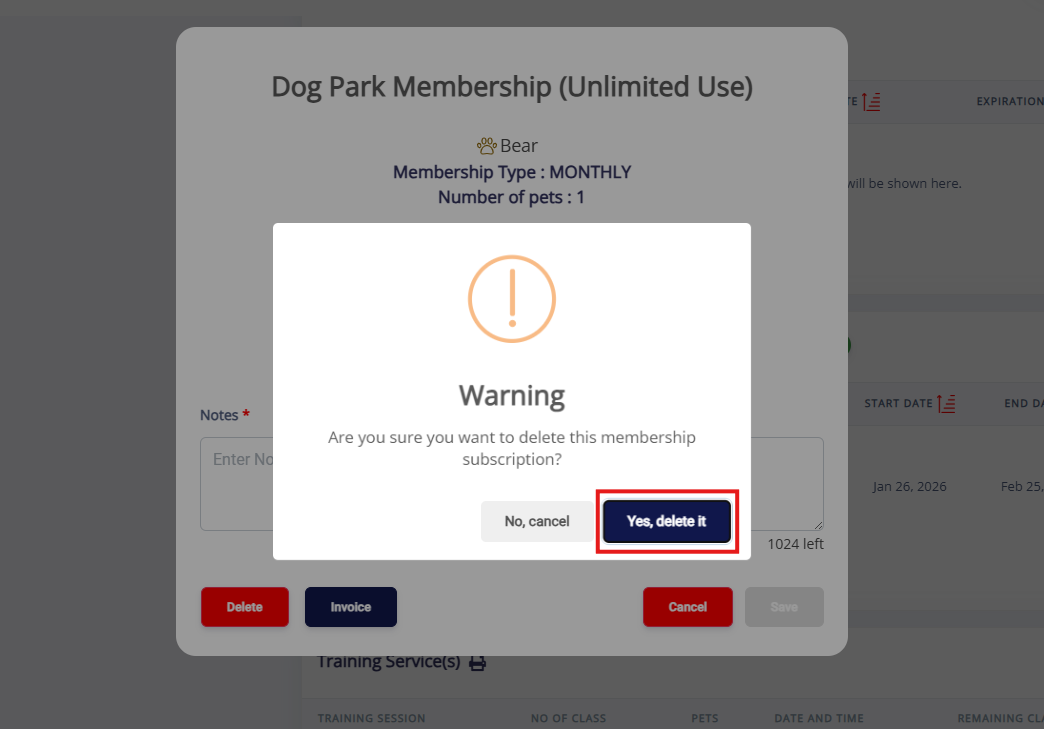
5. Click Yes, Delete It.
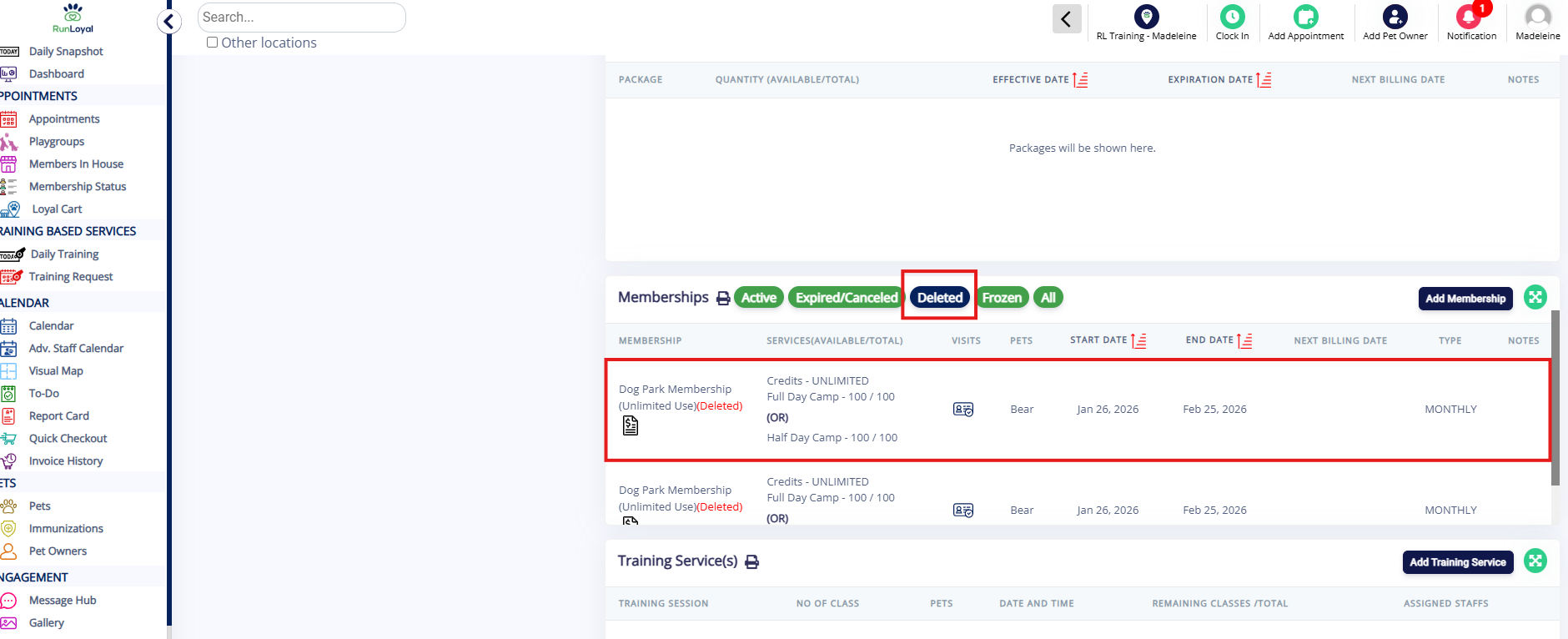
6. Verify the membership now displays under the Deleted section on the Memberships tab.
Forcing a Membership to Expire
1. Navigate to any pet owner's profile by searching the pet or owner name in the search bar, or using the navigation bar to open the Pet Owners page.
2. On the pet owner profile, scroll to the Memberships section and click the Edit pencil icon next to the membership in question you wish to remove.
3. If the membership is set to auto-renew, uncheck the box for Enable Auto-Renewal to prevent future charges for this membership.
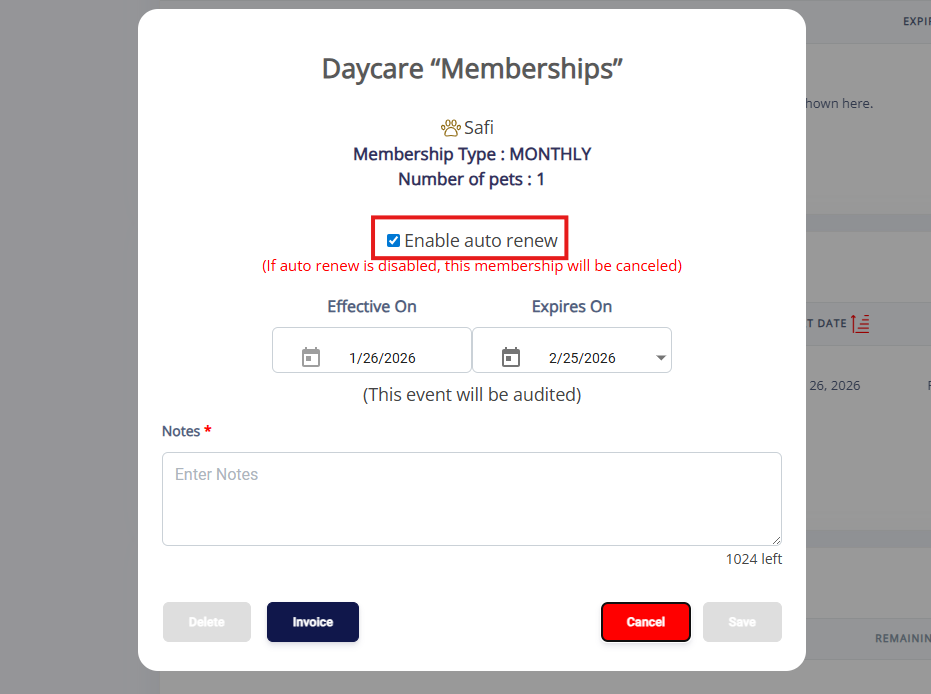
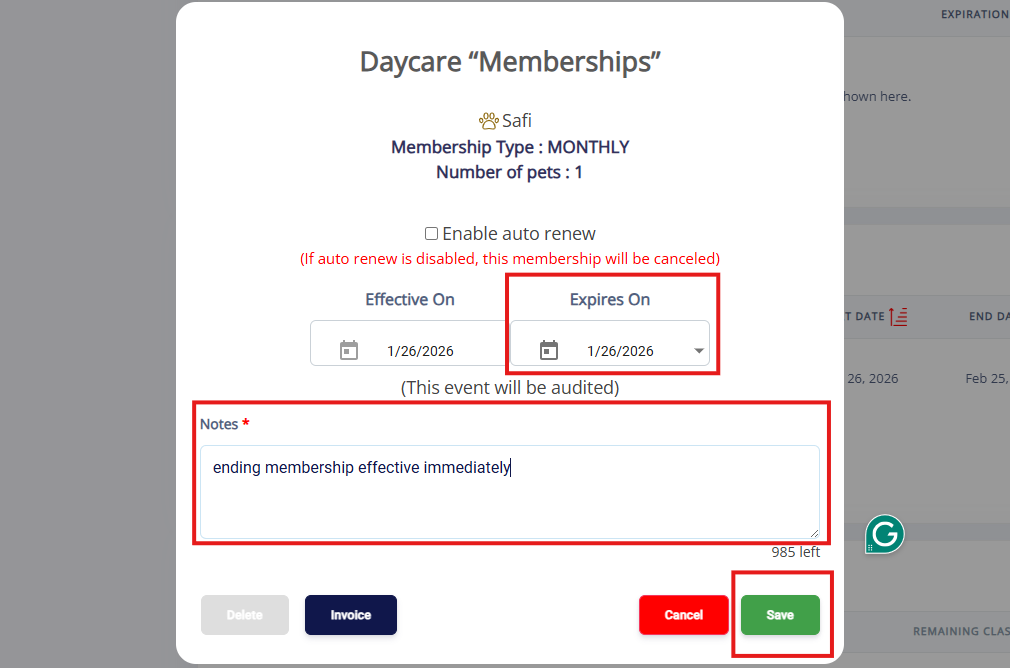
4. Change the Expires On date to today's date, add a Note, then click Save. This will force the membership to expire today so the pet owner can no longer use it.
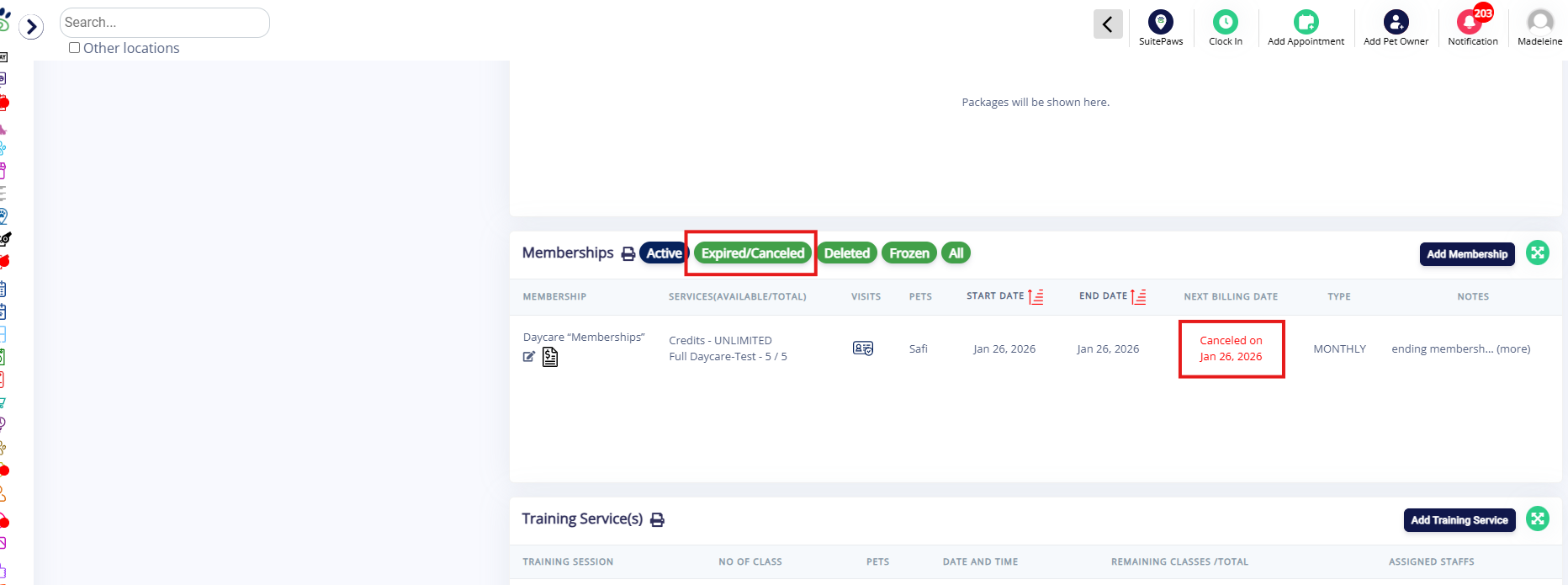
6. Verify the membership now displays as Cancelled (you will see it move under the Expired section on the Memberships tab the next day after the expiration date is fully in the past).
More Information
For more information on setting up memberships, please refer to this article: Setting Up Memberships
For more information on enrolling pet owners in memberships, please refer to this article: Enrolling a Pet Owner in a Membership
Was this article helpful?
That’s Great!
Thank you for your feedback
Sorry! We couldn't be helpful
Thank you for your feedback
Feedback sent
We appreciate your effort and will try to fix the article