Overview
A business staff member can add a credit to a pet owner's account, which can be used to pay for a service or product as an invoice adjustment. The pet owner does not pay for this credit.
Credits can be viewed in the following areas:
- Pet Owner Profile
- Pet Owner icon (displays throughout business portal)
- Paw Metrics > Financial > Credit Details Report
TABLE OF CONTENTS
- Overview
- How To Add a Pet Owner Credit
- How To Use a Pet Owner Credit on an Invoice
- How To Remove a Pet Owner Credit
- More Information
How To Add a Pet Owner Credit
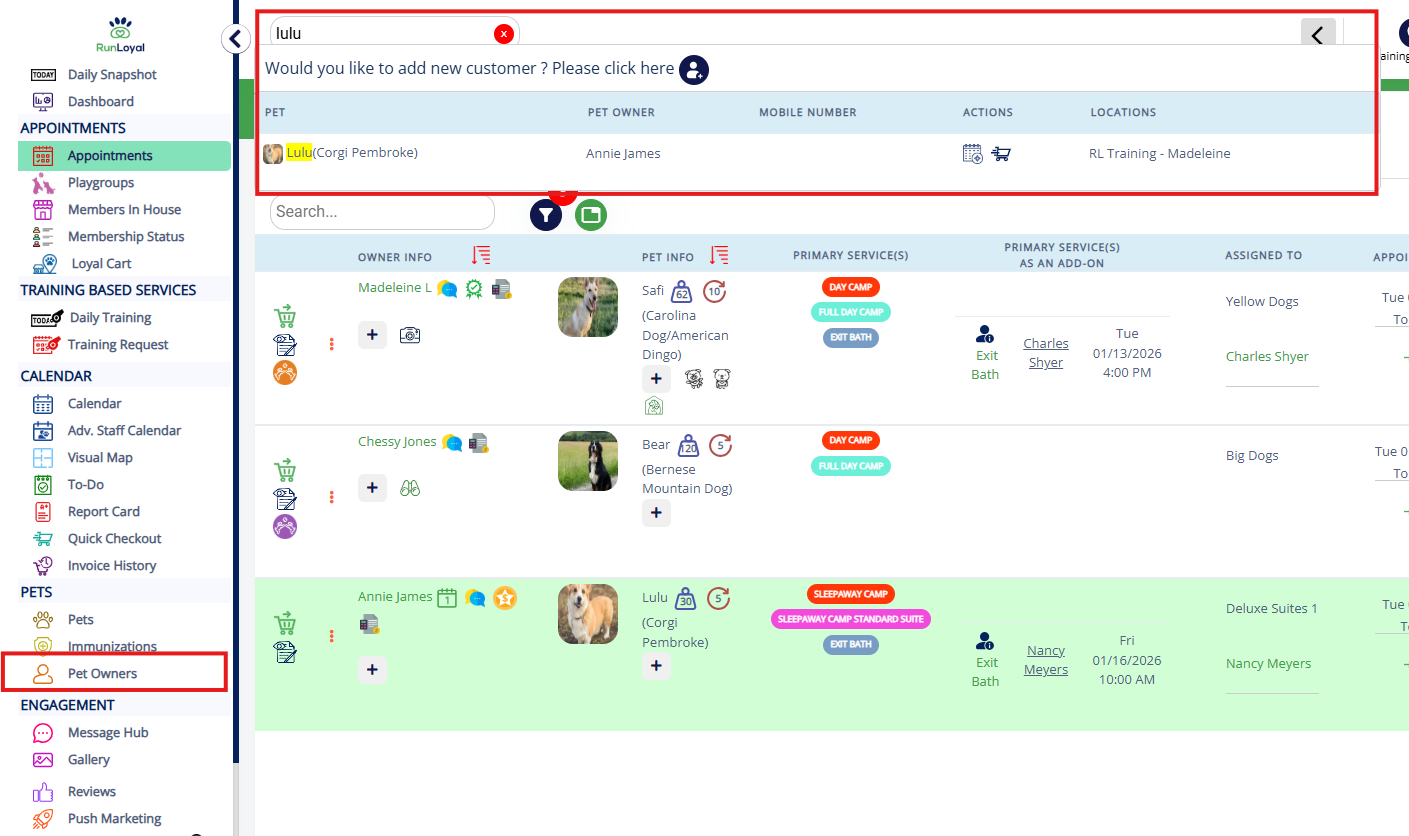
1. Navigate to any pet owner's profile by searching the pet or owner name in the search bar, or using the navigation bar to open the Pet Owners page.
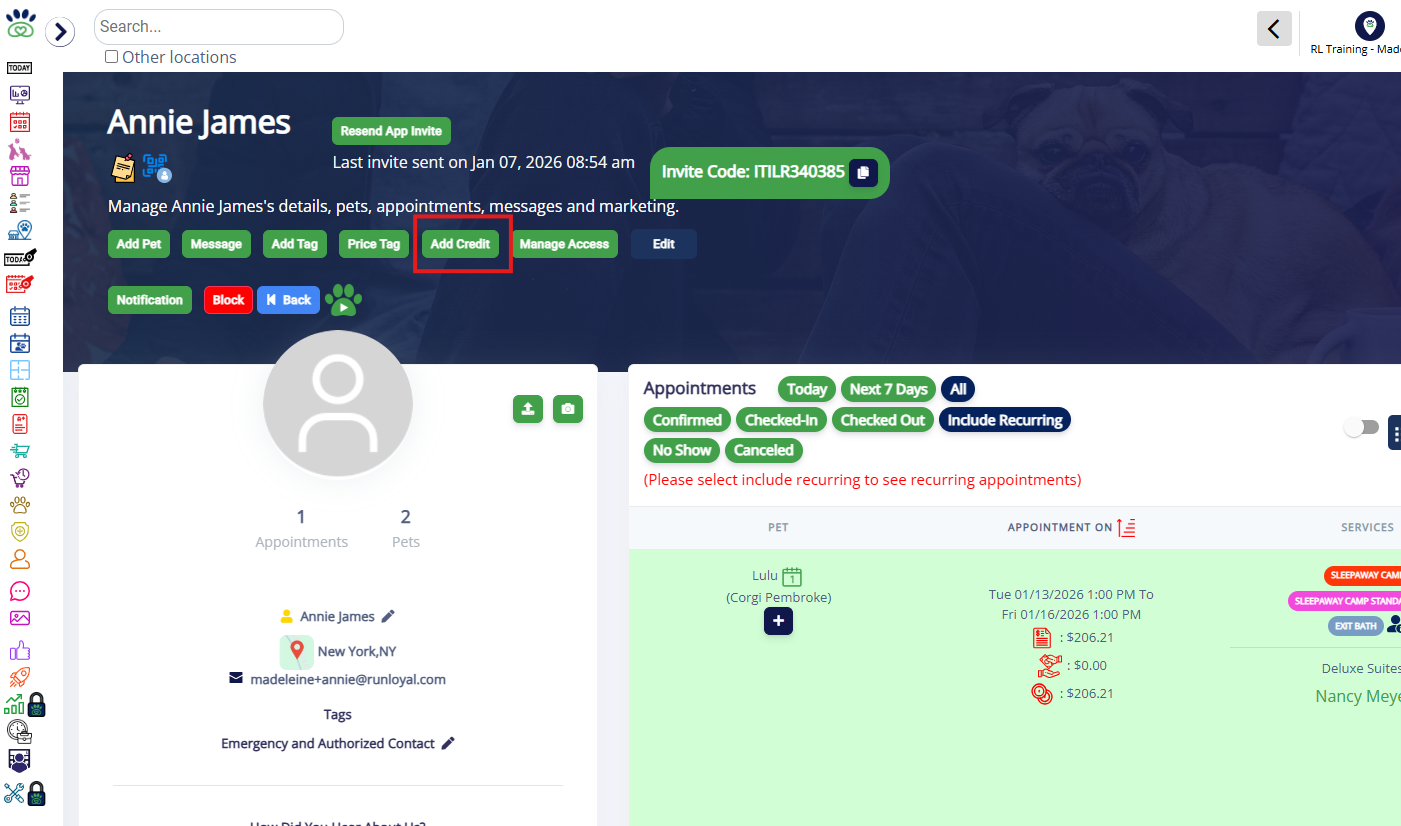
2. On the pet owner profile, click the Add Credit button in the top left of the page, just under the client's name.
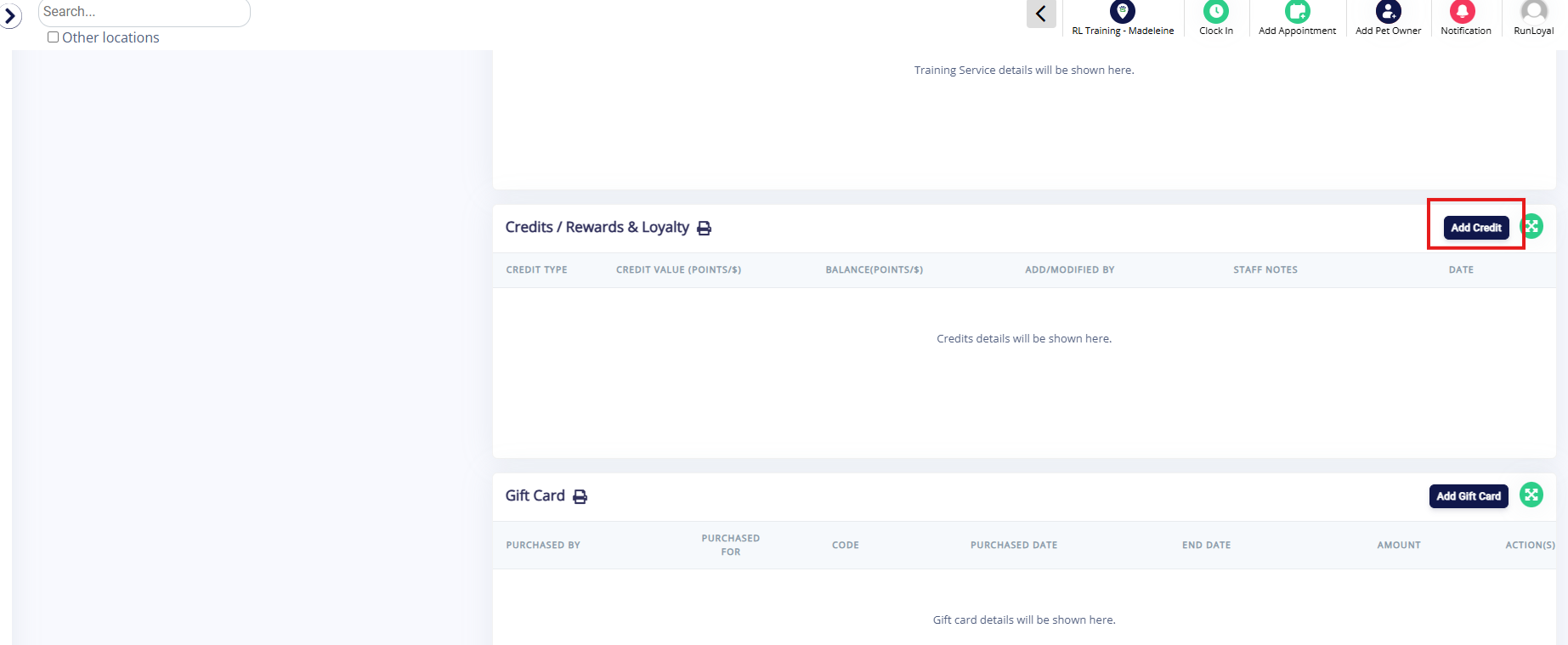
3. You can also scroll down on the pet owner's profile to the Credits / Rewards & Loyalty section and click Add Credit there.
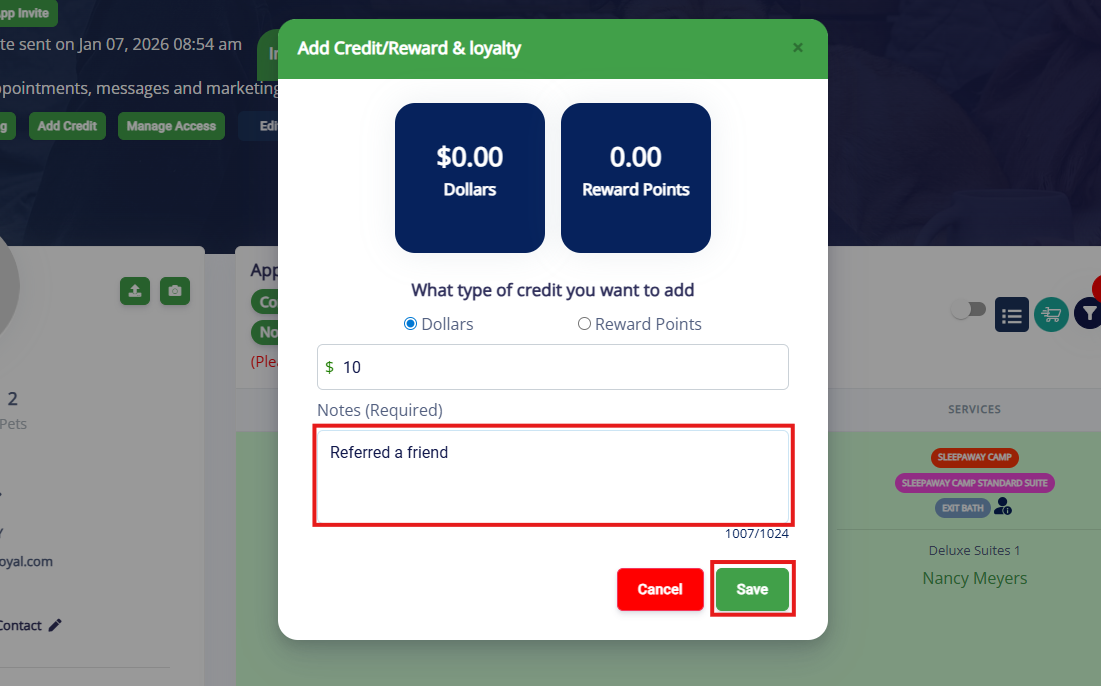
4. On the Add Credits / Rewards & Loyalty popup, select Dollars and then enter the flat dollar amount into the $ text field.
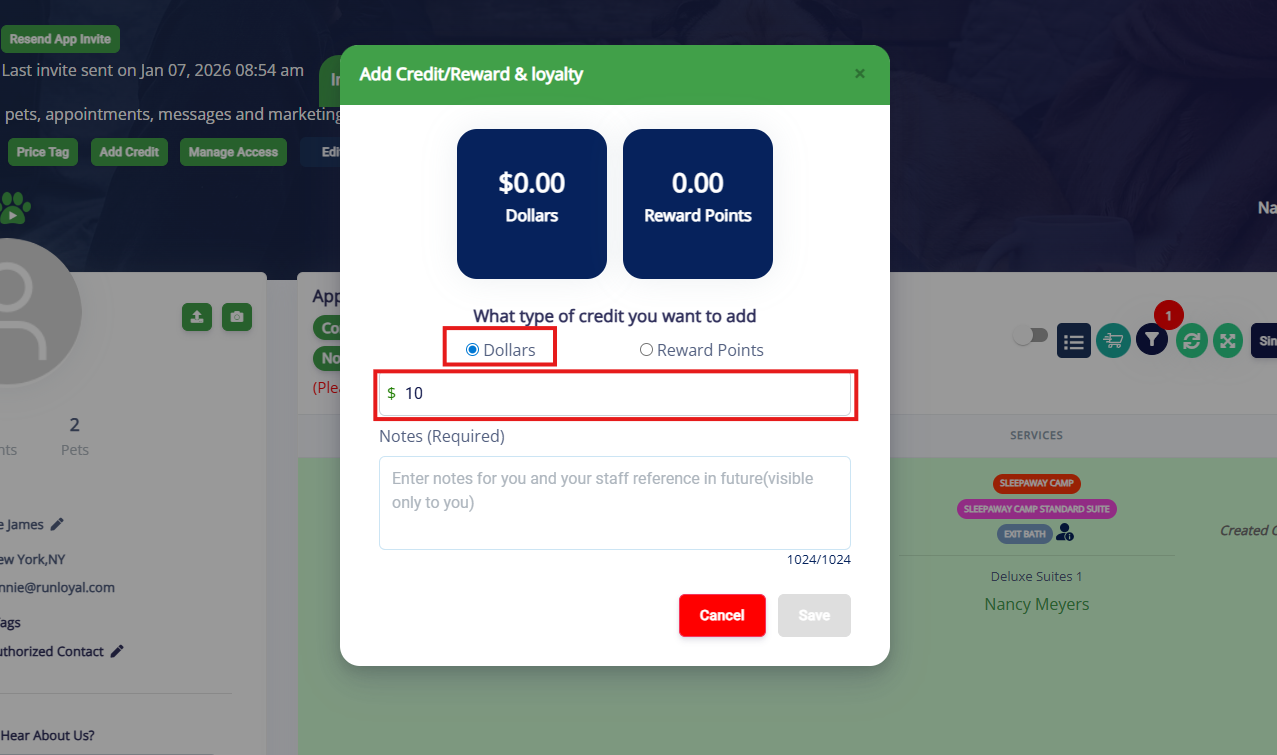
5. Enter a note in the Notes (Required) textbox explaining why you are providing the credit. These notes are not visible to the pet owner. Then select Save to add the credit to their account.
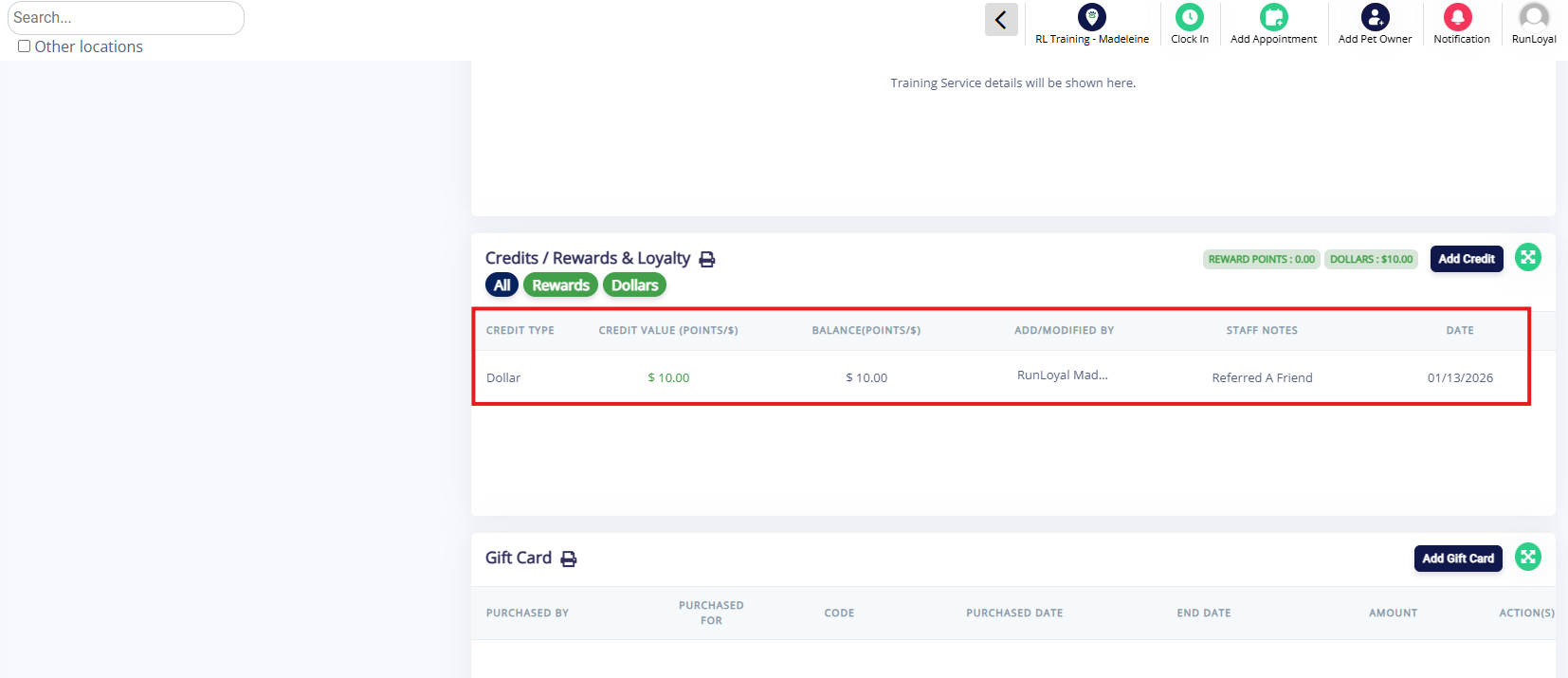
6. Confirm the credit displays as expected on the pet owner profile.
How To Use a Pet Owner Credit on an Invoice
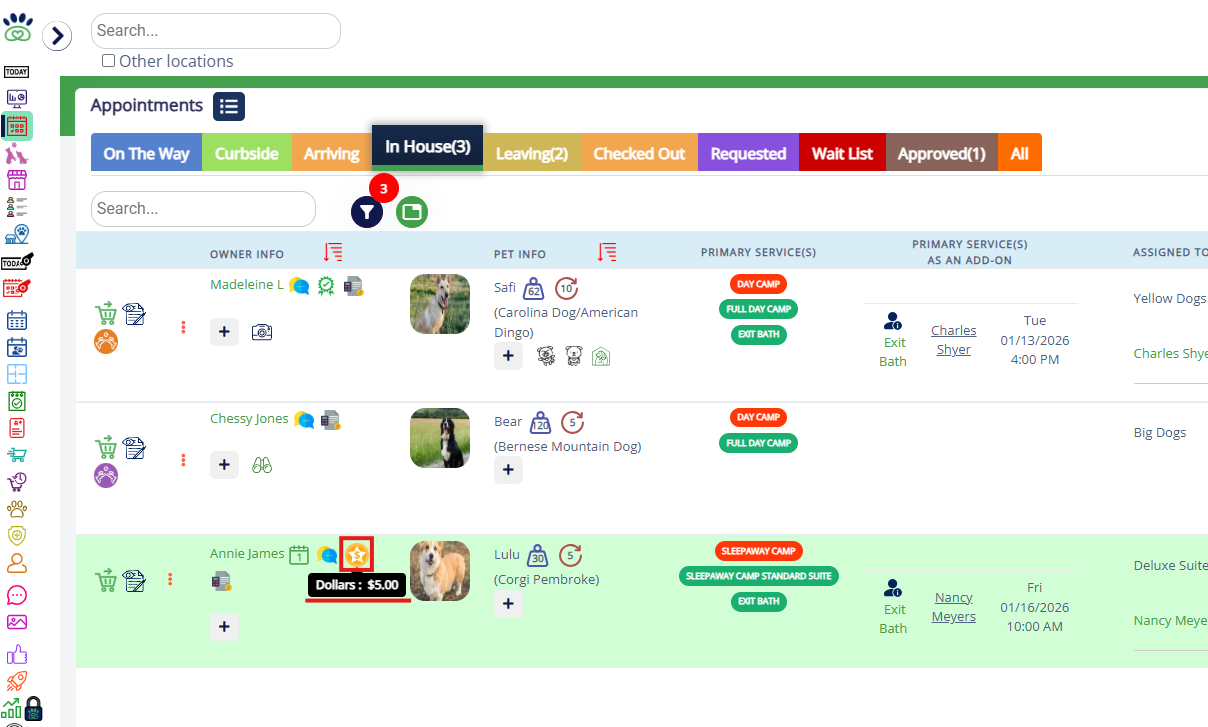
1. You can easily see who has a credit because a credit icon will display next to their name. For any owner with a credit, navigate to an existing invoice or add them to the cart to check out a new invoice.
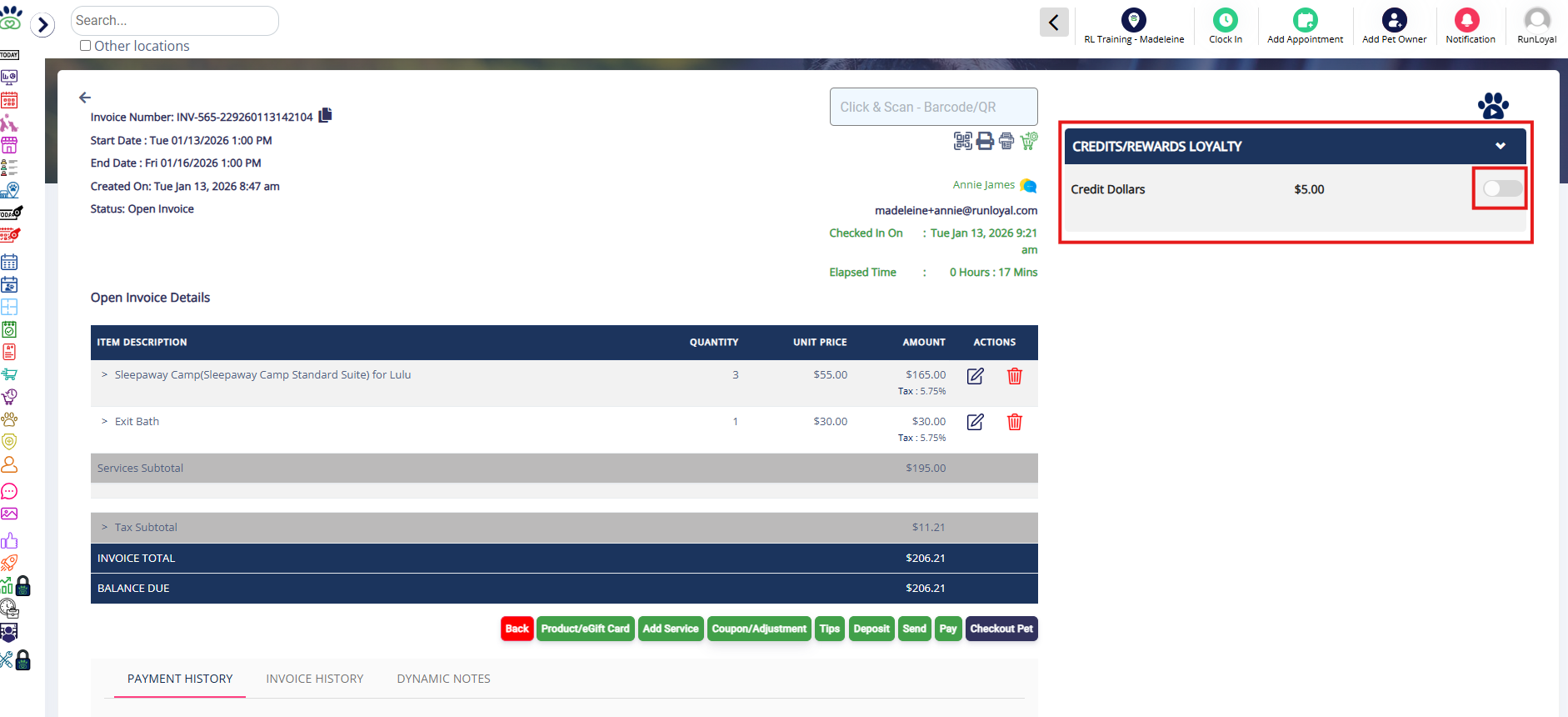
2. In the cart, there will be a section on the right titled Credit/Rewards Loyalty. Toggle on the button next to Credit Dollars to apply all or a portion of available credit.
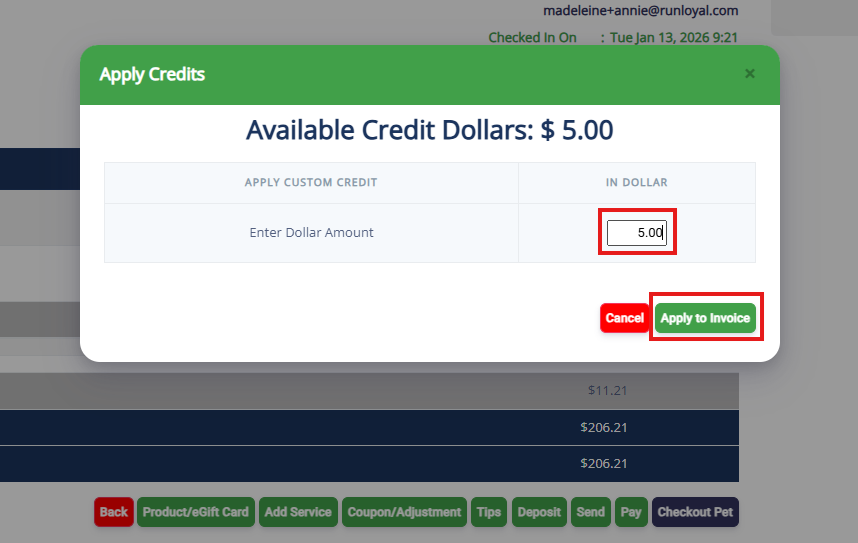
3. On the Apply Credits popup, enter the dollar amount you wish to apply. It cannot exceed the available credit dollars. You can enter a partial or entire amount of available credit dollars. Then click Apply to Invoice.
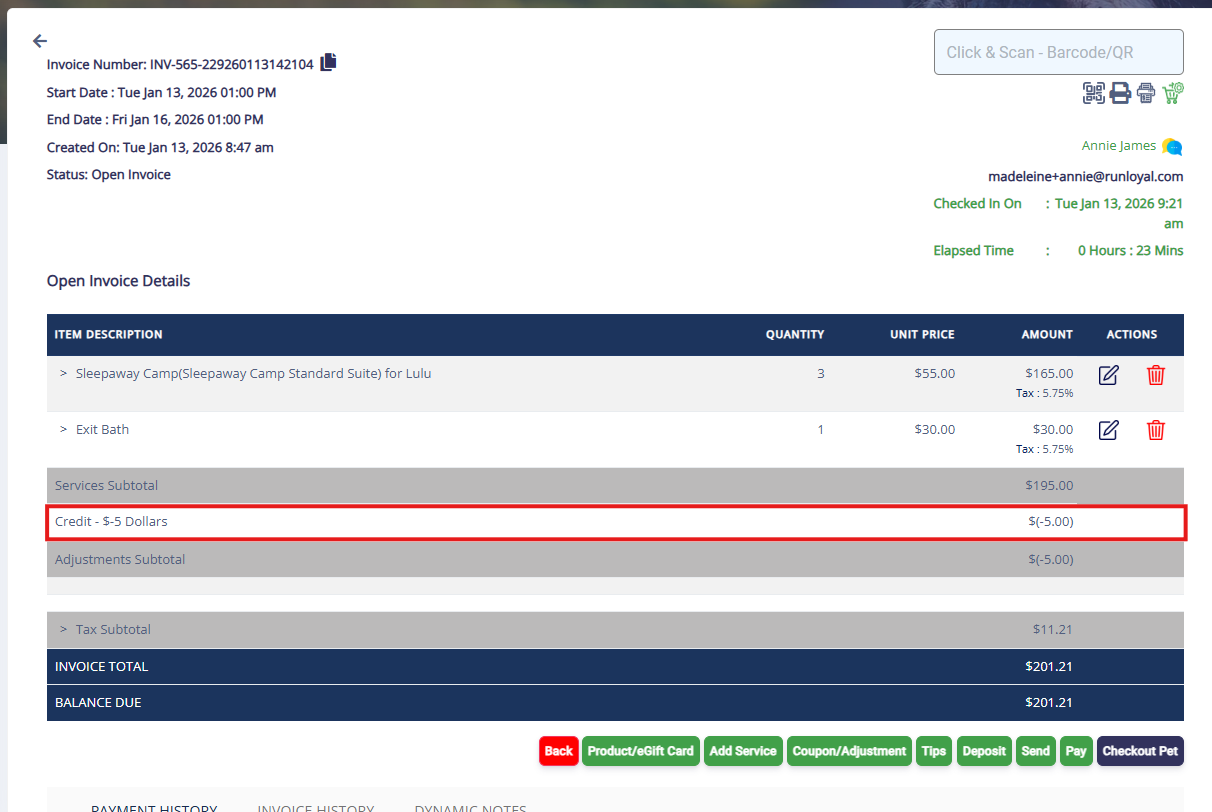
4. The credit amount applied will show in the Adjustments section of the invoice. You can then close the invoice or checkout with additional payment if payment is remaining.
How To Remove a Pet Owner Credit
1. Navigate to any pet owner's profile by searching the pet or owner name in the search bar, or using the navigation bar to open the Pet Owners page.
2. On the pet owner profile, click the Add Credit button in the top left of the page, just under the client's name.
3. You can also scroll down on the pet owner's profile to the Credits / Rewards & Loyalty section and click Add Credit there.
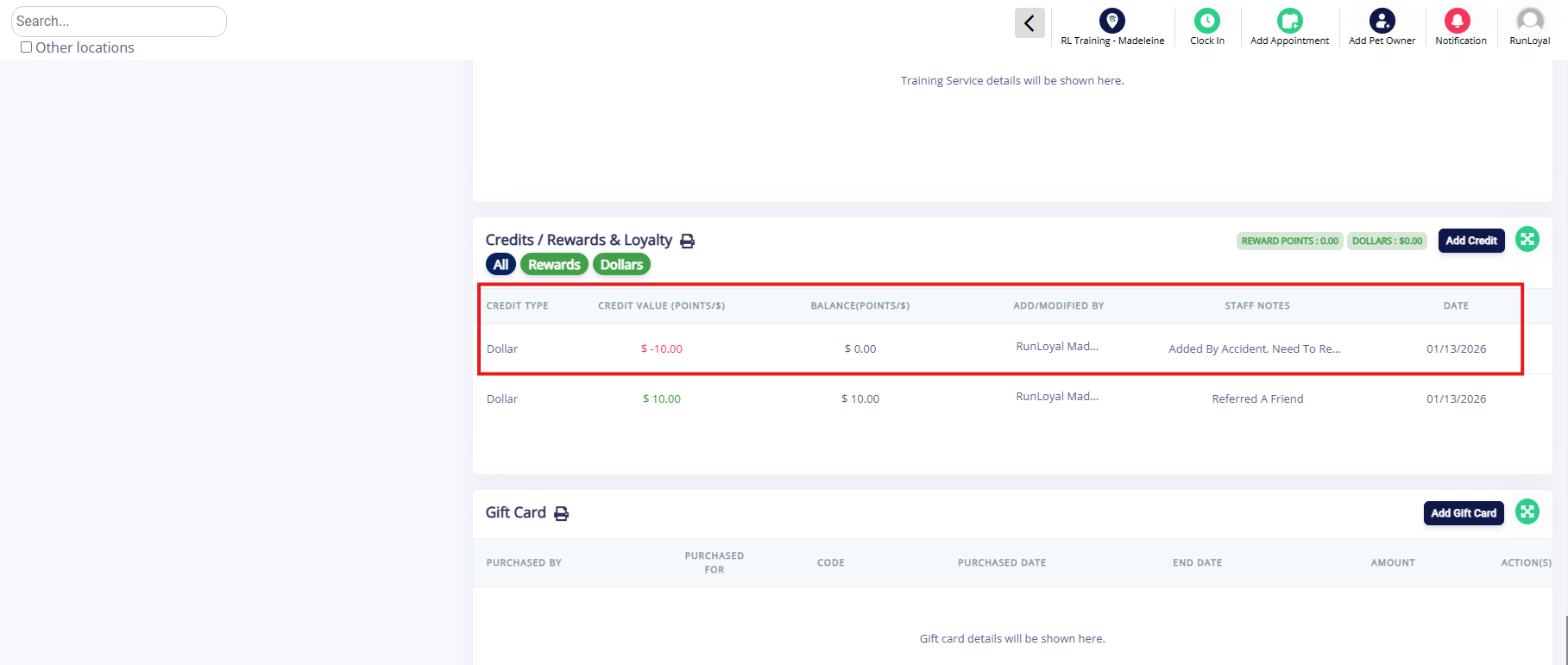
4. On the Add Credits / Rewards & Loyalty popup, select Dollars and then enter a negative flat dollar amount into the $ text field.
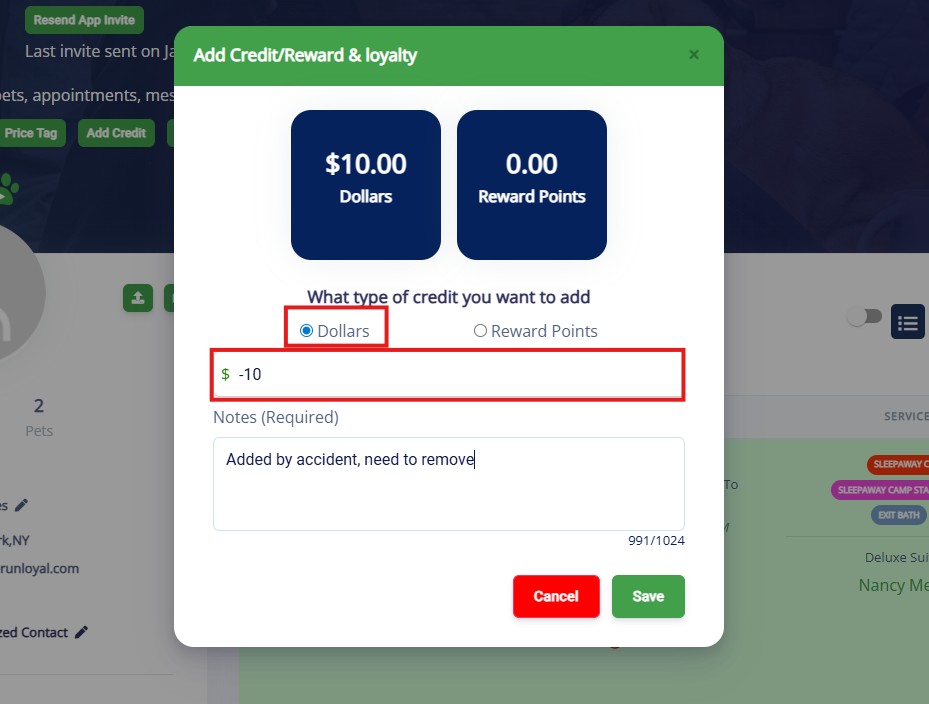
5. Enter a note in the Notes (Required) textbox explaining why you are removing the credit. These notes are not visible to the pet owner. Then select Save to remove the credit amount from their account.
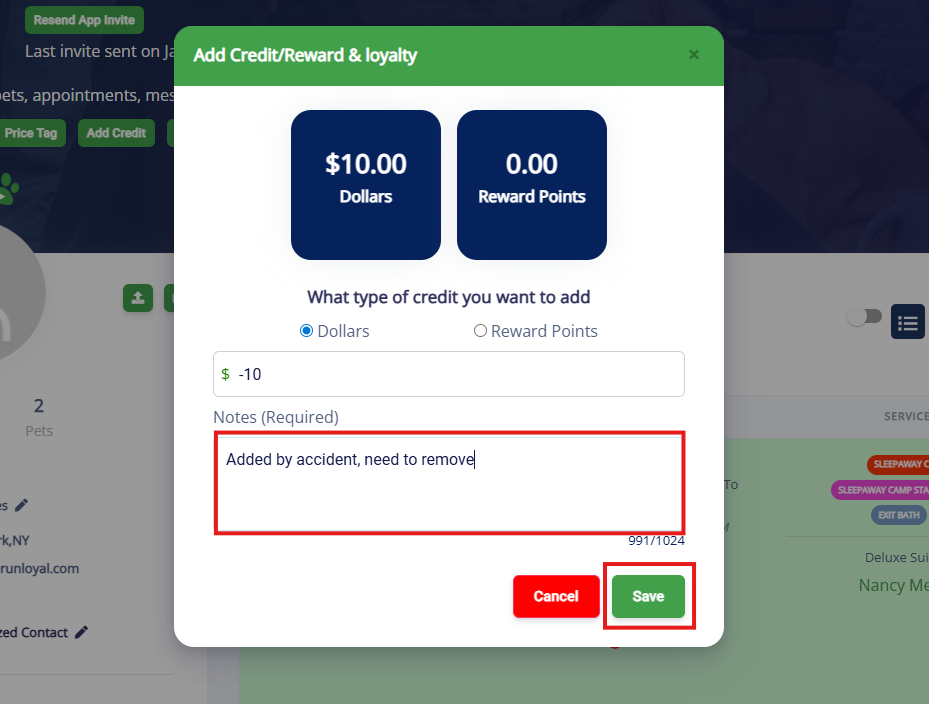
6. Confirm the credit was removed as expected on the pet owner profile.
More Information
For more information on e-Gift Cards, please refer to this article: e- Gift Card
Was this article helpful?
That’s Great!
Thank you for your feedback
Sorry! We couldn't be helpful
Thank you for your feedback
Feedback sent
We appreciate your effort and will try to fix the article