Overview
Gift cards are a great way to add usable credit to a pet owner's account to redeem on future purchases at your business. Gift cards can be purchased by the pet owner for their own account, or purchased by another person but added to the pet owner's account. Gift cards can be redeemed easily from any invoice.
Gift Cards can be viewed in the following areas:
- Settings > Retail > E-gift Card
- Quick Checkout
- Invoices
- Pet Owner Profile
TABLE OF CONTENTS
- Overview
- Create a Gift Card
- Sell a Gift Card to a Pet Owner
- Applying a Gift Card to an Invoice
- More Information
Create a Gift Card
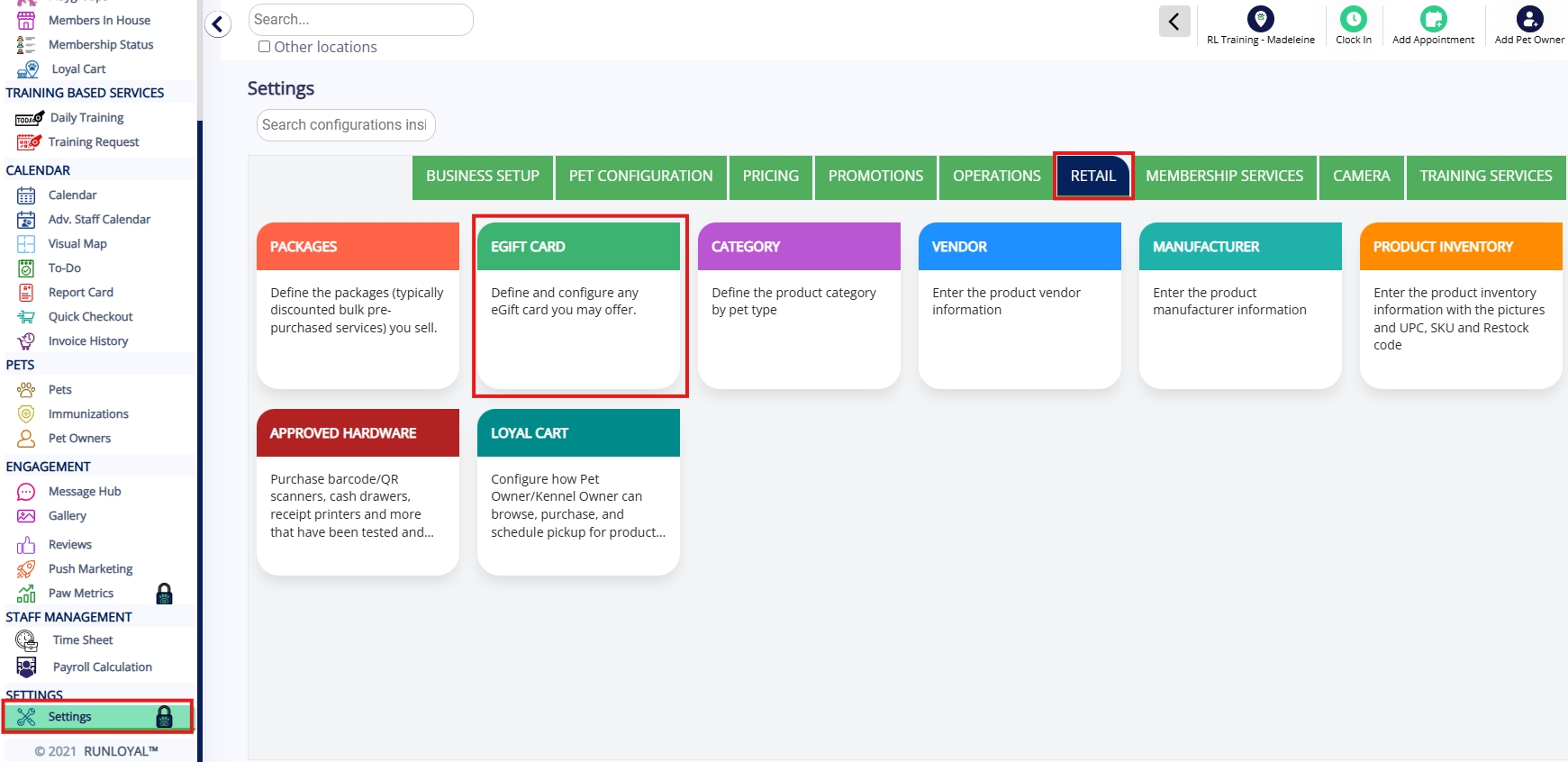
1. To create a new gift card to sell at your business, navigate to Settings > Retail > E-gift Card.
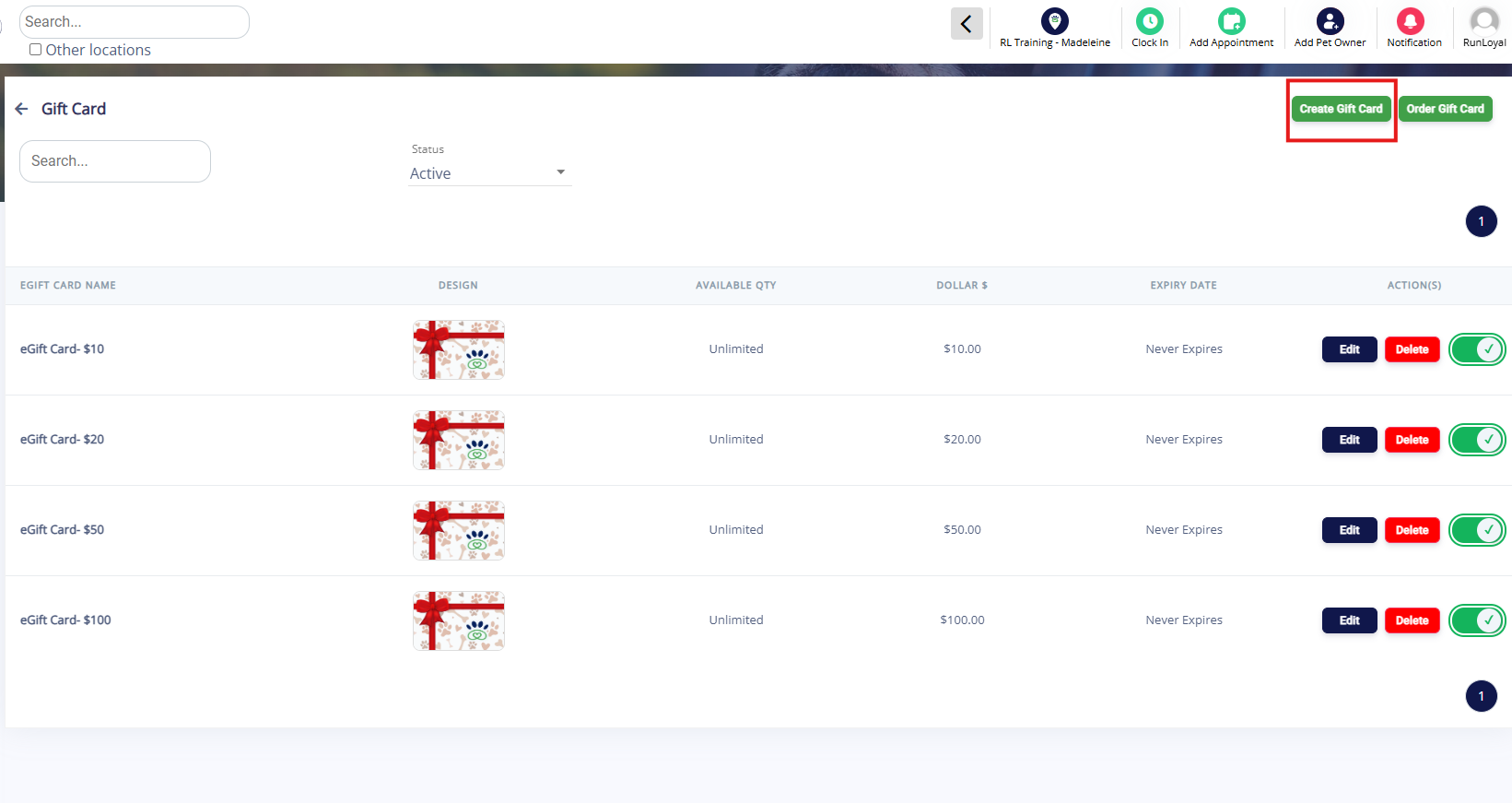
2. Click Create Gift Card.
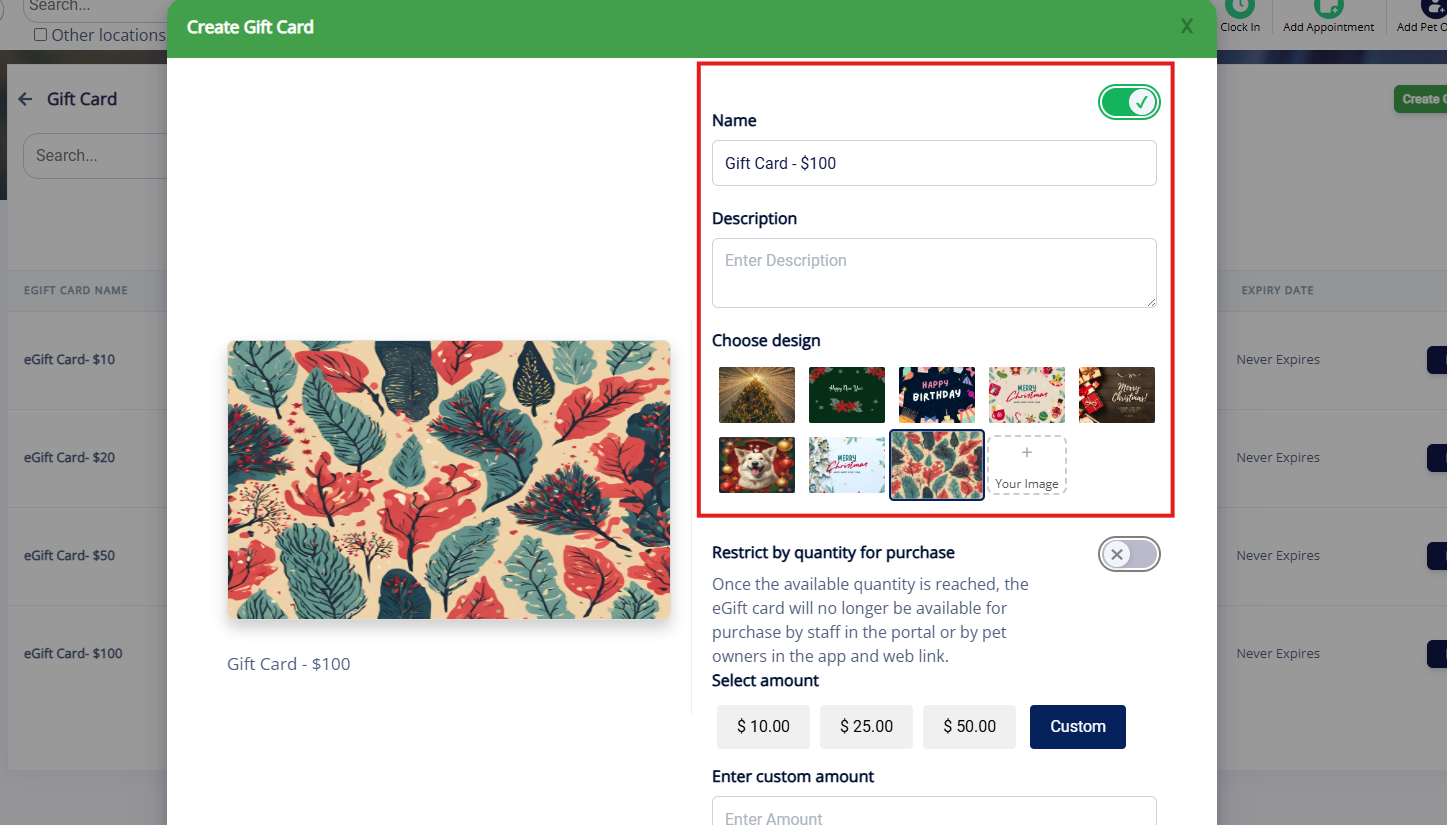
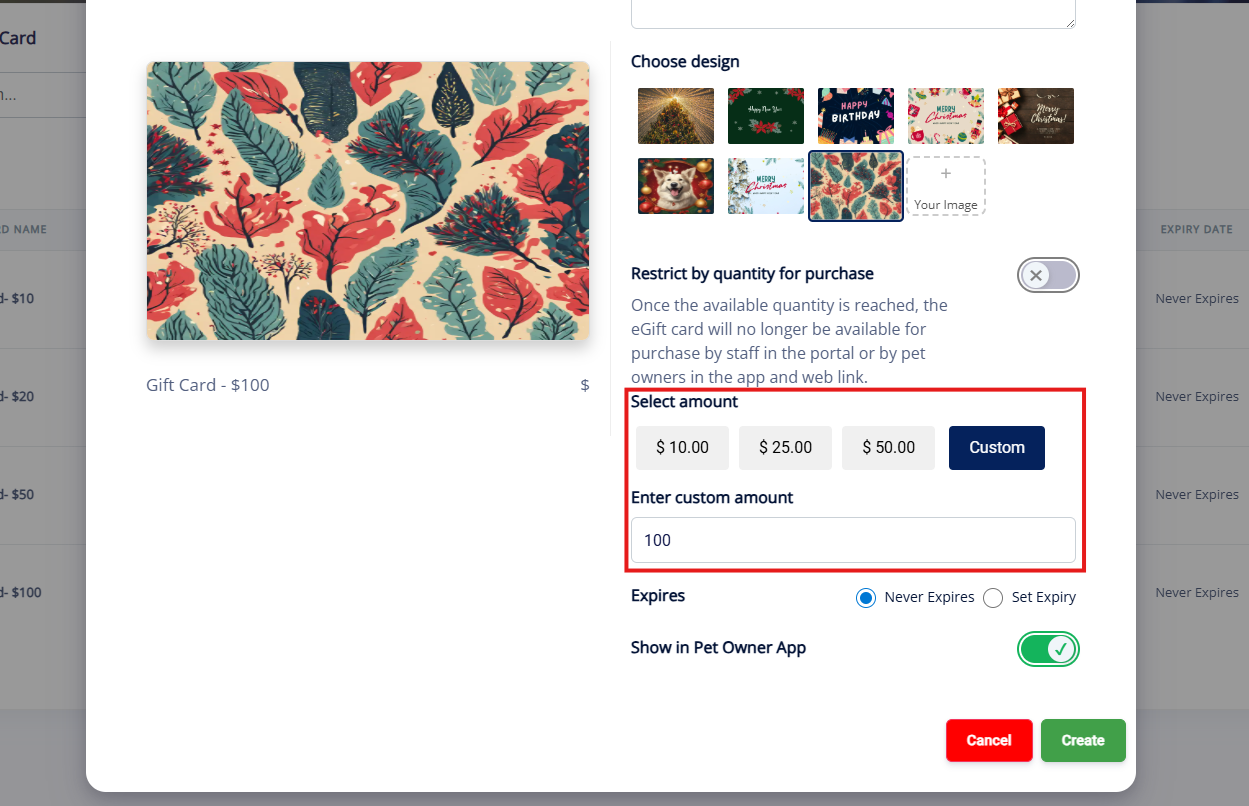
3. Enter a Name for the gift card (such as Gift Card $100), optionally enter a Description, and choose an existing card Design or upload your own.
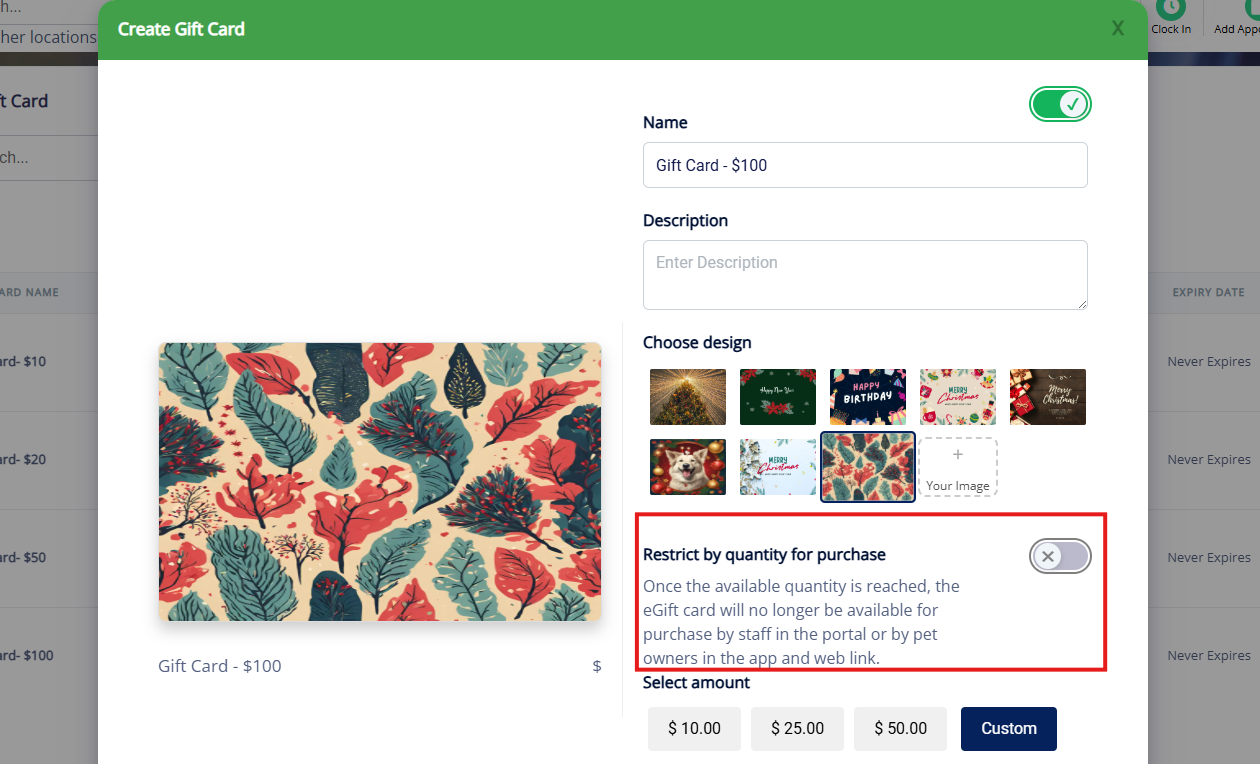
4. If you wish to restrict by quantity (such as only 10 gift cards of this type can be sold), toggle on Restrict by quantity for purchase.
5. Enter the Amount for the gift card. This is a set amount that will be added to the cart when purchasing the gift card. You can select the options 10, 20, 50, or select Custom and enter a custom amount.
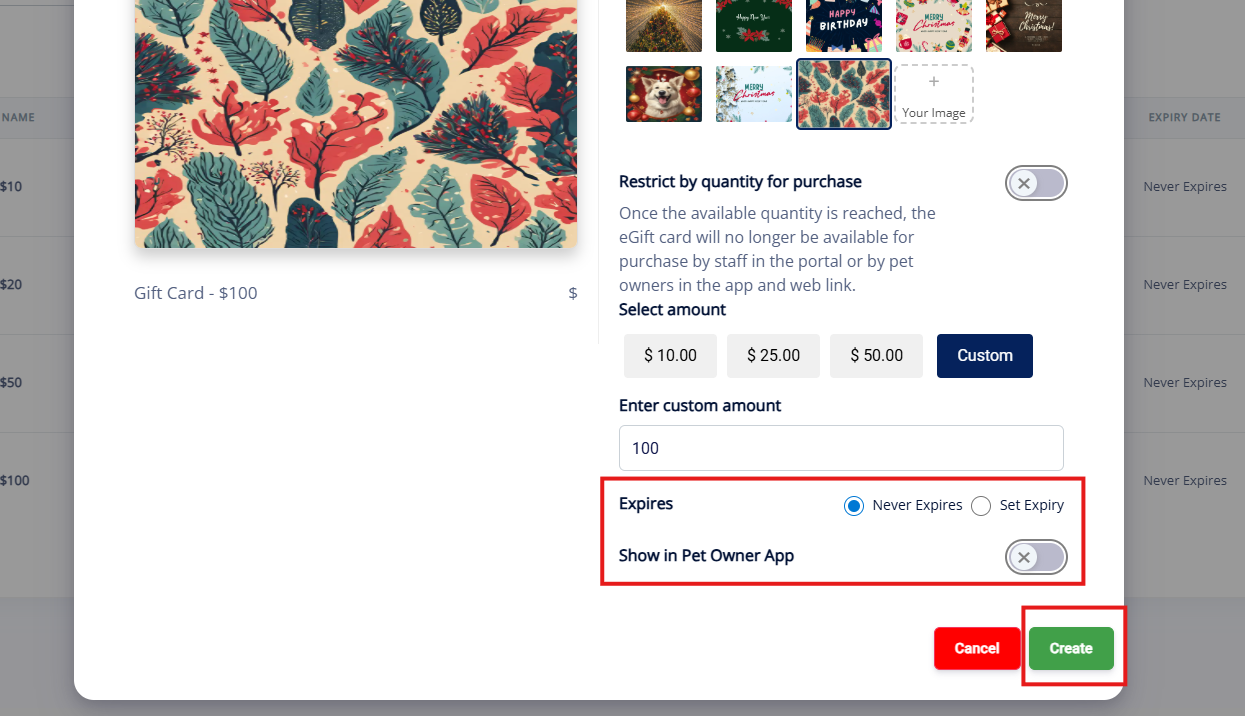
6. If the gift card should never expire, select Never Expire, but if the gift card should expire on a specific date, select Set Expiry and choose the date. If customers should be able to purchase the gift card in the mobile app, toggle on Show in Pet Owner App. Once you have confirmed all your settings, click Create.
Sell a Gift Card to a Pet Owner
1. To sell a gift card to a pet owner, navigate to the left-hand navigation Quick Checkout.
2. Search for the customer who is purchasing the gift card in the Search text field.

3. Once the correct customer is selected, click Product/eGift Card at the bottom of the invoice.

4. Either select eGift Card to choose the gift card you created in Settings > Retail > eGift Card above, or eGift Card (Add manually) to add a custom amount.

5. If selecting eGift Card to use an existing gift card, check the box next to the gift card you wish to purchase and select Add to Cart.

6. Choose Self if the recipient should be the person purchasing, or Other Pet Owner if the gift card should go to a different pet owner. If you select Other Pet Owner, you will need to select that pet owner's account or create them in the system. Set if you wish to notify the purchaser via email.
⚠️ Important: An email address is required for notification; if the pet owner does not have an email address on file, the email will not be sent.

7. If selecting eGift Card (Add manually) to create a new gift card, choose the amount and design. Then choose Self if the recipient should be the person purchasing, or Other Pet Owner if the gift card should go to a different pet owner. If you select Other Pet Owner, you will need to select that pet owner's account or create them in the system. Set if the gift card should expire and whether you wish to notify the purchaser via email. Then click Add to Cart.
⚠️ Important: An email address is required for notification; if the pet owner does not have an email address on file, the email will not be sent.

8. Once the gift card is in the cart, click Pay.
9. Select the Payment method.
10. Enter the amount paid, and click Record Payment.

11. Verify the gift card added properly to the account in question.

Applying a Gift Card to an Invoice
1. Navigate to any invoice where you would like to apply the gift card.
2. Locate the Gift Cards section on the right and toggle on the gift card which you would like to apply.

3. Enter the amount from the gift card which should be applied to the invoice, then click Apply.

4. Continue checkout on the invoice.
More Information
For more information on viewing gift cards on a pet owner profile, please refer to this article: How to Locate an eGift Card Code on a Pet Owner Profile
Was this article helpful?
That’s Great!
Thank you for your feedback
Sorry! We couldn't be helpful
Thank you for your feedback
Feedback sent
We appreciate your effort and will try to fix the article