Overview
Refunding an invoice gives you flexible options to handle changes or corrections with confidence. This article walks you through how to refund specific items along with their associated payment, or how to refund only the payment while keeping your records accurate. If you choose to refund just the payment, you can either leave the balance due so the pet owner can repay with a different method, or clear the balance so nothing remains owed. With these options, you can properly manage refunds while keeping billing clear and consistent.
Refunds can be viewed in the following areas:
- Pet owner profile > Invoice
- Left-hand Navigation > Invoice History
- Left-hand Navigation > Pawmetrics > Financial
TABLE OF CONTENTS
- Overview
- How to Refund Service(s) & Payment on Invoice
- How to Refund Full Cost of Invoice & Payments
- How to Refund Only a Payment (Customer Still Owes)
- More Information
How to Refund Service(s) & Payment on Invoice
This type of refund allows you to refund service(s) and money paid on an invoice for the full or partial cost of the item. For example, say the invoice has a Boarding stay, Bath & Brush, and Nail trim.
- If you wish to refund the price of the nail trim only along with the amount paid (the customer should not owe), you would follow the below steps.
- If you wish to refund the price of the Boarding stay, Bath & Brush, and Nail trim and paid amounts for those items (the customer should not owe), then you would also follow the below steps.
⚠️Important: Please note this type of refund excludes tax, tips, and adjustments as it only includes refunds from the Services section.
1. Navigate to the invoice in question from Pet owner profile > Invoice > View Invoice, or Left-hand Navigation > Invoice History > Open/Closed Invoices > View Invoice.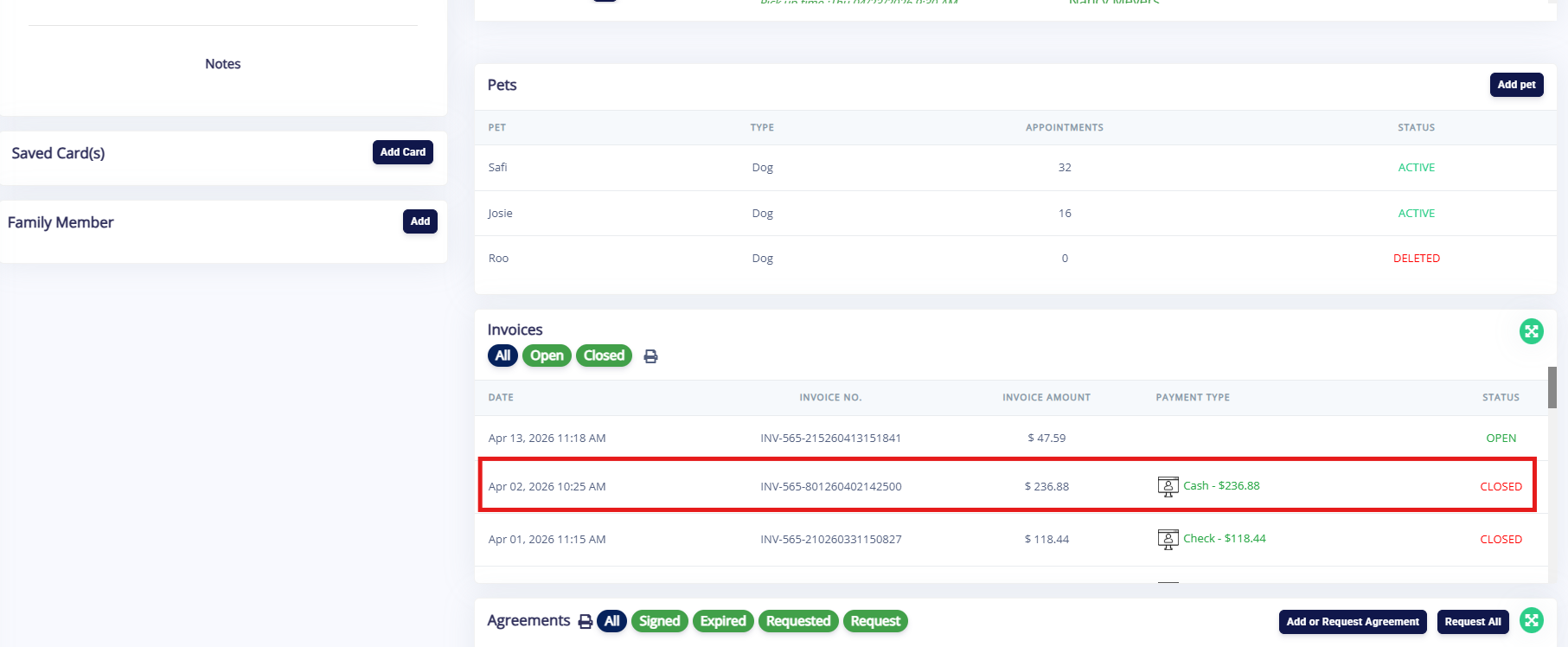
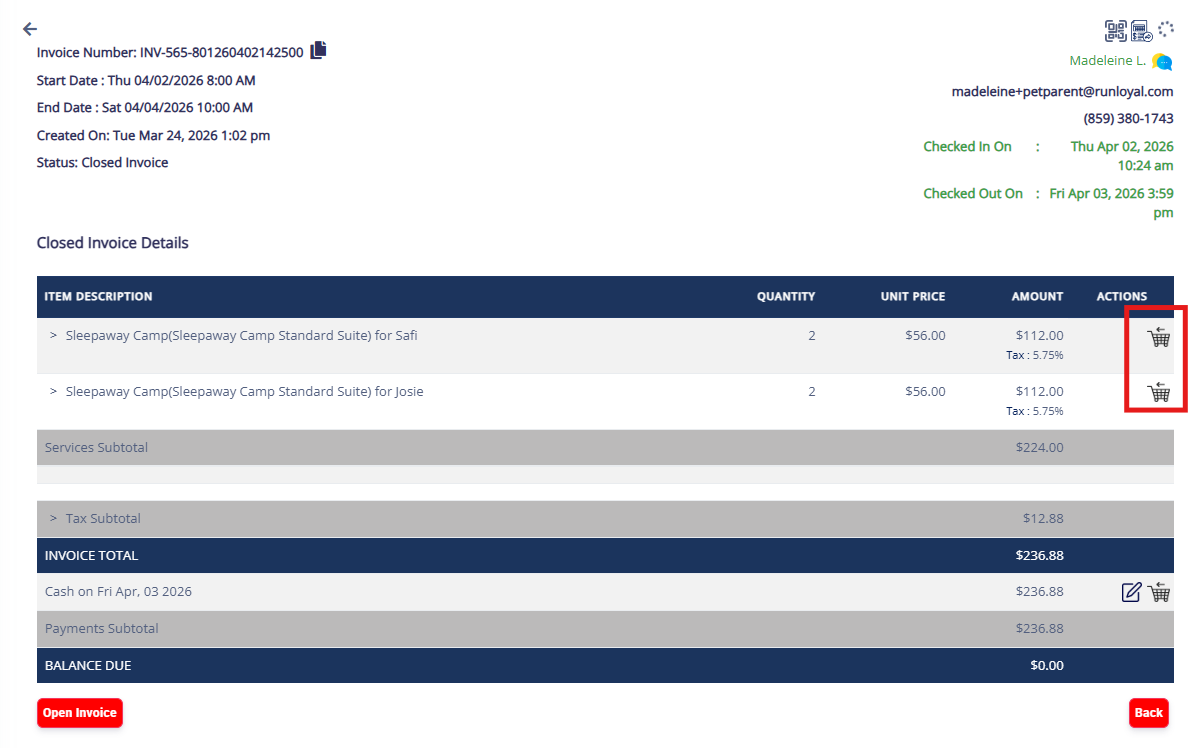
2. Click the Refund (cart icon) next to the item or one of the items you wish to refund.
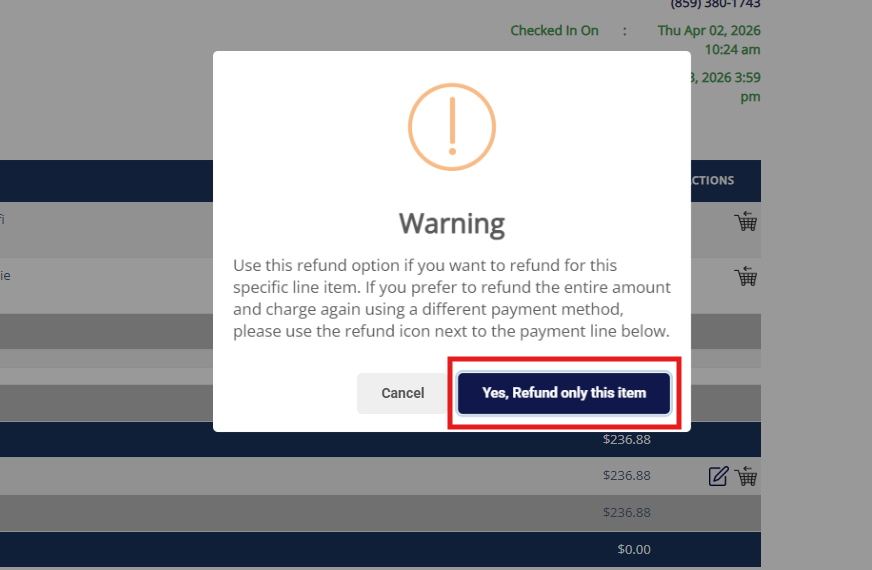
3. Click Yes, Refund only this item to indicate you wish to refund the item(s) so the customer will not owe on the invoice. On the next screen, you can refund one item or multiple.
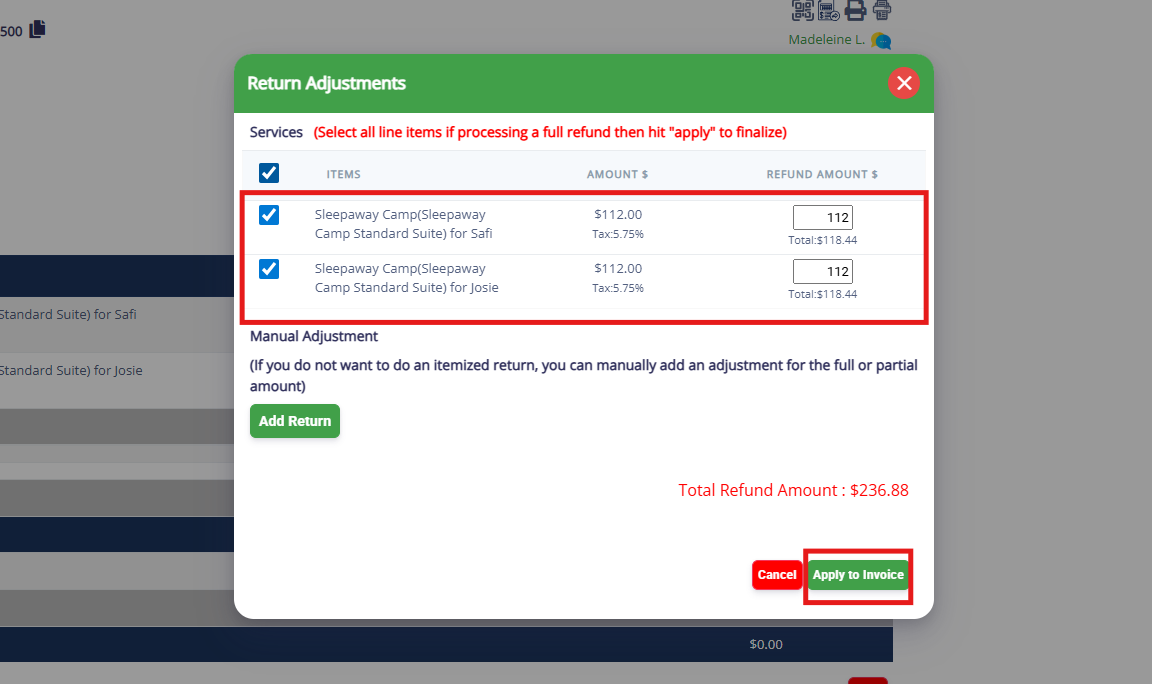
4. Select the item or items to be refunded. For the selected item(s), edit the refund amount if you wish to refund less than the full amount. Then click Apply to Invoice.
5. To refund the money in the value of the item(s) being refunded, click Process Refund. Clicking Process Refund will allow you to select the payment type of the refund such as cash, check, or credit card (if paid via credit card originally). You can also process a refund to Account Credit by clicking Add to Credit.
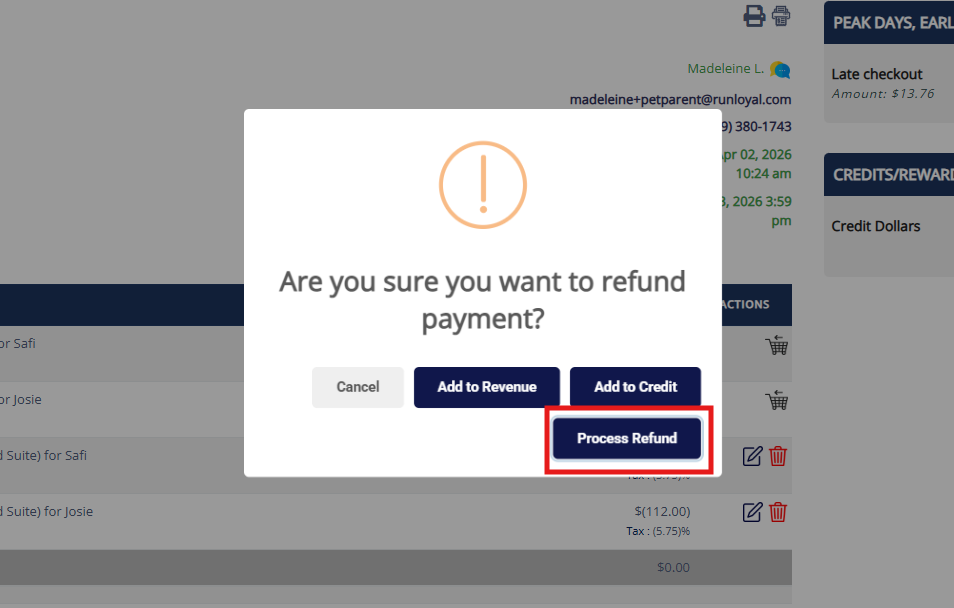
6. Select the Payment Type of the refund (credit card, cash, check, other) or check the box to add the refund to Account Credit instead of a payment type.
⚠️ Important: If refunding to a credit card payment, refunds can only be processed on the card that was used in the original transaction.
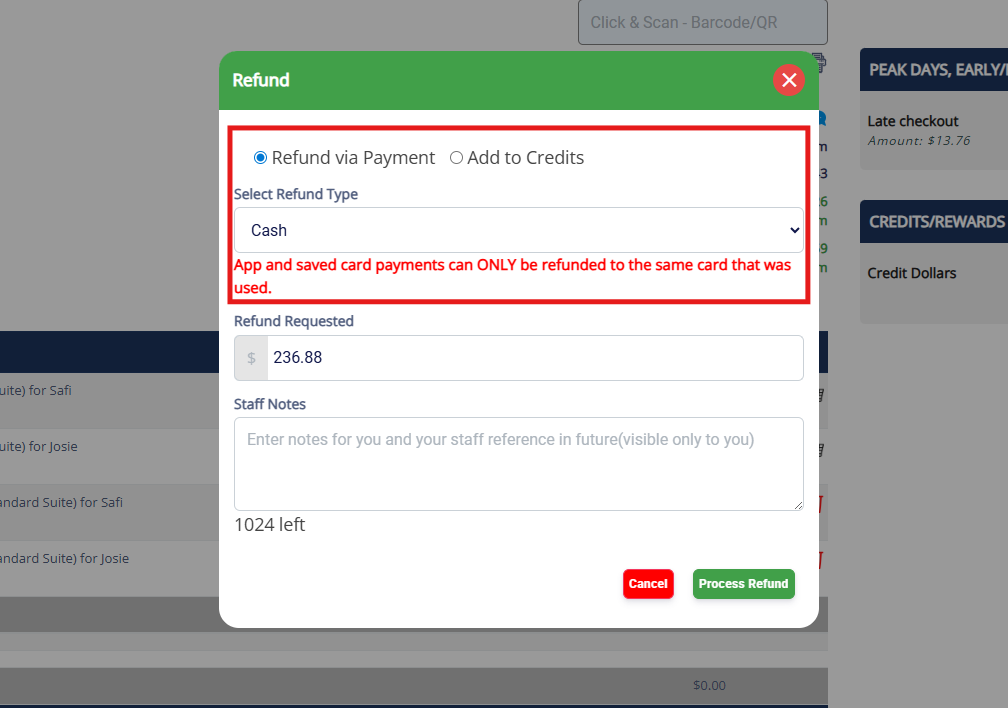
7. Enter the amount that should be refunded to the payment type. Then click Process Refund.
⚠️ Important: You will not be able to refund more than the amount that was paid.
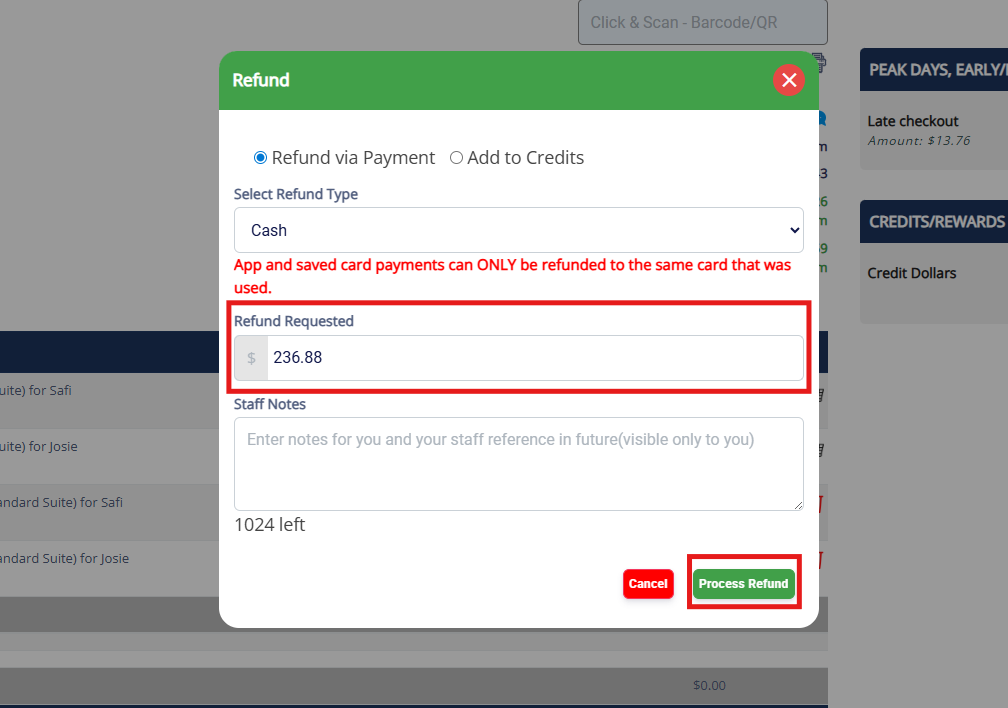
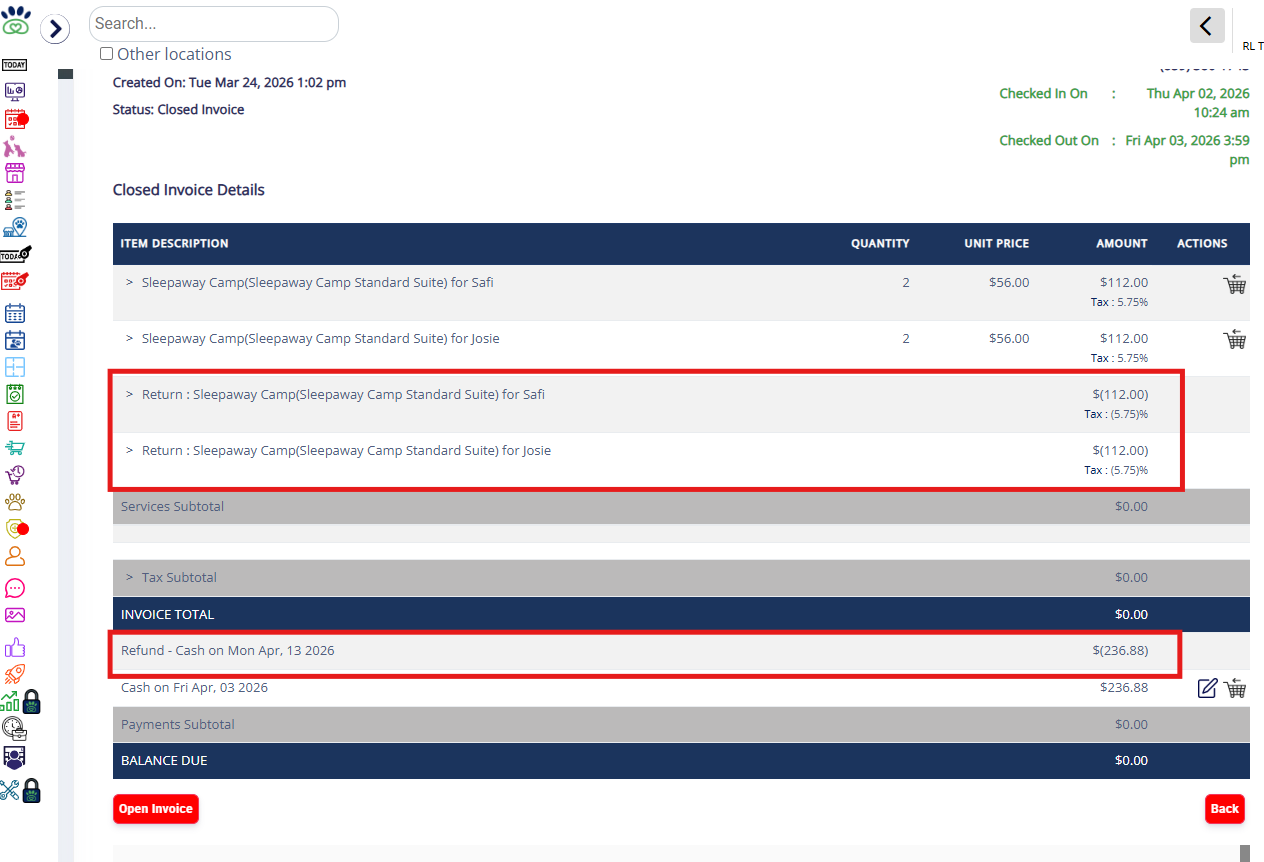
8. Verify the refund shows as expected on the invoice.
How to Refund Full Cost of Invoice & Payments
This type of refund allows you to refund a single item and money paid on an invoice for the full or partial cost of the item. For example, say the invoice has a Boarding stay, Bath & Brush, and Nail trim as the services, and a late fee and a tip as adjustments, as well as tax.
- If you wish to refund the full cost of all items on the invoice (Boarding stay, Bath & Brush, Nail trim, late fee, tip, and tax) and full paid amount, then you would also follow the below steps.
⚠️Important: Please note this type of refund can includes tax, tips, and/or adjustments since you are issuing a flat amount refunded.
1. Navigate to the invoice in question from Pet owner profile > Invoice > View Invoice, or Left-hand Navigation > Invoice History > Open/Closed Invoices > View Invoice.
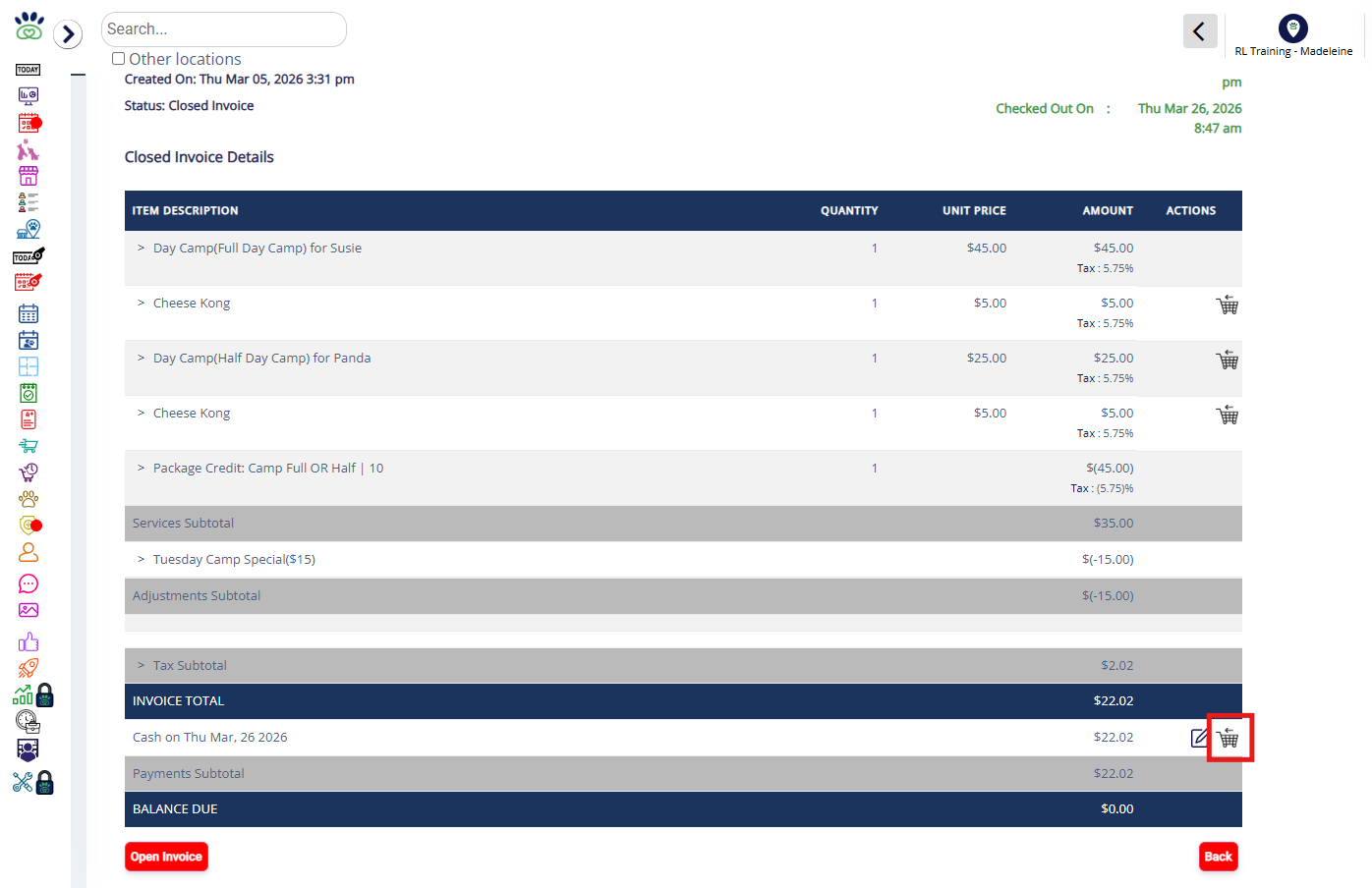
2. Click the Refund (cart icon) next to the payment (or one of the payments) you wish to refund.
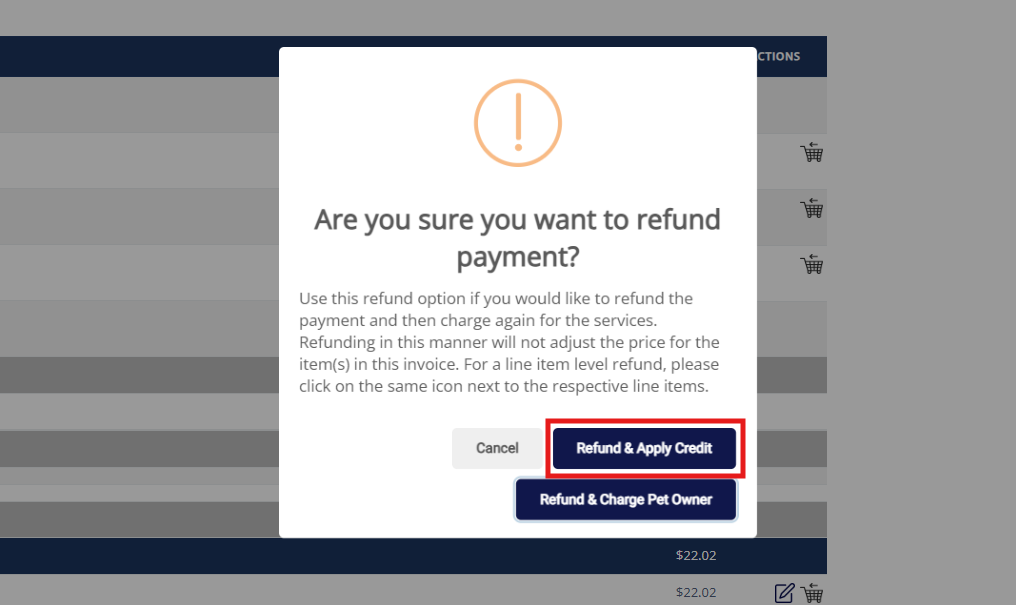
3. Click Refund & Apply Credit to refund the amount of the payment and add an adjustment to the invoice to account for the exact amount of the refund so the invoice remains closed. This will not add a credit to their account.
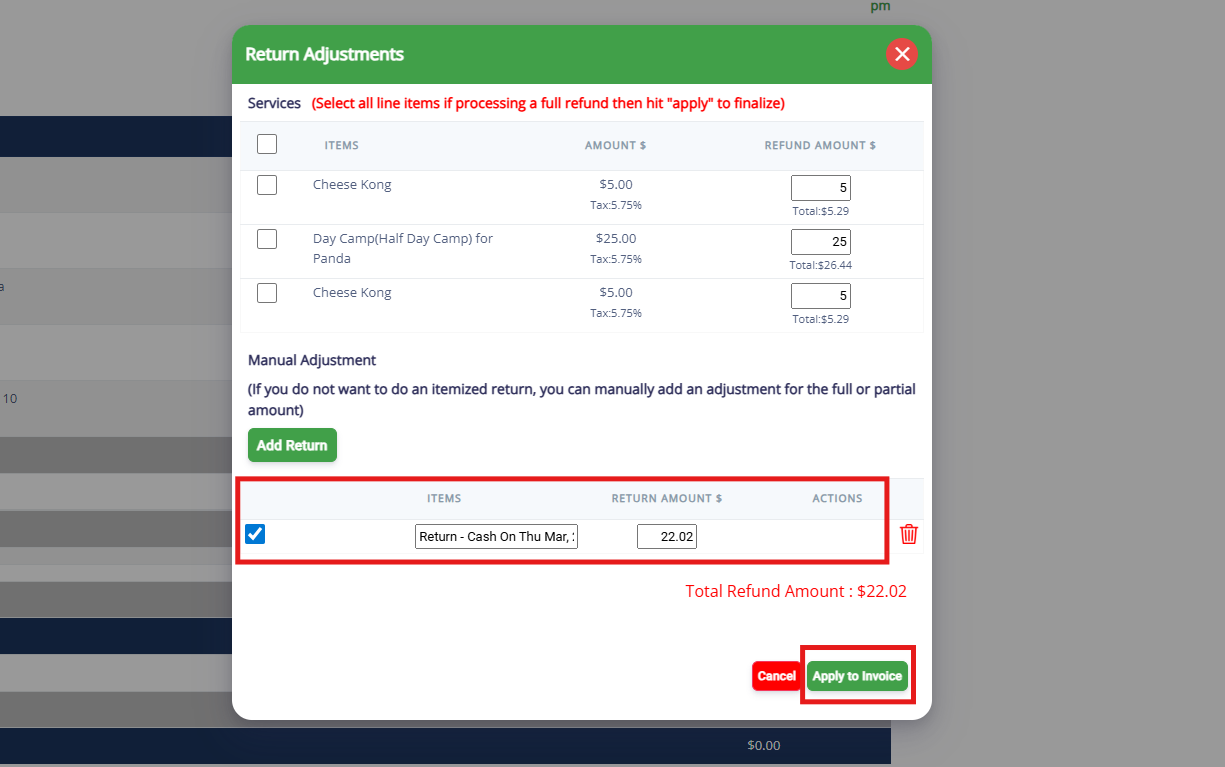
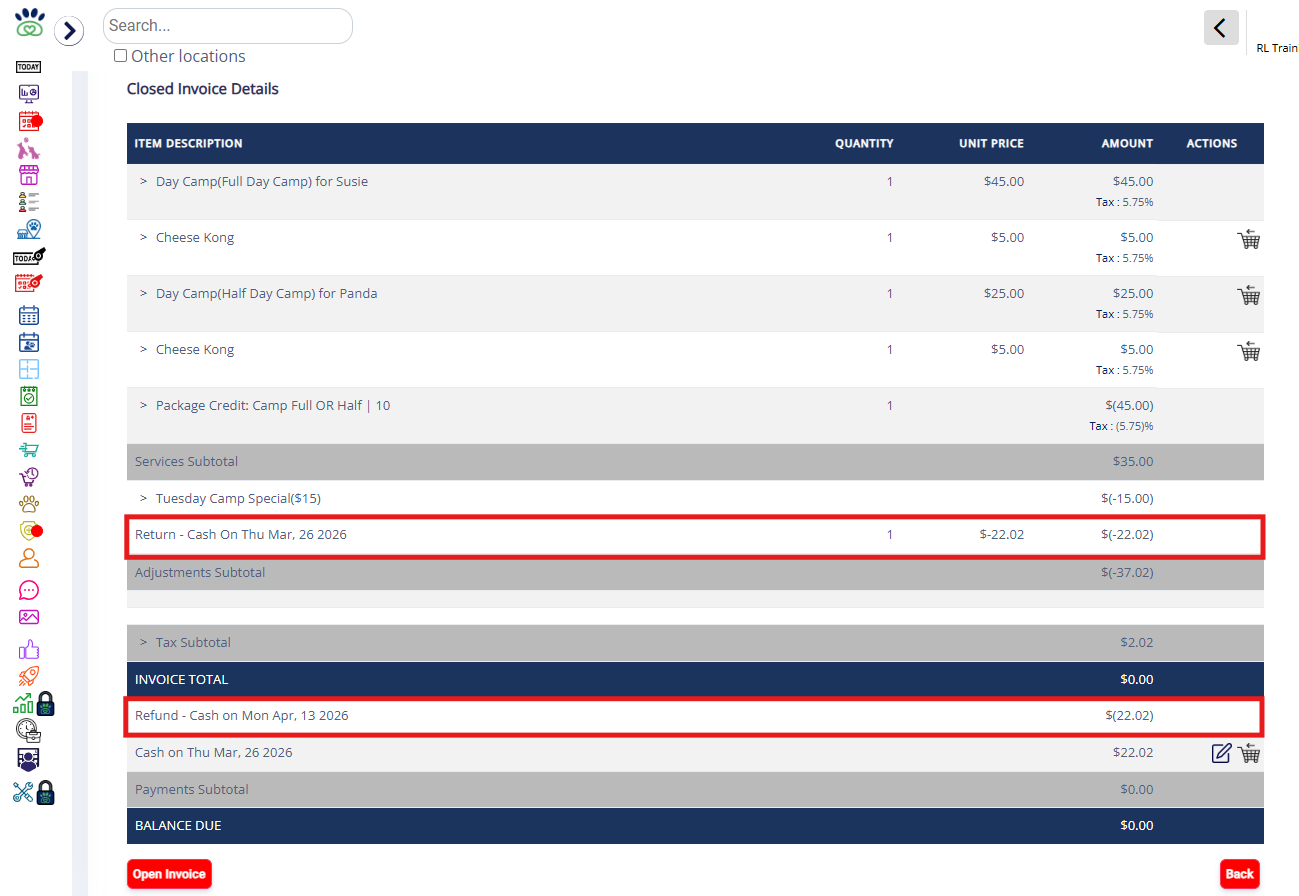
4. There will be a manual adjustment automatically added. Leave this box checked. For the adjustment, edit the refund amount if you wish to refund less than the full amount. Then click Apply to Invoice.
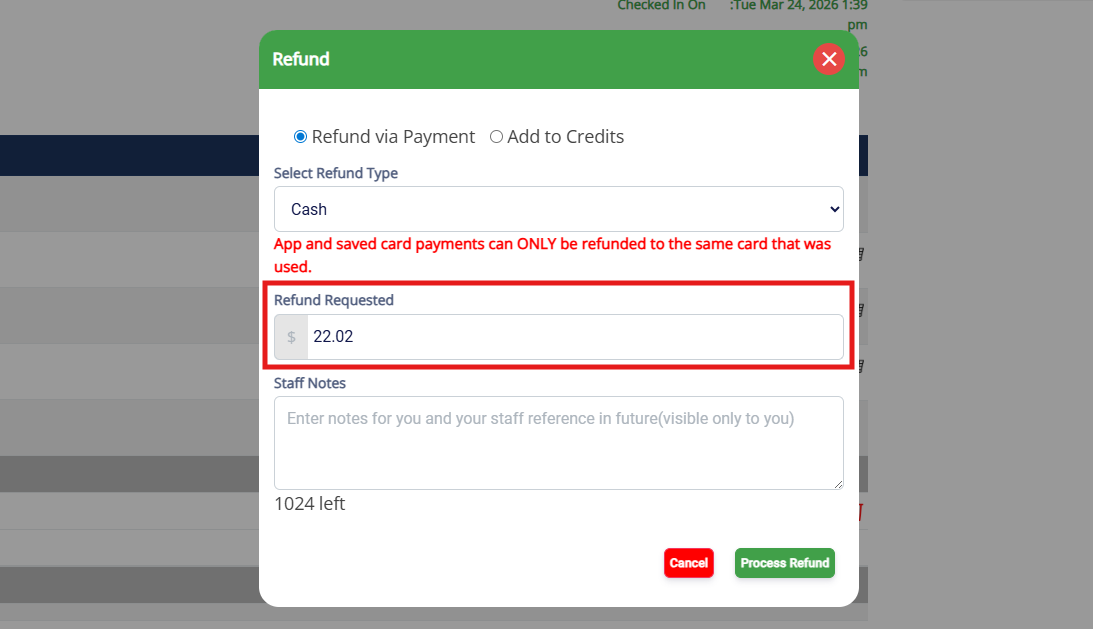
5. To refund the money in the value of the adjustment being refunded, click Process Refund. Clicking Process Refund will allow you to select the payment type of the refund such as cash, check, or credit card (if paid via credit card originally). You can also process a refund to Account Credit by clicking Add to Credit.
6. Select the Payment Type of the refund (credit card, cash, check, other) or check the box to add the refund to Account Credit instead of a payment type.
⚠️ Important: If refunding to a credit card payment, refunds can only be processed on the card that was used in the original transaction.
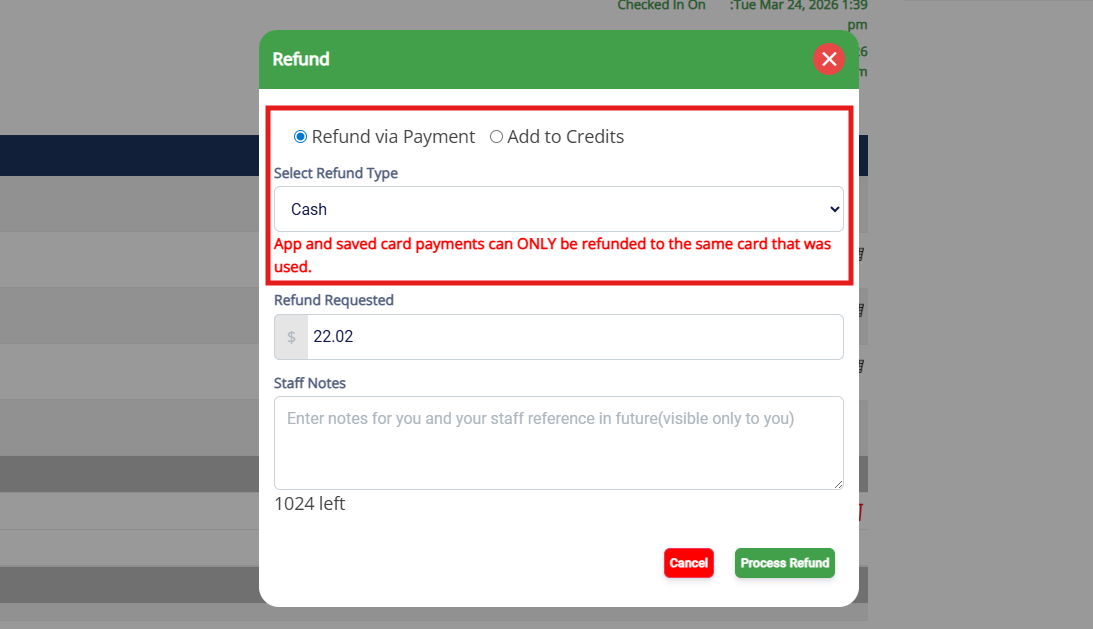
7. Enter the amount that should be refunded to the payment type. Then click Process Refund.
⚠️ Important: You will not be able to refund more than the amount that was paid.
8. Verify the refund shows as expected on the invoice.
How to Refund Only a Payment (Customer Still Owes)
This type of refund allows you to only money paid on an invoice in any amount, up to the amount paid. It does not issue a refund on any item, meaning the customer still owes for the item. For example, say the invoice has a Boarding stay, Bath & Brush, and Nail trim. If the customer originally paid via cash but wishes to instead pay via their credit card, you would refund the cash payment which will open the invoice back up for additional payment. You can then collect the amount due by paying for the invoice via credit card.
1. Navigate to the invoice in question from Pet owner profile > Invoice > View Invoice, or Left-hand Navigation > Invoice History > Open/Closed Invoices > View Invoice.
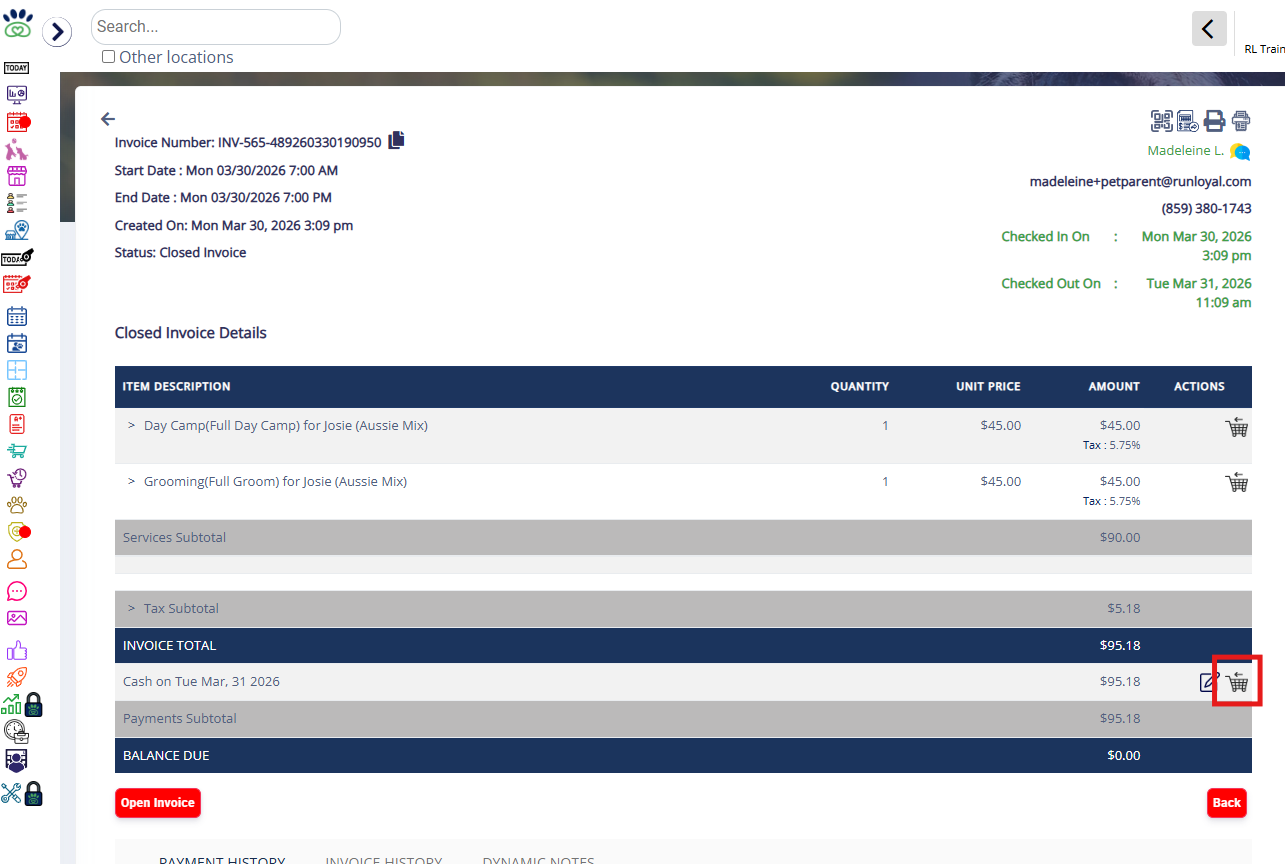
2. Click the Refund (cart icon) next to the payment you wish to refund.
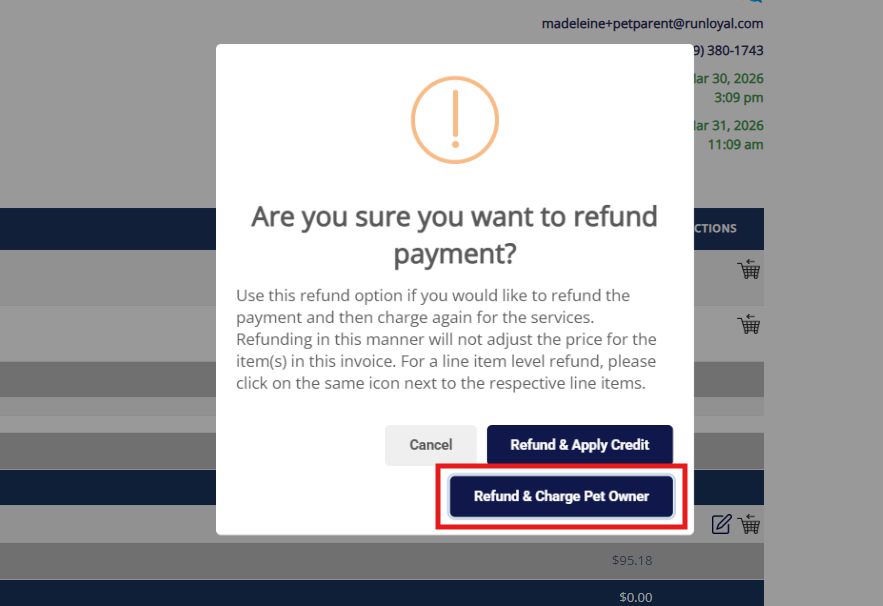
3. Click Refund and charge pet owner to indicate you wish to refund the payments only which will re-open the invoice for payment.
4. Select the Payment Type of the refund (credit card, cash, check, other), or check the box to add the refund to Account Credit instead of a payment type.
⚠️ Important: If refunding to a credit card payment, refunds can only be processed on the card that was used in the original transaction.
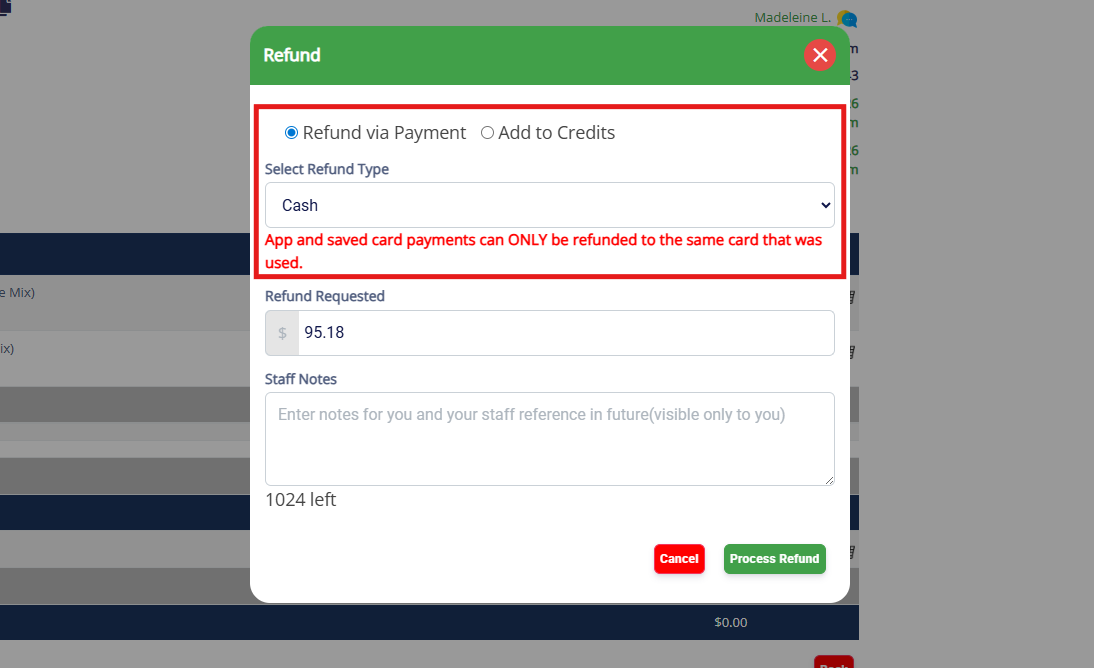
5. Enter the amount that should be refunded to the payment type. Then click Process Refund.
⚠️ Important: You will not be able to refund more than the amount that was paid.
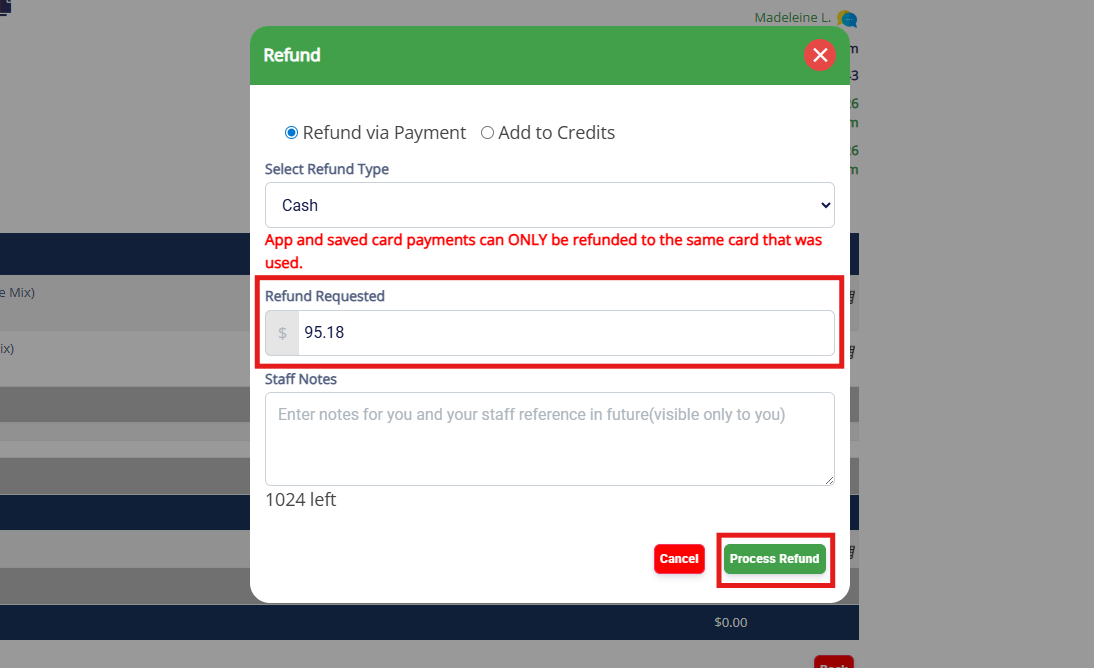
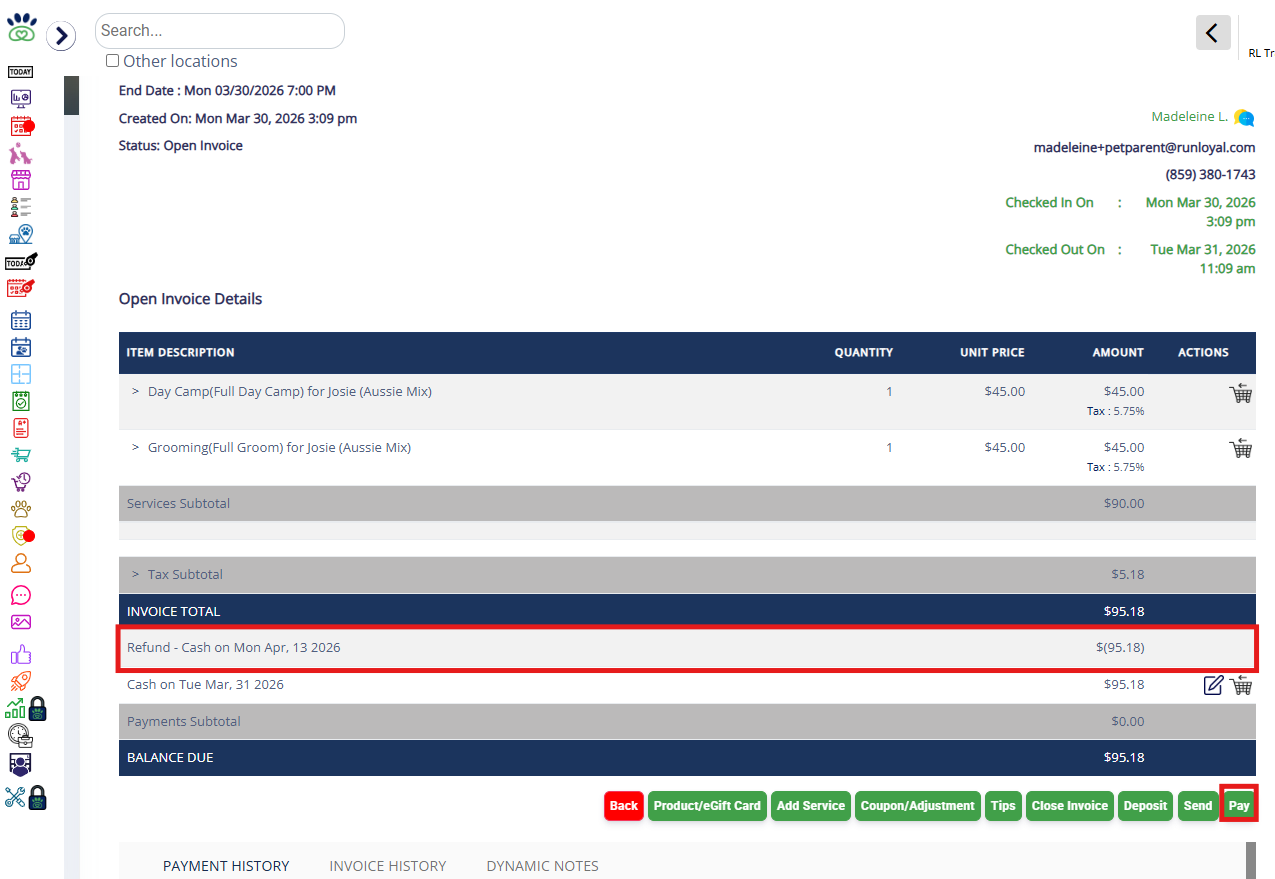
6. Verify the refund shows as expected on the invoice. Click Pay to take additional payment on the re-opened invoice if applicable.
More Information
For more information on checking out an appointment and collecting payment, please refer to this article: Checking Out an Appointment
For more information on refunding a membership, please refer to this article: Refund & Remove a Membership
Was this article helpful?
That’s Great!
Thank you for your feedback
Sorry! We couldn't be helpful
Thank you for your feedback
Feedback sent
We appreciate your effort and will try to fix the article