This guide will help you send homework to pet parents after a training session using the RunLoyal platform.
Step 1: Access the Daily Training Session
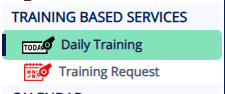
To start, navigate to the Daily Training view from your dashboard.
Actions:
Go to Daily Training in the main menu.
Select the required date from the calendar.
Click on the relevant session (e.g., Puppy Pre-school: Beginner Class).
The session card will expand to show the list of pets scheduled.
Example Screenshot:
Step 2: Complete the Checkout Process
Ensure the pet has been checked out of the session before attempting to send homework.
Actions:
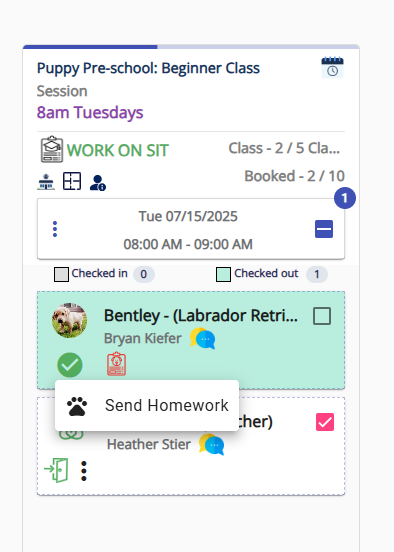
In the expanded session view, confirm the pet has a ✅ check mark (indicating they’re checked out).
Once checked out, a green checkmark labeled “Completed” will appear next to the pet’s name.
Hover over or click the “Completed” button to reveal the Send Homework option.
Example Screenshot:
Step 3: Send the Homework
Now you're ready to send the homework to the pet parent.
Actions:
Click on Send Homework.
An email will be sent to the pet parent’s registered email address with the training recap.
Additional Notes
Homework must be sent after the pet is fully checked out.
You can also access past sessions and send homework later by selecting the desired date from the Daily Training section.
Was this article helpful?
That’s Great!
Thank you for your feedback
Sorry! We couldn't be helpful
Thank you for your feedback
Feedback sent
We appreciate your effort and will try to fix the article