Training Services Setup and Management in RunLoyal: Overview
This article provides a comprehensive guide to configuring and managing Training Services in the system, from initial setup to daily operations. It walks through creating training configurations, defining enrollment types and locations, setting required fields, assigning staff, and building training sessions. You’ll also learn how to create training areas, set up agreements and pricing, process purchases, check in dogs for training, manage run cards, and confirm and assign training requests
This is a paid add-on. Please reach out to puppylove@runloyal.com to enable this feature.
# Training Configuration
1. Go to Settings: Navigate to the Settings section.
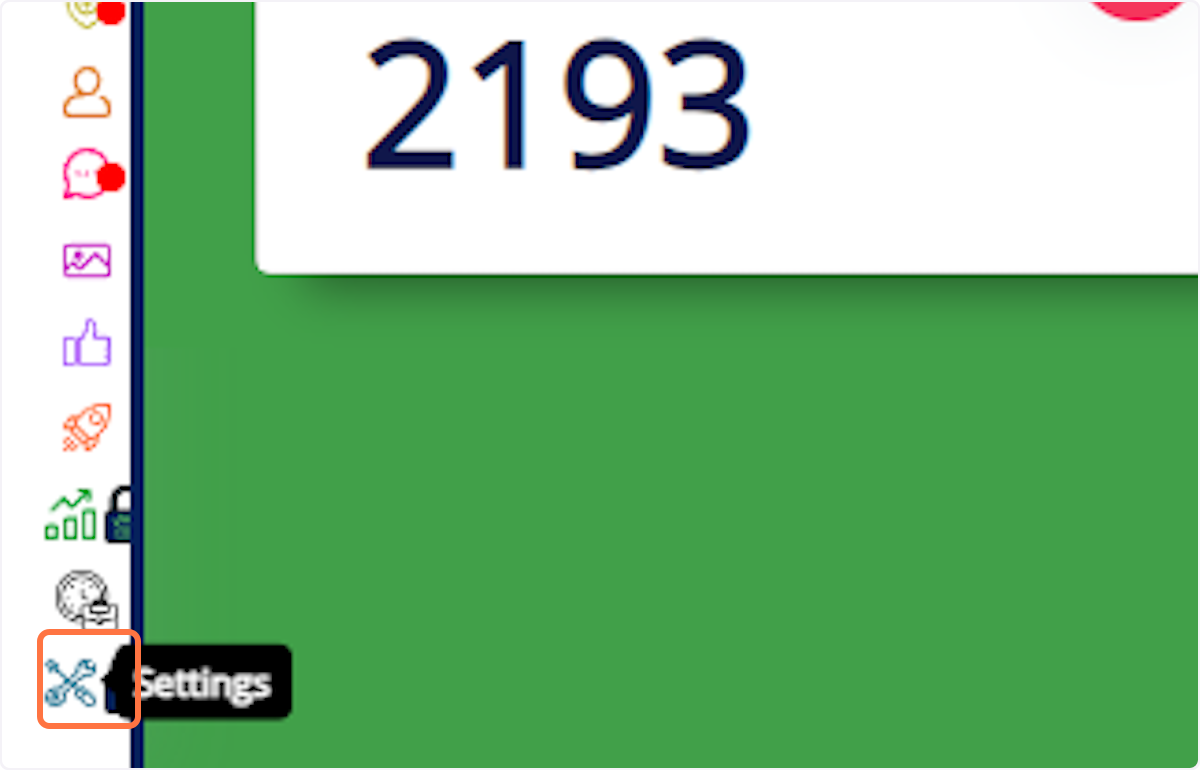
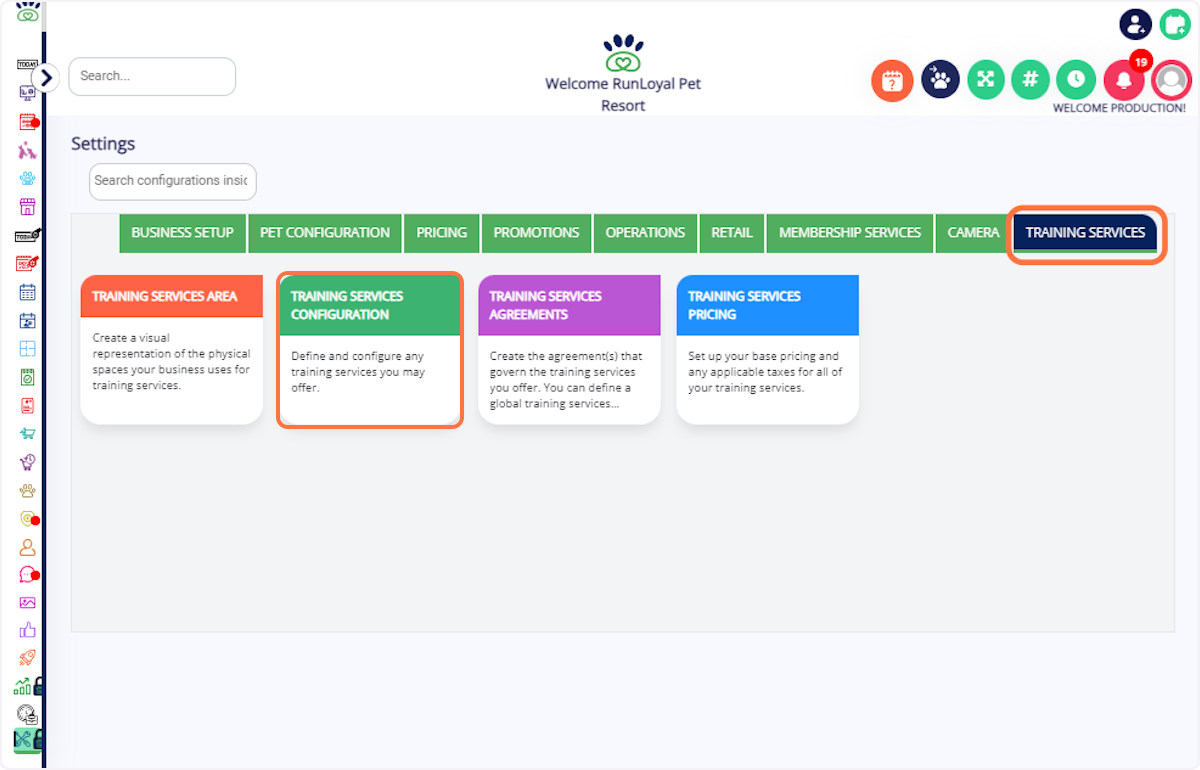
2. Click on Training Services Configuration: Under Training Service, select Training Services Configuration.
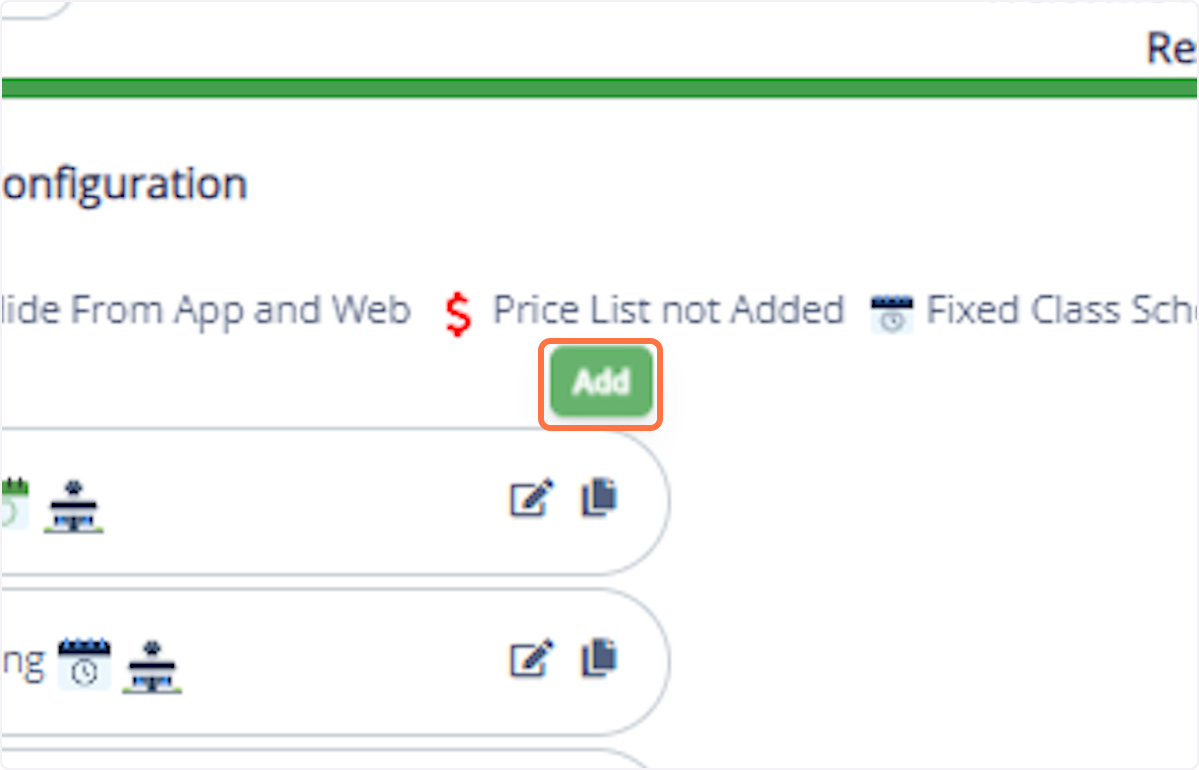
3. Click on Add: Begin creating a new training configuration.
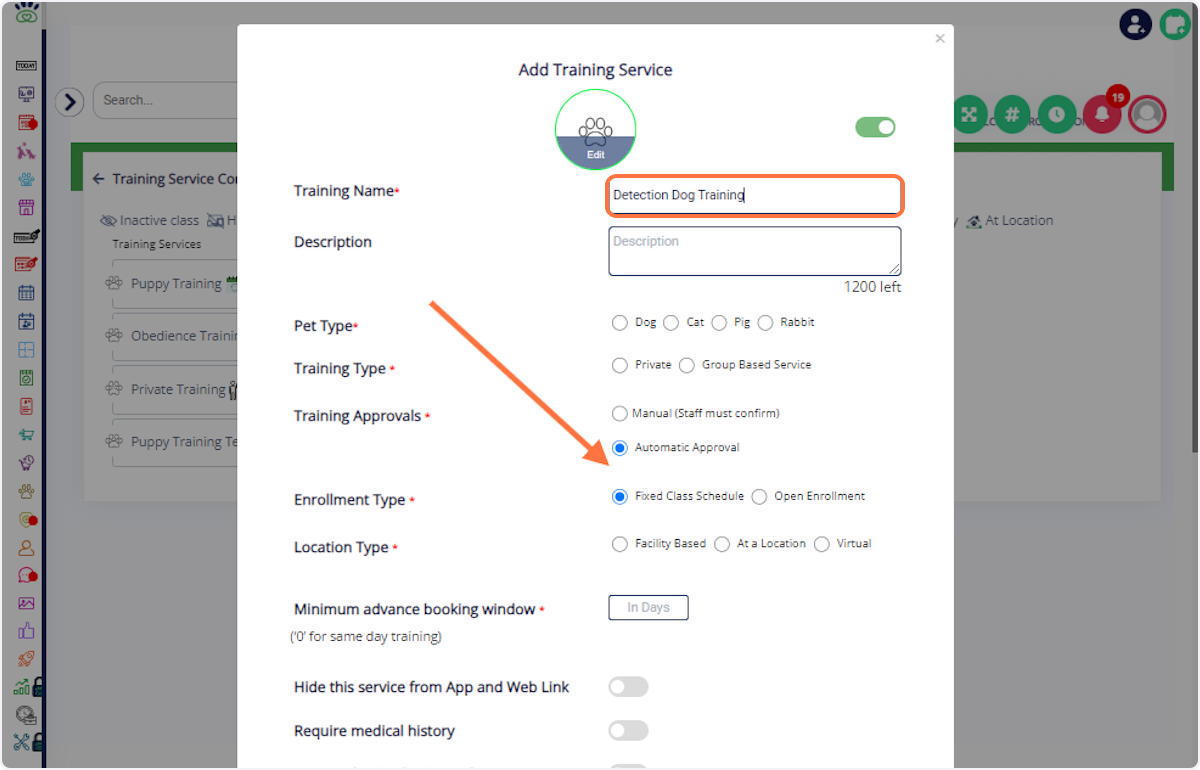
4. Enter Details: Input the training name, description, pet type, training type, approval method, enrollment type, and minimum booking window.
Enrollment type:
- Open Enrollment: Allows pets to join a training program at any time while the class is ongoing. This option is ideal for flexible or continuous training programs where pets can enroll after the start date, as long as availability and eligibility requirements are met.
- Fixed Class Schedule: Classes are held on specific dates and times with a defined start. Once the class begins, no additional pets can be enrolled. This option is best suited for structured group classes that require all participants to start and progress together.
5. Select Location Type: Choose whether the training is on-site or off-site:
Facility-based- You have to assign an area in the visual to book training
At a Location- Enter the Location
Virtual- Paste the Meeting link
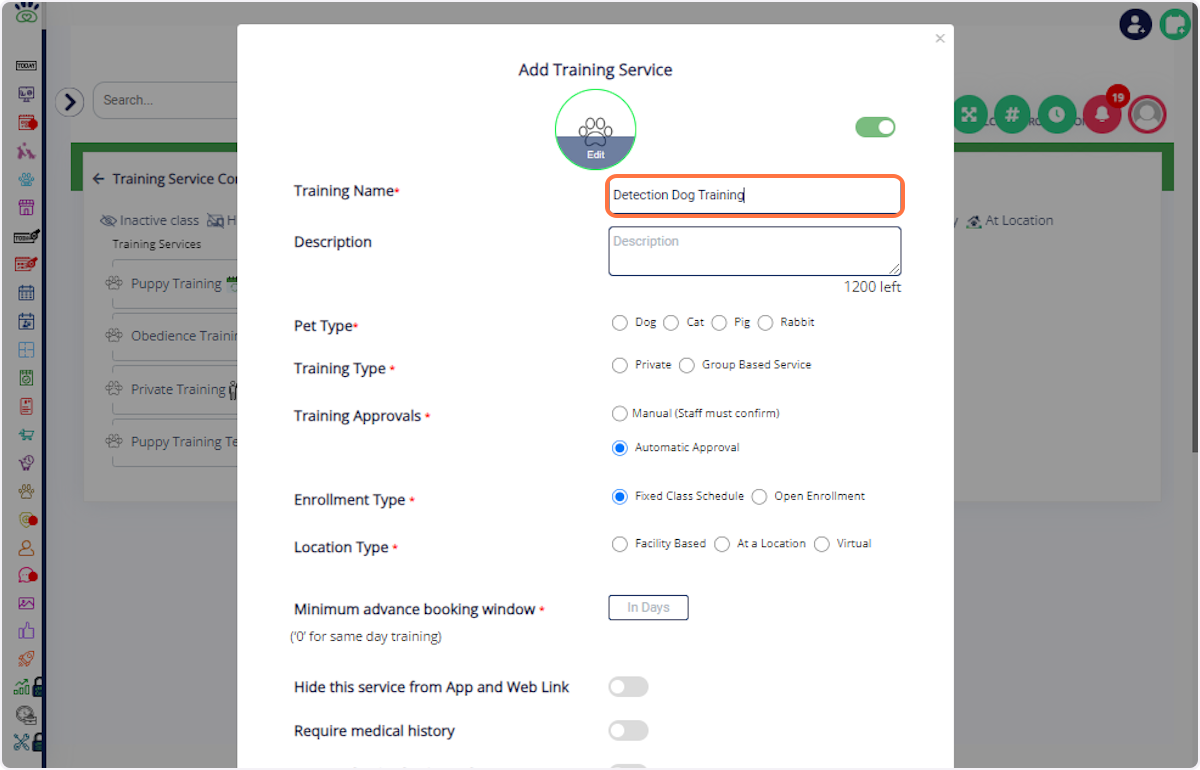
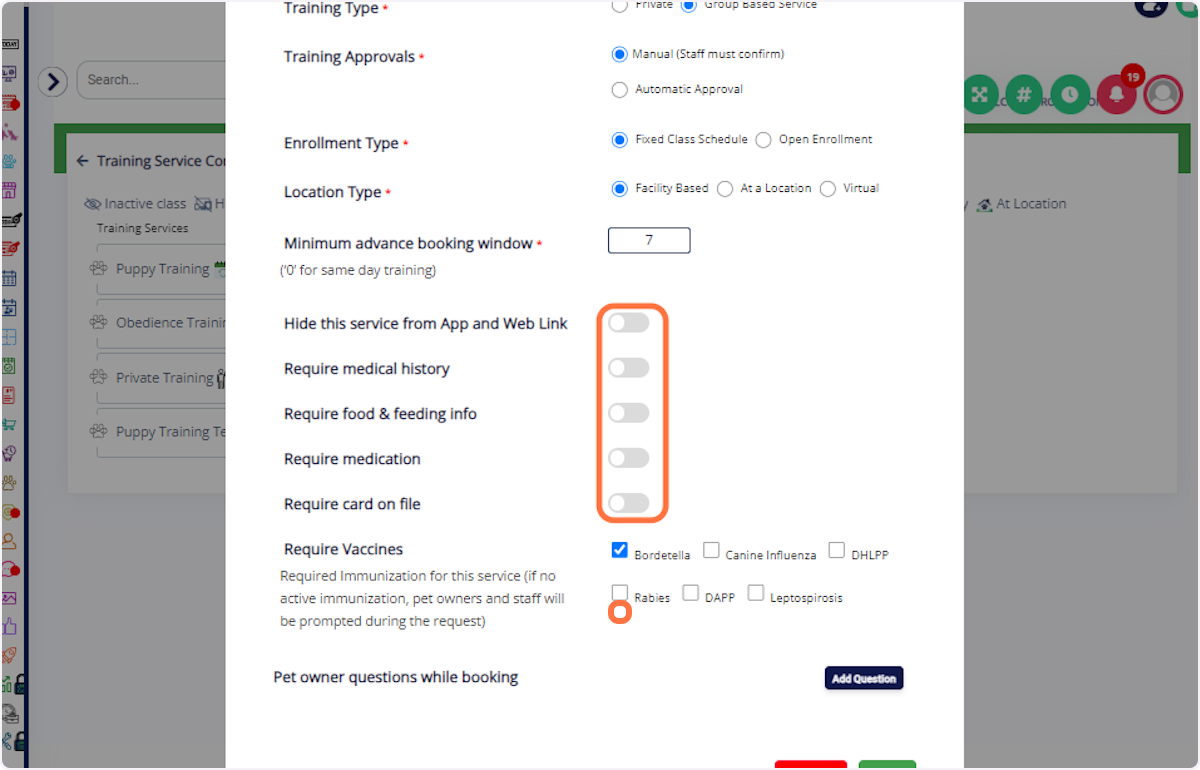
6. Toggle Required Fields: Activate necessary fields like medical history, medication, food & feeding info, card, and vaccines.
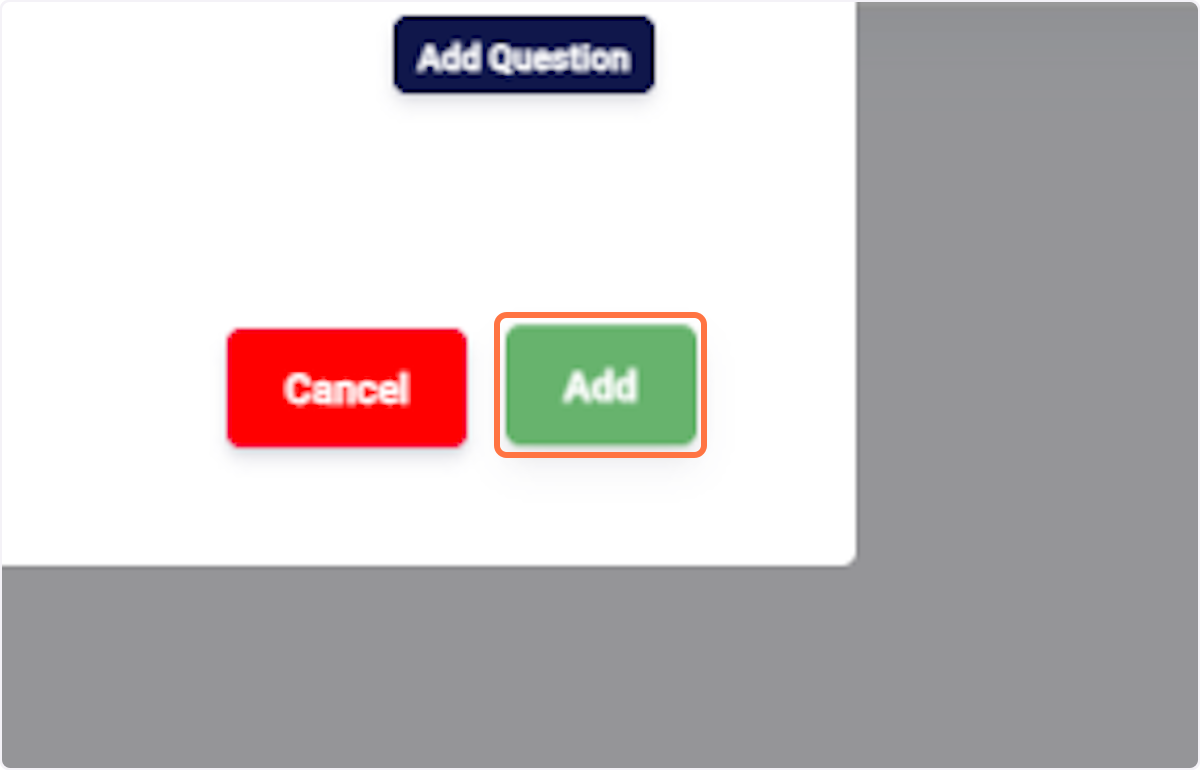
7. Click on Add: Confirm the configuration. Click on Okay: Complete the process.
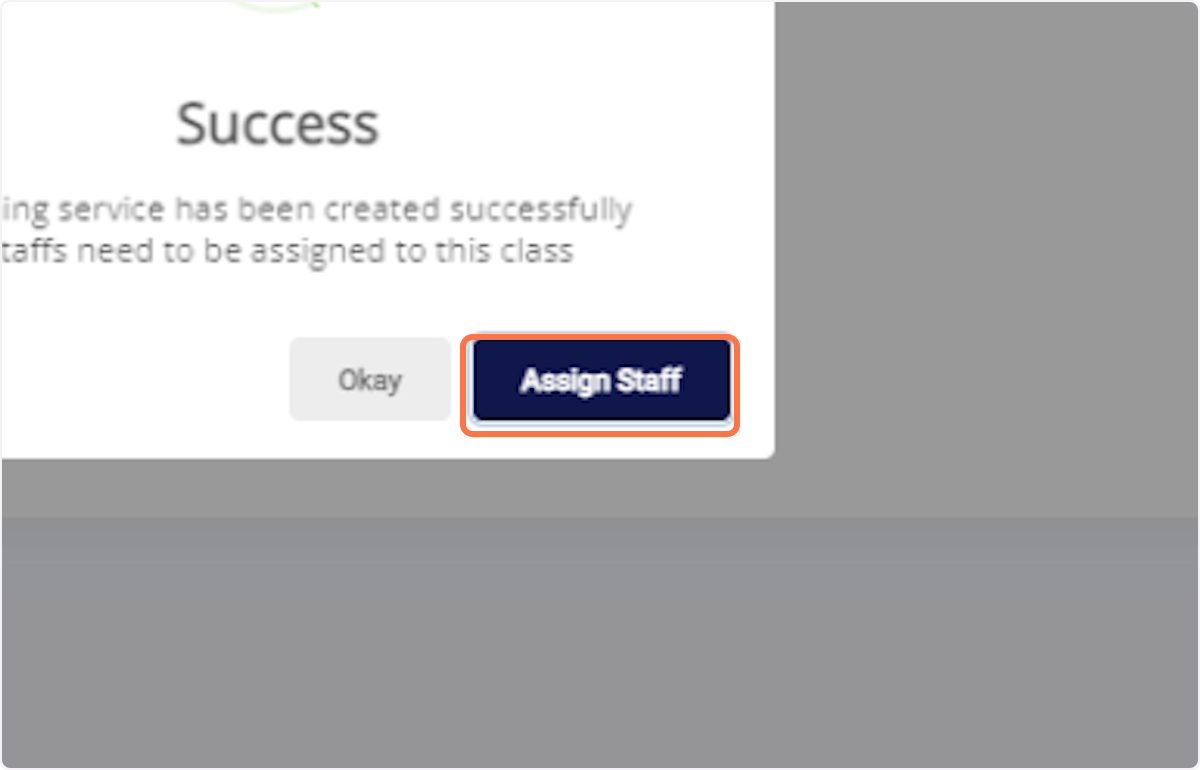
8. Click on Assign Staff to proceed further
# Assigning Staff
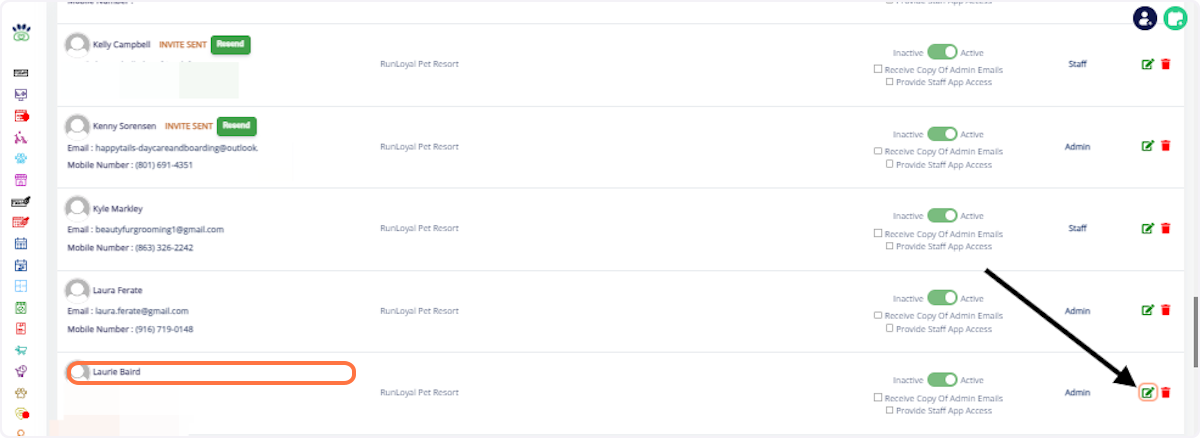
9. Select Staff: Choose the staff member (e.g., Laurie Baird). Click on the Edit Button: Proceed to the assignment.
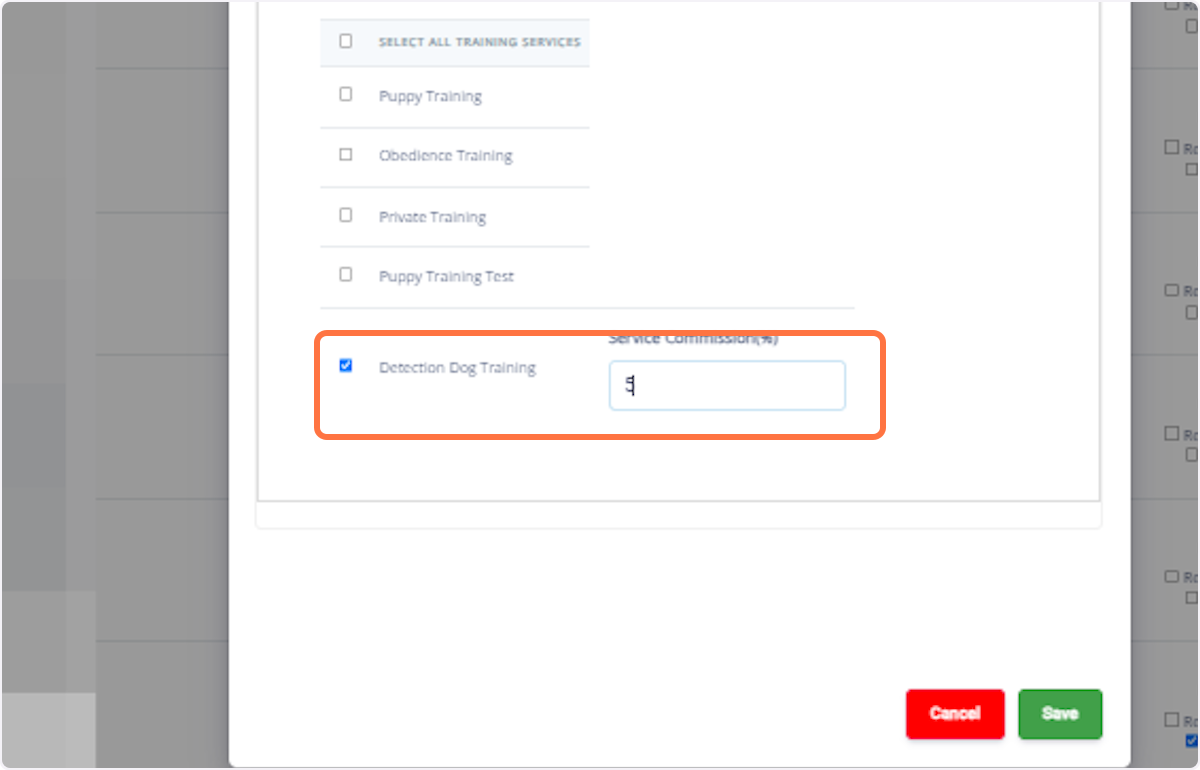
10. Check on the Training Service: Confirm the assignment and enter the Service commission for the staff
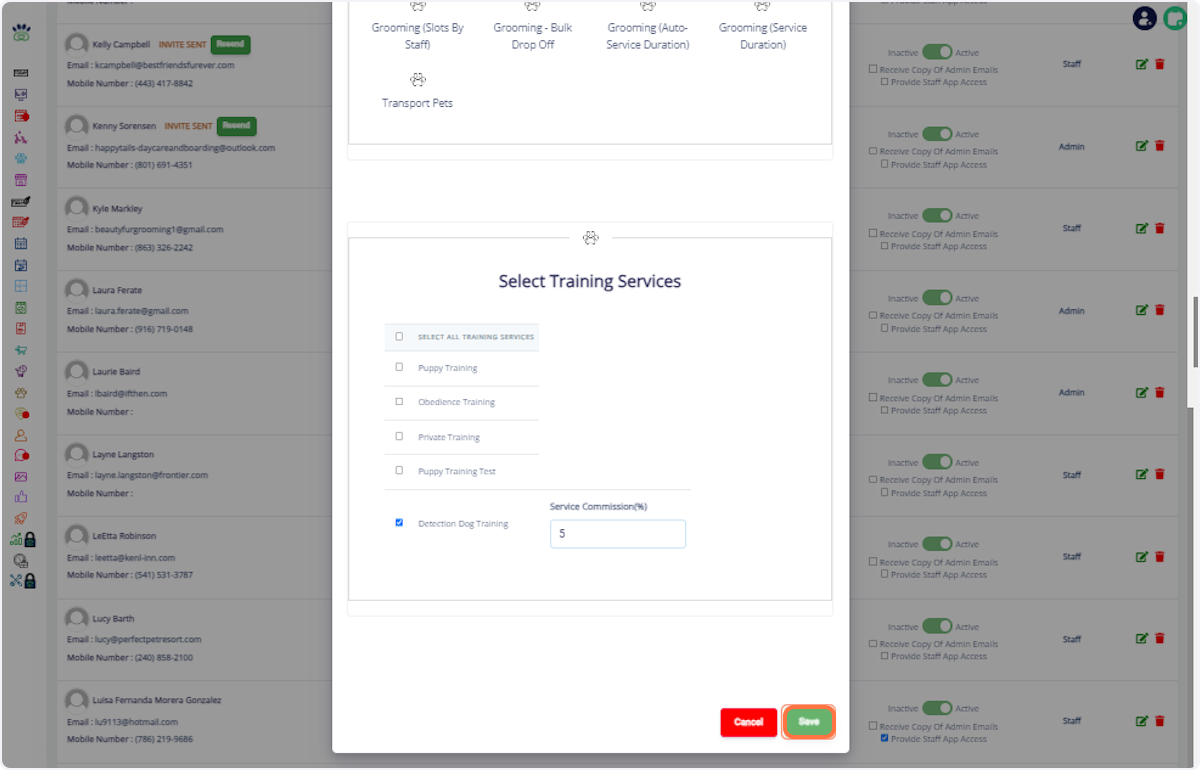
11. Click on Save
# Adding Sessions
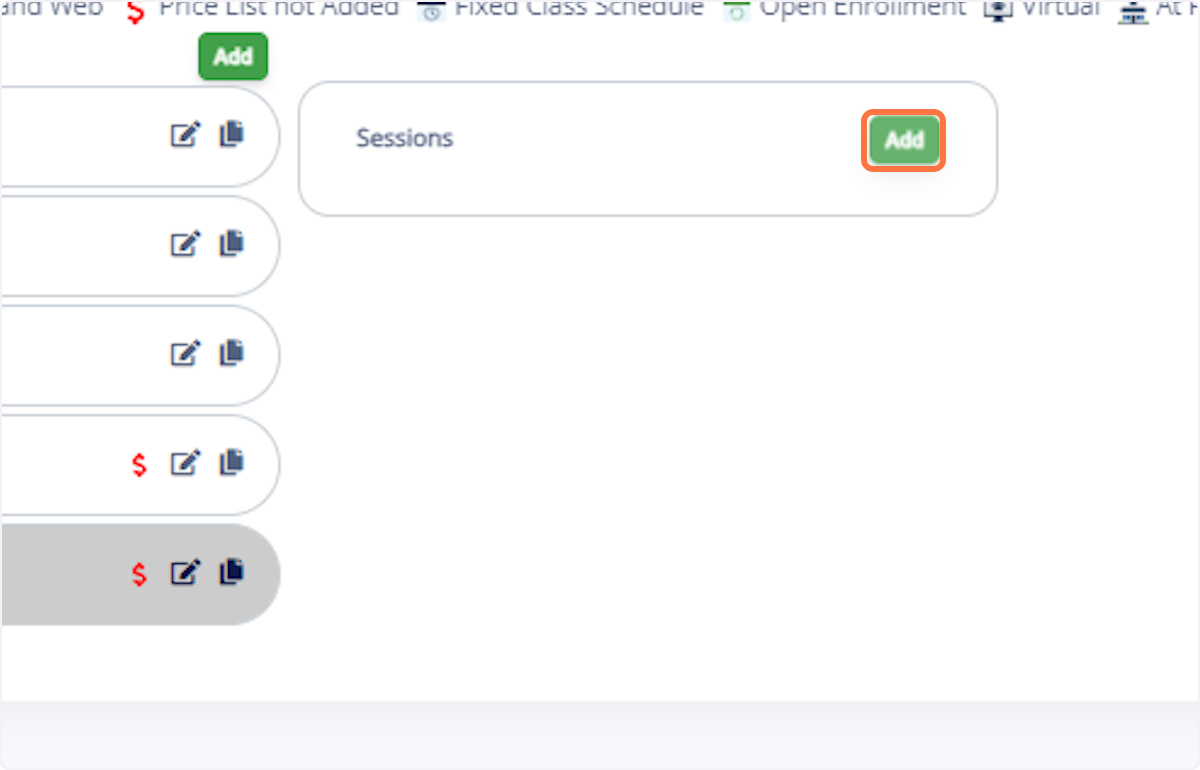
12. Click on Add: Start creating a new session.
13. Enter Details: Input the session name, description, and number of classes.
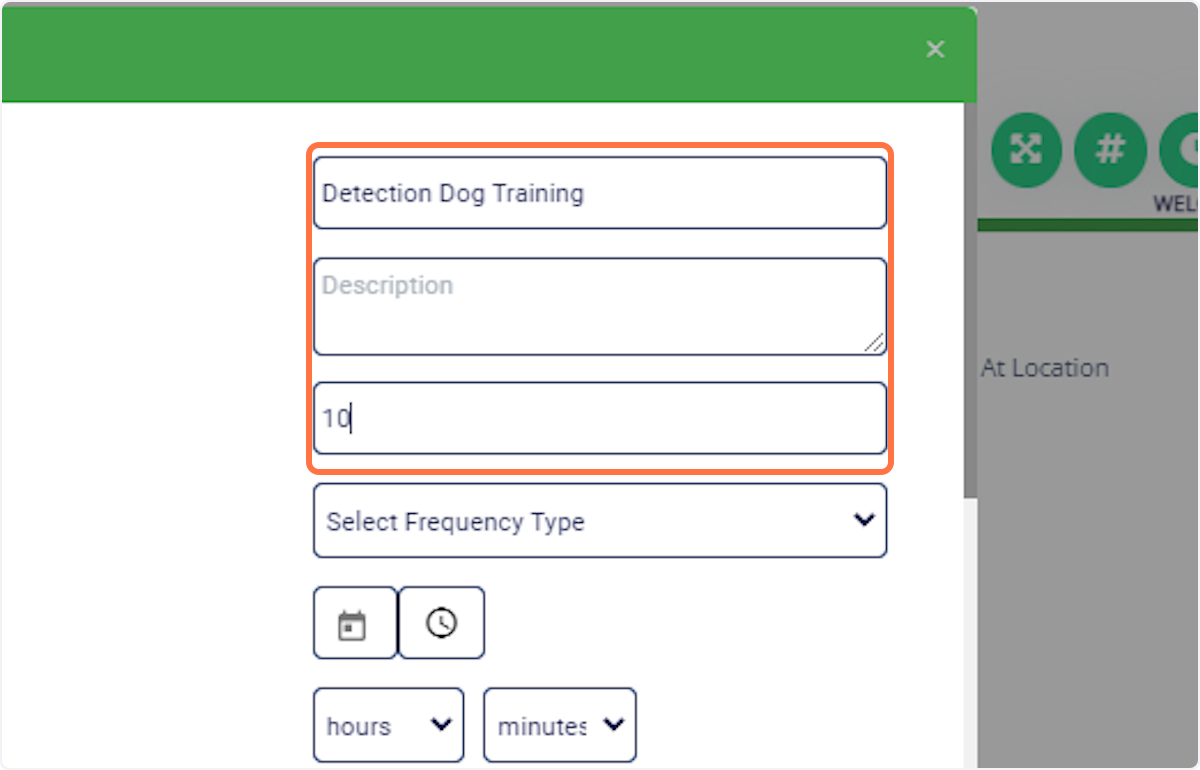
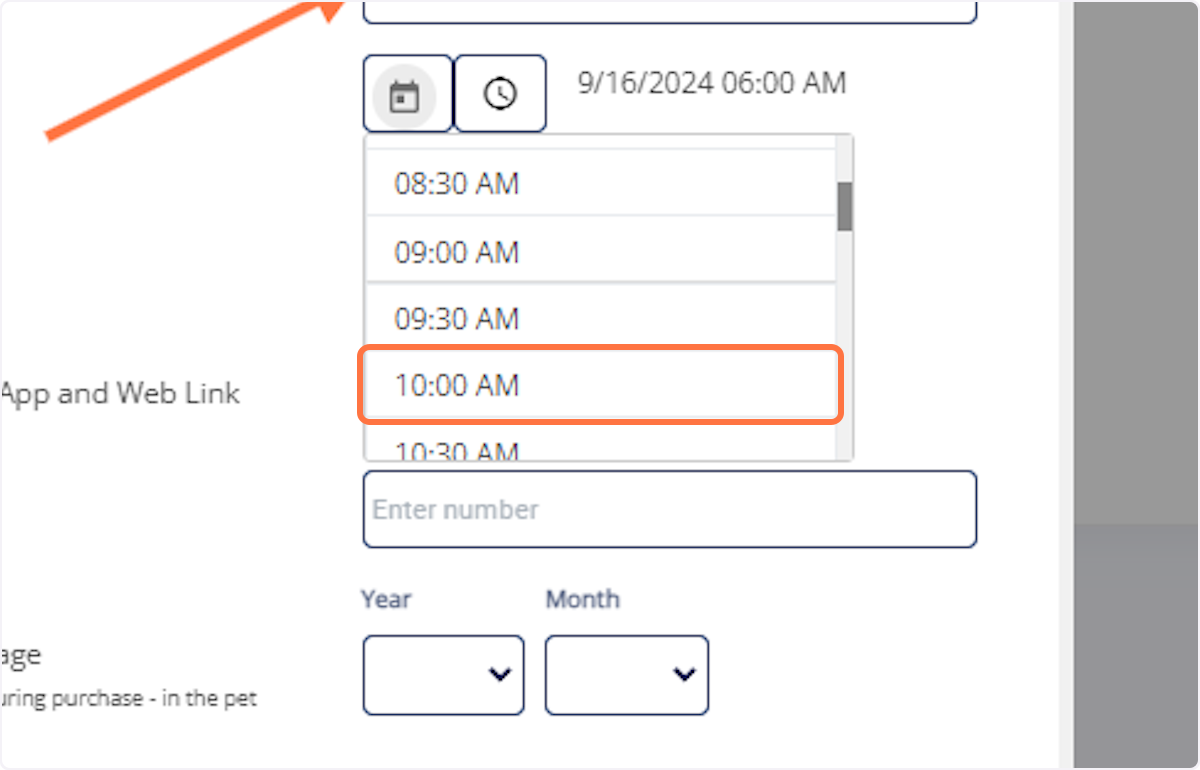
14. Set Frequency: Choose the session frequency (e.g., daily, weekly), start date, time, and duration.
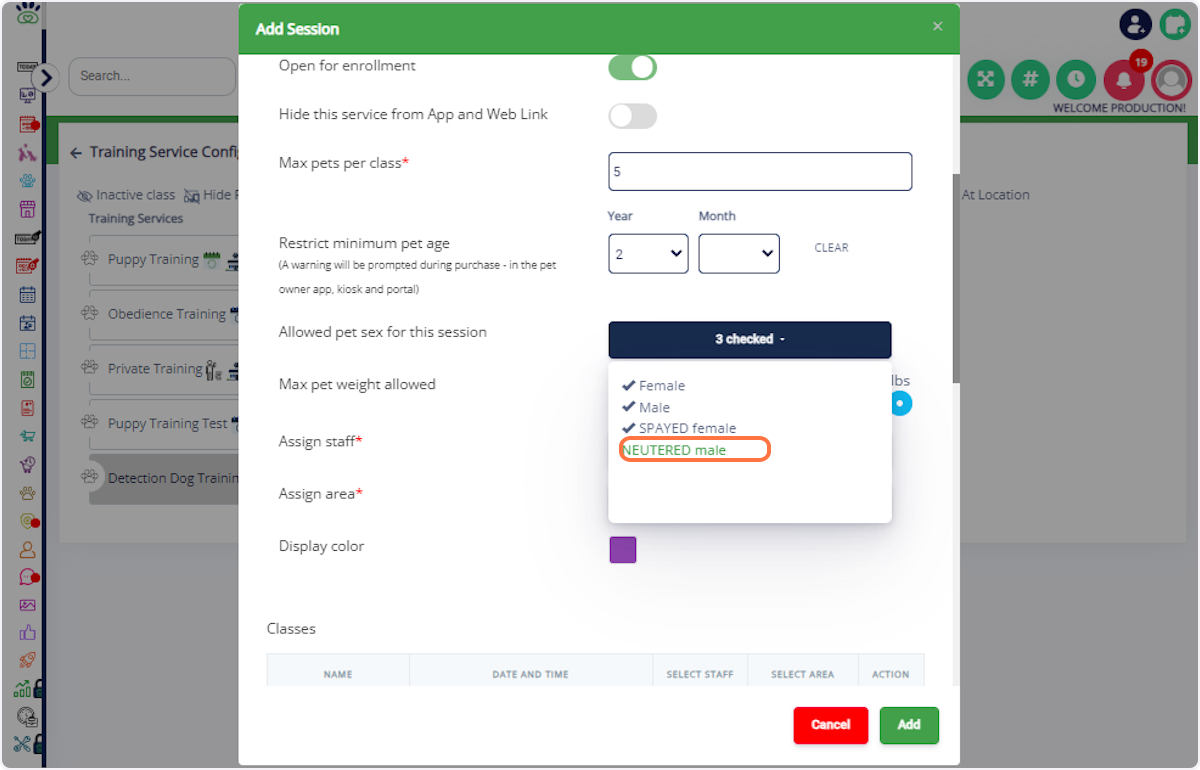
15. Set Limits: Specify maximum pets per class, maximum pet age, and allowed pet sex.
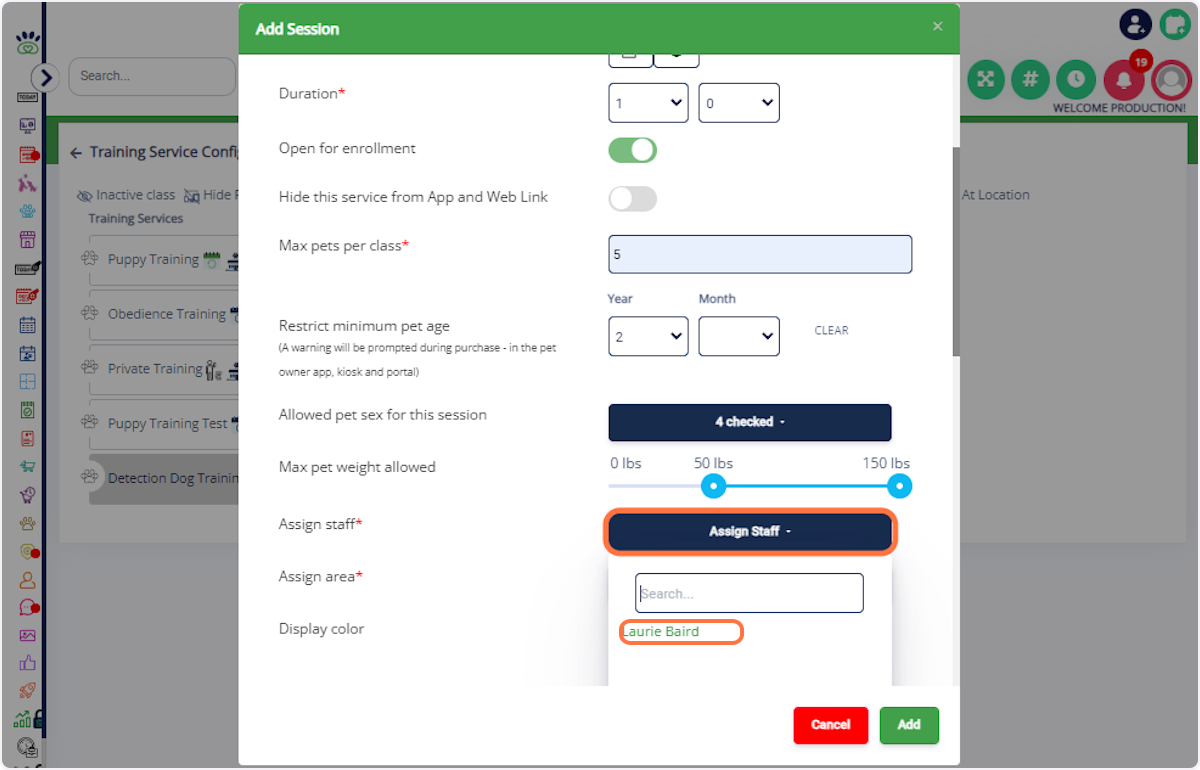
16. Assign Staff and Area: Drag to set the maximum pet weight and select the assigned staff. Choose the training area.
17. Assign Staff and Area for All Classes: If desired, assign the same staff and area to all classes.
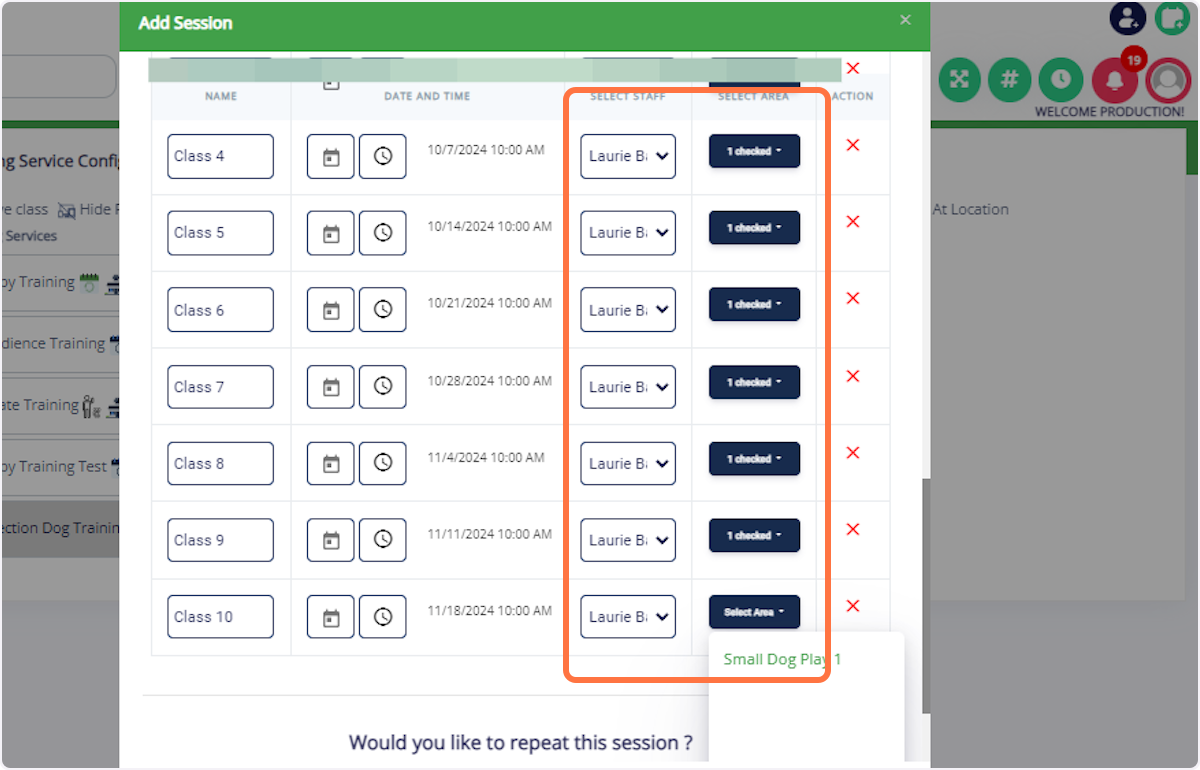
18. Repeat Session: Toggle if you want to repeat the session and assign staff and area.
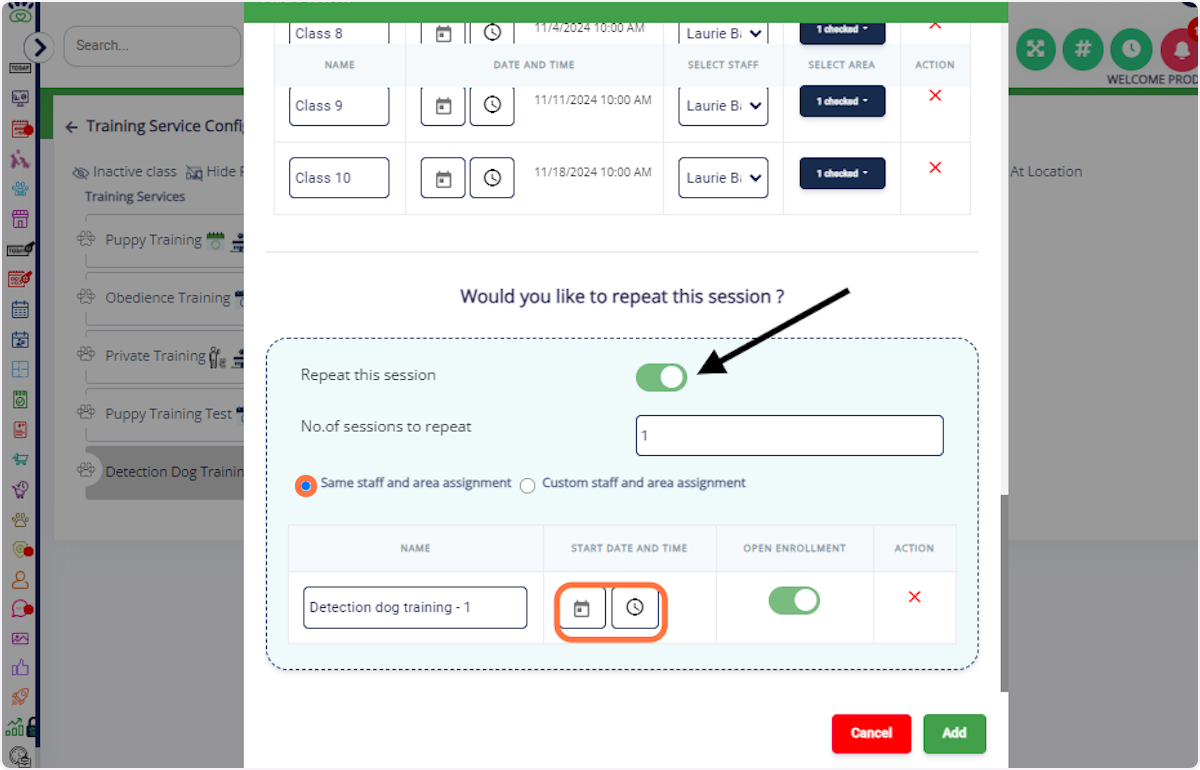
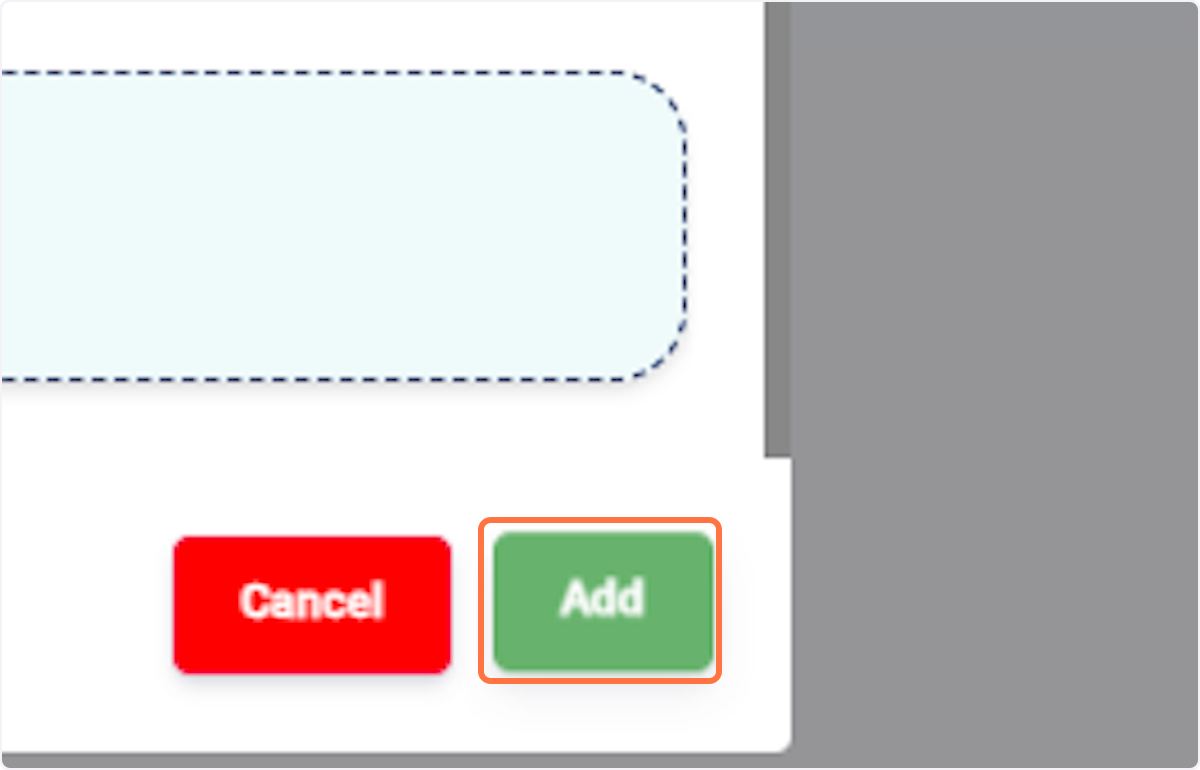
19. Click on Add: Confirm the session.
20. Click on OK
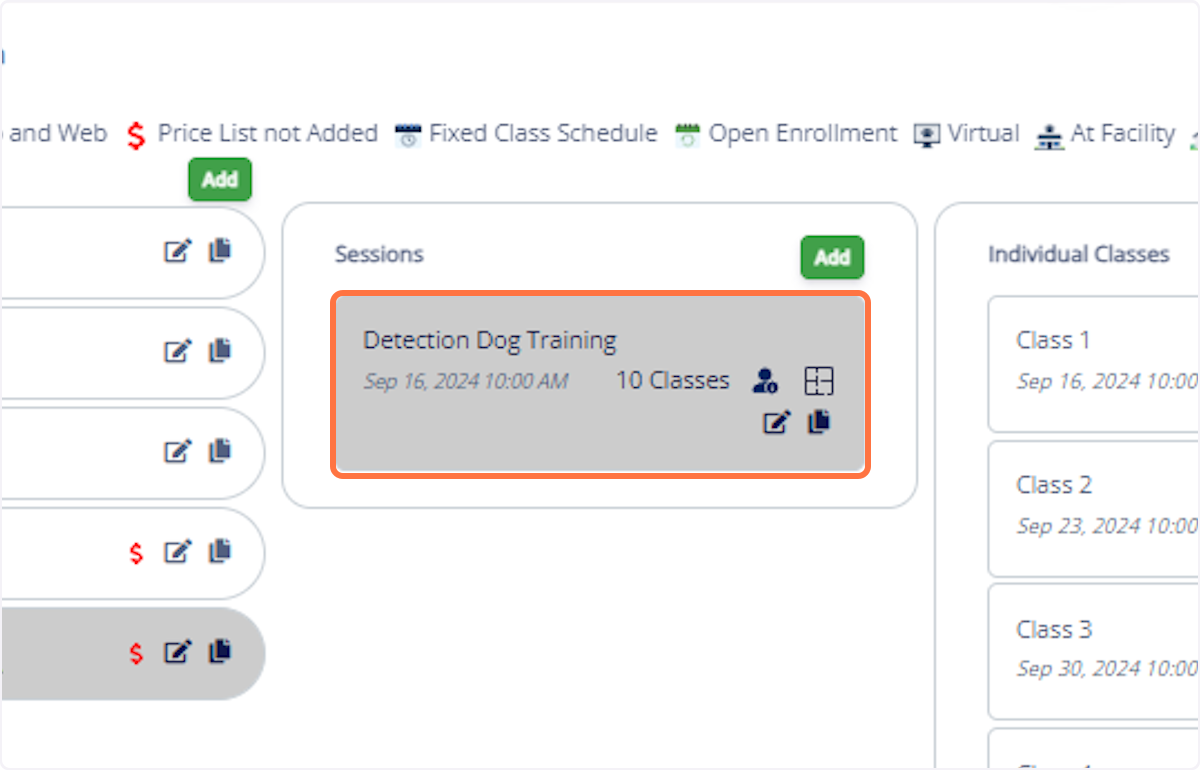
21. You can now see the sessions and classes added
# Creating Areas
22. Go to Training Services Area: Navigate to Training Services Area under Settings.
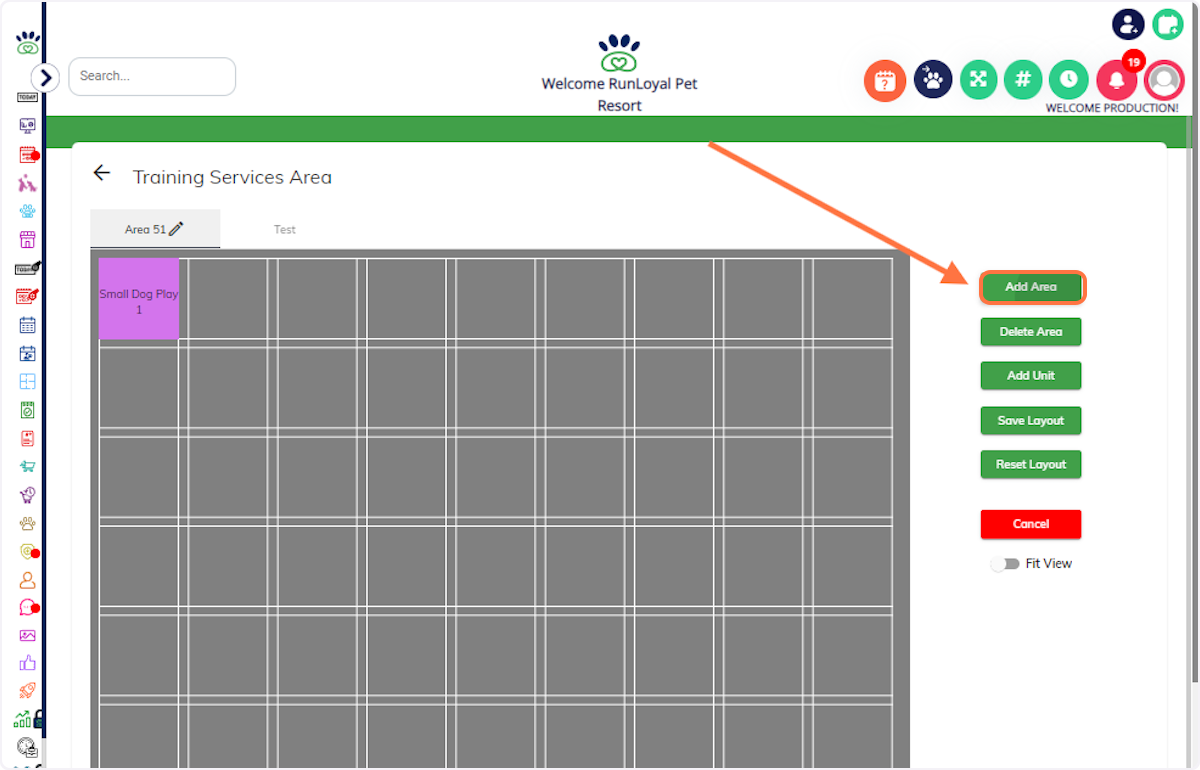
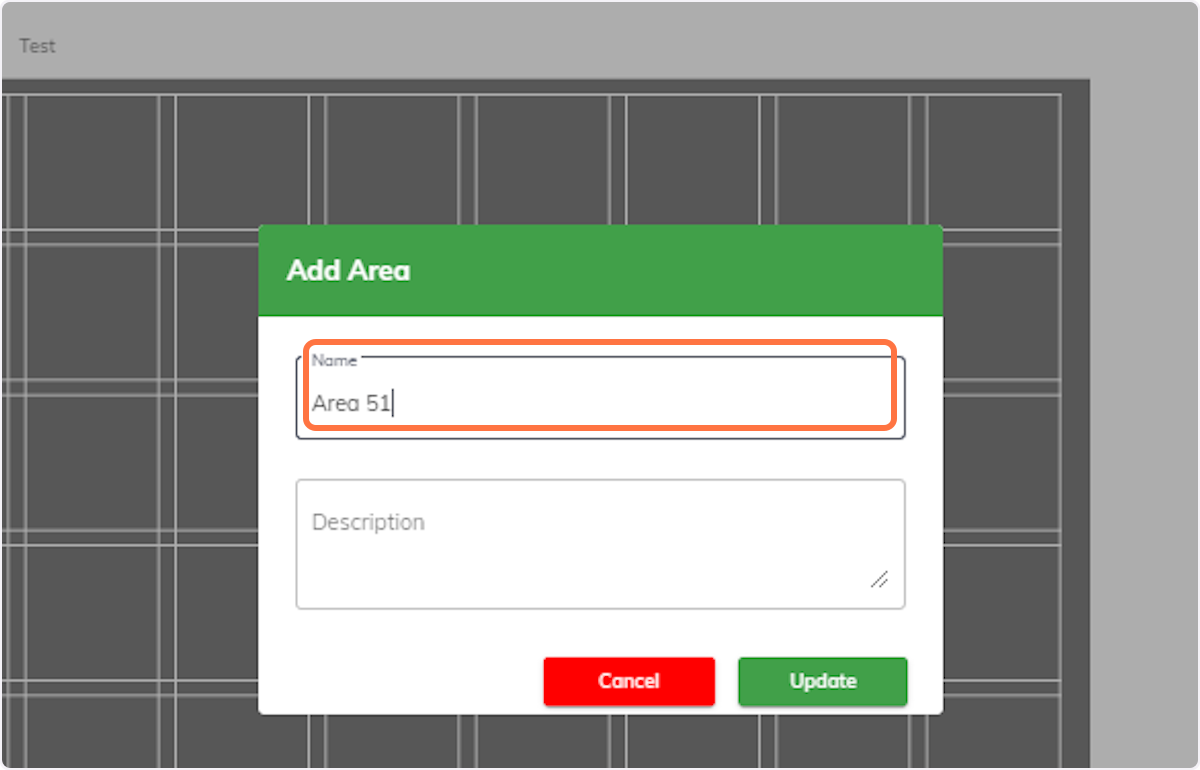
23. Click on Add Area: Begin creating a new area. Enter Details: Input the area name and description. Click on Add: Confirm the area.
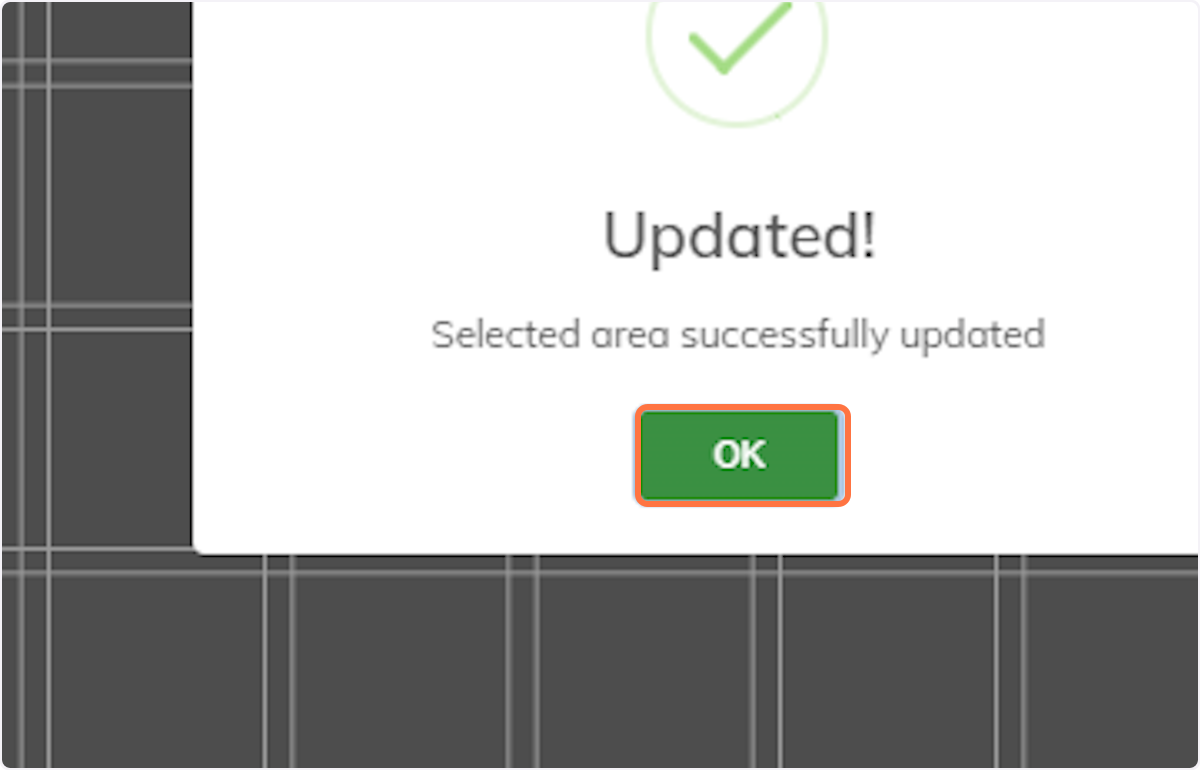
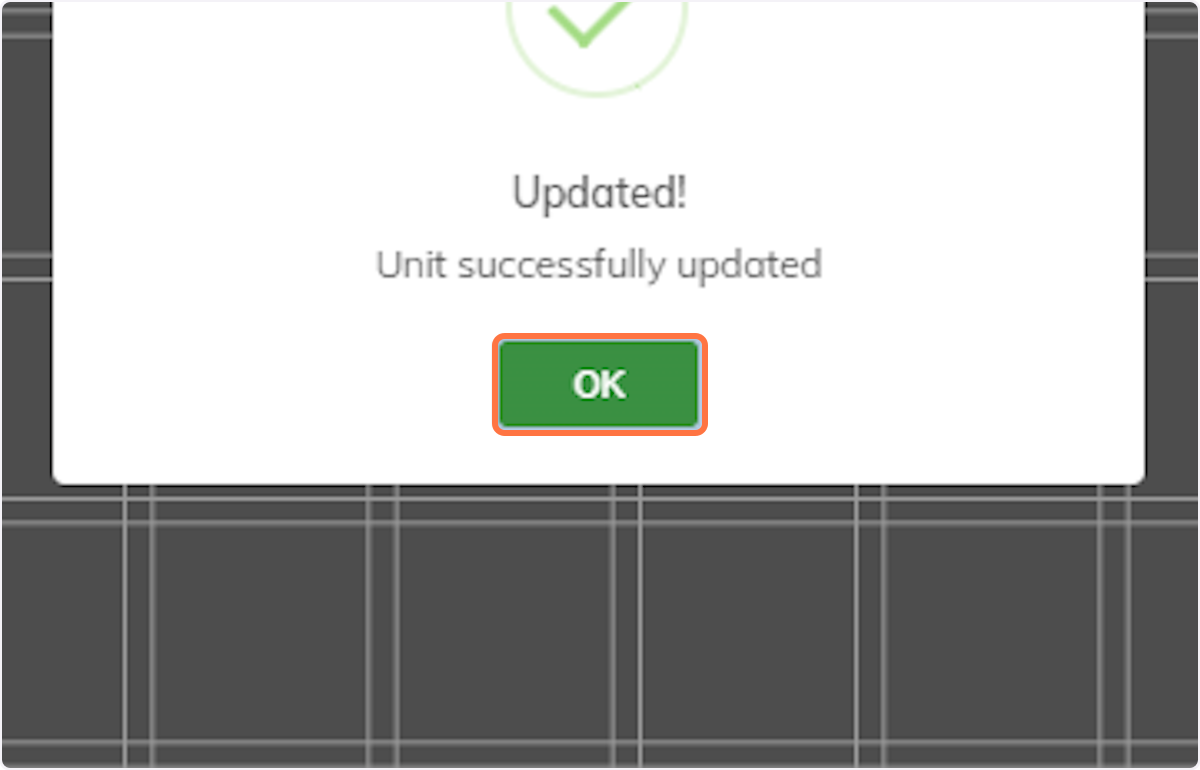
24. Click on OK: Complete the process.
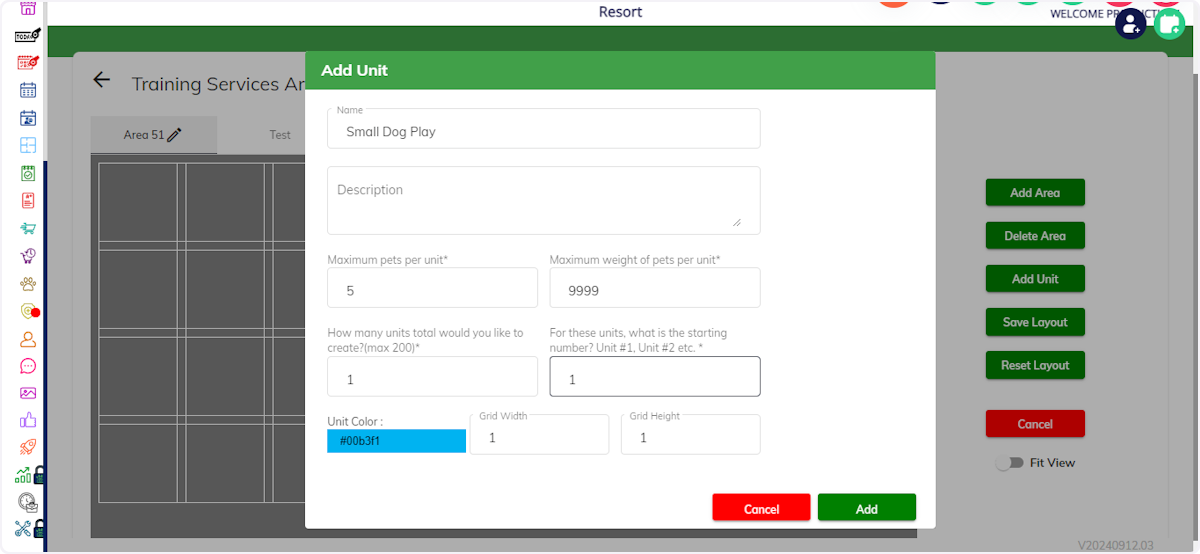
25. Click on Add Unit and create units within the area.
26. Click on OK
# Training Services Agreement
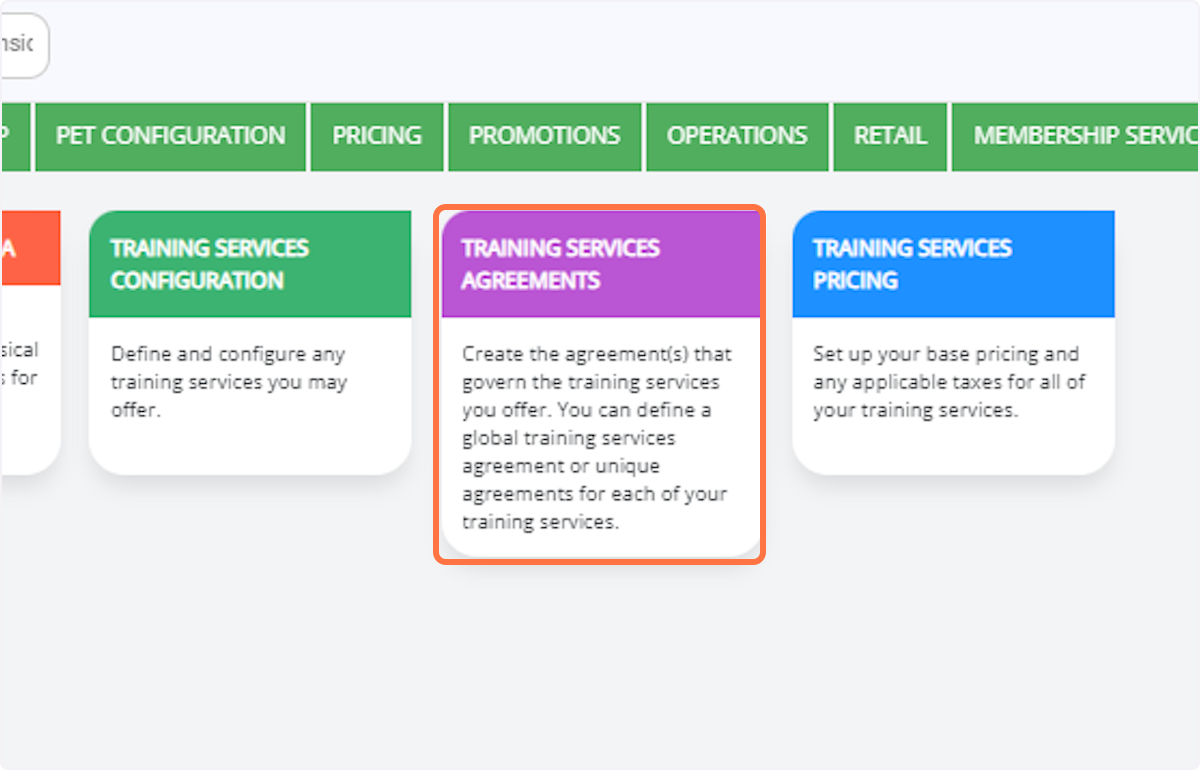
27. Click on Training Services Agreement: Navigate to the agreement section.
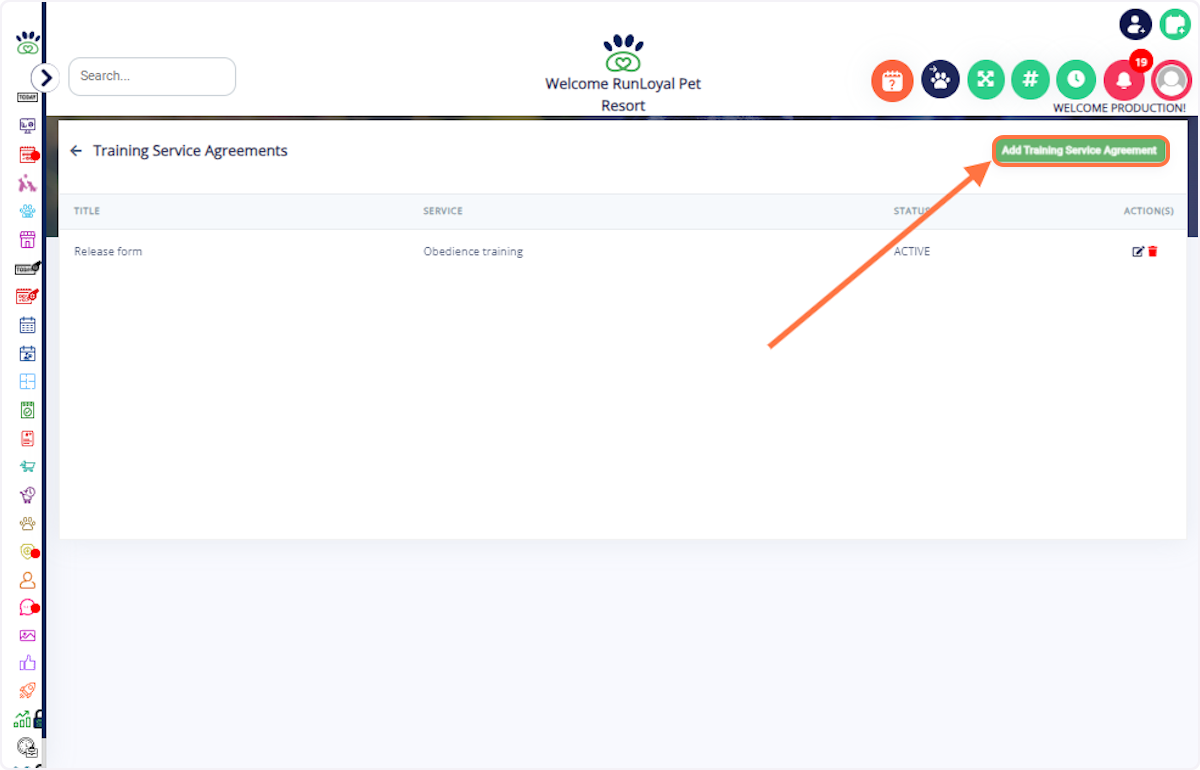
28. Click on Add Training Service Agreement: Begin creating a new agreement.
29. Enter Details: Input the agreement name, description, status, and category.
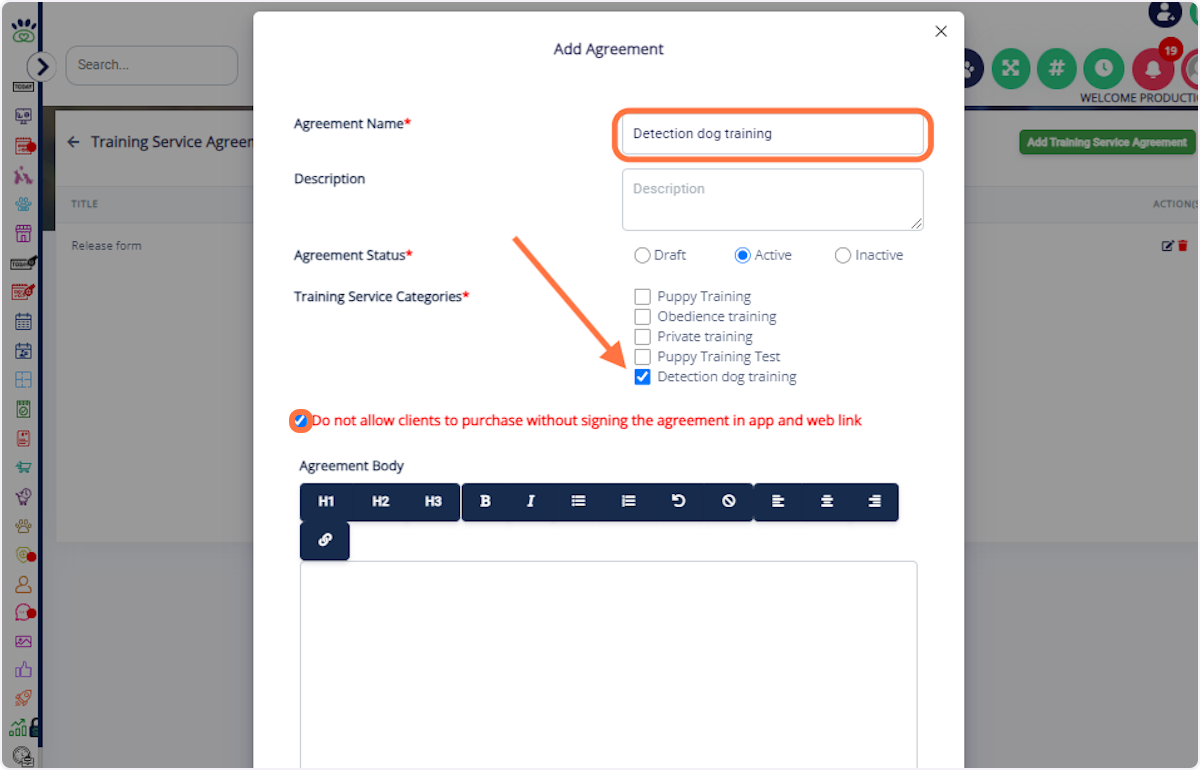
30. Type Agreement Body: Write the agreement content.
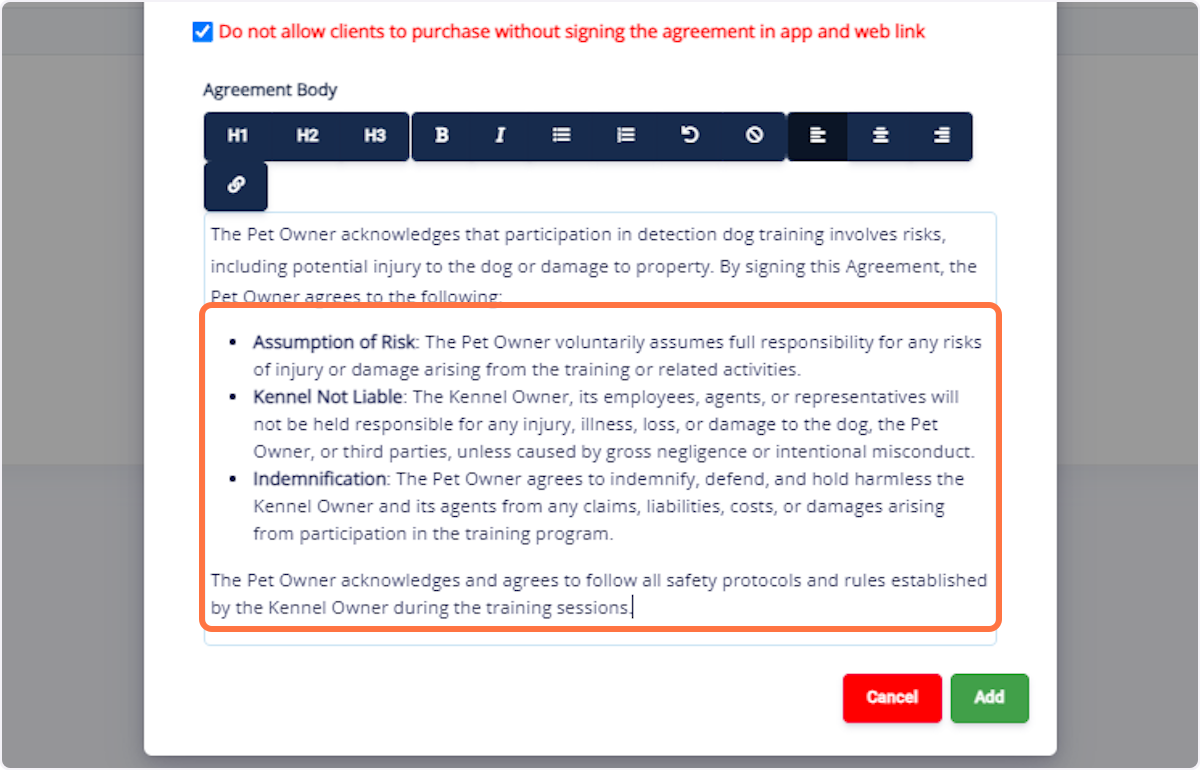
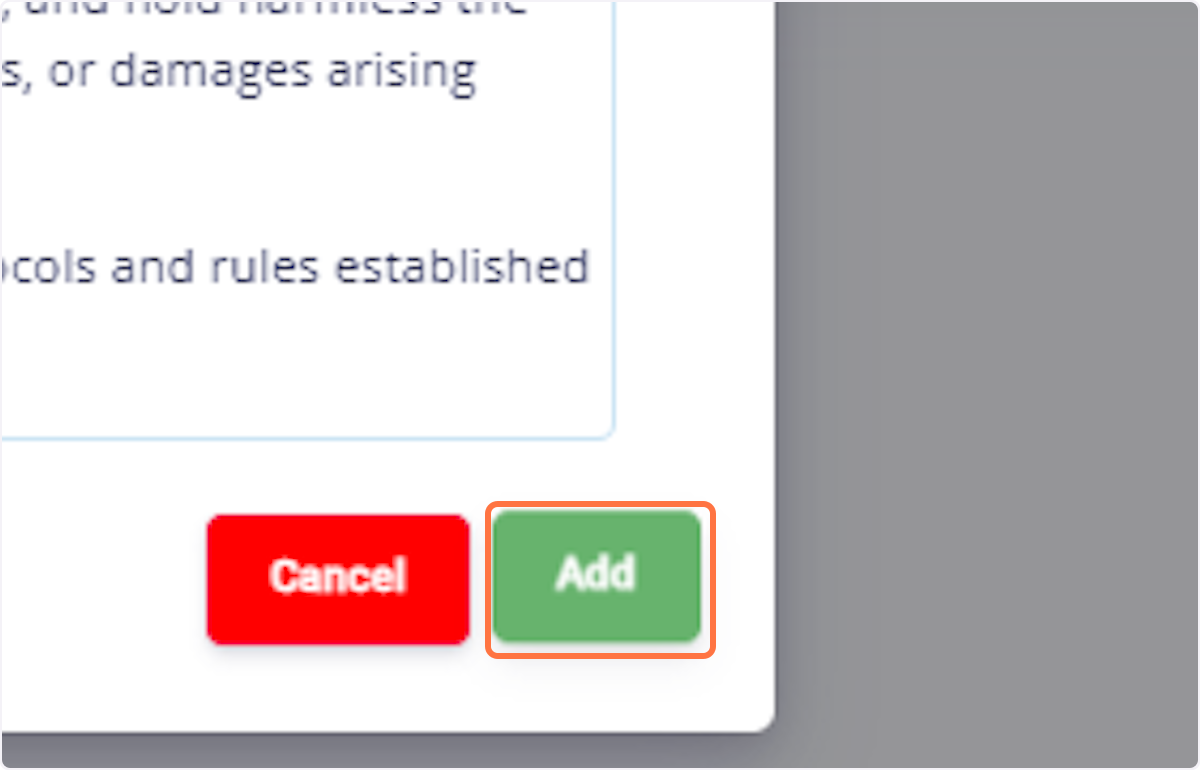
31. Click on Add: Confirm the agreement.
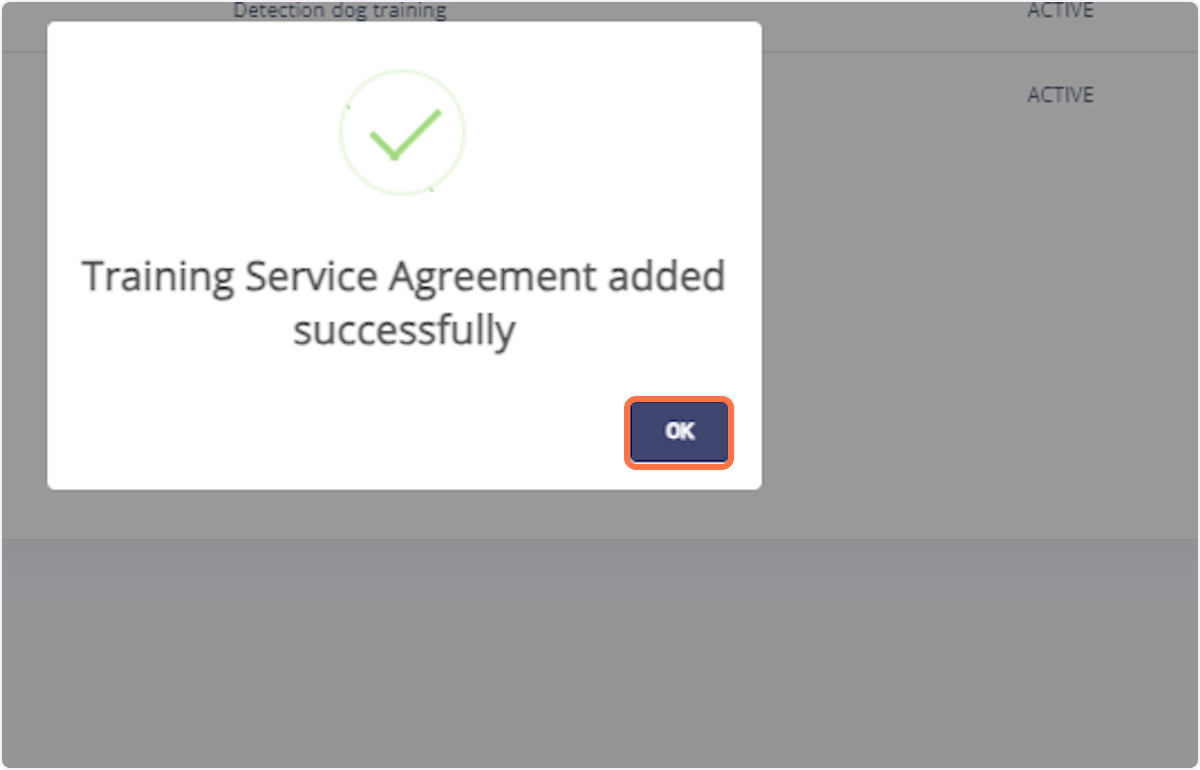
32. Click on OK: Complete the process.
# Training Services Pricing
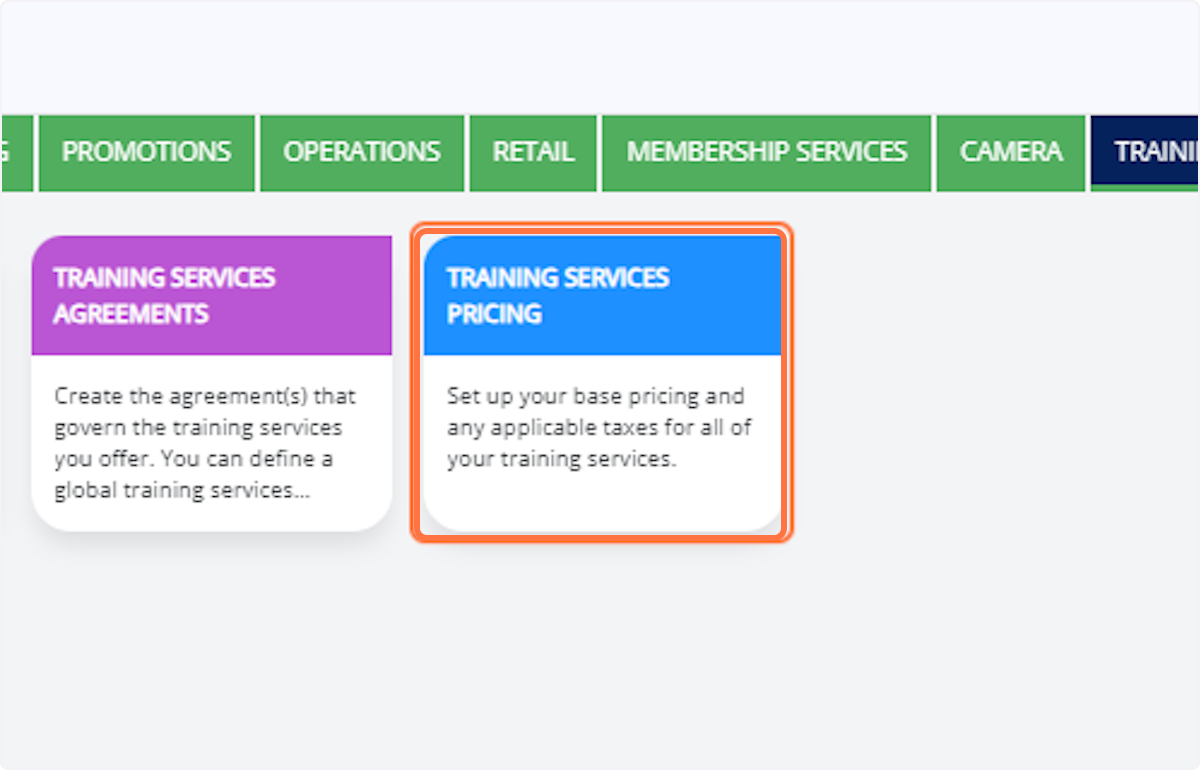
33. Click on Training Services Pricing: Navigate to the pricing section.
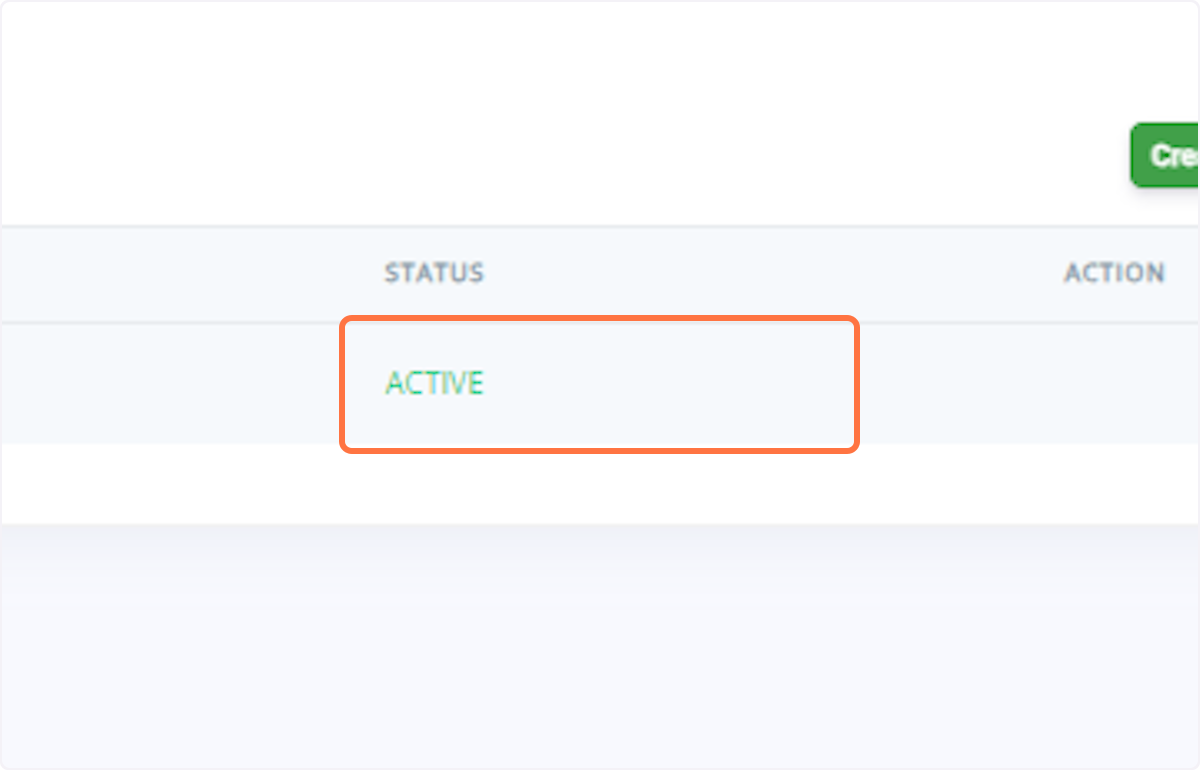
34. Select Active: Choose the active price list.
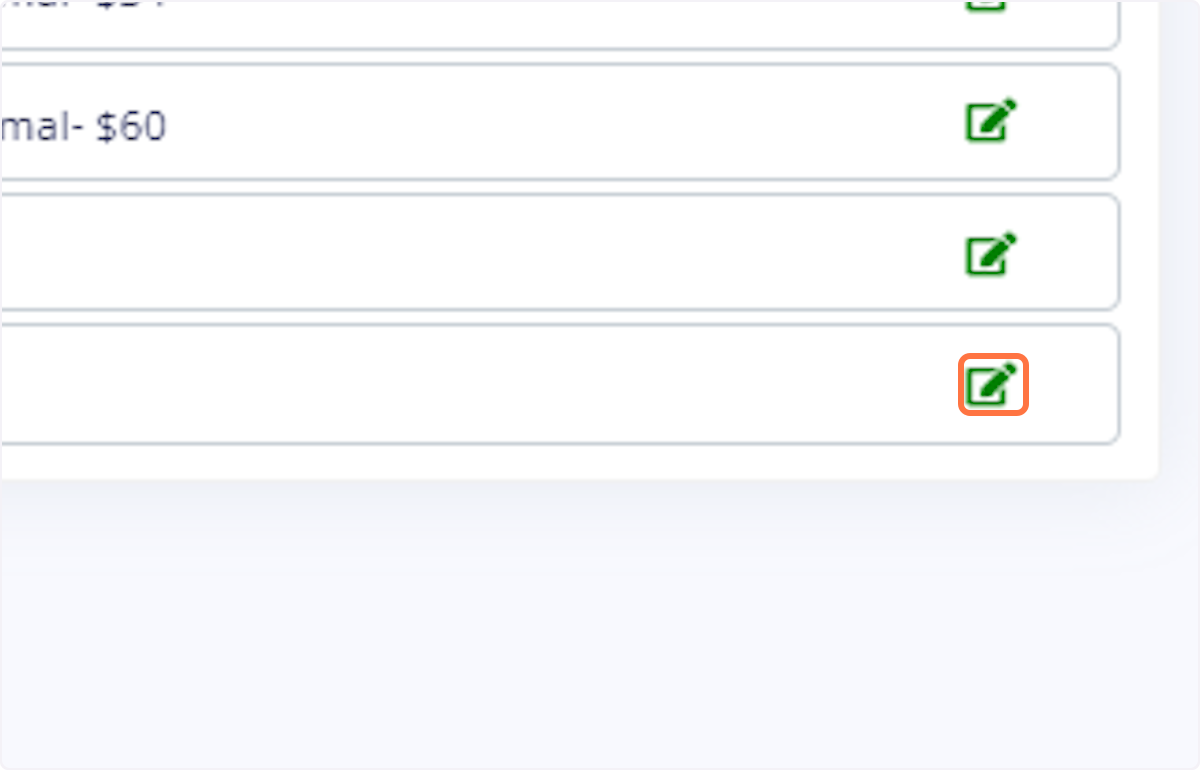
35. Edit Pricing: Click on the edit icon for the desired training service.
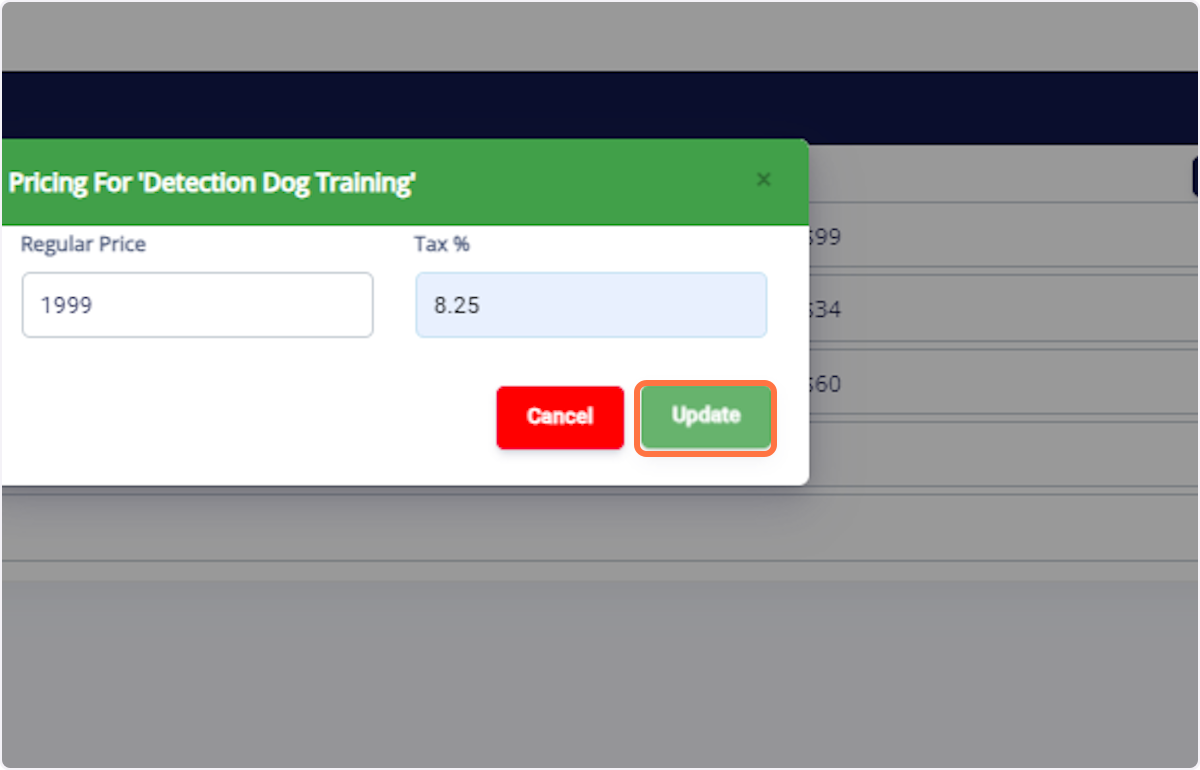
36. Set Price and Tax: Enter the regular price and tax. Click on Update: Save the changes.
# Purchase of Training Services
37. Go to Quick Checkout: Navigate to the quick checkout menu. Search for Pet Owner: Find the pet owner who wants to purchase the training service.
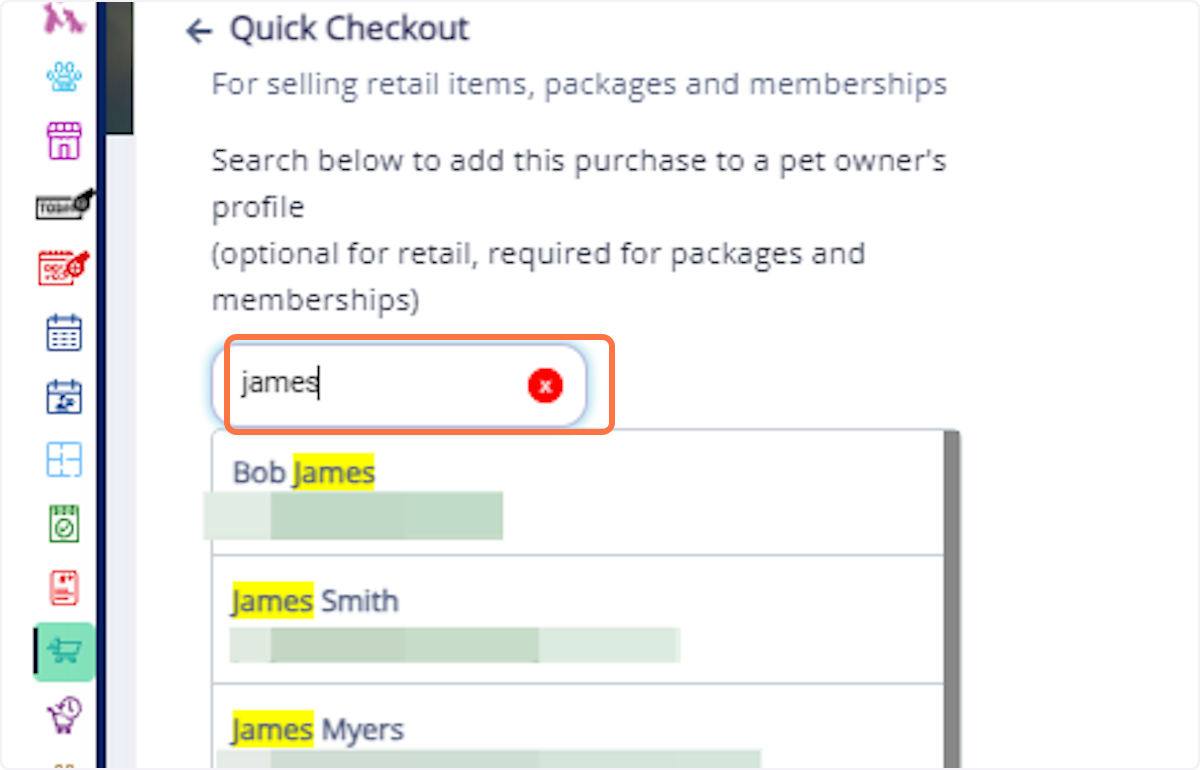
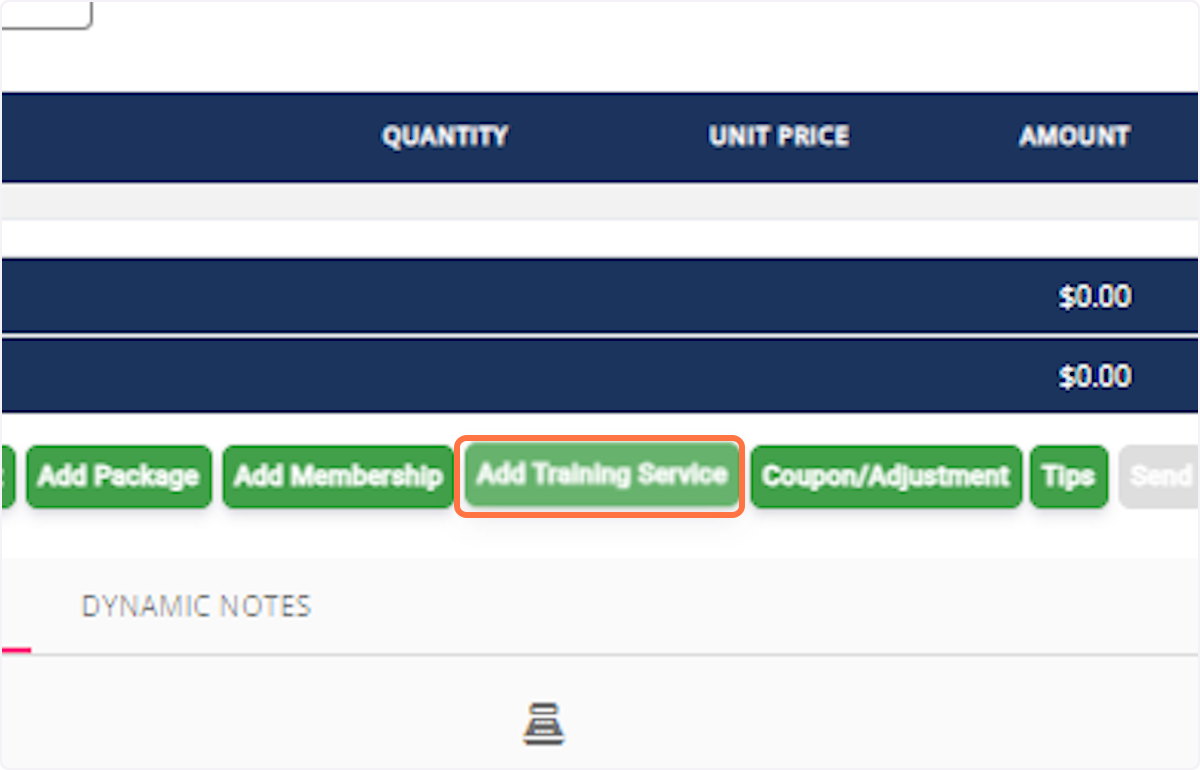
38. Add Training Service: Click on "Add Training Service."
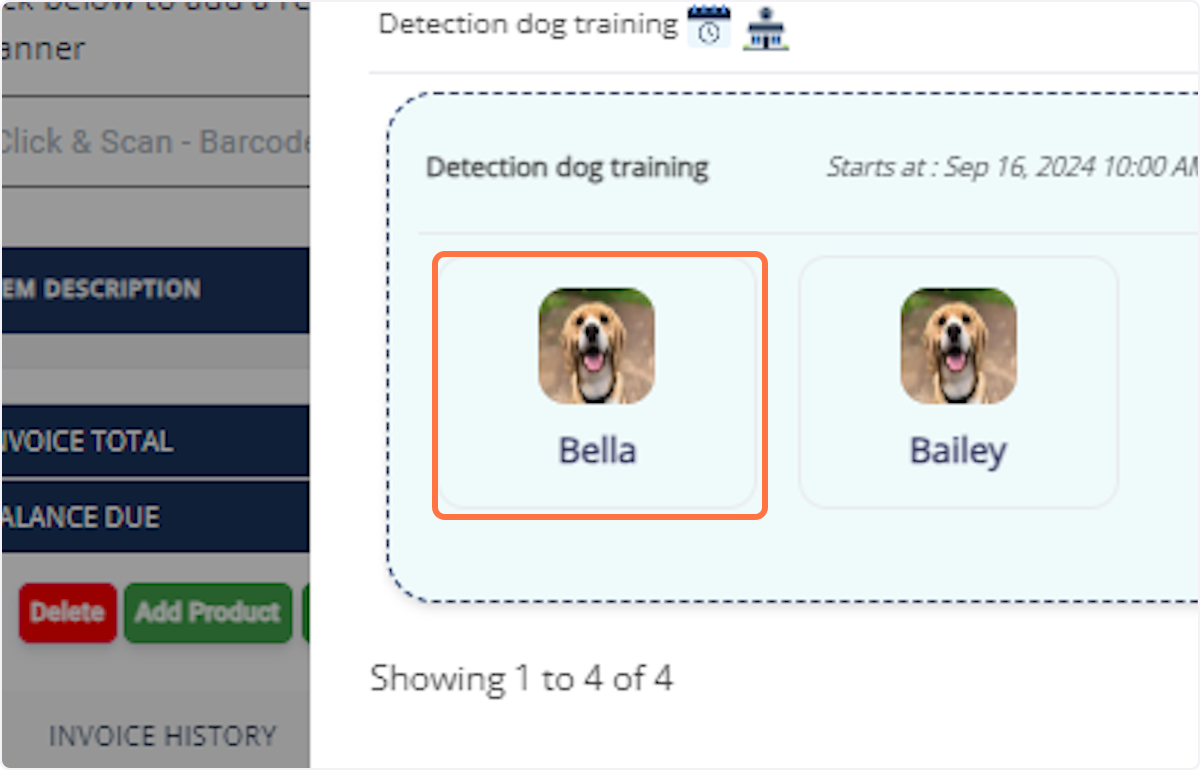
39. Select Service and Pet: Choose the training service and the pet.
40. Complete Payment: Finish the payment process.
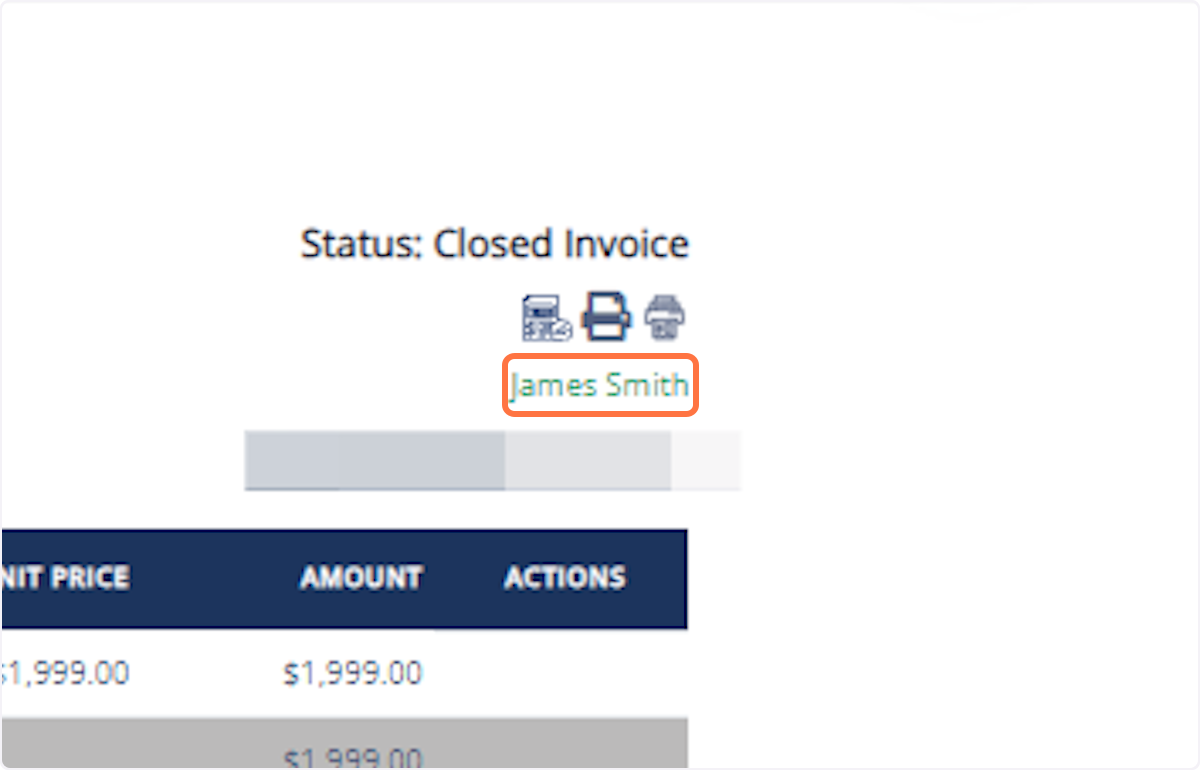
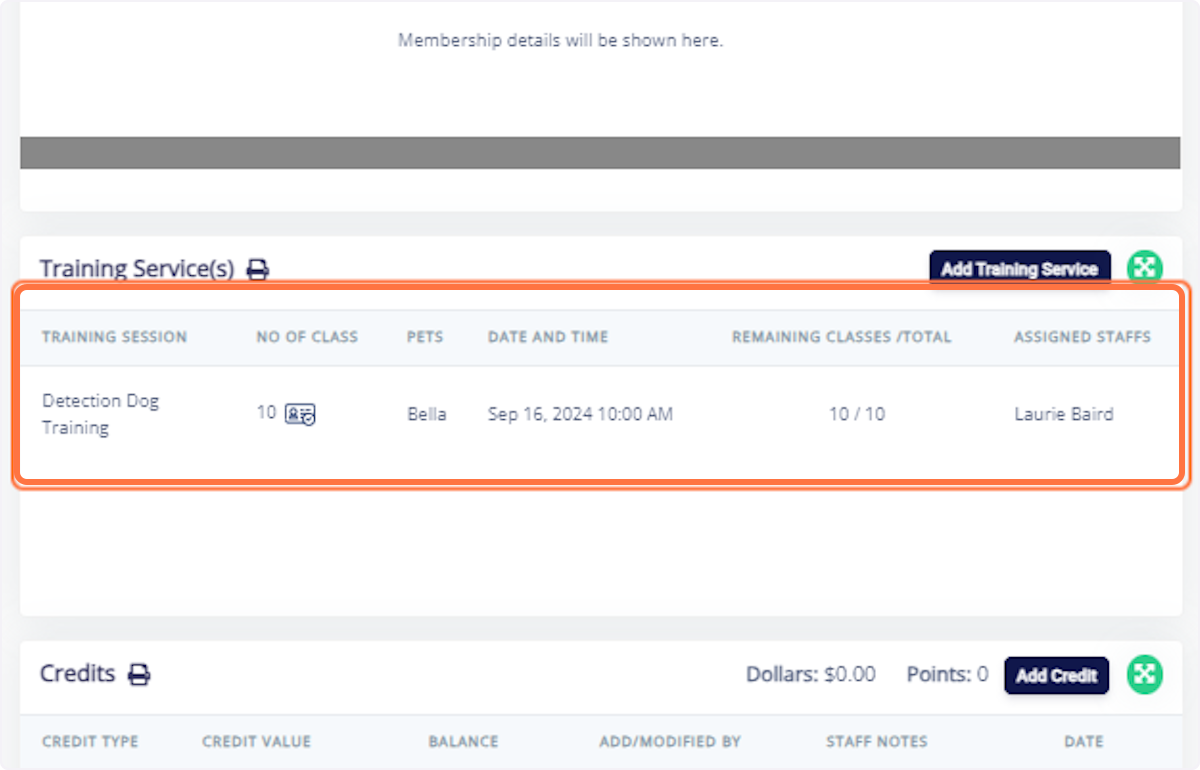
41. View Purchased Training: Navigate to the pet owner's page to see the purchased training session.
# Checking In Dogs for Training
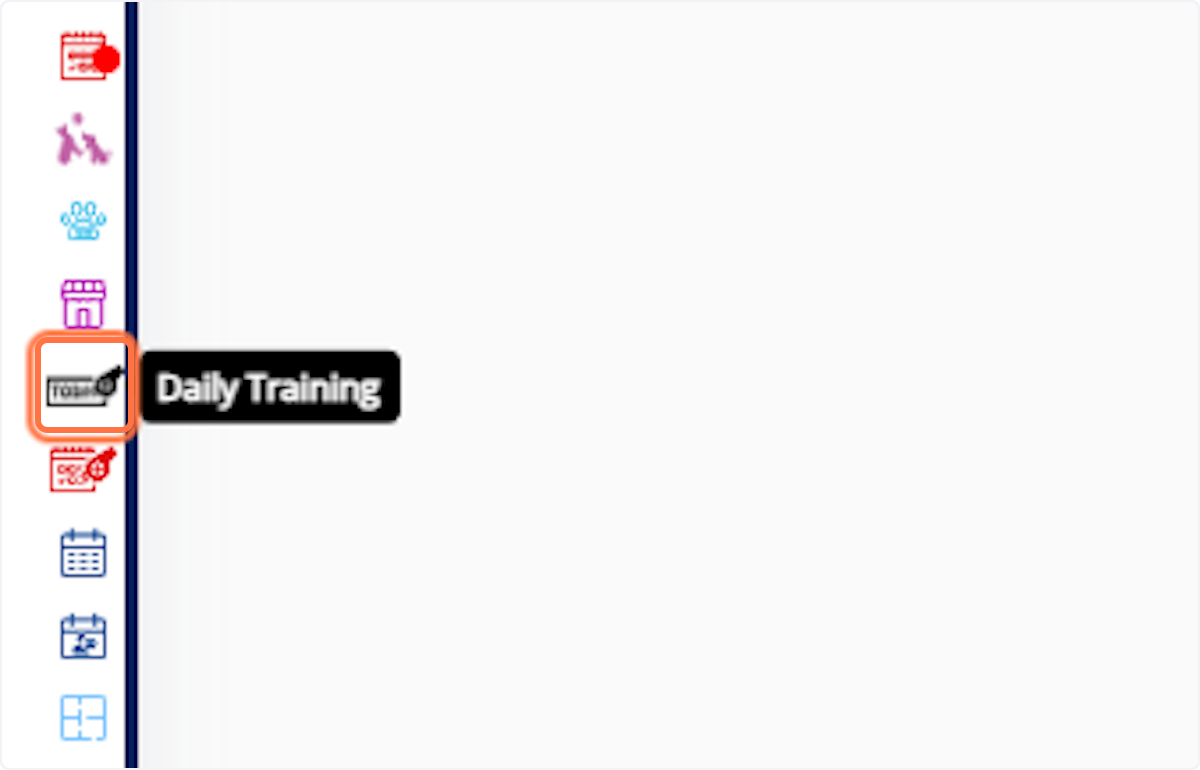
42. Go to Daily Training: Navigate to the Daily Training menu.
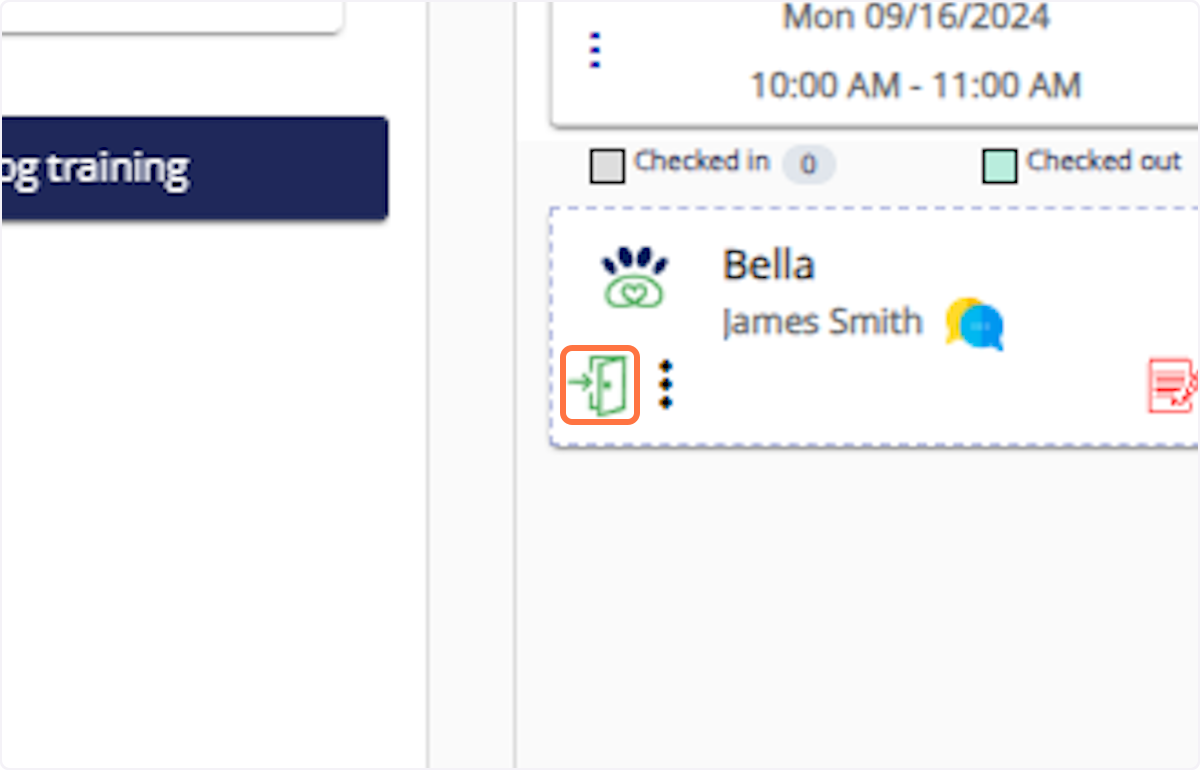
43. Check on Dog: Select the dog you want to check in. Click on Checkin Image: Click on the check-in icon.
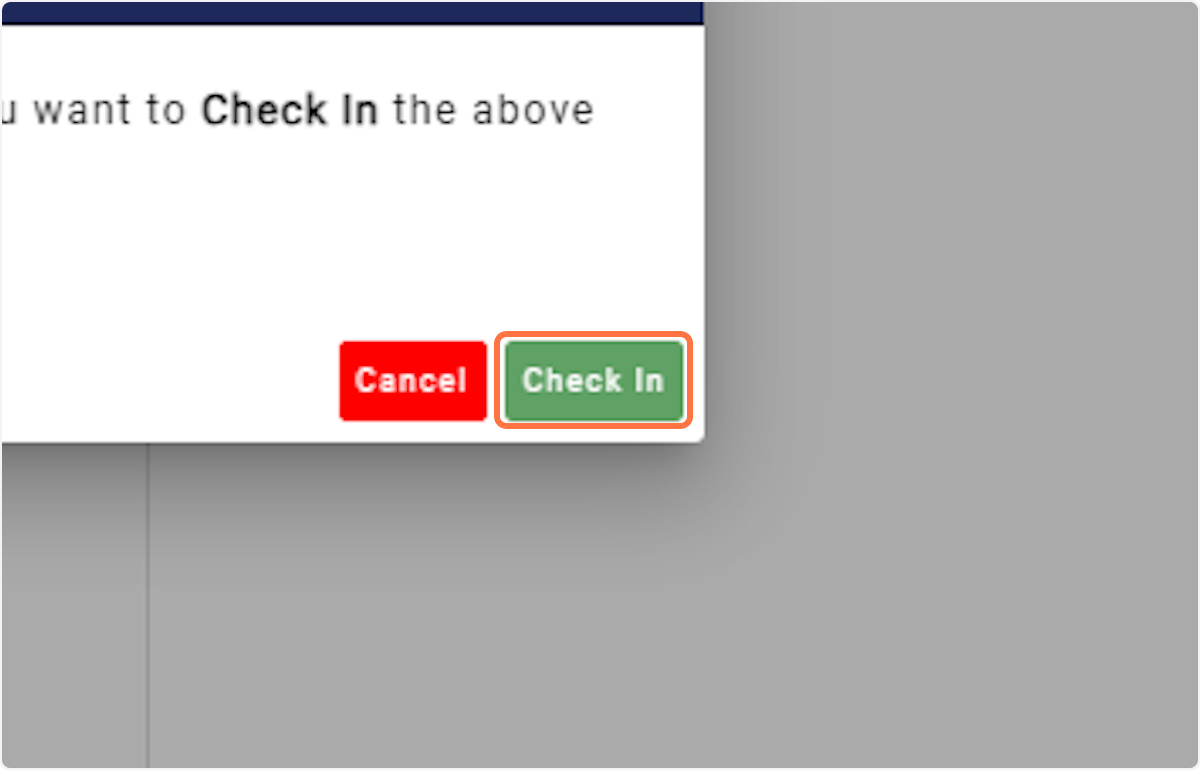
44. Click on Check In
# Runcard for Training Services
45. Navigate to Training Services: Go to the Training Services section under To-Do.
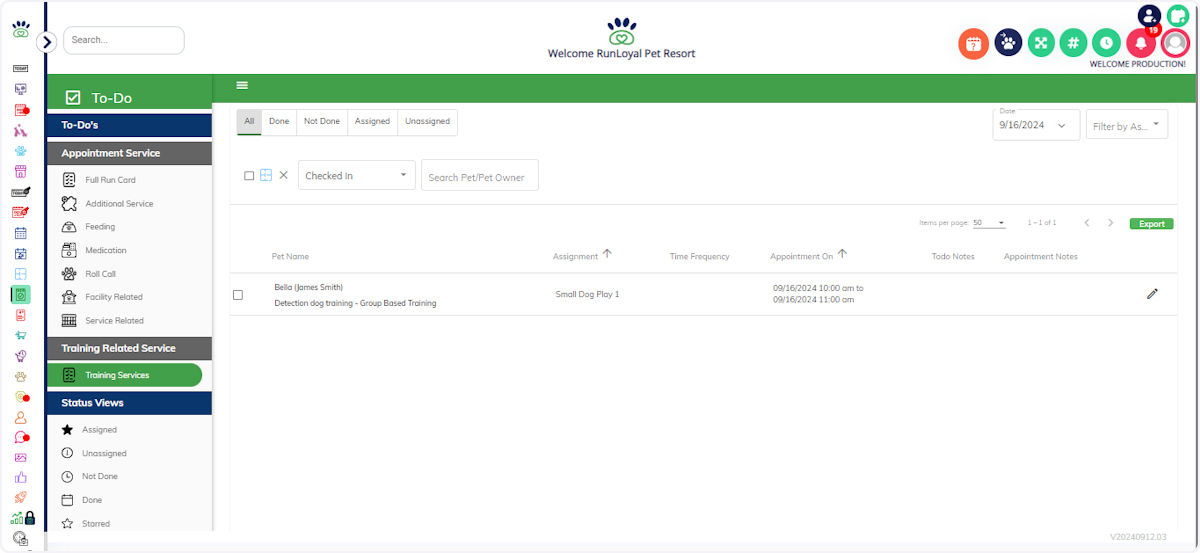
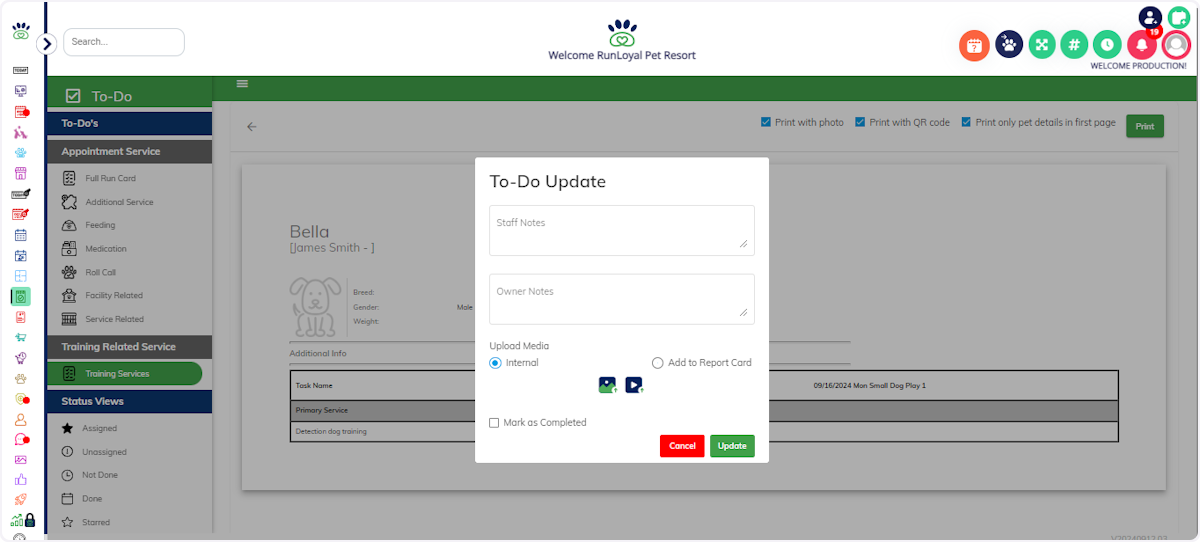
46. Add Notes and Media: Write notes, upload media, and update the runcard.
# Confirm and Assign a training request
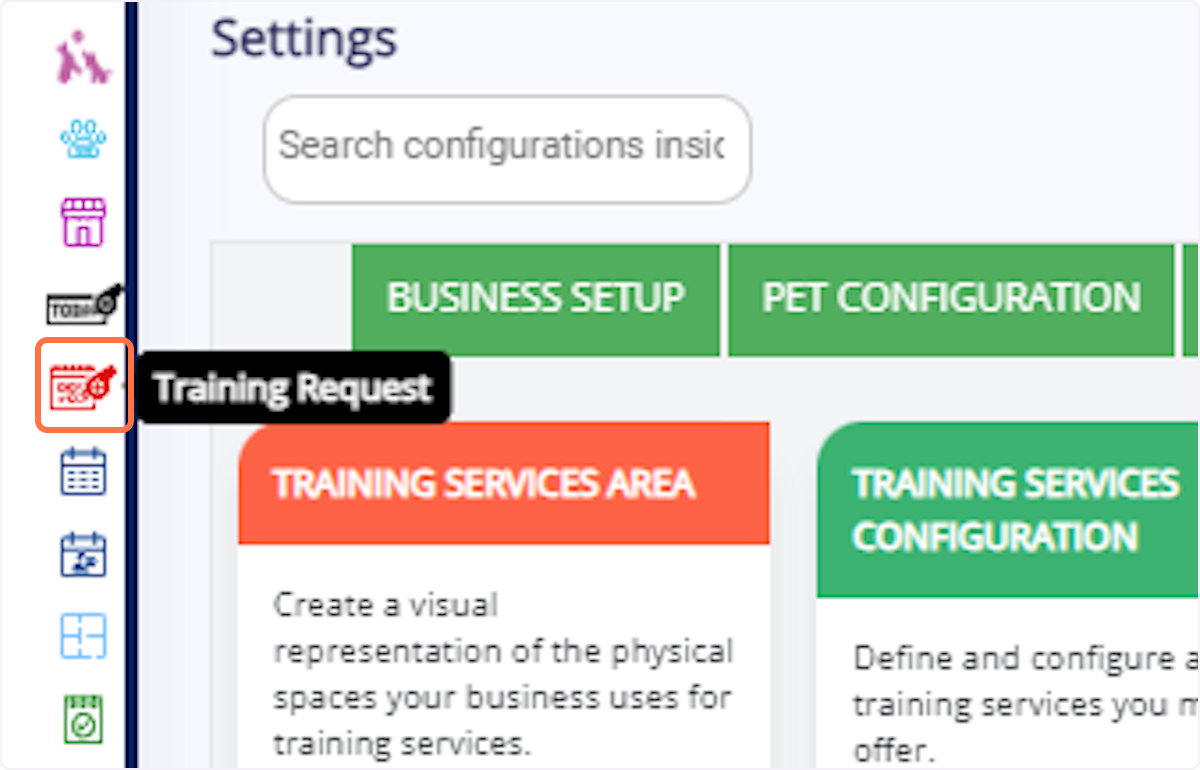
47. Navigate to the "Training Request" menu
48. Click on the "Requested" tab
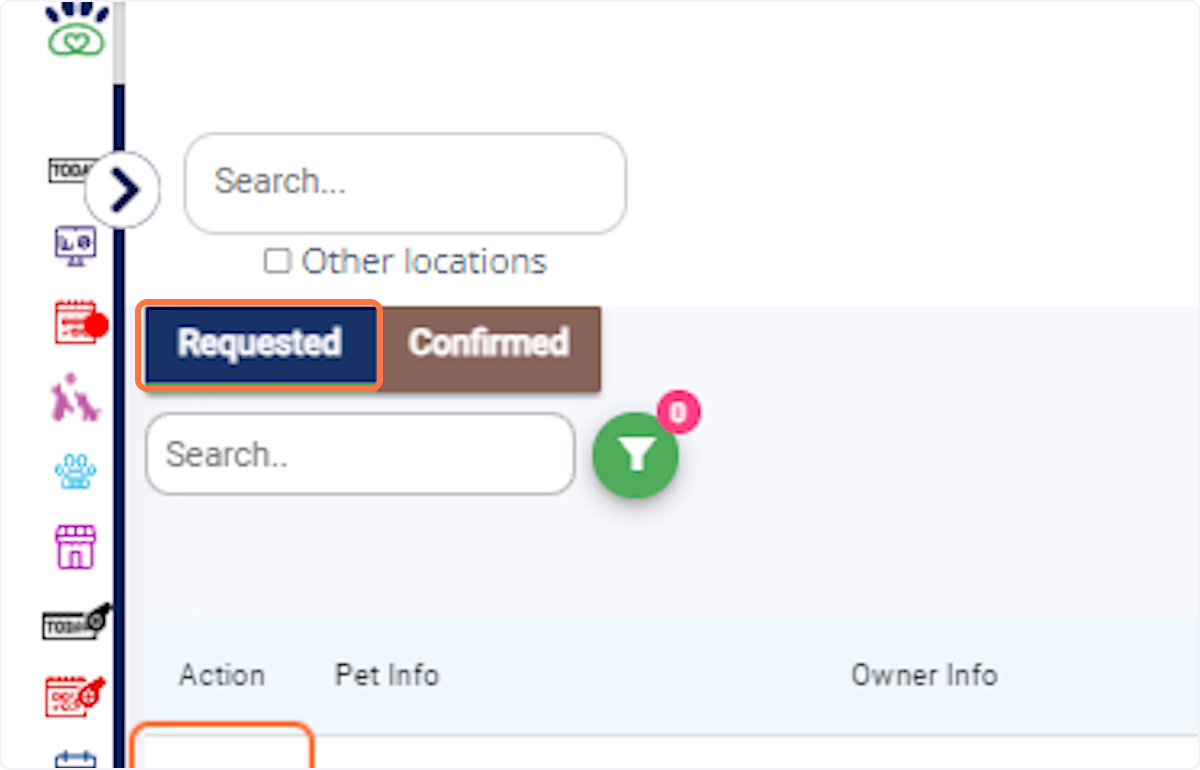
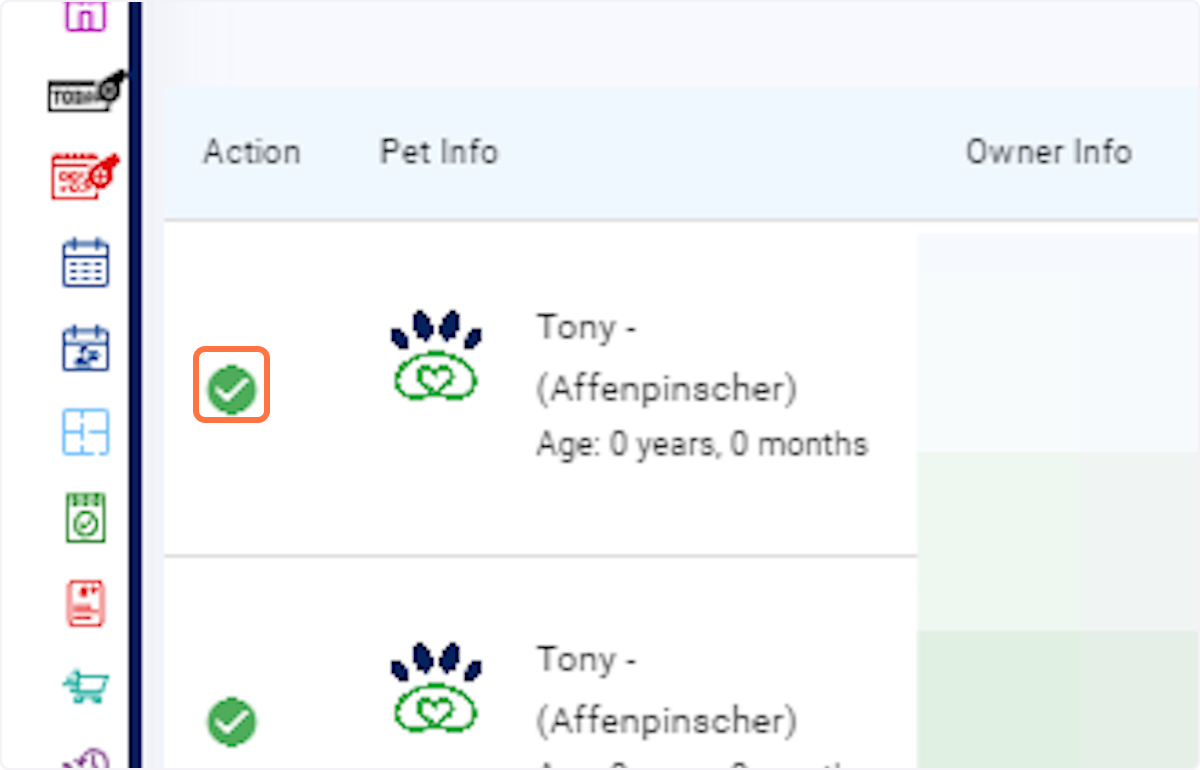
49. Click on the Tick under the action section- This confirms the training request.
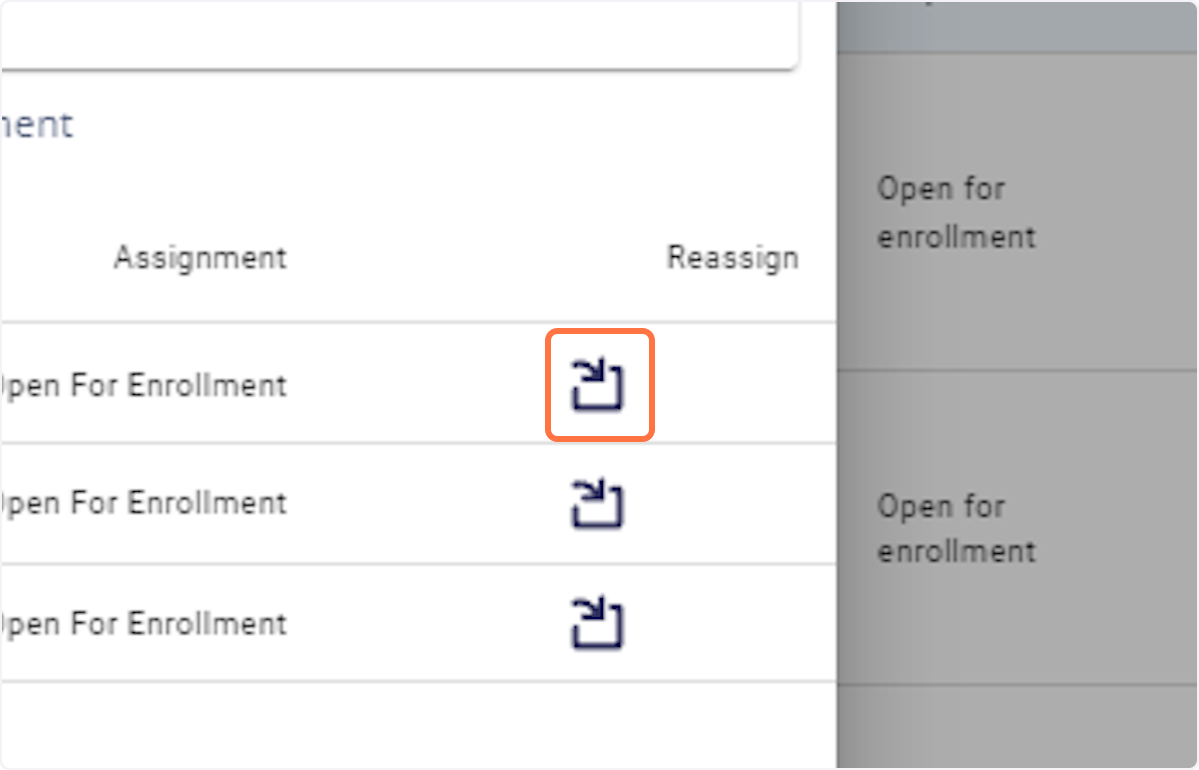
50. Click on the assigning icon. This opens a menu for assigning the training to a specific date slot.
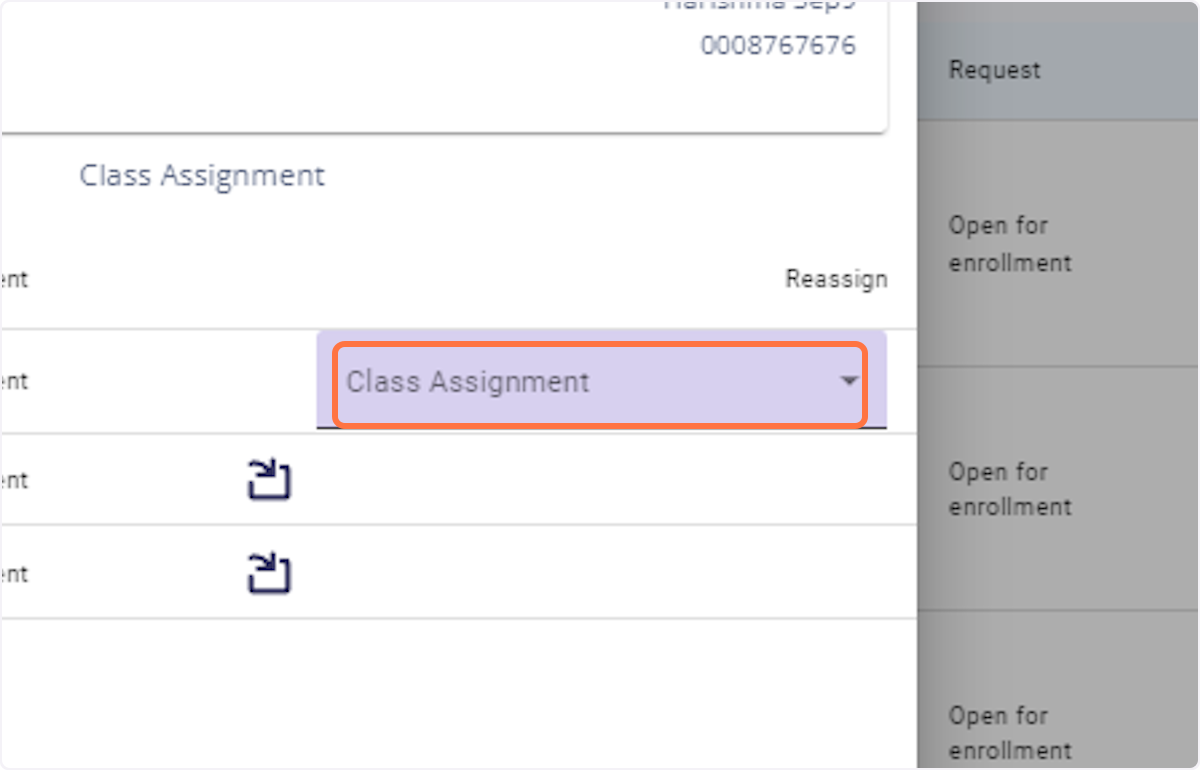
51. Click on "Class Assignment."
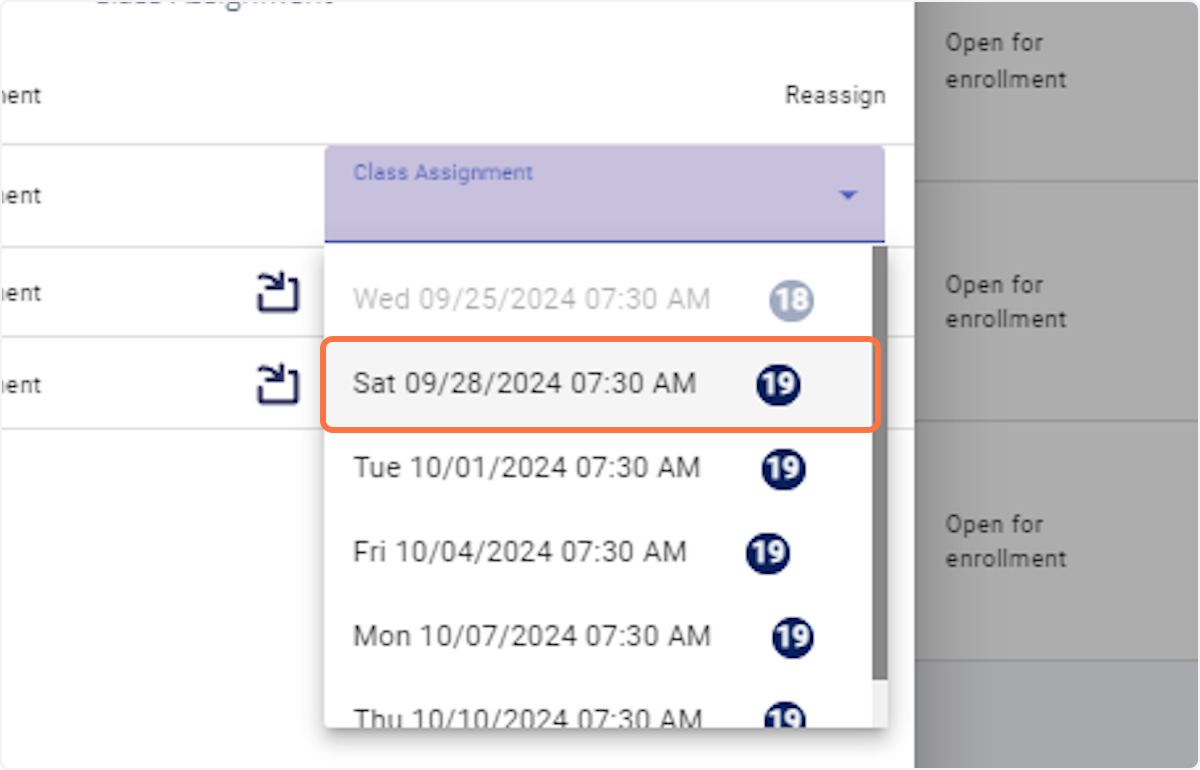
52. Select the date and time slot from the list
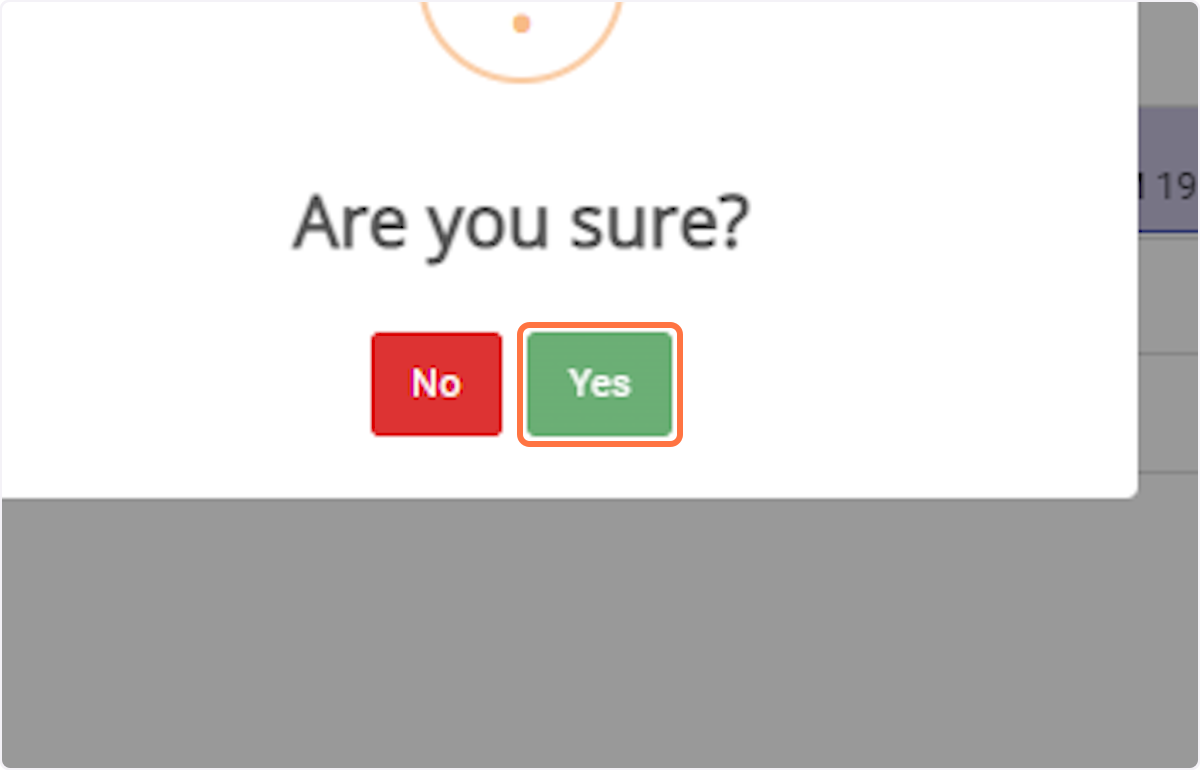
53. Click on "Yes". This confirms the assignment of the training to the selected class and date/time.
Was this article helpful?
That’s Great!
Thank you for your feedback
Sorry! We couldn't be helpful
Thank you for your feedback
Feedback sent
We appreciate your effort and will try to fix the article