Overview
This article explains how to add a retail product at the Organization level so it is available across multiple locations, and how to sell the product using Quick Checkout.
Adding a Retail Product (Settings--> Retail--> Product Inventory)
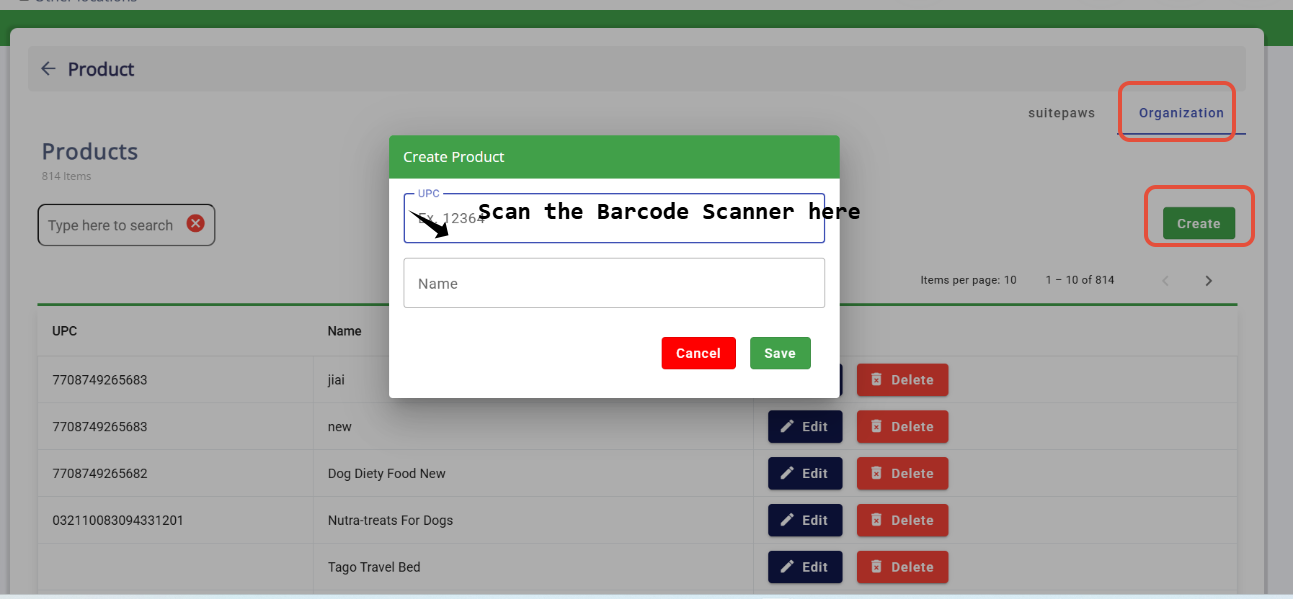
Navigate to Organization → Create.
To create a UPC, either:
Type the UPC code manually, or
Use a barcode scanner to scan the product (the UPC will auto-populate).
Enter the Product Name.
Click Save.
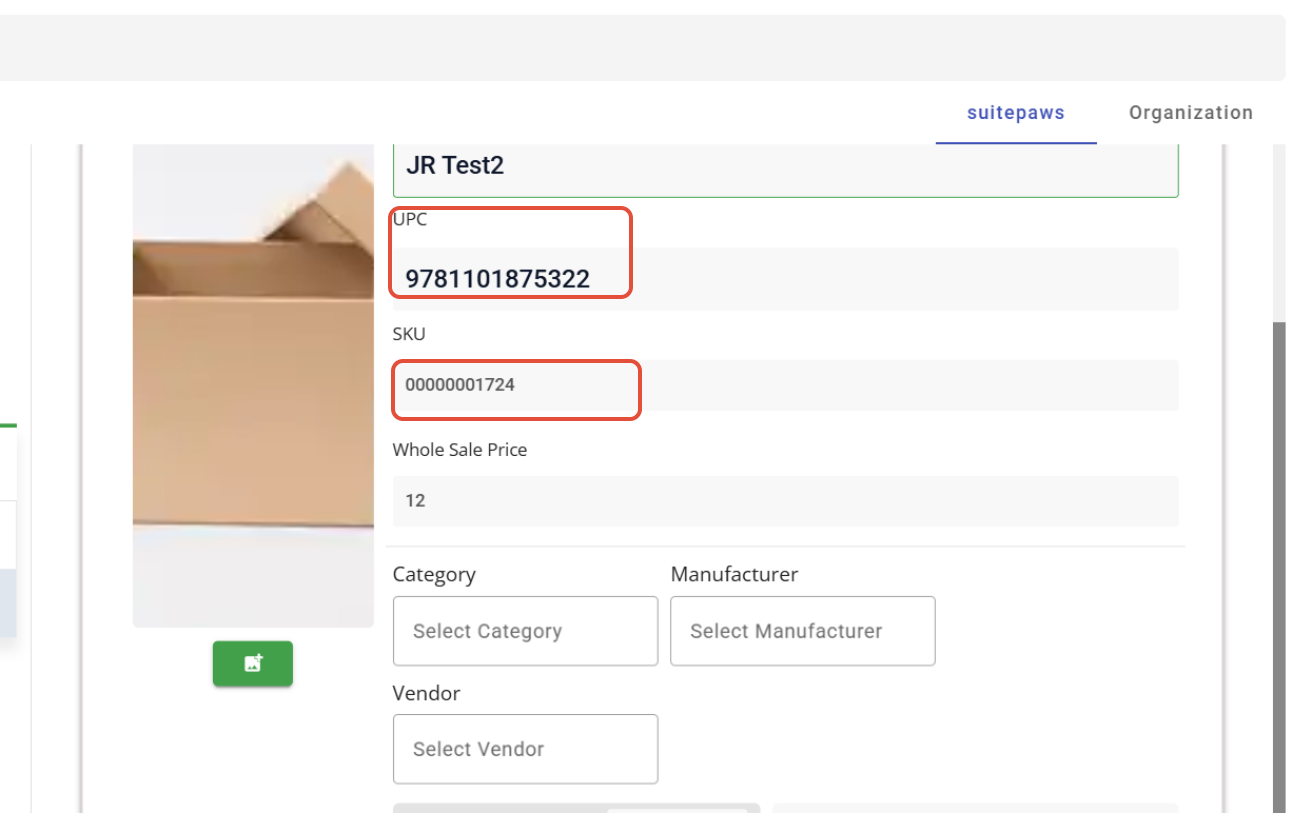
A SKU will be automatically generated for the product.
Selling a Retail Product
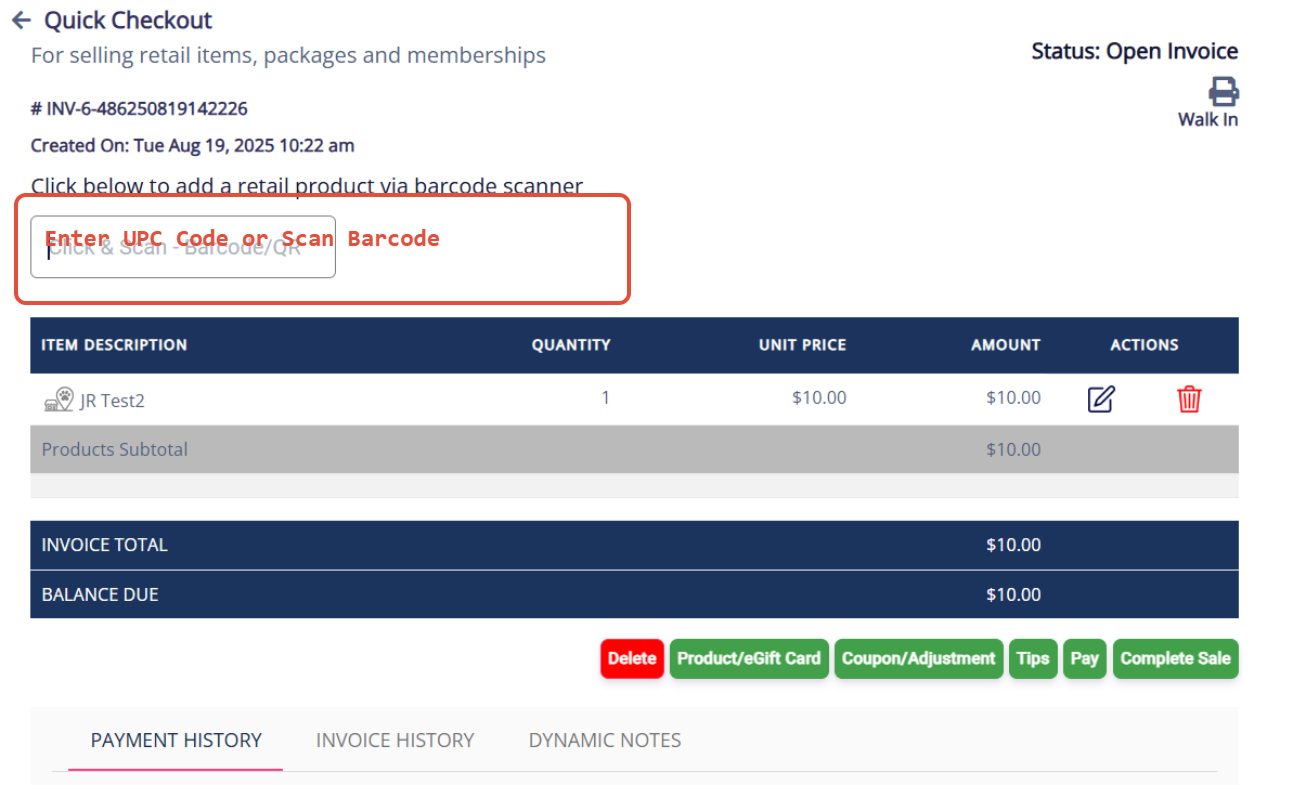
Go to Quick Checkout.
In the text box:
Scan the UPC or SKU code using a barcode scanner
Click on Add Product > Product Inventory and search and select the product to add to the invoice.
Was this article helpful?
That’s Great!
Thank you for your feedback
Sorry! We couldn't be helpful
Thank you for your feedback
Feedback sent
We appreciate your effort and will try to fix the article