Overview
Setting up your Price List is a key step in ensuring your services are billed accurately and consistently. This guide will walk you through how to configure pricing for daycare, boarding, grooming, and add-ons within your software. It will also review how to set deposits, cancellation fees, and no show fees. By the end, you’ll be able to customize your rates to match your business needs in order to streamline your checkout process.
Price Lists can be viewed in the following areas:
- Settings > Pricing > Price List
- Invoices
TABLE OF CONTENTS
- Overview
- How to Set Service, Add-on, and Bundled Experience Pricing
- Setting Up Required Deposits
- Setting Up Cancellation & No Show Fees
- Setting Up Pricing for Bundled Experiences
- More Information
How to Set Service, Add-on, and Bundled Experience Pricing
1. Navigate to Settings > Pricing > Price List.
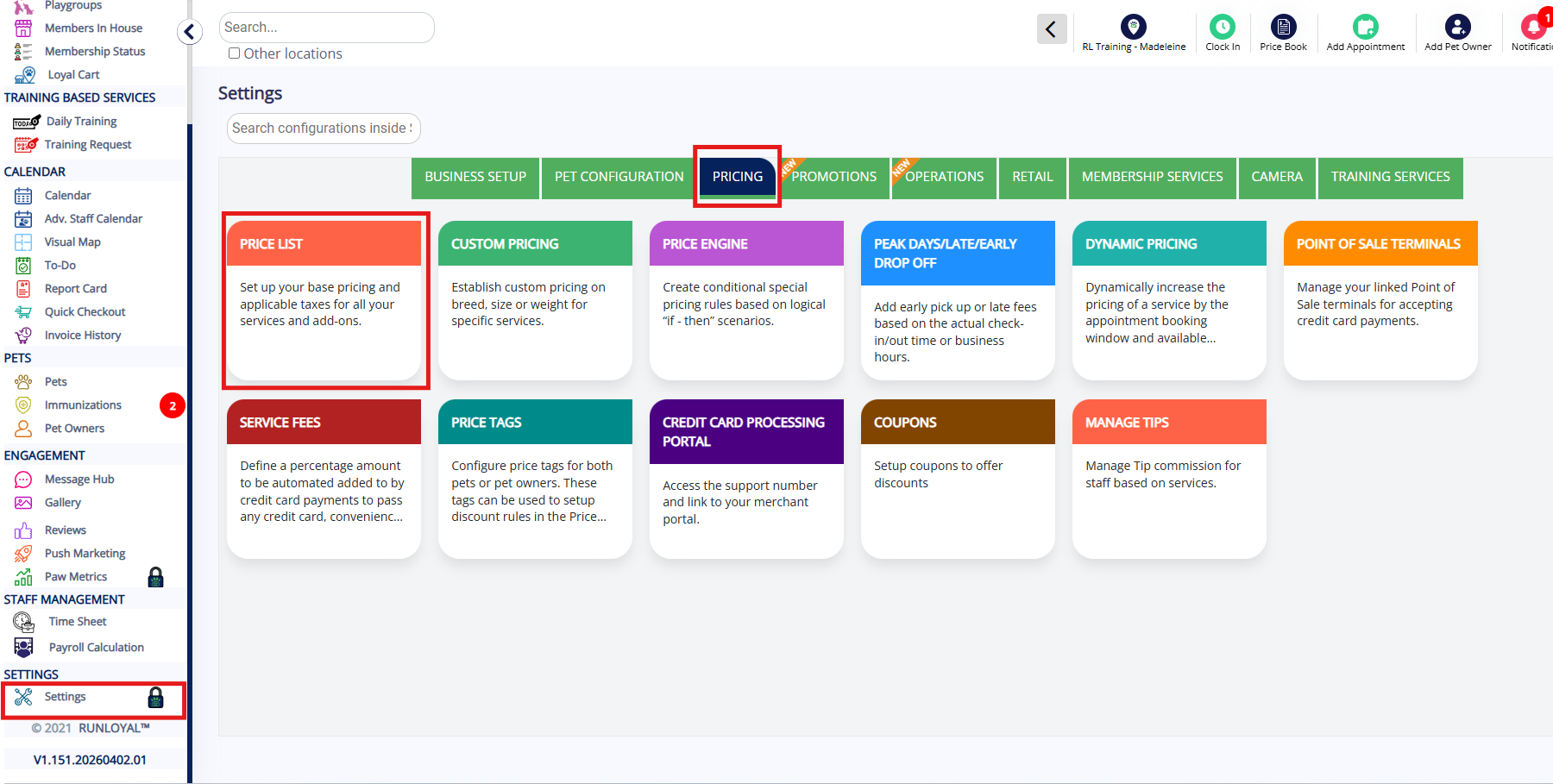
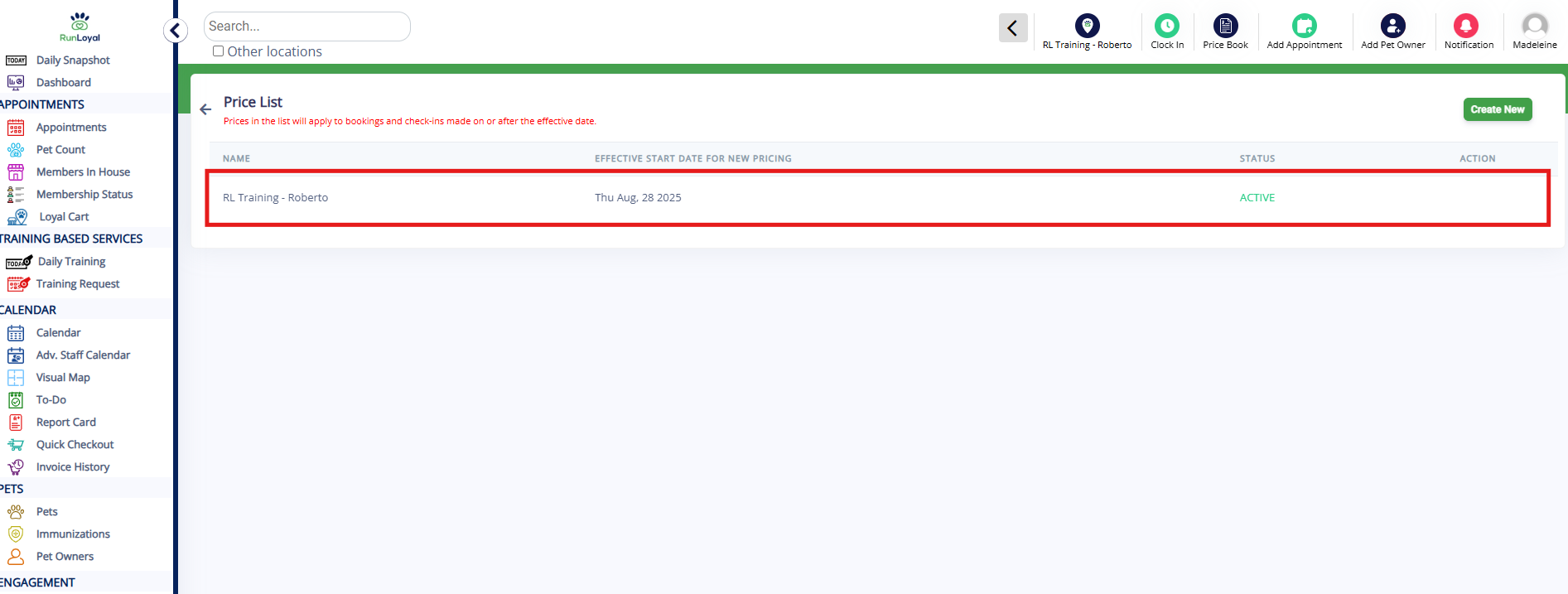
2. Click the existing create price list to edit the rates.
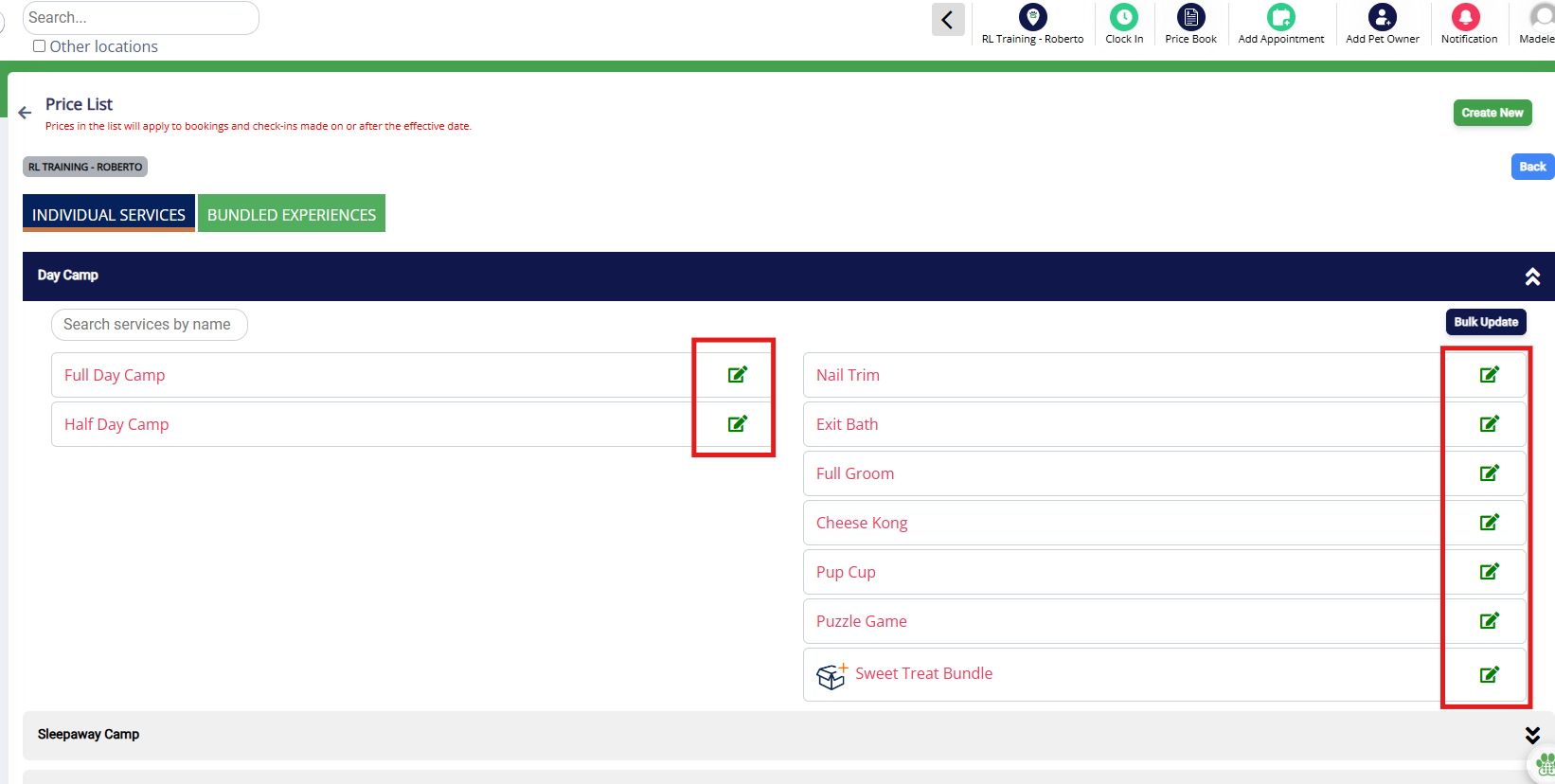
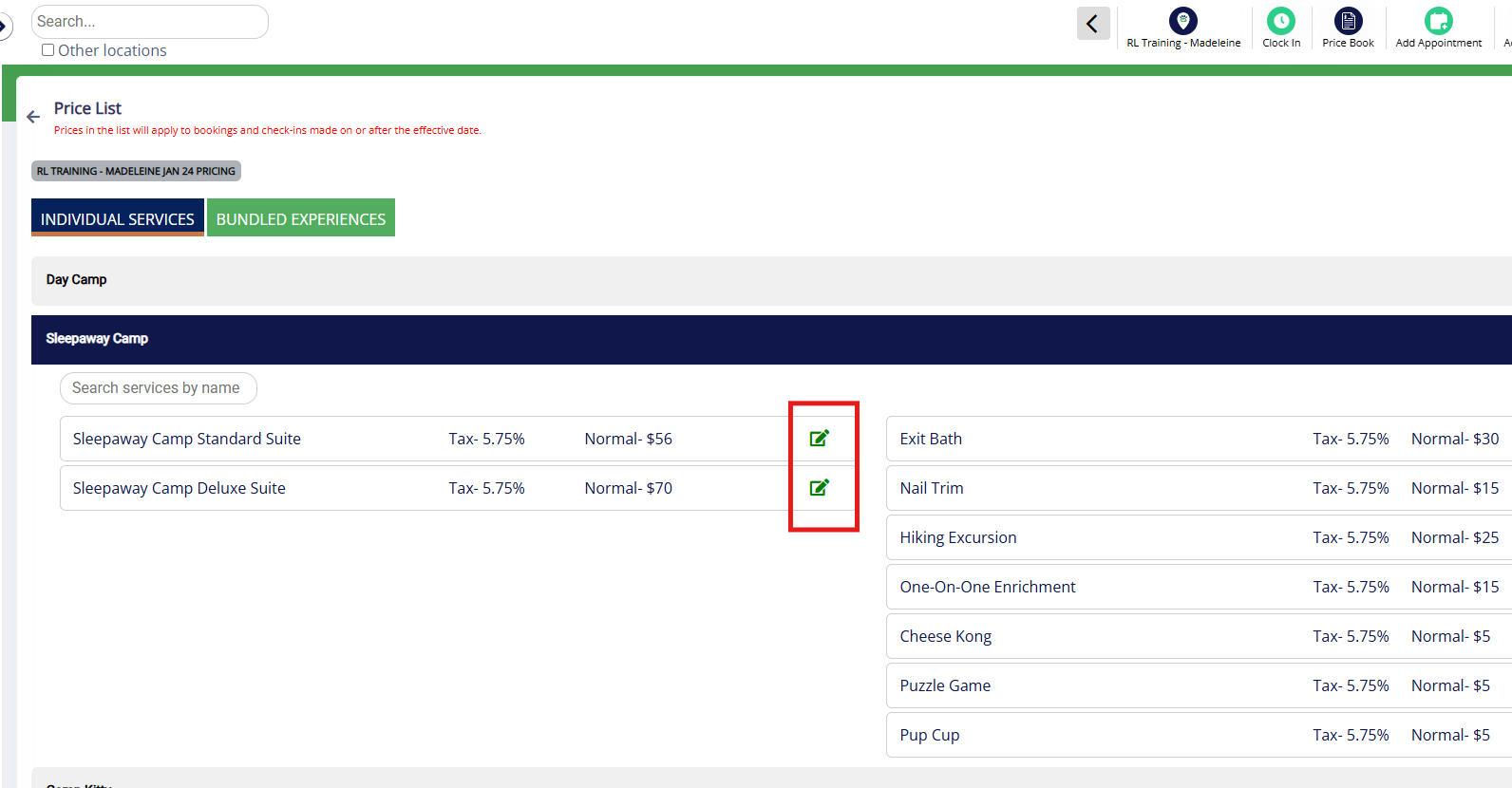
3. Click the service categories to expand and view services. Any service flagged with red is missing a price. Click the pencil icon to edit.
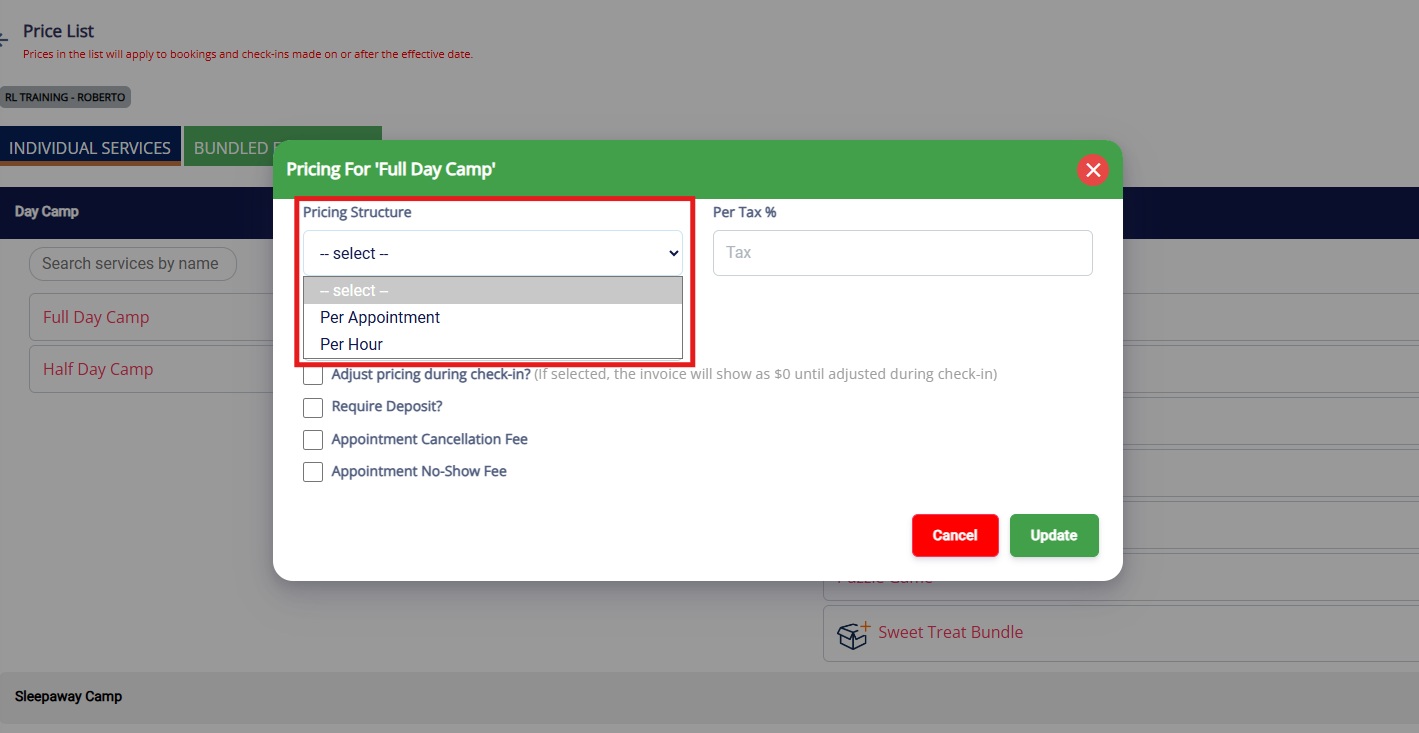
4. For capacity-based services (such as Daycare), you can select if pricing should charge per appointment (once) or per hour. The most common for Daycare is per appointment since it is a single day appointment.
For lodging-based services (such as boarding), you can select if pricing should charge per day, per night, or per appointment (once). The most common for boarding is per night or per day, and the most common for board and train is per appointment (once).
For staff-based services (such as Grooming), you can select if pricing should charge per appointment (once), per hour, or per minute. The most common for Grooming is per appointment.
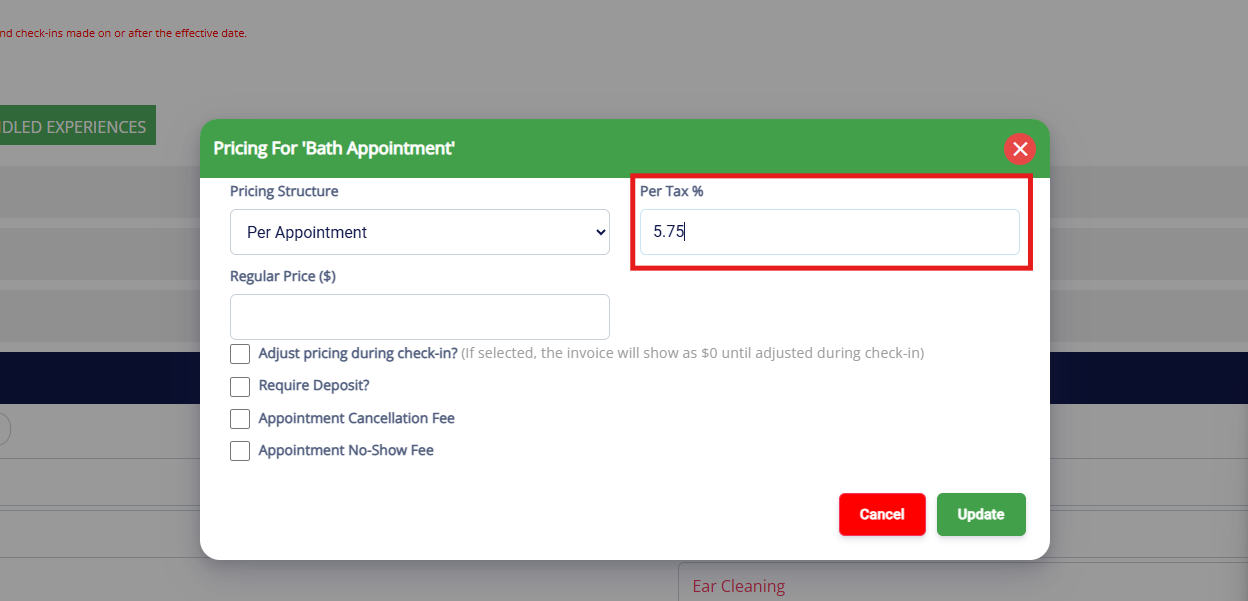
5. Enter in the tax percentage.
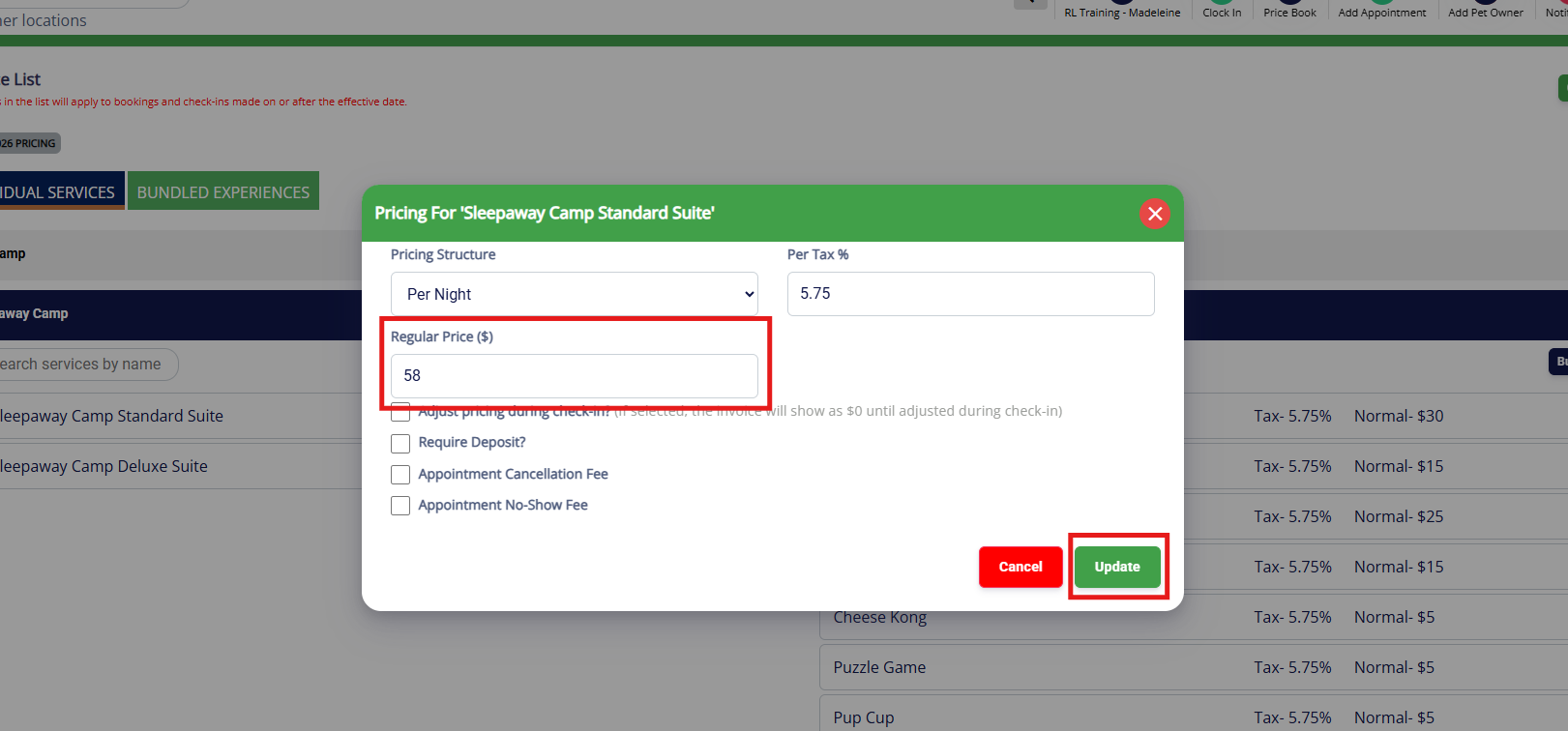
6. Set the price in Regular Price that will charge per night, day, hour, minute, or appointment as indicated. For example, if boarding is $58/night, you would select Per Night and enter $58 in Regular Price.
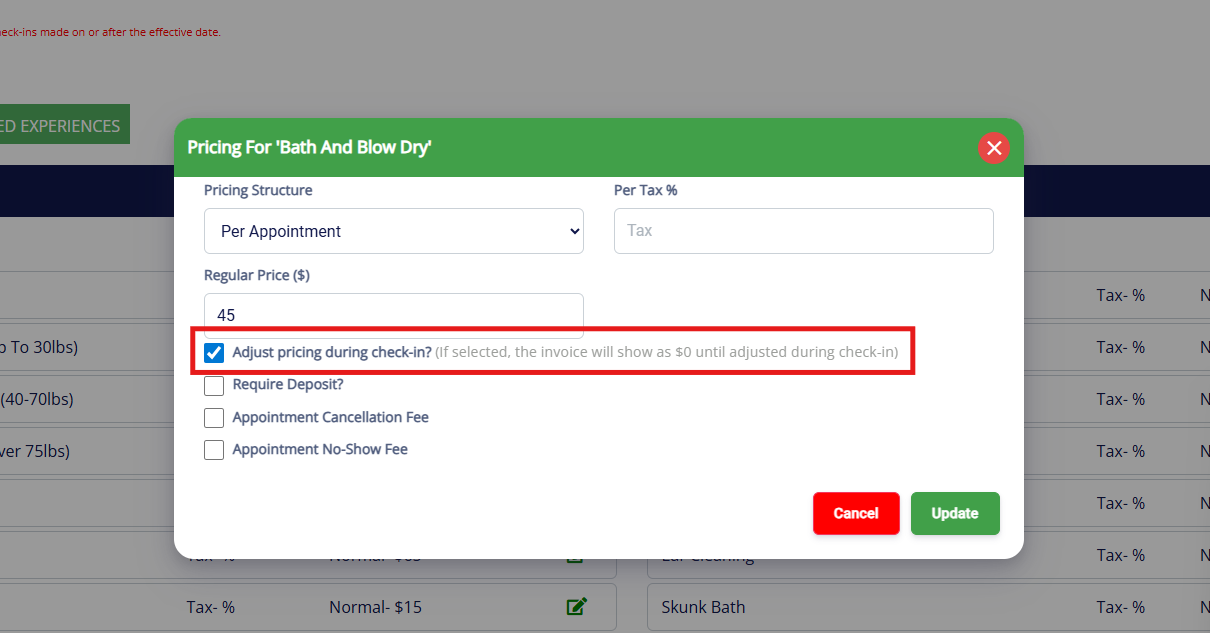
7. Select Adjust Pricing During Checkin if you wish to adjust the price of the booking once the pet is checked in for their appointment. The appointment will display as $0 until the price is edited. This is most commonly used for Grooming.
8. Once you have entered the price, click Update and the price will be set for that service. Continue adding prices for services and add-ons until prices are set for all items. See below sections for instructions on setting up deposits, cancellation fees, and no show fees.
Setting Up Required Deposits
1. Navigate to Settings > Pricing > Price List.
2. Click the existing create price list to edit the rates.
3. Click the service categories to expand and view services. Click the pencil icon to edit.
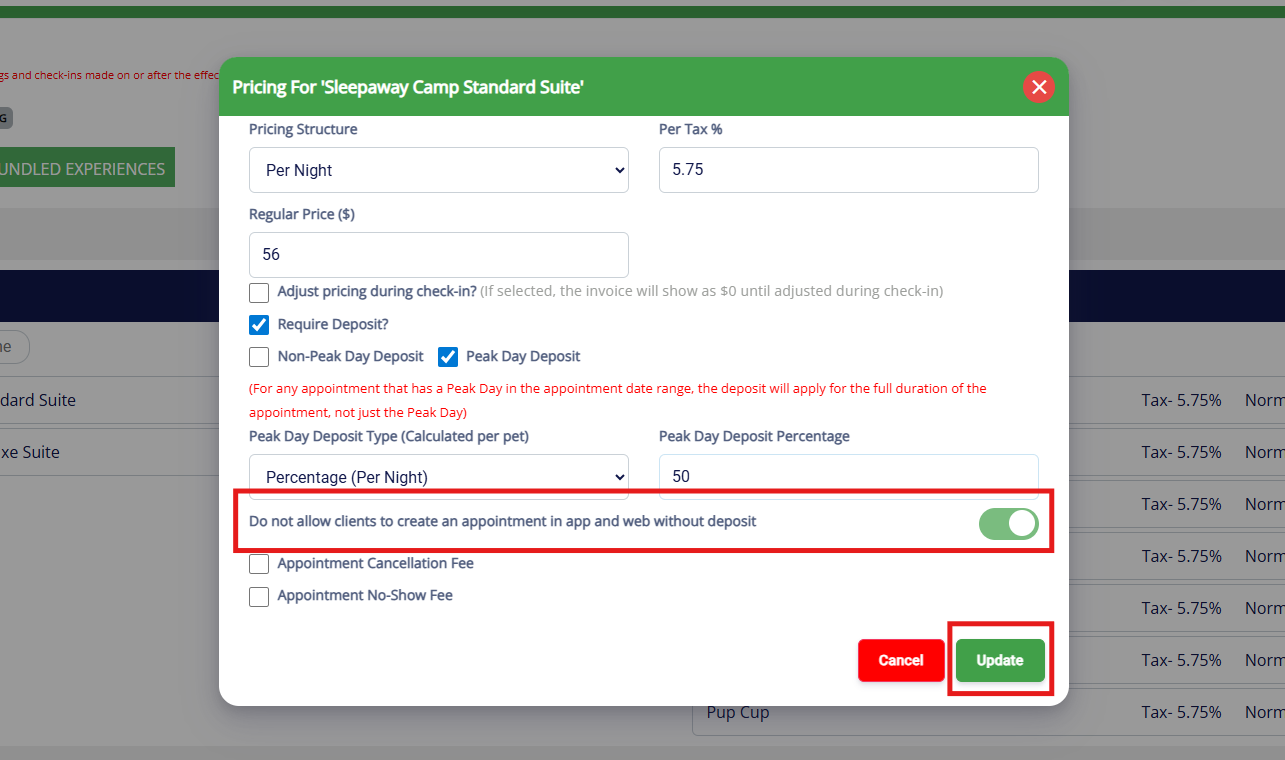
4. Check the box to Require Deposit.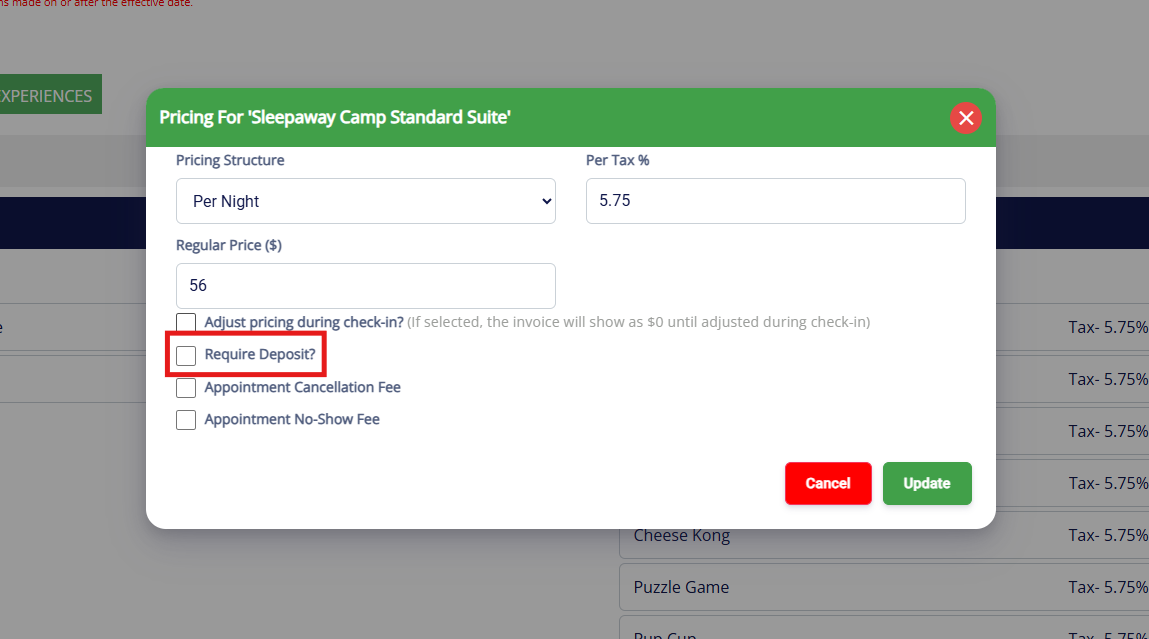
5. Select if you want the deposit to apply for Peak Dates, Non-Peak Dates, or both (all dates). Peak Dates are commonly used around holidays to designate that these dates are special and may incur additional fees due to increased demand. For example, you may charge Peak Date Deposits if the booking crosses a holiday, but not charge peak dates on bookings that don't overlap a holiday. You can learn more about setting up Peak Dates in this article: Managing Peak Days.
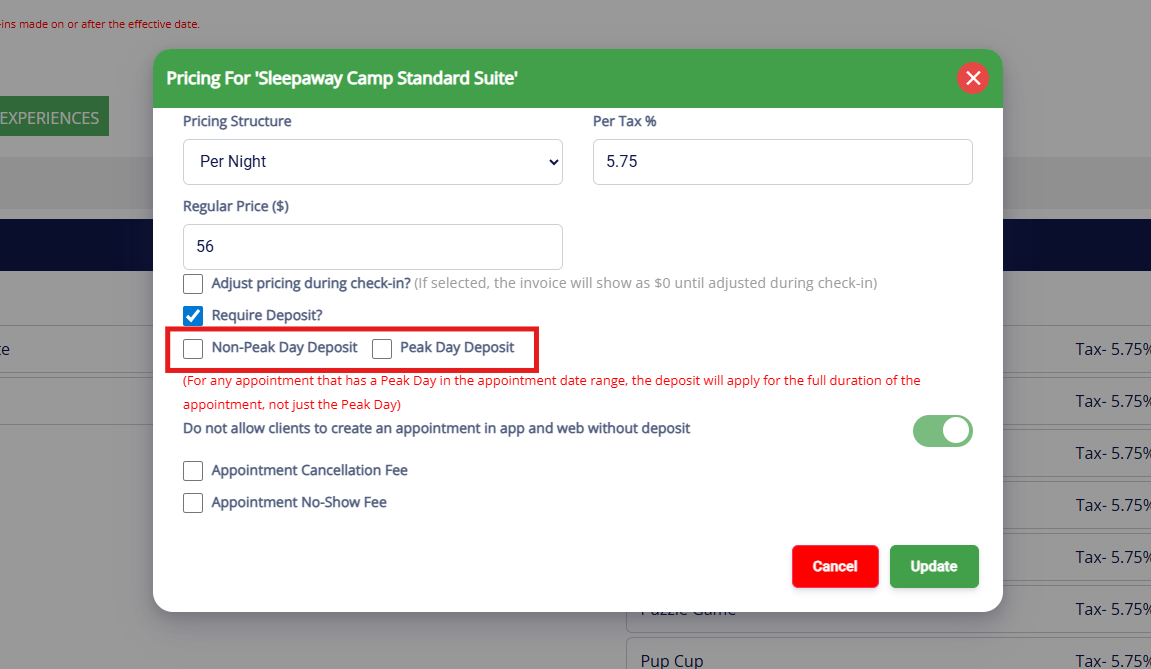
6. Once you've selected what type of deposit (peak, non-peak, or both), select the Deposit Type. This is calculated per pet.
Percentage (per night) charges a percentage for every night of the booking. For example, 50% deposit on $50/night boarding for 5 nights would charge $125 (50% of $50 * 5 nights). Amount (per night) charges a flat amount for every night of the booking. For example $20 deposit on a boarding for 5 nights would be $100 ($20 * 5 nights). Flat amount (By Invoice) charges a flat amount for the booking (i.e. $25 deposit no matter how long the appointment is scheduled).
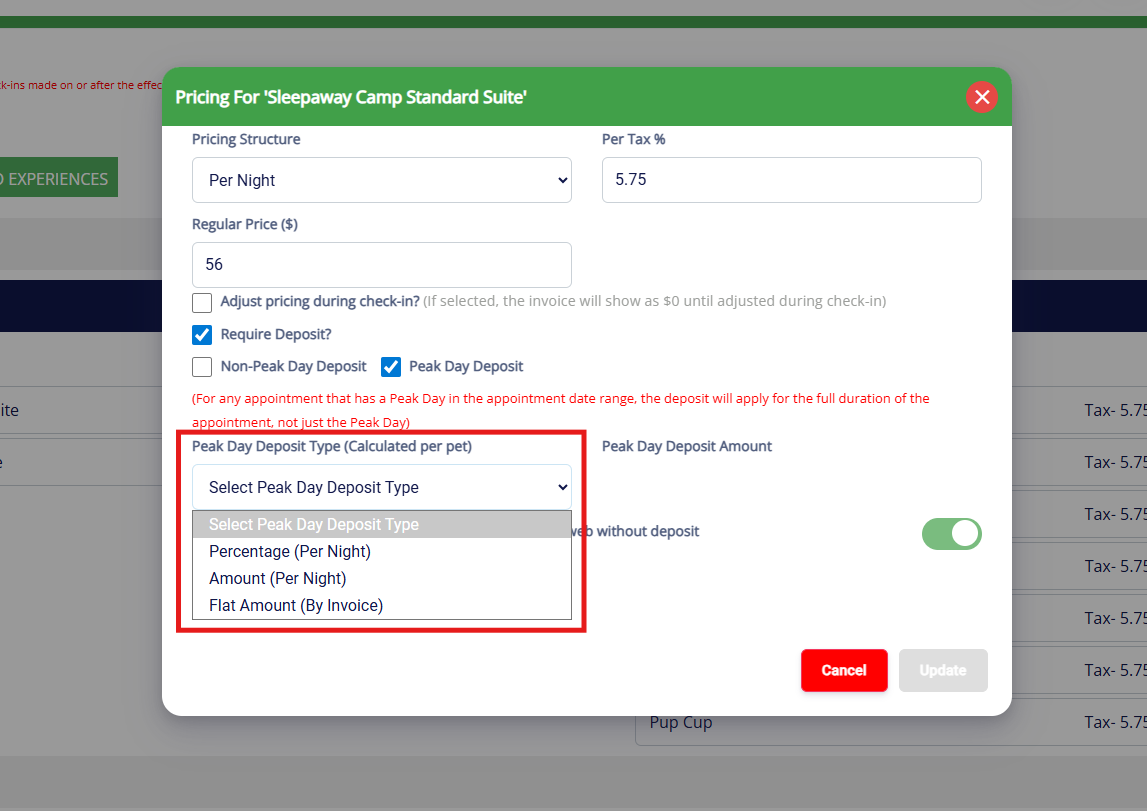
7. Enter in the deposit amount or percentage.
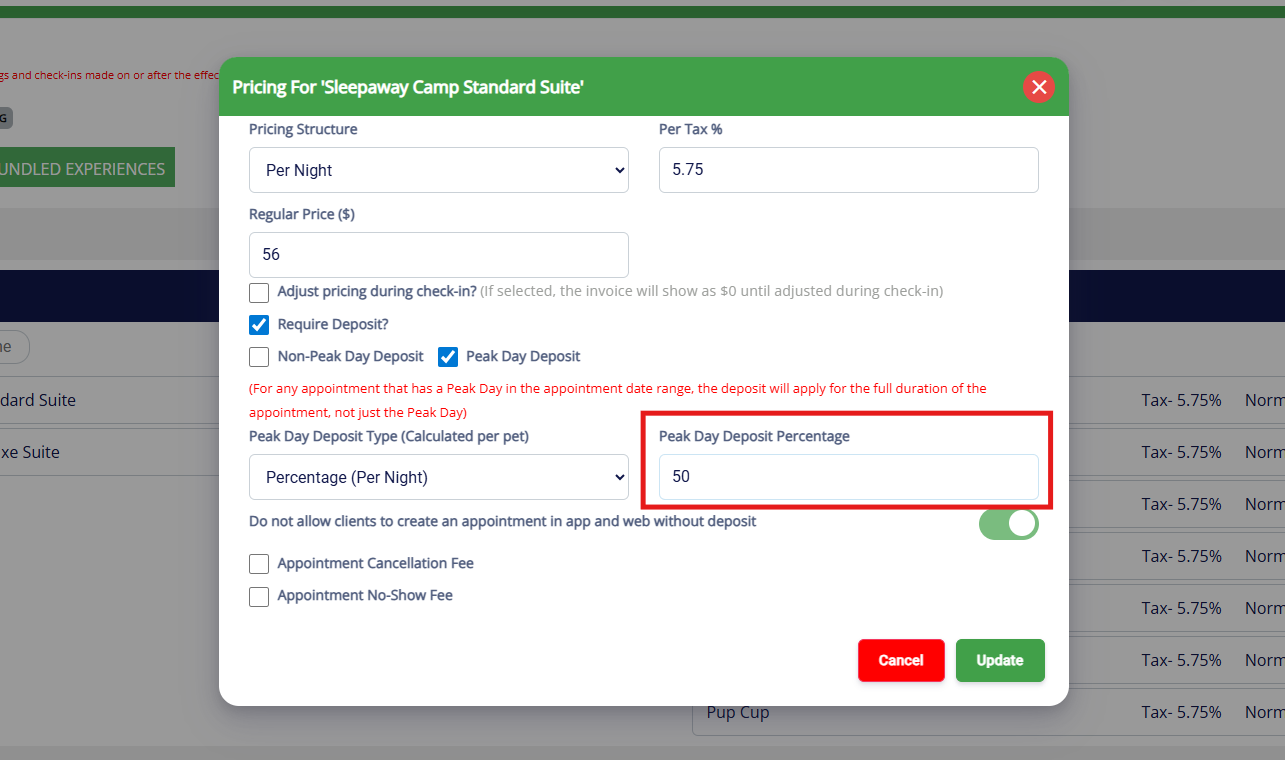
8. Optionally make the deposit required in order to submit the booking, or make it not required and you can request it after the booking has been approved. Once you have confirmed your settings, click Update.
Setting Up Cancellation & No Show Fees
Cancellation and no-show fees populate on every invoice where you cancel an appointment or mark an appointment as a no-show. If you prefer to charge these fees manually for specific bookings only, we would recommend adding a retail item that can charge a customer the fee manually instead.
1. Navigate to Settings > Pricing > Price List.
2. Click the existing create price list to edit the rates.
3. Click the service categories to expand and view services. Click the pencil icon to edit.
4. To add a cancellation fee, check the box for Appointment Cancellation Fee.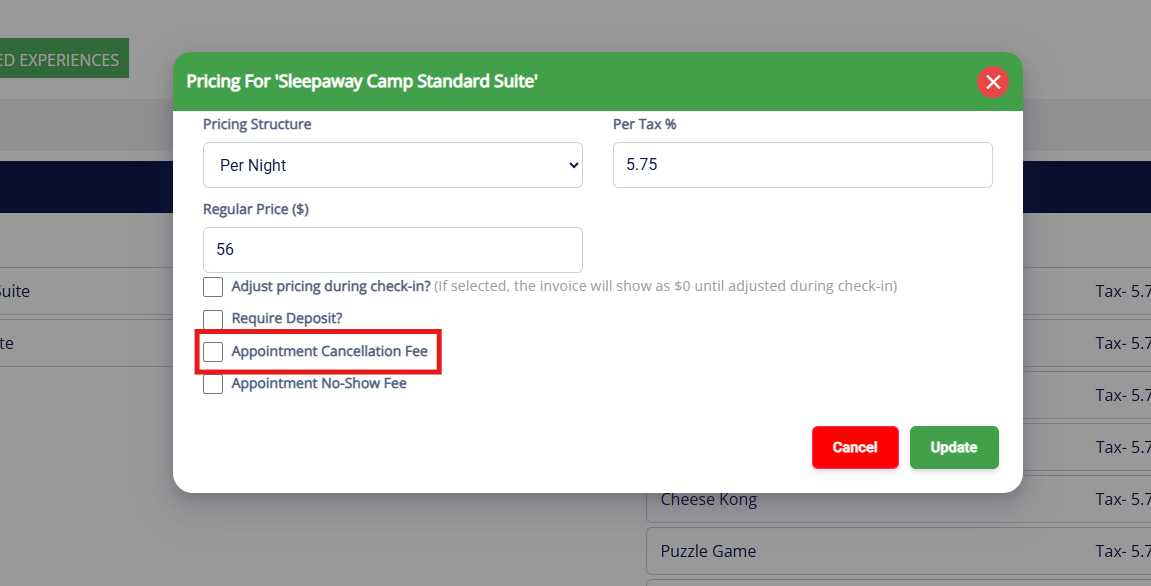
5. Select the Cancellation Fee Type. Percentage (per night) charges a percentage for every night of the booking. For example, 50% cancellation fee on $50/night boarding for 5 nights would charge $125 cancellation fee (50% of $50 * 5 nights). Flat amount (By Invoice) charges a flat amount for the booking if cancelled (i.e. $$50 cancellation fee no matter how long the appointment was scheduled).
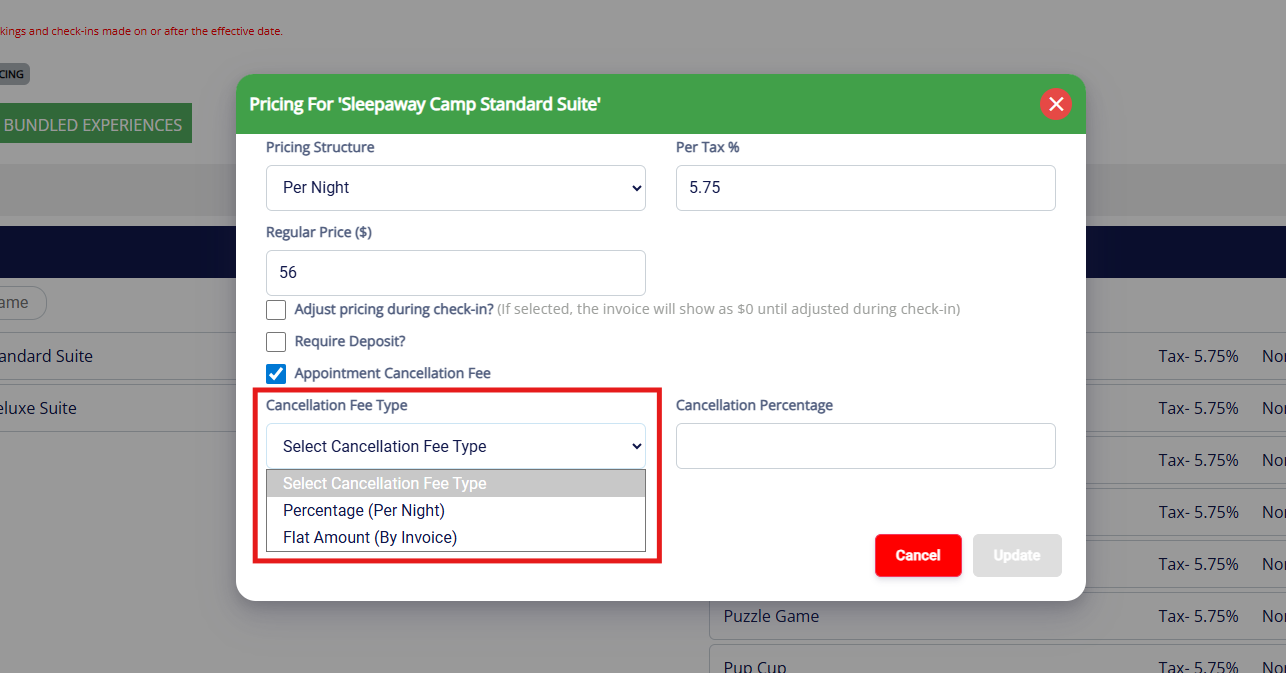
7. Enter in the cancellation fee amount or percentage. Then click Update to save.
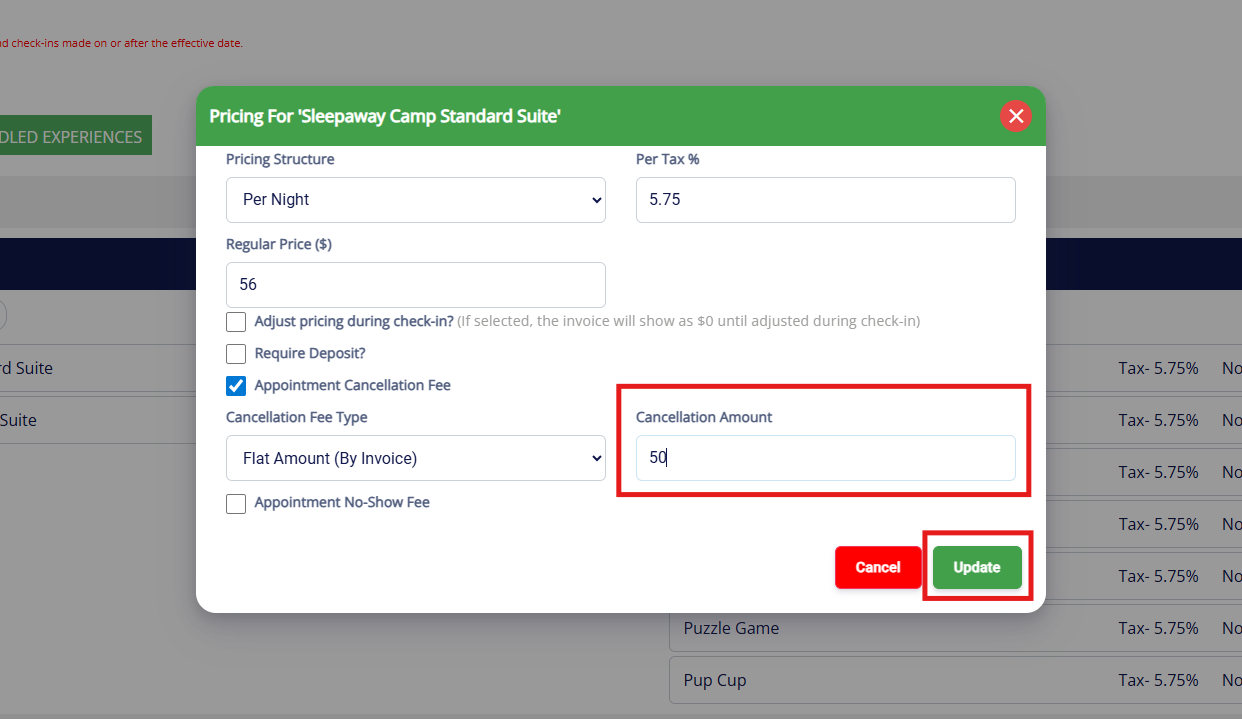
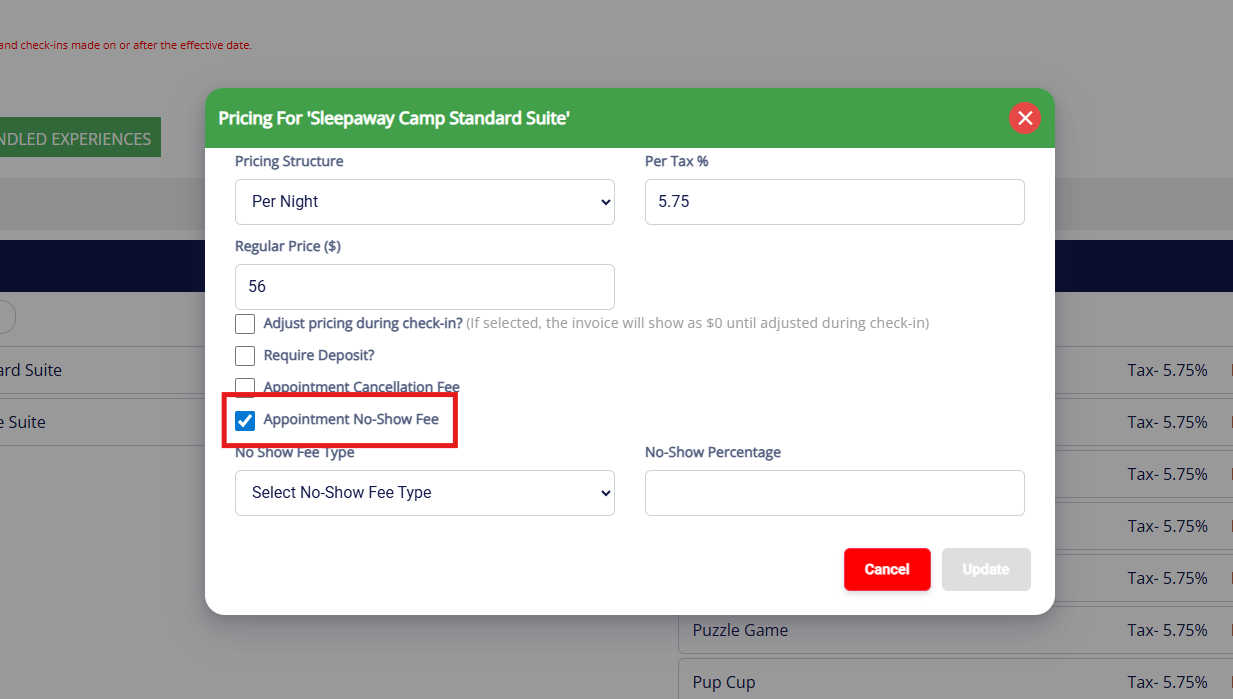
8. To set up a No-Show Fee, which only applies if you mark an appointment as a no-show, check the box Appointment No-Show Fee, then follow the same steps described above.
Setting Up Pricing for Bundled Experiences
Bundled Experiences will need pricing entered if they have been set up under Settings > Business Setup > Bundled Experiences / Services / Addons. You can learn more about Bundled Experiences in this article: Set Up Bundled Experiences.
1. Navigate to Settings > Pricing > Price List.
2. Click the existing create price list to edit the rates for bundled experiences.
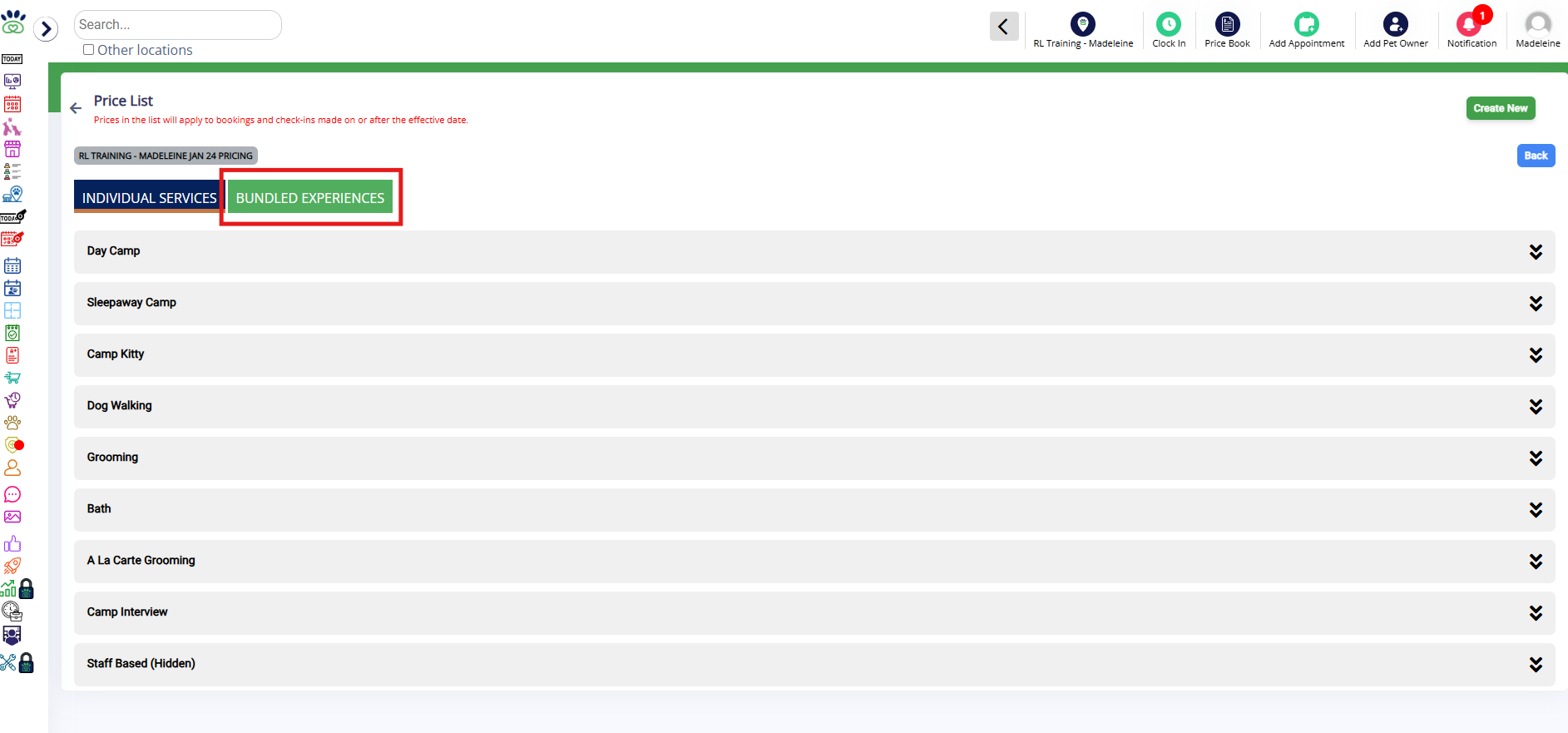
3. Click the Bundled Experiences tab at the top of the page.
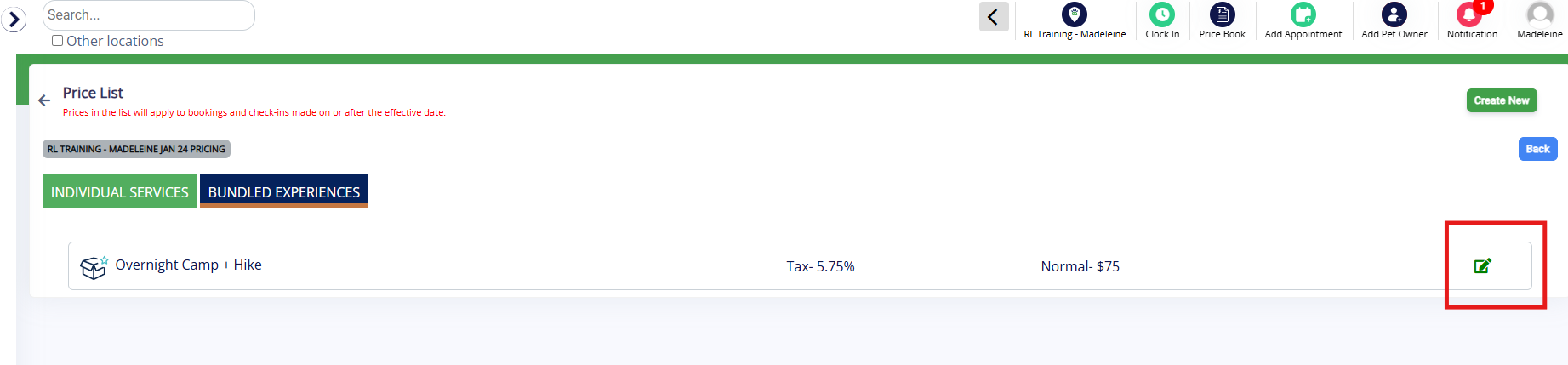
4. Click the pencil icon to edit the bundled experience in question.
5. Select if pricing should charge per day, per night, or per appointment (once). 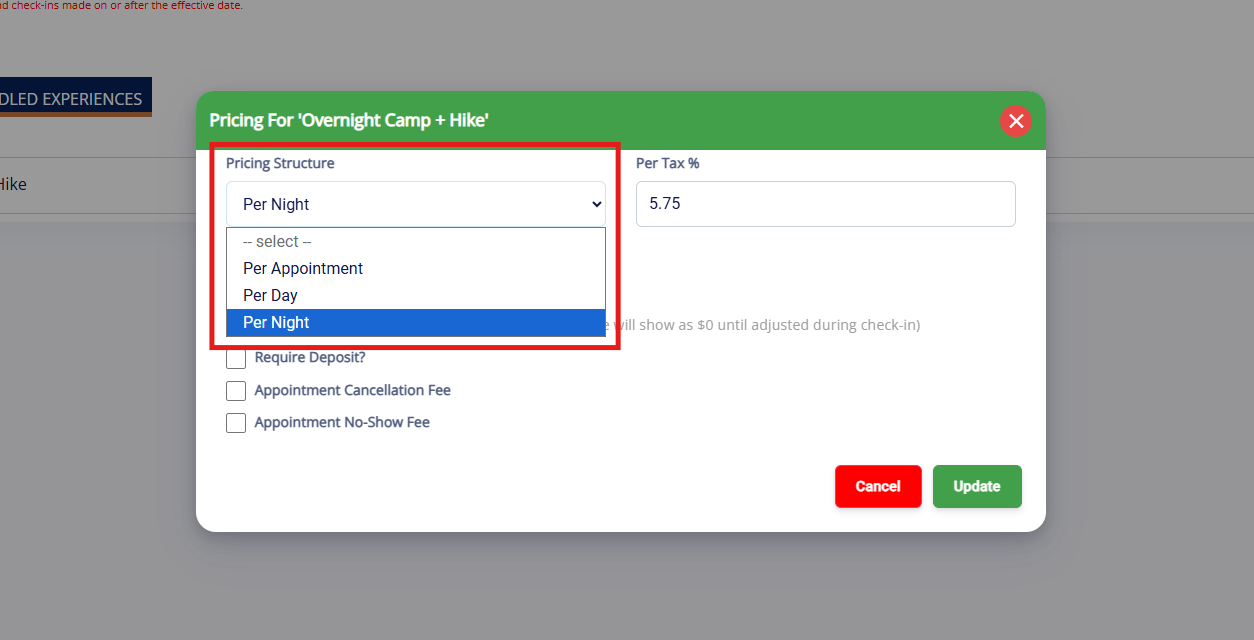
6. Enter in the tax percentage.
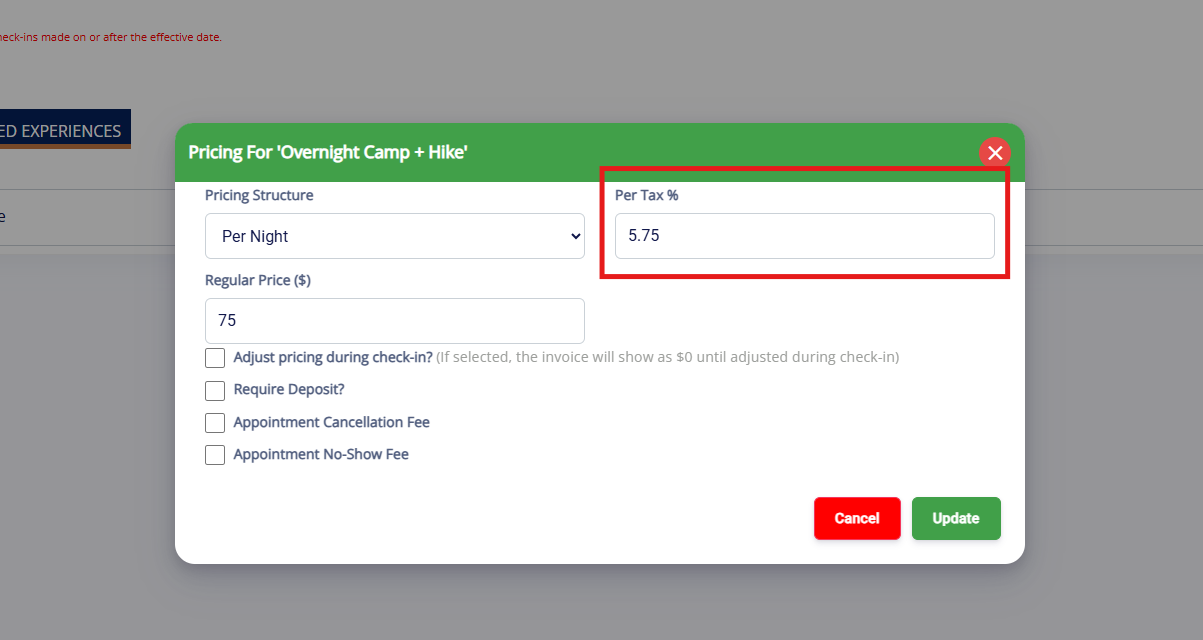
7. Set the price in Regular Price that will charge per night, day, hour, minute, or appointment as indicated. For example, if Camp + Hike is $75/night, you would select Per Night and enter $75 in Regular Price. Once you have entered the price, click Update and the price will be set for that bundled experience.
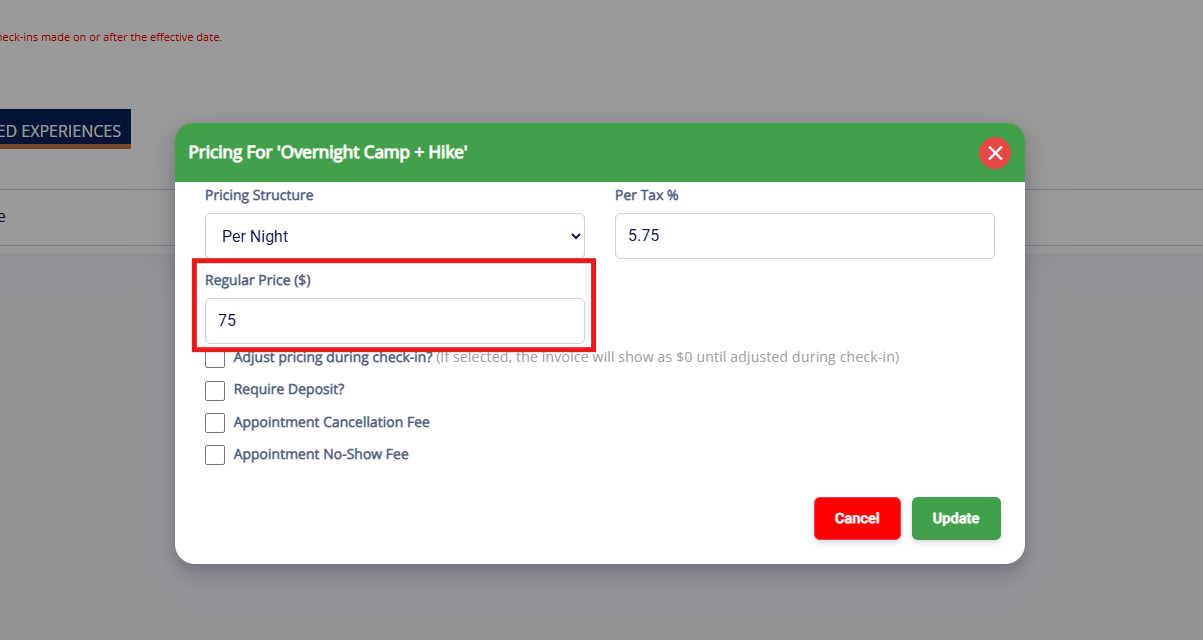
7. Continue adding prices for bundled experiences until prices are set for all items. See above sections for instructions on setting up deposits, cancellation fees, and no show fees.
More Information
For more information on doing a rate increase for a future date, please refer to this article: Updating Your Prices (Future Rates)
For more information on Cancellation Fees and No Show Fees, please refer to this article: Cancellation & No-Show Fees
Was this article helpful?
That’s Great!
Thank you for your feedback
Sorry! We couldn't be helpful
Thank you for your feedback
Feedback sent
We appreciate your effort and will try to fix the article