Service profile

Modified on Tue, 18 Nov at 7:44 AM

Service Profile Overview:

The Service Profile section of the software is designed to store important notes about a pet that are specific to particular services. This feature allows you to create customized question areas for your staff to complete during check-in or service processing.


Purpose:

  • Notes entered in the Service Profile are visible under the pet’s profile in the “Service Profile” notes section.

  • These notes are editable and intended for staple, key information about the pet, not as running notes or logs for ongoing communication with the pet owner.


Adding and Managing Service Profiles in RunLoyal:

Go to your RunLoyal staff portal on a Google Chrome browser. All settings-related items must be updated while on a desktop or laptop.


Creating a Service Profile:

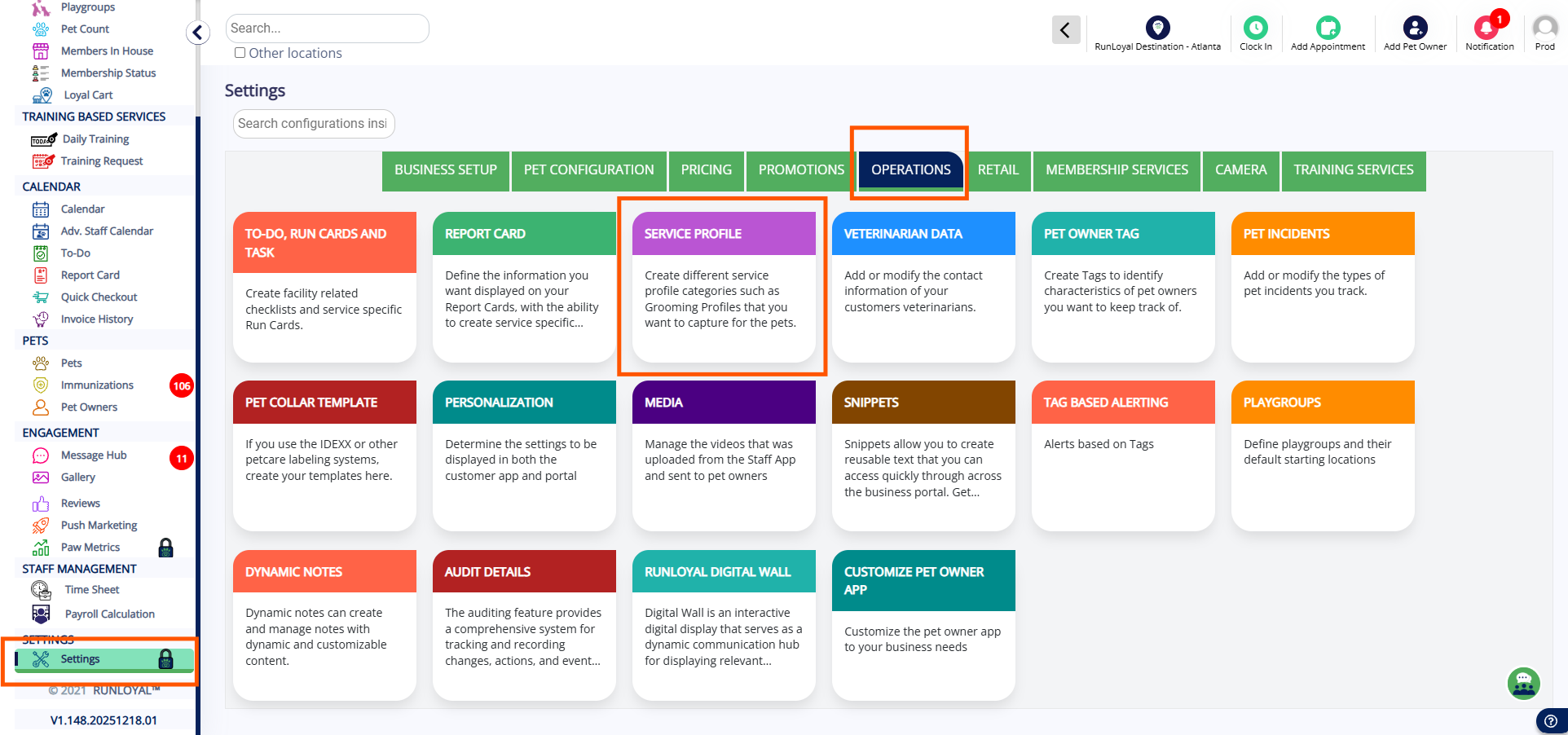
  • Open Settings.

  • Select Operations.

  • Click on Service Profile.

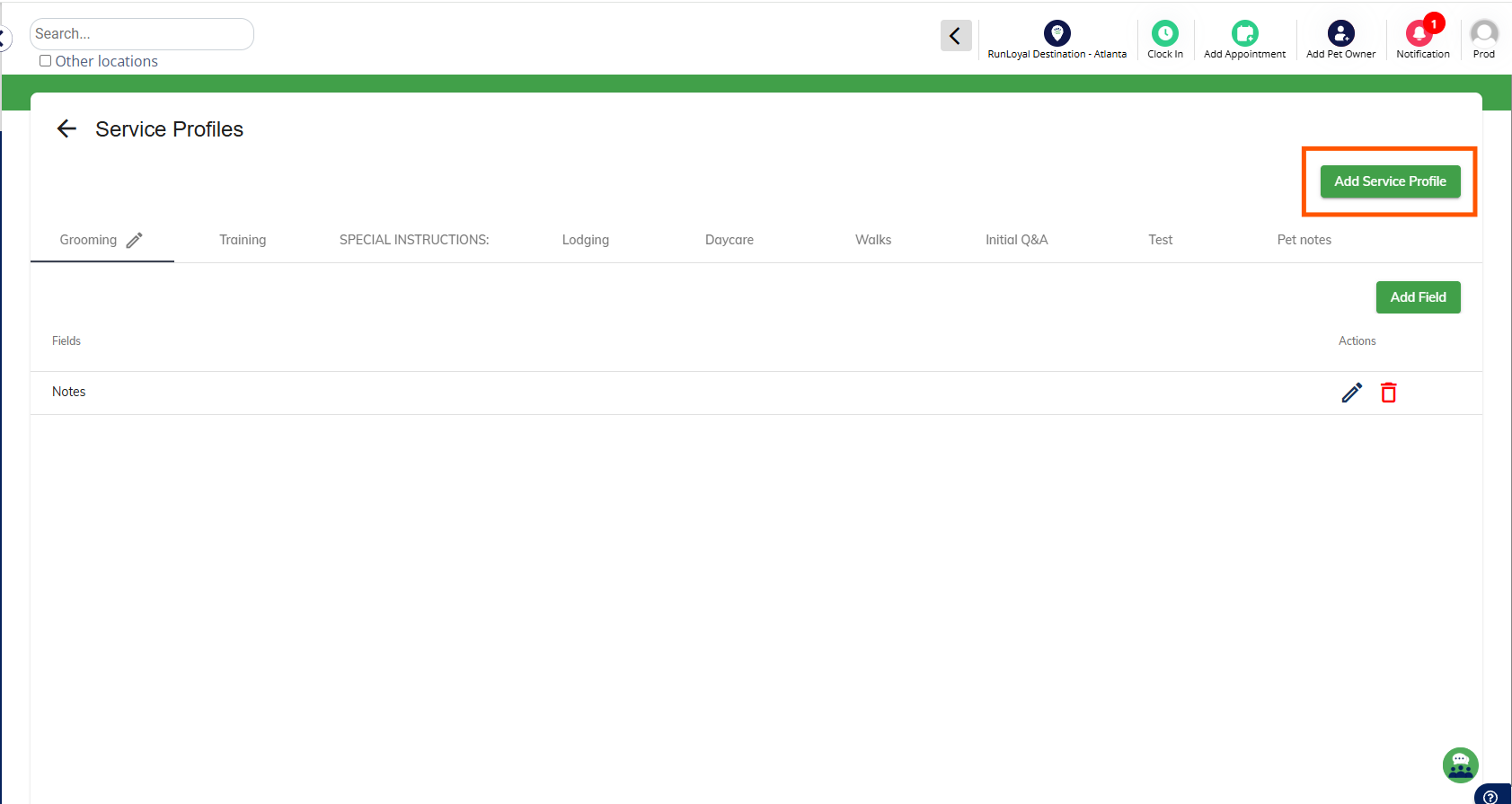
  • Choose Add Service Profile.

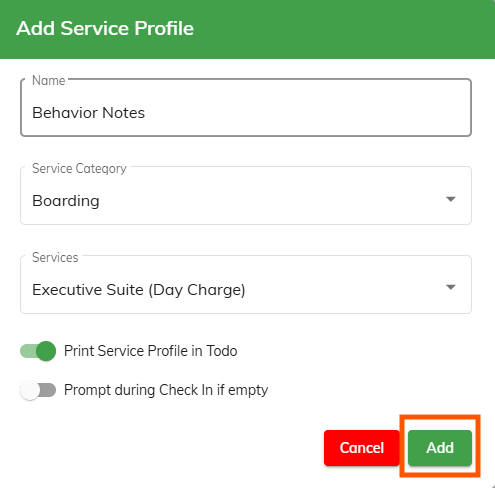
  • Enter a Service Profile Name.

  • Select a Service Category from the list.

  • Choose the Services to include.

  • Enable the toggle Print Service Profile in ToDo (if needed).

  • Enable the toggle Prompt during Check-In if empty (if needed).

  • Click Add to save the new profile.


Adding Fields Under a Service Profile:

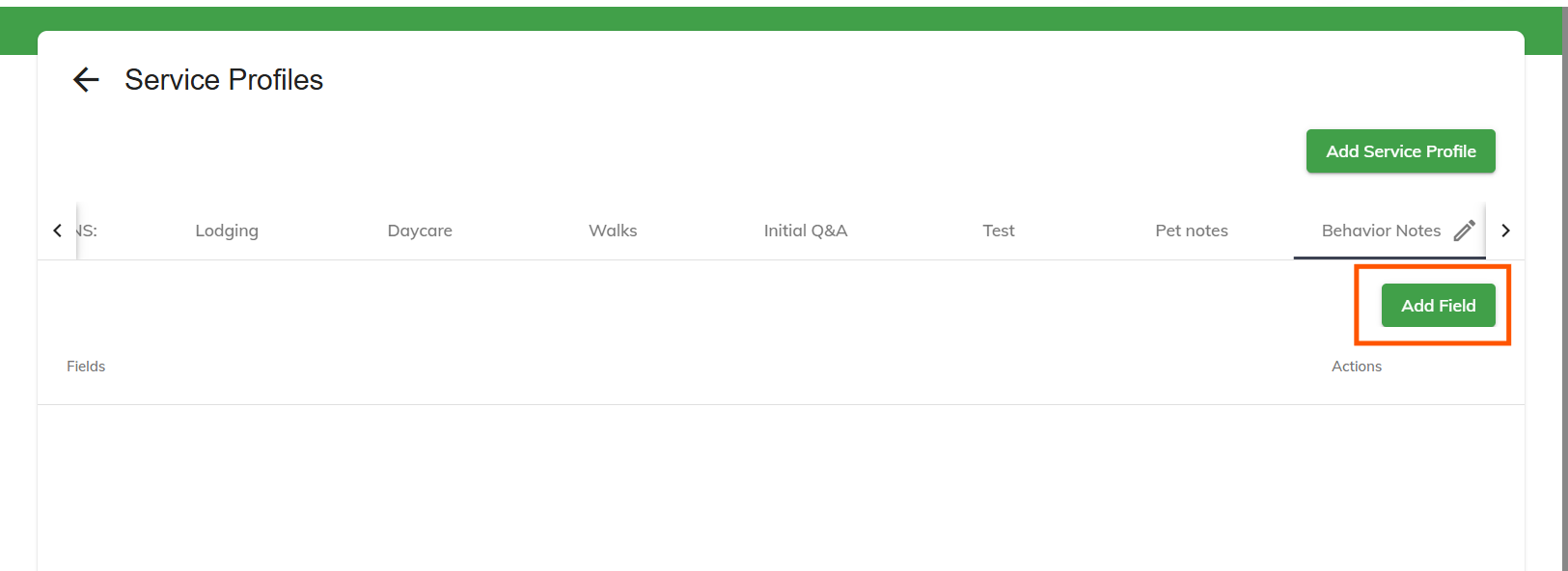
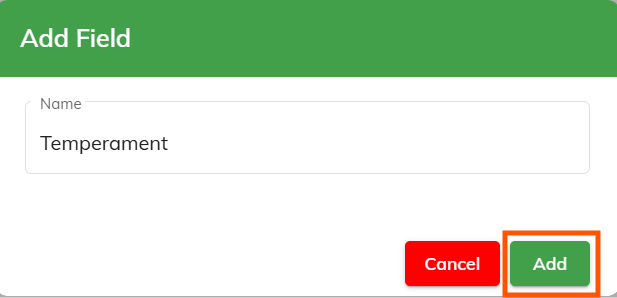
  • Click Add Field inside the service profile.

  • Enter a Field Name (example: Head).

  • Click Add to save the field.

  • Confirm by clicking OK.


Assigning a Service Profile to a Pet (From the Pet Profile):

  • Open the Pet Profile.

  • Select Service Profile and click Add.

  • Choose the desired Service Profile.

  • Fill in the required fields and upload images if necessary.

  • Click Save.

  • The saved service profile will now appear under the pet’s profile.


Assigning a Service Profile to a Pet (From the Calendar):

  • Open the Advanced Staff Calendar and select the pet’s appointment.

  • Click on Service Profile, choose the profile, and click Add.

  • Enter the field details for the profile.

  • Click Save.

  • The saved service profile will now be visible for that appointment.


Where Service Profile Notes Appear:

Once you’ve created your Service Profile setup (by service), you’ll be able to view and access these notes in multiple places within the system:

  • Check-In Prompt

    • If no Service Profile details have been filled in yet, the system will prompt staff at check-in to complete the information if the Prompt if empty at check-in toggle is enabled during service setup.

  • Confirmed Appointment Report

    • This report includes a “Service Profile Note” section. If notes exist, they will appear as clickable links allowing you to view the full details.

  • Run Card

    • All Service Profile questions and notes display at the top under the pet’s profile.

  • Advanced Calendar (for Staff-Based Services)

    • Service Profile notes are shown under the Service Profile section of the calendar view.

  • Confirmed Appointments Report

    • In addition to the report view, there’s a clickable column for Service Profile notes. Clicking the link reveals all stored information.


A step-by-step tutorial with screenshots is included below for guidance: 


Was this article helpful?

That’s Great!

Thank you for your feedback

Sorry! We couldn't be helpful

Thank you for your feedback

Let us know how can we improve this article!

Select at least one of the reasons
CAPTCHA verification is required.

Feedback sent

We appreciate your effort and will try to fix the article