Overview
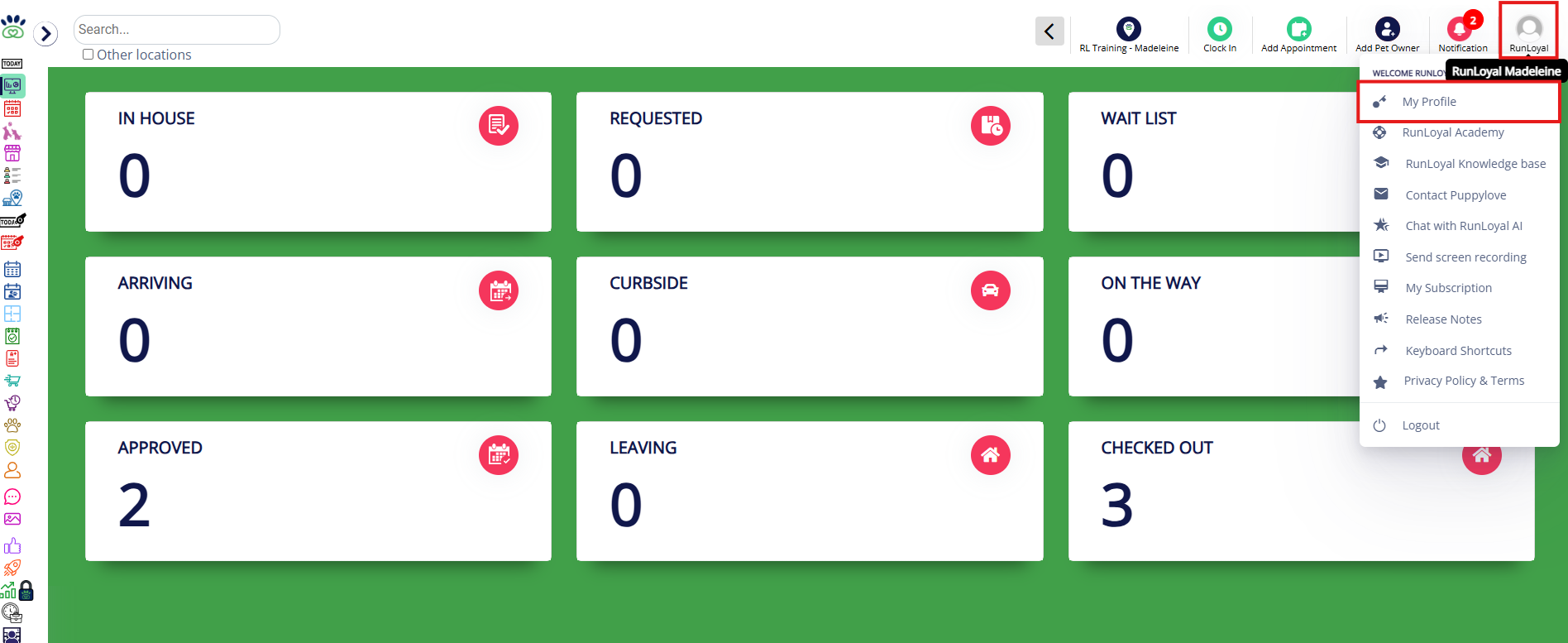
You can easily change your staff user password or PIN from the top left User menu by clicking My Profile. This section provides employees the ability to edit two key features without needing access to the Settings menu.
Staff Profile can be viewed in the following areas:
- User menu in top-left corner > My Profile
TABLE OF CONTENTS
How to Update Your Staff Pin
1. Navigate to User menu in top-left corner > My Profile.
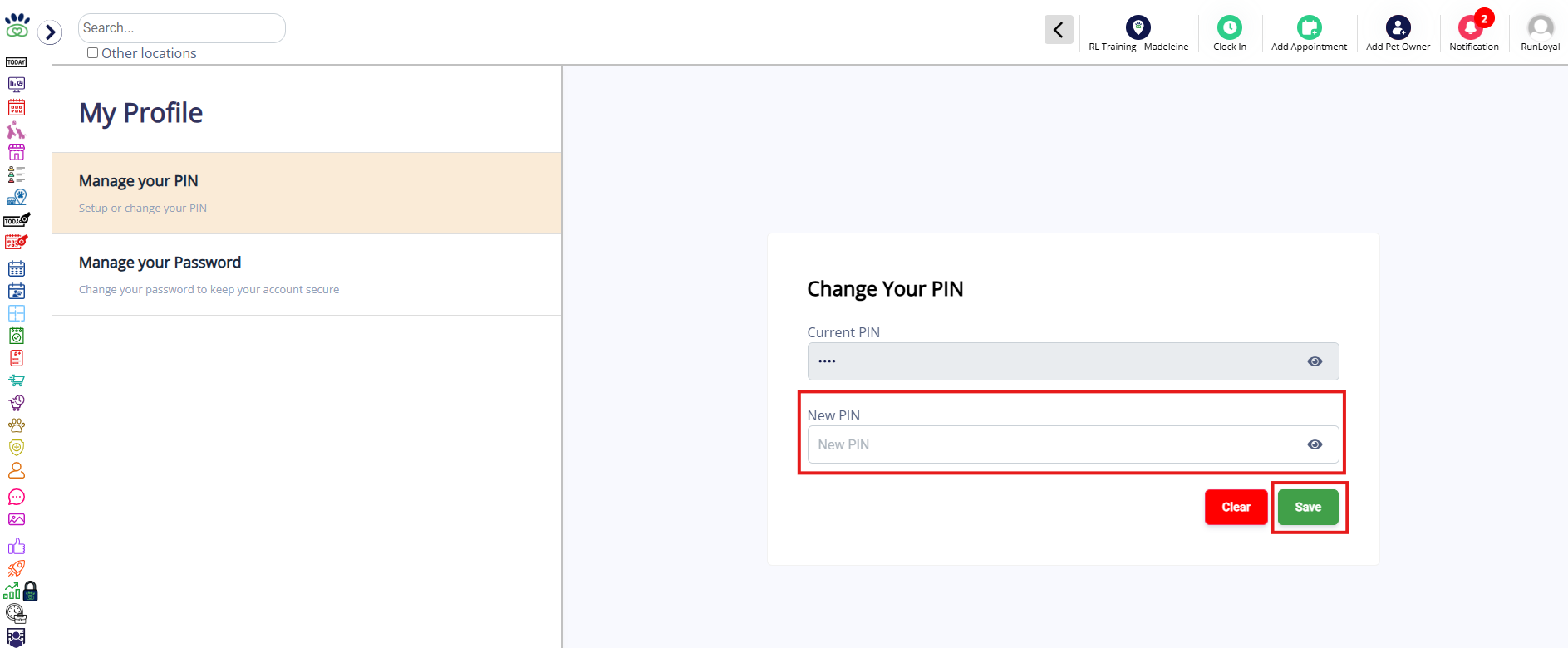
2. In the Manage your PIN section, if you are setting a PIN for the first time, it will have Current PIN greyed out. Simply enter your new PIN and click Save.
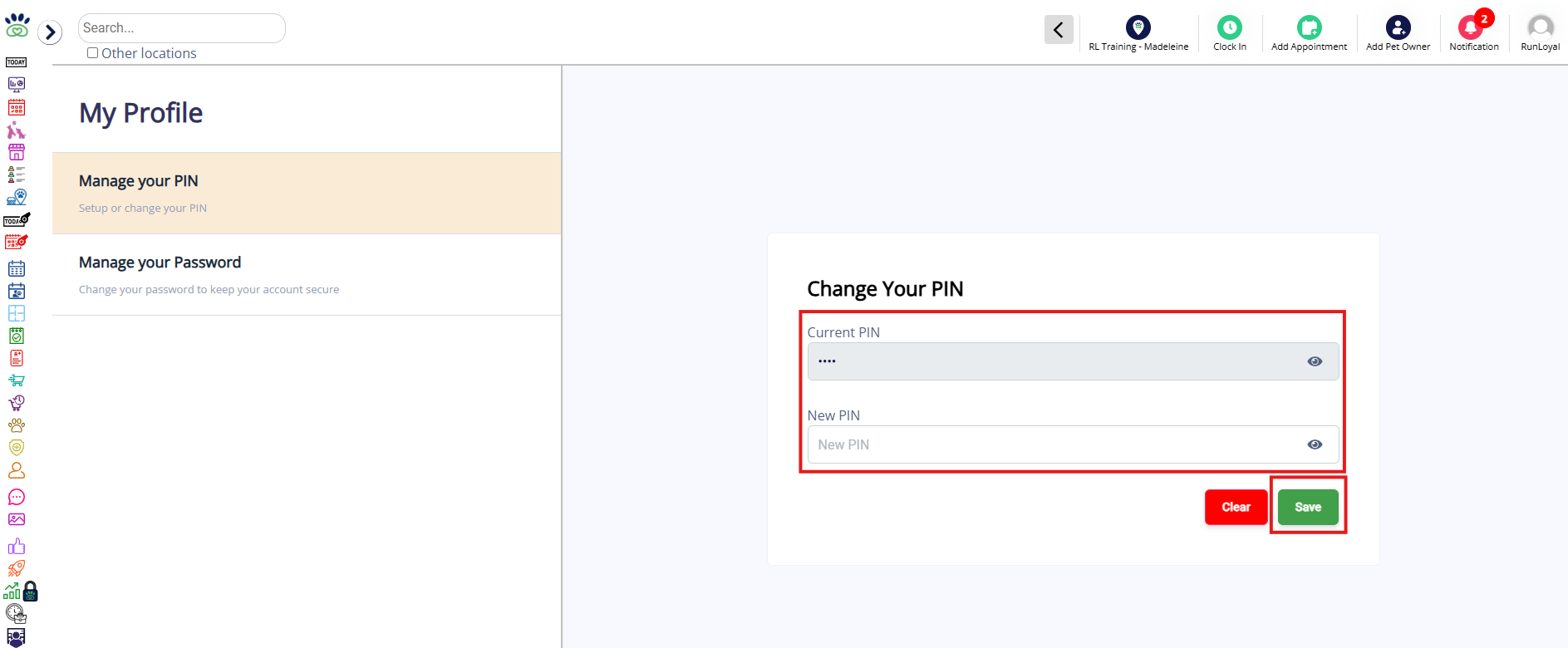
3. If you are changing an existing PIN, enter your Current PIN and New PIN and click Save.
How to Update Your Staff User Password
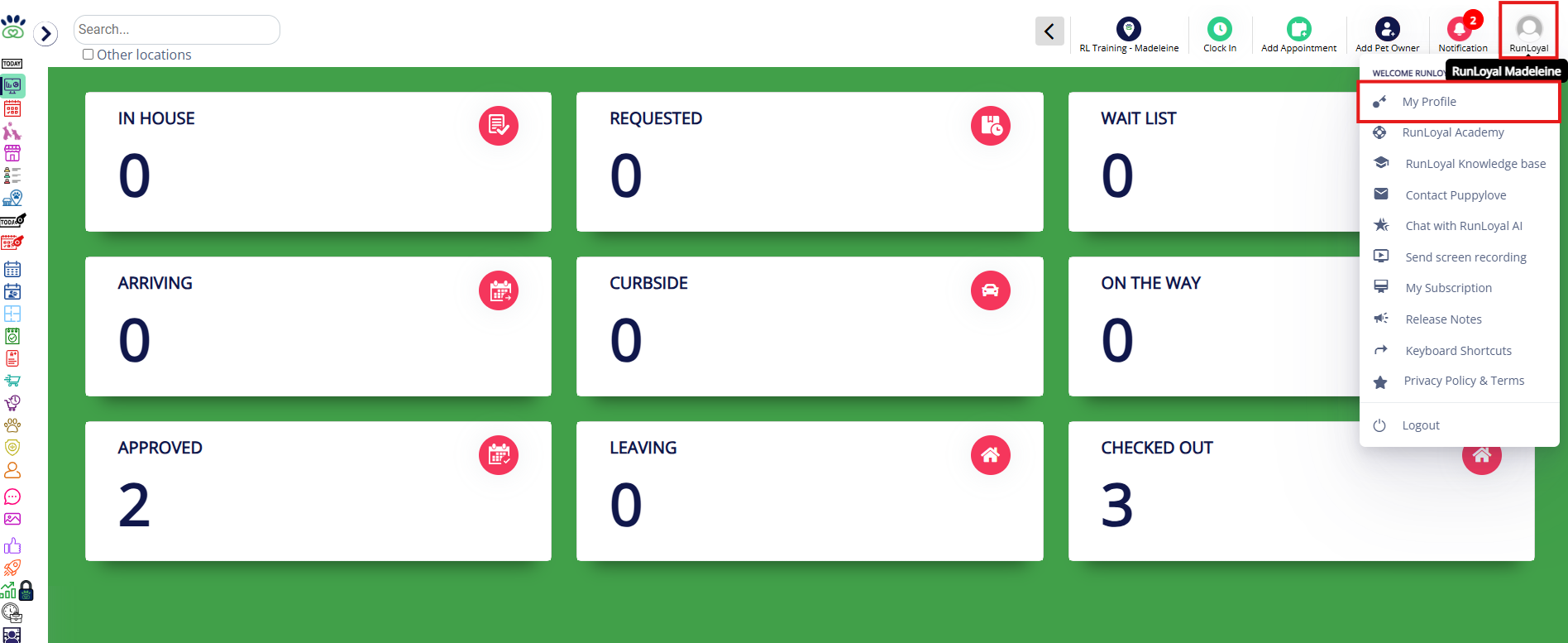
1. Navigate to User menu in top-left corner > My Profile.
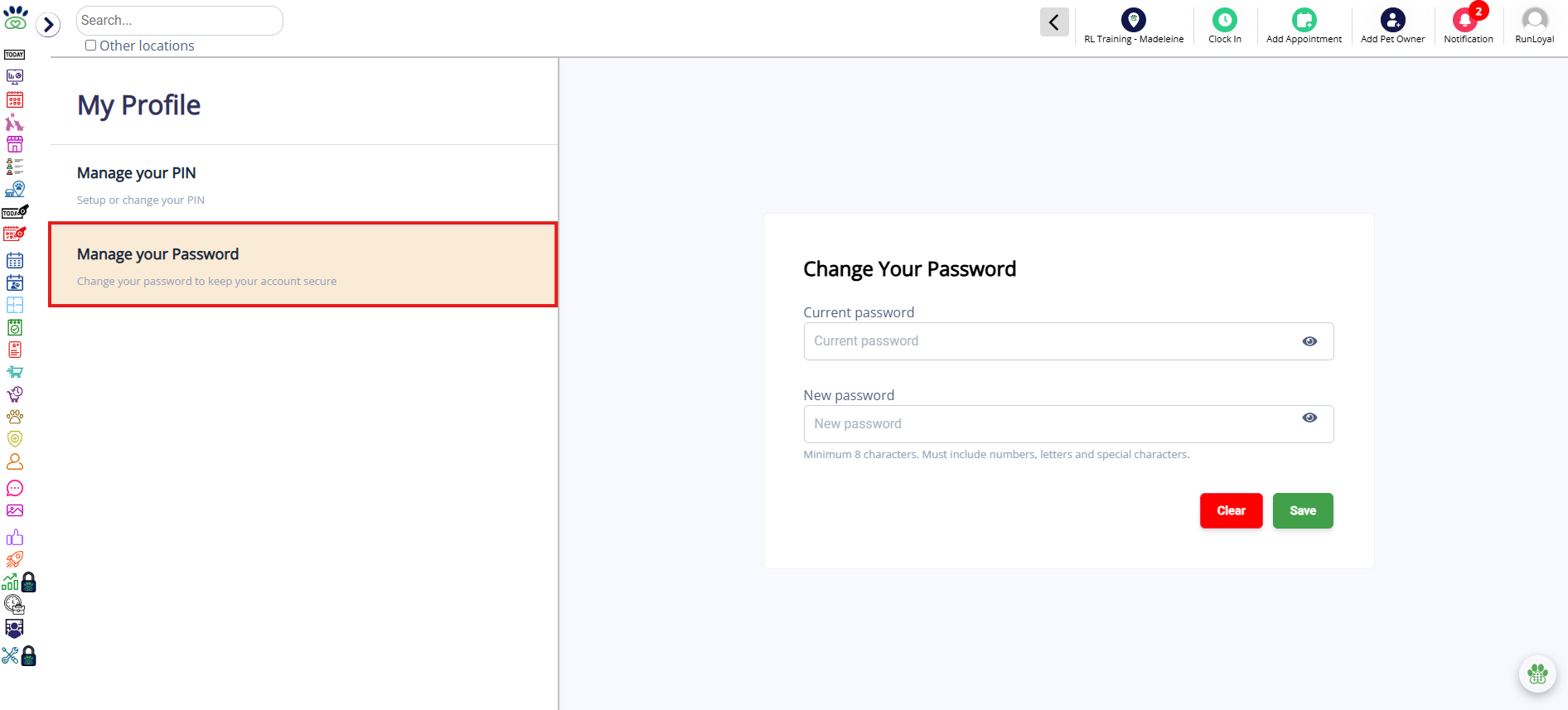
2. Click the Manage your Password section.
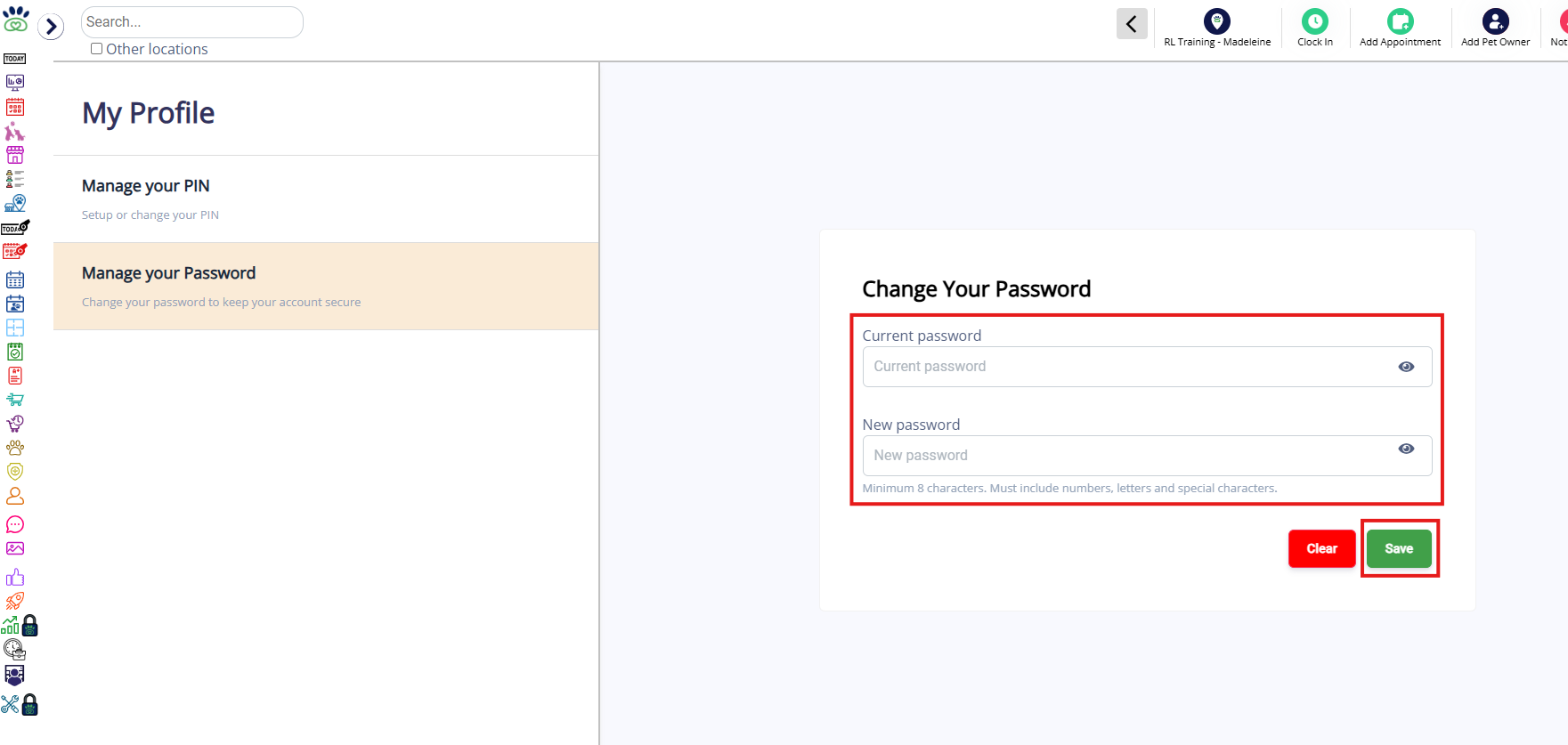
3. Enter your Current Password and New Password, then click Save.
More Information
For more information on adding staff users, please refer to this article: Add & Edit Staff Users
For more information on creating staff-based service categories, please refer to this article: Set Up Staff-Based Service Category (Grooming, Training)
For more information on creating a Staff Group (User Permissions), please refer to this article: Create Staff Groups (Permissions)
Was this article helpful?
That’s Great!
Thank you for your feedback
Sorry! We couldn't be helpful
Thank you for your feedback
Feedback sent
We appreciate your effort and will try to fix the article