Go to your RunLoyal staff portal on a Google Chrome browser.
All settings-related items must be updated while on a desktop or laptop.
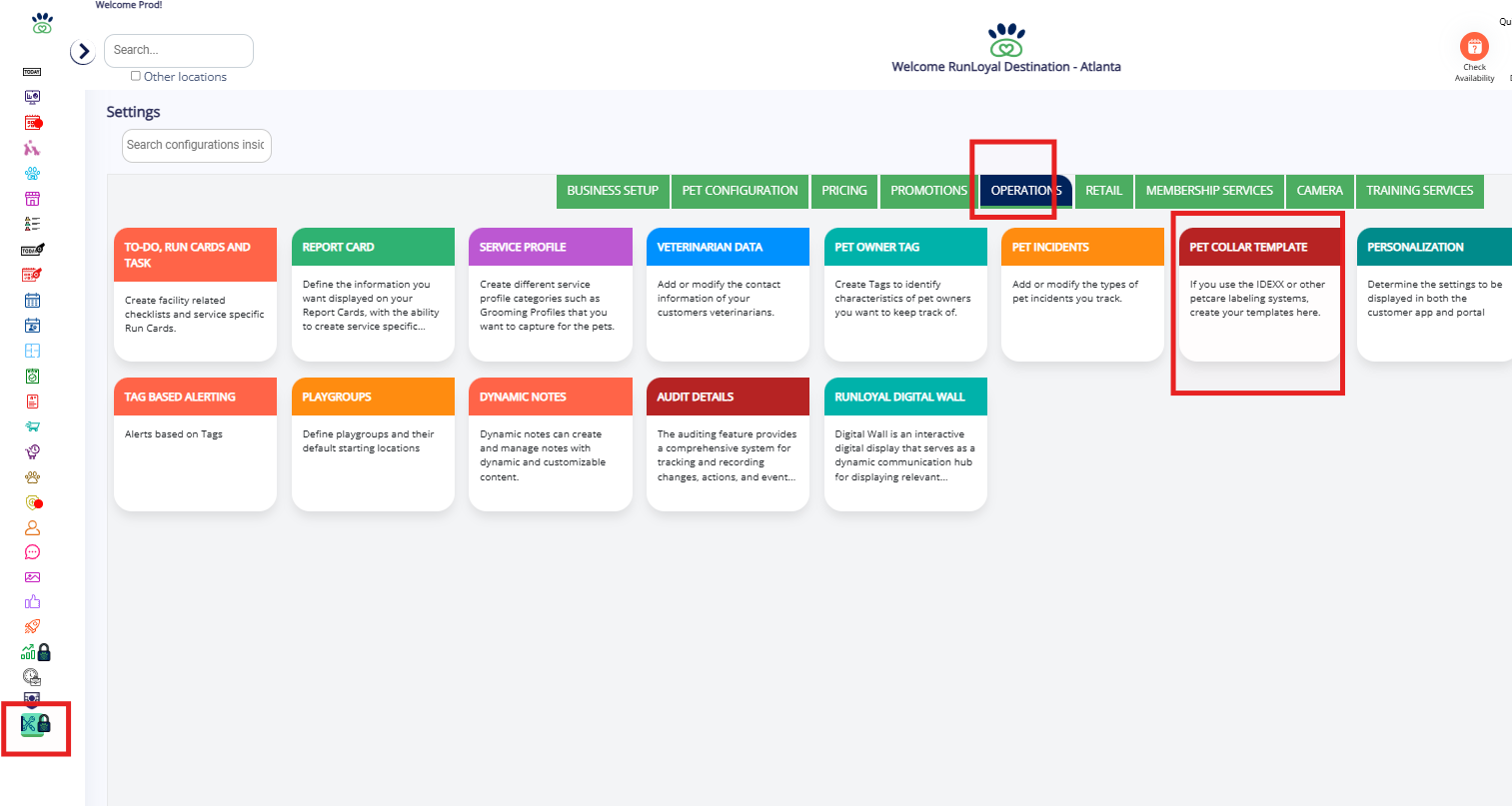
Accessing the Labeling Template Menu:
Click on Settings
Click on Operations
Click on Labeling Template
Creating a New Template:
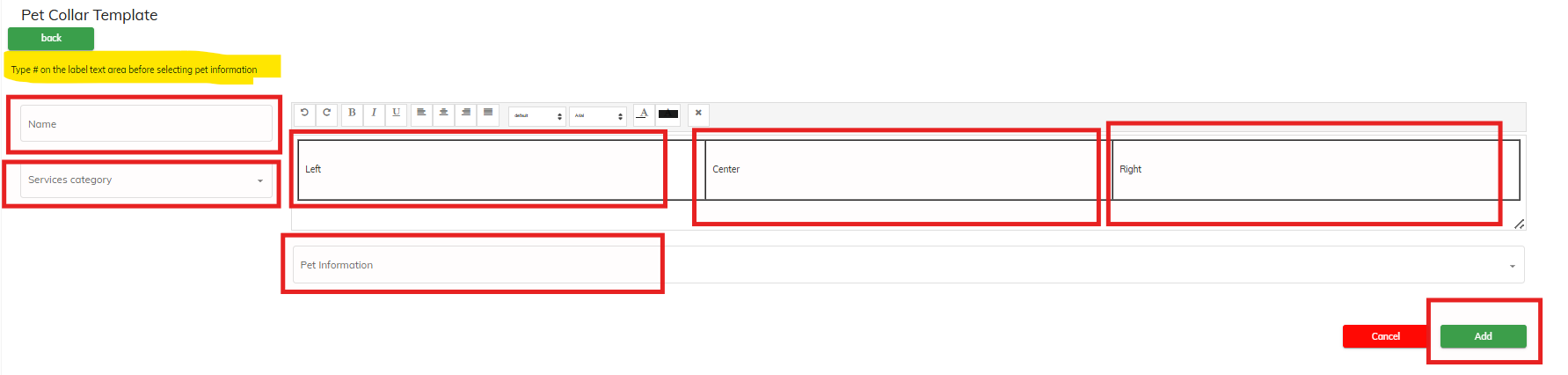
4. Click on Add New
5. Type the name of the Pet Label

Selecting Service Category and Pet Services:
6. Click on Services category → Select the relevant service category and pet services
Entering Pet Information:
7. Fill in the pet information in the Left, Center, and Right boxes using “#” before selecting from the dropdown → Click Add to create the template
8. Click on OK
Printing a Pet Collar:
9. Navigate to the Appointment Menu and click on In House
10. Select the Pet Appointment → Click on Print Collar in the overflow menu
11. Select the desired printing option: Select other pets, Print All, or Print for Selected Pet
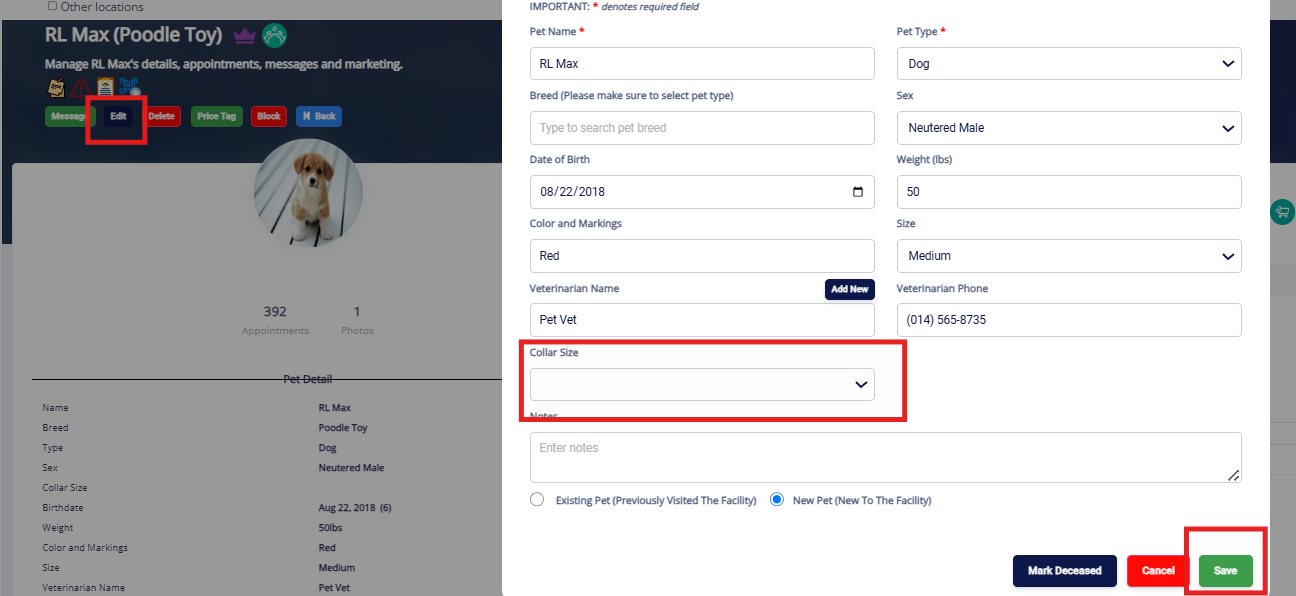
12. Select Collar size from the dropdown
13. Click on Print
14. The collar label will be printed for the pet
- Use IDEXX printers for collar printing.
- Add the IDEXX printer to your computer.
- When printing, select the IDEXX printer from the print options.
A step-by-step tutorial with screenshots is included below for guidance:
Was this article helpful?
That’s Great!
Thank you for your feedback
Sorry! We couldn't be helpful
Thank you for your feedback
Feedback sent
We appreciate your effort and will try to fix the article