Overview
The Digital Wall displays pet check-in and check-out details on any internet-enabled TV. Back of House screen is included with all subscriptions.
The Advanced Digital Wall add-on allows multiple walls, slideshows with photos/videos, and staff/customer alerts.
Please contact puppylove@runloyal.com if you wish to add on multiple walls.
Creating a Digital Wall
Navigate to Settings > Opeartions> RunLoyal Digital Wall as shown below.
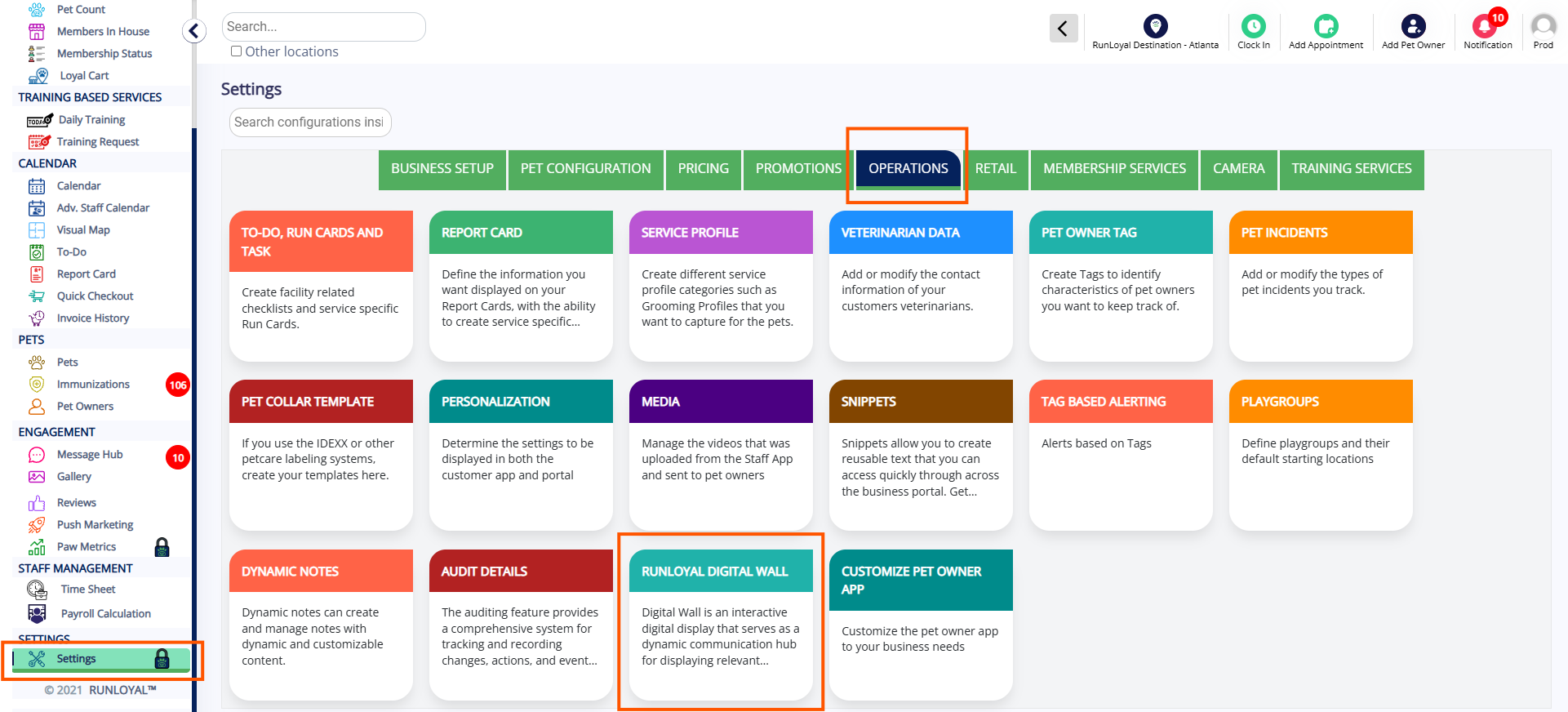
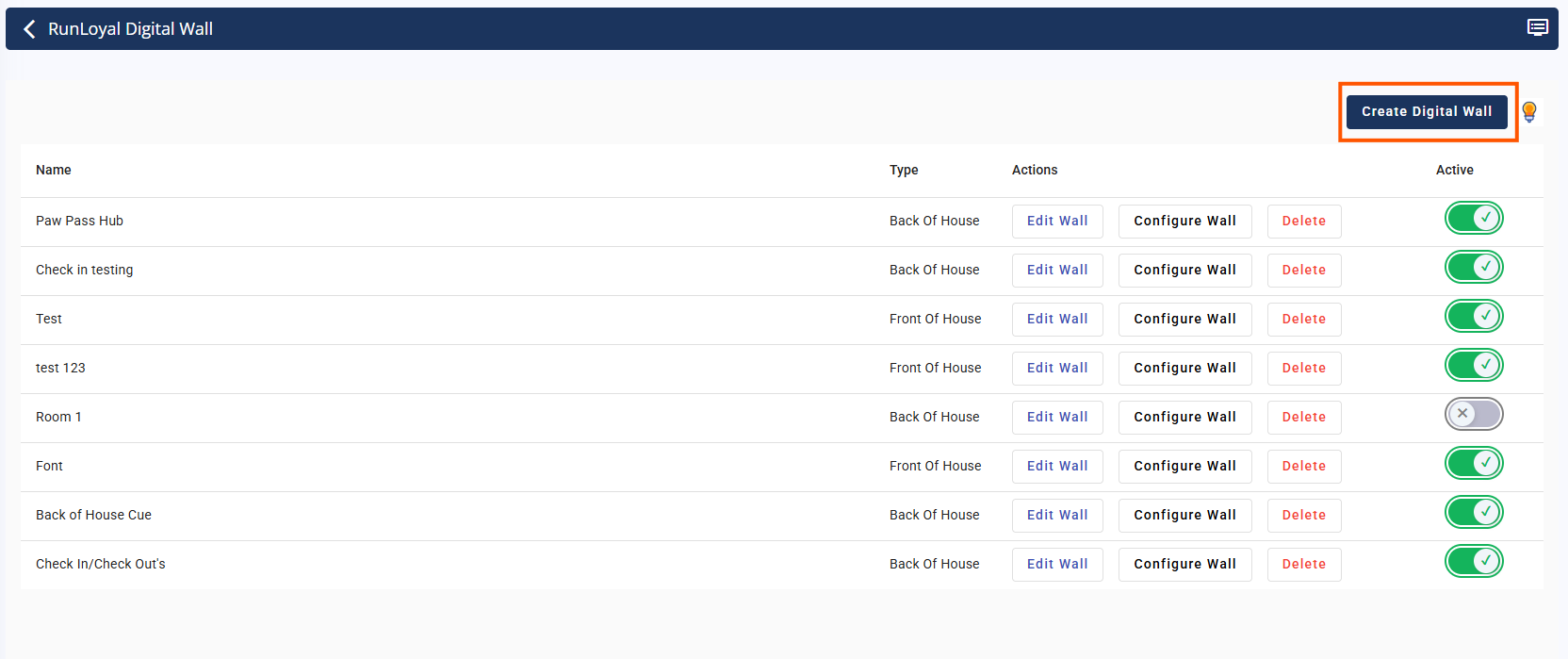
Click on Create Digital Wall
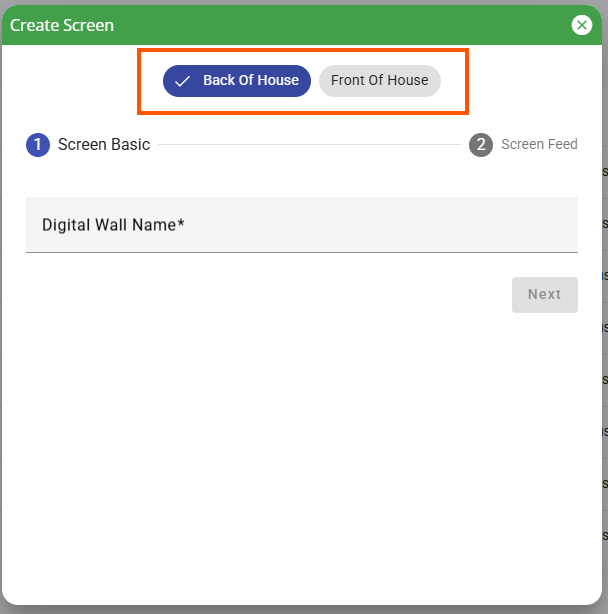
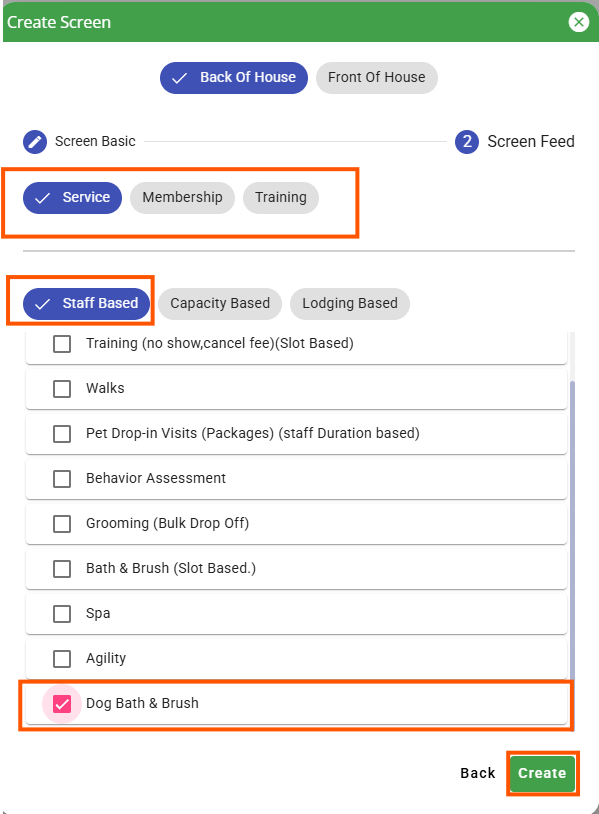
Select Back of House or Front of House
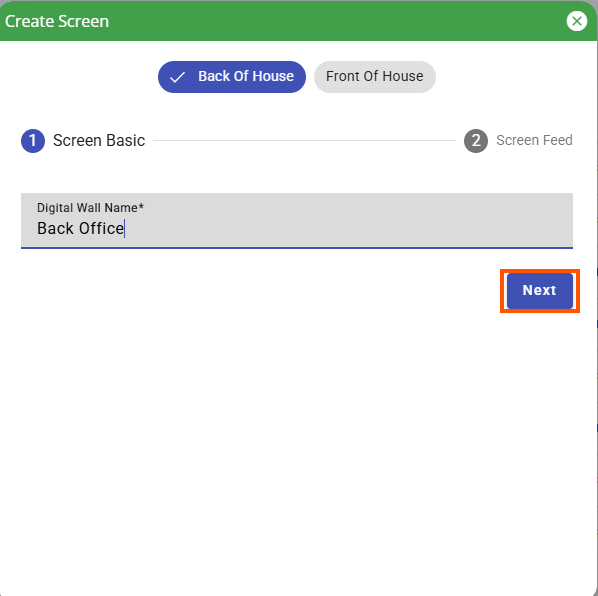
Name your digital wall and click Next
Select what the wall will display (services, memberships, training), choose the service type, pick specific services, and click Create when completed.
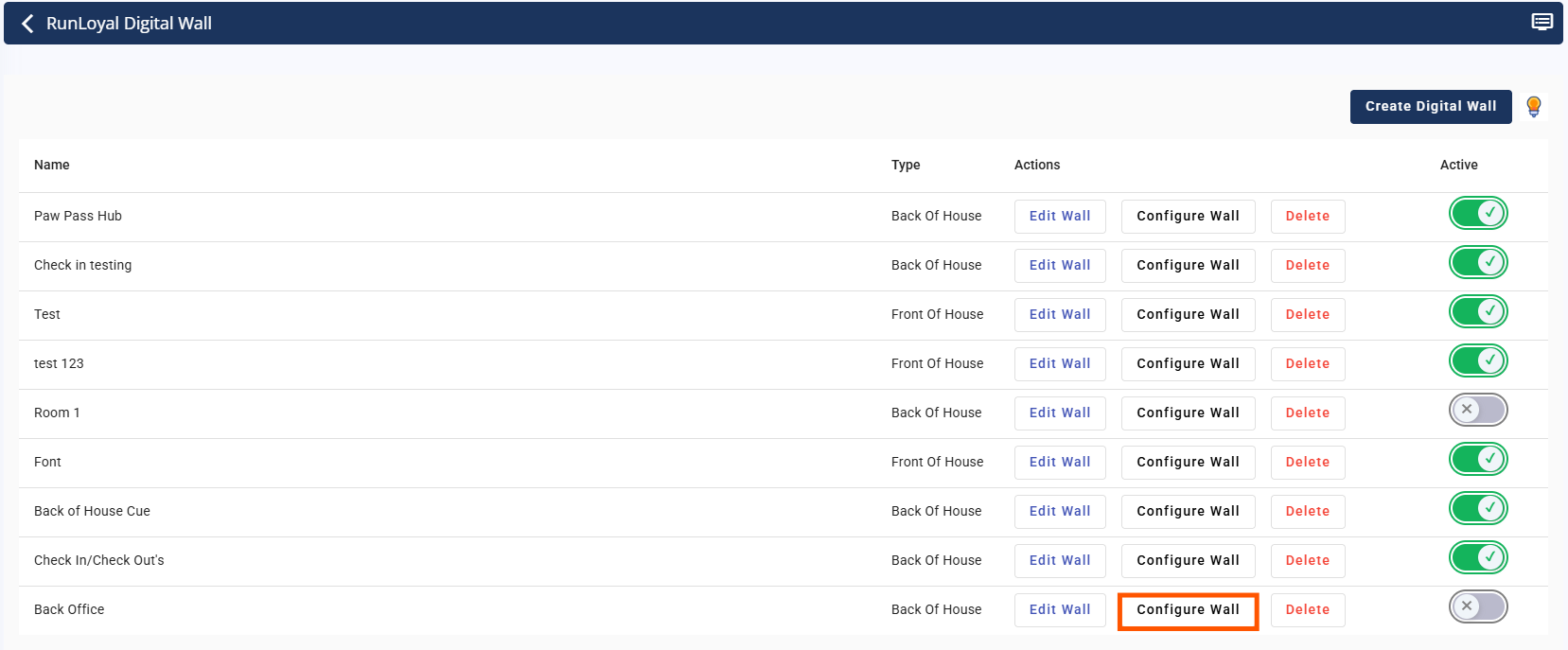
Click Configure Wall
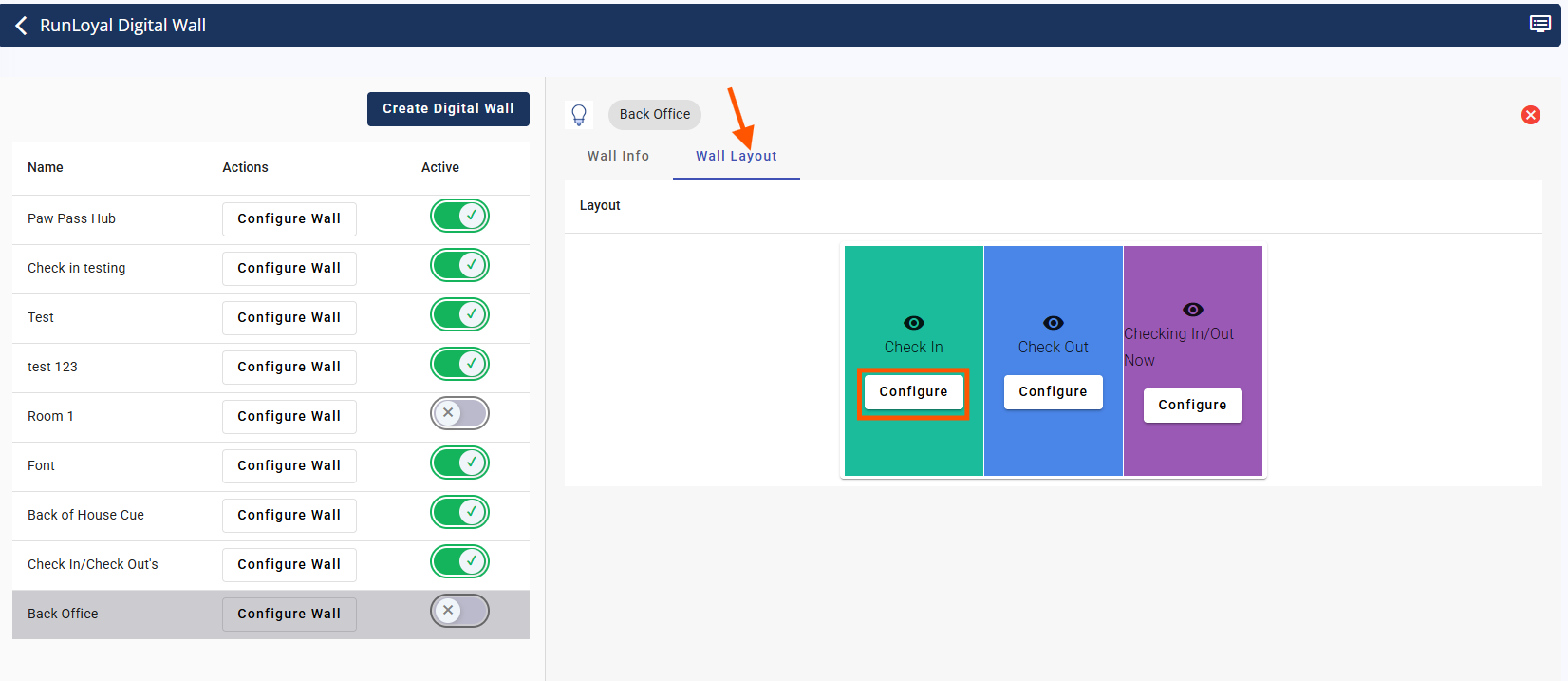
Select Wall Layout tab and Configure the Check- In section to personalize the screen layout.
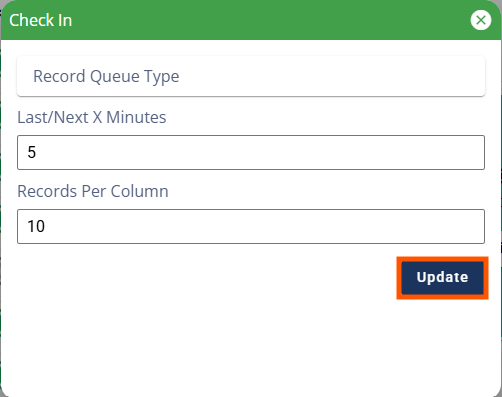
From here, you can set the duration for displaying check-in events (minutes) and choose the number of check-in records to show per column. Click Update.
9. Repeat steps 7 & 8 to configure different sections
Please note: you can click on the Eye icon to hide the digital wall section
Activate and Share the Digital Wall
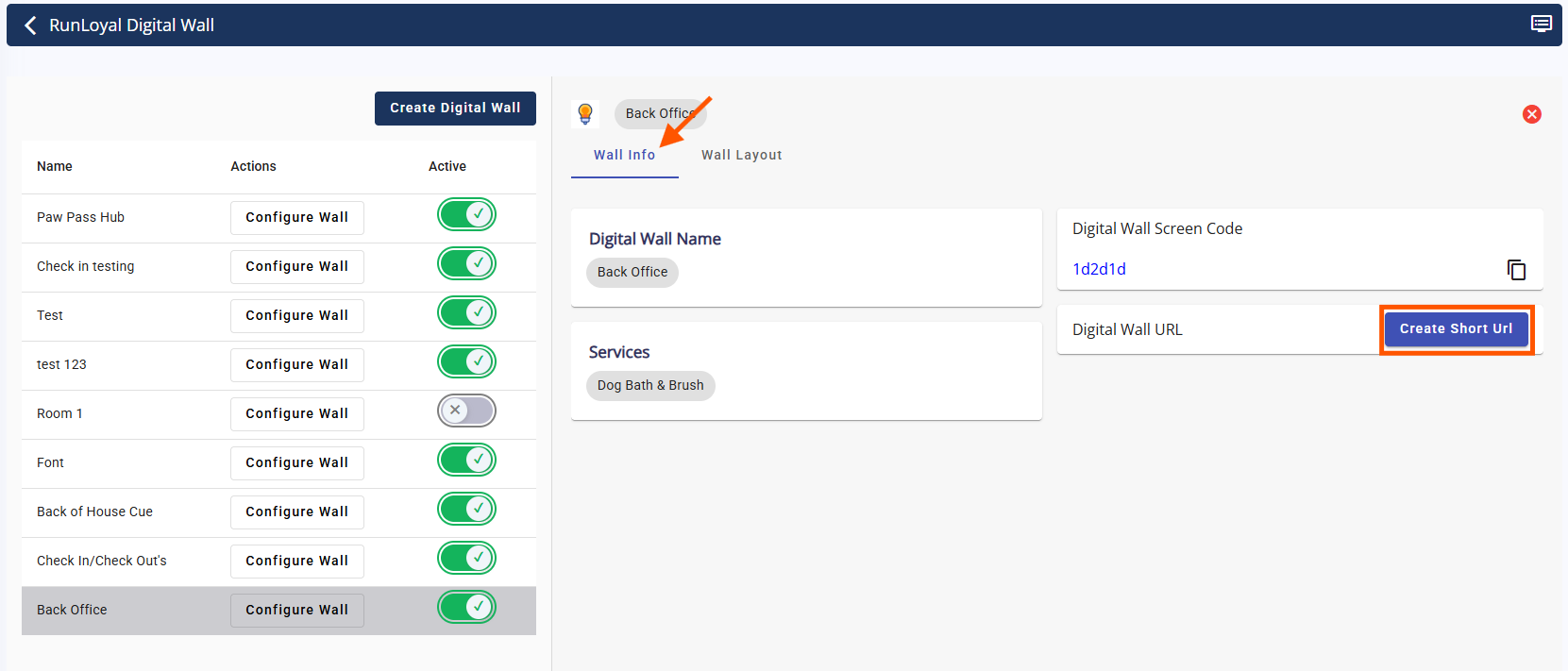
Turn the toggle on to activate the digital wall
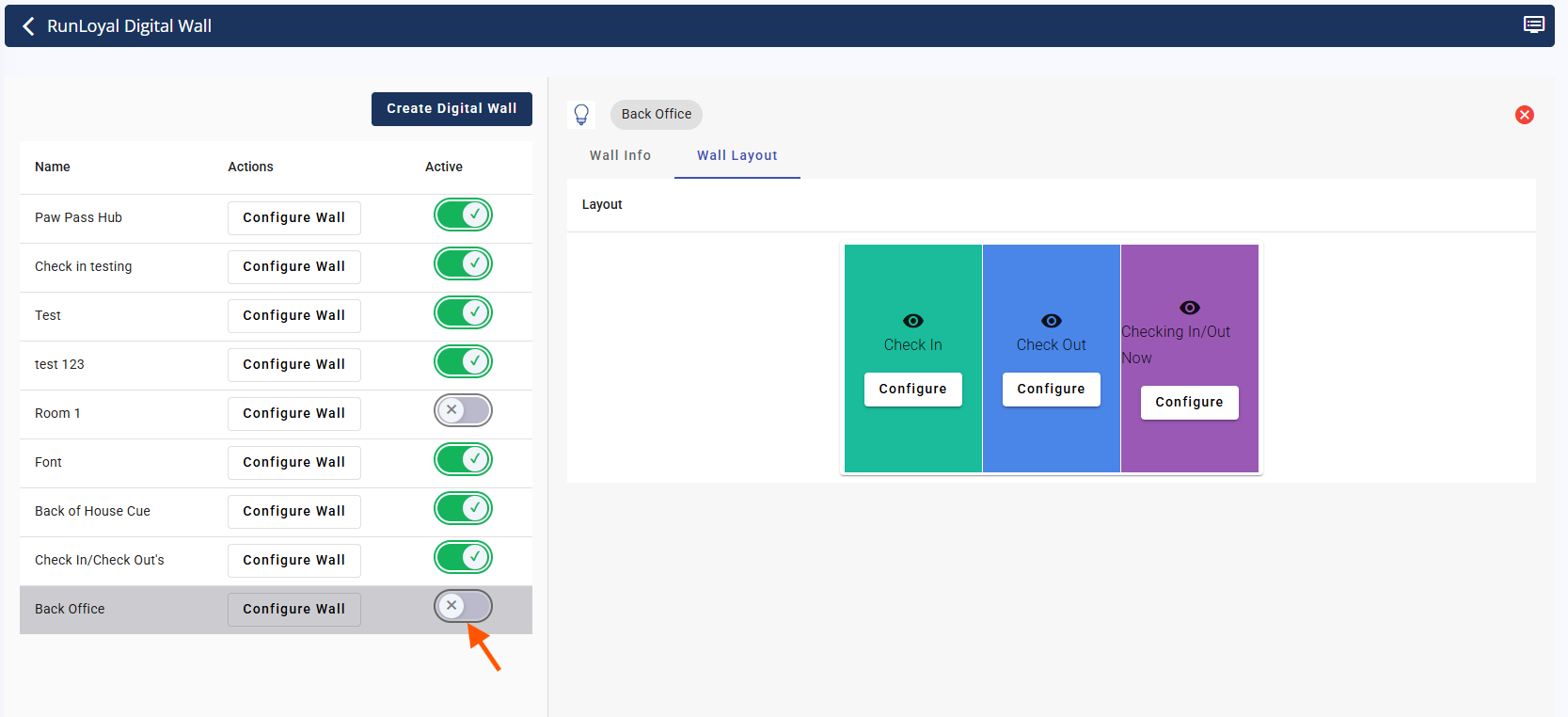
In Wall Info, activate the wall and create a short URL
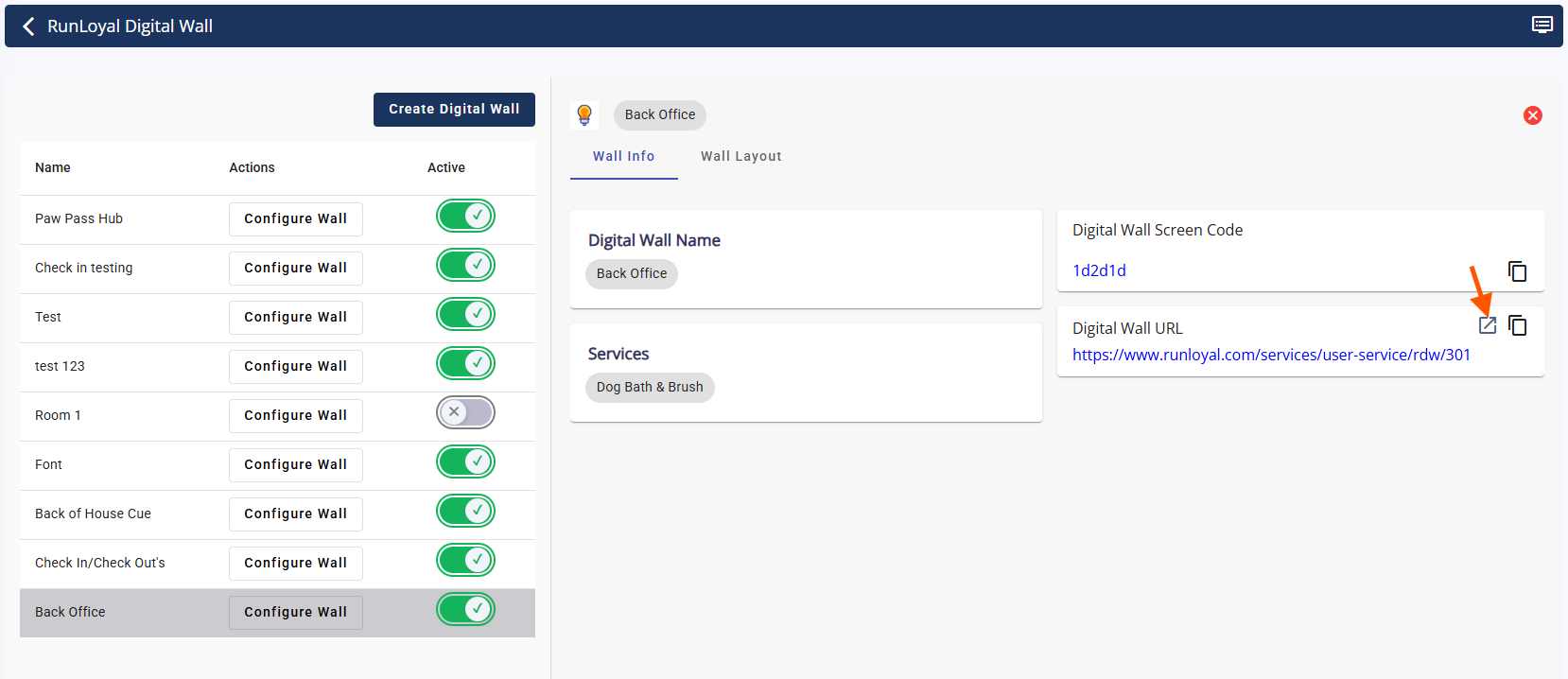
Open the display in Chrome as shown below
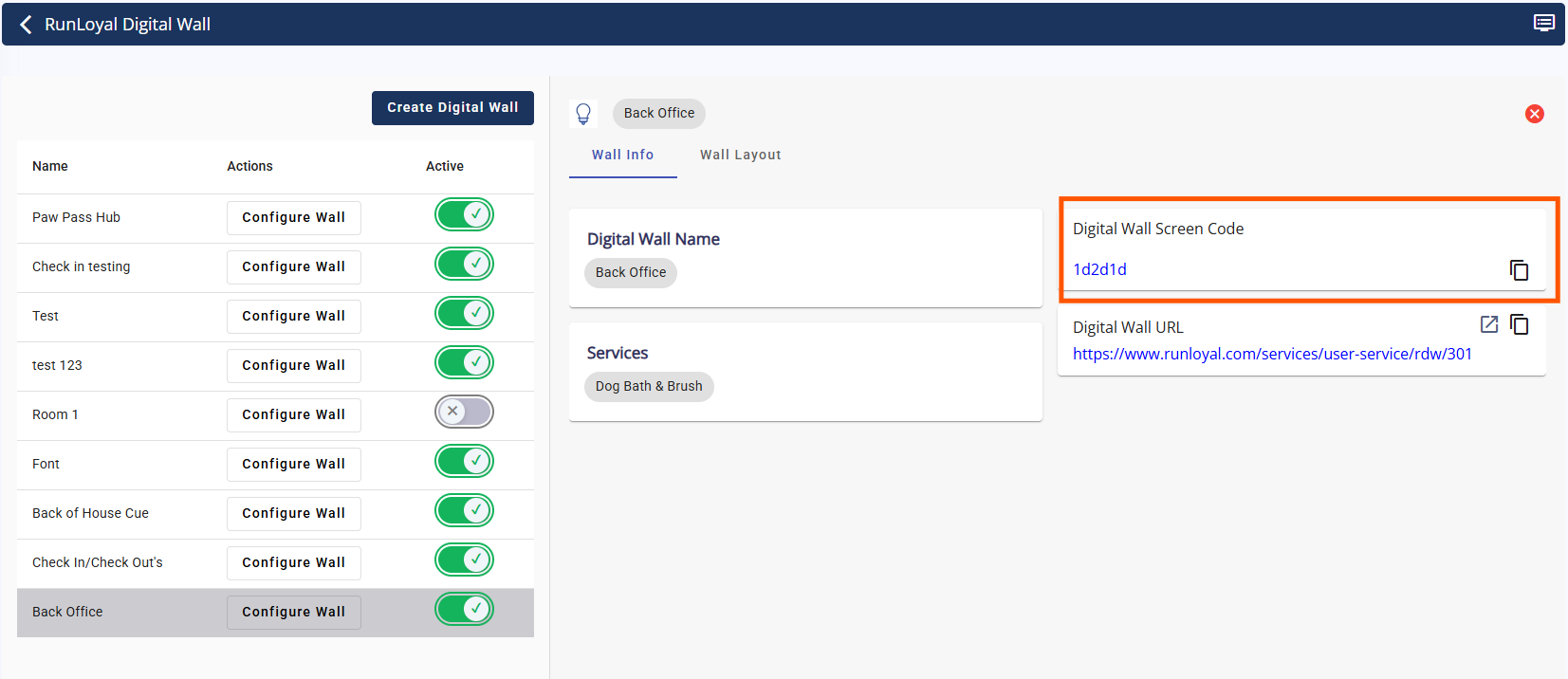
Enter the screen code to sign in
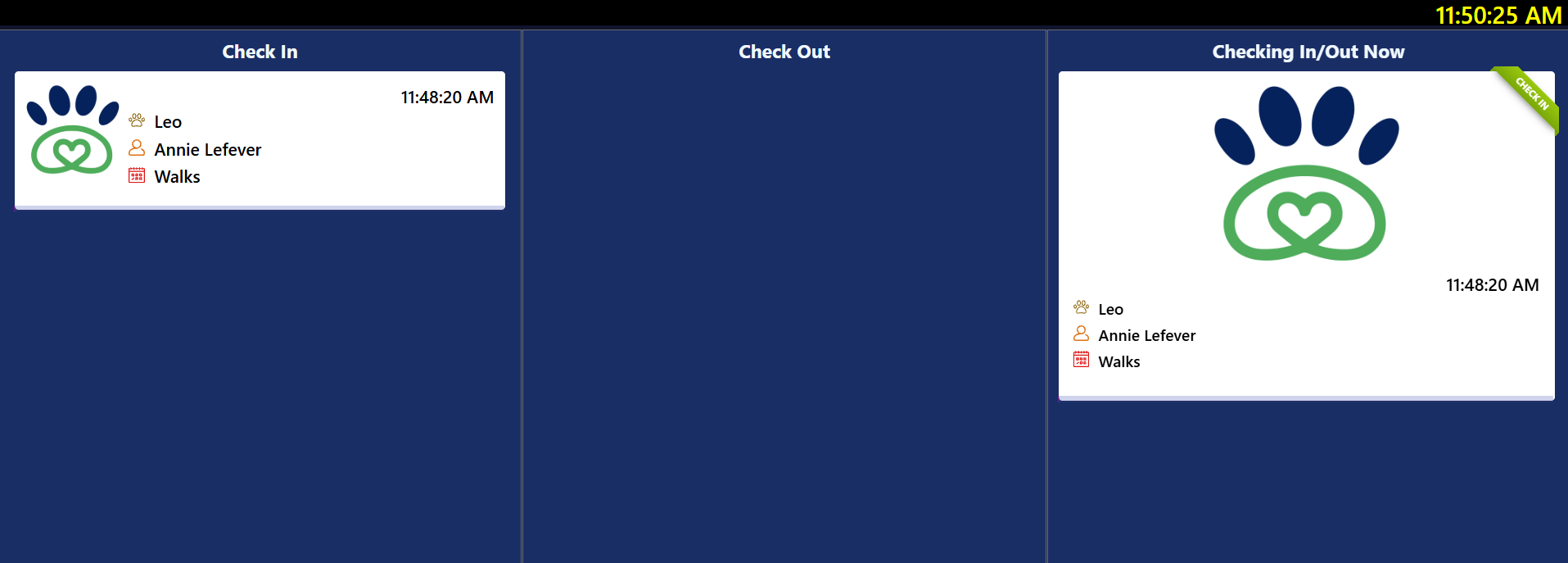
After logging in, you can view the check-in/out pet details
Digital Wall Messages – Alerts/Banners
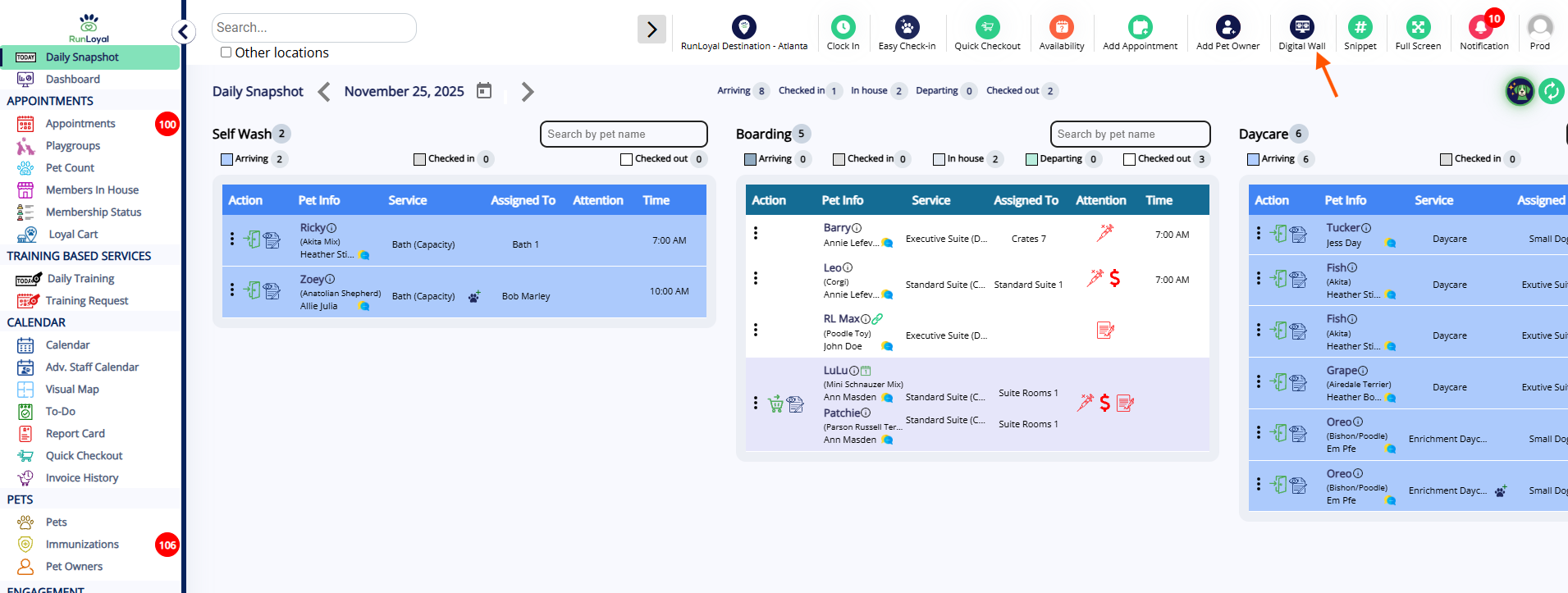
Navigate to Digital Wall from top modules
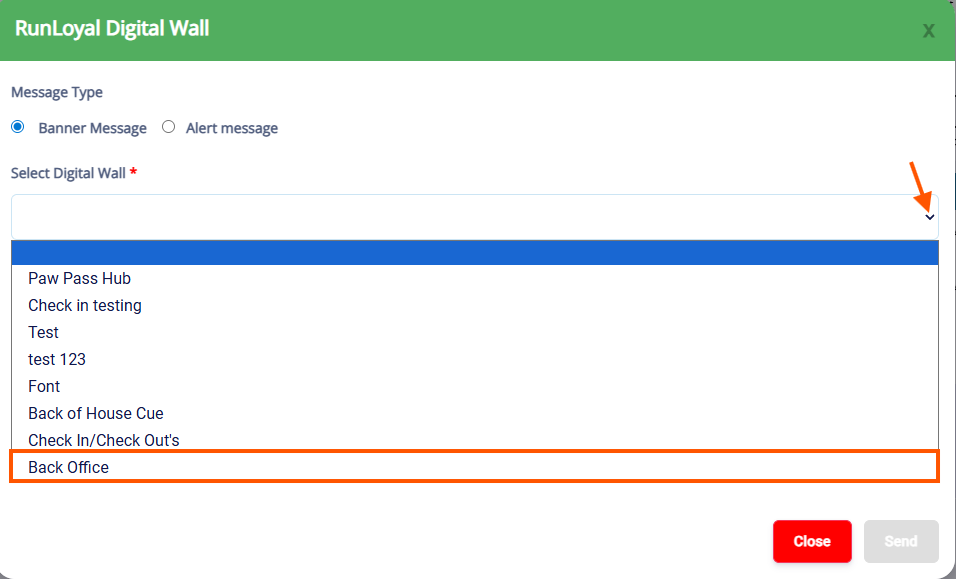
Click on the drop down and select the desired digital wall from the list
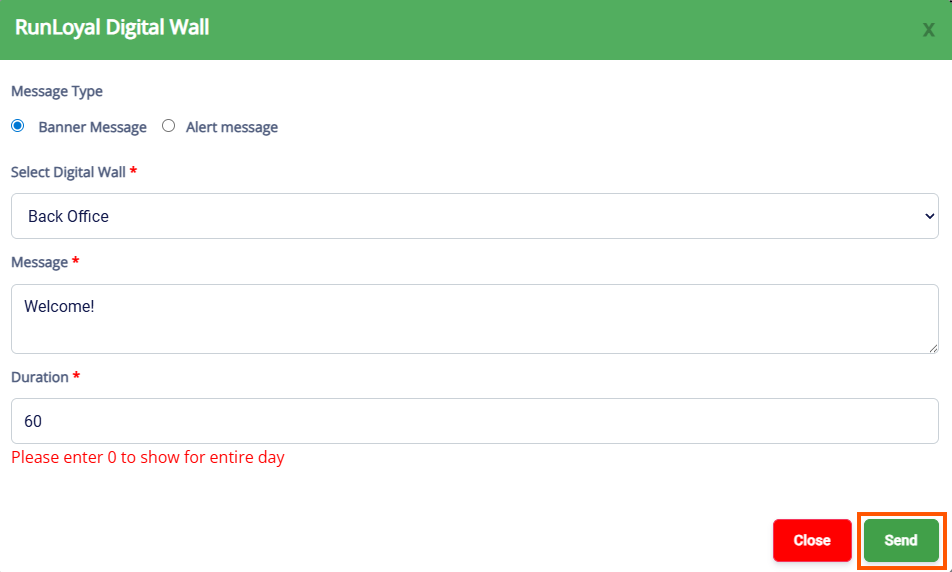
Type your message in the message box, set the duration for displaying the message in the digital wall. Click Send once completed
The banner is displayed at the top of the digital wall as shown below
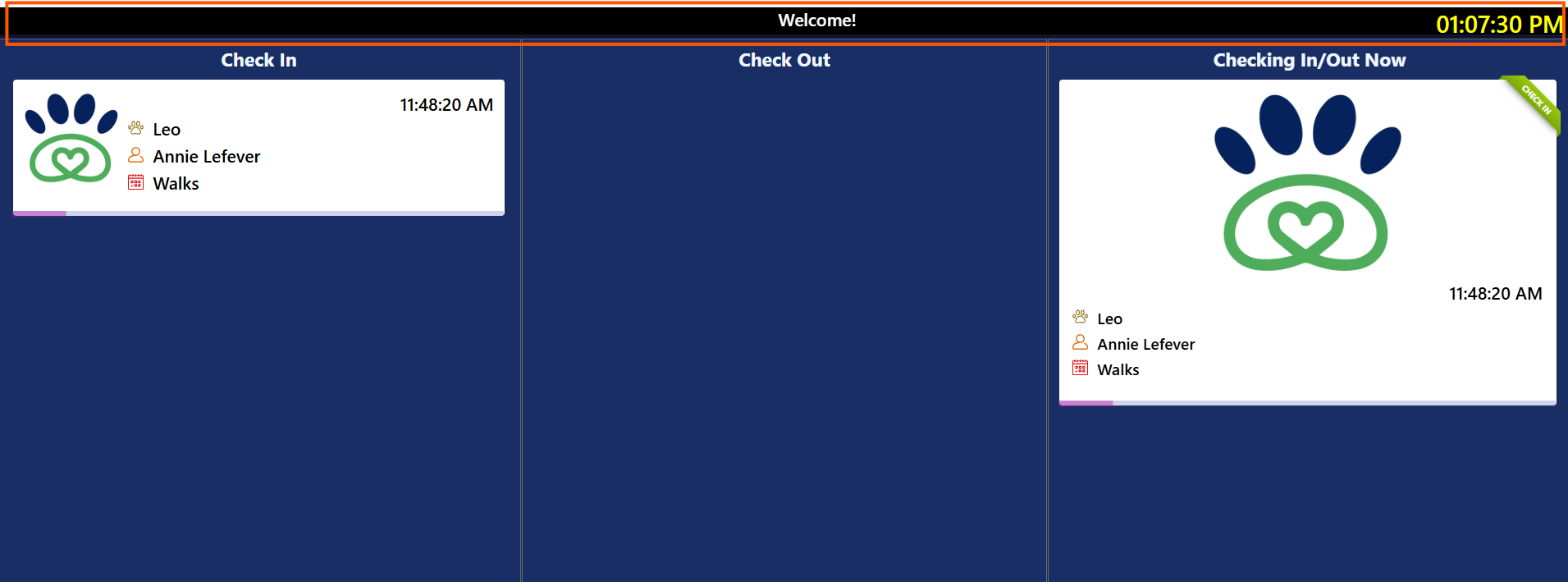
You can also send an alert message and it will display as a pop up as shown below
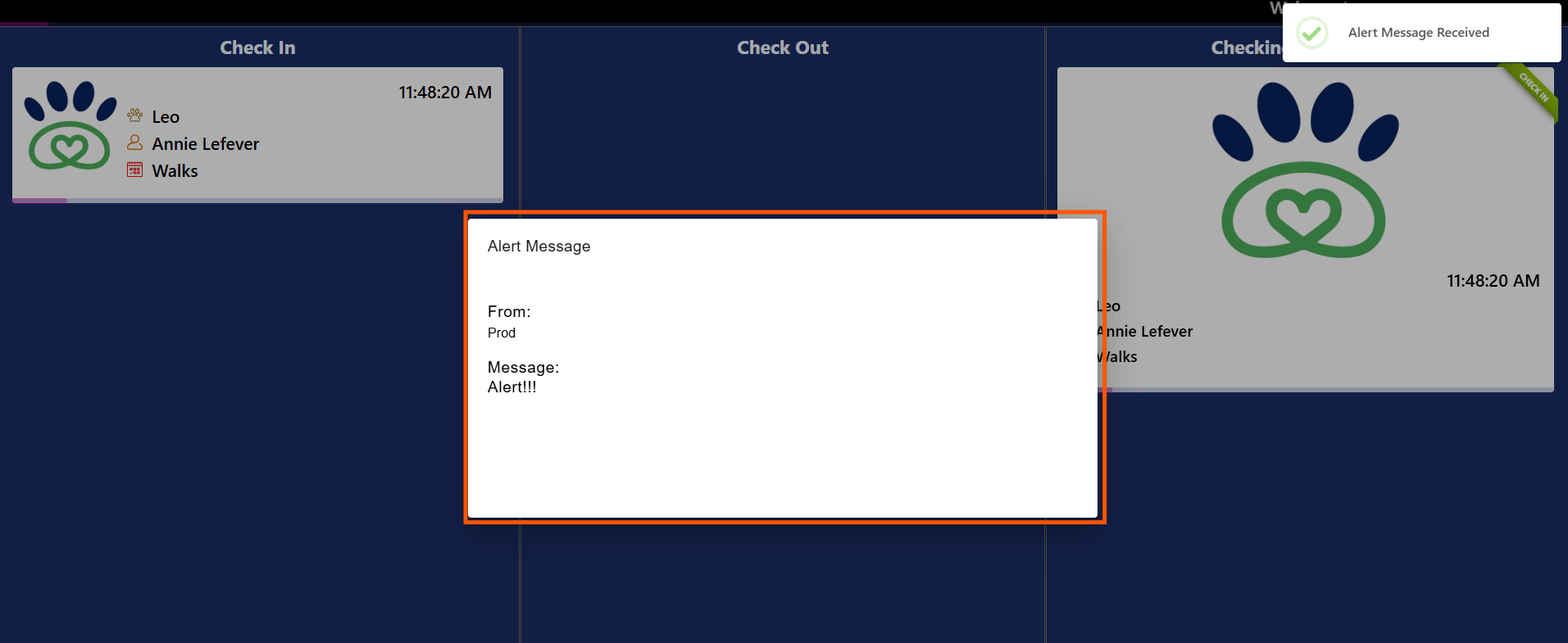
Was this article helpful?
That’s Great!
Thank you for your feedback
Sorry! We couldn't be helpful
Thank you for your feedback
Feedback sent
We appreciate your effort and will try to fix the article