Overview:
This article provides step-by-step instructions on how to update the email address for a staff member within the platform.
Steps to Update Staff Email:
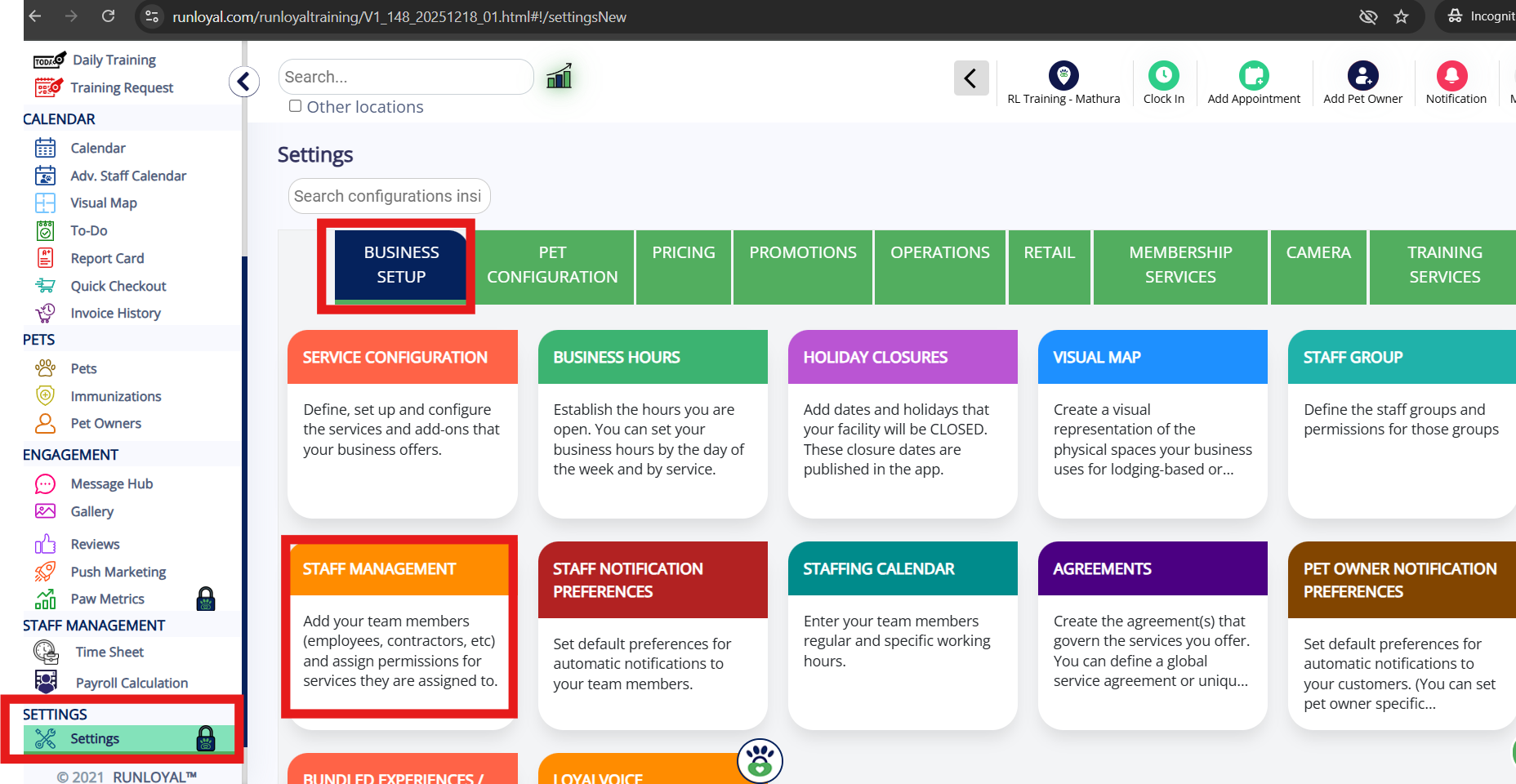
1. Navigate to Staff Management Settings:
- Go to Settings from the main menu.
- Click on Business Setup.
- Select Staff Management from the options.
2. Select the Staff Member to Update:
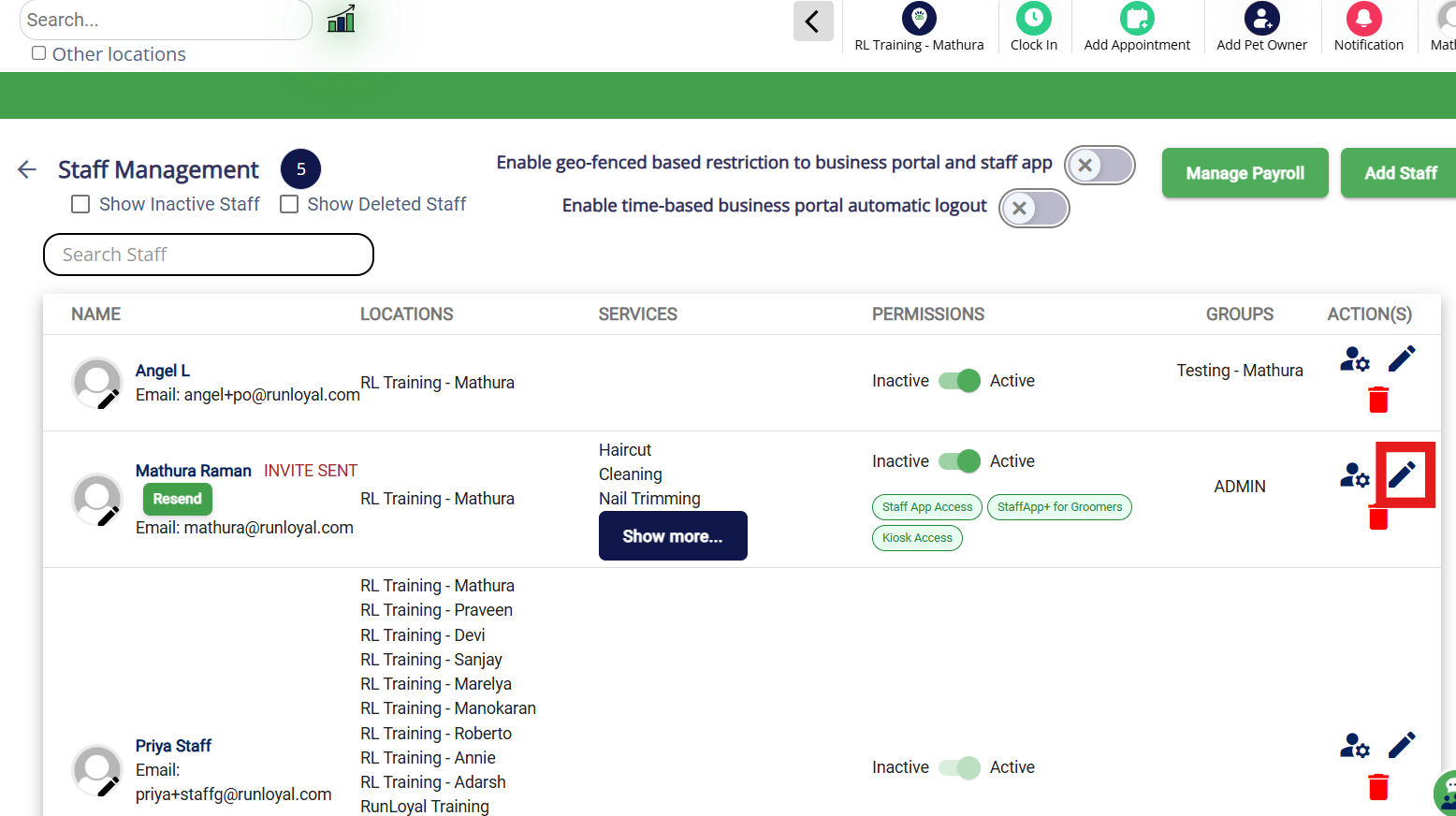
In the Staff Management screen, locate the staff member whose email address you need to update.
Click on the Edit icon next to their name.
3. Edit Email Address:
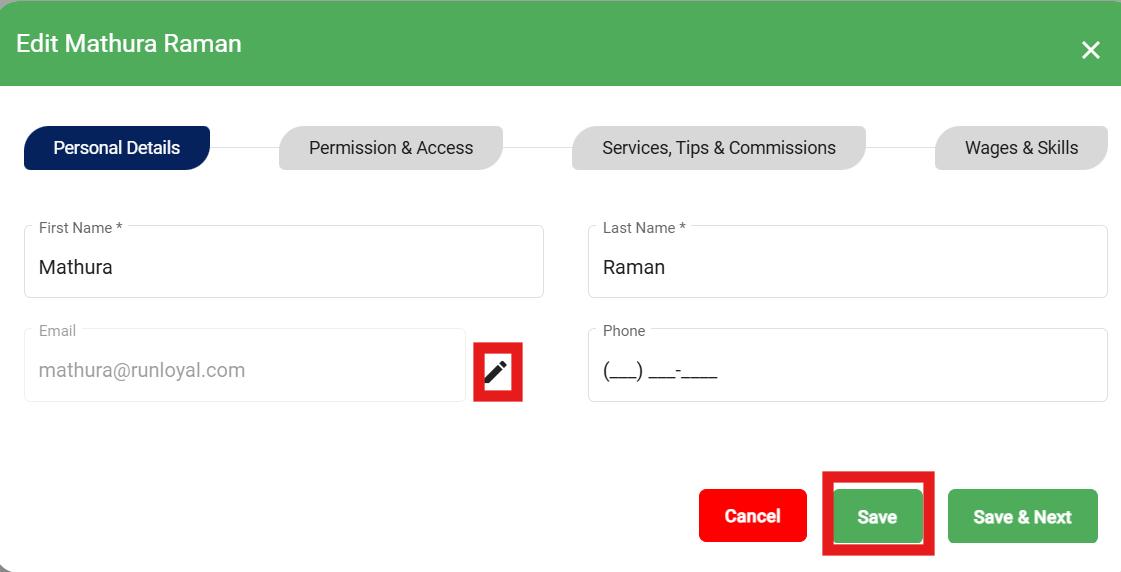
- After clicking the Edit icon, a new screen will appear.
- Update the email address as required in the provided field.
- Once updated, click on the Save button to confirm the changes.
4. Confirm the Changes:
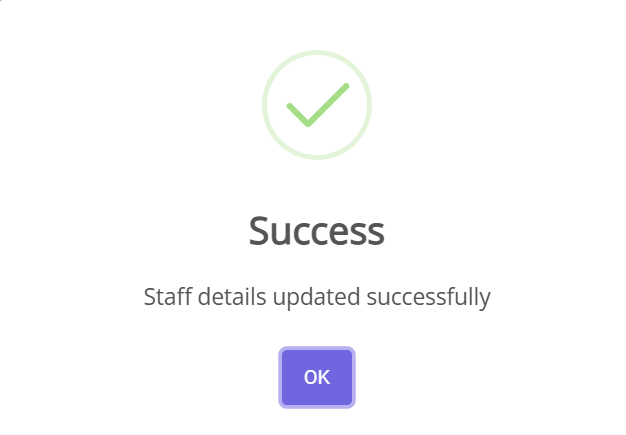
- Upon saving, a confirmation screen will appear.
- Click OK to finalize the update.
Was this article helpful?
That’s Great!
Thank you for your feedback
Sorry! We couldn't be helpful
Thank you for your feedback
Feedback sent
We appreciate your effort and will try to fix the article