Overview
Staff Geo-Fencing allows you to limit which of your staff users can access your RunLoyal business portal via a set geographic radius. If staff should only be able to log into their RunLoyal business portal account within a certain radius (i.e. 80 meters) around your facility, but not from their house or other locations, you may wish to enable geo-fencing. You can also limit geo-fencing to specific users if other users should be able to access RunLoyal from anywhere.
Geo-Fencing can be viewed in the following areas:
- Settings > Business Setup > Staff Management
TABLE OF CONTENTS
- Overview
- How to Enable Geo-Fencing
- How to Require Geo-Fencing for Staff Users
- Troubleshooting: Enable Location Access in Chrome on Computer
- Troubleshooting: Enable Location Access in Windows 11 on Computer
- Troubleshooting: Other Common Geo-Fencing Issues
- More Information
How to Enable Geo-Fencing
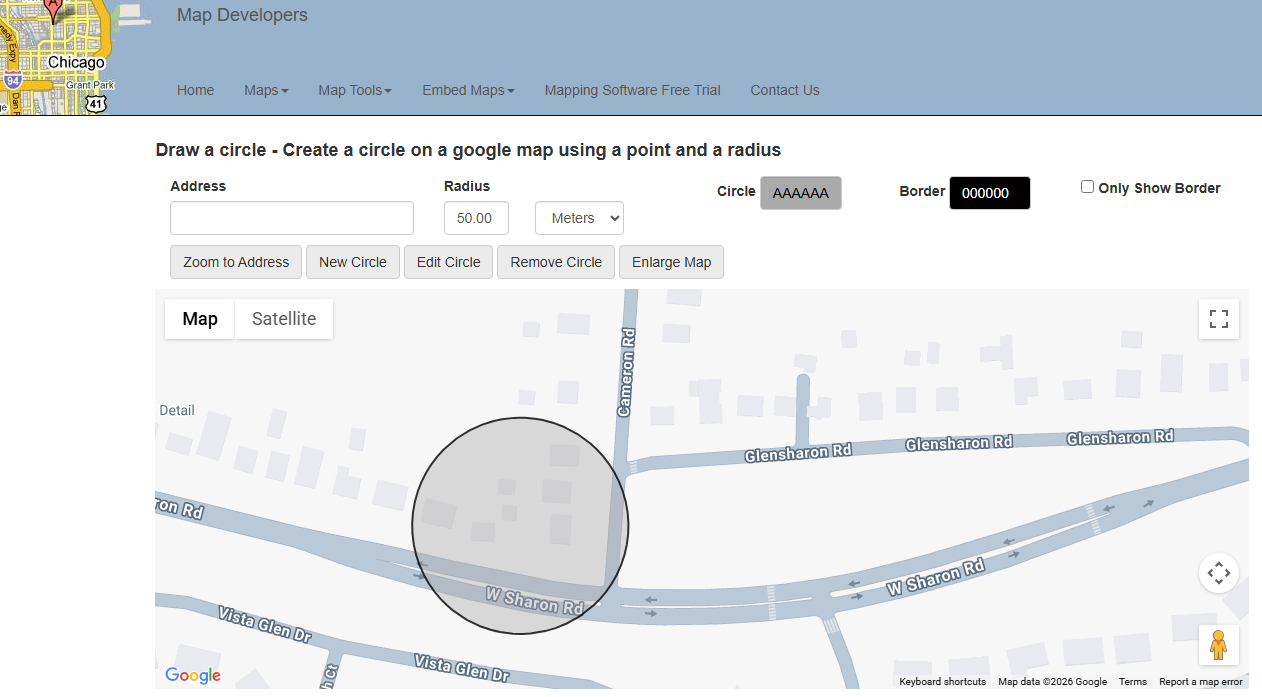
1. To visualize your coverage area, you can use this free tool: Map Developers - Draw Circle Tool. Enter the business address, desired radius (in meters), and click Zoom to Address to see the area covered by your geo-fence. You may wish to expand the meters radius to ensure you are covering the entire business property. Mark down the meters radius as you will need to input it into RunLoyal.
2. Navigate to Settings > Business Setup > Staff Management.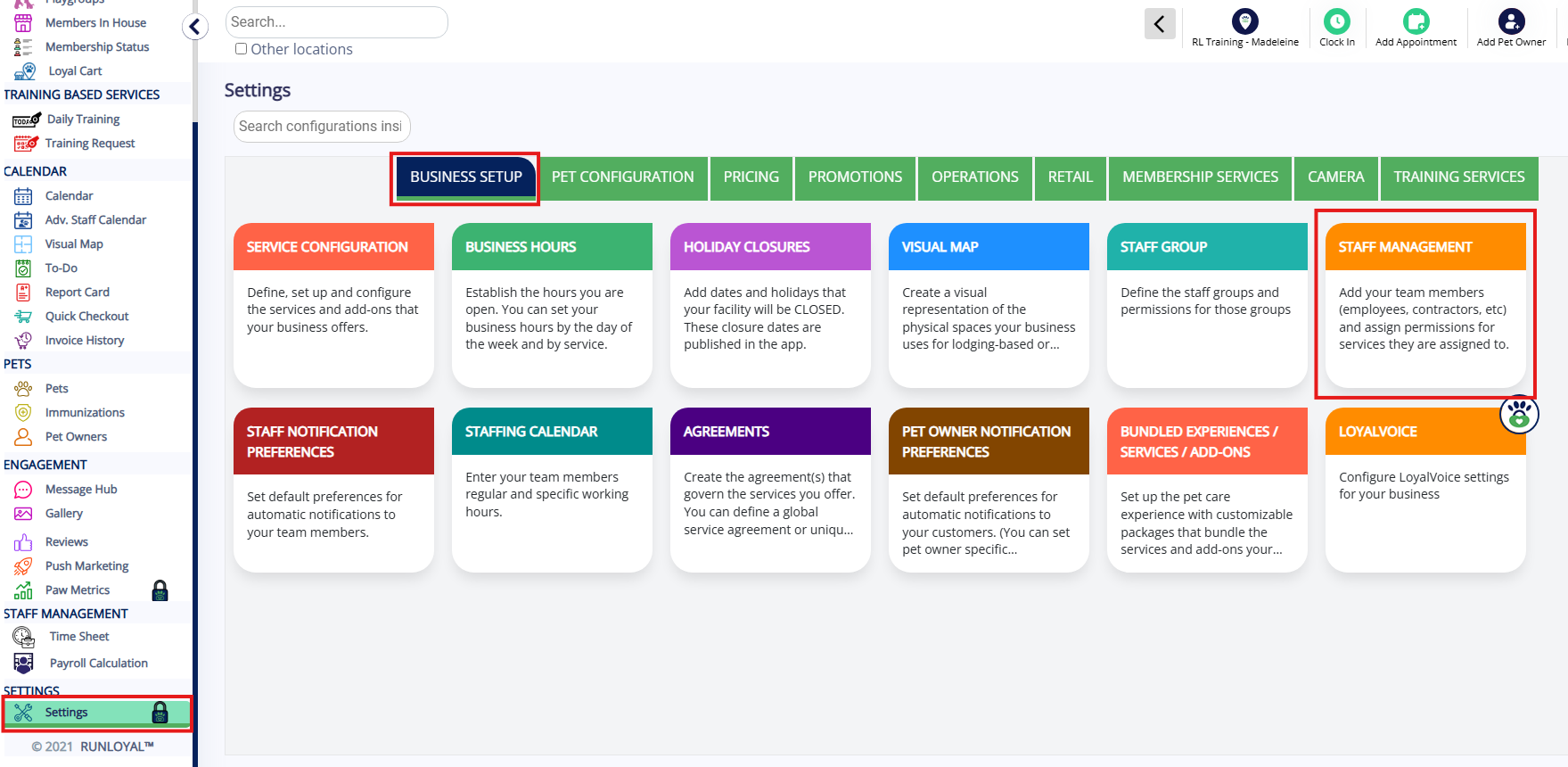
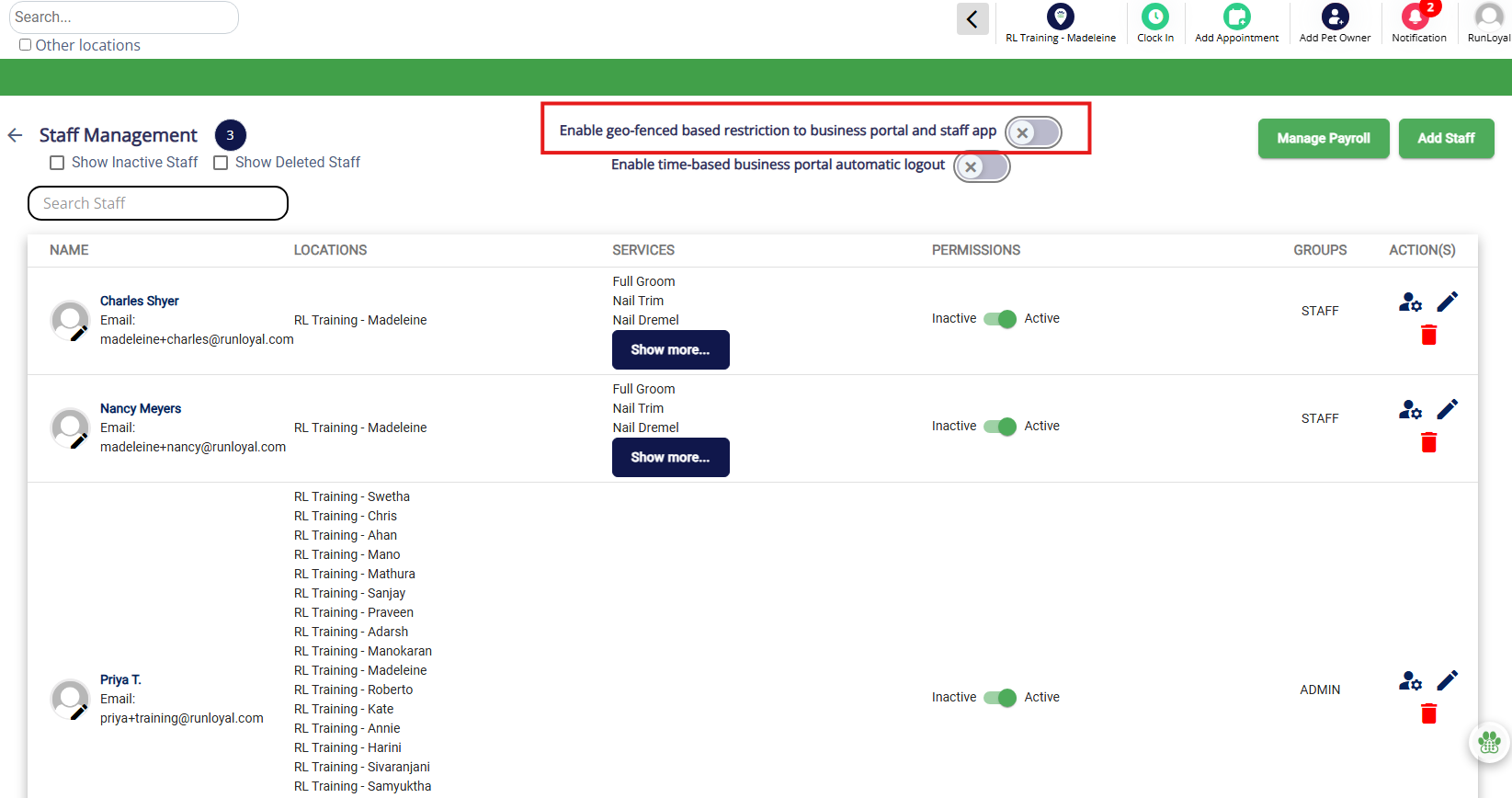
3. Toggle on the Enable geo-fenced based restriction to business portal and staff app setting in the top center of the page.
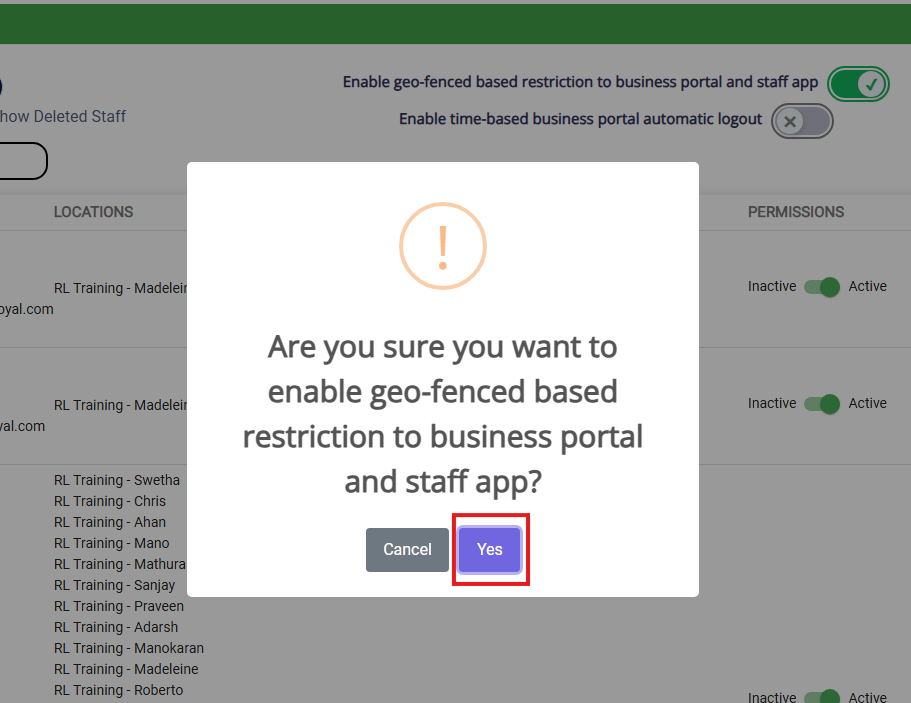
4. Click Yes to confirm you wish to enable geo-fencing.
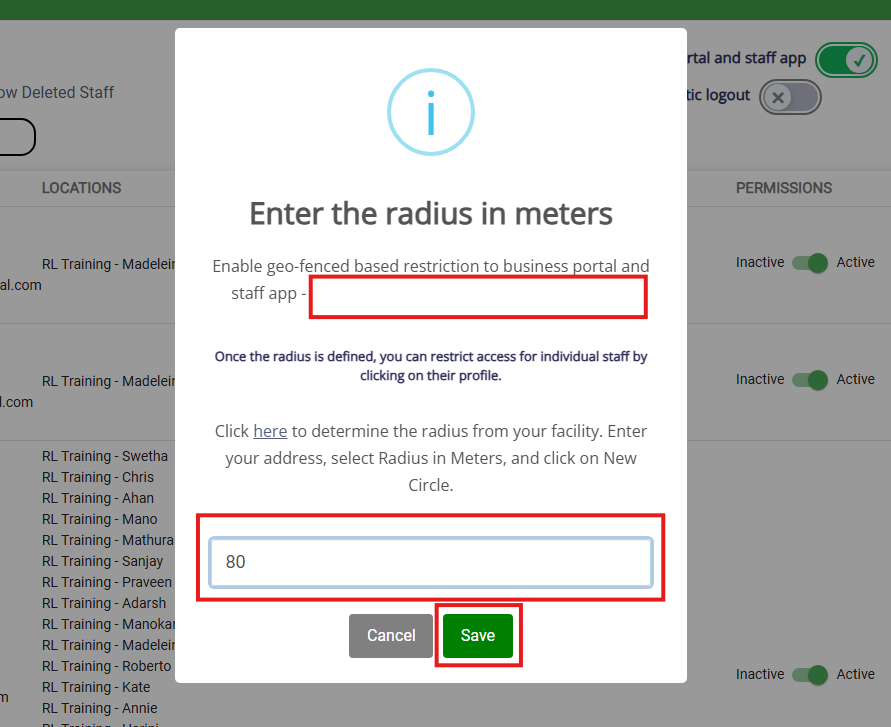
5. Confirm your address is input correctly (first highlighted box below). Then enter your radius in meters from Step 1, and click Save.
⚠️ Important: If the address should be adjusted, please reach out to RunLoyal Support.
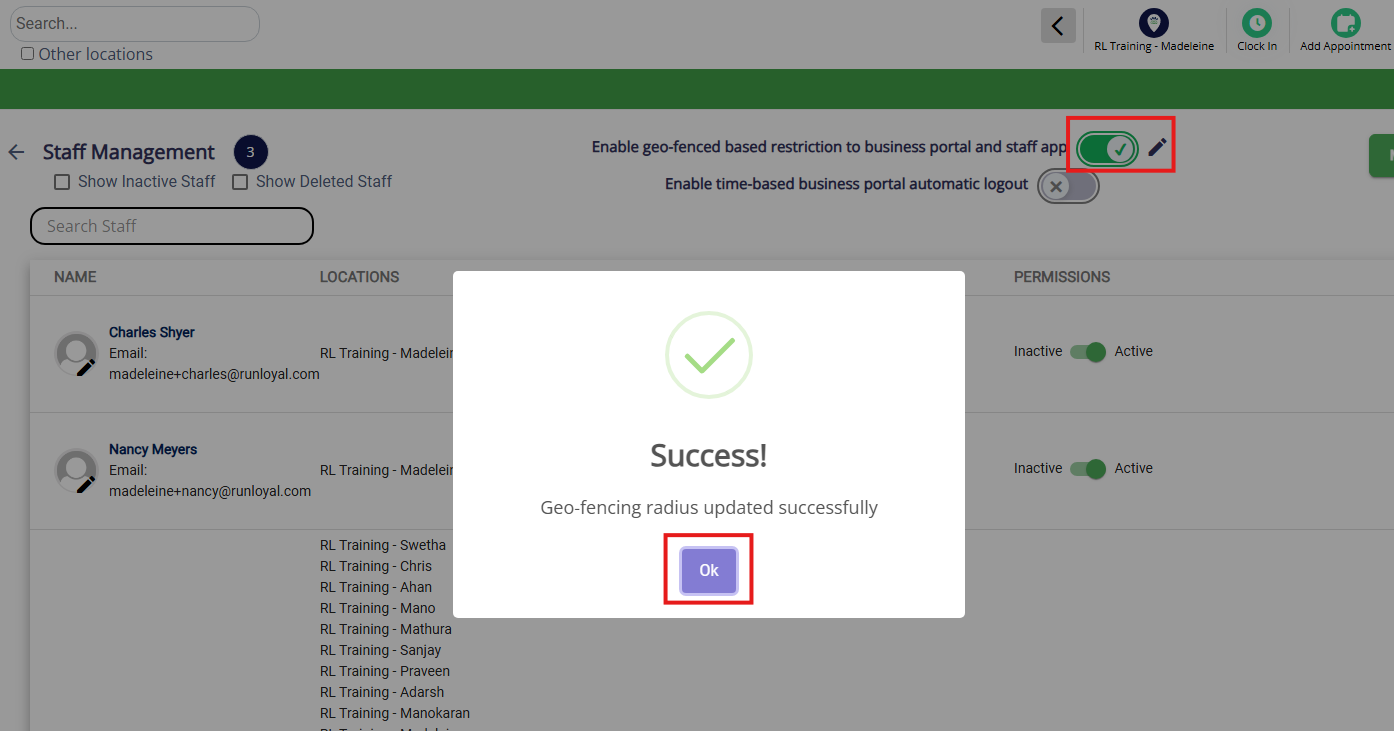
6. Click Ok to confirm the update was completed. You should also now see the Enable geo-fenced based restriction to business portal and staff app setting is toggled on.
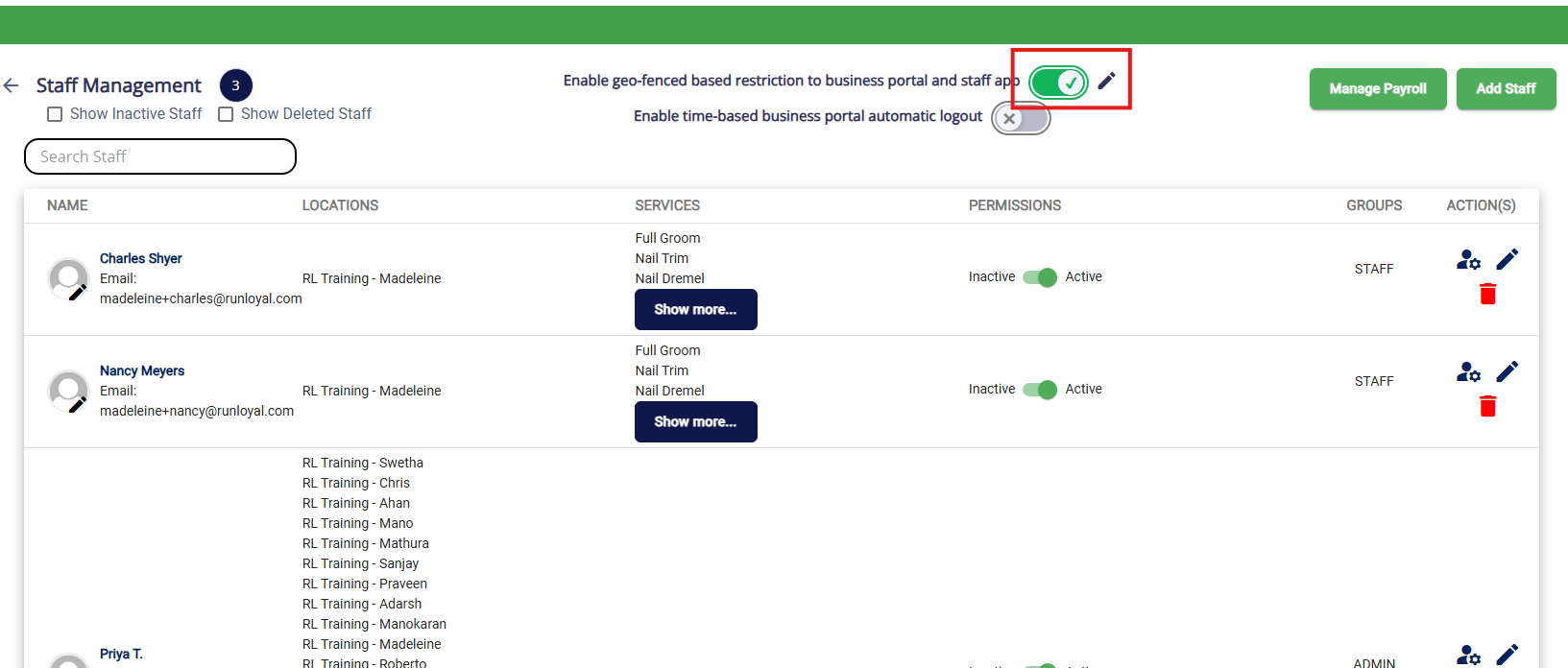
7. If you need to make adjustments to the radius in meters for the geo-fence, click the edit pencil icon. To disable geofencing entirely, toggle off the Enable geo-fenced based restriction to business portal and staff app setting in the top center of the page.
How to Require Geo-Fencing for Staff Users
1. Navigate to Settings > Business Setup > Staff Management.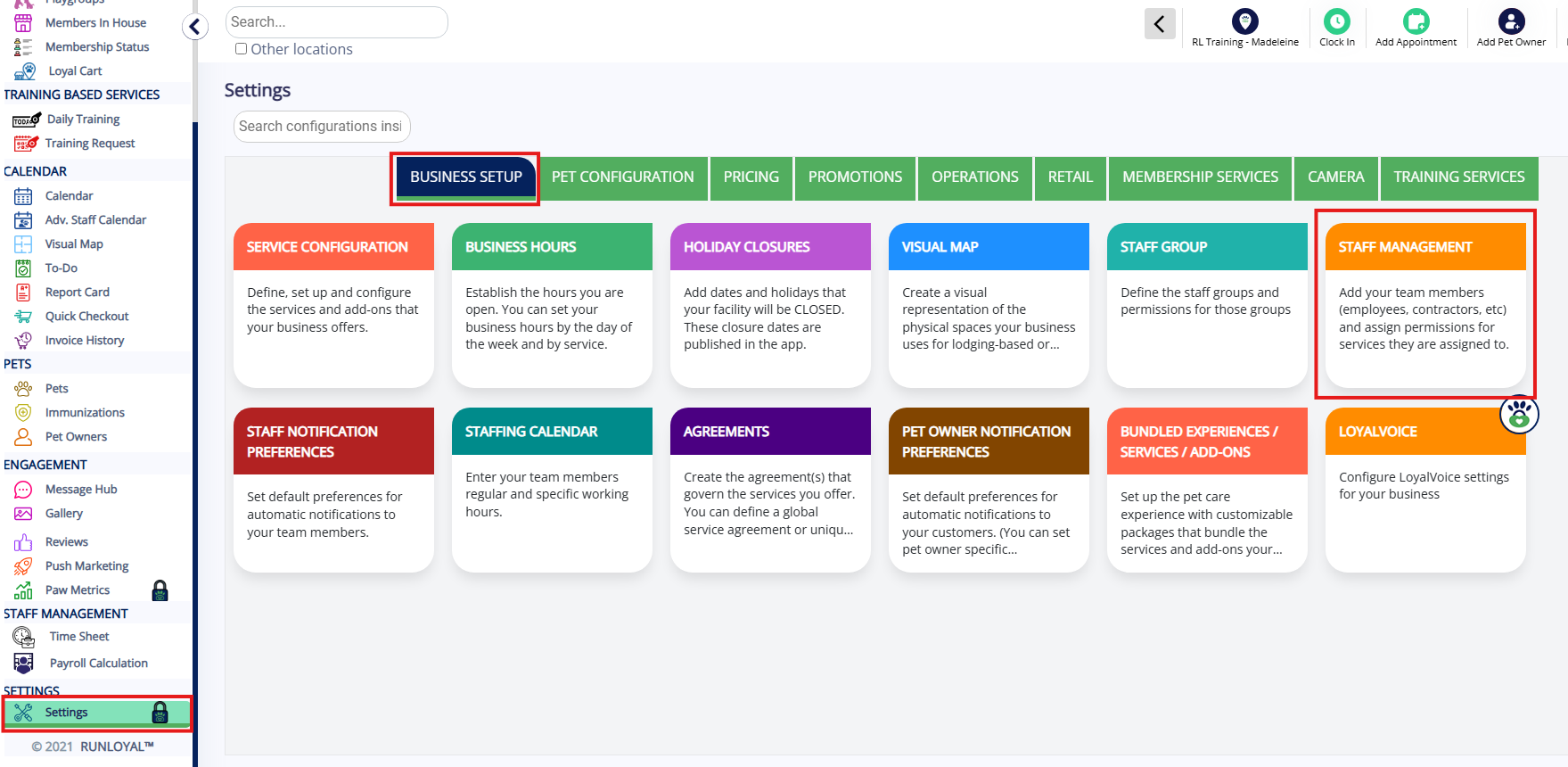
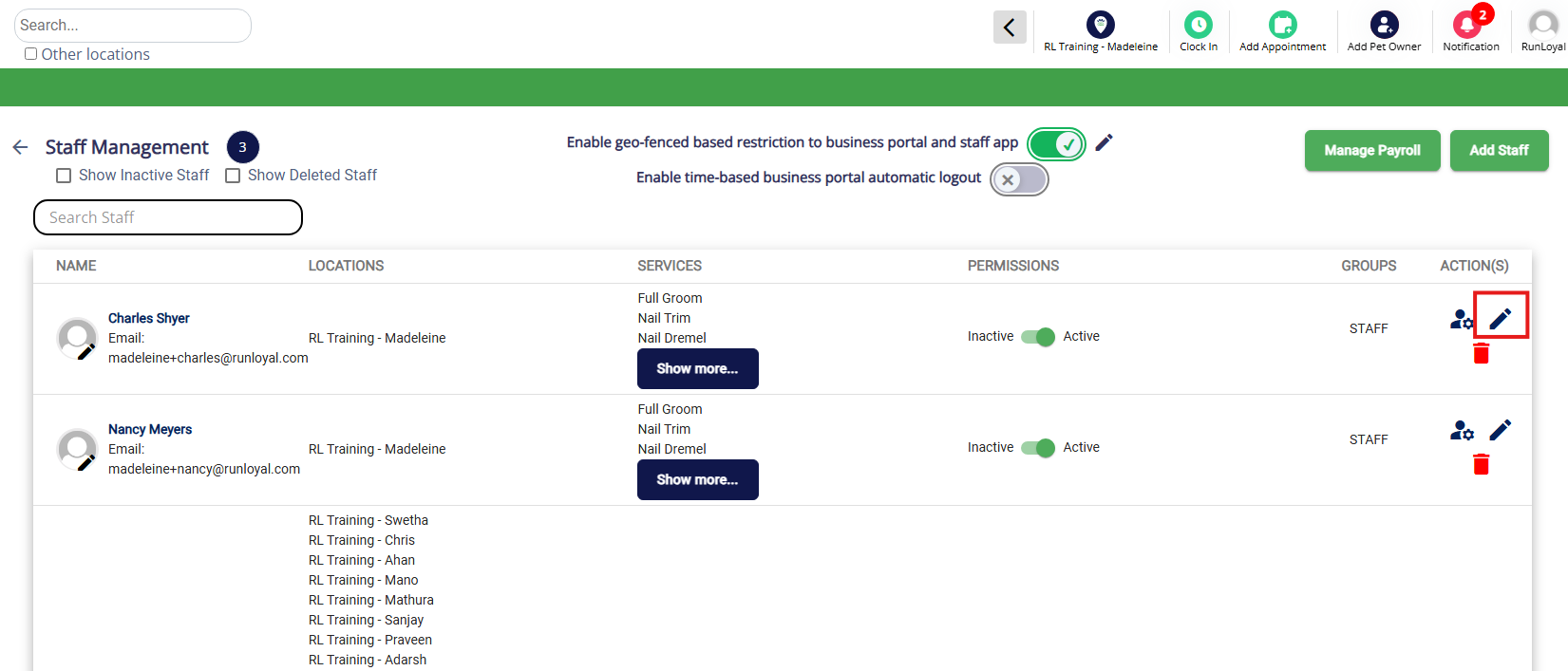
2. To enable geo-fencing restrictions for an existing user, click the Edit pencil icon next to the user in question.
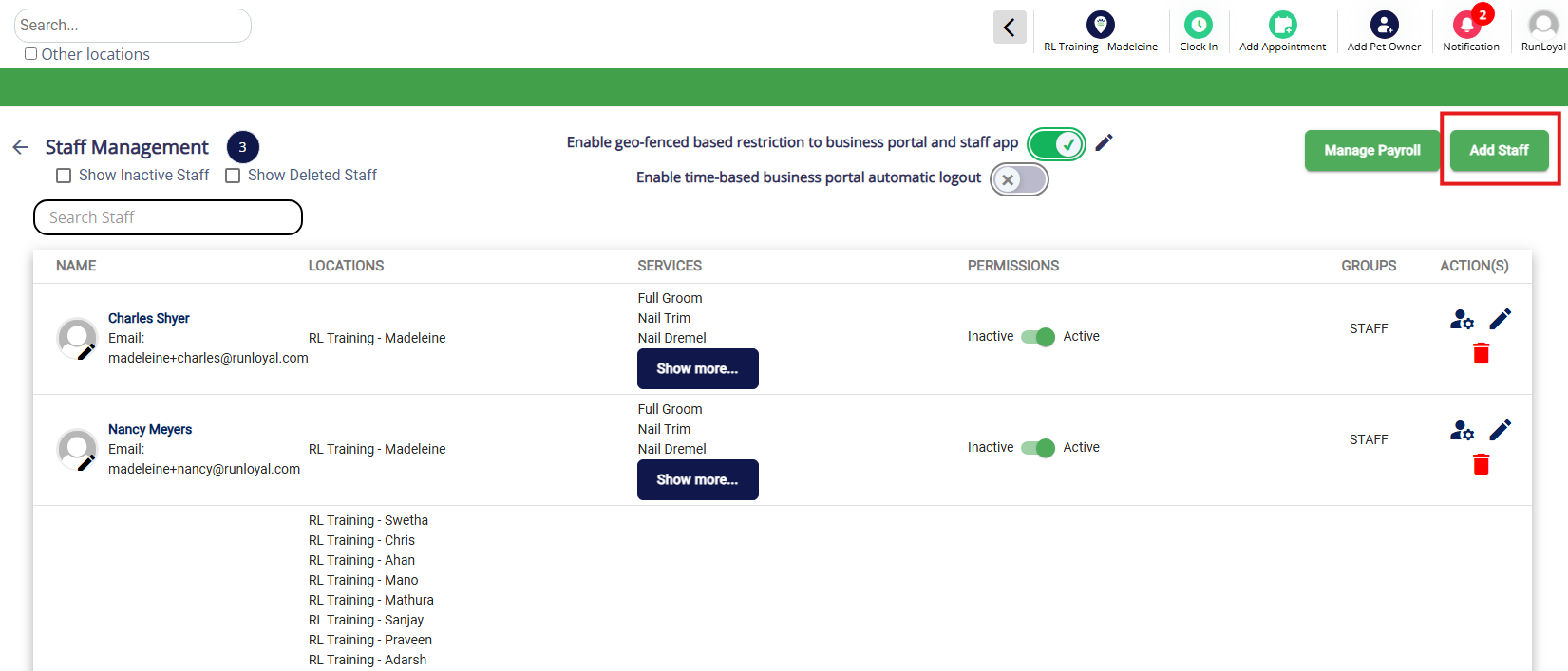
3. To create a new user and add them to the new staff group, click Add Staff. You can learn more about creating a new user in this article: Add & Edit Staff Users.
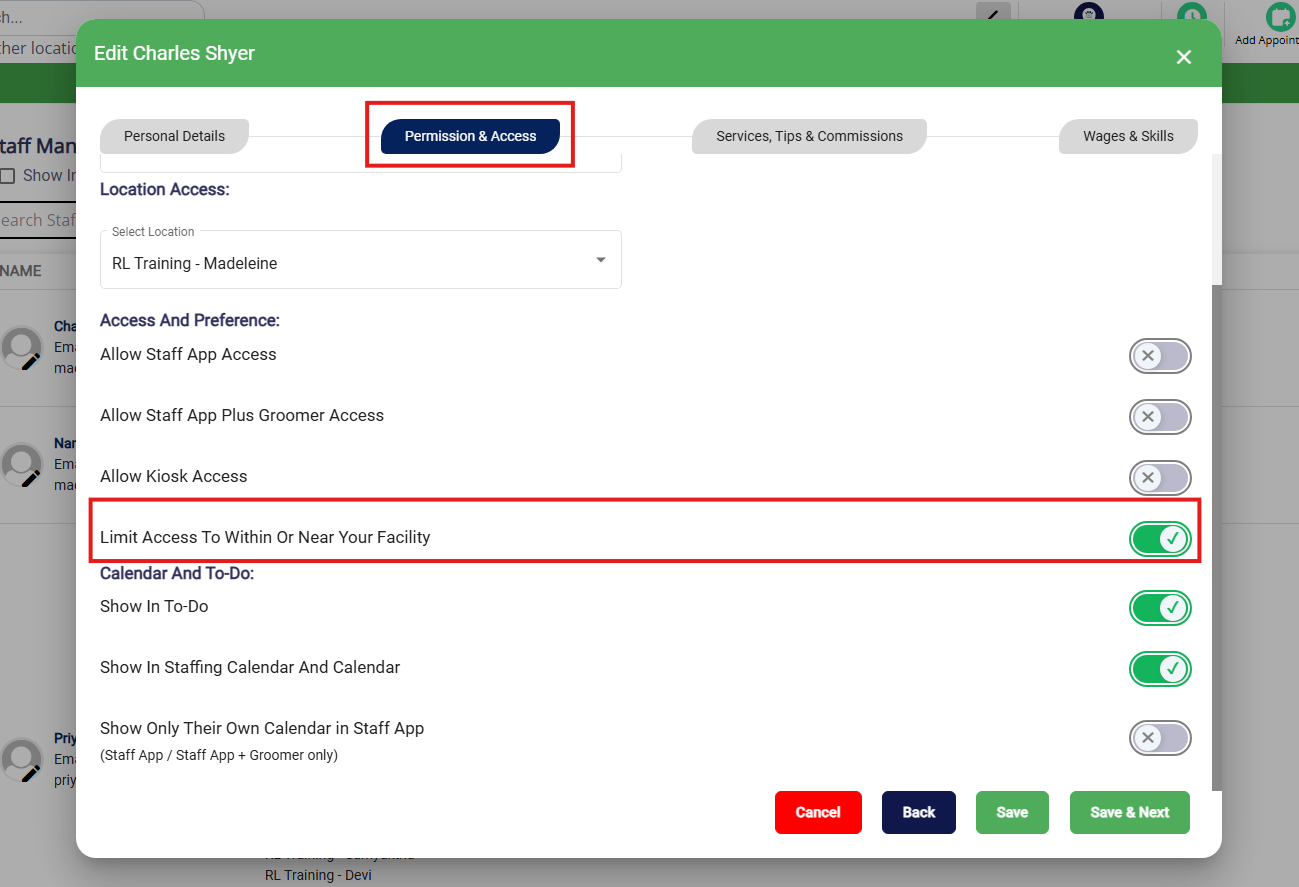
4. On the Permissions & Access tab while creating or editing the user, toggle on Limit Access To, Within, or Near Your Facility.
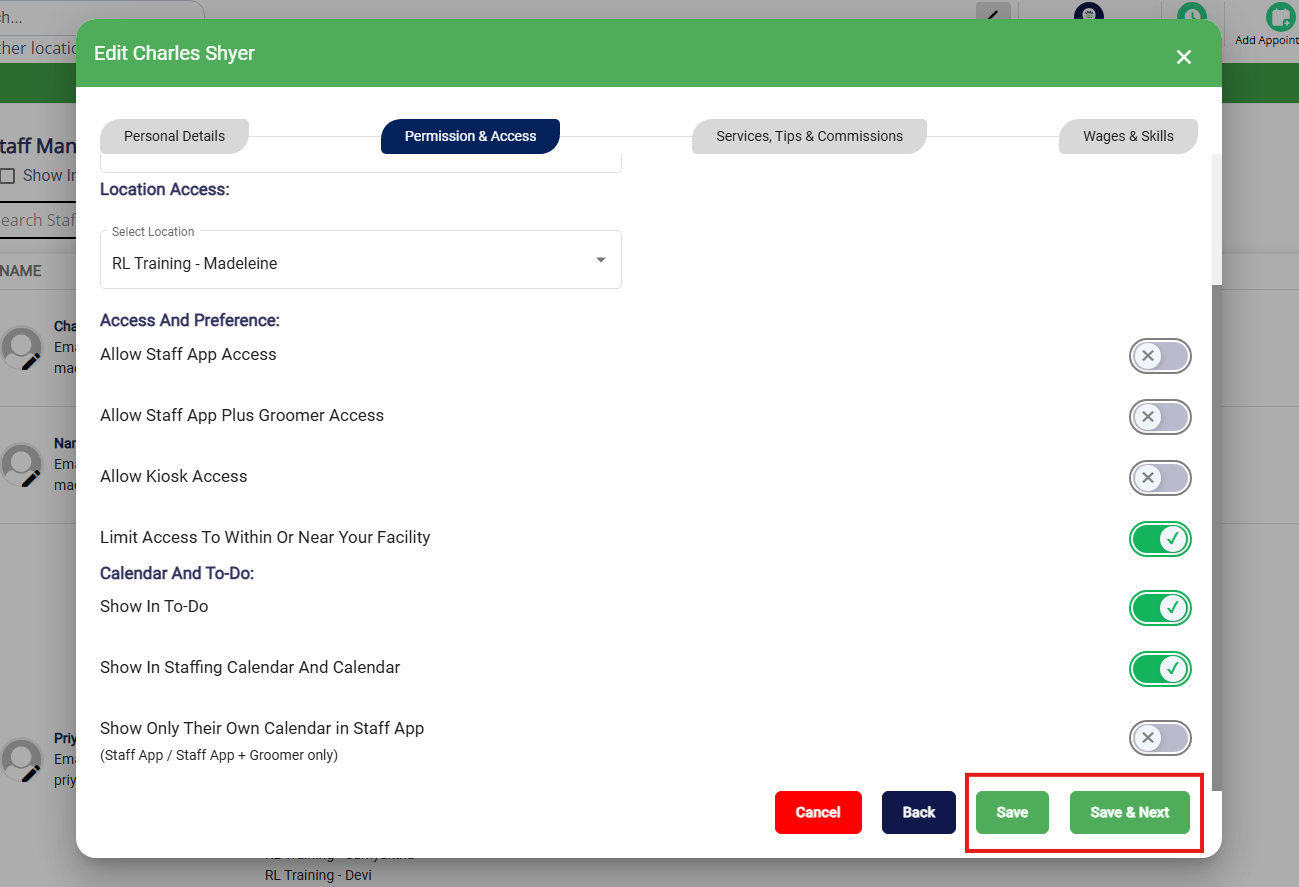
5. Once this setting is enabled, click Save to save your changes or Save & Next to save your changes and go to the next section to make additional user edits.
Troubleshooting: Enable Location Access in Chrome on Computer
1. On the staff member's computer, open Chrome and click the three dots (top right).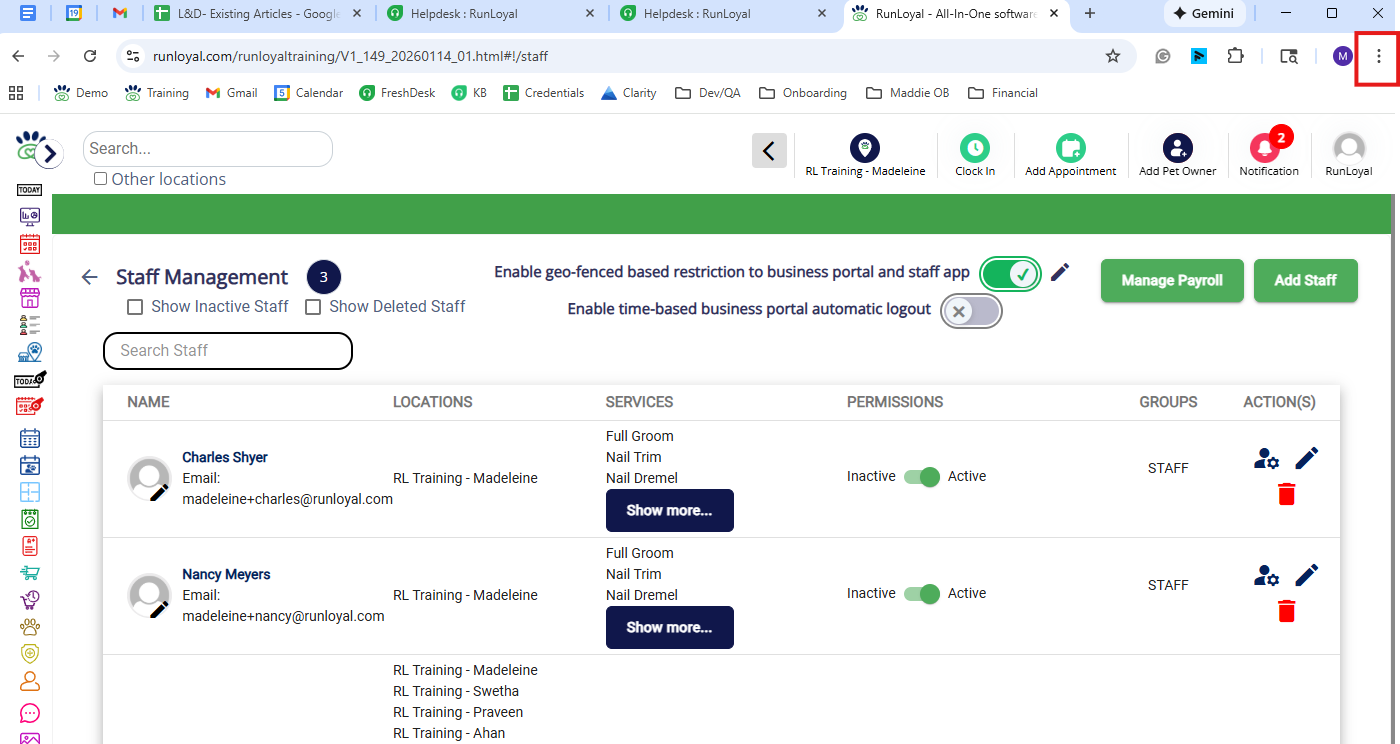
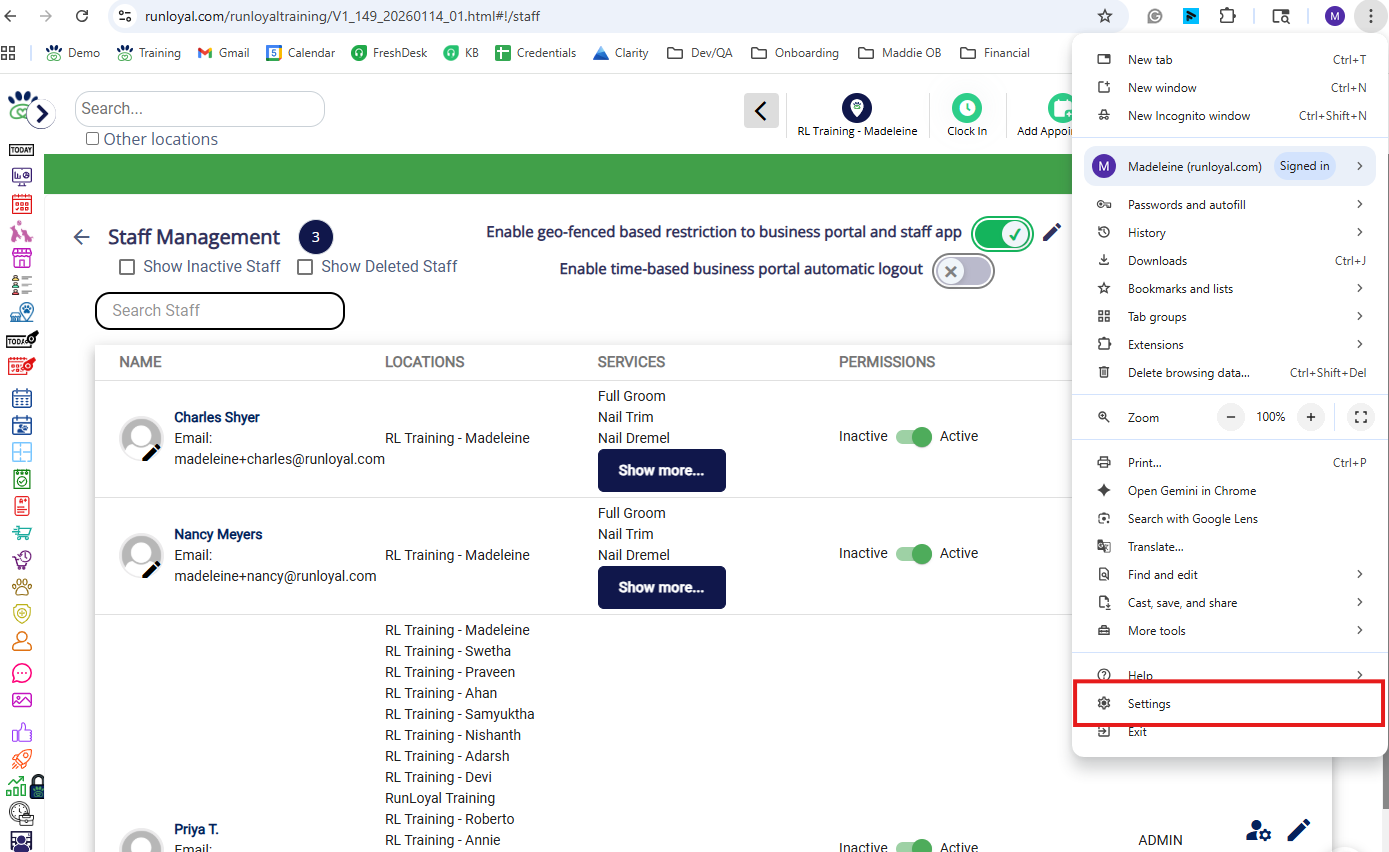
2. Select Settings.
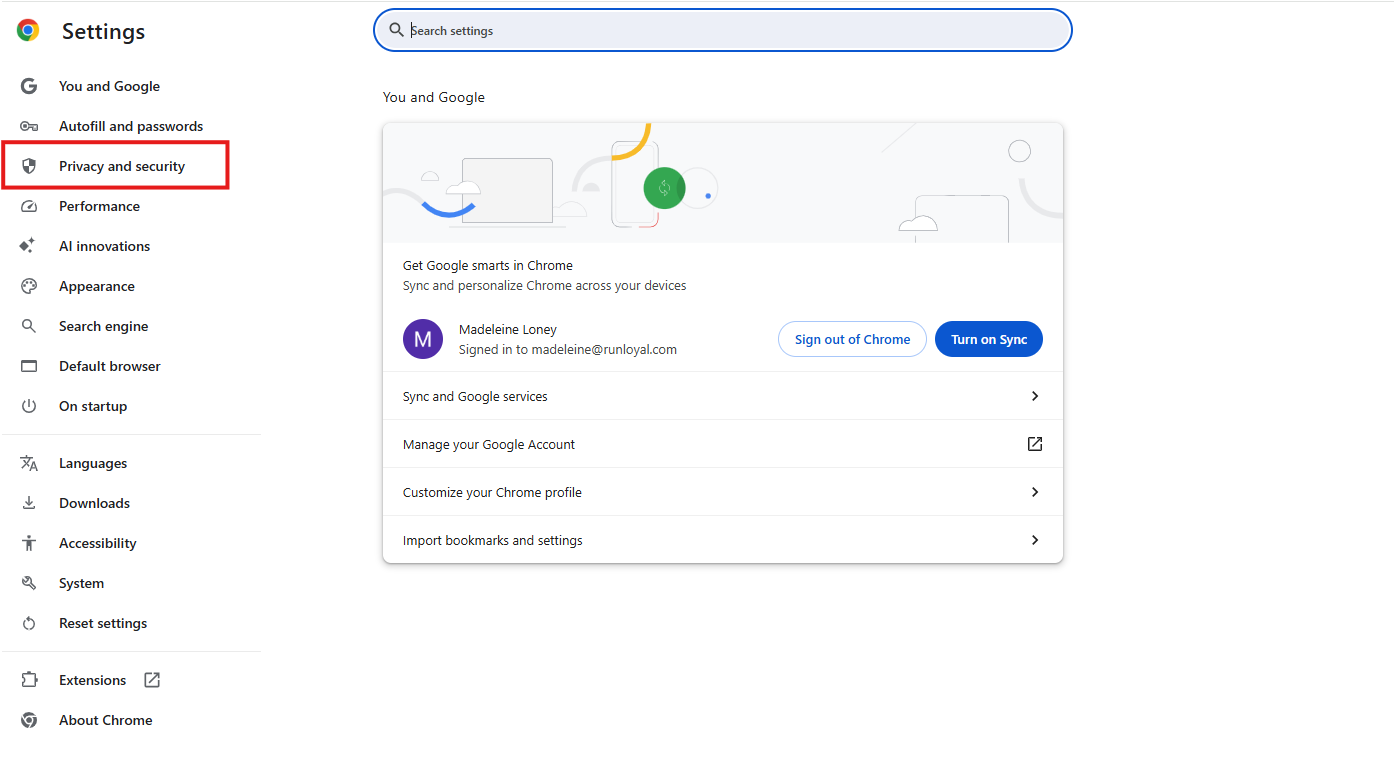
3. Navigate to Privacy & Security.
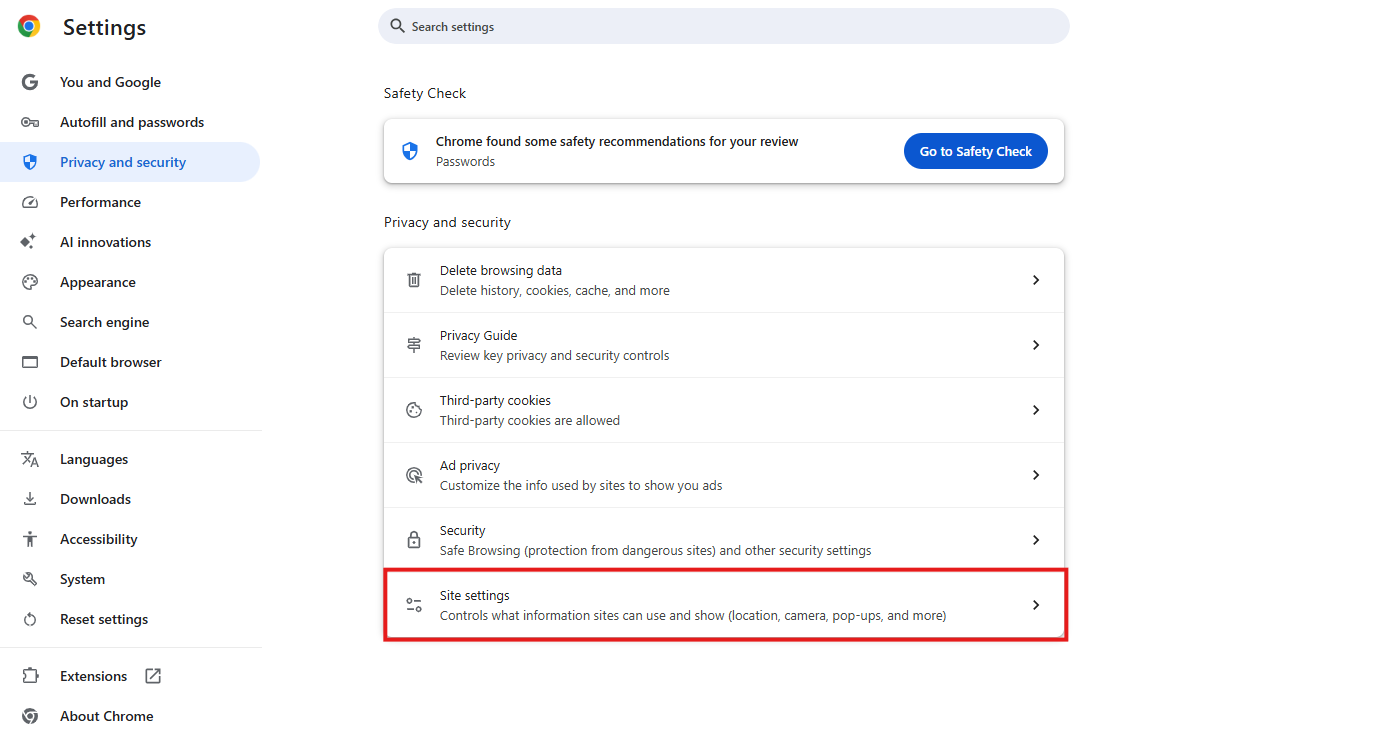
4. Click Site Settings.
5. Under Permissions section, choose Location.
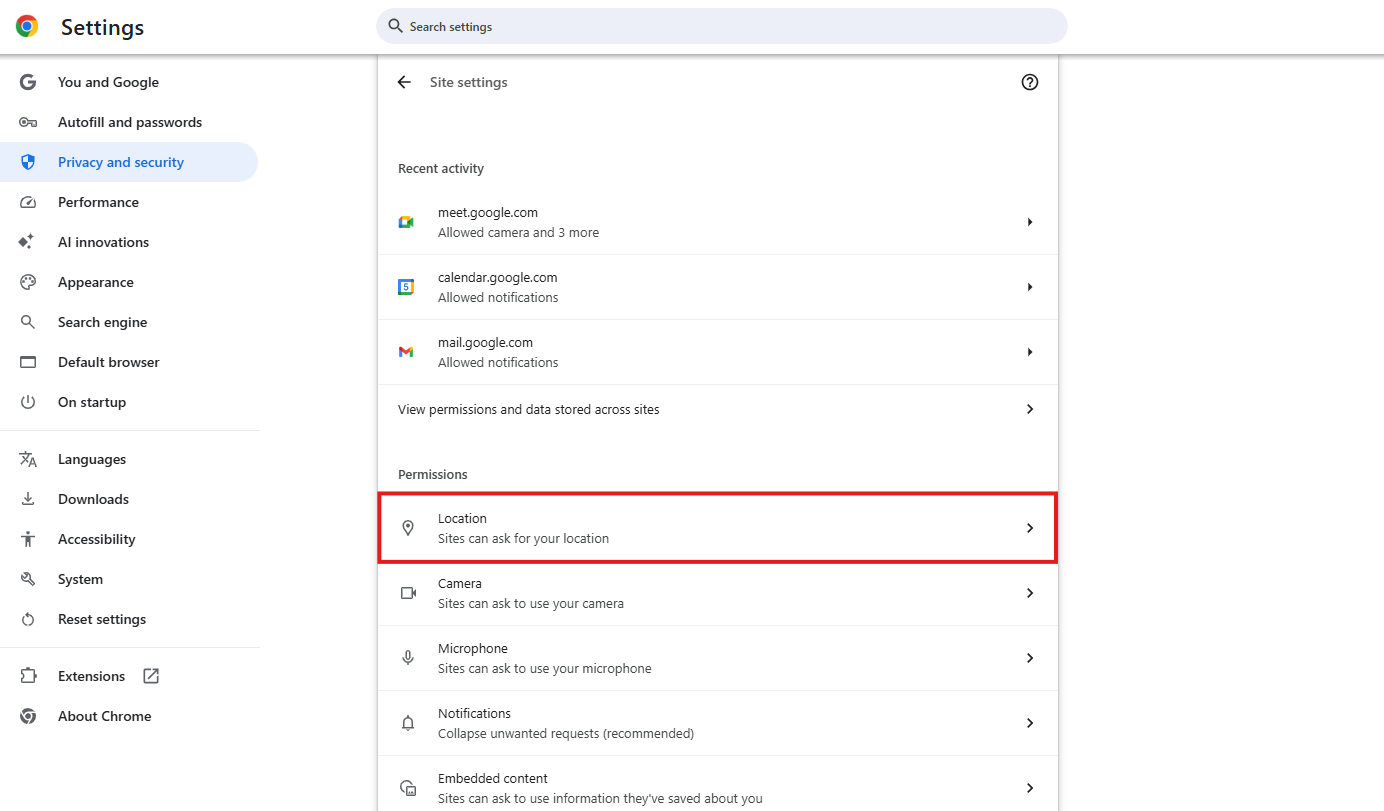
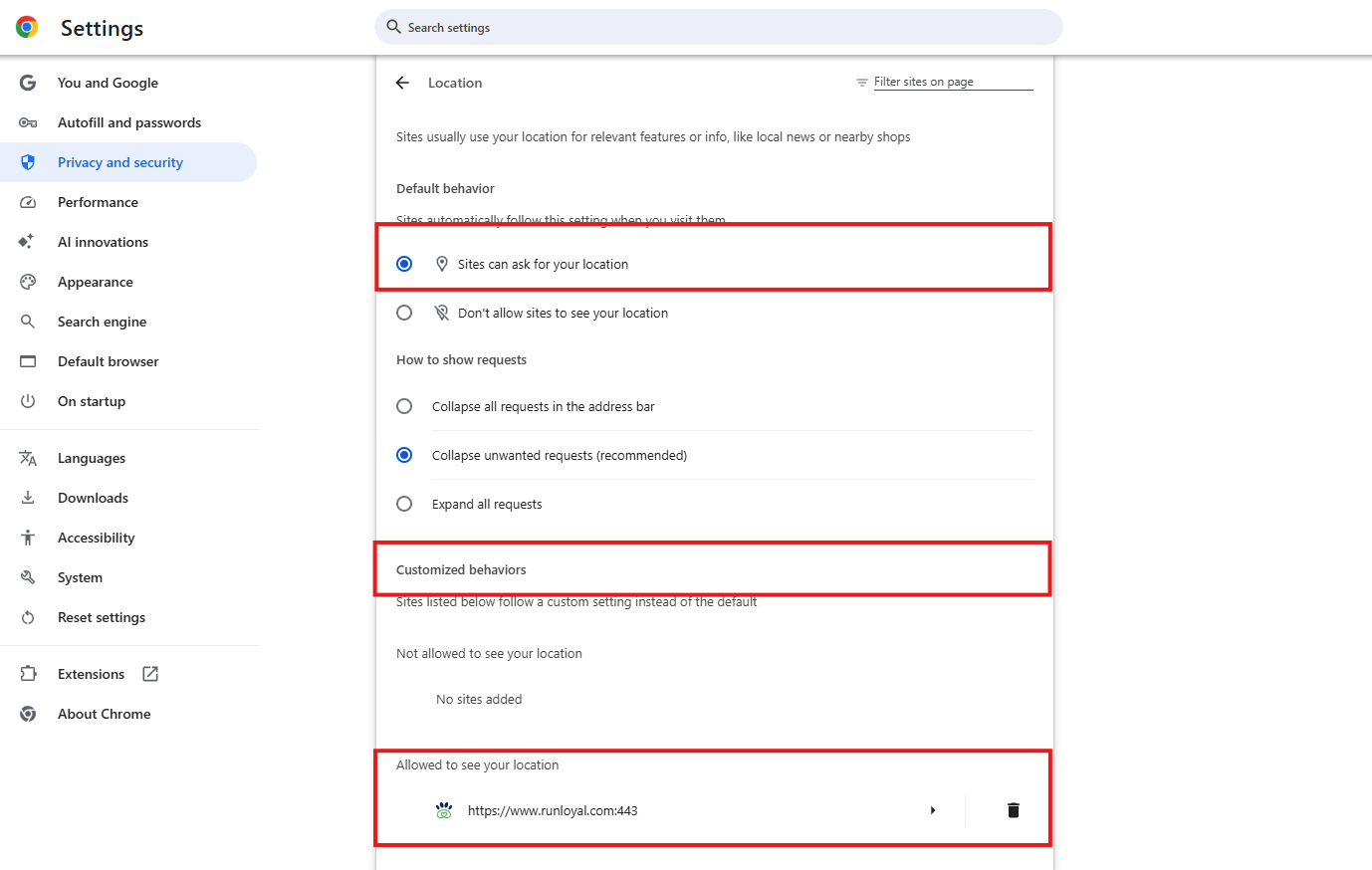
6. Set the default behavior to Sites can ask for your location. You can also optionally add your RunLoyal URL under Customized Behaviors > Allowed to see your location.
Troubleshooting: Enable Location Access in Windows 11 on Computer
1. On the staff member's computer, open Settings (Windows key + I).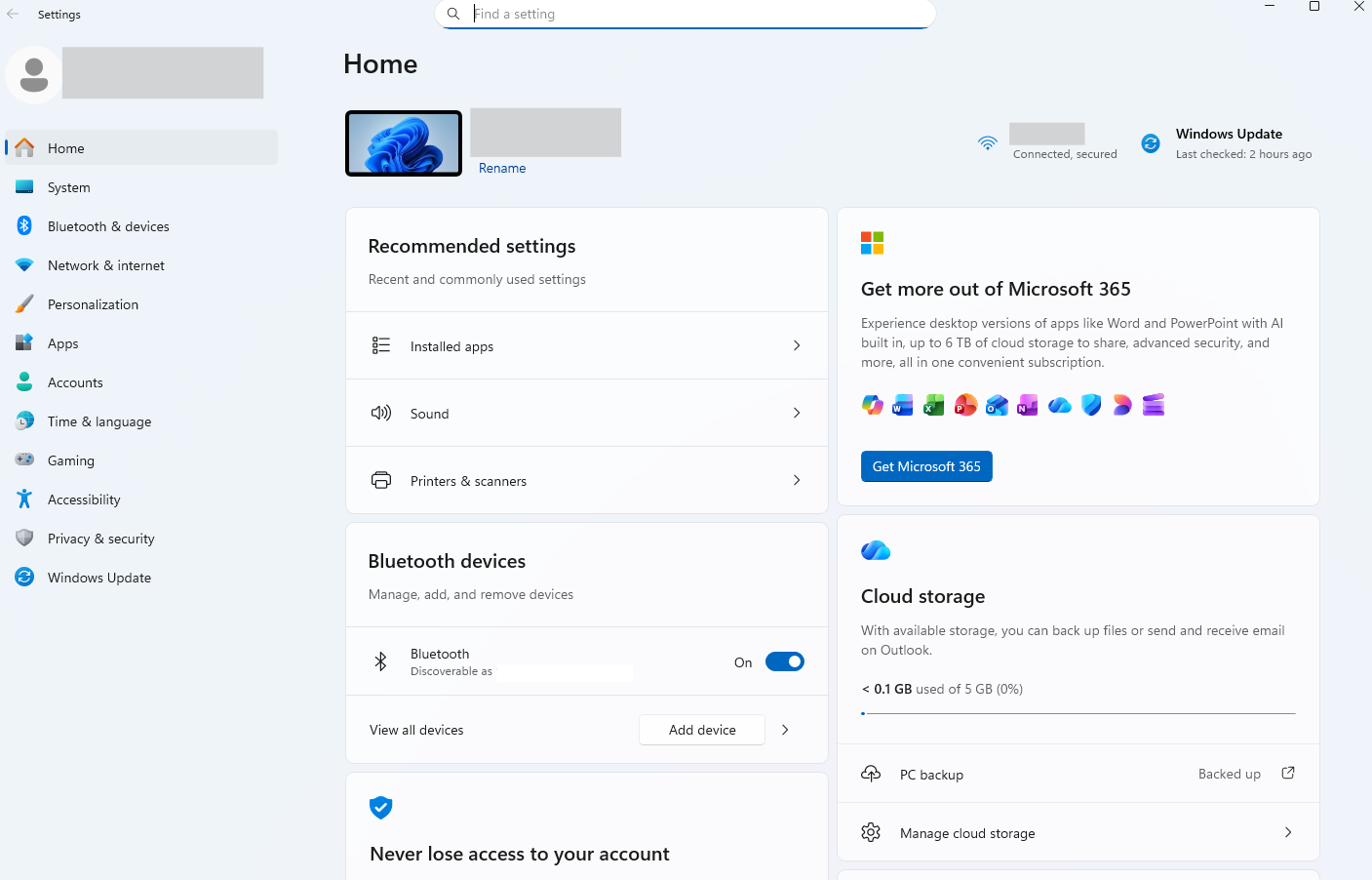
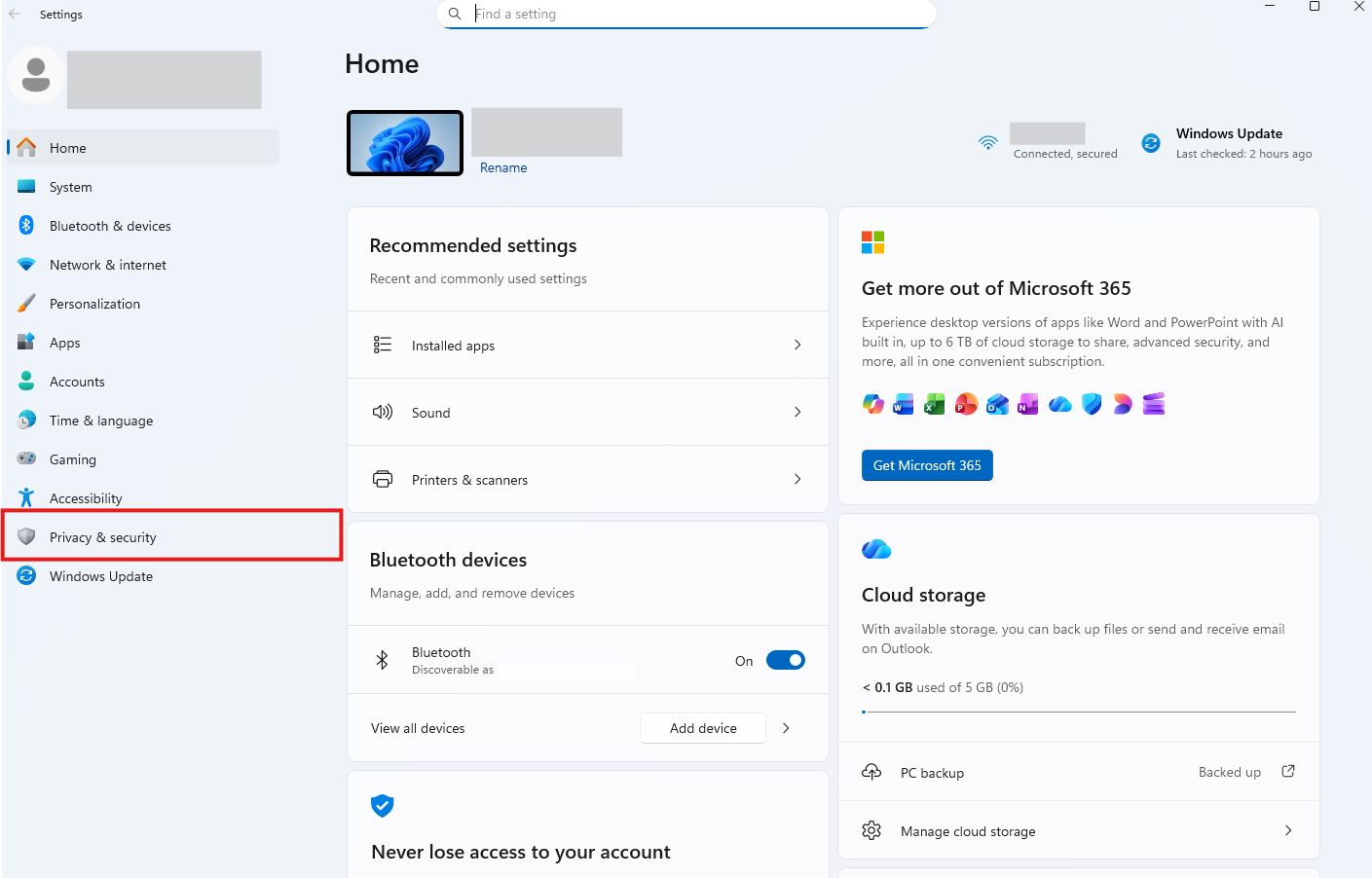
2. Go to Privacy and Security.
3. Click Location.
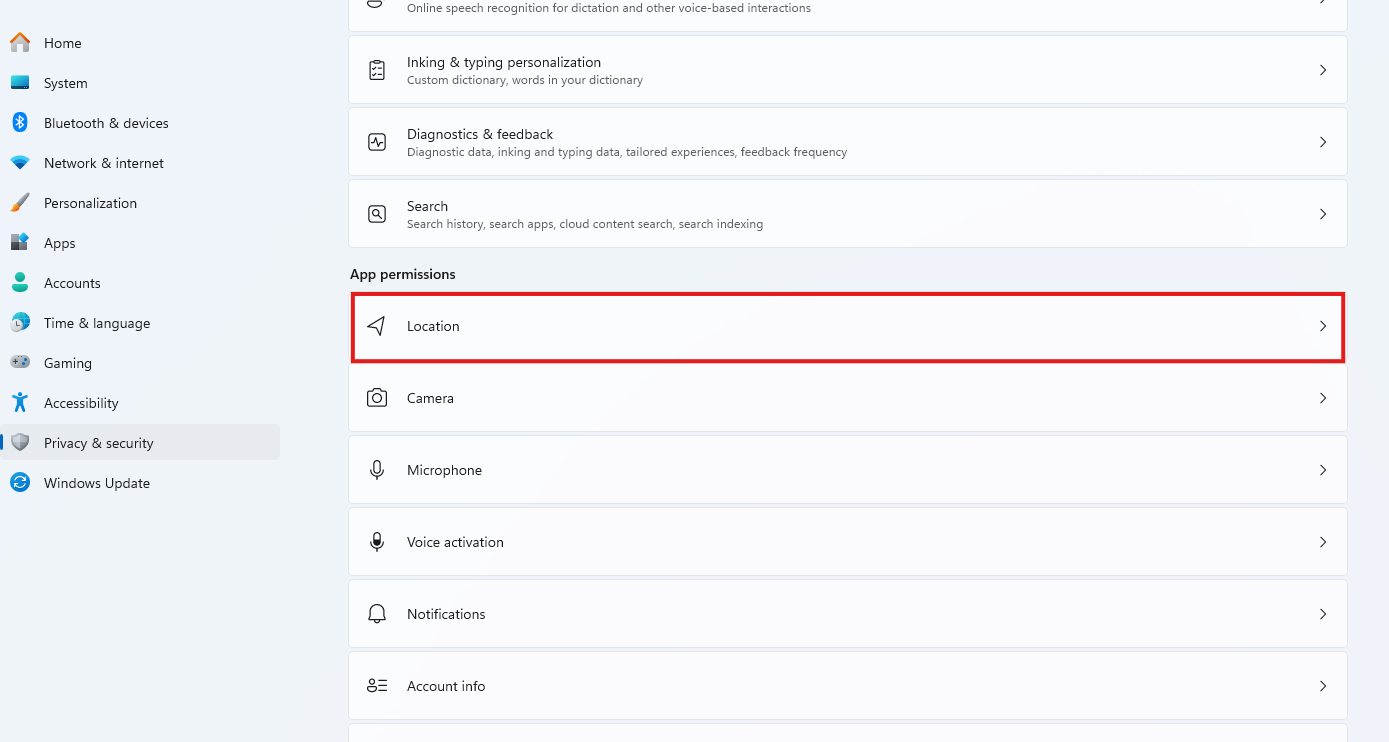
4. Ensure Location Services is enabled.
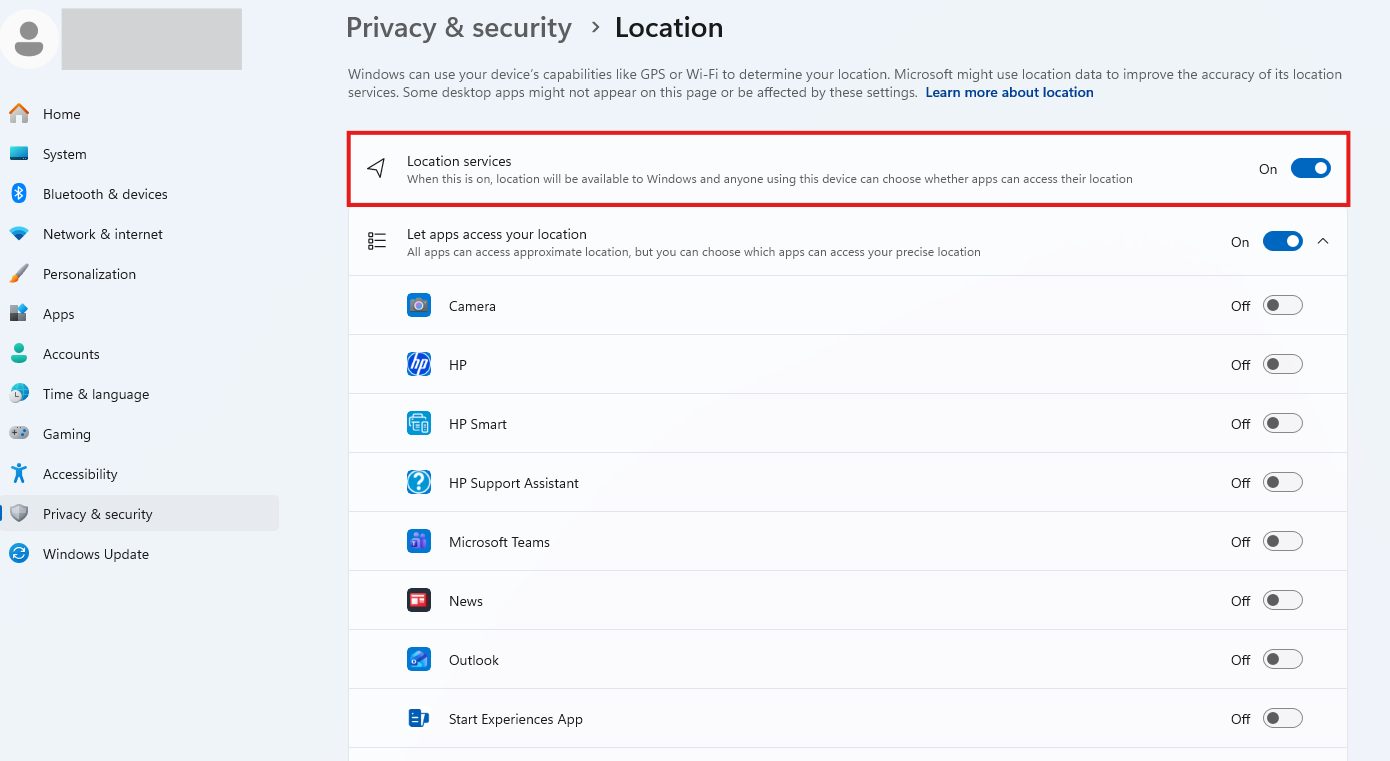
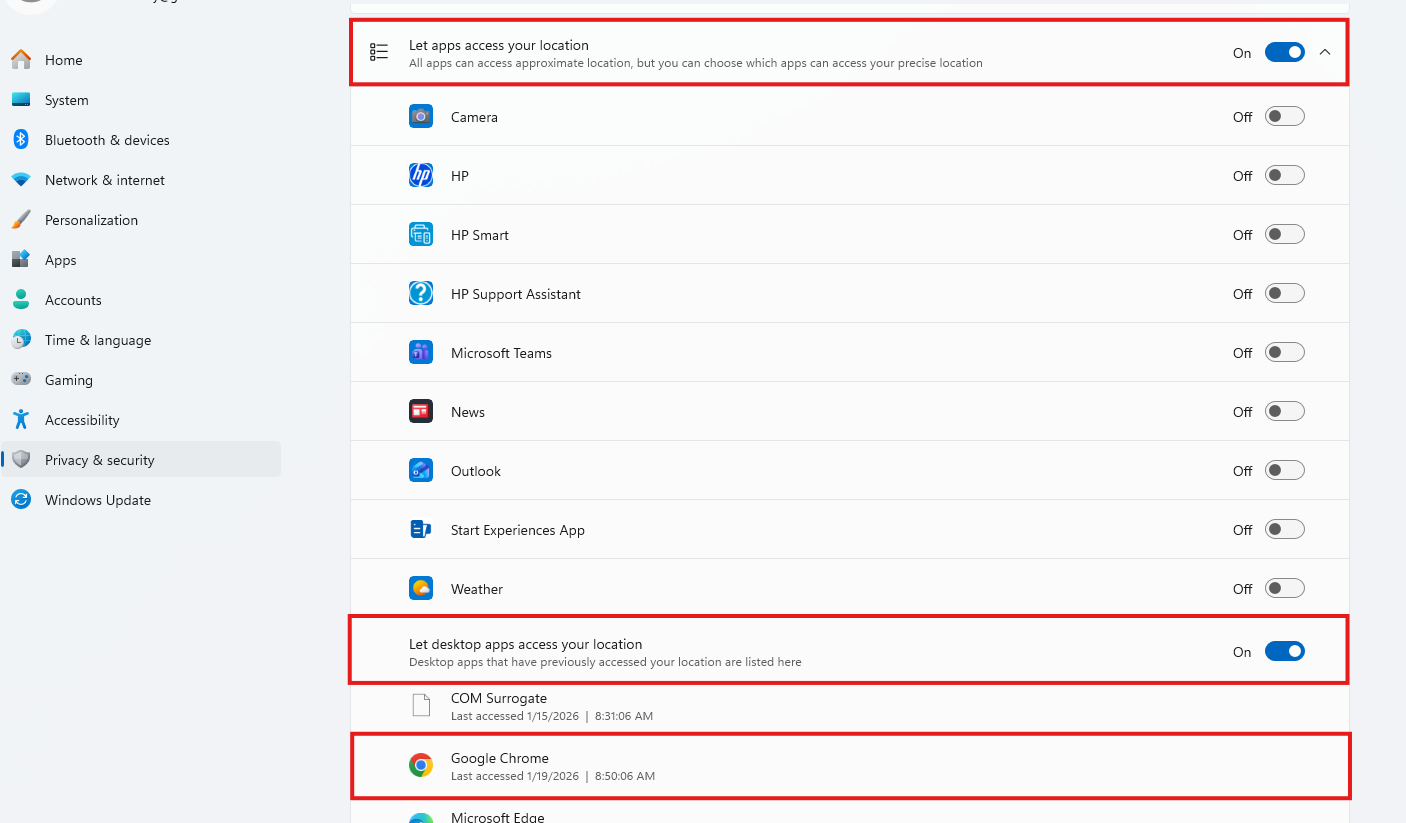
5. Scroll down and ensure Let Apps Open Your Location and Let Desktop Apps Open Your Location are enabled. Ensure Chrome is added to this list.
Troubleshooting: Other Common Geo-Fencing Issues
Sometimes, staff members may still face issues if their device is reporting the wrong GPS location. Use these steps to verify and fix the issue.
1. First, ask the staff member to visit: https://gps-coordinates.org. Have them share the address and coordinates displayed. If the address seems incorrect, their computer’s GPS is likely off.
2. If the computer's GPS is unreliable as discovered in Step 1, they can:
- Use a mobile device to perform clock-in/out using the mobile phone browser or mobile Staff App).
- Use an iPad Kiosk to perform clock-in/out using the Kiosk app (requires Kiosk license).
- User their computer with an external GPS dongle such as this one: GlobalSat DG-388AT Bluetooth GPS.
More Information
For more information on creating a new user, please refer to this article: Add & Edit Staff Users.
For more information on staff user groups, please refer to this article: Create Staff Groups (Permissions).
Was this article helpful?
That’s Great!
Thank you for your feedback
Sorry! We couldn't be helpful
Thank you for your feedback
Feedback sent
We appreciate your effort and will try to fix the article